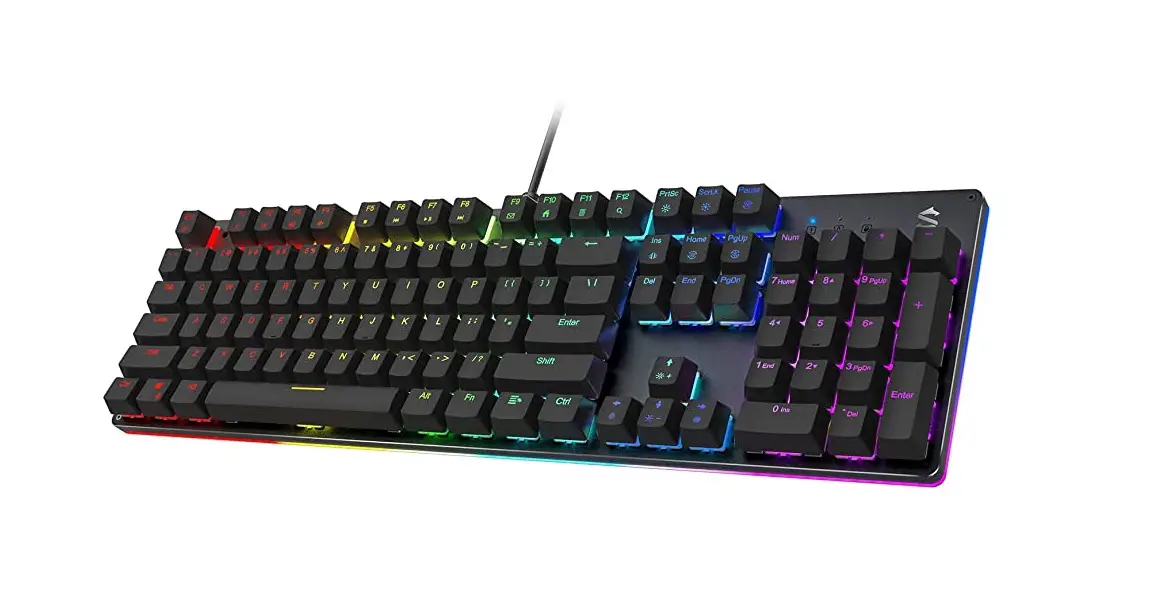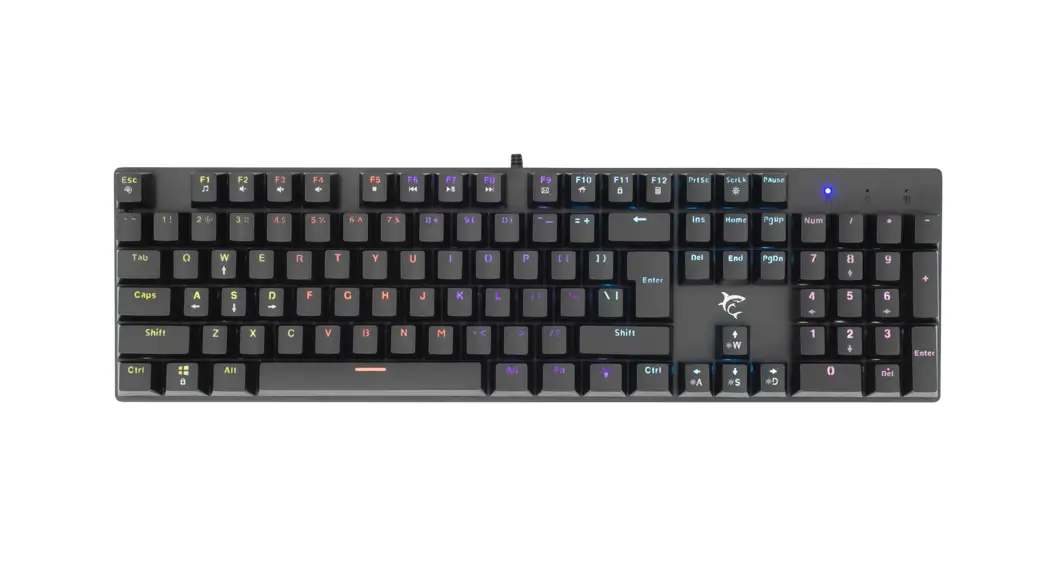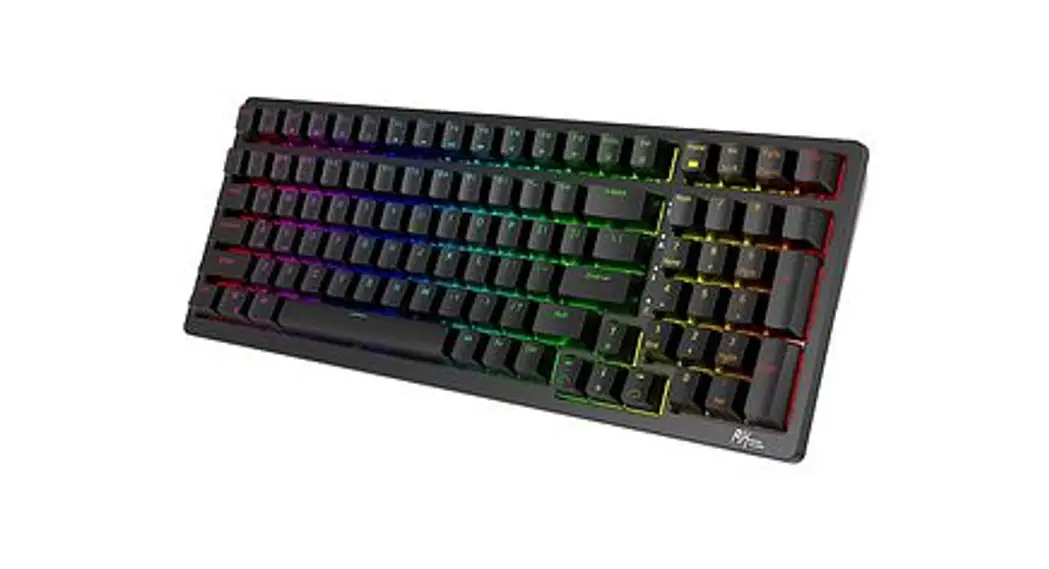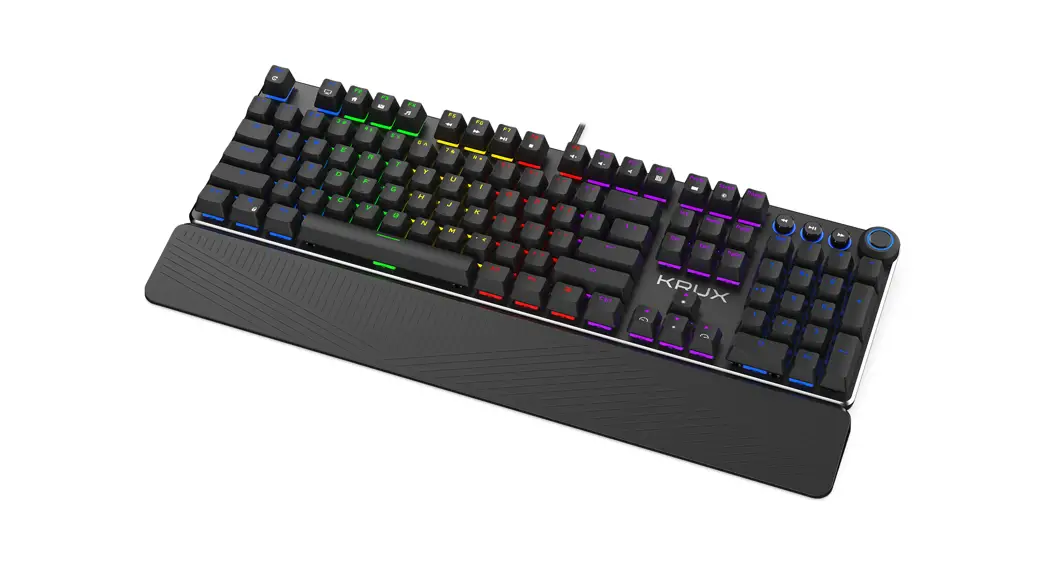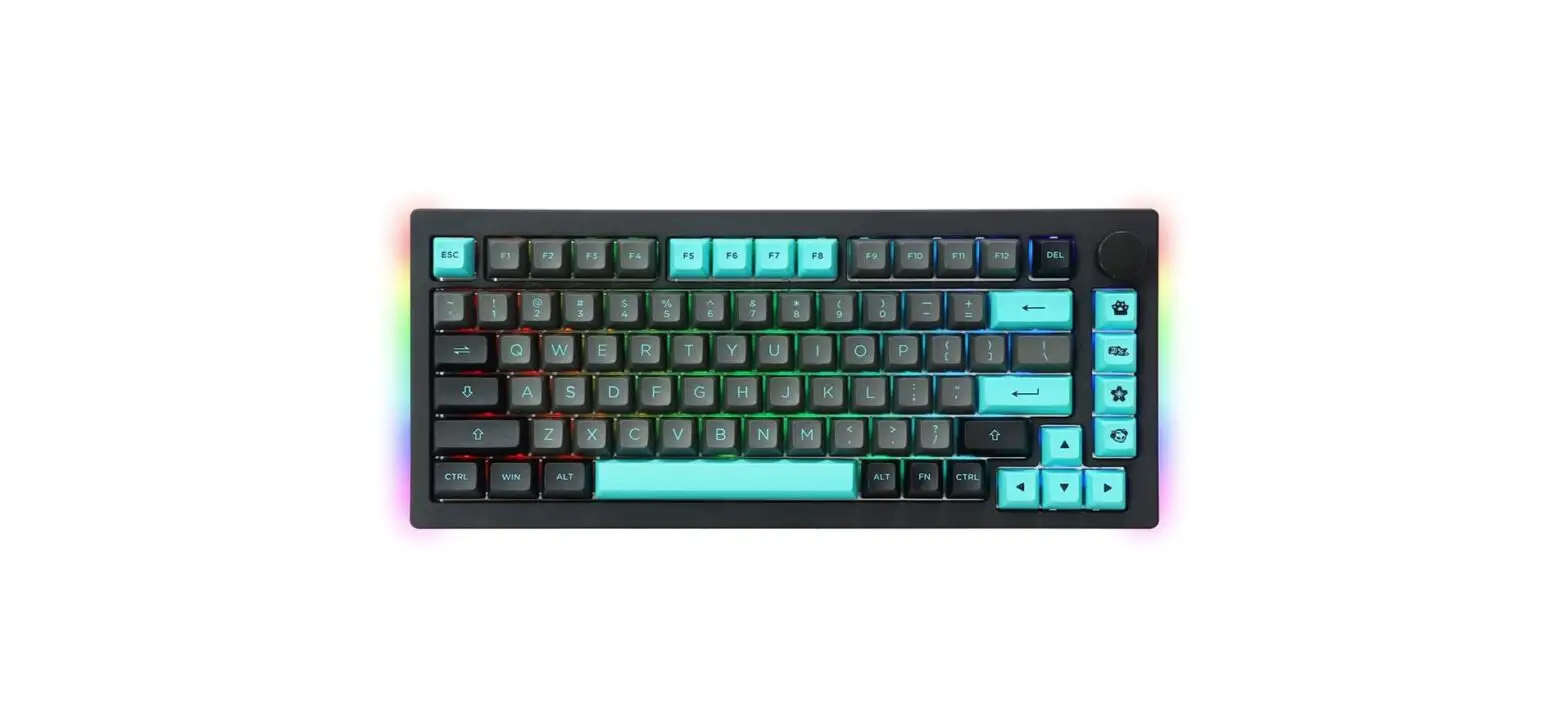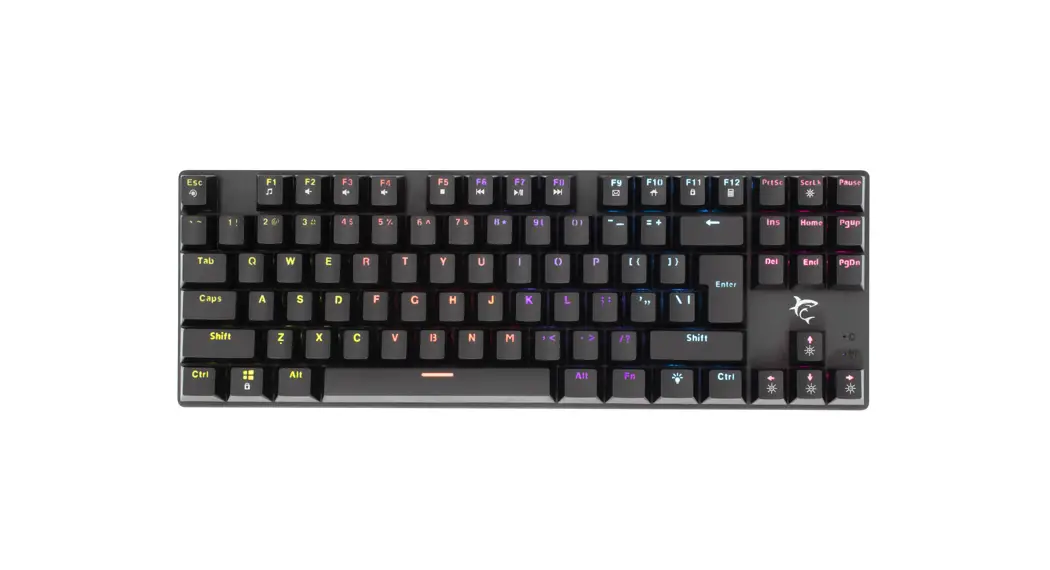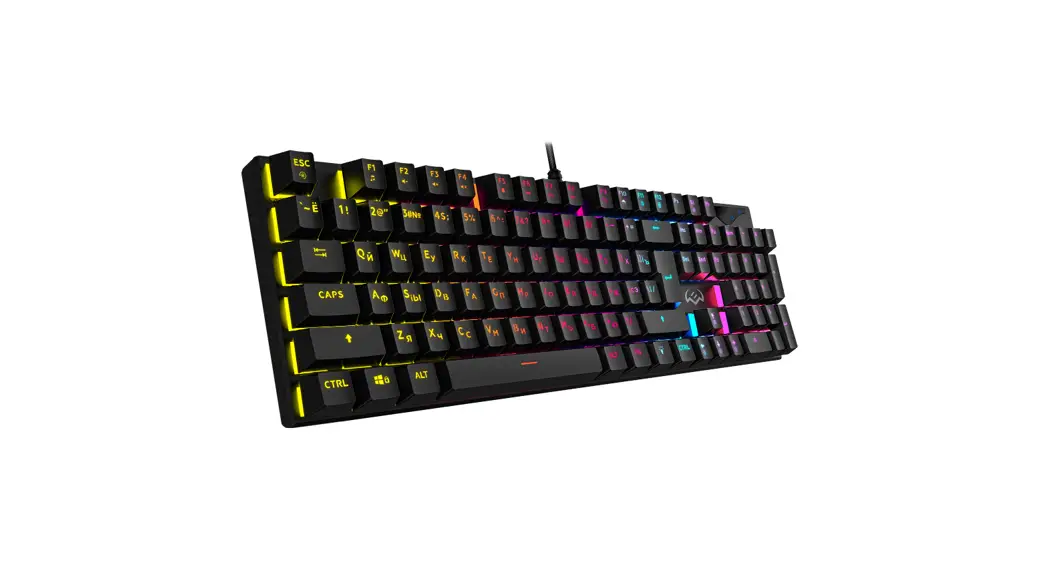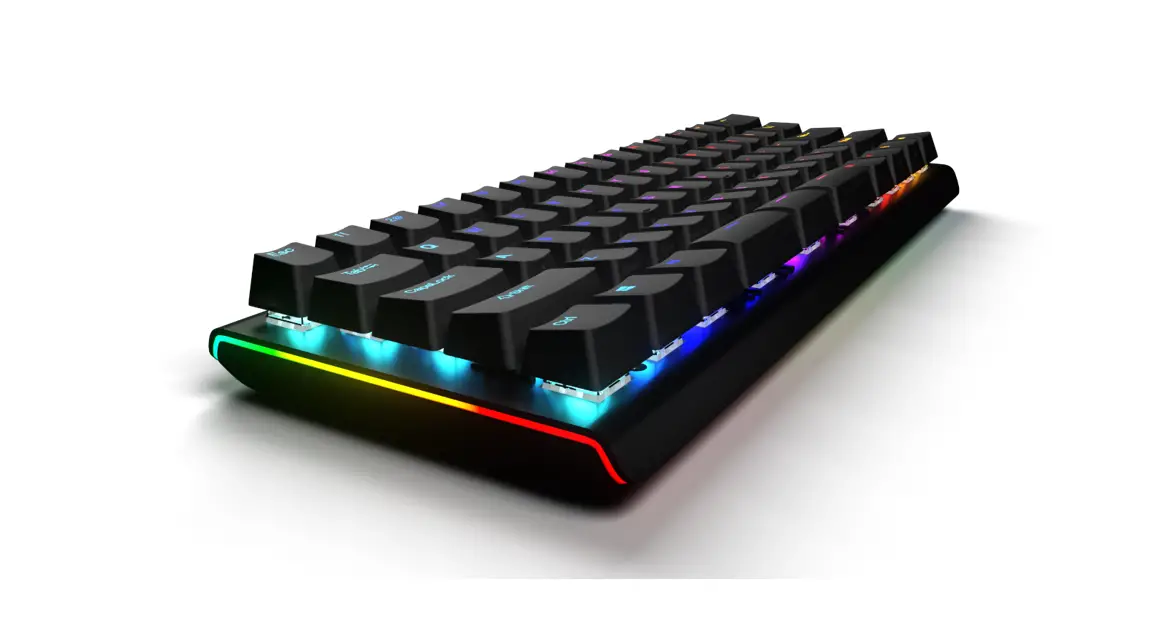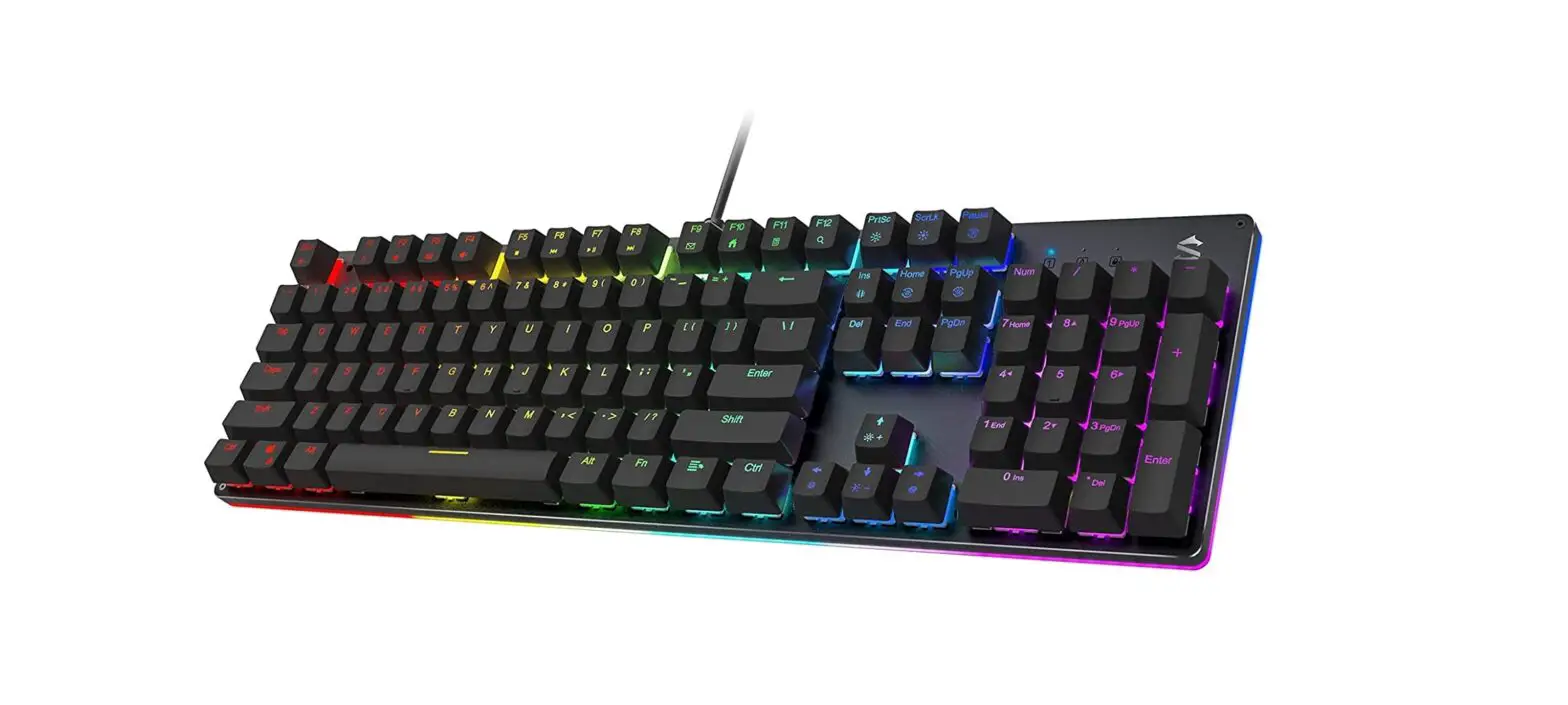
US BS-K2 Sixgill K2 RGB Mechanical Gaming Keyboard
Thank you for purchasing the BLACK SHARK BS-K2 RGB Mechanical Gaming Keyboard. Please read this user manual carefully and keep it for future reference. If you need any assistance, please contact our support team with your product model number and Amazon order number.
GETTING STARTED
- Plug the USB connector of this keyboard into a USB port on your computer or laptop
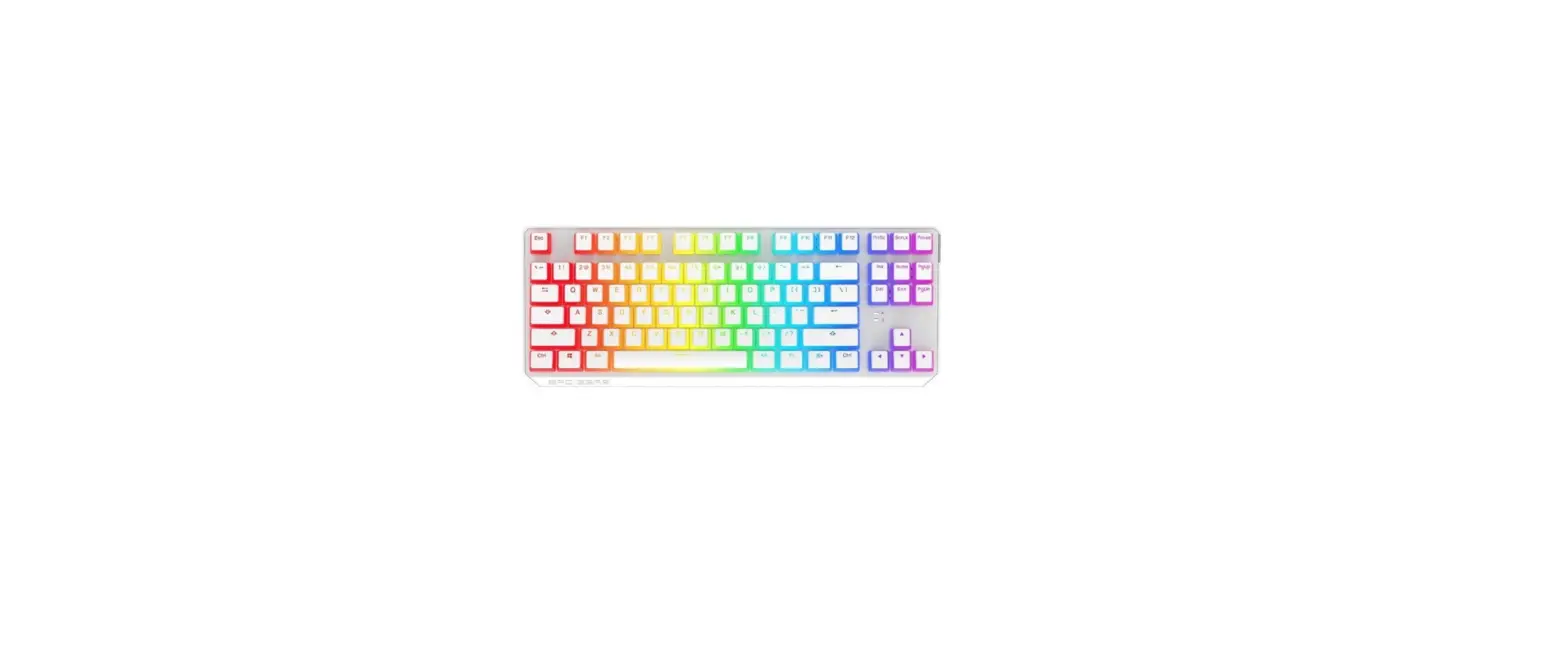
- Press “FN + PrtSc” to switch between the 12 lighting effects. Press “FN + Home” to choose from the 8 color settings. For example, press “FN + PrtSc” once; then press “FN + Home” repeatedly until you arrive at your desired color
Notes
- Some lighting effects aren’t available in other colors
Press “FN + Esc” to turn off all lighting. If you press “EN + Ins” to turn off the surround lighting on the keyboard panel before turning all lighting off, pressing “FN + Esc” again won’t turn surround lighting on. Use “FN + Ins” to turn surround lighting on
EDITING CUSTOM LIGHTING EFFECTS
- Press “FN + Pause” repeatedly to choose a gaming lighting effect you want to edit
- Press “FN + Scrlk” to enter customization mode. The three LED indicators on the top right of the keyboard will flash rapidly
- Press any key you want to light up
- Press “FN + Scrlk” to save your effect
Notes
- Press a key repeatedly to change the color when editing custom lighting effects
- You can have up to five custom lighting effects by editing all five default gaming lighting effects
- Function key can’t be lit up or customized when editing custom lighting effects
Press and hold “FN + Del” for three seconds to reset the keyboard back to factory settings
IFAR Why doesn’t the keyboard respond after I connect it to my computer? We recommend a direct connection to your laptop/desktop to avoid any latency issues. However, if this keyboard is connected via a USB hub, allow 10–15 seconds for proper detection and avoid using any unpowered or underpowered hubs to ensure sufficient power supply to the keyboard.
What if some keys aren’t responding? Try unplugging it and plugging it in again. If this doesn’t fix the issue, please contact us through the appropriate e-mail address below.
PRODUCT CARE & USE
- This keyboard is compatible with most Cherry MX keycaps and other keycaps with the same stems
- Keep away from extreme heat
WARRANTY & CUSTOMER SUPPORT
For questions, support, or warranty claims, please contact us at the address below that corresponds with your region. Please include your Amazon order number and product model number.
Amazon US orders: [email protected] Amazon EU orders: [email protected] Amazon CA orders: support.ca@blackshark.com Amazon JP orders: [email protected]
* Please note, BLACK SHARK can only provide after sales service for products purchased directly from BLACK SHARK. If you have purchased from a different seller, please contact them directly for service or warranty issues.
Thank you for purchasing the BLACK SHARK BS–K2 RGB Mechanical Gaming Keyboard. Please read this user manual carefully and keep it for future reference. If you need any assistance, please contact our support team with your product model number and Amazon order number.
PACKAGE CONTENTS
RGB Mechanical Gaming Keyboard
User Manual
Warranty Card
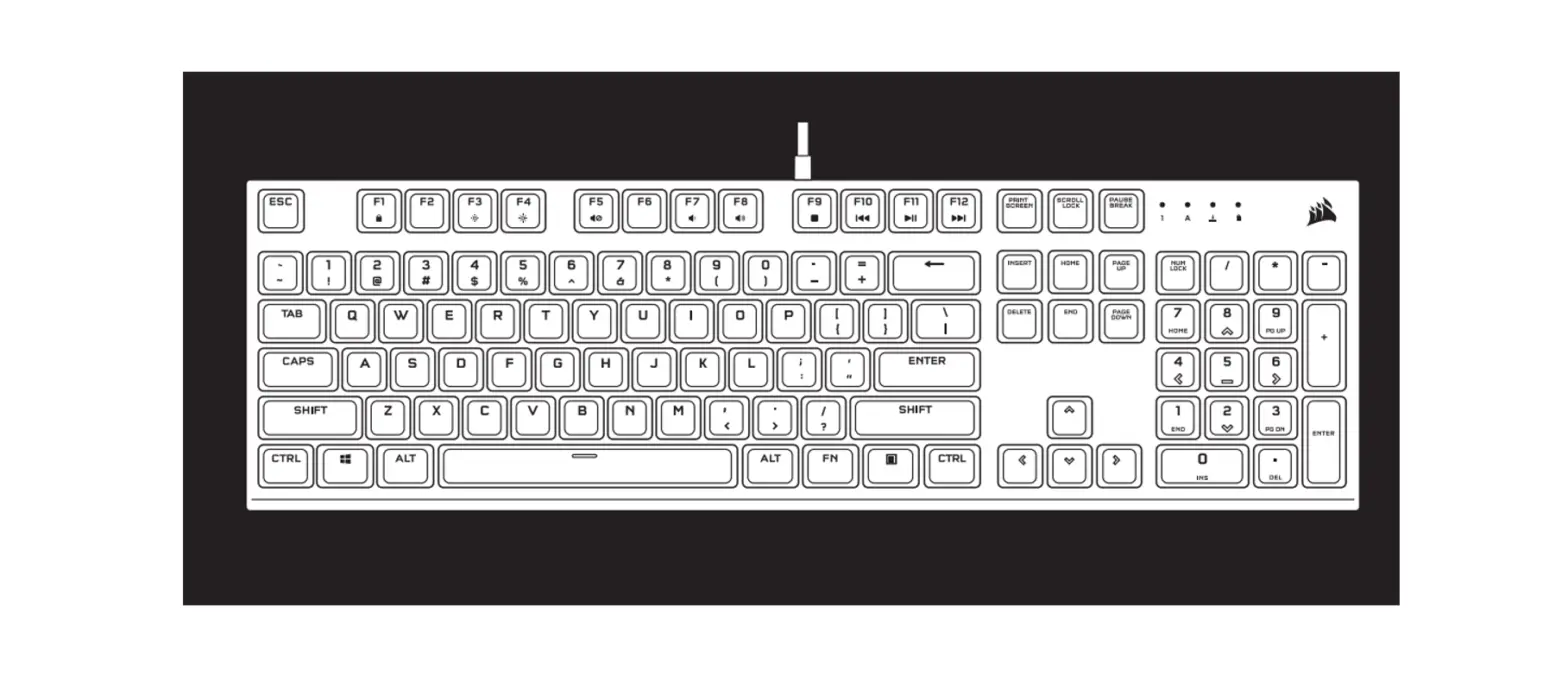
OVERVIEW
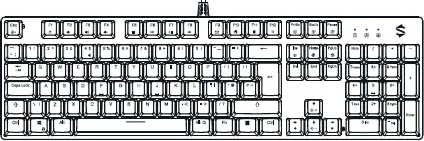
SPECIFICATIONS
Model – BS-K2
Number of Keys – 105
Keycap Material – ABS
Key Switch Type – Blue
Actuator Travel – 4.0+0.2mm
Pre-Travel – 2.0+0.2mm
Actuation Force – 60+15gf
Key Switch Lifespan – 50 million keystrokes
Input – DC 5V 450mA
Interface – USB 2.0
Cable Length – 1.6m / 5.25ft
Operating System Compatibility – Windows XP/7/8/10
Dimensions – 433 x 126 x 37mm
Weight – 900g
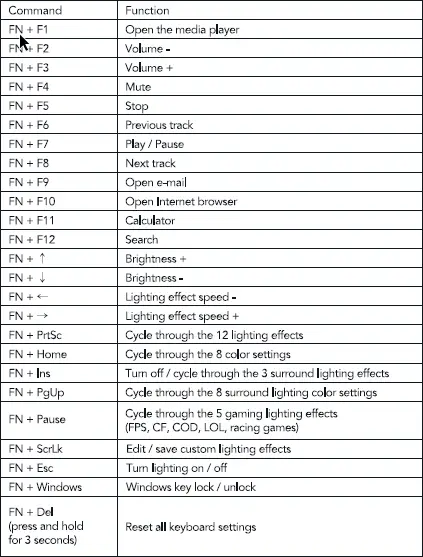
Function Keys
GETTING STARTED
- Plug the USB connector of this keyboard into a USB port on your computer or laptop
- Press “EN + PrtSc” to switch between the 12 lighting effects. Press “FN + Home” to choose from the 8 color settings. For example, press “FN + PrtSc” once; then press “FN + Home” repeatedly until you arrive at your desired color
Notes
- Some lighting effects aren’t available in other colors
- Press “FN + Esc” to turn off all lighting. If you press “FN + Ins” to turn off the surround lighting on the keyboard panel before turning all lighting off, pressing “FN + Esc” again won’t turn surround lighting on. Use “FN + Ins” to turn surround lighting on
EDITING CUSTOM LIGHTING EFFECTS
- Press “FN + Pause” repeatedly to choose a gaming lighting effect you want to edit
- Press “FN + Scrlk” to enter customization mode. The three LED indicators on the top right of the keyboard will flash rapidly
- Press any key you want to light up
- Press “FN + Scrlk” to save your effect
Notes
- Press a key repeatedly to change the color when editing custom lighting effects
- You can have up to five custom lighting effects by editing all five default gaming lighting effects
- Function key can’t be lit up or customized when editing custom lighting effects
- Press and hold “FN + Del” for three seconds to reset the keyboard back to factory settings
IFAR Why doesn’t the keyboard respond after I connect it to my computer? We recommend a direct connection to your laptop/desktop to avoid any latency issues. However, if this keyboard is connected via a USB hub, allow 10–15 seconds for proper detection and avoid using any unpowered or underpowered hubs to ensure sufficient power supply to the keyboard.
What if some keys aren’t responding?
Try unplugging it and plugging it in again. If this doesn’t fix the issue, please contact us through the appropriate e–mail address below.
PRODUCT CARE & USE
- This keyboard is compatible with most Cherry MX keycaps and other keycaps with the same stems
- Keep away from extreme heat
WARRANTY & CUSTOMER SUPPORT
For questions, support, or warranty claims, please contact us at the address below that corresponds with your region. Please include your Amazon order number and product model number.
Amazon US orders: [email protected]
Amazon EU orders: [email protected]
Amazon CA orders: [email protected]
Amazon JP orders: supp[email protected]
* Please note, BLACK SHARK can only provide after sales service for products purchased directly from BLACK SHARK. If you have purchased from a different seller, please contact them directly for service or warranty issues.
Thank you for purchasing the BLACK SHARK BS-K2 RGB Mechanical Gaming Keyboard. Please read this user manual carefully and keep it for future reference. If you need any assistance, please contact our support team with your product model number and Amazon order number.