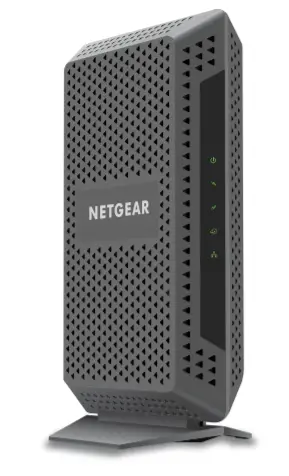
Netgear Cg4500bd Cable Modem Router User Manual

Netgear Cg4500bd Cable Modem Router User Manual

Netgear CG4500BD Cable Modem Router

Modem Information

DOCSIS 3.0 Dual Band WiFi Modem

8×4 channel bonding with speeds of up to 150 Mbps on a wired connection

Cox recommends a DOCSIS 3.1 modem or gateway

Highest Service Level

Preferred 150

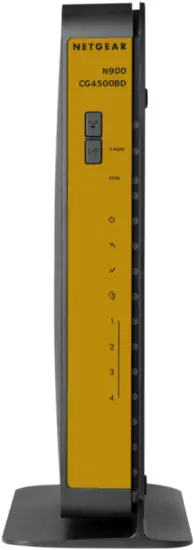
Front View

Front View of the modem and lights

Click to enlarge.

After the cable modem is successfully registered on the network, the POWER, DS, US, and ONLINE indicators illuminate continuously to indicate that the cable modem is online and fully operational.

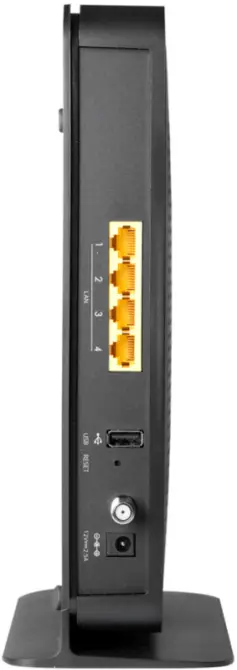
Back View

Back View of the modem and lights

Click to enlarge.

The Netgear CG4500BD has the following ports available on the back of the WiFi modem:
  • GE 1-4 (Gigabit Ethernet 1-4 also known as LAN 1-4) – Four 10/100/1000 auto-sensing RJ-45 ports. Connect devices on your LAN (Local Area Network) such as a computer, hub or switch to these ports. Only one port is active at a time.
  • USB – Connects to the USB port on your computer.
  • RESET – Use this button in the unlikely event that you want to restore the default factory settings. This button is recessed to prevent accidental resets of your WiFi modem. See Netgear’s support article for steps on how to reset your device to factory settings.
  • CABLE – Connect your coaxial cable line to this port.
  • AC IN – Connect the supplied power cord to this port.

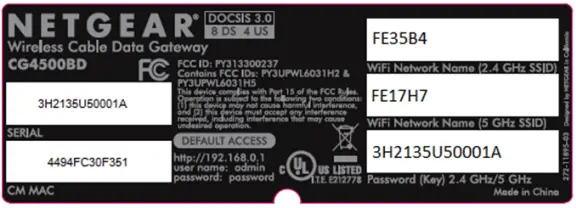
MAC Address / WiFi Network Label

MAC label

Click to enlarge.

MAC addresses are written as 12 digits containing both letters and numbers (0-9, A-F).A MAC address is unique. The first six characters of the MAC address are unique to the manufacturer of the device.

Troubleshooting


The lights indicate the current status of your gateway. To troubleshoot any connection problems, use the table below.

Modem LightStatusProblem
2.4 GHz

2.4 gigahertz light

Solid GreenNone – WiFi is enabled at the 2.4 GHz frequency
BlinkingNone – data flowing
OffWiFi card disabled or not plugged in – To enable or disable the card (2.4Ghz and 5 GHz), press and hold the WLAN button for three seconds.
5 GHz

5 gigahertz light

Solid GreenNone – WiFi enabled at the 5 GHz frequency
BlinkingNone – data flowing
OffWiFi card disabled or not plugged in – To enable or disable the card (2.4Ghz and 5 GHz), press and hold the WLAN button for three seconds.
POWER

Power light

OffNo power – Verify all cable connections and try resetting the modem.
Solid GreenNone
BlinkingPerforming a power-on self-test
RedPerforming a self-test or the thermal cutoff circuit has been triggered
DS

(Downstream)

Downstream light

Blinking GreenScanning for downstream channel – Verify all cable connections and try resetting the modem.
Solid GreenNone – connection from the computer to the Internet established on one channel
Solid BlueNone – operating on more than one channel (downstream bond mode)
OffNo downstream channel locked
US

(Upstream)

Upstream light

OffUpstream channel inactive – Verify all cable connections and try resetting the modem.
Blinking GreenScanning for upstream channel – Verify all cable connections and try resetting the modem.
Solid GreenNone – connection from the Internet to the computer established on one channel
Solid BlueNone. The modem is operating on more than one channel (upstream bond mode).
INTERNET

Internet light

OffNo connection – Verify all cable connections and try resetting the modem.
Solid GreenNone – cable WiFi modem operational
Slow BlinkNone – cable WiFi modem receiving DHCP information
Fast BlinkNone cable WiFi modem downloading a configuration file
LINK 1 – 4

Link light

OffNo Ethernet link detected
Blinking GreenNone – data is flowing
Blinking AmberNone – data is flowing
Solid GreenNone – connected to 1000 Mbps
Solid AmberNone – connected at 10 or 100 Mbps
WPS

WPS light

OffNo WiFi client associated with the cable modem via WPS. Enable WiFi.
Blinking GreenNone – WPS in discovery mode, LED blinks for up to 2 minutes
Solid GreenNone – WPS configuration successful
WLAN

WLAN light

OffWiFi card disabled – Enable WiFi by pressing this button for three seconds.
Blinking GreenData flowing
Solid GreenNone – WiFi enabled


Manufacturer Resources

Documents / Resouces

Download manual
Here you can download full pdf version of manual, it may contain additional safety instructions, warranty information, FCC rules, etc.


Related Manuals