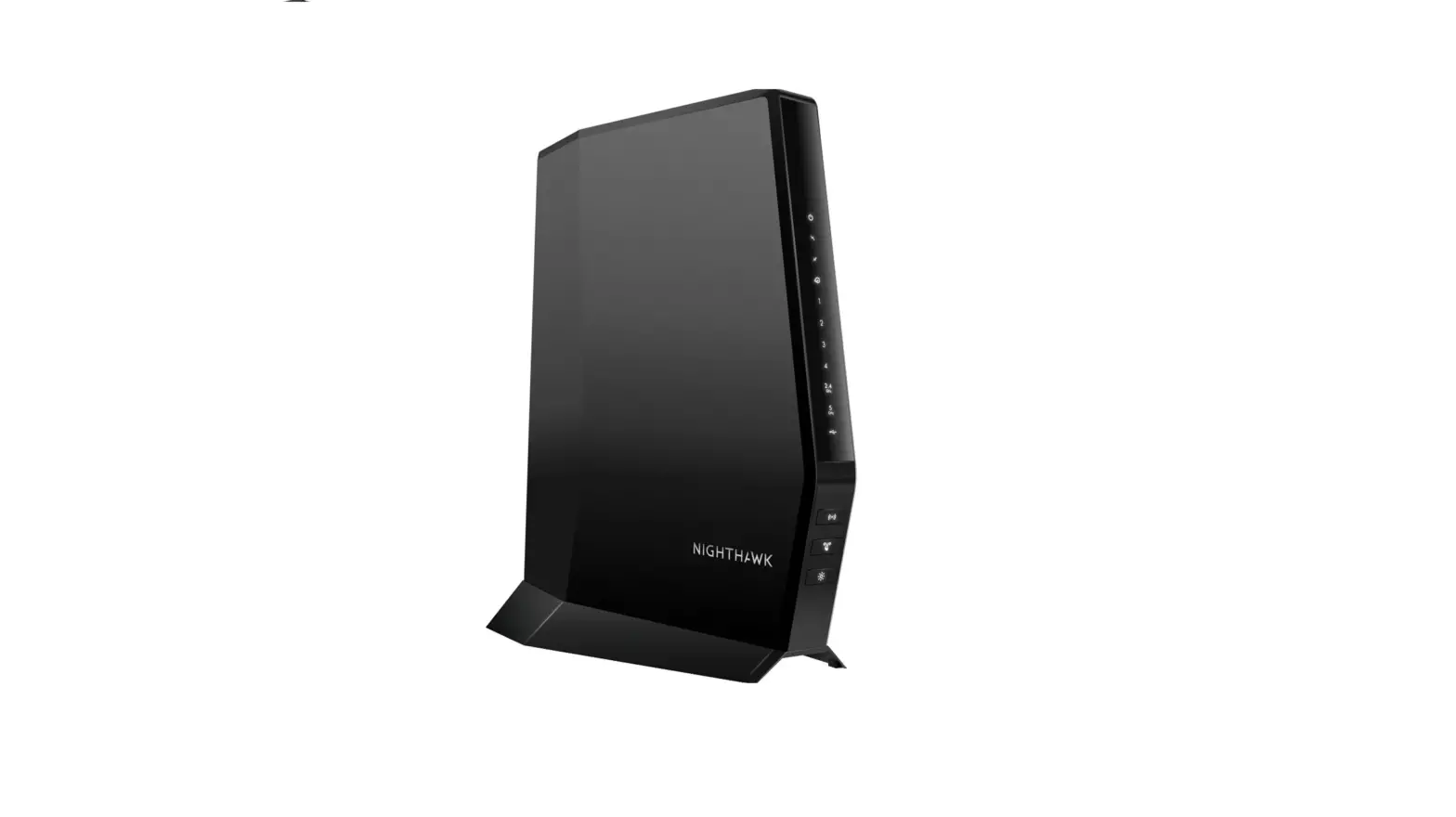
Netgear C3700v2 Cable Modem Router
Modem InformationDOCSIS 3.0 Dual Band WiFi Modem 8×4 channel bonding with speeds of up to 150 Mbps on a wired connection Cox recommends a DOCSIS 3.0 16×4 or higher modem | Highest Service LevelPreferred 150 |
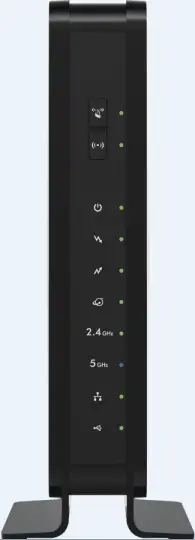
Front View
| After the cable modem successfully registers on the network, the Power, Upstream, Downstream, and Internet indicators illuminate continuously to indicate that the modem is online and fully operational. For more details, refer to the Modem Lights section. | |
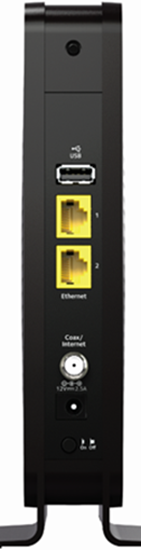
Back View
| The Netgear C3700v2 has the following ports available on the back of the modem.
| |
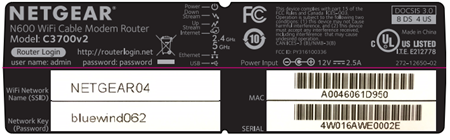
MAC Address
| MAC addresses are written as 12 digits containing both letters and numbers (0-9, A-F). A MAC address is unique. The first six characters of the MAC address are unique to the manufacturer of the device.
|
Troubleshooting
The lights indicate the current status of your gateway. To troubleshoot any connection problems, use the table below.
| Modem Light | Status | Problem |
|---|---|---|
| WPS
| Blinking Green | None This button lets you use WPS to join the WiFi network without typing the WiFi password. The WPS LED blinks during this process and then lights solid. |
| WiFi On/Off
| Off | WiFi radio off. Press and hold the WiFi On/Off button for two seconds to turn the wireless radios on. |
| On | None. WiFi radio on. | |
| Power
| Off | No power. Verify all cable connections and try resetting the modem. If cable is OK and modem reset does not work, contact Customer Support. |
| Solid Green | None. | |
| Downstream
| Off | No downstream channel locked. Verify all cable connections and try resetting the modem. If cable is OK and modem reset does not work, contact Customer Support. |
| Blinking Green | Scanning for downstream channel. Verify all cable connections and try resetting the modem. If cable is OK and modem reset does not work, contact Customer Support. | |
| Solid Green | None. Connection from the computer to the Internet is established on one channel. | |
| Upstream
| Off | No upstream channel locked. |
| Blinking Green | Scanning for upstream channel. Verify all cable connections and try resetting the modem. If cable is OK and modem reset does not work, contact Customer Support. | |
| Solid Green | None. Connection from the Internet to the computer established on one channel. | |
| Internet
| Off | No connection. Verify all cable connections and try resetting the modem. If cable is OK and modem reset does not work, contact Customer Support. |
| Solid Green | None. Cable WiFi modem operational. | |
| Slow Blink | None. Cable WiFi modem receiving DHCP information. | |
| Fast Blink | None. Cable WiFi modem downloading a configuration file. | |
| 2.4 GHz WiFi
| Off | 2.4 GHz radio off. Press and hold the WiFi On/Off button for two seconds to turn the wireless radios on. |
| Solid Green | None. 2.4 GHz radio on. | |
| 5 GHz WiFi
| Off | 5 GHz radio off. |
| Solid Green | None. 5 GHz radio on. Press and hold the WiFi On/Off button for two seconds to turn the wireless radios on. | |
| Ethernet
| Off | No device connected to an Ethernet port. Connect a device to the Ethernet port on the back. |
| Solid Green | None – a device is connected to an Ethernet port and transferring data. | |
| USB
| Off | No device connected via USB. Connect a device to the USB port on the back. |
| On | A device is connected via USB and is ready for use. |


Manufacturer Resources
For more detailed technical information, use the resources below.