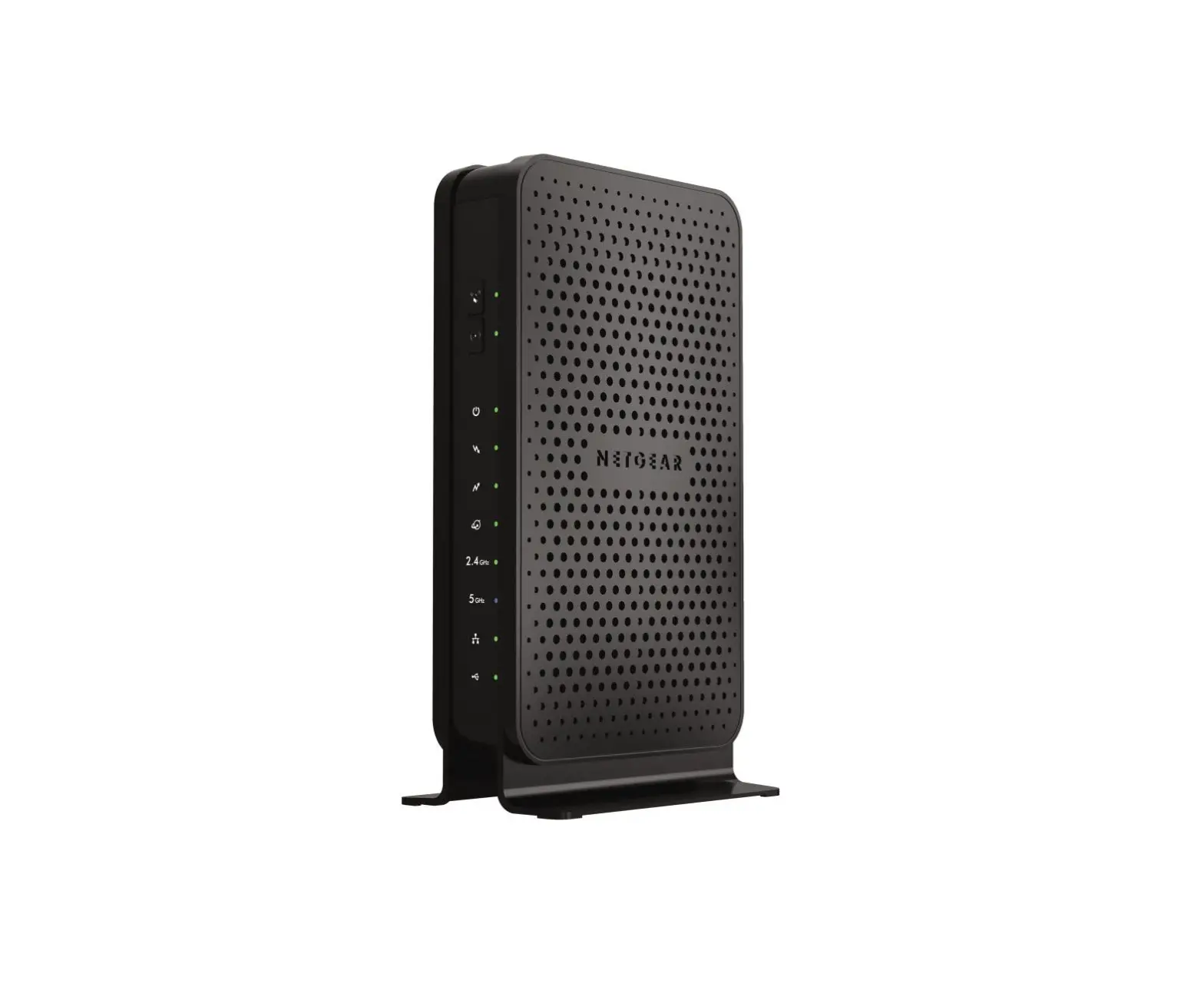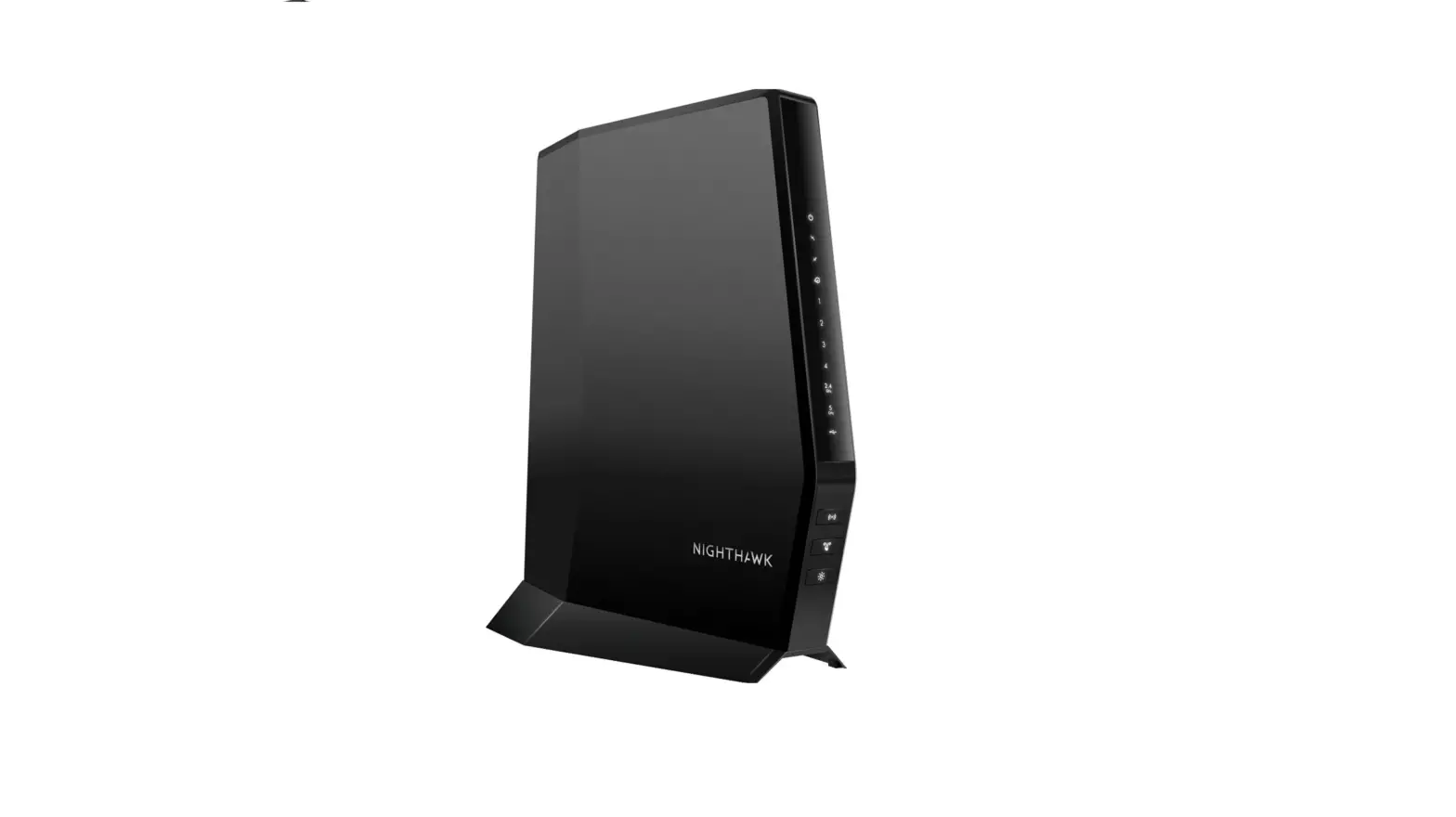
Netgear C6300 Cable Modem WiFi Router Combo
Modem InformationDOCSIS 3.0 Dual Band WiFi Modem 16×4 channel bonding To achieve Gigablast or Ultimate Classic speeds, a DOCSIS 3.1 modem is required | Highest Service LevelPreferred 150 |
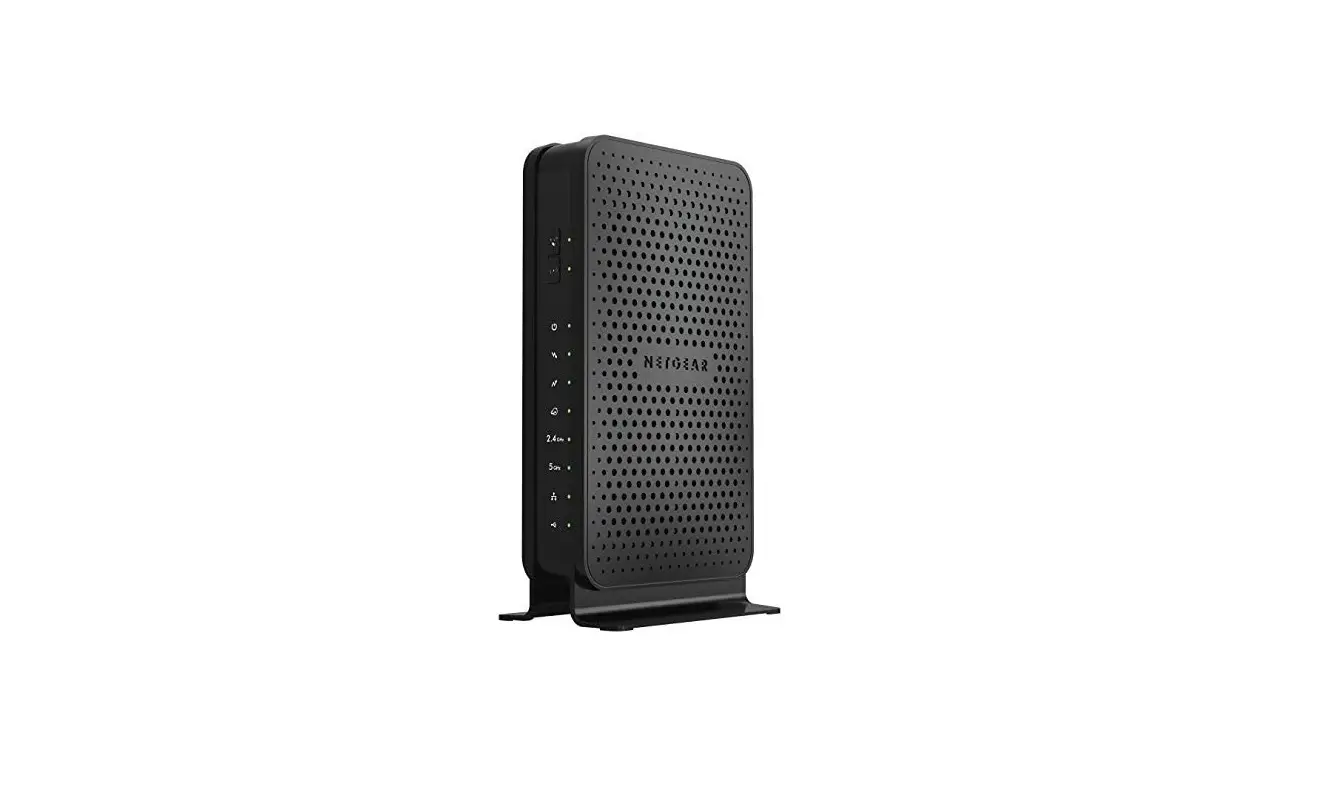
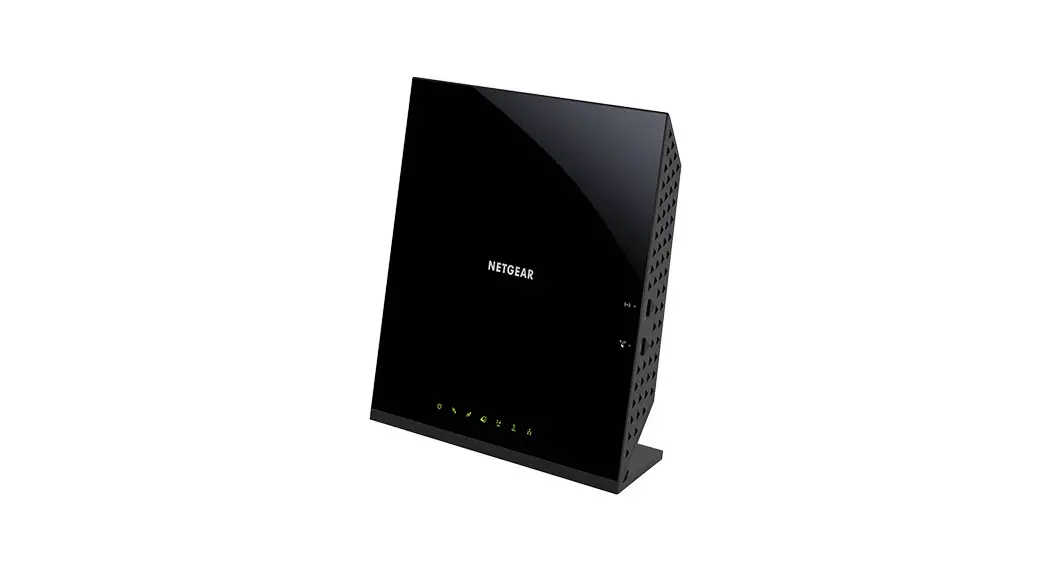
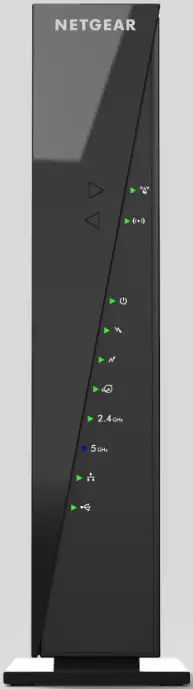
Front View
| The Netgear C6300 is a DOCSIS 3.0 device. After the cable modem is successfully registered on the network, the Power, Receive, Send, and Online indicators illuminate continuously to indicate that the cable modem is online and fully operational. | |
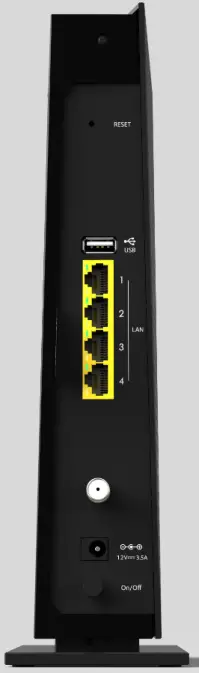
Back View
| The Netgear C6300 has the following ports available on the back of the modem.
| |
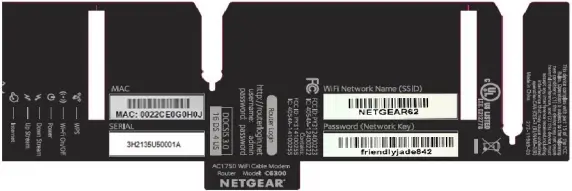
MAC Address
| MAC addresses are written as 12 digits containing both letters and numbers (0-9, A-F). A MAC address is unique. The first six characters of the MAC address are unique to the manufacturer of the device. |
Troubleshooting
The lights indicate the current status of your gateway. To troubleshoot any connection problems, use the table below.
| Gateway Light | Status | Problem |
|---|---|---|
WPS | Off | No WiFi client associated with the cable modem via WPS – Enable WiFi. |
| Blinking Green | None – The WPS button was pressed and now WPS is in discovery mode (LED blinks for up to 2 minutes). | |
| Solid Green | None – WPS configuration successful. | |
| WiFi
| Off | WiFi card disabled – Enable WiFi by pressing and holding this button for two seconds. |
| Solid Green | None – WiFi enabled. | |
Power | Off | No power – Verify all cable connections and try resetting the modem. |
| Solid Green | None. | |
| Downstream
| Blinking Green | Scanning for downstream channel – Verify all cable connections and try resetting the modem. |
| Solid Green | None – Connection from the computer to the Internet established on one or more channels. | |
Upstream | Off | Upstream channel inactive – Verify all cable connections and try resetting the modem. |
| Blinking Green | Scanning for upstream channel – Verify all cable connections and try resetting the modem. | |
| Solid Green | None – Connection from the Internet to the computer established on one or more channels. | |
Internet | Off | No connection – Verify all cable connections and try resetting the modem. |
| Solid Green | None – WiFi modem operational. | |
| Blinking | None – WiFi modem receiving DHCP information. | |
2.4 GHz | Solid Green | None – WiFi enabled at the 2.4 GHz frequency. |
| Off | WiFi radio disabled or not plugged in – To enable or disable the radio (2.4Ghz and 5 GHz), enable WiFi by pressing and holding the WiFi button for two seconds. | |
5 GHz | Solid Green | None – WiFi enabled at the 5 GHz frequency. |
| Off | WiFi radio disabled or not plugged in – To enable or disable the radio (2.4Ghz and 5 GHz), enable WiFi by pressing and holding the WiFi button for two seconds. | |
| Ethernet
| Off | A device is not connected to the Ethernet port on the back. Connect a device to the Ethernet port on the back. |
| Solid Green | None – A device is connected to the Ethernet port on the back. | |
| USB
| Off | A device is not connected to the USB port on the back. Connect a device to the USB port to back of the device. |
| Solid Green | None – A device is connected to the USB port on the back. |


Manufacturer Resources
For more detailed technical information on the C6300, use the resources below.