APKIT Manual.qxp_Layout 1 28/01/2016 11:46 Page 1

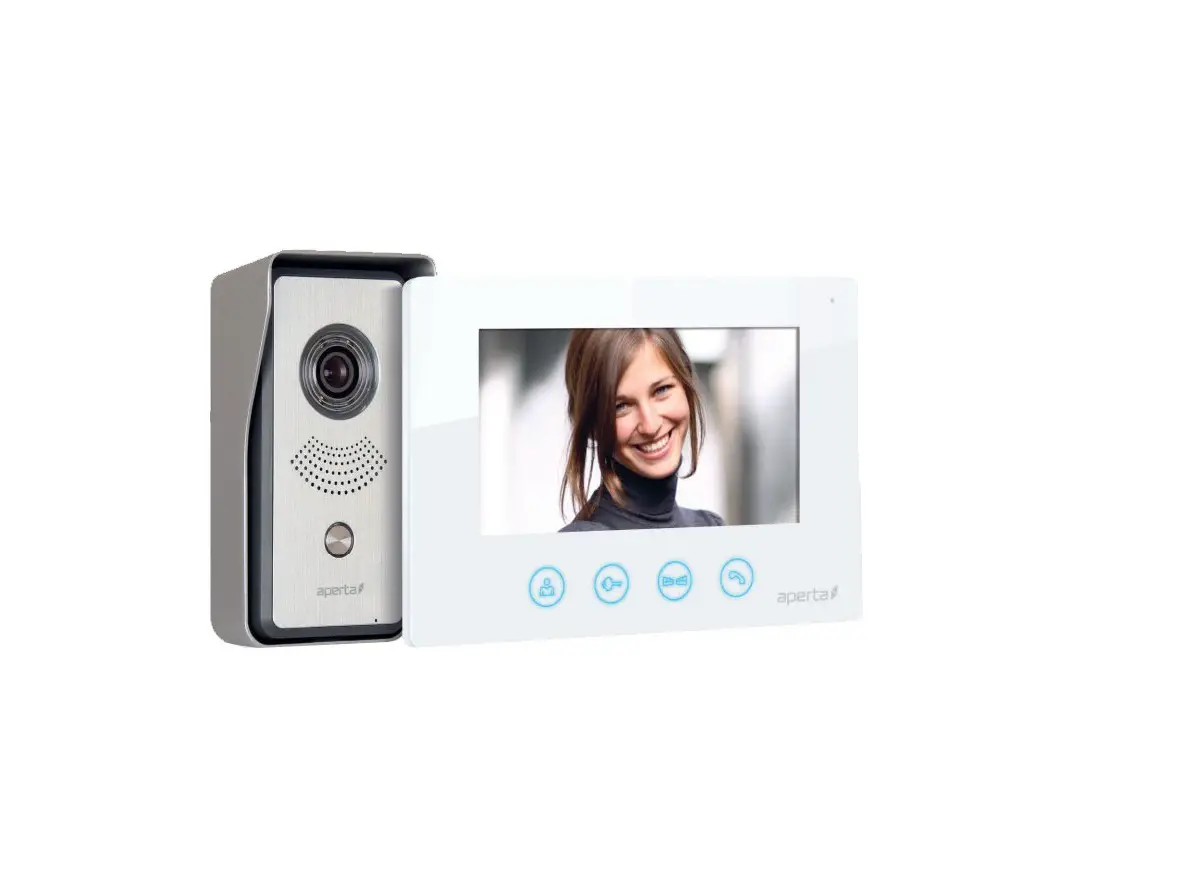
APKIT | COLOUR VIDEO DOOR ENTRY SYSTEM
USER MANUAL

Page 2
System Cabling
All system cabling (excluding mains 240vAC supply) has been tested with Cat5E UTP PVC cable.

Part Number – ASNFORCESEUTP
Find this product online:
elandcables.com | Cables & Accessories | LAN Cable | Cat 5E UTP PVC Cable
Page 3
System Components
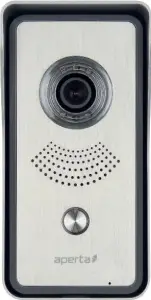
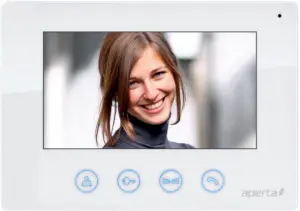
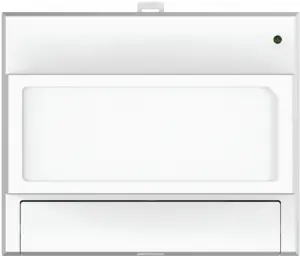
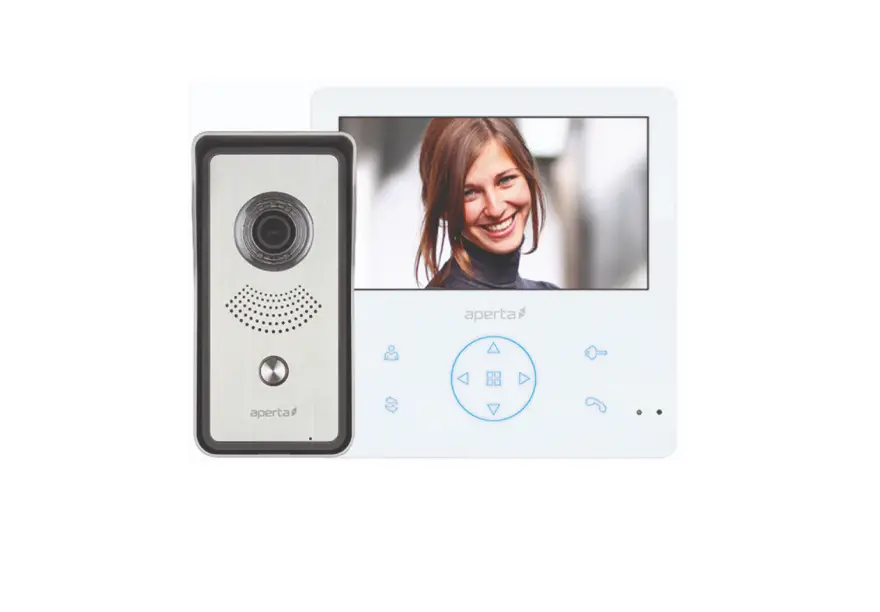
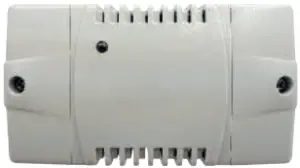
APDSSW APMONW APPOWSWDR
Door Station Monitor System Power Supply
Optional Accessories
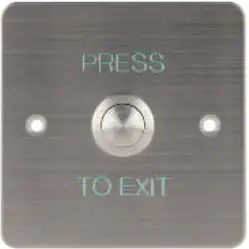
EVBPSBB EV-EXIT
Lock Power Supply Push To Release
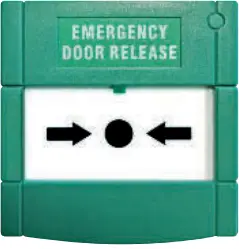
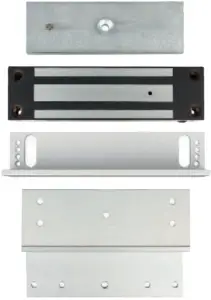
EV-EBG EV-ML-250/500XT
Emergency Release Electro-magnetic Lock
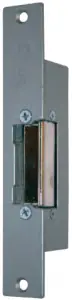
ENTERD
Electric Lock
Page 4
Installation
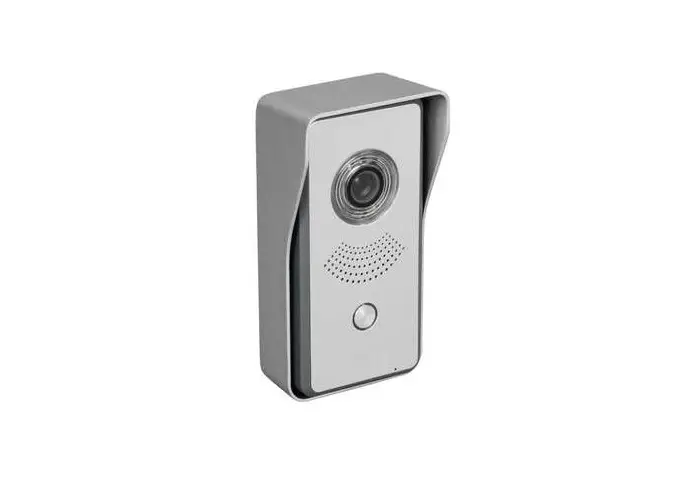
Site the door station a recommended 1.5 meters from the ground, or to suit application.
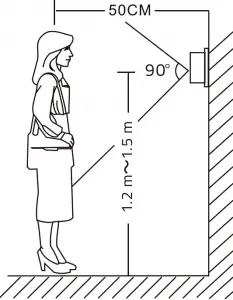
The camera needs to point in the direction of where a visitor will stand during operation.
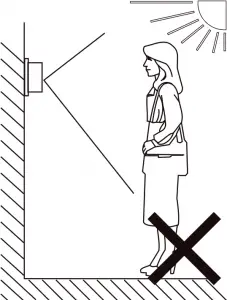
Avoid areas of high sunlight and noise levels.
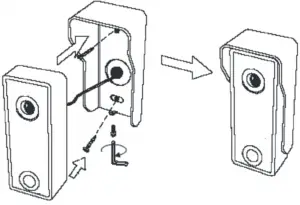
Surface mount the sunshield of the door station and connect the system cabling. Mount the camera to the sunshield by fixing with the supplied hex screw.
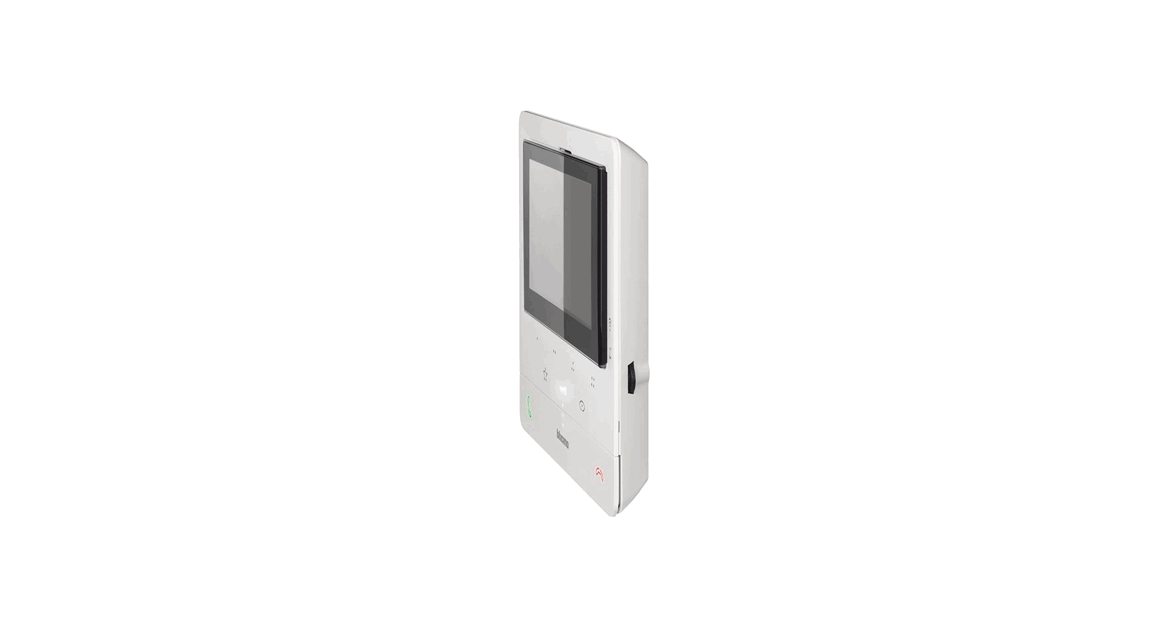
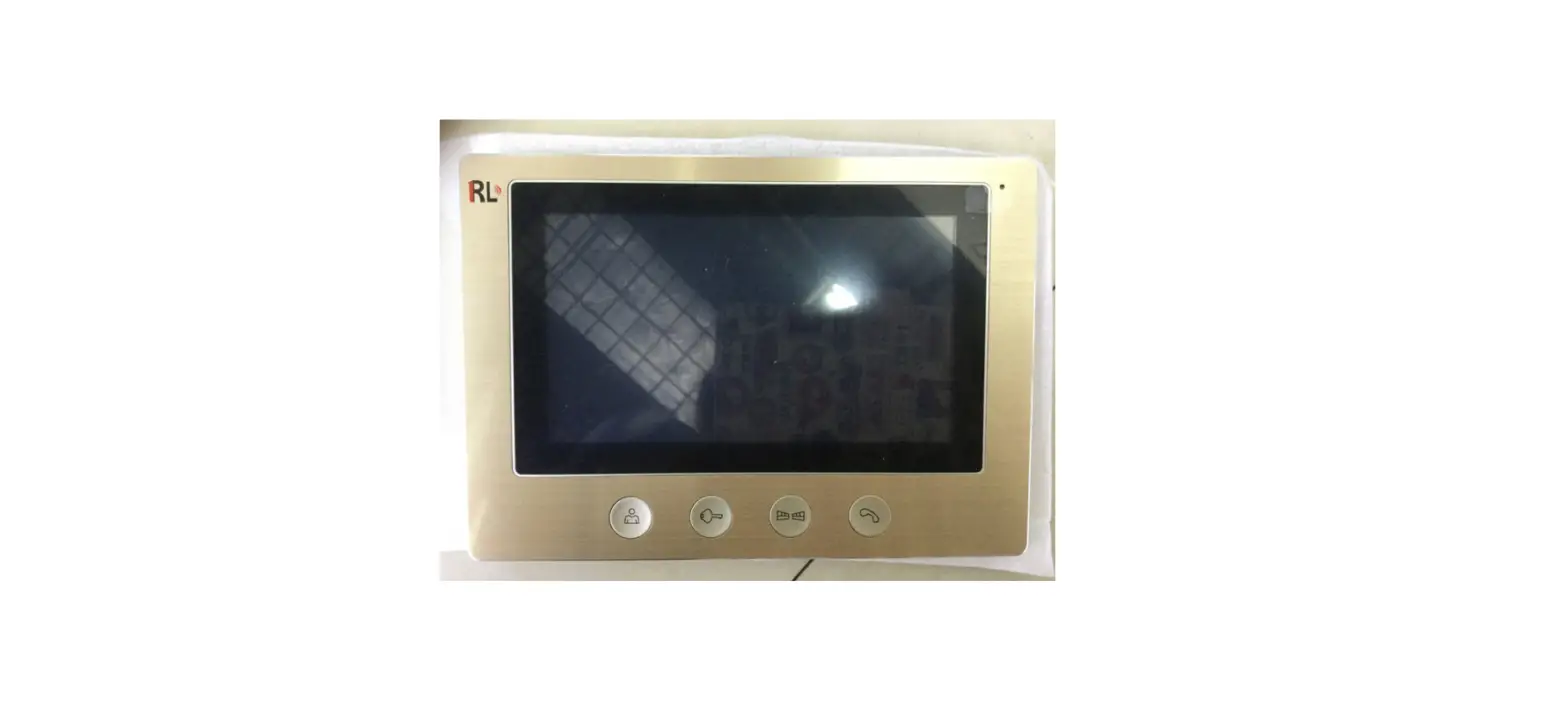
Site the indoor monitor to suit application.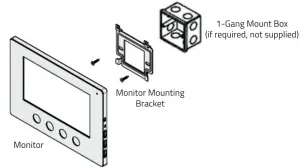
Surface mount the bracket of the monitor or if required onto a 1-gang mount box (not supplied).
Make the system connections to the back of the monitor and then slide the monitor onto the bracket using the hooks to hold firmly in place.
Page 5
System Connections Example 1
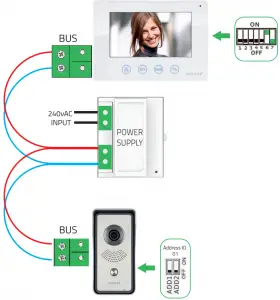
Dip switch 6 set to ON when device is at the end of system line.
Dip switch 7 set to OFF to select monitor as the ‘Master’
Only one monitor on the system can be the ‘Master’
Ensure the Address ID switches are both set to OFF
Total cable run should not exceed 150 meters between door station and monitor

Power supply to be with-in 100 meters of monitor
No cable or connection polarity
Page 6
System Connections Example 2
The system power supply can support up to 5 devices
Total cable run should not exceed 150 meters between door station and monitor
Power supply to be with-in 100 meters of monitor
No cable or connection polarity
1. Only one monitor is set as the MASTER:
MASTER= 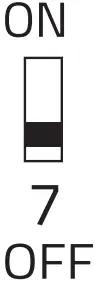
2. All other monitors set as SLAVE:
SLAVE= 
3. Last monitor on system line has dip switch 6 set to ON
END OF LINE= 
4. When using different style monitors on the same system, please refer to supplied instruction to configure Master, Slave and End of line position.
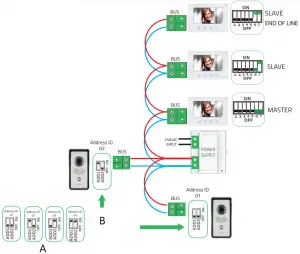
A The dipswitches are accessable on the rear of the door station
B When using multiple door stations ensure that each unit has a seperate Address ID
Page 7
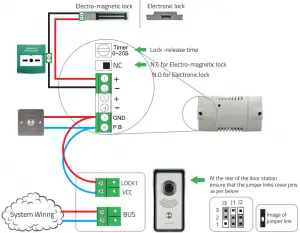
Lock Connections Example 1
Page 8
Lock Connections Example 2
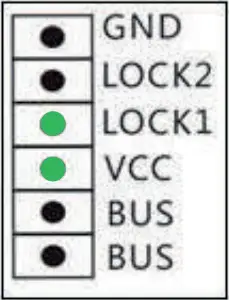
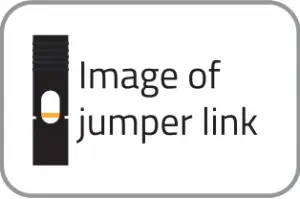
- The jumpers on the rear of the door station offer different types of release modes for alternative applications dependent on the jumper link settings. LOCK1 options;
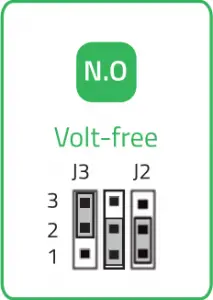
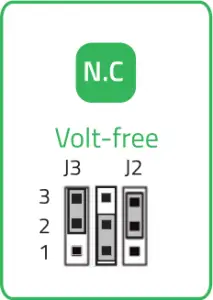
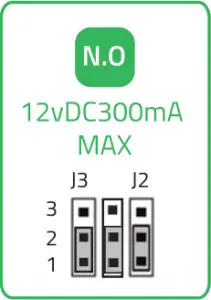
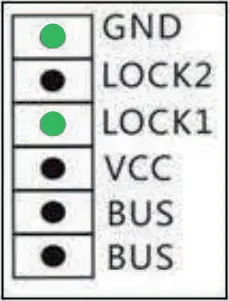
- The door station has a secondary switch. LOCK2 options;
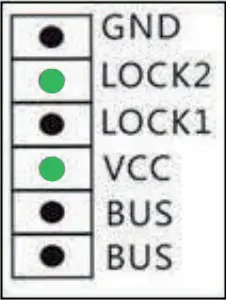
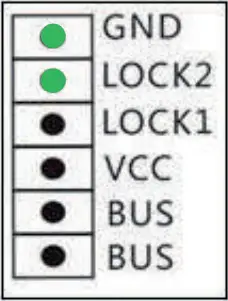
- Jumper 1 gives the option to set the release time;
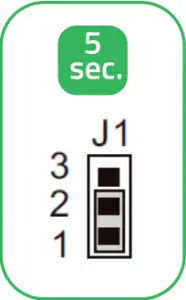
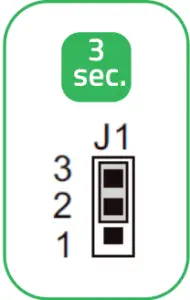
- Please refer to the operation guide for release instructions
Page 9
User Guide
Preview

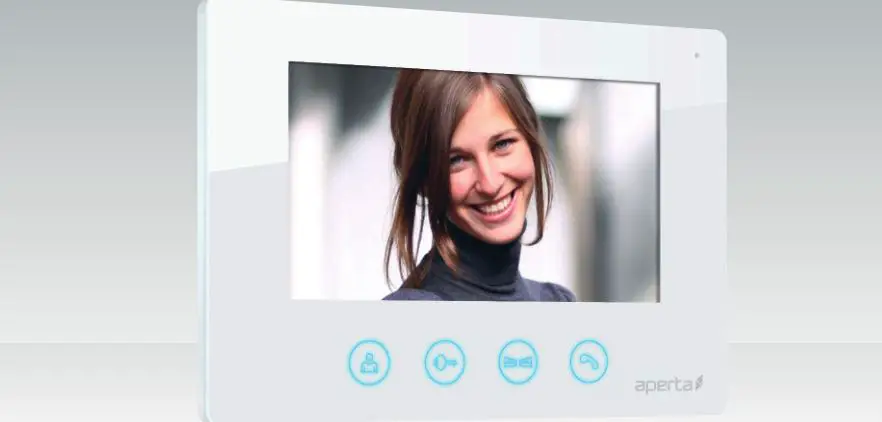
Press once to view door station image
Lock

Press once to release lock
Gate

Press once to release lock 2
Talk

Press once to talk to visitor
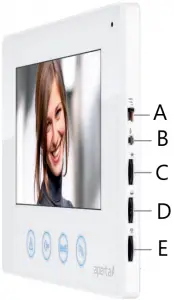
A Chime Volume: Slide switch for High, Medium and Low setting
B Chime Selection: Press button to select chime melody
C Monitor Brightness: Adjustment for brightness levels
D Monitor Chroma: Adjustment for the intensity of colour
E Talking Volume: Adjust the volume level of the monitor
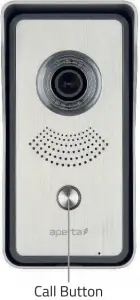
A.  The visitor presses the call button
B.  A chime will sound
C. The visitor’s image will appear on the monitor
D.  Press the ‘Talk’ button and begin conversation
E. Then choose between the 3 options below
1. Press the ‘Talk’ button to end call
2. Press the ‘Lock’ button to release lock and press ‘Talk’ to end call
3. Press the ‘Gate’ button to release lock 2 and press ‘Talk’ to end call
Page 10
Installer’s Guide
Master / Slave Setting
When using multiple monitors on 1 system;
Only the 1 handset set as the MASTER will display an image when the door station is activated.
All other monitors will ring, and will display the image once the ‘Talk’ button is pressed.
In the event of no video or audio signals coming from the monitor, or if the call button or audio cannot be activated on the door station, check the following;
A That the system is powered sufficiently.
B Each monitor needs to be set to a MASTER or SLAVE position
C All system cabling is secured and properly connected.
D All system cabling is clear of breaks or short circuits.
E Bench test the system if the issue cannot be found.
In the event of a lock release issue, check the following;
A The user instructions and operation of the monitor has been understood.
B That the lock is powered sufficiently.
C All system cabling is secured and properly connected.
D All system cabling is clear of breaks or short circuits.
E On the rear of the door station, ensure the lock output is switching when activated by the monitor.
Page 11
Page 12

Elite Security Products Telephone: 01527 51 51 50
Unit 7, Target Park, Shawbank Rd Fax: 01527 51 51 43
Lakeside, Redditch B98 8YN email: [email protected]
E&OE – Errors and omissions excepted.D17