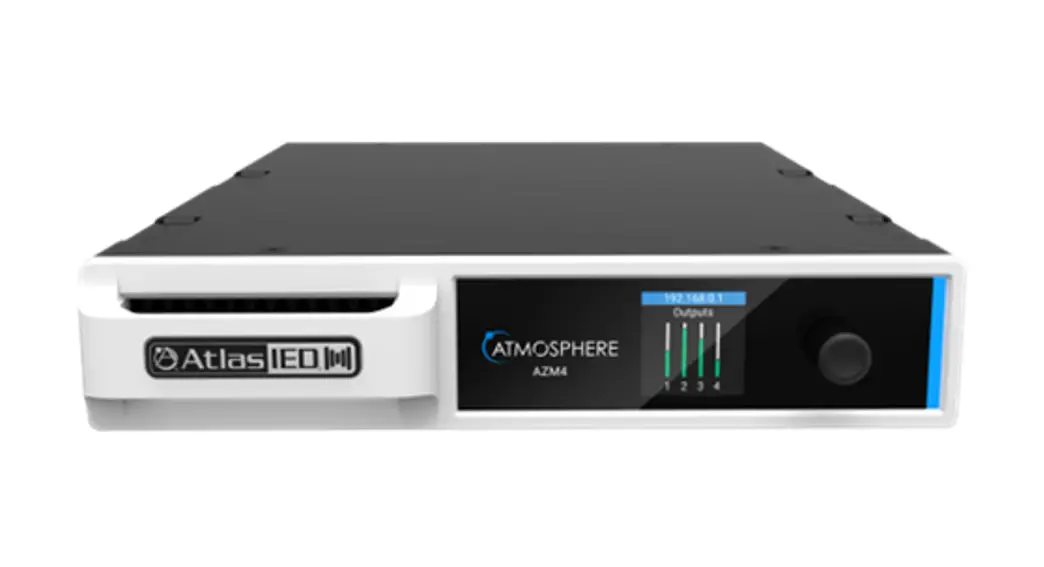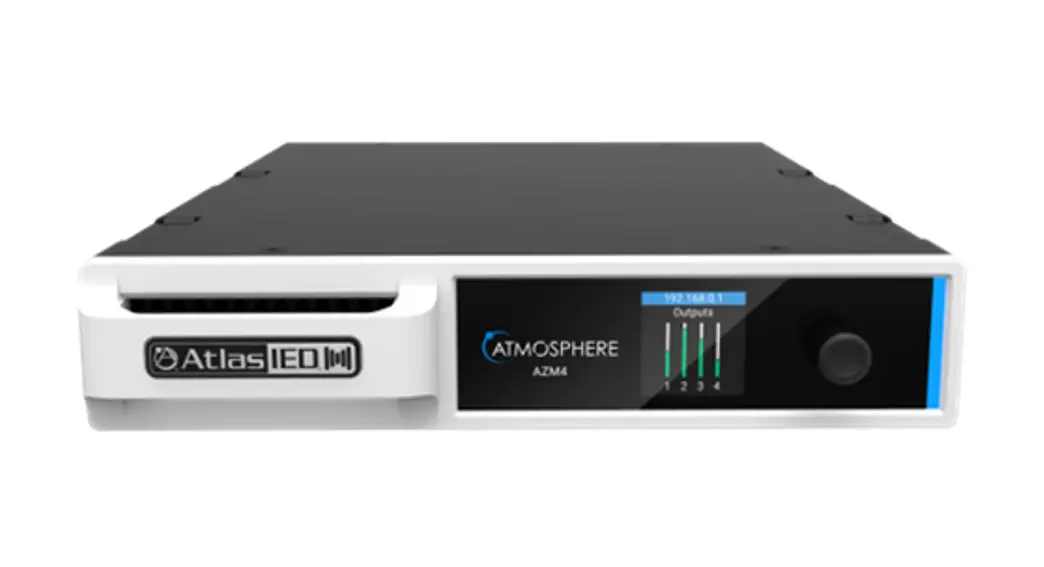

Atmosphere AZM4 / AZM8
Quick Start Guide
Connecting Accessories
All accessories are plug and play and are recognized by the AZM when plugged in. Below are ruled that need to be followed in order to guarantee adequate and reliable performance of all connected accessories.
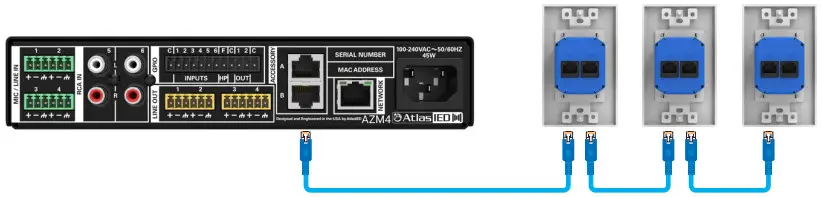
- CAT5e or CAT6 cable should be used to connect accessories to the host processor
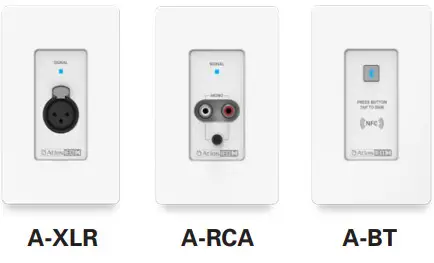
• One audio wall plate (A-XLR, A-RCA, A-BT) can be used per accessory port

- Up to 8 accessories can be daisy-chained from a single port
- Up to 16 accessories can be connected to a single AZM (a maximum of 8 X-ANS accessories can be used per AZM)
- The maximum cable length from the AZM to the last accessory on the chain is 1000′ (305m)
- There are no cable length restrictions between accessories
- The “IN” port is connected to the upstream device (AZM or another accessory)
Important Safety Instructions
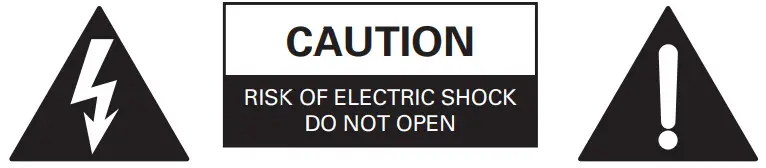 RISQUE DE CHOC ELECTRIQUE |
TO REDUCE THE RISK OF ELECTRIC SHOCK DO NOT REMOVE COVER (OR BACK) NO USER-SERVICEABLE PARTS INSIDE REFER SERVICING TO QUALIFIED PERSONNEL |
Labeling on products and the Installation Instructions & User Manual may use safety-related graphical symbols as shown below to note safety requirements. Lightning Bolt: lightning flash with arrowhead symbol, within an equilateral triangle, WARNING symbol, is intended to alert the user to the presence of uninsulated dangerous voltage within the product’s enclosure that may be sufficient in magnitude to constitute a risk of electric shock to persons or domestic animals.
 Exclamation Point: The exclamation point within an equilateral triangle, the CAUTION symbol, is intended to alert the user to the presence of important
operating and maintenance (servicing) instructions, or a hazard that can damage equipment.Do not proceed beyond a WARNING or CAUTION notice until you have understood the hazardous condition and have taken appropriate steps.Ne continuez pas avant d’avoir pris connaissance du danger et prendre les mesures appropriées.
- Read these instructions.
- Keep these instructions.
- Heed all warnings.
- Follow all instructions.
- Do not use this device near water.
- Clean only with a dry cloth.
- Do not block any ventilation openings. Install in accordance with the manufacturer’s instructions.
- Do not install near any heat sources such as radiators, heat registers, stoves, or other devices that produce heat.
- This product is equipped with a three-wire grounding-type plug, a plug having a third (grounding) pin. This plug will only fit into a grounding-type power outlet. This is a
safety feature. If you are unable to insert the plug into the outlet, contact your electrician to replace your obsolete outlet. Do not defeat the safety purpose of the grounding-type plug. - To completely disconnect this equipment from the mains, disconnect the power supply cord plug from the receptacle.
11. The mains plug of the power supply cord shall remain readily operable.
12. Protect the power cord from being walked on or pinched particularly at plugs, convenience receptacles, and the point where they exit from the device.
13. Only use attachments/accessories specified by the manufacturer. 14. Use only with the cart, stand, tripod, bracket, or table specified by the manufacturer, or sold with the device. When a cart is used, use caution when moving the cart/device combination to avoid injury from tip-over.
15. Unplug this device during lightning storms or when unused for long periods of time.
16. Refer all servicing to qualified service personnel. Servicing is required when the device has been damaged in any way, such as power-supply cord or plug is damaged, liquid has been spilled, or objects have fallen into the device, the device has been exposed to rain or moisture, does not operate normally, or has been dropped.
WARNING: To reduce the risk of fire or electric shock, do not expose this apparatus to rain, moisture, dripping, splashing, or place objects filled with liquids on the equipment.
WARNING: If the apparatus is equipped with Class I grounding plugs for safety purposes, it must be connected to MAINS that employ a protective earth-ground connection.
WARNING: The MAINS plug on this device may be used as the DISCONNECT DEVICE for MAINS power and must remain readily operable.
WARNING: Installation and maintenance of AtlasIED equipment is to be made by trained / qualified personnel and must conform to all applicable local codes.
WARNING: If the unit contains a lithium battery, there is a danger of explosion. Replace only with the same or equivalent type.
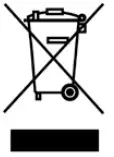 WEEE NOTICE: This appliance is labeled in accordance with European Directive 2012/19/EU concerning waste of electrical and electronic equipment (WEEE). This label indicates that this product should not be disposed of with household waste. It should be deposited at an appropriate facility to enable recovery and recycling.
Welcome
Thank you for choosing AtlasIED and the Atmosphere line of signal processors for your project. The Atmosphere family of products is designed to meet the highest standards for design, quality, and value that our customers have come to expect from AtlasIED. The flexibility and breadth of available accessories that the Atmosphere ecosystem offers is unmatched in the industry and make it the perfect solution for a wide variety of applications. With a new approach to solving real-world customer problems, the Atmosphere line of products sets the new standard for the fixed architecture zone-based processing market. From all of us at AtlasIED, we once again thank you for your purchase and look forward to working with you in the future.
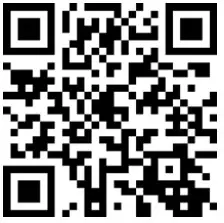 Scan QR code to download the full user manual. The user manual can also be found at the following address: www.atlasied.com/AZM8
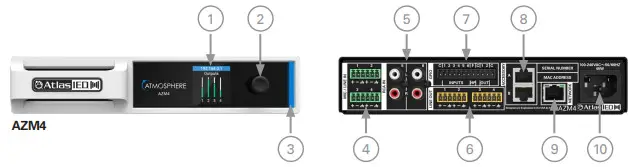
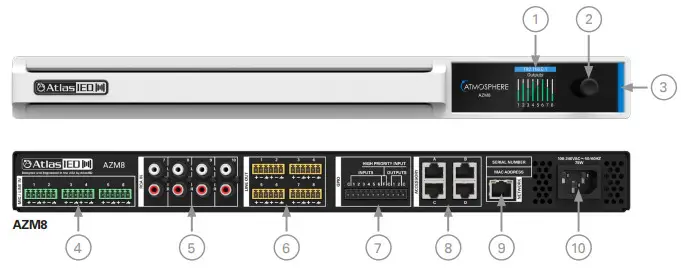
Front and Back Panel Controls/Connections
| 1. Color screen displays the IP address, shows system information, and allows changes to network settings 2. Push button encoder for navigating front panel menu
4. Balanced Mic/Line inputs with phantom power | 7. GPIO and High Priority Inputs
|
Logging Into The AZM
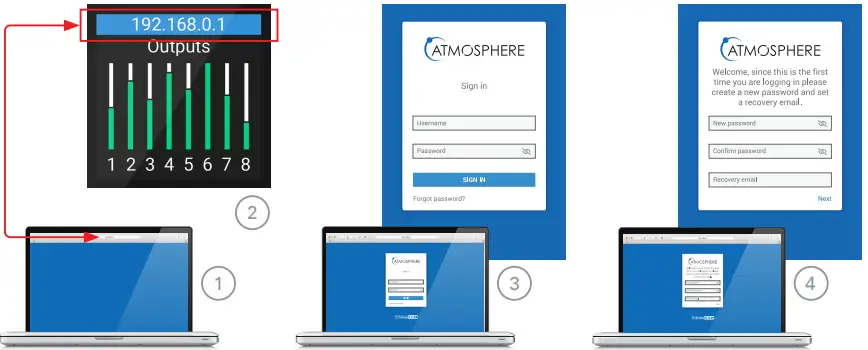
- Open a web browser on a device that is on the same network as the AZM
- Navigate to the IP address shown on the front panel using the web browser address bar
- Log in using the username “admin” and password “admin”
- Follow the on-screen instructions to change the default login credentials
User Interface
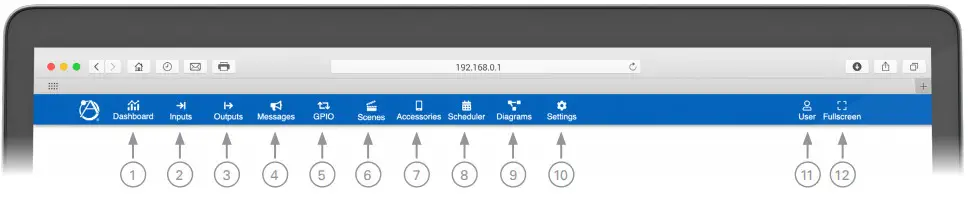
| 1. | Dashboard Inputs | General system information |
| 2. | Inputs | Configuration for every input |
| 3. | Outputs | Configuration for every zone |
| 4. | Messages | Create custom message events |
| 5. | GPIO | Configure GPIO port behavior |
| 6. | Scenes | Create preset scenes (volume, source, mute, set GPO, recall message event) |
| 7. | Accessories | View and configure all accessories |
| 8. | Scheduler | Schedule a scene recall or message event |
| 9. | Diagrams | View and print connection and system block diagrams |
| 10. | Settings | View and set global parameters for the AZM |
| 11. | User | Add/remove/update user accounts |
| 12. | Full Screen | Uses an entire screen to display the user interface |
Available Accessories
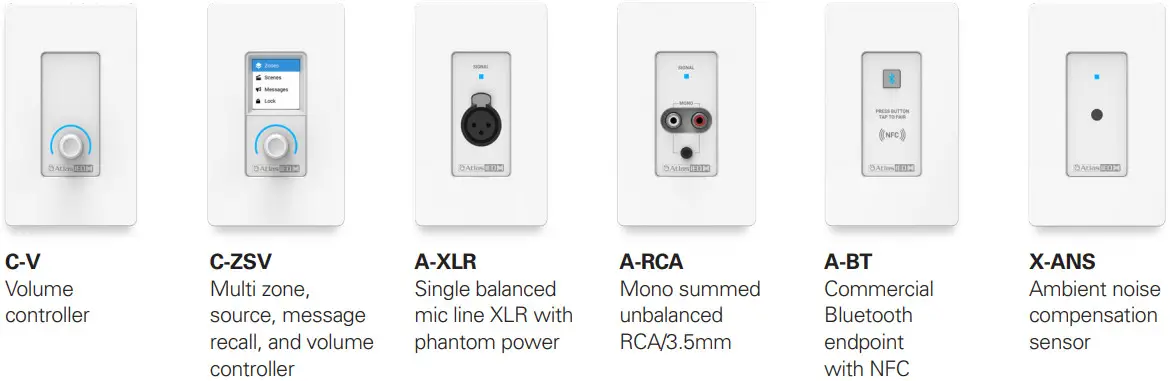
 X-GEM
X-GEM
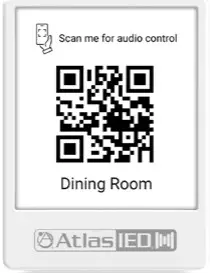
Placard for printed virtual wall controller QR Code
Connecting Devices To The AZM For Configuration
Out of the box, the AZM is configured to connect to an existing network via the back panel Ethernet port. However, there are two additional methods for connecting to the AZM for configuration. If no existing network is available, it is recommended that the onboard Wi-Fi be used in access point mode for initial configuration.

1 – Ethernet Connection (Wired connection)
- Connect an RJ45 cable (CAT5e or CAT6) from the AZM network port to an existing network
- Using a web browser-enabled device on the network, navigate to the IP address that appears on the AZM front panel screen using the address bar located in the web browser

2 – Wi-Fi Connection (Connect to existing wireless network)
- From the front panel menu enable Wi-Fi mode (Network>WiFi>Change Mode>WiFi then confirm the change)
- Select the Wi-Fi network you would like to connect to (Network>WiFi>WiFi Networks)
- Enter the password and then select the green check-mark to connect to the network
Note: The Wi-Fi connection can be set up in the user interface if the AZM is connected via the Ethernet port

3 – Access Point Connection (Onboard Wi-Fi creates a local wireless network for connection)
- From the front panel menu enable Access Point mode (Network>WiFi>Change Mode>Access Pt then confirm the change
- The unit will now broadcast an SSID (AtlasIED_AZM will be the default SSID) that can be found using Wi-Fi-enabled devices
- Select the now available network from the settings page on your device and connect (The default password is AtlasIED. This can be changed in the user interface)
- Using a web browser on the device, navigate to the IP address that appears on the AZM front panel screen using the address bar located in the web browser
1601 JACK MCKAY BLVD. ENNIS, TEXAS 75119 U.S.A.
TELEPHONE: (800) 876-3333 [email protected]
©2020 Atlas Sound LP. The Atlas “Circle A ”, Soundolier, and Atlas Sound are trademarks of Atlas Sound L.P . IED is a Registered Trademark of Innovative Electronic Designs LLC. All rights reserved.
All other trademarks are the property of their respective owners. No endorsement is implied. Due to continual product development, specifications are subject to change without notice. ATS006162 RevB 8/20
 AtlasIED - Protect, Inform, Entertain
 8-Zone Audio Processor | AtlasIED - Protect, Inform, Entertain