REVOPOINT Range 3d Scanner User Guide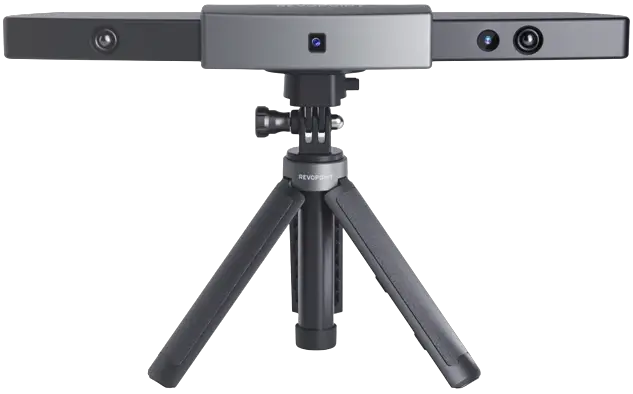
Read Before Your First Scan
Software Download
To use your Revopoint RANGE 3D Scanner, you must download the Revo Scan software.
It can be found on Revopoint’s website for Windows and macOS systems, and for Android or iOS smartphones, it can be found by searching for “Revo Scan” in the Google Play or Apple App Store.
For the detailed functions of Revo Scan, please refer to the how-to-use guide in Revo Scan.
Scanning Dark, Transparent, or Reflective Objects
Like most 3D scanners, the RANGE will struggle to scan transparent, reflective, or black objects without first treating the object’s surface
with scanning spray, baby powder, or dry shampoo.
Scanning Objects with Plain Surfaces
Scanning objects with simple geometric features, like a football or wine bottle, requires using Marker stickers or marker points and scanning in Marker Mode.
- Place the Marker stickers on the objects’ surface irregularly and ensure that there are at least 5 Marker stickers in the frame for the
entire scan, or the scanner will lose track. - If using markers (these can be anything as long as they have complex features to track), place 2 to 3 around the object you wish to scan.
Please watch the video tutorial for using Marker stickers by scanning the QR code.
Scan Me
Color Scanning
If you want to accurately capture an object’s color during a scan, please ensure that the object is evenly lit with soft light and that there are no dark or hard shadows
About the Scanner
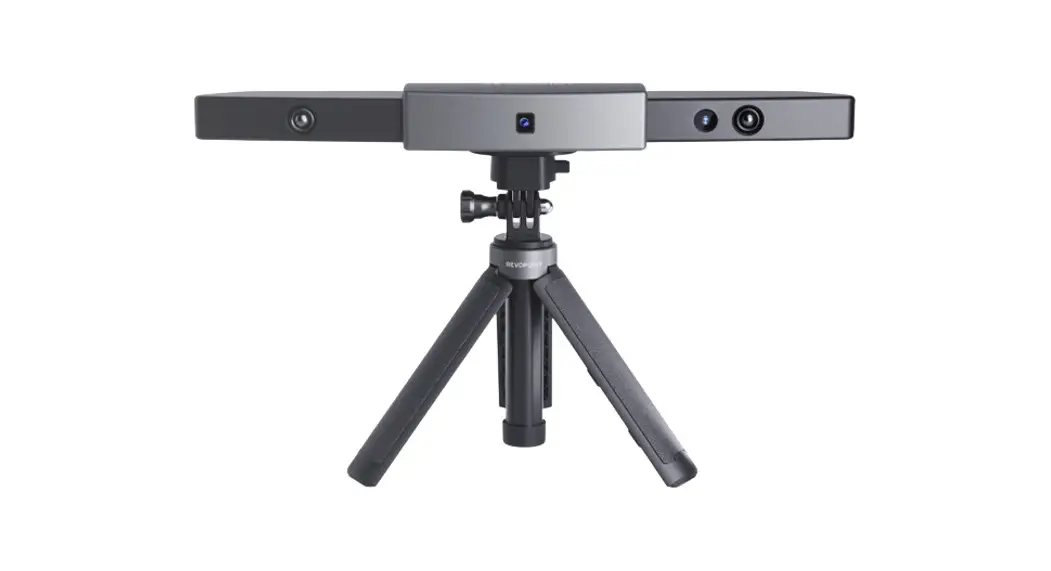
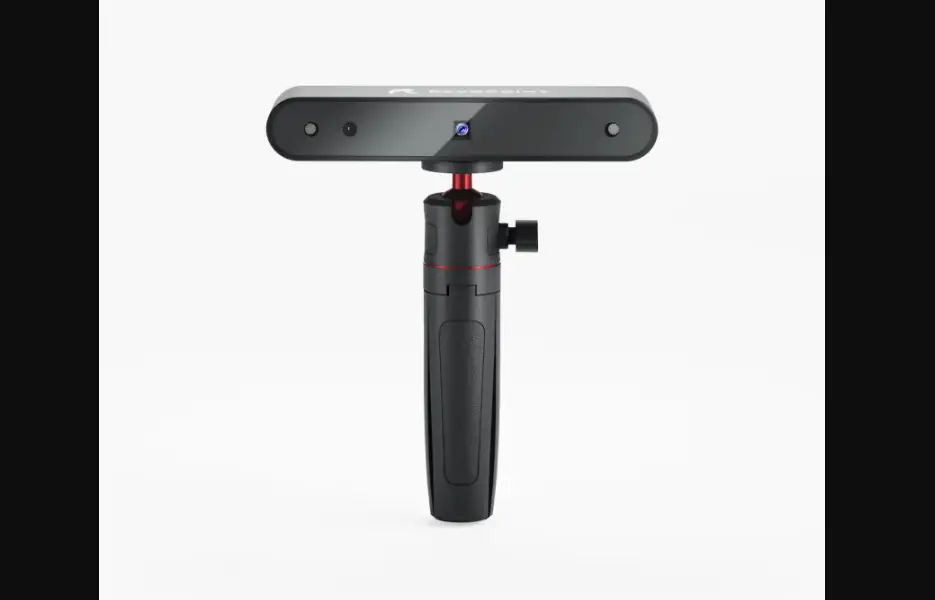
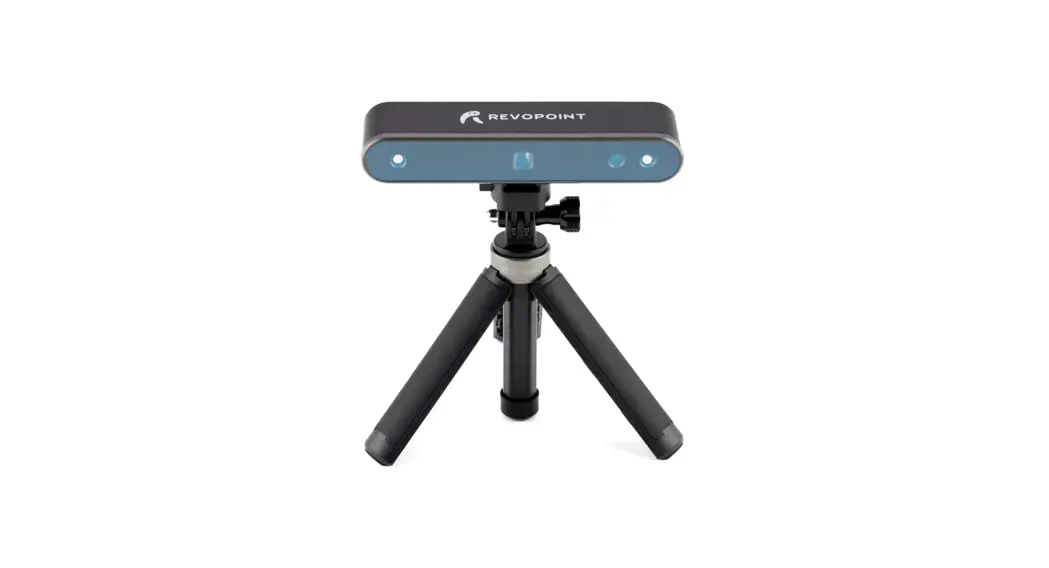
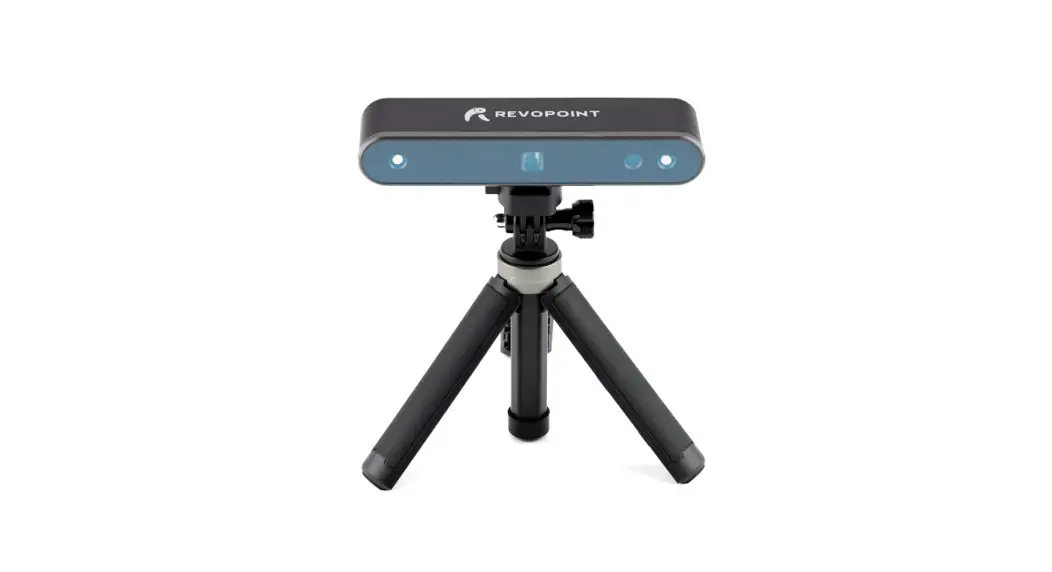
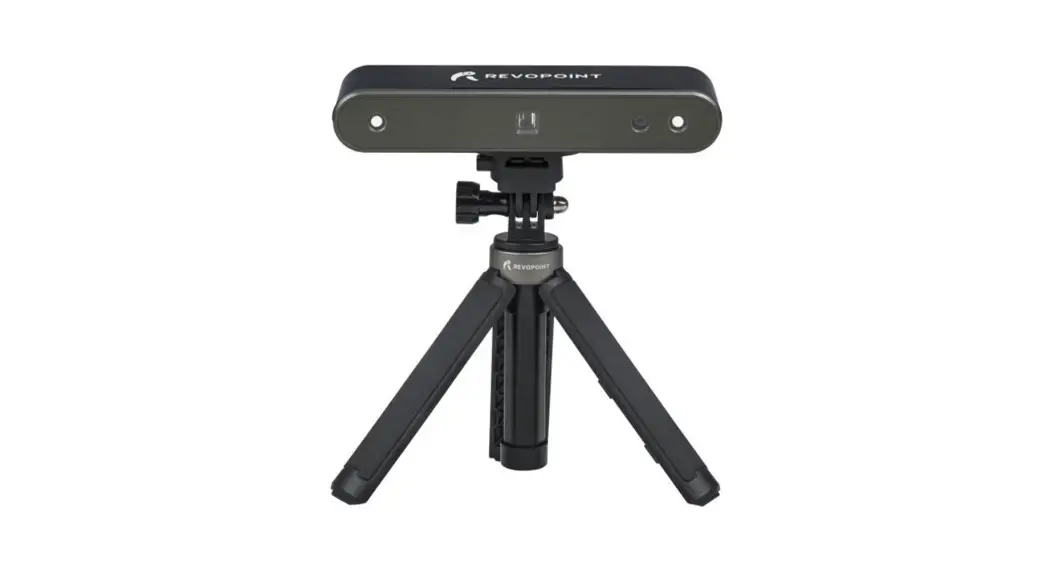
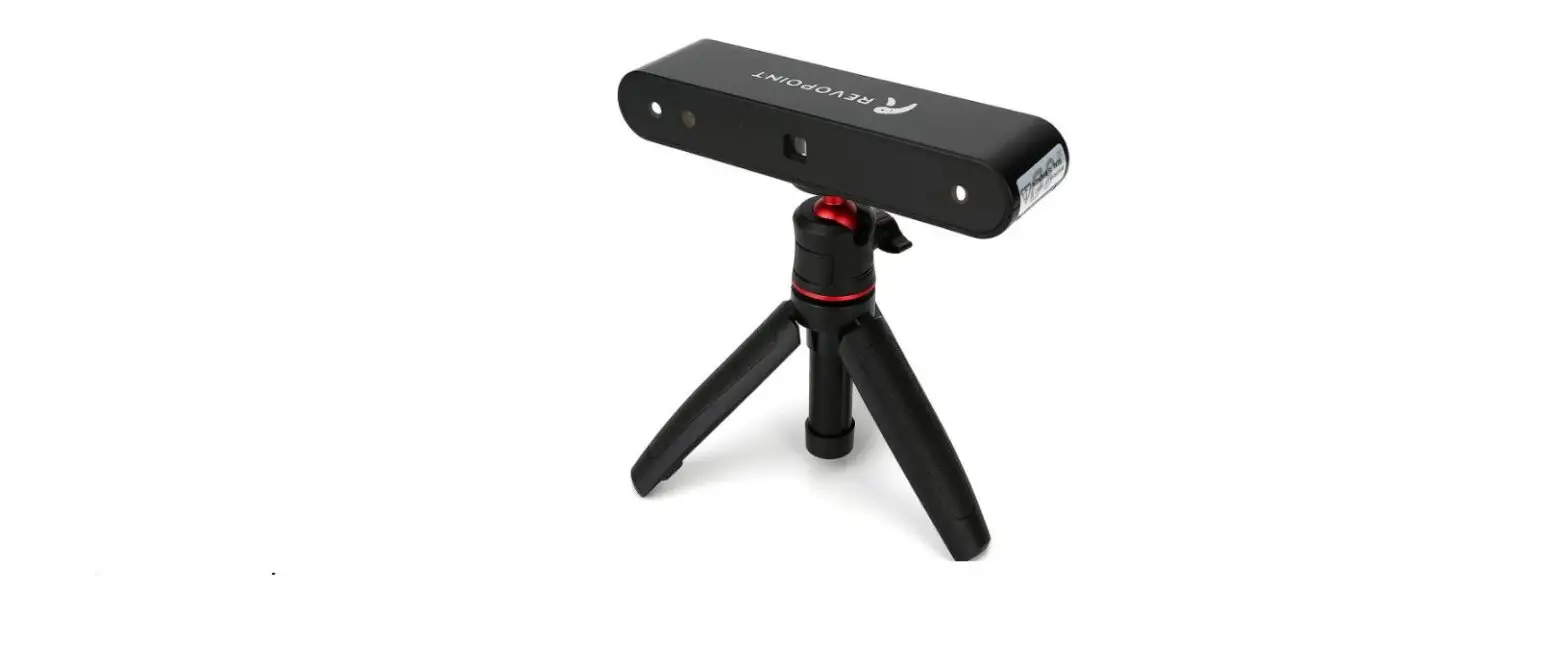
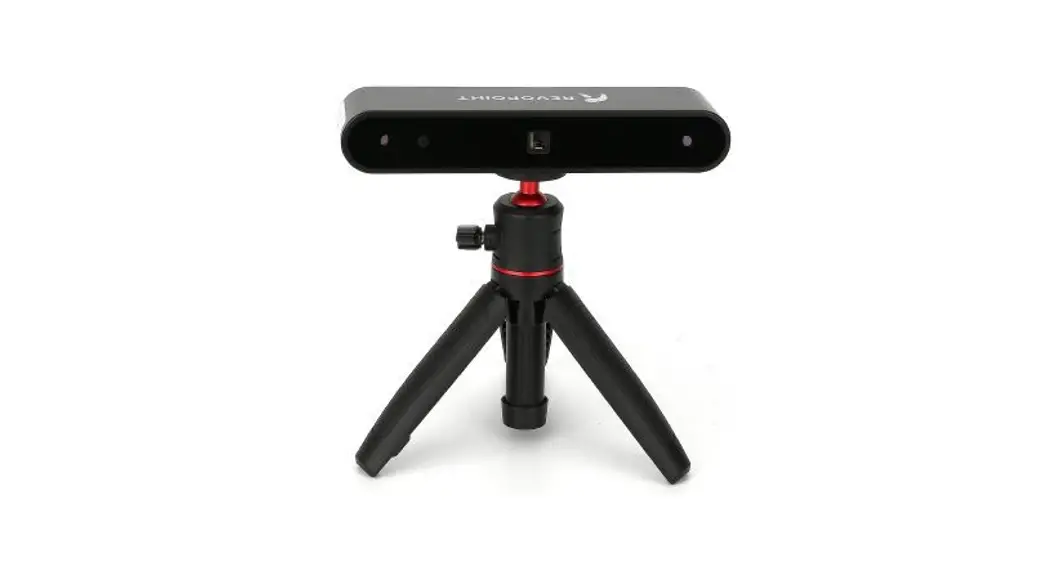
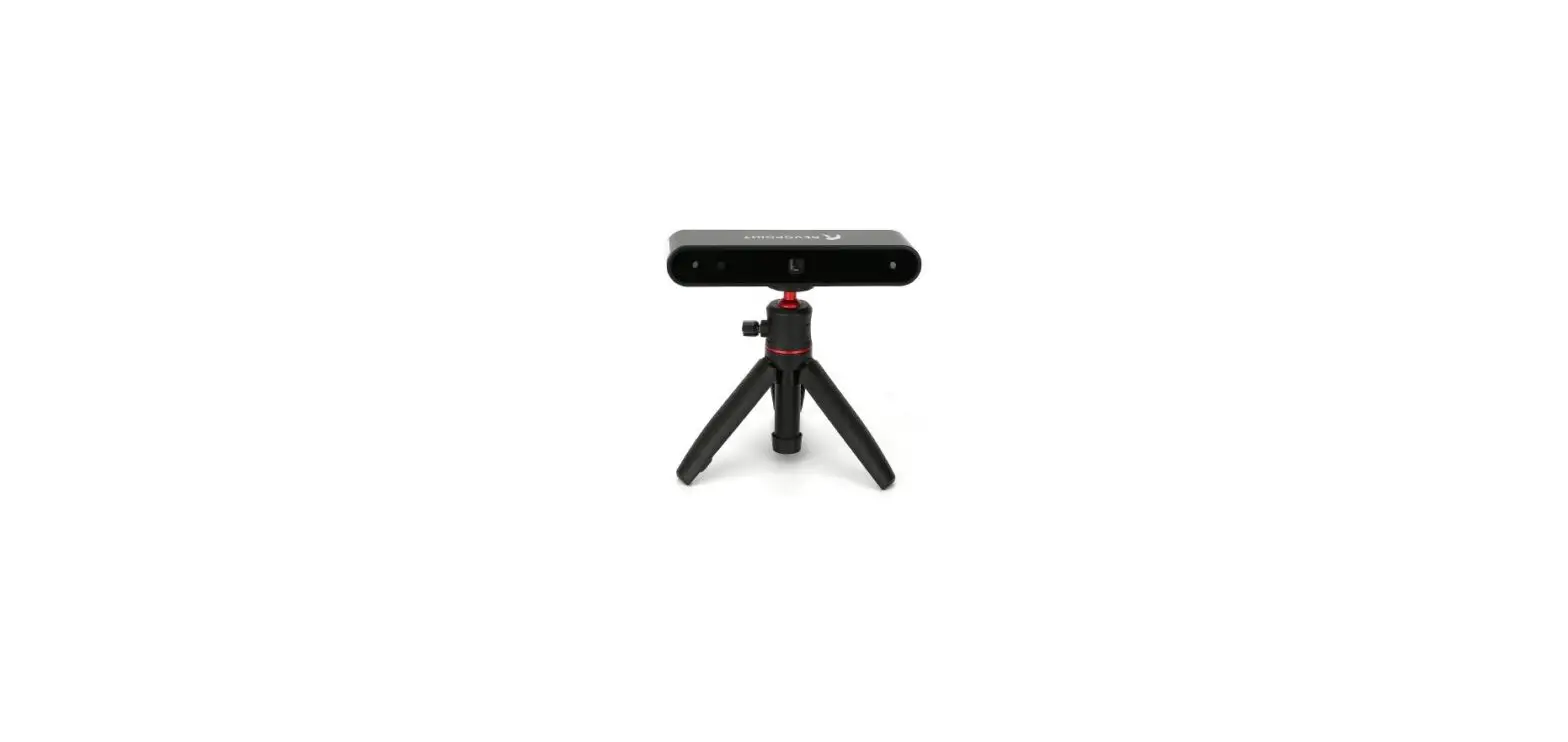
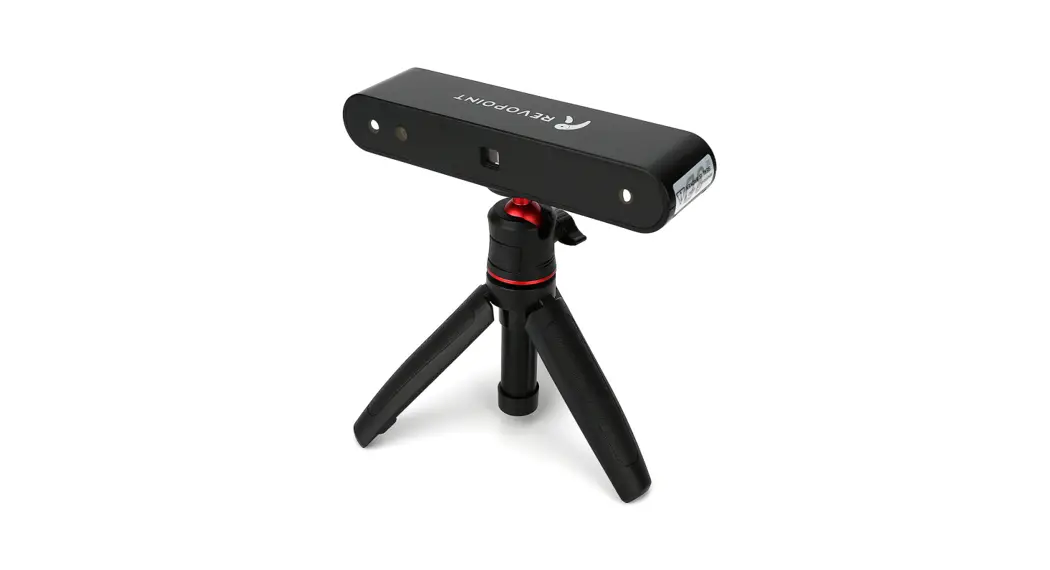
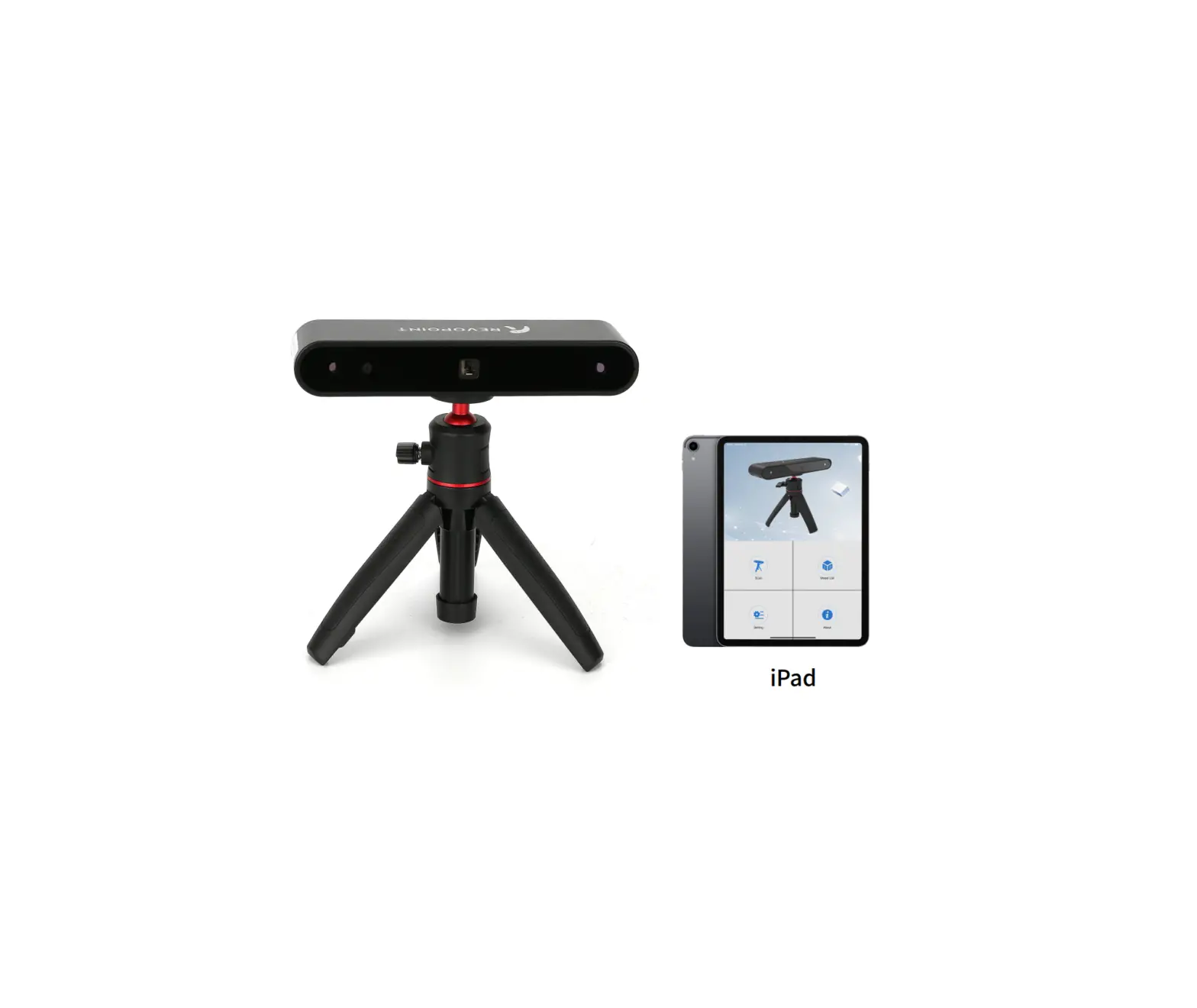
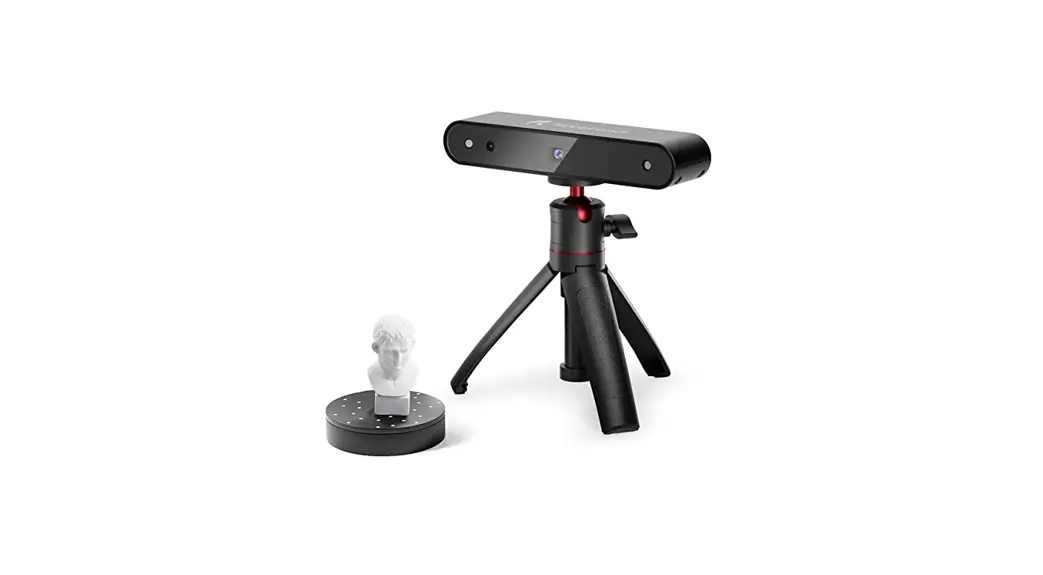
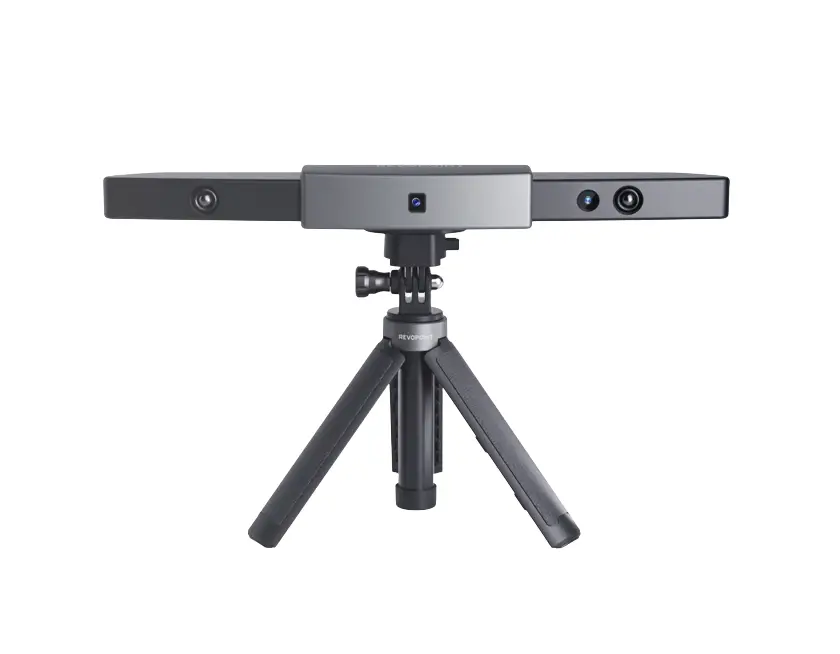
The Revopoint RANGE 3D Scanner is an infrared structured light scanner designed for scanning large objects like cars, people, furniture, etc.
Its self-developed chip and intelligent algorithms combined with its more powerful projector and dual IR cameras with aspheric lens enable a single capture range of 360mm x 650mm, a working distance of 300mm to 800mm, a scanning speed of 12fps to 18fps, and a single frame precision of up to 0.1mm.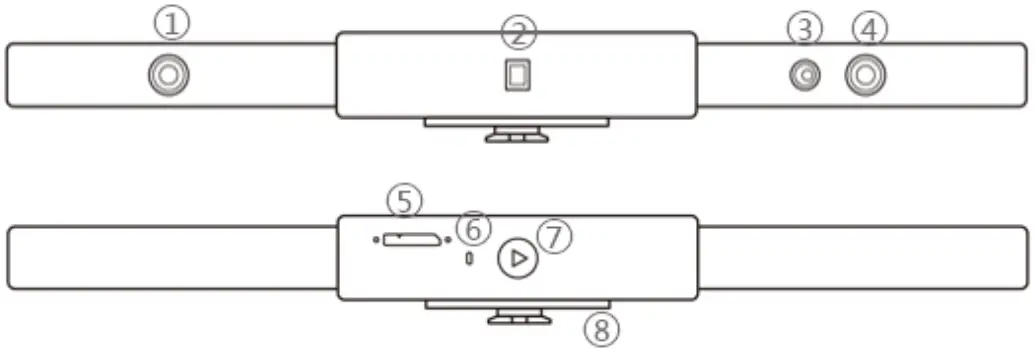
- Depth Camera
- Projector
- RGB Camera
- Depth Camera
- Micro-B USB Port
- LED Indicator
- Start/Pause Scan Button
- Quick Setup Board
What’s in the Box?
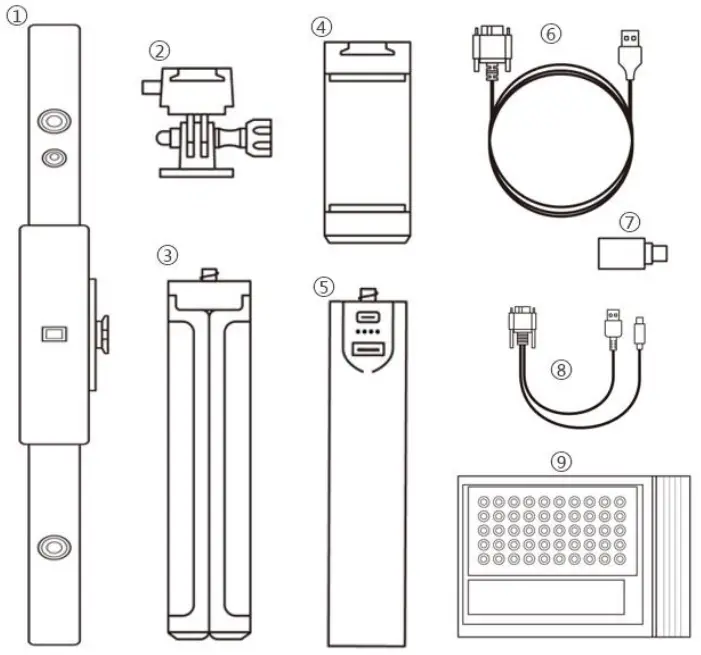
- RANGE 3D Scanner
- Quick Mount Kit
- Tripod
- Phone Holder
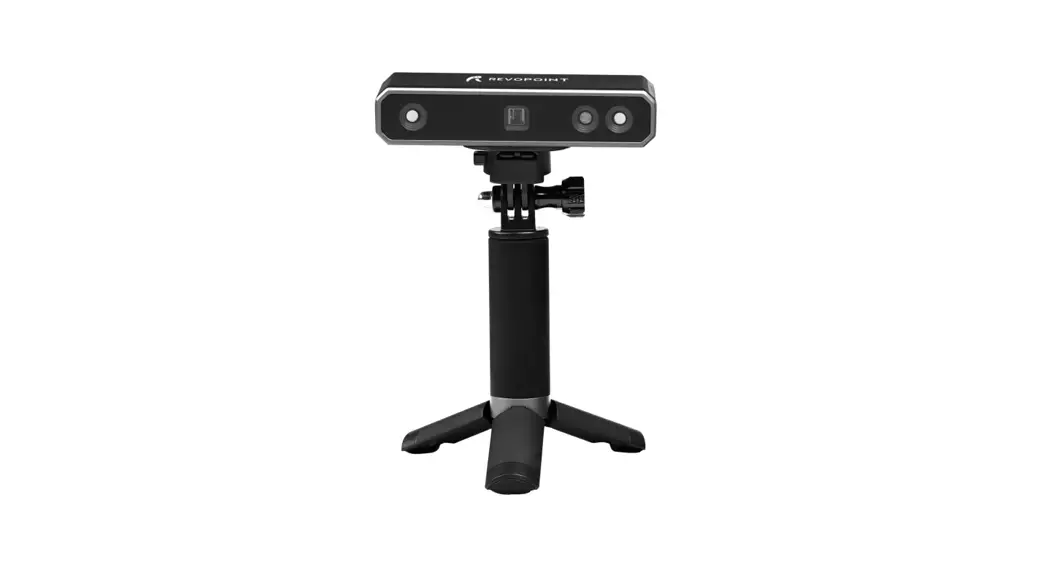
- Power Bank Handle
- USB Cable (Micro-B to Type-A)
- Type-C Adapter
- 2-in-1 Mobile Cable
- Gifts (Markers, Glue Tack, Black Sheet)
RANGE on a Windows or Mac Device
Both Windows and macOS computers are compatible.
System Requirements
 |
|
 |
|
Minimum PC Display Screen Resolution: 1344×768 (1920×1080 is recommended).
Connection Methods
| Windows | macOS | |
| USB Mode | √ | √ |
| Wi-Fi Mode | √ | √ |
Connect the RANGE to a PC Via USB
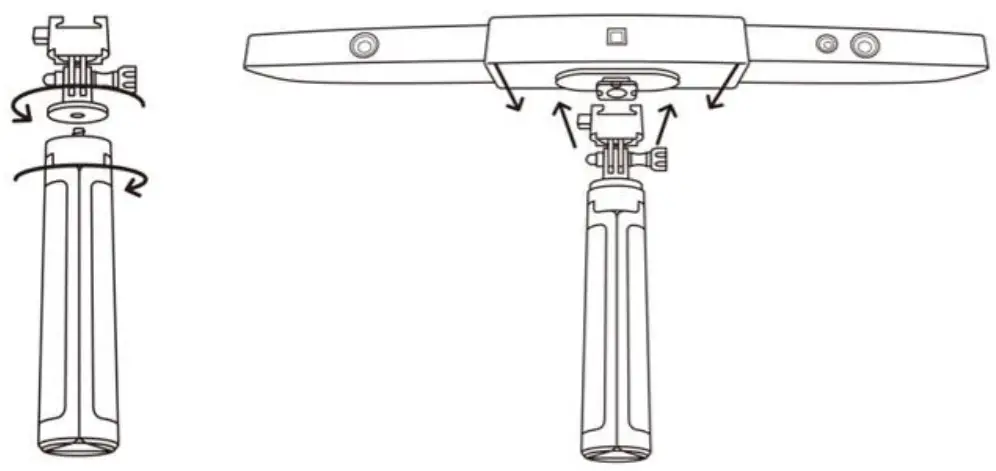
- Step 1: Screw the Quick Mount Kit onto the Tripod.
- Step 2: Clip the RANGE to the top.

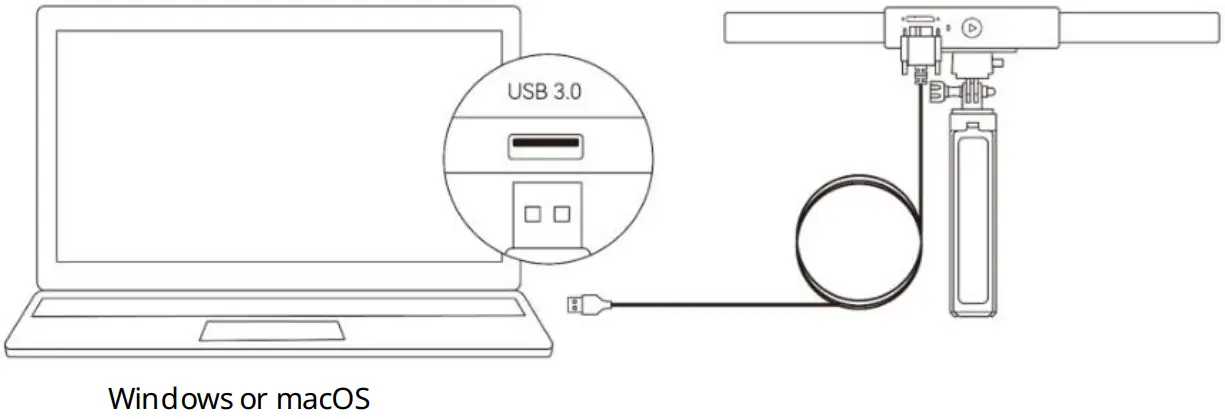
- Step 3: Connect the Micro-B end of the USB cable to the back of your RANGE.
- Step 4: Plug the Type-A end into your computer.
- Step 5: Open Revo Scan on your computer.

Note:
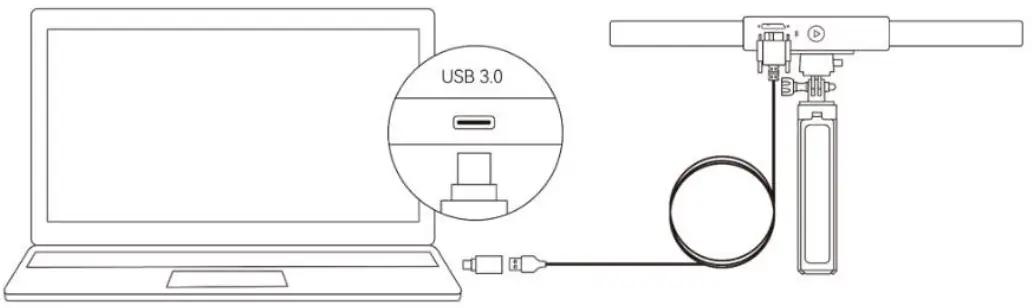
- Connect the RANGE to a USB 3.0 port or above, as USB 2.0 will not supply sufficient operating power.
Ensure your USB 3.0 port is not damaged or worn out. - If there is no Type-A port on your laptop, use the Type-A-to-C adapter.

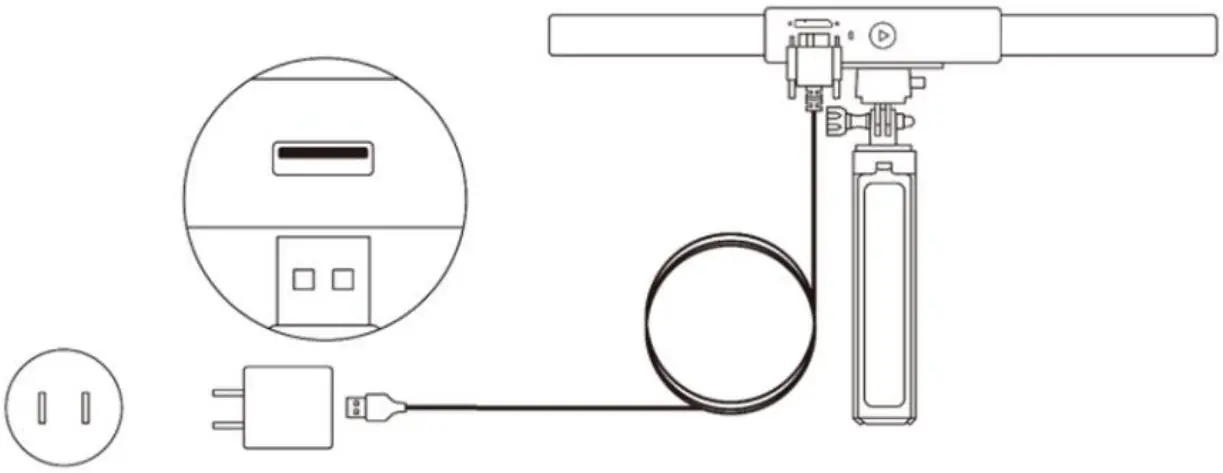
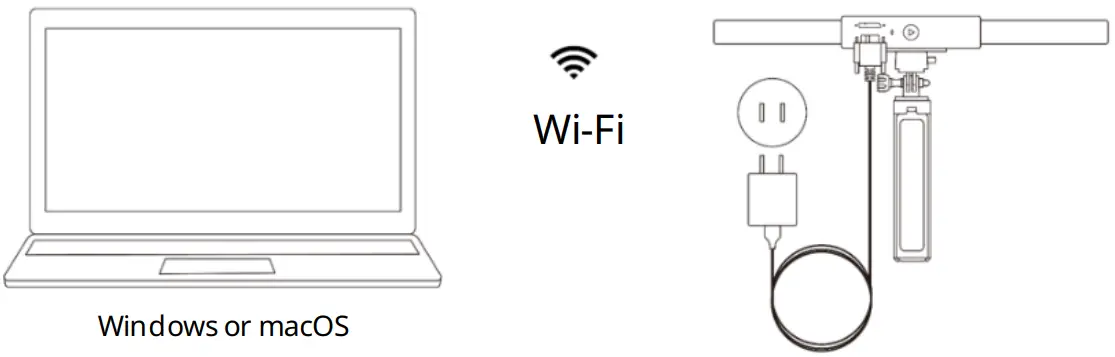
Connect the RANGE to a PC Via Wi-Fi
- Step 1: Power the RANGE on with a power bank or an AC adapter.
(Note: Do not plug it into your PC, or it will be in USB mode by default.)
- Step 2: Connect the PC to the RANGE.
- Go to your Wi-Fi setting, search for a network called RANGE-XXXXXX and connect. (No password is required)
- Wait a few seconds for the scanner to be connected.

- Step 3: Open Revo Scan on your computer.
RANGE on Smartphones
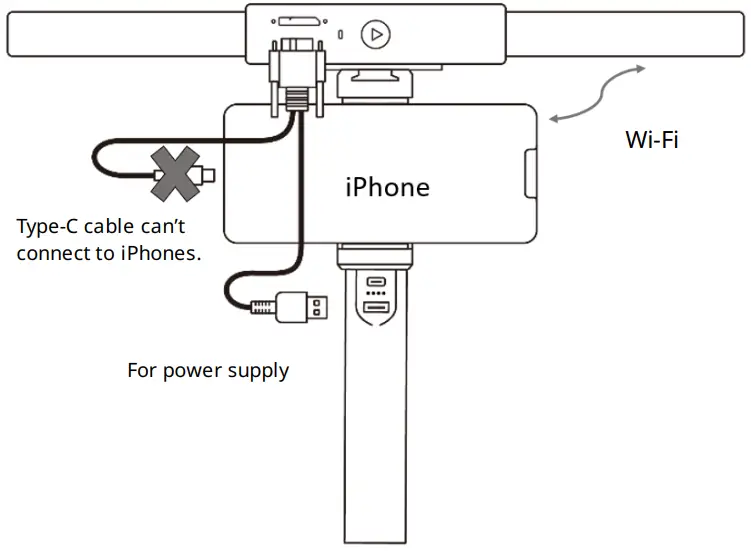
Android devices can connect via either USB or Wi-Fi. However, iOS devices only support Wi-Fi mode.
System Requirements
 |
|
 |
|
Connection Methods
| Android | iOS/iPad OS | |
| USB Mode | √ | × |
| Wi-Fi Mode | √ | √ |
Connect the RANGE to an Android Phone via USB
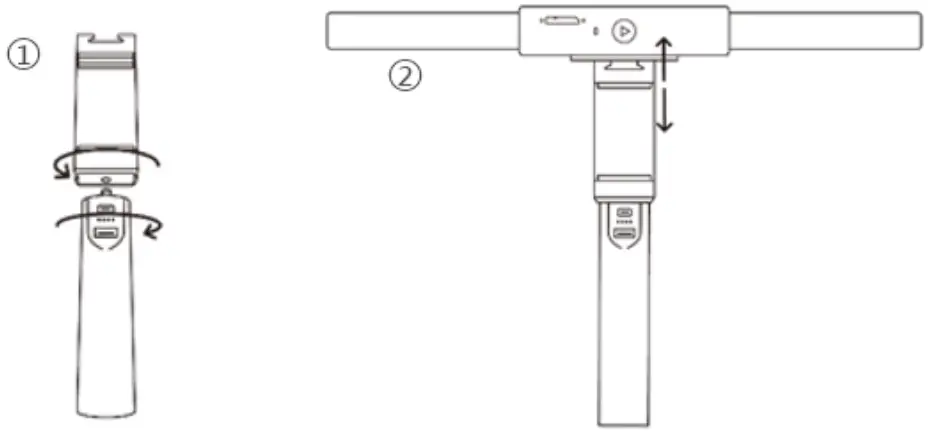
- Step 1: Screw the Phone Holder onto the Power Bank.
- Step 2: Clip the RANGE to the top of the Phone Holder.

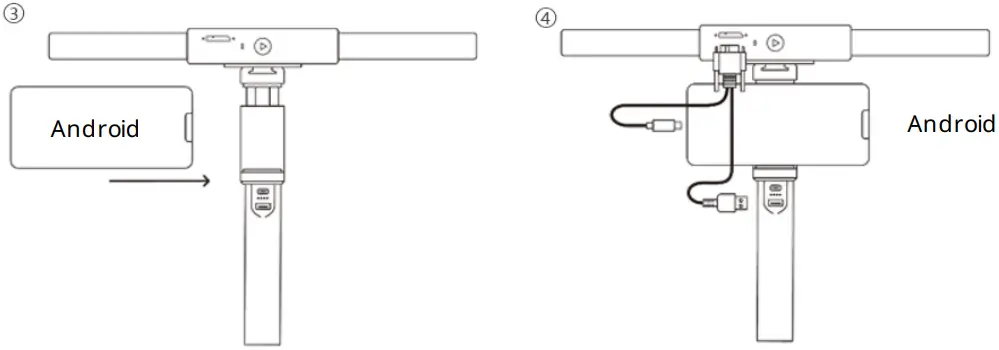
- Step 3: Pull open the Phone Holder’s clamps and fit your smartphone.
- Step 4: Connect the Micro-B end of the 2-in-1 Mobile Cable to the RANGE’s port, Type-A to the Power Bank, and Type-C to an Android smartphone

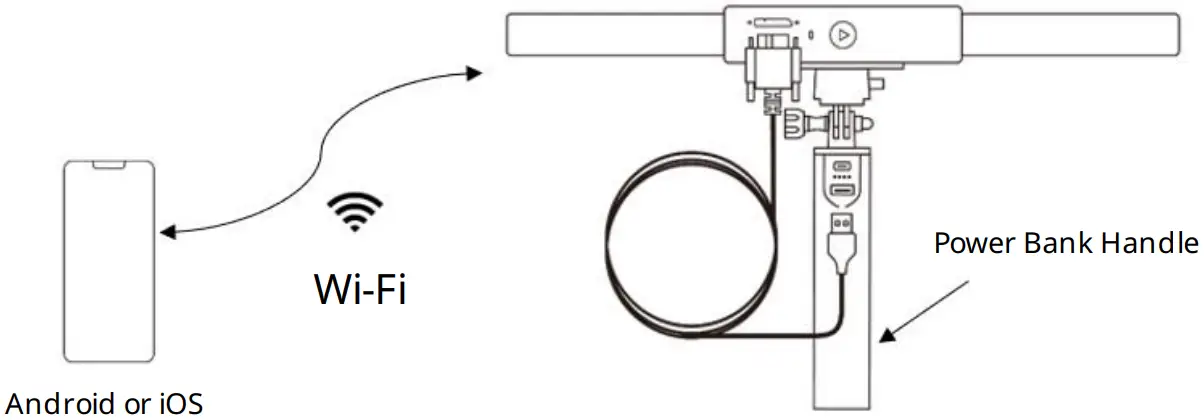
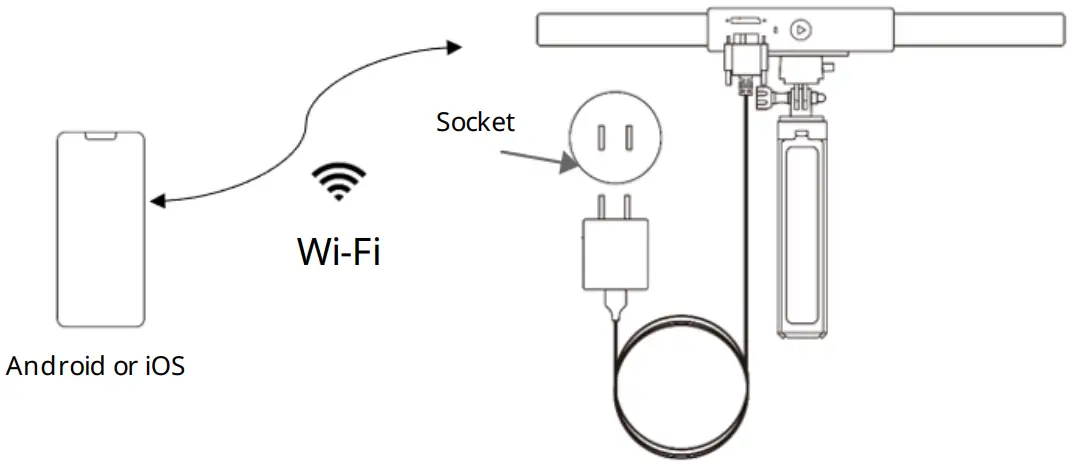
Connect the RANGE to a Phone Via Wi-Fi
Both Android and iOS Phones are compatible.
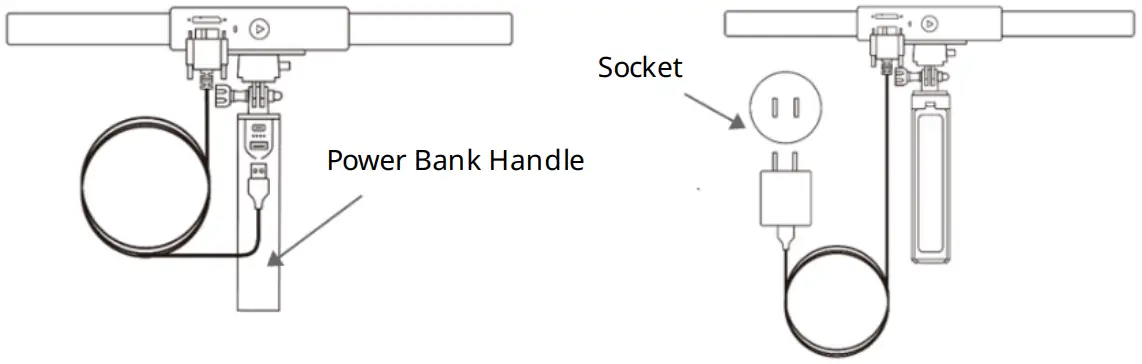
- Step 1: Power the RANGE on via the Power Bank Handle or a Socket.

- Step 2: Connect the Smartphone to the RANGE.
- Go to your Wi-Fi setting on your smartphone, search for a network called RANGE-XXXXXX and connect. (No password is required)
- Wait a few seconds for the scanner to be connected.


- Step 3: Open Revo Scan on your phone.
Note: If you have an iPhone, and want to use the 2-in-1 Mobile Cable to scan, it works like:
Appendix
Specifications
| Product Name | Revo point RANGE |
| Technology | Binocular Dual Camera Infrared Light |
| Single-frame Precision | Up to 0.1mm |
| Single-frame Accuracy | Up to 0.3mm |
| Single Capture Range | 360mm x 650mm @600mm |
| Working Distance | 300mm – 800mm |
| Minimum Scan Volume | 50mm x 50mm x 50mm |
| Scanning Speed | 12fps – 18fps |
| Light Source | Class 1 Infrared Light |
| Tracking Methods | Feature, Marker |
| Color Scanning | Yes |
| Output Formats | PLY, OBJ, and STL |
| Point Distance/ Resolution | 0.3mm |
| Special Object Scanning | Use scanning spray for transparent, dark, or highly reflective objects. |
| Scanning Environment | Indoors and Outdoors |
| Outdoor Scanning | The RANGE cannot scan objects well in direct bright sunlight. |
| Scanner Weight | 210g |
| Scanner Dimensions | 295mm x 41.5mm x 28.2mm |
| 3D Printing Compatible | Yes |
| Compatible OS | Windows 8/10/11 (64-bit), Android, iOS, macOS |
| PC Display Screen Resolution | >1344×768 (1920×1080 is recommended.) |
| Connection Methods | USB 3.0 or Wi-Fi |
| Bluetooth | 4.1 |
| Hardware Button | Start/Pause Scan |
Note:
| |
LED Indicators
Indicator in Red: Powered on, and starting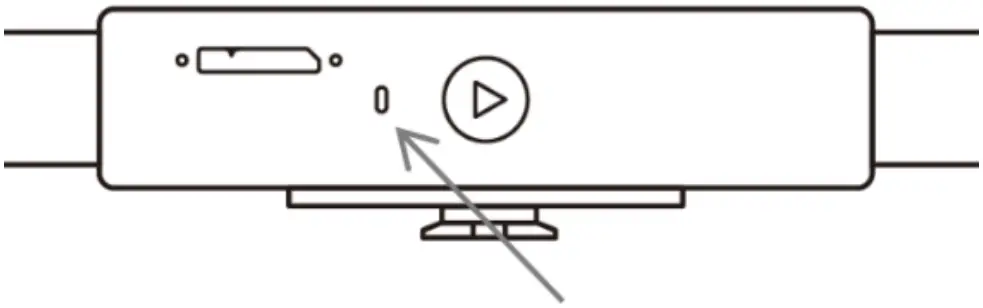
Indicator in Green: Working properly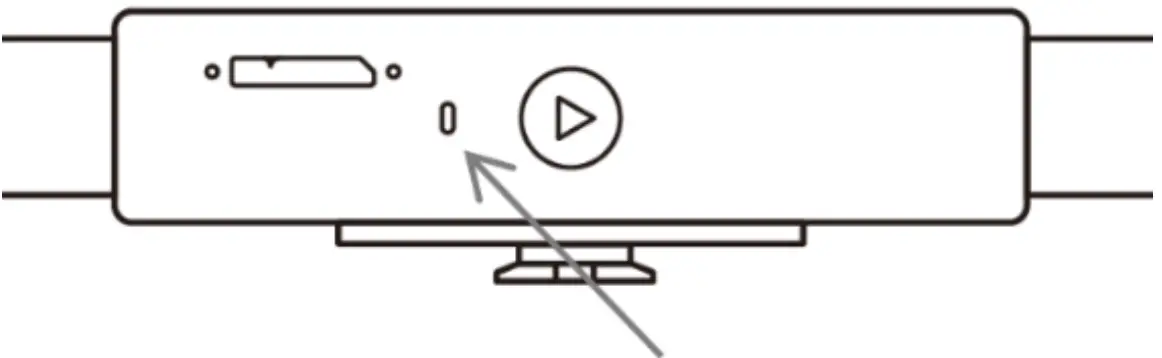
Update the Firmware
When you connect your RANGE to Revo Scan, a pop-up will notify you of any firmware updates.
If you want to update your firmware, follow the install wizard’s prompts and ensure that your RANGE has a stable power supply.
Scanner Calibration
Your RANGE 3D Scanner was calibrated in the factory and only needs to be recalibrated after a year of use or if the scanned results do not match the specified accuracy.
Safety Maintenance Instructions
- Small parts, such as markers and USB adapters, are dangerous if swallowed.
Keep all components out of reach of children and animals to avoid serious injury to them. - Store the scanner and all accessories in a cool, dry place away from direct sunlight.
- Do not allow the scanner to come into contact with or become immersed in water or other liquids.
If it gets wet, wipe them dry with a soft, absorbent cloth.
Operating a scanner that has fallen in water may cause permanent component damage. - Keep the cameras (the two IR cameras, one RGB camera and a projector) clean.
Use 95% isopropyl alcohol and a soft cloth to clean them. - Handle the scanner with care to avoid hitting the cameras.
- The operating temperature range of this product is 0°C to 40°C (32°F to 104°F).
- Do not take apart the scanner.
If there are any problems or questions, contact the Revo point customer service team at:
[email protected].
Troubleshooting
- What to do if you get a “check internet connection” error when trying to download a firmware update?
Check your device’s Firewall Settings and confirm Revo Scan is not being blocked or the Firewall is off.
Try to open api.infly3d.com in a web browser.
If you can access this website, it means Revo point’s server is working correctly. - What to do if my RANGE turns on but its LED never turns solid green, indicating that it’s ready to connect?
Connect your RANGE to a power source, then press the RANGE’s Start/Pause scan button ten times to reset the RANGE.
If that doesn’t resolve the issue, please get in touch with customer support. - What to do if the RANGE always loses tracking when scanning?
Try using scanner spray, dry shampoo, or baby powder to lightly coat any shiny or dark surfaces on the object.
If the object has plain surfaces, you’ll need to place Marker stickers (place them irregularly and ensure that at least five will always be in the frame when you’re scanning) and select Marker mode for the scan.
Ensure your model has no deep shadows and is evenly lit with a soft light. - What to do if the object you want to scan isn’t clear in the preview window?
Increase the brightness in Revo Scan till the object looks clearly defined and has as few red and blue patches in the preview window as possible. - What to do if your scanned model’s surfaces lack detail or the details are smeared?
Unfortunately, you’ll need to redo the scan, but be careful and ensure you only scan an area once rather than multiple times.
Basically, the smaller the number of frames, the better the scan quality.
Scanning the same spot twice will only lower the detail. - What to do if you keep running out of memory when scanning?
The object you’re scanning is too large for your computer or smartphone’s amount of RAM.
If this happens, pause the scan, fuse the model, and start a new scan from where you had to pause your previous scan.
These separate scans can be merged together in Revo Studio to make a whole model once you’ve finished scanning the object. - How do I reset the scanner?
Connect your RANGE to a power source, then press the RANGE’s Start/Pause scan button ten times to reset the RANGE.
Customer Service
If you need any assistance with your scanner, please don’t hesitate to contact us at [email protected] or drop us a line at +1 (888) 807-3339 or chat with one of our customer service agents online on our website: www.revopoint3d.com. click the speech bubble on the bottom right corner of the screen.
Warning
The product cannot be returned if the “Warranty Void If Seal Is Broken” label is damaged or removed.
Follow Revo point
Facebook
Scan Me
Instagram
Scan Me
You Tube
Scan Me
Twitter
Scan Me
SUPPORT
Scan Me
This content is subject to change.
www.revopoint3d.com
If you have any questions about this document,
Please contact Revopoint by sending a message to [email protected] or our forum
https://forum.revopoint3d.com/.
References
 Welcome to nginx!
 Best 3D Scanner Manufacturers,3D Printer Scanner | Revopoint 3D Technologies Inc.
-
Best 3D Scanner Manufacturers,3D Printer Scanner | Revopoint 3D Technologies Inc.
-
Best 3D Scanner Manufacturers,3D Printer Scanner | Revopoint 3D Technologies Inc.
 Revopoint 3D - The Difference you can Sense
 Welcome to nginx!
 Best 3D Scanner Manufacturers,3D Printer Scanner | Revopoint 3D Technologies Inc.
 Best 3D Scanner Manufacturers,3D Printer Scanner | Revopoint 3D Technologies Inc.
 Revopoint 3D - The Difference you can Sense