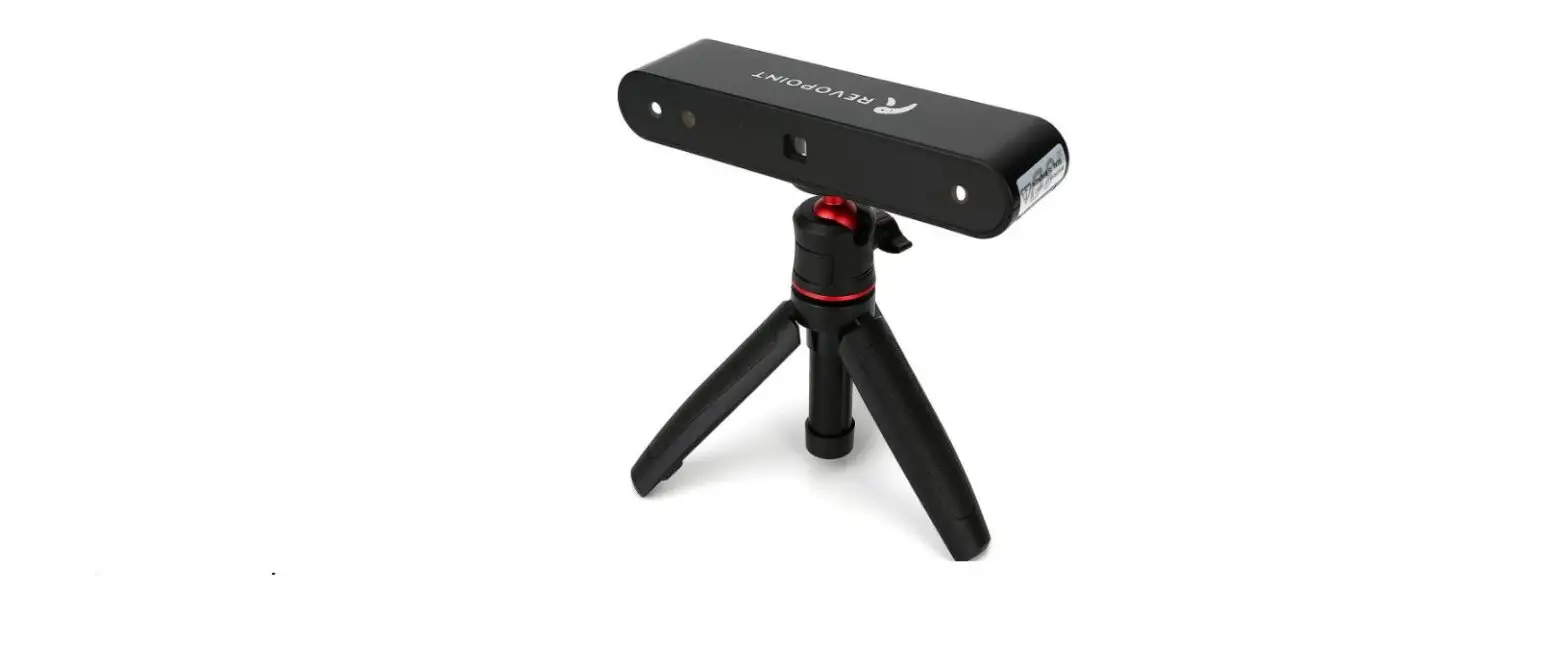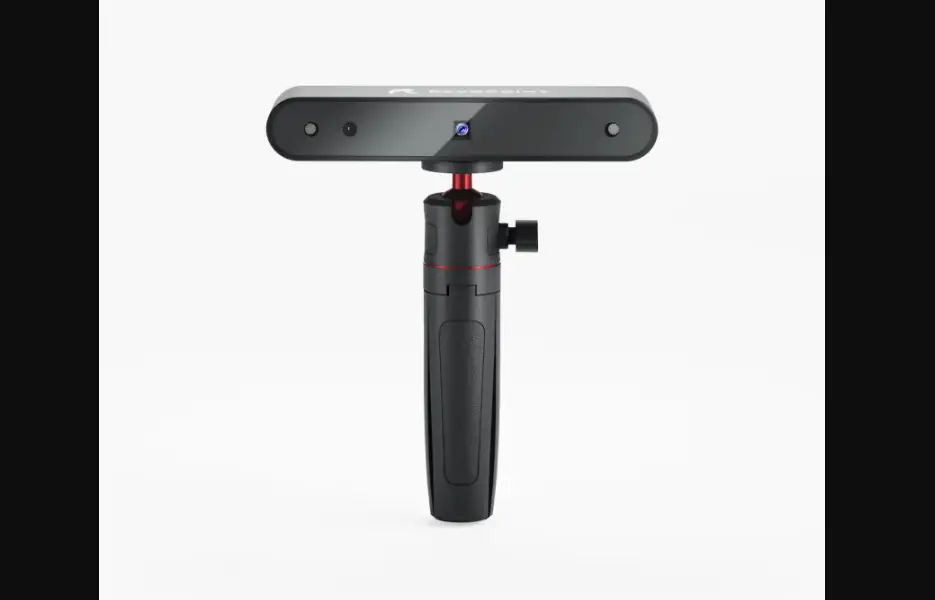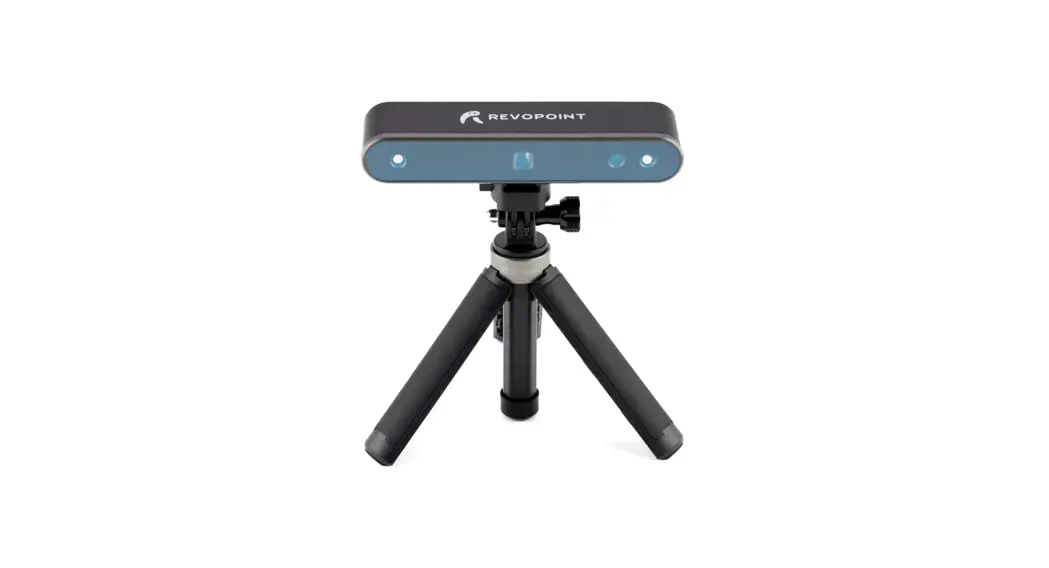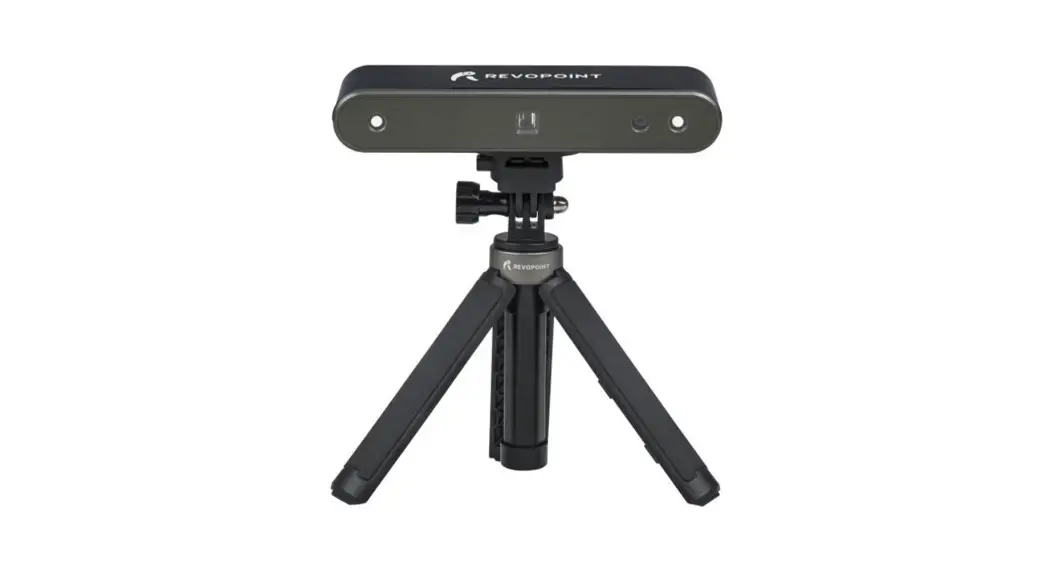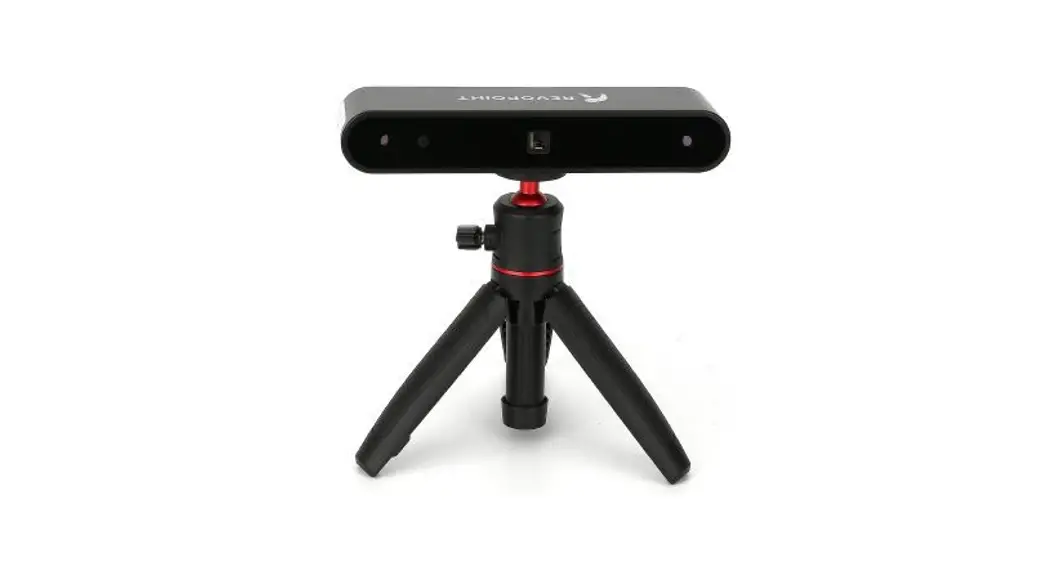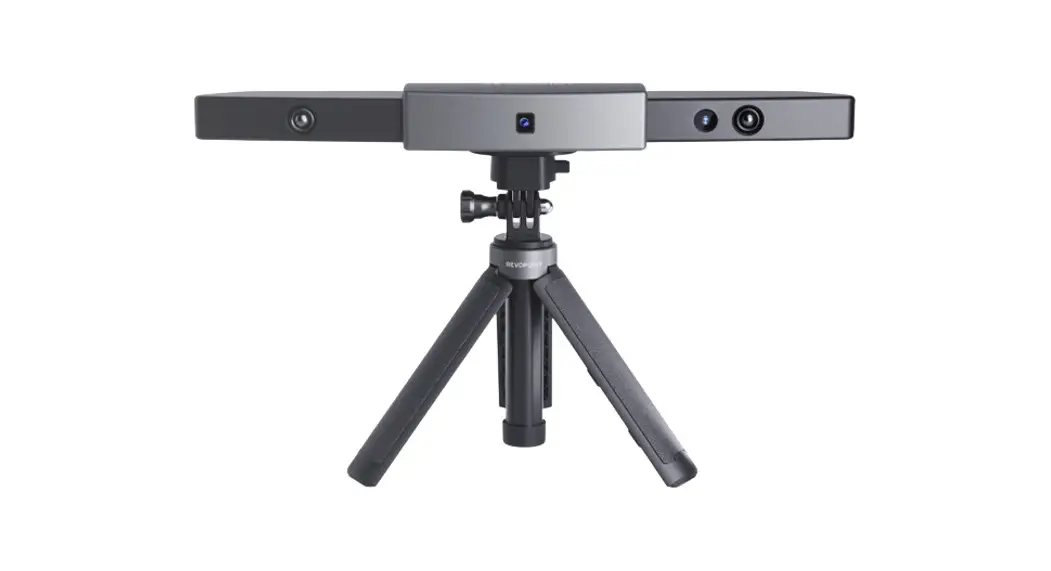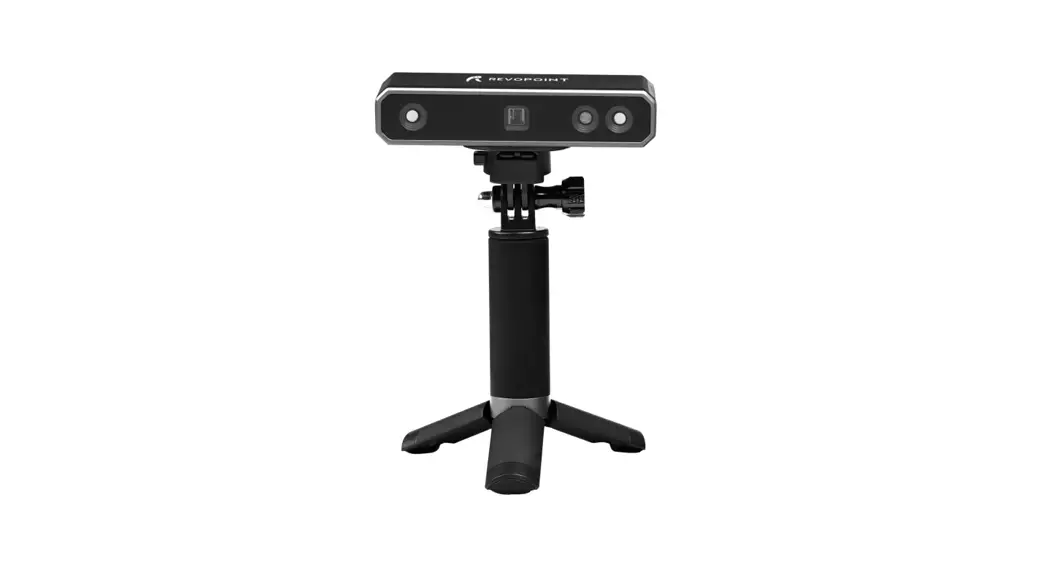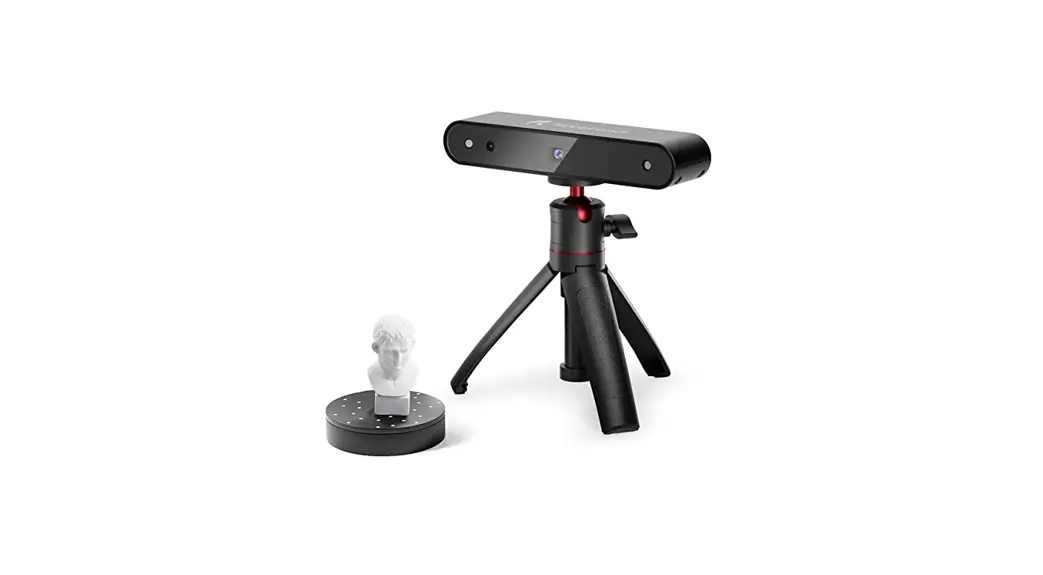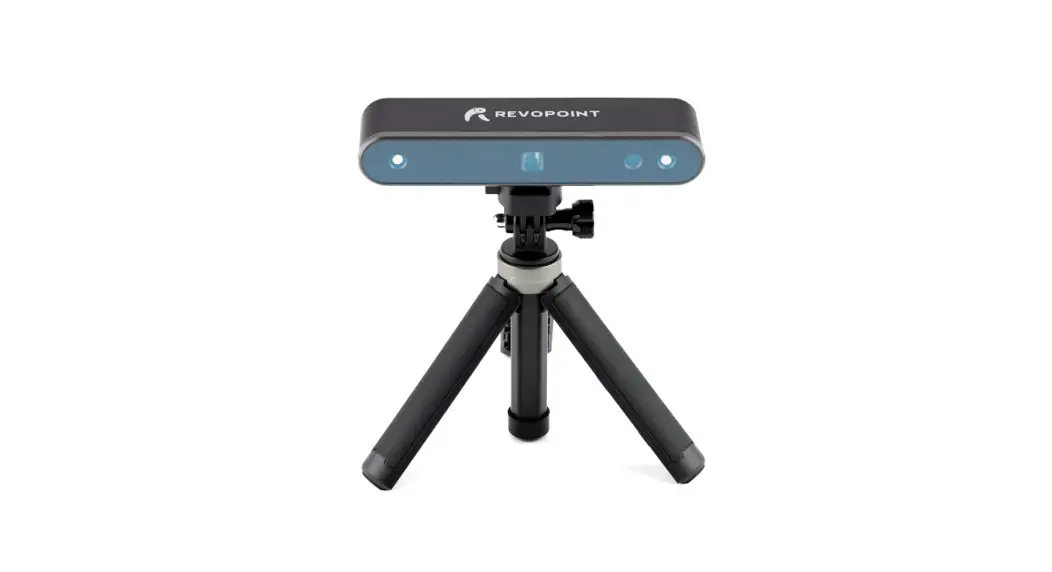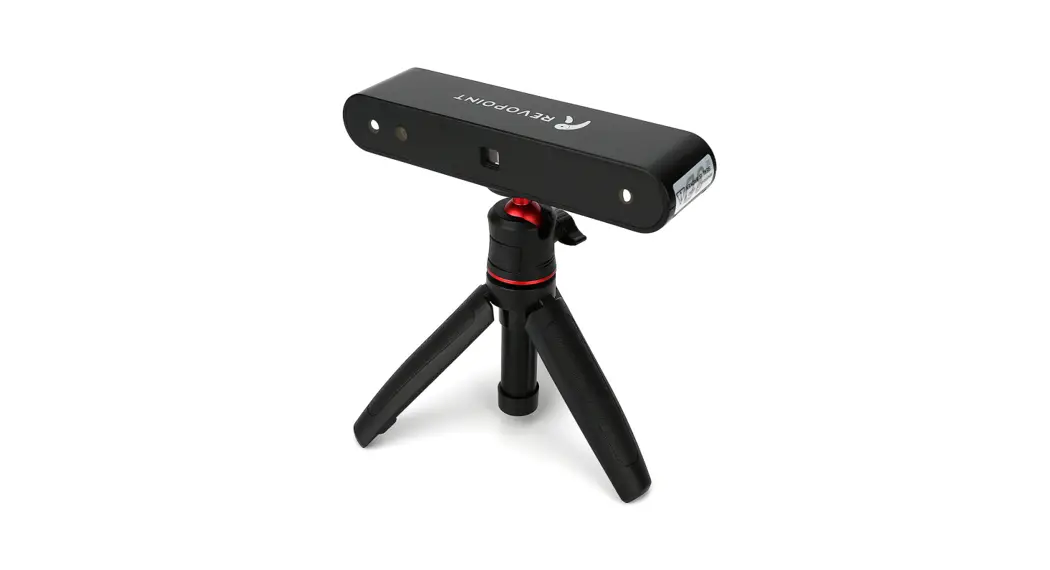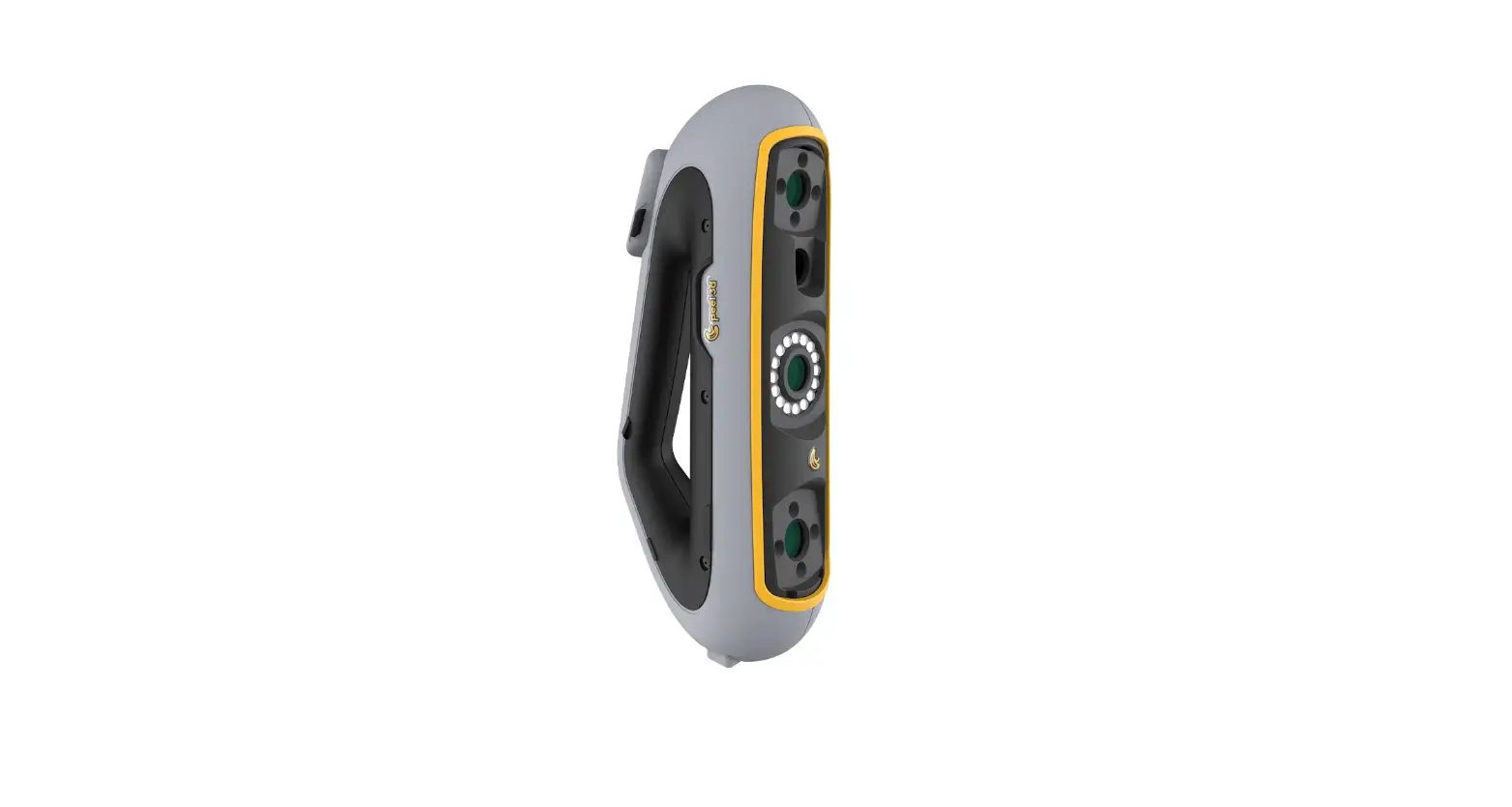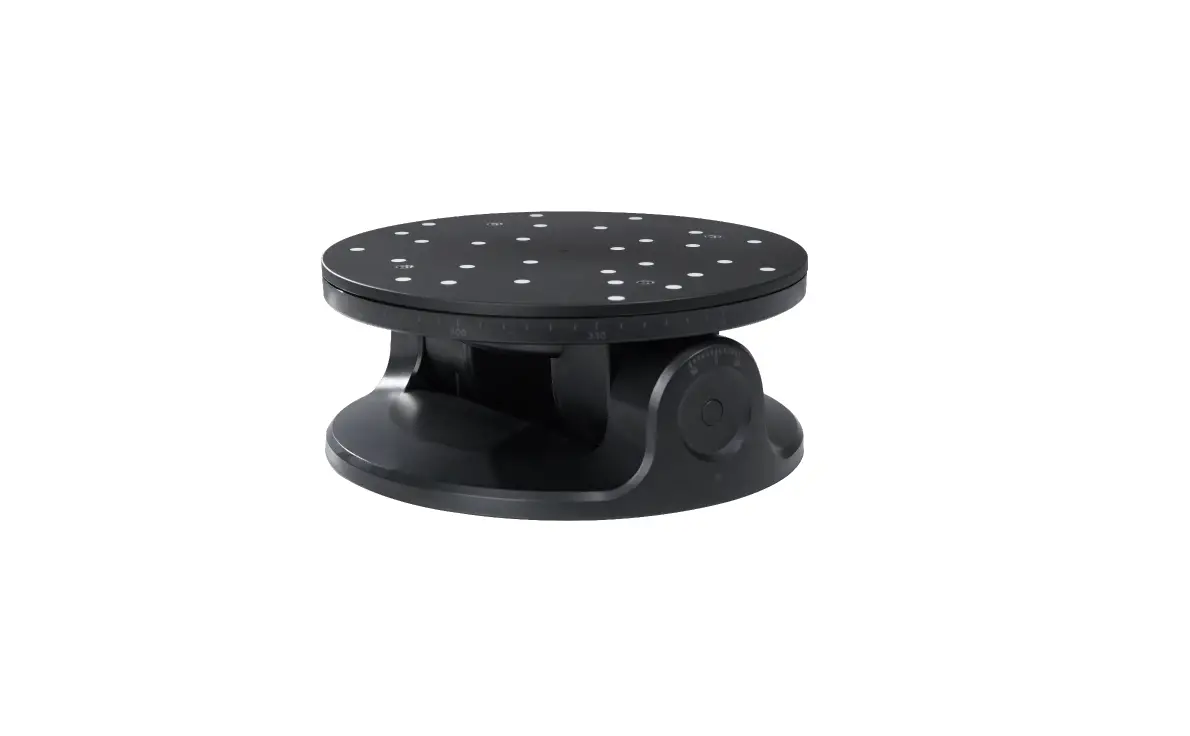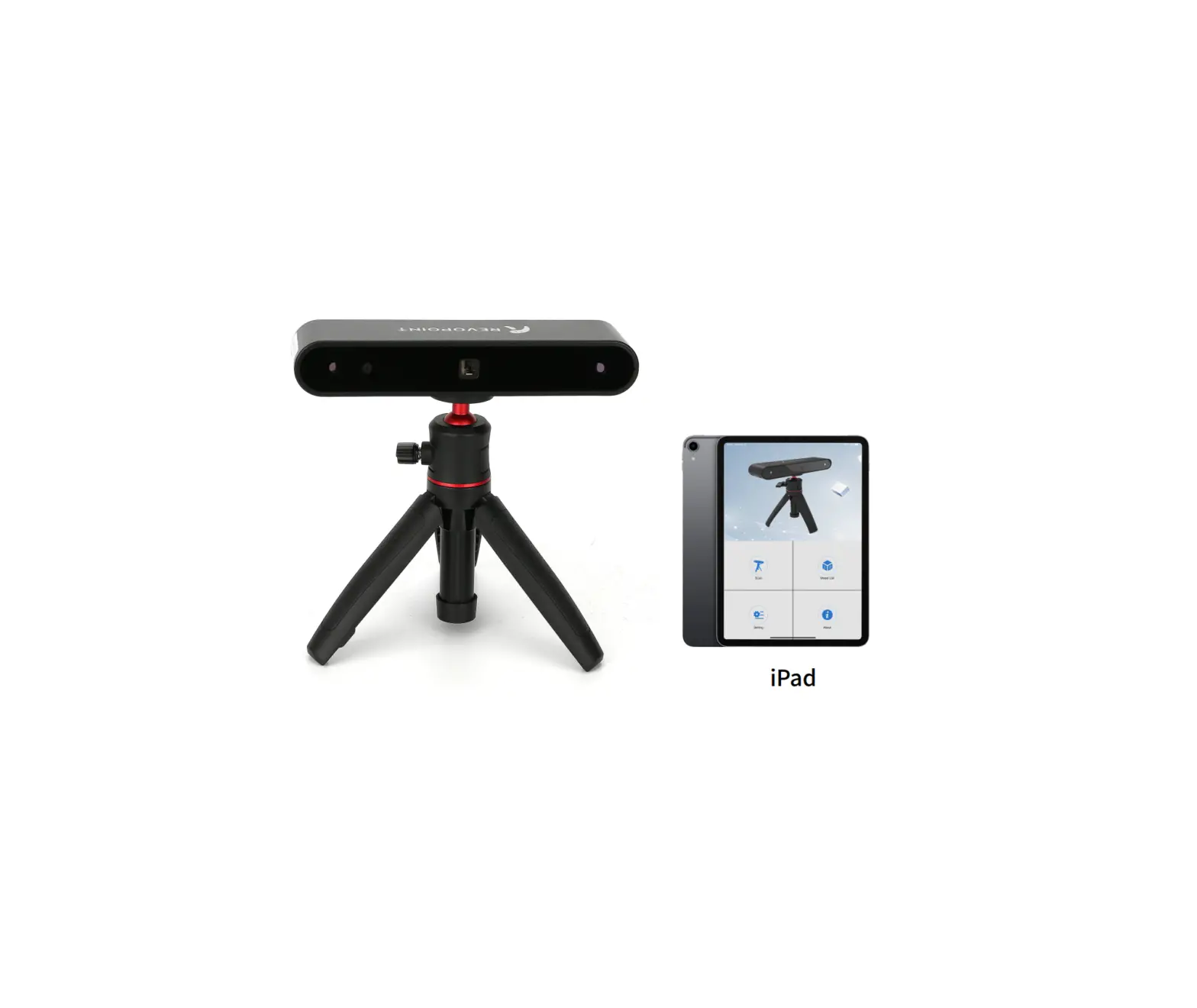
REVOPOINT Pop 3D Scanner iPad Handy Scan
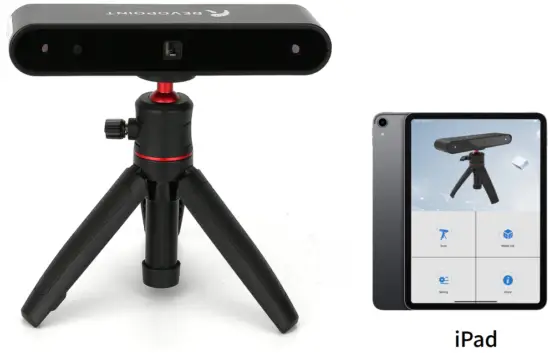
Read/Watch Before Scanning
We have provided tutorial videos and documents of POP D scanner bellow for your reference: .
- User Manual
- Quick Guide .
- Video Tutorials
- FAQ
Join Official Forum
To get Software Updates & Tutorials & Showcases & Contests & Discussions![Register Now]

- www.revopoint3d.com/download/
- For Android users, get Handy Scan from Play store
- For IOS/Mac users, get Hand Scan from Apple Store
Contact us with [email protected]
 The operating temperature of this product is 0°C to 40°C. It does not meet the standard operating temperature for military grade application, which is required to endure greater environment variability. Operate the product appropriately and only for applications that it meets the operating temperature range of that grade.
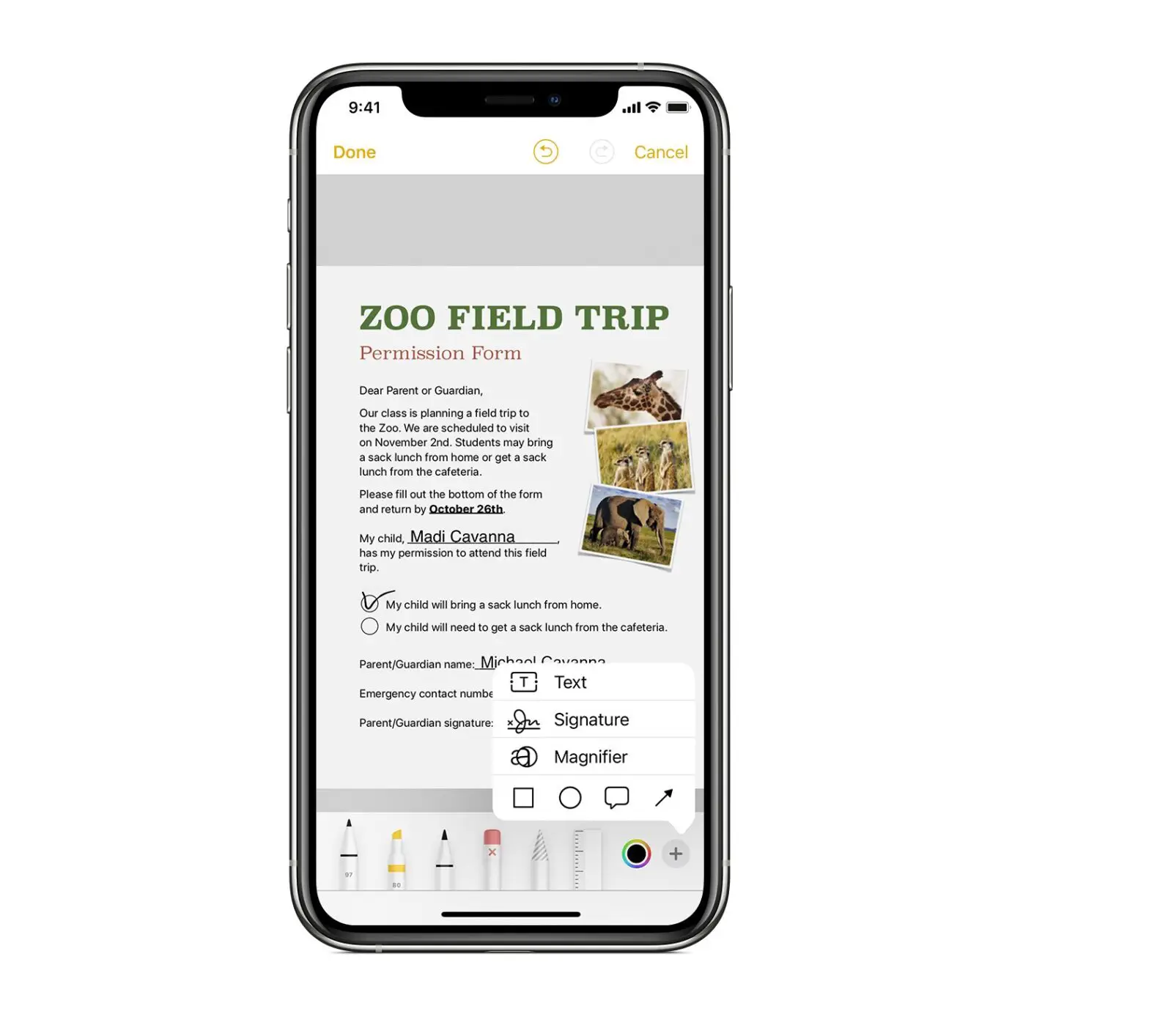
iPad Handy Scan
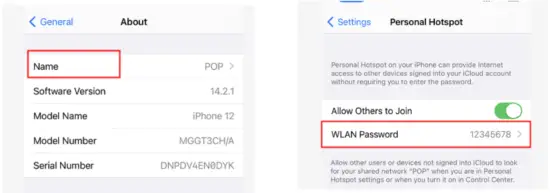
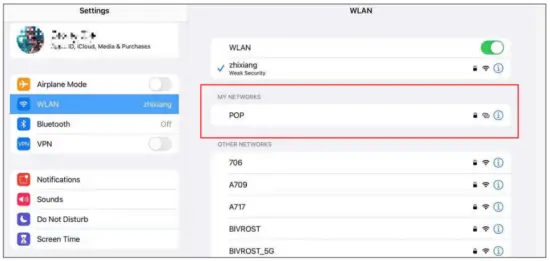
- Personal hotpot setting on phone;
Name: POP
Password: 12345678

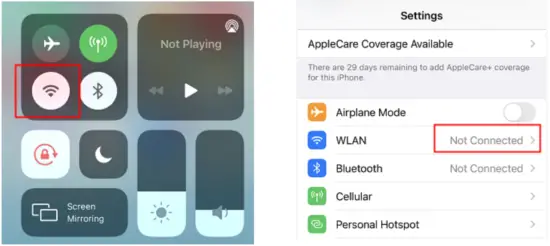
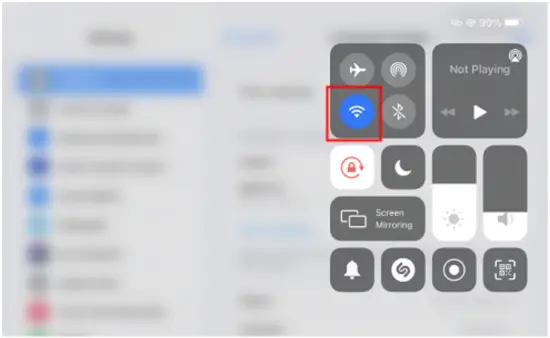
- Turn iPad WiFi on;

- Conenct iPad to Phone Hotspot;

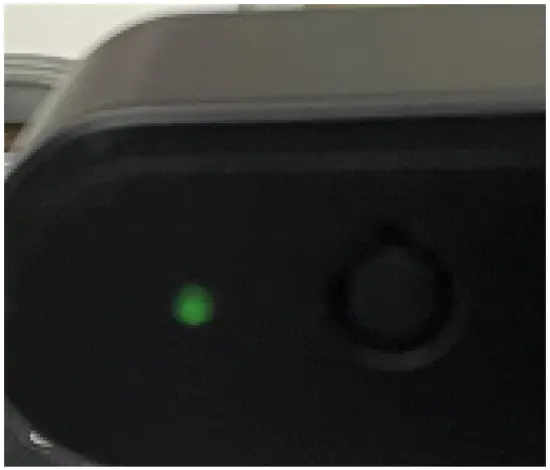
- Power on POP(the Indicator turns green);

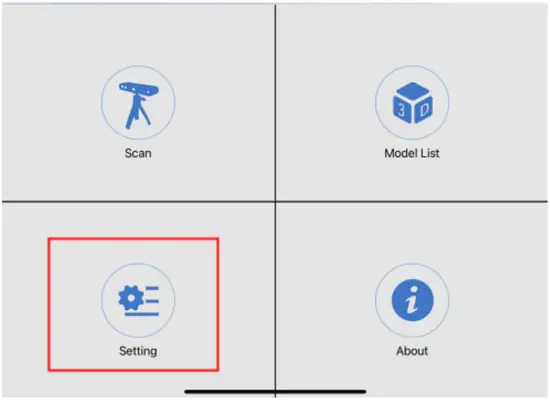
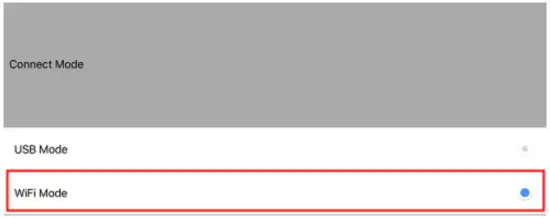
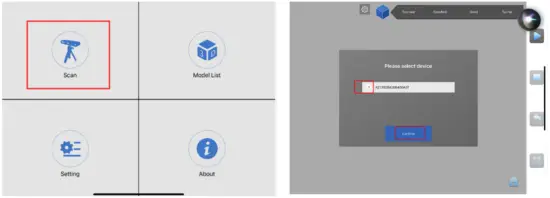
- Click Handy Scan on iPad and select Connect Mode;


- Authorize the camera;

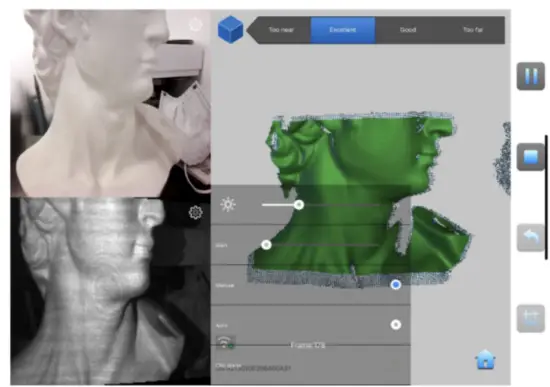
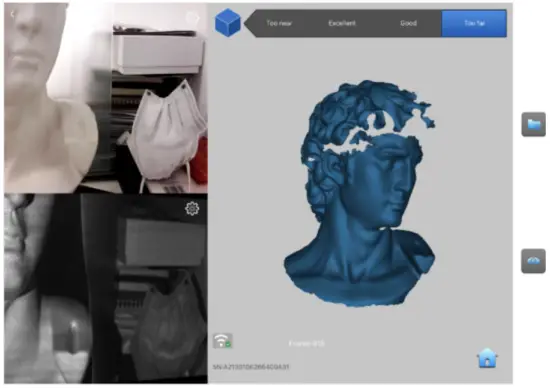
- Scanning;


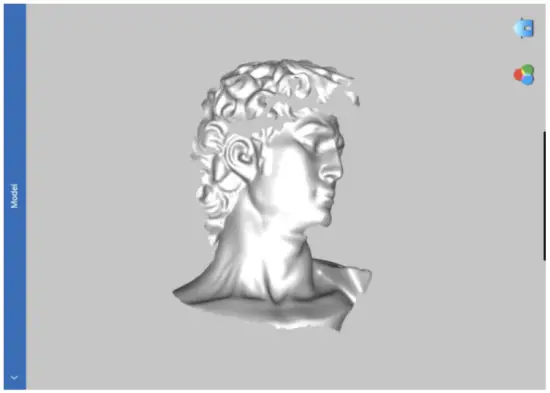
Note:
If it shows the following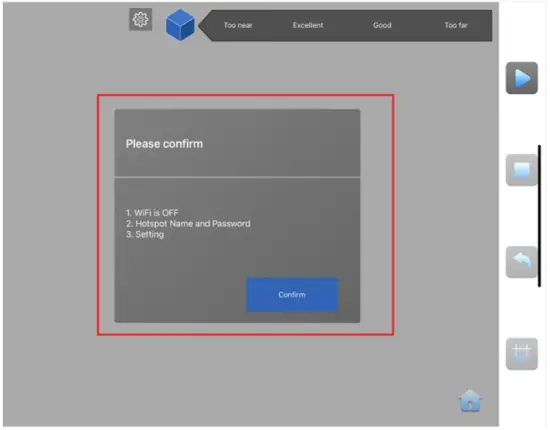
Please check your WIFI connection & Setting and restart Handy Scan.
And Make sure a high-speed Internet access without annoying buffering.
Warning
The product cannot be returned if the “Warranty Void If Removed” label is damaged or removed.
Follow Us
|  Instagram Instagram |  Youtube Youtube |
|


 https://bit.ly/FBrevopt3dgrouphttp://3s2.net/bvpb3http://r6a.cn/bytf3https://twitter.com/Revopoint3d
This content is subject to change.
Download the latest version from www.revopoint3d.com/support
If any questions about this document, please contact [email protected]
 Revopoint 3D - The Difference you can Sense