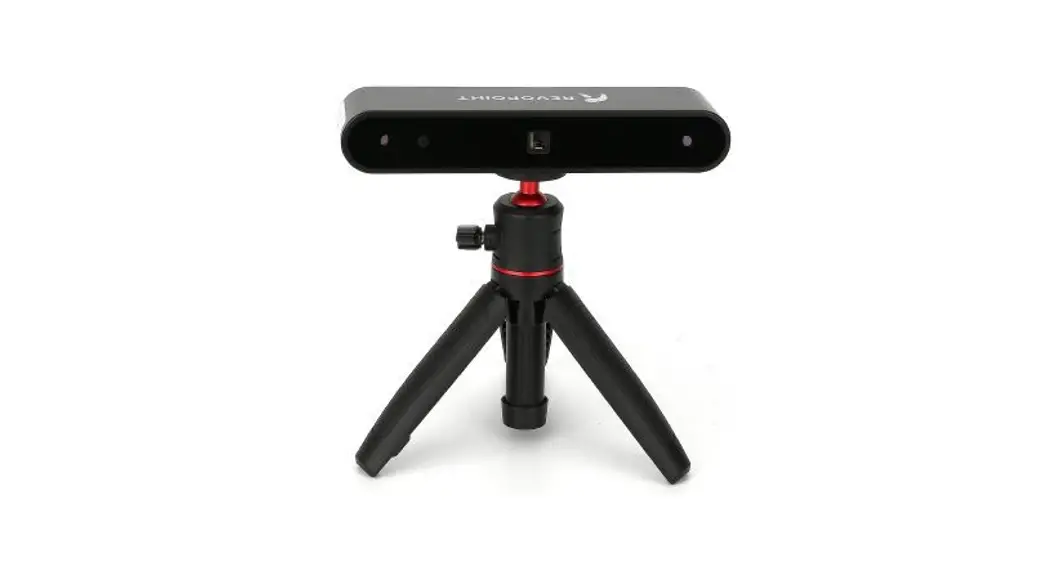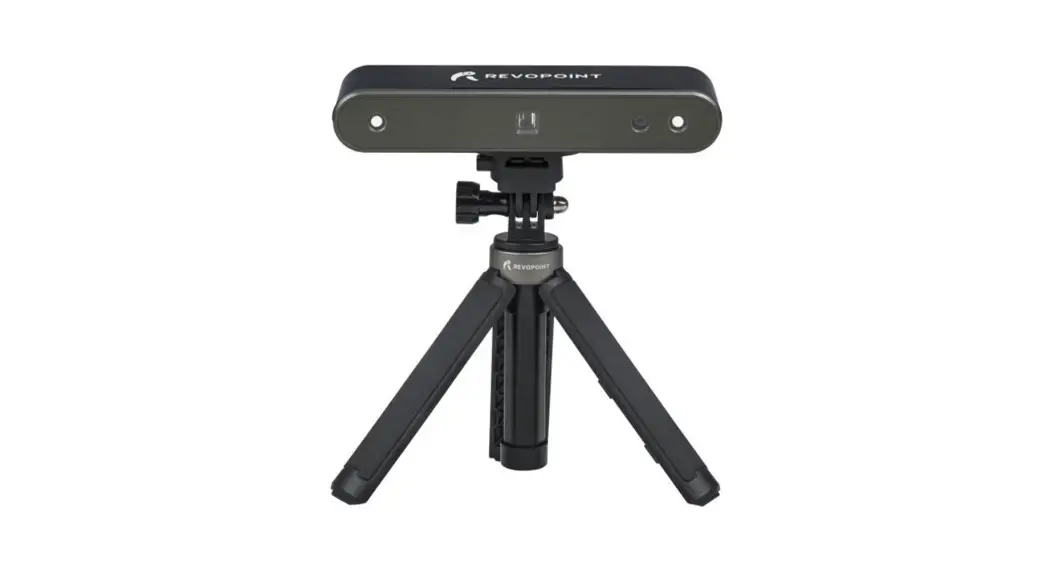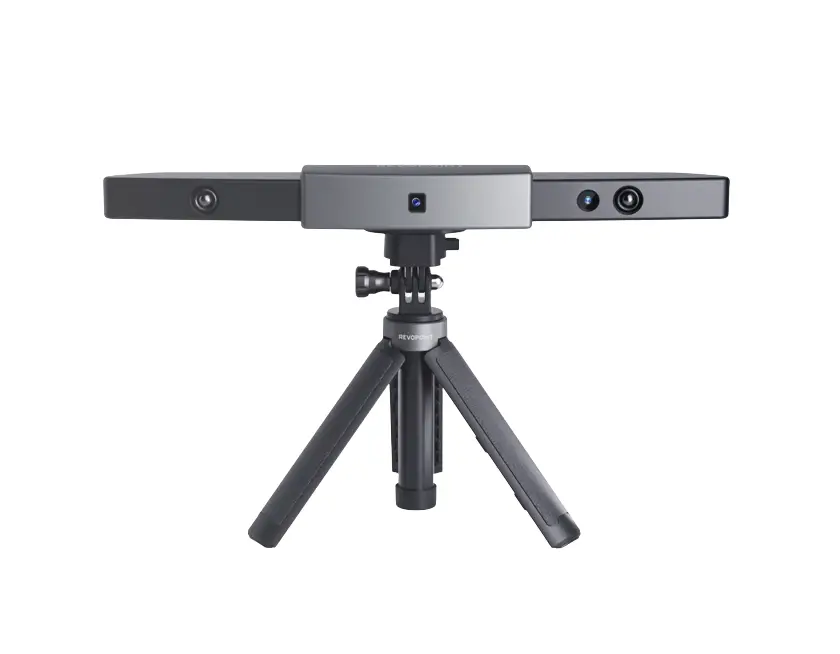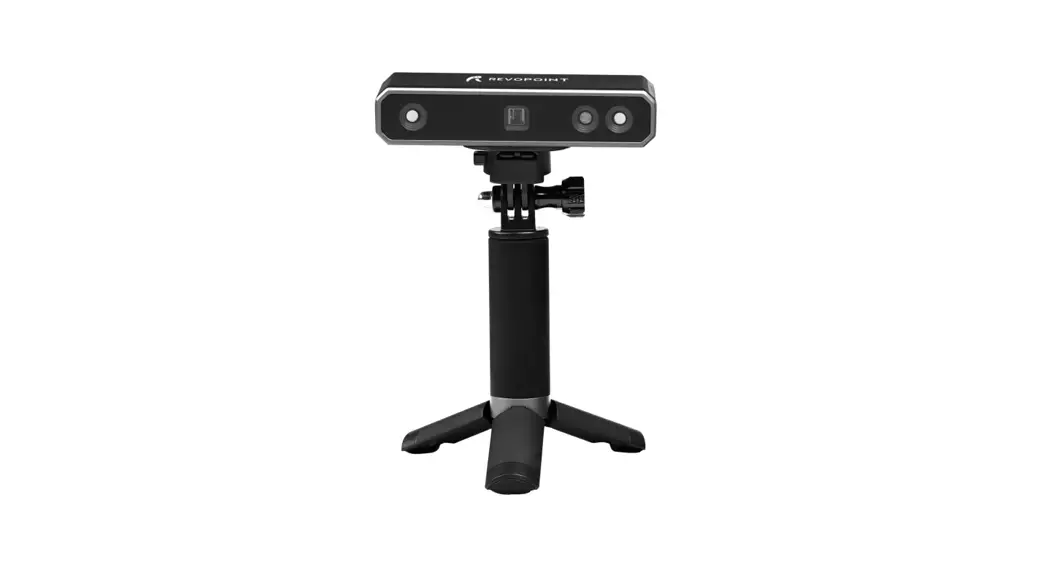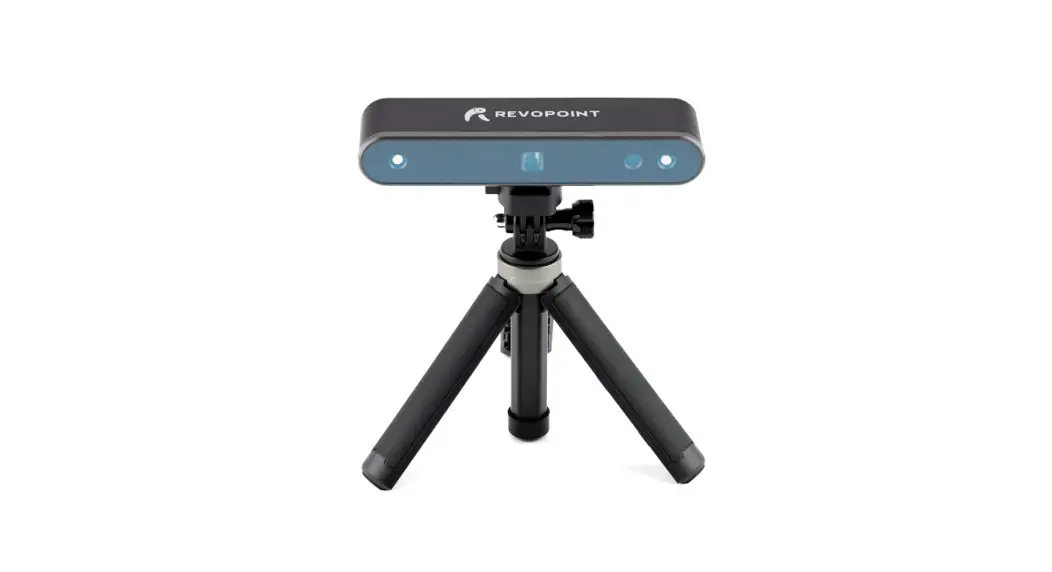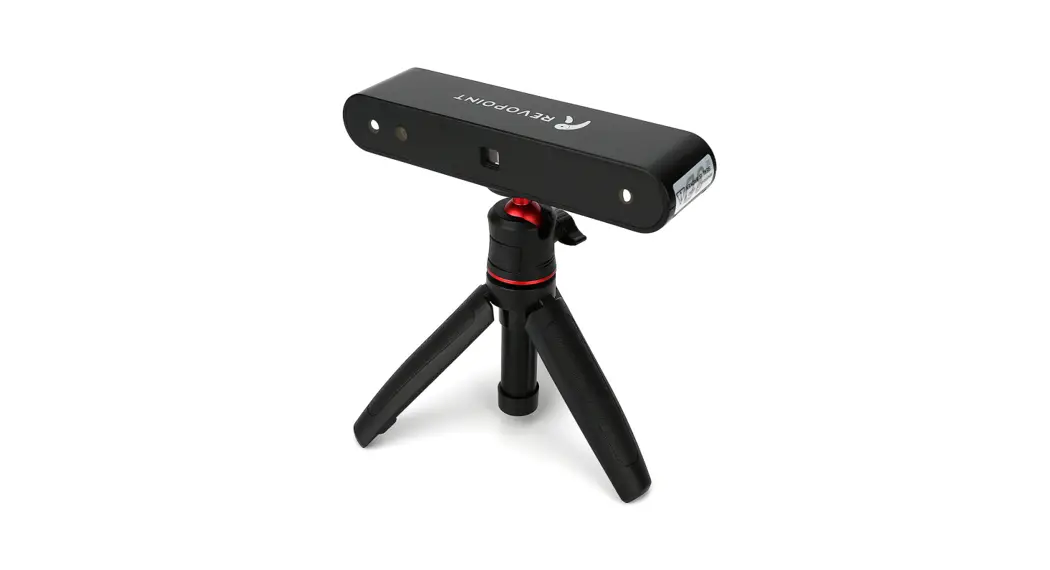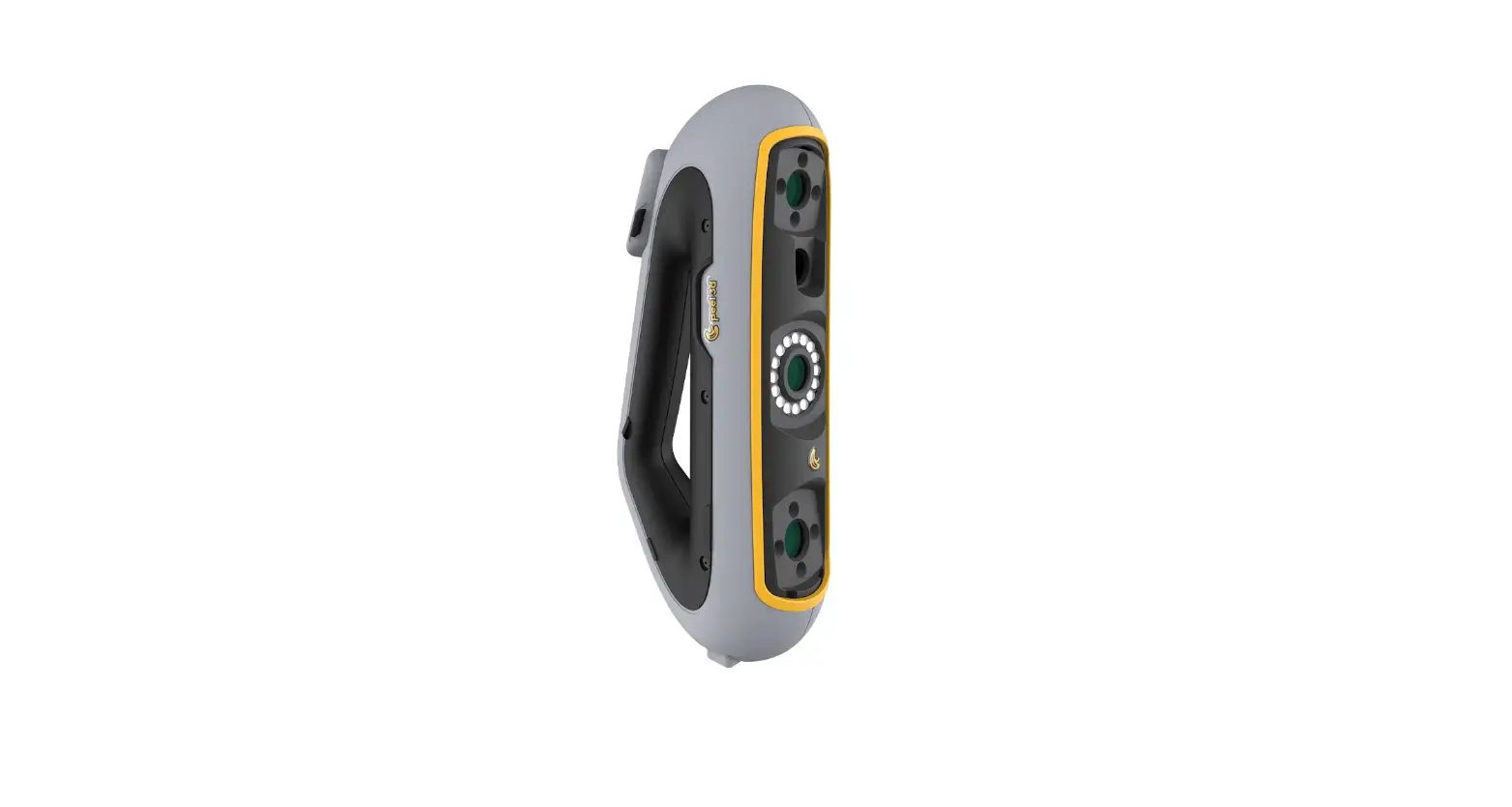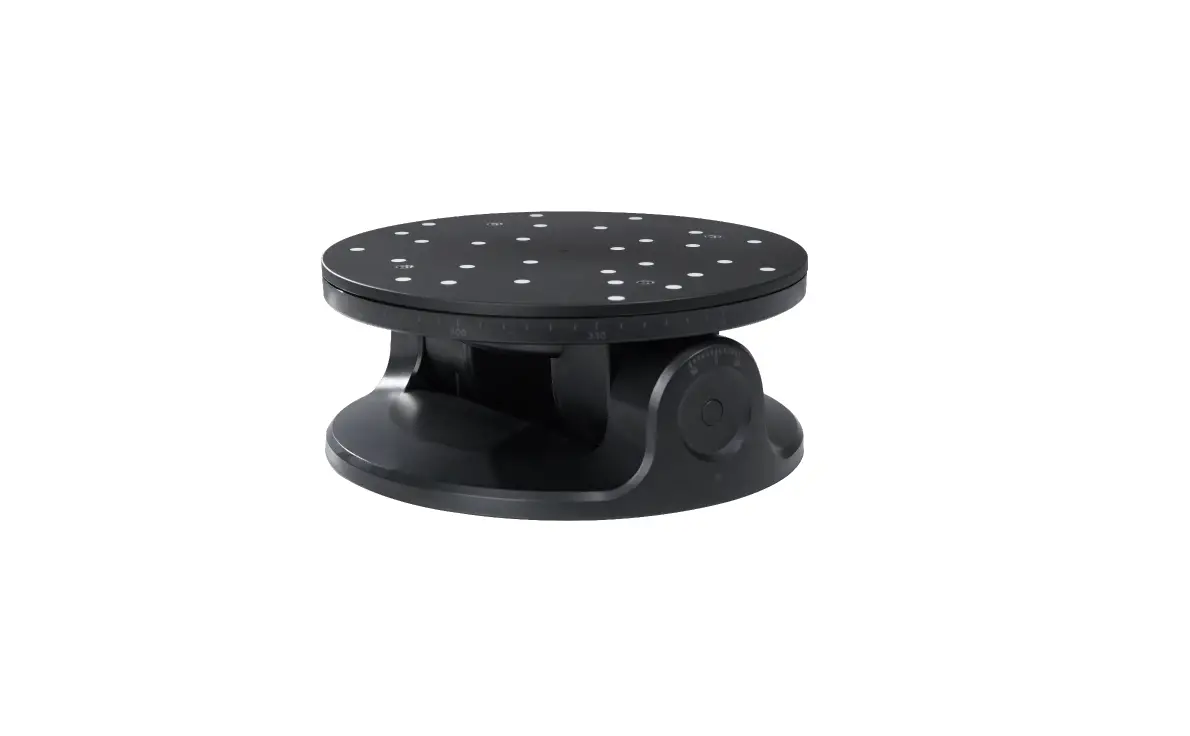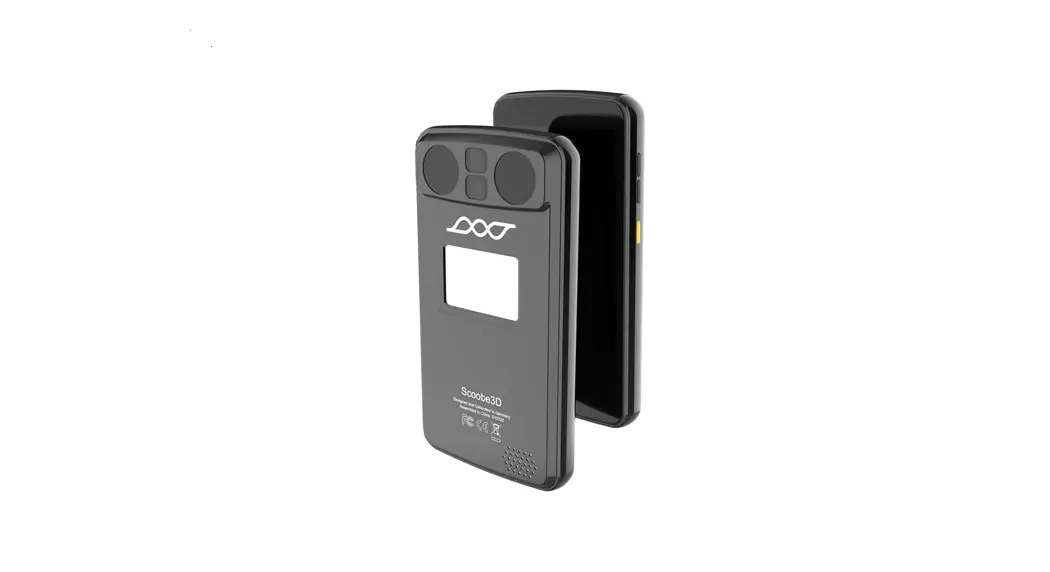

REVOPOINT POP Portable 3D Scanner

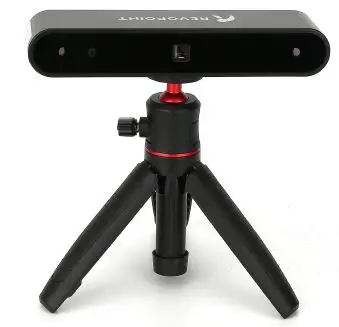
Read/Watch Before Scanning
We have provided tutorial videos and documents of the POP 3D scanner below for your reference:
- User Manual
- Quick Guide
- Video Tutorials
- FAQ
Download related software from
- www.revopoint3d.com/download/
- For Android users, get Handy Scan from Play store
- For IOS/Mac users, get a Hand Scan from Apple Store
MAC version Handy Scan Connection
USB cable of Mac will come online in September.
- Set up Wi-Fi on your router or a hotspot on your phone;
We use an iPhone as an example:
- Change the Wi-Fi to “Not connected”;
- Open “Setting” → “General”;
- Click “About”;
- Change the Name to “POP”;
- Open Setting →“Personal Hotspot”;
- WLAN Password to be: 12345678;
- Open “Allow others to join”;
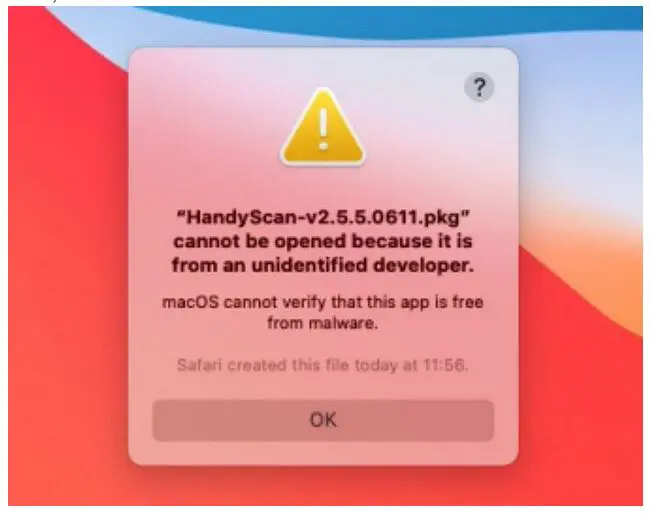
- After downloading handy Scan software at App Store, open the Handy Scan, then click “OK”;

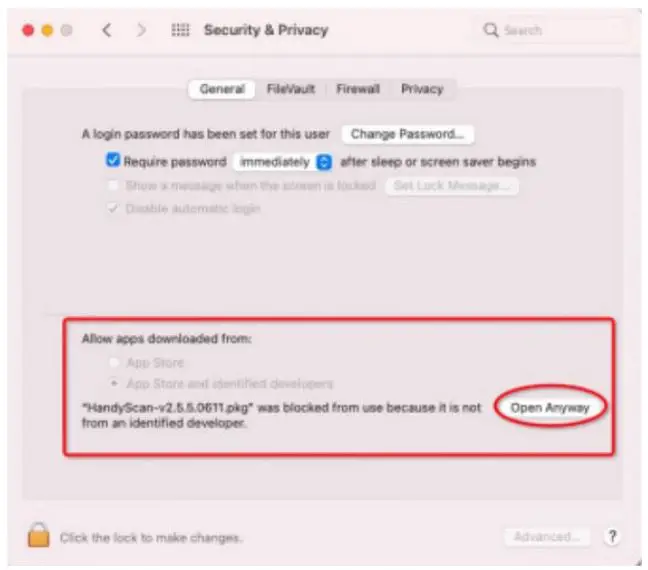
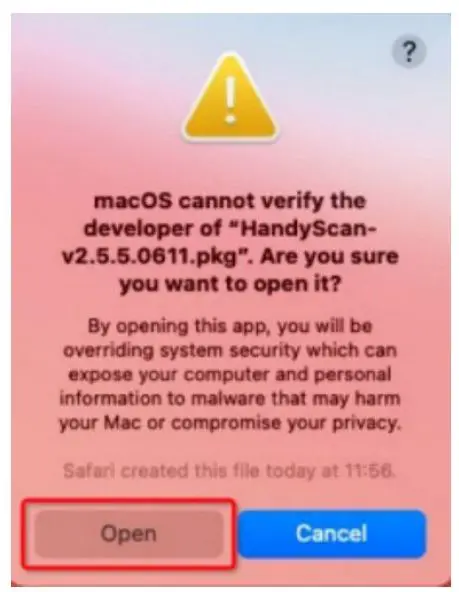
- Click “System Preferences” – “Security & Privacy” – “General” – “Open Anyway” – “Open”;


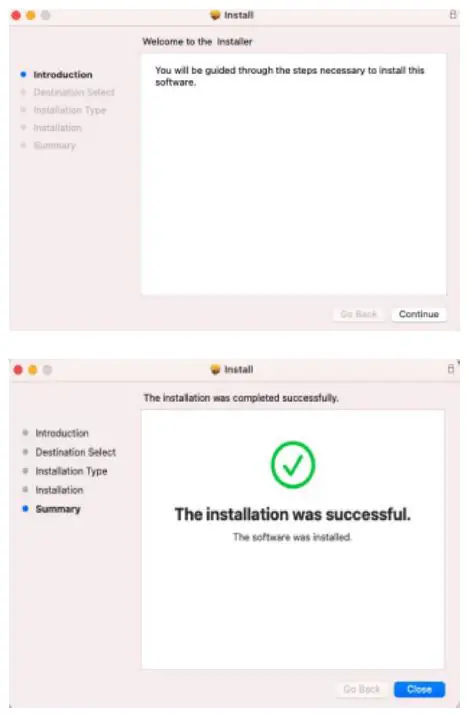
- Follow the steps to install the software;

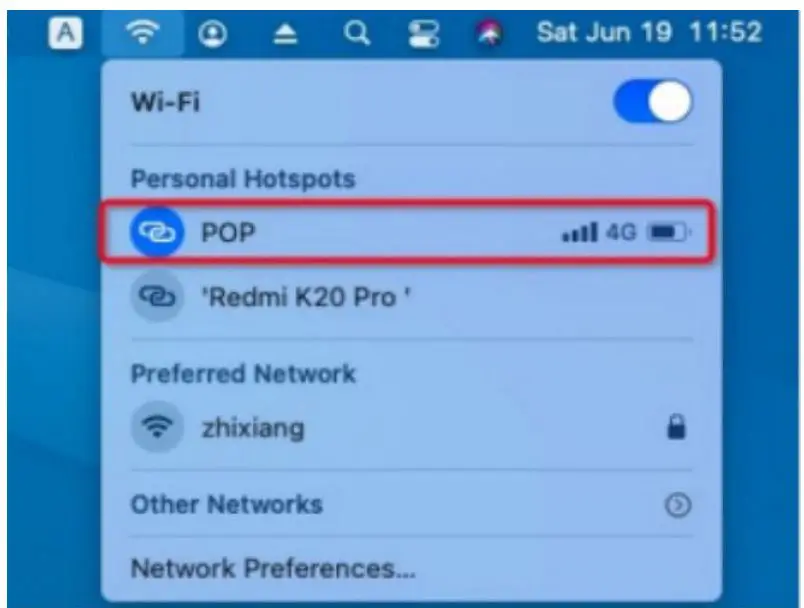
- Search for the Wi-Fi “POP” and connect it on your MAC;

- Power the POP with your Mac or a power bank;
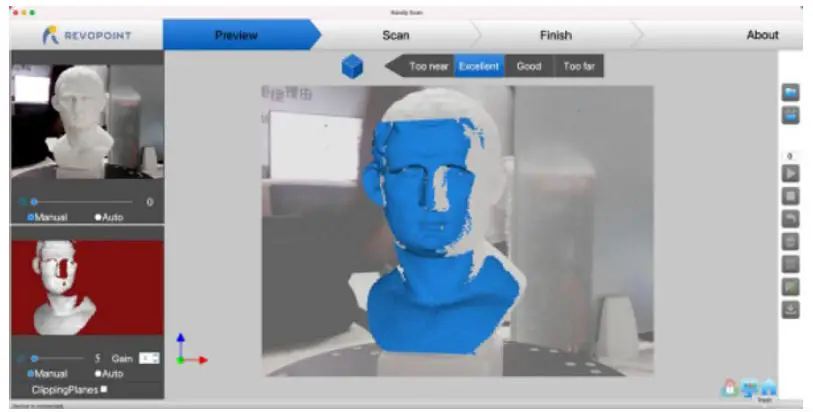
- Open “Handy Scan” – “Device is connected” – Start to scan;

 Revopoint 3D - The Difference you can Sense