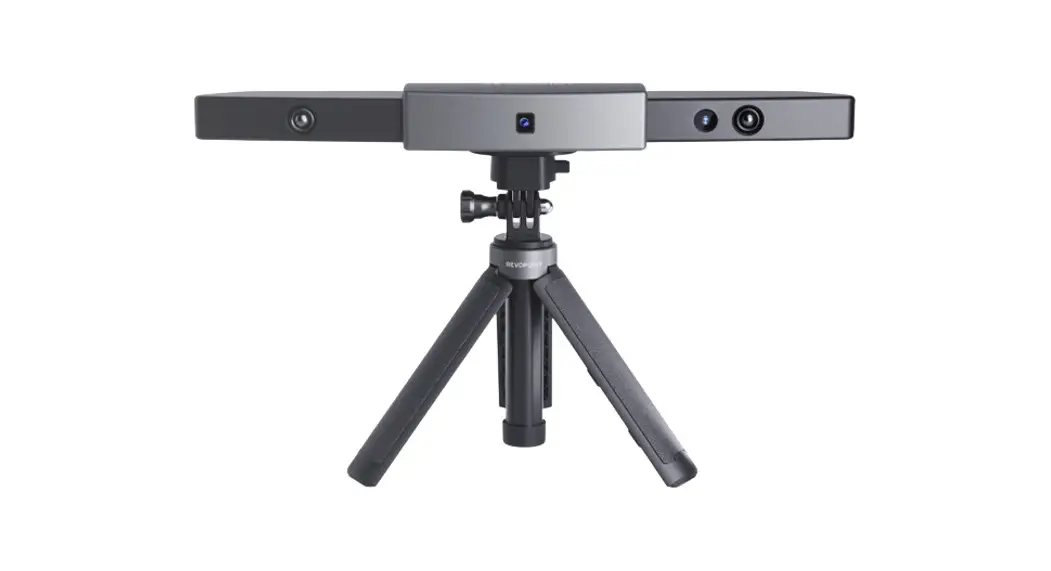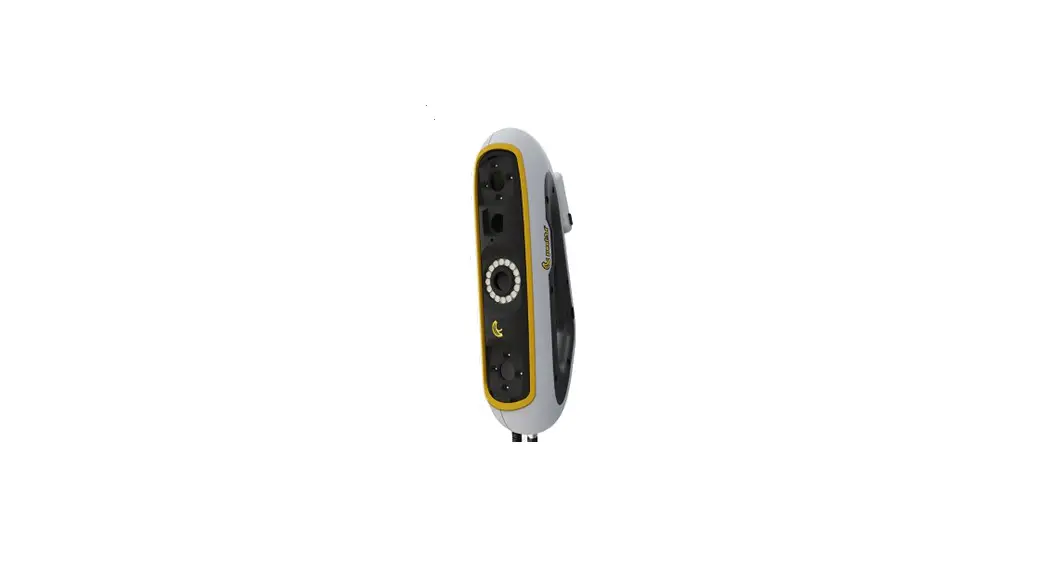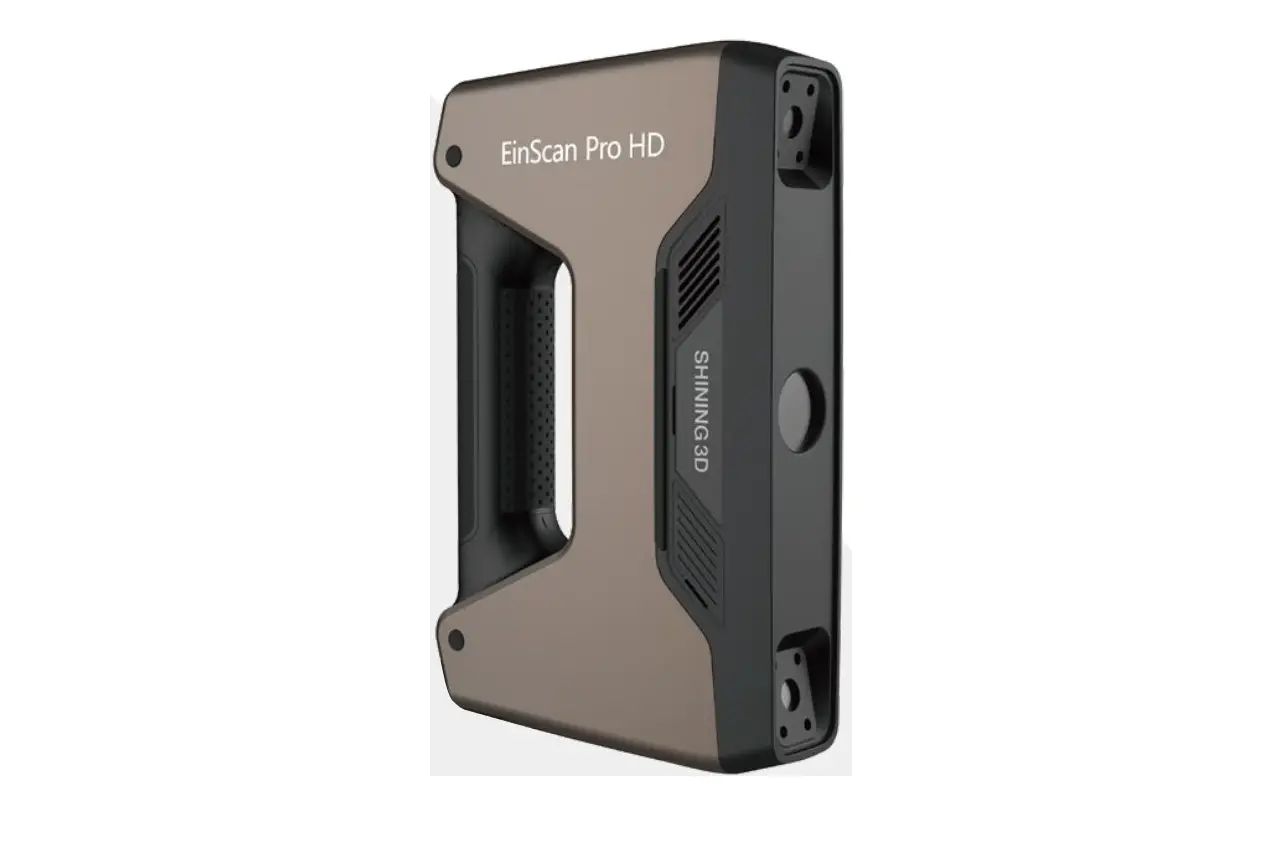
SHINING 3D EinScan Pro HD Multifunctional Handheld 3D Scanner User Guide
Preparation
Device List
Standard Pack
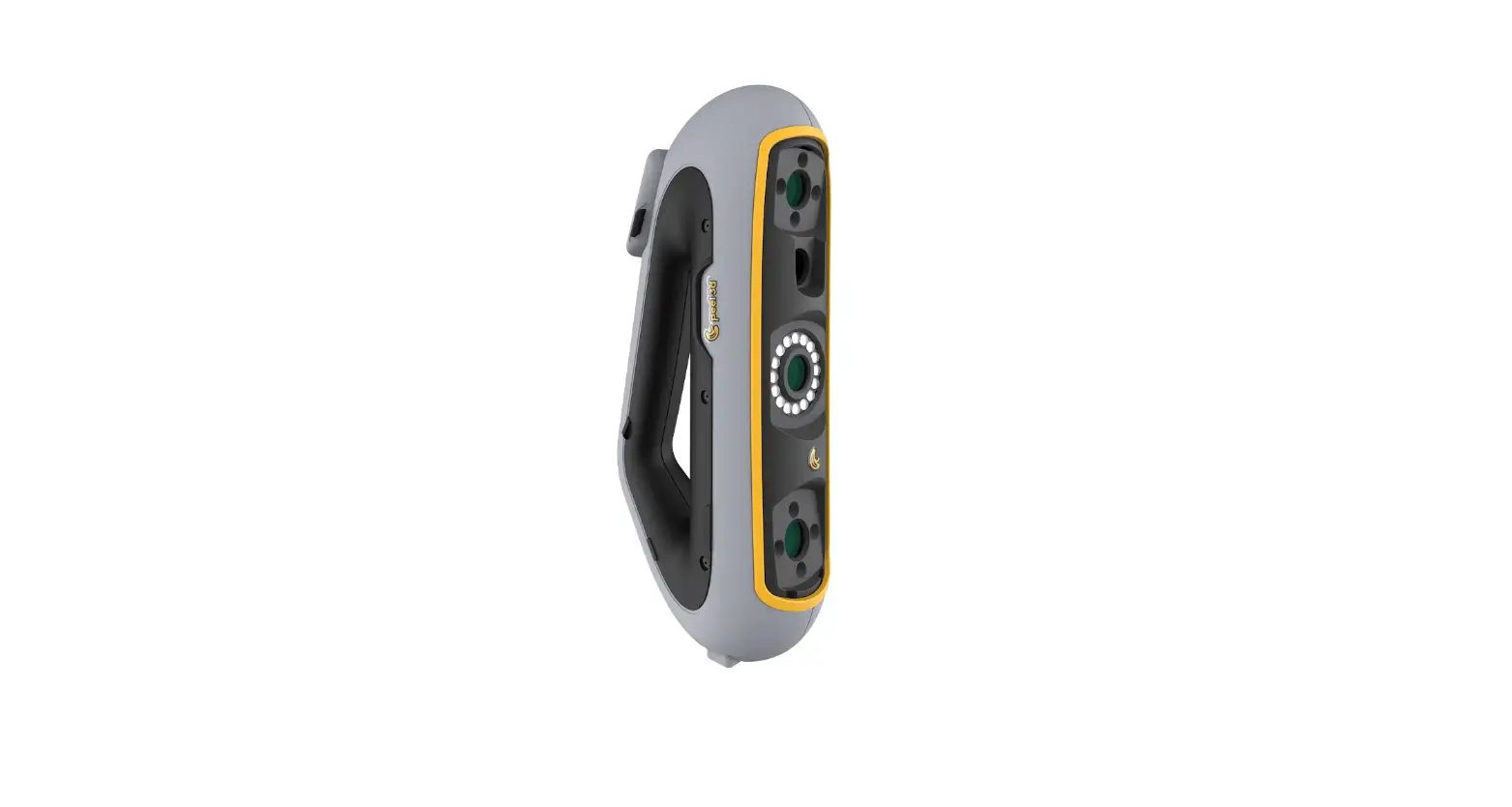
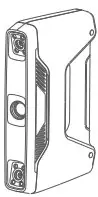
- Scanner body

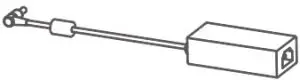
- Power adapter

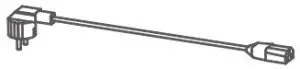
- Power cable

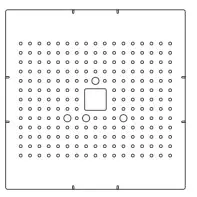
- Calibration board

- Calibration board support

- Markers

- USB drive Software installer (EXScan Pro, Solid Edge, user manual)

- Markers remover /Module port cap lifter

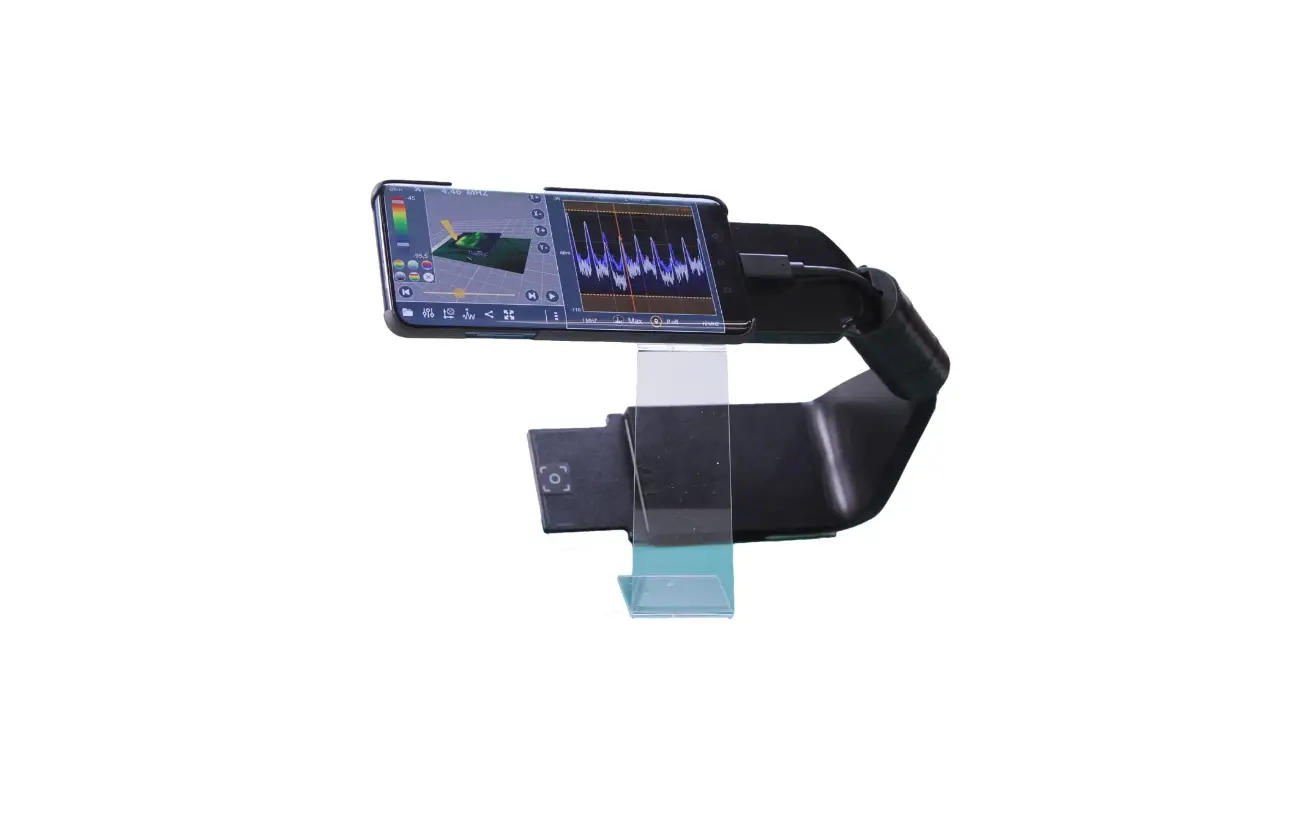
- Phone screen mount

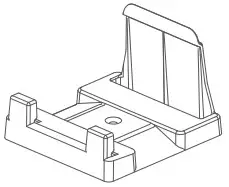
- Cable clip

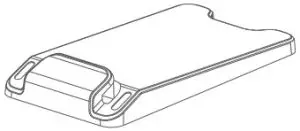
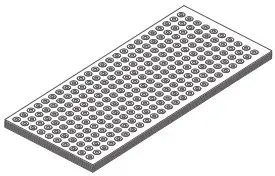
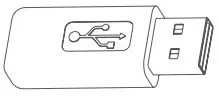
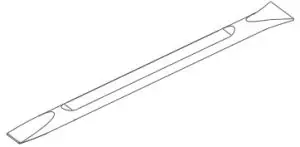
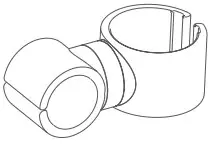
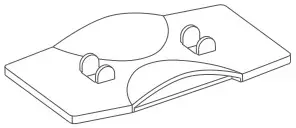
Note:
- Plug in dongle before opening Solid Edge software
- Find the use of phone screen mount in Support-Help at www.einscan.com
Industrial Pack (optional)
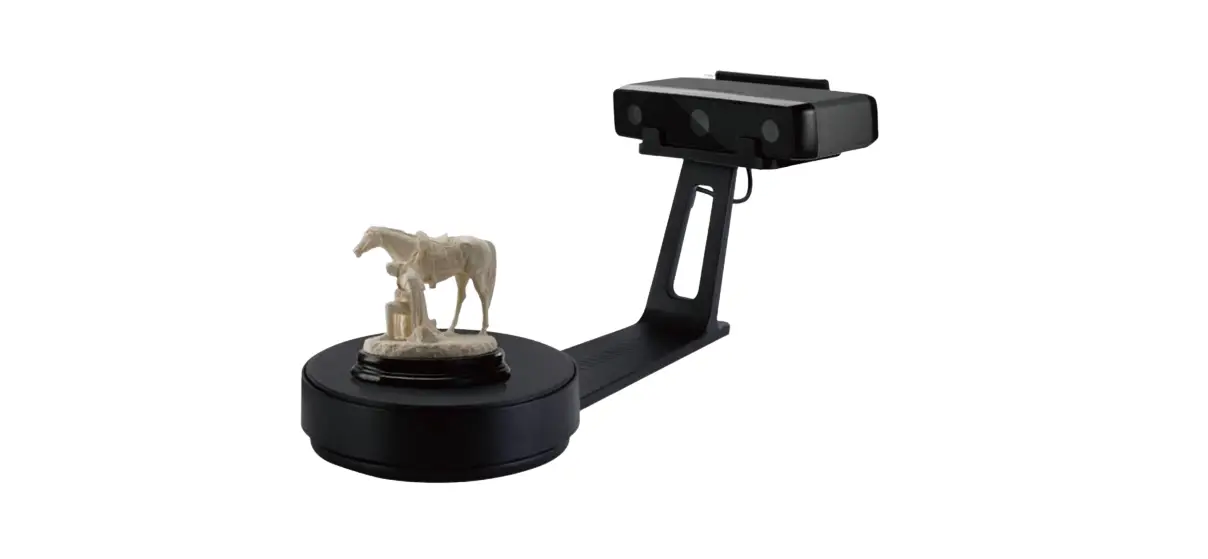
- Turntable

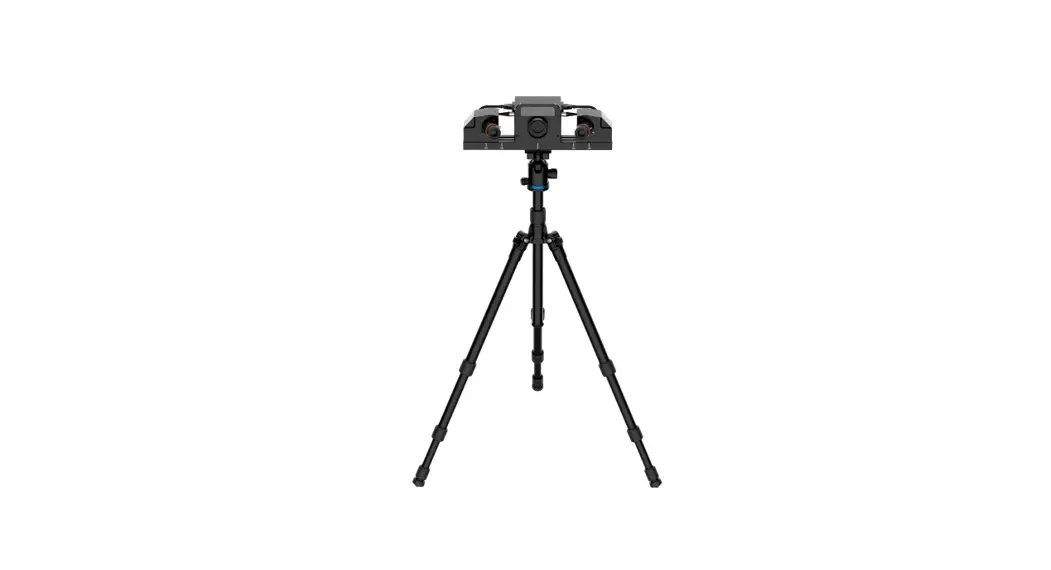
- Tripod

- Scanner tray

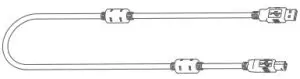
- USB cable

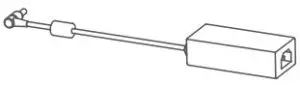
- Power adapter

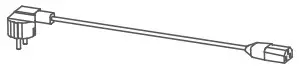
- Power cable

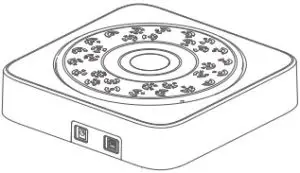
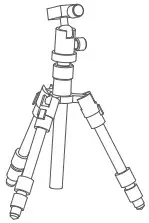
Color Pack (optional)
- Texture camera

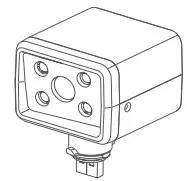
*Please only use water to clean the calibration board, avoid touching any corrosive liquid.
Recommended
Graphics Card | NVIDIA GTX1080 and higher |
Video Memory | >4G |
| Processor | I7-8700 |
Memory | 64G |
| Interface | high-speed USB 3.0 |
Required
Graphics Card | Quadro card P1000 and higher or NVIDIA GTX660 and higher |
| Processor | Intel (R) xeon E3-1230, Intel (R) I5-3470, Intel (R) I7-3770 |
Memory | 8G |
| Interface | high-speed USB 3.0 |
Installation
Hardware Installation
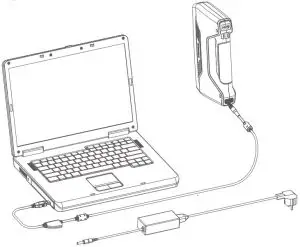
Standard Pack
- STEP 01: Turn on the device and connect it to the computer through USB 3.0 port.

Industrial Pack
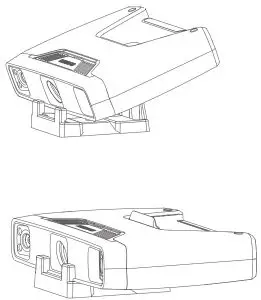
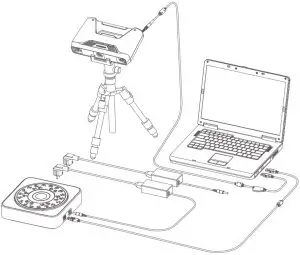
- STEP 01: Fasten the scanner tray onto the tripod and place the scanner on the tray.

- STEP 02: Plug the USB cable into the USB port of the turntable and connect it to the computer. Connect the power cable to the turntable.

Color Pack
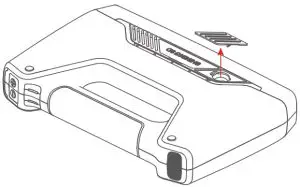
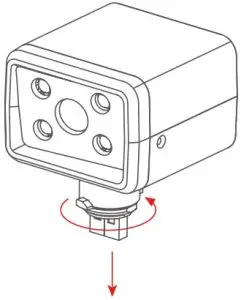
- STEP 01: Hold the device upright and remove the USB port cover. The cover is located near the logo on the right side of the device.

- STEP 02: Insert the Color Pack and lock it with a rotary lever.

Operation Environment
Avoid direct sunlight or too bright of light indoors.
Make sure the scanned object and table are stable. (For Fixed Scan)
Software Installation
Software Download
Download the software and user manual from www.einscan.com/support/download/
Run the installer
- STEP 01: Double click software installation icon to install the software.

License Activation
- STEP 02: After successful installation, when the device is correctly connected, double-click to open the software and activate the device. The format of activation is “online activation”. Make sure your computer is connected to the Internet.
(Online Activation)
Or do local activation and find the license in the USB drive.
- (Local Activation)
Attention: If you install another device of different serial number, the software will automatically notify users to activate this device.
- Online Activation
- Local Activation
Calibration
Camera Calibration
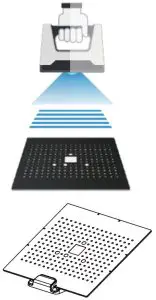
Follow the instruction on the software to place the calibration board in 5 different positions.
Hold the scanner vertically and cover the screen range.
- STEP 01

- STEP 02

- STEP 03

- STEP 04

- STEP 05

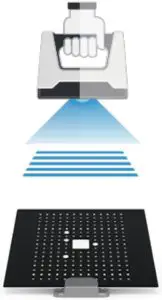
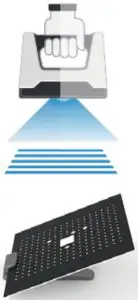
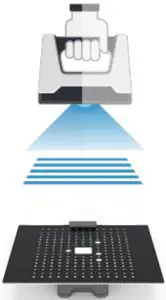
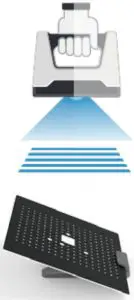
White Balance Calibration
Only required for Color Pack
Hold the scanner vertically to the back side of calibration board (white) and adjust the distance until you find the proper distance.
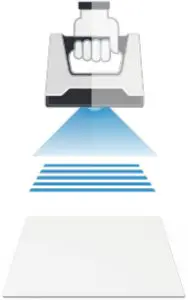
The first time installing the software , calibration is required by default.
Calibration is also required for the following:
- Device Change
- After device enduring bumpy transportation
- After device accuracy decreases
- Device being uncalibrated for a long time, for example, 15 days.
- When using the Color Pack, the texture camera’s position has been changed.
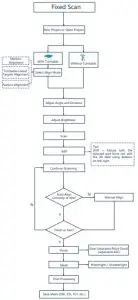
Fixed Scan
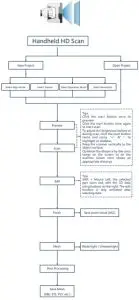
Handheld HD Scan
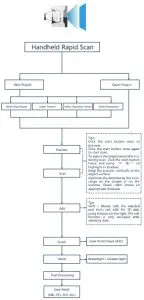
Handheld Rapid Scan
Scanning Tips
Scan Mode Selection
Use Handheld Rapid Scan mode when:
- A fast scanning experience is needed;
- Objects with good geometry for feature alignment;
- Objects are hard to move or too big to stay on turntable for scanning.
Use Handheld HD Scan mode when:
- High accuracy and high resolution by handheld scanning is required;
- Objects are hard to move or too big to stay on turntable for scanning.
Use Fixed Scan with Turntable mode when:
- High accuracy and high resolution is required;
- Objects’ footprint within 150mm which may not cover most coded targets on turntable;
- Weight under 5kg;
- Objects’ footprint above 150mm with rich geometry features can also work in Fixed Scan with Turntable mode through feature alignment.
Use Fixed Scan without Turntable mode when:
- High accuracy and high resolution is required;
- Objects is too big or heavy to work on turntable.
Summary
| Mode | Accuracy (mm) | Scan Efficiency | Resolution Point distance (mm) | Align Mode |
| Fixed Scan with Turntable | Single Shot Accuracy 0.04 | Single Scan < 0.5s | 0.24 | Turntable Coded Targets, Feature, Markers, Manual |
| Fixed Scan without Turntable | Single Shot Accuracy 0.04 | Single Scan < 0.5s | 0.24 | Feature, Markers, Manual |
| Handheld HD Scan | Up to 0.045 +0.3 mm/m (markers alignment) | 10 fps 3,000,000 points/s | 0.2-3 | Markers, Feature (with rich geometrical features on the surface), Hybrid(Markers and Feature) |
| Handheld Rapid Scan | Up to 0.1 +0.3 mm/m (markers alignment)  | 30 fps 1,500,000 points/s | 0.25-3 | Markers, Feature (with rich geometrical features on the surface), Hybrid(Markers and Feature) Texture (with rich texture) |
Difficult to Scan
- Transparent objects like glasses
- Shining or highly reflective objects like mirrors
Solution
- Spray with white powder
Not Recommended
- Moving objects or vibrating objects
- Lattice structure with many small deep holes
- Hairy objects like human hair and fur
Customer Support
Technical Support
Register at support.shining3d.com for support
Or contact through:
Email: [email protected]
Skype: einscan_support
APAC Headquarters
SHINING 3D Tech. Co., Ltd. Hangzhou, China
P: +86-571-82999050
Email: [email protected]
No. 1398, Xiangbin Road, Wenyan,
Xiaoshan,Hangzhou, Zhejiang, China, 311258
EMEA Region
SHINING 3D Technology GmbH. Stuttgart, Germany
P: +49-711-28444089
Email: [email protected]
Breitwiesenstraße 28, 70565, Stuttgart, Germany
Americas Region
SHINING 3D Technology Inc. San Francisco, United States
P: +1415-259-4787
Email: [email protected]
1740 César Chávez St. Unit D. San Francisco, CA 94124
References
 Support : Metrology Support
-
3d Scanners, Professional 3D Scanners, Software and Support | EinScan 3d Scanners, Professional 3D Scanners, Software and Support | EinScan
-
Download - EinScan Softwares and Latest Updates Download - EinScan Softwares and Latest Updates
-
High-Precision 3D Digitizing Solution Provider丨SHINING 3D丨3D Scanner
 Support : Metrology Support
 3d Scanners, Professional 3D Scanners, Software and Support | EinScan 3d Scanners, Professional 3D Scanners, Software and Support | EinScan
 High-Precision 3D Digitizing Solution Provider丨SHINING 3D丨3D Scanner