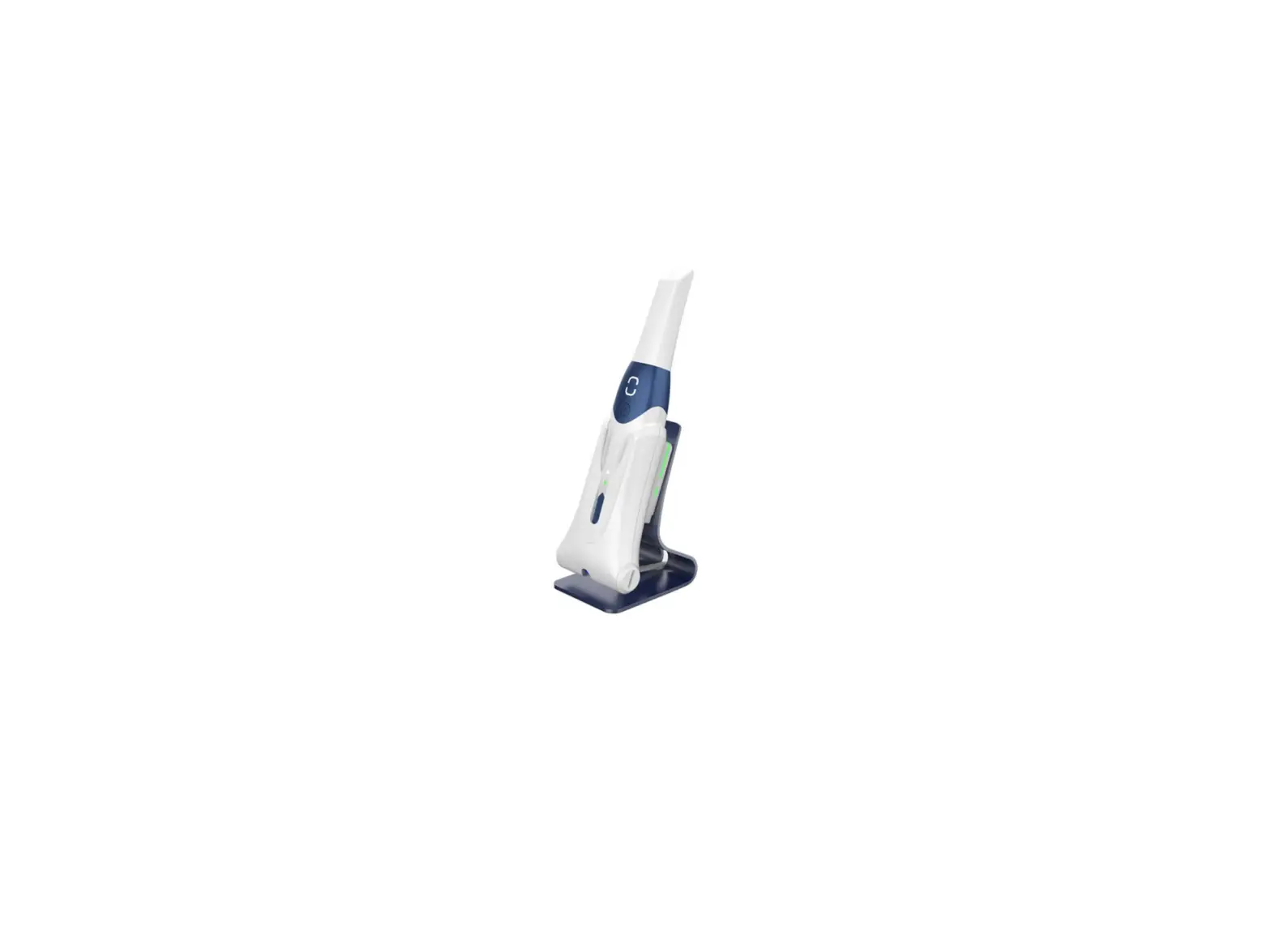
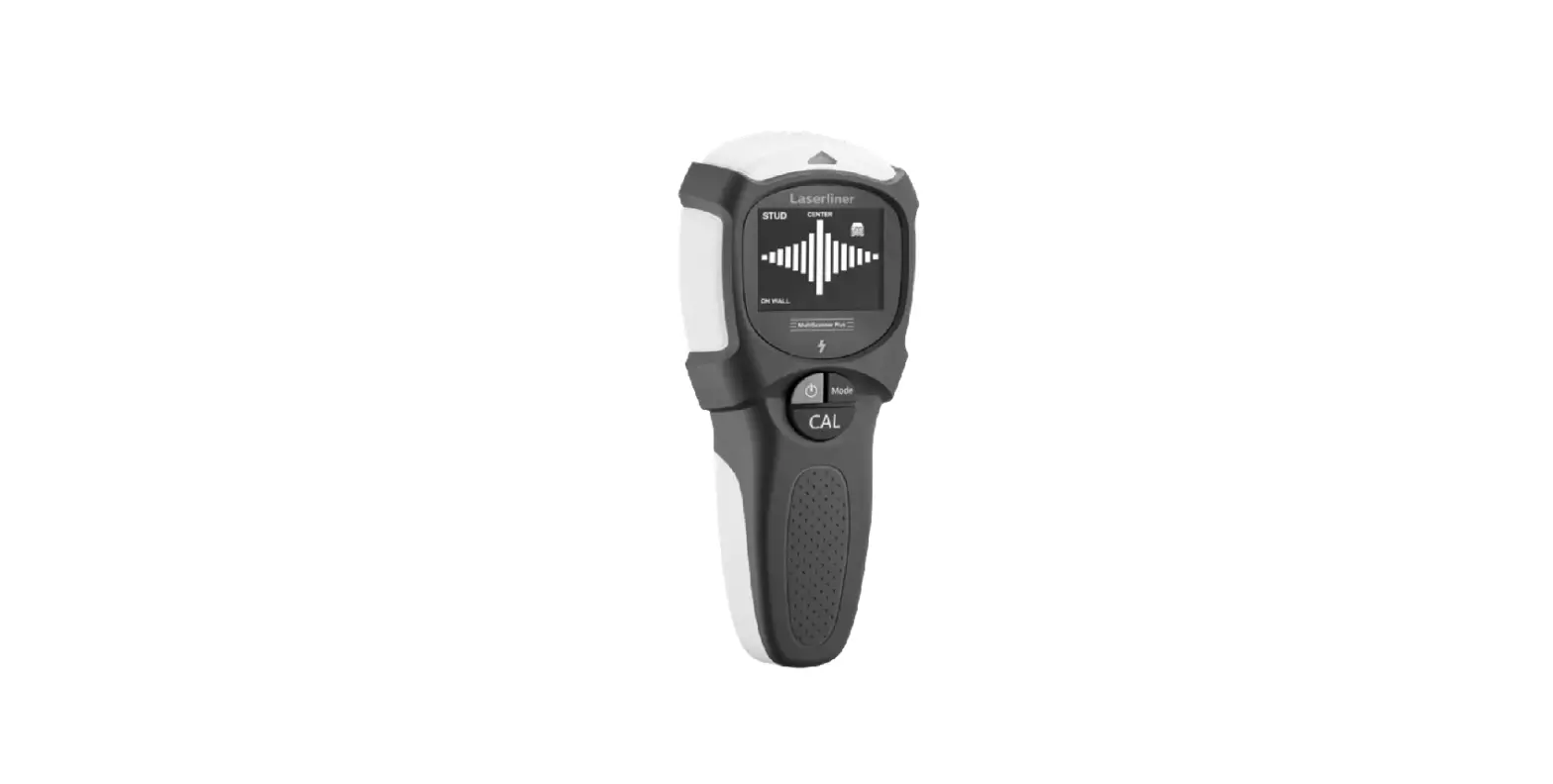
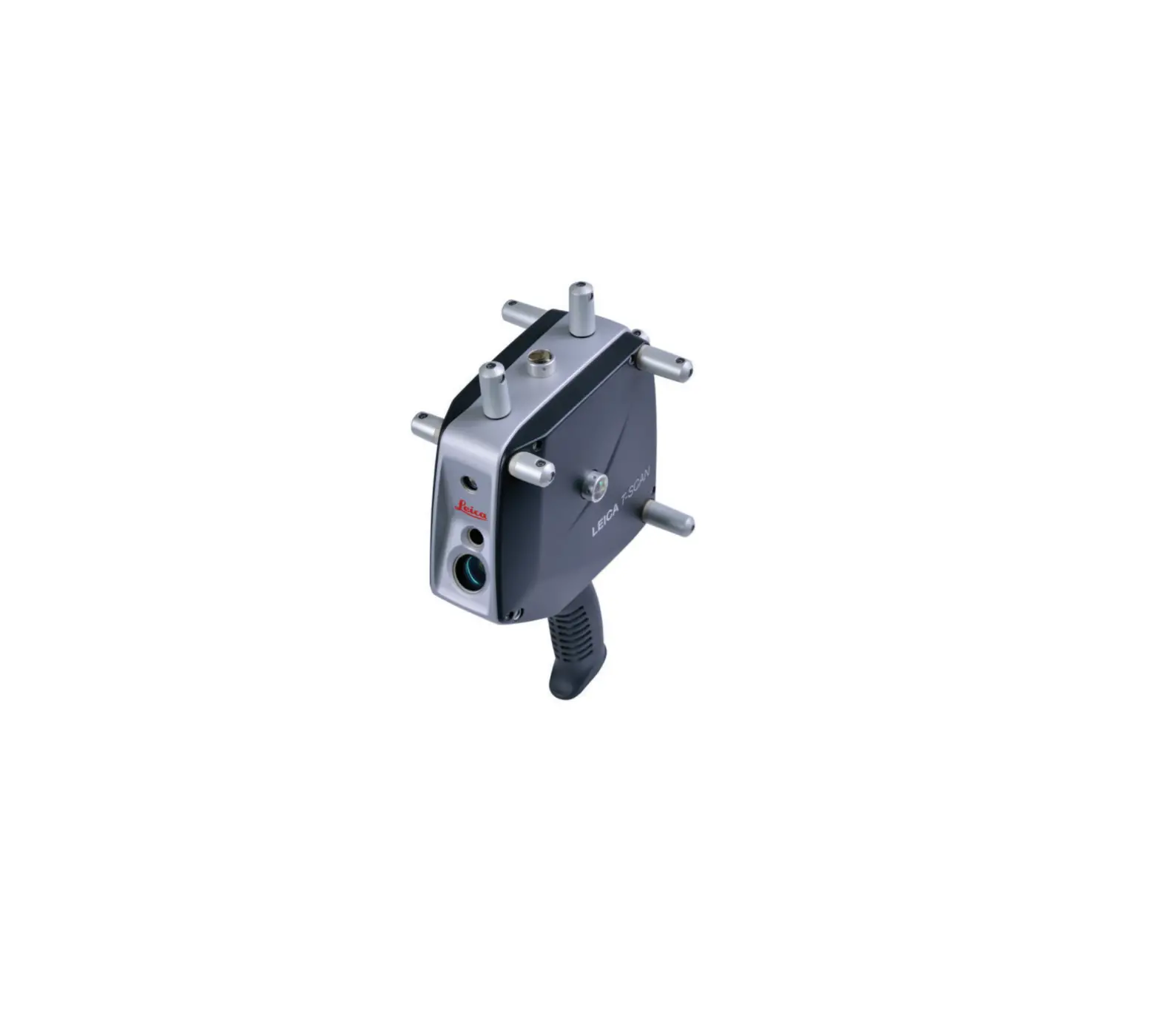
EasyScan M10 Handheld 3D Laser Scanning System
Product Information
Product Introduction
The EasyScanTM M10 is a handheld 3D laser scanning system
manufactured by Wuhan Eleph-Print Tech Co., Ltd. It is designed for
capturing 3D data in various applications. The M10 system comes in
two versions: standard and advanced.
Technical Specification
- Weight (handheld part only): 1.8kg
- Size: Handheld/Backpack
- Power Consumption: 18~20V DC
- Power Supply: 4h (single battery)
- Continuous Operation Duration: USB flash 64GB
- Memory Storage: -10-50°C
- Operating Temp.: -20-60°C
- Storage Temp.: Handheld/Backpack
- Supported Platform: 120m
- Max. Scanning Distance: 905nm
- Laser Class: 320,000pts/s
- FoV (Field of View): 2cm
- Laser Length: 5cm
- Scanning Rate: 3
- Relevant Accuracy: 2cm
- Absolute Accuracy: 5cm
- FoV Resolution: N/A
Product Configuration
The M10 system includes a handheld scanner, mainframe, battery,
cable, USB flash, and other optional accessories depending on the
version.
Product Usage Instructions
Battery
To turn on the battery, press the power button once briefly and
then press and hold the power button for more than 2 seconds. The
power indicator light will turn red and the battery level indicator
will display the current battery level. To turn off the battery,
press the power button once briefly and then press and hold it for
more than 2 seconds. All indicator lights will go out.
Power Cable & Data Transfer Cable
The M10 is equipped with three cables: a data transfer cable, a
camera cable, and a GNSS cable. Ensure that the positioning pin
(red dot indicator) is facing upward when connecting the cables.
Please only use the provided cables and do not mix or use other
cables to connect the equipment.
Backpack Frame Kit
The backpack frame kit includes a GNSS antenna, scanner, camera,
and mainframe. It is used for convenient portability of the M10
system.
Installation and Disassembly
Before installation, ensure that you have all the necessary
components listed in the configuration list, including the M10
scanner, mainframe, battery, charger, cables, dongle, user manual,
and other accessories. Follow the provided instructions for proper
installation and disassembly of the M10 system.
EasyScanTM M10 User Manual
hhttp://www.epiclidar.cn
Wuhan Eleph-Print Tech Co.,Ltd
EasyScanTM M10 Handheld 3D Laser Scanning
System
User Manual
Catalog
1 Product Introduction ···························································· 1 1.1 Product Overview ········································································· 1 1.2 Technical Specification ····························································· 2
2 Product Configuration······························································· 3 2.1 Scanner································ ································ ················ 3 2.2 Mainframe ································································ ············ 3 2.3 Battery ································ ································ ················· 4 2.4 Cable ································ ································ ··················· 5 2.5 Backpack Kit ································································ ·········· 5
3 Installation & Disassembly ························································· 6 3.1 Installation Preparation ···························································· 6 3.2 Installation & Disassembly ······················································· 7 4 Operation ································ ································ ············· 12 4.1 Device Startup ······························································· 12 4.2 Camera Operation ··························································· 12 4.3 Device Connection ·························································· 12 4.4 Device Power-off ····························································· 12 4.5 Battery Charging······························································ 13
5 Data Collection ································································ ······· 14 5.1 Operation Software Installation································ ················ 14 5.2 Software Startup ······························································ 17 5.3 Software Interface ··························································· 17 5.4 Parameter Settings ·························································· 18 5.5 Data Collection ······························································· 18 5.6 Data Transfer ·································································· 18
6 Appendix ··········································································19 6.1 Routine Maintenance ··························································19
1 Product Introduction 1.1 Product Overview
The M10 is a handheld SLAM 3D laser scanning system independently developed by Wuhan Eleph-Print Tech Co., Ltd. Its designed based on the concept of making a highly lightweight and user-friendly laser scanner with integrating multiple technologies such as multi-line LiDAR, imaging, and inertial navigation acquisition, angle measuring sensor, etc. to ensure rapid and effective acquisition of high-precision true-color point clouds under any circumstances, which redefines the development direction of handheld SLAM 3D laser scanners in industry. With its compact and lightweight design,fast and efficient performance, the M10 can be widely used in building facade surveying, accident scene investigation, stack volume calculation, interior renovation, underground space scanning, planar elevation profile drawing, digital park, and other fields.
1
1.2 Technical Specification
M10 Technical Specification
Laser Scanning Unit
Camera Unit Backpack
2
Weight (handheld part only) Size Power Consumption Power Supply Continuous Operation Duration Memory Storage Operating Temp. Storage Temp. Supported Platform Max. Scanning Distance Laser Class FoV Laser Length Scannin g Rate Relevant Accuracy Absolute Accuracy FoV Resolution
Technical Specification
1.8Kg
L182×W82×D290mm 20W(Typical)
18~20V DC 4h(single battery)
USB flash 64GB
-10-50
-20-60 Handheld/ Backpack 120m
Class 1 260°Cx360°C
905nm 320,000pts/s
2cm
5cm
360° 18MP
Note: Overall weight:2.74kg and Mainframe 0.94kg included. Testing temp. 25°~27°. The ranging accuracy may be affected by the distance of the target object, environmental temperature, and target object reflectivity. The typical values are the average measurements of each channel within a range of 0.5m to 70m, at an outdoor environmental temperature of 30°C and a target object reflectivity of 50%.
3
2 Product Configuration
M10 has 2 versions, standard version and advanced version. Standard version includes handheld scanner,mainframe,battery, cable,USB flash,etc. Advanced version includes handheld scanner, mainframe, battery, cable,panoramic camera kit,USB flash,GNSS kit, backpack frame kit,etc.
2.1 Scanner
LiDAR Sensor
Power supply &Data transfer interface
Handle
Stand
Pic. 2-1 M10 product configuration
2.2 Mainframe
DATA
GNSS CAM USB ON/OFF
Interface Panel
Pic. 2-2 M10 Mainframe
4
2.3 Battery
The M10 system is powered by a lithium battery, as shown in the following picture,
Pic. 2-4 M10 battery
Warning: · Do not immerse the battery in liquid (such as water, seawater, etc.). When not in use, the battery should be placed in a cool and dry environment. · Do not place the battery near high temperature sources (such as fire, heater, etc.) or use it nearby. · Do not hit, compress, throw, or step on the battery. ·
2· .3.1 Battery Power on
When the battery is in the off state, press the power button once briefly and then press and hold the power button for more than 2 seconds to turn on the battery. When the battery is turned on, the power indicator light will be constantly red and the battery level indicator light will display the current battery level.
2.3.2 Battery Power off
When the battery is in the on state, press the power button once briefly and then press and hold the power button for more than 2 seconds to turn off the battery. After the battery is turned off, all indicator lights will go out.
2.4 Power cable & Data transfer cable
The M10 is equipped with 3 cables,one data transfer cable,one camera cable and one GNSS cable,as shown in the following figure,
5
Pic. 2-5 Data transfer cable
Pic. 2-6 Camera cable
Pic. 2-7 GNSS cable
Data transfer cable: Used for connection between Scanner and Mainframe Camera cable: Used for connection between camera and Mainframe GNSS cable: Used for connection between M10 antenna and Mainframe
Note: The above cable is a directional connecting cable. When connecting, make sure that the positioning pin (red dot indicator on the connector) is facing upward. Warning: The above cable is a system-specific cable. Please do not mix or use other cables to connect equipment;
·
2.5 Backpack Frame Kit
6
GNSS antenna Scanner
Camera
Backpack frame kit Mainframe
7
3 Installation and Disassembly 3.1 Installation Preparation
Before installation, check out the following configuration list to ensure the completeness of system. Configuration list of standard version as below,
Type
No.
Item
Unit
Qty.
1
M10 scanner
PCS
1
Device
2
Mainframe
3
Battery
PCS
1
PCS
2
4
Charger
PCS
1
Cables
1
Power supply&Data
PCS
1
transfer cable
1
Dongle
PCS
1
2 M10 user manual
PCS
1
Others
3 M10 configuration list PCS
1
4 Qualified card
PCS
1
5 Warranty card
PCS
1
Configuration list of advanced version as below,
Type
No.
Item
Unit
Qty.
1 M10 Scanner
PCS
1
Device
2 Mainframe 3 Battery
PCS
1
PCS
2
4 Charger
PCS
1
5 Backpack frame kit
PCS
1
6 Panoramic camera kit
PCS
1
7 GNSS kit
PCS
1
8 Shoulder strap
PCS
1
Cables
1 Power supply&Data transfer cable
2 Camera cable
PCS
1
PCS
1
3 GNSS cable
PCS
1
1 Dongle
PCS
1
2 M10 user manual
PCS
1
Others
3 M10 configuration list PCS
1
8
4 Qualified card 5 Warranty card
PCS
1
PCS
1
9
3.2 M10 Installation and Disassembly
Warning: · When installing M10 system equipment, please handle it with care to protect the equipment. · When installing or dismantling the equipment, please ensure that it is in the off state to avoid damaging the equipment due to live operation. · · After dismantling the equipment, please put each component back into the packaging box according to its designated location and check if everything is complete. ·
3.2.1 Battery Installation
M·ake sure that the battery is turned off. Insert the battery into the built-in battery compartment in the direction shown by the arrow, gently push it to the bottom, and then rotate the buckle to secure the battery.
Pic. 3-1 Battery Installation
Warning: ·The battery used by the M10 system has a specific installation direction. Please pay attention to the installation direction of the battery when installing it. ·When installing the battery, please handle it gently to avoid excessive force causing damage to the device.
10
3.2.2 Battery Disassembly
Make sure the M10 system is turned off, push the latch to open the battery compartment, and remove the battery from the compartment in the direction indicated by the arrow.
Pic. 3-2 Battery Disassembly
3.2.3 Installation of Scanner Handle
Make sure the M10 system is turned off, align the handle quick-mounting groove with the quick-mounting slider at the bottom of the scanner, and insert the handle into the quick-mounting slider. At the same time, the button on the handle quick-mounting groove will pop out, then it means its a successful installation.
Pic 3-3 Installation of Scanner handle
11
3.2.4 Disassembly of Scanner Handle
Ensure that the M10 system is turned off. Press and hold the quick-mount slider button, and move the electric handle in the direction of the slider to remove it.
Pic. 3-4 Scanner handle
3.2.5 Installation of Scanner and Backpack frame kit
Make sure the M10 system is turned off, remove the handle, align the quick-mount slider at the bottom of the scanner with the slot on the backpack, insert the scanner into the slot, and when the quick-mount slider button pops out, it means installation is successful.
Pic. 3-5 Installation of Scanner and Backpack frame kit
12
3.2.6 Disassembly of Scanner and Backpack frame kit
Make sure the M10 system is turned off, hold down the quick-mount slider button, and move the scanner in the direction of the arrow to detach it.”
P ic . 3-6 Disassembly of Scanner and Backpack frame kit
3.2.7 Installation of Mainframe and Backpack frame kit
Make sure the quick-release slider on the mainframe is in the unlocked position, press the latch, place the mainframe horizontally so that the quick-release slider on the mainframe aligns with the quick-release slider on the backpack, insert it into the slider slot, release the latch, and installation is complete.
Pic. 3-7 Installation of Mainframe and Backpack frame kit
13
3.2.8 Disassembly of Mainframe and Backpack frame kit
Make sure that the quick-install sliding groove of the mainframe is in the unlocked state. Press the buckle and move the mainframe along the direction of the arrow to complete the disassembly of the mainframe.
Pic. 3-7 Disassembly of Mainframe and Backpack frame kit
14
4 Operation 4.1 System Startup
After completing the device installation steps described in section 3.2, you can start using the M10 system. To do so, turn on the battery and wait for 2 seconds, then press the power button on the M10 mainframe. The indicator light will turn on and the device will start.
Once the indicator light turns on, you can search for the “M10” WiFi hotspot using your phone or tablet. This means that the system has started up normally.
Note: Please be patient during the initialization period of the system, which typically takes less than a minute after startup.
4.2 Camera Operation
Once the M10 system is powered on,long press the camera power button for 3 seconds.
4.3 Connection with Mainframe
The M10 system provides wireless connection options 1.Use a mobile phone or tablet to search for WiFi hotspots and find the WiFi access point named “M10-xxxxxx”. 2.Join the “M10” hotspot using the password “12345678”, and set the wireless network IP acquisition method to be automatically. Note: The IP of the M10 system is 192.168.0.110
4.4 Mainframe Power off
When the system stops collecting data and the data transmission is complete, the device can be turned off by clicking the ‘Shutdown’ button on the software, as shown in the following picture.
15
Pic. 4-1 System Shutdown
16
When the M10 mainframe indicator is off,turn off the battery,then the system is fully shut down.
· Warning: · Do not directly power off the mainframe before it has fully shut down to prevent
equipment damage. · When transporting the device after it has been turned off, please remove the battery
from the battery compartment and place it in a dedicated battery box or in the battery slot of the device packaging box.
4.5 Battery Charging
The M10 system equipment’s lithium battery is charged using a specialized charger, as shown in the following image
Pic. 4-2 M10 charger WARNING: -Please discharge the battery to around 50% capacity if it is not used for more than 10 days. -If the battery is idle for a long time, please charge and discharge it once every three months or so to maintain battery activity.
17
5 Data Collection 5.1 Operation Software Installation
Insert the USB flash drive into the PC. Copy the “Easy Point Access M xxxx.apk” installation package from the USB flash drive to the PC. Connect your phone to the PC using a USB cable and copy the installation package to the “download” folder on your phone. Finally, access the “download” folder on your phone, select the installation package and click “install”.
Pic. 5-1 Operation Software Installation And authorize the required permissions for the software in the pop-up permission dialog box. If you do not authorize them, some functions of the software may not be available. Click “Continue Installation” and wait for the software to finish installing.
Pic. 5-2 Operation Software Installation 18
Note: The recommended platform are Android 10, 11, and 12, as well as HarmonyOS 3.0. Examples of compatible devices are as follows:
1Tablet PC Honor 7
2Tablet PC XIAOXIN 2022
19
3P40 Mobile phone Huawei P40
Pic. 5-4 Recommended configuration of phone 20
5.2 Operation Software Startup
Power on and wait for 30 seconds. The device ID is M10XXXX (XXXX represents the device SN) The initial password for WIFI is 12345678. Open the app on your mobile device.”
5.3 Operation Software Interface
Pic. 5-5 Software Interface 1.Set button, click to enter the settings interface. 2.Display device connection status, with changes between connected and disconnected states. 3.Display remaining storage space on USB drive. 4.Display satellite signal status, with indication of whether there is or is not a satellite signal. 5.Display camera connection status, with changes between connected and disconnected states. 6.Display POS collection status, using animation during the collection process to indicate that collection is in progress. 7.Display motor rotation status, using animation during rotation to indicate that rotation is in progress. 8.Display point cloud collection status, using animation during collection to indicate that collection is in progress. 9.Display battery level status, with real-time display of battery percentage. Low
21
battery will be indicated with a prompt to recharge. 10.Display data growth for all data collected during the collection process. 11.Initialization button, click to begin initialization and device starts collecting POS. 12.Start collection button, click to begin collecting point clouds. 13.Mark button, click to mark a point.
22
5.4 Parameters Settings
Pic. 5-6 Parameters Settings Device collection mode setting View data collection log Shutdown button, click to turn off the device Home display mode setting, standard mode has real-time point cloud display, while simple mode does not
5.5 Data Collection
After setting up the data acquisition parameters, return to the main interface and click the “Initialization” button first. The device will start collecting POS data. Wait for initialization to complete (30 seconds), then click the “Start Collection” button to automatically begin collecting point cloud data. If you need image data, remain stationary for 10 seconds and then click the camera button to take timed shots. After collecting all the point cloud data, all data will be stored in the corresponding folder according to the specified format. When all station data has been collected, remove the USB drive and copy the collected data to a computer. Then, use post-processing software to perform data processing.
5.6 Data Copy
Remove the USB drive from the device, insert it into the computer, open the USB drive, and name the folder after the date when the data was collected. Each folder should contain point cloud and image data.
23
6 Appendix 6.1 Routine Maintenance
When using the equipment, please handle it gently and avoid knocking it; After the laser equipment has finished collecting, the laser protection cover should be put on to prevent scratches on the laser lens; In daily use, pay attention to protecting it and avoid scratching its appearance. If there is dust, use a dust-free cloth dipped in clean water to gently wipe it; After using the device, it is necessary to remove the accessories and put the mainframe and accessories into the packaging box.
6.2 Common Troubleshooting
After turning on the camera, it shuts down immediately, which may be because the camera has not been charged for a long time and the battery is low. Opening the device and charging the camera for about 10 minutes will allow it to start up normally.
If the camera does not take pictures during use, please manually turn on the camera.
If the U disk is plugged and unplugged multiple times during the collection process, it may cause the laser scanner’s configuration parameters to be reset to factory settings. If this happens, please contact the after-sales personnel for remote setting of the scanner. After successful setting, it will not affect the normal use of the device.
24
FCC Warning This device complies with part 15 of the FCC Rules. Operation is subject to the following two conditions: (1) This device may not cause harmful interference, and (2) this device must accept any interference received, including interference that may cause undesired operation.
Any Changes or modifications not expressly approved by the party responsible for compliance could void the user’s authority to operate the equipment.
Note: This equipment has been tested and found to comply with the limits for a Class B digital device, pursuant to part 15 of the FCC Rules. These limits are designed to provide reasonable protection against harmful interference in a residential installation. This equipment generates uses and can radiate radio frequency energy and, if not installed and used in accordance with the instructions, may cause harmful interference to radio communications. However, there is no guarantee that interference will not occur in a particular installation. If this equipment does cause harmful interference to radio or television reception, which can be determined by turning the equipment off and on, the user is encouraged to try to correct the interference by one or more of the following measures:
-Reorient or relocate the receiving antenna. -Increase the separation between the equipment and receiver. -Connect the equipment into an outlet on a circuit different from that to which the receiver is connected. -Consult the dealer or an experienced radio/TV technician for help. This equipment should be installed and operated with minimum distance 20cm between the radiator & your body.
25
 三维激光扫æ仪_三维激光测é‡æµ‹ç»˜_机载三维激光测é‡ç³»ç»Ÿ-æ¦æ±‰è±¡å°ç§‘技有é™è´£ä»»å…¬å¸