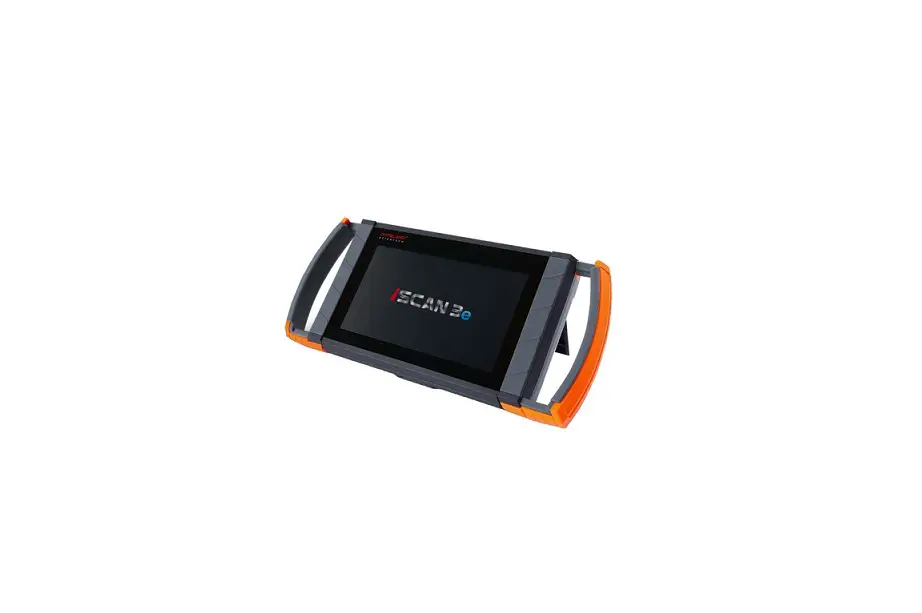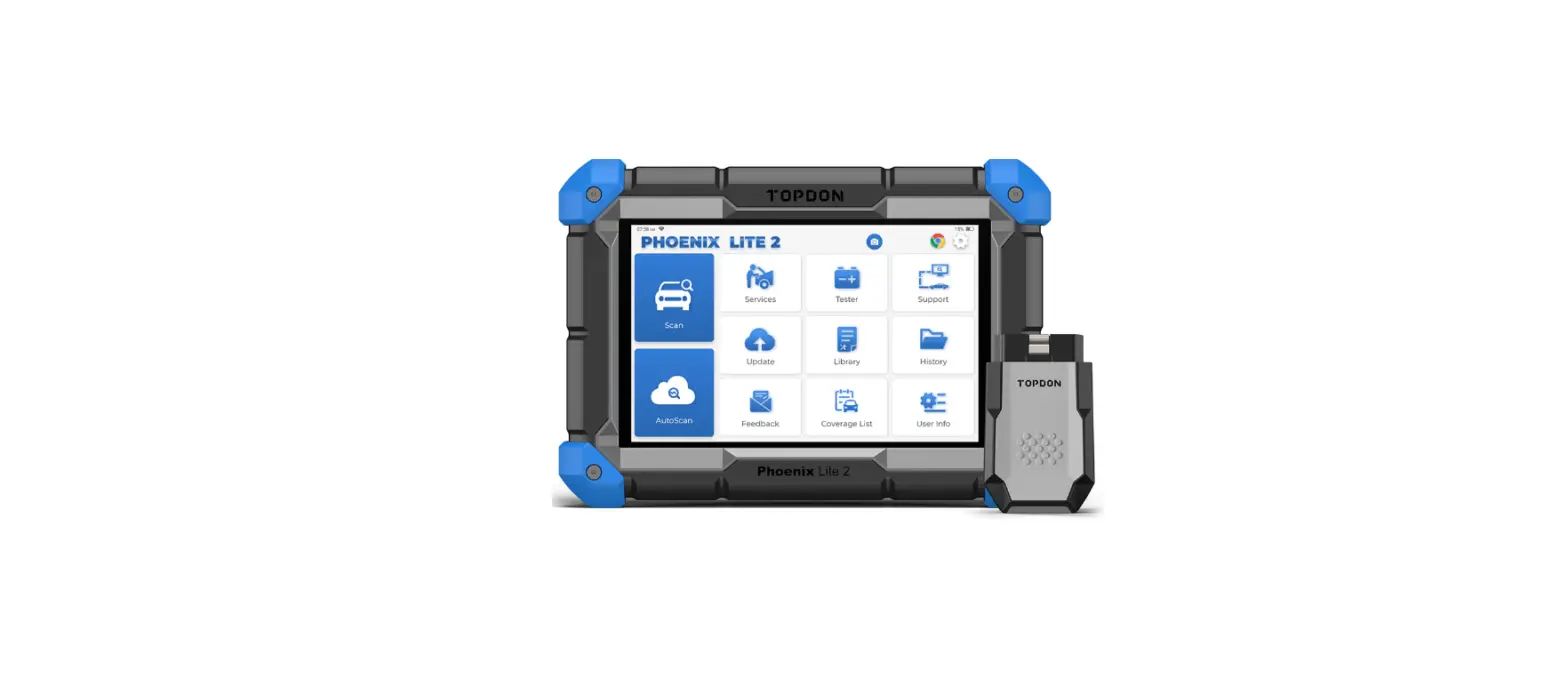

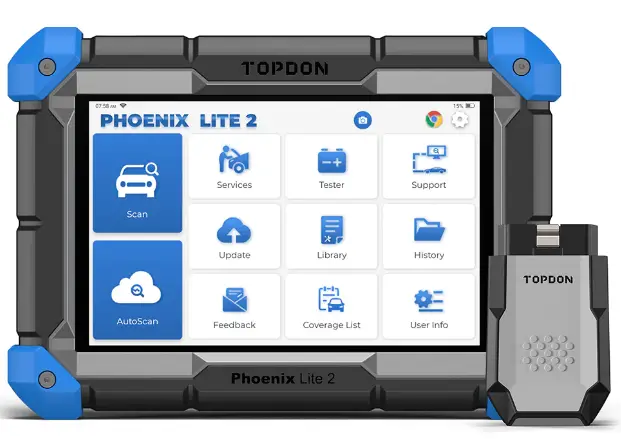
TOPDON Phoenix Lite 2 Bi-Directional Scan Tool
FAQ
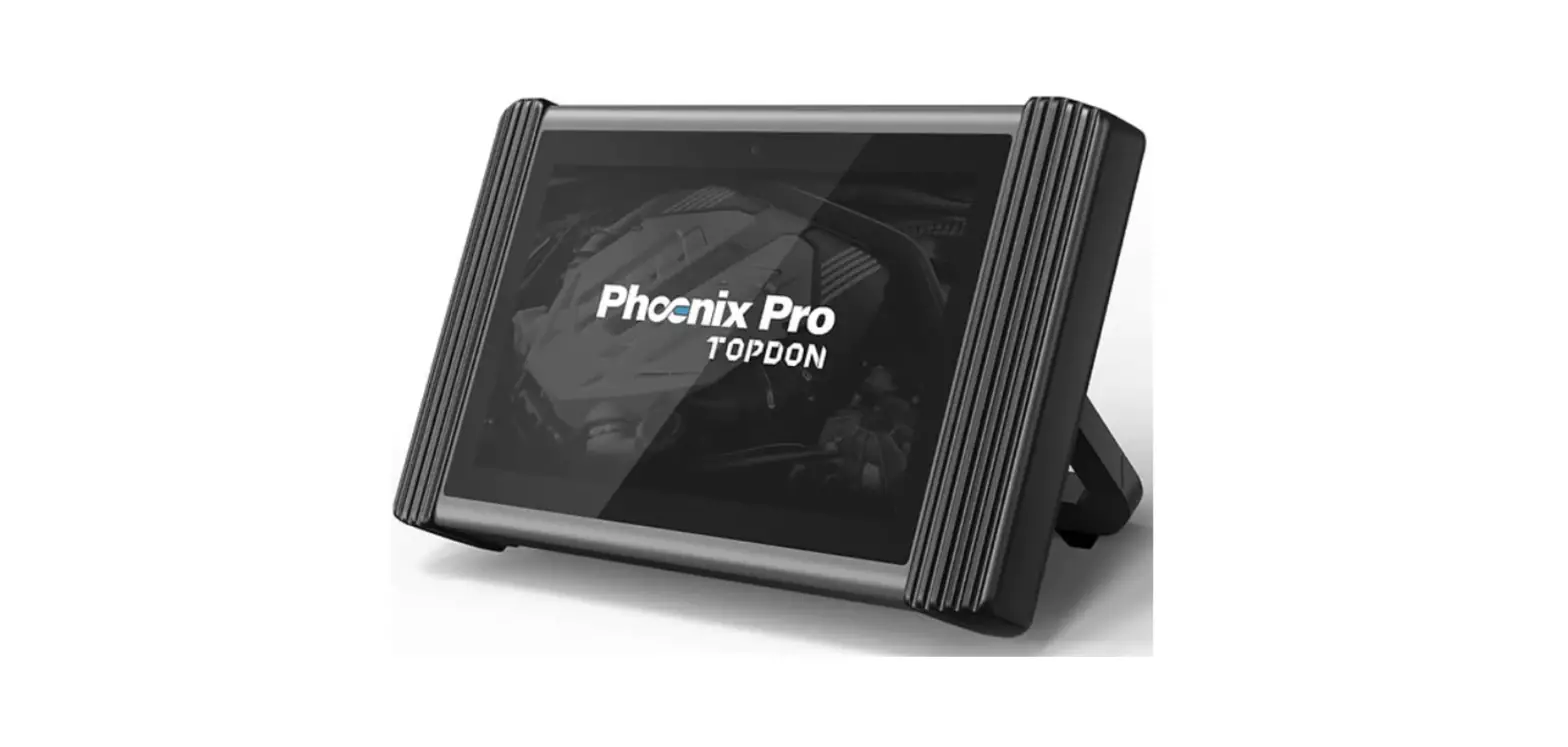
Q: The tablet cannot be turned on after being fully charged
| Possible Cause | Solution |
| The tablet has been standby for too long, and the battery drains. | Charge it for over 2 hours before turning it on. |
| Problem of the Charger. | Please contact the dealer or TOPDON after-sale service for timely support. |
Q: Why cannot register?
A:
| Possible Cause | Solution |
| The tablet isn’t connected to a network. | Make sure the network is stable. |
| Your email address may have been registered already. | Use another valid email address. |
| There is no verification code in the email box. | Check if the email address is valid and resent the code. |
| Server problem. | Server maintenance. Please try again later. |
Q: Why cannot login?
A:
| Possible Cause | Solution |
| The tablet isn’t connected to a network. | Make sure the network is stable. |
|
The user name or password is not correct. | • Check the user name and password. Contact TOPDON after-sales support to get the user name and password. |
| Server problem. | Server maintenance. Please try again later. |
Q: Why can’t activate the equipment?
A:
| Possible Cause | Solution |
| The tablet isn’t connected to a network. | Make sure the network is stable. |
| The serial number and activation code are not correct. | Check the serial number and activation code and make sure they are correct (serial number 12 digits, activation code 8 digits).· |
| The activation code is invalid. | Contact TOPDON after-sales service to get support. |
| The configuration is empty. | Contact TOPDON after-sales service to get support. |
Q: The tablet is not activated while updating?
A:
| Possible Cause | Solution |
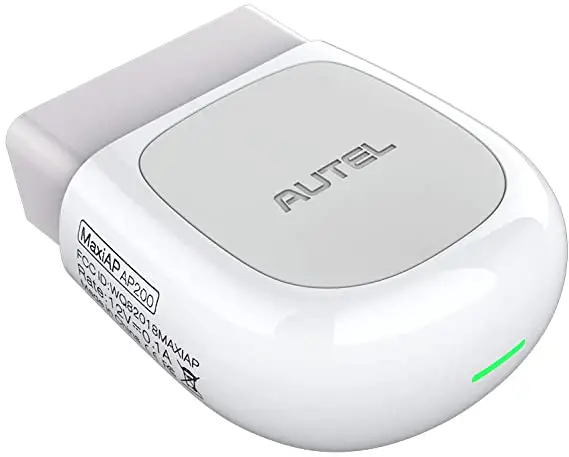
| The MDCI dongle may not be activated in the registration process. | Activate the MDCI dongle as follows: Tap “User lnfor” -> “Activate MDCI”-> Input the correct serial number and activation code -> “Activate”. |
Q: There is no power in the MDCI dongle after connecting to the vehicle’s DLC port.
A:
| Possible Cause | Solution |
| Poor contact of the MDCI dongle. | Plug out the MDCI dongle, and then plug it in again. |
| Poor contact of vehicle’s DLC port. | Plug out the MDCI dongle, and then plug it in again. |
|
Too low voltage of the vehicle battery. | Recharge the vehicle battery. Replace the vehicle battery if it is damaged. |
| Fuse blown. | Check the fuse of the OBD module. |
Q: The tablet cannot establish a connection with the MDCI dongle.
A:
| Possible Cause | Solution |
|
Poor contact of the MDCI dongle. | • Plug out the MDCI dongle, and then plug it in again. Perform the MDCI Bluetooth pairing again. |
| The firmware is damaged. | Enter the settings and tap “Fix Connector Firmware/System” to fix the firmware. |
Q: Can I use other chargers to charge the tablet?
A: No, please use the original charger provided by TOPDON Any damage and economic loss caused by using the improper battery charger will not be our responsibility.
Q: How to save the battery power?
A: Please switch off the screen while the tablet is idle, or set a short standby time, or reduce the brightness of the screen.
Q: Are there non-standard OBDII adapters in the box?
A:Yes.
Q: Communication error with vehicle ECU?
A: Please confirm the following cases:
- Whether the diagnostic MDCI dongle is correctly connected.
- Whether the ignition switch is ON.
Or, send your vehicle’s year, make, model, and VIN data to us via the “Feedback” feature for timely technical assistance.
Q: Failed to get access to the vehicle’s ECU system?
A: Please confirm the following cases:
- Whether the system is available in the vehicle.
- Whether the MDCI dongle is correctly connected.
- Whether the ignition switch is ON.
Q: The MDCI dongle is missing.
A: Please contact the dealer or TOPDON after-sale service for timely support.
Q: Error of the diagnostic software.
A: Please operate as follows:
- Tap “Feedback” to send specific problems to us for technical support.
- Tap the vehicle software icon, and hold it to uninstall the corresponding software, and then enter the upgrade center to download and install the new version.
Q: The downloaded diagnostic software is inconsistent with the serial number.
A: Selected the wrong MDCI dongle.
Enter the “User Info” -> “MDCI” -> select the right MDCI dongle.
FCC Statement:
This device complies with Part 15 of the FCC Rules. Operation is subject to the following two conditions:
- This device may not cause harmful interference, and
- This device must accept any interference received, including interference that may cause undesired operation.