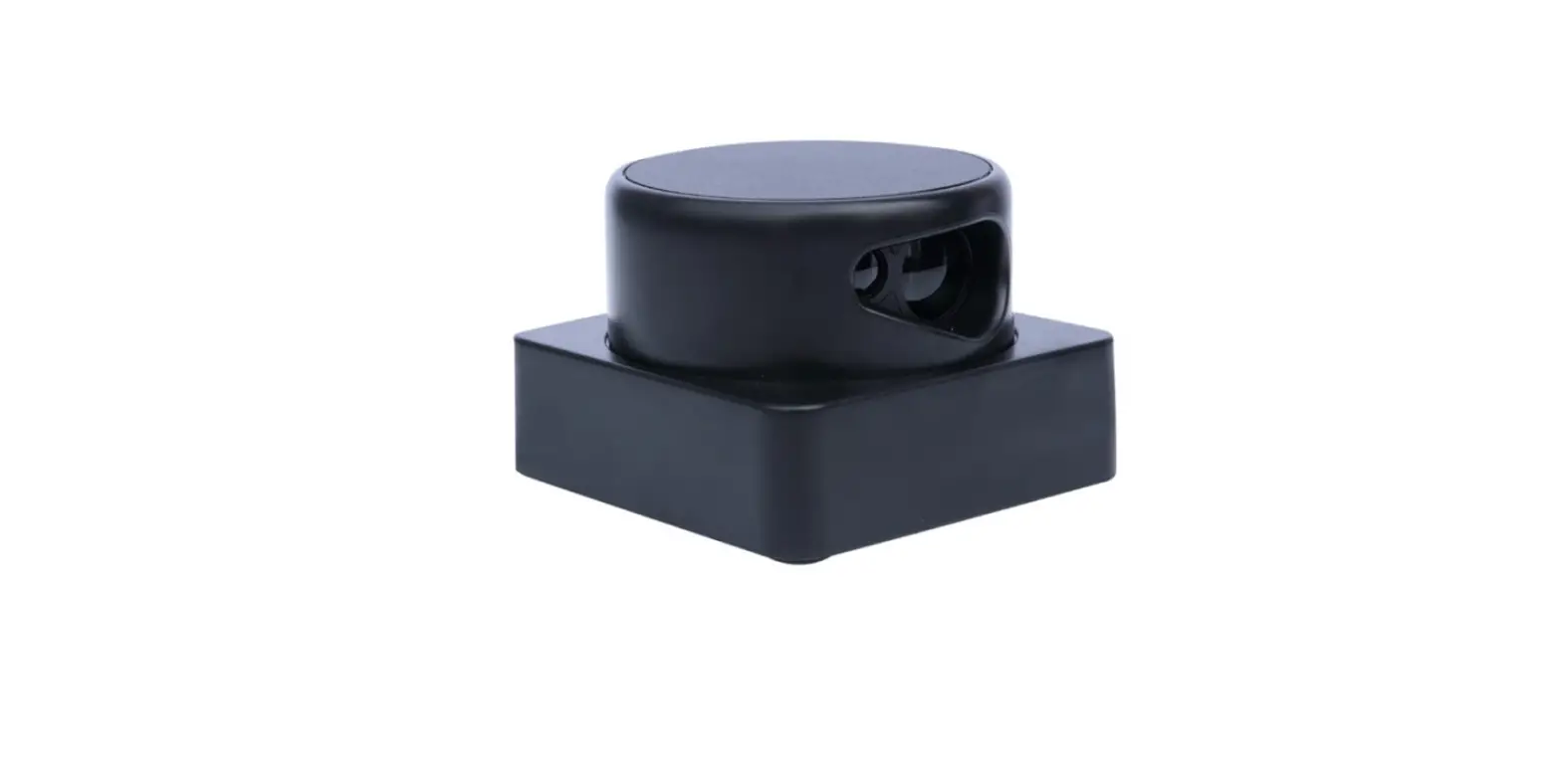
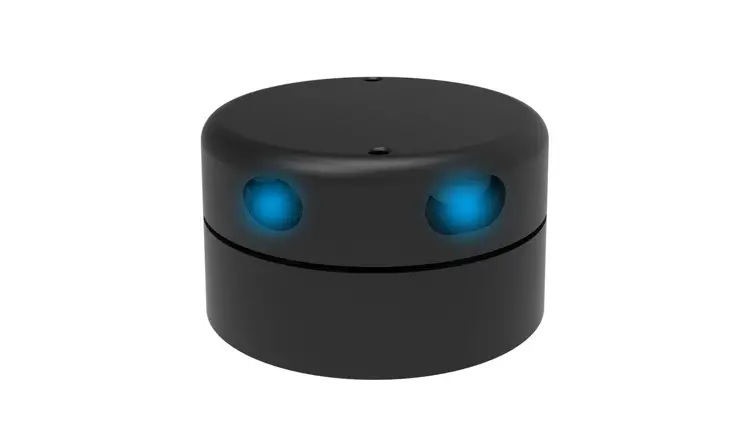
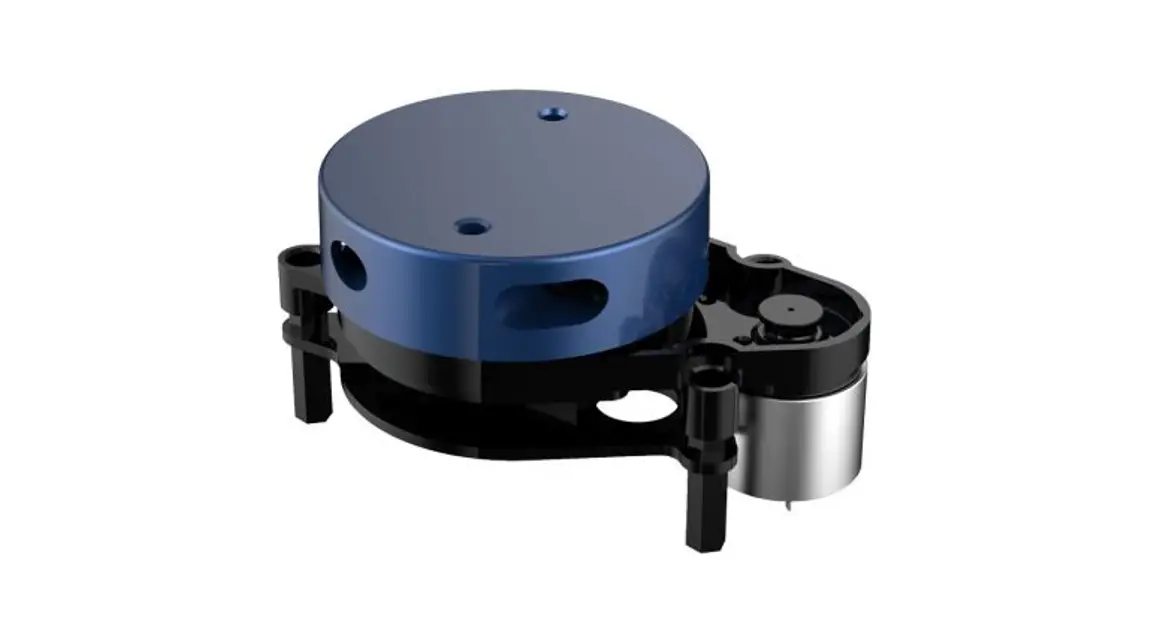
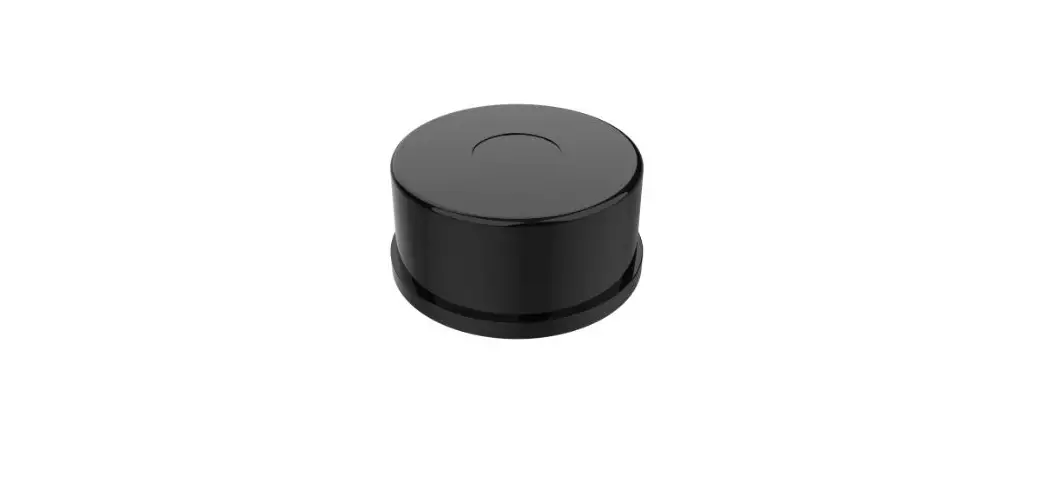
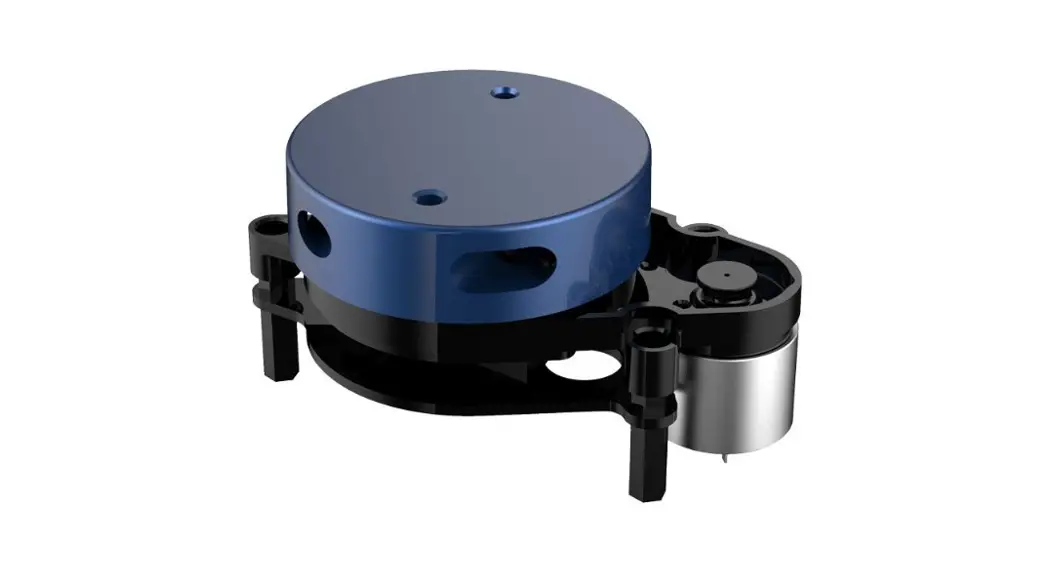
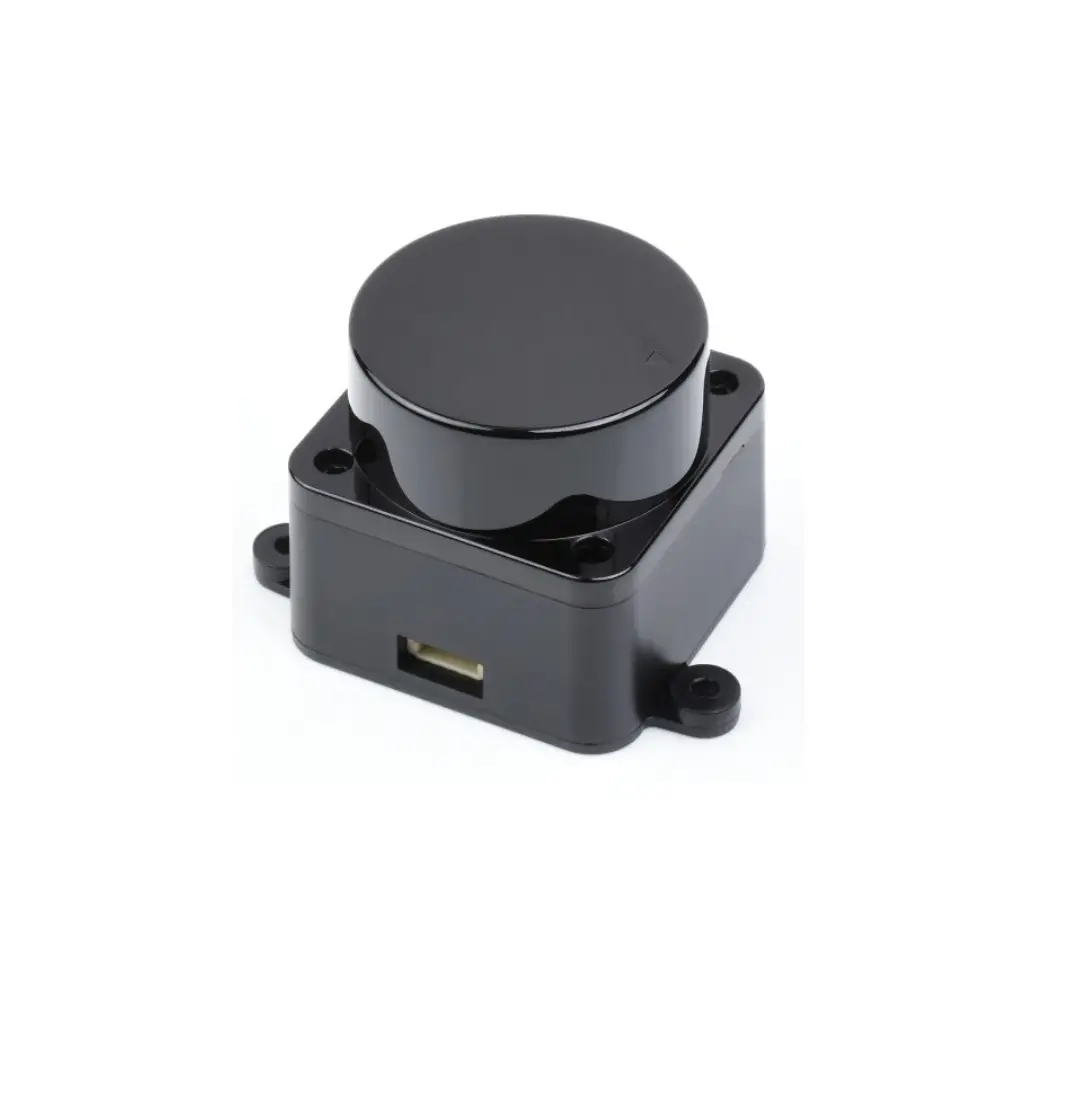
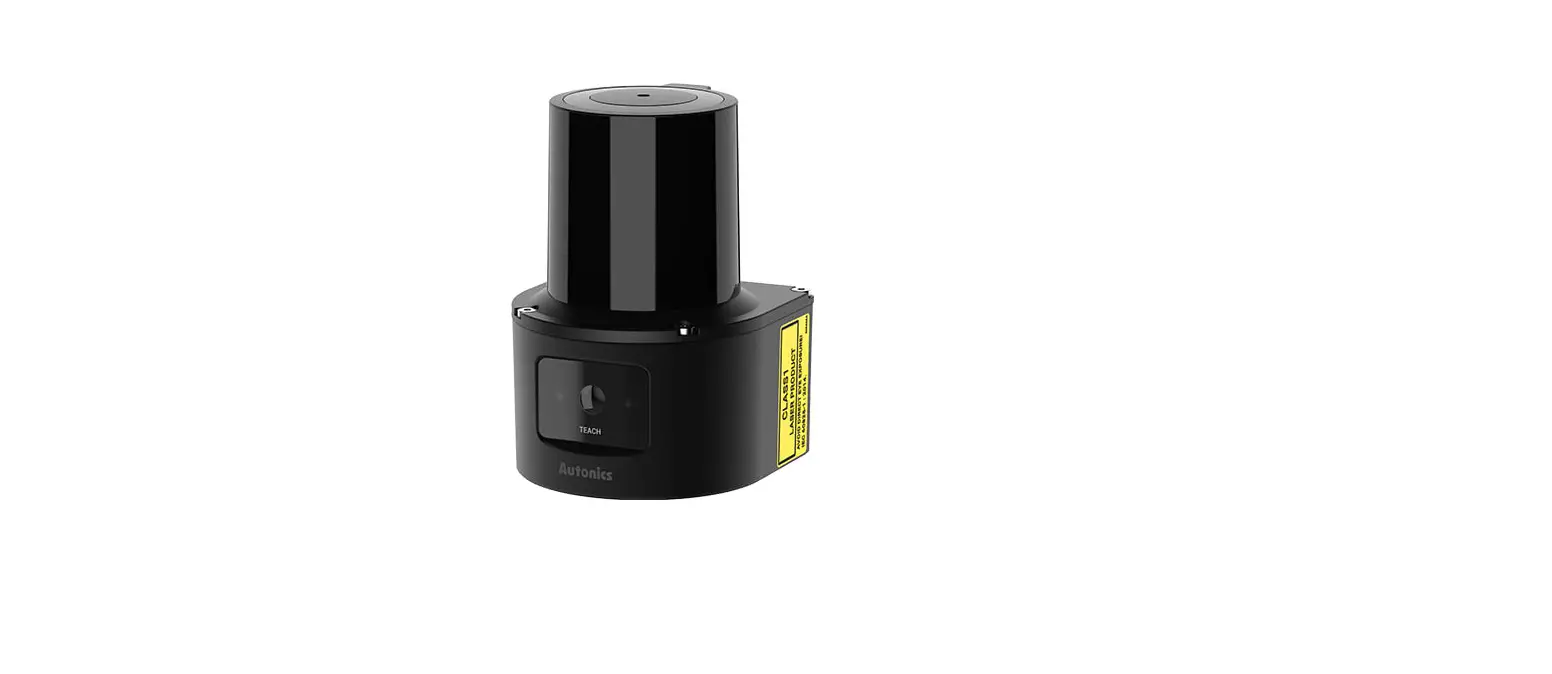
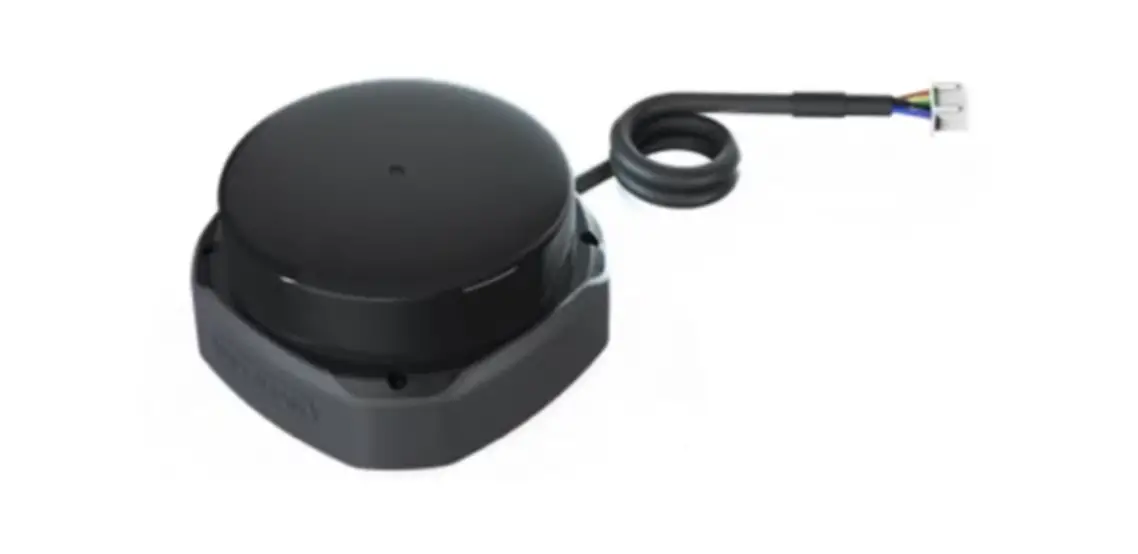
D20 2D LiDAR Laser Scanner
Product Information: D20 2D LiDAR Sensor
Specifications
- Scanning range: 0.15m~20m, 12m@10%
- Measurement error: 14.28Khz TTL 1cm
- Scanning angle range: 10~ +50
- Angle resolution: 20~ +70
- Scanning frequency: IP54
- Measurement frequency: 190 g
- Output Interface: 50,000 hours under standard conditions
- Distance resolution: An object with only 10% reflectivity and
dark color that can be measured 12m, Kodar white up to 20m. - Laser source: default rotating speed is 10 revolutions per
second - Power supply: USB cable
- Volume: N/A
- Operating temperature range: -10°C to +50°C
- Storage temperature range: -20°C to +70°C
- Protection level: IP54
- Weight: 190g
- Working life: 50,000 hours under standard conditions
Dimensional Drawing
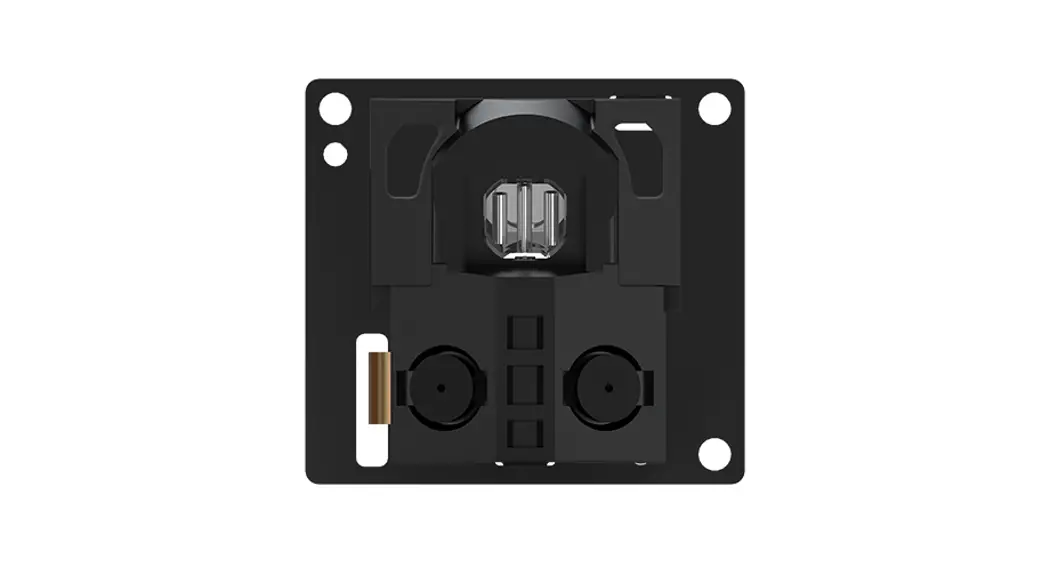
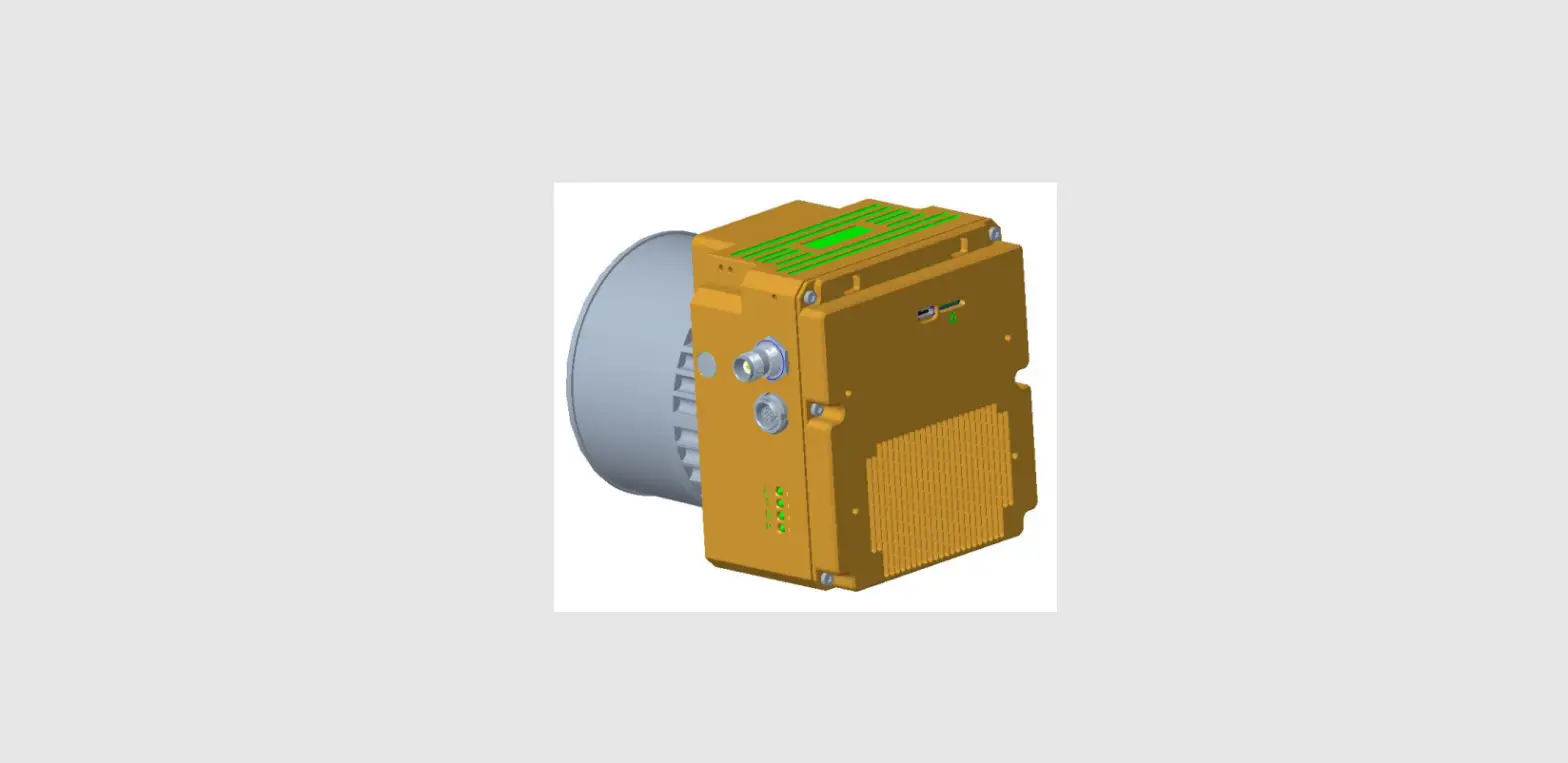
Rendering:

Dimensions:

Installation and Connection
Installation:
- Ensure that the USB driver is installed on your PC.
- Plug the USB cable into the PC.
Connection:
- Select the correct communication port.
- Set the baud rate to 921600bps.
Software Setting
Driver Installation:
Install the USB driver on your PC before connecting the D20 2D
LiDAR Sensor. The driver can be found on the manufacturer’s
website.
Data Acquisition:
The D20 2D LiDAR Sensor outputs data in a specific format. Refer
to the communication protocol section of the user manual for more
information.
Communication Protocol
Output Data Format:
The D20 2D LiDAR Sensor outputs data in a specific format. Refer
to the communication protocol section of the user manual for more
information.
Data Check Algorithm:
The D20 2D LiDAR Sensor has a built-in data check algorithm to
ensure data accuracy. Refer to the communication protocol section
of the user manual for more information.
Data Analysis Algorithm:
The D20 2D LiDAR Sensor has a built-in data analysis algorithm
to provide accurate measurement data. Refer to the communication
protocol section of the user manual for more information.
Troubleshooting
Factors Affecting the Measurement Range:
The measurement range of the D20 2D LiDAR Sensor can be affected
by certain factors. Refer to the troubleshooting section of the
user manual for more information.
Standard and Optional Accessories
The D20 2D LiDAR Sensor comes with standard accessories.
Optional accessories are also available. Refer to the user manual
for more information.
Contact Us
For more information and support, please visit the
manufacturer’s website at http://www.top1sensor.com.
Product Usage Instructions
- Ensure that the USB driver is installed on your PC.
- Plug the USB cable into the PC.
- Select the correct communication port.
- Set the baud rate to 921600bps.
- Install the USB driver on your PC before connecting the D20 2D
LiDAR Sensor. The driver can be found on the manufacturer’s
website. - The D20 2D LiDAR Sensor outputs data in a specific format.
Refer to the communication protocol section of the user manual for
more information. - The measurement range of the D20 2D LiDAR Sensor can be
affected by certain factors. Refer to the troubleshooting section
of the user manual for more information.
Model: D20
2D LiDAR
USER MANUAL
QUICK START Make sure that the USB driver is installed and plug the USB cable into the PC,
Connect the device to power supply (+5V±10%, 3A), Run our data acquisition and analysis software,
Then select the correct communication port and set the baud rate to 921600bps. Press the start button ” ” and start to work!
(Version V8.01.8)
For more info & supports, please visit http://www.top1sensor.com
Content
1. Specifications ……………………………………………………………………………………………….. 1
2. Dimensional drawing ………………………………………………………………………………………. 2 2.1 Rendering …………………………………………………………………………………………….. 2 2.2 Dimensions …………………………………………………………………………………………… 2
3. Installation and connection……………………………………………………………………………. 3 3.1 Installation………………………………………………………………………………………….. 3 3.2 Connection ………………………………………………………………………………………….. 3
4. Software setting ……………………………………………………………………………………………. 4 4.1 Driver installation…………………………………………………………………………………. 4 4.2 Data acquisition………………………………………………………………………………….. 4
5. Communication protocal ……………………………………………………………………………….. 6 5.1 Output data format…………………………………………………………………………….. 6 5.2 Data check algorithm ………………………………………………………………………… 10 5.3 Data analysis algorithm …………………………………………………………………….. 10
6. Trouble shooting …………………………………………………………………………………………. 12 6.1 Factors affecting the measurement range ……………………………………………. 12
7. Standard and optional accessories ……………………………………………………………….. 13
8. Contact us…………………………………………………………………………………………………… 13
2D Lidar sensor
1. Specifications
Items Scanning range 1 Measurement error 2 Scanning angle range Angle resolution Scanning frequency 3 Measurement frequency Output Interface Distance resolution
Laser source
Power supply
Volume Operating temperature range
Storage temperature range Protection level Weight Working life
Parameters 0.15m~20m, 12m@10%
±3cm@20m@10Hz 360° 0.28° 10Hz
14.28Khz TTL 1cm
Laser diode 905nm, 1mW; comply with GB7247.1-2001 Class 1 Laser Eye Safety Requirements DC 5V±10%, Power consumption3W Starting current1.5A
78×78×56 mm
10~ +50 20~ +70
IP54 190 g 50,000 hours under standard conditions
Notes:
1. An object with only 10% reflectivity and dark color that can be measured 12m, Kodar white up to 20m.
2. The measurement repeatability accuracy is ±3cm when the measurement range achieves 20m and scanning frequency is 10Hz.
3. The default rotating speed is 10 revolutions per second
– 1-
2. Dimensional drawing
2.1 Rendering
2.2 Dimensions
2D Lidar sensor
– 2-
3. Installation and connection
3.1 Installation
2D Lidar sensor
3.2 Connection 3.2.1 Wiring diagram
3.2.2 Definitions of 10pin connection cable
Pin
Function
Color
0
+5V±10%
Red
1
GND
White
2
Tx
Yellow
3
Rx
Green
4
GND
Black
Notes DC power supply +5V
DC power ground Connect to external TTL Rx Connect to external TTL Tx
Connect to internal GND
– 3-
2D Lidar sensor
3.2.3 Power supply The starting voltage needs to be 5V, the starting current needs to be 1500mA, the normal working current is 500mA. However the ripple coefficient of the power supply should not be more than 40mV. Factory setting is D10 Lidar automatically rotates and measures after power-on.
4. Software setting
4.1 Driver installation After USB driver is successfully installed, connect the Lidar to the computer to confirm that it recognizes the com port, and then turn on the power. If the power is turned on first and then connected, there is a possibility that the computer mouse will be out of control. Please pay attention to the operation sequence. Run the “FaseLase LiDAR Point Cloud Data Acquisition and Analysis System.exe’ program ” and it can be used normally. Some PC can automatically install the driver after LiDAR connected, if not, please download the CP210X driver in our software package.
4.2 Data acquisition To run `FaseLase LiDAR Point Cloud Data Acquisition and Analysis System.exe’ program, the communication settings window (see figure 1) will popup. First, select device D20. Second, select serial port number corresponding to the device. In fact, the serial port connected to the computer can automatically be identified by the program. Third, select baud rate 921600. Fourth, click `Yes’ to enter monitoring interface (see figure2). Baud rate: 921600 bps, Parity bit: None, Data bits: 8, Stop bit: 1
Figure 1: communication settings window .
– 4-
2D Lidar sensor
Figure 2: the monitoring interface After entering the monitoring window, click the right mouse button in the grid chart, select System Settings, change the maximum distance from the original 1000 to 2000 in System Settings, and then click Yes, then start to measure, the measured effect of the monitor window is as Figure 3
– 5-
2D Lidar sensor
Figure 3:the measured results of the monitor window Click the save icon to display the number of points detected in the current circle and the distance and angle of each point. Click the right mouse button in the monitor interface to select `one dimensional display’ to observe the real-time data changes of each circle detection. Click Save icon , start to record the test data, after setting the name and path, click OK, The record ends. Click Save button again, click Cancel in the pop-up window to complete the data recording. The recorded data can also be opened by clicking the Open History File button
5. Communication protocal
5.1 Output data format 5.1.1 Binary output: 4 bytes, including both distance and angle values. 5.1.2 Each distance test data packet has 4 bytes (labeled A, B, C, and D in sequence., each byte has 8 bits, corresponding to A7,A6,…,A1,A0, B7,B6,…,B1,B0, C7,C6,…,C1,C0.and D7,D10,…,D1,D0. 5.1.3 The MSBs of the first 3 bytes are 0 (A7, B7, C7), and the MSB of the last byte is 1 (D7), which indicates the end of the data pack. There are 4*7 = 28 bits valid data in each data packet. A6, A5, A4 of byte A are the check bit. For the specific algorithm, please check the data check algorithm in the next part. – 6-
2D Lidar sensor
A3, A2, A1, A0, B6, … B0, C6 are measured distances values (a total of 12 bits), its range is 0~4000cm . C5…C0, D6,…D0 are measured angle values (a total of 13 digits). Its range is 0~5759, the angular accuracy is 1/16 degree.
Bits
A7
A6
A5
A4
A3
A2
A1
A0
Value
0
Check Check Check Distance Distance Distance Distance
Bits
B7
B6
B5
B4
B3
B2
B1
B0
Value
0
Distance Distance Distance Distance Distance Distance Distance
Bits
C7
C6
C5
C4
C3
C2
C1
C0
Value
0
Distance Angle Angle Angle Angle Angle Angle
Bits
D7
D10
D5
D4
D3
D2
D1
D0
Value
1
Angle Angle Angle Angle Angle Angle Angle
– 7-
2D Lidar sensor
5.2 Data check algorithm
Each character has 8 bits (bit7~bit0), each bit can be 0 or 1. The check bits A6,A5,A4 store the low 3 bit of sum of 1 of B,C,D 3 bytes, when check algorithm, first get the number of `1′ in the 3 bytes of B,C,D by looking up the table and then add them up, and then compare the lower 3 bits of the sum with A6,A5,A4, if they are consistent, output the measurement results
unsigned char GetCrcPackage4Byte (unsigned char *buf) {. unsigned char B,C,D; B = buf[1]; C = buf[2]; D = buf[3]; //cbit is a number table of 1corresponding to 0-255 static unsigned char cbit[256] = {
0,1,1,2,1,2,2,3,1,2,2,3,2,3,3,4,1,2,2,3,2,3,3,4,2,3,3,4,3,4,4,5, 1,2,2,3,2,3,3,4,2,3,3,4,3,4,4,5,2,3,3,4,3,4,4,5,3,4,4,5,4,5,5,6, 1,2,2,3,2,3,3,4,2,3,3,4,3,4,4,5,2,3,3,4,3,4,4,5,3,4,4,5,4,5,5,6, 2,3,3,4,3,4,4,5,3,4,4,5,4,5,5,6,3,4,4,5,4,5,5,6,4,5,5,6,5,6,6,7, 1,2,2,3,2,3,3,4,2,3,3,4,3,4,4,5,2,3,3,4,3,4,4,5,3,4,4,5,4,5,5,6, 2,3,3,4,3,4,4,5,3,4,4,5,4,5,5,6,3,4,4,5,4,5,5,6,4,5,5,6,5,6,6,7, 2,3,3,4,3,4,4,5,3,4,4,5,4,5,5,6,3,4,4,5,4,5,5,6,4,5,5,6,5,6,6,7, 3,4,4,5,4,5,5,6,4,5,5,6,5,6,6,7,4,5,5,6,5,6,6,7,5,6,6,7,6,7,7,8, }; return (cbit[B]+cbit[C]+cbit[D])&0x07; } return the low 3 digits the sum of 1 in the 3 bytes of B,C,.D
5.3 Data analysis algorithm
//buf is a data package pointer, which stores 3 bytes as A, B, C in order. //return distance value, if data check is not correct, return -1 // int DecodeLaseData(unsigned char *buf) { int distance; unsigned char crcdata = GetCrcPackage3Byte(buf);
– 10-
//unsigned char orgcrc = (buf[0]>>4)&0x07; if( crcdata!= (buf[0]>>4)) return -1; ; //calculate the distance. A0,B6..B0,C6…C0
2D Lidar sensor
. distance = ((buf[0]&0x1)<<14)+(buf[1]&0x7F)<<7)+((buf[2]&0x7F));
return distance ;
}
//
//buf is a data package pointer, which stores 4 bytes as A, B, C and D in order. //return the distance value, if data check is not correct, return -1 typedef struct{
int distance;
int Angle;
}FSDNode;
bool DecodeFSD10(FSDNode *nodelist,unsigned char *buf)
{
unsigned char crcdata = GetCrcPackage4Byte(buf);// calculate the low 3 digits the sum of 1 in the 3 bytes of B,C,.D
unsigned char orgcrcdata = (buf[0]>>4)&0x07;//get original check A6,A5A4
if(orgcrcdata!= crcdata)
return false; unsigned int distanceangle;
//calculate distance
distance = (buf[0]&0x0F);
distance <<= 7;
distance += (buf[1]&0x7F);
distance <<= 1; – 11-
2D Lidar sensor
if( buf[2]&0x40) distance ++; nodelist->distance = distance; //calculate angle angle = buf[2]&0x3F; angle <<= 7; angle += (buf[3]&0x7F); nodelist->Angle = angle; return true; Contact us to get more engineering cases and SDK packages supporting ROS drivers.
6. Trouble shooting
6.1 Factors affecting the measurement range
The D10 is an optical measuring device whose measurement results are affected by environmental factors. Therefore the actual measuring result might be different with typical value which is measured in standard environment. The following factors will effect actual measuring range.
Factors Multipath reflection
Affecting result Wrong measurement results may occur when the laser energy returned from other objects exceeds the energy returned from the target
Transparent surface Small object
Wrong measurement results may occur when the measurement target is colorless liquids or glasses When the measured object is smaller than the laser spot, or the laser measures the corner of the measured object, incorrect measurement results may occur.
– 12-
7. Standard and optional accessories
No.
Items
1
D20
2
Data cable
3
TTL to USB convertor
4
DC +5V power adapter
2D Lidar sensor
Qty
Remarks
1 pc
1 pc
1 pc
1 pc
Optional
8. Contact us
Xi’an Zhizun International Trade Co.,Ltd
Http://www.top1sensor.com
Tel:
+86-29-87858956
Fax:
+86-29-87858956
Mobi: +86-13201520716 Mr.Yang
E-mail: [email protected]
Add:
No.68 Middle Sector South,Huancheng Road, Xi’an,China
– 13-
 Xi'an Zhizun International Trade Co., Ltd. – Top1 laser distance sensor supplier from China