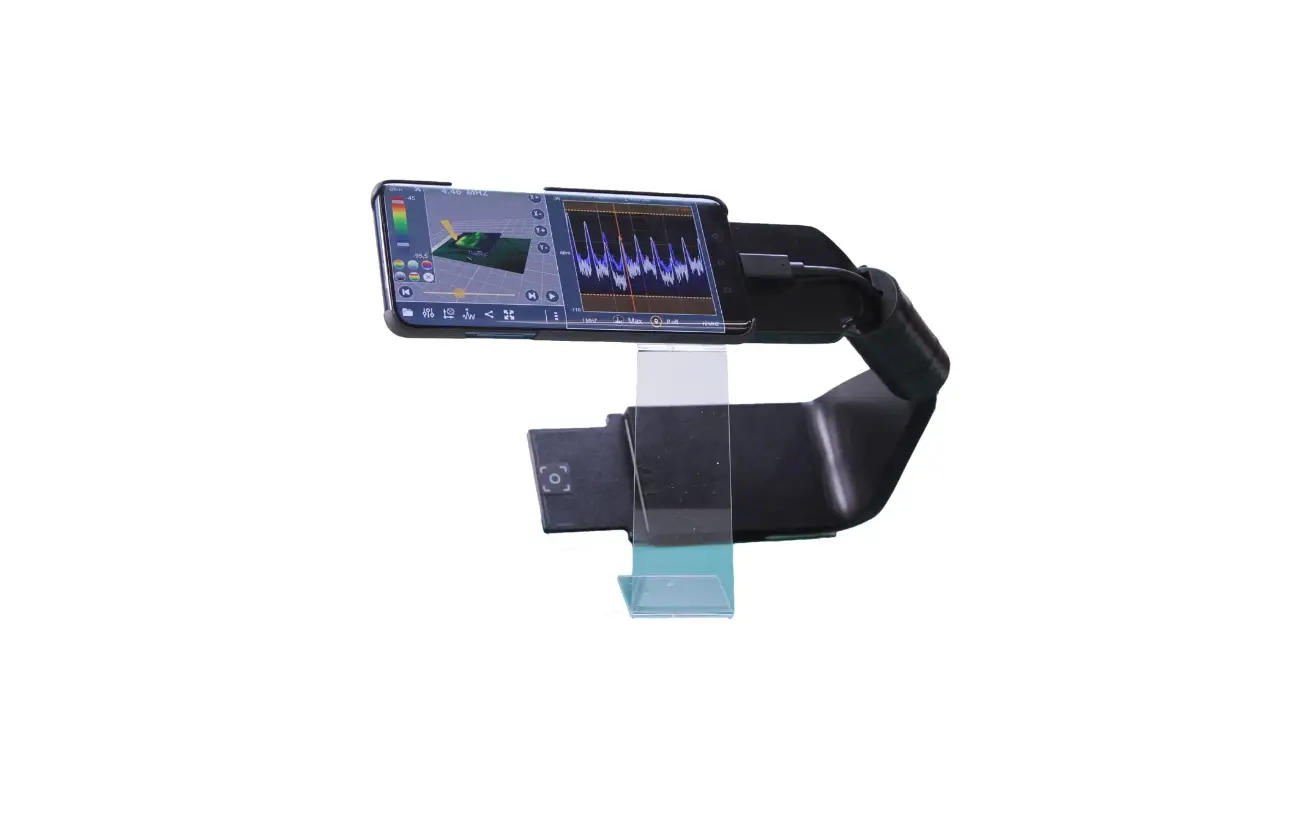

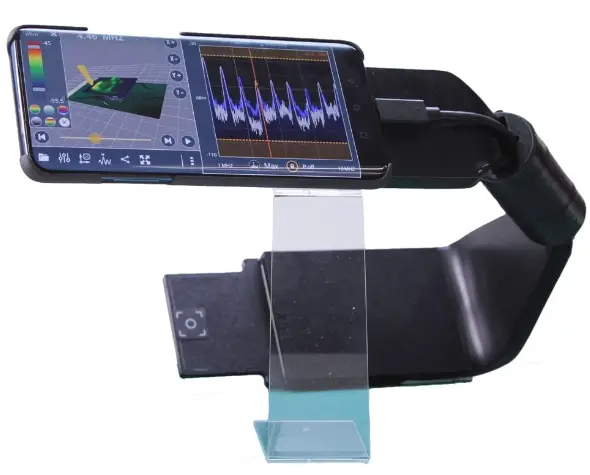
LUXONDES EM-SCANPHONE Options W and WLG Portable Scanner for 3D Mapping
COMPATIBLE DEVICES
February 2021
| Rohde & Schwarz |
| FPC1000 |
| ESU8-EMI Test Receiver |
| Anritsu |
| MS2090A |
| MS2036C/37C/38C |
| MS2667C |
| Agilent / Keysight |
| E7402A |
INTRODUCTION
The frequency option allows you to establish a connection between the EM-Scanphone and a spectrum analyzer (or oscilloscope) via a Wi-Fi connection.
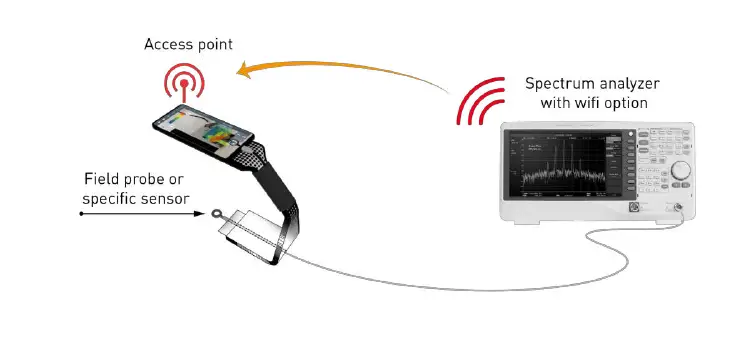
If you have a spectrum analyzer with the Wi-Fi option, e.g. the FPC1500 from Rohde & Schwarz or the MS2090A from Anritsu, then it is possible to directly establish a Wi-Fi link between the EM-Scanphone and the spectrum analyzer. (Figure 01)
Option W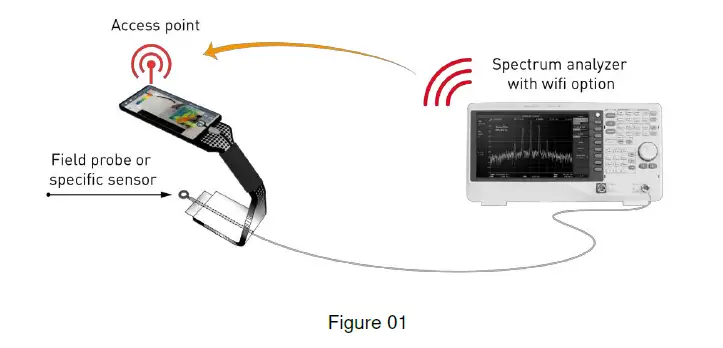
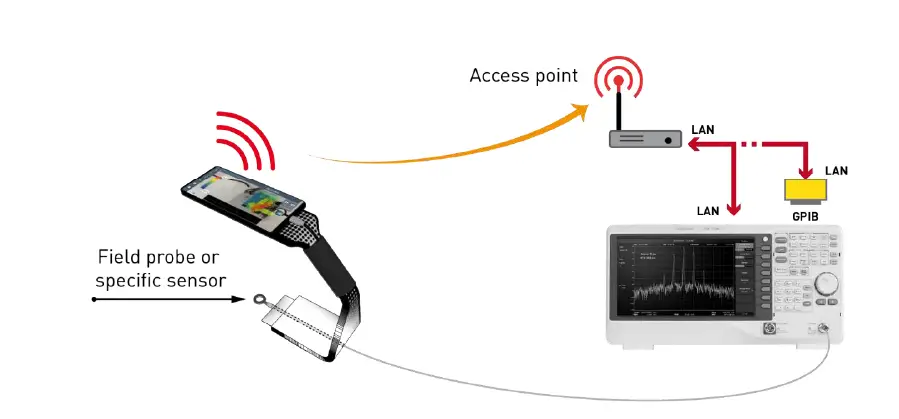
If your analyzer does not have any Wi-Fi option, then it is possible to connect it to a fixed Access Point (AP) via the LAN socket or via a GPIB / LAN interface (Figure 02).
Option WLG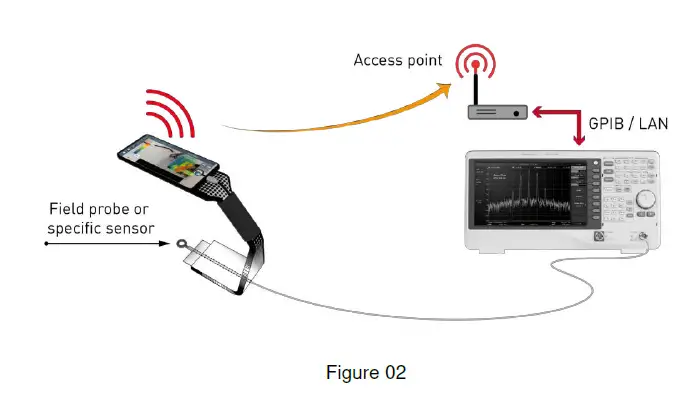
Setup of the W option

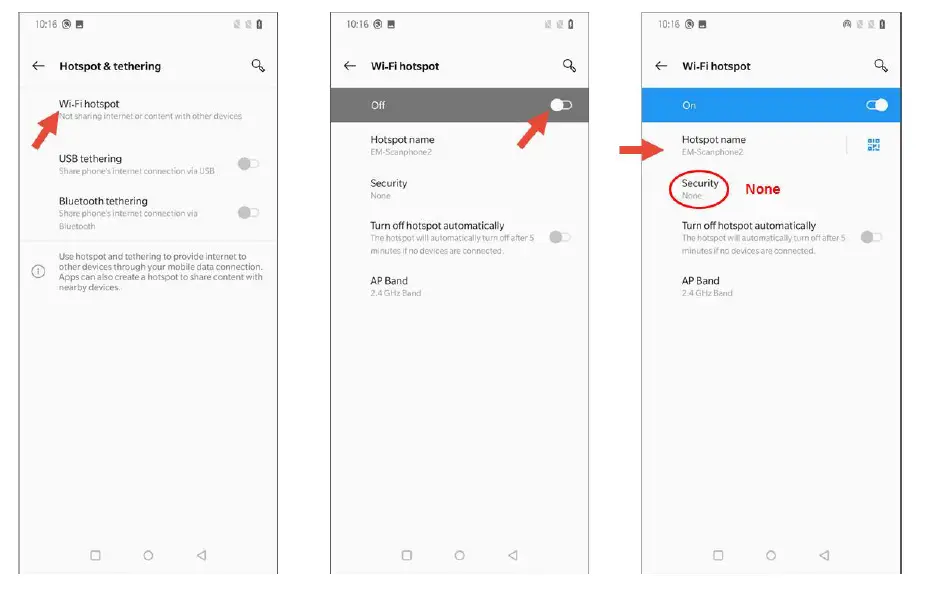
CREATION OF A WI-FI ACCESS POINT ON THE SMARTPHONE
You can change the name of the Hotspot. Example here: “EM-Scanphone2”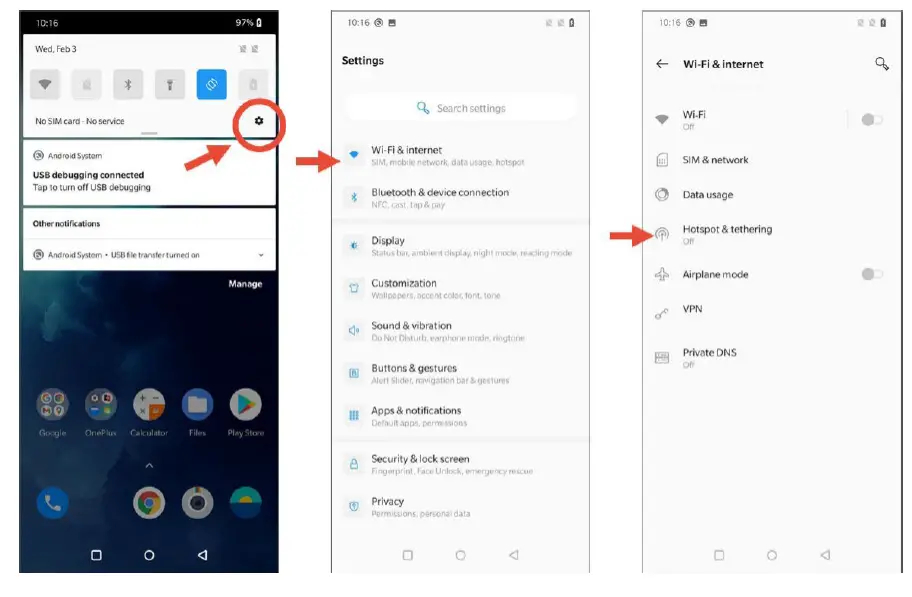
ACTIVATE THE WI-FI CONNECTION OF THE SPECTRUM ANALYZER
Example with the R&S FPC1500.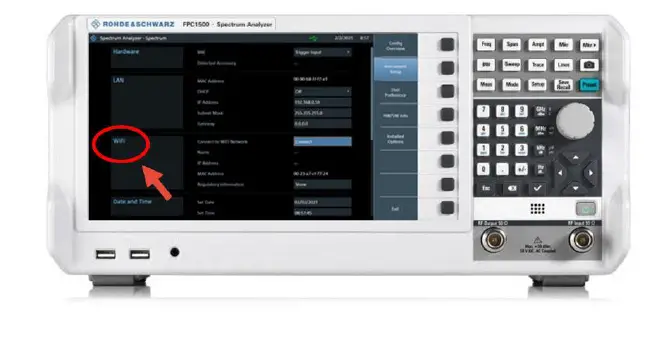
With the Connect button, search for the EM-Scanphone2 Wi-Fi network.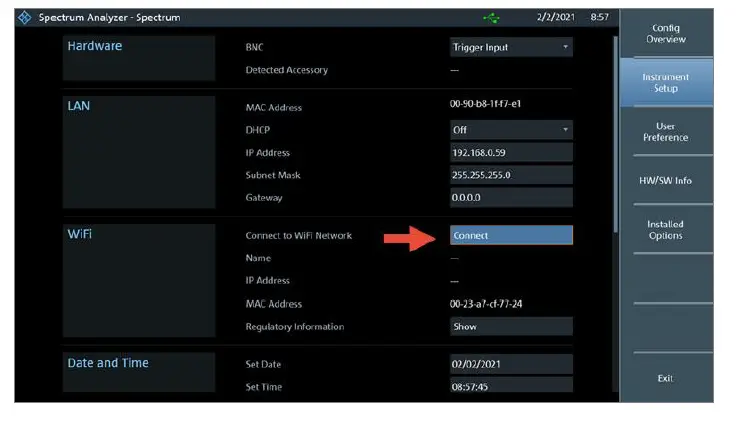
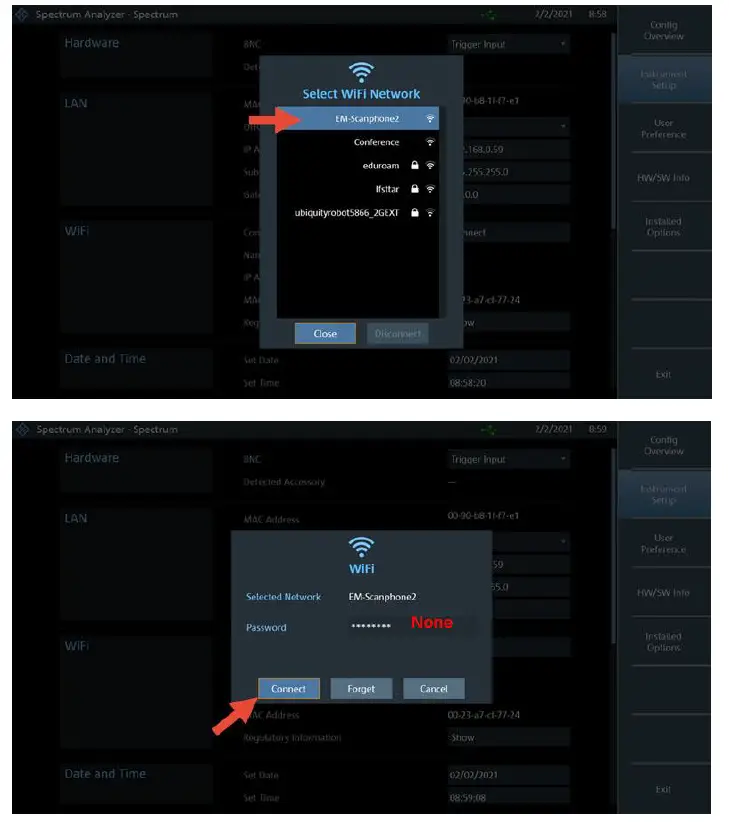
Connect the spectrum analyzer to the access point of the EM-Scanphone.
Note the IP number (here: 192.168.43.52).
LAUNCH THE CONSOLE APPLICATION 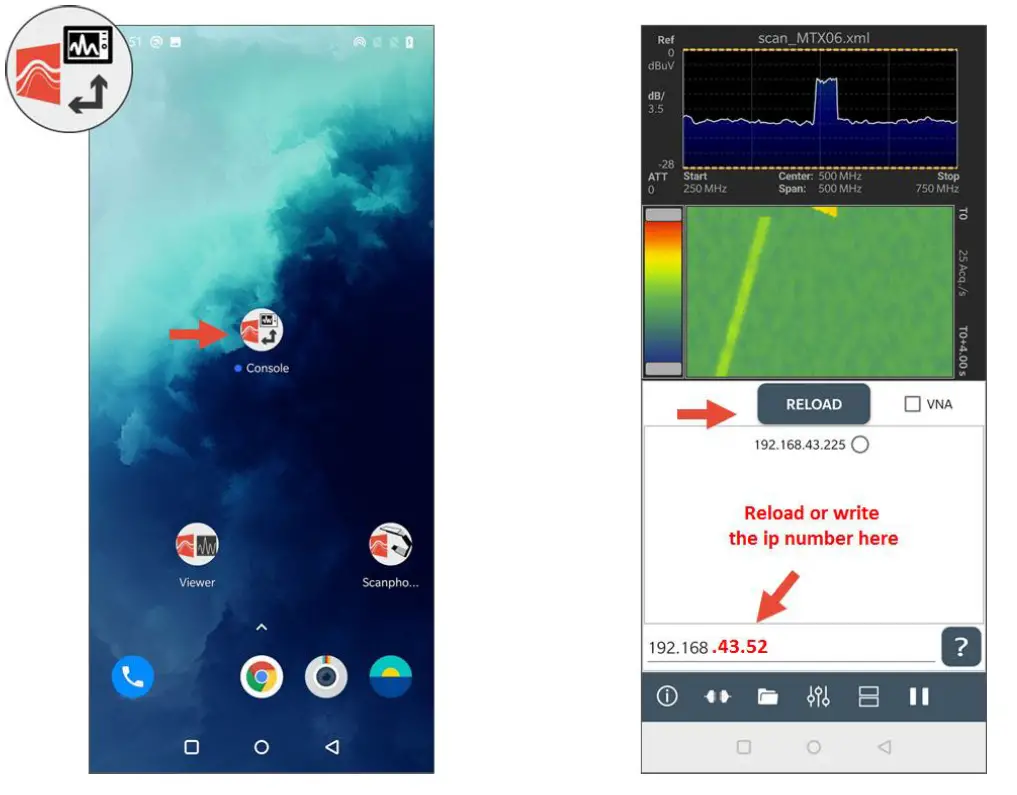
Press Reload several times to find the IP corresponding to your device.
In our example, we are looking for the IP number 192.168.43.52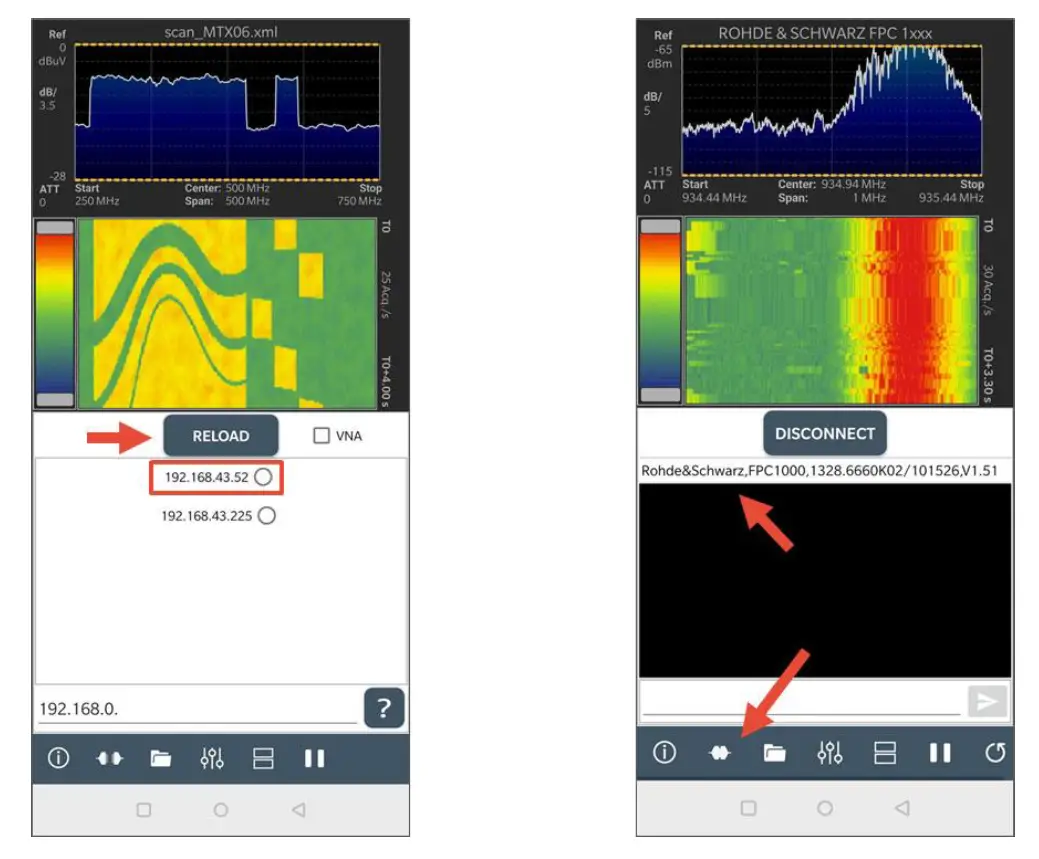
With the console, we can check that the connection is established.
Close the console
ACTIVATION OF THE WI-FI OPTION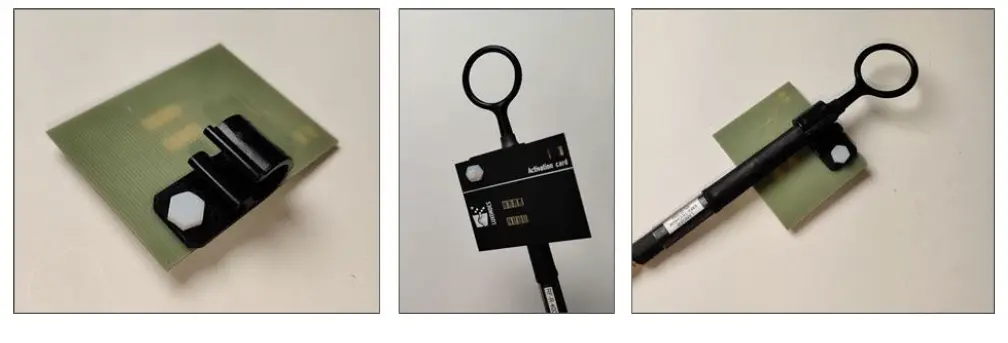
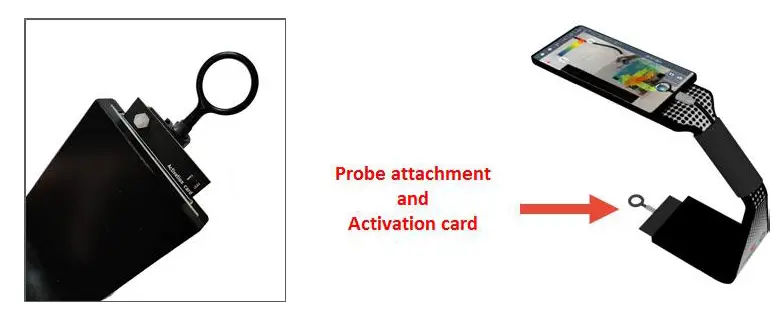
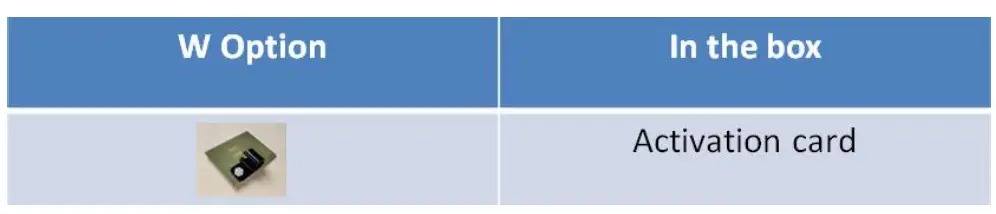
The activation card will enable the W & WLG options to be activated and also to hang the probe.
START THE EM-SCANPHONE APPLICATION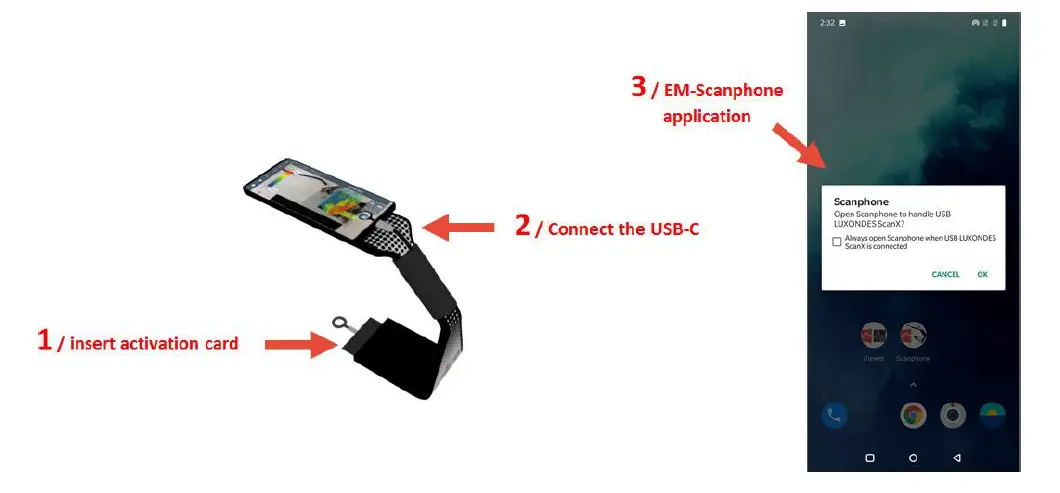
- When you connect the USB socket, the application should start.
- If not, it must be started manually.

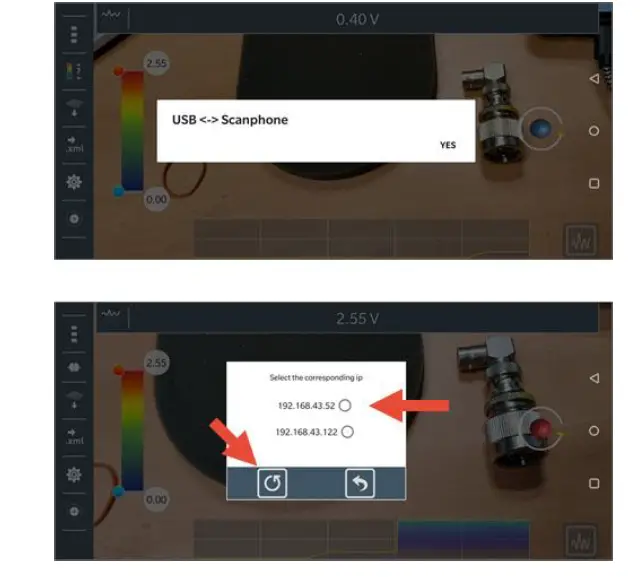
- Reload to find the analyzer IP.

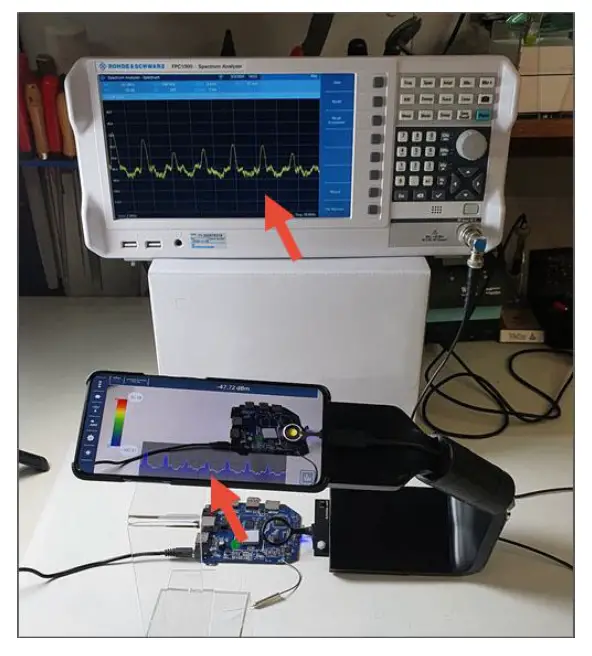
- You have now connected the analyzer to the EM-Scanphone.
- You can start scanning.
- See the EM-Scanphone user manual for further information
Setup of the WLG option
ACCESS POINT CONFIGURATION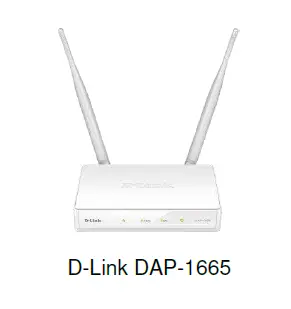
| Name | Password | |
| Wi-Fi 2.4GHz | Dlink-LXD | 00000000 |
| Wi-Fi 5GHz | Dlink-LXD-5GHz | 00000000 |
CONNECTION BETWEEN THE ANALYZER AND THE ACCESS POINT
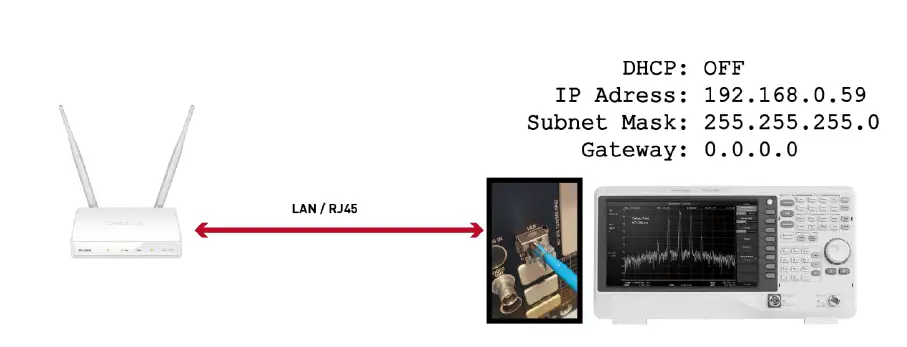
LAN Only
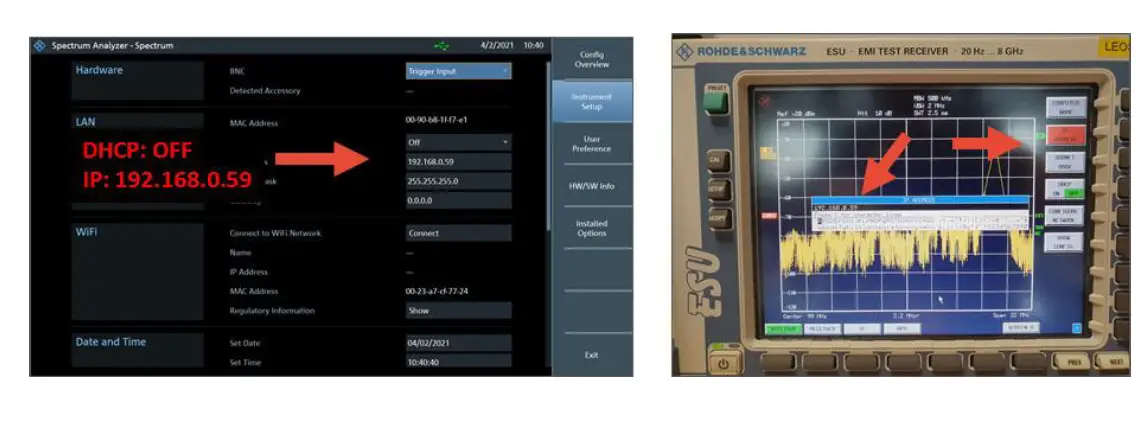
- In the network configuration menu of your analyzer, enter the following parameters: IP.FIX

- Example with R&S FPC1000 and ESU

LAN with GPIB Interface
The analyzer GPIB Address must be 18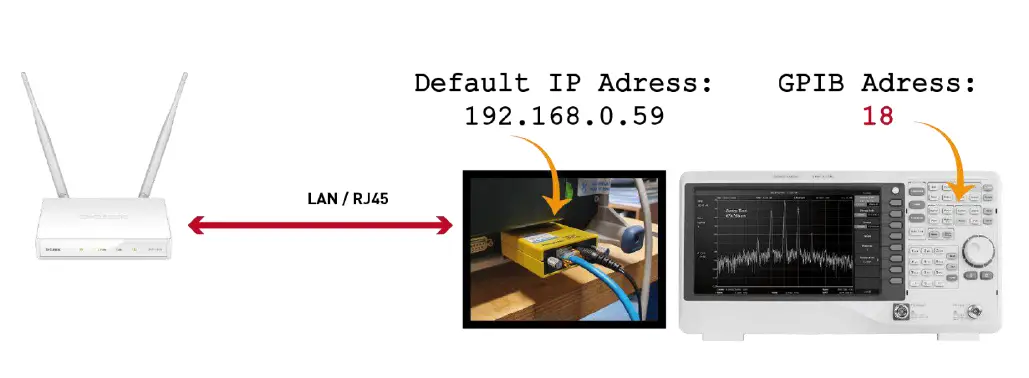
CONNECT THE SMARTPHONE TO THE D-LINK ACCESS POINT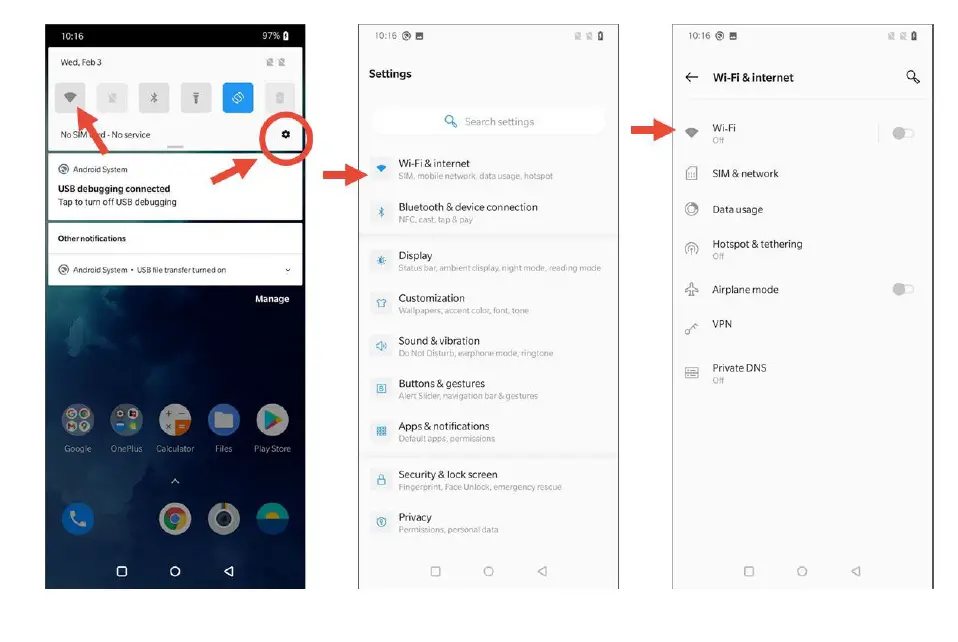
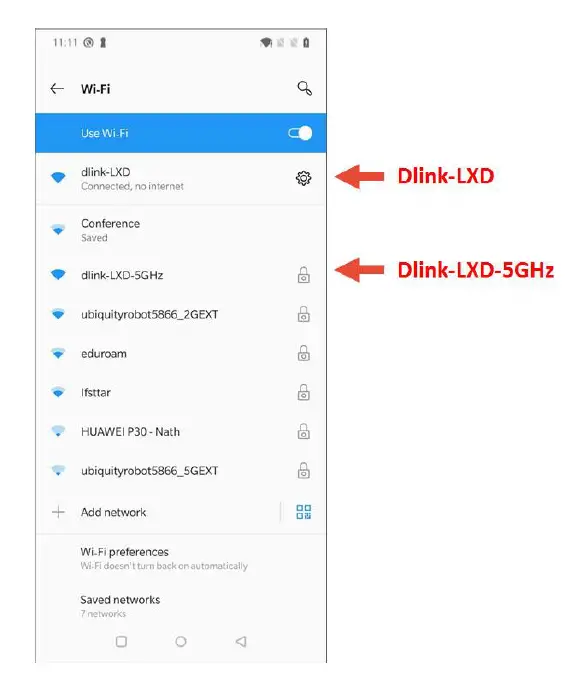
Select the network of your choice 2.4GHz or 5GHz
Password: 00000000
LAUNCH THE CONSOLE APPLICATION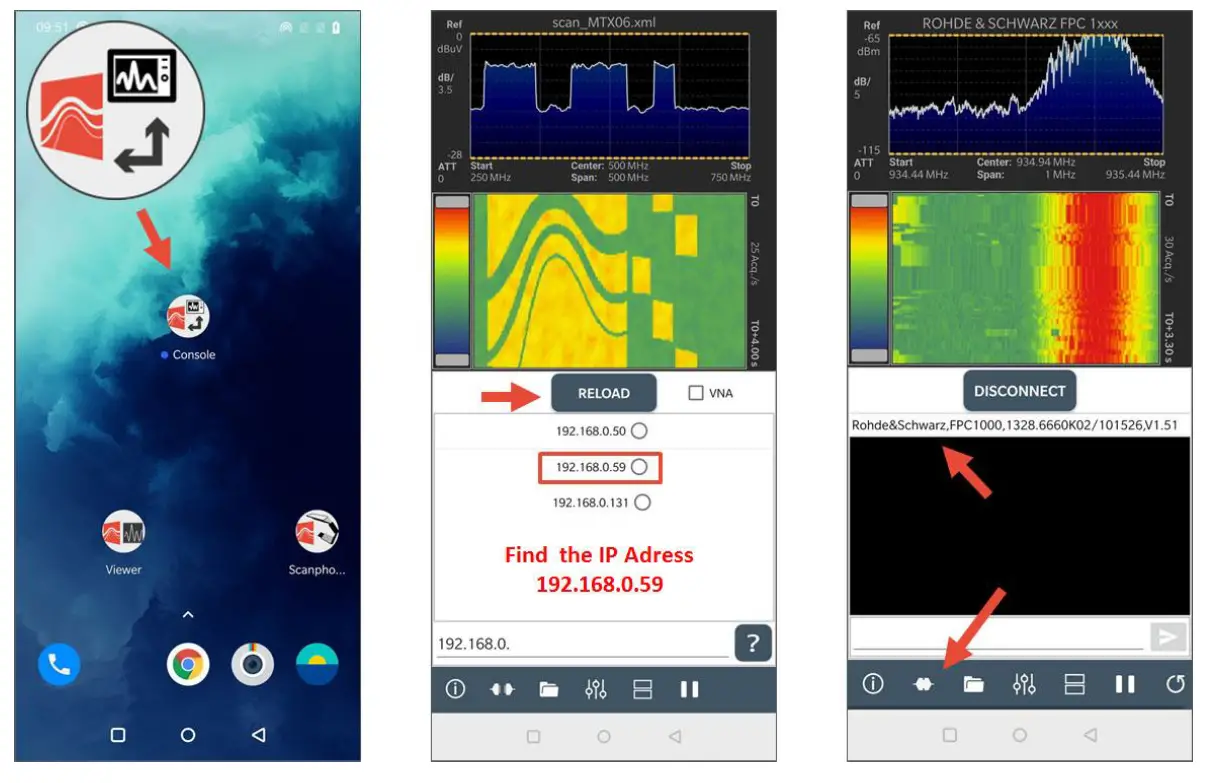
GO TO THE SECTION 2.4 (ACTIVATION OF THE WI-FI OPTION)
LUXONDES
Ruche des 2 lys, Zone EuroLys, Avenue de l’Europe
[email protected]