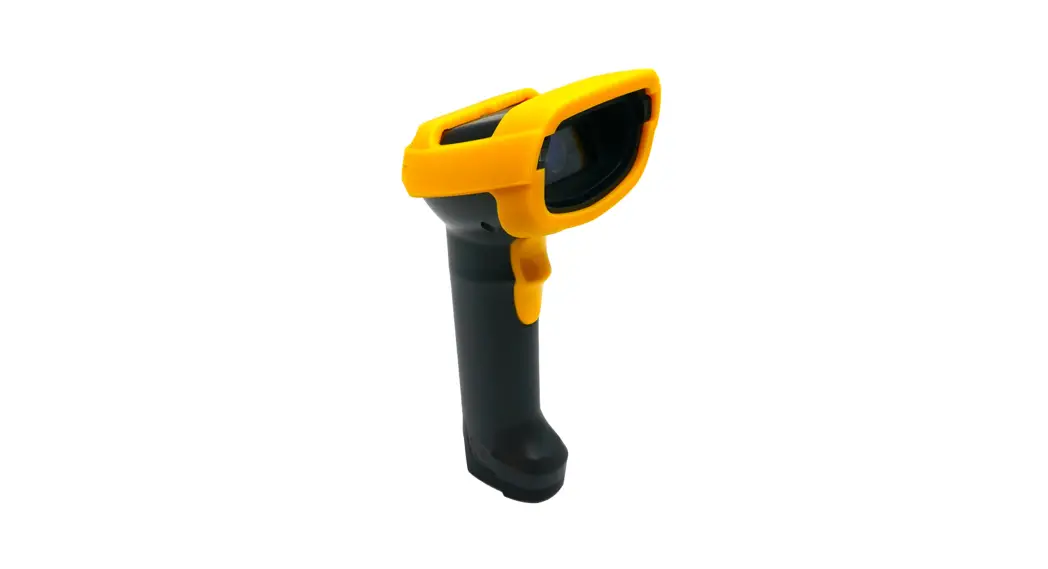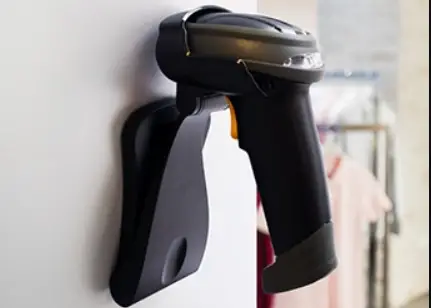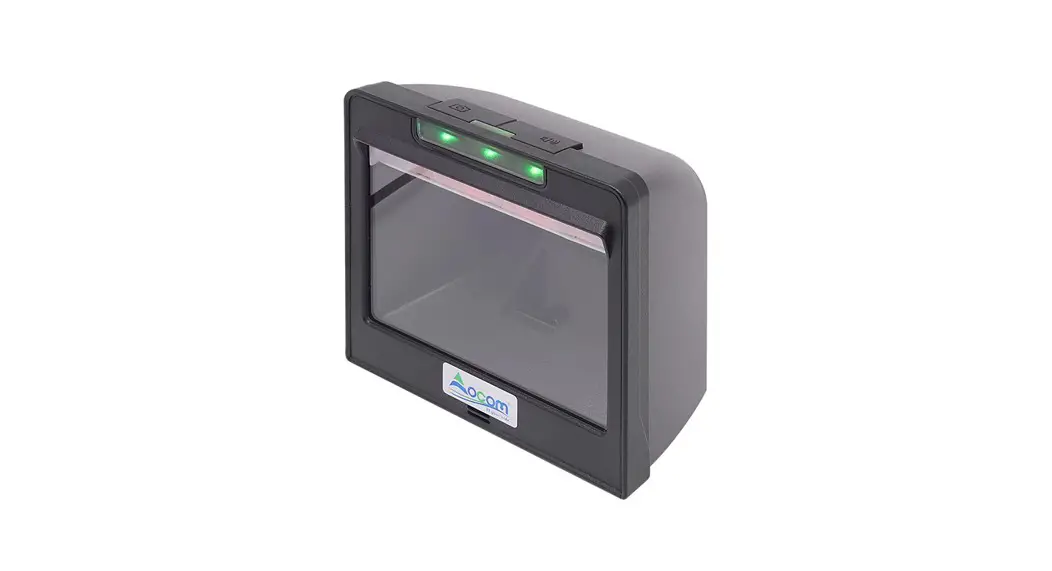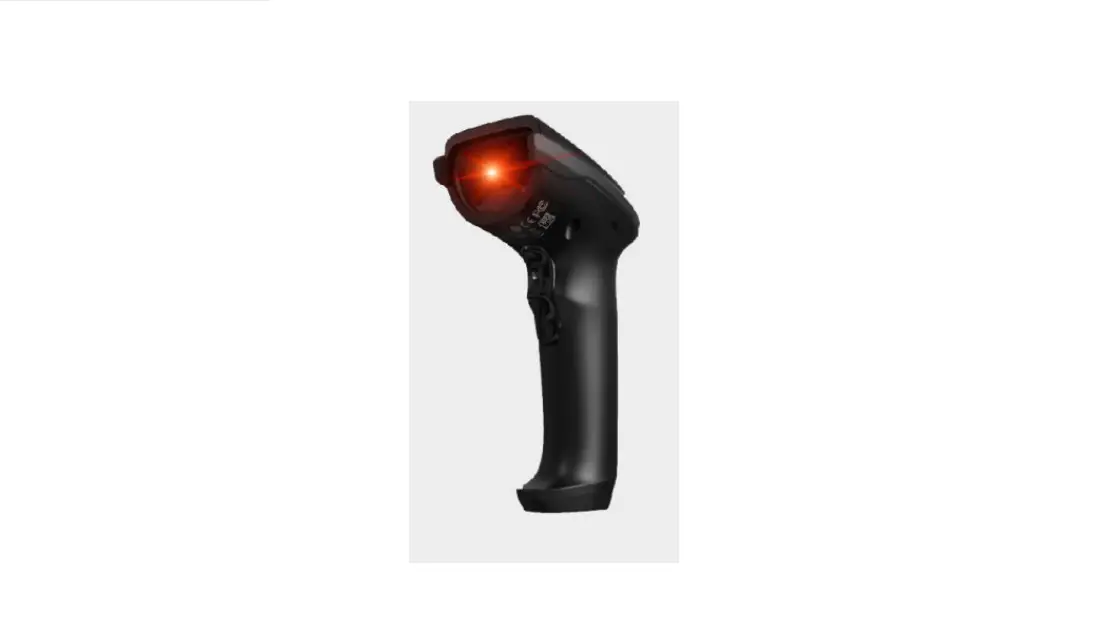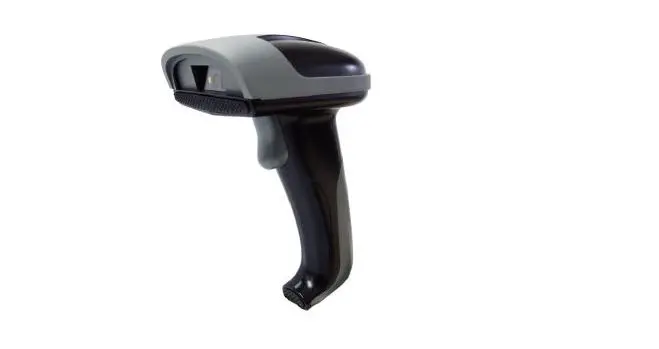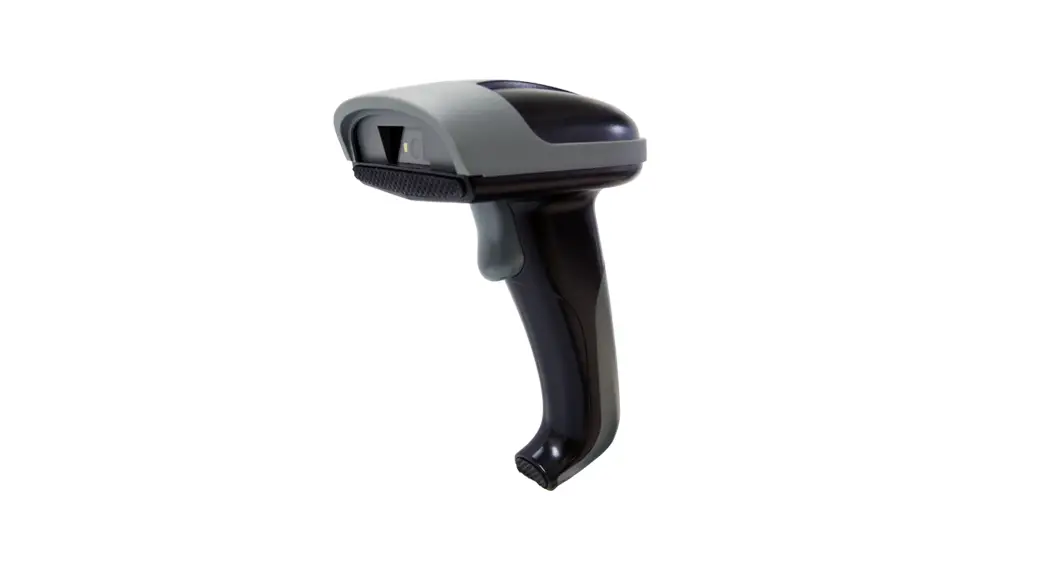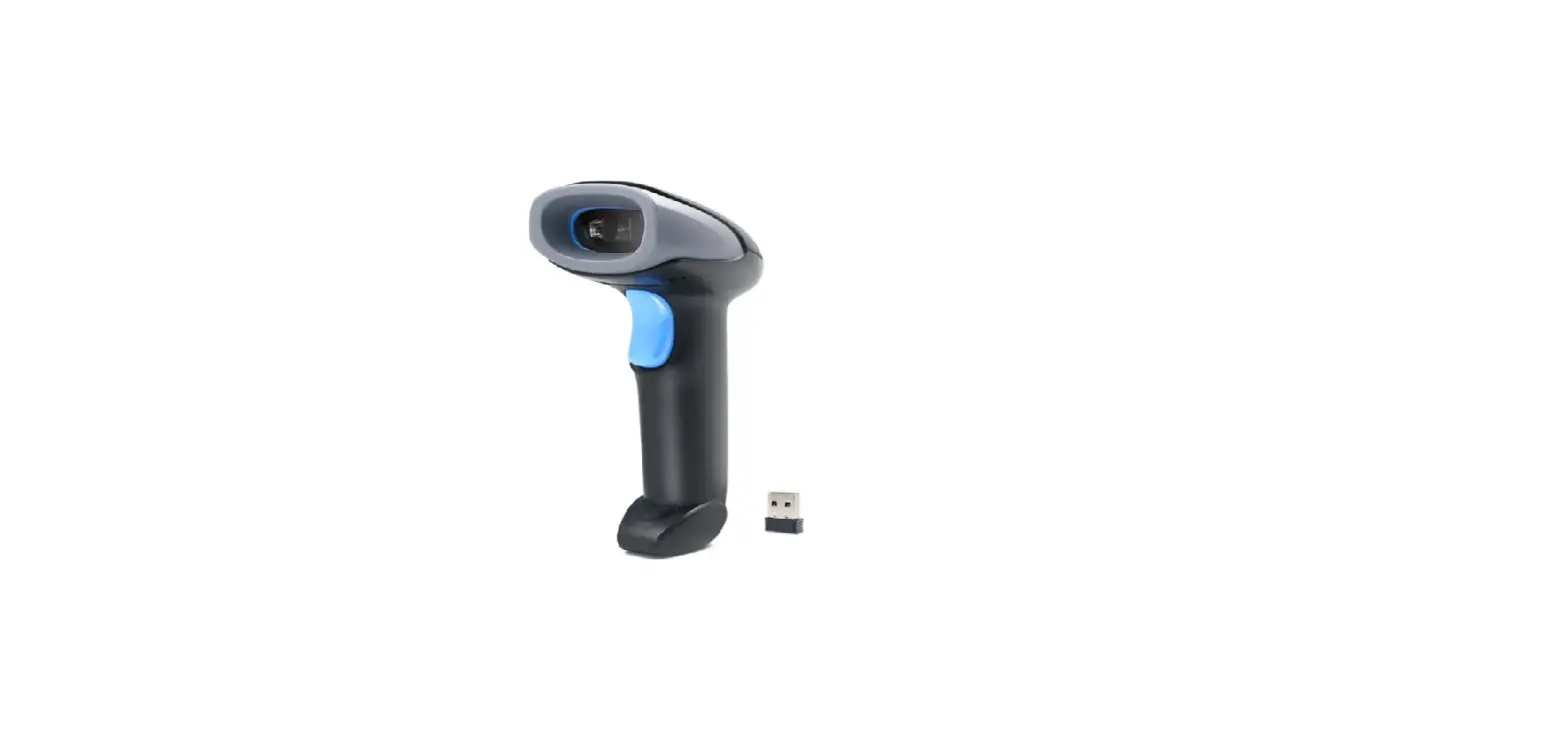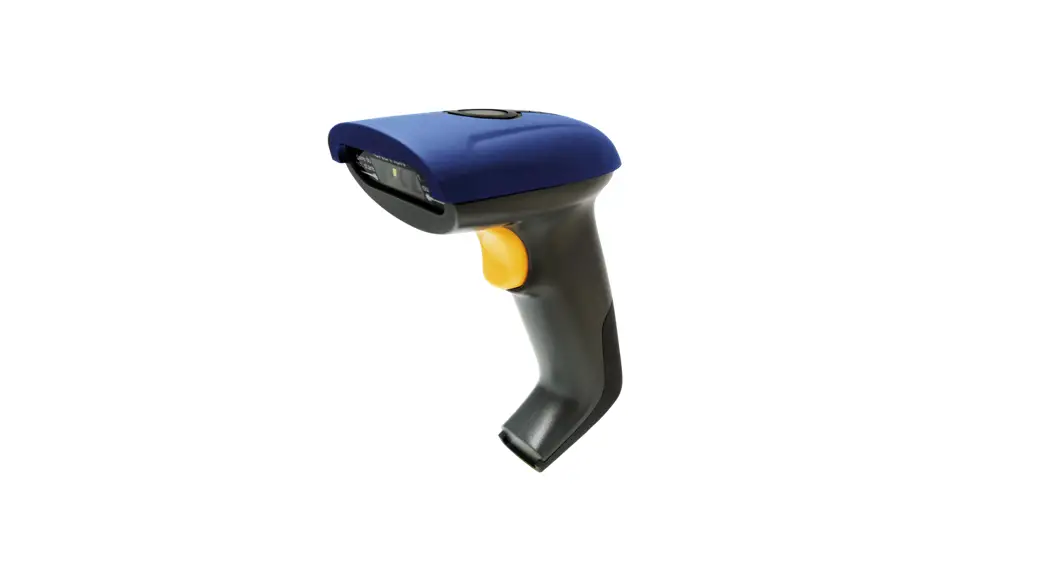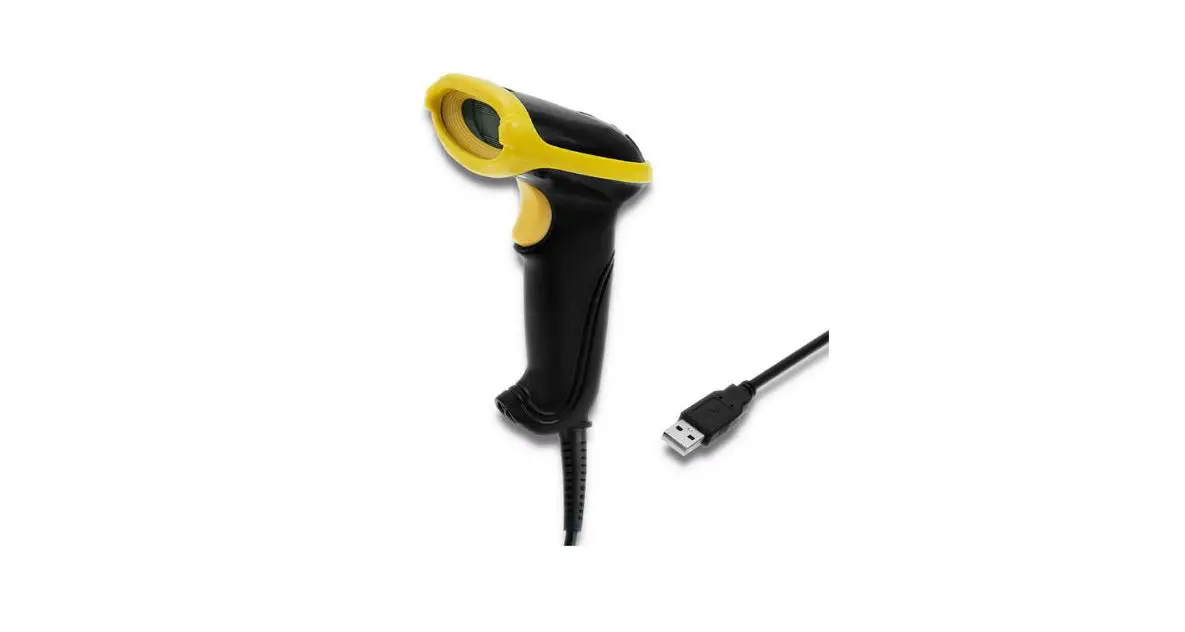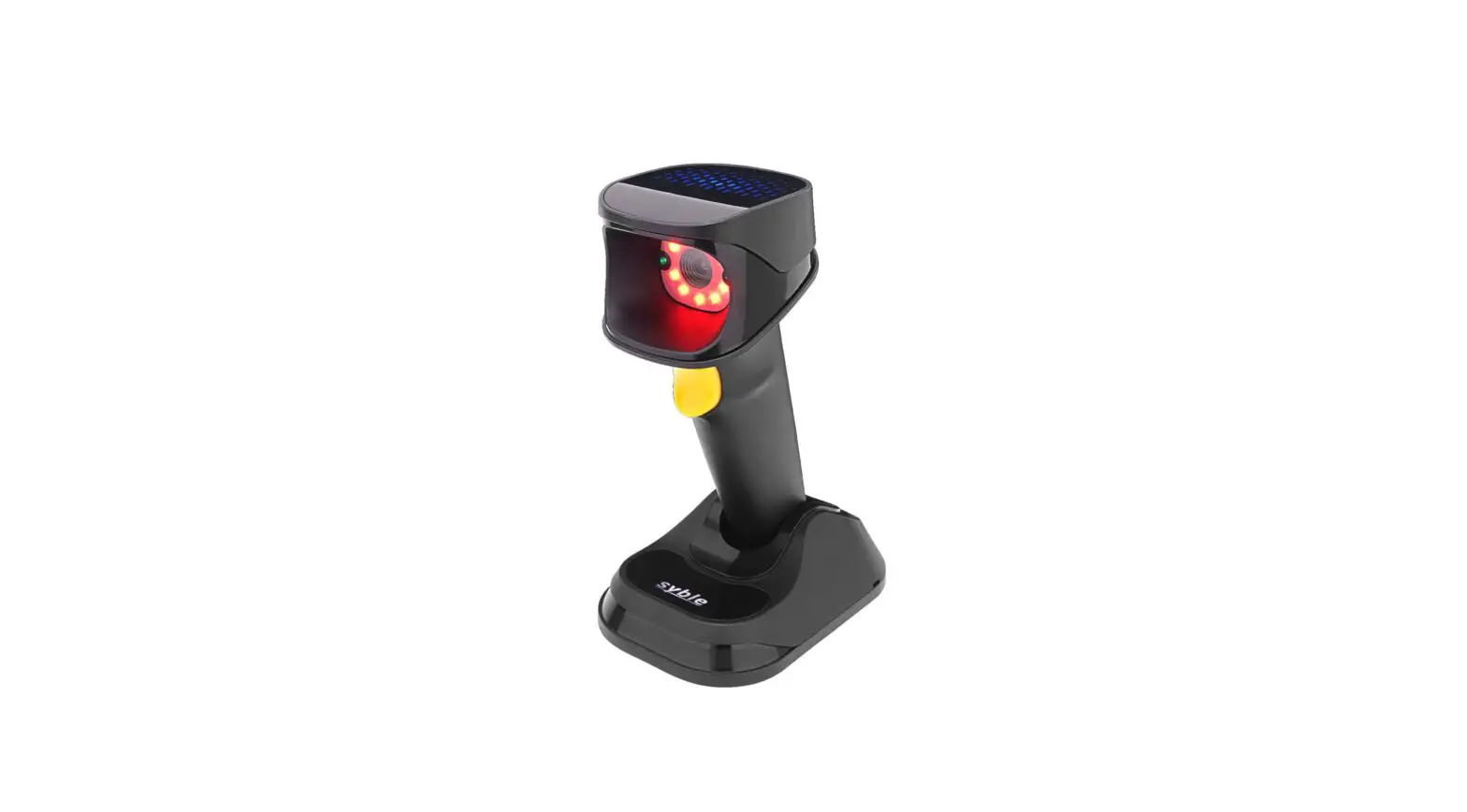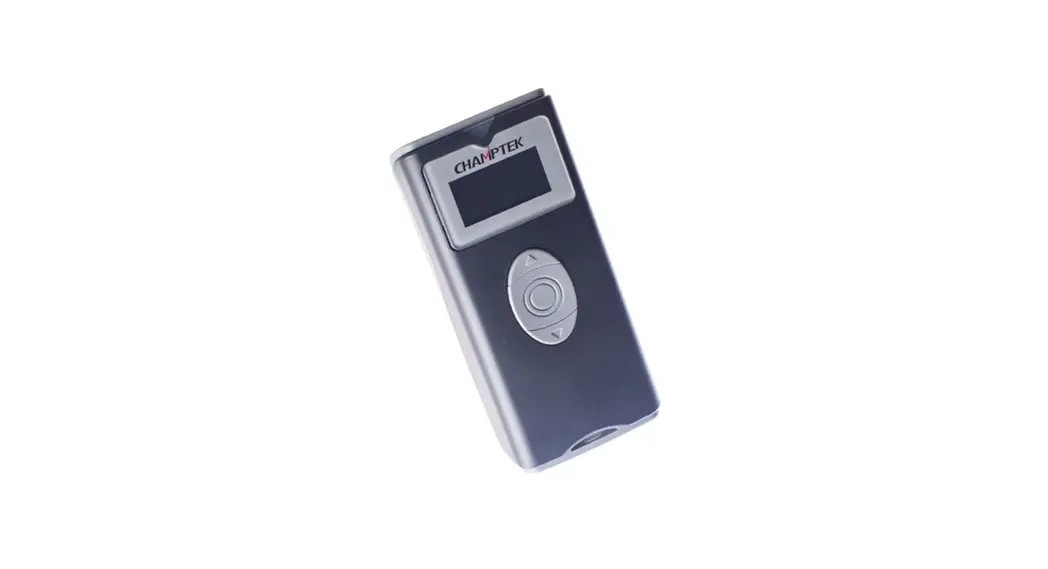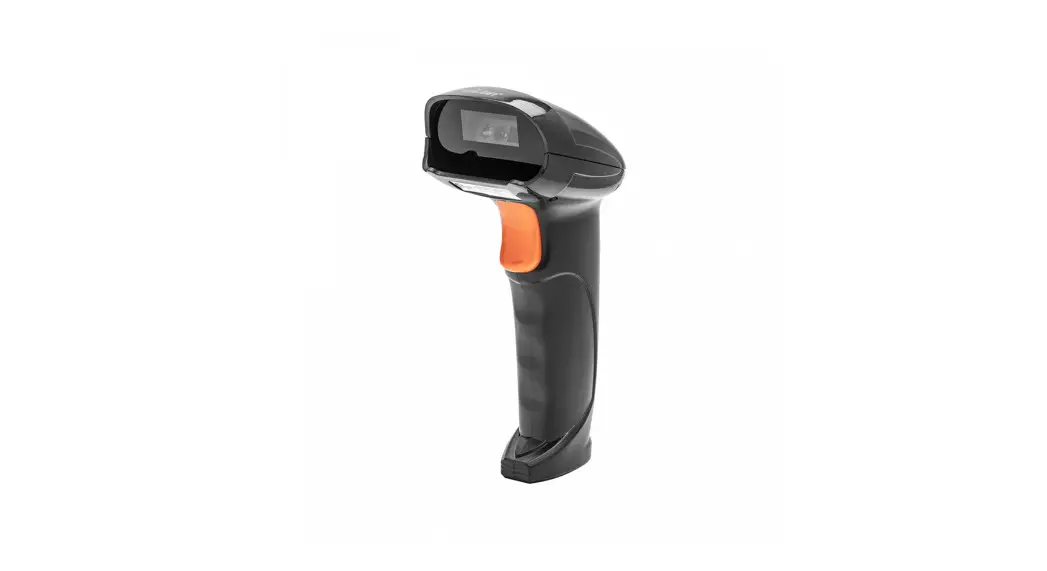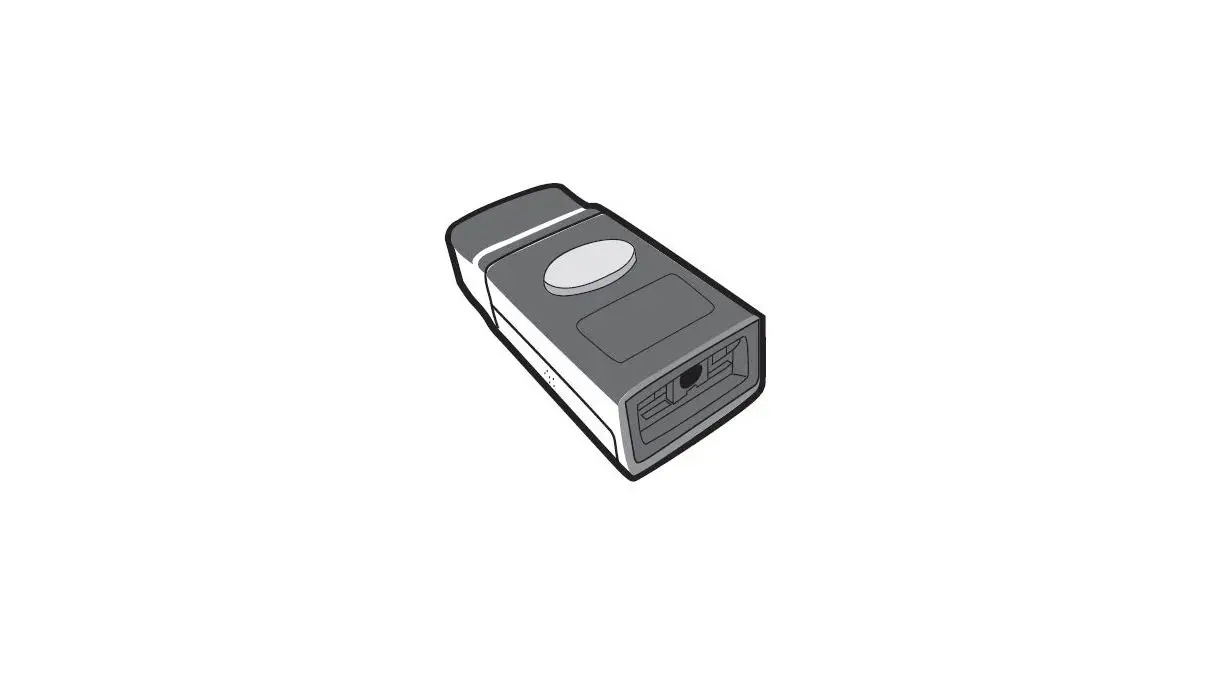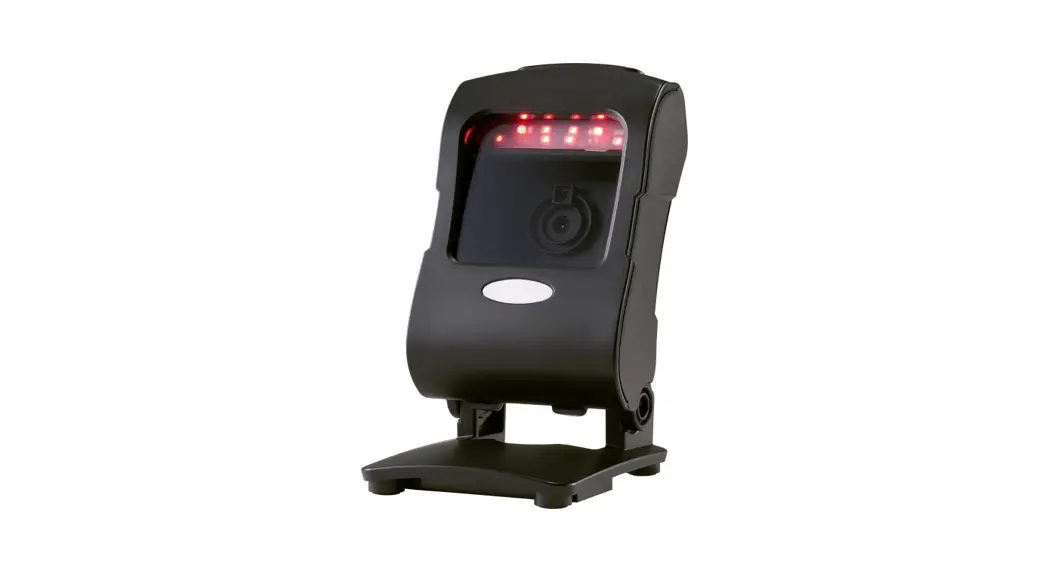

OM7520M 2D Scanner
User Guide
About This User Guide
Please read all the content of the user guide carefully to use the products safely and effectively. You are advised of keeping it properly for your using reference.
Disclaimer
Please do not dismantle the product or tear up the seal on it, otherwise we won’t provide warranty or replacement service.
The pictures in this user guide are for reference only. If there are any pictures which not match the actual product, please take actual products as the standard. Updated information is subject to change without notice.
All information contained in this guide are protected by copyright, and our company reserves all rights. All or part of this guide is prohibited to excerpt, copy, bundle other
products, or sell without the written permission from us.
RIOTEC Co., Ltd all rights reserved.
Service Information
For technical assistant or product service and repair, please contact: [email protected]
Introduction
This user guide applies to OM7520M 2D Scanner, which identify 1D&2D barcodes by 2D image scanning pattern, and apply the complete set of patent technology developed by RIOTEC Co., Ltd. These Scanners above are of strong identification capability, and support automatic continuous scanning mode with fast and flexible scanning speed.
This model of Scanner is designed to change settings by reading some special barcode, which we will give you a detailed introduction and show you all the barcodes for the corresponding setting in this section.
The greatest advantage of this setting method is direct, intelligible and user friendly.
2.1 Setting barcodes
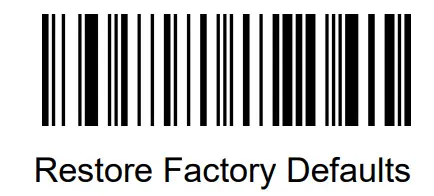
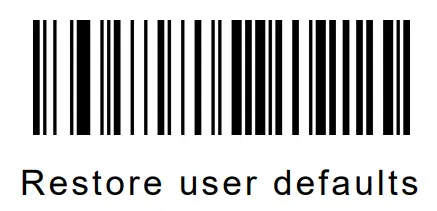
2.1.2 Restore Factory Defaults
2.1.2 Read user defaults
Save the current menu settings as user-defined menu settings.
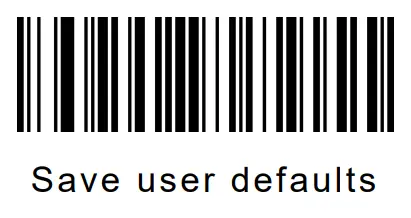
You can restore the menu settings for the user-defined menu settings.
2.1.3 Interface Setting
This Scanner support USB KB or Serial communication by scanning below barcode。 (Please install PL2303 driver for USB Serial)
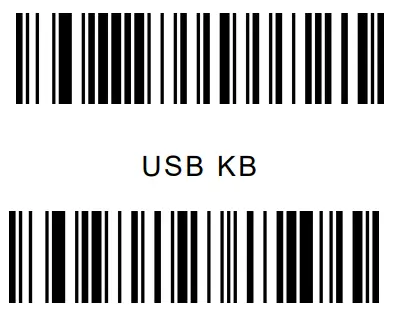
Serial communication (Please install PL2303 driver for USB Serial)
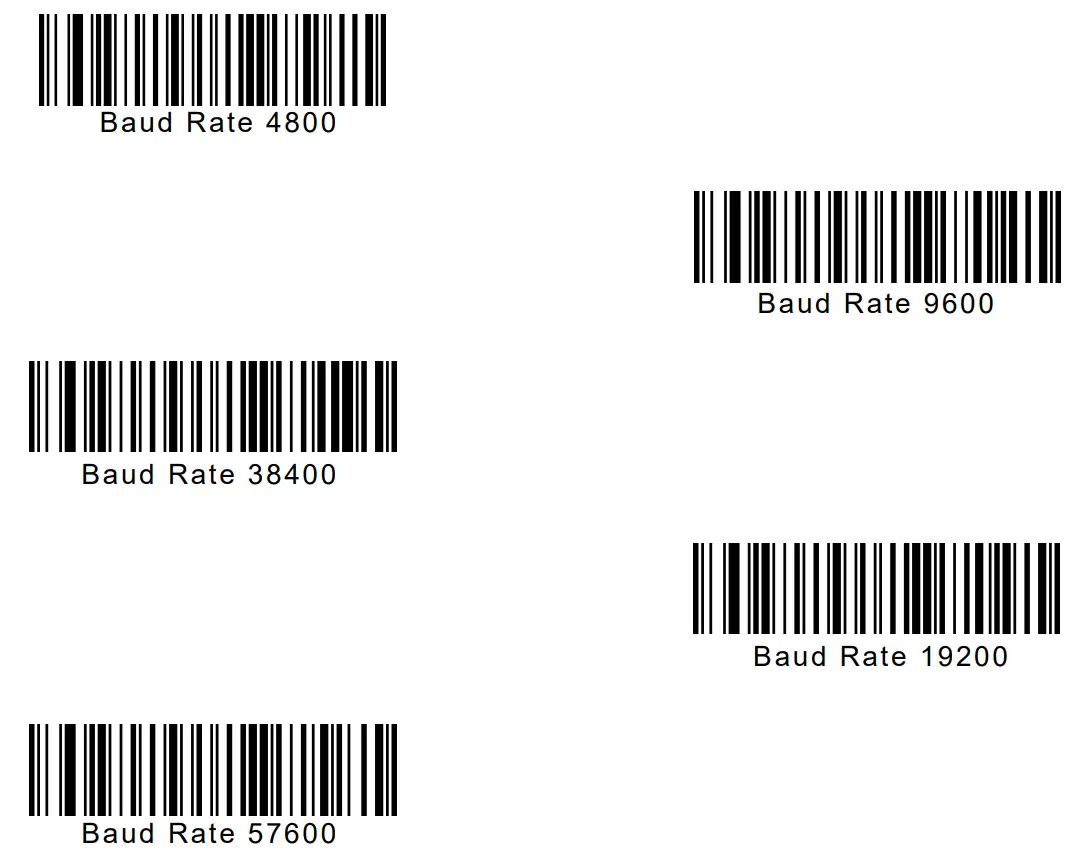
2.1.4 Baud rate setting
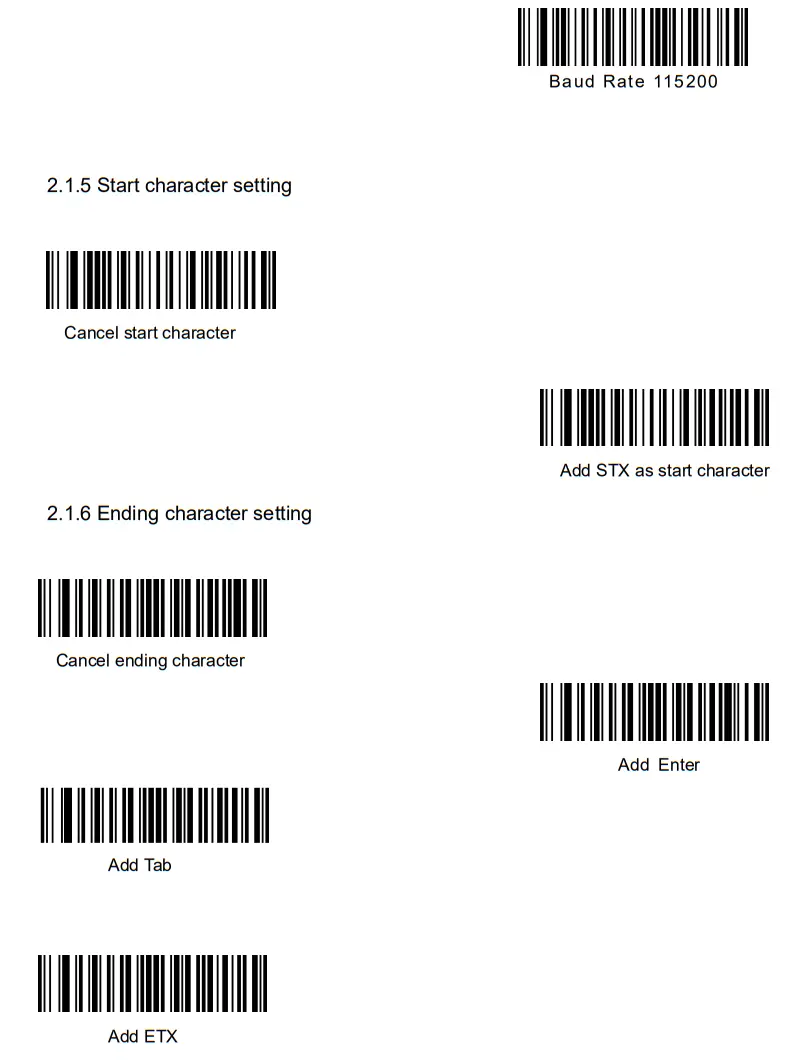
2.1.7 Inverse code option
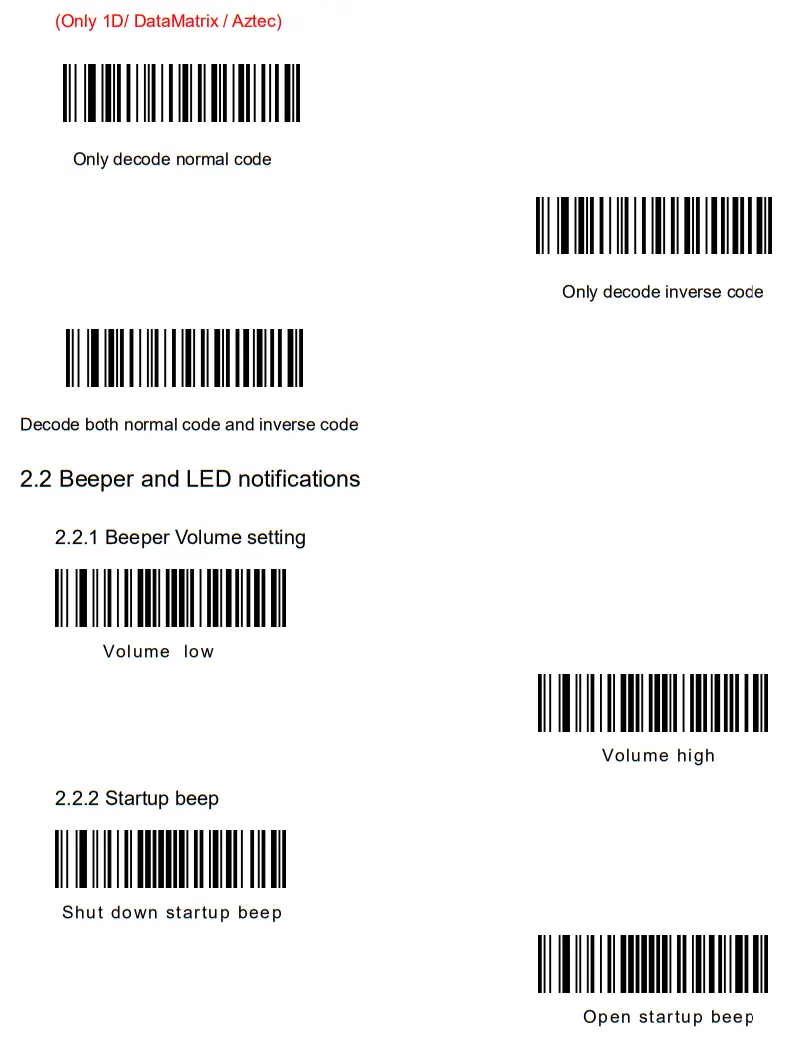
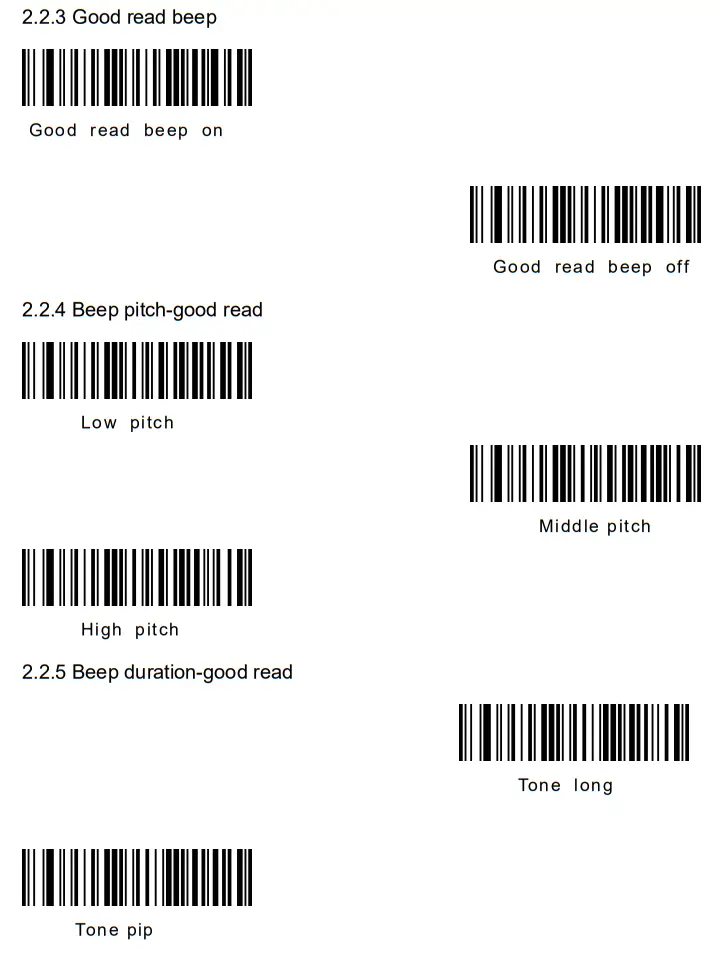
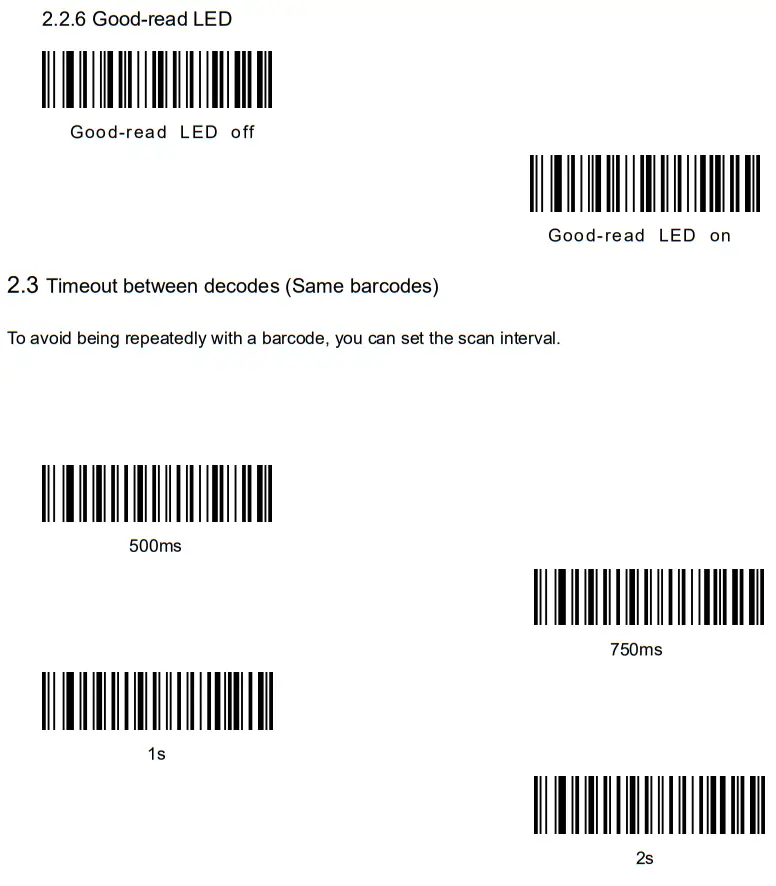
2.4 USB keyboard update speed setting
There barcode is used to set the update speed when scanner is in USB keyboard pattern. If the performance of your PC is lower, we suggest you choose slow update speed to make sure the scanner update the right data.
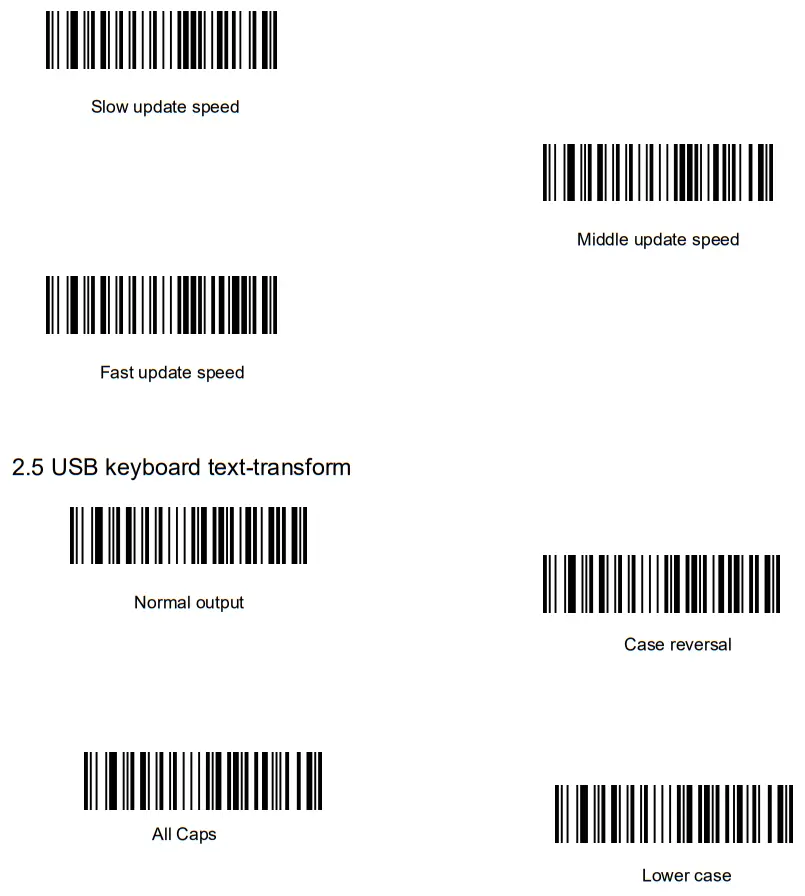
2.6 Keyboard layout setting
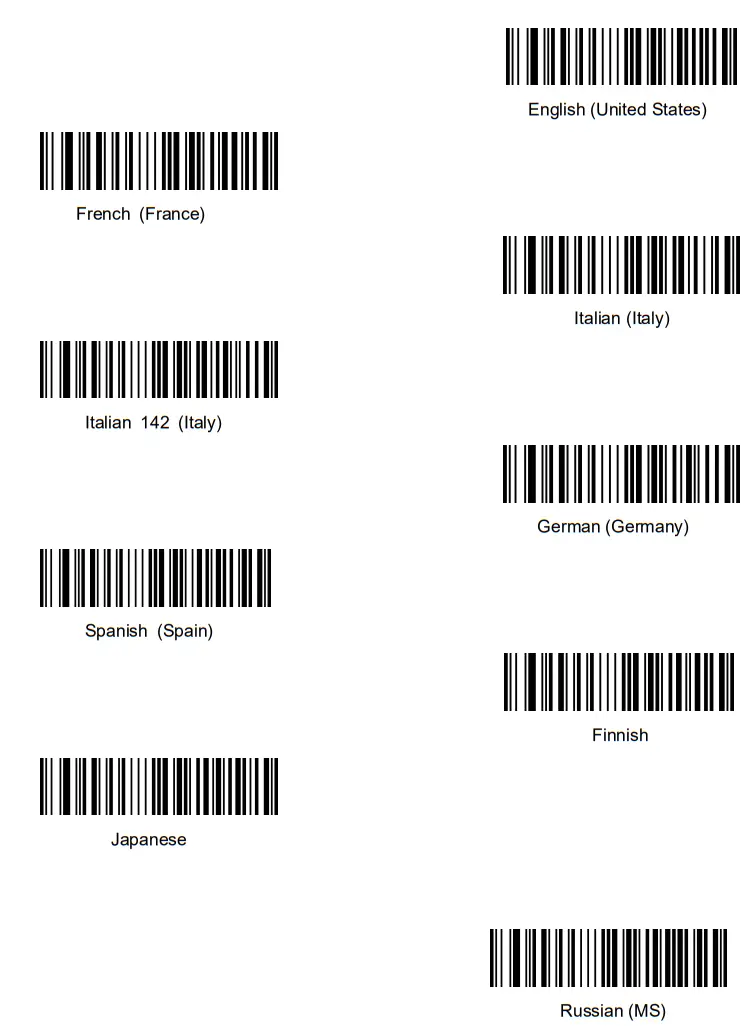
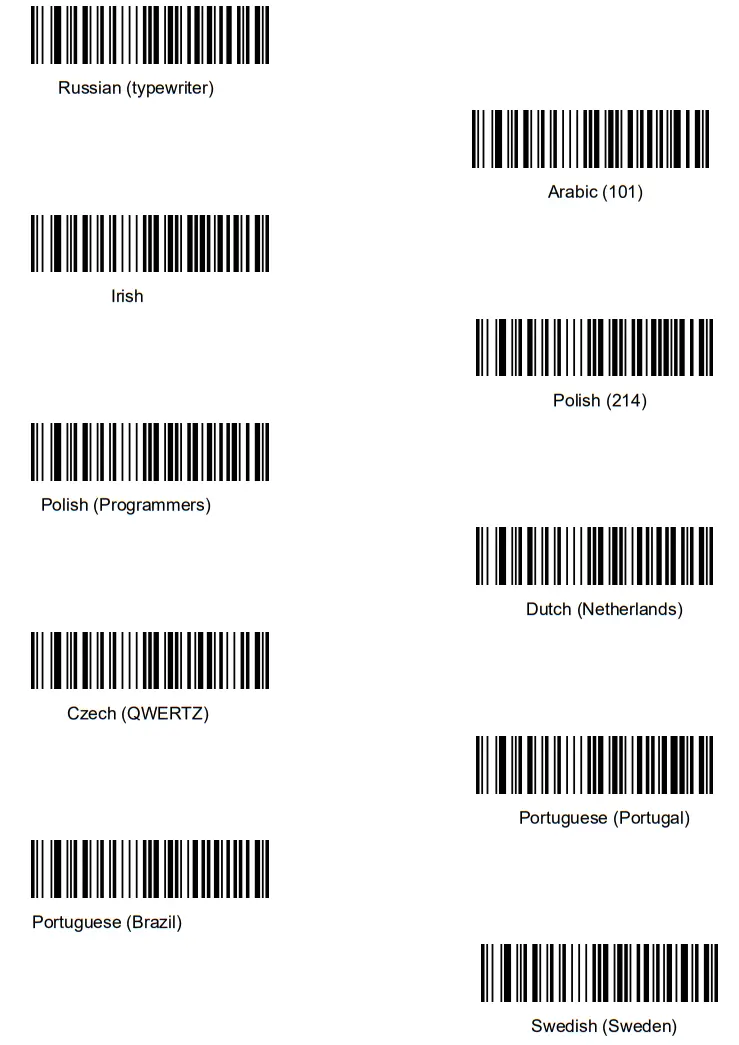
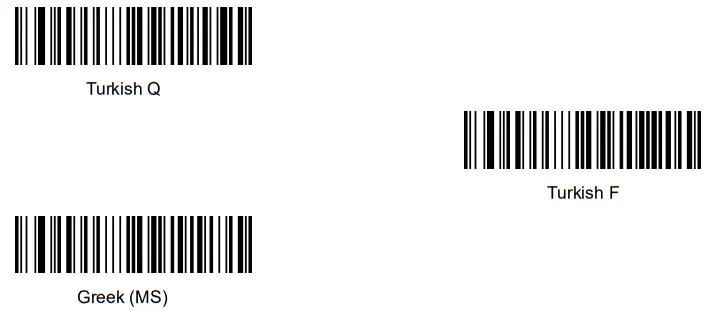
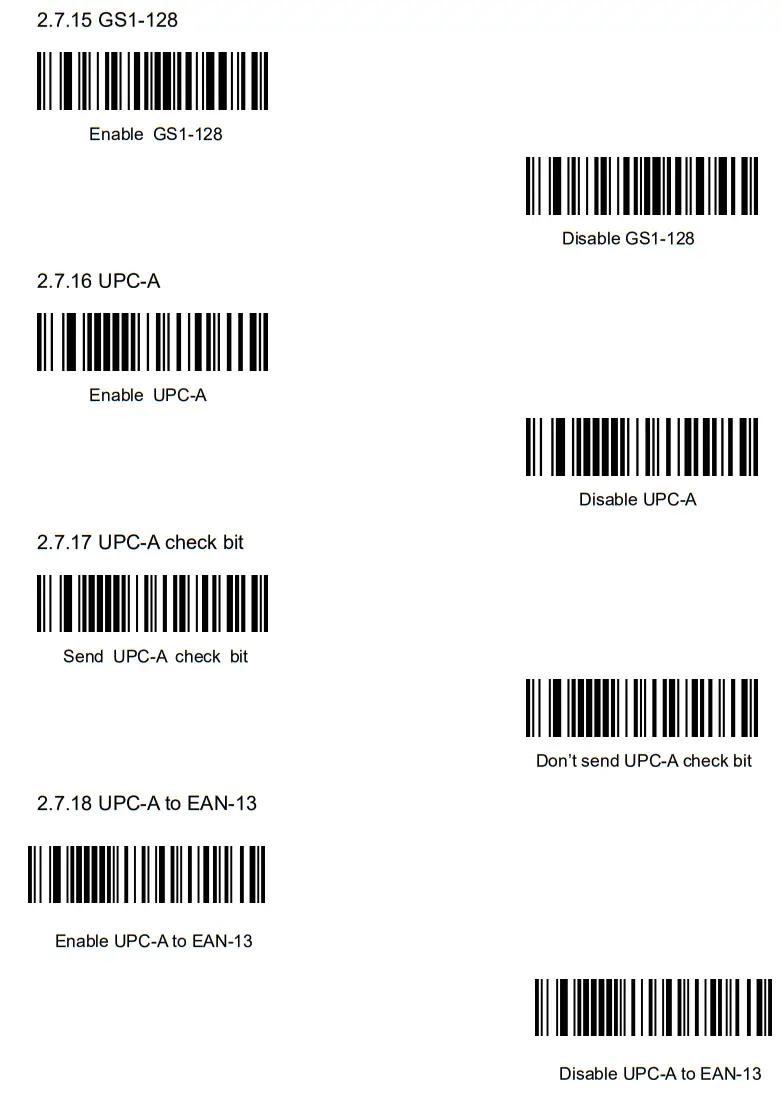
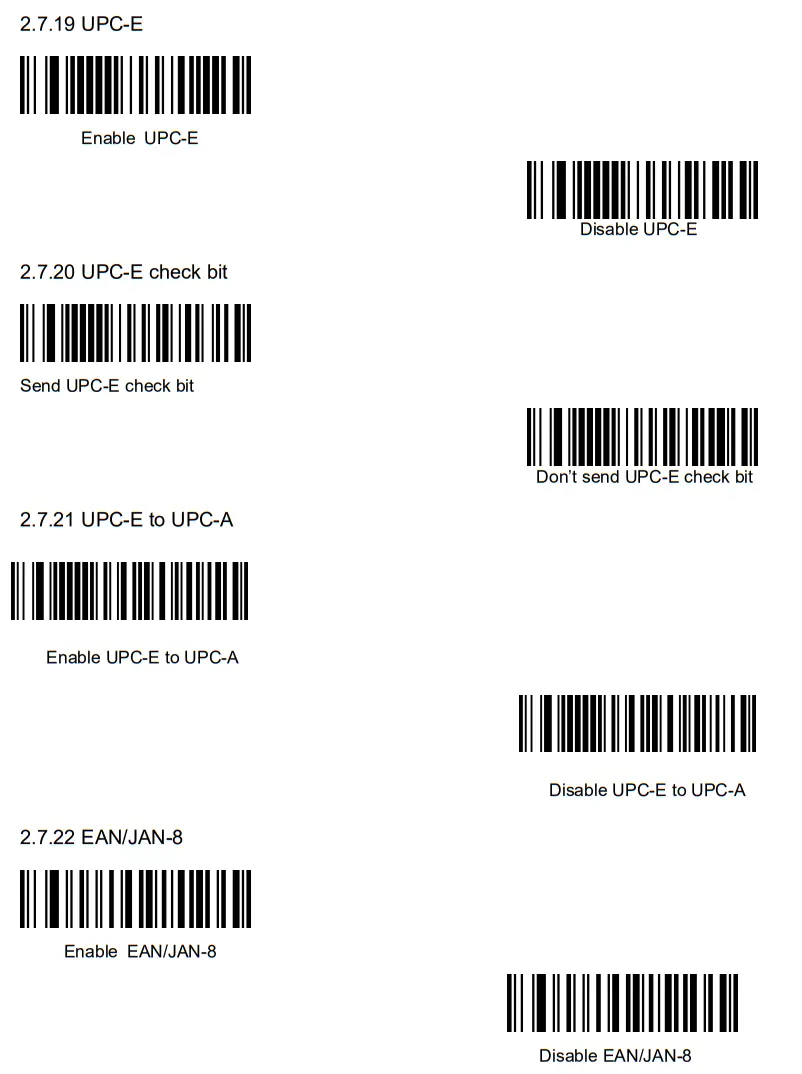
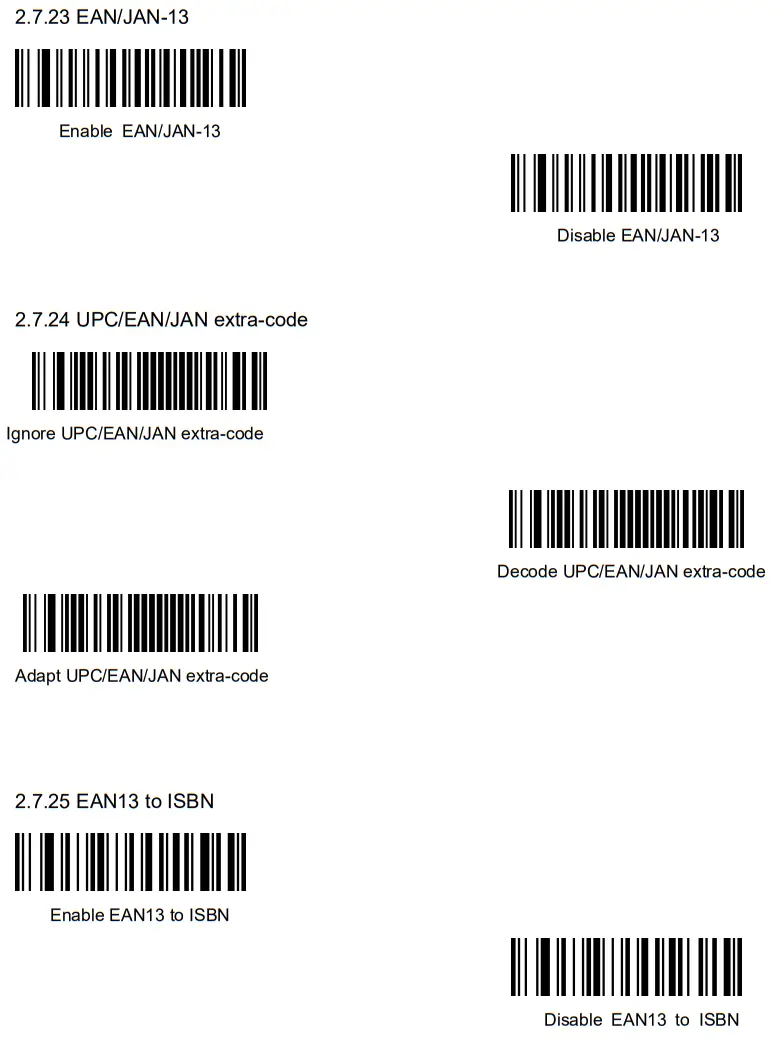
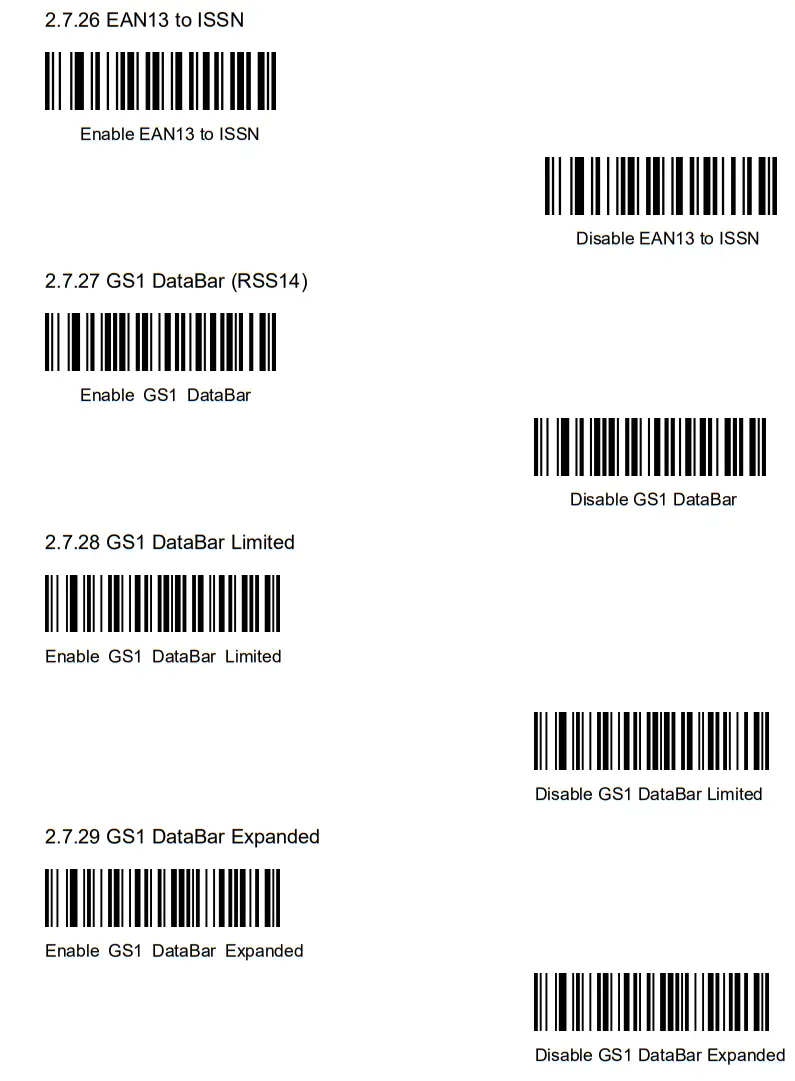
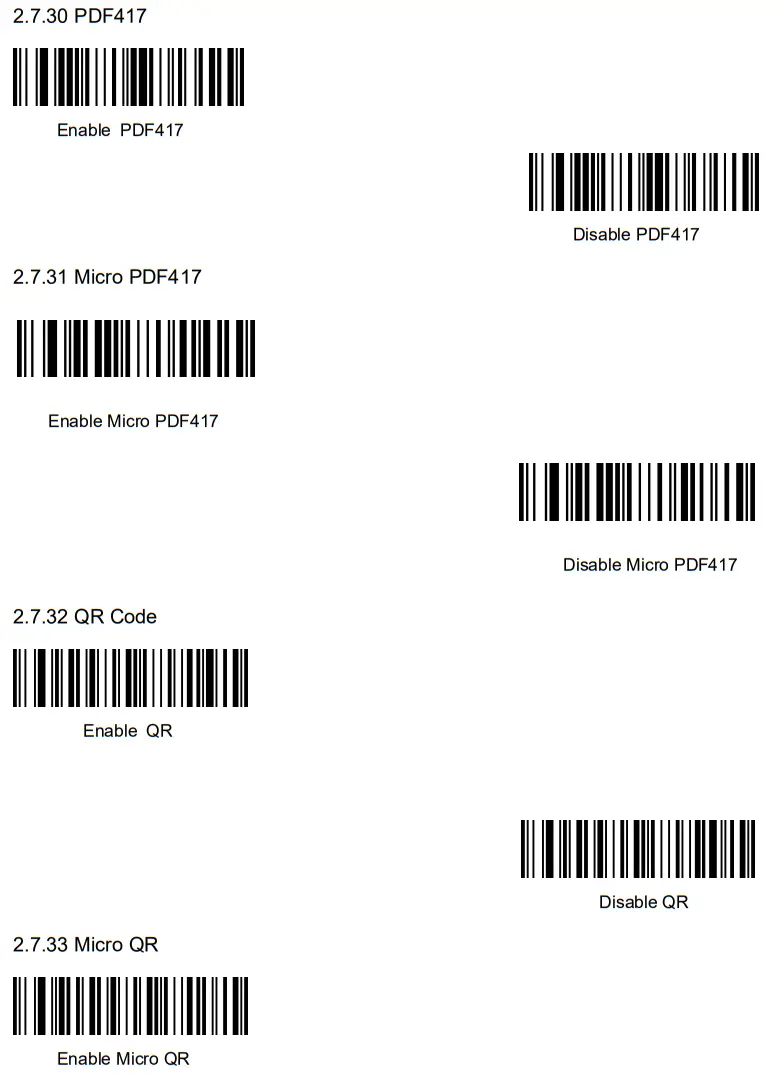
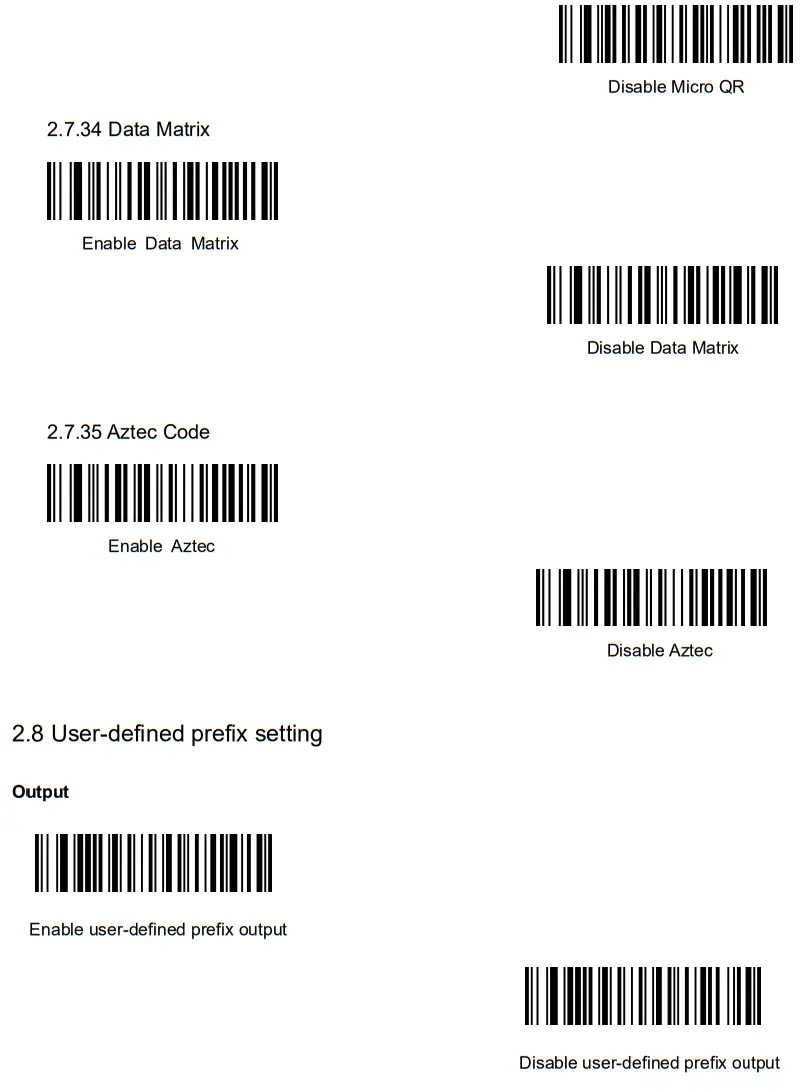
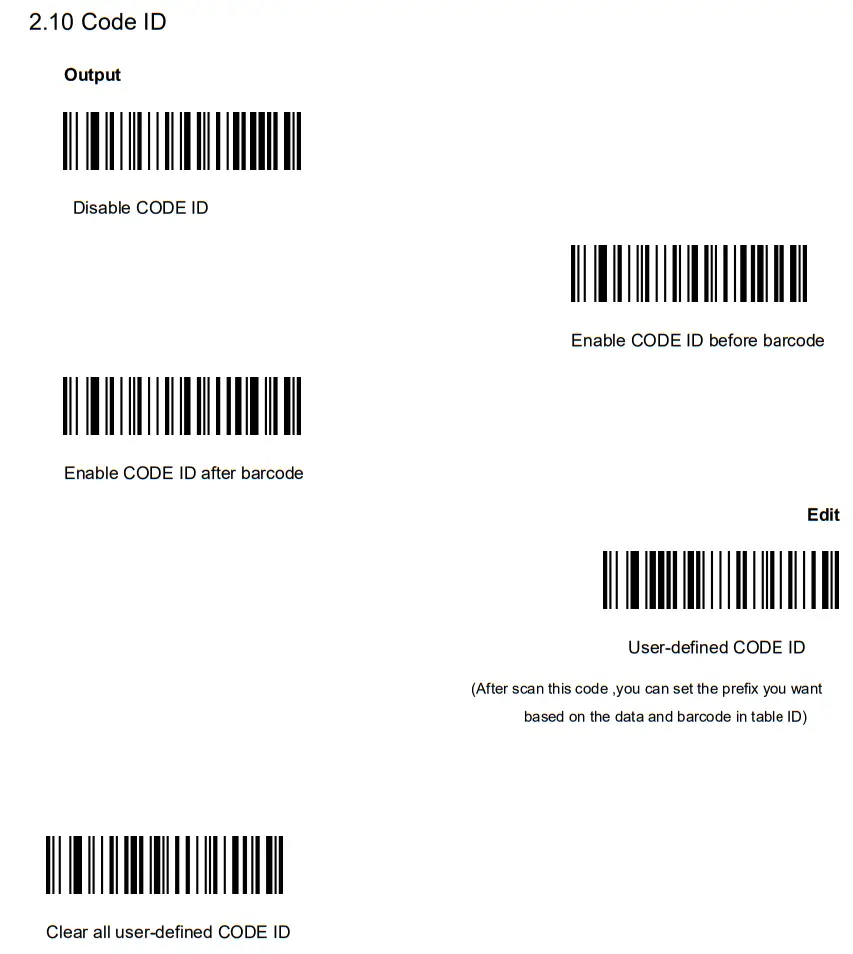
2.7 Symbologies
2.7.1 enable/disable all symbologies
Enable all barcode might slow down scanner Decode speed.
We suggest enable the barcode you need based on your scene.
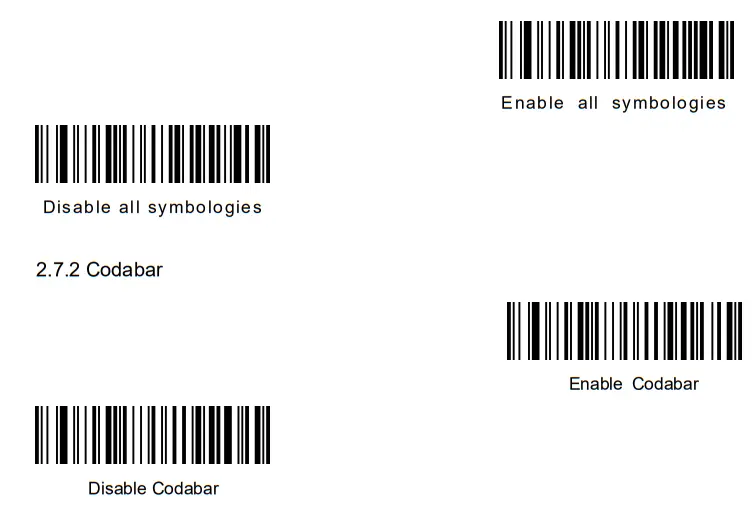
2.7.3 Codabar start/ending character setting
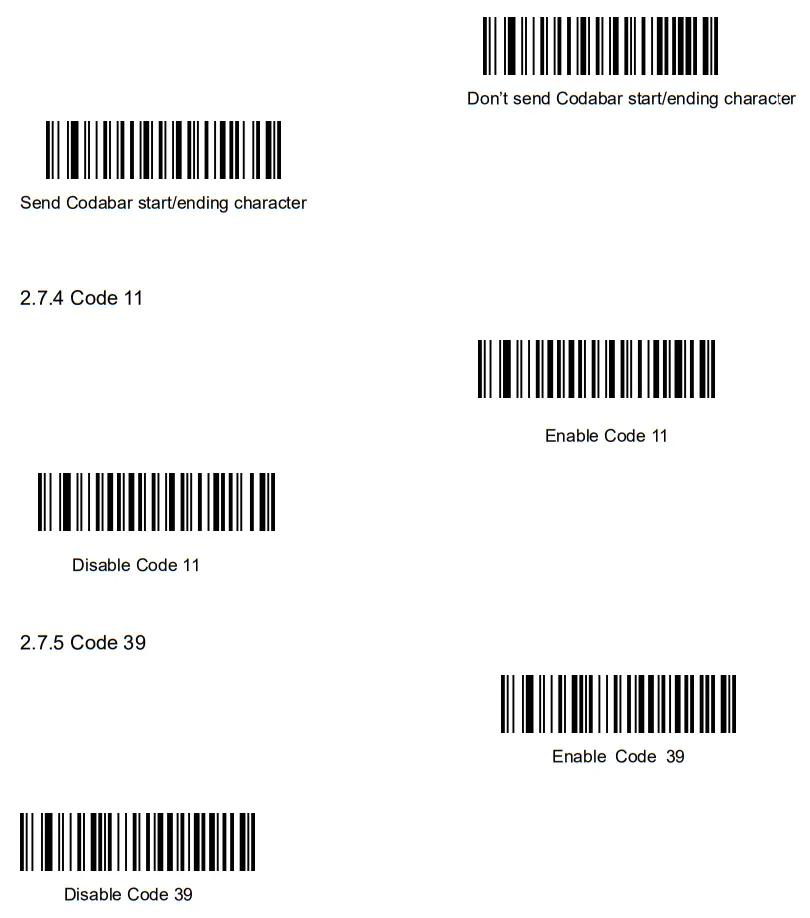
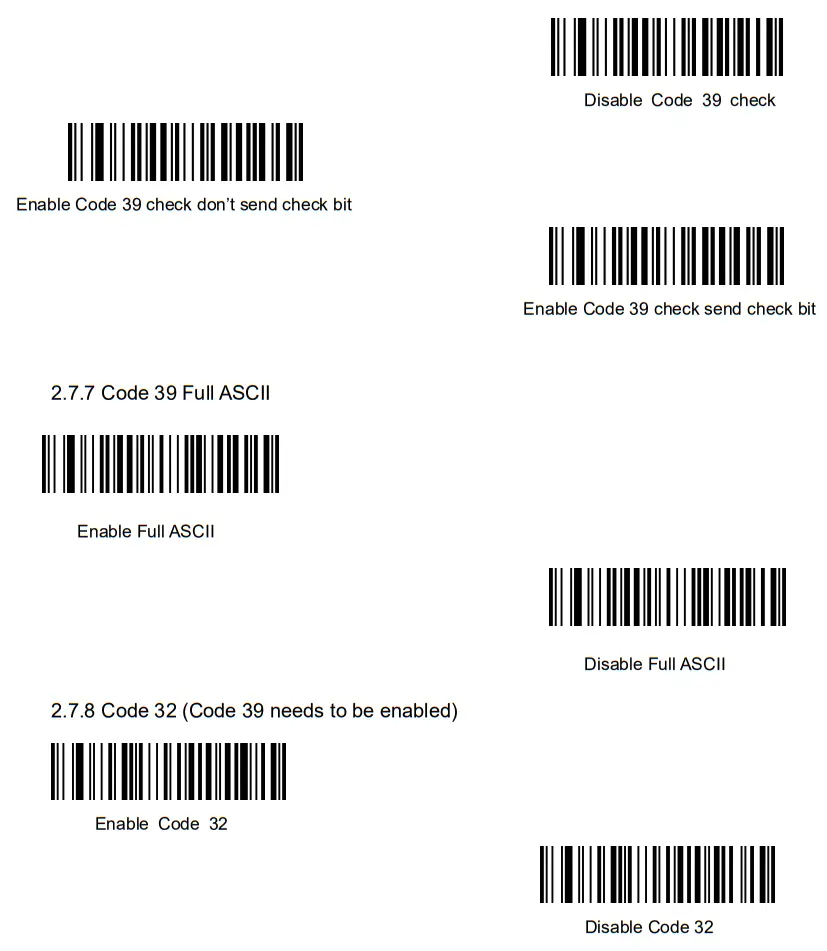
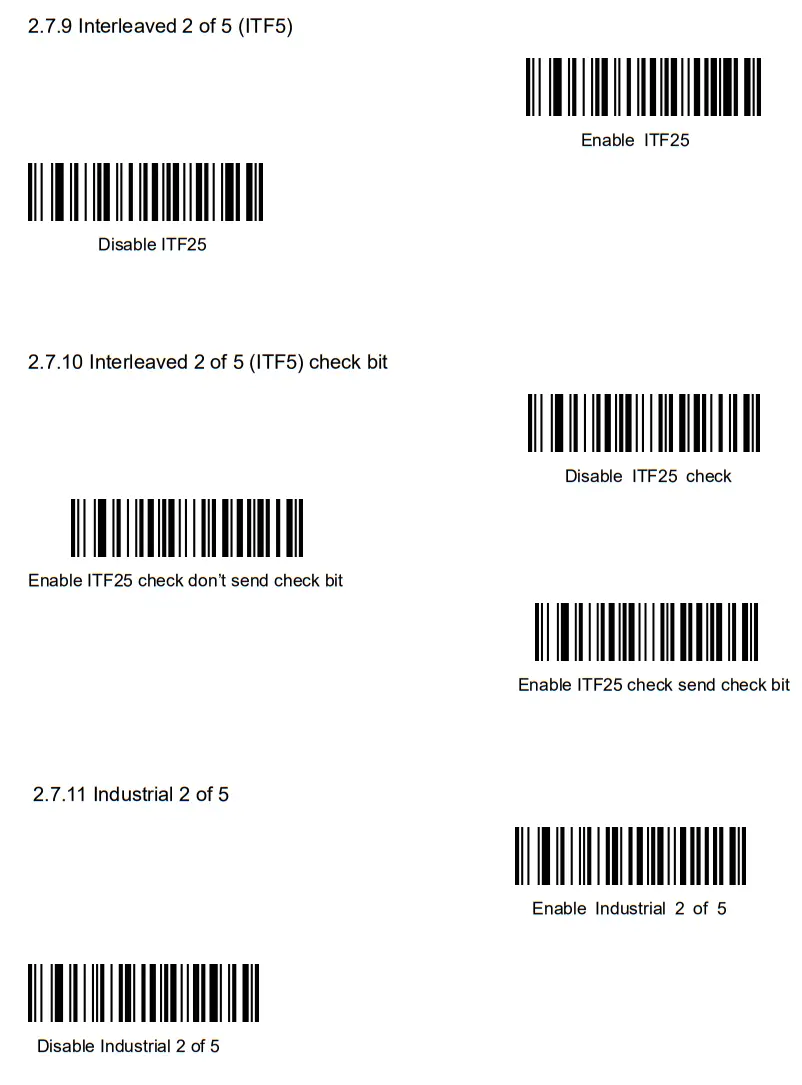
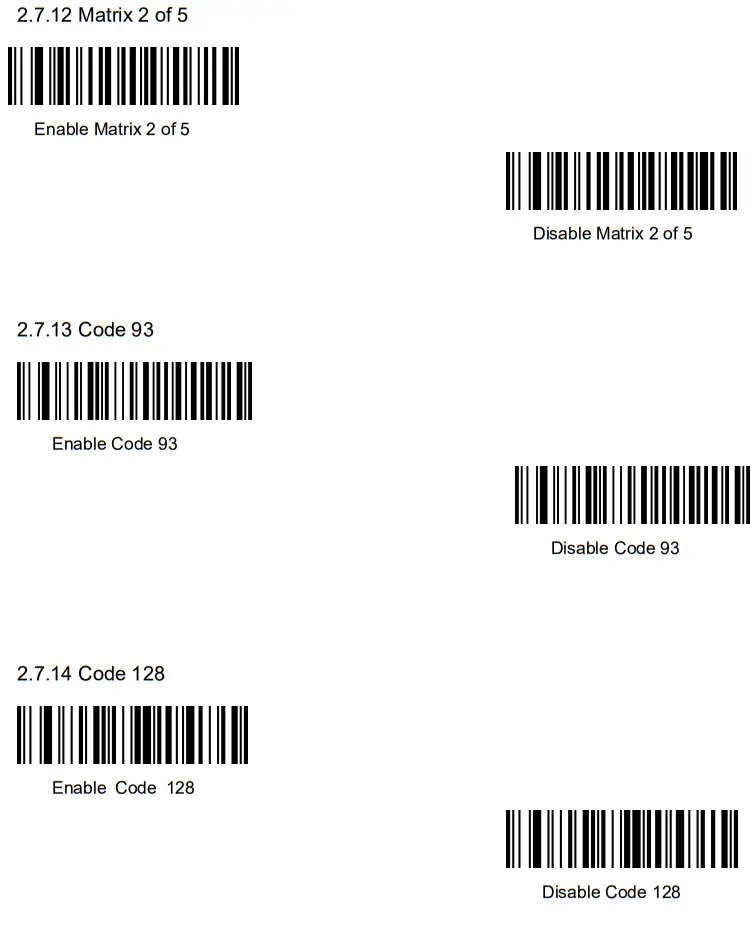
2.7.6 Code 39 check bit
APPENDIX
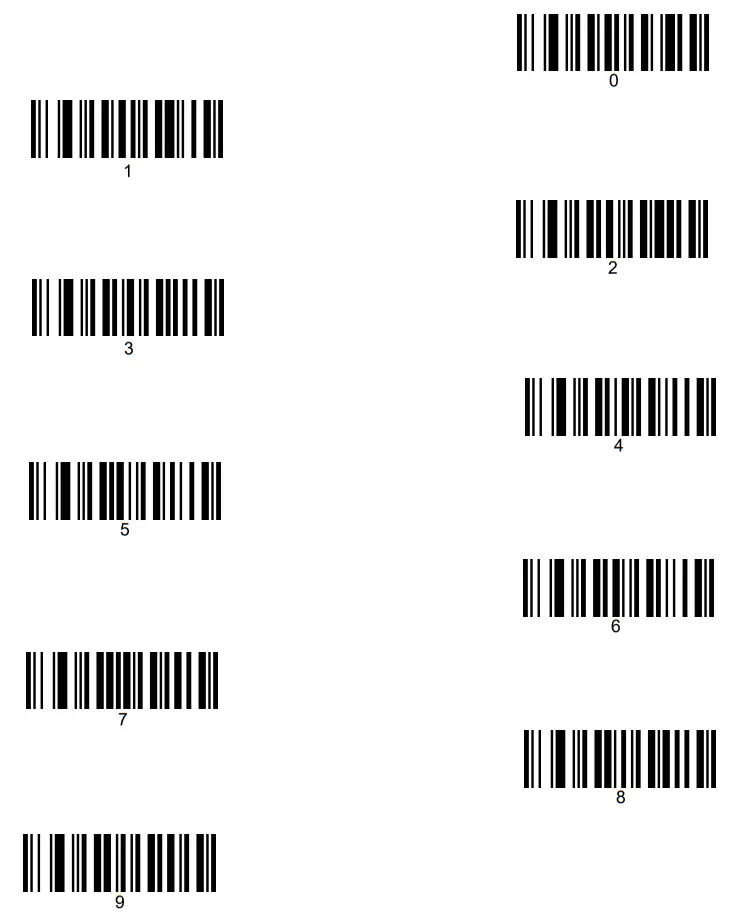
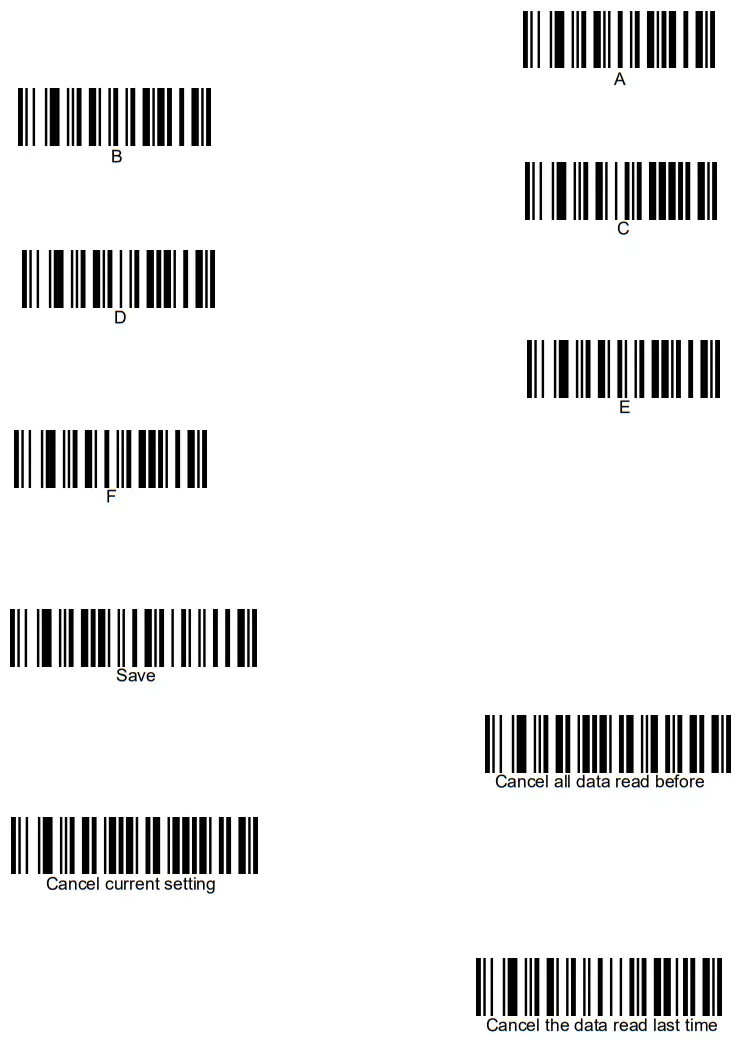
Appendix 1 data and editing code
Appendix 2 code type ID table
| Code type | HEX | CODE ID(default) |
| All codes | 99 | |
| Codabar | 61 | a |
| Code128 | 6A | |
| Code32 | 3C | < |
| Code93 | 69 | |
| Code39 | 62 | b |
| Code11 | 68 | h |
| EAN | ||
| EAN-13 | 64 | d |
| EAN-8 | 44 | D |
| GS1 | ||
| GS1 DataBar | 79 | y |
| GS1 DataBar Limited | 7B | { |
| GS1 DataBar Expanded | 7D | } |
| GS1-128 (EAN-128) | 49 | I |
| 2 of 5 | ||
| Interleaved 2 of 5 | 65 | e |
| Matrix 2 of 5 | 6D | m |
| Industry 2 of 5 | 66 | f |
| UPC | ||
| UPC-A | 63 | c |
| UPC-E | 45 | E |
| Aztec Code | 7A | z |
| DataMatrix | 77 | w |
| PDF417 | 72 | r |
| Micro PDF417 | 52 | R |
| QR Code | 73 | s |
| Micro QR Code | 73 | s |
Appendix 3 eyeball character ASCII table
| decimal | hexadecimal | character | decimal | hexadecimal | character | decimal | hexadecimal | character |
| 32 | 20 | <spAcs> | 64 | 40 | @ | 96 | 60 | ‘ |
| 33 | 21 | ! | 65 | 41 | A | 97 | 61 | a |
| 34 | 22 | “ | 66 | 42 | B | 98 | 62 | b |
| 35 | 23 | # | 67 | 43 | C | 99 | 63 | c |
| 36 | 24 | $ | 68 | 44 | D | 100 | 64 | d |
| 37 | 25 | % | 69 | 45 | E | 101 | 65 | e |
| 38 | 26 | & | 70 | 46 | F | 102 | 66 | f |
| 39 | 27 | , | 71 | 47 | G | 103 | 67 | g |
| 40 | 28 | ( | 72 | 48 | H | 104 | 68 | h |
| 41 | 29 | ) | 73 | 49 | I | 105 | 69 | i |
| 42 | 2A | * | 74 | 4A | J | 106 | 6A | j |
| 43 | 2B | + | 75 | 4B | K | 107 | 6B | k |
| 44 | 2C | , | 76 | 4C | L | 108 | 6C | I |
| 45 | 2D | – | 77 | 4D | M | 109 | 6D | m |
| 46 | 2E | . | 78 | 4E | N | 110 | 6E | n |
| 47 | 2 F | / | 79 | 4 F | 0 | 111 | 6 F | o |
| 48 | 30 | 0 | 80 | 50 | P | 112 | 70 | p |
| 49 | 31 | 1 | 81 | 51 | Q | 113 | 71 | q |
| 50 | 32 | 2 | 82 | 52 | R | 114 | 72 | r |
| 51 | 33 | 3 | 83 | 53 | S | 115 | 73 | s |
| 52 | 34 | 4 | 84 | 54 | T | 116 | 74 | s |
| 53 | 35 | 5 | 85 | 55 | U | 117 | 75 | u |
| 54 | 36 | 6 | 86 | 56 | V | 118 | 76 | v |
| 55 | 37 | 7 | 87 | 57 | W | 119 | 77 | w |
| 56 | 38 | 8 | 88 | 58 | X | 120 | 78 | x |
| 57 | 39 | 9 | 89 | 59 | Y | 121 | 79 | y |
| 58 | 3A | • . | 90 | 5A | Z | 122 | 7A | z |
| 59 | 3B | ; | 91 | 5B | [ | 123 | 7B | { |
| 60 | 3C | < | 92 | 5C | \ | 124 | 7C | I |
| 61 | 3D | = | 93 | 5D | ] | 125 | 7D | } |
| 62 | 3E | > | 94 | 5E | Λ | 126 | 7E | ∼ |
| 63 | 3 F | ? | 95 | 5 F | _ |
Appendix 4 operational character (USB keyboard)
| decimal | hexadecimal | Corresponding key value (disable CODE ID) | Corresponding key value (enable CODE ID) |
| o | 00 | retain | Ctrl+@ |
| 1 | 01 | Insert | CtrI+A |
| 2 | 02 | Home | Ctrl+B |
| 3 | 03 | End | Ctrl+C |
| 4 | 04 | Delete | Ctrl+D |
| 5 | 05 | PageUp | Ctrl+E |
| 6 | 06 | PageDown | Ctrl+F |
| 7 | 07 | ESC | Ctrl+G |
| 8 | 08 | Backspace | Backspace |
| 9 | 09 | Tab | Tab |
| 10 | OA | Enter (The configuration of CRLF processing decide how it express ) | Ctrl+J |
| 11 | OB | Caps Lock | CtrI+K |
| 12 | OC | Print Screen | Ctd+L |
| 13 | OD | Enter ( The configuration of CRLF processing decide how it express ) | Enter |
| 14 | OE | Scroll Lock | Ctrl+N |
| 15 | OF | PauselBreak | Ctrl+O |
| 16 | 10 | Fll | Ctrl+P |
| 17 | 11 | Direction key ↑ | Ctrl+Q |
| 18 | 12 | Direction key↓ | CtrI+R |
| 19 | 13 | Direction key ← | CtrI+S |
| 20 | 14 | Direction key→ | CtrI+T |
| 21 | 15 | F12 | CtrI+U |
| 22 | 16 | Fl | CtrI+V |
| 23 | 17 | F2 | CtrI+W |
| 24 | 18 | F3 | CtrI+X |
| 25 | 19 | F4 | CtrI+Y |
| 26 | 1A | F5 | CtrI+Z |
| 27 | 1B | F6 | ESC |
| 28 | 1C | F7 | Ctr1+/ |
| 29 | 1D | F8 | Ctr1+] |
| 30 | 1E | F9 | Ctrl-FA |
| 31 | 1 F | F10 | CtrI+ |
Appendix 5 operational character (serial communication)
| decimal | hexadecimal | character |
| 0 | 00 | NUL |
| 1 | 01 | SOH |
| 2 | 02 | STX |
| 3 | 03 | ETX |
| 4 | 04 | EOT |
| 5 | 05 | ENO |
| 6 | 06 | ACK |
| 7 | 07 | BEL |
| 8 | 08 | BS |
| 9 | 09 | HT |
| 10 | OA | LF |
| 11 | OB | VT |
| 12 | OC | FF |
| 13 | OD | CR |
| 14 | OE | SO |
| 15 | OF | SI |
| 16 | 10 | DLE |
| 17 | 11 | DC1 |
| 18 | 12 | DC2 |
| 19 | 13 | DC3 |
| 20 | 14 | DC4 |
| 21 | 15 | NAK |
| 22 | 16 | SYN |
| 23 | 17 | ETB |
| 24 | 18 | CAN |
| 25 | 19 | EM |
| 26 | 1A | SUB |
| 27 | 1B | ESC |
| 28 | 1C | FS |
| 29 | 1D | GS |
| 30 | 1E | RS |
| 31 | 1 F | US |
Configuration instruction and example
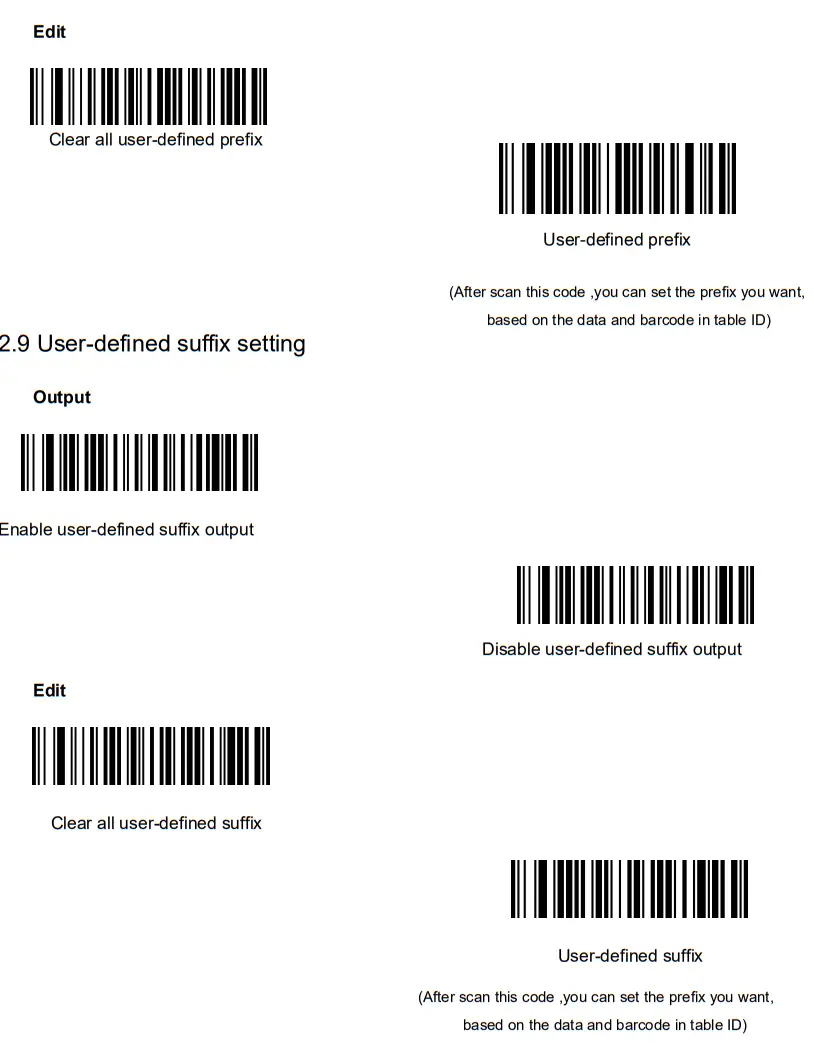
Example for user-defined prefix and suffix:
You can edit 10 characters as prefix or suffix. (In order to make sure the prefix and suffix can output normally, please enable user-defined prefix or suffix first)
Example 1.1: Add XYZ to all type of barcode as prefix.
Look up appendix 2, you can find that the HEX value for all codes is “99”. Look up appendix 3, the HEX value for XYZ is “58,59,5A”. First scan “user-defined prefix” in 2.2.11 edit, then the scanner will have two sounds like “D…D…”, then scan 9,9,5,8,5,9,5,A,and save, the setting accomplished.
If you want to change the prefix or suffix you set before you save the setting, you can scan “cancel the data read last time” or “Cancel all data read before” to reset. If you want to give up setting scan “Cancel current setting”.
Example 1.2: Add Q to QR code as prefix.
Look up appendix 2, you can find that the HEX value for QR code is “73”. Look up appendix 3, the HEX value for Q is “51”. First scan “user-defined prefix” in 2.2.11 edit, then the scanner will have two sounds like “D…D…”, then scan 7,3,5,1,and save, the setting accomplished.
Example 1.3: Cancel user-defined prefix in QR code
When you edit user-defined prefix and suffix, it will cancel the prefix and suffix you set if you scan “userdefined prefix” or “user-defined suffix” and add no character and save.
For example, cancel user-defined prefix in QR code, first scan “user-defined prefix”, then scan 7,3, and save. The prefix in QR code has been canceled.
Note: If there is a prefix for all type of barcode, after you done the operation above, the QR code will have the prefix you set for all type barcode.
If you need to cancel all prefix or suffix for all type of barcode, please scan “clear all user-defined prefix” and “clear all user-defined suffix” USB update speed setting example
If the PC is weak properties, it is easy to have error of transmission and you need to set USB keyboard update speed to low speed, like 50ms (user-defined speed)
First, scan “User-defined update speed” then scan 5, 0 in appendix 1 and save.