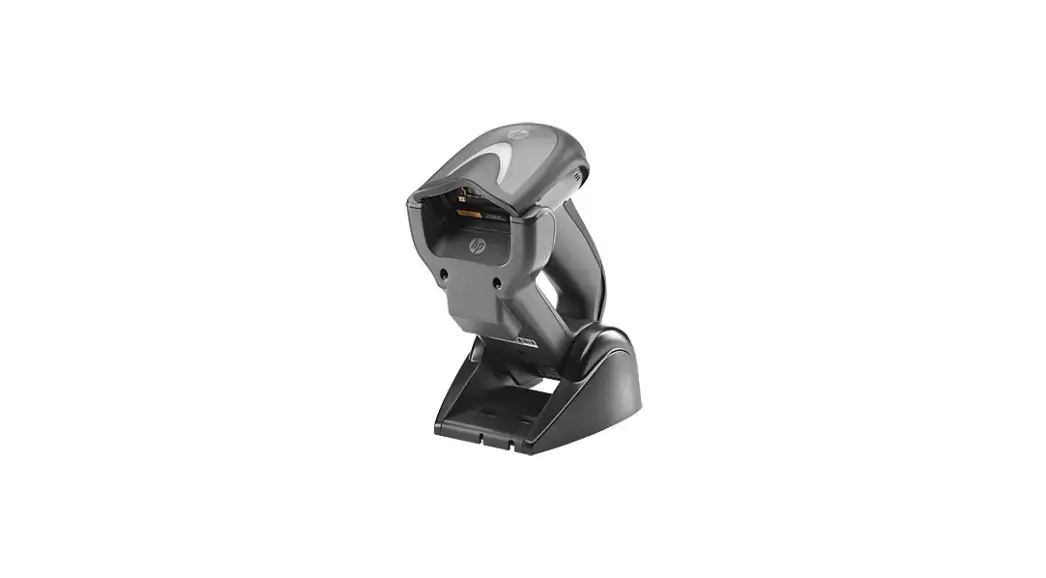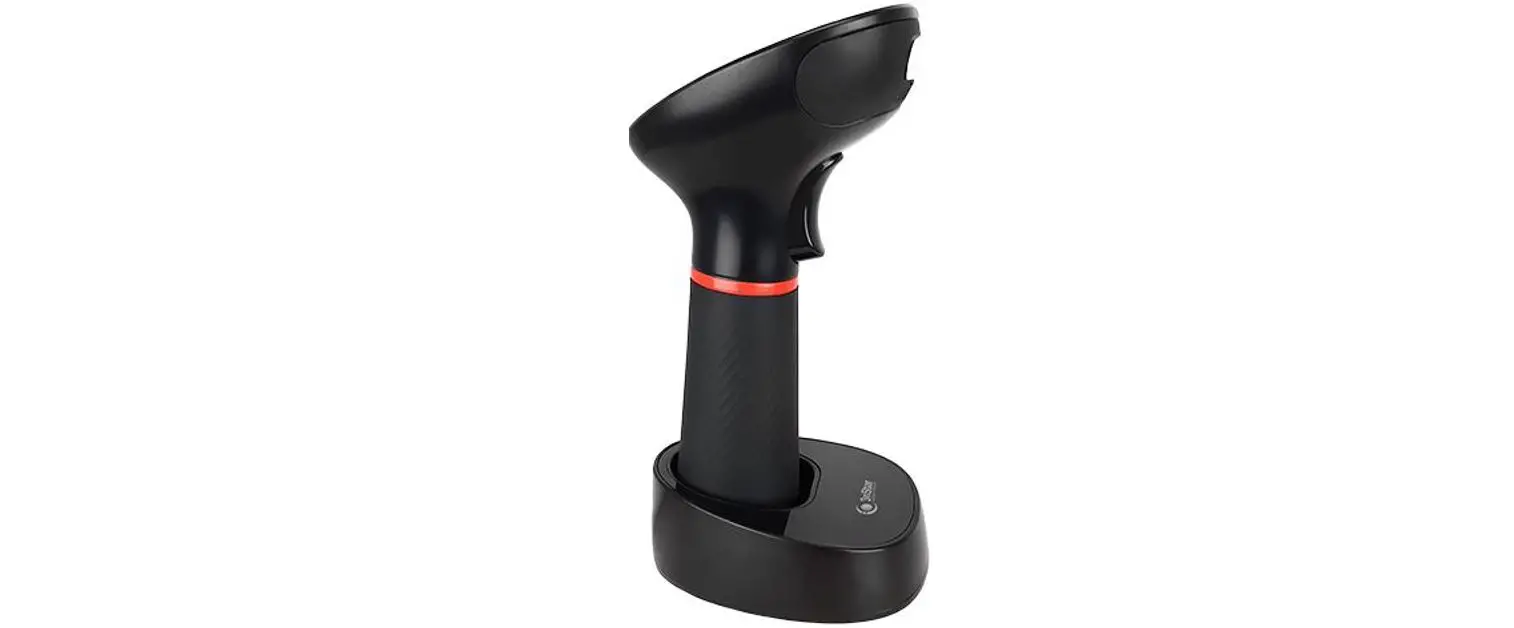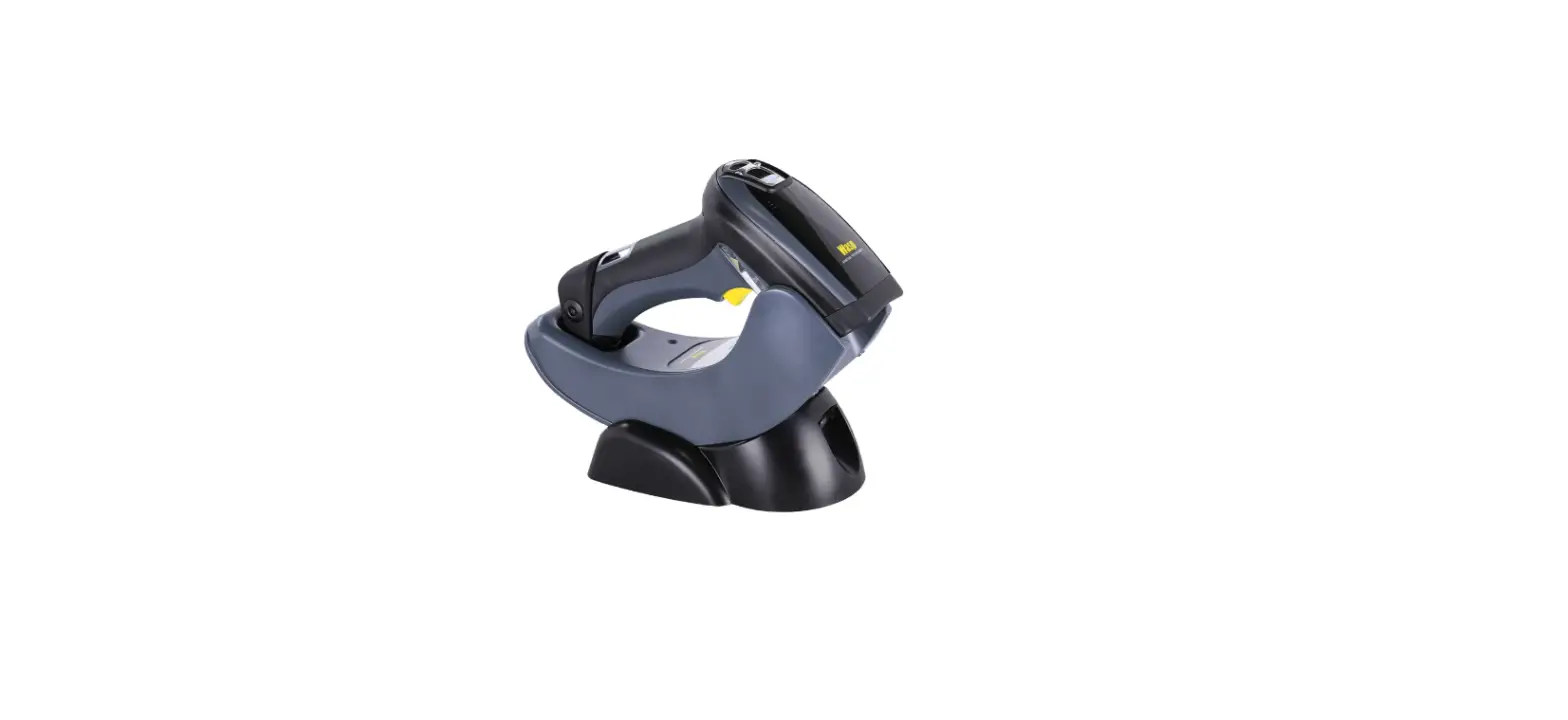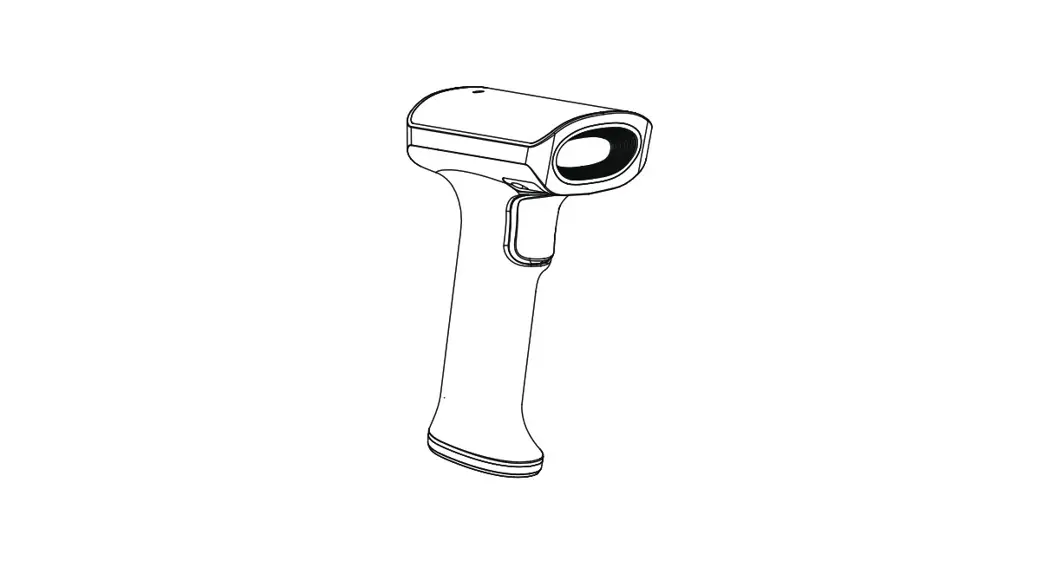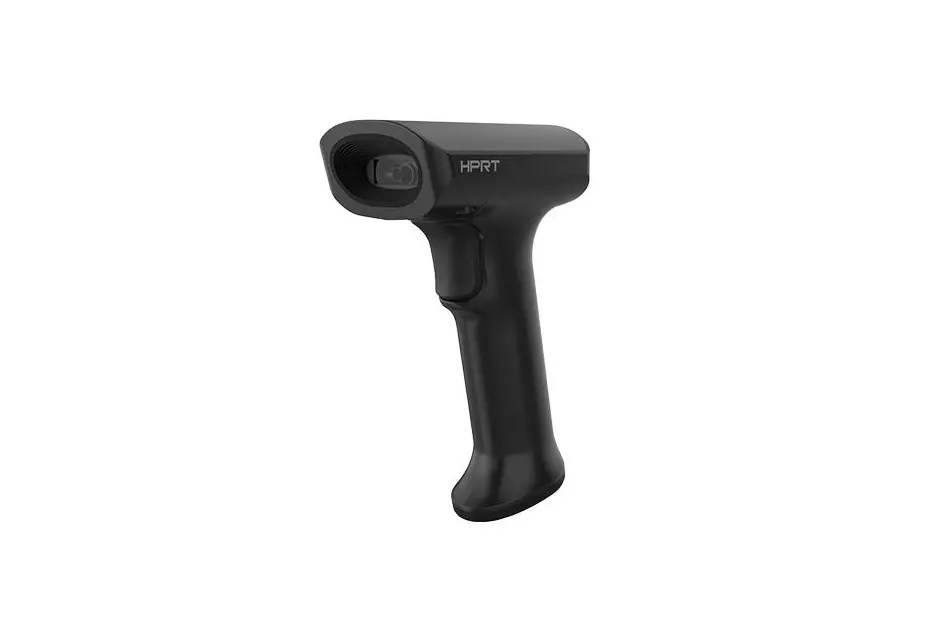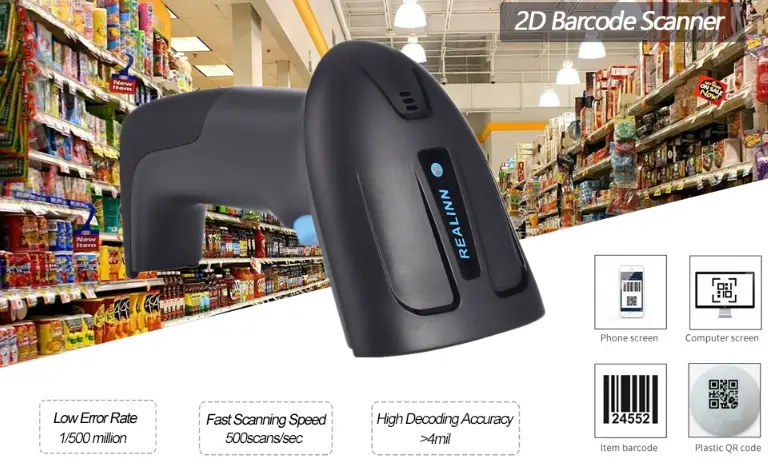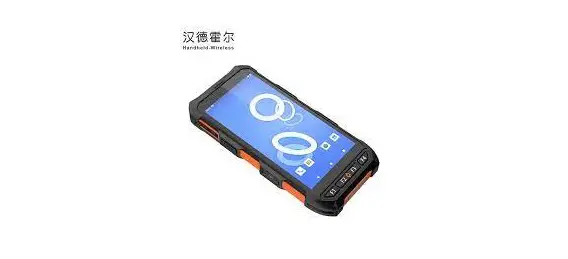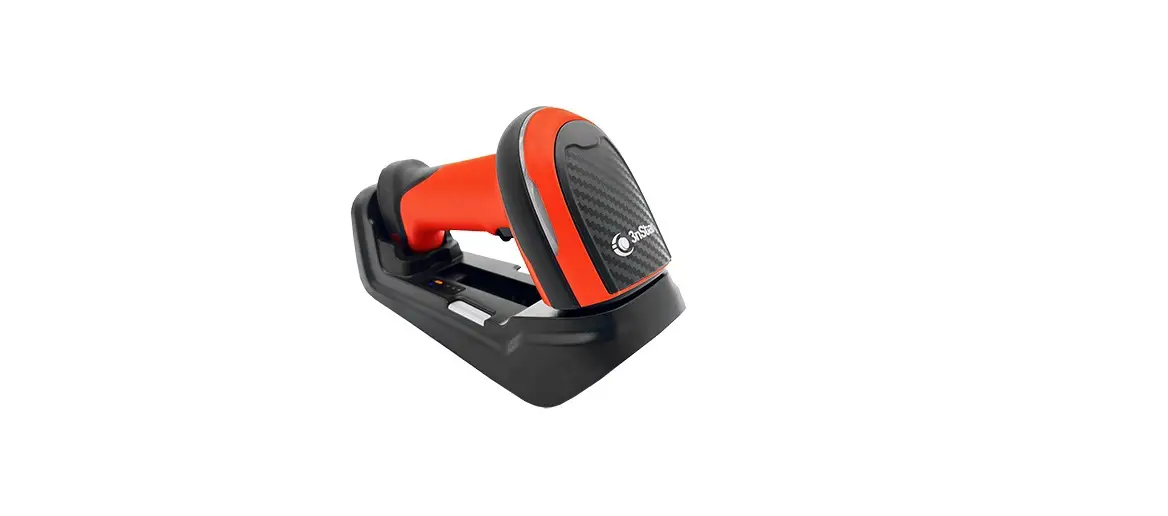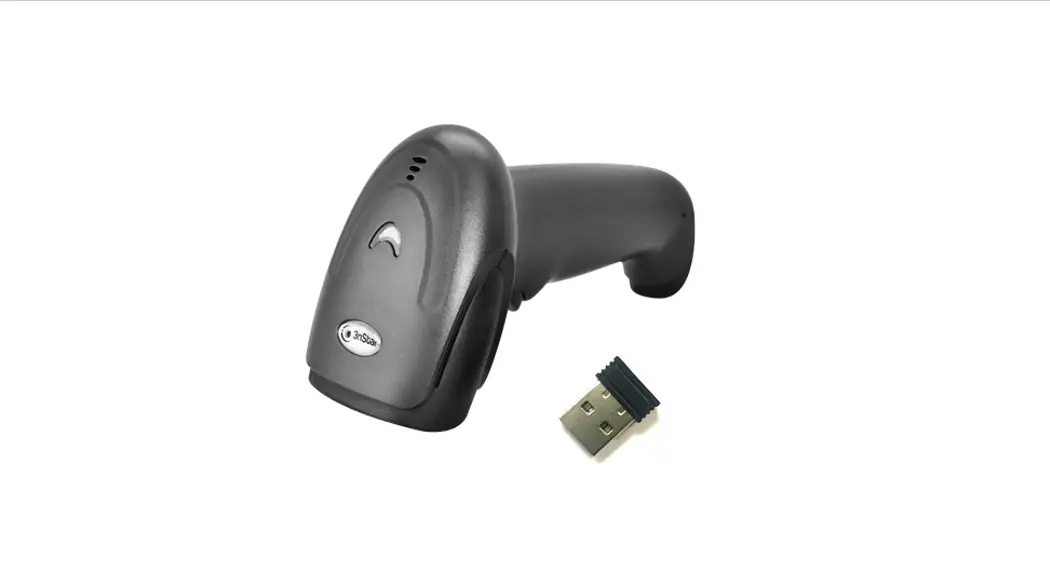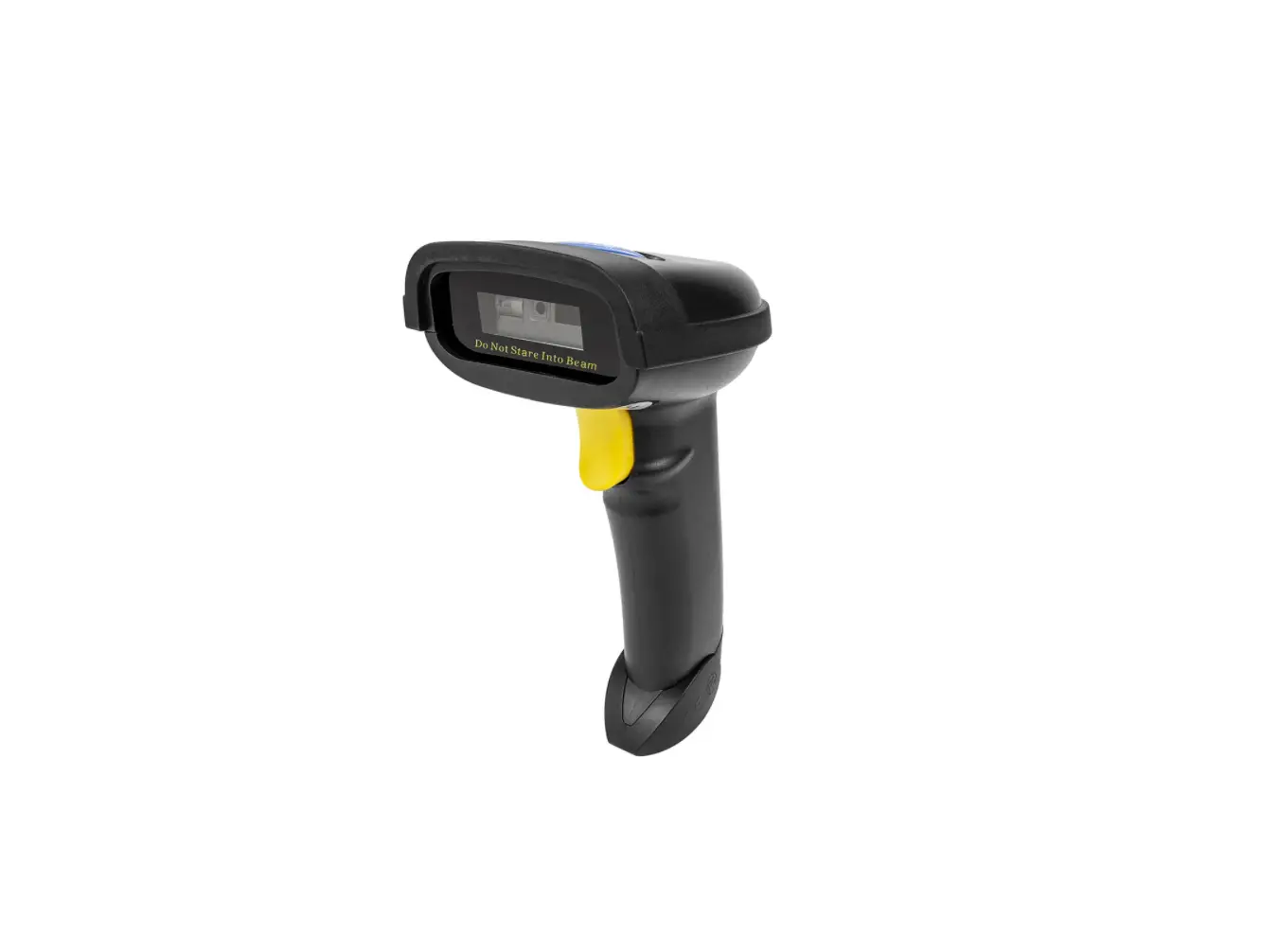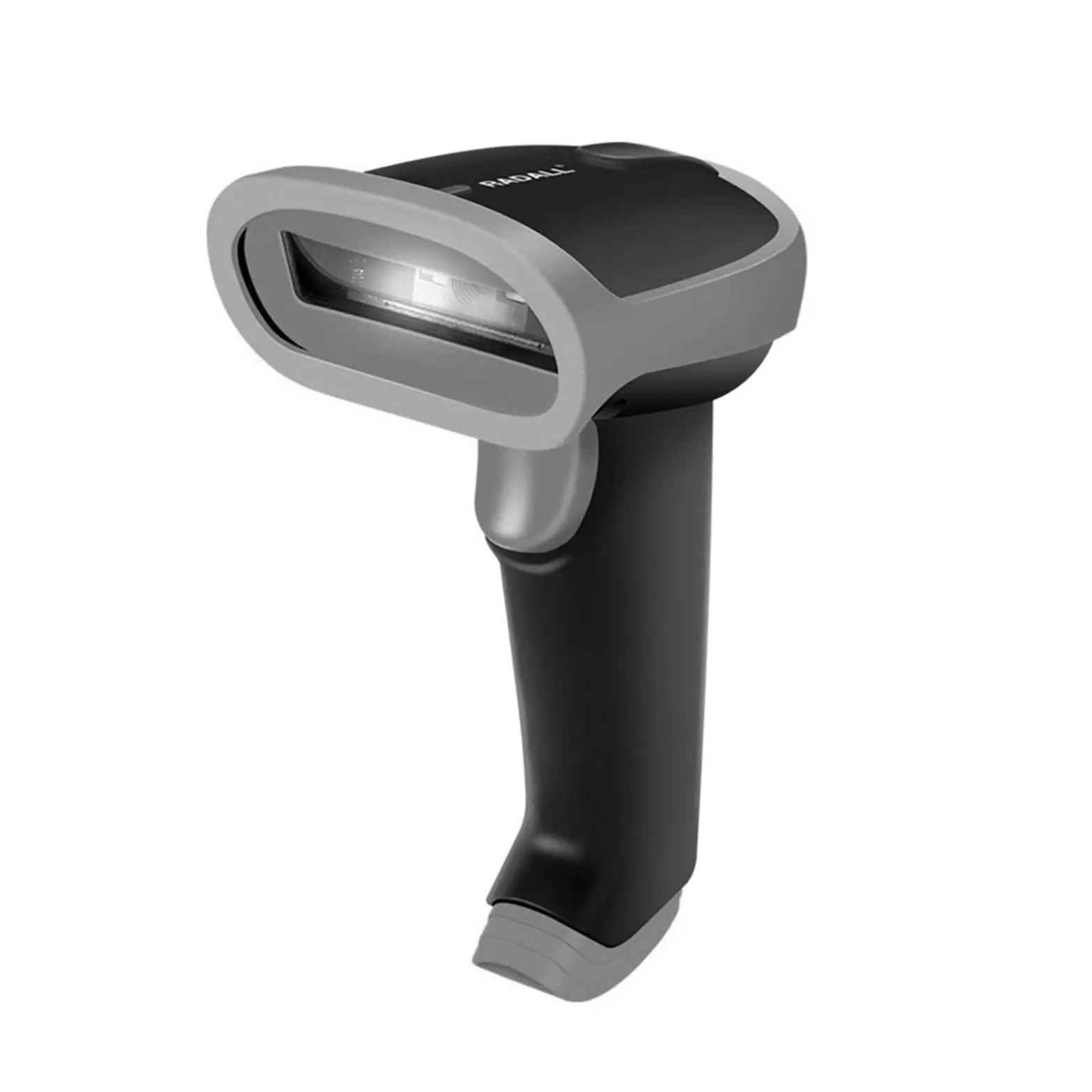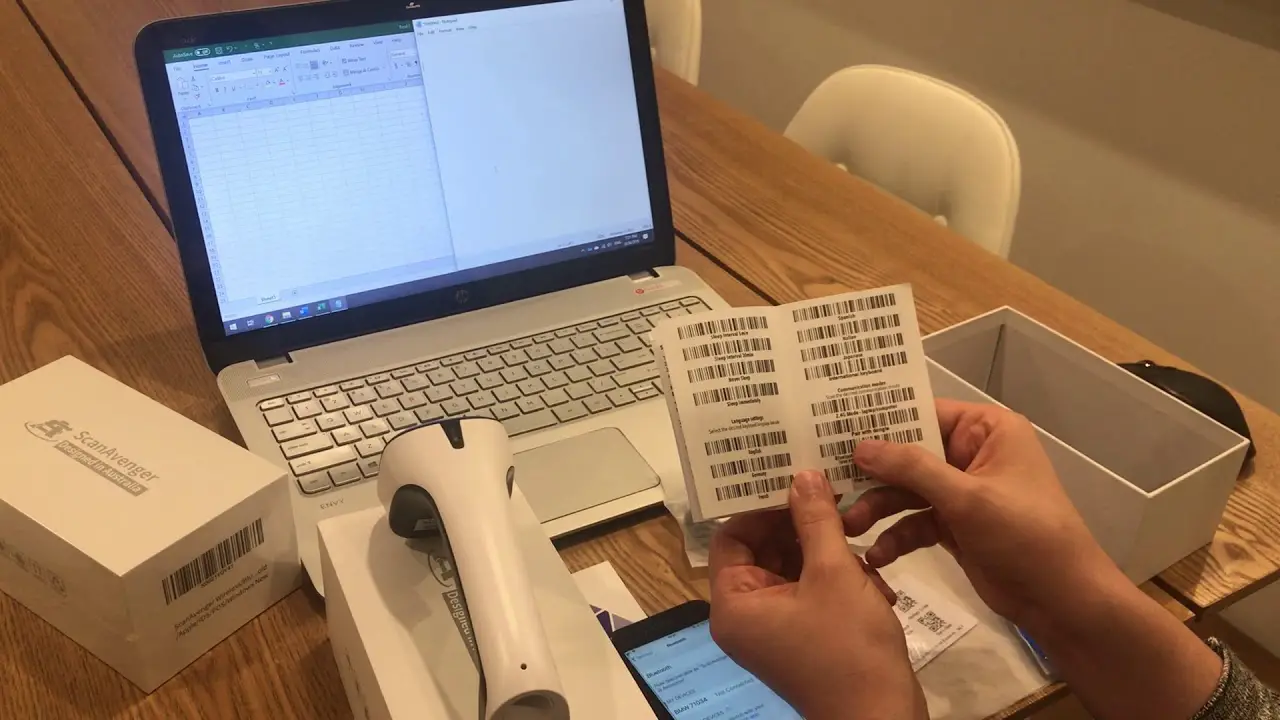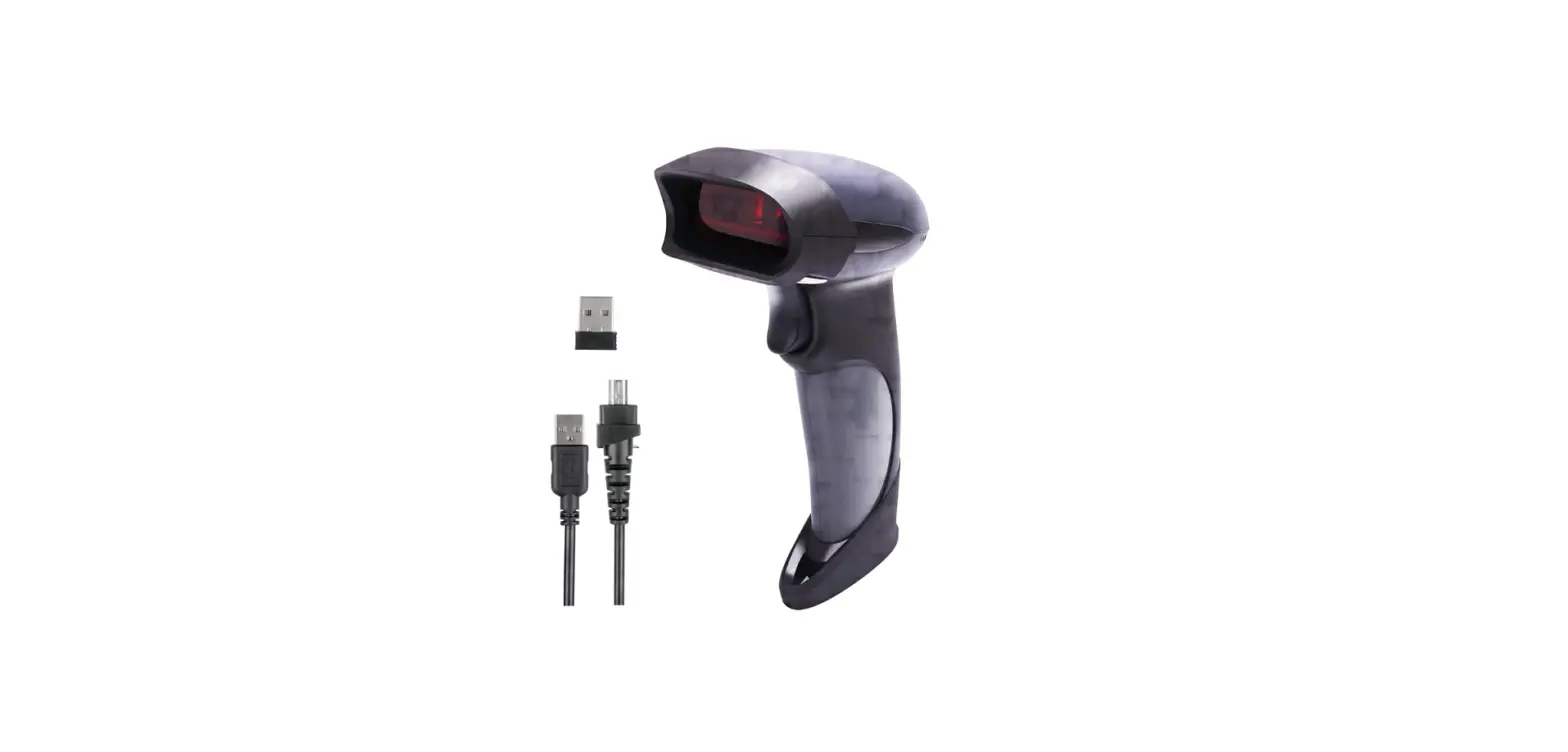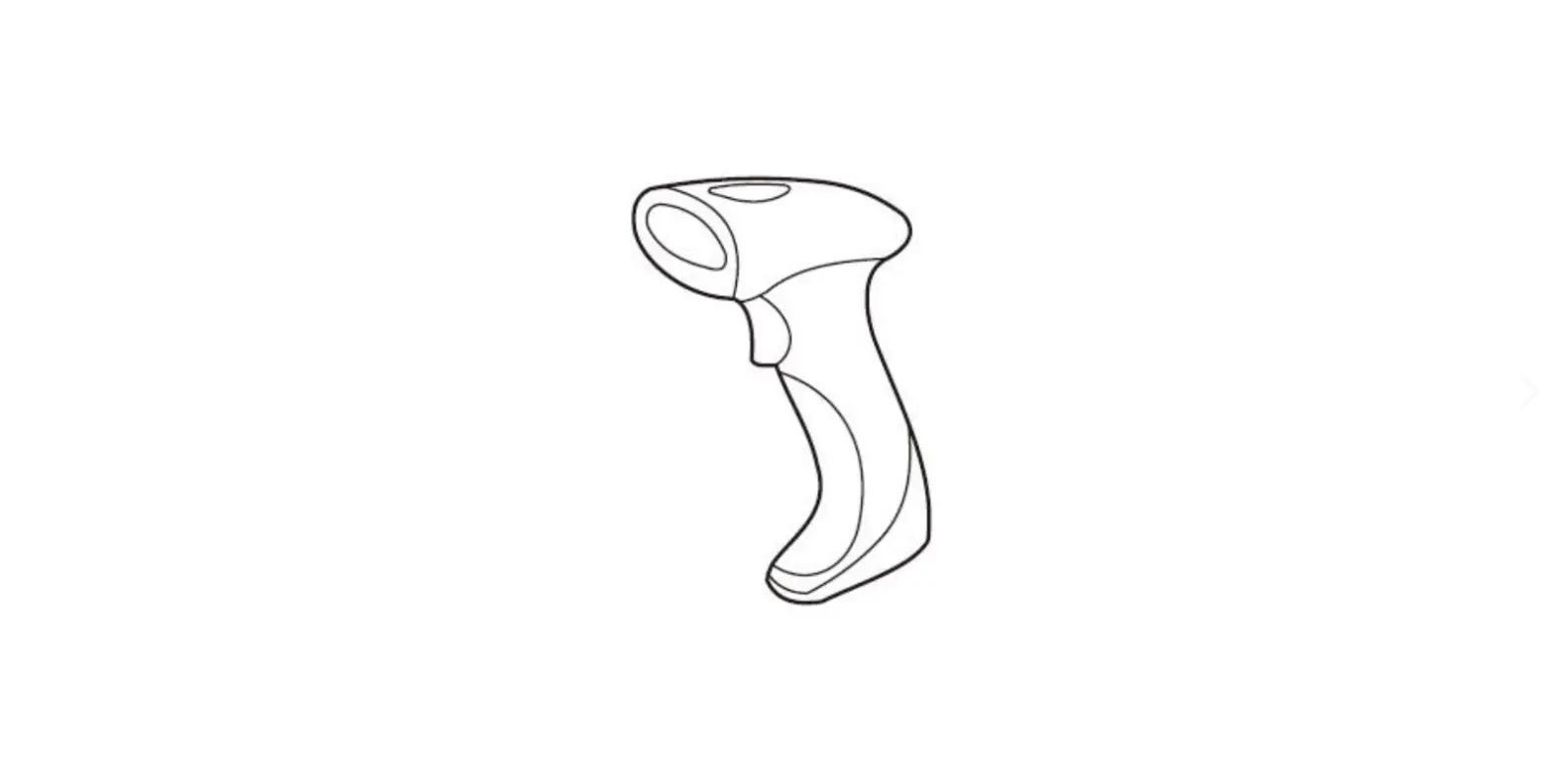

Hysoon HS6224 Wireless 2D Barcode Scanner
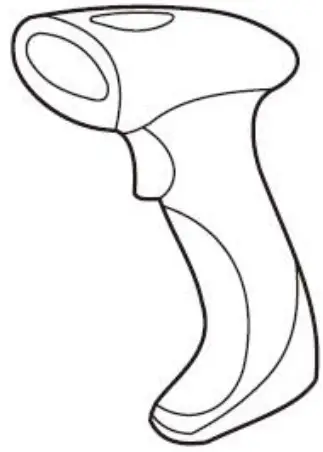
Dear users, thank you for choosing our products. We will serve you with quality products. To ensure that you use this product better, please read this manual carefully before using!
Introduction description
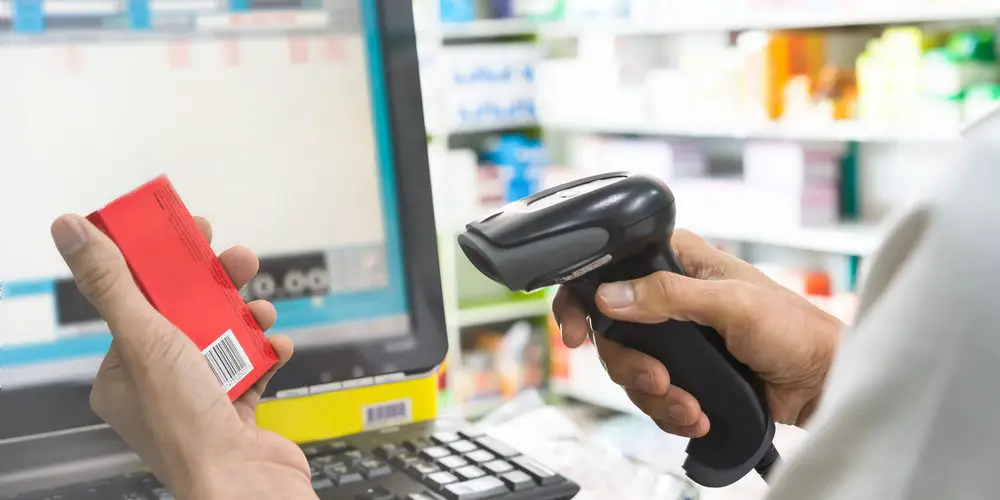
- The barcode scanner provides a kind of accurate, easy-to-use and fast data entry and storage solutions for computer information systems. It’s a wireless barcode scanner, which is suitable for thousands of businesses POS systems, supermarkets, and storage logistics,books, banking, transportation, postal services, as well as industry,manufacturing production process management and other fields.
- This product combines the advantages of high-performance scanning and ergonomics. It has the characteristics of far transmission distance, fast transmission speed, accurate data storage, display the total number of bar codes, stable and reliable transmission, etc. It is not only simple, fast, comfortable, but also stable and reliable to use.
Technical parameters
| Operating Voltage | 3. 7V battery |
| Bar Code Density | 1D、2D |
| Barcode Type | ≥5mil |
| Decoding type | 1D: AIM-128、Code 11、Code 39、Code 128、Code 93、Codebar、Deutsche 12、EAN-8、Deutsche 14、EAN-13、GS1-RSS 14、 GS1-RSS、Industrial 25、Interleaved 2 of 5、ISSN、ISBN、Matrix 2 of 5、MSI-Plessey、ITF-14、Plessey、RSS-Expand、UPC-E、Standard 2 of 5、UCC/EAN-128、UPC-A 等2D: QR Code、PDF417、Data Matrix |
| Operating temperature | -15 ‘C – +50’ C |
| Storage temperature | 20 ‘C – +60’ C |
| Working humidity | 5%- 90% (no condensation) |
| Promotion Pattern | Buzzer, LED indicator light |
| Scanning mode | Manual, continuous |
| Shock Resistance | Pass 1.2 free fall test |
Product Features
- This product has an inventory function, which can store up to 4250pcs EAN -13 barcodes, and can directly finish-some daily simple inventory work. All parameter settings of this product can be completed by scanning the barcode and stored in its memory.The inventory content and parameter settings can still be retained after the power turning off.
- This product has the-puzzle matching function, which is simple and fast to complete the matching of transmission /reception (this product has been paired at the factory).
- The distance of the transmission is far, and the open area is about 100 meters (the indoor distance is generally 20- 30 meters according to environment).
- Low power consumption, long standby time, internal power pool.
- The wireless receiver supports operating systems such as Windows/Android/Mac OS/Linux.
Receiver installation method
- Plug the wireless receiver into the computer USB interface.
- The system will automatically install the driver after the wireless receiver being plugged into the computer. Please unplug the receiver again or restart the computer if the driver installation failed.
- After the driver is installed, the receiver can communicate with the paired scanner.
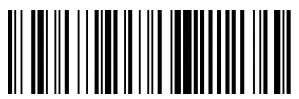
- Open setting

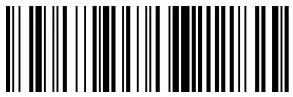
Scan this code to allow the scanner to be set up.The setup function needs to be activated before setting up the scan. - Close settings

Disable the scanner from being set after scanning this barcode.Disable the scanner setting function after setting.
- Open setting
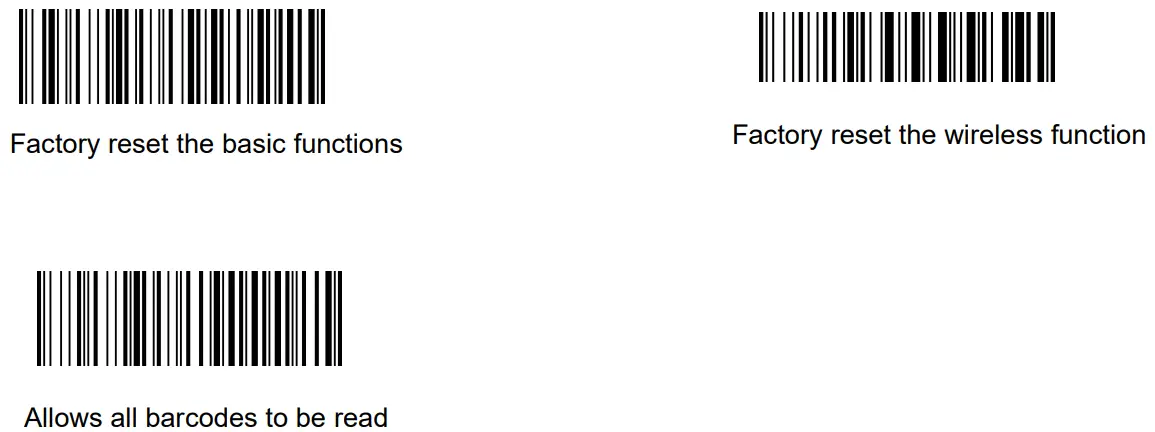
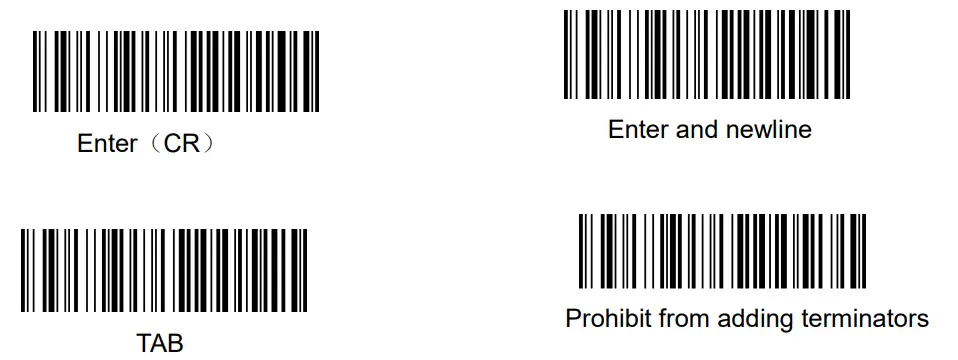
Common terminator settings
Scanning mode Settings

Wireless function setting 1-communication mode setting.
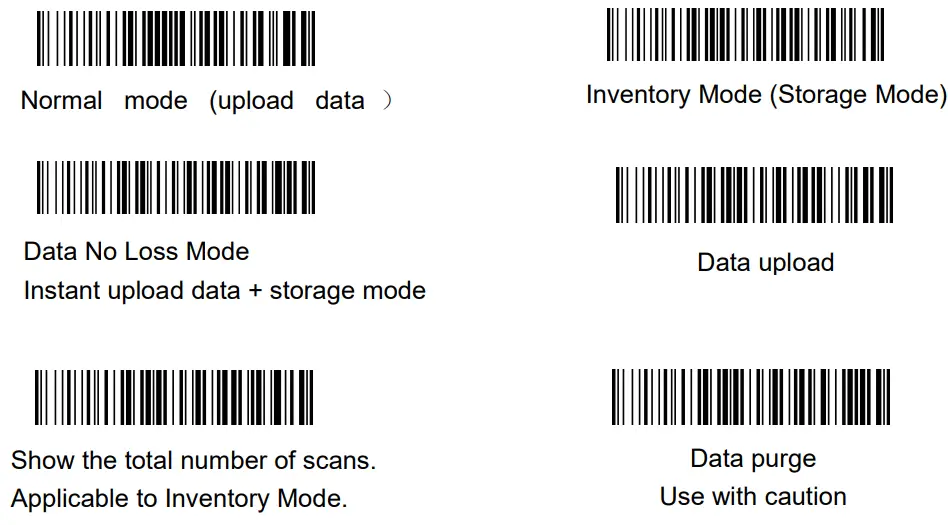
Explanatory note:
- Normal mode: Scan the barcode to enter the normal mode. In this mode, the scan result will be uploaded to the computer in time (this mode is the default mode).
- Inventory mode:Scans the barcode into inventory mode, in which the scan results are stored in the internal memory (when the internal memory is occupied, the buzzer will “beep”long sound as a prompt).
- Data No Loss Mode:Scan the barcode to enter the data no loss mode, in this mode, when there is a signal, the scan result will be uploaded to the computer in time, when the signal is weak or no signal, the scan result will be stored in the internal memory, and the stored data will be automatically uploaded to the computer when there is a signal.
- Data Upload:Scan the barcode to convert the data stored in the internal memory. Upload to the computer twice (applicable in inventory mode and data non-loss mode, please ensure that the wireless signal is normal when uploading data, the buzzer will
“beep” 2 times if the data upload succeeds, and the buzzer will “beep” 3 times if the data upload fails). - Display the total number of scans. Scanning the barcode will show the total number of stored data (inventory mode is applicable).
- Clear Data: Scanning the barcode will clear all the data in the internal memory.
Wireless Function Settings 2 -matching Parameter Settings
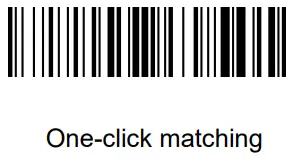
- Match setting barcode

- Matching method
- One-key matching method: first use the scanner to scan the one-key matching setting bar code, wait for the scanner “beeps” to sound, and then insert the receiver into the USB interface of the computer. After the match is successful, the scanner “beeps” sound disappears, and the whole step is completed within 30 seconds.
- Key matching method:connecting the receiving charging stand to the computer correctly, put the scanner on the receiving charging stand and turn on the machine, press the channel button on the receiving charging stand to select the channel (press the channel button for 3 seconds, the channel returns to 00, and the channel value is 00~25), and then press the matching button for 3 seconds to match.
Note: when selecting a channel, the text document on the computer will enter the corresponding channel information such as RFCHNO.= 0. When the match is successful, the barcode scanner will prompt two “beep” and output “RF CH SET OK” in the computer text document, whereas “RF CH SET FAIL” is output in the computer text document”
The key matching method is only applicable to the barcode scanner of the receiving charging stand. - Bluetooth matching method: turn on the scanner, find the Bluetooth device named “barcode scanner” in the Bluetooth interface of the device and click Connect. The scanner sounds “beep” twice and the match is successful. The scanner sounds “beep” 3 times after the Bluetooth connection is disconnected”
Bluetooth matching method is only applicable to scanners with Bluetooth function
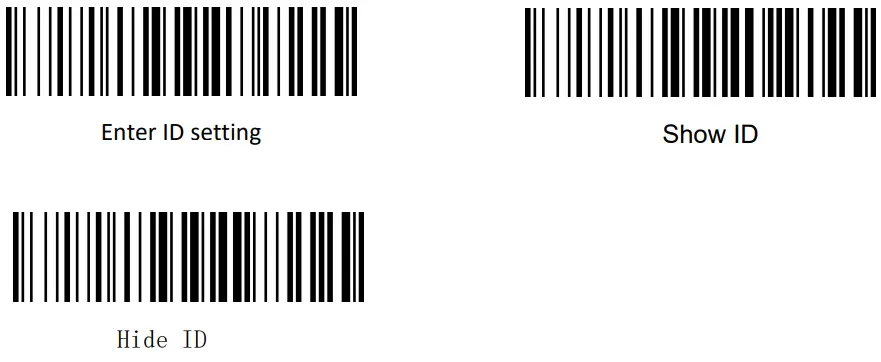
- Barcode scanner ID settings

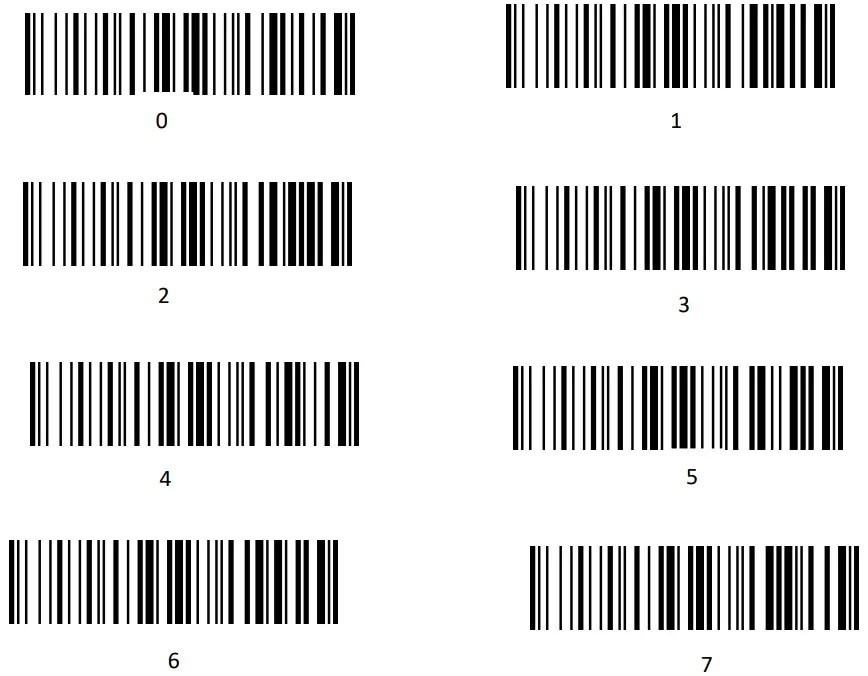
- Setting method: scan the “enter ID setting” barcode with a wireless barcode scanner, and then scan the barcode of the parameter value you want. For example, set the barcode scanner ID to “01”, the operation steps are: enter the ID setting, scan the “0” barcode first and then scan the “1” barcode.
- Show/hide ID method: scan the “show ID” or “hide ID” barcode with a wireless barcode scanner to display or hide the ID of the scanner.
- Parameter value barcode



Sound settings

Wireless barcode scanner buzzer prompt list
| Buzzer beep | Description |
| Long song for one | The battery is low, please charge it in time |
| Short song once | Normal start, data upload, set start/end |
| Short song twice | Inventory mode data upload completed |
| Short song 3 times | Wireless barcode scanner has no signal, data upload failed |
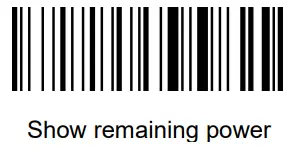
Power display
Troubleshooting
| NO. | Fault | Possible causes | Solution |
| Make sure that the host is powered on and | |||
| turned on. When using the USB interface, | |||
| The interface | connect the connector to the USB interface | ||
| cable is installed | The scanner is not | of the computer motherboard. Do not use | |
| correctly, but the | powered on. | extended USB ports and other USB | |
| fill light is not | extension cords. | ||
| 1 | shown. | Incorrect connection | Please check if the wire connection is |
| of interface wires. | loose. |
|
2 |
There is fill light,but the barcode cannot be read. | This type of barcode code system is not turned on. | Scan the setup code to turn on the code system. |
| Barcode damage. | |||
| Wrong distance between scanner and barcode. | Adjust the scanner distance. | ||
| The scanner angle failed to cover the barcode. | Adjust the scanner angle. | ||
|
3 |
The host displays wrong barcode data | Input method error. | Replace the input method with a standard English input method. |
| Additional settings were made for the scanner | Restore the scanner to its factory settings. | ||
|
4 | Barcode characters appear garbled or wrong. | The scanner keyboard country setting doesn’t match the using country. | Set the scanner keyboard country to match the keyboard using country. |
|
5 | Other cases cannot be decoded |
Equipment transfer error | Power off the equipment. Connect the equipment and the scanner correctly, then turn on the power of the equipment, restore the parameters of the scanner to the factory setting state and scan the code again. |
Simple maintenance method
- Remove dust and stains from the scanner window.Use a soft, lint-free, good quality paper towel or fabric to wipe gently.Use a soft, lint-free, good quality paper towel or fabric to wipe gently. Then blow clean.Do not use poor quality paper towels or fabrics for a long time so as not to damage the surface finish of the scanner window and affect the reading effect of the scanner.
- The housing of the scanner can be wiped with a clean soft cloth. If necessary, you can use a small amount of detergent to add water, and then wipe it with a soft cloth dipped in water.
Warranty.
15 months.Since the date of purchase, 15 months of normal use, if the product fails, according to the number of faulty products and the difficulty of maintaining, the company is responsible for sending free parts for maintenance, or sending free new products to replace the old faulty products.
FCC
This device complies with part 15 of the FCC Rules. Operation is subject to the following two conditions:
- this device may not cause harmful interference
- this device must accept any interference received, including interference that may cause undesired operation.
Any changes or modifications not expressly approved by the party responsible for compliance could void the user’s authority to operate the equipment.
NOTE: This equipment has been tested and found to comply with the limits for a Class B digital device, pursuant to Part 15 of the FCC Rules. These limits are designed to provide reasonable protection against harmful interference in a residential installation. This equipment generates, uses and can radiate radio frequency energy and, if not installed and used in accordance with the instructions, may cause harmful interference to radio communications. However, there is no guarantee that interference will not occur in a particular installation.
If this equipment does cause harmful interference to radio or television reception, which can be determined by turning the equipment off and on, the user is encouraged to try to correct the interference by one or more of the following measures:
- Reorient or relocate the receiving antenna.
- Increase the separation between the equipment and receiver.
- Connect the equipment into an outlet on a circuit different from that to which the receiver is connected.
- Consult the dealer or an experienced radio/TV technician for help.
The device has been evaluated to meet general RF exposure requirement. The device can be used in portable exposure condition without restriction