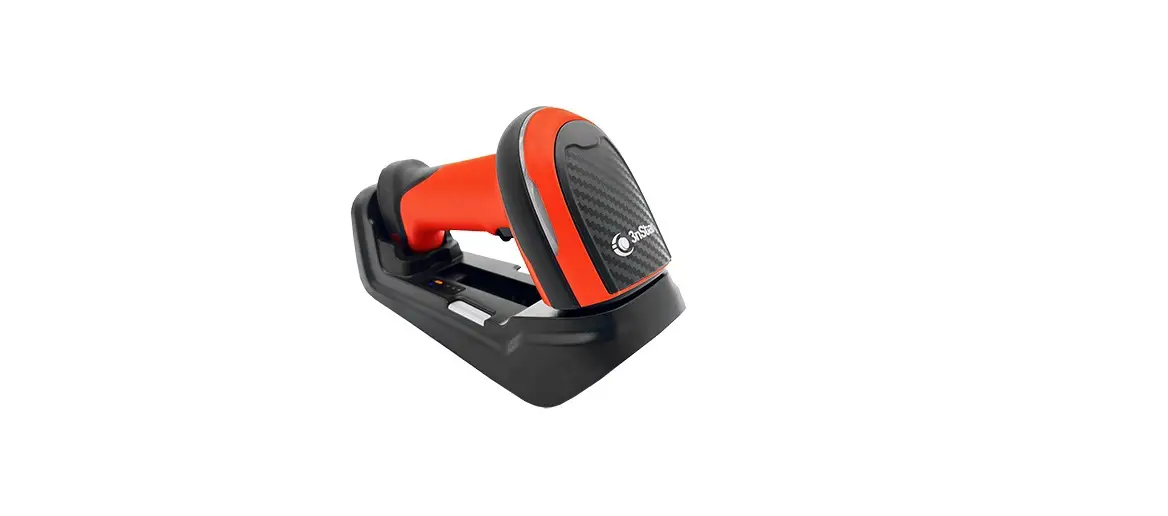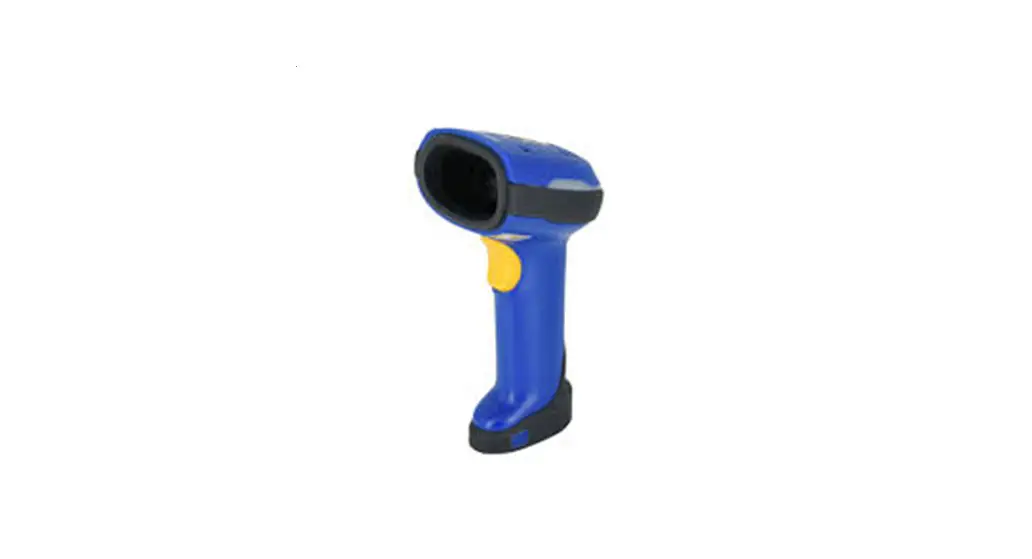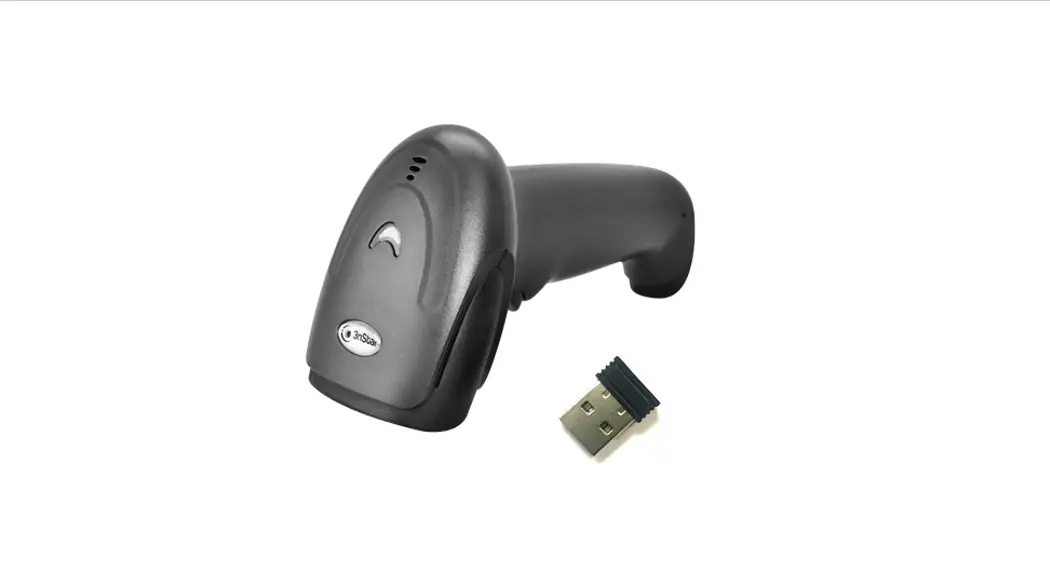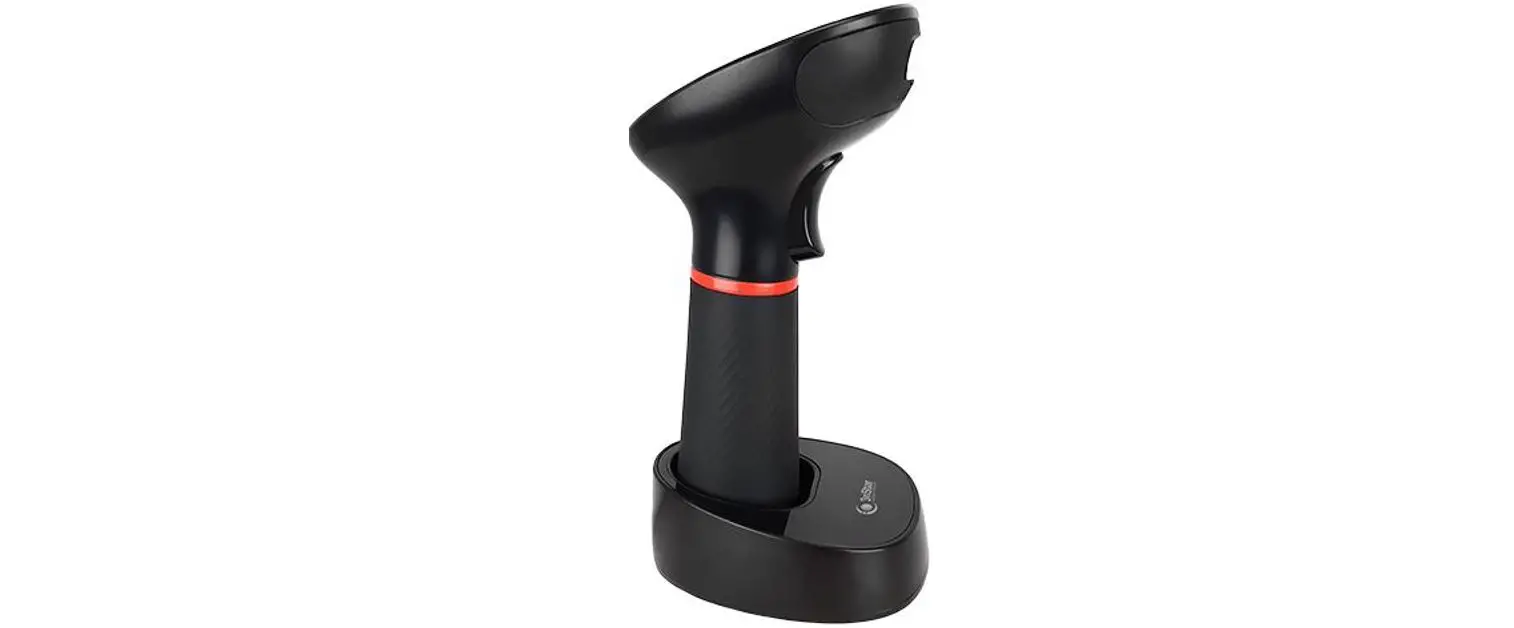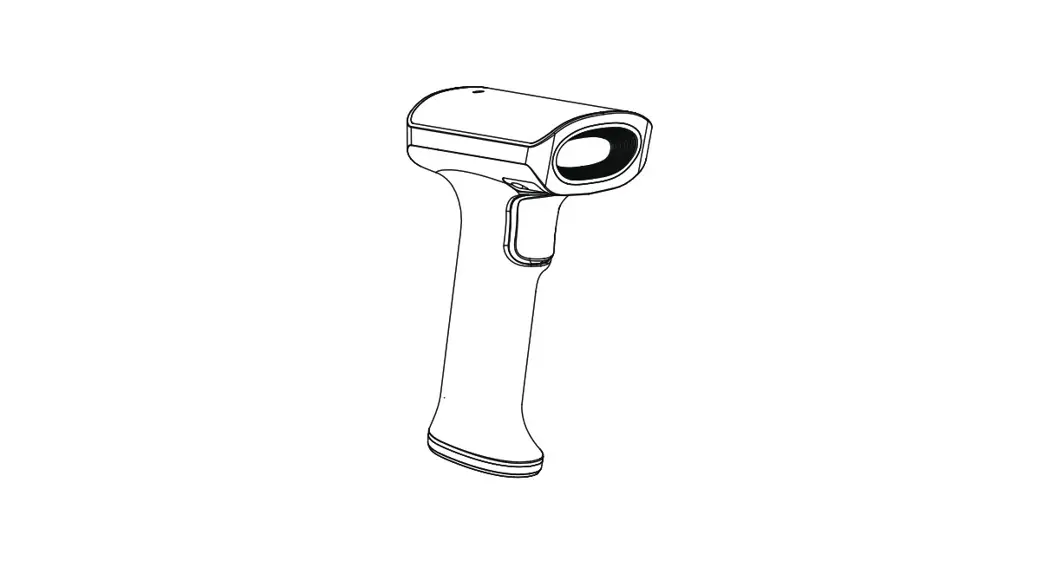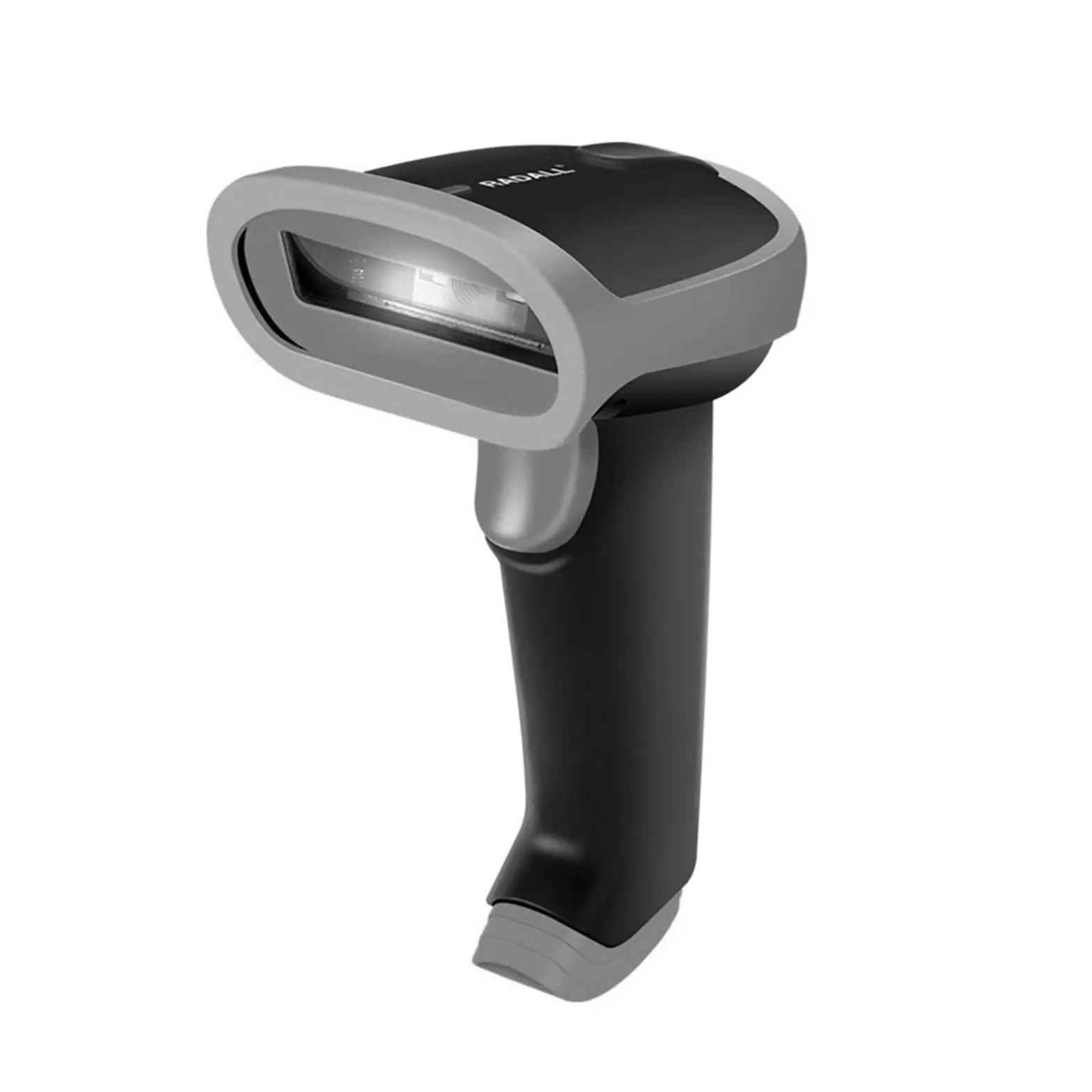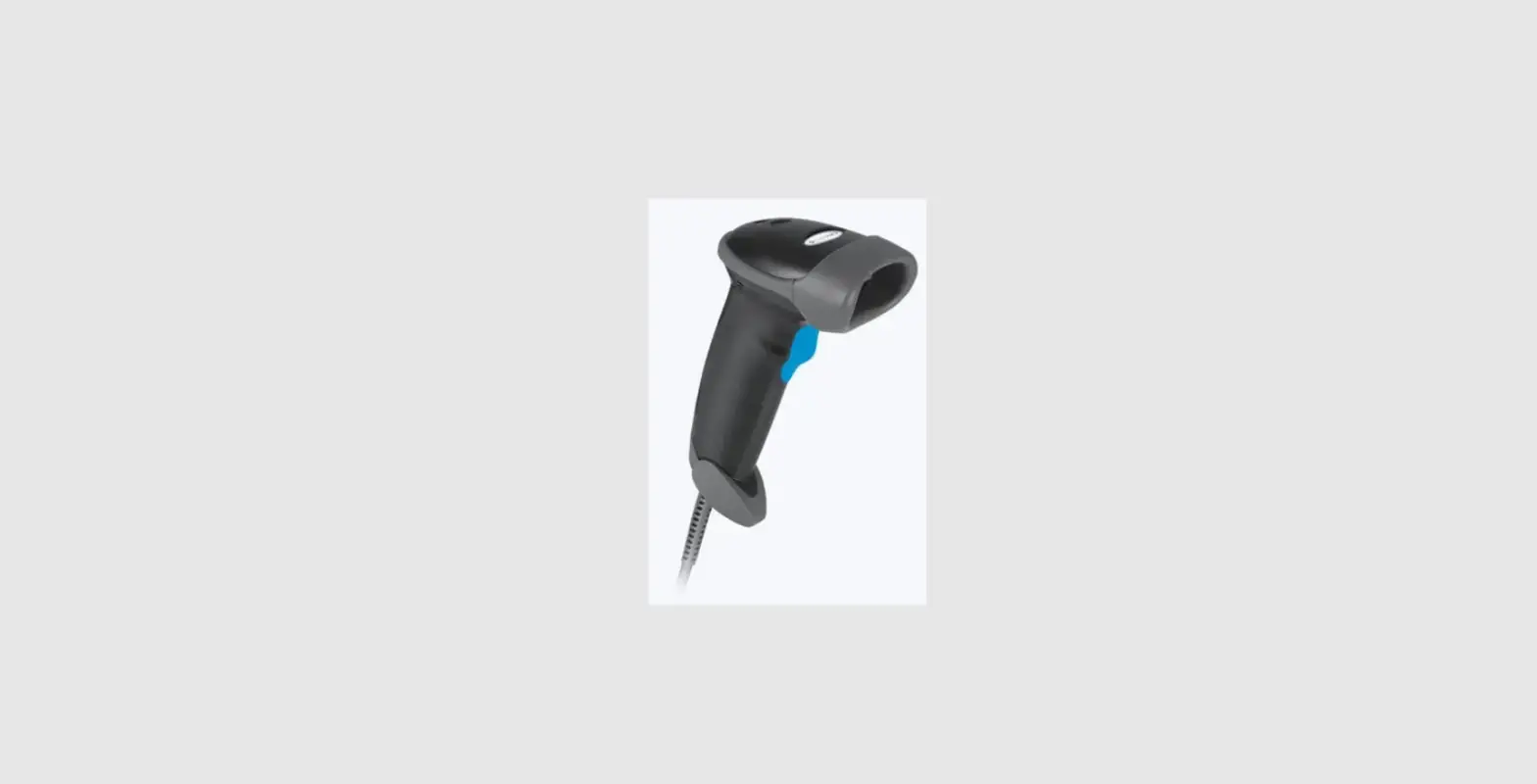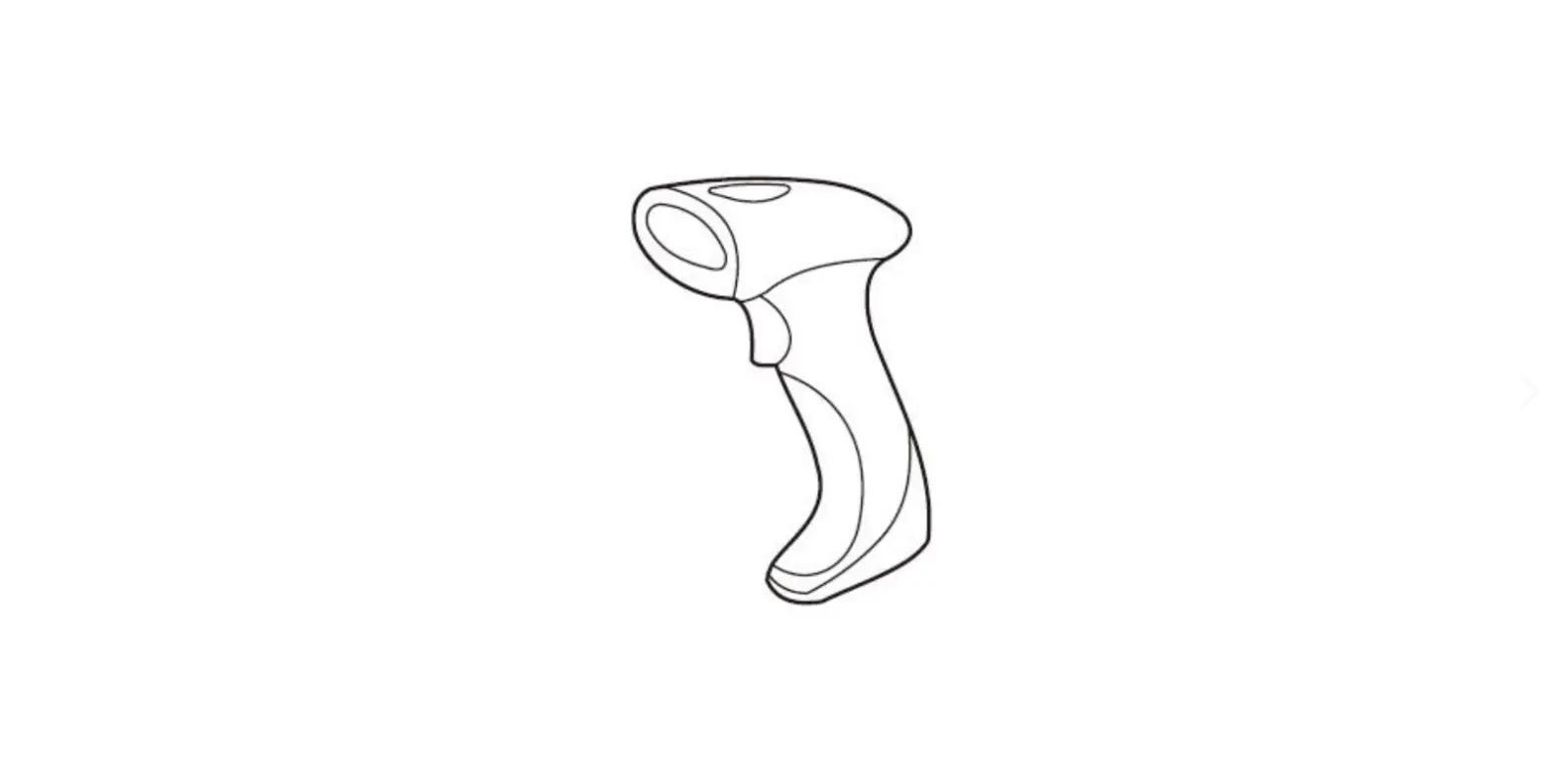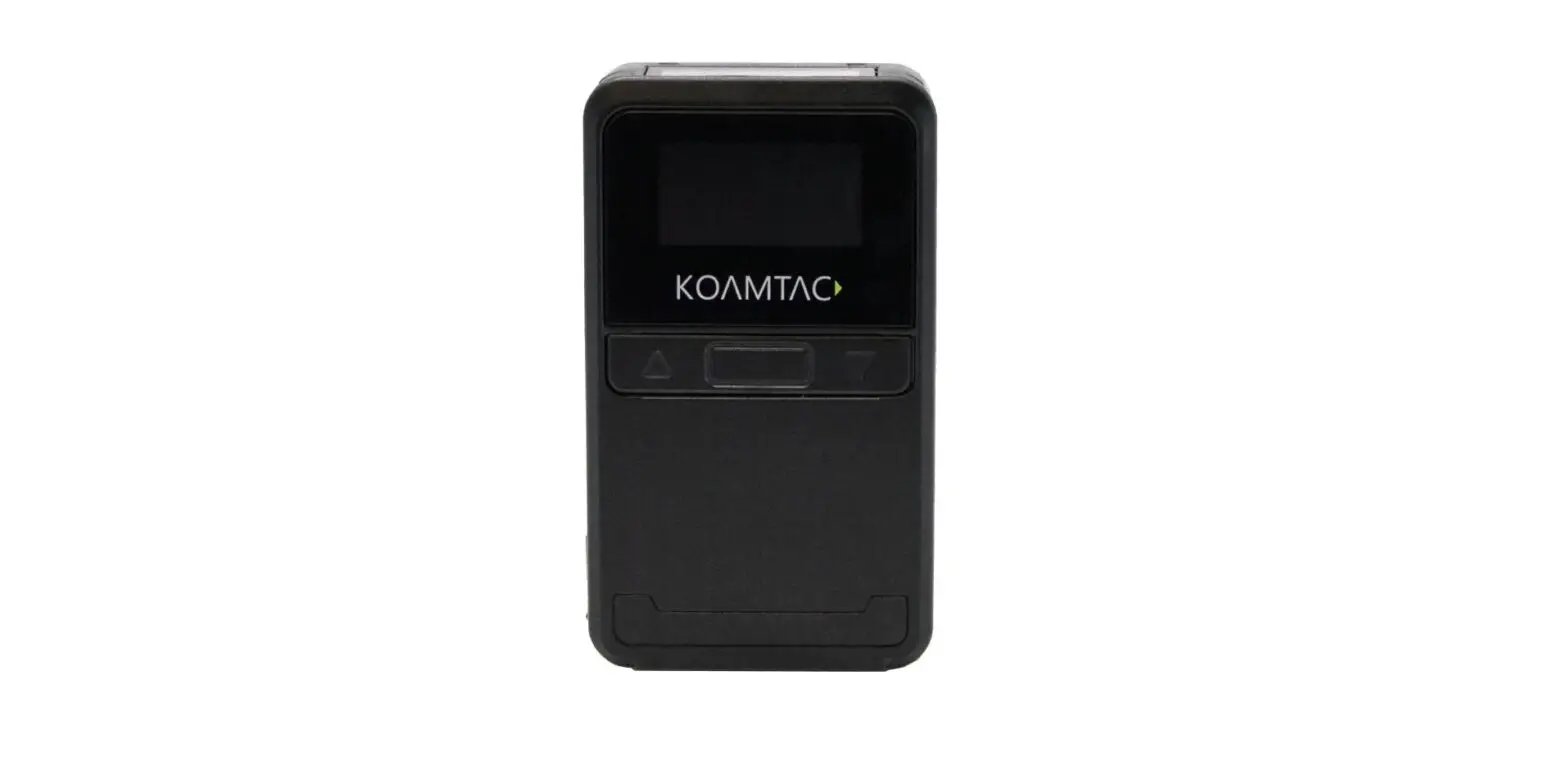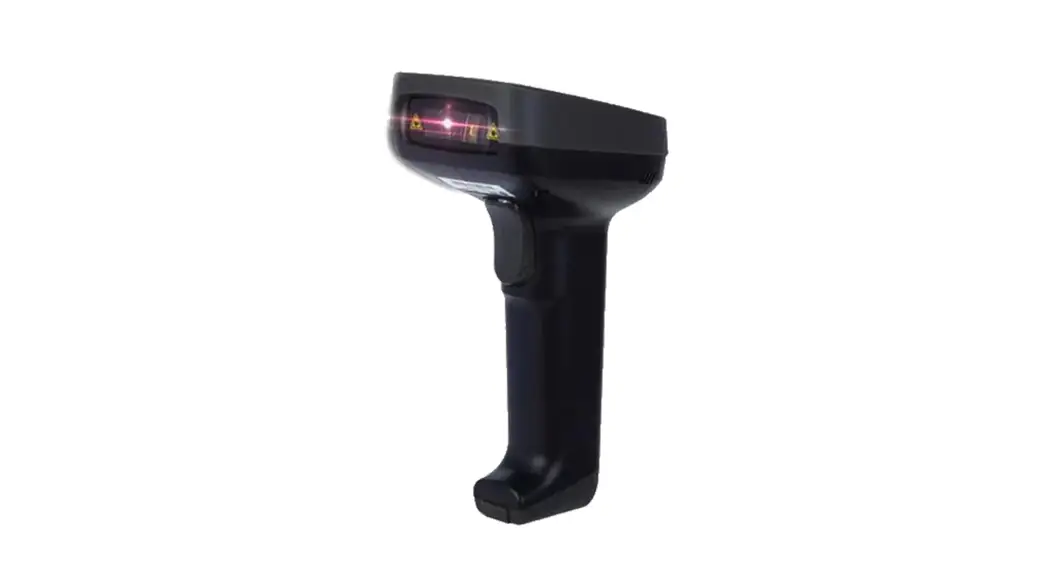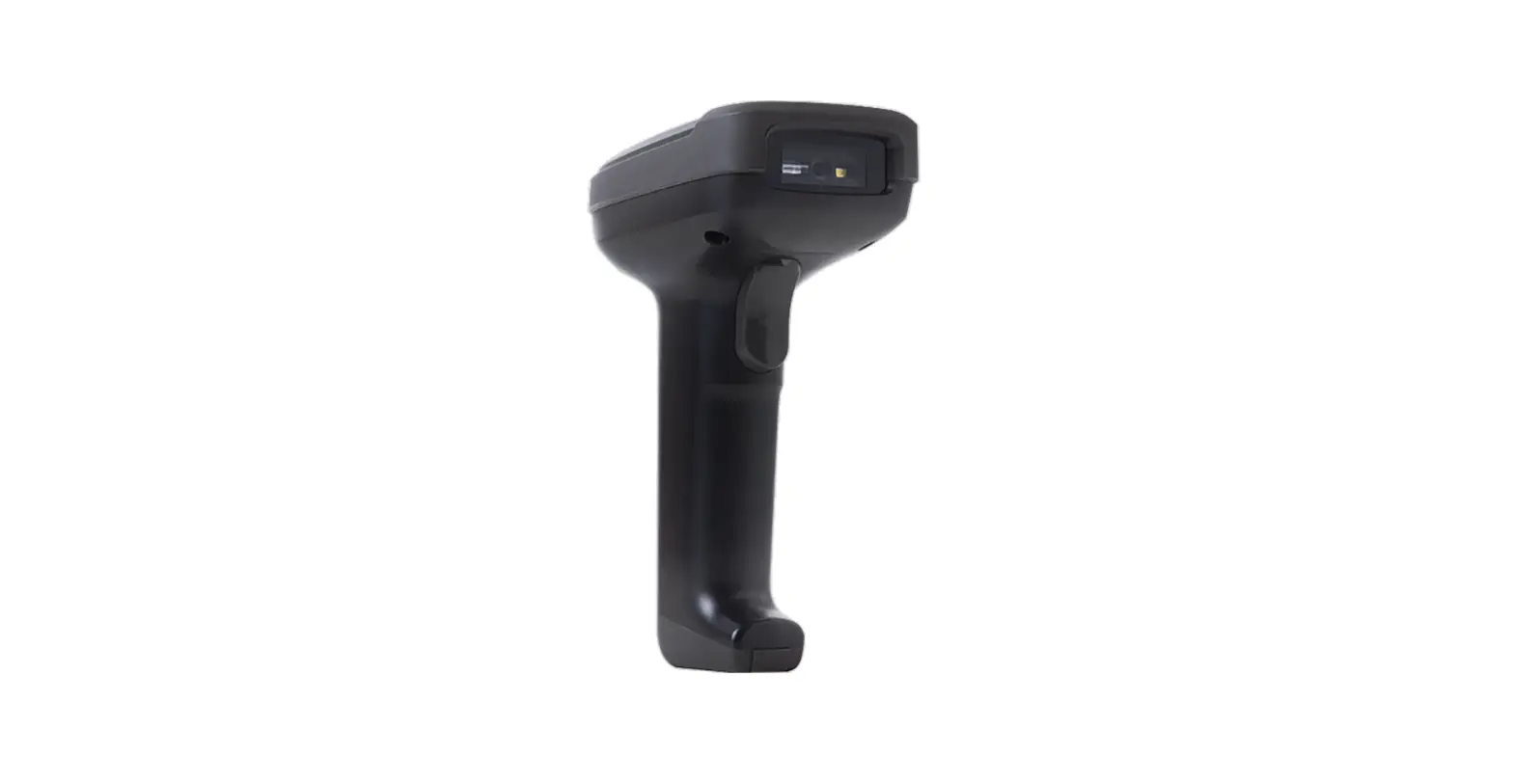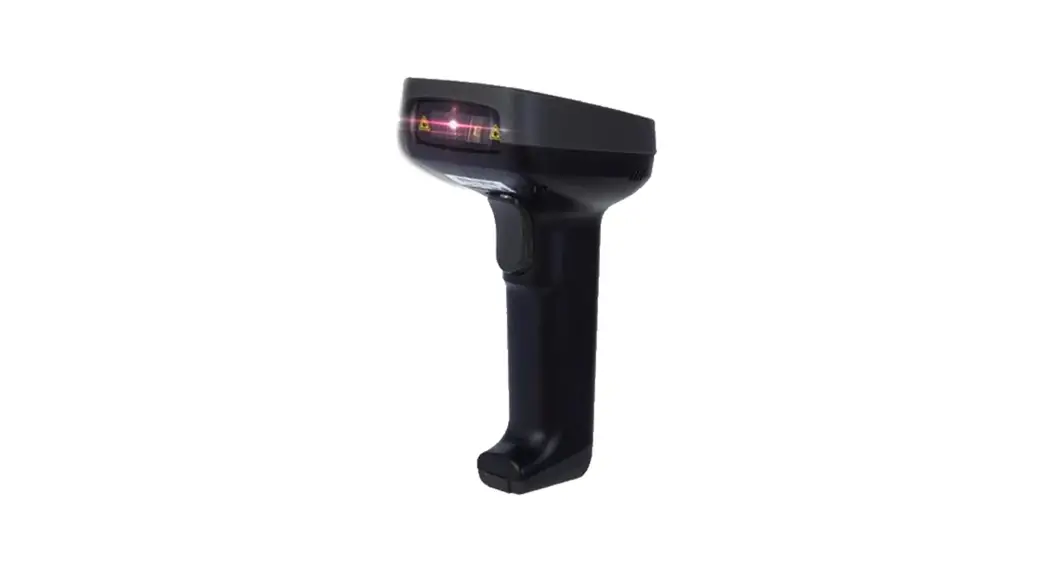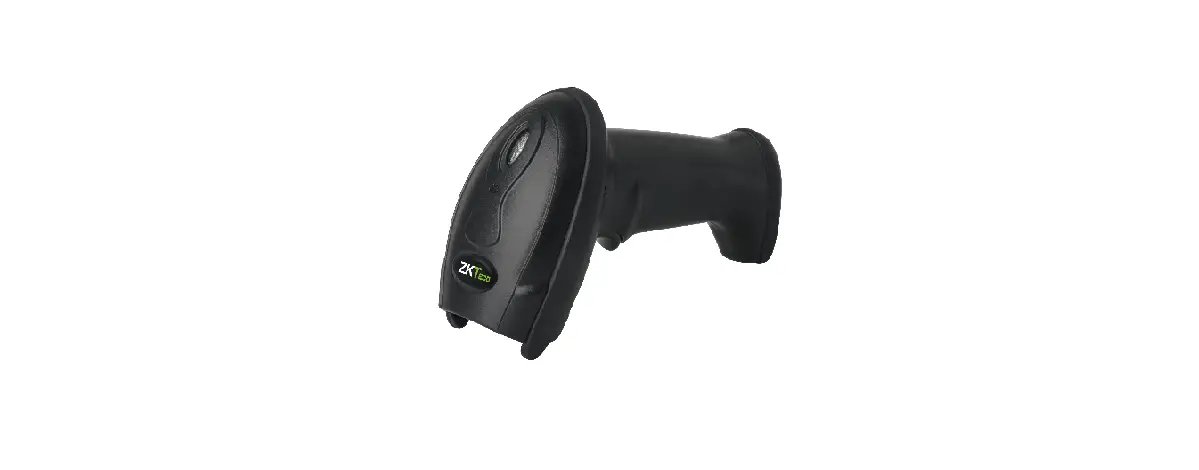

Techs can Korea TSK-195 Wireless Barcode Scanner
INTRODUCTION
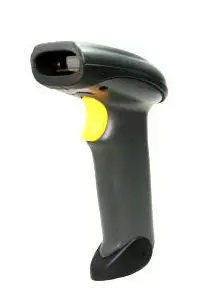
This scanner includes wireless 2.4G, wireless and USB transmission modes, these transmission modes can be switched at any time. When the scanner turns on, it will automatically enter the interface detection status, if the USB cable is connected and recognized, the scanner will enter the wired transmission mode, otherwise, it will enter wireless transmission mode.
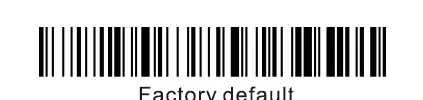
Factory default settings are marked with an asterisk”*” in this manual
communication Mode
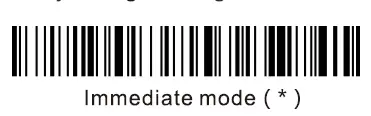
Immediate Mode
A short sound and the green light flashes once. Pair setting The scanner exceeds the transmission distance or sends data fails, all data will be lost, at the same time, sound 3 times alarm prompt continuously and the green light flashes 3times.
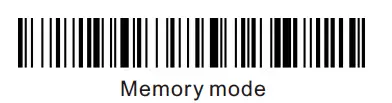
Inventory Mode
The scanner exceeds the transmission distance, we suggest using an inventory model. The scanner data is stored directly in the memory. If the memory is full, three alarms will be sounds, and the green light will flash 3 times.
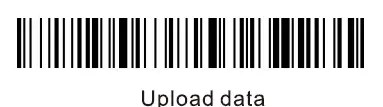
Note: upload all data. means that upload all data in storage.
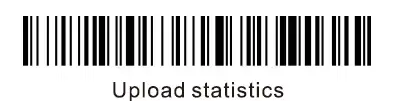
Note: upload statistics.can see the barcode total amount in storage.
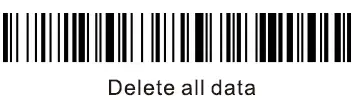
Note: Delete all data.will delete all data in storage.Data will not be restored after deleting, make sure the data has been uploaded for backup before deleting
Pair Method
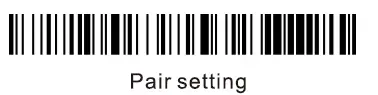
Receiver Mode:
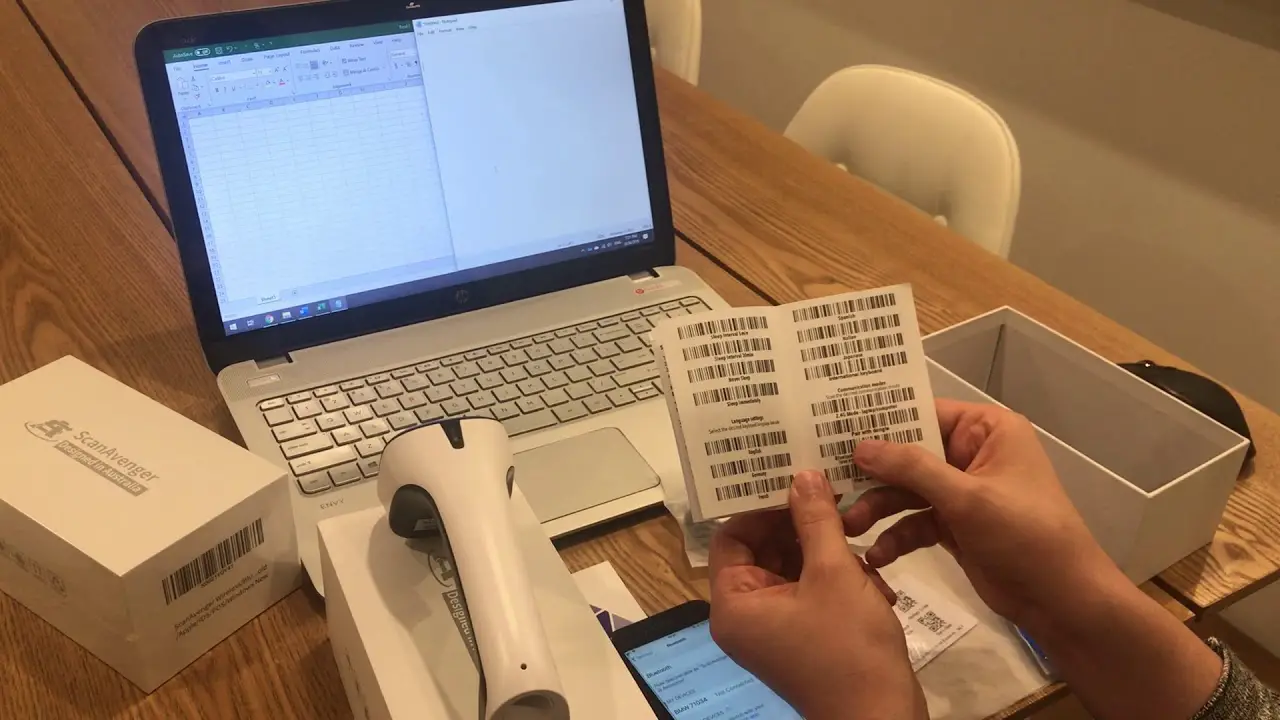
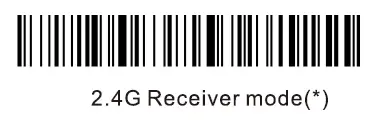
To enter the pairing status, first scan “2.4G Receiver Mode”, then scan “Pairing Setting” (the green light will flash). Now plug the USB dongle into the device, when hearing a “beep” sound, it means the pairing is successful and the blue light is always on.(The whole pairing process takes about 1min, if timeout and the pairing failed, it will automatically exit the pairing mode)
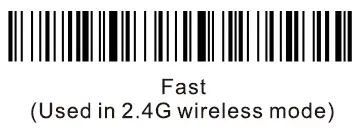
Upload Speed Setting
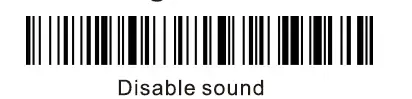
Sound Setting
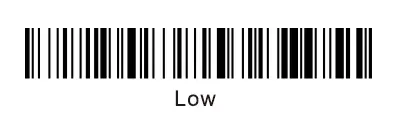
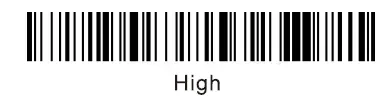
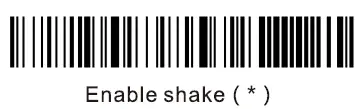
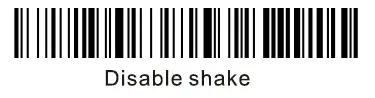
Shake Setting
Sleep Time Setting
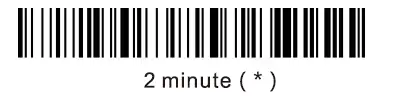
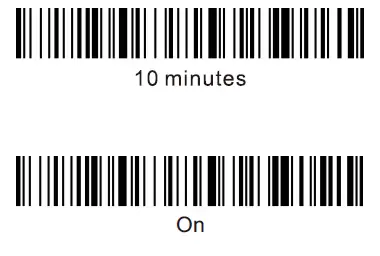
Terminal Setting
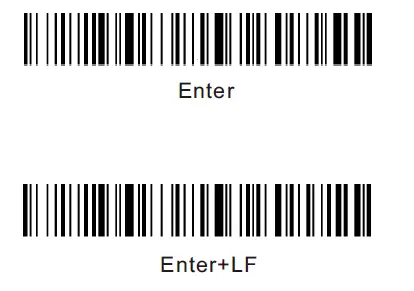
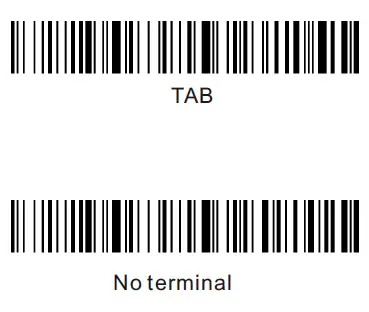
.Interface
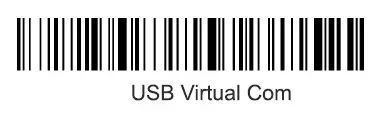
Graphic diagram
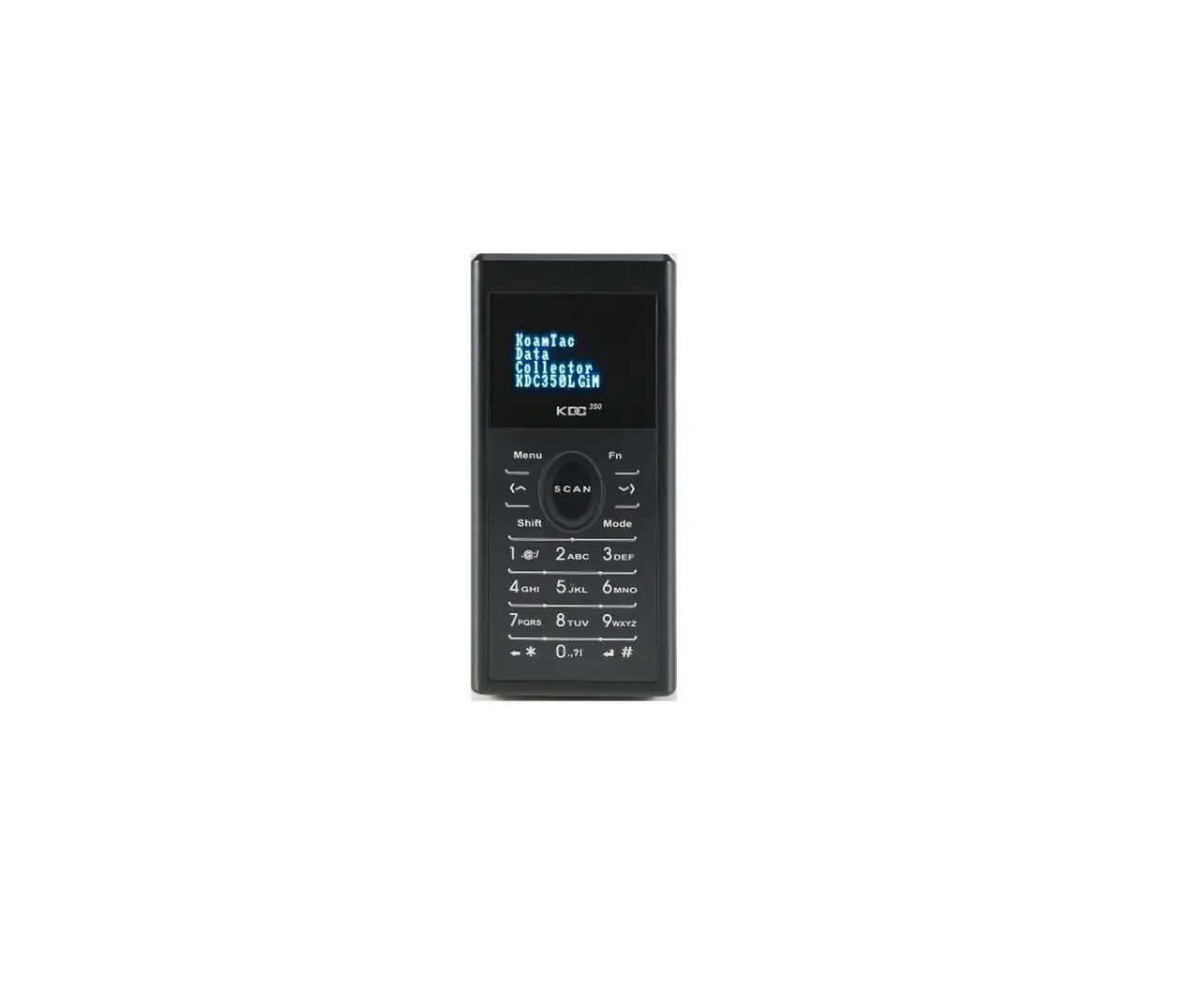
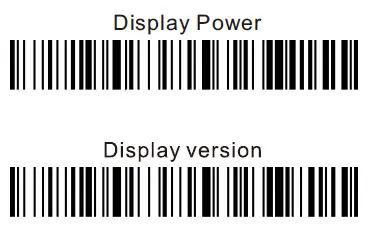
Screen display (optional)
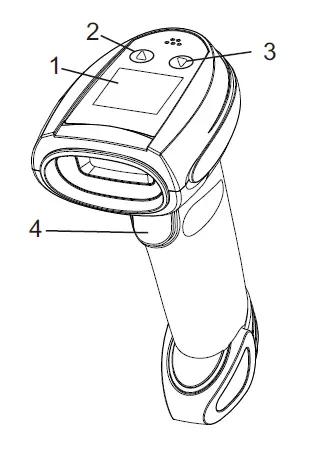
- Display
- Under move key Press up and down key to enter menu mode
- Up move Key
- Scan key, Ok key
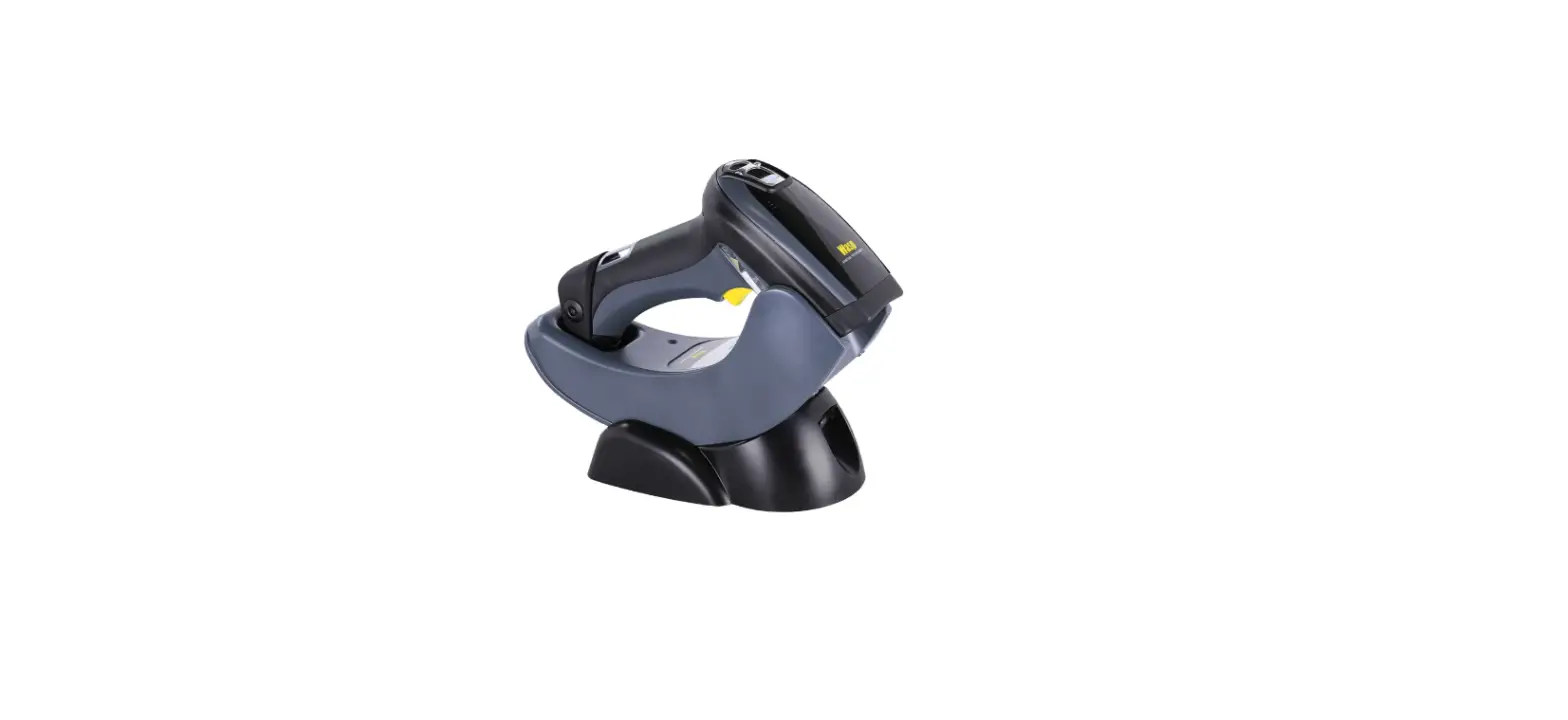
Charging Cradle (optional)
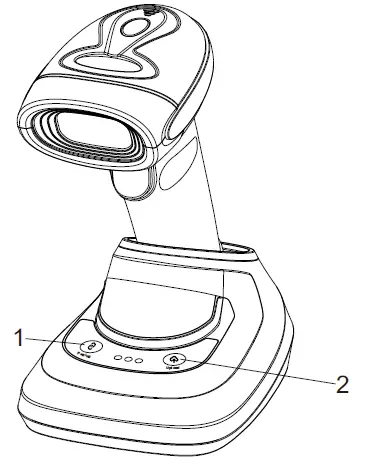
- Pairing
- upload
LED Indicator
- The red light is always on when charging, it turns off when the battery is full or the charging line is not connected. If the red light flashes, the battery may be not applied or not applied appropriately;
- Regular blue light indicates that all connections are in good condition;
- Greenlight flashes when under 2.4G connection;
- Blue light flashes when under SPP connection;
- Green&blue lights flash synchronously when under HID connection;
Buzzer Description
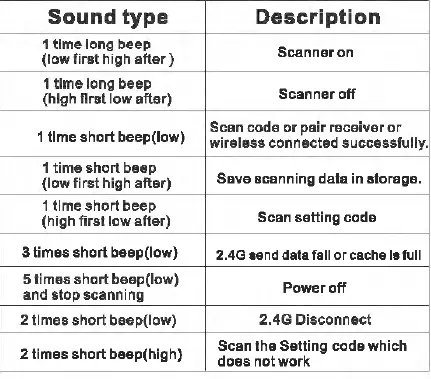
Notification:
- Please read this manual carefully before using the barcode Nscanner;
- The charging voltage of the scanner is 5V, please use a 5V/1A power adaptor for charging to ensure that there is sufficient power for the normal operation of scanner;
- Our company reserves all rights, and reserves the right to make changes to the product to improve its reliability, functionality or Mdesign;
- This package includes: 1 barcode scanner; 1 receiver(if Optional); 1 charging base(if Optional); 1 USB cable; 1 user’s manual;
- Please be advised that any revision of this manual will not be informed.
FCC Statment
Caution: The user is cautioned that changes or modifications not expressly approved by the party responsible for compliance could void the user’s authority to operate the equipment.
This device complies with Part 15 of the FCC Rules. Operation is subject to the following two conditions: (1) this device may not cause harmful interference, and (2) this device must accept any interference received, including interference that may cause undesired operation.
NOTE: This equipment has been tested and found to comply with the limits for a Class B digital device, pursuant to Part 15 of the FCC Rules. These limits are designed to provide reasonable protection against harmful interference in a residential installation. This equipment generates, uses and can radiate radio frequency energy and, if not installed and used in accordance with the instructions, may cause harmful interference to radio communications. However, there is no guarantee that interference will not occur in a particular installation.
If this equipment does cause harmful interference to radio or television reception, which can be determined by turning the equipment off and on, the user is encouraged to try to correct the interference by one or more of the following measures:
— Reorient or relocate the receiving antenna.
— Increase the separation between the equipment and receiver.
— Connect the equipment into an outlet on a circuit different from that to which the receiver is connected.
— Consult the dealer or an experienced radio/TV technician for help.
FCC Radiation Exposure Statement:
This equipment complies with FCC radiation exposure limits set forth for an uncontrolled environment. This transmitter must not be co-located or operating in conjunction with any other antenna or transmitter.