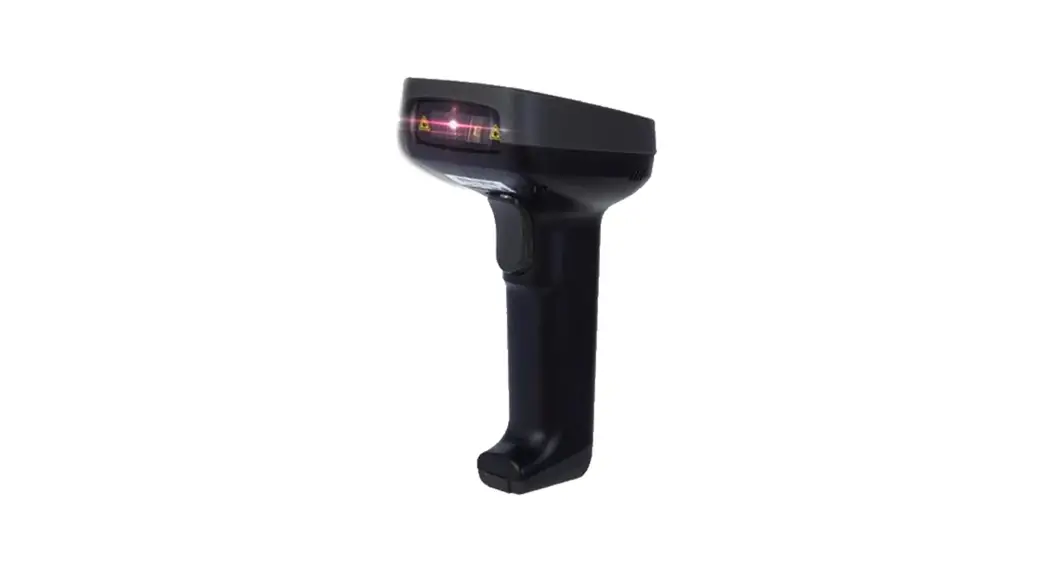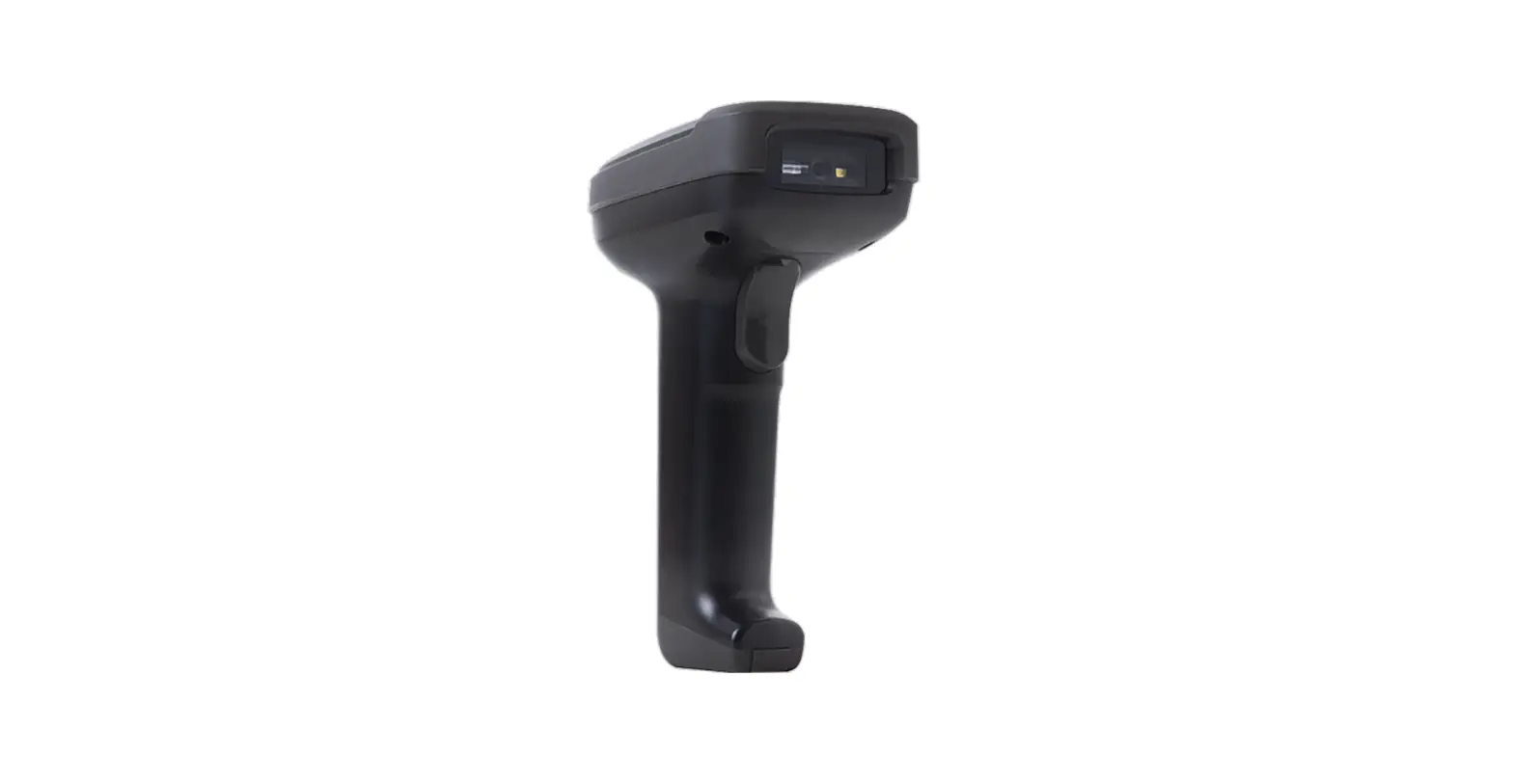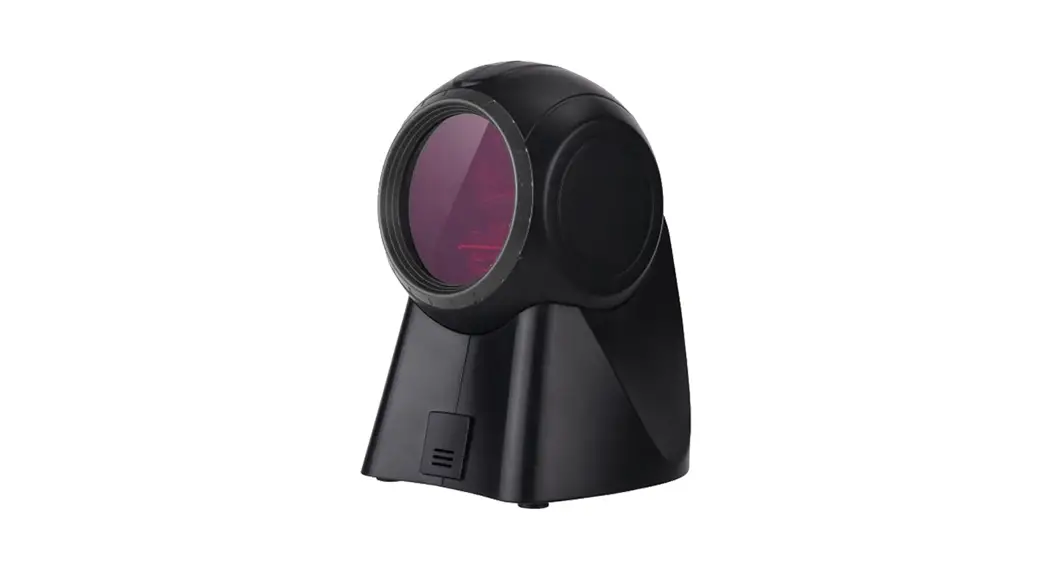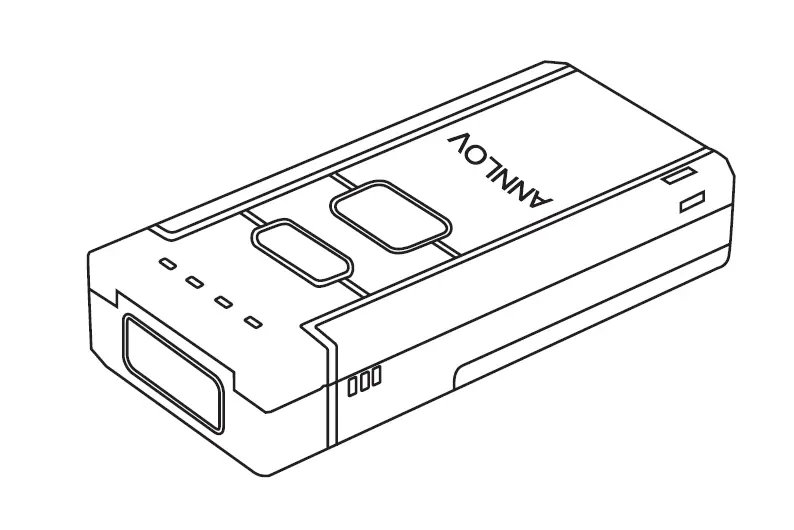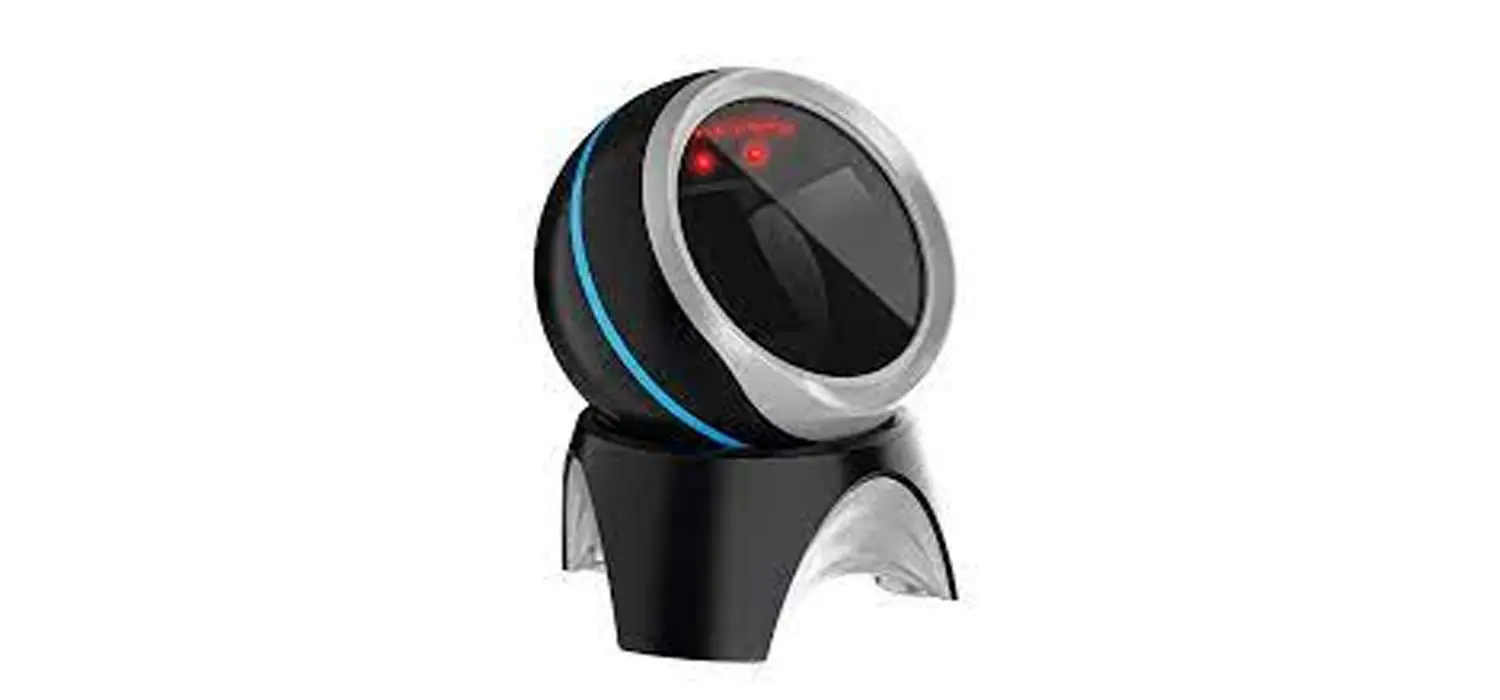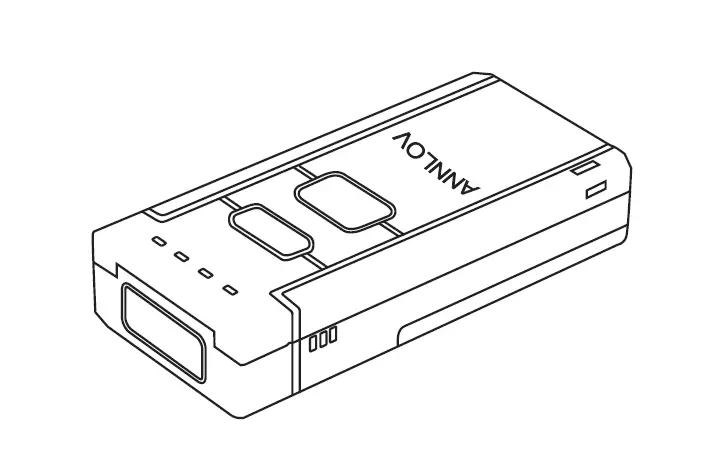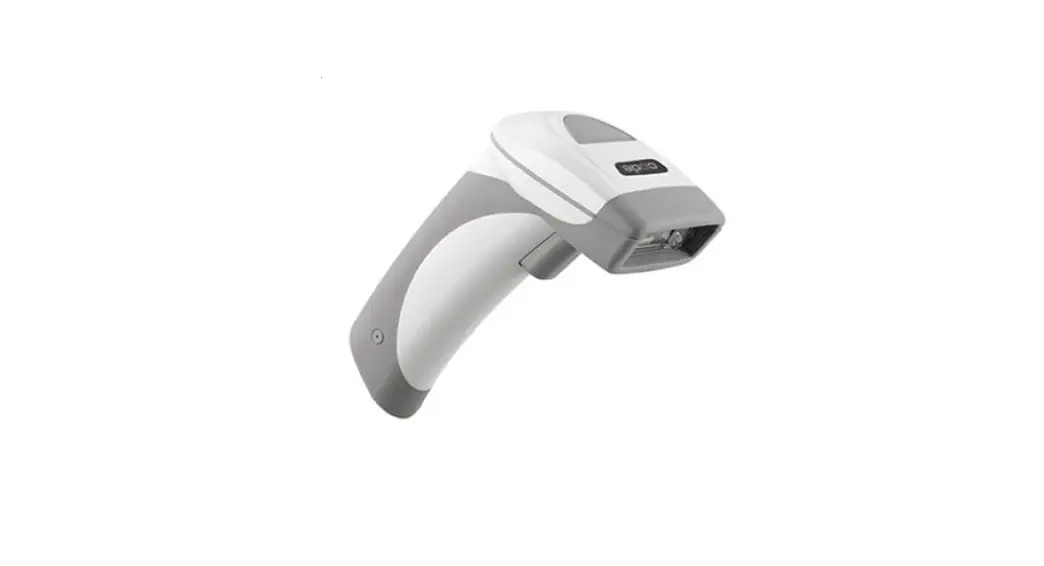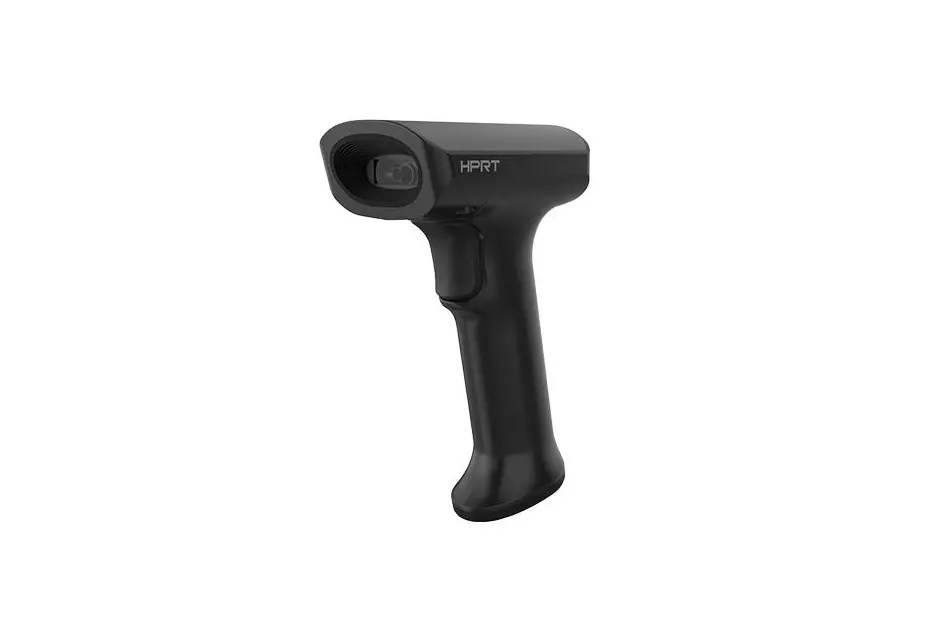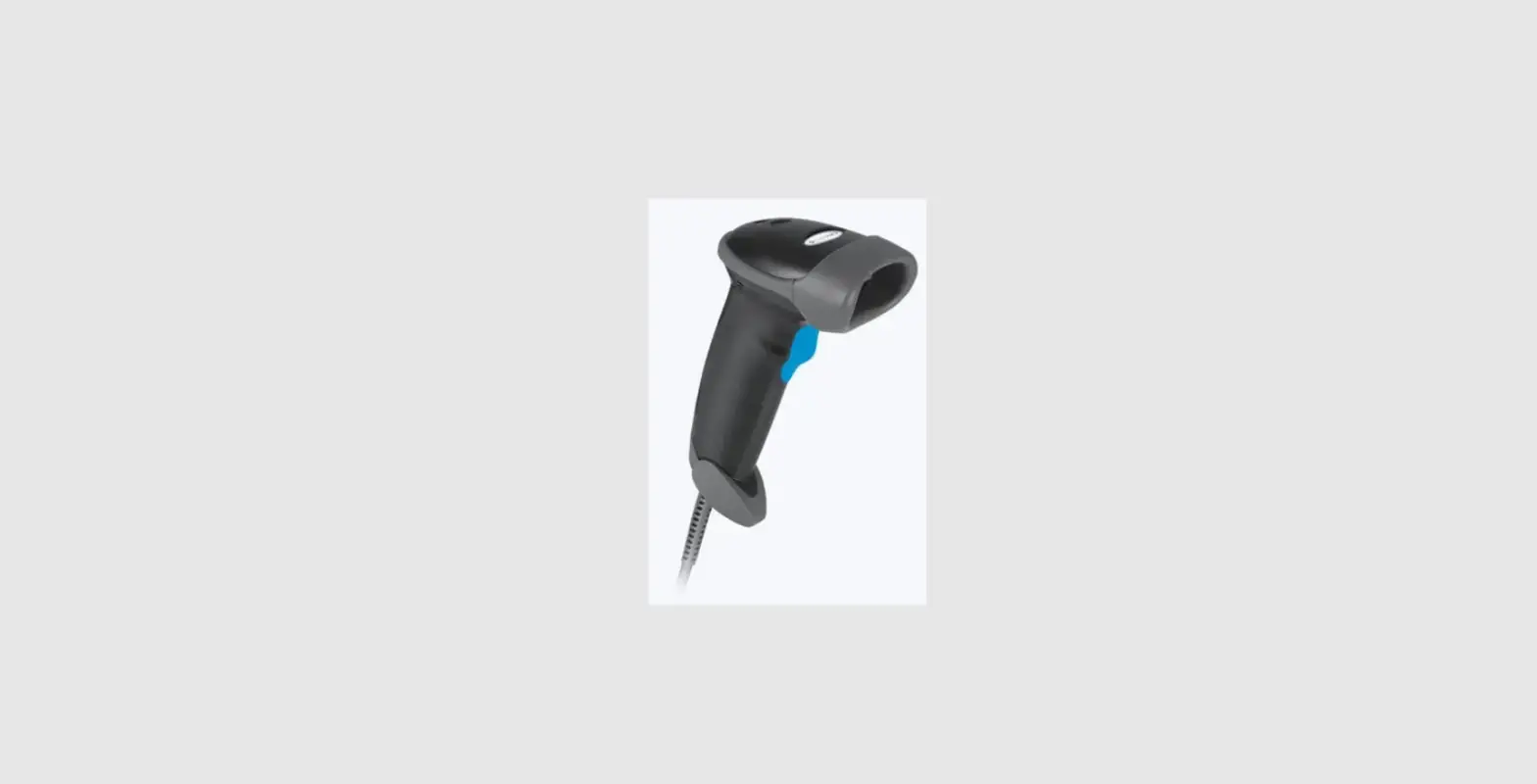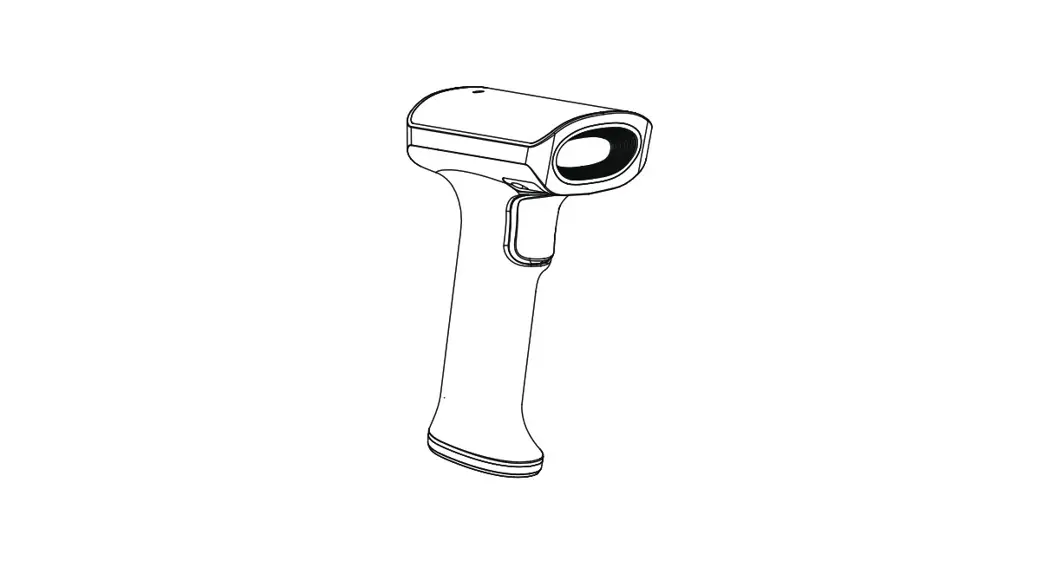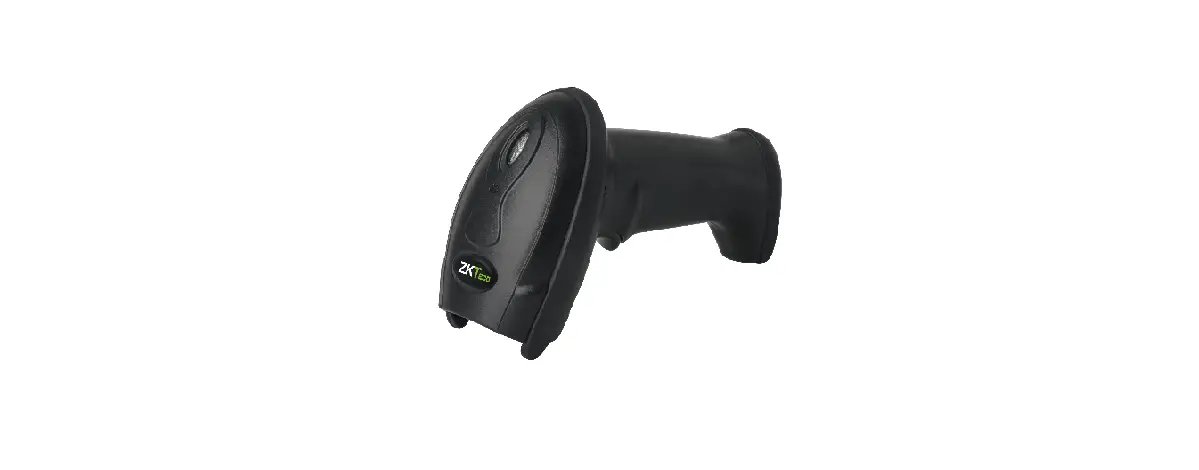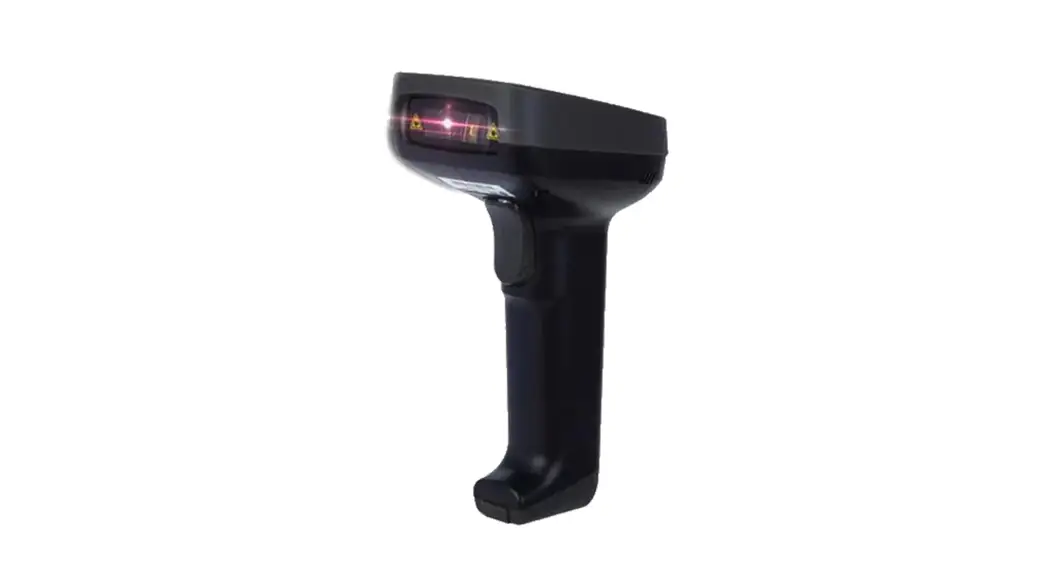

E14953W Handheld Barcode Scanner
User Manual
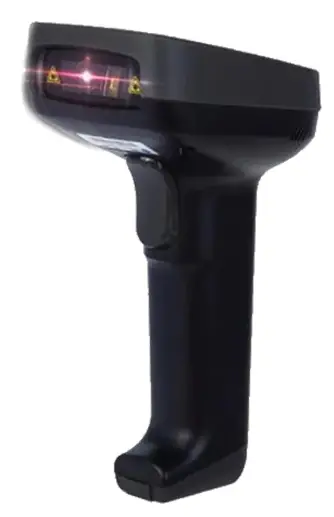
E14953W Handheld Barcode Scanner
Dear customers, thank you for your purchase of our products. We are committed to providing our customers with high quality products. To ensure best performance, please read this manual carefully before use!
How to use a barcode scanner correctly
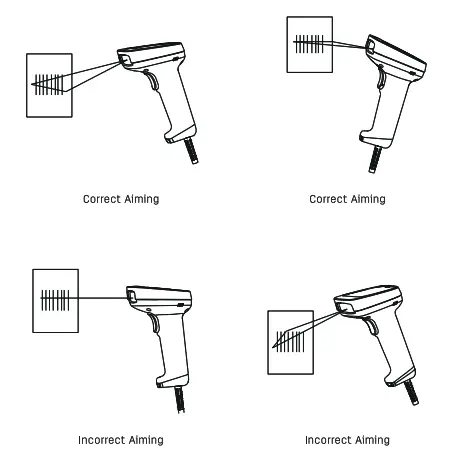
- Please tilt the scanner in an appropriate angle to achieve optimal decoding.
- Don’t scan the barcode in a 90-degree angle, because the scanner cannot read correctly in this angle.
- To scan a barcode, aim correctly and ensure the scan line crosses every bar and space of the symbol, other-wise, there might be an error.
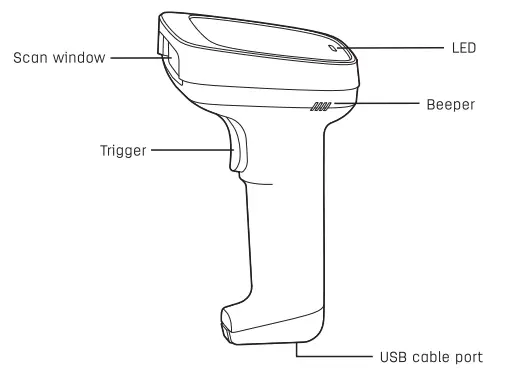
Overview of scanner parts
Technical Parameters
| Battery capacity | 3.N/2000mAhlithlum battery |
| Operating current | 120mA |
| Peak current | 180mA |
| Charging voltage | DC5V±O.SV |
| Light source | Loser 650nmsIOnm |
| Laser power | ImW-4mW |
| Barcode types | 1D code |
| Resolution | ?Limit |
| Applicable barcodes | AIM-128. Code 11. Code 39. Code 83. codein. Codebor. Oeutschel2. Deutsche14. EAN-8. EAN-13. GS1-RSS14. GS1-RSSLimited. Industrial 25• Interleaved 2 of 5, ISSN. ISBN. ITF-14. Matrix 2 of 5• MSI-Plessey. Plessey, RSS-Expand. Standard 2-of-5. UCC/EAN-128. UPC-E. UPC-A. |
| Operating temperature | -15 C-+45C |
| Storage temperature | -20 C-+80C |
| Operating humidity | 596-90% (No condensated water) |
| Button life | 25 million times |
| Indication | Buzzer/Indicator Light |
| Interface type | Micro-Use |
| Scanning mode | ManuaVcontinuous |
| Anti-shock capability | Pass the 1.2m free fall test |
| Dangle | Rating : DC 5V-0.5A |
Packing list
Barcode Scannerxl, USB Cablex1, AUser Manualx1, Data receivexl.
Instruction: To make sure that our vast users will use the product correctly in a convenient way, not all settings are listed in this manual. Some tedious operations are deleted in the principle of paring down to the essence and satisfy-ing users’ applicability needs, thus greatly improving the user’s work efficiency. For any questions or if you need more details, please refer to «14953W Barcode Scanner End User Manual>> , which can be downloaded from the Download Center under Customer Service section of our company website: www.deliworld.com.
Product features
- With built-in memory and inventory mode, the scanner is capable of storing up to 4,000 EAN-13 barcodes and counting the numbers of barcodes. Settings of all param-eters are available through scanning correspondent barcode, and will be stored in the internal memory. Inven-tory information and parameters will be kept after the scanner is off.
- Supports one-click pairing with simple and fast trans-mitting/receiving (The pairing of this product has been finished when it was produced).
- Long distance transmission – up to 100 meters in open air (20m-30m transmission indoor with different obsta-cles and environment).
- Low power consumption, long standby time, built-in 2000mAh lithium battery.
- Wireless receiver is compatible with Windows/An-droid/ios/Linux and other operating systems.
Installing the receiver
- Plug the wireless USB receiver to the USB port of the computer.
- Once the wireless receiver is connected to the computer, the operation system should automatically find and install the appropriate drivers ( (if it fails, please unplug the receiver, and plug it again after restarting the computer).
- Once the driver has been installed, the receiver can be used to receive data from the paired scanner.
Basic Settings
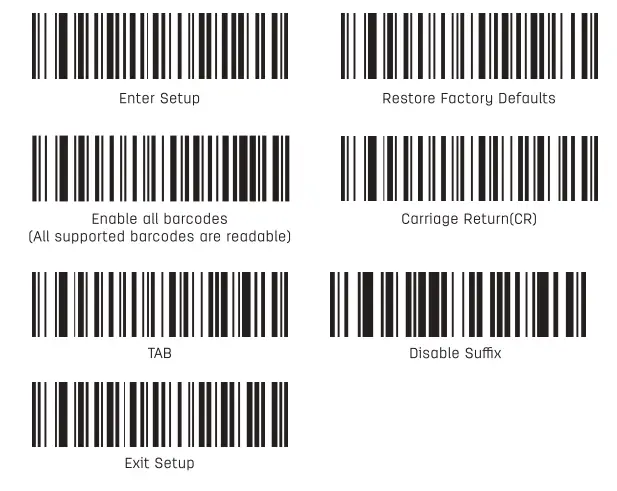
Function Settings
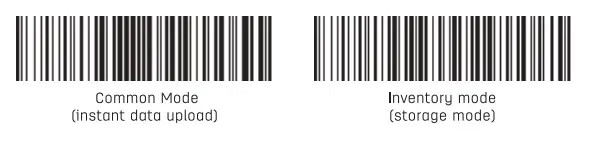
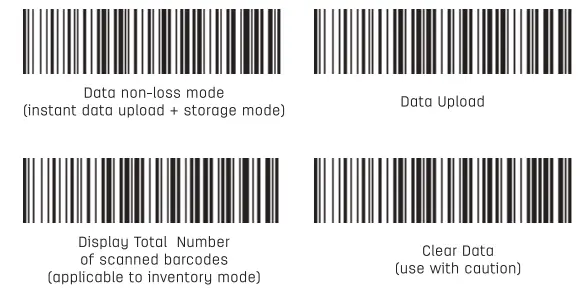
Instructions:
- Common Mode: Scan the barcode to enter Common Mode. Under common mode, scanned barcodes will be uploaded to the computer instantly (default mode).
- Inventory Mode: Scan the barcode to enter Inventory Mode. Under Inventory mode, scanned barcodes will be stored in the internal storage (When the Internal memory is full, the buzzer will “beep ‘ to give a prompt.).
- Data Non-loss Mode: Scan the barcode to enter Data Non-loss Mod. Under this mode, scanned barcodes will be uploaded to the computer automatically if there is wireless signal; scanned barcodes will be stored In the internal storage when there is weak or no signal, and the data will be uploaded to the computer automatically once wireless connection is restored.
- Data Upload: Scan the barcode to upload the data stored in Internal storage to the computer one by one (applicable to inventory mode and data non-loss mode; please guarantee a proper wireless connection during the data upload; the buzzer will beep twice when data upload succeeds, and three times when it fails).
- Display Total Number of Scanned Barcodes: Scan the barcode to display the number of all stored data (appli-cable to inventory mode).
- Clear Data: Scan the barcode to clear all data in the internal storage.
Pairing Settings
1. Pairing barcode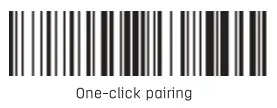 2. Pairing Method
One-click pairing method: firstly use the scanner to scan “one-click pairing’ barcode and then insert the receiver into the USB port of the computer when the buzzer beeps (Note: The buzzer will stop beeping after paring is done successfully within 30 seconds).
3. Barcode Scanner ID Setting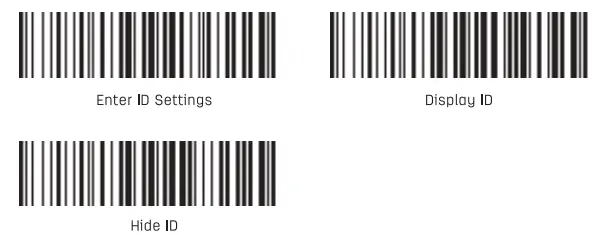 Setting Method: use wireless barcode scanner to scan “Enter ID settings”barcode and then scan the barcode of desired parameter value. For example: Sets the barcode scanner ID as “01” as below: Enter ID Settings > Parameter Value (scan “0′ barcode first and then scan “1” barcode). The method to set Display/Hide ID as below: use wireless borcode scanner to scan ‘Display ID’ or ‘Hide ID” barcode to display/hide ID of the barcode scanner.
4. Parameter Value Barcode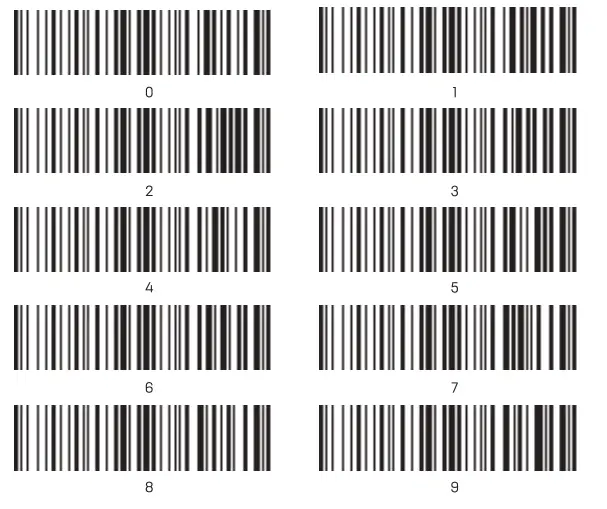 Beeper On/Off Settings( Default=On )
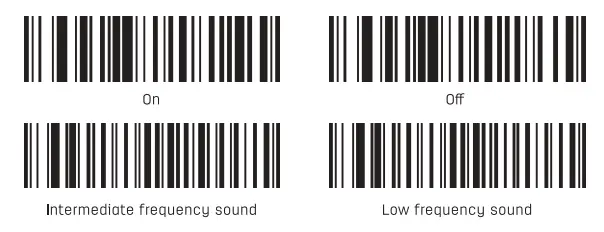 List of Beeping of Wireless Barcode Scanner:
| Beeping | Meaning |
| Long beep for 1 second | Low battery (Please charge in time) |
| One short beep | Normal start-up. Data upload. Enter Setting/Exit |
| Two short beeps | Doto upload is complete in Inventory mode |
| Three short beeps | No wireless signal Data upload failure |
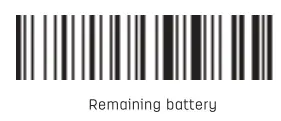
Battery indicator
Troubleshooting
| NO. | Problem | Possible Causes | Solution |
| 1 | Unable to start up or starts and shut down Immediately | This Is mostly caused by low battery | Please charge in time to ensure sufficient power (The red LED indicator will be on during charging, and it will go off when the scanner is fully charged.). |
| 2 | Barcode data is not uploaded | The scanner Is not Pffired with the receiver | Please ensure whether the wireless barcode scanner and receiver are paired (If not. please re-pall. |
| Barcode scanner Is too for away from the receiver | Please check whether the wireless barcode scanner has a signal (if the beeper continuously ‘beeps’ three times during data upload. it means the signal is insufficient; in this case, the scanner needs to be placed closer to the receiver Of switched to inventory mode). | ||
| 3 | Loser comes on. but symbol does not decode. | Scanner Is not programmed for this type of barcode | Scan the setup symbol to enable this type of barcode. |
| The limeade is defaced | Try stunning lest barcode of the same barcode type. | ||
| Distance between scanner and barcode is incorrect | Move the scanner closer to or further from the barcode. | ||
| Distance between scanner and bar code is not enough and the scan line Is not crossing the full code | Make sure the scan line aim at the barcode correctly. | ||
| 4 | Scanned data Is Incorrectly displayed onthe host | incorrect input method | Change the input method to Standard English. |
| Other scanner settings are changed | Restore the scanner to factory defaults. Of contact the manufacturer service center. | ||
| 5 | Scanned data Is displayed os messy code or on error | The keyboard country Is Improperly configured | Select the keyboard layout of your country. |
| 8 | Other decoding failures | Connection errors | Disconnect power supply: reconnect haat cable: reconnect power supply: restore factory defaults and re-scon the barcode. |
Simple maintenance methods
- Stains and dusts on the scanning window can some-times affect the scanners performance. Please use good-quality tissue to gently wipe the scanning window and then blow any excess dust from the window using a dust blower. Use of poor-quality tissue for a long period of time will damage the surface smoothness and affect reading accuracy.
- The shell of the scanner may be cleaned with a soft cloth. If needed, clean the exterior using a soft cloth with a mild detergent-water solution.
Maintenance
- For product failures occur under normal operating circumstances, free of charge repair service shall be provided by our company within one year commencing from date of purchase.
- The period of warranty shall start from the date of purchase and invoice date.
- Customers are required to present the warranty card and the invoice upon request for repairing service.
- Please keep this warranty card in proper condition for free warranty service. There is no replacement if lost. The purchase date filled must be consistent with what is indicated in the invoice, otherwise it will be invalid.
- Any alteration to this warranty card renders it invalid.
- Our Repair Service Center will be glad to provide services to customers for out-of-warranty products.
Under any of the following circumstances, no free of charge repair service shall be provided:
- The warranty period has expired.
- The user cannot present the Invoice or dated proof of purchase.
- The user requires a replacement of the product with the excuse that the product appearance looks old naturally due to use.
- Machine failure is caused by use in violation of instructions.
- Machine failure is caused by falling or collision.
- Machine failure is caused by self-assembly, self-dis-assembly and self-repair.
- Commercial samples and goods sold at reduced prices, as well as products that have undergone performance overload tests.
* Note: The information in this document is subject to change without notice.
The table of toxic and hazardous substances/elements and their content
| Part name | Hazardous and noxious substance or elements | |||||
| Pb | Hg | Cd | Cr(vi) | POD | PBDE | |
| Cable | 0 | 0 | 0 | 0 | 0 | 0 |
| Electronic parts | X | 0 | 0 | 0 | 0 | 0 |
| Injection molded ports | 0 | 0 | 0 | 0 | 0 | 0 |
0: Indicates that this toxic or hazardous substance contained in all of the homogeneous materials for this part is below the limit requirement in SJ/T11363-2006 Requirements for Concentration Limits for Certain Hazard-ousSubstances in Electronic Information Products».
X : Indicates that this toxic or hazardous substance contained in at least one of the homogeneous materials used for this part is above the limit requirement in Sl/T 11363-2006 <<Requirements for Concentration Limits for Certain Hazardous Substances In Electronic Information Products ». Due to limitations of science and technology development these toxic or hazardous substances cannot be replaced or reduced for now. Under normal use conditions, no leakage or abrupt change will occur within 10 years, nor will it cause pollution to the environment or damage to people and property.
 Environment-Friendly Use Period:
This mark refers to the environment-friendly use period of electronic and electrical products sold in accordance with the Regulation of the People’s Republic of China on Limit on Use of Hazardous Substances in Electric and Electronic Products and General Guidelines of Environ-ment-friendly Use Period of Electronic Information Products
Special disclaimer
While information of this manual has been carefully checked for accuracy, no guarantee is given for the completeness and correctness of the contents. Such errors and omissions will be corrected in the new edition of user manual without further notice. The intellectual property of this manual belongs to our company and no organization or individual is allowed to change the content.
Precautions
- Avoid eye or skin exposure to direct laser beams!
- Do not look into the beam directly or with any optical instruments (e.g. telescopes)!
- Do not remove the laser shield by yourself, otherwise, laser will emit radiation. Avoid direct eye exposure to the laser beam.
- Please ask a professional for disassembling, adjusting or repairing!
- Please keep the product out of reach of children!
- Do not disassemble, bump, squeeze or throw the product into fire. Stop using it if severe swelling occurs. Do not place it in an area of high temperature.

CAUTION
- Danger of explosion if battery is incorrectly replaced. Replace only with the same or equivalent type.
- Batteries shall not be exposed to excessive heat such assunshine, fire or the like.
- Disposal of a battery into fire or a hot oven, or mechan-icallyc rushing or cutting of a battery or expose to excessive heat such assunshine, fire or the like that can result in an explosion.
- Attention should be drawn to the environmental aspects of battery disposal.
 Means DC voltage
 This appliance bears the WEEE mark (Waste of Electric and Electronic Equipment) signifying that, at the end of its life cycle, it should not be disposed of with household waste, but at a recycling centre. The recycling of waste contributes to the conservation of our environ-ment.
WARRANTY CARD
Customer…………………………………
Moiling Address………………………..
Product Name……………………………
Model Date of Purchase……………..
Province City/town………………………
REPAIR FORM
Dote…………………………………………….
Description……………………………………
Replaced ports………………………………..
Nome Quantity………………………………..
Maintenance Technician……………………
* For any question, please contact your local dealer.
CERTIFICATE
Inspector:
Date of manufacture:
DELI GROUP CO., LTD.
301 Xuxiake Ave. Ninghai County
Ningbo 315600 China
Made in China
[email protected]
www.deliworld.com
 KEEP FOR FUTURE USE
Version: 1.0 Date: 07-2019