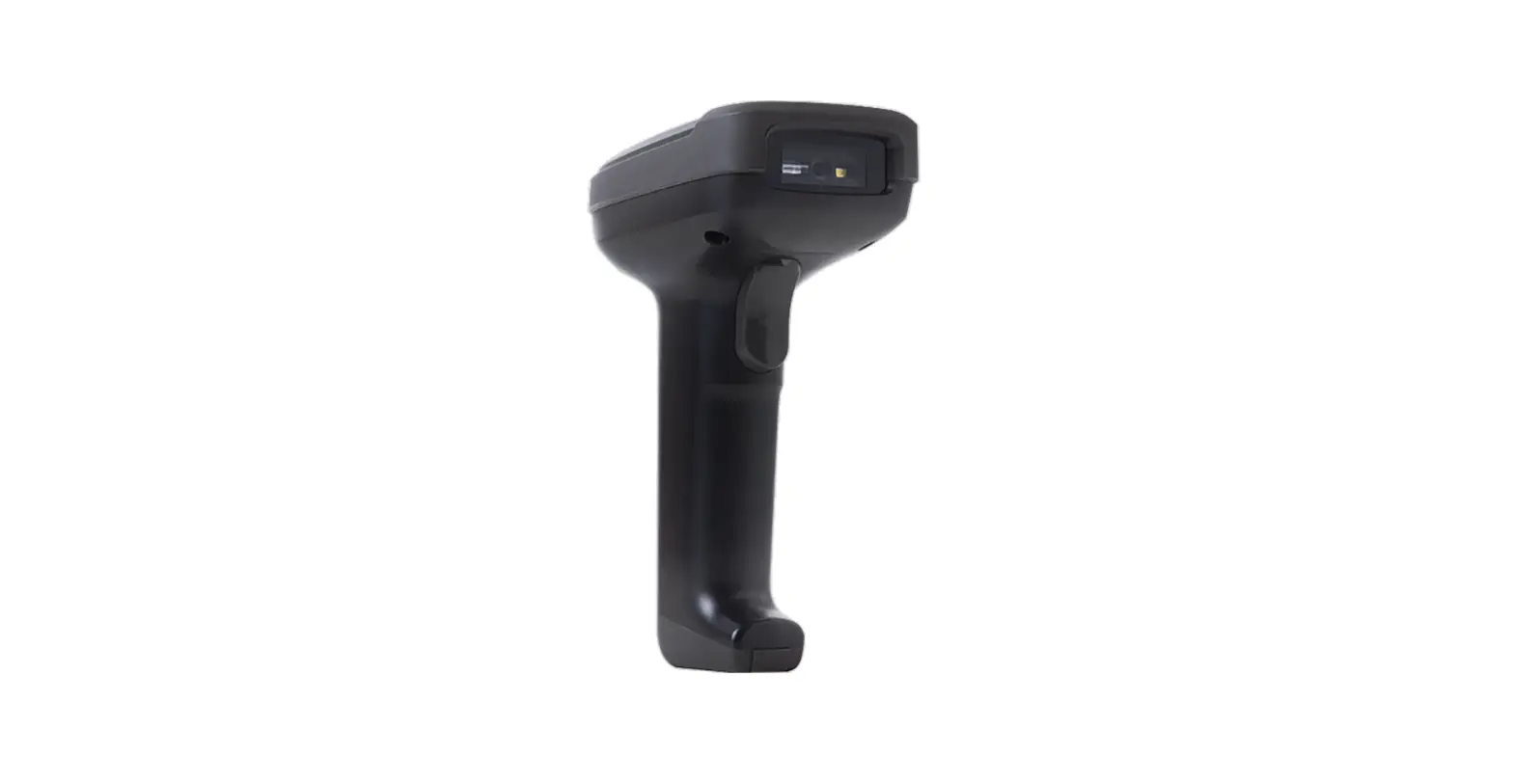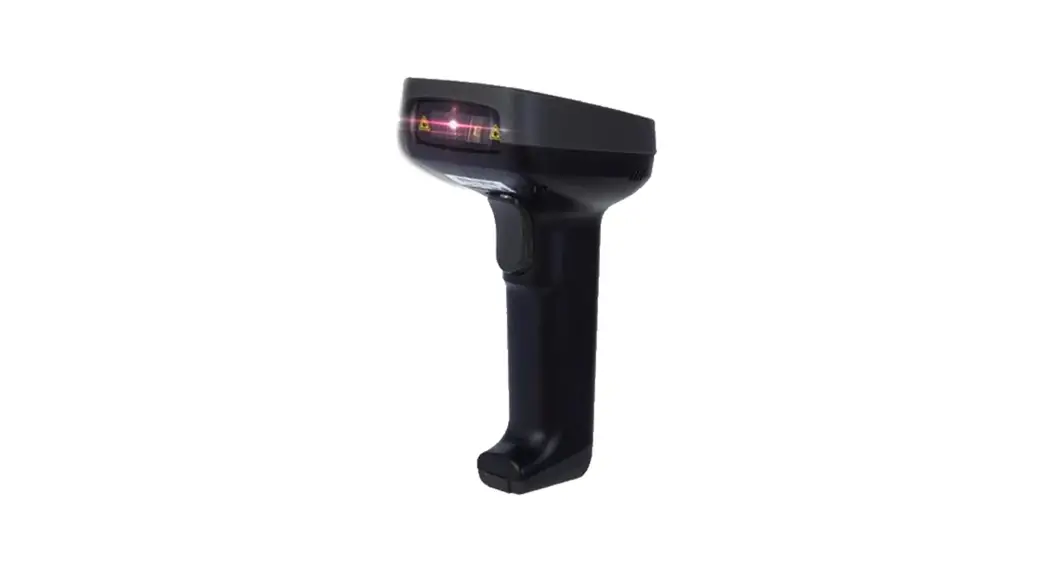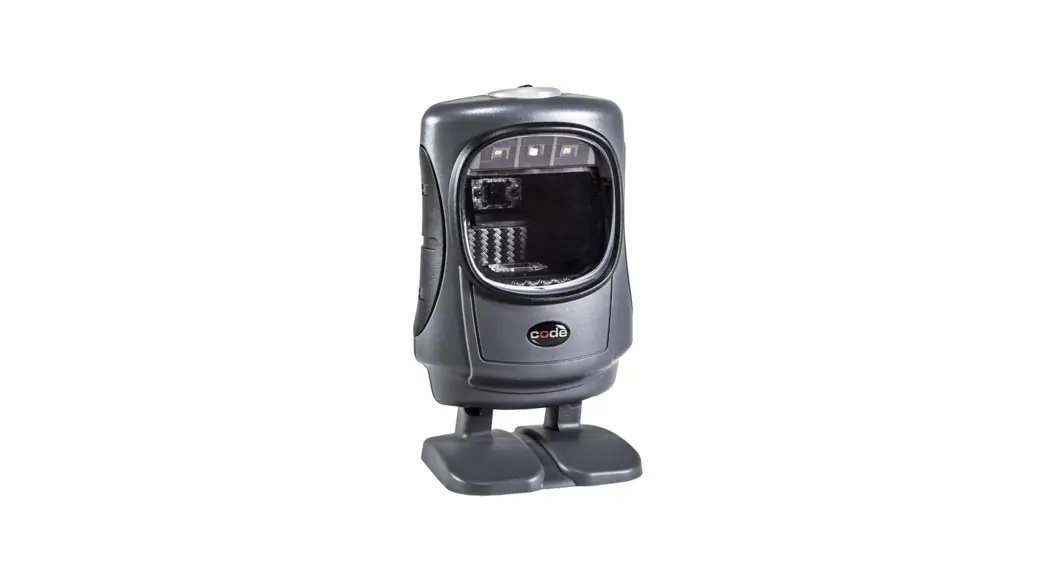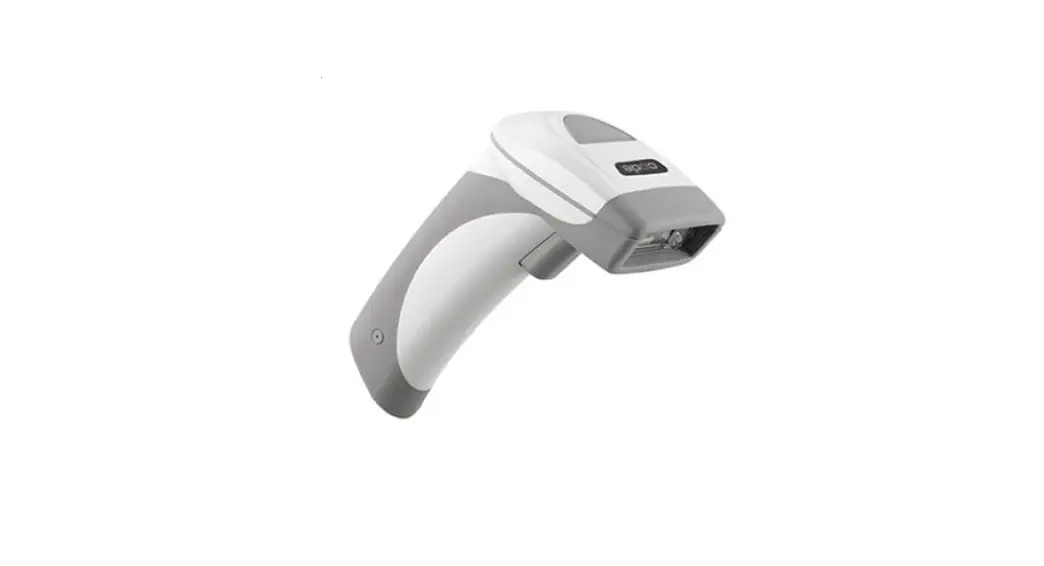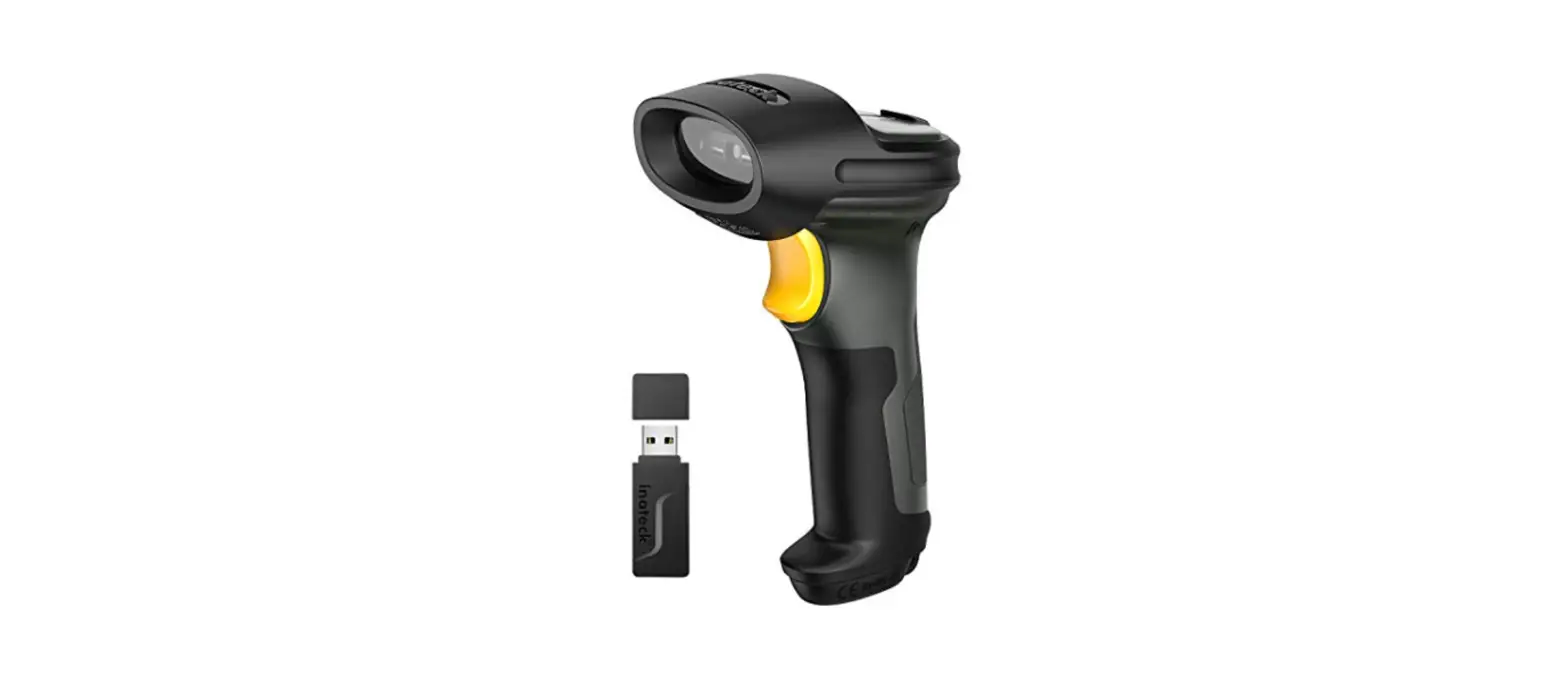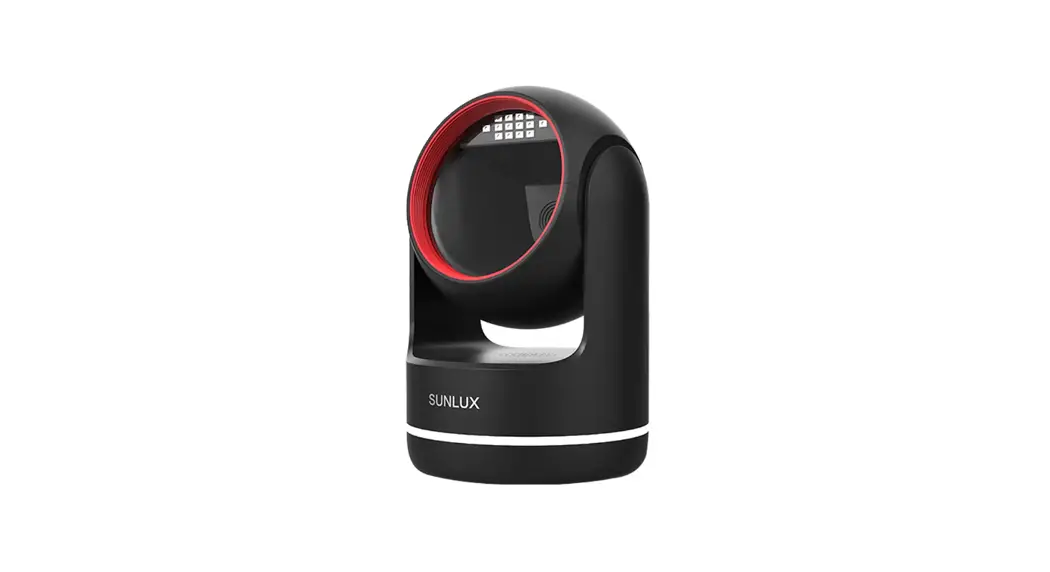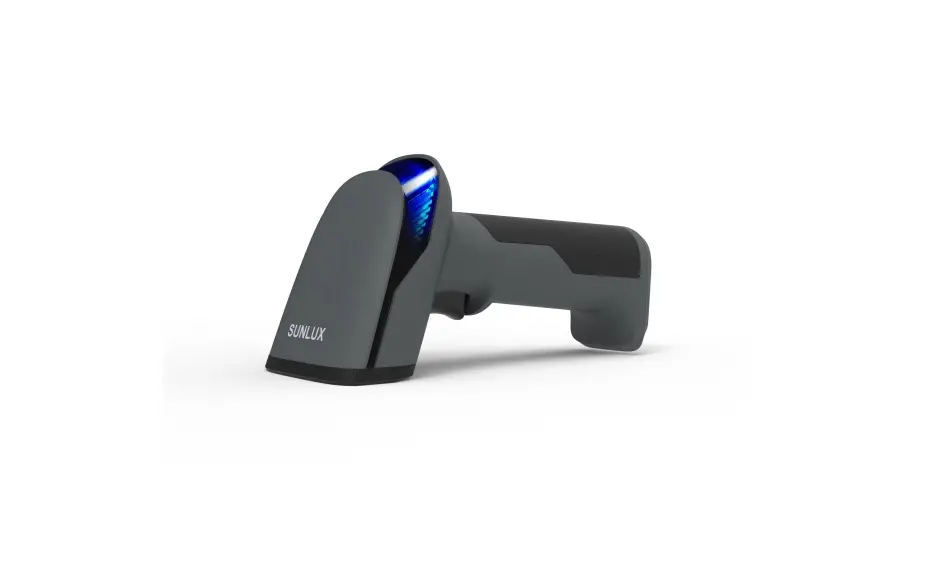

officelab BS01002 Barcode Scanner
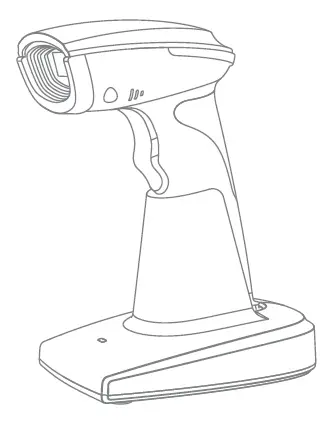
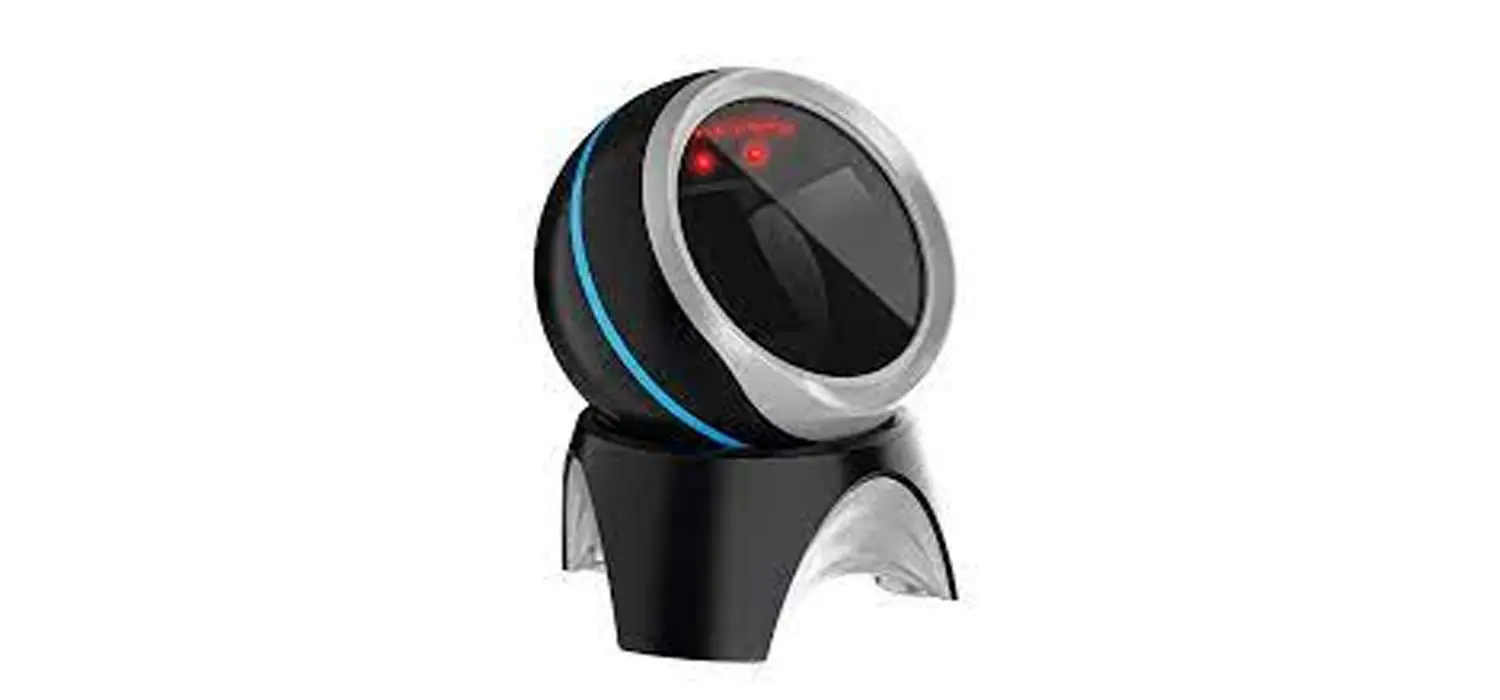
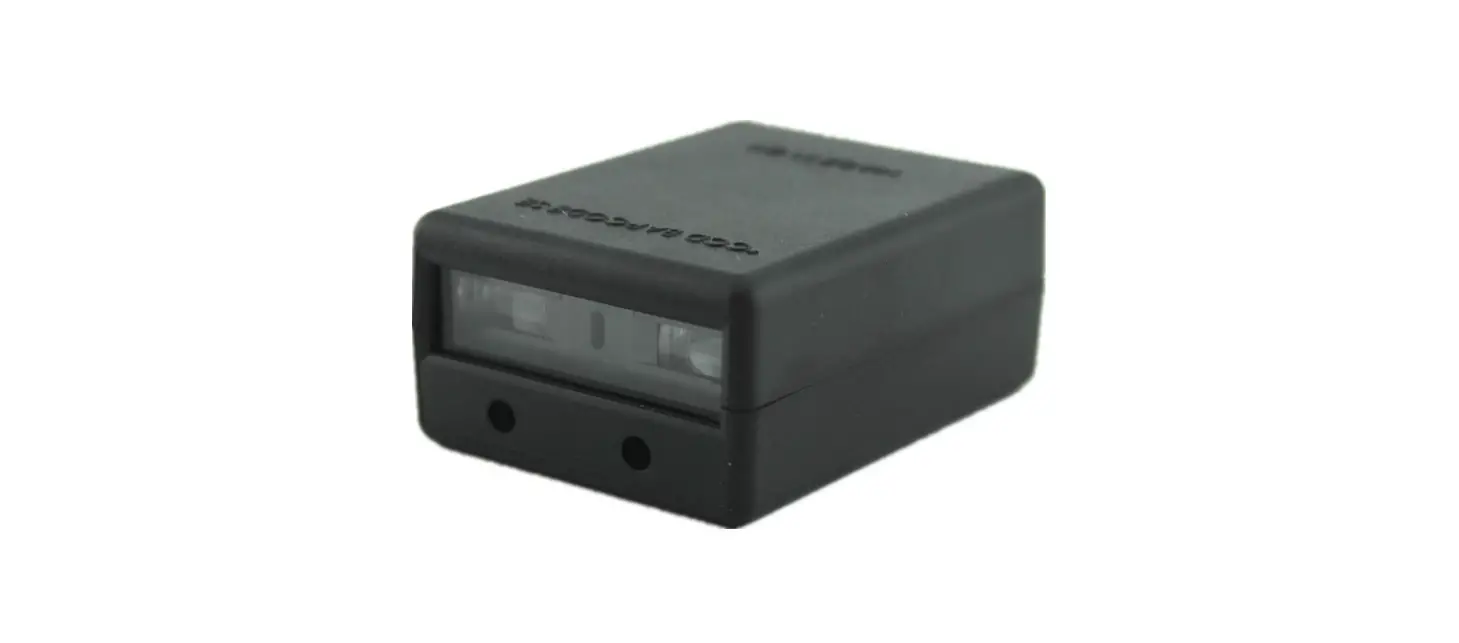
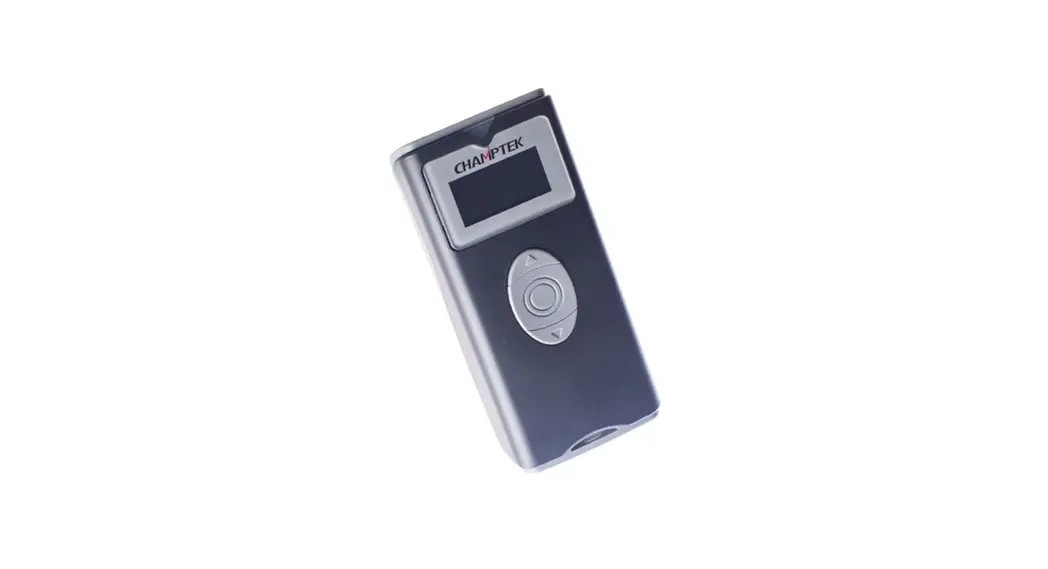
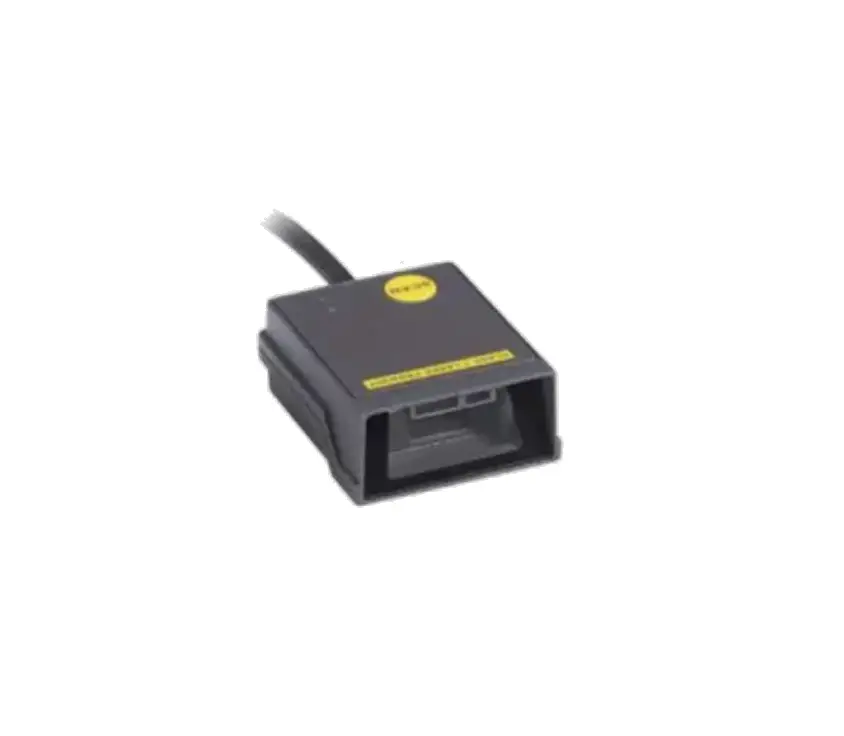
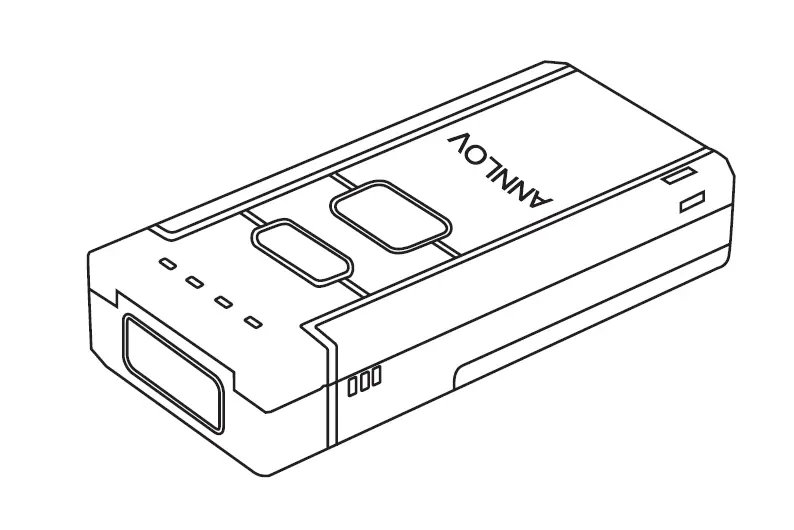
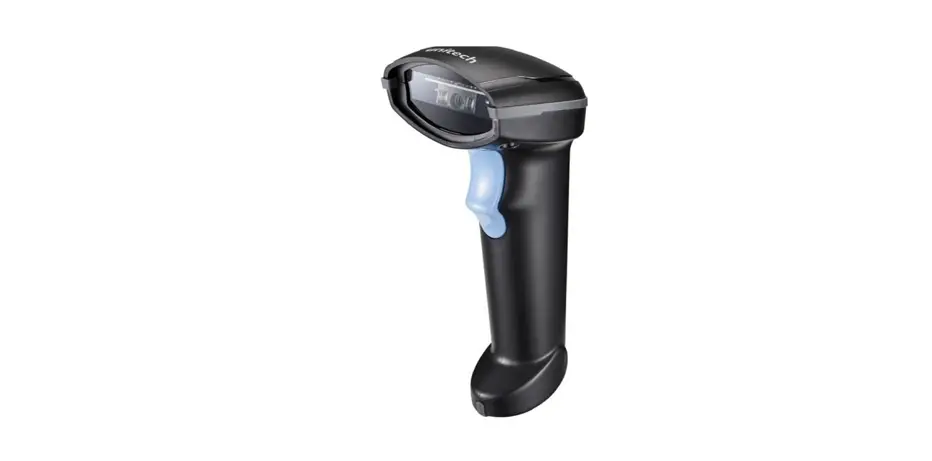
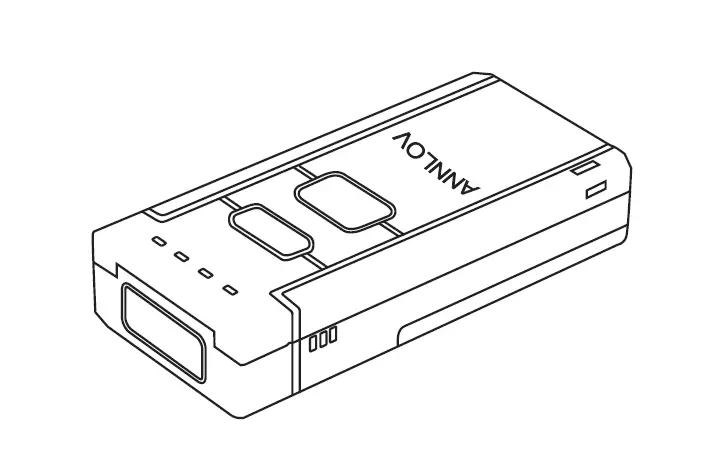
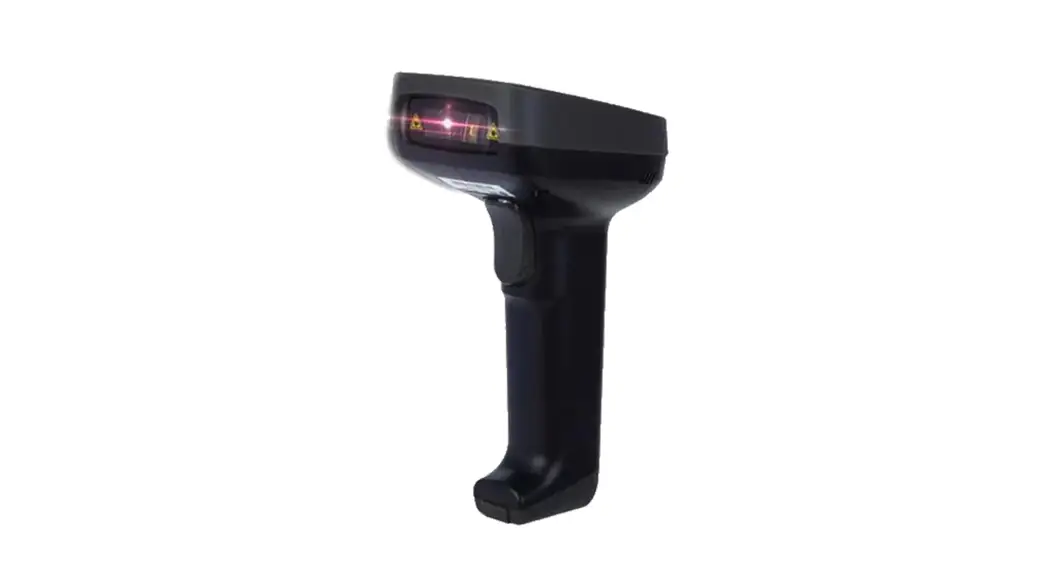
Product Illustration
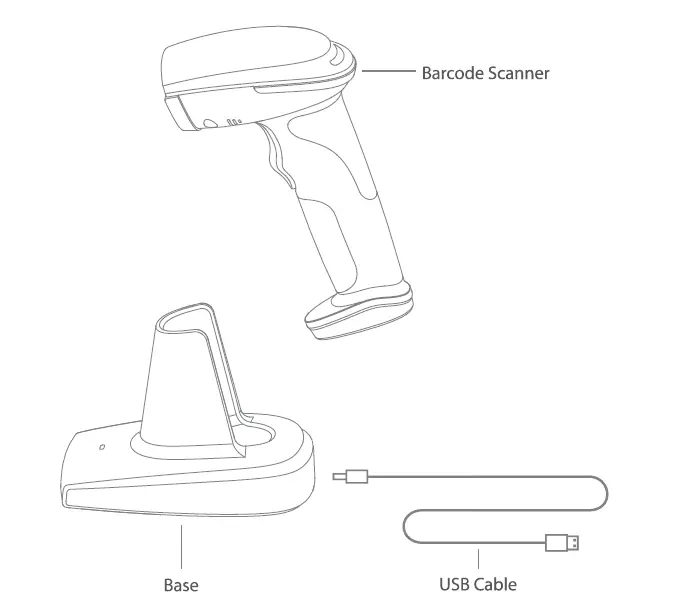
Quick Start
HowtoSetup
Connect the base with your computer with the USB cable packaged. The power is connected when the blue LED on the base is on. The base can receive signals from the barcode scanner and charge it by then. Press the scanning button, and the barcode scanner will power on and connect the base automatically.
Frequently Used Barcodes
Note: 1
- Function Setting Steps: [Enter Setup]-[Specific Function Setting{for example, Low Volume)
- If there is a (*) before a certain setting barcode in this manual, it indicates the factory preset.
Use of 8S01002
Connection
Wireless Base Connection Base connection is the default setting. Connect the base with your computer with the USB cable packaged. The power is connected when the blue LED on the base is on. The base can receive signals from the barcode scanner and charge it by then.
Wired Connection
Connect the scanner with your computer via the USB cable. The B501002 will transmit data via the USB cable to your computer.
Charging
- Connect the base with your computer/charger with the USB cable packaged. You can charge the scanner simply by putting it on the base.
- Connect the scanner with your computer/charger with the USB cable packaged directly to charge the scanner.
Inventory Mode
Users may use inventory mode to keep the scanned barcodes in the cache of B501002 and upload them to a computer in batches. Under inventory mode users are not restricted to the – time or location when uploading data. Of course, history data can be cleared in the cache. More details about inventory mode are as below.
Note: You don’t have to “enter setup” and “save and exit” when reading the 5 barcodes below. Simply scan the barcodes to get the functions.
Status Indication
LED Indication – On the scanner
| Green Light Flashes Once | Once Data read and uploaded to computer |
| Blue Light Flashes Once | Once Data read and stored in cache |
| Blue Light Lit | BS01002 under Setting Mode |
| Yellow Light Lit | Battery Running Short |
| Red Light Lit | Under Charging (red light off when fully charged) |
LED Indication – On the Base
| Blue | Power is connected, but scanner is not in place. |
| Red | Scanner is in place and under charging. |
| Green | Charging completed. |
Product Specification
| Material | ABS, PC, TPU |
| Voltage | DCSV |
|
Barcode Supported | Codabar, Code 12B, GS1-12B, USPS, FedEx, Code 39, Code 32, Code 93, EAN-8, EAN-13, ISBN, ISSN, UPC-A, UPC-E, IATA 25, Industrial 25 / Standard 25, Interleaved 25, Matrix 25, Plessey, Telepen |
| Resolution | 5mil |
| Scan Method | Auto/Manual |
| Lowest Contrast | 20% |
| Decoding Angle | Turning Angle 360°, Elevation Angle 60°, Deflection Angle 60° |
| Communication Frequency | 2.402GHz~2.480GHz |
Packing List
- BS01002 * 1
- USB Cable * 1
- User Guide * 1