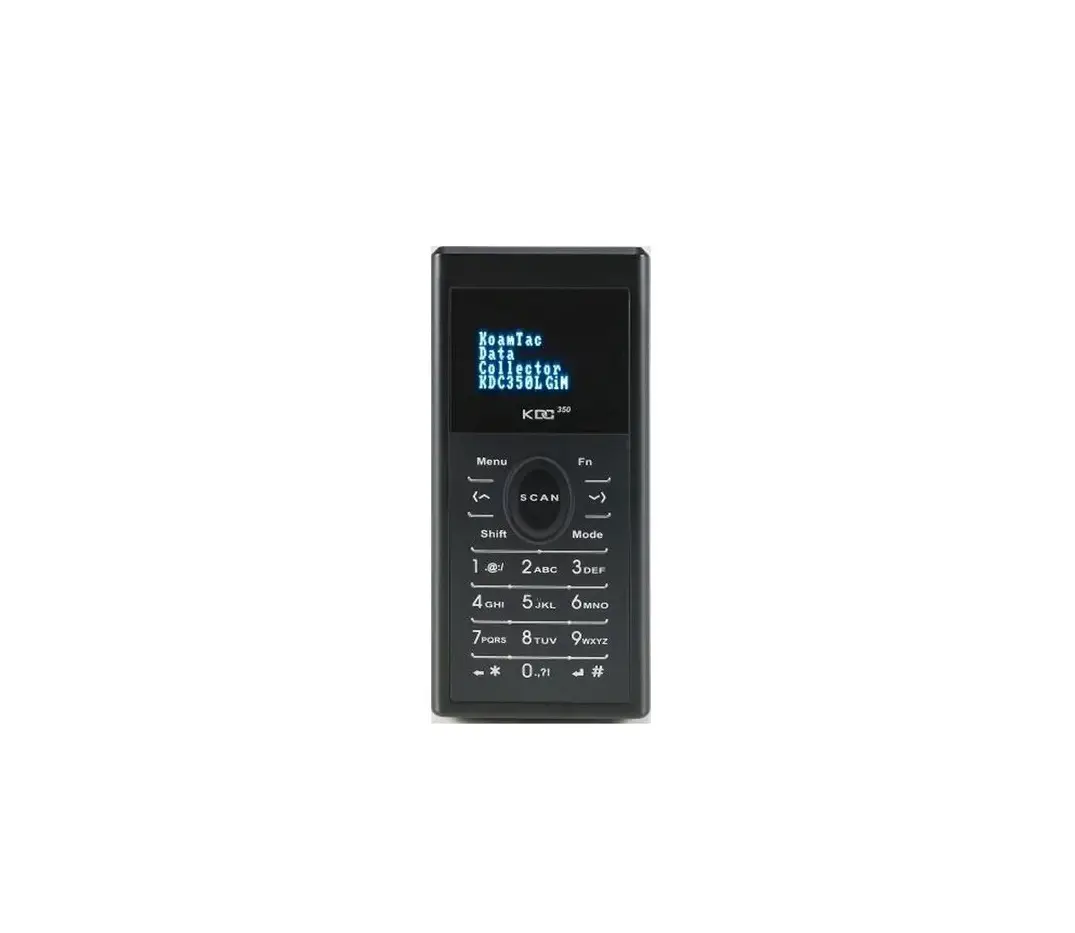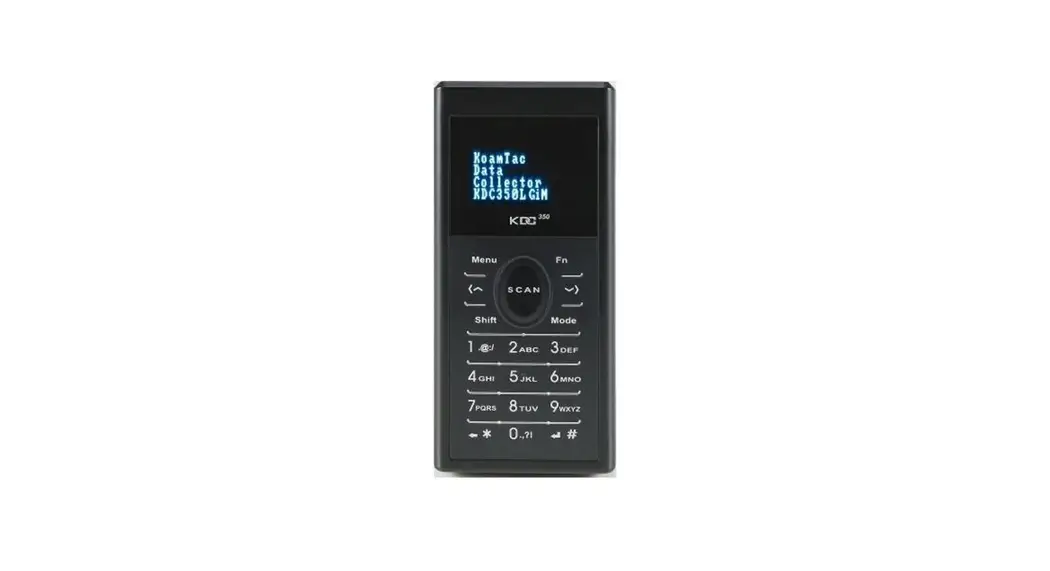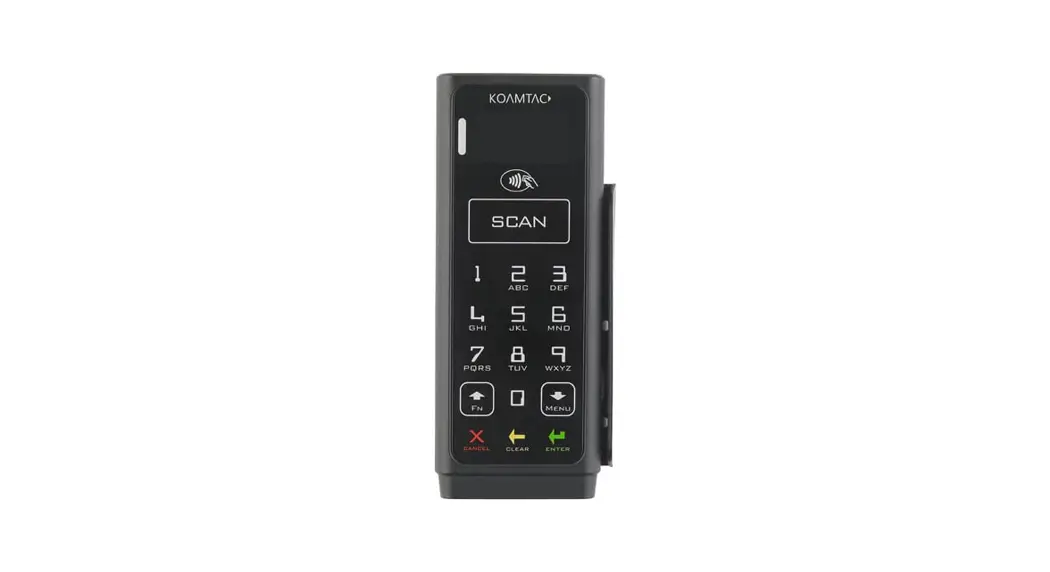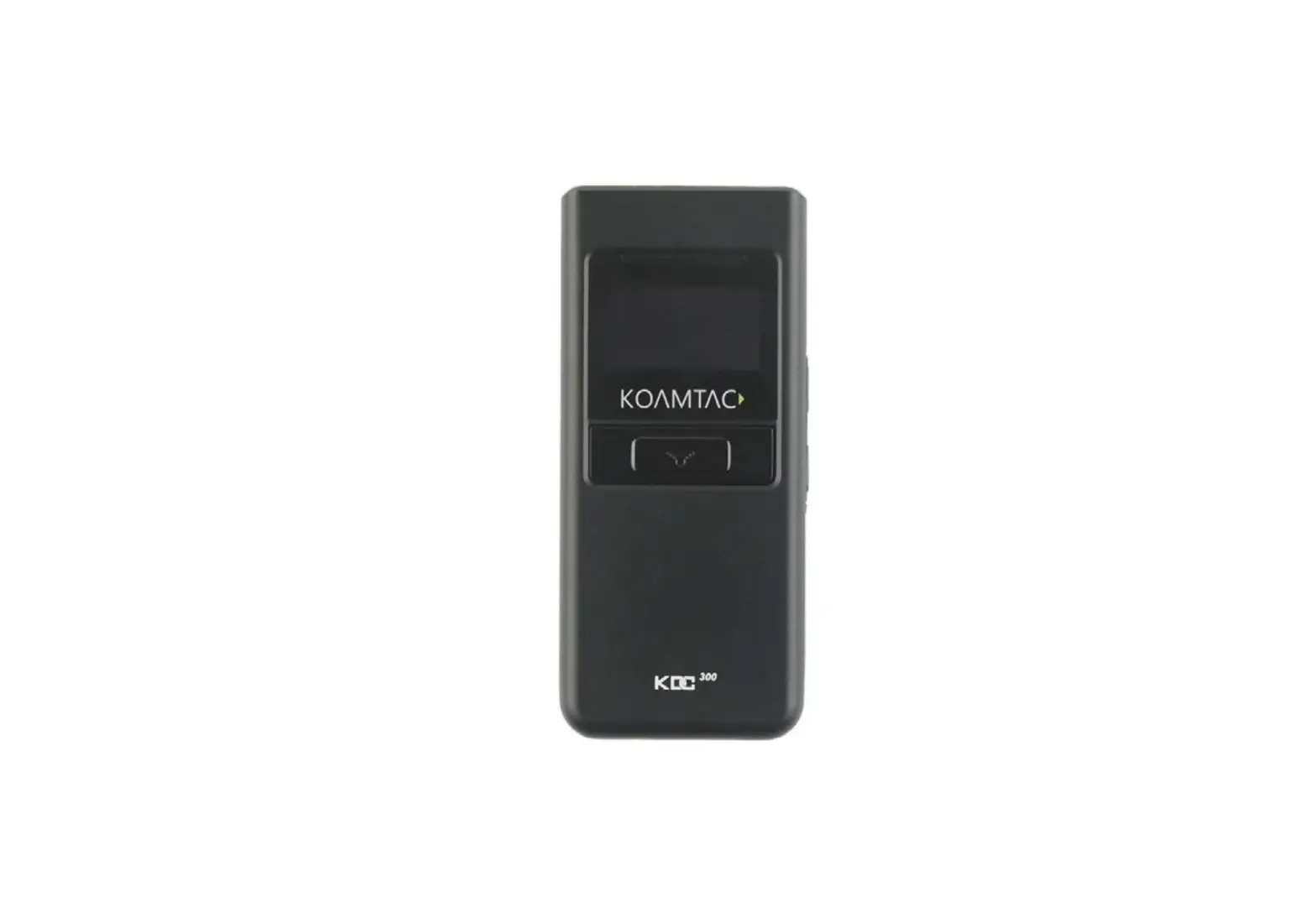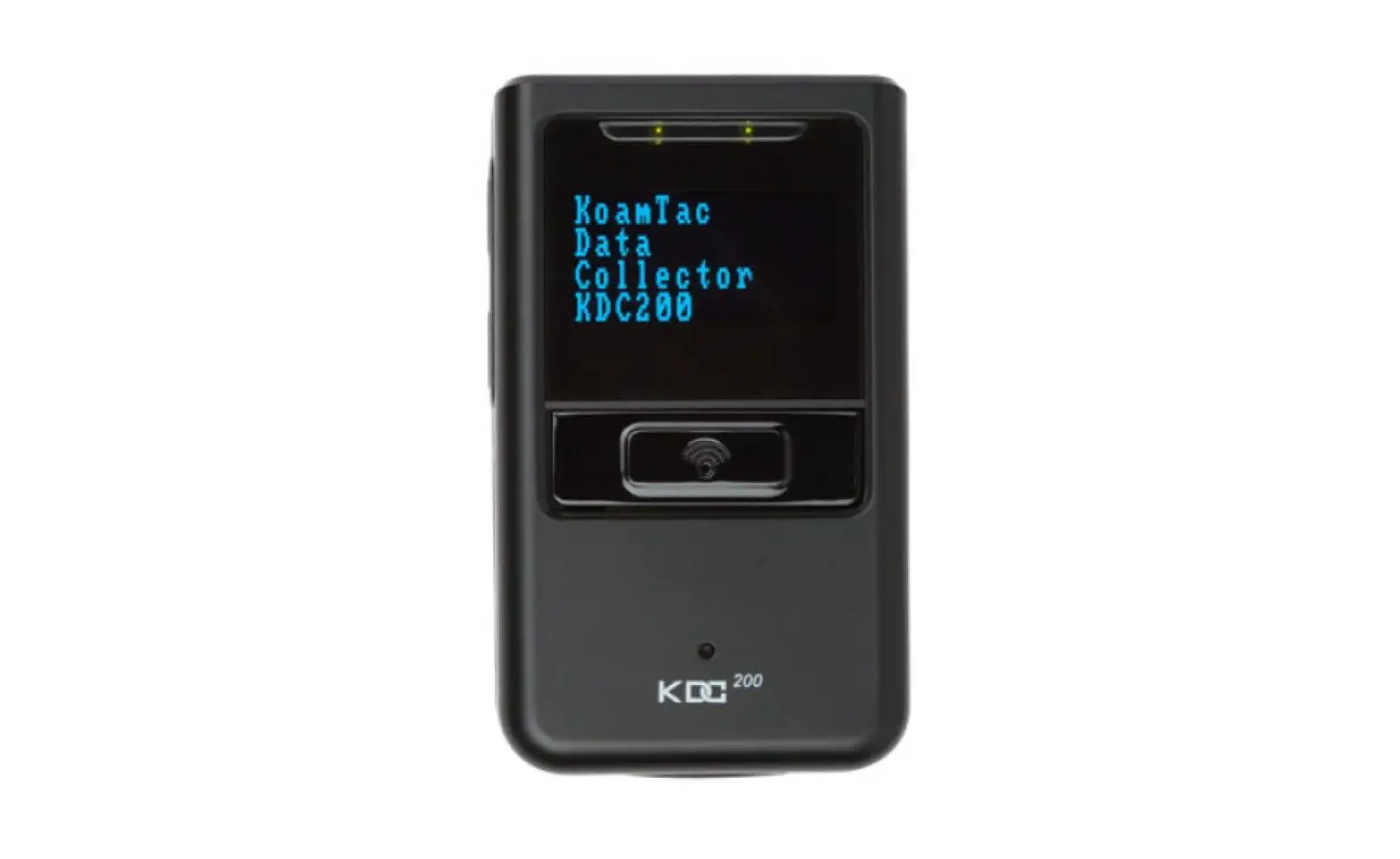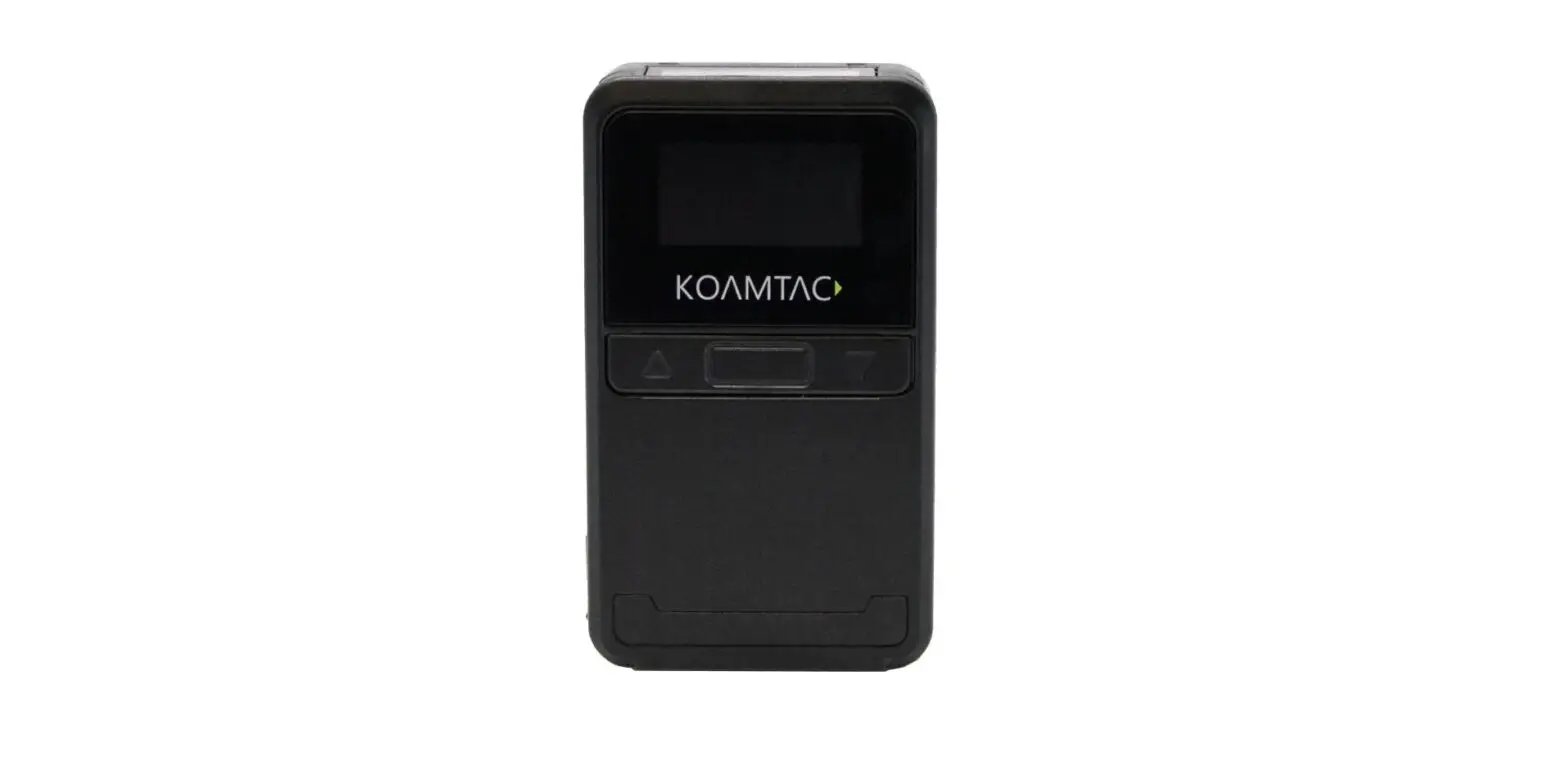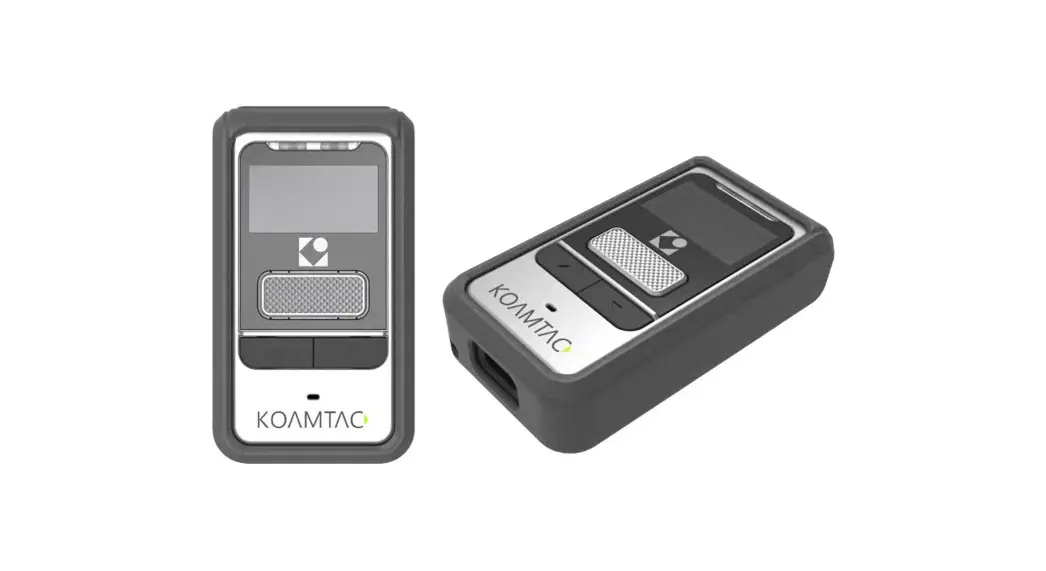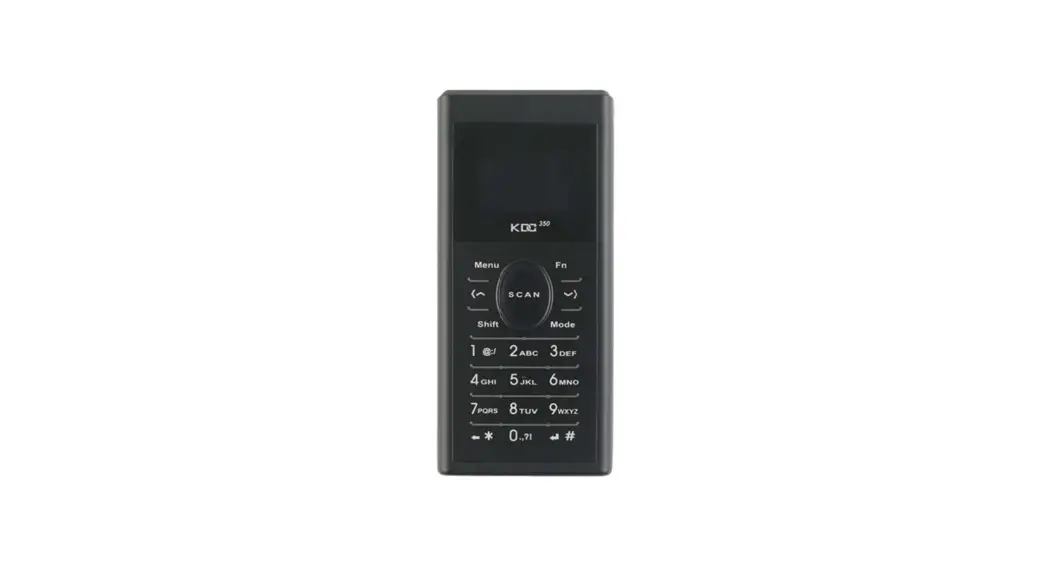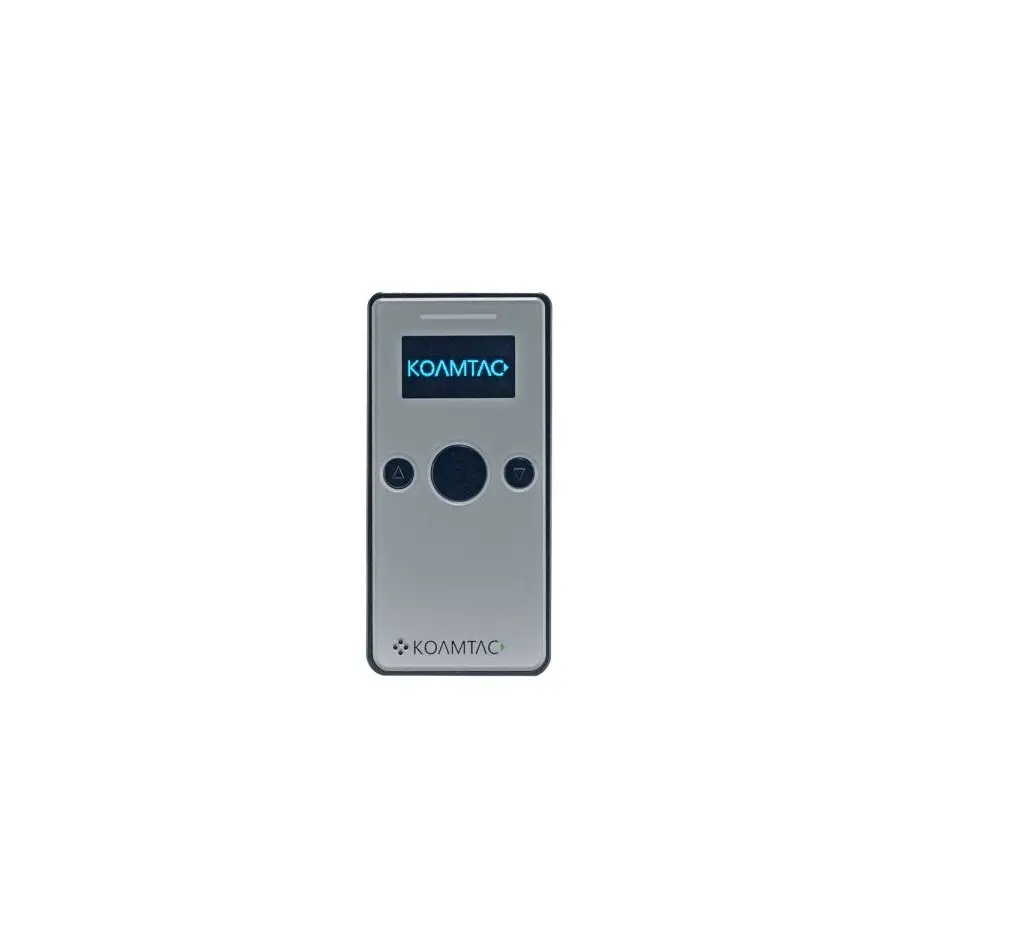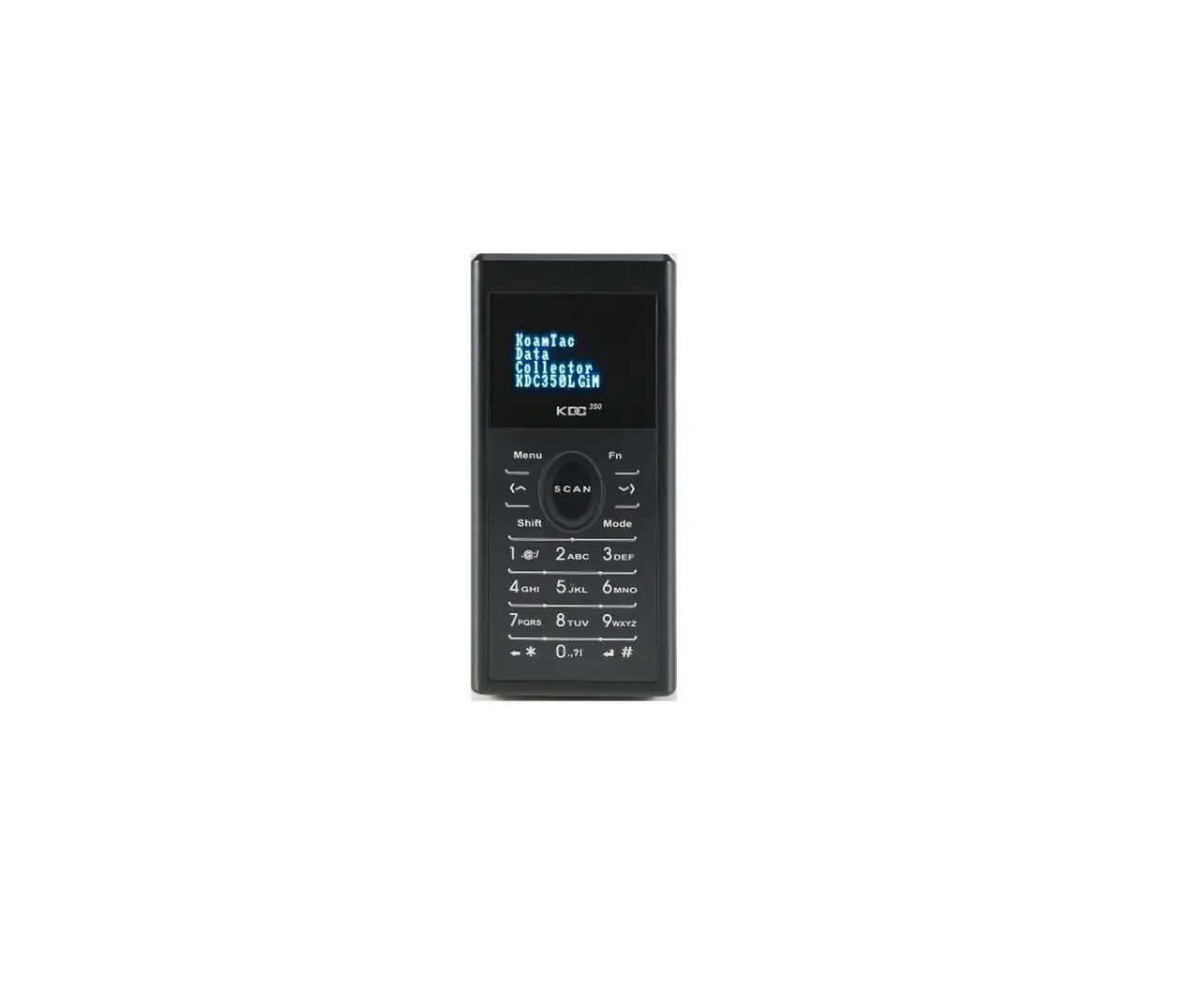
KOAMTAC KDC350 Wireless Barcode Scanner
 How to do WiFi Roaming
 How to do WiFi Roaming
KDC does support roaming between APs which has the same SSID.
When user presses Scan button, KDC checks current APs signal strength. If the signal strength is lower than pre-defined threshold, KDC disconnects from current connected AP and connect to new AP which has strongest signal strength. Usually it takes about 3-4 seconds.
KDC provides a way to set the signal strength(RSSI) threshold and user can set it from -30 to -90.
The overall work flow is as following.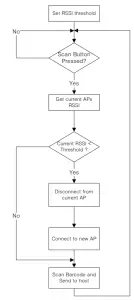
How to enable Roaming and set Threshold
KDC provides a way to enable/disable roaming and set signal strength threshold for Roaming with special barcodes, menu and commands.
- WiFi Config → Roaming → Enabled/Disabled/Threshold
Special barcodes
- KDC350LF (1D)
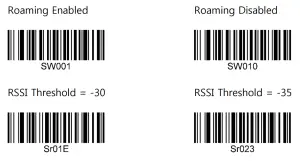
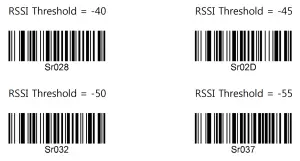
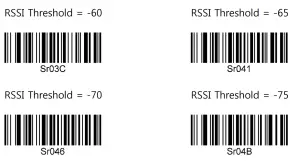
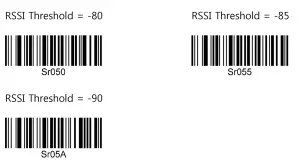
- KDC350CF (2D)
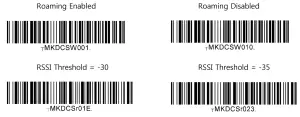
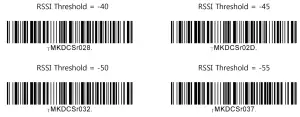
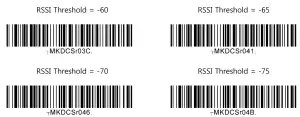
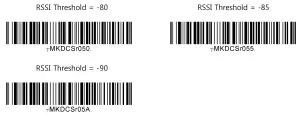
Commands
GwWS | 0 | @ | WiFi Roaming is disabled. 0 means ‘0’(0x30) |
1 | @ | WiFi Roaming is enabled. 1 means ‘1’(0x31) | |
GwWG | None | value@ | Return status of WiFi Roaming 0(0x00): WiFi Roaming is disabled 1(0x01): WiFi Roaming is enabled |
Gwr | S<value># | @ | RSSI Threshold(30 – 90) |
Gwr | G | <value> @ | Returns RSSI threshold |
Contact Information
 CORPORATE HEADQUARTERS For more information, visit our website – www.koamtac.com |
Revision 0.1
Copyright®2016, KOAMTAC, Inc.