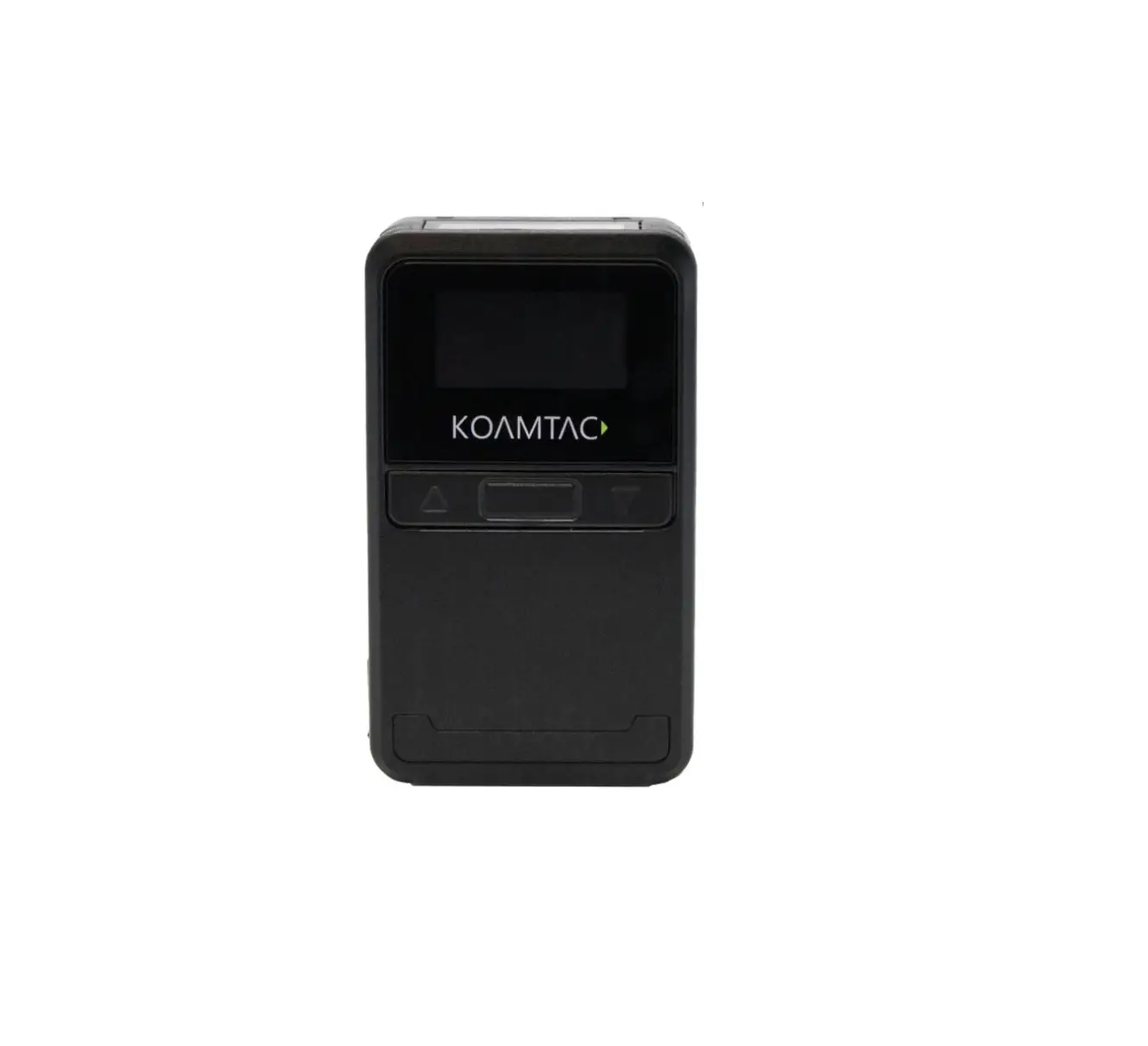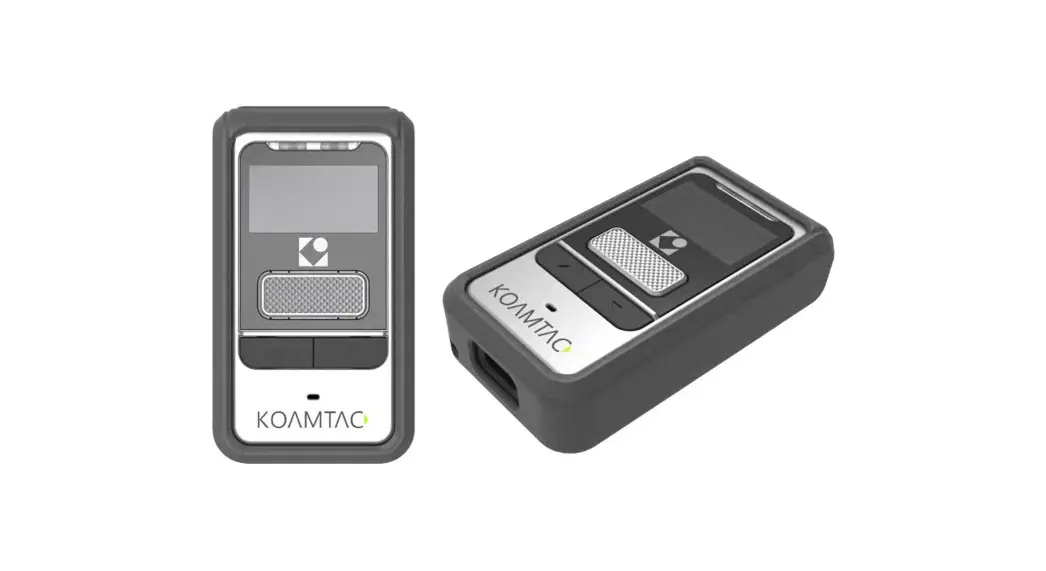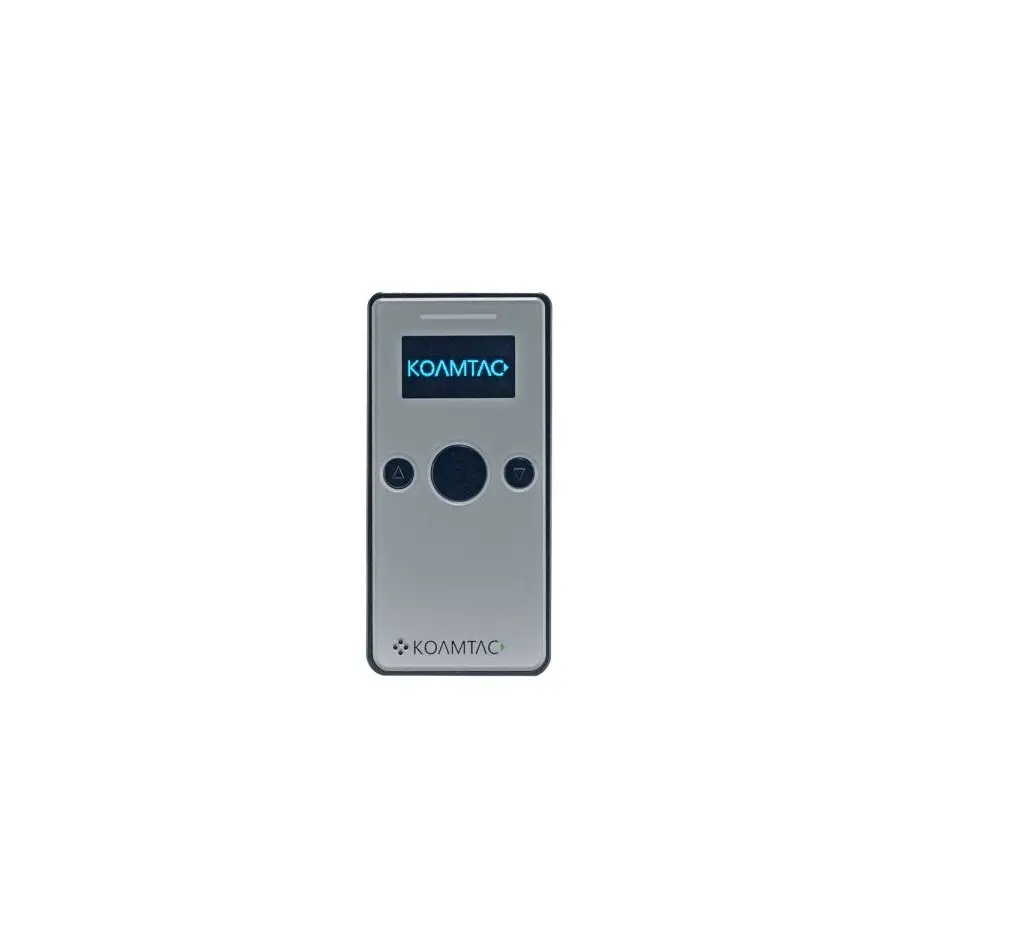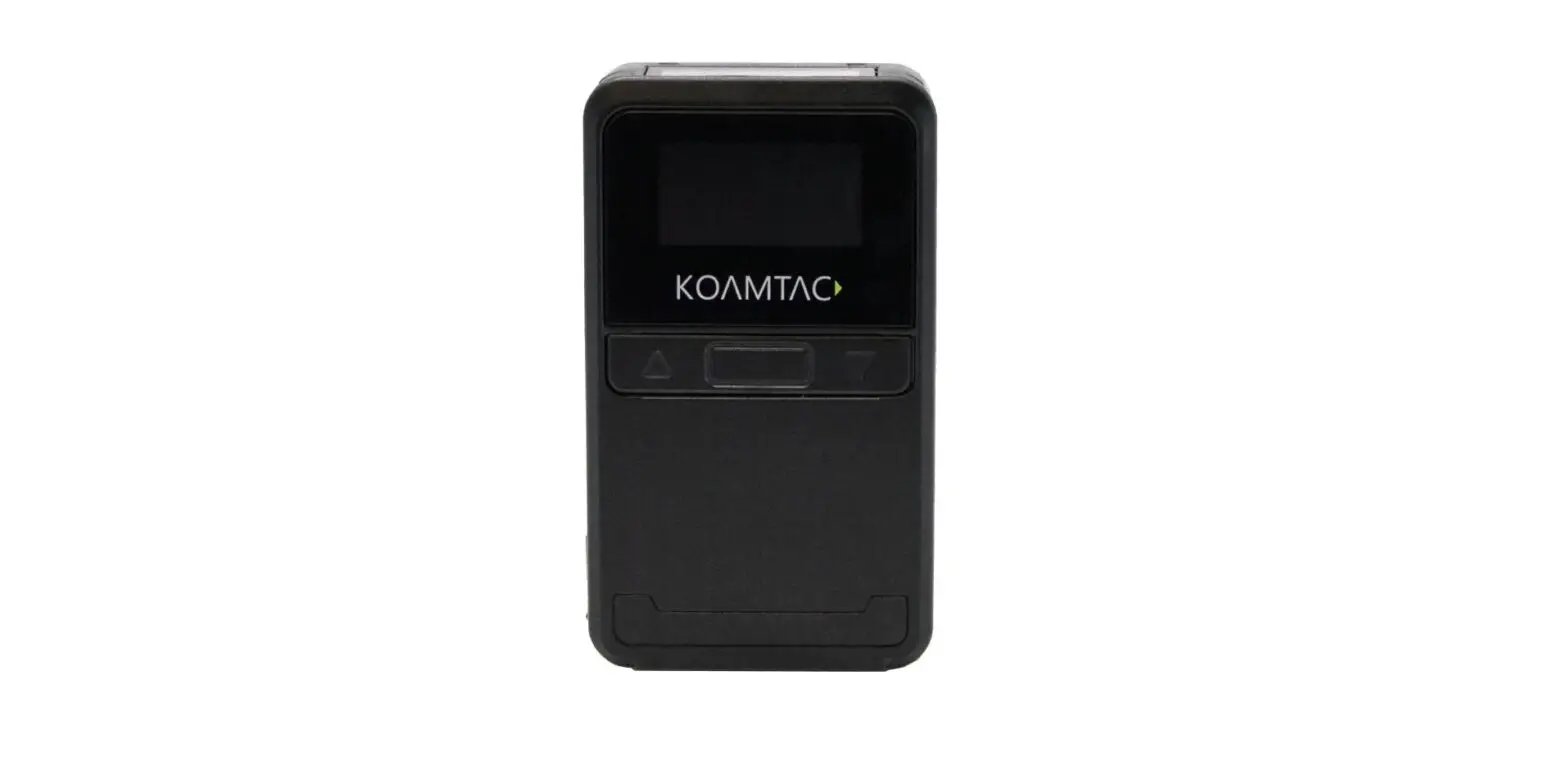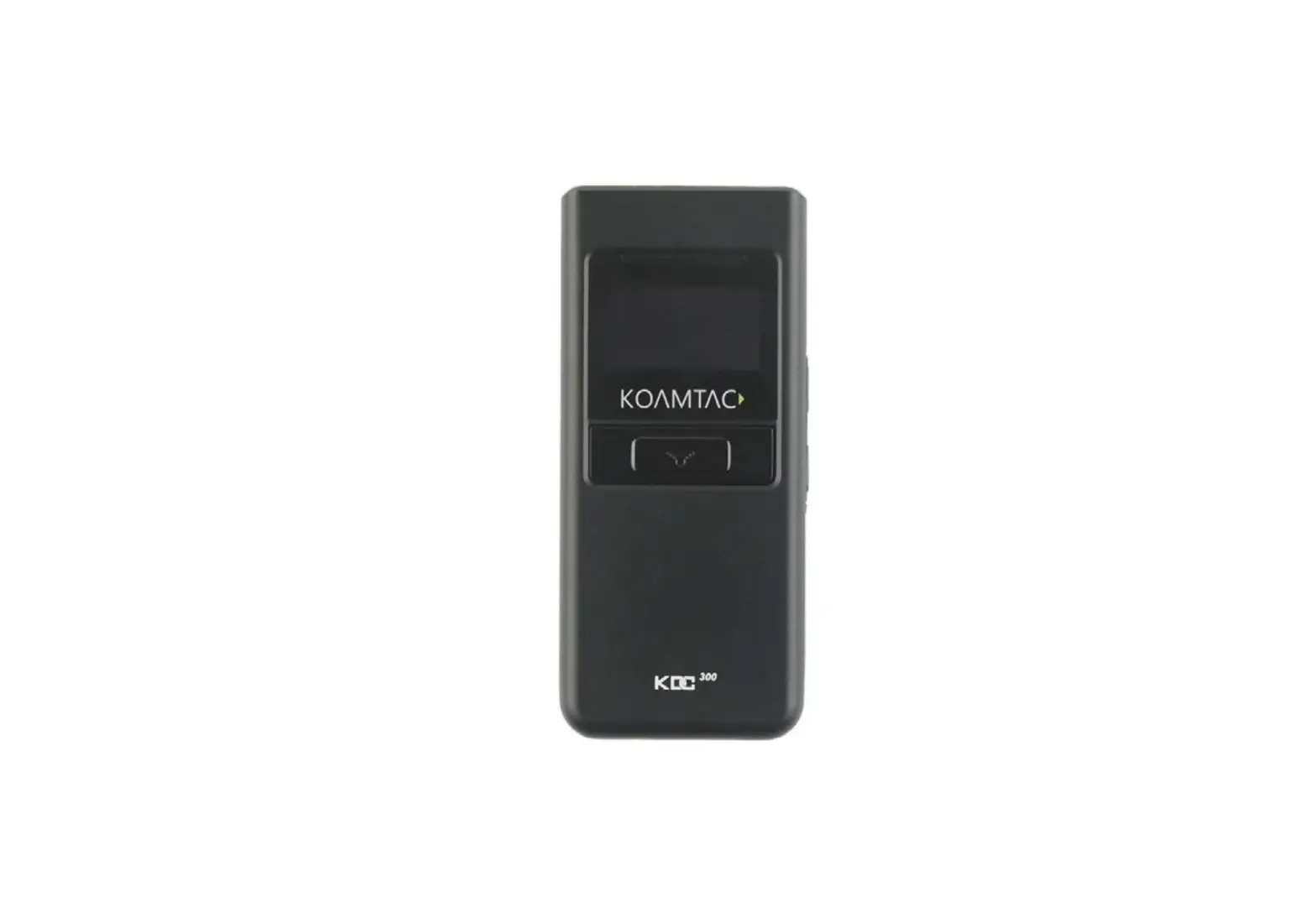
KOAMTAC KDC300 Bluetooth Barcode Scanner
Product Introduction
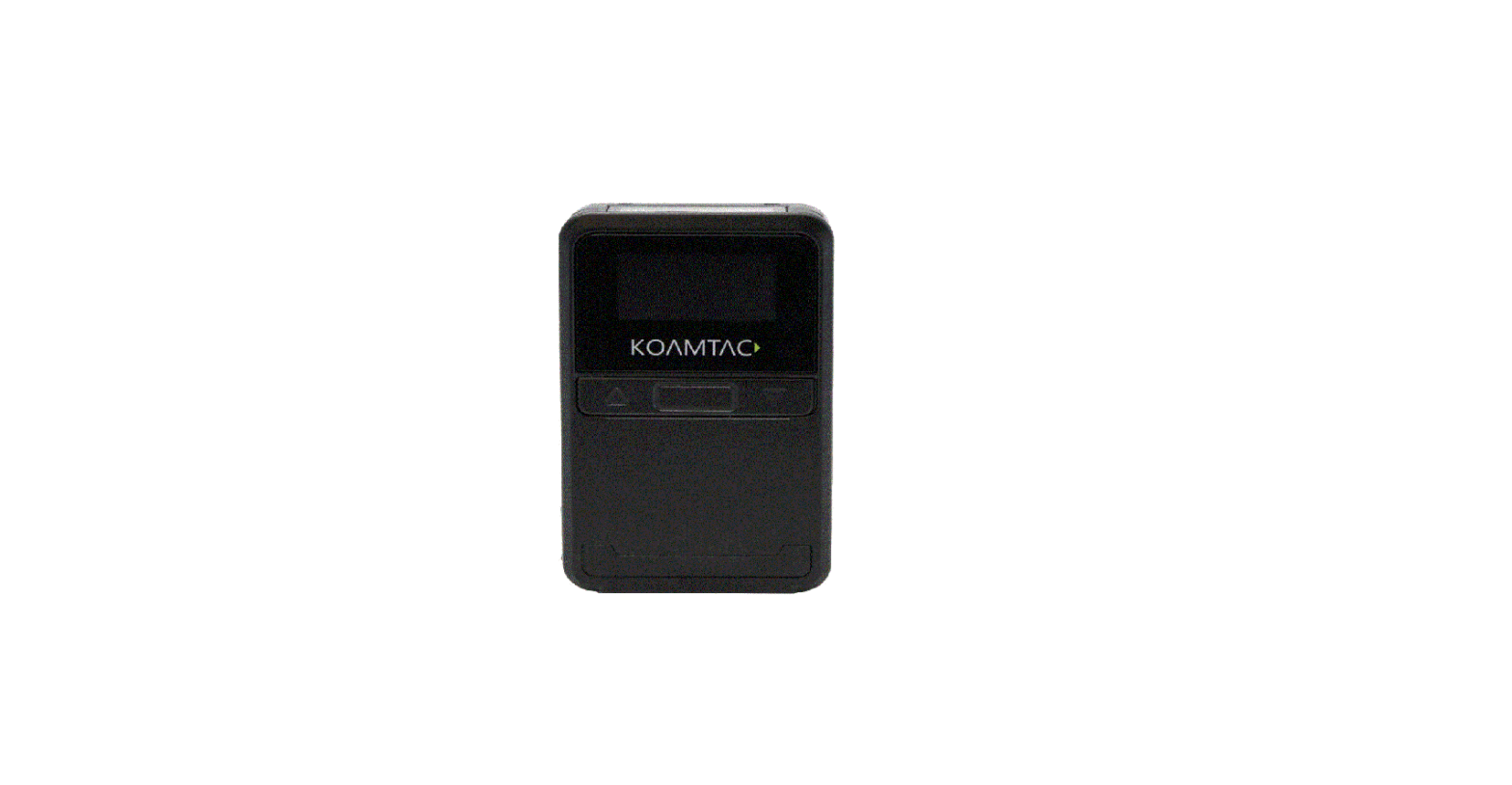
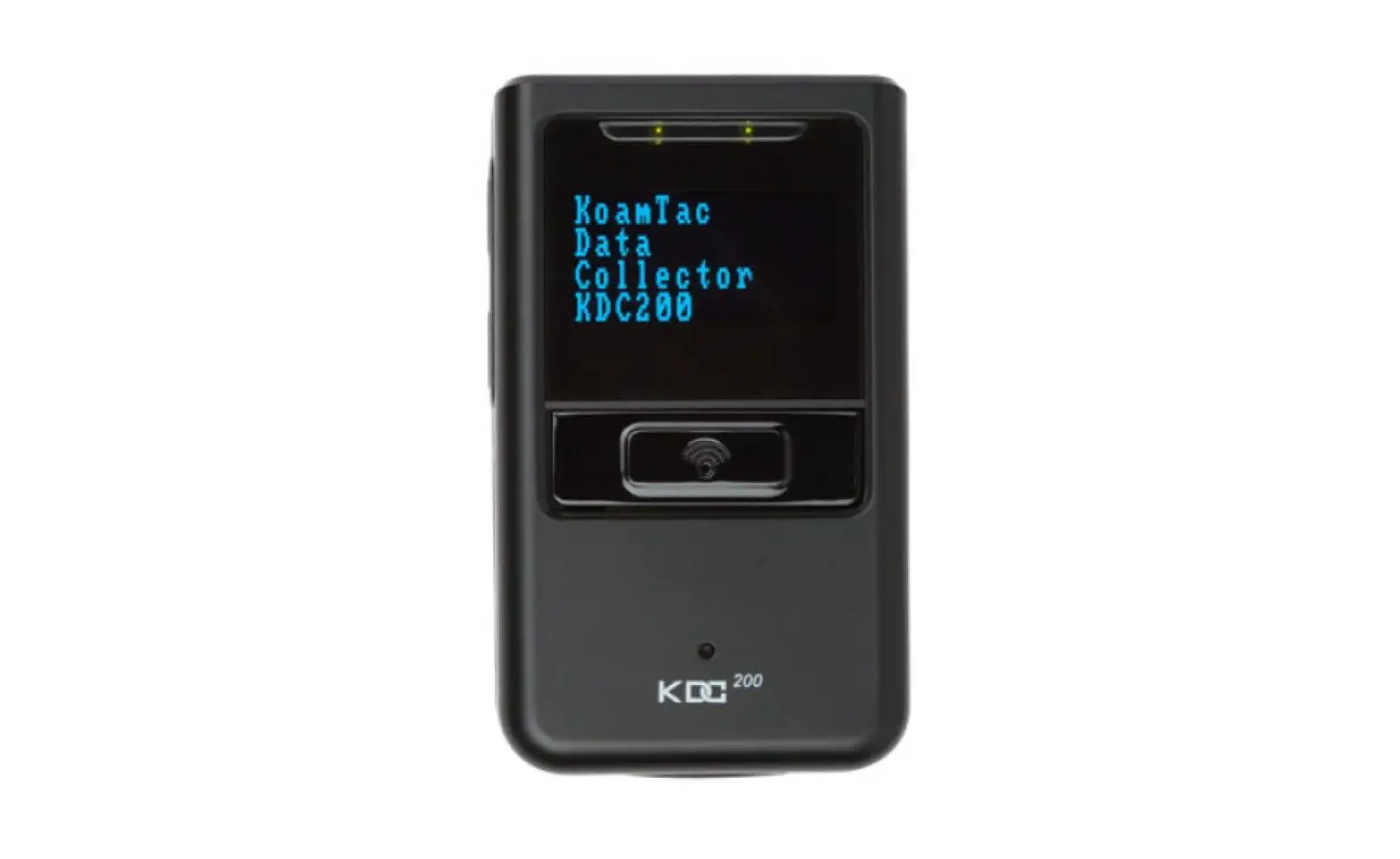
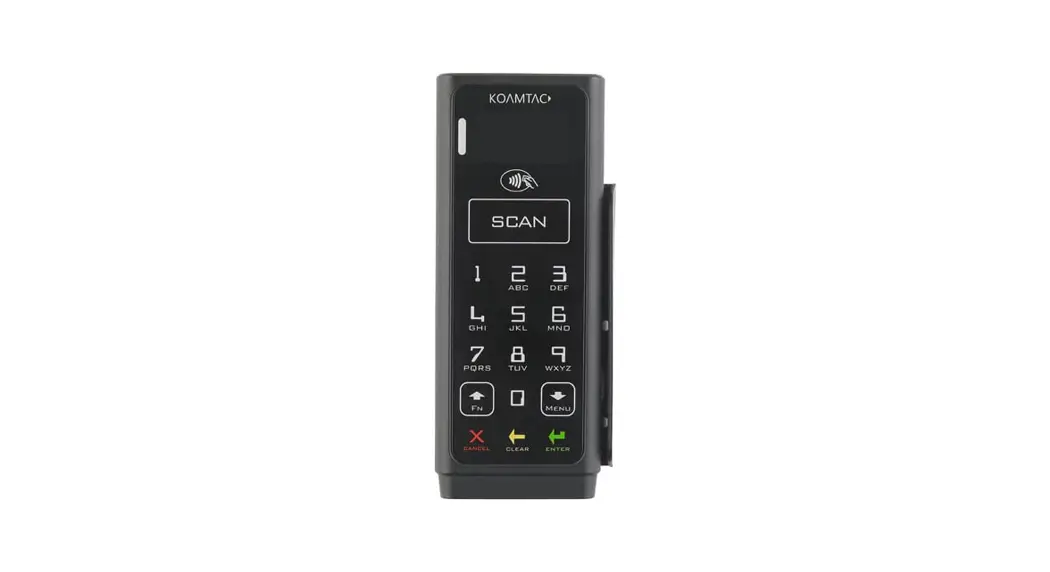
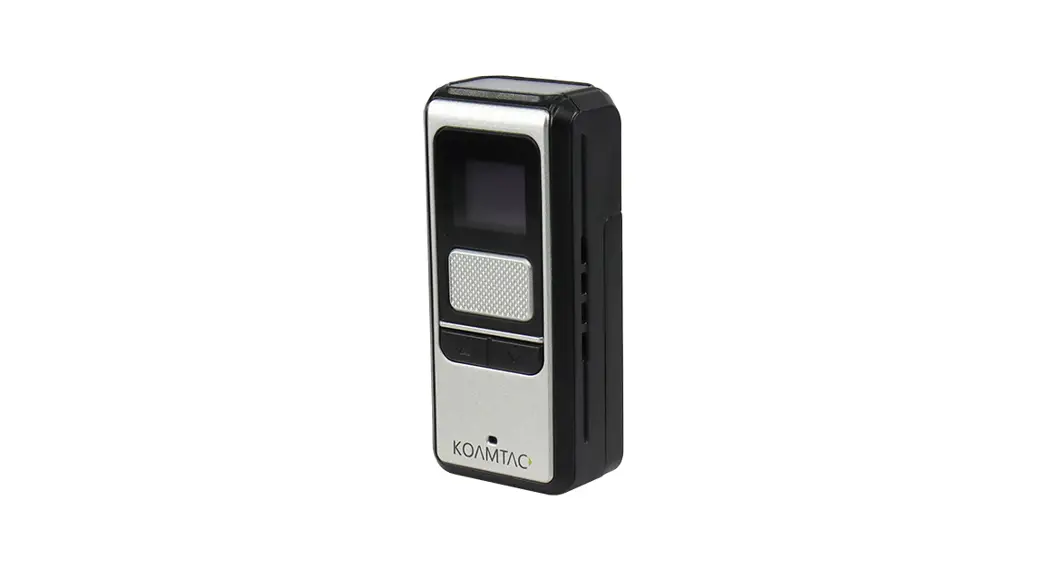
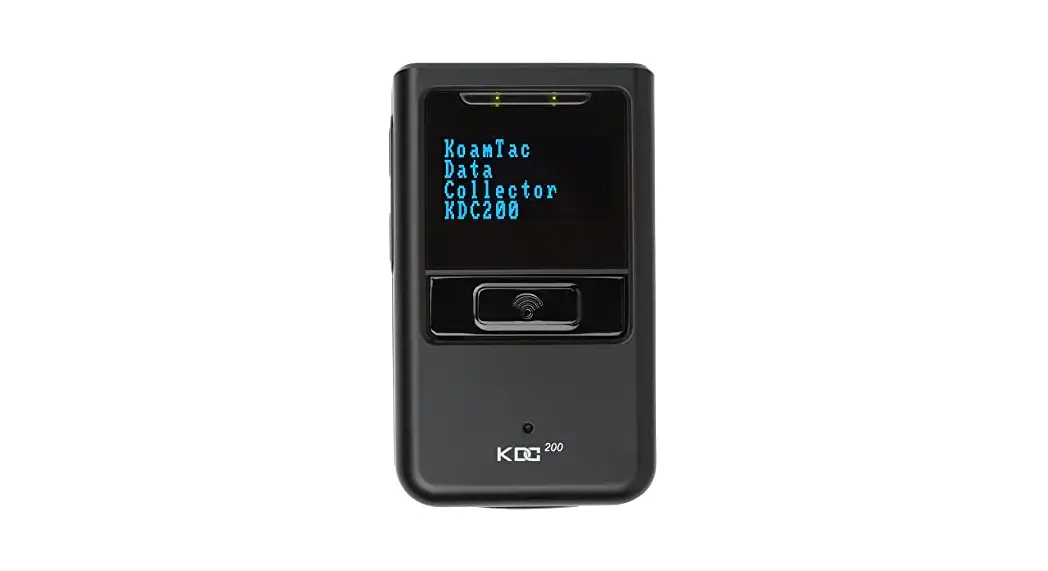
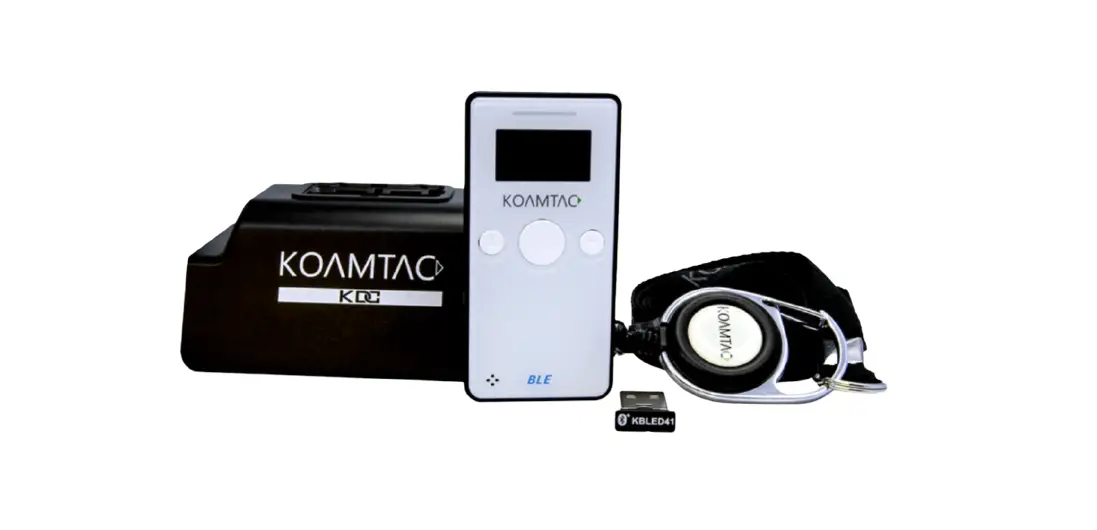
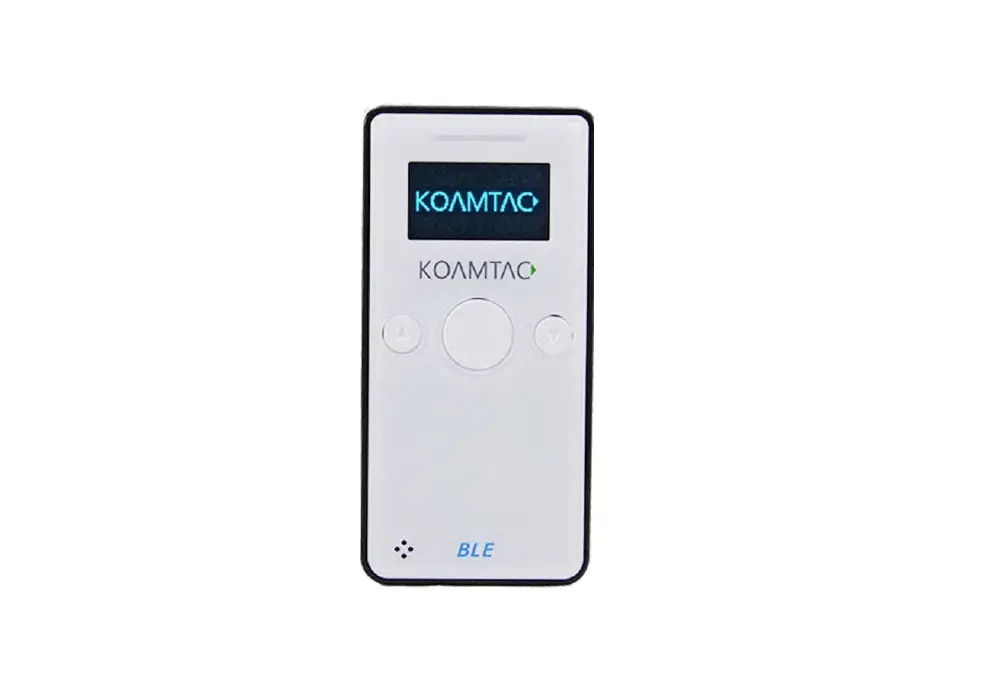
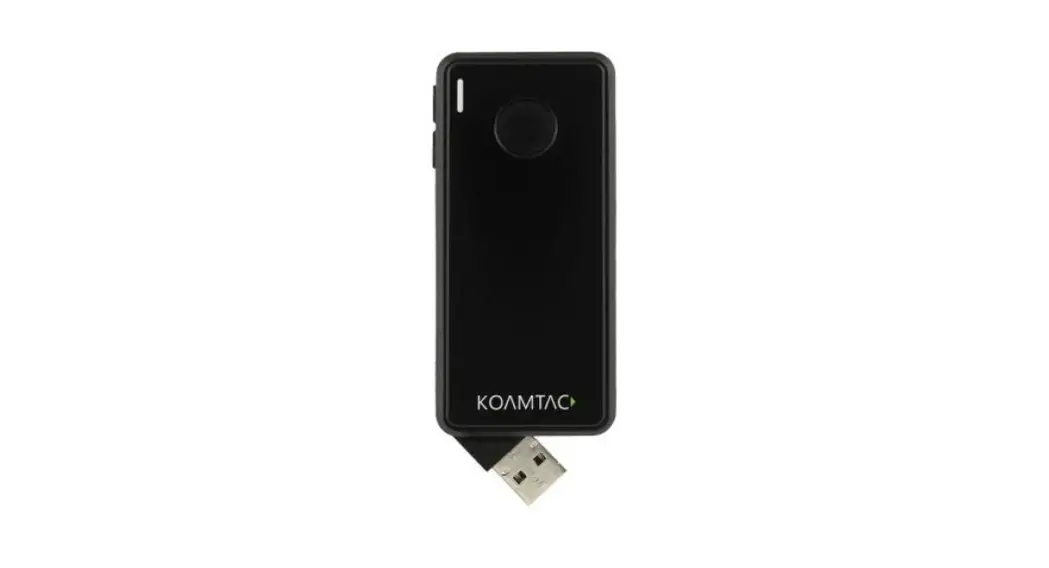
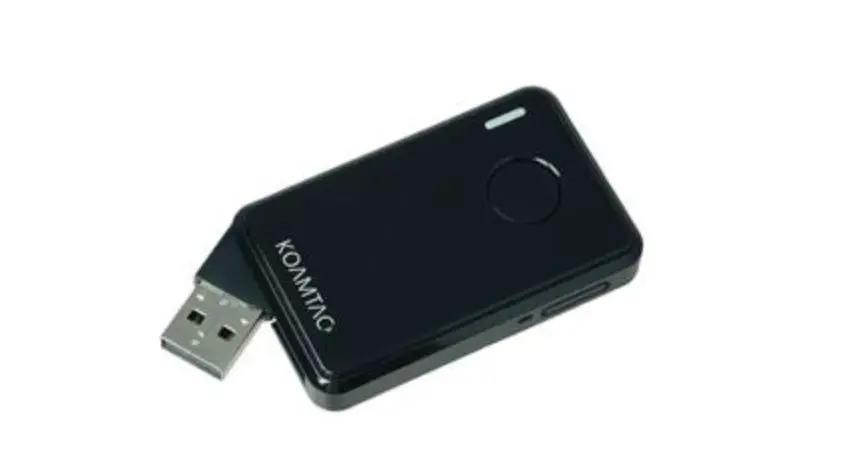
The KDC300 Bluetooth barcode scanner is an ultra-lightweight and compact 2D imager data collector.
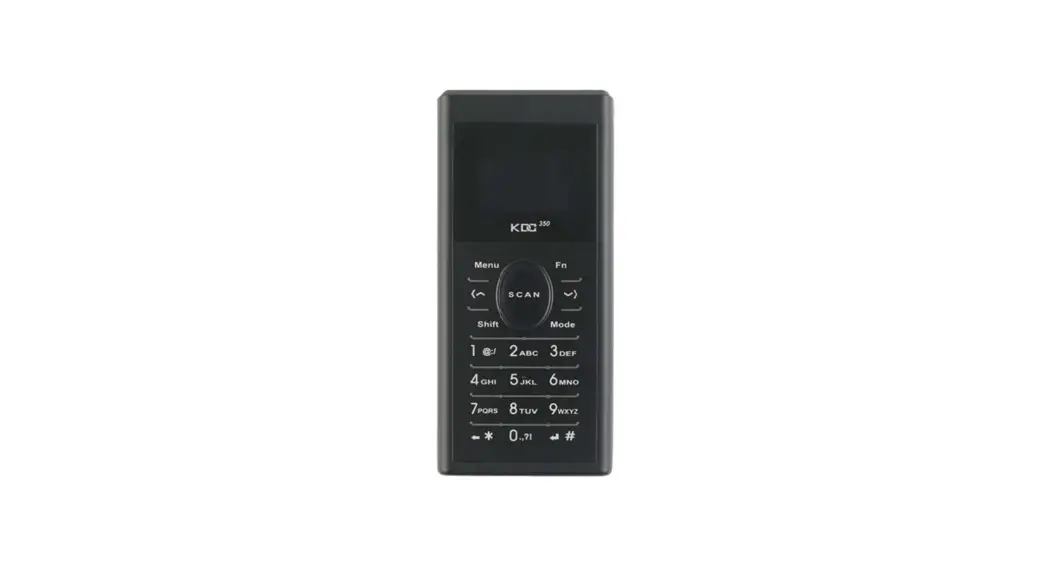
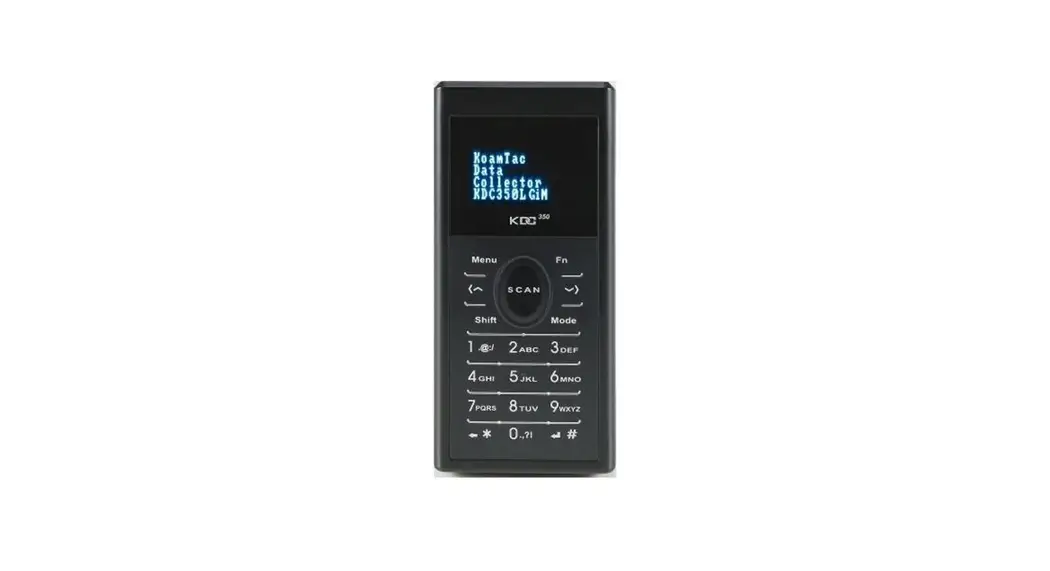
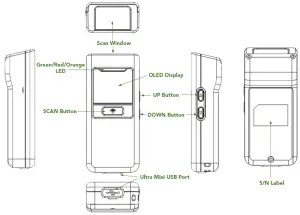
KDC300 Diagram
How to Reset
Refer to the figure in section 1.1 to locate the SCAN and DOWN buttons.
a) Press SCAN and DOWN buttons simultaneously for 3 seconds and release both buttons.
b) The KDC will restart.
Bluetooth Pairing
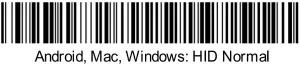
Connecting your KDC using Bluetooth is made easy with the below pairing barcodes. If you are unsure which profile is right for you, please visit www.koamtac.com for more information.
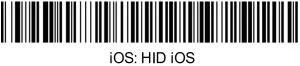
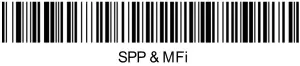
- Navigate to the Bluetooth setting on the host PC, Mac, Smartphone, or Tablet.
- Ensure that Bluetooth is enabled on the host device and searching for devices.
- Using the KDC, scan the pairing barcode that corresponds to your desired Bluetooth profile. If you are unsure which Bluetooth profile is right for you, please refer to the previous panel.
- Check the list of available Bluetooth devices on your host device.
- From the list, select KDC300 listed by serial number in brackets that matches the serial number found on the back side of the KDC300.
- In HID mode, KDC300 is now ready to use. 7. To complete connection in SPP/MFi mode, launch KTSync or your application and select KDC300.
* The KDC300 will beep when successfully connected.
Usage
Using Keyboard Wedge (HID Keyboard)
This option is only available using Bluetooth connection with HID profile. Once the KDC is paired with the host, open any application with a text field and tap on the text field. Scan any barcode and it will populate in the text field.
Using KTSync - Android/iOS
You can use KTSync to utilize your KDC alone or with a native application. This is only available using Bluetooth connection with SPP or MFi.
a) Download and install KTSync from the Google Play Store or the Apple App Store.
b) Open KTSync and tap on the “Connect” option on the bottom left to view a list of available devices. (Fig. 1)
c) From the device list, select your KDC ensuring that the serial number displayed in brackets matches the serial number on the back of your KDC. (Fig. 2)
d) Upon successful connection, KTSync will display “Connected” next to the name of your KDC at the top of the application. (Fig. 3)
e) To test your connection, scan any barcode. If the connection is successful, the barcode data will display on the screen. (Fig. 3)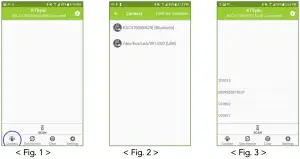
Using KTSync Keyboard - Android
Once your KDC is connected to KTSync, you can use your KDC as a keyboard.
a) While KTSync is running in the background, navigate to Settings > Language & Input > Virtual Keyboard > Manage keyboards
b) Tap on “KTSync Keyboard” to enable it.
c) Change “KTSync Keyboard” to the default keyboard. (Fig. 4)
To switch back to the previous keyboard, simply change the default keyboard again. Or, when a text field is selected swipe down from the top of the screen to bring up the notification panel. Select `choose input method’ and you can select the default keyboard from here. (Fig. 5)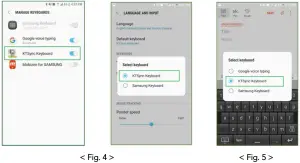
Using KTSync Keyboard - iOS
Once your KDC is connected to KTSync, you can use your KDC as a keyboard.
a) Navigate to the iPhone/iPad/iPod Settings > General > Keyboard > Keyboards > Add New Keyboard… > Select the KTSync keyboard to be added. (Fig. 6)
b) Select the KTSync Keyboard and toggle the switch to Allow Full Access. (Fig. 7)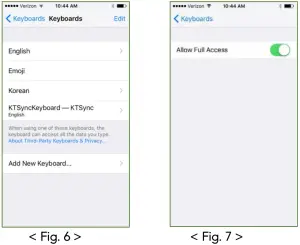
c) Open the application you want to scan into and tap on the screen, so the on-screen keyboard appears.
d) Press and hold the globe icon located to the left of the spacebar.
e) Select the KTSync Keyboard and begin scanning. (Fig. 8)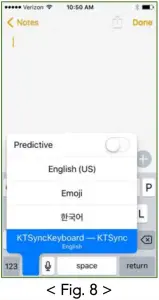
Note: The KDC must be connected to KTSync & the KTSync keyboard must be selected for this to work.
Using other Developed Applications with SDK Android/iOS
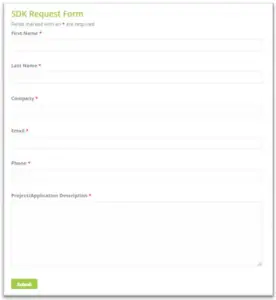
A Software Development Kit (SDK) for Android and iOS is available to all KOAMTAC customers to ensure smooth development of applications that work seamlessly with a KDC scanner. It’s easy to request the SDK from the KOAMTAC website:
a) On any web browser, open www.koamtac.com
b) Navigate to SUPPORT > Downloads > SDK
c) Complete the form and submit it.
After submission, a KOAMTAC representative will reach out regarding next steps for completing the SDK Agreement.
The SDK package will have libraries, documents, a sample application, and its source code.
Product Specifications
| Physical | Design | Ultra-Compact Bluetooth Barcode Scanner |
| Size | 1.45” x 3.26” x 0.82” (37 mm x 83 mm x 21 mm) | |
| Weight | 1.90 oz (54g) | |
| Functionality | Supporting OS | Android / iOS / Mac OS X / Windows |
| Keys | Scan Key, Up Key, Down Key | |
| Buzzer | Yes | |
| LED Indicator | 1 Tri-color LED (Red / Amber / Green) | |
| USB Port | 1 Ultra-mini USB Port | |
| Memory | RAM | SDRAM 64KB |
| ROM | Internal Flash ROM 256KB External Flash ROM 8MB | |
| Barcode Storage | 409,600 Barcodes (EAN-13) | |
| Power | Battery (Standard) | 650 mAh Lithium-ion |
| Charging Solution | Ultra-mini USB Port | |
| Charging Time | 4 Hours | |
| Communication | Bluetooth | V2.1+EDR, Class2, HID/SPP/MFi |
| USB | USB to Serial (Ultra-mini USB Connector) | |
| Barcode Reader | 1D Imager | Yes |
| 2D Imager | Yes | |
| # of scans per charge (1 sec interval) | >21,000 | |
| # of scans per charge (10 sec interval) | >9,000 | |
| Scan Range (10mil Code39) | Imager: 3.2” to 9.2” (81 to 234 mm) | |
| Screen Reading | Yes | |
| Postal Codes / OCR Passport | Yes | |
| Environment | Drop Spec | 4 ft (1.22 m) |
| IP Rating | IP42 | |
| Operating Temp. | 32˚F to 113˚F (0˚C to 45˚C) | |
| Storage Temp. | -4 ˚F to 113 ˚F (-20 ˚C to 45 ˚C) | |
| Humidity Spec | 5% ~ 85% (non-condensing) | |
| Regulatory Conformance | LED Safety | IEC62471:2006 |
| Regulatory | R&TTE, FCC, KC, TELEC, VCCI, RoHS Compliant | |
| Accessories | 7-slot Charging Cradle | Yes |
| Protective Boot | Yes |
See Reference Manual for more detailed information.
Visit www.store.koamtac.com to purchase additional products and accessories.