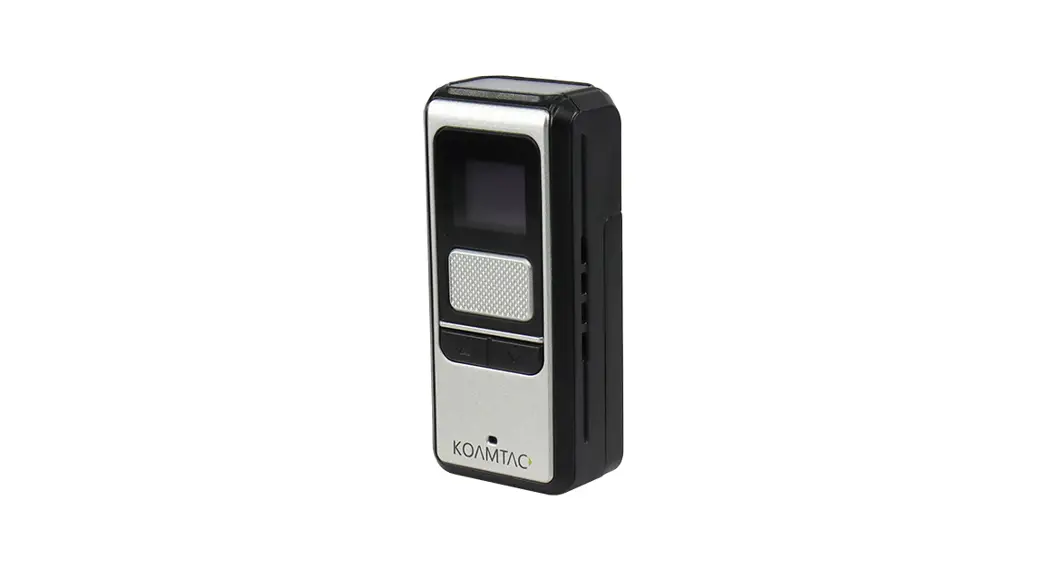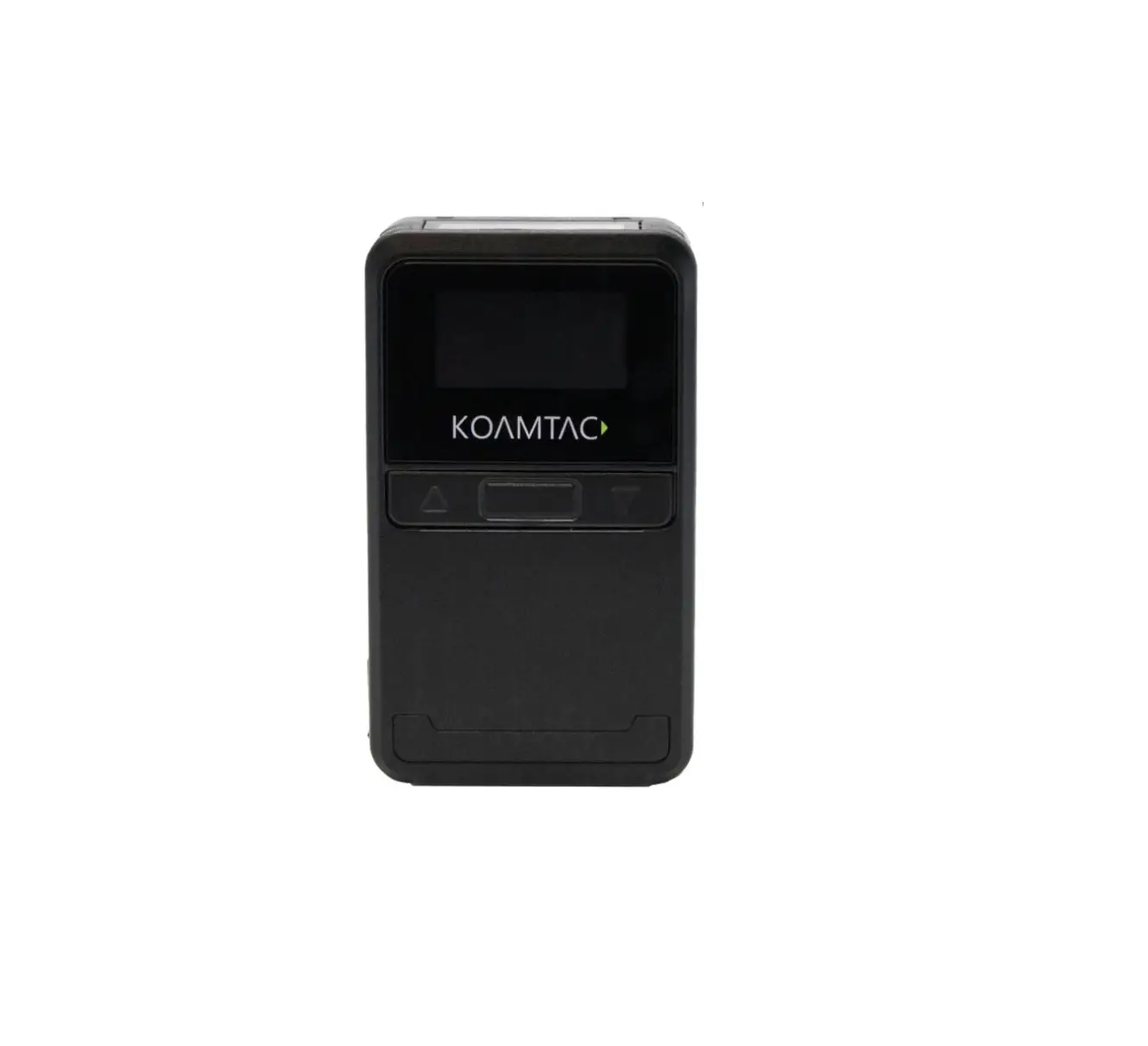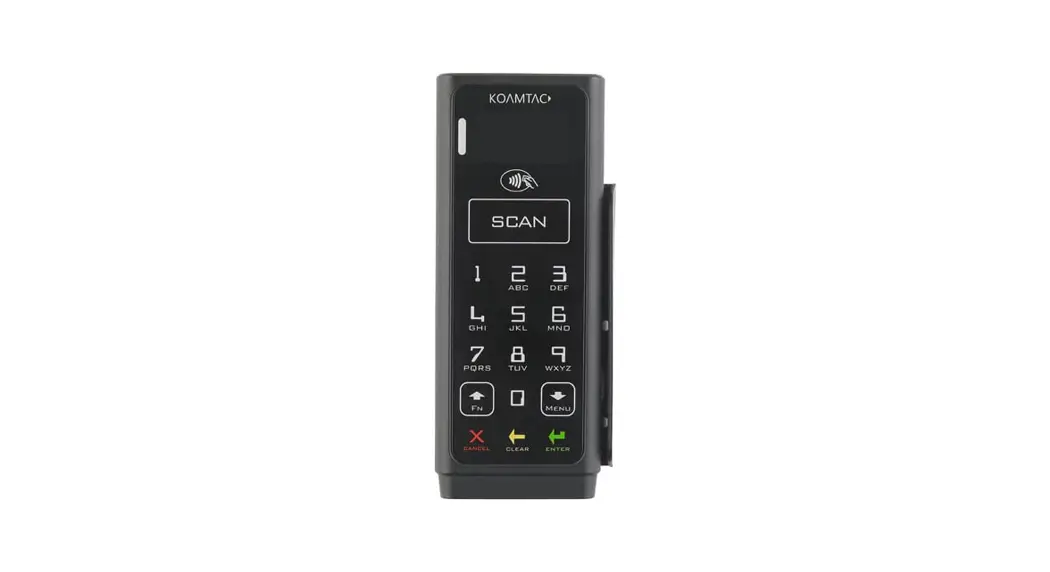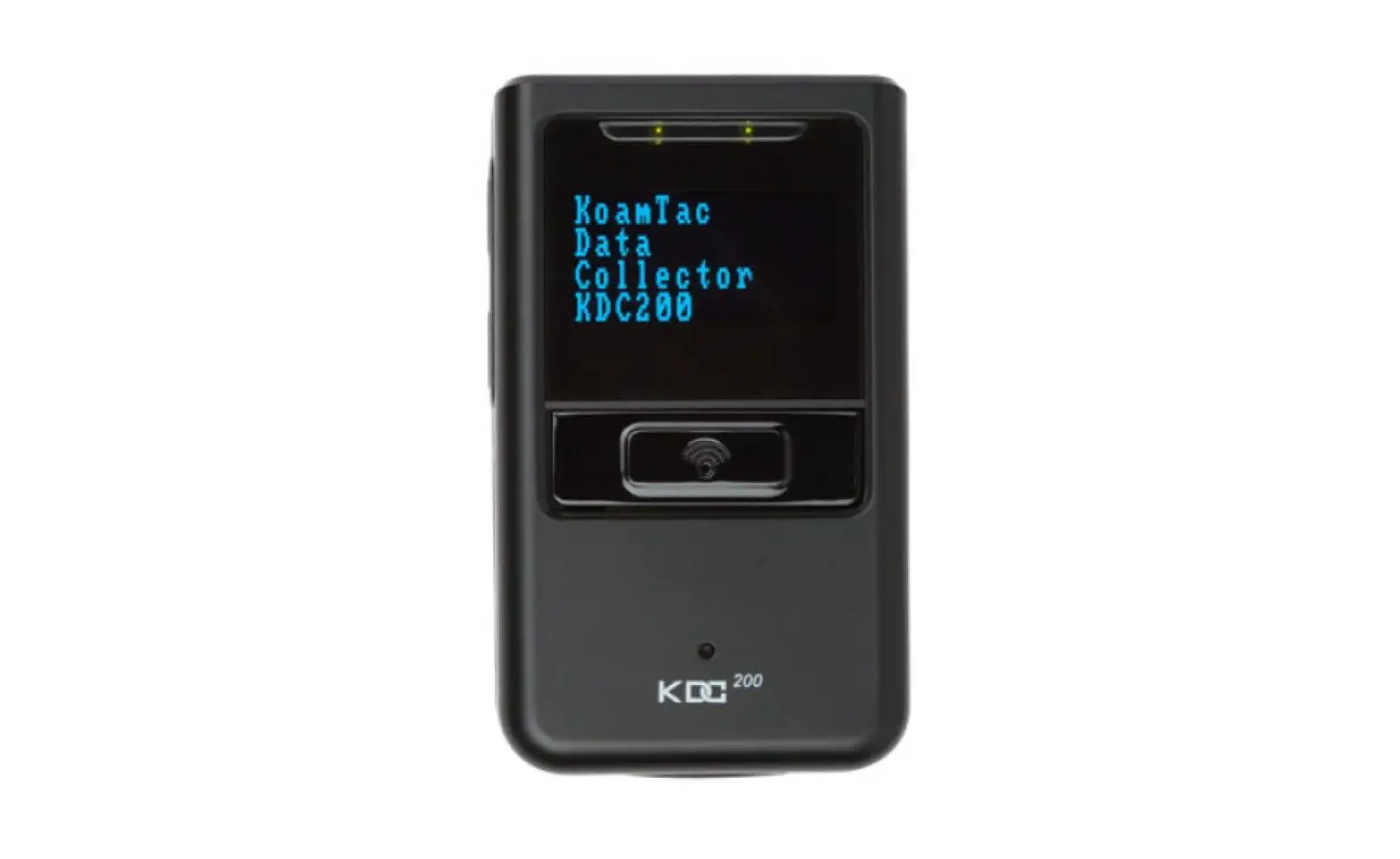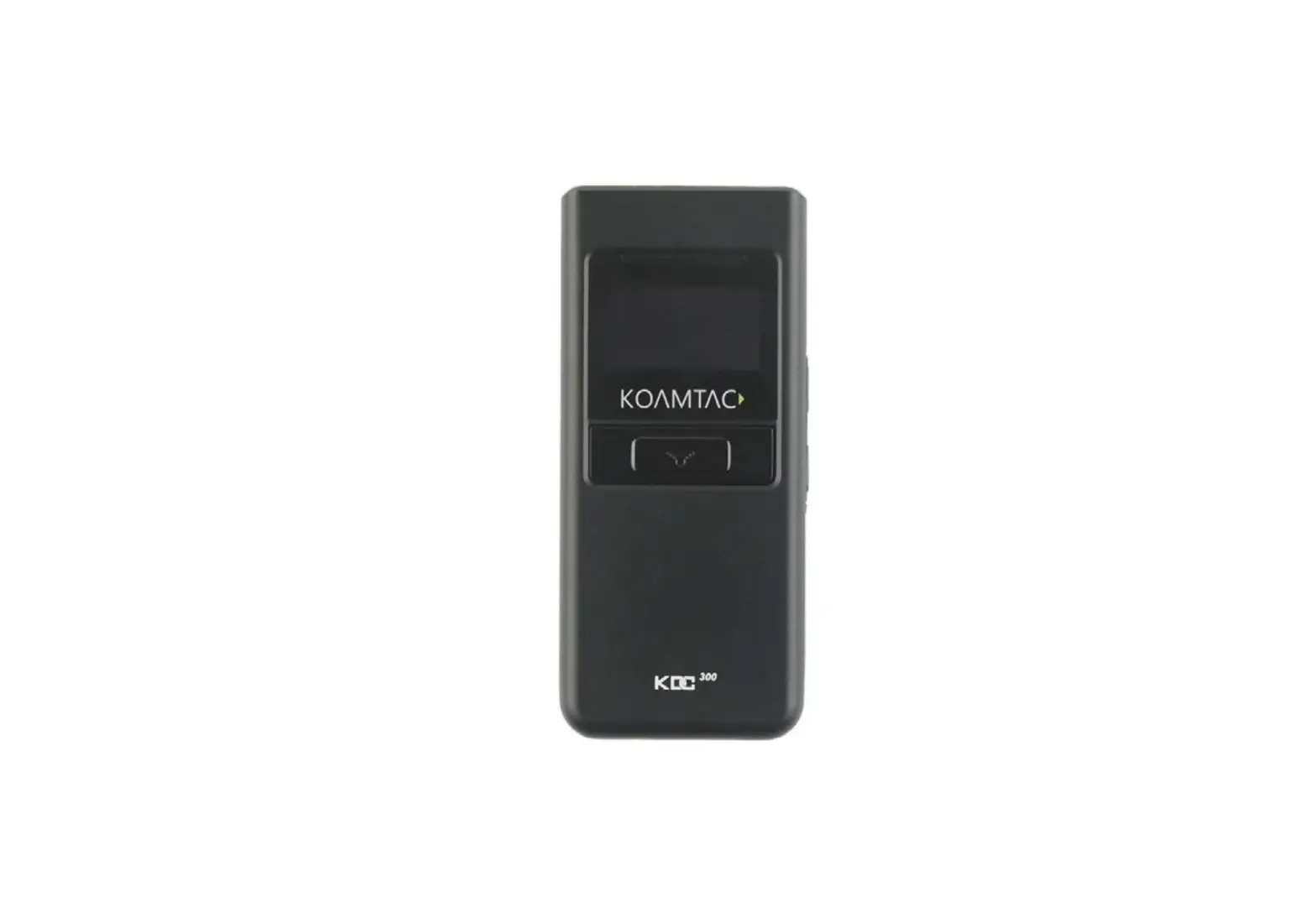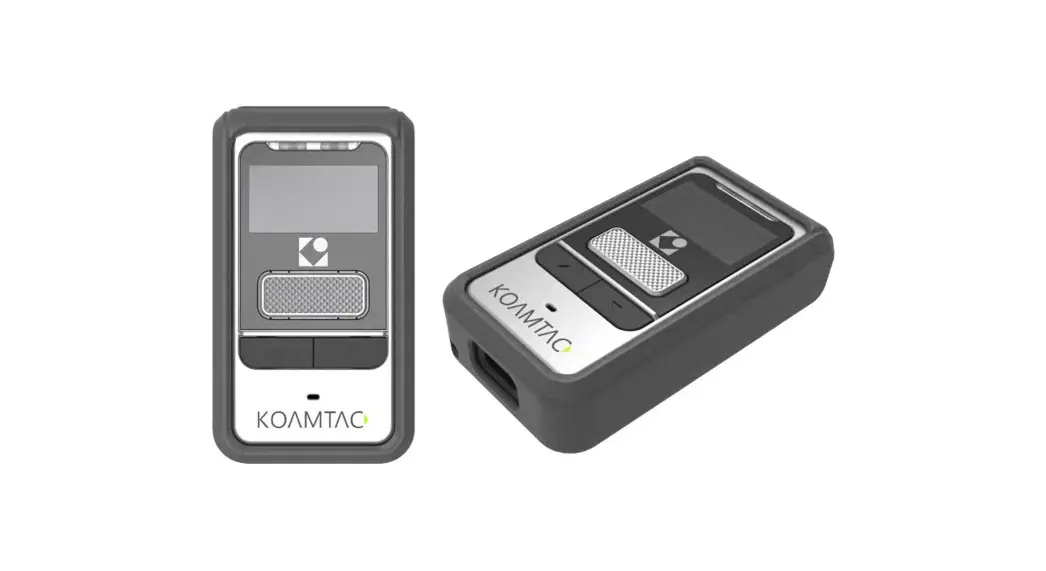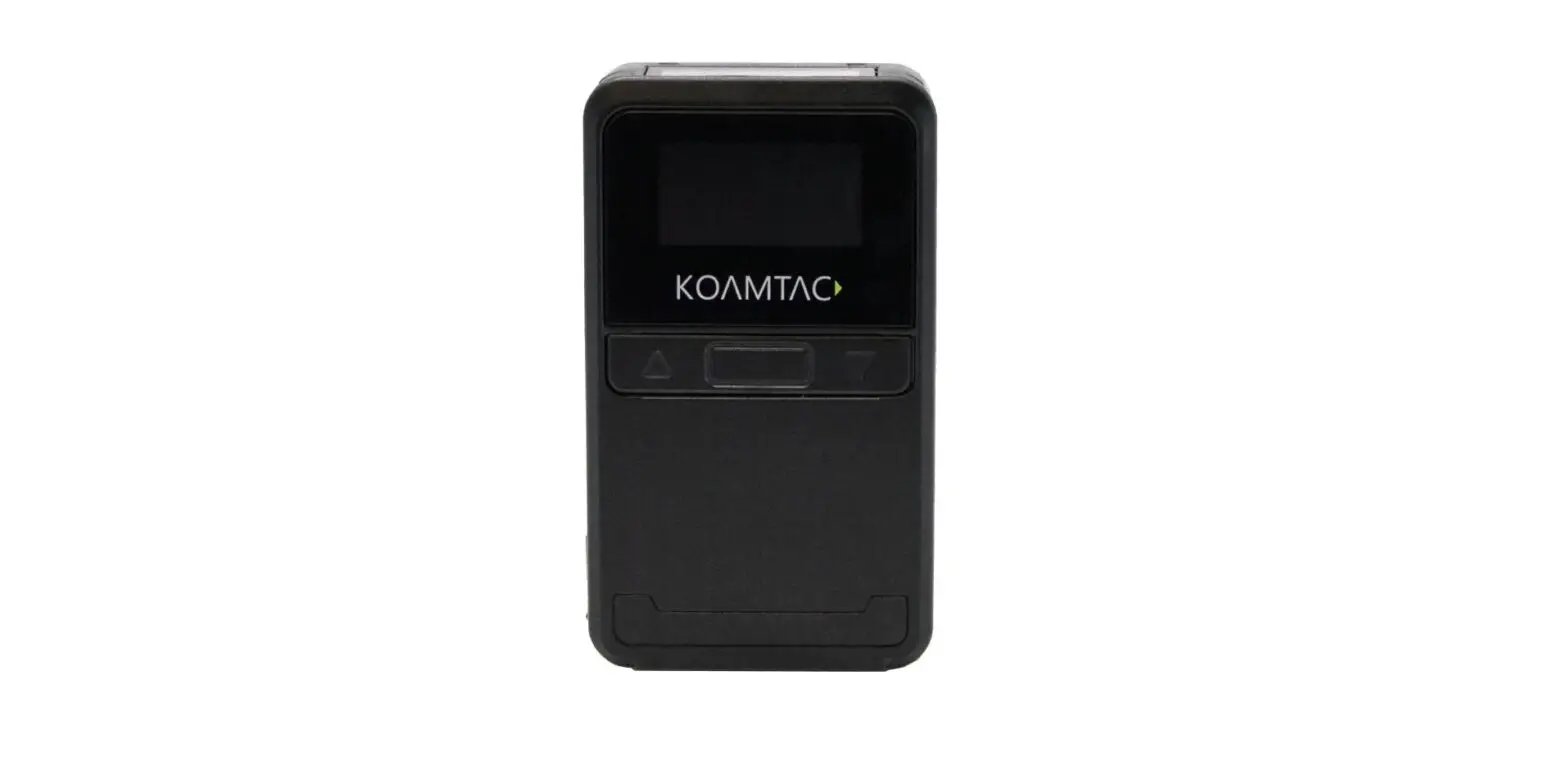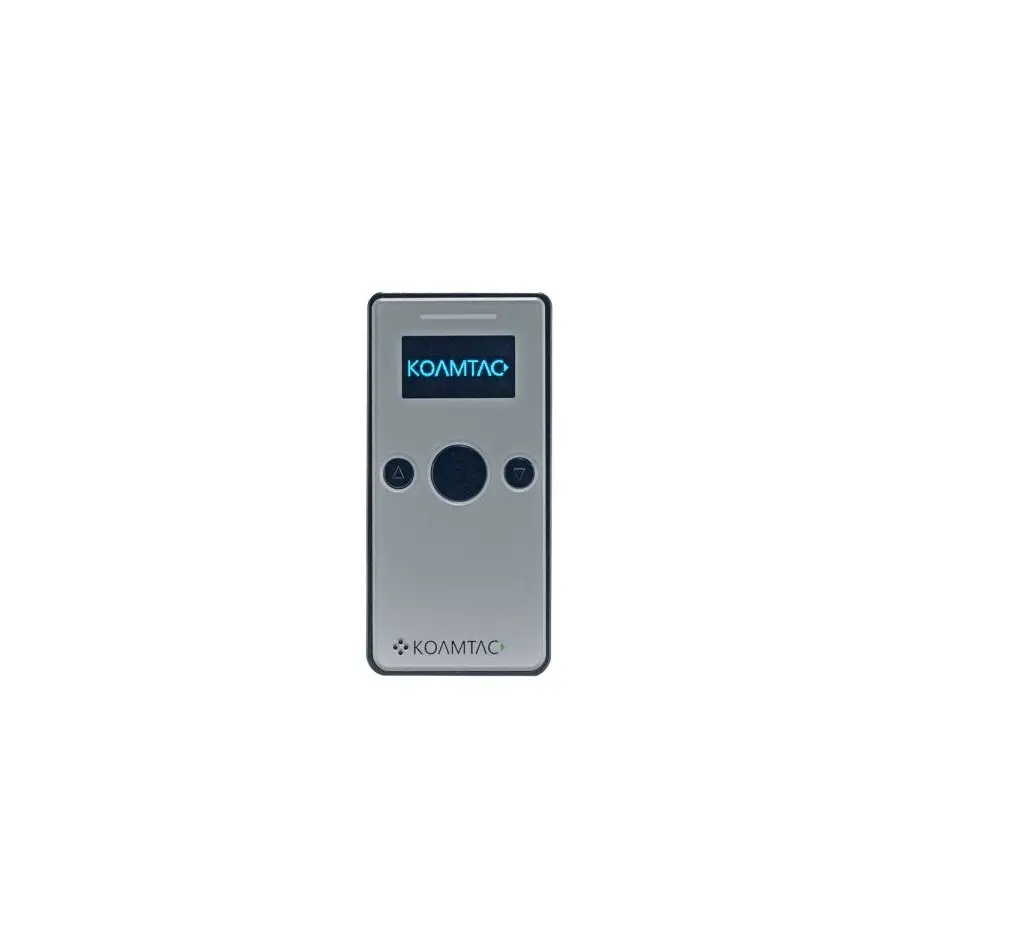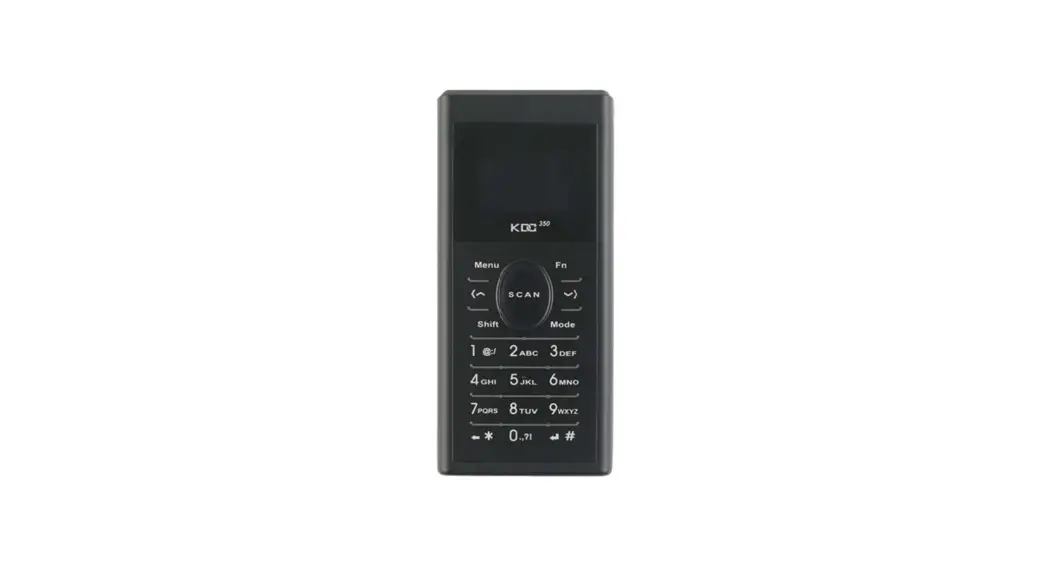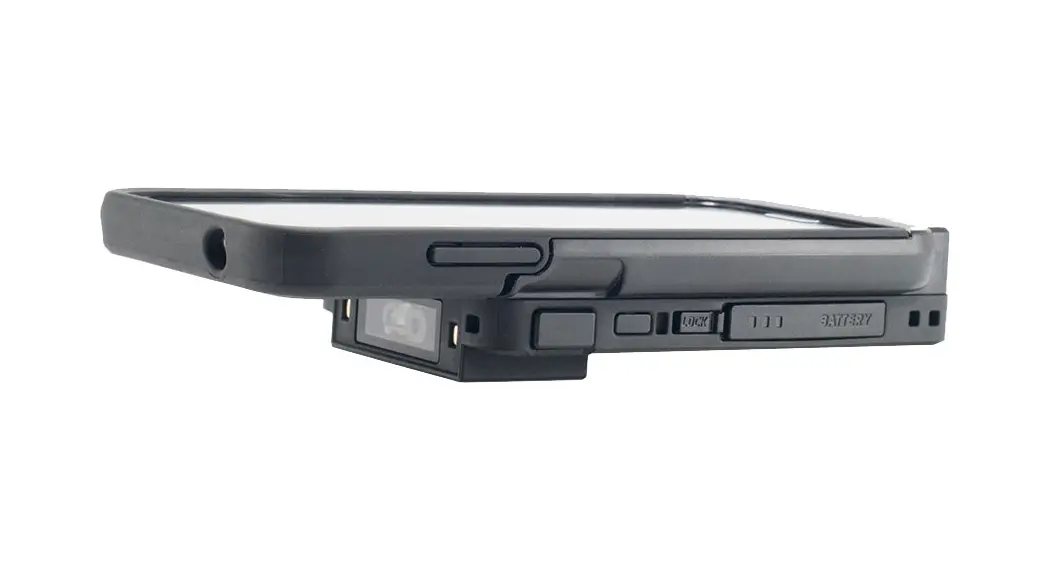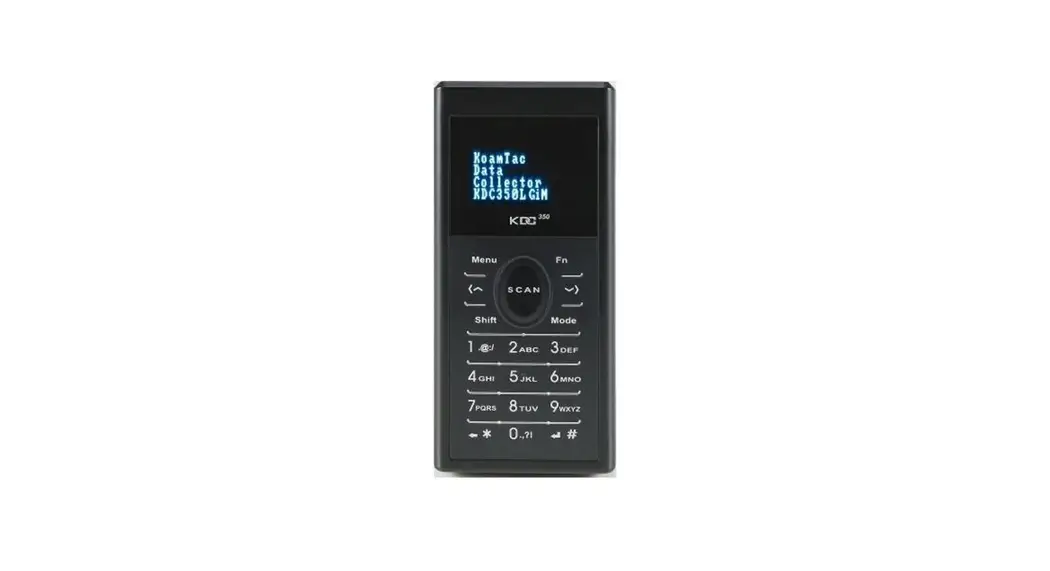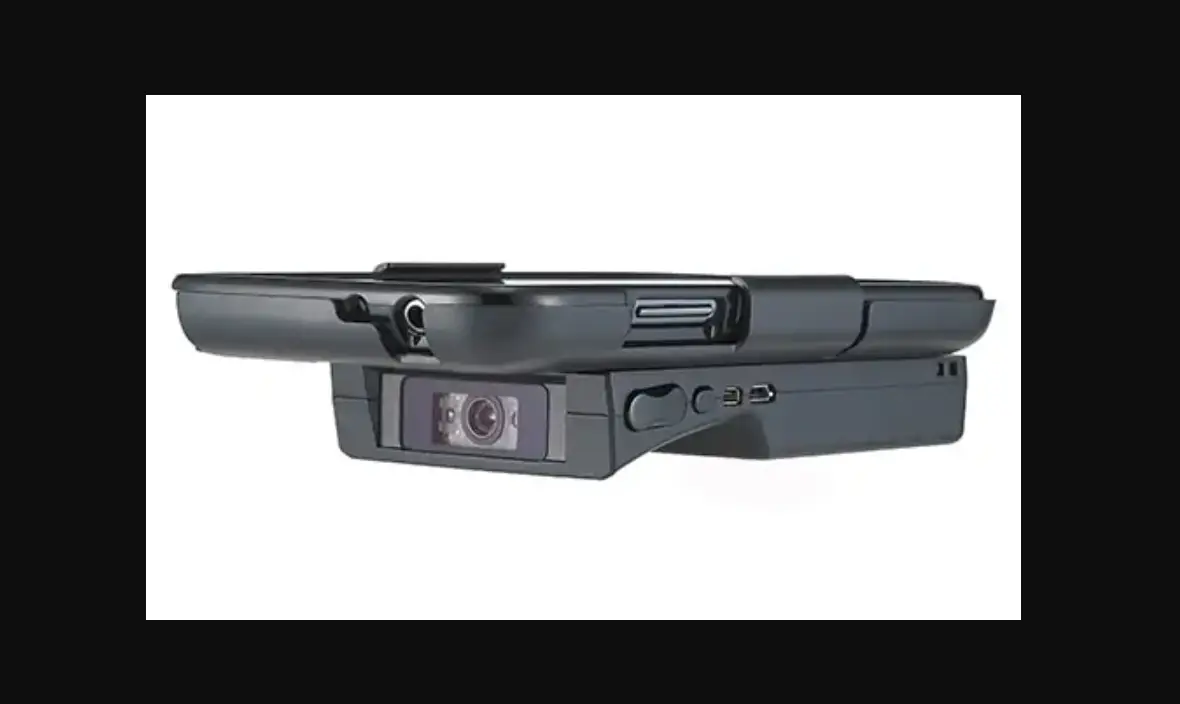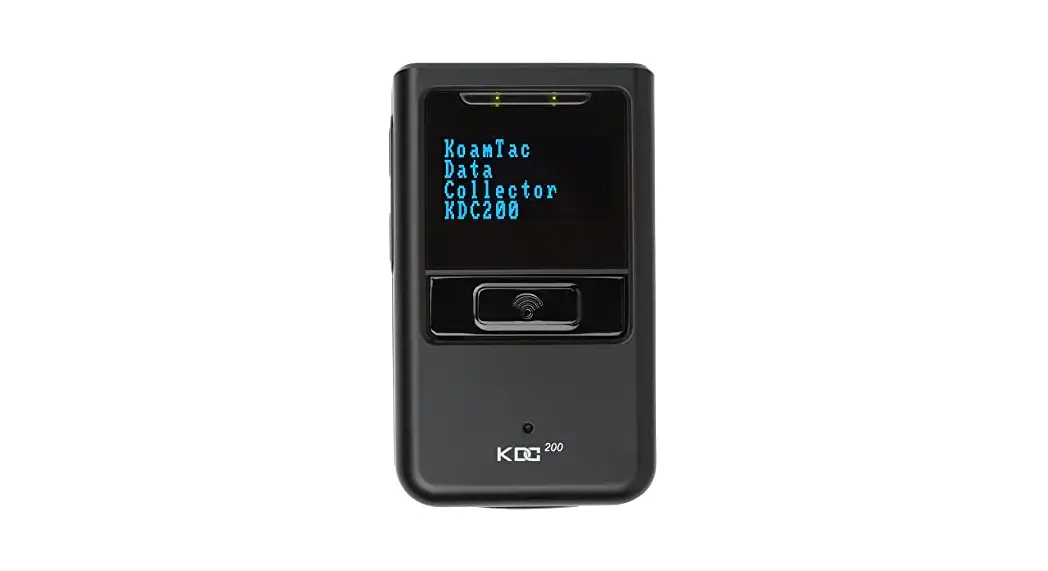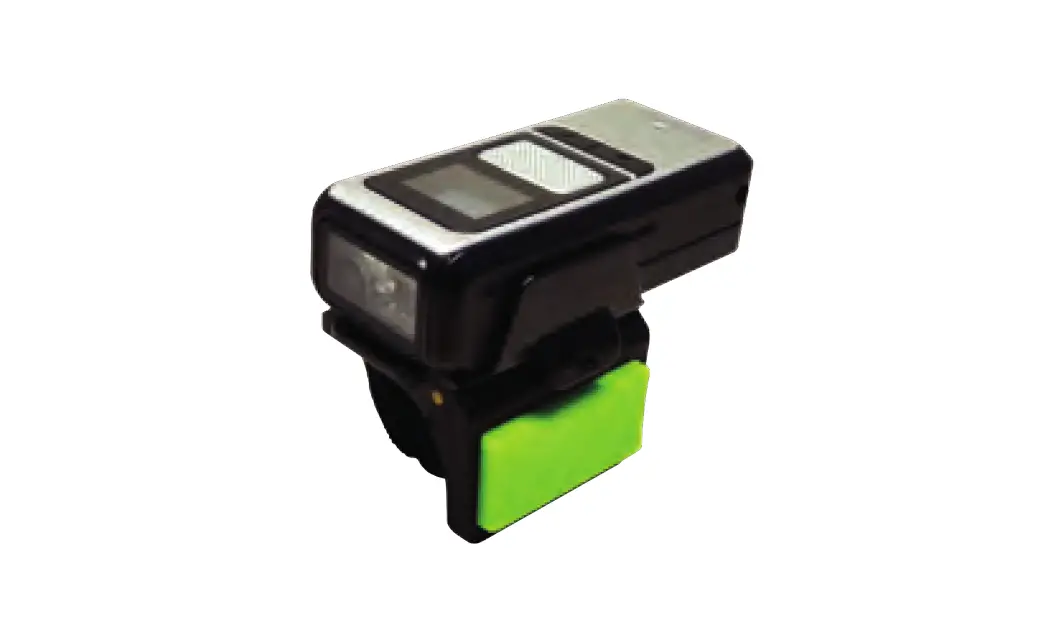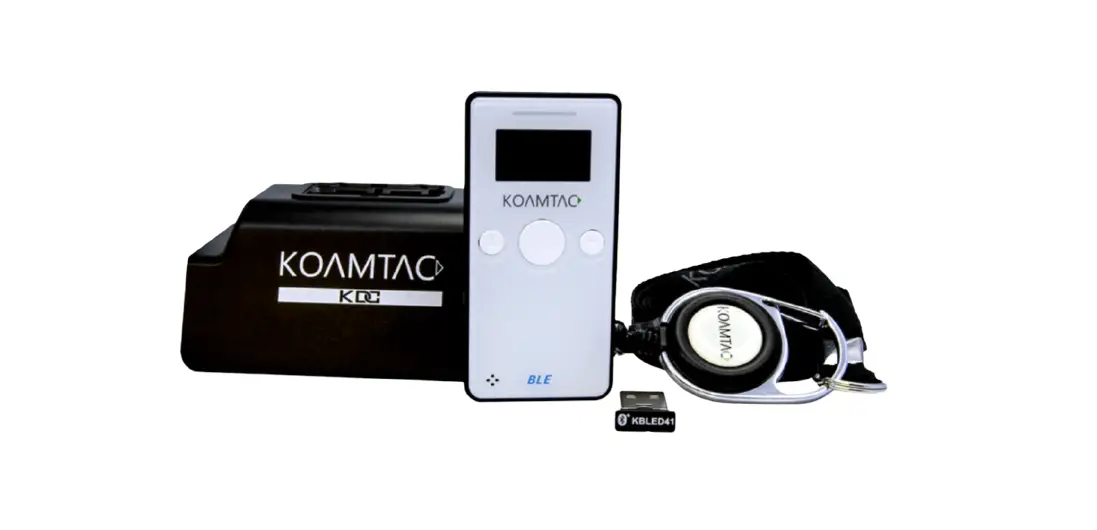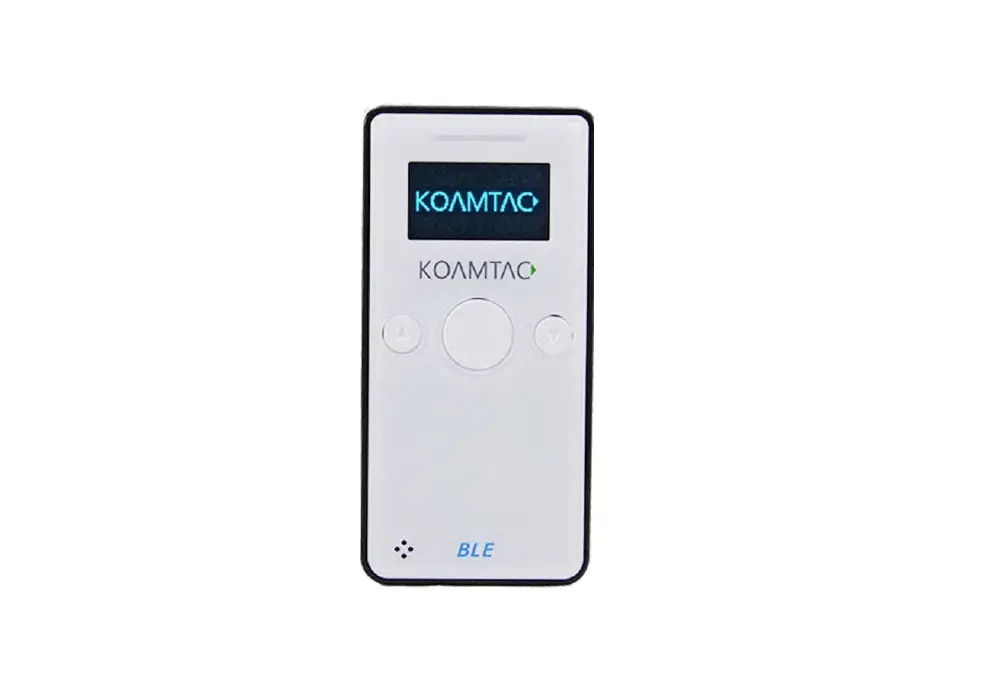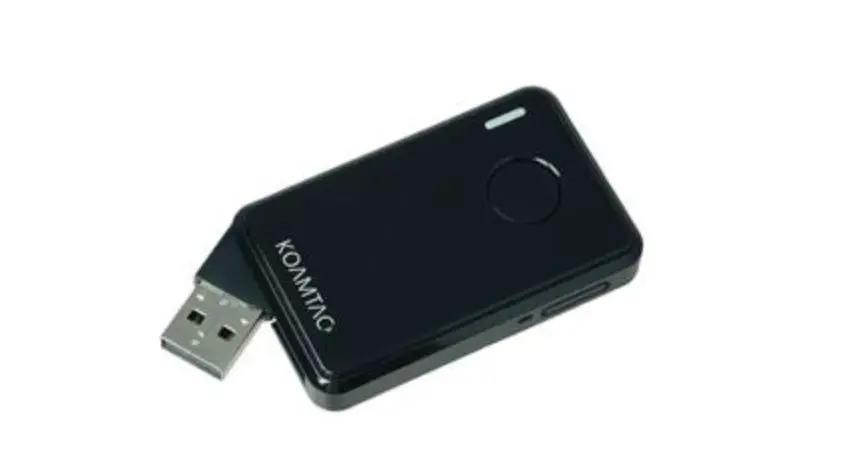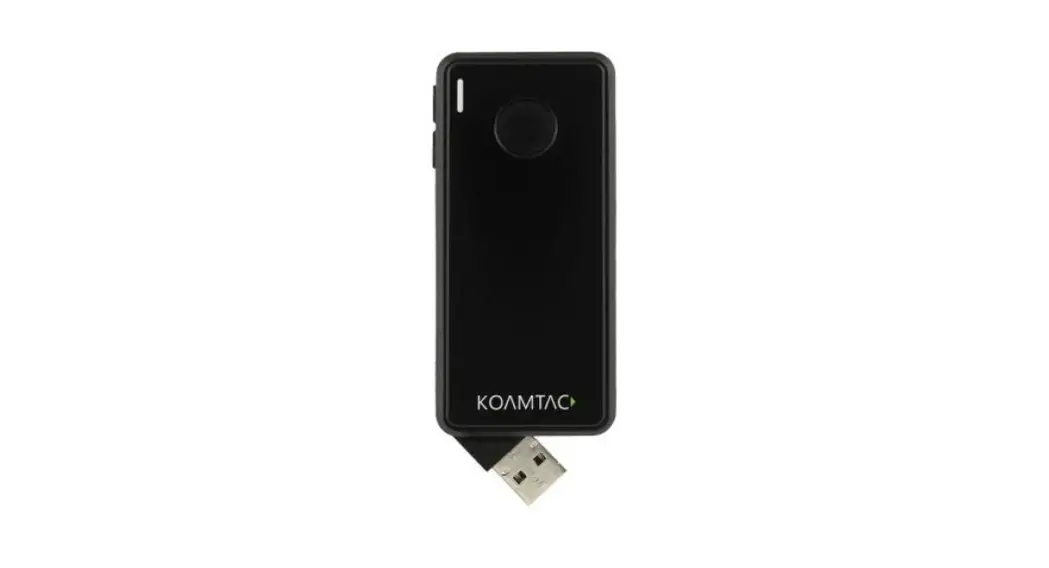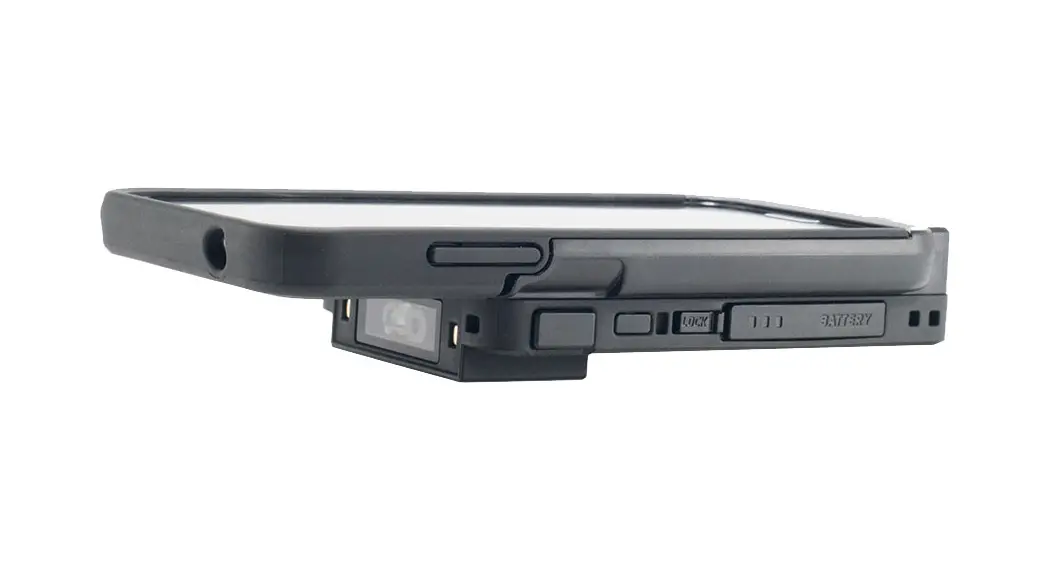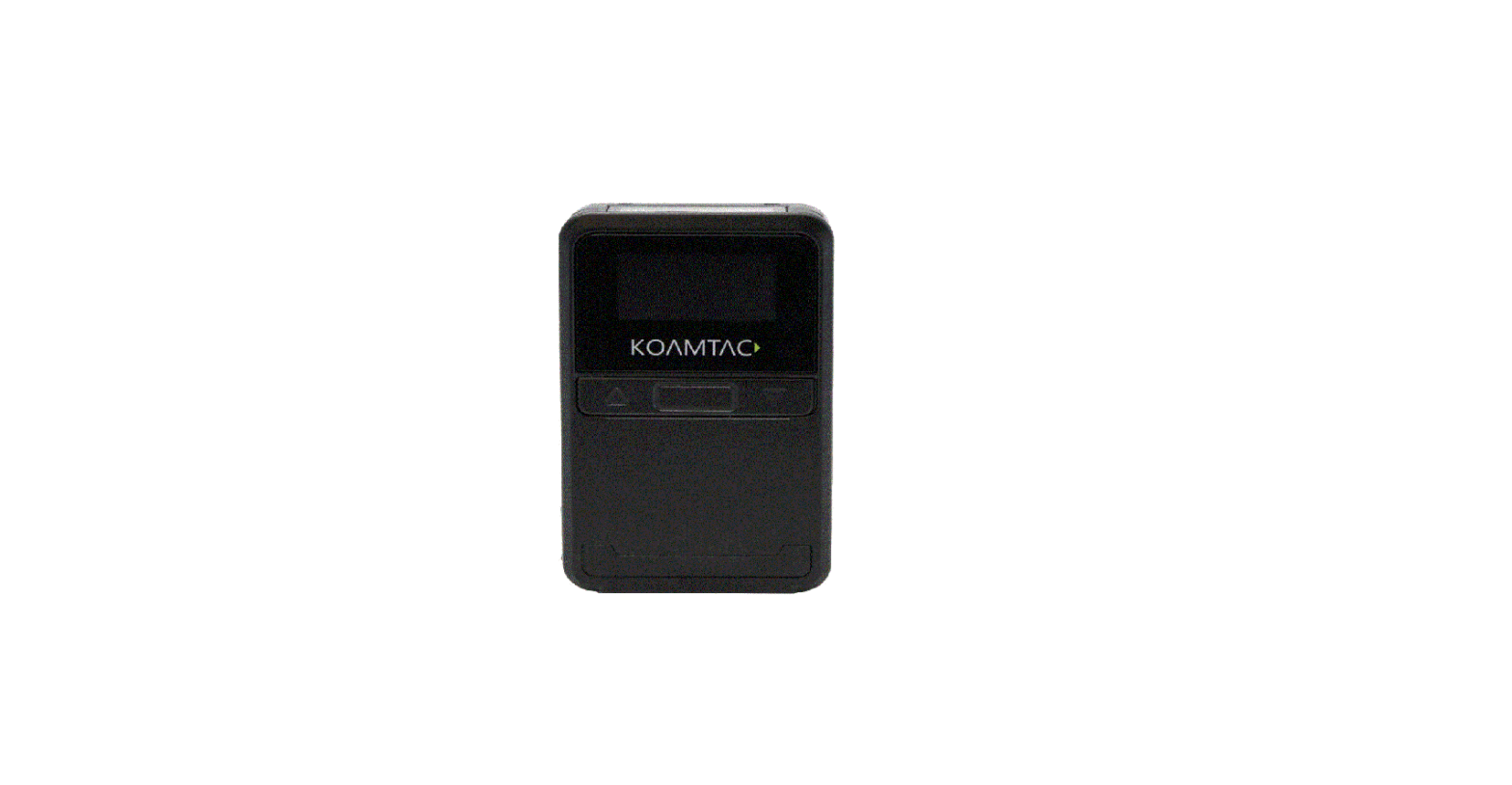

KOAMTAC KDC180 Bluetooth Barcode Scanner
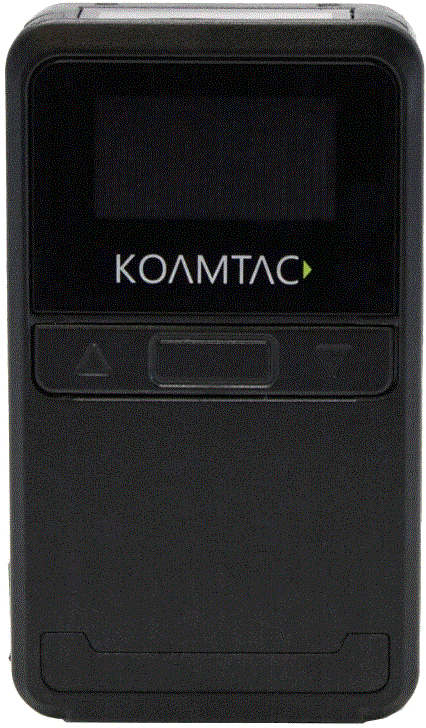
The KDC180 Bluetooth barcode scanner is a 2D Imager Bluetooth Barcode Data Collector with several variations: KDC180 with inductive charging, KDC180 with keypad, KDC180 with UHF RFID reader, and KDC180 with UHF RFID reader and no barcode scanner. All variations support Bluetooth Low Energy (BLE) v5.0.
Product Introduction
KDC180 Diagram
- Refer to the Reference Manual for more detailed information.
- Visit store.koamtac.com to purchase additional products and accessories.
How to turn on and off
Refer to the figure in section 1.1 to locate the SCAN and DOWN buttons. Note: The trigger on the Ring Scanner and Finger Trigger Glove work as SCAN buttons. On the keypad variation, the DOWN button is in the lower area.
- Press and hold the SCAN + DOWN buttons simultaneously for 3 seconds.
- The KDC will beep when it is turned ON.
Product Pairing
Pairing (Bluetooth or NFC)
Connecting your KDC using Bluetooth is made easy with the below pairing barcodes. If using an Android device, pairing via NFC is even easier: just approaching the KDC to the back of the host device’s NFC area is enough for pairing. For more details, see section 2.3
Bluetooth Profiles Explained
- HID Profile: Allows one-way Bluetooth communication with an Android or iOS host device. The KDC only transmits data to the host device.
- SPP Profile: Allows two-way Bluetooth communication. The KDC transmits data to the host device and the host device can transmit data back to the KDC.
- HID Windows Profile: Allows one-way Bluetooth communication with a Windows PC. The KDC only transmits data to the Windows PC.
Bluetooth Pairing a KDC180 to your smart device with special barcodes
Bluetooth Profile & Pairing
- HID-BLE & Pairing (Android, iOS, Mac)
- HID-Windows & Pairing (Windows)
- SPP-BLE & Pairing (Android, iOS, Mac, Windows)
To pair your KDC, follow these steps:
- Navigate to the Bluetooth setting on the host device and ensure that Bluetooth is both enabled and searching for devices.
- Using the KDC, scan the pairing barcode above that corresponds to your desired Bluetooth profile. If you are unsure which Bluetooth profile is right for you, please refer to Chapter section 2.1.
Product Introduction
The KDC180 Bluetooth barcode scanner is a 2D Imager Bluetooth Barcode Data Collector and it has several variations: KDC180 with inductive charging, KDC180 with keypad, KDC180 with UHF RFID reader, and KDC180 with UHF RFID reader and no barcode scanner. They all support Bluetooth Low Energy (BLE) v5.0.
KDC180 Diagram
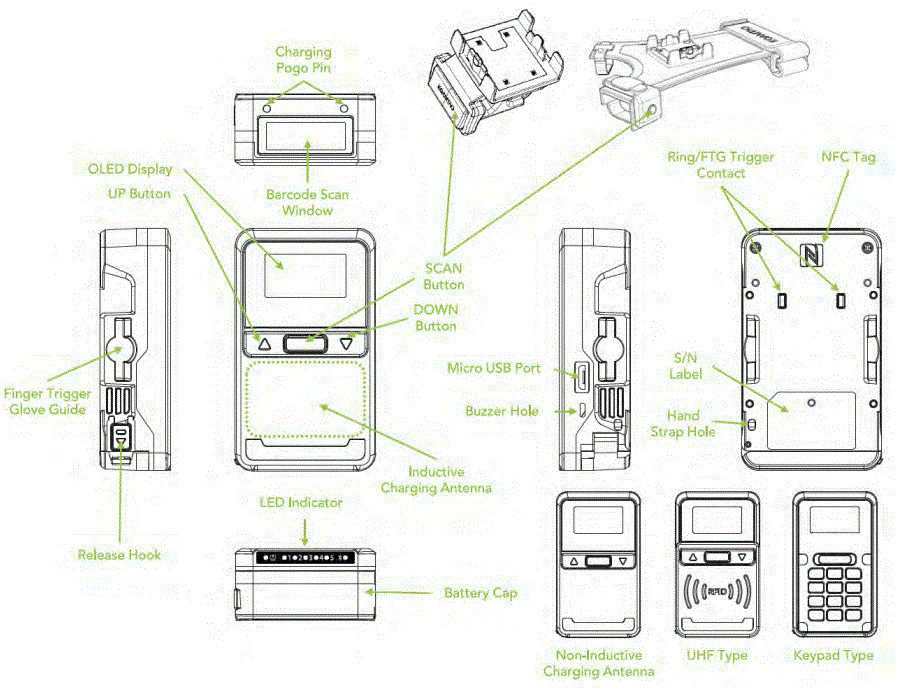
How to turn on and off
Refer to the figure in section 1.1 to locate the SCAN and DOWN buttons.
Note: The trigger on the Ring Scanner and Finger Trigger Glove work as SCAN buttons. On the keypad variation, the DOWN button is in the lower area.
- Press and hold the SCAN + DOWN buttons simultaneously for 3 seconds.
- The KDC will beep when it is turned ON.
Pairing (Bluetooth or NFC)
- Connecting your KDC using Bluetooth is made easy with the below pairing barcodes.
- If using an Android device, pairing via NFC is even easier: just approaching the KDC to the back of the host device’s NFC area is enough for pairing. For more details, see section 2.3
Bluetooth Profiles Explained
- HID Profile: Allows one-way Bluetooth communication with an Android or iOS host device. The KDC only transmits data to the host device.
- SPP Profile: Allows two-way Bluetooth communication. The KDC transmits data to the host device and the host device can transmit data back to the KDC.
- HID Windows Profile: Allows one-way Bluetooth communication with a Windows PC. The KDC only transmits data to the Windows PC.
Note: HID inputs data directly into an application. SPP requires the KOAMTAC KTSync® app or integration of KOAMTAC SDK to input data into an application. To gain access to the SDK, please complete the form here: https://www.koamtac.com/sdk/
Bluetooth Pairing a KDC180 to your smart device with special barcodes
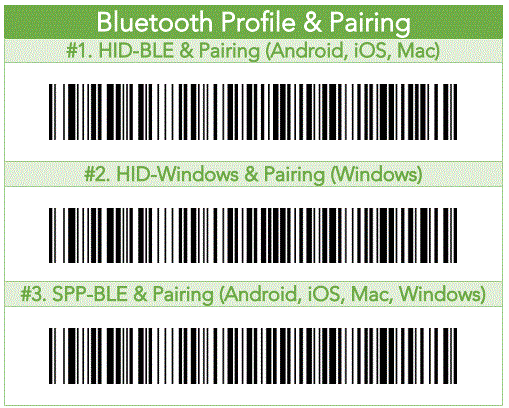
- Navigate to the Bluetooth setting on the host device and ensure that Bluetooth is both enabled and searching for devices.
- Using the KDC, scan the pairing barcode above that corresponds to your desired Bluetooth profile. If you are unsure which Bluetooth profile is right for you, please refer to Chapter section 2.1.
- If you use an Android, iOS, or Mac device and desire an HID connection, then scan barcode #1 above.
- If you use a Windows device and desire an HID connection, then scan barcode #2 above.
- If you desire an SPP connection for any device, then scan barcode #3 above.
- In HID or HID Windows Profile, check the list of available Bluetooth devices on your host device. From the list, select the KDC180 listed by serial number in brackets that matches the serial number found on the back side of the KDC180. KDC180 will beep upon connection and display “BLE HID Connected” on its screen. Now it is ready to use.
- In SPP Profile for non-iOS, check the list of available Bluetooth devices on your host device. From the list, select the KDC180 listed by serial number in brackets that matches the serial number found on the back side of the KDC180. KDC180 will beep upon connection and display “BLE SPP Connected” on its screen, but you should launch KTSync or your application and select KDC180 within the application to complete the connection. Now it is ready to use.
- In SPP Profile for iOS, the KDC is NOT listed on your host device, so you should launch KTSync or your application and select the KDC180 listed by serial number in brackets that matches the serial number found on the back side of the KDC180. KDC180 will beep upon connection and display “BLE SPP Connected” on its screen . Now it is ready to use.
Bluetooth Pairing a KDC180 to your smart device with NFC (Android Only)
This feature applies only to Android. KDC may be paired in either HID or SPP only.
- Navigate to the NFC setting on the host device and ensure that NFC is enabled.
- On the KDC, make sure NFC pairing is enabled by navigating to KDC MENU → BLE Config → NFC Pairing → Enabled → Save & Exit.
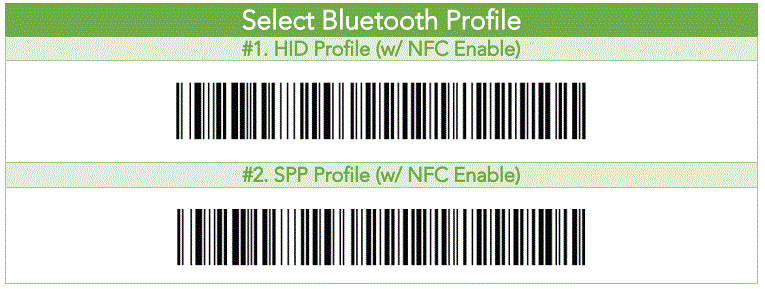
- On the KDC, select the pairing profile by navigating to KDC MENU → BT Config → Connect Device → Select HID or SPP → Save & Exit. Or, select the profile using the special barcodes below:

- Approach the NFC area on the back of the host device with the KDC to complete pairing.
UHF Model
UHF Model: KDC180U or KDC180HU
Pairing (KDC180U: UHF Only. No Barcode Scanner)
The KDC180U is not equipped with for barcode scanning, so there are barcodes can no be used to change settings. You must change settings through the menu.
Menu mode can be entered by pressing <UP> key and <DOWN> key at the same time. For pairing, follow these steps:
- Navigate to “BT Config” and select
- Navigate to “ConnectDevice” and select
- Navigate to the desired profile option and select
- Navigate to “Save & Exit” and select
- Navigate to “Top Menu” and select
- Navigate to “Top Menu” and select
- Navigate to “BT Service” and select
- Navigate to “Pairing” and select
For NFC pairing, refer to chapter 2.3 above. To select a profile, follow these steps:
- Navigate to “BT Config” and select
- Navigate to “ConnectDevice” and select
- Navigate to any profile option to be used and select
- Navigate to “Save & Exit” and select
- Navigate to “Top Menu” and select
Toggling the Read Mode: Barcode Mode vs. UHF Mode
The SCAN button or the trigger on the ring/glove can be used to read barcodes (Barcode mode) or UHF tags (UHF mode) depending on the read mode and you can change the mode alternatively.
- In “Barcode mode”, a barcode can be read by a SCAN button or trigger button.
- In “UHF mode”, UHF tags can be read by a SCAN button or trigger button.
- The KDC180U, by default, is set to “UHF mode.” After factory default, the device will still be in “UHF mode.”
- The KDC180HU, by default, is set to “Barcode mode.” After factory default, the device will be set to “Barcode mode.”
- There are two ways to change the read mode:
- Press and hold the UP button for 3 seconds
- Change from within the application using SDK
- When the mode is changed, the KDC will give a series of beeps to confirm the mode change:
- When you enter UHF Mode: 1 long and 2 short beeps
- When you enter Barcode Mode: 1 long and 1 short beep
Changing the UHF Read Tag Modes: Single, Multiple, or Active
This mode only works when the device is in UHF Mode. Refer to 3.2 to see how to toggle read modes. When in UHF Mode, you have the option of scanning in 3 different modes. The modes change in the following order: Active (default) read -> Single read -> Multiple read. The mode can be changed by pressing the DOWN button for 2 seconds.
- Single mode: Only one tag is read every time the scan button is pressed.
- 1 short beep will occur when changing mode with Down key.
- Multiple mode: When the Scan button is pressed, reads multiple tags simultaneously for the set time (default 10 seconds).
- 2 short beeps will occur when changing mode with Down key.
- Time setting can be changed in Settings ->Reading Timeout.
- Active mode: Basic operation status. Simultaneous reading of multiple tags while pressing the scan button (max. 10 minutes)
- 3 short beeps will occur when changing mode with Down key.
Alternatively, you can scan the special barcodes to change the mode if KDC has a barcode scanner (KDC180HU). To change from active mode to another mode, you should disable Active Mode first.
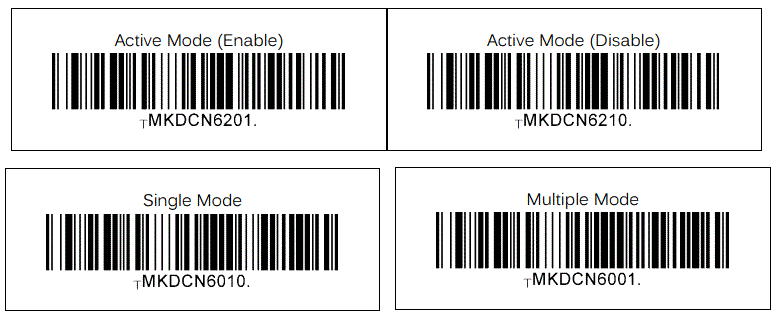
In Active Mode, if the SCAN button or Trigger button is pressed more than 10 minutes, the read mode automatically changes from UHF Mode to Barcode Mode to save battery life in the case of the trigger being stuck in the scan position. This option is enabled by default and may be disabled. If you need to scan with the trigger depressed for more than 10 minutes, you need to disable the Active Read 10 Minute Timeout.
Active Read 10 Minute Timeout

UHF Tag Counting (Beep Count)
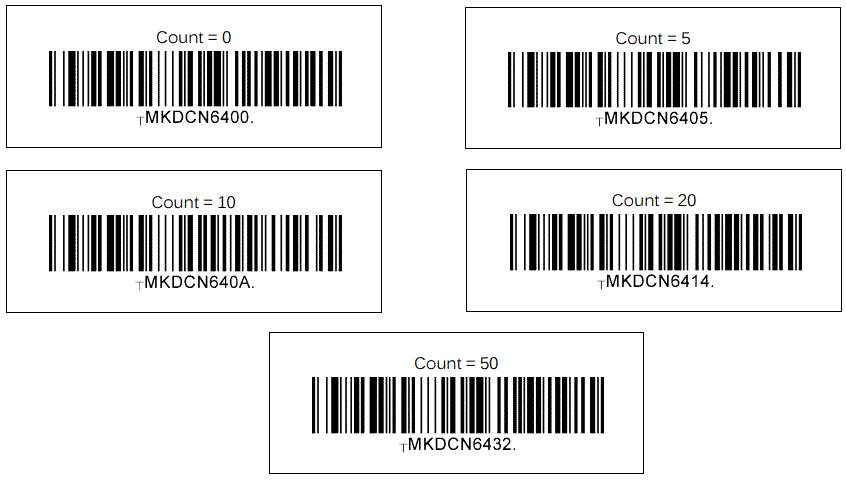
By setting the Count attribute, you can get an estimate of how many tags are read per beep.
- Count = 0: The device only beeps once when you start reading
- Count = 5: Beeps once every 5 tags read.
- Count = 10: Beeps once every 10 tags read.
- Count = 20: Beeps once every 20 tags read.
- Count = 50: Beeps once every 50 tags read
- Example: 2 beeps means you read 10 to 14 tags.
- Example: 2 beeps means you read 20 to 29 tags.
- Example: 2 beeps means you read 40 to 59 tags.
- Example: 2 beeps means you read 100 to 149 tags.
Scan the barcode on below that corresponds with your preference for Tag Counting
Usage
Using Keyboard Wedge (HID Keyboard)
- This option is only available using Bluetooth connection with HID profile.
- Once the KDC is paired with the host, open any application with a text field and tap on the text field. Scan any barcode and it will populate in the text field.
Using KTSync – Android/iOS
You can use KTSync to utilize your KDC alone or with a native application. This is only available using a Bluetooth connection with SPP or MFi.
- Download and install KTSync from the Google Play Store or the Apple App Store.
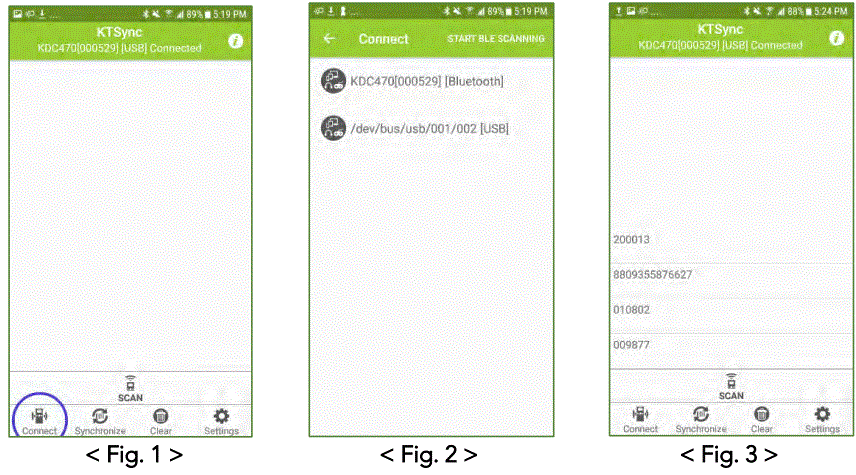
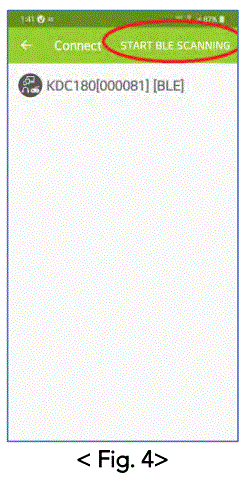
- Open KTSync and tap on the “Connect” option on the bottom left to view a list of available devices. (Fig. 1)
- In case of Android, the pairing should be established from Settings of the phone and in case of iOS, “START BLE SCANNING” menu should be run from “Connect” menu.
- From the device list, select your KDC – ensuring that the serial number displayed in brackets matches the serial number on the back of your KDC. (Fig. 2)
- Upon successful connection, KTSync will display “Connected” next to the name of your KDC at the top of the application. (Fig. 3)
- To test your connection, scan any barcode. If the connection is successful, the barcode data will display on the screen. (Fig. 3)
In Always-pairing mode, an application can connect to a KDC without reading a pairing barcode, so the connection procedure is a little different
- In the KTSync app, tap the Connect icon at the bottom left of the app.
- In KTSync, tap “START BLE SCANNING” in the top right.
- In KTSync, check the list of found devices.
- In KTSync, tap the KDC180 listed by serial number in brackets followed by [BLE] that matches the serial number found on the back side of the KDC180. The format will look like this, KDC180[xxxxxx] [BLE], where xxxxxx is the serial number.
- The KDC180 will beep upon connection and display “BLE SPP Connected” on its screen. Now it is ready to use.
Using KTSync Keyboard – Android
Once your KDC is connected to KTSync, you can use your KDC as a keyboard.
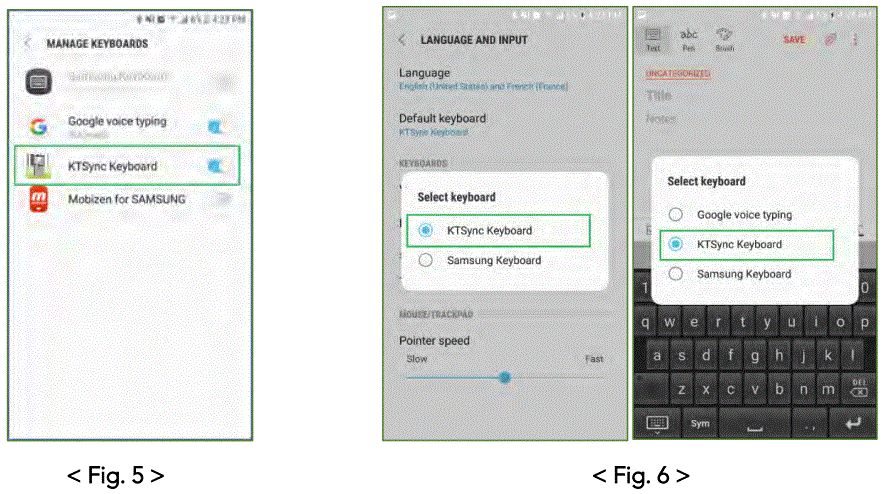
- While KTSync is running in the background, navigate to Settings > Language & Input > Virtual Keyboard > Manage keyboards
- Tap on “KTSync Keyboard” to enable it.
- Change “KTSync Keyboard” to the default keyboard. (Fig. 5)
To switch back to the previous keyboard, simply change the default keyboard again. Or, when a text field is selected swipe down from the top of the screen to bring up the notification panel. Select ‘choose input method’ and you can select the default keyboard from here. (Fig. 6)
Using KTSync Keyboard – iOS
Once your KDC is connected to KTSync, you can use your KDC as a keyboard.
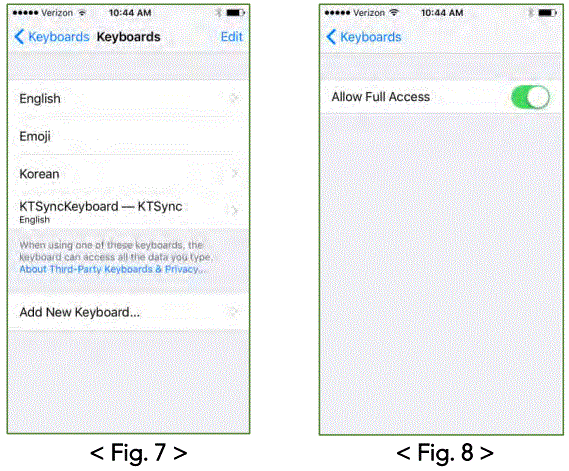
- Navigate to the iPhone/iPad/iPod Settings > General > Keyboard > Keyboards > Add New Keyboard…
- > Select the KTSync keyboard to be added. (Fig. 7)
- Select the KTSync Keyboard and toggle the switch to Allow Full Access. (Fig. 8)

- Open the application you want to scan into and tap on the screen, so the on-screen keyboard appears.
- Press and hold the globe icon located to the left of the spacebar.
- Select the KTSync Keyboard and begin scanning. (Fig. 9)
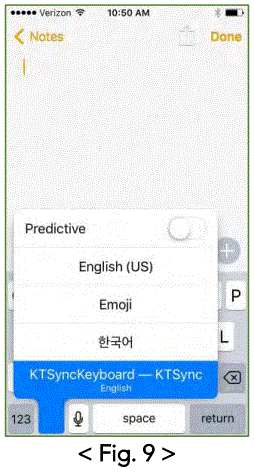
Note: The KDC must be connected to KTSync & the KTSync keyboard must be selected for this to work.
Using other Developed Applications with SDK – Android/iOS
A Software Development Kit (SDK) for Android and iOS is available to all KOAMTAC customers to ensure smooth development of applications that work seamlessly with a KDC scanner. It’s easy to request the SDK from the KOAMTAC website:
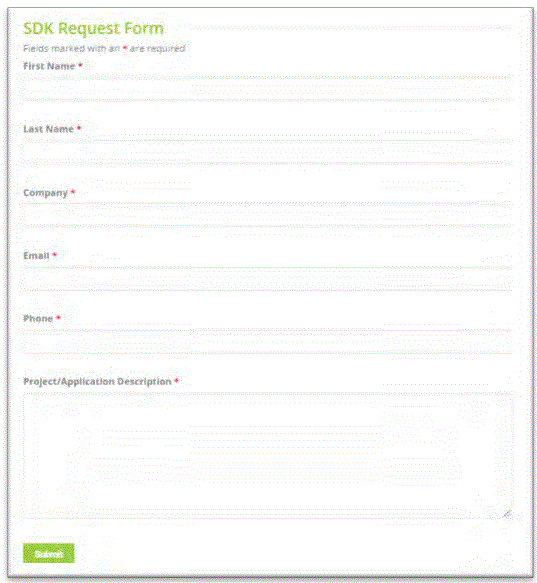
- On any web browser, open www.koamtac.com
- Navigate to Support > Downloads > SDK
- Complete the form and submit it.
After submission, a KOAMTAC representative will reach out regarding next steps for completing the SDK Agreement. The SDK package will have libraries, documents, a sample application and its source code.
Product Specifications
|
Physical | Design | Companion Bluetooth Barcode Scanner |
|
Size | Wireless/Keypad: 1.57” x 2.72” x 0.8” (40 mm x 69 mm x 20.3 mm)
UHF: 1.57” x 2.72” x 1.1” (40 mm x 69 mm x 27.1 mm) | |
|
Weight | Scanner Only: 2.23 oz (63.2 g) Wireless: 2.30 oz (65.3 g) Keypad: 2.30 oz (65.3 g) UHF: 2.87 oz (81.5 g) UHF Only (Non-scanner): 2.66 oz (75.4 g)
Ring Trigger Only: 0.73 oz (20.6 g) Glove Only: 1.76 oz (50 g)
Battery Only: 0.76 oz (21.5 g) | |
|
Functionality | Supporting OS | Android / iOS / Tizen / Windows / Mac OS X |
| Keys | Default: Scan Key, Up Key, Down Key Keypad Module: Scan Key, Up Key, Down Key, Numeric Keys (1, 2,3,4,5,6,7,.8,9,0) | |
| Buzzer | Yes | |
| LED Indicator | 2 Tri-color Status LED’s and 5 Programmable LED’s (Red / Amber / Green) | |
| USB Port | 1 Micro USB Port | |
| Memory | RAM | SDRAM 64KB |
| ROM | Internal Flash ROM 512KB (256KB for Program, 256KB for User Data) | |
| Barcode Storage | 10,000+ Barcodes (EAN-13) | |
| Power | Battery (Standard) | 1,010 mAh Lithium-ion |
| Charging Solution | USB Connector / Charging Cradle | |
| Charging Time | 4 Hours | |
| Communication | Bluetooth | Bluetooth Low Energy V5.0, HID/SPP |
| Micro USB | USB HID USB Serial (Android with OTG cable / Windows) | |
|
Barcode Reader | 1D/2D Symbology | Yes |
| # of scans per charge (1 sec interval) | 25,000+ (10+ hours) | |
| # of scans per charge (10 sec interval) | 20,000 (55+ hours) | |
| Scan Range (20mil Code39) | 1.73 to 31.5 in (44 to 800 mm) |
| Screen Reading | Yes | |
| Postal Codes / OCR Passport | Yes / No | |
|
RFID Details (Optional) | Supported Standards | IEPC Class1 Gen2, EPC Gen2 V2 |
| Nominal Read Range | 1.5’+ (0.5m+) dependent on tag type and operating environment | |
| Frequency | US, EU, JP, KR | |
| Output Power Range | Up to +27dBm | |
| Read Rate | 100 tags per second | |
| Tag Storage | > 21,000 RFID tags (in case of 12 bytes of EPC Data) | |
|
Environment | Drop Spec | 5 ft (1.5 m) 6 ft (1.8 m) with a protective boot |
| IP Rating | IP65 | |
| Operating Temp. | -44 ˚F to 122 ˚F (-20 ˚C to 50 ˚C) | |
| Storage Temp. | -4 ˚F to 140 ˚F (-20 ˚C to 60 ˚C) | |
| Humidity Spec | 5% ~ 95% (non-condensing) | |
| Regulatory Conformance | Laser Safety | IEC60825-1 (Class II) |
| LED Safety | IEC62471:2006 | |
| Regulatory | RED, FCC, KC, TELEC, VCCI, SRRC, RoHS Compliant | |
|
Accessories | 2-Slot Charging Cradle | Yes |
| 10-Slot Charging Cradle | Yes | |
| Finger Trigger Glove | Yes | |
| Ring Scanner | Yes | |
| Protective Boot | Yes |
How to Use Tizen Application
How to Use Tizen WebApp Demo Application (Only for KDC180/280)
KDC180 and KDC280 have BLE (Bluetooth® Low Energy) V5.0 and V4.1 each instead of Bluetooth V2.1 and support the below two profiles:
- SPP – It is a KOAMTAC-specific custom profile which provides bi-directional communication in the paired mode.
- HID – It is a Bluetooth Low Energy standard profile which supports Human Interface Device like a keyboard or mouse. It is required to be paired first.
To connect with Gear S3 for the current demo application from KOAMTAC, you should use SPP profile because Gear S3 does not support HID:
Connect the phone to Gear S3 and Install the demo application
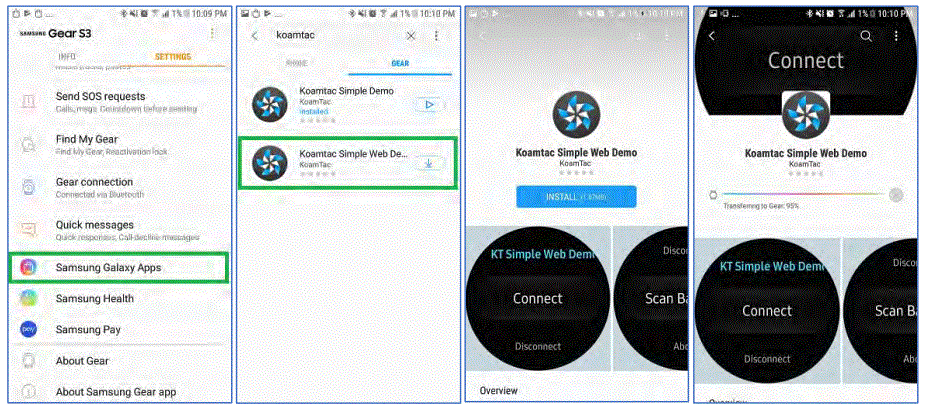
- Download Galaxy Wearable (Samsung Gear) application from Play Store. (Please make sure your phone supports Galaxy Gear S3.)
- Connect the Samsung Gear to your smartphone. (You can refer to the link to learn how to connect: http://www.samsung.com/ca/support/skp/faq/1119975)
- On the Gear press the home button and scroll to settings. Scroll down and select Connect to a New Phone. On the phone, open the Samsung Gear application and search for nearby Gear devices. Select your Gear from the list and confirm the passcode on both devices.
- From Galaxy Store, search Koamtac apps, which is “Koamtac Simple Web Demo” App and install it on Gear S3.
Pair/Connect KDC with Gear S3
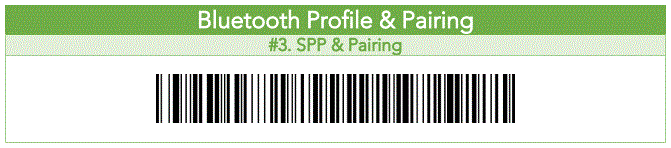
- Put KDC180/KDC280 into SPP mode and start pairing (you can also see Chapter 2 in this document)

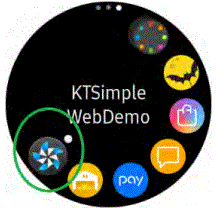
- Run KTSimpleWebDemo on your Gear S3.

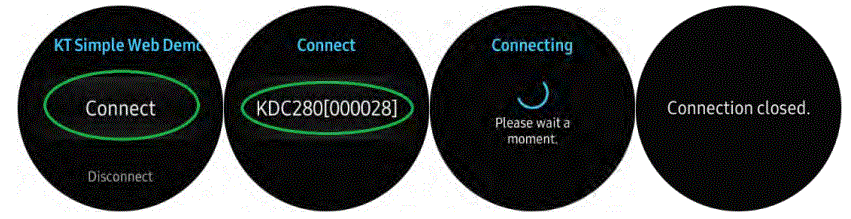
- Tap “Connect” and the available devices will be listed on your Gear S3. Tap the KDC from the list of available devices to connect. The number between the brackets refers to the serial number located on the back of the KDC.

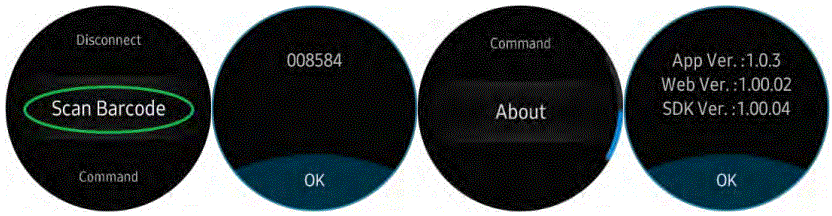
- Now you can trigger the KDC scanner via the demo application or the KDC itself. Any scanned bar code will be displayed on the Gear S3. There are also many commands that can be used to view or set the configuration of the KDC.

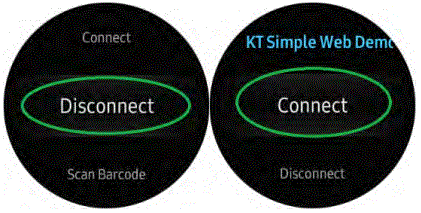
- If the KDC becomes disconnected or if you disconnect the current KDC, you can reconnect it later by selecting Connect from the Gear S3.
The COVID-19 pandemic has added a new challenge to every workplace – warehouses, manufacturing lines, and even retail store floors – the need to maintain distance between people for their health and safety. Reopening your business is already an undertaking but ensuring social distance among your workers is made easy with the KOAMTAC social distancing feature. Whether you’re a small or enterprise business, the KOAMTAC social distancing feature works with the technology and systems you already have in place so you, and your workers, can have peace-of-mind as you adjust to the new normal.
- Supported on all Bluetooth Low Energy (BLE) 5.0 KDC devices.
- For more on the social distancing feature, please watch: https://youtu.be/m4Manx9vK68
There are three ways to enable and control the settings for the social distancing feature:
- Enable via the KDC menu
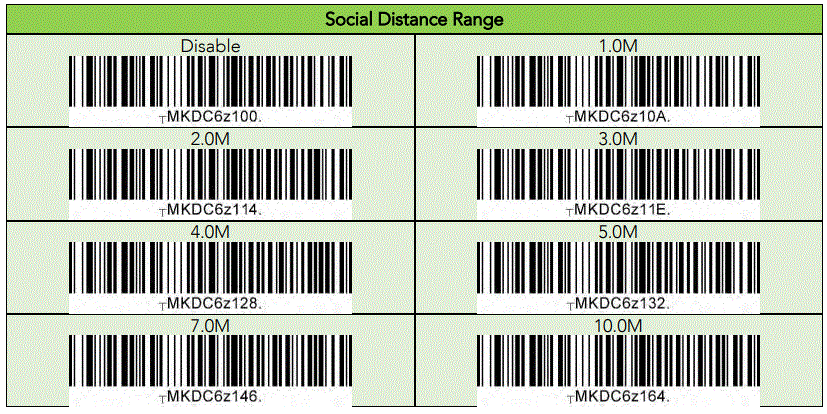
- Scan the special Social Distance barcodes that correspond with the settings you wish to enable
- Enable via the KTSync application
Social Distancing Feature Parameters
The following parameters can be changed:
- Distance: Set the acceptable social distance range with values between 1 to 10 meters (Default: Disabled).
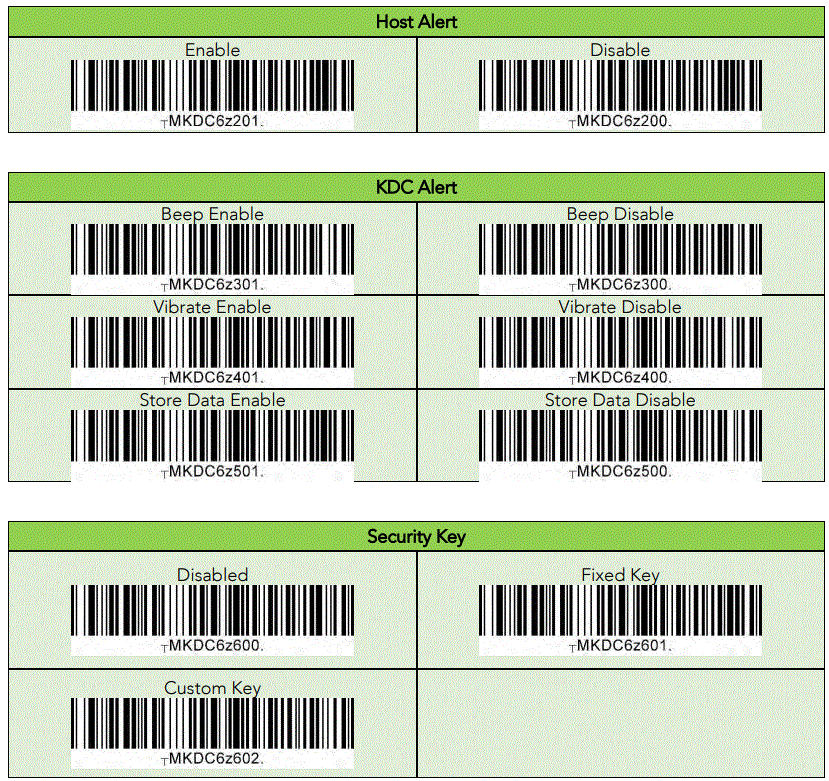
- Host Alert: This setting will forward distance alerts to the connected host device (Default: Disabled).
- KDC Alert: This setting allows the user to enable/disable an audible beep sound (Default: Enabled), vibration (Default: Disabled), and data storage (Default: Disabled) settings for distance violations on the KDC.
- Security Key: Choose keys between devices. Only KDC devices using the same key will be able to detect and report the distance between devices. If the security key is “Disabled”, the KDC won’t use any key. If “Fixed Key” is selected, the KDC will use a predefined key. If you prefer to set your own custom key by selecting “Custom Key”, the custom key can only be set through KTSync (Default: Fixed Key).
Enabling the Social Distancing Feature via the KDC Menu
If you prefer to enable the social distancing feature by navigating through the KDC menu, then follow the instructions below:
- From KDC BLE Config menu, select Social Dist. to configure
- Set the Distance from 1m to 10m
- Set the Host Alert to enable/disable
- Set the KDC Alert: Beep, Vibrator, and Data Store to desired settings
- Set the Security Key: Disabled, Fixed Key, or Custom Key
Enabling the Social Distancing Feature via Social Distance Barcodes
If you prefer to enable the social distancing feature via special barcodes, scan the special social distance barcodes that correspond with the settings you wish to enable:
Enabling the Social Distancing Feature via the KTSync application
The social distancing feature can also be configured in the KTSync application.
Note: This menu is only shown when KTSync is connected to a KDC BLE device running firmware version 050025 or higher.
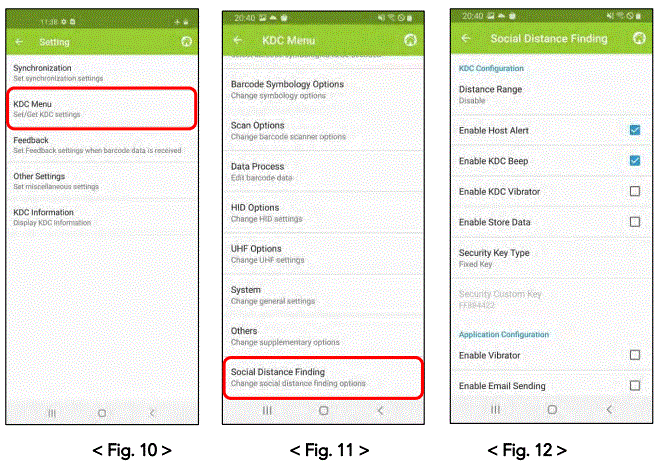
- Open KTSync and tap the Setting icon
- Select KDC Menu (Fig. 10)
- Select Social Distance Finding (Fig. 11)
- Choose your Social Distance settings. Settings listed in the KDC Configuration section are the same settings available to you as if you were setting parameters on the KDC itself. These settings will be saved when you exit this screen. (Fig. 12)
- Additional Application Configuration settings can be set on this screen as well. (Fig. 12)
- Enable Vibrator: If enabled, the host device vibrates when receiving social distance alert data.
- Enable Email Sending: If enabled, email application is launched instead of a social distance data pop up when receiving social distance alert data.
- Email Address: Register and email address to send social alert events.
Examples of Social Distance Alerts & Social Distance Alert Data
Whenever the KDC is connected, the KDC is sending social distance alert data to host device if host alert is enabled and another KDC is found within the selected distance range. When a social distance violation occurs, you may receive these alerts, depending on settings:
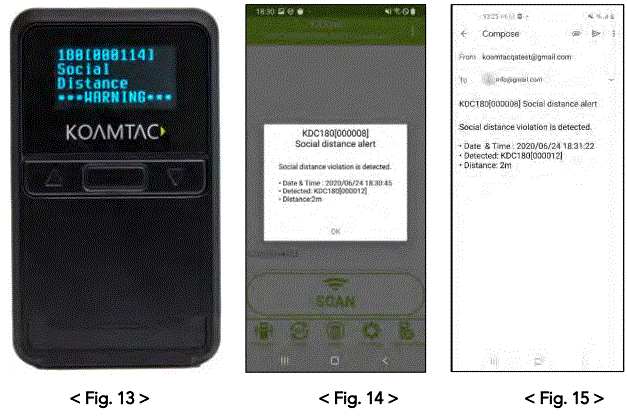
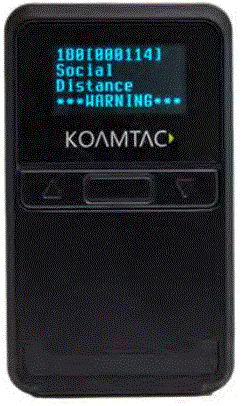
- Social distance warning on KDC, showing your KDC serial number accompanied by beep/vibrate if selected. (Fig. 13)
- Social distance pop-up in KTSync showing your KDC serial number, the date & time of the violation, the serial number of the other detected KDC, and the distance if using the host alert setting. (Fig. 14)
- Social distance email showing your KDC serial number, the date & time of the violation, the serial number of the other detected KDC, and the distance if using the enable email sending setting. (Fig. 15)
Note
- When reconnected, the KDC will send social distance data to the host device even if the same KDC is found within distance.
- Only one social distance data alert is sent to the host device when multiple KDC devices are detected if social alert is already being displayed as a pop-up or email application is already launched.
KOAMTAC devices and accessories are not designed or intended to prevent, mitigate, treat, diagnose or cure any disease or health condition, including COVID-19/Coronavirus. KoamTac devices and accessories are intended for general public use only. KOAMTAC devices and accessories are not medical devices and are not intended for use in any medical or inherently infectious setting, or where exposure to bodily or hazardous fluids may be expected, or where the risk of exposure through inhalation is high.
KOAMTAC DEVICES ARE PROVIDED AS-IS WITH ALL FAULTS, AND KOAMTAC SPECIFICALLY DISCLAIMS ALL WARRANTIES, EXPRESS OR IMPLIED, INCLUDING (WITHOUT LIMITATION) IMPLIED WARRANTIES OF MERCHANTABILITY OR FITNESS FOR A PARTICULAR PURPOSE. KOAMTAC SPECIFICALLY DISCLAIMS THAT KOAMTAC DEVICES WILL PREVENT INFECTION OR THE TRANSMISSION OF VIRUSES OR DISEASES. KOAMTAC DEVICES ARE NOT A SUBSTITUTE FOR PROFESSIONAL MEDICAL ADVICE, DIAGNOSIS, OR TREATMENT, AND ANY MEDICAL QUESTIONS SHOULD BE DIRECTED TO YOUR HEALTHCARE PROVIDER. THE ENTIRE RISK AS TO THE QUALITY AND PERFORMANCE OF THE SOCIAL DISTANCING FEATURE OF THE PRODUCT IS WITH THE BUYER. SHOULD THE QUALITY OR PERFORMANCE OF THE SOCIAL DISTANCING FEATURE OF ANY KOAMTAC PRODUCTS PROVE DEFICIENT FOLLOWING ITS PURCHASE, THE BUYER ALONE, AND NOT THE MANUFACTURER, DISTRIBUTOR, OR RETAILER ASSUMES THE RISK OF ANY INFECTION OR DISEASE TRANSMISSION THAT MAY RESULT DURING BUYER USAGE. KOAMTAC ASSUMES NO LIABILITY FOR INACCURACIES OR MISSTATEMENTS BY THIRD-PARTY SELLERS.
See Reference Manual for more detailed information
Visit: store.koamtac.com to purchase additional products and accessories.
Contact
- 116 Village Blvd, Suite 305, Princeton, NJ 08540 USA
- T: + 1-609-256-4700
- F: +1-609-228-4373
- [email protected]
- www.koamtac.com
©2020-2022 KOAMTAC, Inc.
References
 KOAMTAC Store – KOAMTAC Inc.
-
KOAMTAC Store – KOAMTAC Inc.
-
KOAMTAC Bluetooth Barcode Scanners, RFID Readers, and mPOS
-
KOAMTAC Bluetooth Barcode Scanners, RFID Readers, and mPOS
 KTSync on the App Store
-
Software Development Kit (SDK) for KOAMTAC Data Collectors (KDCs)
-
Software Development Kit (SDK) for KOAMTAC Data Collectors (KDCs)
 KOAMTAC Store – KOAMTAC Inc.
 KOAMTAC Bluetooth Barcode Scanners, RFID Readers, and mPOS
 KTSync on the App Store