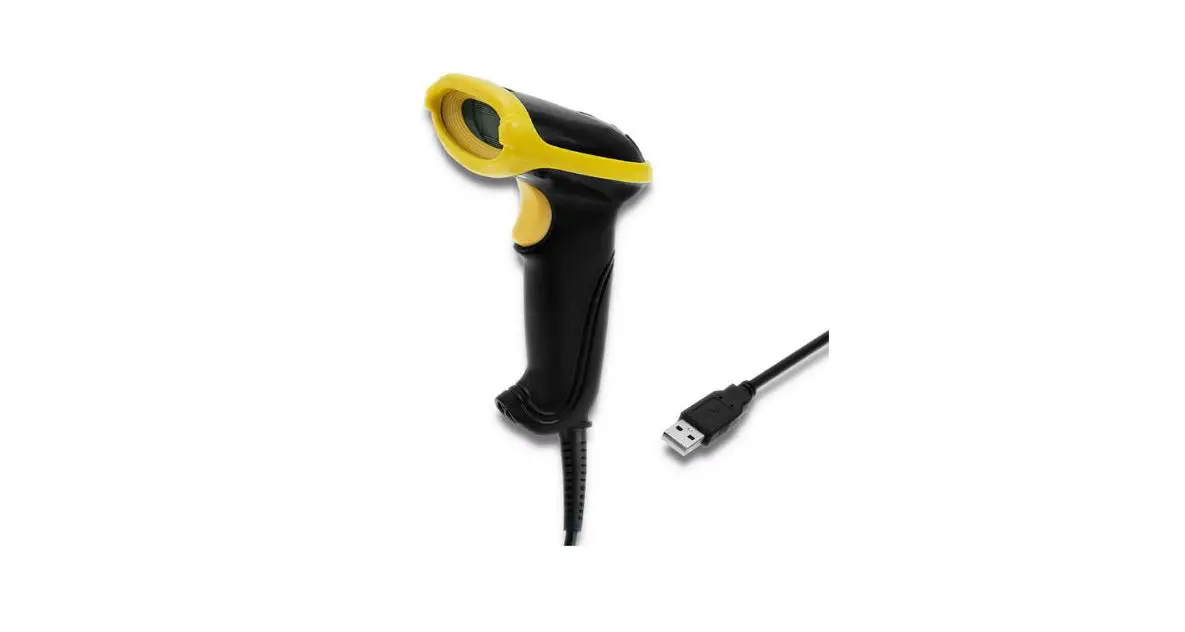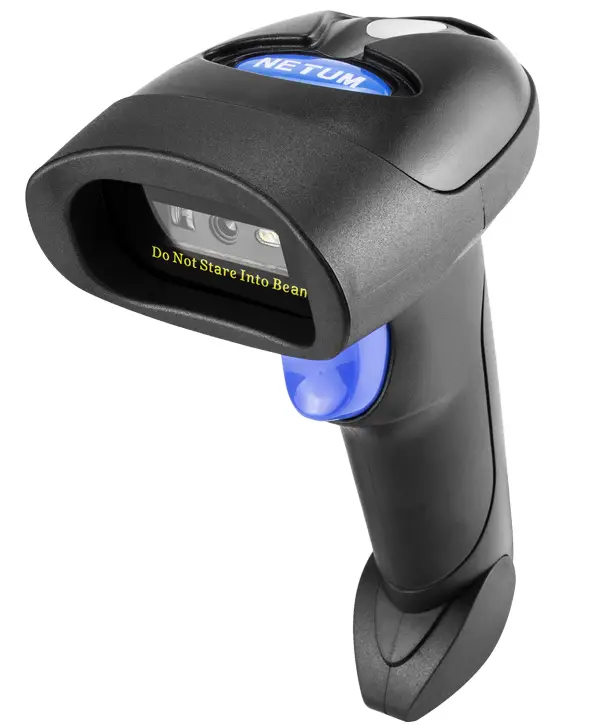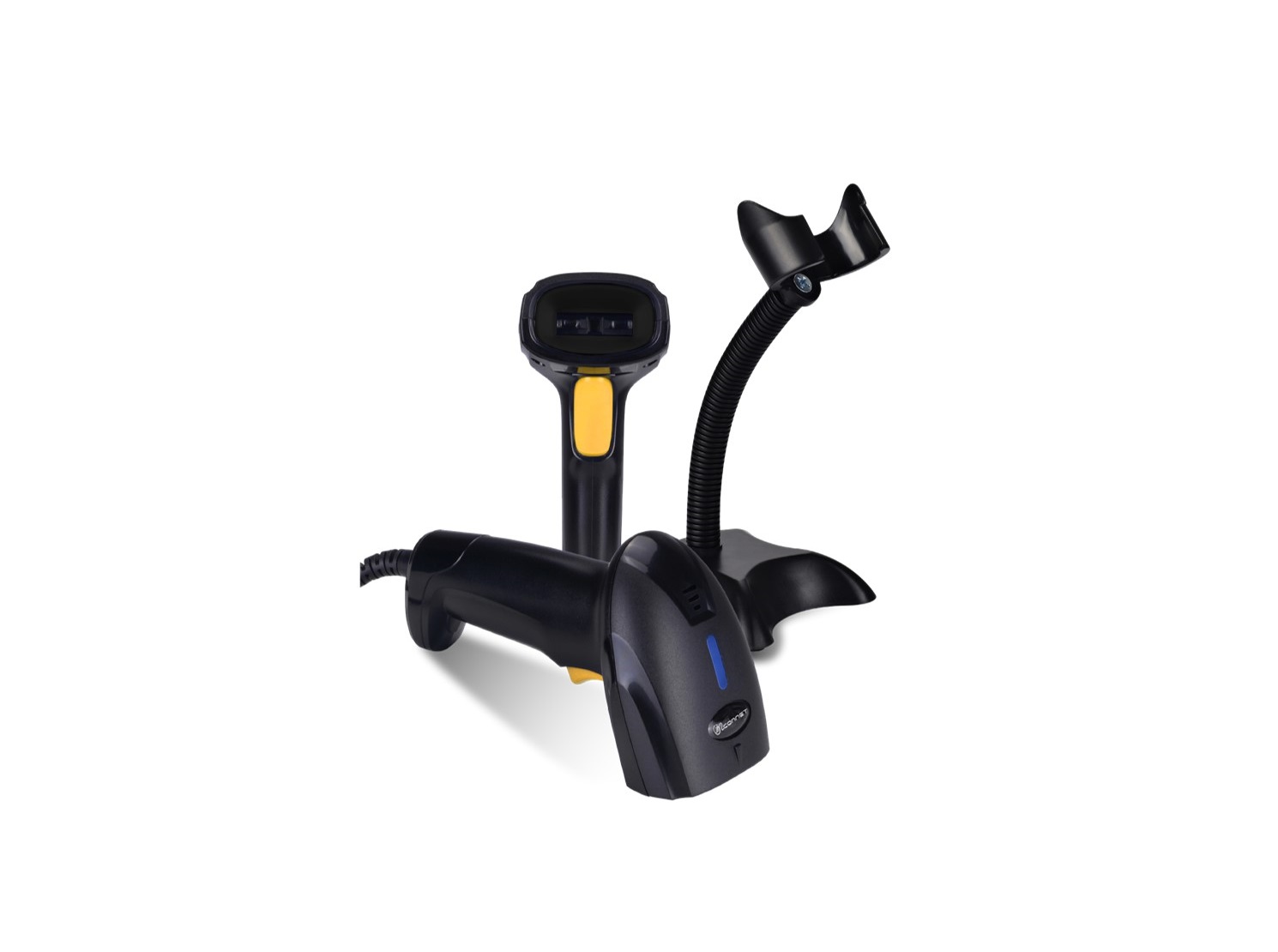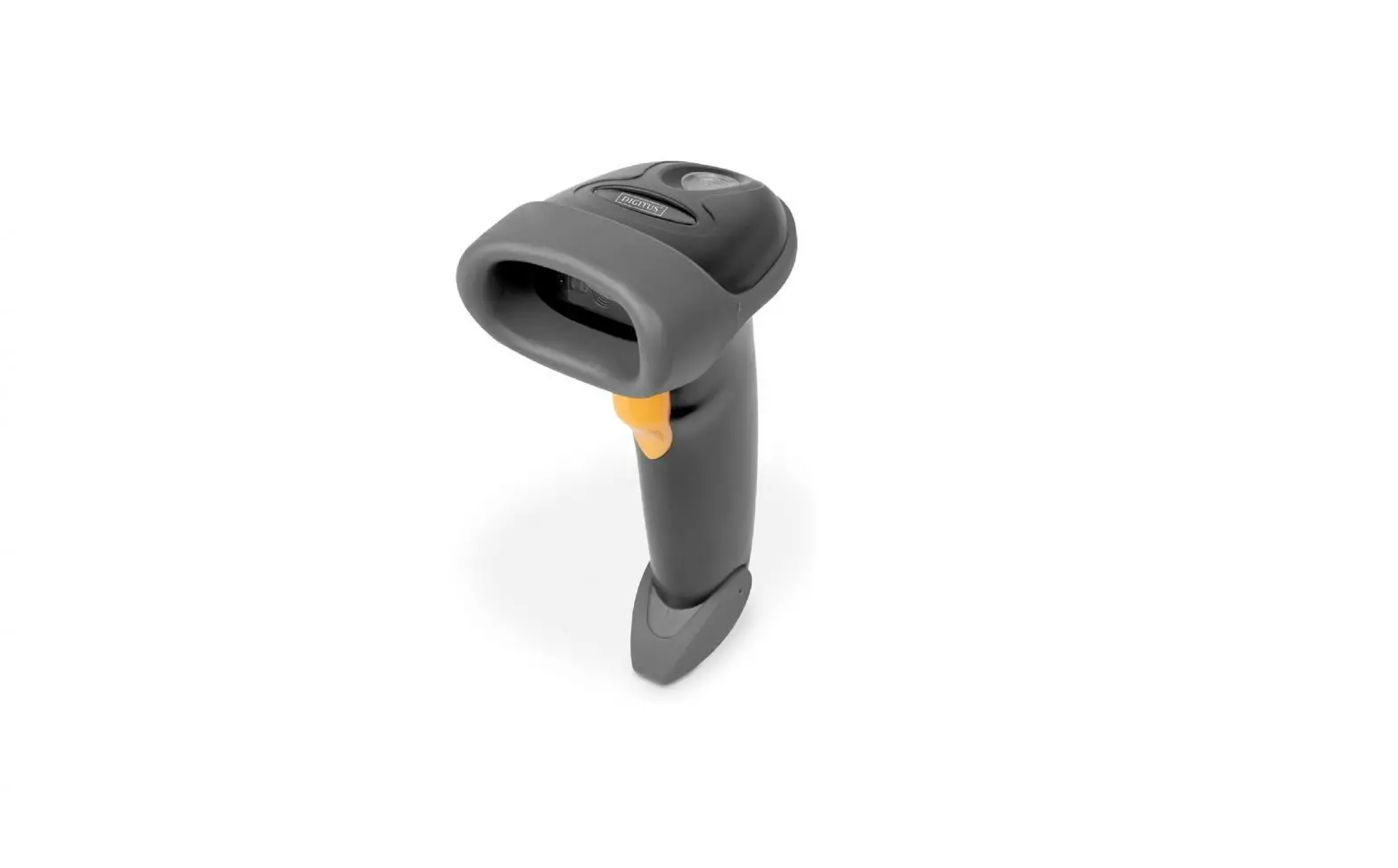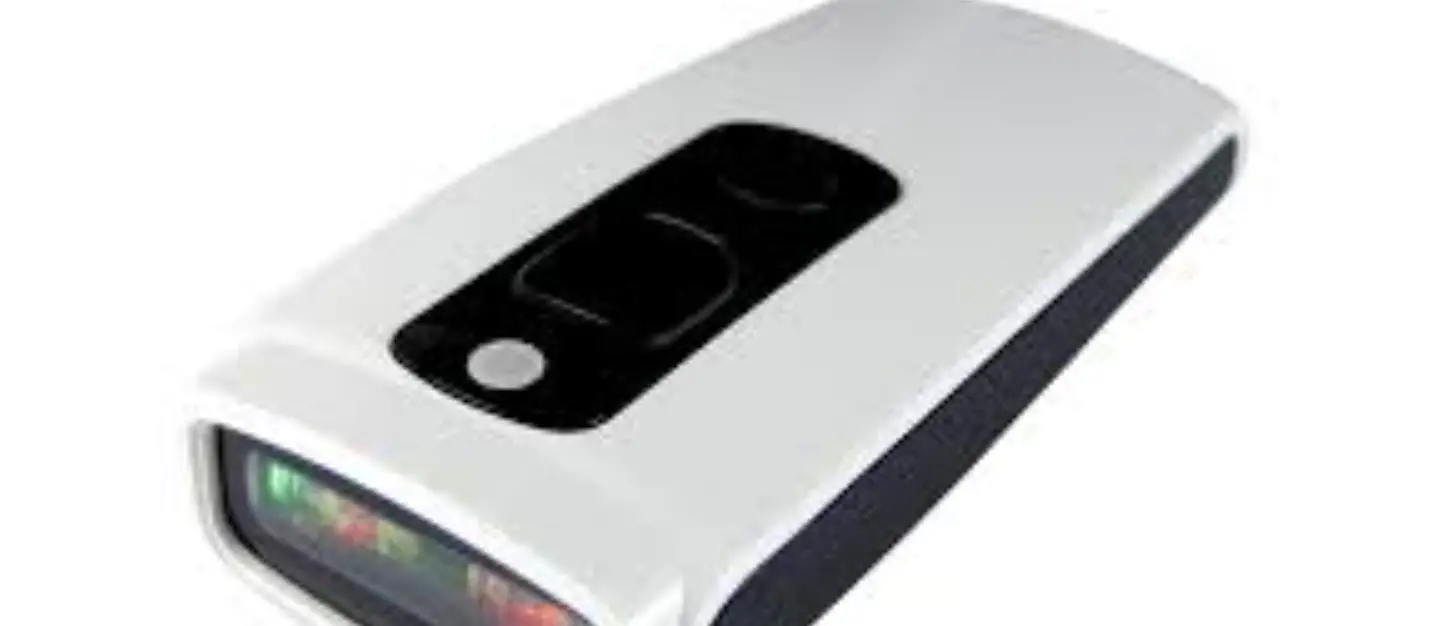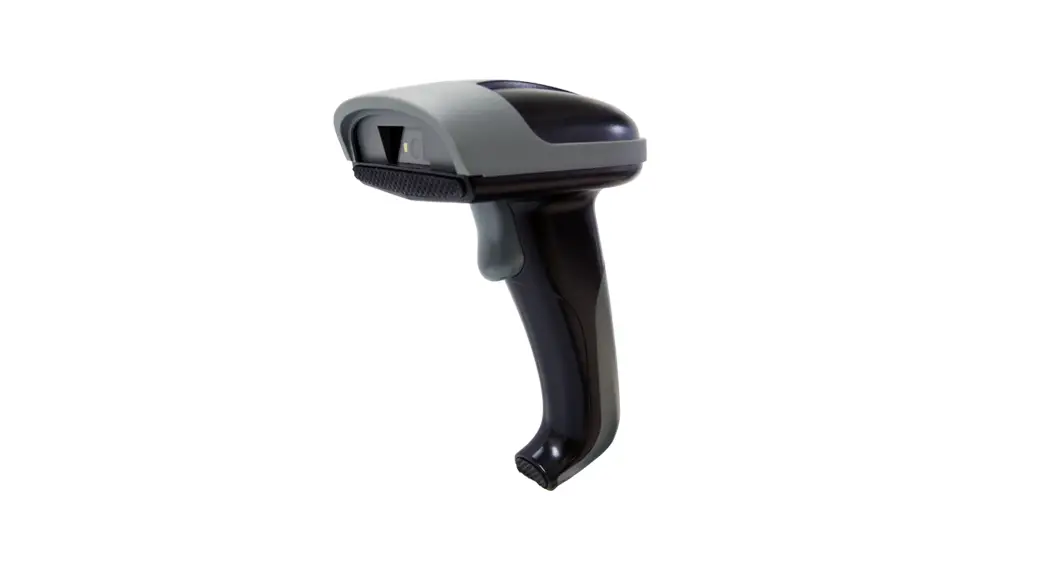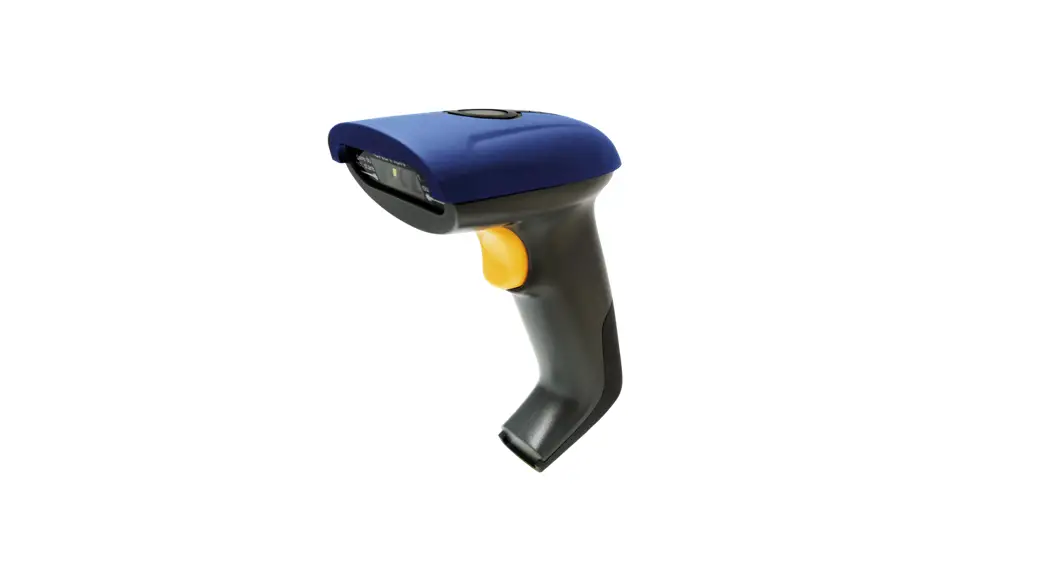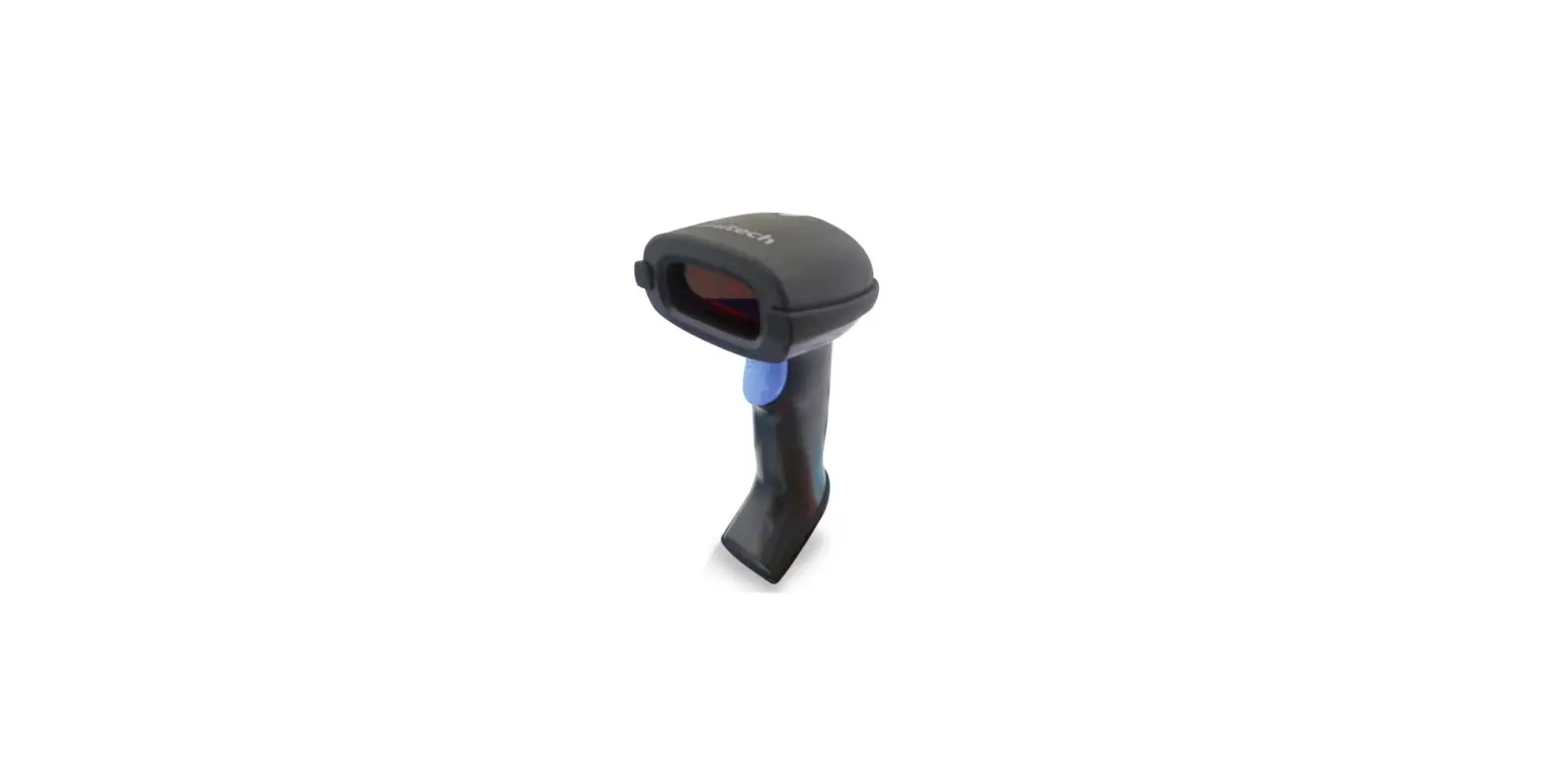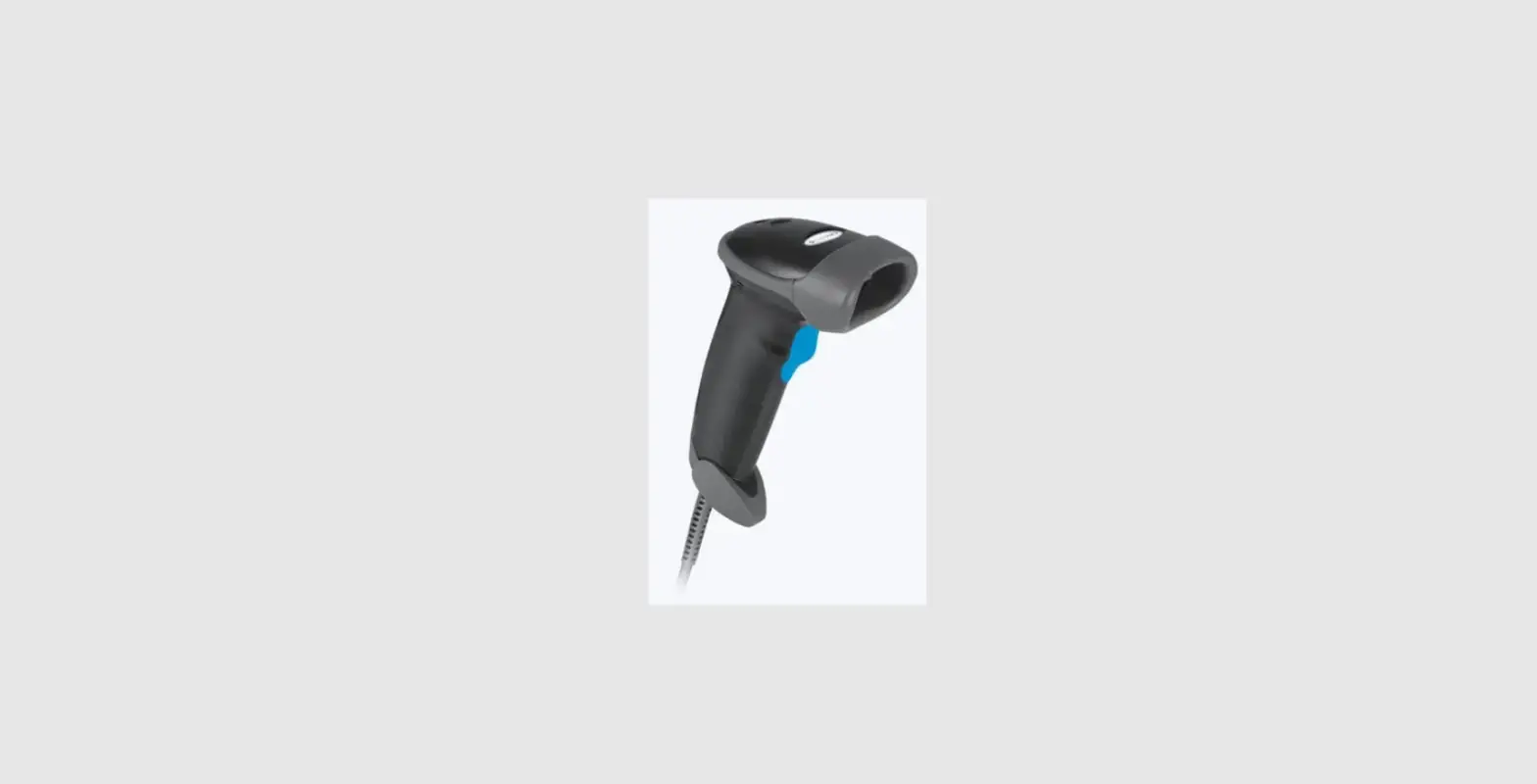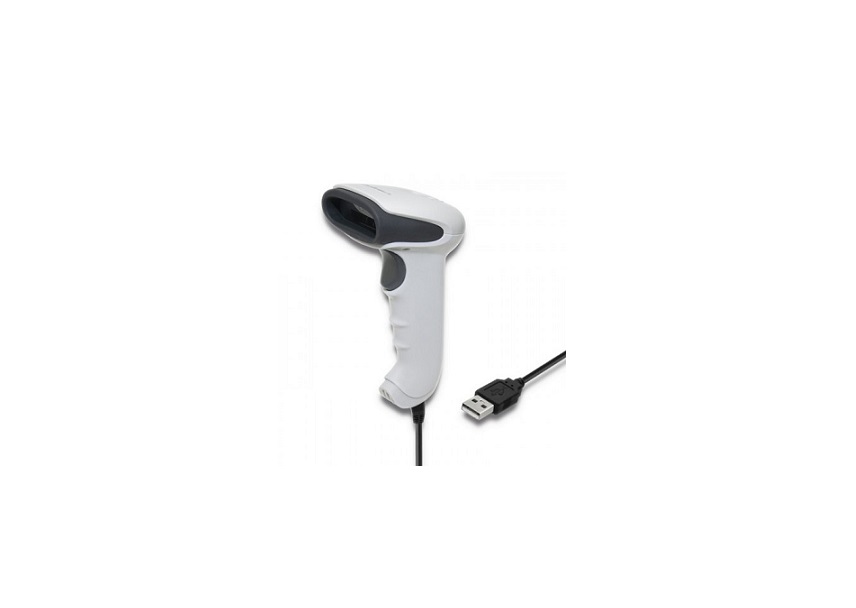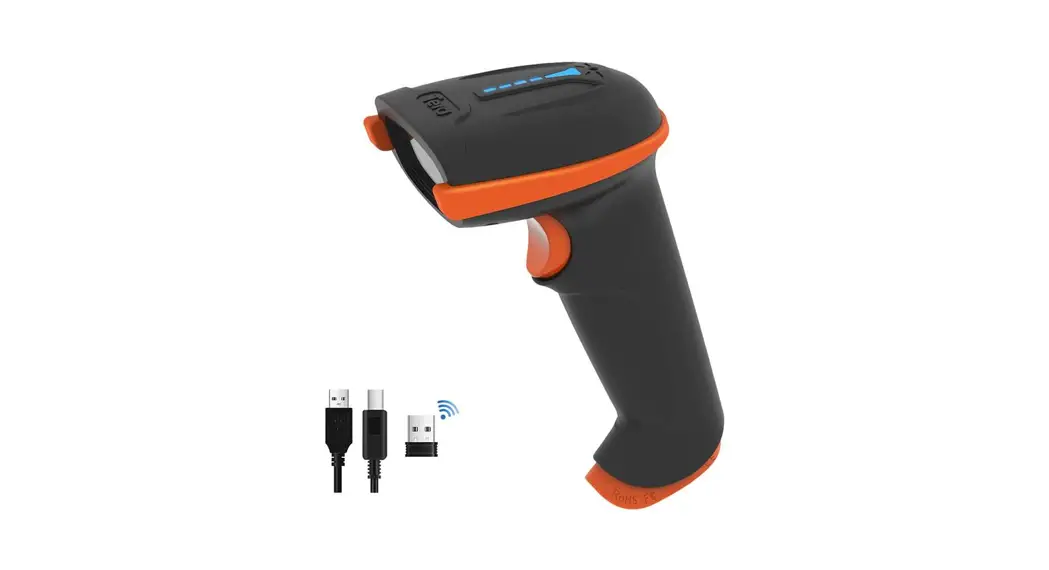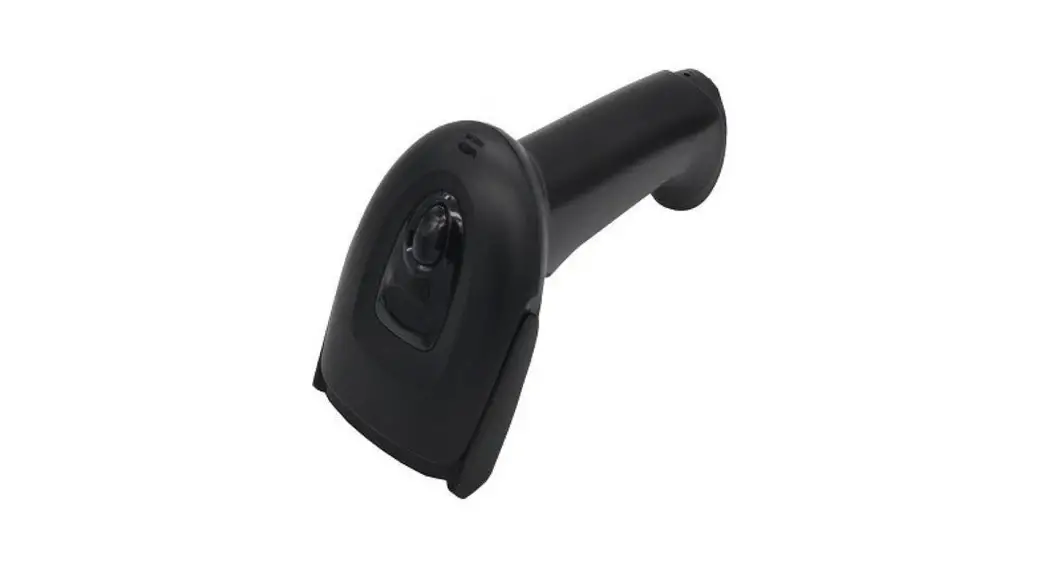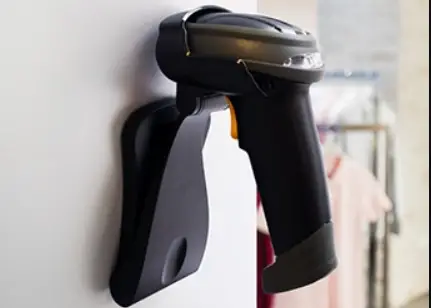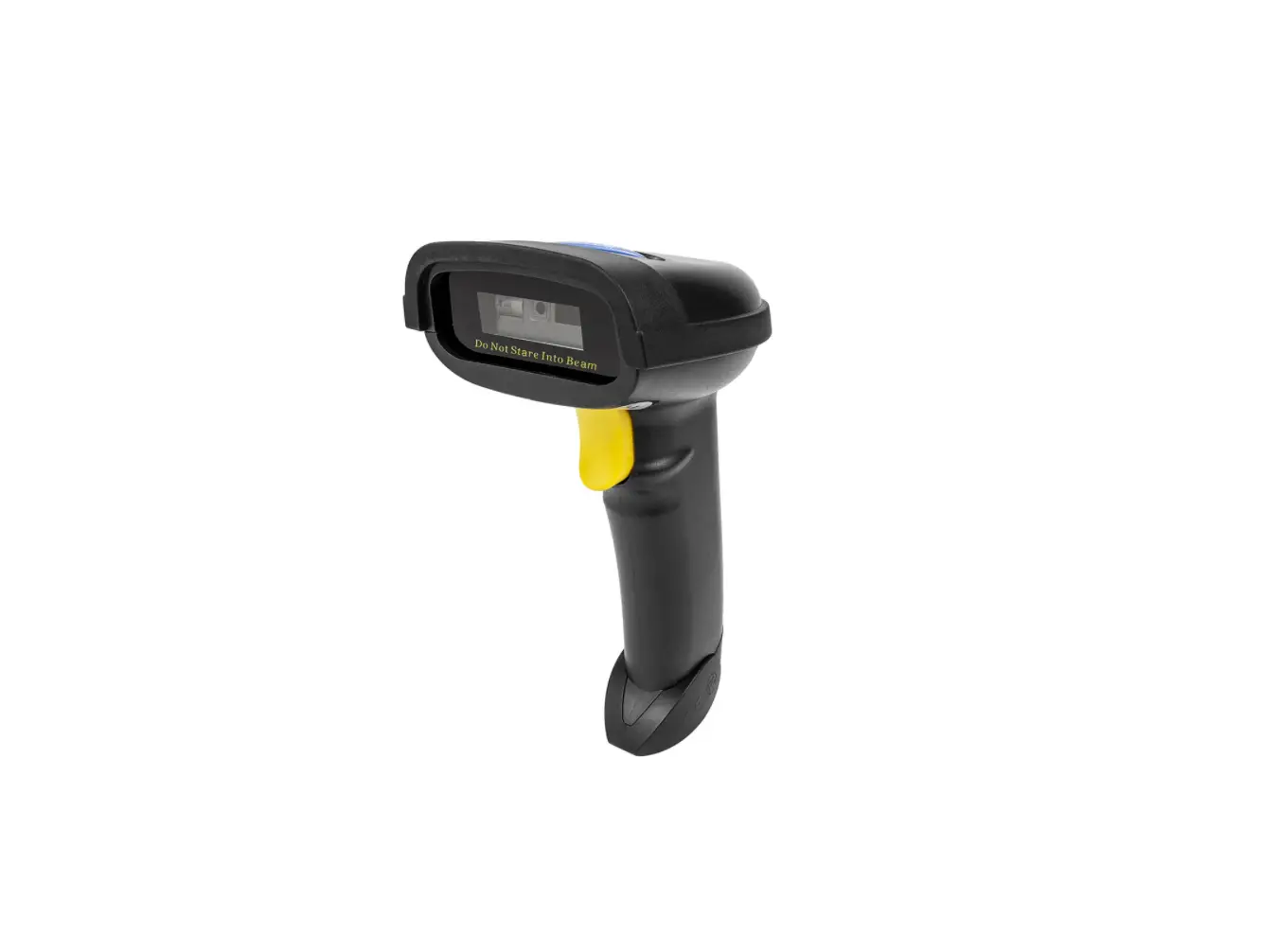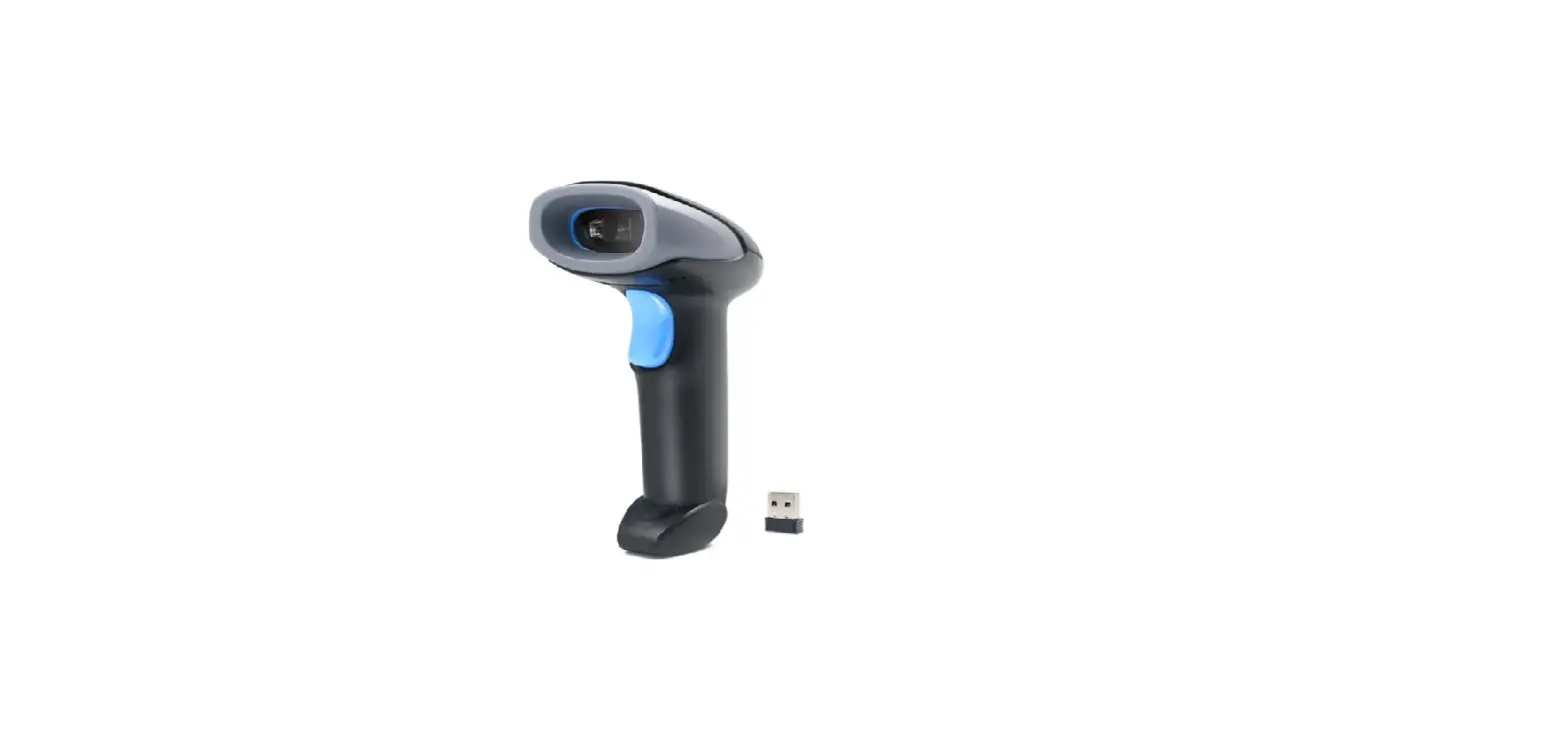

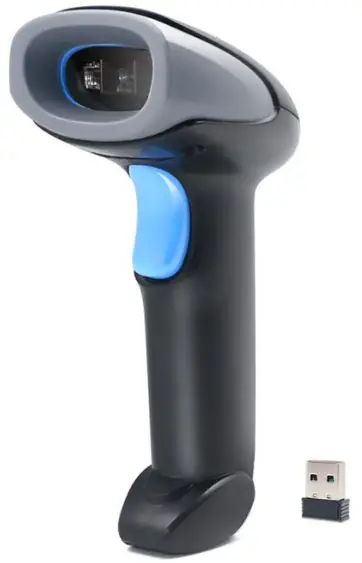
2CONNET M930Z Wired 1D 2D QR Handheld Barcode Scanner
Dear users, thank you for choosing our products. we will provide you with quality products and caring services.
How to use
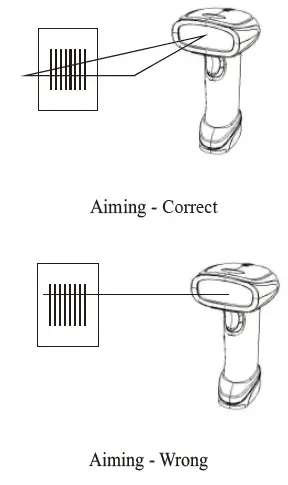
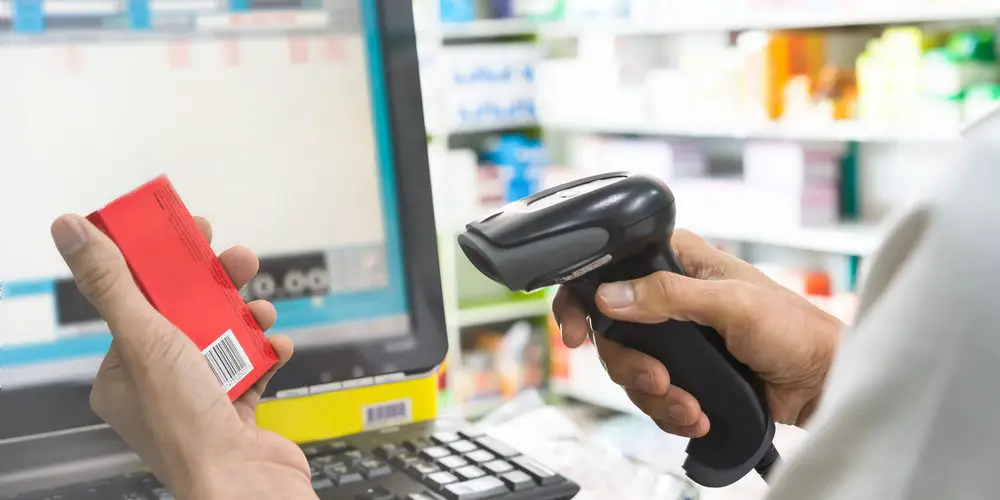
Maintain a 10-40° bevel angle in the horizontal direction of the scanner and bar code for optimal scanning results.
Scanner Features
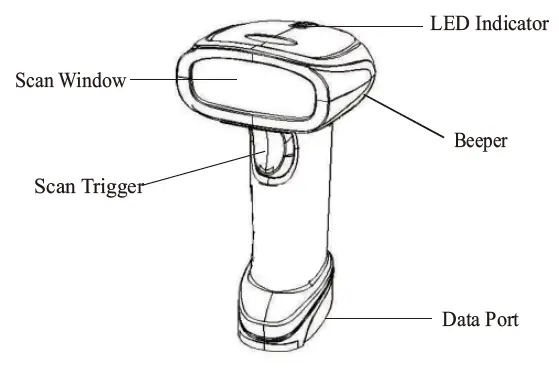
Interface cable’s Installing and Removing
Data cable connection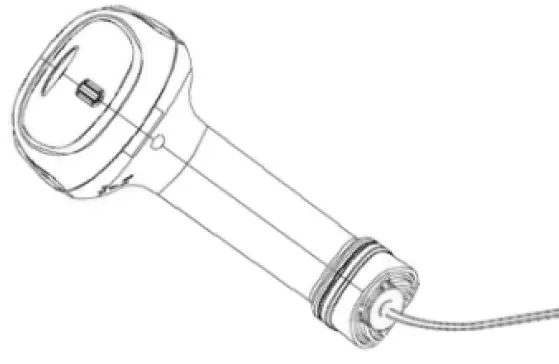
- The data cable on the bottom of the scanner is not allowed to be pulled out;
- Because the data cable is integrated with the scanner interface, the data cable cannot be pulled out.
Packing List
- 1* Scanner.
- 1* Interface Cable.
- 1* Quick Start Guide.
If you need to use the detailed manual, Please contact the bar code scanner vendor.How to use the parameter barcode: scan corresponding bar codes to set up the scanner and the scanner will beep once.
System Setting

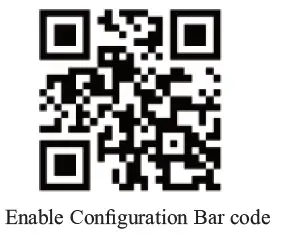
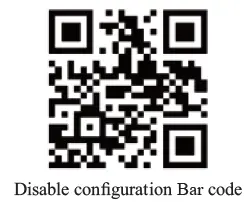
- Reading the “Enable configuration code” barcode enables the barcode scanner to open and configure by reading a specific barcode (configuration code function). After the function is turned on, the parameters of the barcode scanner can be modified by reading one or more configure codes.
- After reading the “Disable configuration code”, most of the configuration code processing functions will be disabled by the barcode scanner. In this state, only the ” Enable configuration code” code can be read and processed.
Common settings
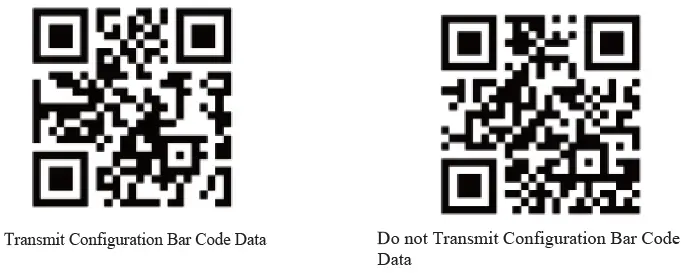
The content of the configuration code can be output. After reading the “output configuration code content” and setting it successfully, the content will be output to the host when reading the configuration code; after reading the “no output configuration code content” and setting successfully, the barcode scanner will no longer output the configuration code content. After the barcode scanner is restarted, no matter what the previous settings are, it will return to the state of “no output of configuration code content”.
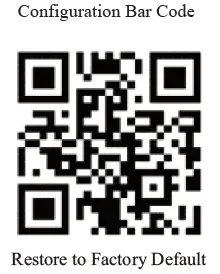
Note: please use the “restore factory default” function carefully. After reading this configuration code, you will lose the current parameter setting and replace it with the factory default value.
User default settings
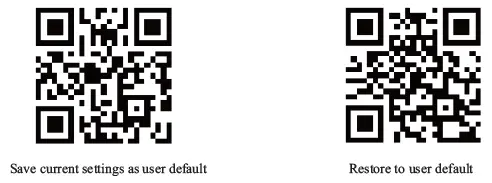
- In addition to the factory default settings, you can save the settings you often use as user default settings.
- Reading the “save current settings as user default settings” code will save all parameters of the barcode scanner as the user’s default settings. If there is user default configuration information on the barcode scanner, the current configuration information will replace the original user default configuration information after this operation. Reading “restore to user default settings” switches the module to the state of user default settings.
(Note: after restoring the factory default settings, the previously saved user default settings will not be lost.)
Interface setting
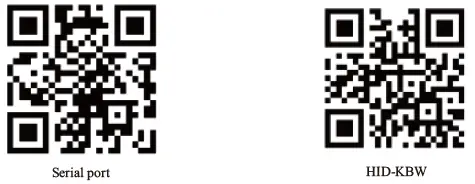
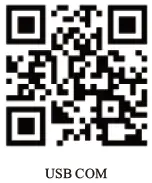
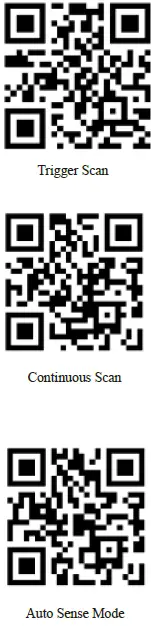
Scan mode
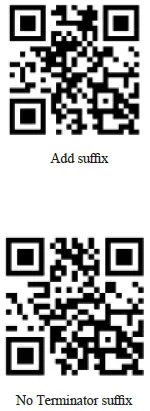
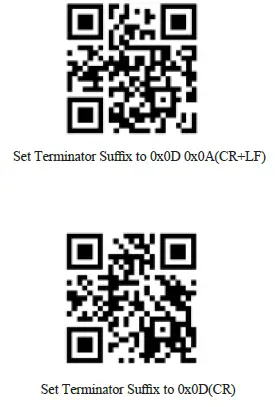
Terminator Suffix
Troubleshooting
| Serial number | problems | Possible reason | Solution |
| 1 | Interface cable is installed correctly, but scanner not started. | No power to scanner | Ensure the scanner is Powered On |
| Incorrect connection of interface cable. | Ensure all cable connections are secure | ||
| 2 | Interface cable connected but Scanner not decoding bar code | The Bar code type is disabled. | Enable that bar code type |
| Damaged barcode | Scan a test bar code of the same bar code type | ||
| Distance between the scanner and bar code is incorrect | Move scanner closer to or further from bar code | ||
| The scanner is not high enough to cover the barcode completely | Point the reader at the target and pull the trigger to enable the illuminator (red beam) to decode the bar code label. | ||
| 3 | Scanned data incorrectly displayed on host | Input method error | Convert input method to standard English input method |
| Other settings were made for the scanner | Restore the parameters of the scanner to the factory settings state, o,r contact the vendor service center | ||
| 4 | Scanned data incorrectly displayed on host | Region improperly configured | Select the appropriate country and language encoding scheme |
| 5 | Other faults | Device conversion error | Turn off the device power, and connect the device and the scanner correctly. Restore the parameters of the scanner to the factory settings state, rescan the code |