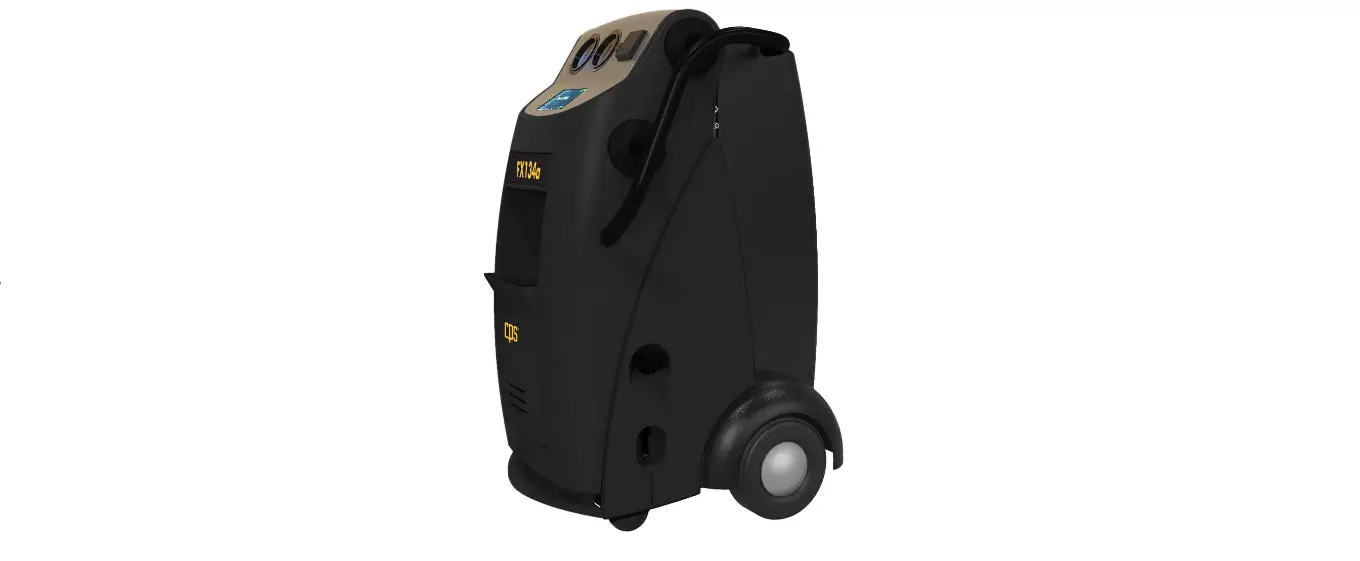

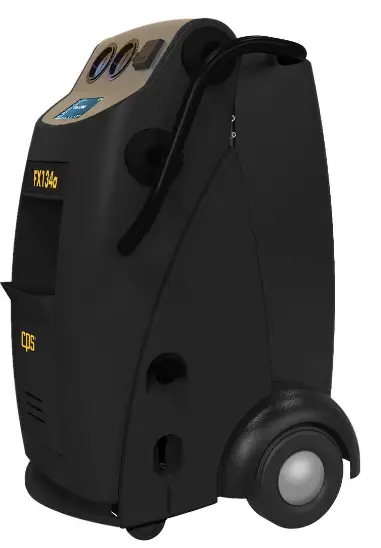
CPS Products FX134A Refrigerant Management System
FX Firmware Install Instructions
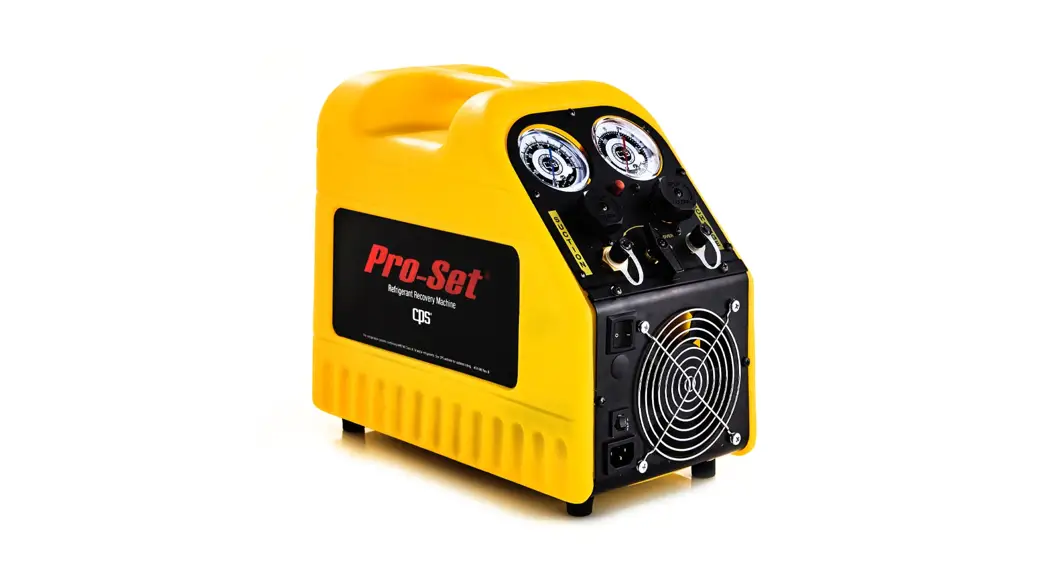
FX Units Models include:
FX134a, FX1234, FX3030, MFX134a, MFX1234, MFX3030, 218-FFX134a, 218-FFX1234, 92015, 93109, 93110, W05040000, W05040101, W05040103
Purpose
This document describes the steps to do a full FX firmware install from self-extracting file. This procedure requires an SD Card and a computer with SD Read/Write capability.
FX Full Install Steps
- Insert SD Card in PC
- Delete all files on the SD Card
- Double click or execute the self-extracting file (That matching the Brand of your unit)
- When prompted for the extract location, select the SD Card drive
- Click Extract
- Power off the FX unit
- Insert the SD Card in the FX unit (Remove Database Card if installed)
- Power on the FX unit
- Installation may take several minutes. When the unit returns to the main menu, it is complete
- Remove the SD Firmware and reinstall Database Card
WARNING
For units with v2.16 Firmware or lower; TSB 2016-06-09 should be consulted prior to the update.