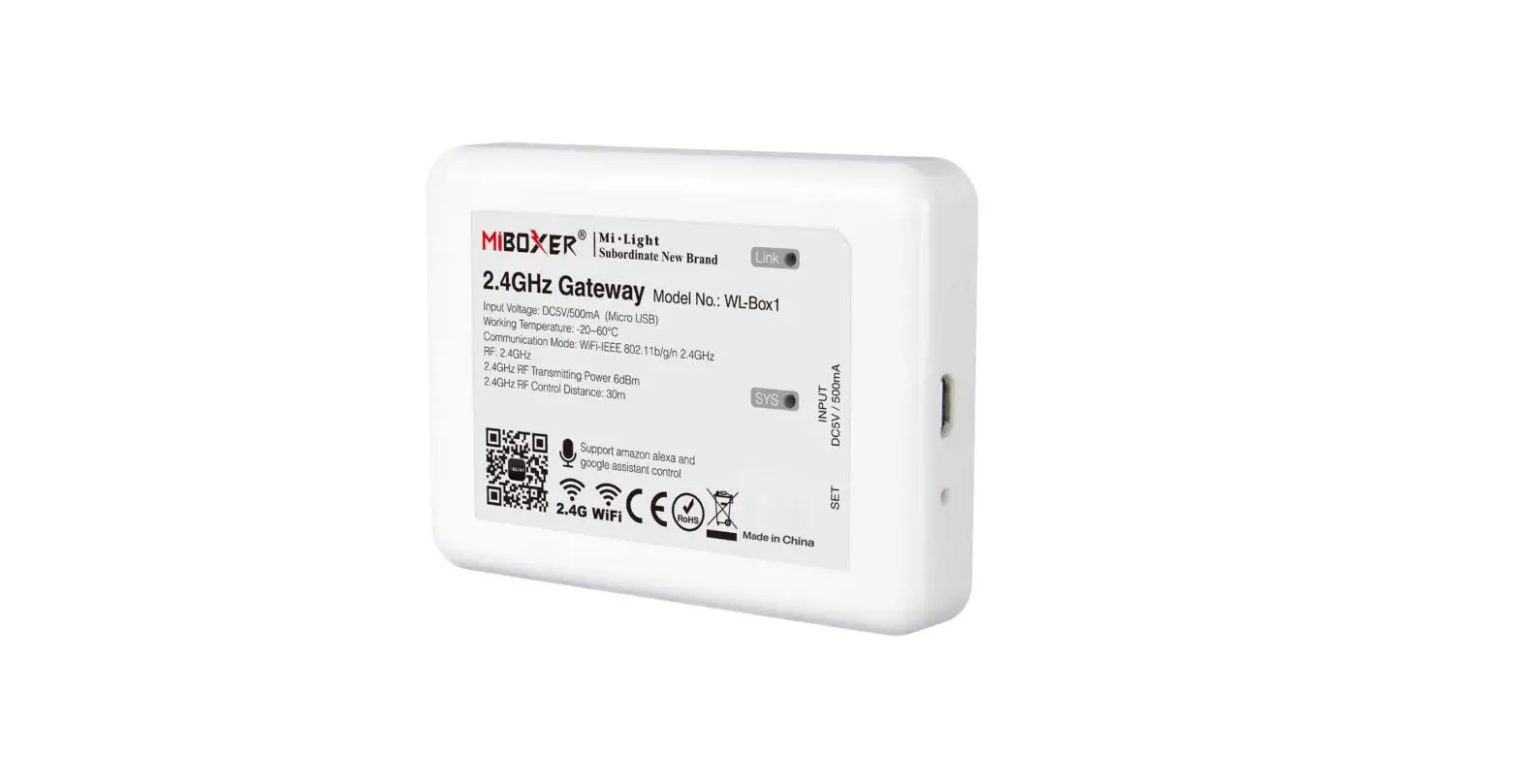
MiBOXER Mi-Light Subordinate New Brand Instruction Manual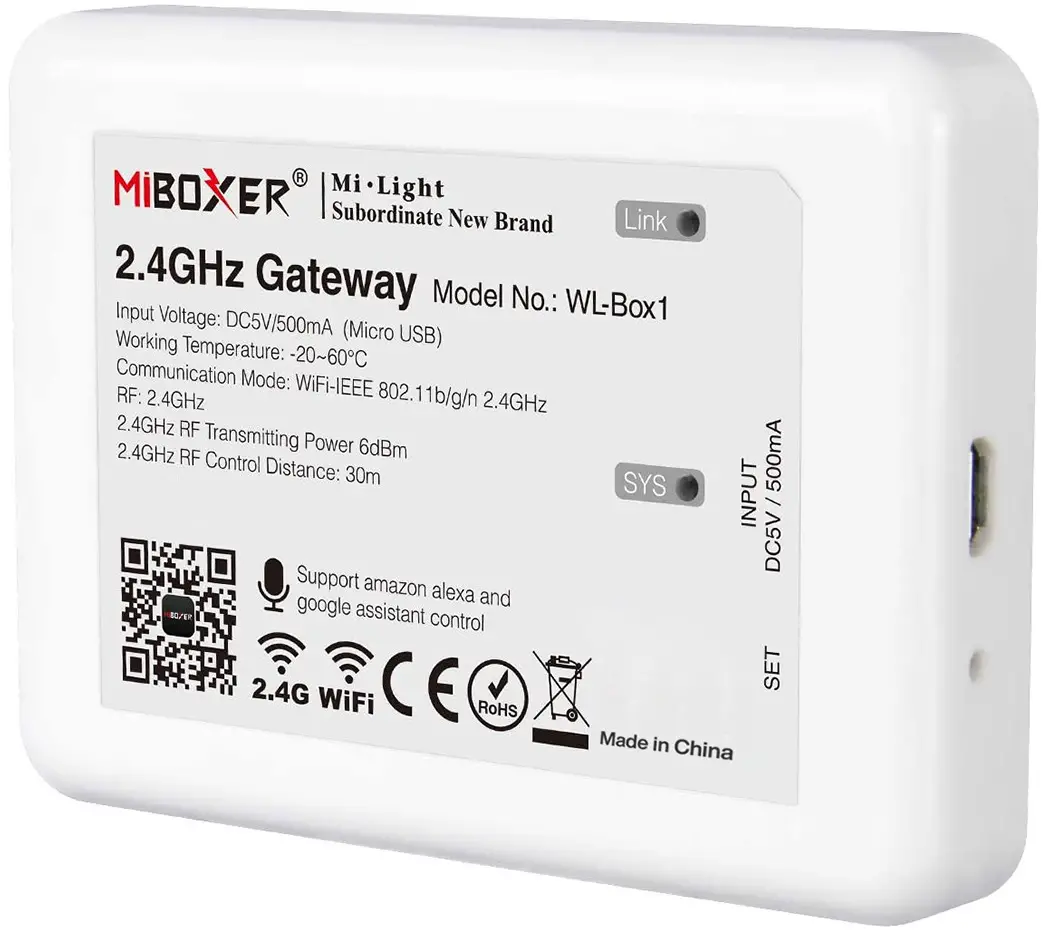
Features
This product uses Wi-Fi + Bluetooth + 2.4 GHz wireless transmission technology, low power consumption, strong anti interference ability. When Wi-Fi is disconnected, Bluetooth or remote can also directly connect and control equipment at close range.
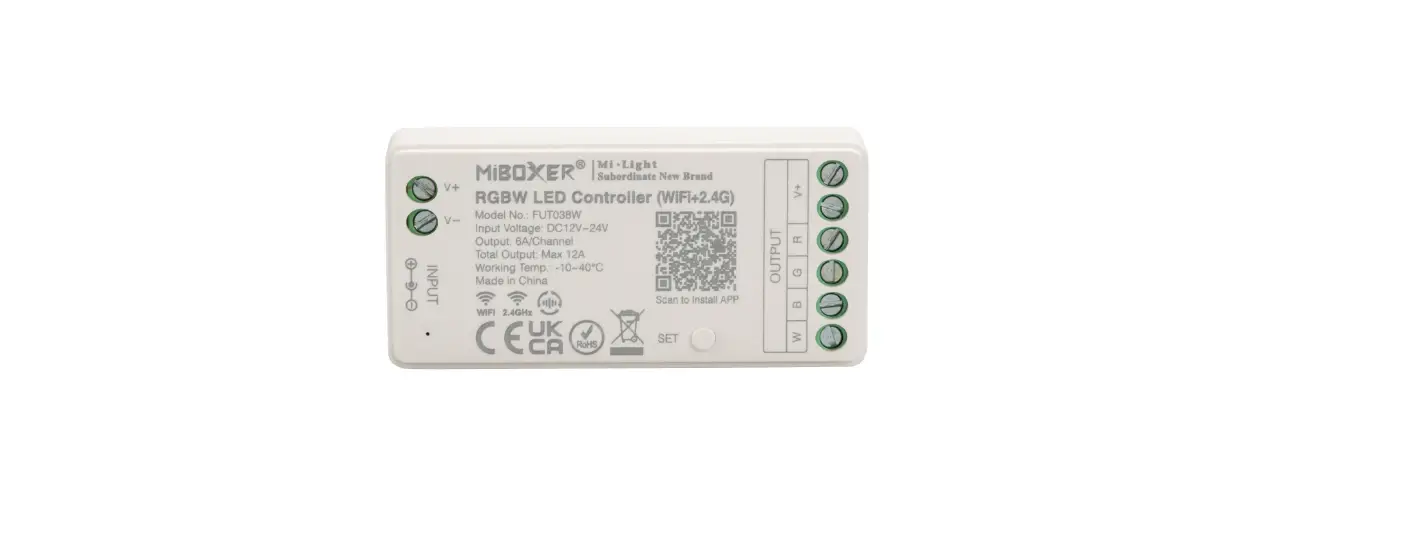
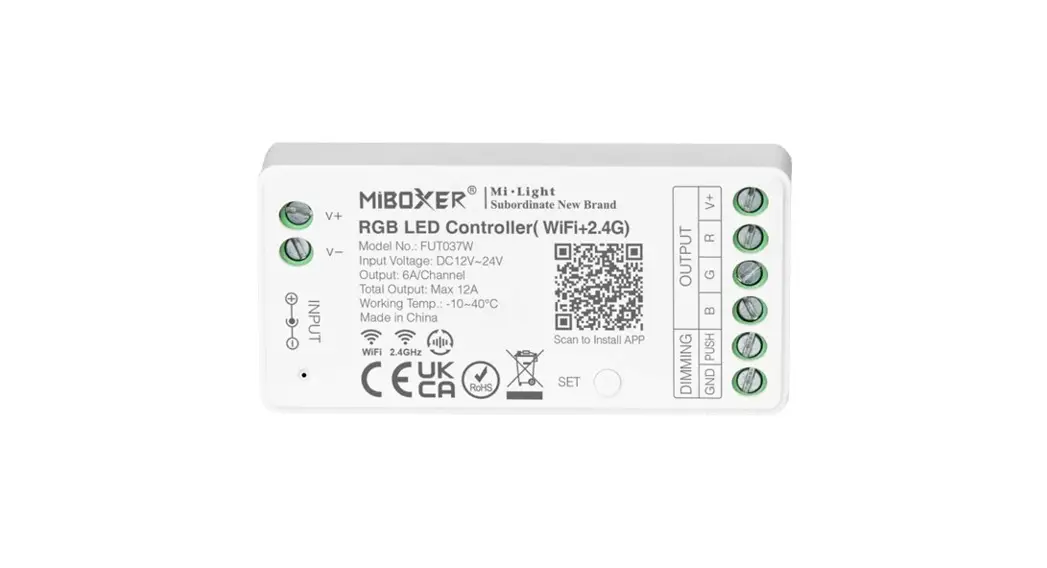
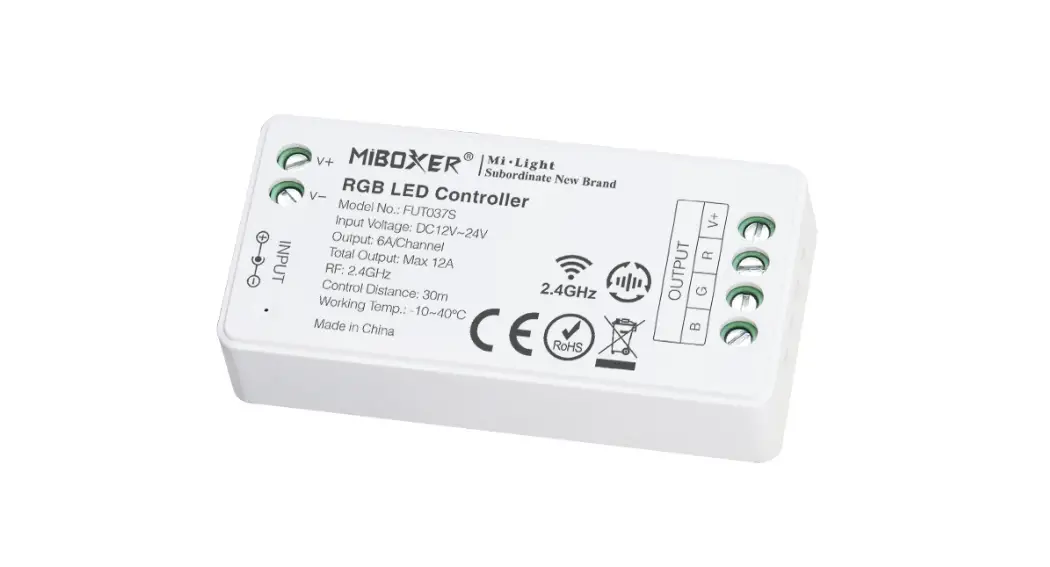
RGBW LED Controller (FUT038W)
 16 Millions of colors to choose
 Dim brightness / Saturation / White mode
 2.4G RF wireless transmission technology
 WiFi wireless control support long-range control
 Auto-transmittng & Synchronizaon (only for remote control dimming
 Device sharing
 Tap-to-Run & automation
 Timing setting / countdown turn on / off LED light
 Do not disturb mode
 Remote control Control distance 30m
 Smartphone app control
 Support third party voice control
 Group control
 Biorhythm
 Support music rhythm
 Sleep / wakeup plan
 Support scene customization
Dynamic Mode Table Selection (only for remote)
Select dynamic mode table 1: Turn power off for 10 seconds and then power on. Within 3 seconds, press the ” S+ ” button 5 times. The blue light should blink 3 timesslowly, indicating a successful switch.
Select dynamic mode table 2: Turn power off for 10 seconds and then power on. Within 3 seconds, press the ” S- ” button 5 times. The yellow light blink 3 timesslowly, indicating a successful switch
Dynamic Mode Table 1 (default)
| Number | Dynamic Mode | Brightness / Saturation / Speed |
| 1 | Mardi Gras | Adjustable |
| 2 | Automatic color change | |
| 3 | Sam | |
| 4 | Gemstone | |
| 5 | Twilight | |
| 6 | American | |
| 7 | Fat Tuesday | |
| 8 | Party | |
| 9 | Slow Color Splash |
Dynamic mode table 2 (need to switch manually)
| Number | Dynamic Mode | Brightness / Saturation / Speed |
| 1 | Colors gradual change | Adjustable |
| 2 | White light Gradual change | |
| 3 | RGB gradual change | |
| 4 | Seven colors jump to change | |
| 5 | Jump to change randomly | |
| 6 | Red light gradual change +Flash 3 times | |
| Green light gradual change +Flash 3 times | ||
| 8 | Blue light gradual change +Flash 3 times | |
| 9 | White light gradual change +Flash 3 times |
Auto-Transmittng & Synchroniztion (only for remote control)
Signal Transmitng
One light/controller can transmit the signals from the remote control to another light/controller within 30 m.
Modes synchronization
Different lights can synchronize when they are within transmitting distance provided they are using the same mode and speed.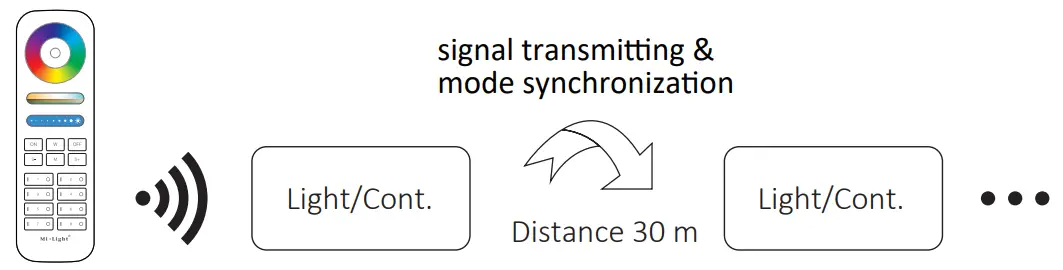
Pairing / Unpairing Remote
Pairing Instructions
- Switch off light or controller for 10 seconds. Then, switch light or controller on.
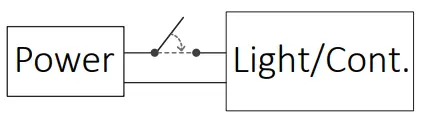
- Press desired zone “|” button 3 times within 3 seconds of applying power
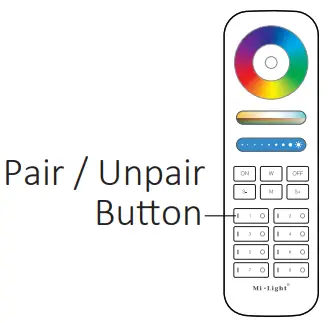
- Connected lights blink 3 times slowly to indicate pairing is successful.
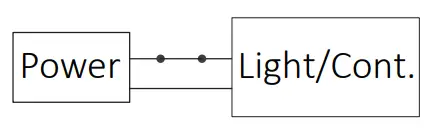
 If light does not blink slowly, then the pairing process failed. Switch off controller and follow steps again.
Unpairing Instructions
- Switch off light or controller for 10 seconds. Then, switch light or controller on.
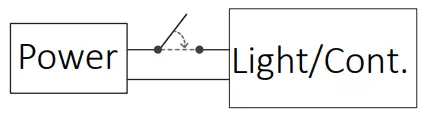
- Press zone “|” button 5 times within 3 seconds of applying power.
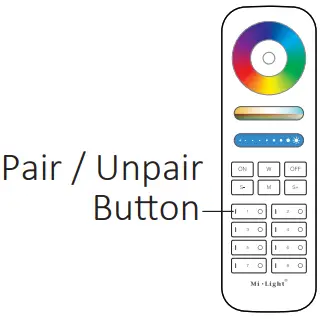
- Connected lights blink 10 times quickly to indicate unpairing is successful.
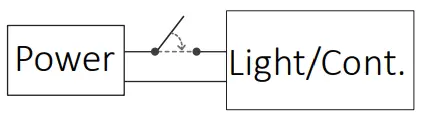
If light does not blink quickly, then the unpairing process failed. Switch off controller and follow steps again.
Compatible with these remote controls (purchased separately)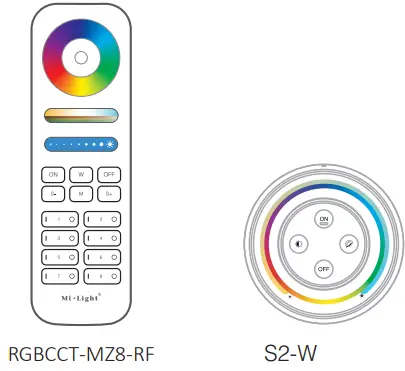
Smartphone App Control
- Download and install [MiBoxer Smart Search for [MiBoxer Smart] in Apple or Google store or scan following QR code to download and install the app.

- Network Configuration
- Connect controller to power supply.
- Confirm indicator light is flashing quickly (2 flashes per second), If indicator light isn’t in this state, there are two ways to enter it:
- Long press ” SET ” key times indicator light starts flashing quickly.
- Power controller off and on 3 times.
- Connect phone with 2.4 GHz Wi-Fi network
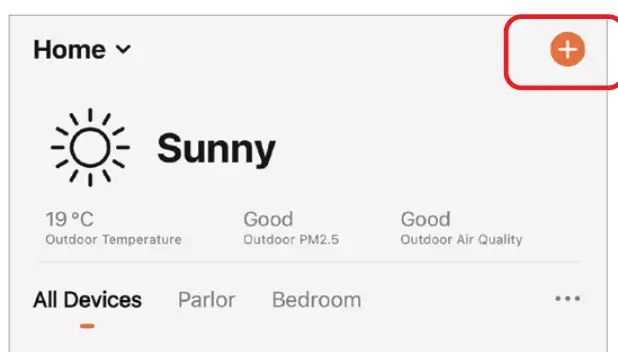
- Open homepage of app and click ” + ” button at the upper right corner of page.
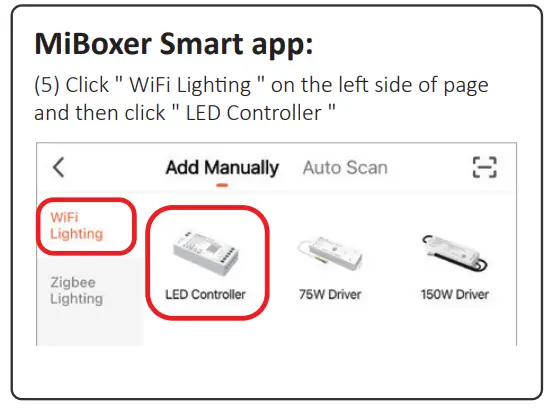
- Follow app prompts to complete configuration.
Scan QR code to watch video instruction
Smartphone app control (FUT035W-FUT039W video
Third party voice control
Attenton
- Please check whether the voltage of the power supply matches the controller and light, and please check the connec· on of both the cathode and anode before applying power.
- Ensure supply power is off before performing any installation or wiring procedures.
- Using the light/controller in the place with metal or concrete structures or electromagnetic interference will cause issues with communication and communication range.