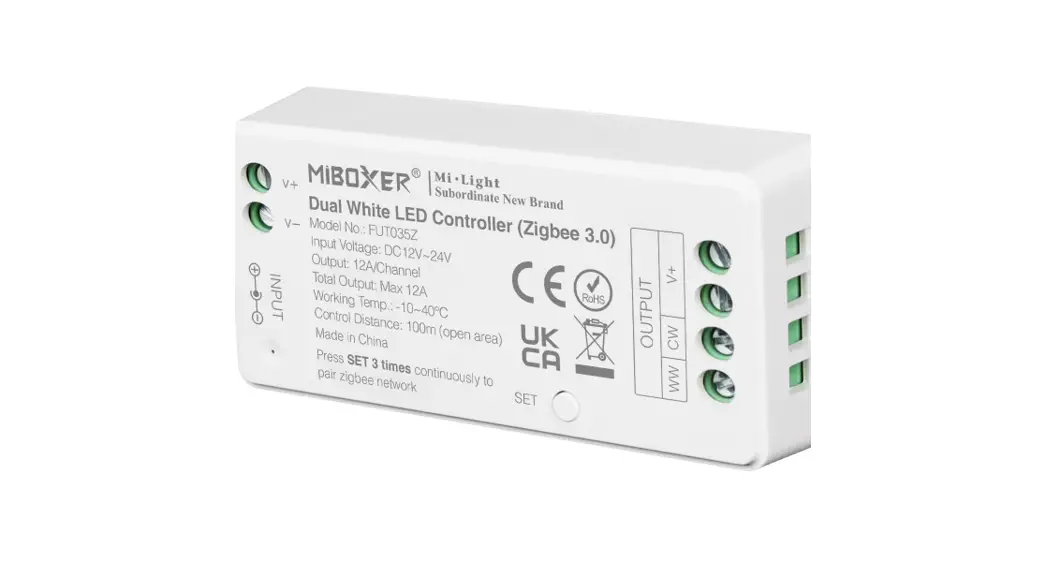
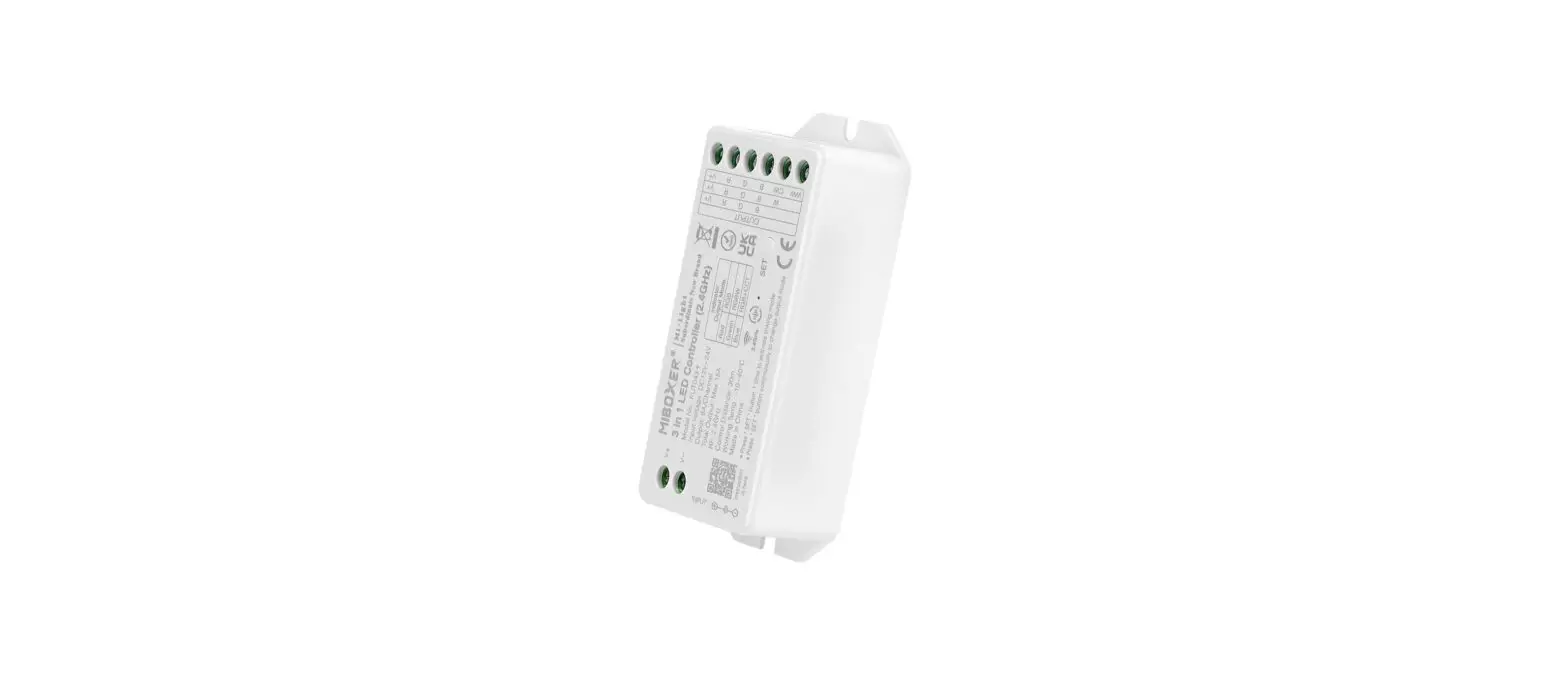
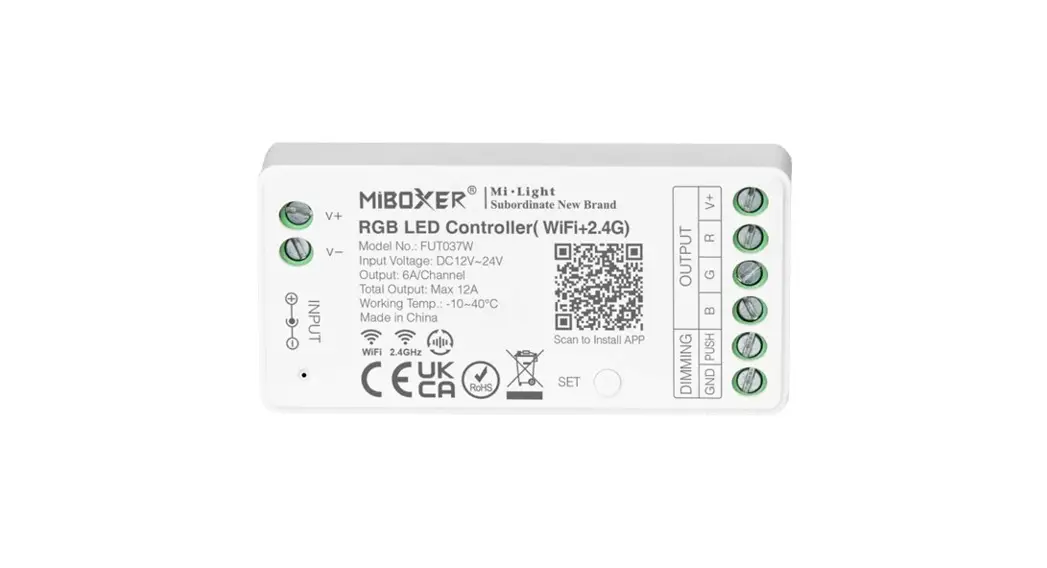
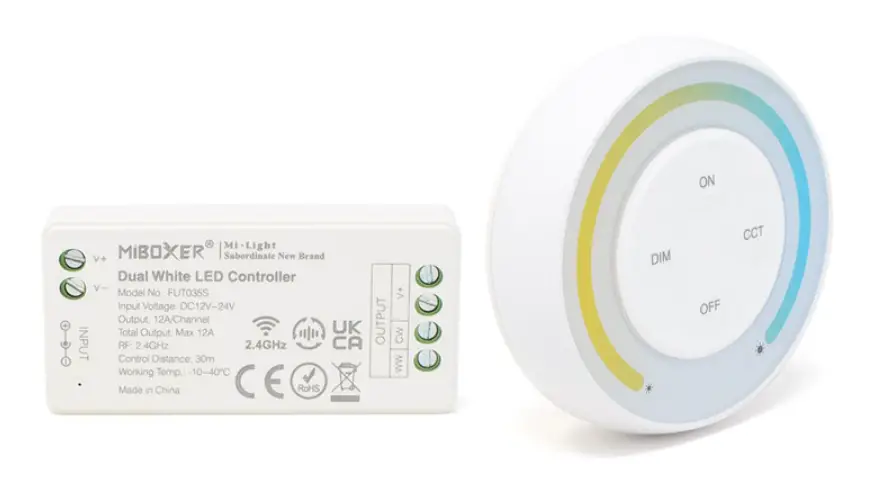
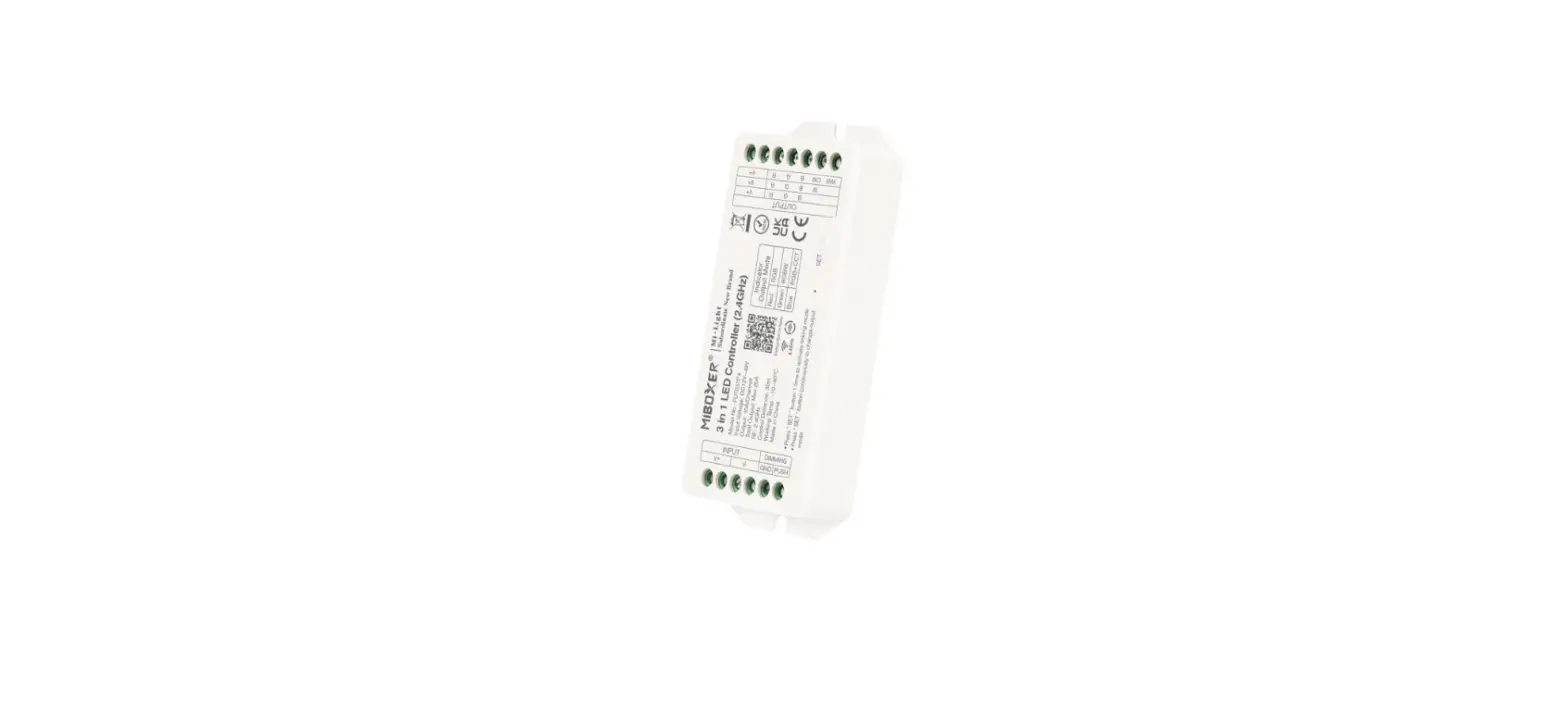
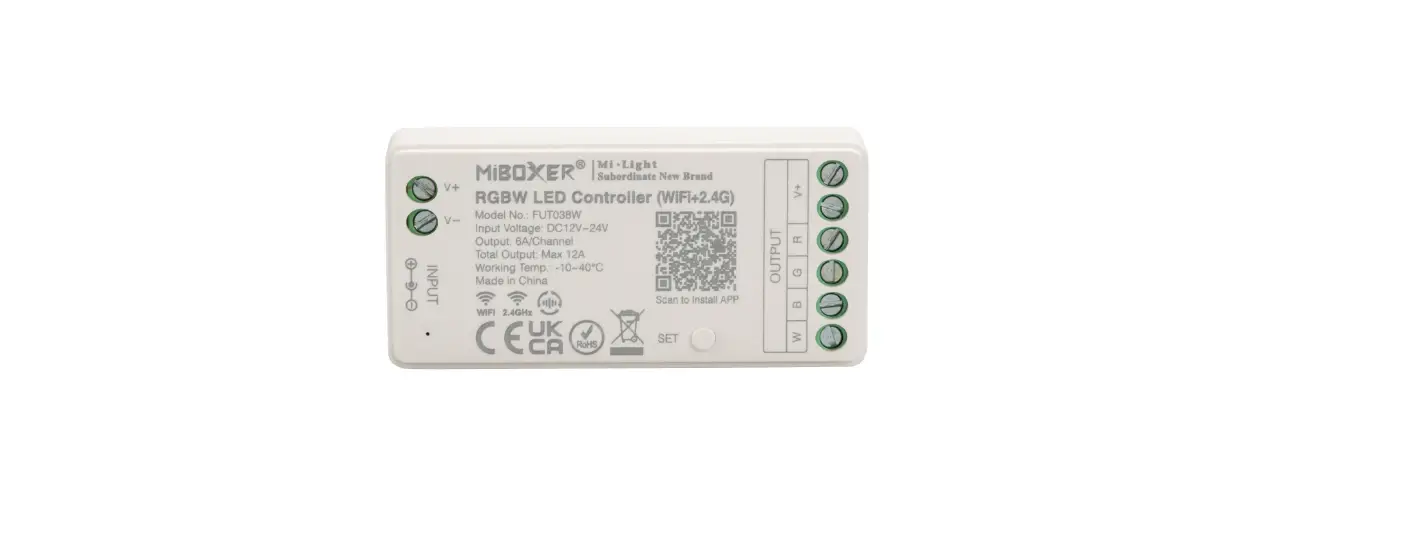
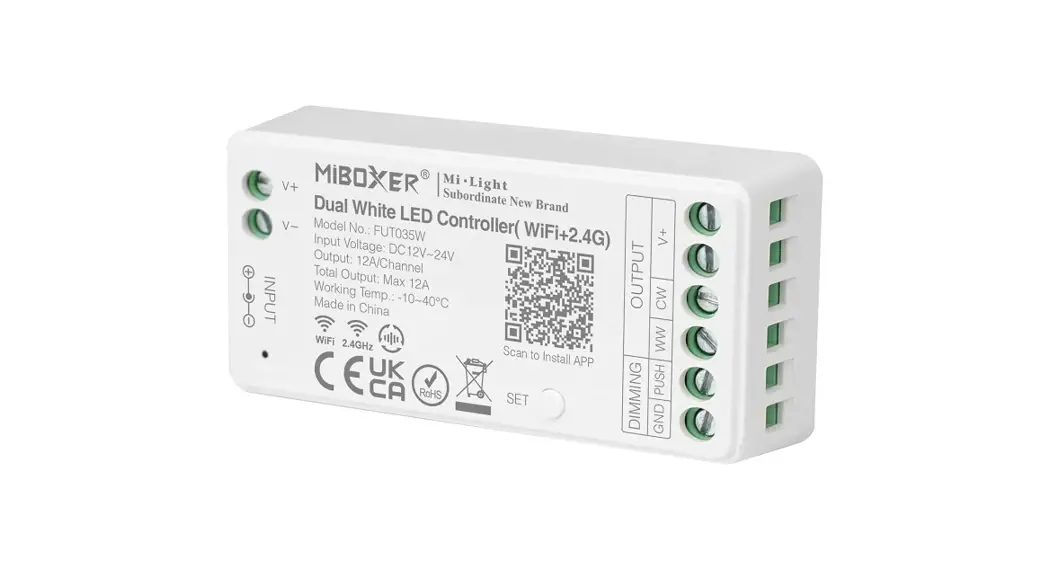
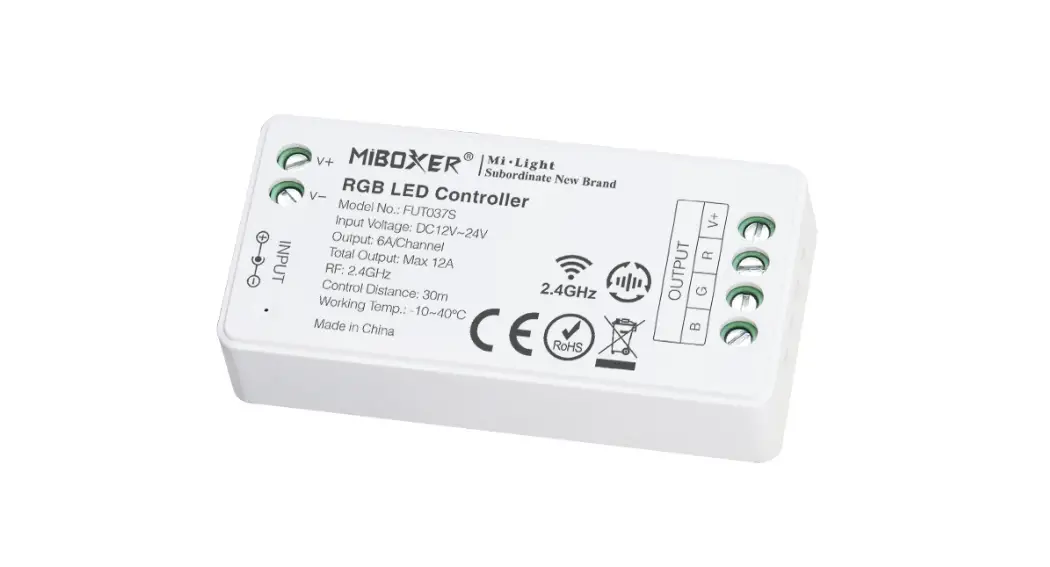
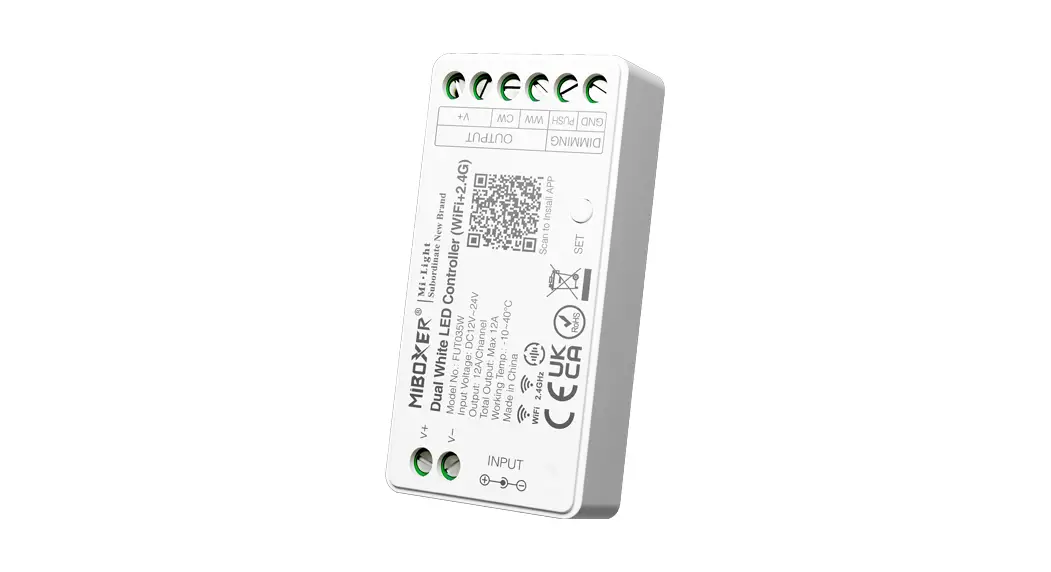
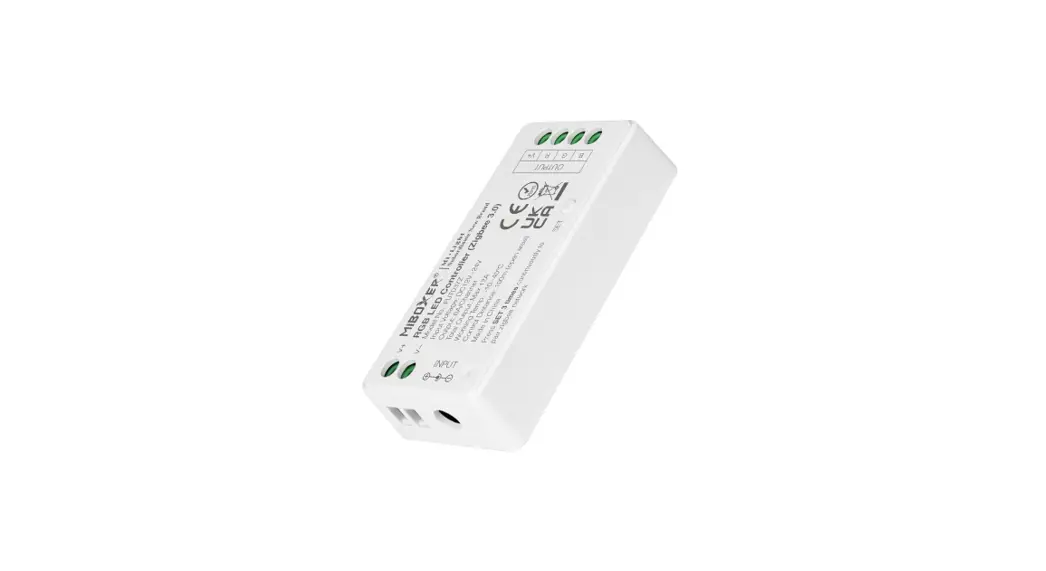
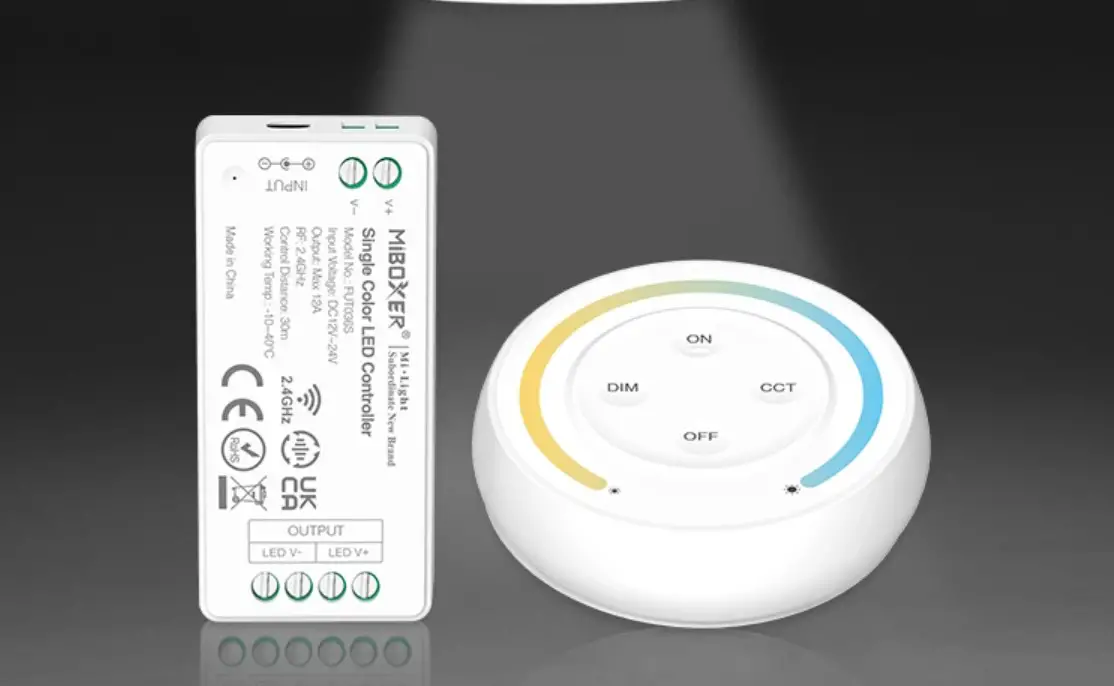
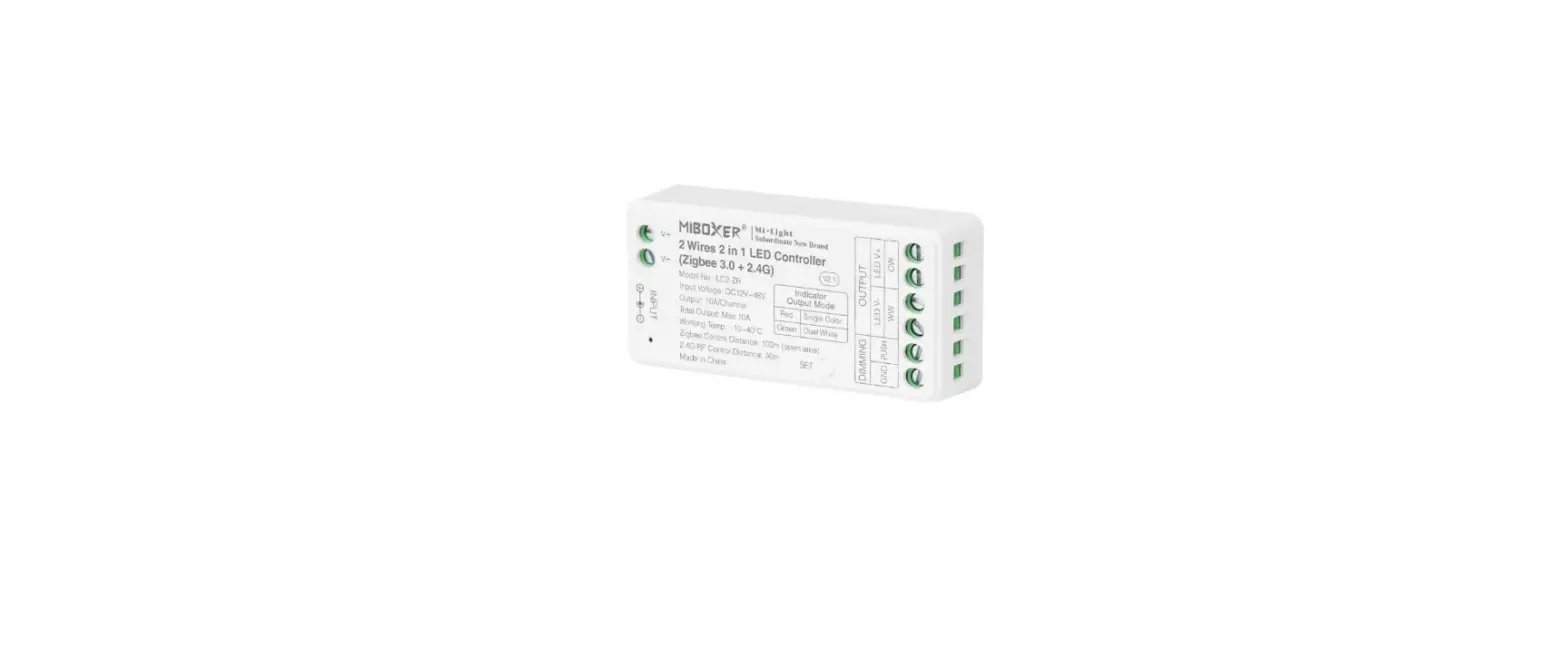
FUT035Z 2 In 1 LED Controller
Product Information
The Subordinate New Brand 2 in 1 LED Controller is a versatile
device that combines Zigbee 3.0 and 2.4G technologies. It is
designed with low power consumption and has the ability to
automatically build a network with minimal interference. The
controller is compatible with the MiBoxer Zigbee gateway, allowing
for wireless dimming of color temperature and brightness, as well
as remote control, timing control, group control, and music rhythm
functionality. It also supports 2.4G RF remote control.
The controller follows the Zigbee 3.0 standard protocol and can
be controlled using a Zigbee 3.0 remote control (requires Zigbee
3.0 gateway). It also supports 2.4G remote control and can be
controlled via a smartphone app (requires Zigbee 3.0 gateway).
Additionally, it is compatible with third-party voice control
systems (requires Zigbee 3.0 gateway). The controller supports
various control solutions from brands like Philips, MiBoxer, IKEA,
and the 2.4GHz Amazon Remote Echo Plus.
Product Usage Instructions
Set up output mode
To set up the correct output mode based on the feature of your
lights, follow these steps:
- Press the SET button continuously to switch the output mode
(note: if there is no operation within 3 seconds, it will log
out). - Confirm the output mode based on the color of the
indicator:
- Red Light: Single Color Mode
- Green Light: Dual White Mode
PUSH Dimming
To control the brightness of the lights using the PUSH
switch:
- Short press the PUSH switch to turn ON/OFF the light.
- Long press the PUSH switch for stepless dimming of brightness.
Long press and release your finger, then repeat long pressing to
increase or decrease the brightness.
Compatible with 2.4G RF remote controls
The controller is compatible with the following 2.4G RF remote
controls (purchased separately):
- FUT006
- FUT007
- B1 / B1-B / T1
- B2 / T2
- K1 / K1-B
- FUT087
- FUT087-B
- S1-B / S1-W S1-G
- WL-Box1
2.4G RF Remote control instructions
Linking Code Instructions
- Press the Power or SET button once.
- Power off the controller for 10 seconds and then power on
again, or short press the SET button once, or turn on the light via
the PUSH switch. - If the lights blink slowly for 3 times, it means linking is
done successfully. - If the lights are not blinking slowly, repeat the above steps.
Note: Lights that have already been linked cannot be linked
again.
Unlinking Code Instructions
- Press the Power or SET button once.
- Power off the controller for 10 seconds and then power on
again, or short press the SET button once, or turn on the light via
the PUSH switch. - Short press the Power button 5 times within 3 seconds.
- If the lights blink quickly for 10 times, it means unlinking is
done successfully. - If the lights are not blinking quickly, repeat the above steps.
Note: Lights that haven’t been linked do not need to be
unlinked.
Auto Transmitting (2.4G RF remote signal)
The controller can automatically transmit the remote signal to
another light when the distance between lights is within 30m. The
remote control distance is unlimited. Note: All lights must be
linked with the same remote control.
Subordinate New Brand
2 in 1 LED Controller (Zigbee 3.0 + 2.4G) Instrucon Manual
Contents
Product features …………………………………………………………………………… 2 Set up output mode …………………………………………………………………….. 3 PUSH Dimming …………………………………………………………………………….. 3 Compable with remote ……………………………………………………………… 3 2.4G RF remote control instrucon ……………………………………………. 4-5
Link / Unlink Instrucons …………………………………………………………… 4 Auto transming ……………………………………………………………………… 5 PWM frequency switching ………………………………………………………… 5 “Do Not Disturb” mode is acvated and shut down …………………….. 5 Smartphone app control instrucon ……………………………………………… 6 Philips Hue control instrucon ………………………………………………………. 7 Alexa voice control instrucon …………………………………………………….. 8 Google home voice control instrucon ………………………………………… 9 Aenon …………………………………………………………………………………… 10
Product features
Made by new Zigbee 3.0 wireless transming technology with low power consumpon, strong ability to build network automacally and an-interference. with MiBoxer Zigbee gateway to get wireless dimming color temperature and brightness, remote control, ming control, group control, music rhythm funcon. Support 2.4G RF remote control.
Color temperature adjustable
Dim brightness
Follow Zigbee 3.0 standard protocol
Zigbee 3.0
Support Zigbee 3.0 remote control (Zigbee 3.0 gateway is needed)
Support 2.4G Remote control
Auto-transming
Support Smartphone app control (Zigbee 3.0 gateway is needed)
Support third party voice control (Zigbee 3.0 gateway is needed)
Various control soluon:
Powered b
Philips
MiBoxer
IKEA
Hue Zigbee Gateway TRÅDFRI
2.4GHz Amazon Remote Echo Plus
2
Set up output mode
Set up correct output mode based on the feature of lights Seng method: Press “SET” buon connuously to switch output mode (aenon: it will log out without operaon within 3 seconds)
Output mode sheet ( confirm output mode based on color of indicator)
Indicator color
Red Light
Green Light
Output
Single Color Mode
Dual White Mode
PUSH Dimming
Short press PUSH switch: Turn ON/OFF light
Long press PUSH switch: Stepless dimming brightness. Long press and release your finger, then repeat long pressing to increase or decrease brightness.
PUSH
Compable with these 2.4G RF remote controls (Purchased separately)
FUT006 FUT007 B1 / B1-B / T1
B2 / T2
K1 / K1-B
FUT087 FUT087-B
S1-B / S1-W S1-G
WL-Box1
3
2.4G RF Remote control instrucon
1). Linking Code Instrucons
Power
Light
or
SET
or PUSH
1
Link / Unlink buon
2
Power off 10 seconds and Short press ” I ” buon power on again or short press 3 mes within 3 seconds. “SET” one me or turn on light via PUSH switch
Power
Light
3
Lights blink 3 mes slowly means linking is done successfully.
Linking failed if light is not blinking slowly, Please follow above steps again. (Note: Light that have linked can’t link again)
2). Unlinking Code Instrucons
Power
Light
or
SET
or PUSH
1
Link / Unlink buon
2
Power off 10 seconds and power on again or short press “SET” one me or turn on light via PUSH switch
Short press ” I ” buon 5 mes within 3 seconds
Power
Light
3
Lights blink 10 mes quickly means unlinking is done successfully.
Unlinking failed if light is not blinking quickly, Please follow above steps again. (Note: Light haven’t linked that don’t need to unlink)
4
3). Auto transming (2.4G RF remote signal) The light can transmit remote signal to another light automacally while the distance between lights are 30m, the remote control distance is unlimited. (Aenon: all lights must be linked with same remote)
Auto transming
Light
Light
Distance 30m
4). PWM high frequency / low frequency switching (only for remote control) Switch to high frequency (16KHz): Press “OFF” buon 1 me within three seconds and press “ON” buon 5 mes, Acvated successfully once led light flashes 2 mes quickly.
Switch to low frequency (250Hz): Press “ON” buon 1 me within three seconds and press “OFF” buon 5 mes, Acvated successfully once led light flashes 2 mes slowly.
5). “Do Not Disturb” mode is acvated and shut down (default acvated)
Turn on “Do Not Disturb” mode (wide using in the area which have power failure frequently to save energy)
2.4G RF Remote turn on and turn off instrucon Turn on “Do Not Disturb” mode: Press “OFF” buon three mes within three seconds and press “ON” buon three mes, Acvated successfully once led light flashes four mes quickly.
Aenon: Do not disturb mode is acvated 1. When the light is OFF status (For example: Use app or remote to turn off light)
The light is OFF status once you turn off power and turn on again. (User must turn off and turn on power twice mes to acvate light or use APP / remote to acvate light) 2. When the light is ON status The light is ON status once you turn off and turn on power one me.
Turn off “Do Not Disturb” mode: Press “ON” buon three mes within three seconds and press “OFF” buon three mes, closed successfully once led light flashes four mes slowly. Aenon: The light will be always “ON” status if you turn on and turn off power once user closed “Do Not Disturb” mode. App turn on and off “Do Not Disturb” mode instrucon (check details in page 6)
5
Smartphone APP control instrucon
Added Zigbee 3.0 gateway into “Tuya Smart” App (please review instrucon of Zigbee 3.0 gateway) 1). Connect with power supply. 2). Pairing network (aenon: factory default is pairing network).
Way one: Turn off and turn on light 3 mes or over 3 mes connuously, the light is in breathing status. Way two: Long press ” SET ” key unl indicator light flashing. 3). Open “Tuya Smart” APP to click Zigbee gateway, then click “Add sub device”. 4). Click “Indicator is flashing quickly”. 5). Support APP dimming or group control and etc once added successfully.
5 in 1 Controller
App turn on and off “Do Not Disturb” mode (default acvated)
Click the light which need to be set up or group control — click “More”— click “Power-on behavior”–turn on or off
5 in 1 Controller
6
Philips Hue control instrucon
Added “Philips Hue” into APP
1). Connect with power supply 2). Pairing network (aenon: factory default is pairing network)
Way one: Turn off and turn on light 3 mes or over 3 mes connuously, the light is in breathing status. Way two: Long press ” SET ” key unl indicator light flashing. 3). Open “Philips Hue” App to click “SETTINGS” and click “Lights” 4). Click “+” on the top of right corner 5). Click “Search” 6). Click “Start configuraon”, Follow the app instrucon to complete configuraon
7
Alexa voice control instrucon
1). Alexa control (Audio support Zigbee 3.0 protocol)
You can connect directly if your Amazon ECHO already is built-in zigbee 3.0 protocol, following model with zigbee 3.0 protocol: Amazon ECHO Plus ( 2nd Gen), ECHO (4th Gen), ECHO Studio, ECHO Show (2. Gen)
1). Connect with power supply 2). Pairing network (aenon: factory default is pairing network)
Way one: Turn off and turn on light 3 mes or over 3 mes connuously, the light is in breathing status. Way two: Long press ” SET ” key unl indicator light flashing.
“Alexa, Discover devices”
3). Say to Amazon ECHO “Alexa, Discover devices” Wait for a while to discover device, Voice control is acvated
2). Alexa control (Audio don’t support Zigbee 3.0 protocol)
Please add device into Miboxer Zigbee 3.0 gateway if your Alexa don’t support zigbee 3.0 protocol (check details in page 6), then start following steps
1). Open Alexa App 2). Click “More” on the boom of right corner 3). Click “Skills & Games”
4). Click ” ” on the top of right corner 5). Type into “Smart life” and search
6). Click “Smart Life” skill, follow instrucon to finish configuraon and start voice control
8
Google Home voice control instrucon
Please add device into MiBoxer Zigbee 3.0 gateway (check details in page 6) and start following steps
1). Open Google Home App 2). Click “+” on the top of le corner
3). Click “Set up device”
4). Click “Works with Google”
5). Click ” ” on the top of right corner 6). Type into “Smart life” and search 7). Click “Smart Life” skill, follow
instrucon to finish configuraon and start voice control
9
Aenon
1. Please turn off power supply before installaon. 2. Please ensure input voltage to be same as requirements from device. 3. Don’t disassemble device if you are not expert, otherwise it will damage it. 4. Please do not use the light in the place with widely range metal area or strong electromagnec
wave nearby, otherwise, the remote distance will be seriously affected.
Scan QR code to watch Zigbee series video instrucon Or enter into following link directly hps://miboxer.com/light/video/zigbee.html
Made in China
 Zigbee Series Video - MiBoxer