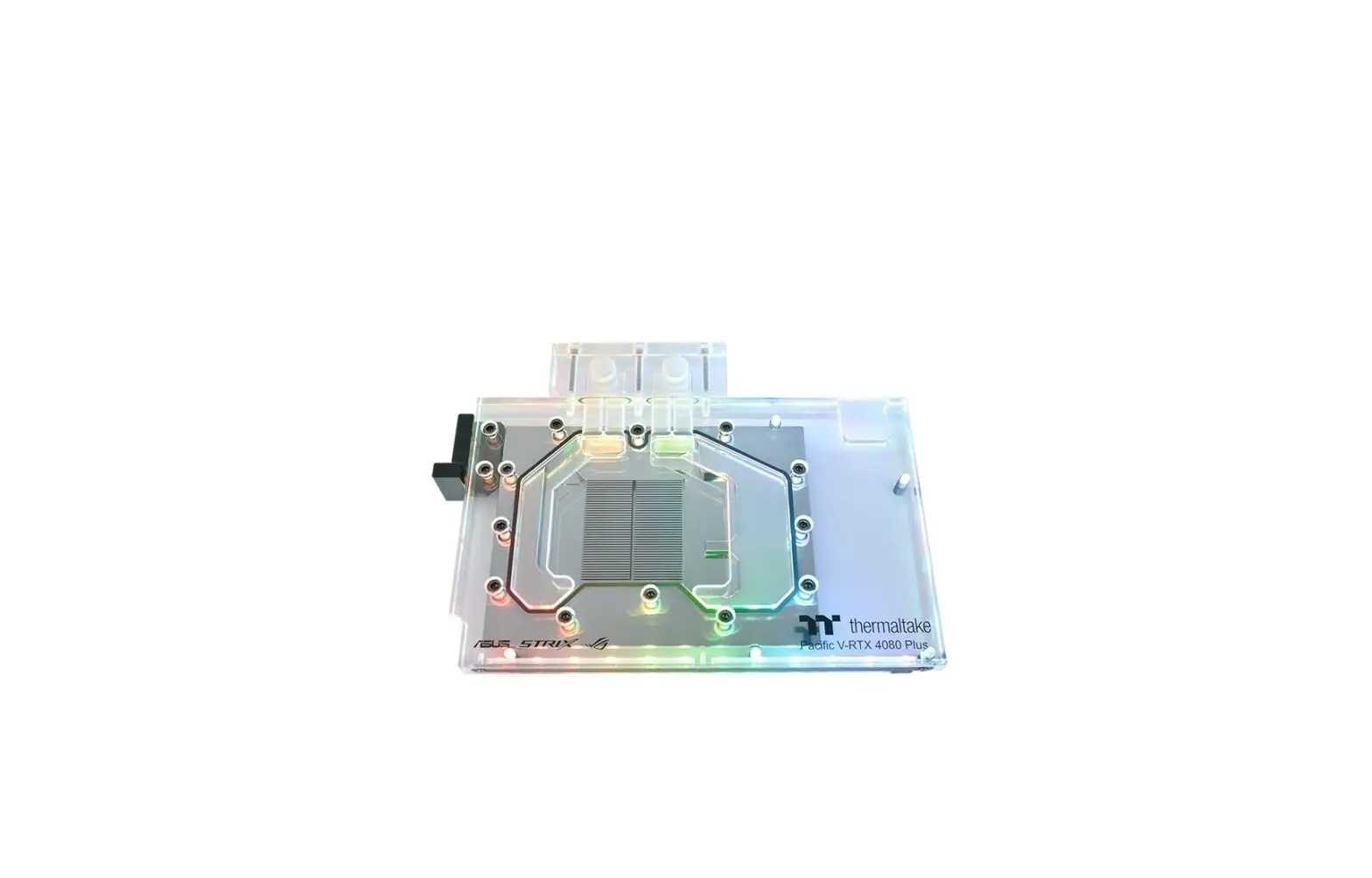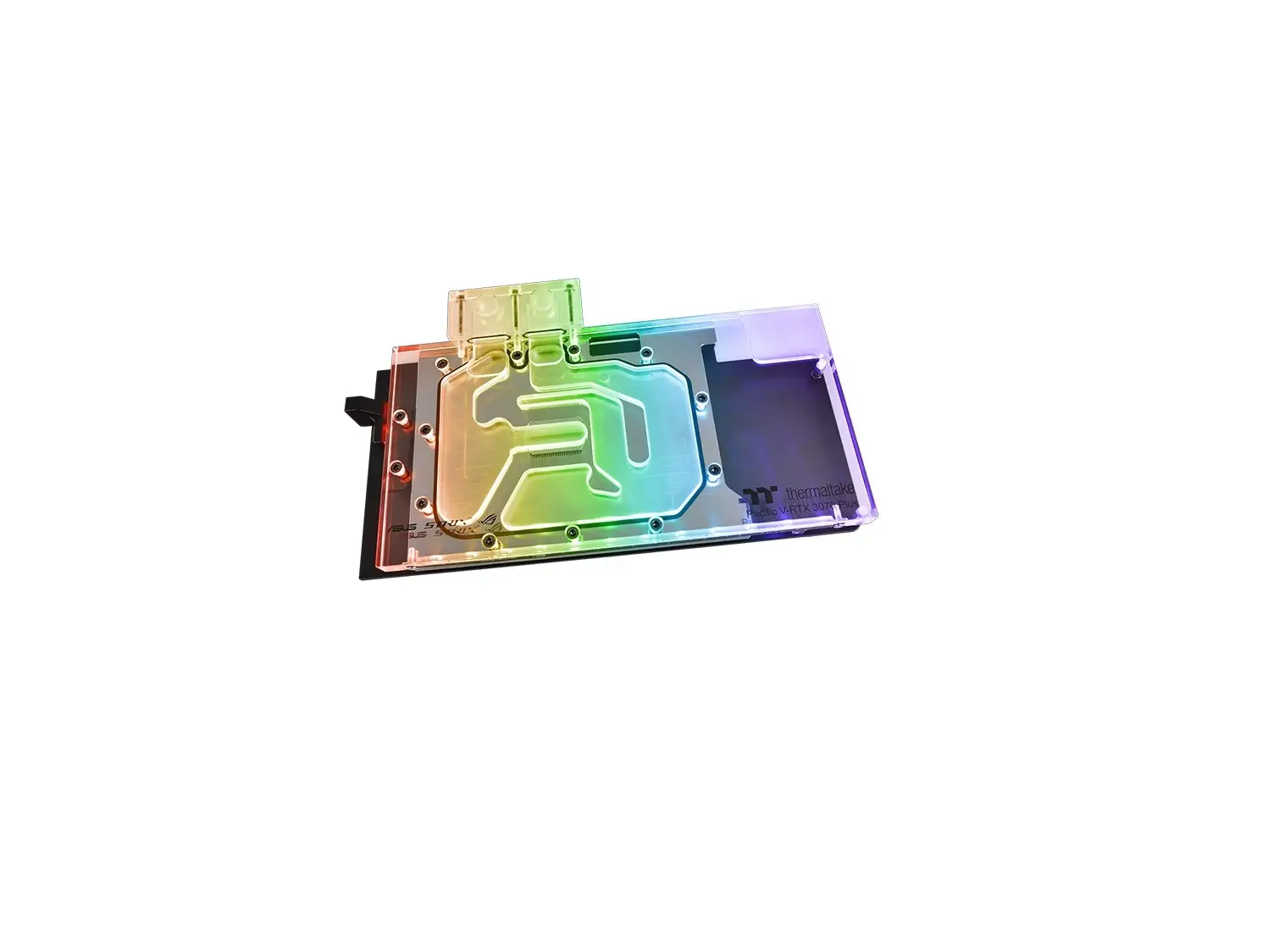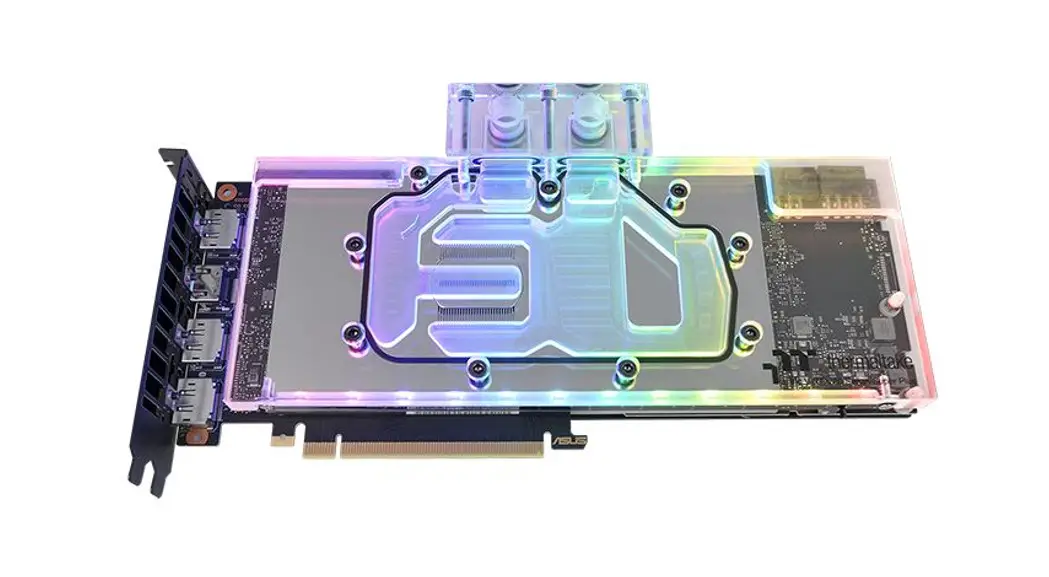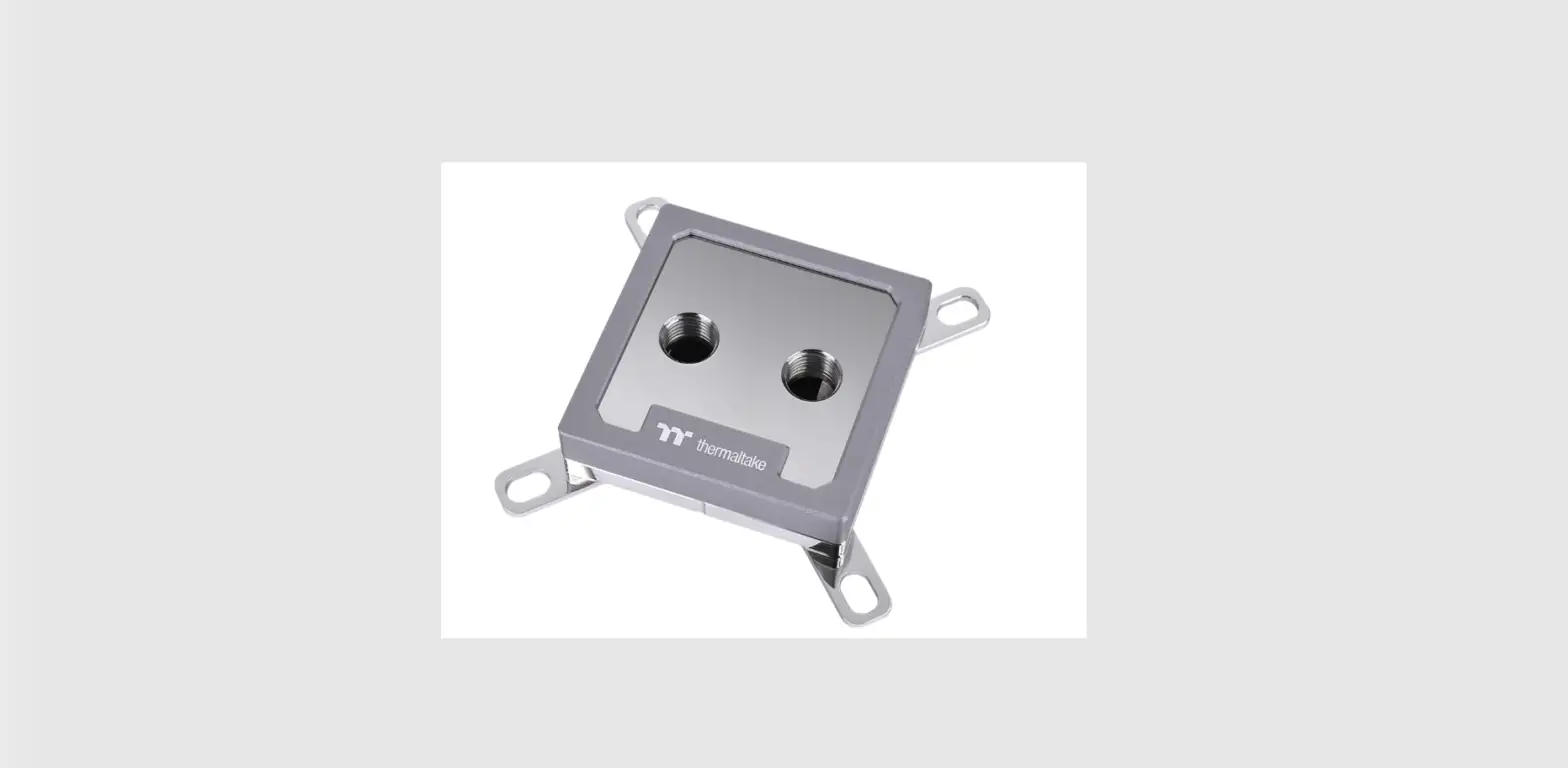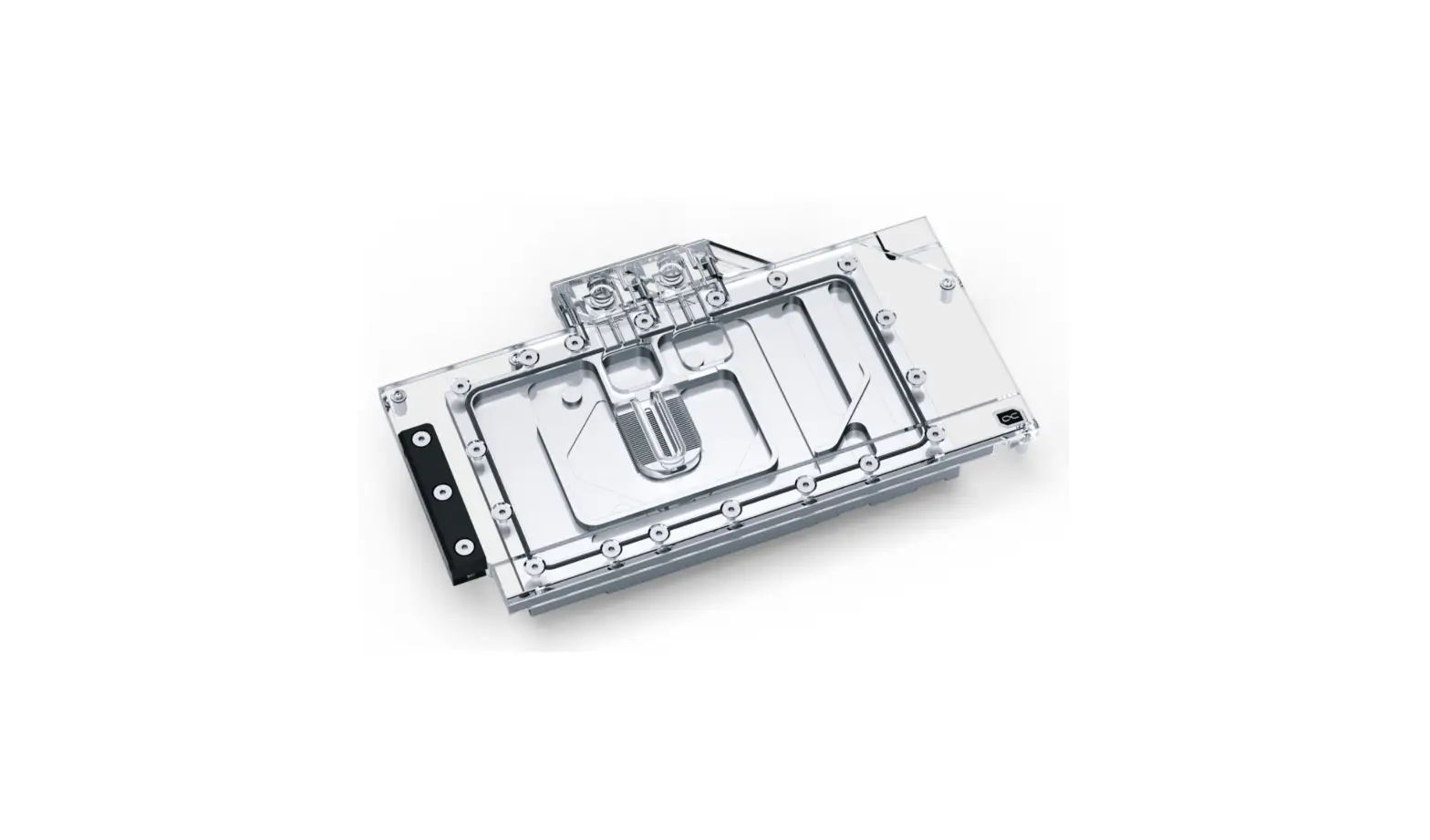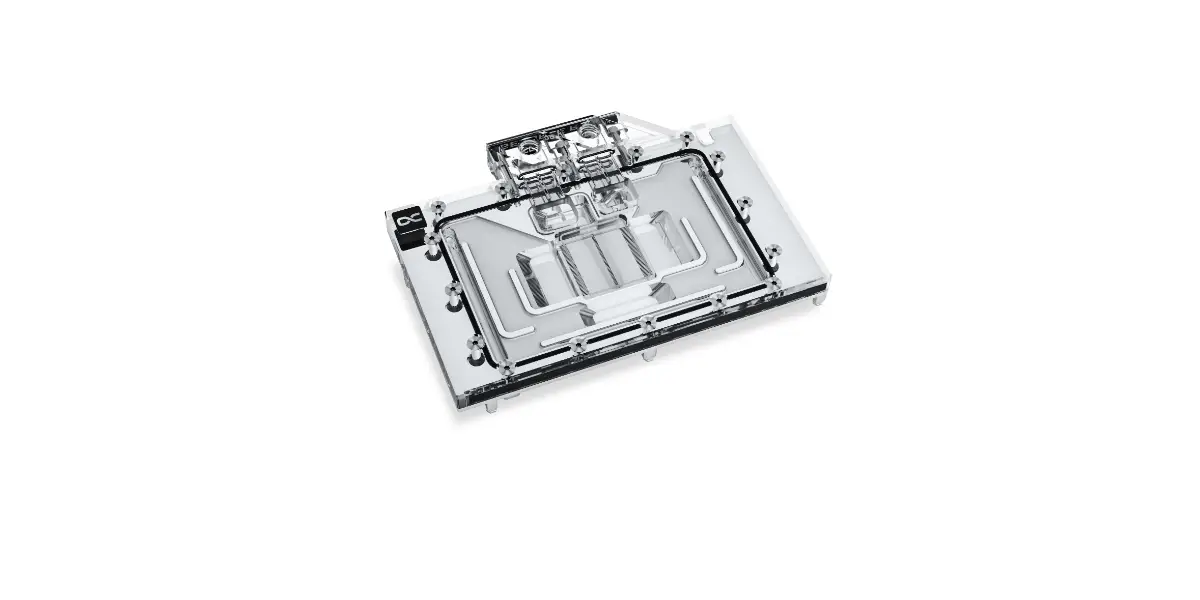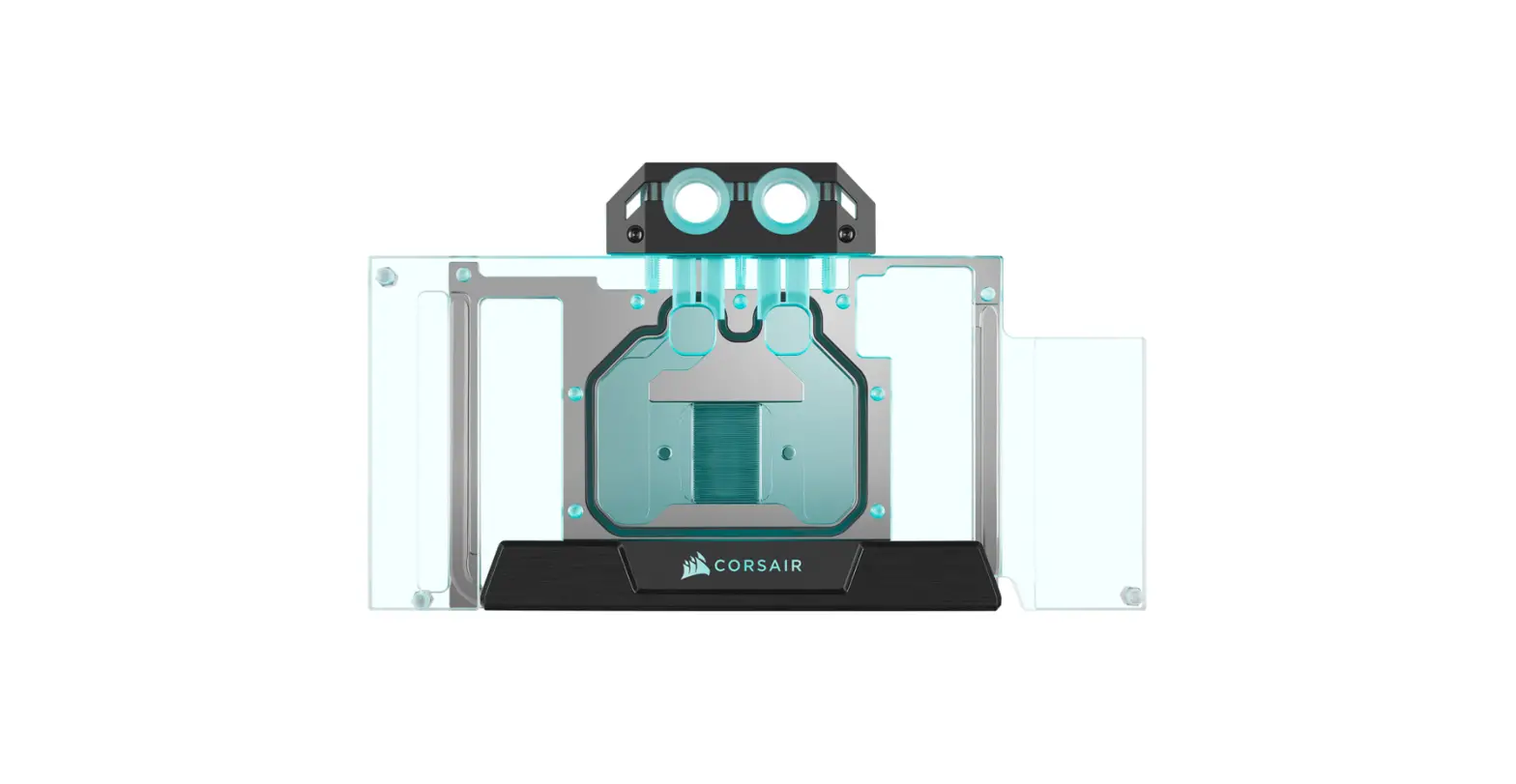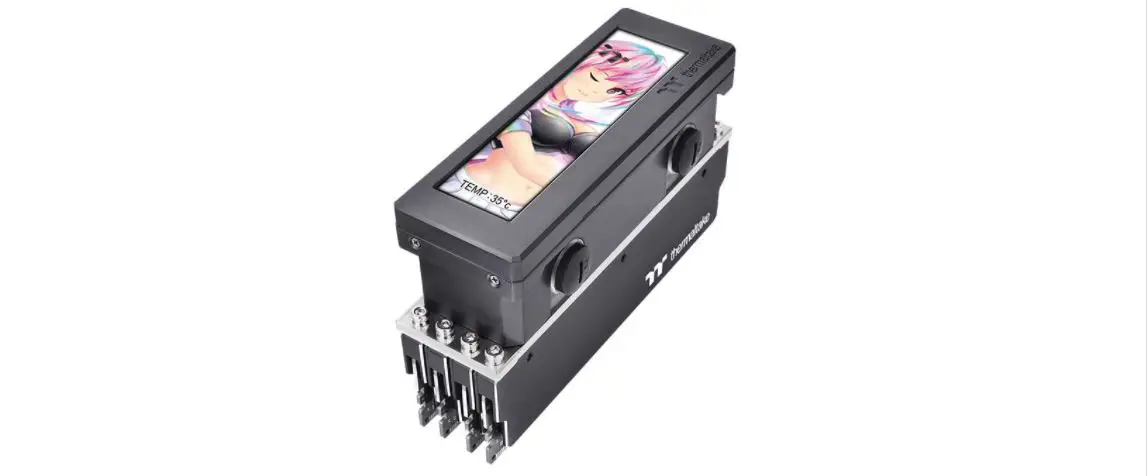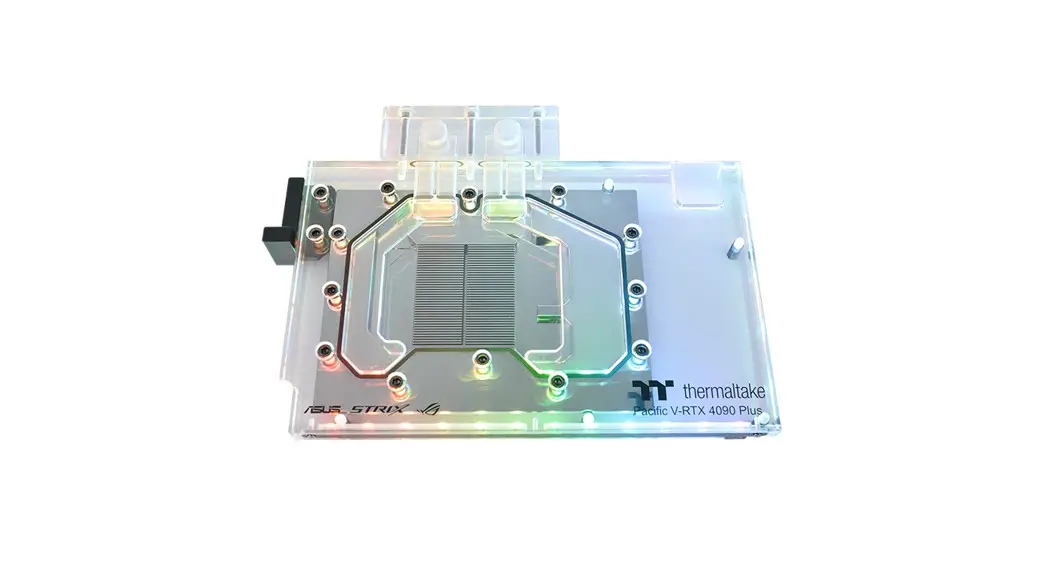

Pacific V-RTX 4090 Plus
GPU Water Block
TT RGB Plus Software control interface
Please download TT RGB PLUS from Thermaltake’s Official website.
https://www.thermaltake.com/downloads [ OS compatibility: Windows 10 , Windows 11 ]
Pacific V-RTX 4090 Plus Software User Interface
CONNECT – CONTROLLER
A. After installation of TT RGB PLUS, you can find controllers on the “CONNECT” & “CONTROLLER” pages.
B. Click the controller port to make the “VGA Plus” glow red lighting to pair.
C. Drag and drop to pair the “VGA Plus” with the controller port.
D. SAVE: Save the controller pairing settings.
RESEbT: Reset the controller pairing.
RESCAN: Rescan the controllers.
LIGHTING
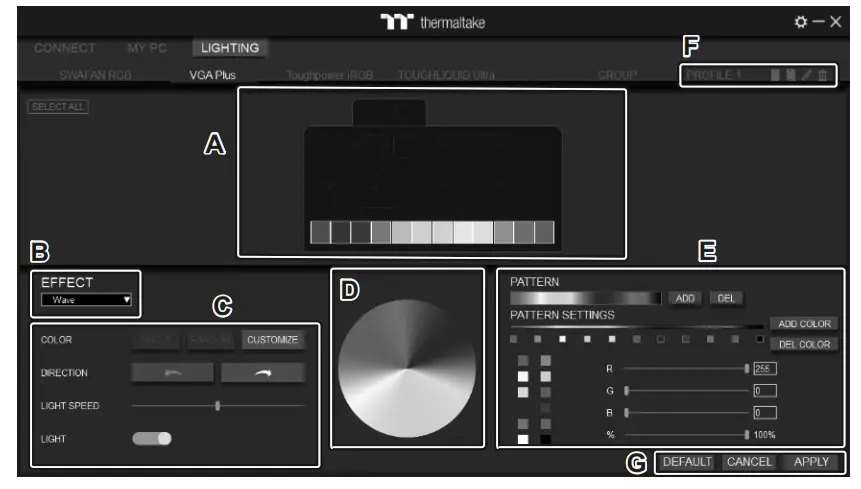
A. Preview and edit the lighting effect.
B. Select 23 Lighting Effects.
C. Lighting effect settings.
D. Color palette: select lighting color
E. PATTERN: Set up the color pattern ring.
F. Profile Settings: New, Copy, Edit, Delete
G. DEFAULT: Reset the lighting effects.
CANCEL: Deselect the LEDs for the preview screen.
APPLY: Execute and store lighting effects. The software interface may vary with feature updates, please download the latest software version from www.thermaltake.com
 © 2023 Thermaltake Technology Co., Ltd. All Rights Reserved.
www.thermaltake.com
 https://www.thermaltake.com/pacific-v-rtx-4090-plus-asus-rog-tuf-gpu-water-block.html#productattach
Scan Here
Installation Guide
 Thermaltake