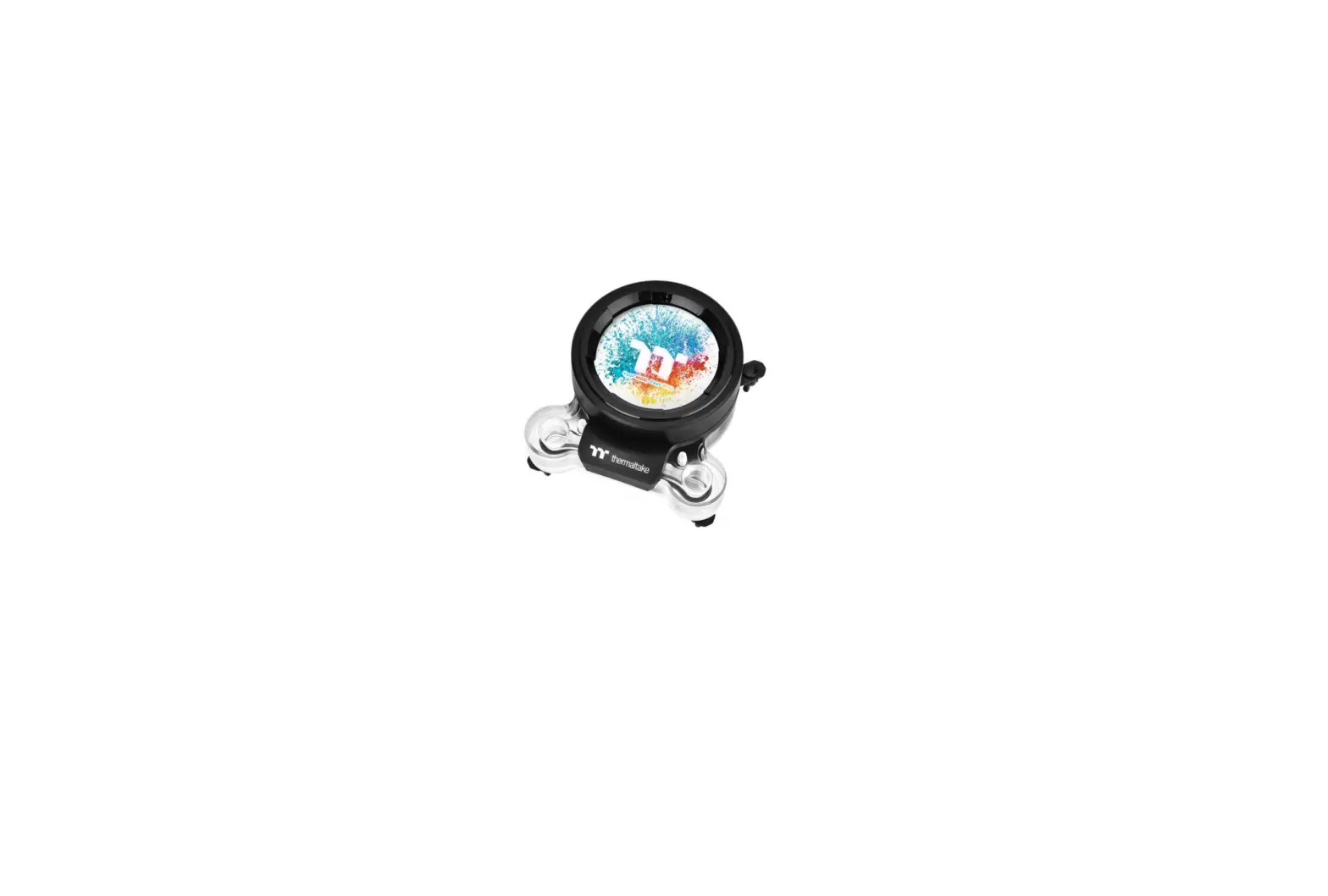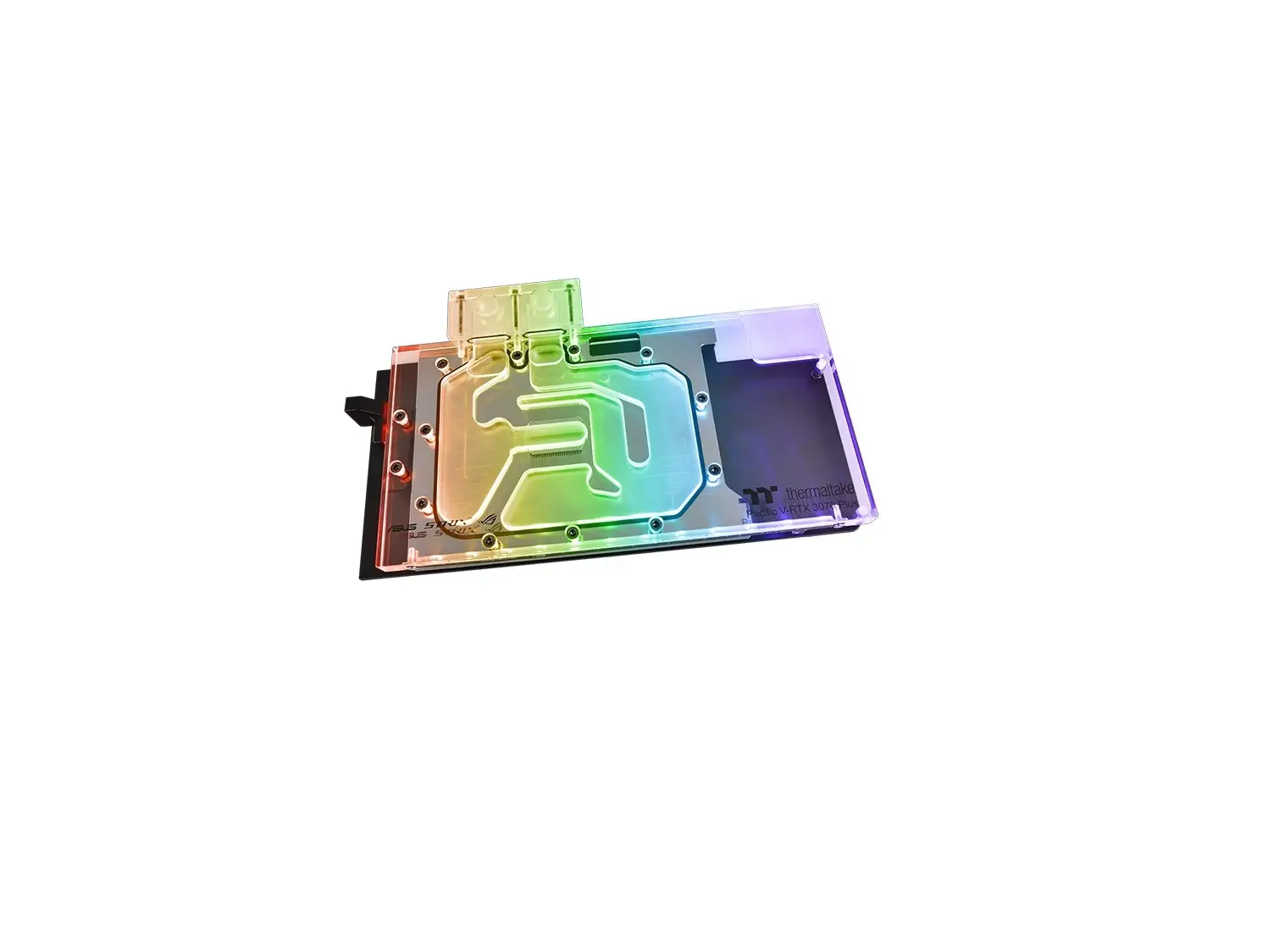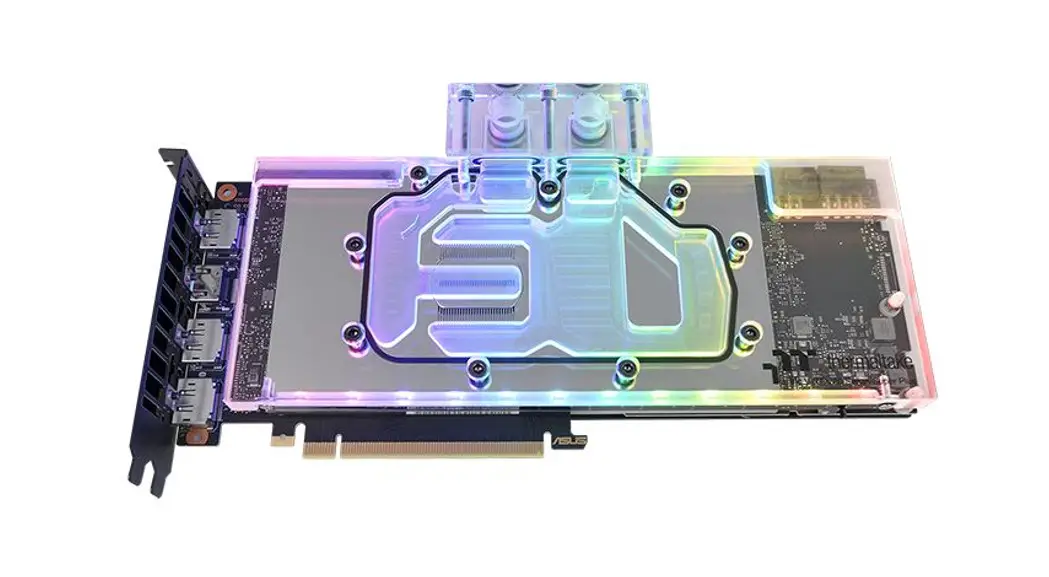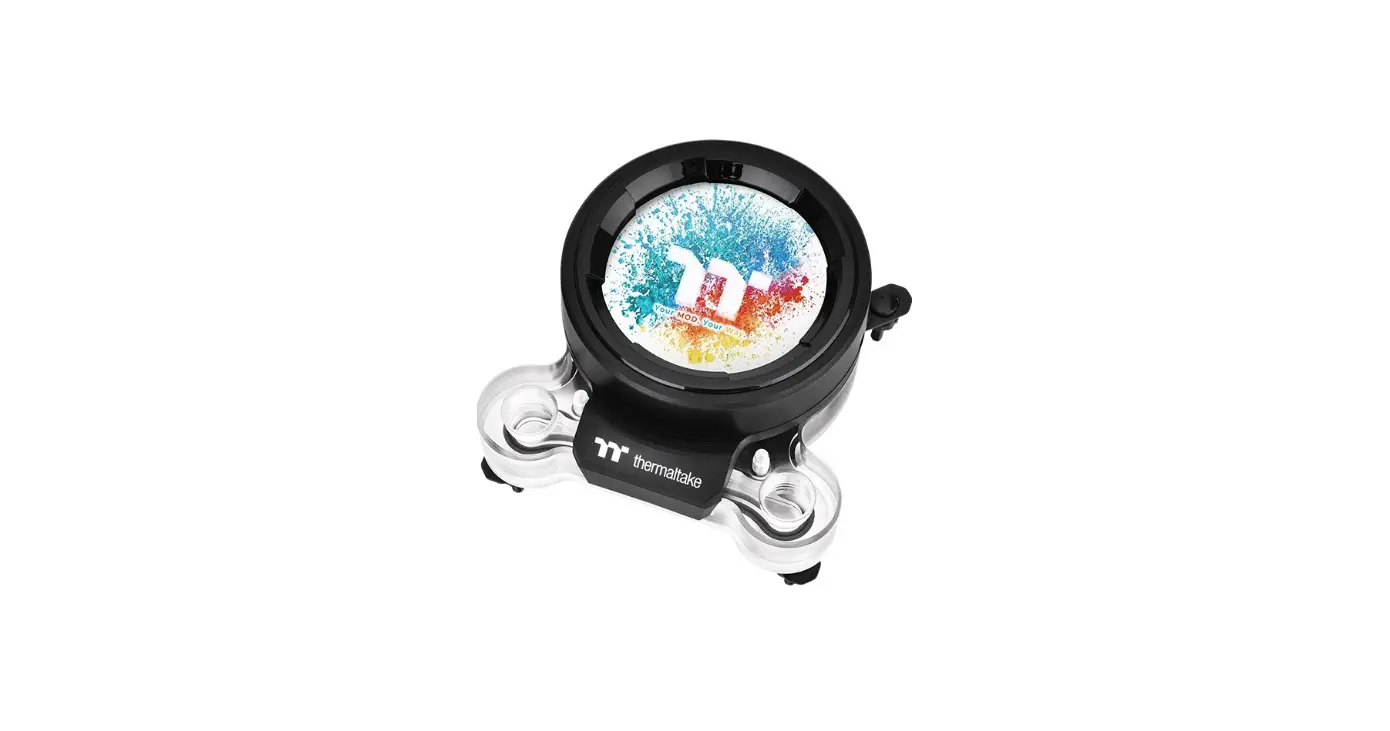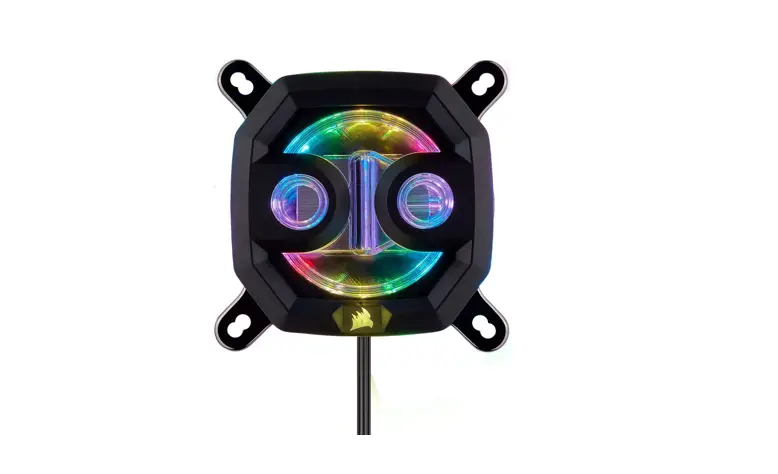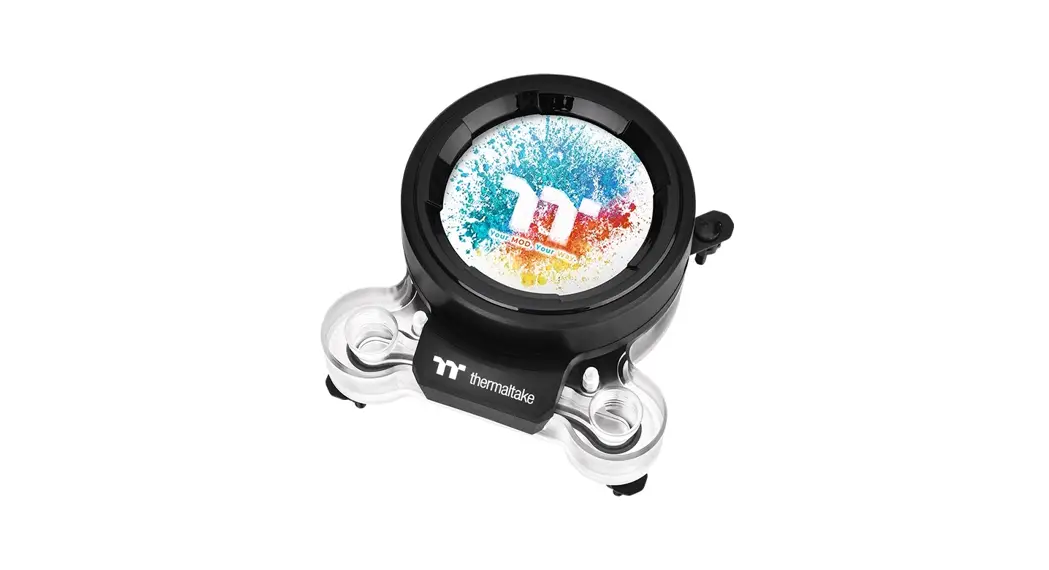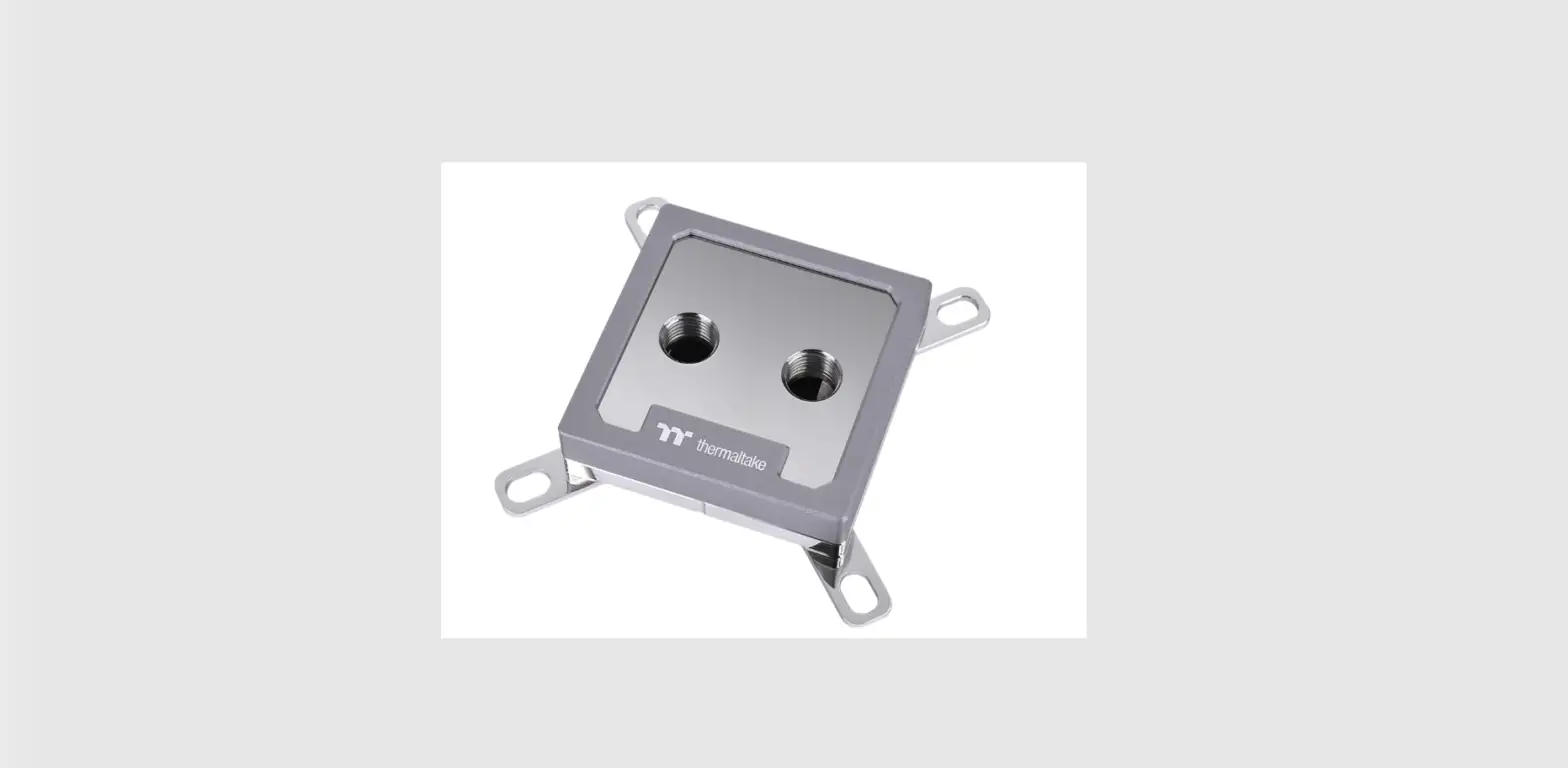
 Thermaltake Pacific W8 CPU Water Block
 Thermaltake Pacific W8 CPU Water Block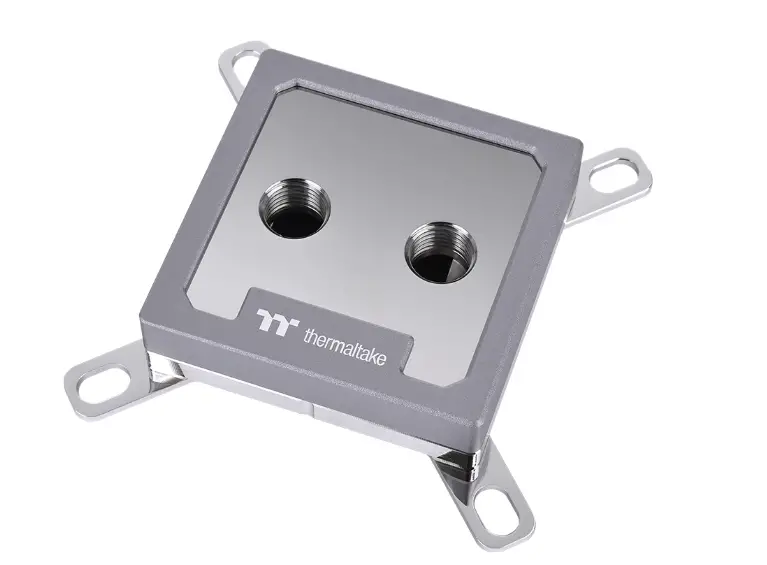
introduction
This product is intended for installation only by expert users. Please consult with a qualified technician for installation. Improper installation may result in damage to your equipment.
Before you start using this product please follow these basic guidelines:
- Please carefully read through the instruction manual before beginning the installation process.
- Please remove your graphics card from your motherboard to insure the safest process and in order to prevent any possible damages to your CPU and motherboard.
- It is strongly recommended to use market proven pre-mix coolant, such as Thermaltake Coolant Series.
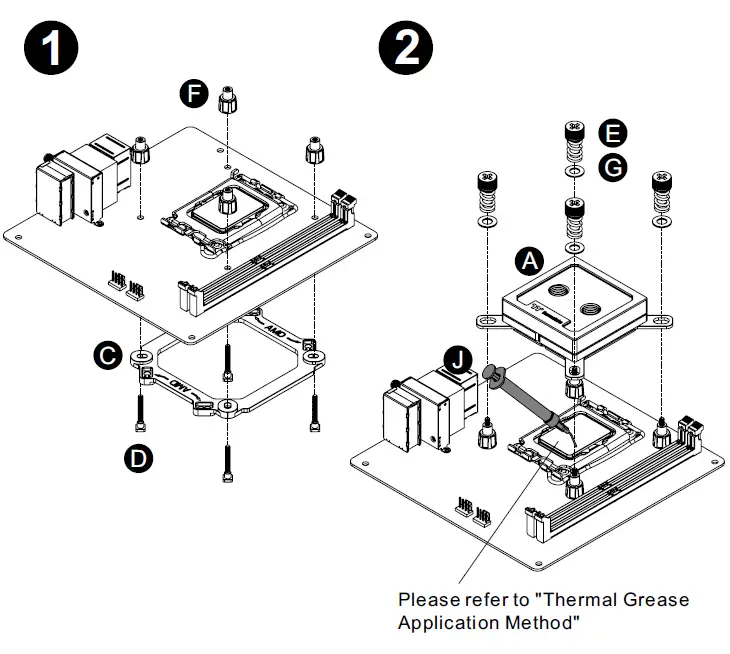
Thermal Grease Application Method
WARNING: Avoid Aluminum Materials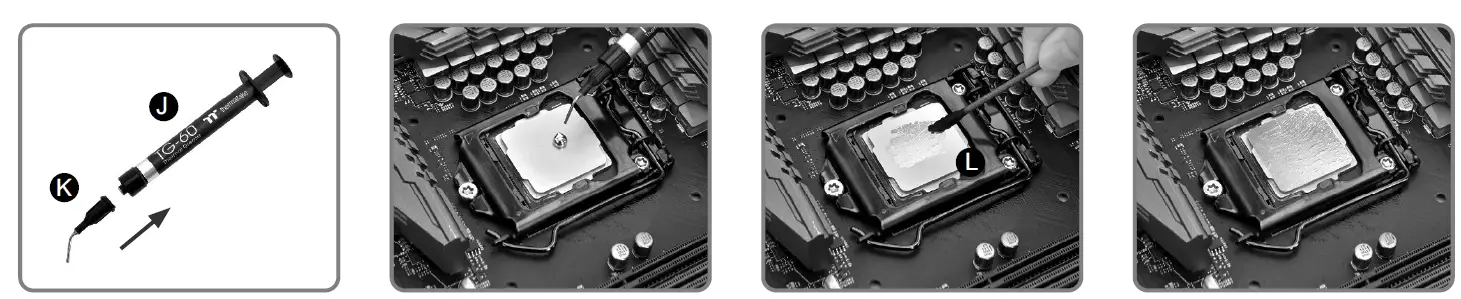
- Install the pinhead of TG-60.
- Squeeze certain amount of Liquid Metal Thermal Grease on the CPU. (Please wipe it out if overflowed)
- Apply the thermal grease evenly by cotton swabs.
- Complete.
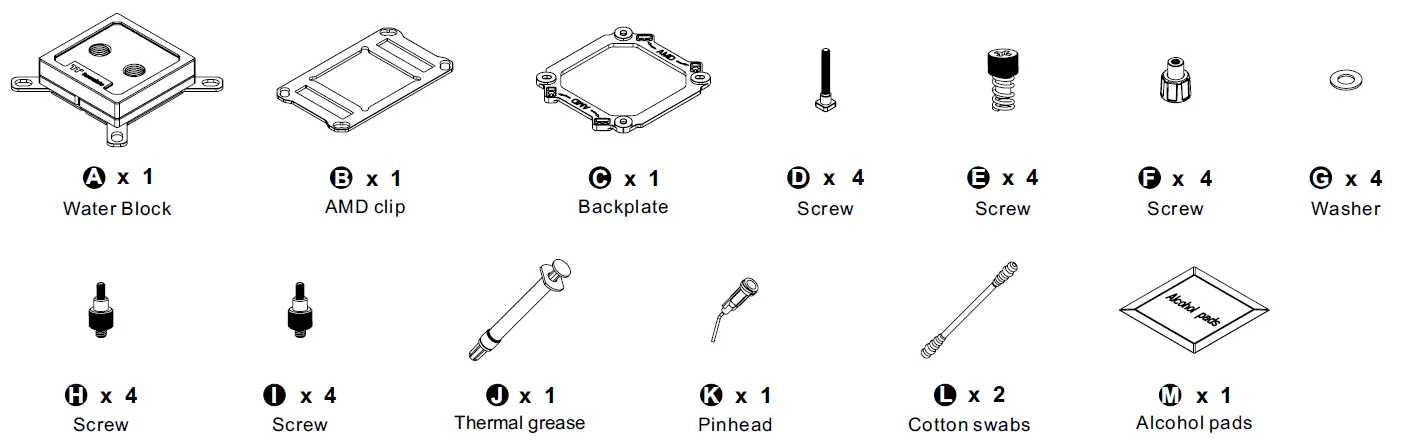
Parts List
Intel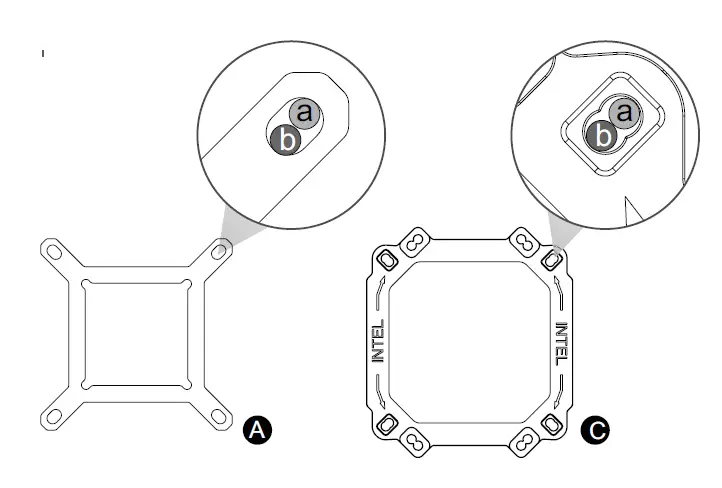
- LGA1700
- LGA1200/1156/1155/1151/1150
AMD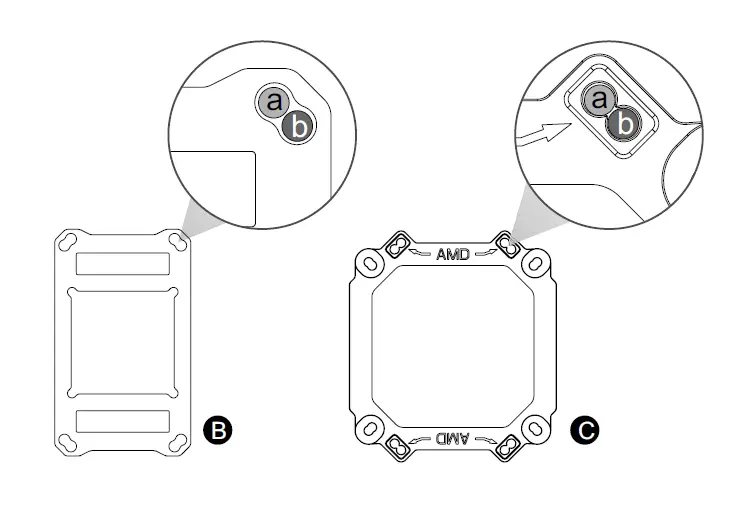
- AM3/AM2/FM2/FM1
- AM4
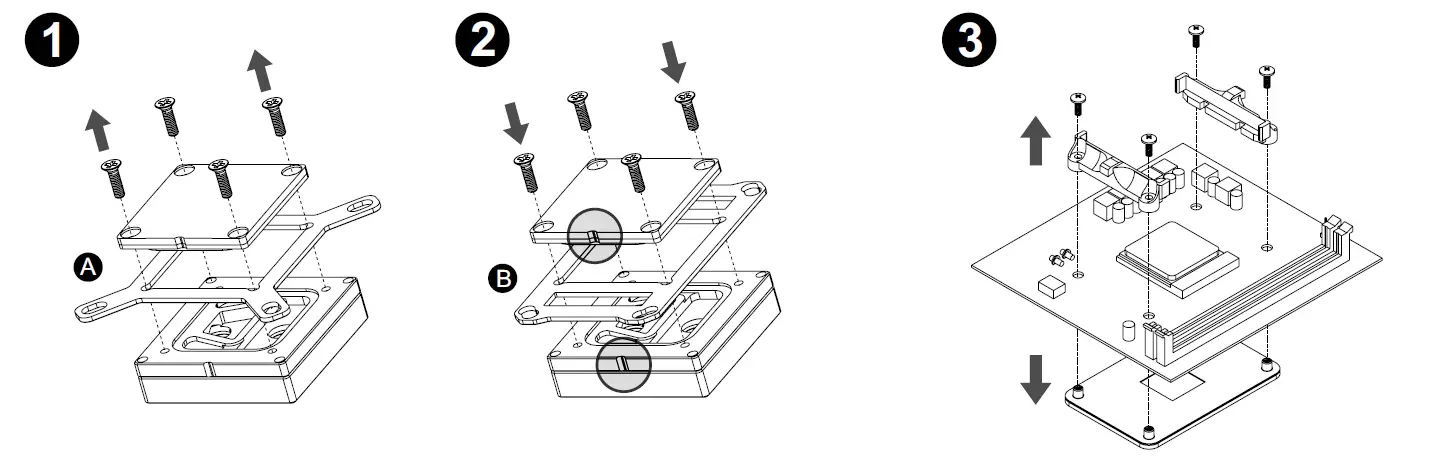
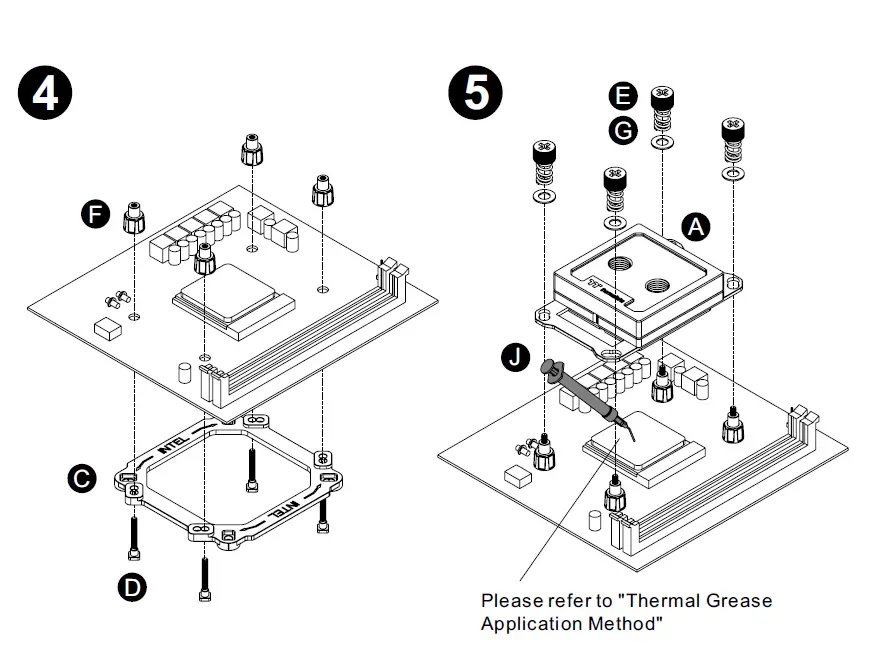
Intel Installation Guide
- LGA 1700/1200/115X
- LGA 2066,2011-3,2011
AMD Installation Guide

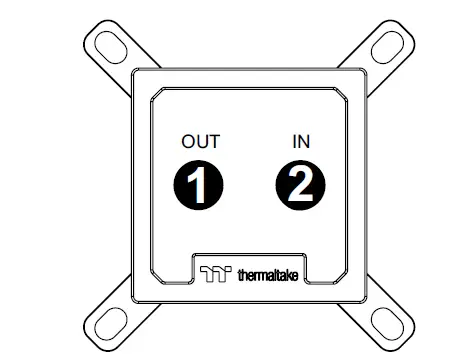
- Out: Circle 1 is designed for liquid outlet
- In: Circle 2 is designed for liquid inlet/fill