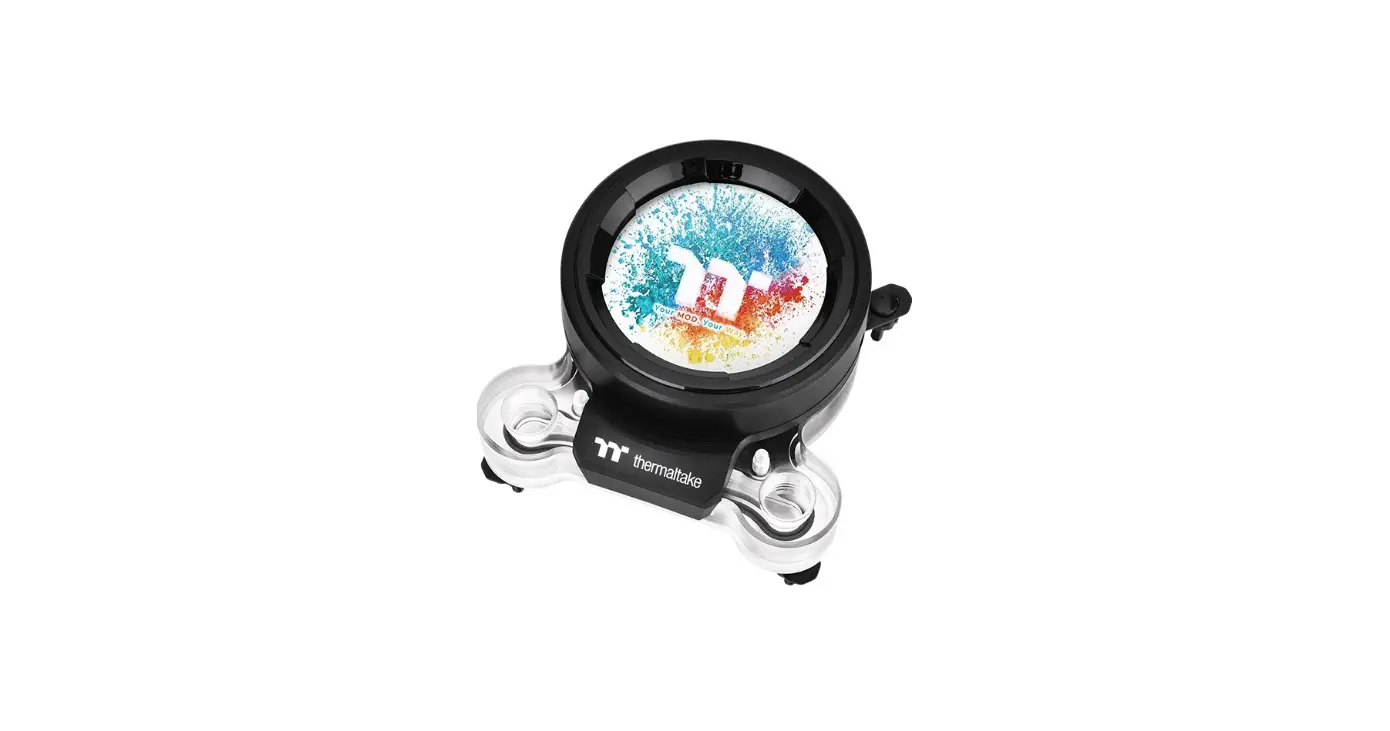
 TT RGB Plus Software control interface
Please download TT RGB PLUS from Thermaltake’s Official website.
https://www.thermaltake.com/downloads
OS compatibility: Windows 10
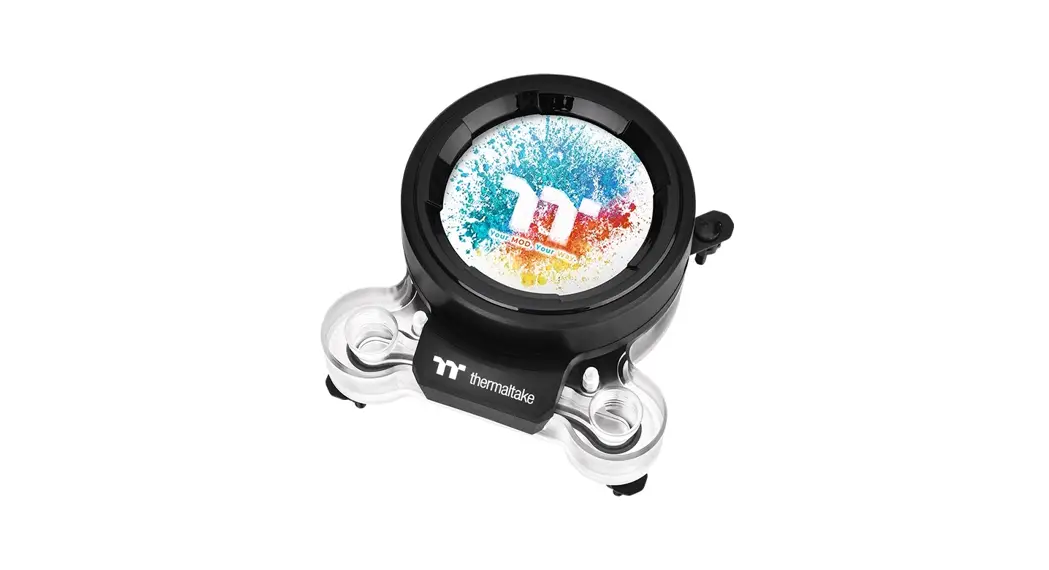
Pacific MX2 Ultra CPU Water Block Software User Interface
LIGHTING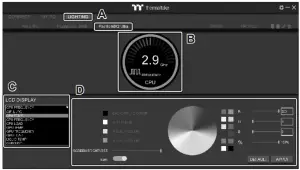
A. After installation of TT RGB PLUS, you can select
“TOUGHLIQUID ULTRA” on the “Pacific MX2 Ultra” page.
B. Preset the CPU water block LCD.
C. LCD DISPLAY function list.
- GIF & JPG (Upload picture to LCD display)
- CPU TEMP.
- CPU CLOCK SPEED
- CPU LOAD
- GPU TEMP.
- GPU CLOCK SPEED
- GPU LOAD
- LIQUID TEMP.
- CAROUSEL (Switches between CPU/GPU/Liquid information)
D. LCD visual effect settings.
Set LCD display background, text and visual color, screen brightness or turn off the LCD screen.
GIF & JPG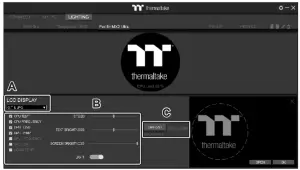
A. Select “GIF & JPG” from “LCD DISPLAY”. You can upload a GIF or JPG file to show the picture on the LCD screen. (Max size: 20MB)
B. Set the LCD to display text information, speed, and brightness, or turn off the LCD screen.
C. Click “UPLOAD” to upload the picture. (GIF and JPG files only)
SETTINGS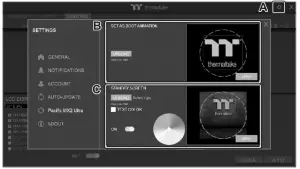
A. Click the gear icon on the upper right corner to enter the “SETTINGS” menu.
B. Upload the picture to set it as LCD boot animation. (GIF only, Max size: 5MB)
C. Upload the picture to set as LCD standby screen. (JPG only, Max size: 5MB)
The software interface may vary with feature updates, please download the latest user manual from our www.thermaltake.com
© 2021 Thermaltake Technology Co., Ltd. All Rights Reserved. www.thermaltake.com