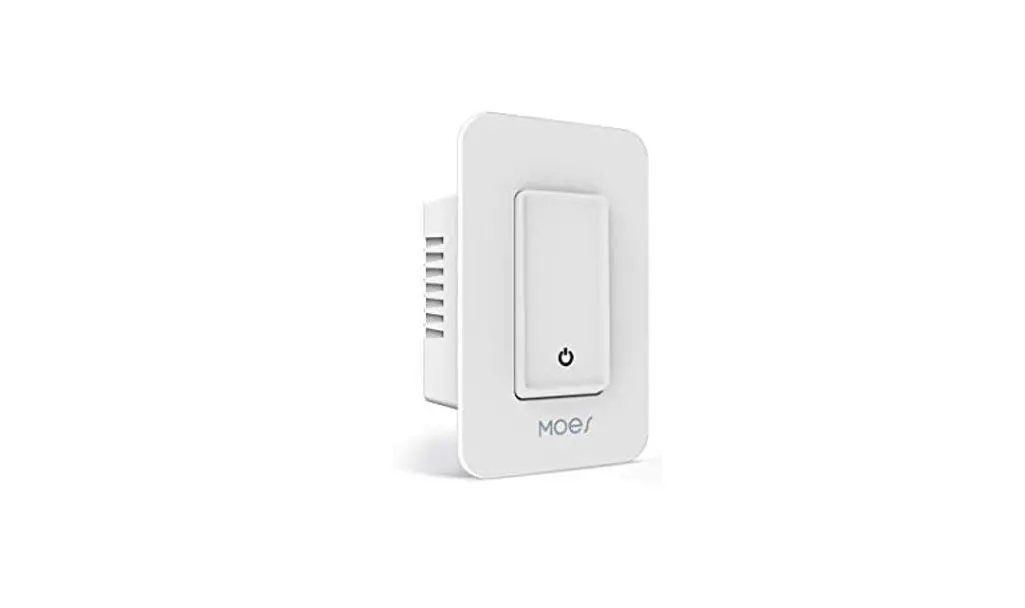
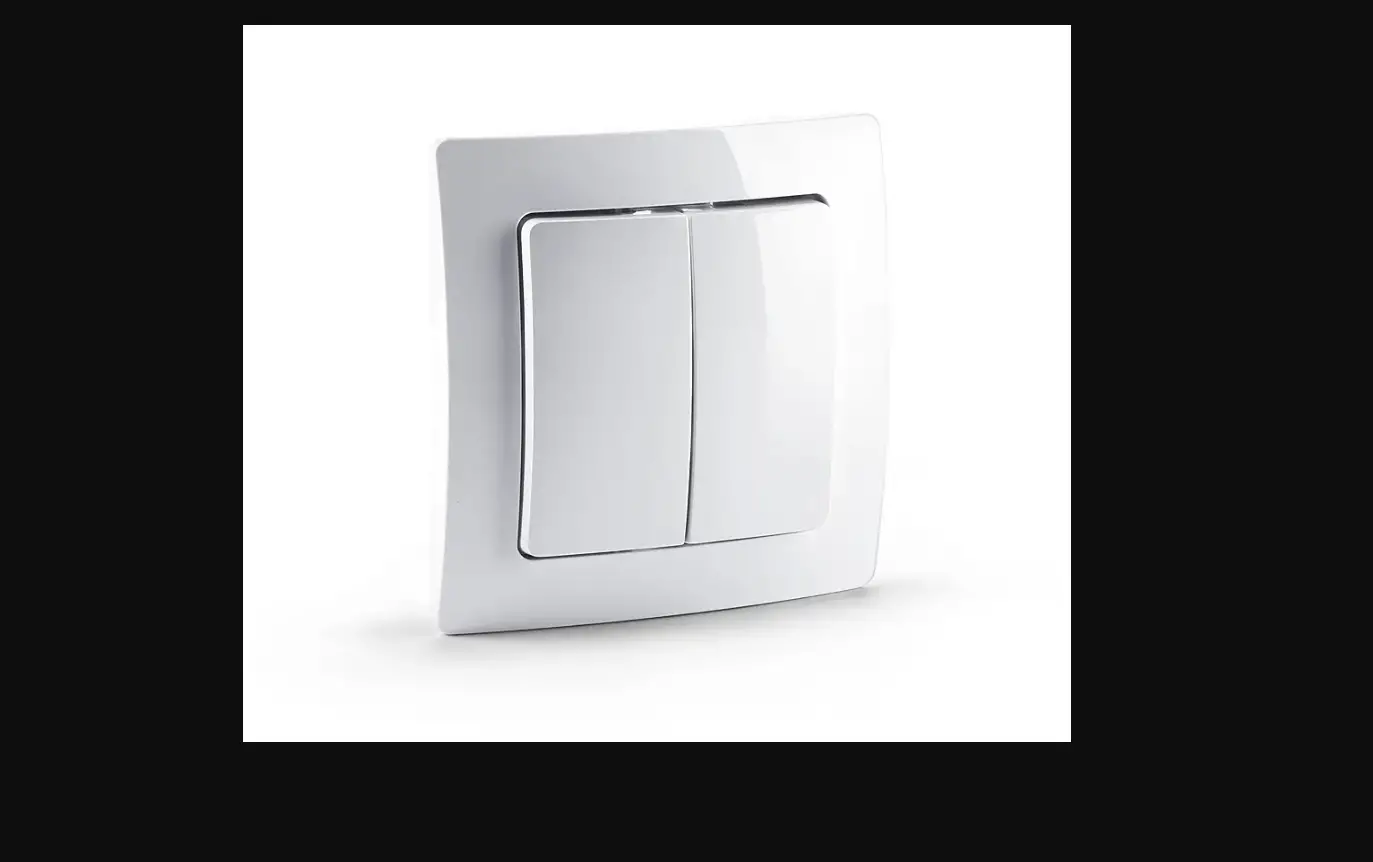
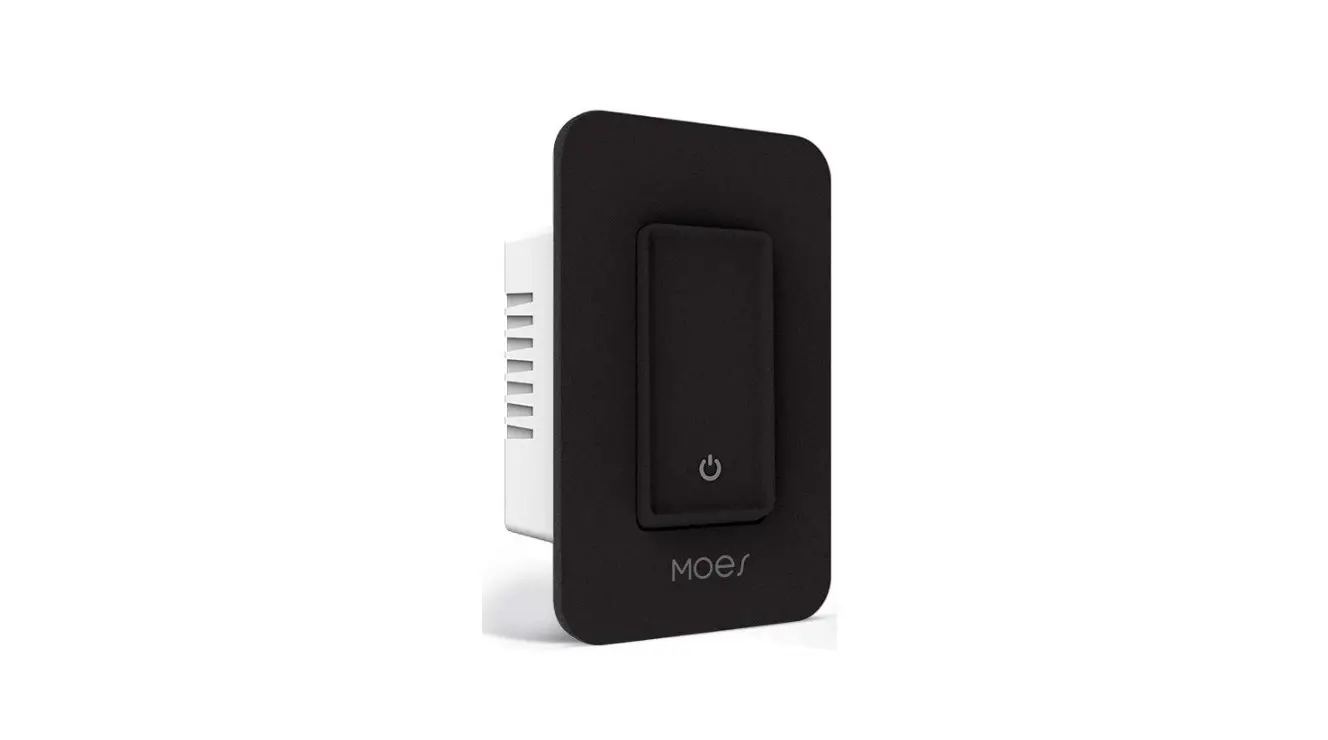
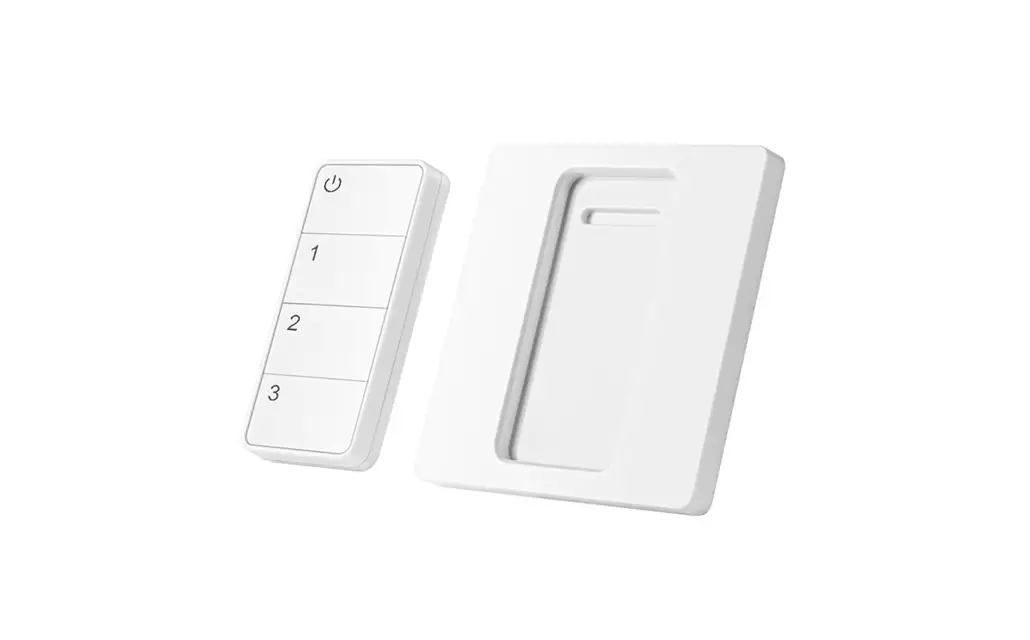
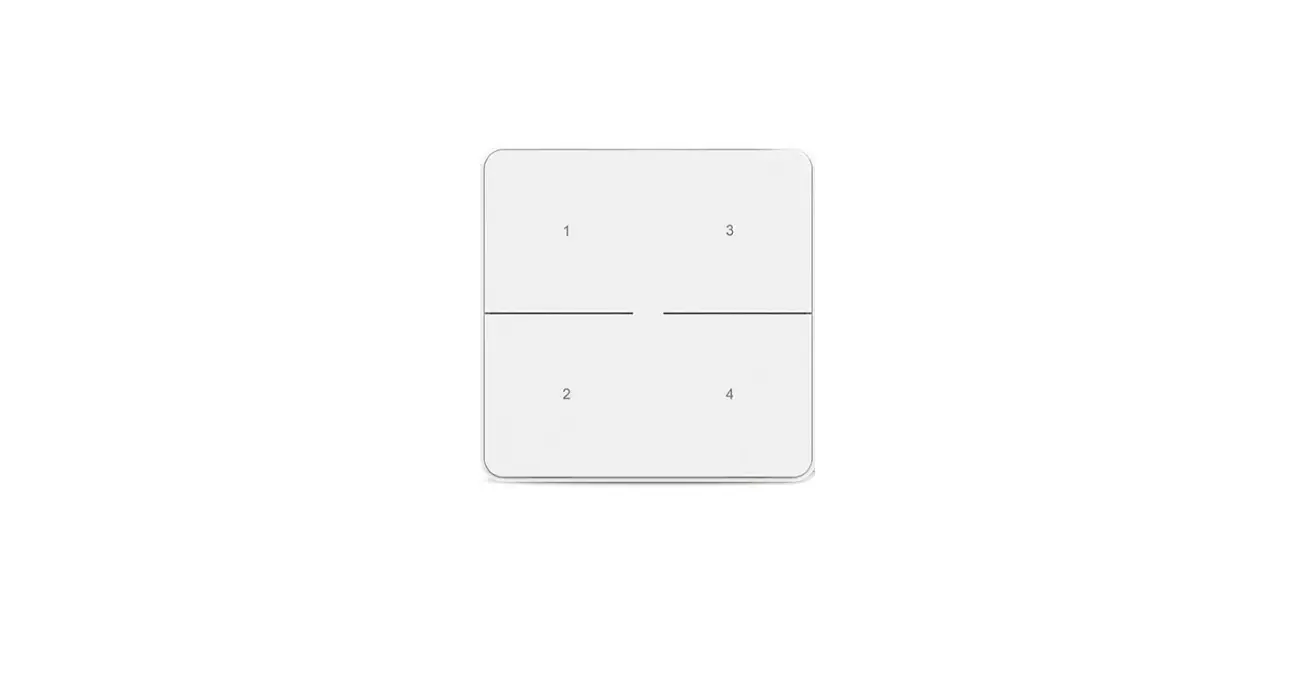
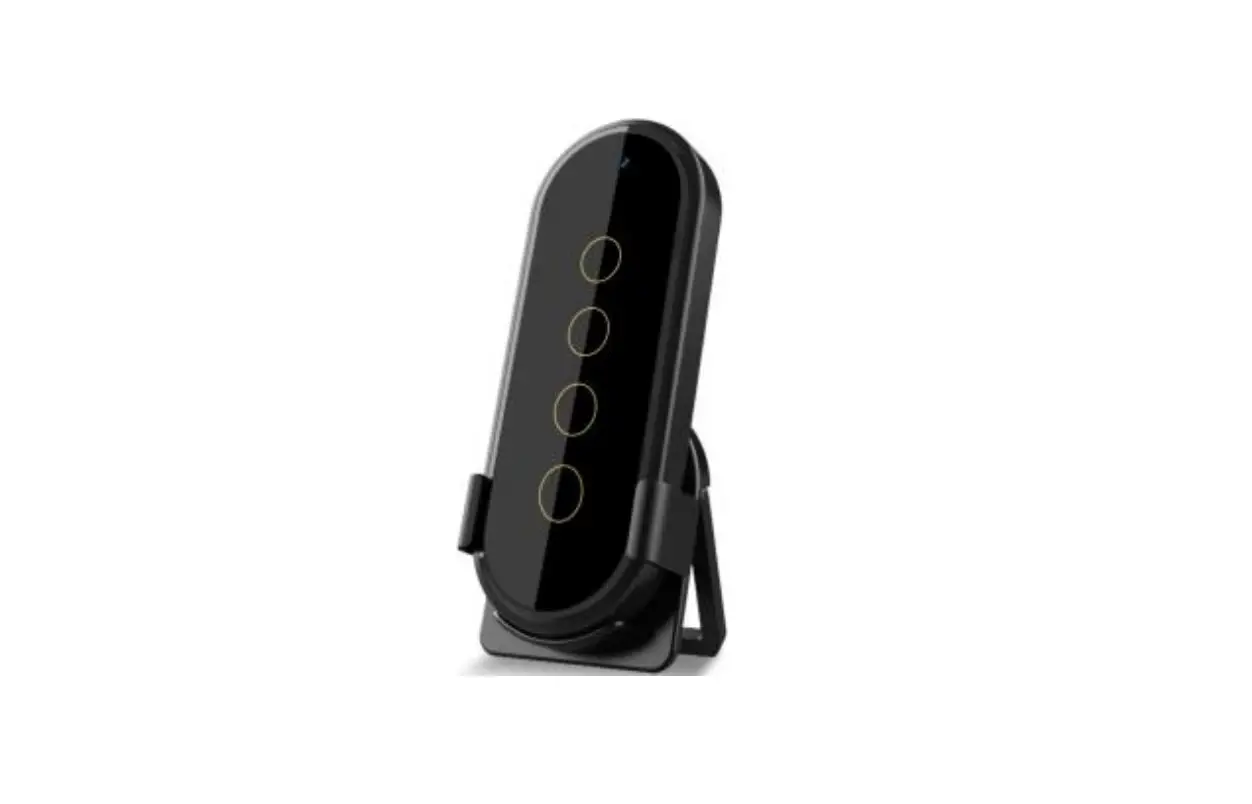
BT-B-EU1-MS Scene Switch
Product Information
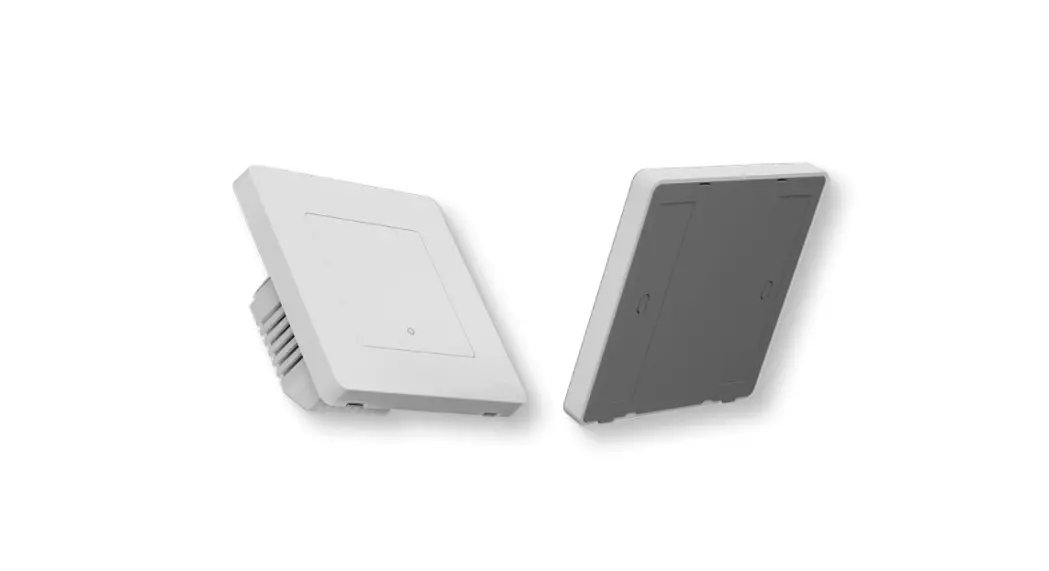
The Scene Switch is a battery-powered device that operates under
ZigBee/BLE communication. It is designed to be used with a
ZigBee/BLE gateway and the Smart life App. The switch allows you to
quickly set scenes for different rooms or living situations, such
as Reading or Movie mode. It is a convenient and energy-saving
alternative to traditional hard-wired switches. The Scene Switch
features a mechanical push on/off button and can be placed on any
surface, including walls.
The dimensions of the Scene Switch are 86.0mm x 86.5mm x
15.5mm.
Product Usage Instructions
Installation
- Open the cover of the Scene Switch and insert the button
battery into the battery slot. - If using double-sided tape:
- Clean the wall with a cloth and dry it.
- Attach double-sided tape to the back of the Scene Switch.
- Stick the Scene Switch on the wall.
- If using screws:
- Remove the bottom plate of the Scene Switch.
- Fix the Scene Switch on the wall using screws.
- Cover the panel with the bottom plate.
APP Operation
- Search for the Smart Life App in the app store or scan the QR
code on the package/manual to download and install the app. - Register and login to the app using your account.
- Add devices:
- Ensure that the intelligent gateway is added before adding
devices. - Connect the Scene Switch to the power supply.
- Press and hold the first button on the Scene Switch to put it
into network configuration mode. - Make sure your mobile phone is connected to the network.
- In the app, go to the smart gateway page and click “add
subdevice”. - Click on the LED that is blinking on the app.
- Ensure that the intelligent gateway is added before adding
- Controlling the Scene Switch:
- Single-click a button to activate the 1st scene.
- Double-click a button to activate the 2nd scene.
- Long-hold a button for 5 seconds to activate the 3rd
scene.
- To enter pair mode, press and hold button 1 on the Scene Switch
for 10 seconds. The LEDs will quickly flash. - If device networking fails, move the gateway closer to the
Scene Switch and reconnect the network after powering on.
Enjoy Our Smart Life
Scene Switch
User Manual
Product Introduction
Scene Switch with Your Smart Home Specification
Bitte scannen Sie den QR-Code, um das deutsche Handbuch, das Installationsvideo und die Funktionsein-
führung zu erhalten Escanee el código QR para obtener el manual en español, el video de instalación y la introducción de la función Veuillez scanner le code QR pour obtenir le manuel en français, la vidéo d’installation et l’introduction des fonctions QR-, , Leia o código QR para obter o manual em português, o vídeo de instalação e a introdução das funções
ZigBee/BLE
Scene Setting Remote Control
Battery Power
Mechanical Push On/Off Button
This Scene Switch is powered by battery, which is developed
under ZigBee/BLE communication. After connecting with ZigBee/BLE gateway and adding into Smart life App, it allows you to quickly “set the scene” for a particular room or living scene, like Reading, Movie, and so on. Scene Switch is a time and energy-saving item alternative to the traditional hard-wired switch, with push button deisign It can be stick on the wall or put it on everywhere you like.
AC Smart Plug
Traditional Bulb
Smart Dimmer Switch
Scene Switch
Traditional Bulb
Fan
86.0mm
Smart Bulb
86.5mm
Smart Plug
Smart Plug
Smart Curtain
BLE
Installation
Open the cover then put the button battery in the battery slot.Press the button on the switch, the indicator will turn on, it means that the switch works correctly.
15.5mm
02
03
04
05
Fix it as Where as You Want
Pry open switch backplane
Open the cover then put the button battery in the battery slot.
WALL
back plate
Bedroom
double-side tape
Method 1: Clean the walls with a cloth, then blow dry them.Use double-sided tape on the back of the scene switch and then stick it on the wall
screw
Method 2: First remove the bottom plate of the scene switch, fix it on the wall with screws, and then cover the panel
06
Kitchen
Living Room Bathroom
Connection and Operation
APP Operation
APP Operation
(1 Gang) Indicator LED
(3 Gang)
1.Search the App in the store or scan the QR code on the package/ manual to download and install the App.
3. Add devices Note: Intelligent gateway needs to be added before adding devices Connect the device to the power supply, press and hold the first button to put the device into the network configuration mode, and ensure that the mobile phone is connected toxsam network. Open the app, on the “smart gateway” page, click “add subdevice”, and click “LED already blink”.
(2 Gang) Button 1
Button 1 Button 2 Button 3
Please scan the QR code or download Smart Life on App store.
2. Register and login If you download for the first time, please click the “register” button to register your account.lf you have an account, click the “login” button.
Indicator LED
Long press the button, the indicator will turn on.
The indicator flash quickly, it means that the switch under
process of network connecting.
Scene Switch Operate: Each one button can be adapted upto
three different scenarios through the APP.
(Single Click) : Activate the 1st scene
(Double Click) : Activate the 2nd scene
Long Hold 5s:Activate the 3nd scene
Press and Hold button 1 for 10s get into pair mode, LEDs will
quick flash
07
08
09
10
APP Operation
Wait for device networking to succeed,Click “DONE” to add the device successfully. *NOTE: If you fail to add the device, please move the gateway closer to the product and reconnect the network after powering on.
APP Operation
After connectingthe network successfully, you will see the Intelligent Gateway page, choose the WIRELESS SWITCH 2 to enter the controlling page, then choose “Add intelligence” enter to the setting mode.
APP Operation
Choose “Add condition” to choose the controlling condition, such as “Single click”, the choose “Add task” choose the controlling action.
APP Operation
Such as choose the On/Off status of the switch.
APP Operation
Save your collocation, the you could use the scene switch to control the light.
11
12
13
14
15
SERVICE
1.During the free warranty period, if the product breaks down during normal use, we will offer free maintenance for the product. 2.Natural disasters/man-made equipment failures, disassembly and repair without the permission of our company, no warranty card, products beyond the free warranty period, etc., are not within the scope of free warranty 3.Any commitment (oral or written) made by the third party (including the dealer/service provider) to the user beyond the warranty scope shall be executed by the third party 4.Please keep this warranty card to ensure your rights 5.Our company may update or change the products without notice. Please refer to the official website for the updates.
RECYCLING INFORMATION
All products marked with the symbol for separate collection of waste electrical and electronic equipment (WEEE Directive 2012/19 / EU) must be disposed of separately from unsorted municipal waste. To protect your health and the environment, this equipment must be disposed of at designated collection points for electrical and electronic equipment designated by the government or local authorities. Correct disposal and recycling will help prevent potential negative consequences for the environment and human health. To find out where these collection points are and how they work, contact the installer or your local authority.
WARRANTY CARD
Product Information Product Name____________________________________________ Product Type_____________________________________________ Purchase Date____________________________________________ Warranty Period___________________________________________ Dealer Information________________________________________ Customer’s Name_________________________________________ Customer Phone__________________________________________ Customer Address________________________________________ _________________________________________________________
Maintenance Records
Failure date Cause Of Issue Fault Content Principal
Thank you for your support and purchase at we Moes,we are always here for your complete satisfaction, just feel free to share your great shopping experience with us.
If you have any other need,please do not hesitate to contact us first,we will try to meet your demand.
@moessmart @moes_smart @moes_smart
MOES.Official @moes_smart www.moeshouse.com
WENZHOU NOVA NEW ENERGY CO.,LTD Address: Power Science and Technology Innovation Center, NO.238, Wei 11 Road, Yueqing Economic Development Zone, Yueqing, Zhejiang, China Tel:+86-577-57186815 Email:[email protected]
AMZLAB GmbH Laubenhof 23, 45326 Essen Made In China
16
17
18
19
20
BB14
 MOES Smart WiFi ZigBee Smart 2/3 Way Switch Socket Thermostat Sensor