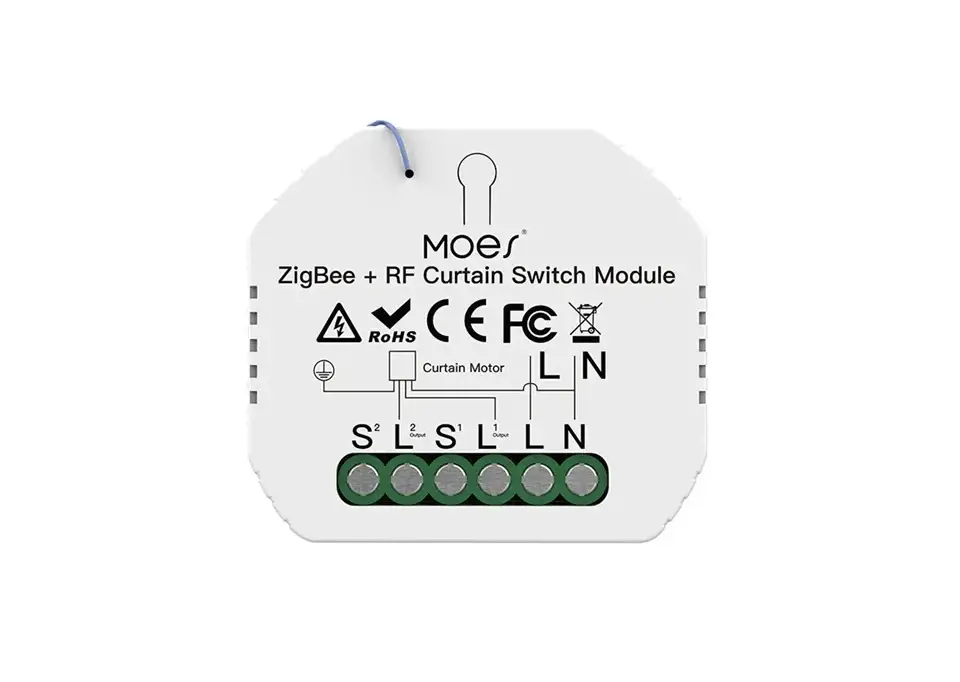
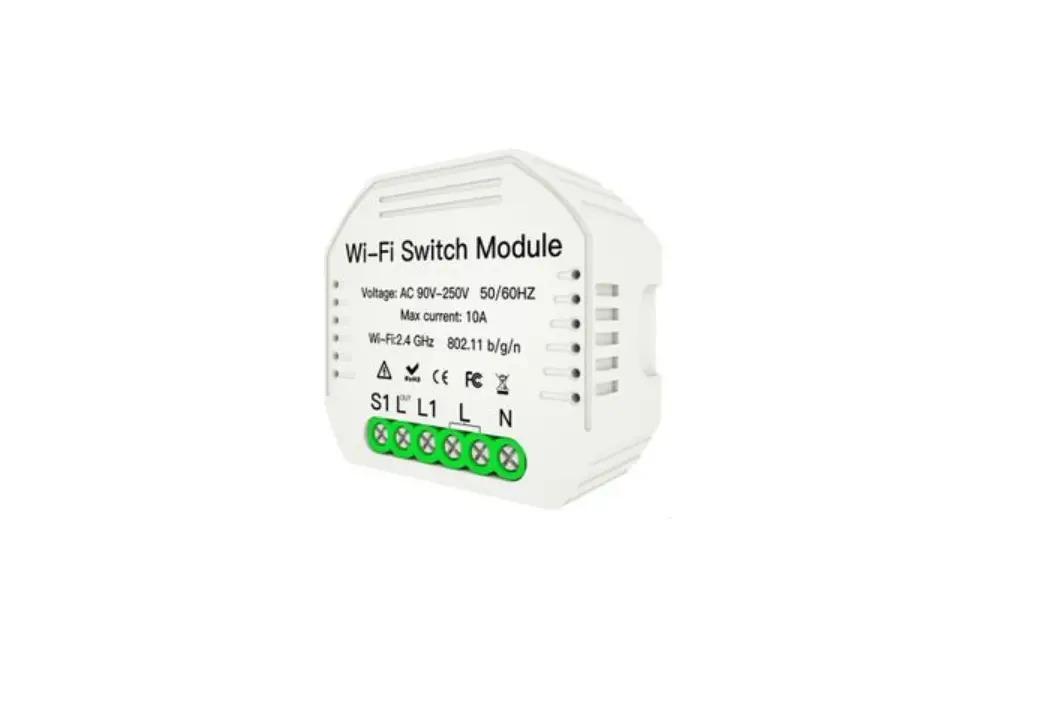
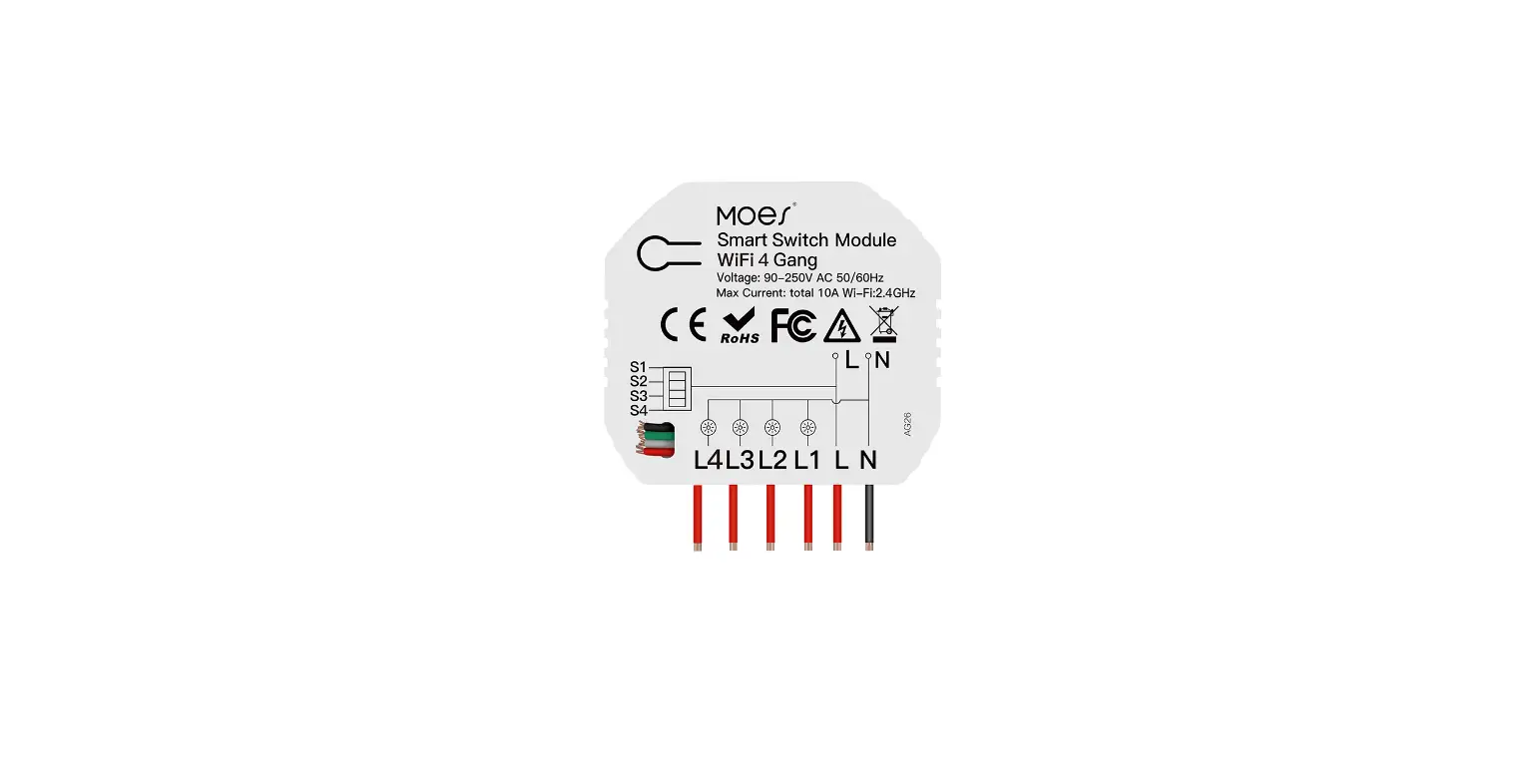
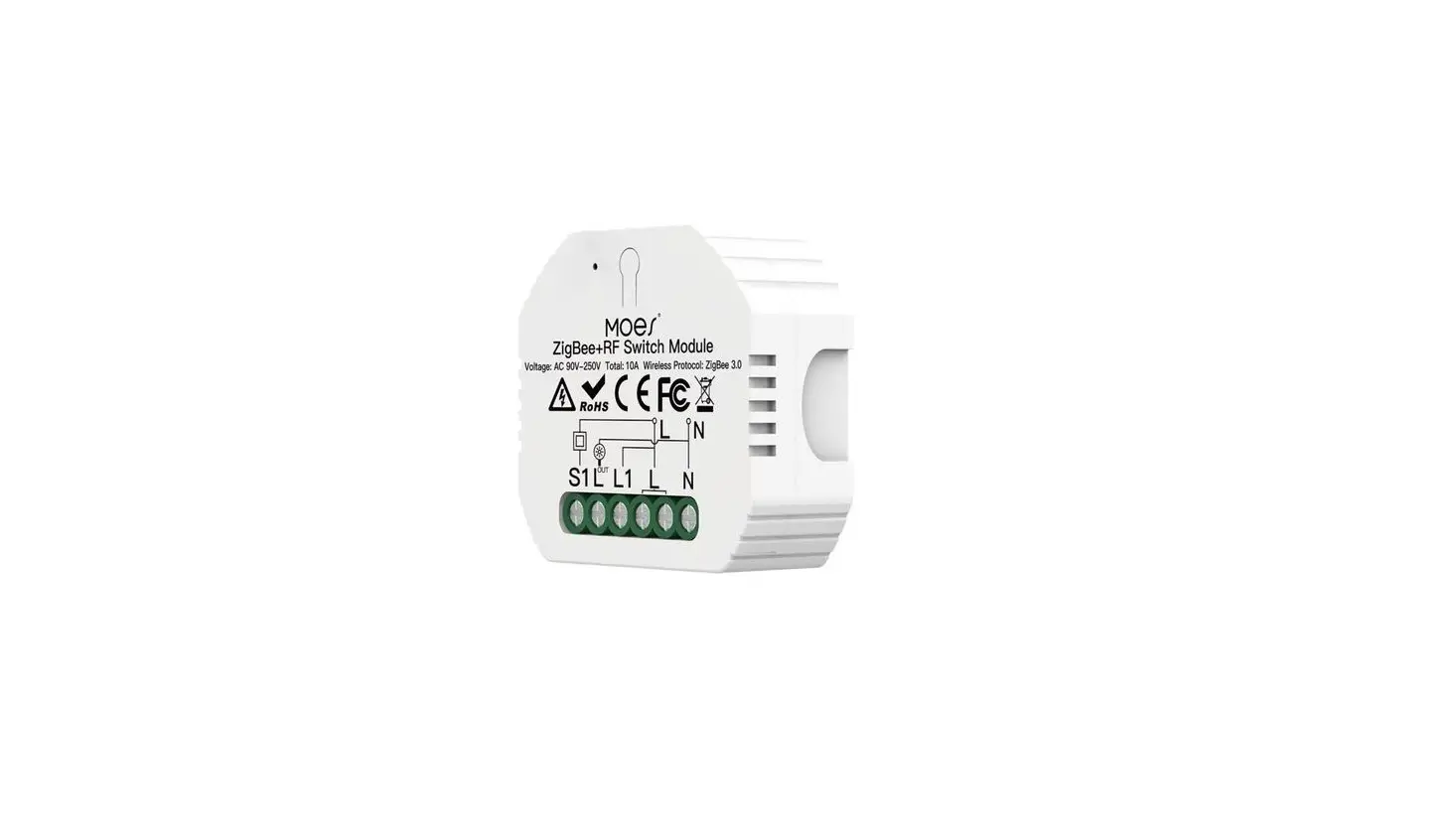
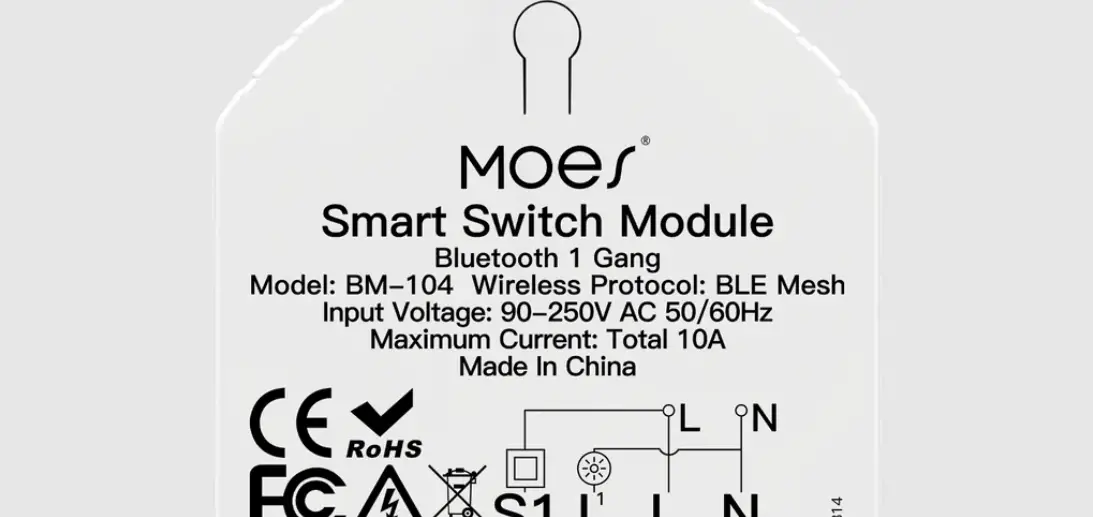
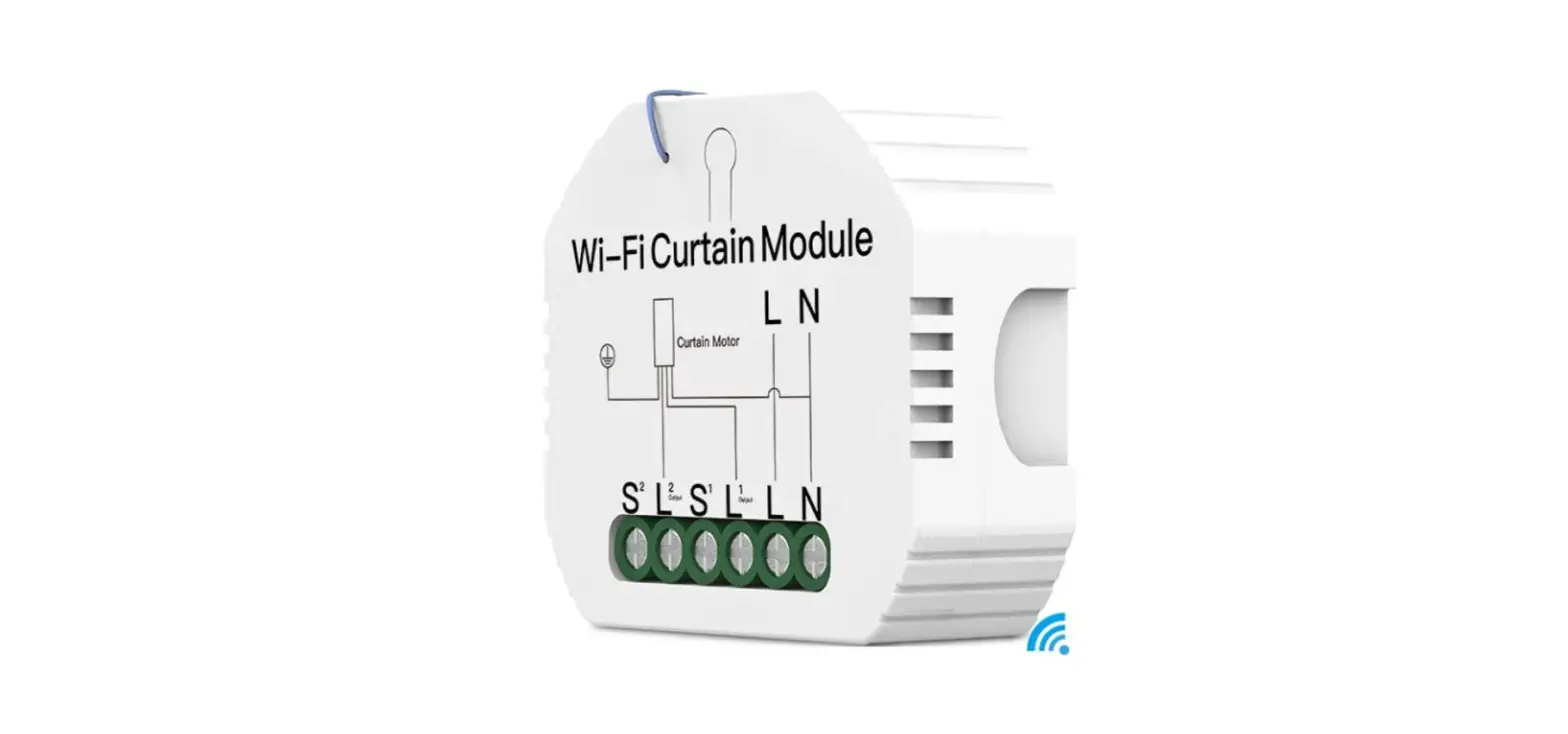
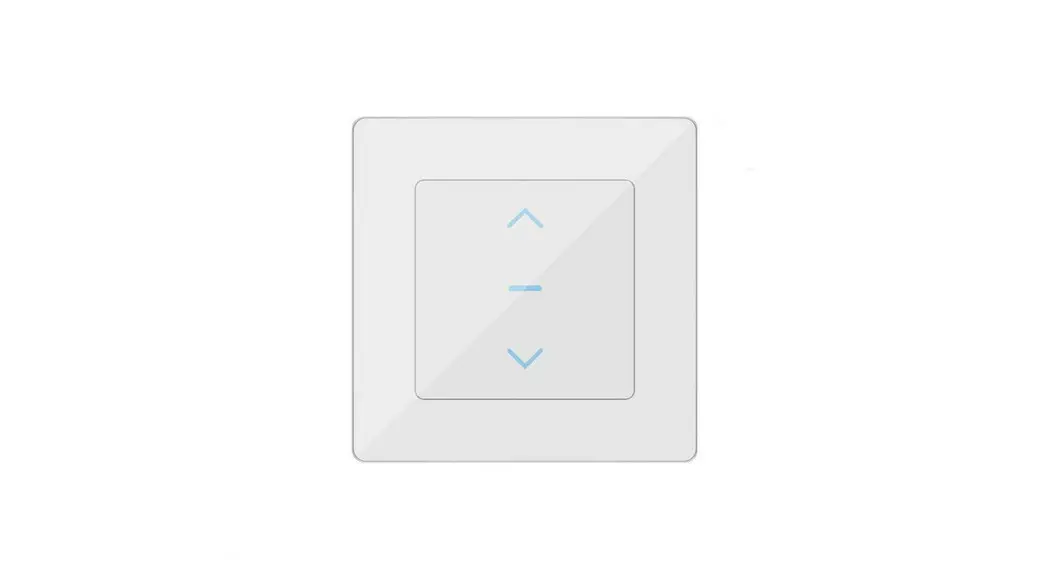
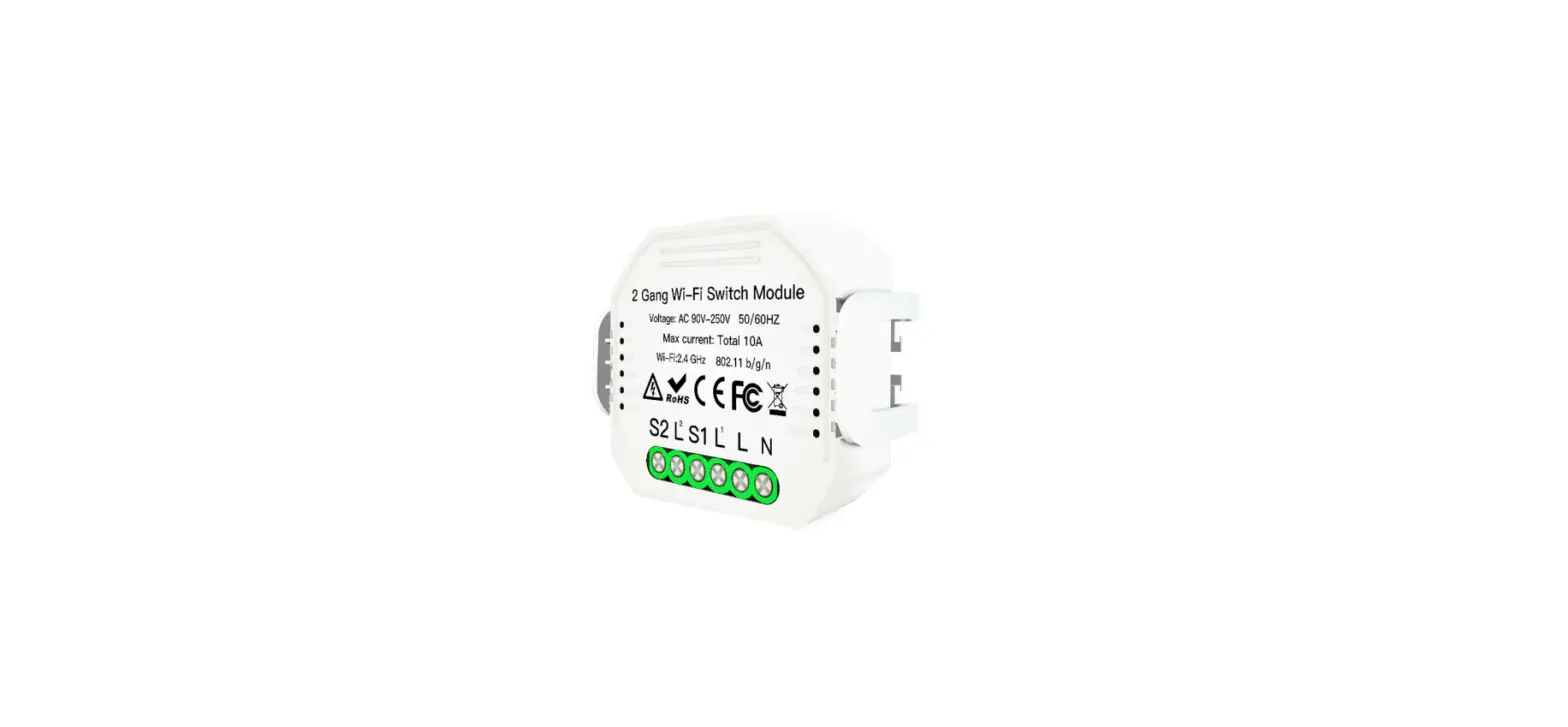
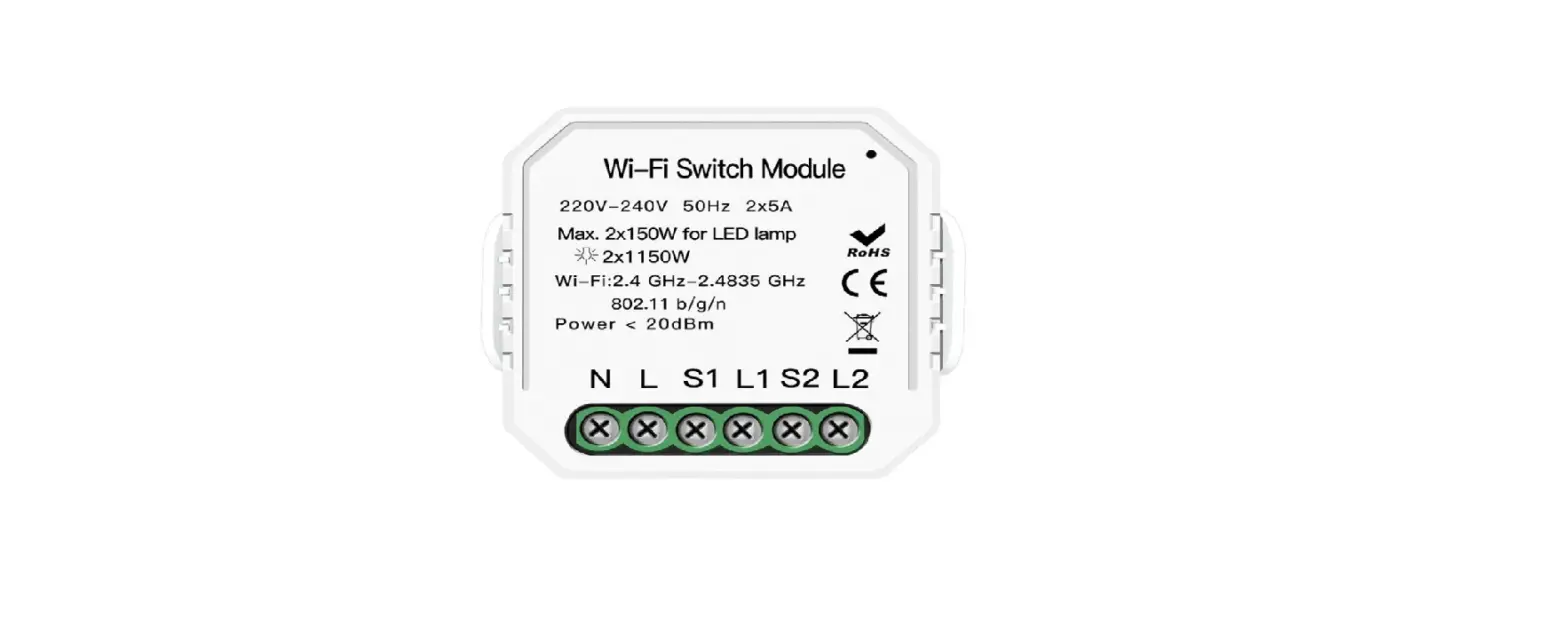
MS-108 Smart Curtain Switch Module
Product Information
The Smart Curtain Switch Module comes in two variants: MS-108
(Wi-Fi) and MS-108WR (Wi-Fi+RF433). It is designed for global
international operation and can be controlled through a mobile app.
The switch supports schedule timer and voice control with Google
Home and Amazon Alexa. It also offers device sharing functionality.
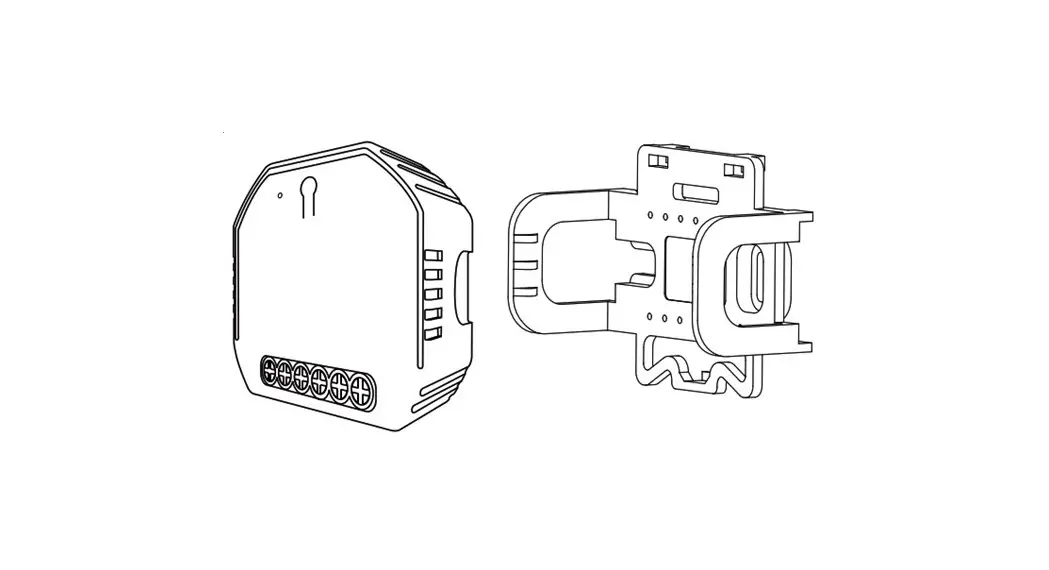
The module can be reset and comes with a mounting clip for
installation. The product operates within specified temperature
ranges and has IP rating for protection against dust and water.
Product Usage Instructions
- Wiring Diagram:
- With curtain switch
- Without switch
- Mounting the Switch:
- Turn off the circuit breaker and use an electrical tester to
ensure there is no power. - Remove the old switch and disconnect the wires.
- Mount the Smart Curtain Switch using the provided mounting
clip. - Connect the power supply according to the wiring diagram.
- Follow the curtain switch module configuration instructions
using the mobile app.
- Turn off the circuit breaker and use an electrical tester to
- Additional Instructions:
- Ensure power supply is disconnected before installing or
removing the device. - Avoid installing the device in water, damp or hot
environments. - Keep the device away from strong signal sources that may cause
signal interruption. - Avoid obstruction by concrete walls or metallic materials that
may reduce the device’s operation range. - Do not attempt to disassemble, repair, or modify the
device.
- Ensure power supply is disconnected before installing or
Technical Specifications
- Product Type: Smart Curtain Switch Module
- Voltage: Varies based on model
- Current: Varies based on model
- Max. Power: Depends on the connected curtains
- Wireless Protocol: Wi-Fi (MS-108) / Wi-Fi+RF433 (MS-108WR)
- Operation Temp.: Within specified temperature range
- Case Temp.: Within specified temperature range
- Operation Range: Depends on Wi-Fi signal strength
- Dimensions (WxDxH): Varies based on model
- IP Rating: Provides protection against dust and water
FAQ
Q1: Does this work with Google Home?
A: Yes, it does. The Smart Curtain Switch
Module is compatible with Google Home and also supports Amazon
Alexa.
Instruction Manual Smart Curtain Switch
Module
MS-108: Wi-Fi MS-108WR: Wi-Fi+RF433
English
1
WIRING DIAGRAM
1. With curtain switch
2. Without switch
English
8
47 mm
18 mm
Bitte scannen Sie den QR-Code hier für eine Anleitung in deutscher Sprache
Por favor escanear el código QR aquí para instrucciones en español
Veuillez scanner le QR code ici pour des instructions en français
, QR- , .
Leia o código QR aqui para obter instruções em português
English
2
Global international operation Whenever & Wherever You are,All-in-one Mobile App
Schedule timer Voice control-work with Google Home
Voice control-work Device Sharing with Amazon Alexa
Anywhere APP
APP
Note:Press the traditional curtain switch once
after switch to up/down (on the same button)
to stop the curtains (connect your swicth to the curtain module first).
Step 2
Remove the old switch
Reset Curtain Switch
Step 1
Mounting Clip
Turn off the circuit breaker and use the electrical tester to test the power. Ensure the circuit breaker is off before wiring.
Inhouse local operation APP
Attention:
Please disconnect the power supply before installing or removing the device for avoiding irreversible damage on the device from the electric current or some unpredictable problems such as lamp flashing.
App
Router
Voice control
Reset Curtain Switch
3
English
English
4
5
Step 3
Remove the switch and pull it away from the wall. Identify Line/Load Wire(Note:The color of your wire may be different from the color shown on the manual.)
Verify power is off
We recommend you remove the faceplate from the old switch and use an electrical tester to test all wires connected to the switch to ensure there is no voltage in the circuit.
You may need to turn off more than one circuit breaker.
TECHNICAL SPECIFICATIONS
P roduct Type V oltage Current Max. Power Wireless Protocol Operation Temp. Case Temp. Operation Range Dims (WxDxH) IP Rating
Smart Curtain Switch Module 90-250V AC 50/60Hz 2A 500W(250V) Wi-Fi 2.4GHz IEEE 802.11 b/g/n -10ºC – +40ºC Tc: +80ºC (Max.) 200 m 52x47x18 mm IP20
INSTALLATION
Warnings:
1. Installation must be carried out by a qualified electrician in accordance with local regulations.
2. Keep the device out of the reach of children. 3. Keep the device away from water , damp or hot environment. 4. Install the device away from strong signal sources such as microwave
oven that may cause signal interruption resulted in abnormal operation of the device. 5. Obstruction by concrete wall or metallic materials may reduce the effective operation range of the device and should be avoided. 6. Do NOT attempt to disassemble, repair or modify the device.
EMC Standard (EMC) EN 300 328 V2.1.1 (2016-11), EN 301489-1 V2.1.1 (2017-02), EN 301489-17 V3.1.1 (2017-02), EN 62311: 2008, EN 55015:2013 +A1:2015, EN 61547:2009
Safety Standard (LVD) IEC 60669-2-1:2002/AMD1:2008/ AMD2:2015, IEC 60669-1:1998/ AMD1:1999/AMD2:2006, EN 60669-2-1:2004+A1: 2009+ A2:2010, EN 60669-1:2018
RoHS Standard (RoHS) 2011/65/EU, (EU) 2015/683
English
English
6
7
English
52 mm
S2 L2
Output
S1 L1
Output
LN
Wiring Instructions and Diagrams 1.Turn off the power supply before carrying out any electrical installation work. 2.Connect wires according to the wiring diagram. 3.Insert the module into the junction box. 4.Connect the power supply and follow curtain switch module configuration instructions.
Notes: Put your smartphone close to the curtain switch module when you’re configuring, and make sure you have min. 50% Wi-Fi signal.
9
English
FAQ
Q1:Does this work with Google Home? A: Yes,it does.And it’s also compatible with Alexa.
Q2:Do I need to buy a hub to work with the curtain module A: No,there is no need for you to buy a hub and no hub required for the module.
Q3:Can I control the module with my own remote controller?
A:This curtain switch module(MS-108WR) is RF433 built in and it can only work with RF433 remote control switch with encoding 1527.
Q4:Shall I buy a smart curtain switch to work with this module?
A:No,you can just connect the module to your traditional curtain switch to realize intelligence. Q5:What should I do if I can’t configure the curtain module? A: a:Please check whether device is powered on.
b:Make sure your mobile and curtain module are under the same 2.4GHz wifi network. c:Whether it’s in good internet conditions. d:Make sure the password entered in App is correct. e:Make sure the wiring is correct.
Q6:Which products can I control with the device? A:Curtains,shutter,blind….
Q7:What happens if the wifi goes off? A:You can still control the device connected to the curtain module with your traditional curtain switch and once wifi is active again the device connected to the curtain module will connect automatically to your wifi network.
Q8:What should I do if I change the wifi network or change the password?
A:You can connect the module to the wifi network according to the App User Manual.
English
10
MANUAL OVERRIDE
The curtain switch module terminal reserves the access of manual override function for the end-user to switch on/off. · Switch on/off for permanent on/off function.
Notes:
1) Both the adjustment on App and switch can be reset , the last adjustment remains in memory.
2) The App control is synchronized with the manual switch.
1 Scan the QR code to download Smart Life App, or you can also search keyword “Smart Life” at AppStore or Googleplay to download App.
2 Log in to the App or create a new account.
Preparation for use
Region Mobile number/e-mail address Obtain verification code
Please scan the QR code or download Smart Life on App store.
11
English
English
12
Enter the Register/Login interface; tap “Register” to create an account by entering your phone number to get verification code and “Set password”. Choose “Log in”if you already have a Smart Life account.
Steps for connecting the APP to the device
Method One: 1.Make sure your phone is connected to Wi-Fi and Bluetooth.
2.Scan the QR code to configure the network guide.
Scan this QR code
13
English
English
14
Method Two: 1.Make sure your phone is connected to Wi-Fi and Bluetooth.
2.Reset:Press the reset button for more than 7
seconds until the beep sounds continuously rapidly as Di-Di-Di…for entering into Wi-Fi pairing mode.
15
English
Amazon Echo will take a few minutes to try to connect to the network. After the network connection is successful, tap “Continue”. An introduction video will appear After the video endstap “Continue” to jump to the Alexa Home page. You have now completed the Amazon Echo’s configuration process
3.Key step —- Link Skill Tap on “Skills” in the Alexa App menu. Then search for “App Name”. Tap “Enable” to enable the Skill. Enter the App account and password, then tap “Link Now” to link your App account to enable the Skill. Now you can start your smart home journey
4.Common commands
Control the device via voice commands, now you can control your smart device with Echo. You can control your device (such as your bedroom light) with the following commands:
“Alexa, open the <device name>” “Alexa, close the <device name>” “Alexa, pause <device name>” “Alexa, resume <device name>” “Alexa, set the <device name> to thirty percent.” “Alexa, increase <device name> by ten percent.” “Alexa, decrease <device name> by twenty percent.”
English
22
3.Open Smart Life/Tuya App, then the prompt page will automatically show on the screen.Click “Add”, Select the device you want to add and click “+”.
4.Enter Wi-Fi Password and click “Next”,waiting for completing the connection.Add the device successfully, you can edit the name of the device to enter the device page by click “Done” .
5.enjoy your smart life with home automation.
RF Link Method
(only for MS-108WR)
1 Press the reset button for 5 times and wait for 2 seconds until the red indicator flashes fast to pair with the open button.
2 Press the reset button for 6 times and wait for 2 seconds until the red indicator flashes fast to pair with the close button.
3 Press the reset button for 7 times and wait for 2 seconds until the red indicator flashes fast to pair with the stop button.
Reset Method
1 Press the reset button for more than 7 seconds to start to reset of Wi-Fi method.
2 Press the reset button for 10 times for clearing mode of RF.
English
16
17
English
English
18
SERVICE
1.During the free warranty period, if the product breaks down during normal use, we will offer free maintenance for the product. 2.Natural disasters/man-made equipment failures, disassembly and repair without the permission of
our company, no warranty card, products beyond the free warranty period, etc., are not within the scope of free warranty 3.Any commitment (oral or written) made by the
third party (including the dealer/service provider) to
the user beyond the warranty scope shall be
executed by the third party 4.Please keep this warranty card to ensure your
rights 5.Our company may update or change the products without notice. Please refer to the official website for the updates.
RECYCLING INFORMATION
All products marked with the symbol for separate collection of waste electrical and electronic equipment (WEEE Directive 2012/19 / EU) must be disposed of separately from unsorted municipal waste. To protect your health and the environment, this equipment must be disposed of at designated collection points for
electrical and electronic equipment
designated by the government or local authorities.
Correct disposal and recycling will
help prevent potential negative consequences for the environment and human health. To find out where
these collection points are and how they work, contact the installer or your local authority.
WARRANTY CARD
Product Information Product Name____________________________________ Product Type_____________________________________ Purchase Date____________________________________ Warranty Period__________________________________ Dealer Information________________________________ Customer’s Name_________________________________ Customer Phone__________________________________ Customer Address________________________________ _________________________________________________
Maintenance Records
Failure date Cause Of Issue Fault Content Principal
19
English
BG28
23
English
English
24
25
English
English
26
Enter Smart Life Skill in Alexa APP
APP
App control
Voice control
Enjoy your smart life of home automation for intelligent control by using our All-in-one mobile
App wherever you are in the world or simply by
voice control when you are sitting at home comfortably.
English
20
27
English
1.Complete product networking configuration in the App Complete the device’s networking configuration according to the prompts in the App. Note: In the App, change the name of the device to an easily identifiable name such as Alexa; names are usually in English, such as “bed light”.
2.Configure the Amazon Echo device Note:If you have already configured Amazon Echo, you can skip this step. The following instructions are based on the iOS client.
Make sure you Amazon Echo device is powered on and connected to a Wi-Fi network. Open the Alexa APP on your phone and log in tap on the menu in the upper left corner of the Home page, select “Settings” and tap “Set Up A New Device” to set up the Amazon Echo. Choose your Amazon Echo device type and language for connecting. Press and hold the small dot on the device until the light turns yellow. Click “Continue” to connect to the hotspot, connect to the Amazon Echo hotspot, and return to the APP page. Click “Continue” to find and connect to your home Wi-Fi network.
21
English
English
28