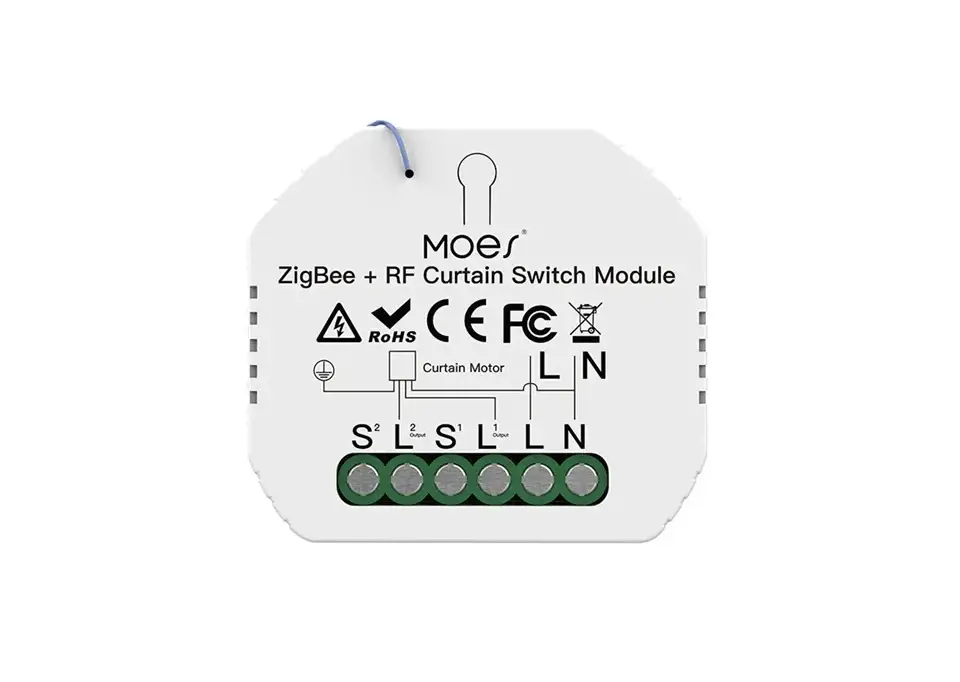
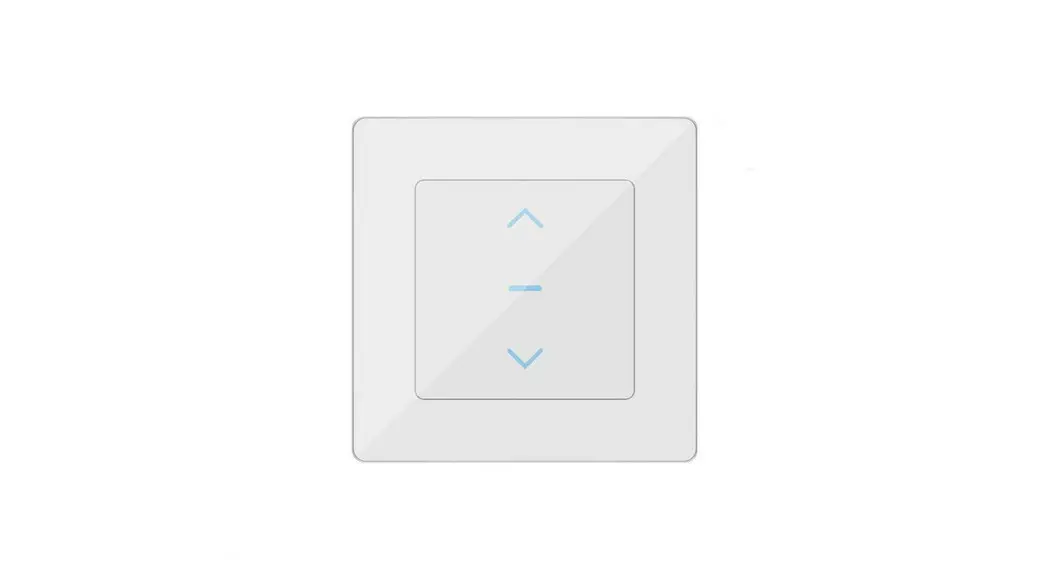
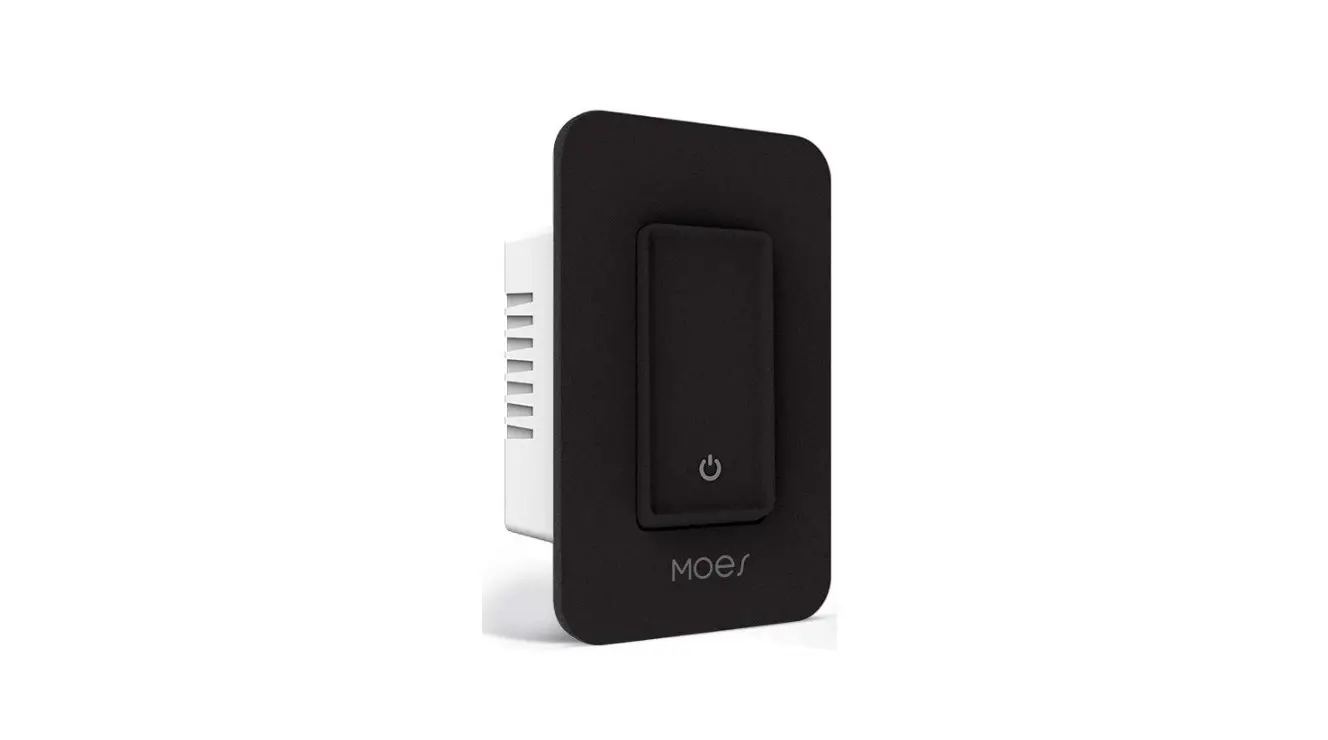
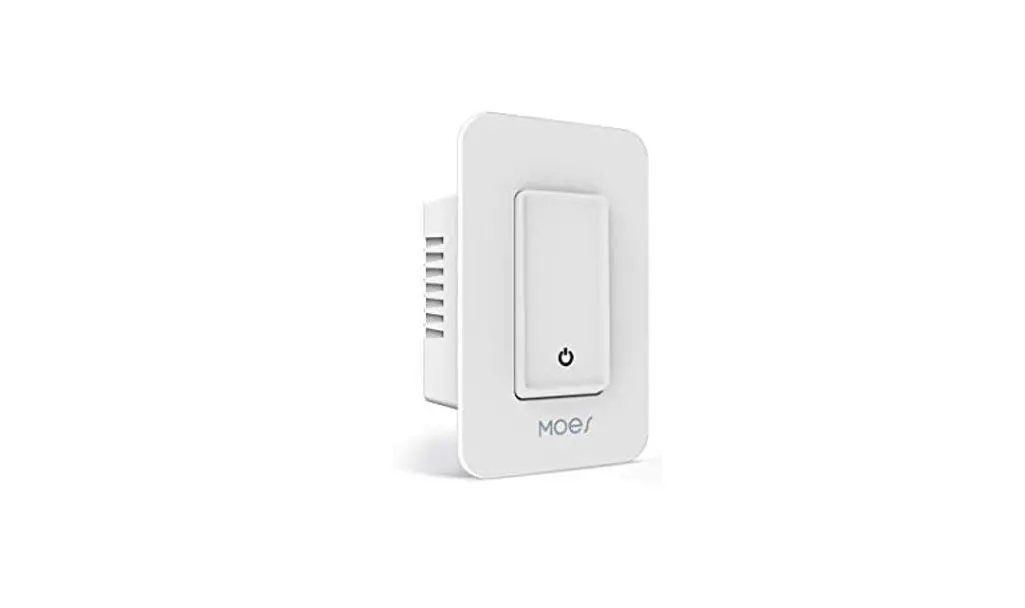
WRS-USC-WH-MS Smart Curtain Switch
Product Information
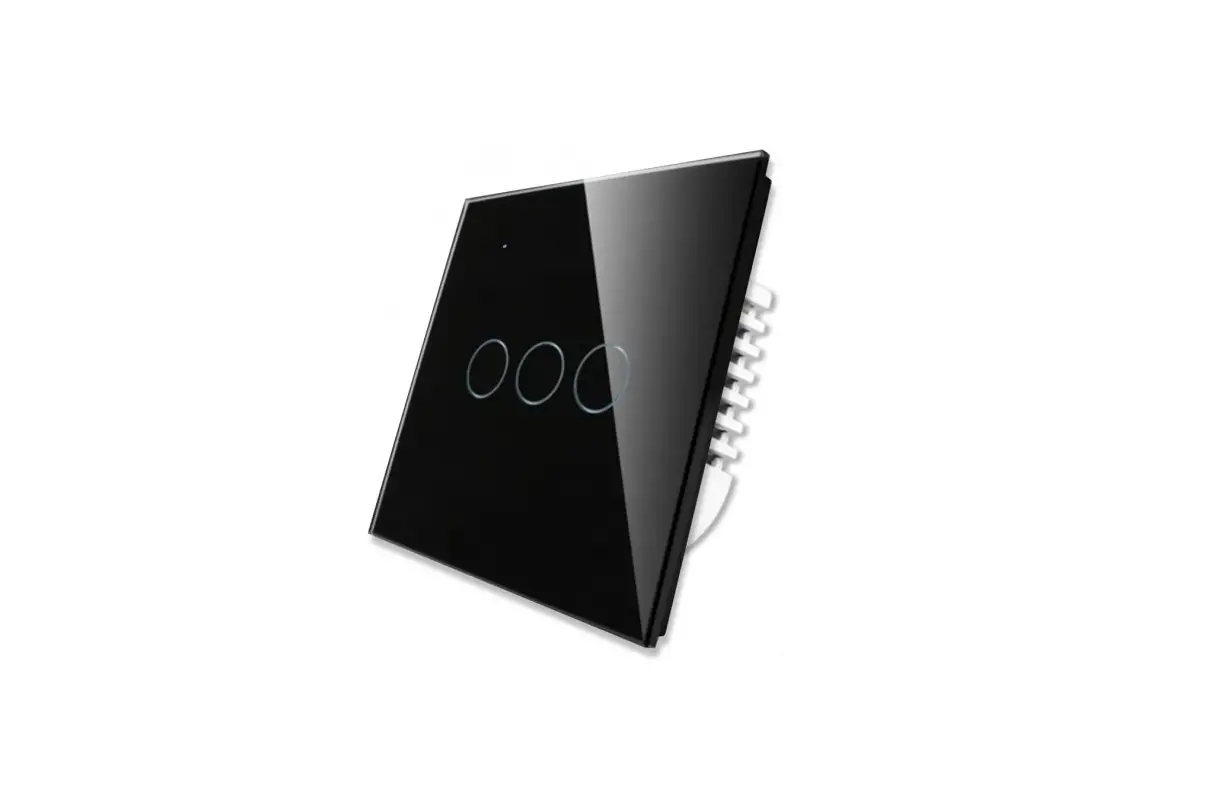
The Smart Curtain Switch is a new designed glass panel wireless
touch switch that offers many new updates. It features a WiFi+RF
version that easily replaces traditional switches and provides
various ways to control your curtains. The switch can be controlled
through the Tuya Smart Life App, allowing for multi-control
association with other smart switches. The switch also includes a
backlight on/off feature and displays relay status when power is
off. Its scratch-resistant glass panel is suitable for different
decoration styles, making it a versatile and valuable addition to
your home.
Transportation
The product should be transported without severe vibration,
impact, exposure to rain, dumping, or any other problems that may
cause damage. Please ensure compliance with the markings on the
packaging boxes.
Safety Information
- Risk of Electric Shock: Electricity can cause personal injury
and property damage if handled improperly. If you are unsure about
any part of these instructions, please seek professional assistance
from a qualified Electrician. - Do not disassemble, reassemble, modify, or attempt to repair
the product by yourself. - This product does not have waterproof and dustproof
functions.
Storage
The product should be stored in a warehouse with a temperature
range between -10°C to +45°C and a relative humidity of 70%RH. The
storage environment should be indoors and free from acid, alkali,
salt, corrosive substances, explosive gas, flammable matter, dust,
rain, and snow.
Technical Parameters
- Model: WS-USR-C / WS-EUR-C
- Working Voltage: 90-250V AC, 50/60Hz
- Max. Current: 2.5A/Gang; Total 2.5A
- Load Power: 600W
- Standby Power: 0.5W
- Wireless Protocol: Wi-Fi 2.4GHz IEEE 802.11 b/g/n
- Standby Consumption: 0.1mA
- Wireless Range: 30 Meters (Indoor)
Product Usage Instructions
Step 1: Remove the old switch
Switch off the power and remove the faceplate from the old
switch. Use an electrical tester to ensure there is no voltage in
the circuit connected to the switch. You may need to turn off more
than one circuit breaker.
Step 2: Take pictures of the wiring
Before removing the switch, take pictures of the wiring for
reference.
Step 3: Connect the switch wires
Follow the wiring diagram provided and connect the switch wires
to the wires in the wall box using wire conductors. Identify the
Line/Load Wire, noting that the color of your wire may be different
from the color shown in the manual.
Method One: Pairing via MOES App
- Ensure your phone is connected to Wi-Fi and Bluetooth.
- Reset the switch by pressing the switch button six times, and
on the sixth time, hold it until the blue indicator on the switch
flashes fast. This indicates successful pairing/reset. - Open the MOES App and follow the on-screen prompts. Click
“Add,” select the device you want to add, and click “+” to add it
to your network.
Method Two: Pairing via Alexa App
- Tap on Skills in the Alexa App menu.
- Follow the instructions provided to link the skill and enable
control of the switch through Alexa.
Additional Setup for Amazon Echo
After pairing the switch, follow these steps to complete the
setup for Amazon Echo:
- Tap “Continue” to proceed to the next step.
- Choose a Wi-Fi network to connect to. Amazon Echo will attempt
to connect to the network. - Once the network connection is successful, tap “Continue.” An
introduction video will appear. After the video ends, tap
“Continue” to jump to the Alexa Home page. This completes the
Amazon Echo’s configuration process.
HOME, SMART MOES HOME
Instruction Manual Smart Curtain Switch
Wi-Fi+RF
EU
US
English
Step 2 Remove the old switch
Step 3
Remove the switch and pull it away from the wall. Identify Line/Load Wire(Note:The color of your wire may be different from the color shown on the manual.)
Verify power is off
We recommend you remove the faceplate from the old switch and use an electrical tester to test all wires connected to the switch to ensure there is no voltage in the circuit.
You may need to turn off more than one circuit breaker.
Step 4
Take pictures of the wiring
Follow the wiring diagram to connect the switch wires to the wires in the wall box with the wire conductors.
English
5
Method Two:
1.Make sure your phone is connected to Wi-Fi and Bluetooth.
2.Reset:Press the switch button for 6 times,and hold on the 6th time,then release until the blue indicator on the switch flashes fast.Pair/Reset is successful.
3.Open MOES App,then the prompt page will automatically show on the screen.Click “Add”, Select the device you want to add and click “+”.
10
English
Tap “Continue” to proceed to the next step. Choose a Wi-Fi network to connect to. Amazon Echo will take a few minutes to try to connect to the network.
After the network connection is successful, tap “Continue”. An introduction video will appear. After the video ends, tap “Continue” to jump to the Alexa Home page. You have now completed the Amazon Echo’s configuration process.
3. Key step —- Link Skill
Tap on “Skills” in the Alexa App menu.
English
15
Bitte scannen Sie den QR-Code, um das deutsche Handbuch, das Installationsvideo und die Funktionseinführung zu erhalten Escanee el código QR para obtener el manual en español, el video de instalación y la introducción de la función Veuillez scanner le code QR pour obtenir le manuel en français, la vidéo d’installation et l’introduction des fonctions QR-, , Leia o código QR para obter o manual em português, o vídeo de instalação e a introdução das funções
English
1
L N
L OPEN
N
CLOSE
CLOSE OPEN
L N
Product Description
This new designed glass panel wireless touch smart curtain switch is designed with many new updates. The WiFi+RF version easily replaces traditional switches with a variety of ways to control. Multi-control association is added into Tuya Smart Life App as a new feature to control with other smart switches, together with the backlight on/off and relay status when power off. Its scratch resistance glass panel is suitable for different decoration styles with its best value.
Transportation
The products shall be free from severe vibration, impact, exposure to rain, dumping and other problems during transportation, and shall comply with the provisions of the marks on the packing boxes.
Safety Information
1.Risk of Electric Shock: Electricity can cause personal injury and property damage if handled improperly. If you are not sure about any part of these instructions, please seek professisonal assistance from a qualified Electrician. 2. Do not disassemble, reassemble, modify, or attempt to repair the product by yourself. 3.This product has no waterproof and dustproof function.
Storage
Products should be put in the warehouse where the temperature is between the range -10 ~ +45,and the relative humidity 70%RH, indoor environment with no acid, alkali, salt and corrosive, explosive gas, flammable matter, protected from dust, rain and snow.
Technical Parameters:
Model: WS-USR-C / WS-EUR-C Working Voltage: 90-250V AC, 50/60Hz Max. Current: 2.5A/Gang; Total 2.5A Load Power: 600W Standby Power: 0.5W Wireless Protocol: Wi-Fi 2.4GHz IEEE 802.11 b/g/n Standby Consumption: 0.1mA Wireless Range: 30 Meters(Indoor)
Warnings:
Turn off the power at the circuit breaker and test that power is off before wiring.
Installation
Note: Make sure that the power at the circuit breaker is off before wiring. Neutral Wire is required.Confirm the wall box contains a Neutral Wire(typically white).If the wall box don’t have a Neutral Wire,please try another location at your home or call a professional electrician to install the switch. The wire colors indicated in this manual are the usual colors and may differ in some houses. Ensure the wire conductors are securely fastened to each wire. Ensure the Wi-Fi signal is steady and normally working before wiring. If you don’t have any wiring experience,please call a professional electrician.
Step 1
Turn off the circuit breaker and use the electrical tester to test the power. Ensure the circuit breaker is off before wiring.
Attention:
Please disconnect the power supply before installing or removing the device for avoiding irreversible damage on the device from the electric current or some unpredictable problems such as lamp flashing.
2
English
English
3
4
English
Step 5 Open the switch panel from the bottom of the switch with a screwdriver
Screwdriver
Mount the switch with the provided screws and snap the wall plate on it.
Preparation For Use
1 D1ownload MOES App on App store or scan the QR code
MOES App is upgraded as much more compatibility than Tuya Smart/Smart Life App, functional well for scene controlled by Siri, widget and scene recommendations as the fully new customized service. (Note: Tuya Smart/Smart Life App still works, but MOES App is highly recommended)
2 Registration or Log in
2
Steps for connecting the APP to the device
Method One: 1.Make sure your phone is connected to Wi-Fi and Bluetooth.
2.Scan the QR code to configure the network guide.
N
CLOSE OPEN L
Region
Mobile number/e-mail address
Obtain verification code
Download “MOES” Application.
Enter the Register/Login interface; tap “Register”
Step 6
to create an account by entering your phone number to get verification code and “Set
CLOSE OPEN
Turn the power back on at the circuit breaker and then switch the light on.
password”. Choose “Log in” if you already have a MOES account.
Scan the QR code
6
English
English
7
8
English
English
9
4.Enter Wi-Fi Password and click “Next”,waiting for completing the connection.Add the device successfully, you can edit the name of the device to enter the device page by click “Done” .
5.enjoy your smart life with home automation.
English
11
How to pair/reset Wi-Fi
Press the switch button for 6 times,and hold on the 6th time,then release until the blue indicator on the switch flashes fast.Pair/Reset is successful.
3.2 Remote radio frequency(RF)link method: Pair and clear up the RF code
1. How to pair the RF code Press and hold the touch button until you hear “Di”(1 time), and press the button on the remote control switch.Then it would begin to enter the remote radio frequency(RF)pairing.
2. How to clear up the RF code Press the switch button for a long time until you hear “Di”(1 time), and then keep pressing the button until you hear “Di-Di-Di-Di”(4 times).The RF code is now cleared up.
Note:This operation can only clear one button,repeat the operations for clearing other codes.
FAQ
1. After the device is installed, why does the light not respond when I click the switch button? A: Please cut off the power supply and check whether the connection is correct according to the instructions.
2. Why is there no reset button on my switch? A: Hello, generally speaking, the reset button of the switch device is the switch button itself. You can press the switch button to configure the APP according to the instructions.The power indicator light will start to blink when entering into successful pairing mode.
3. What if my smart switch malfunctions and doesn’t respond for a long time? A: Hello, please try to reset the device. Firstly remove the smart switch from your APP and re-configure the network for use.
12
English
Enter Smart Life Skill in Alexa APP
1. Complete product networking configuration in the App
Complete the device’s networking configuration according to the prompts in the App. Note: In the App, change the name of the device to an easily identifiable name such as Alexa; names are usually in English, such as “bed light”.
2. Configure the Amazon Echo device
(If you have already configured Amazon Echo, you can skip this step. The following instructions are based on the iOS client.)
Make sure you Amazon Echo device is powered on and connected to a Wi-Fi network.
Open the Alexa App on your phone. After successful login, tap on the menu in the upper left corner of the Home page, select “Settings” and tap “Set Up A New Device” to set up the Amazon Echo.
Choose your Amazon Echo device type and language for connecting. Press and hold the small dot on the device until the light turns yellow. Then tap “Continue” to connect to the hotspot.
After connecting to the Amazon Echo hotspot, return to the page. At this point, the connection is successful.
English
13
14
English
Then search for “App Name”. Tap “Enable” to enable the Skill.
Enter the App account and password, then tap “Link Now” to link your App account to enable the Skill. Now you can start your smart home journey.
4. Common commands
Control the device via voice commands, now you can control your smart device with Echo. You can control your device (such as your bedroom light) with the following commands:
Alexa, turn on/off bedroom light. (Turn on/off the light) Alexa, set bedroom light to 50 percent. (Set the light to any brightness) Alexa, brighten/dim bedroom light. (Increase/weaken the brightness of the light) Alexa, set bedroom light to green. (Adjust the color of the light)
16
English
SERVICE
1.During the free warranty period, if the product breaks down during normal use, we will offer free maintenance for the product. 2.Natural disasters/man-made equipment failures, disassembly and repair without the permission of our company, no warranty card, products beyond the free warranty period, etc., are not within the scope of free warranty 3.Any commitment (oral or written) made by the third party (including the dealer/service provider) to the user beyond the warranty scope shall be executed by the third party 4.Please keep this warranty card to ensure your rights 5.Our company may update or change the products without notice. Please refer to the official website for the updates.
WARRANTY CARD
Product Information Product Name________________________________________ Product Type_________________________________________ Purchase date________________________________________ Warranty Period_______________________________________ Dealer Information_____________________________________ Customer’s Name_____________________________________ Customer Phone______________________________________ Customer Address_____________________________________ ______________________________________________________
RECYCLING INFORMATION
All products marked with the symbol for separate collection Maintenance Records
of waste electrical and electronic equipment (WEEE
Directive 2012/19 / EU) must be disposed of separately Failure date Cause Of Issue Fault Content Principal
from unsorted municipal waste. To protect your health and the environment, this equipment must be disposed of at designated collection points for electrical and electronic equipment designated by the government or local authorities. Correct disposal and recycling will help prevent potential negative consequences for the environment and human health. To find out where these collection points are and how they work, contact the installer or your local authority.
Thank you for your support and purchase at we Moes, we are always here for your complete satisfaction, just feel free to share your great shopping experience with us.
If you have any other need, please do not hesitate to contact us first, we will try to meet your demand.
@moessmart @moes_smart
@moes_smart @moes_smart
MOES.Official www.moes.net
AMZLAB GmbH Laubenhof 23, 45326 Essen Made In China
EVATOST CONSULTING LTD Address: Suite 11, First Floor, Moy Road Business Centre, Taffs Well, Cardiff, Wales, CF15 7QR Tel: +44-292-1680945 Email: [email protected]
Manufacturer: WENZHOU NOVA NEW ENERGY CO.,LTD Address: Power Science and Technology Innovation Center, NO.238, Wei 11 Road, Yueqing Economic Development Zone, Yueqing, Zhejiang, China Tel: +86-577-57186815 After-sale Service: [email protected]
English
17
18
English
English
19
BB14
 MOES Smart WiFi ZigBee Smart 2/3 Way Switch Socket Thermostat Sensor