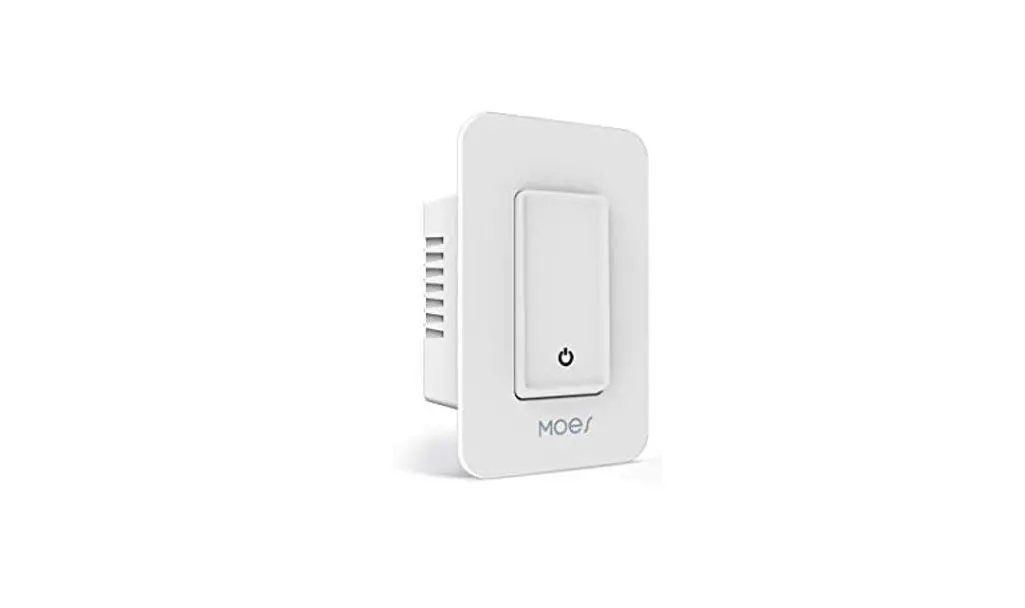
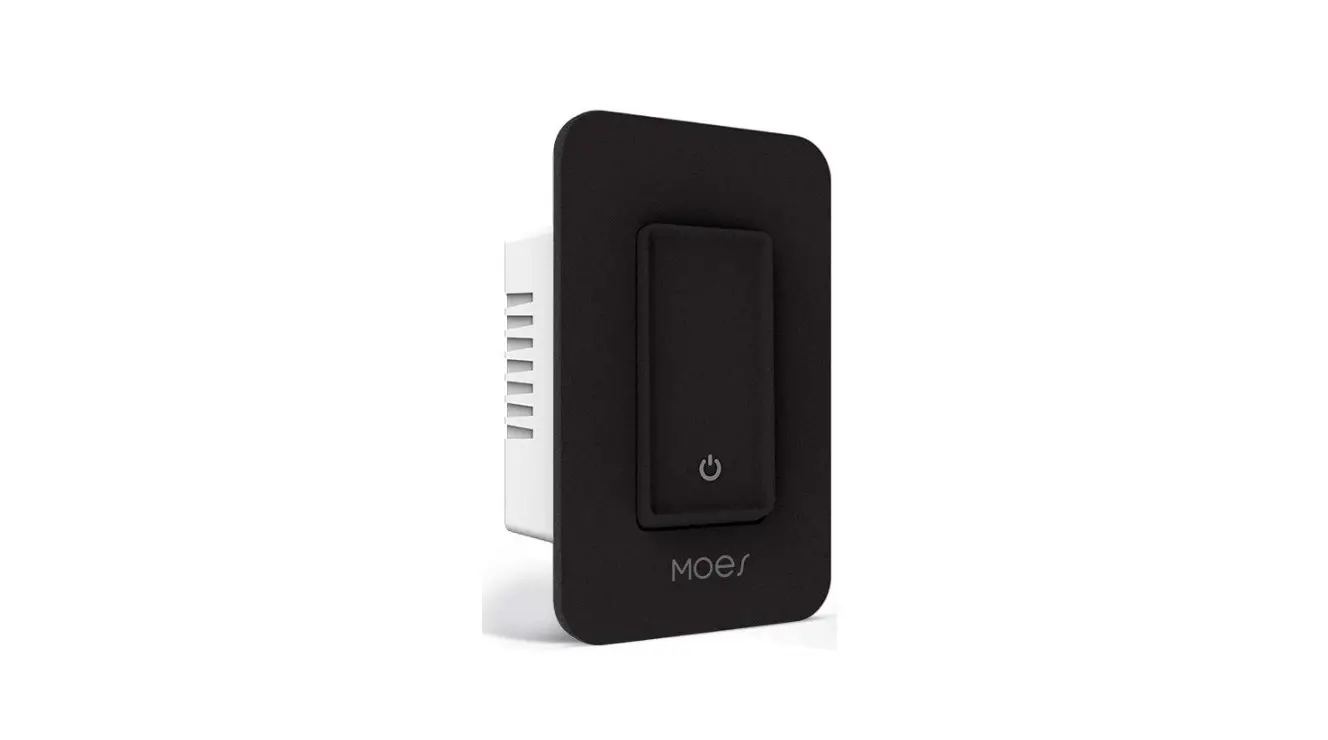
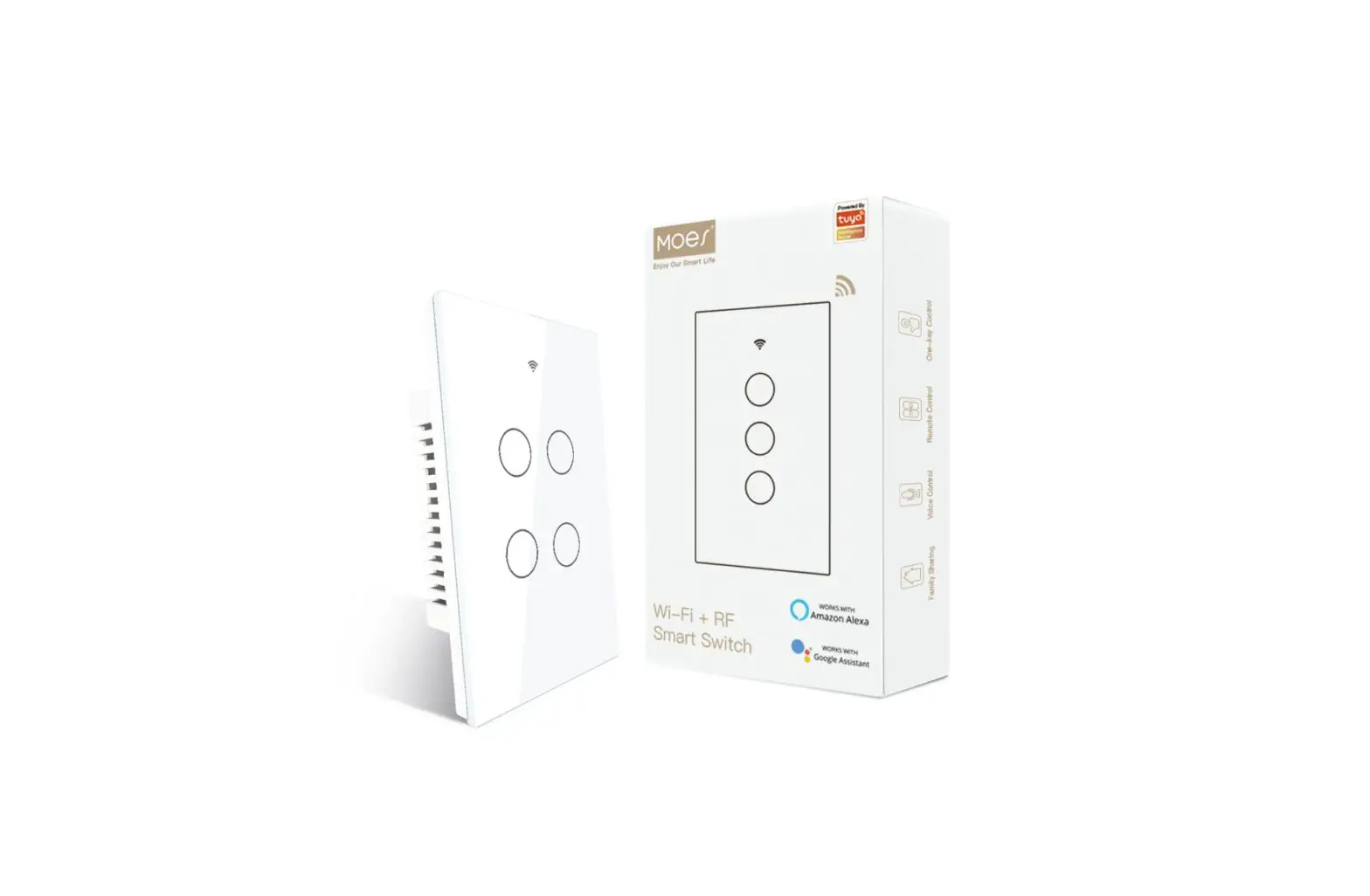
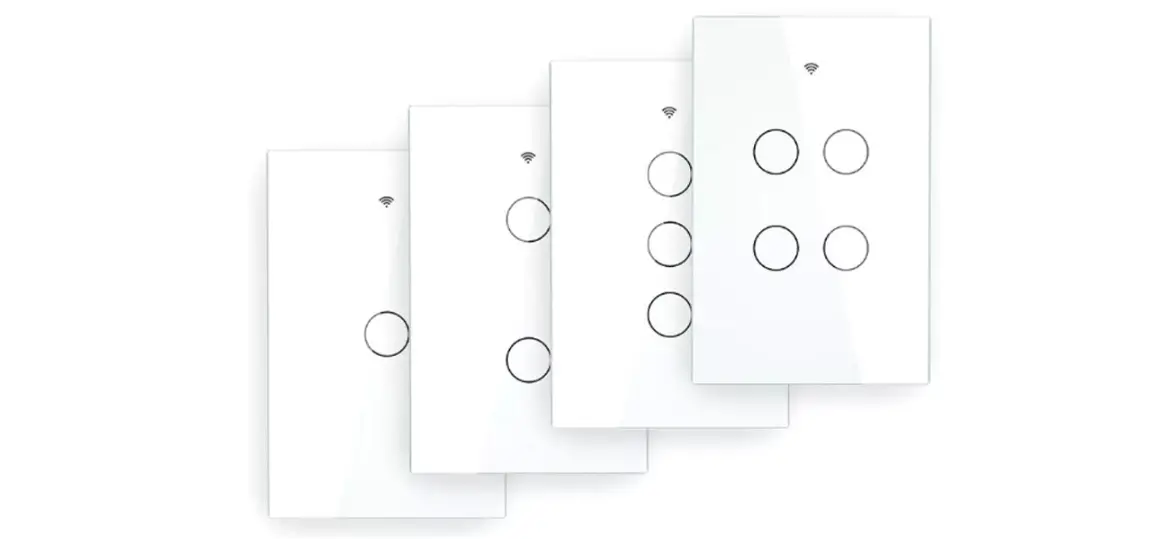
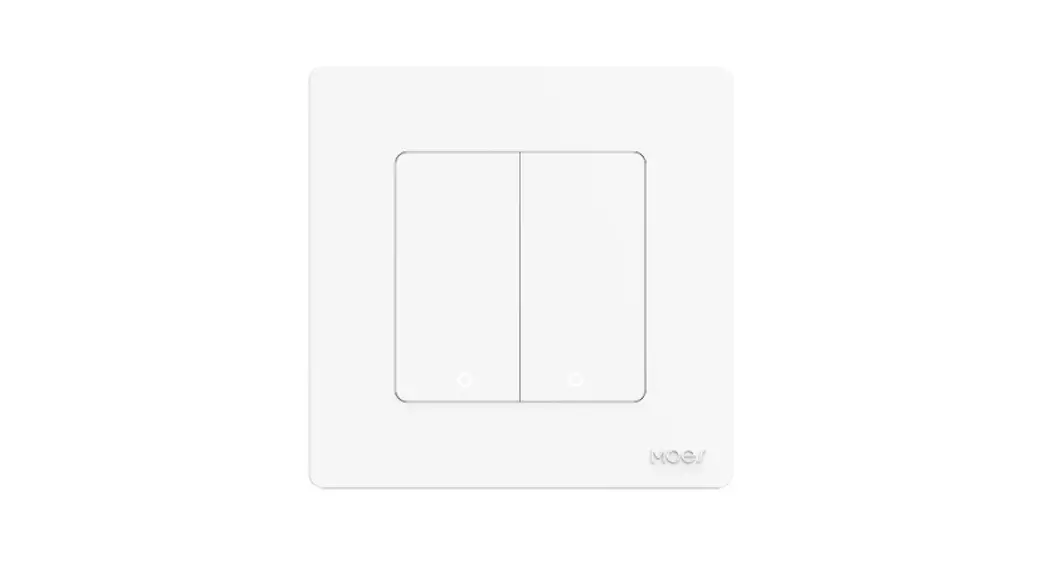
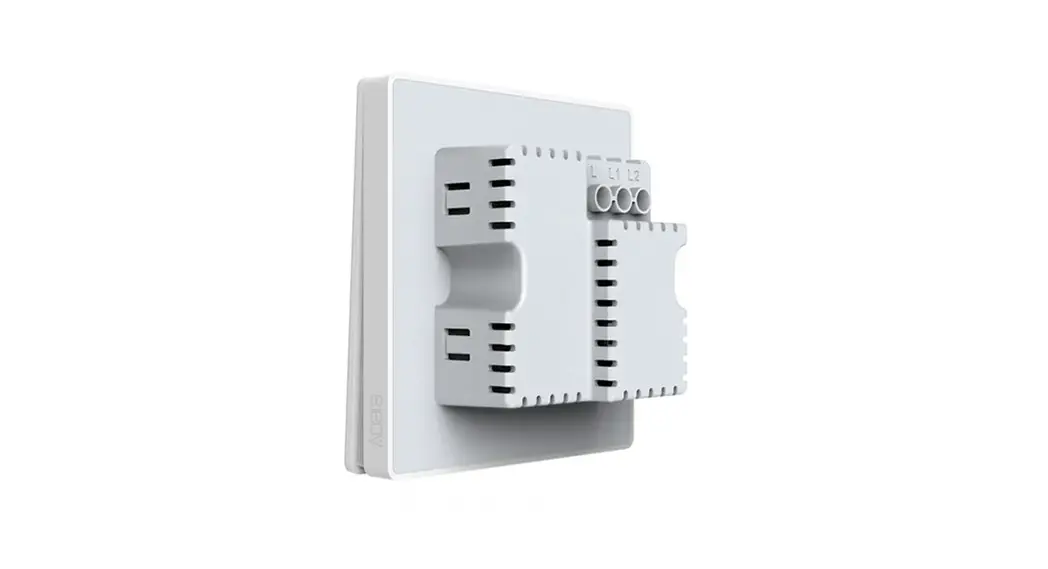
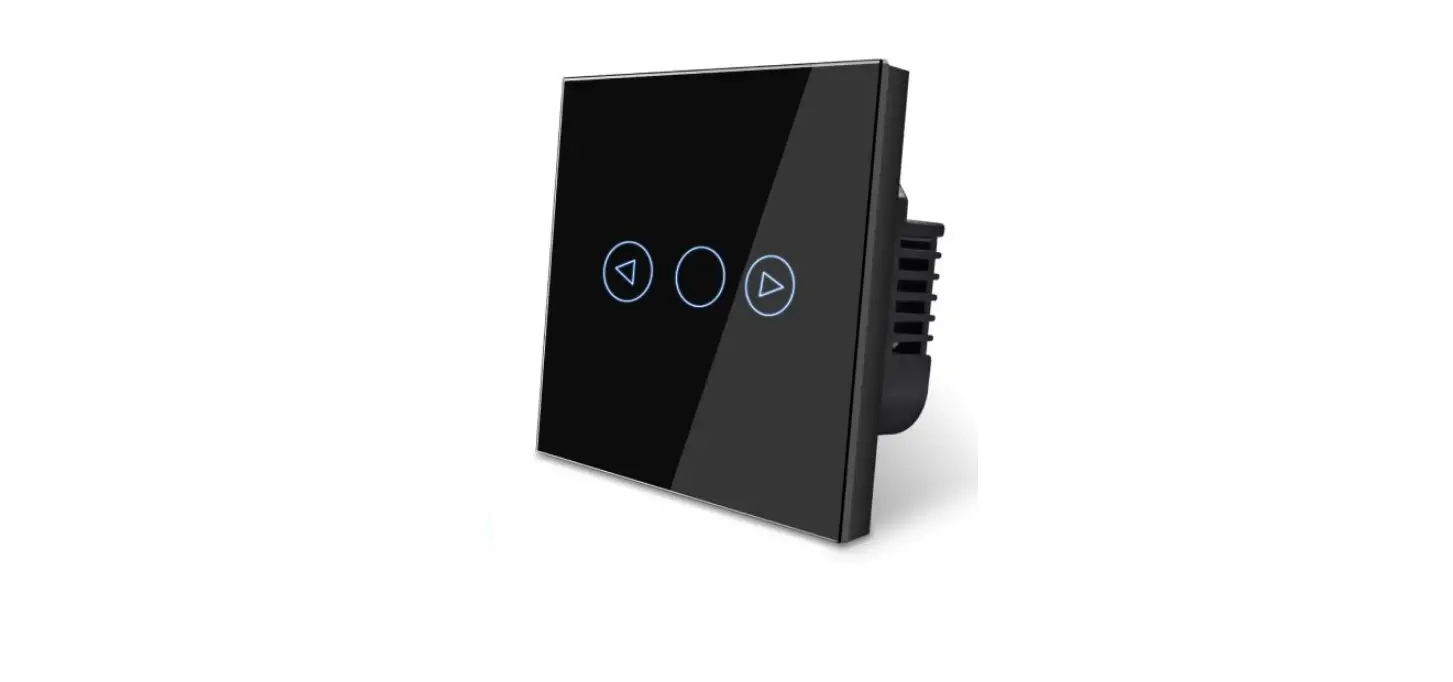
MFA05 Smart Switch
Product Information:
| Type | Smart PIR Sensor Switch |
| Model | MFA05/MFA06 |
| Power supply mode | Neutral+Live Wire |
| Rated Current | 15A(Max) |
| Rated Voltage | AC110-125V~50/60Hz |
| Rated Power | 1650W(MAX) |
| Wireless Frequency | 2.4GHZ |
| Wireless Standard | IEEE802.11 b/g/n |
Product Usage Instructions:
Precautions before product installation:
Product Accessories:
Smart switch*1, Switch cover*1 , Screw*2 , Wire nuts*4 User
manual*1 Mark lables*1
Before installation, please confirm whether the accessories are
complete. If there are incomplete accessories or other problems,
please email us or contact us on Amazon or via email on the
after-sale card. (In addition, product styles and designs may be
improved, and the accessories may be changed in due course).
Installation Steps:
- After turning off the power, find the white wire and other
wires that need to be installed in the cassette and mark them.
Remove the old switch after marking. (If you cannot find the white
wire, you cannot do the installation by yourself. In this case, you
must consult a professional electrician).
Note: Please remove the old switch after finding
the four wires, otherwise please install the wires back to their
original position or consult a professional electrician.
Usually: White represents the neutral line. Black represents the
fire line. The green or a single bare copper wire represents the
ground wire. The above content is for reference only and cannot be
used as a standard. - Connect the corresponding wire to the product with a wire
nut:
– Green wire on the switch connects with the ground line.
– White wire on the switch connects with the neutral line.
– Black wire on the switch connects with the fire line.
– Red wire on the switch connects with the load line.
After the installation is complete, turn on the circuit breaker.
Then you can control the switch by pressing the
button/touching. - Network distribution instructions:
This product has two network connection modes: EZ mode and AP mode.
Note: Each mode only lasts for three minutes in the state of being
connected. If the connection cannot be completed within three
minutes, you need to press and hold the setting again to do the
connection one more time (switching method between the two modes:
press and hold the switch key for 5-10 seconds until the indicator
light is on).
– EZ mode: After long press, the switch indicator flashes once
every 0.3 seconds, it shows that the switch is in the state of EZ
mode, in this state, it supports APP Auto Scan mode and WiFi quick
connection mode in Add Manually block. (Supports simultaneous
connection of multiple switches).
85.00 mm
125.00 mm
Enjoy Our Smart Life
Instruction Manual Smart Switch
English
3. After turning off the power, find the white wire and other wires that need to be installed in the cassette and mark them. Remove the old switch after marking. (If you cannot find the white wire, you cannot do the installation by yourself. In this case, you must consult a professional electrician).
PS: Please remove the old switch after finding the four wires, otherwise please install the wires back to their original position or consult a professional electrician.
Usually: White represents the neutral line. Black represents the fire line. The green or a single bare copper wire represents the ground wire. The above content is for reference only and cannot be used as a standard.
4
Precautions before product installation:
1. WiFi only supports 2.4GHz network (802.11 b/g/n). 5G network is not available. 2. Only supports unidirectional/unipolar circuits, not compatible with mutual control switches. 3. Need a neutral wire. (Please do not install if there is no neutral wire in the cassette). 4. Basic electrical wiring knowledge or experience is required, or please consult a professional electrician. 5. Never connect the neutral wire and the live wire reversely (Otherwise the electrical appliances will not work). 6. Long press the ON / OFF button to restore the device to the factory default settings. Do this only when you are sure you want to delete all settings. (This operation will change the status of network distribution). 7. A screwdriver , a test pencil and other tools are needed.
Product Accessories:
Smart switch*1, Switch cover*1 , Screw*2 , Wire nuts*4 User manual*1 Mark lables*1 Before installation, please confirm whether the accessories are complete. If there are incomplete accessories or other problems, please email us or contact us on Amazon or via email on the after-sale card. (In addition, product styles and designs may be improved, and the accessories may be changed in due course).
1
4. Connect the corresponding wire to the product with a wire nut:
green wire on the switch-c-on-ne-ct-wi-th-ground line,
white wire on the switch-c-on-ne-ct-w-ith-neutral line,
black wire on the switch-c-on-ne-ct-w-ith-fire line,
red wire on the switch–co-nn-ec-t w-ith-load line.
After the installation is complete, turn on the circuit breaker. Then you can control the switch by pressing the button/touching.
Load Live wire
Neutral Wire Ground
Specifications
Type
Smart PIR Sensor Switch
Model Power supply mode Rated Current Rated Voltage Rated Power Wireless Frequency Wireless Standard
MFA05/MFA06 Neutral+Live Wire 15A(Max) AC110-125V~50/60Hz 1650W(MAX) 2.4GHZ IEEE802.11 b/g/n
PIR Sensor
Indicator light
Indicator light meaning
Indicator Blue
Status Flash Rapidly
Discription Ready for connection (Default Mode Only)
Blue
Flash Slowly (1 time every 3 S)
Blue light is always on
Off
Green light is always on
On
Blue
Flash Slowly
Ready for connection (AP Mode Only) Turn the light off Turn the light on No Internet
ON/OFF Button
80mm Face Plate
125mm
41.6mm
ON/OFF Button
ON/OFF Button
80mm Face Plate
28.1mm
Safety Notice: Cut off the power before installation Please use it only when it’s installed with RCD or current leakage protector at home A neutral wire is needed to power the switch.
2
5. Network distribution instructions:
This product has two network connection modes: EZ mode and AP mode. Note: Each mode only lasts for three minutes in the state of “to be connected”. If the connection cannot be completed within three minutes, you need to press and hold the setting again to do the connection one more time (switching method between the two modes: press and hold the switch key for 5-10 seconds until the indicator light is on).
EZ mode: After long press, the switch indicator flashes once every 0.3 seconds, it shows that the switch is in the state of EZ mode, in this state, it supports APP “Auto Scan” mode and WiFi quick connection mode in”Add Manually”block. (Supports simultaneous connection of multiple switches).
AP mode: After long press, the switch indicator light flashes once per second, it shows that the switch is in the state of AP mode, in this state only the hotspot distribution network mode (compatible mode) in the APP “Add Manually”is supported. (Only supports one switch connection).
5
6
Product installation guide: 1. Connect the mobile phone to the indoor WiFi and download the APP “Smart Life” that controls the switch (please scan the QR code below to download).
Find out “Smart Life”app in Apple app store, Google Play, or scan the QR code bellow and install it. The free app “Smart Life” is compatible with mobiledevices the support IOS8.0 above, Android 4.4 above.
2. Open the old switch and carefully pull it out of the wall, first use a test
pen to distinguish the live wire and the load wires, meanwhile mark them with labels, and then find the main switch of the lamp in the circuit breaker to turn it off. (After turning off the main power switch, please use a test pencil to reconfirm whether the power has been cut off).
Enter the register interface, input the email address/phone number for getting the verification code to register an account. Please just login if you already have a Smart Life account.
3
4
EZ mode network configuration method : Open the Smart Life APPMy Home interfaceclick the plus icon in the upper right cornerchoose “Auto Scan” set WiFi passwordconfirm that the switch is in EZ modeStart scanningnext step.
Indicator flashes once every 0.3 seconds
Indicator light flashes once per second
EZ mode
AP mode
7
8
EZ mode network configuration method : Open the smart life APPMy Home interfaceclick the plus icon in the upper right cornerAdd manuallyselect the electrical switch (WiFi)set WiFi passwordNextconfirm that the switch is in the EZ modesearch device Done
Swi tch
AP mode network configuration method: open the Smart Life APPMy Home interfaceclick the plus icon in the upper right cornermanually addselect the electrical switch (WiFi)set the WiFi passwordclick the option on the upper right cornerselect AP Mode confirm that the switch is in AP ModeNext Go to connectautomatically switch to the wireless LAN interface of the mobile phone and select the wireless LAN signal named SmartLife-XXXXback to the smart life APP interface to automatically complete the network configuration Done.
2 1
9
WARRANTY CARD
Product Information Product Name___________________________________________________ Product Type____________________________________________________ Purchase Date___________________________________________________ Warranty Period_________________________________________________ Dealer Information_______________________________________________ Customer’s Name________________________________________________ Customer Phone_________________________________________________ Customer Address_______________________________________________ ________________________________________________________________
10
Maintenance Records
Failure date
Cause Of Issue
Fault Content
Principal
Precautions: 1.Do not modify or disassemble the product by yourself. 2. Do not hit the equipment with sharp objects. 3. The product is a household device, do not install it on industrial environment. 4. Do not install the switch in a metal house or a place that may shield the wireless signal. 5. The live wire and neutral wire of the switch must be connected via a same leakage protector, otherwise it is easy to cause tripping and other phenomena. 6. After installation, please fix the panel firmly before powering on the switch. Live operation is strictly prohibited. 7. The mobile phone control is related to the strength of the WiFi signal connected to the switch. It is recommended to use a router with a strong signal. 8. There is an upper limit on the number of smart products controlled by ordinary routers. If it is overloaded, it will automatically squeeze out smart products with relatively weak signals. (Generally, the upper limit is 10-12, including computer phones, etc). 9. If you do not install and use it for a long time, please store it in a dry environment at -10C°-40C°,and keep it out of the reach of children. 10.Provide one-year warranty.
11
Thank you for your support and purchase at we Moes, we are always here for your complete satisfaction, just feel free to share your great shopping experience with us.
If you have any other need, please do not hesitate to contact us first,we will try to meet your demand.
@moessmart @moes_smart
@moes_smart MOES.Official
@moes_smart www.moeshouse.com
SERVICE 1.During the free warranty period, if the product breaks down during normal use, we will offer free maintenance for the product. 2.Natural disasters/man-made equipment failures, disassembly and repair without the permission of our company, no warranty card, products beyond the free warranty period, etc., are not within the scope of free warranty 3.Any commitment (oral or written) made by the third party (including the dealer/service provider) to the user beyond the warranty scope shall be executed by the third party 4.Please keep this warranty card to ensure your rights 5.Our company may update or change the products without notice. Please refer to the official website for the updates.
12
WENZHOU NOVA NEW ENERGY CO.,LTD Address: Power Science and Technology Innovation Center, NO.238, Wei 11 Road, Yueqing Economic Development Zone, Yueqing, Zhejiang, China Tel:+86-577-57186815 Email:[email protected]
AMZLAB GmbH Laubenhof 23, 45326 Essen Made In China
RECYCLING INFORMATION All products marked with the symbol for separate collection of waste electrical and electronic equipment (WEEE Directive 2012/19 / EU) must be disposed of separately from unsorted municipal waste. To protect your health and the environment, this equipment must be disposed of at designated collection points for electrical and electronic equipment designated by the government or local authorities. Correct disposal and recycling will help prevent potential negative consequences for the environment and human health. To find out where these collection points are and how they work, contact the installer or your local authority.
13
BB14
14
15
16
17
18
 MOES Smart WiFi ZigBee Smart 2/3 Way Switch Socket Thermostat Sensor