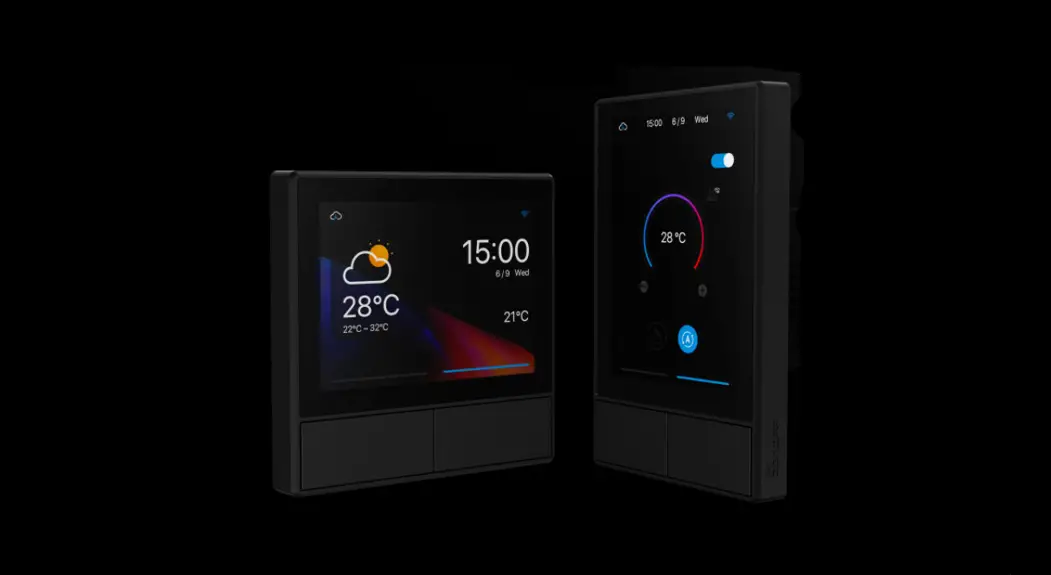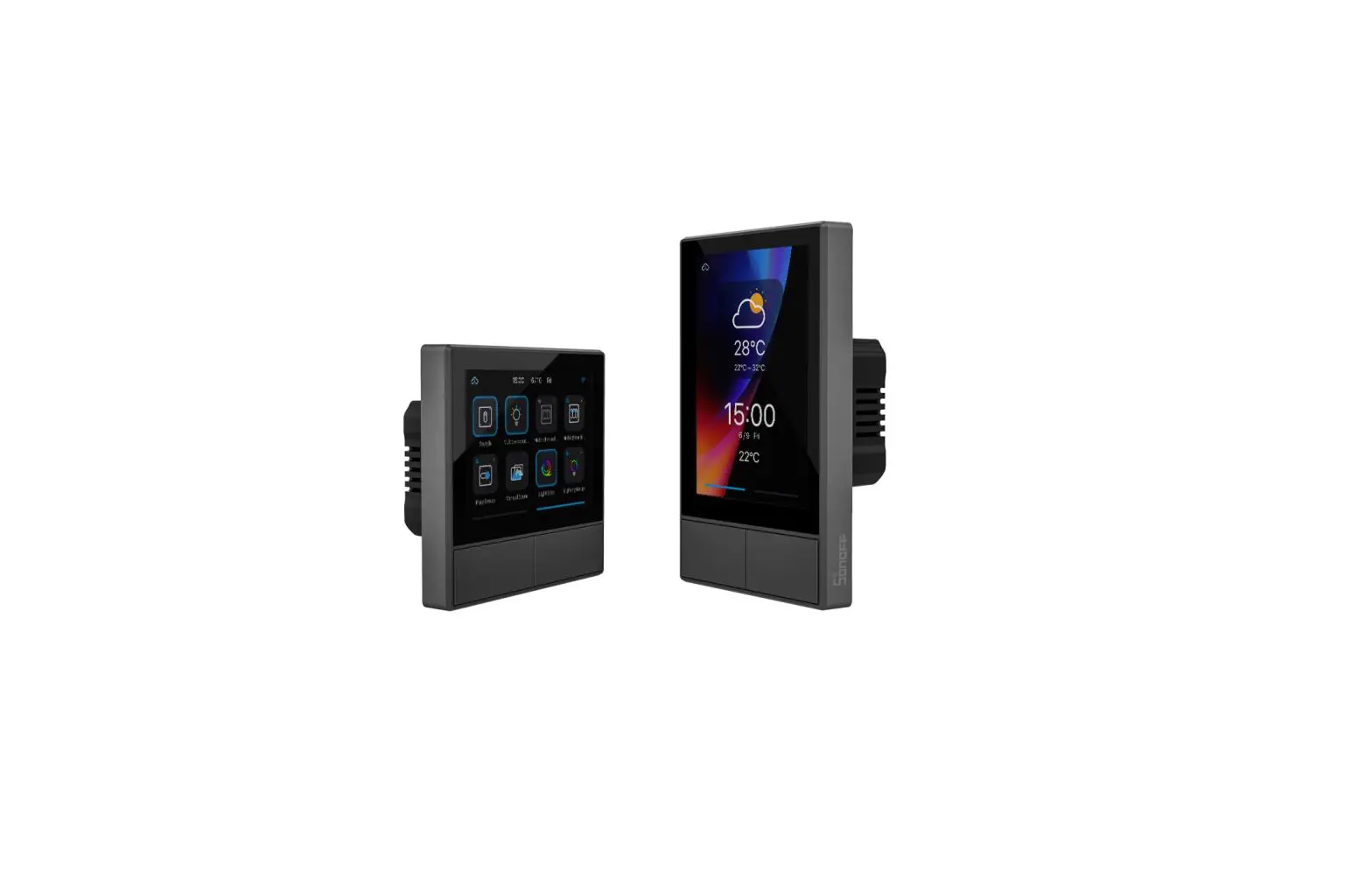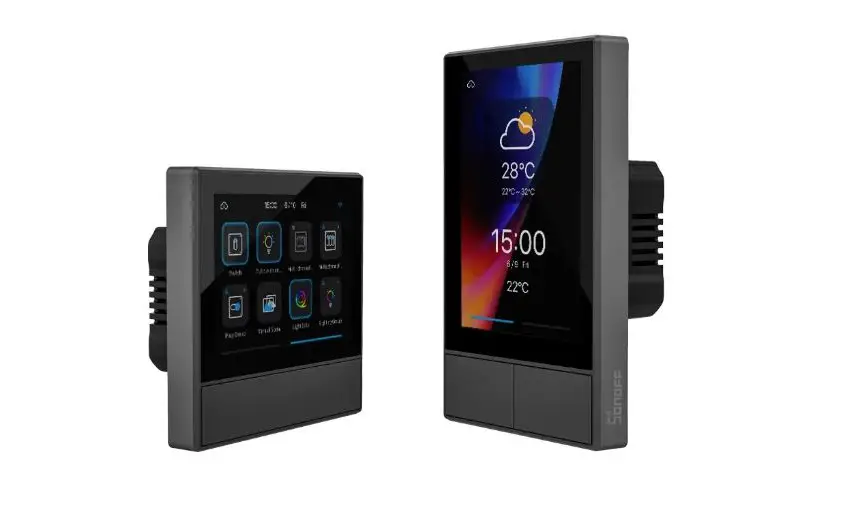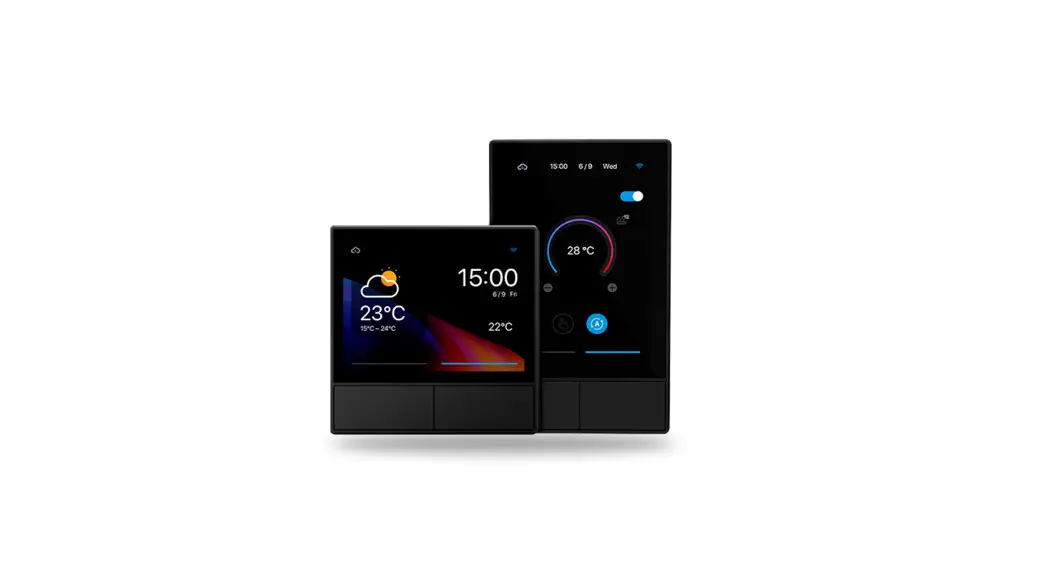

NSPanel Pro
User manual V1 .0
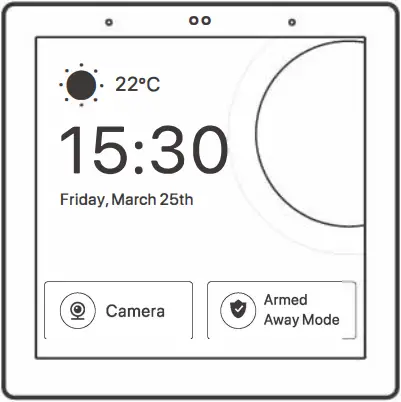
NSPanel Pro Smart Home Control Panel
Shenzhen SonoffTechnologies Co., Ltd.
Product Introduction
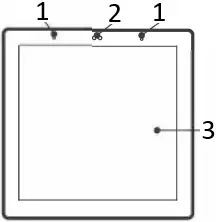
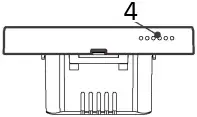
- Microphone
- Light sensor
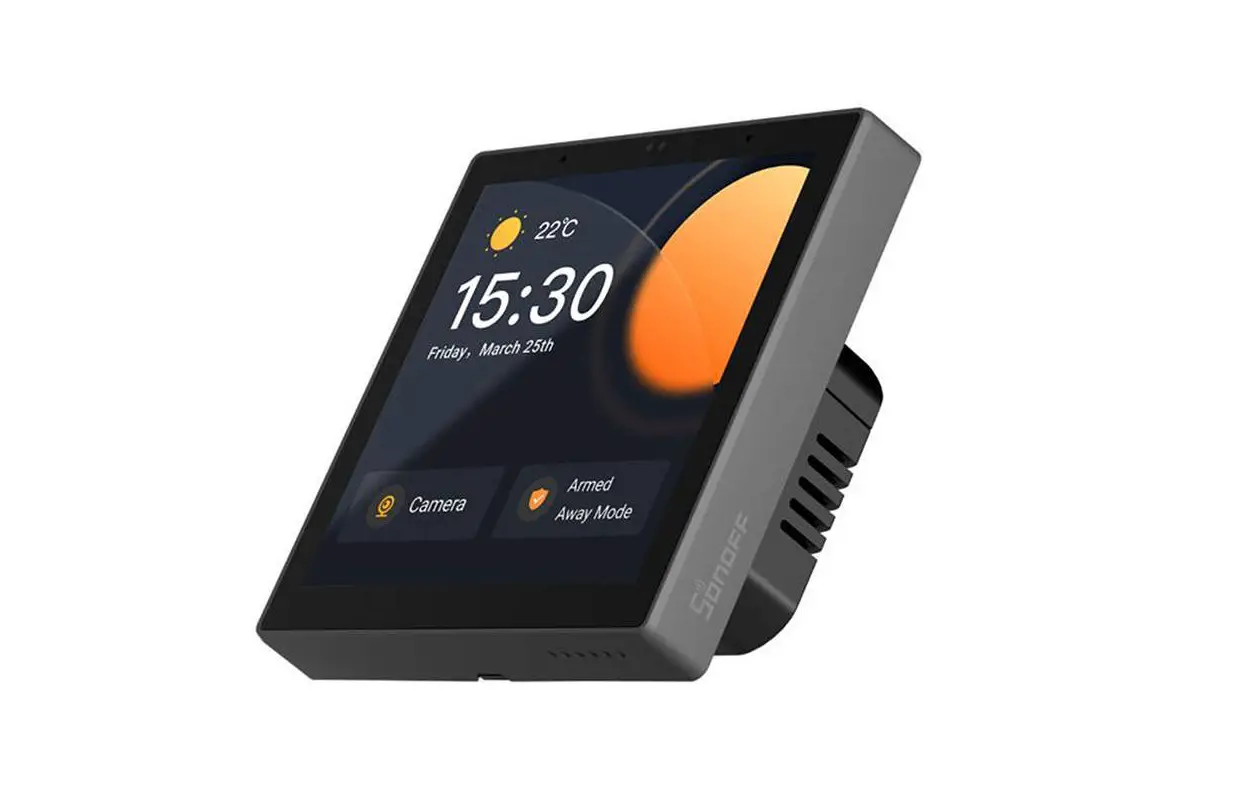
- 3.95″ touch screen
- Speaker
 The device weight is less than 1 kg. The installation height of less than 2 m is recommended.
Features
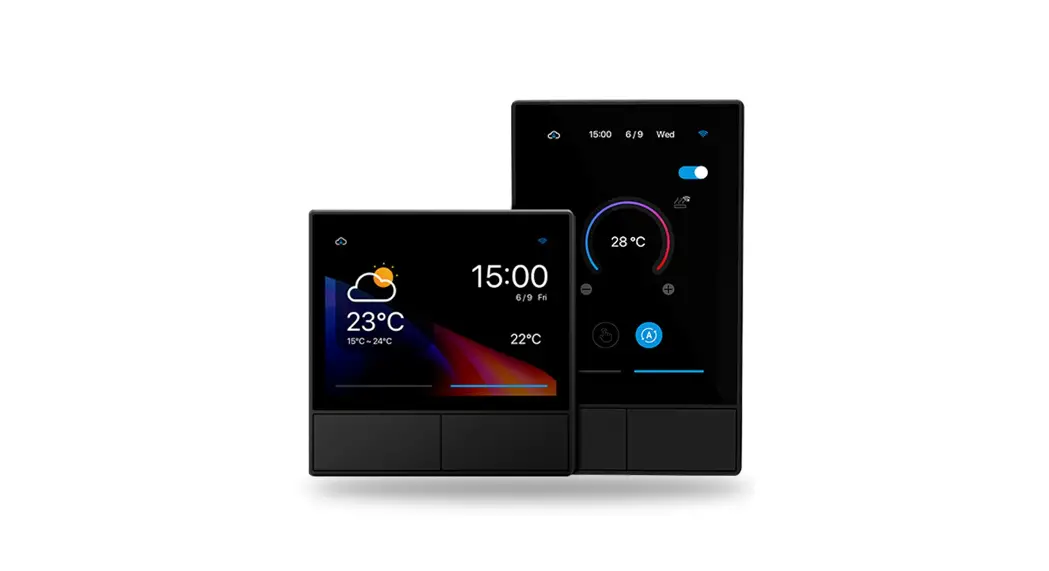
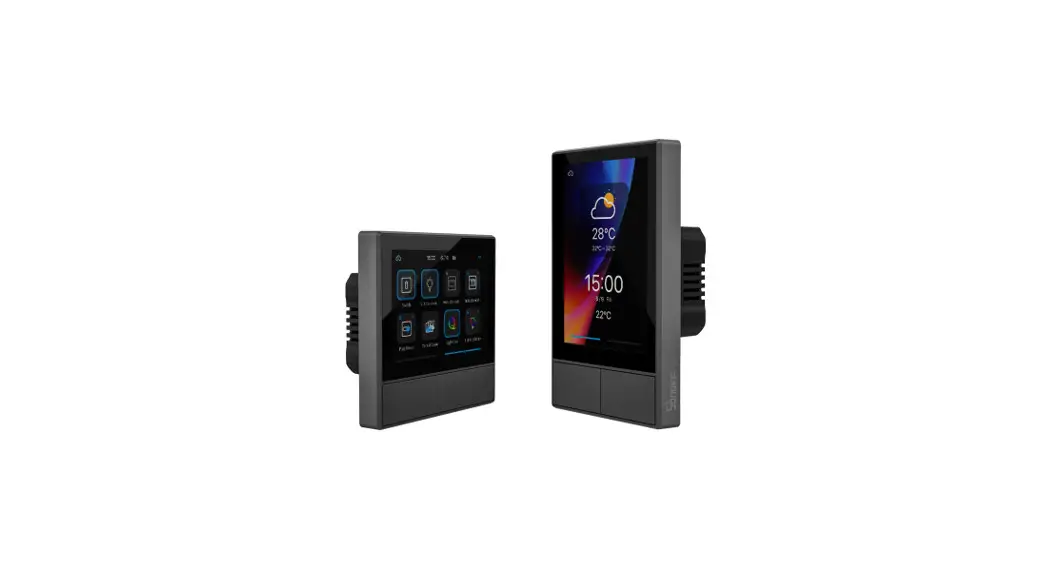
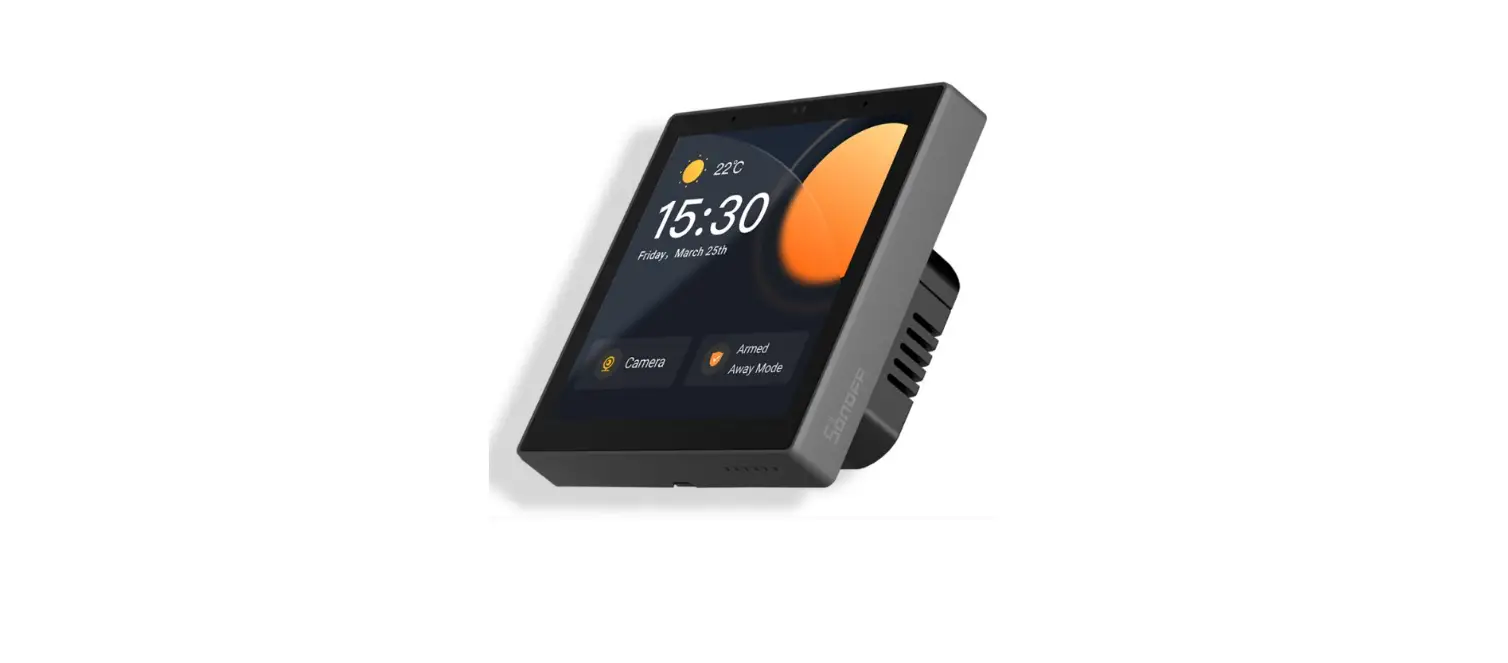
NSPanel Pro is a smart scene control panel integrating touch screen, Zigbee hub and smart security feature. You can control the devices by adding them as widgets on the panel, add various Zigbee sub-devices through the built-in Zigbee gateway, set 3 security modes to guard your home, view the live view on the panel through an added camera.


Built-in Zigbee Hub Smart Home Control Alarm Clock Setting


Smart Scenes View Camera Live Home Security


Arm/Disarm Wallpaper Theme Switching
Operating Instruction
1. Power off
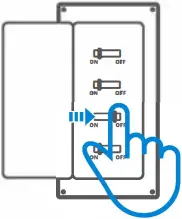
 Please install and maintain the device by a professional electrician. To avoid electric shock hazard, do not operate any connection or contact the terminal connector while the device is powered on!
2. Wiring instruction
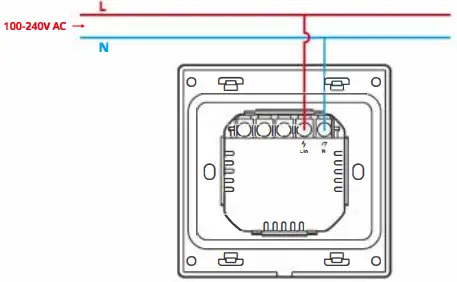
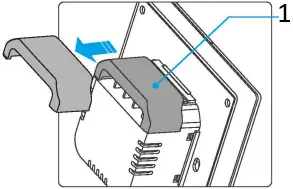
- Protective cover
When the wall-mounting box is made of plastic and the size is small, the protective cover can be omitted. lf your wall-mounting box is made of metal, please be sure to install it with the protective cover. Make sure all wires are connected correctly.
3. Download the eWelinkApp



Android™ & IOS
4. Power on
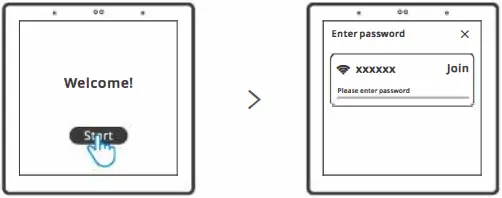
After powering on, tap “Start” to select the Wi-Fi and enter the password, then you will enter the main interface by following the App prompts.
5. Logln
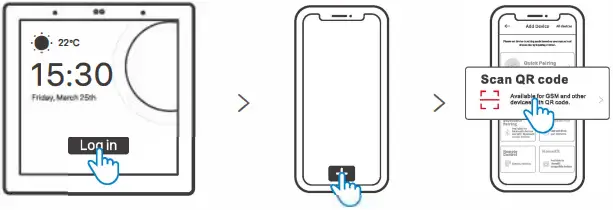
Tap “Log In”on the device and tap “+” on the eWeLink App to select “Scan QR code”, then scan the QR code on the device screen by your App.
Add Zigbee devices
1. Pairing mode entry
Method 1:
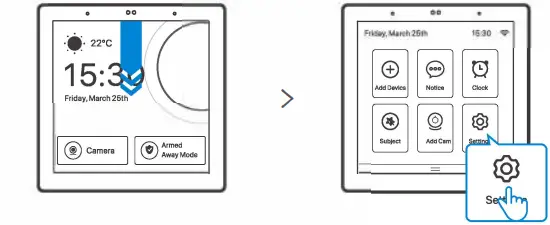
Entry on the central control panel-
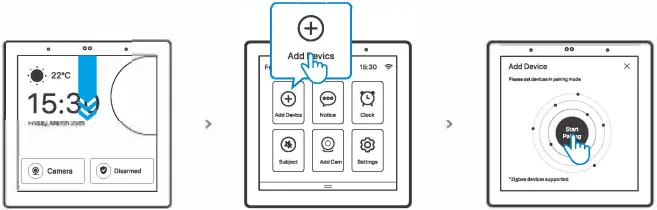
Method 2:
Entry on the eWeLink App
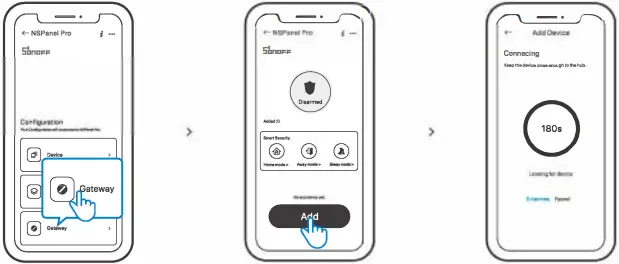
2. Set the Zig bee device into the pairing mode and complete the adding follow the prompts.
Add Wi-Fi devices
- Add Wi-Fi devices on the eWeLink App.
- Select “Device”on the NSPanel Pro interface of the App, sync the added Wi-Fi devices to the panel.
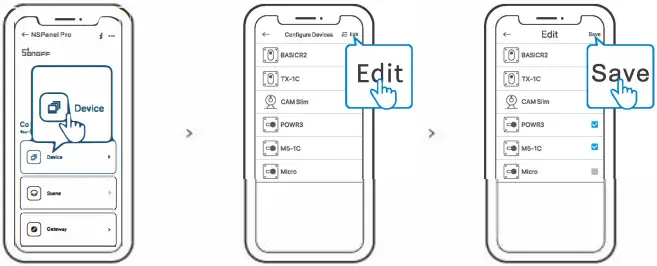
After adding the devices, they can be checked and controlled on the panel.
Add Camera
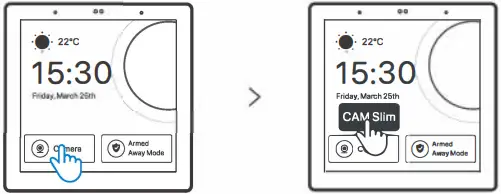
Add the camera on the App and configure it on the NSPanel Pro page, then tap “Camera” and select the added camera like “CAM Slim” on the panel to view the live view on the panel throught the camera.
You can also drop down the screen to select “Add camera” and add PTSP camera or DIY camera follows the prompts.
Smart Security
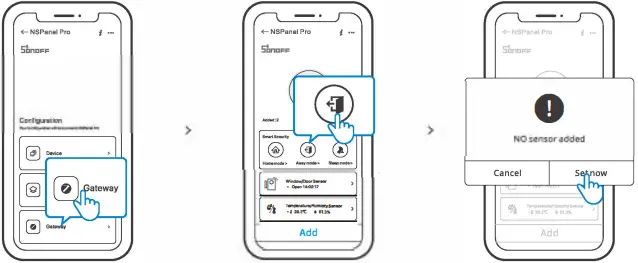
There are 3 modes of Smart Security, are home mode, away mode and sleep mode. Select the mode on the App to enable the triggerable sub-devices and set the alarm sound.
Smart Security can only be used after adding sub-devices
Specifications
| Model | NSPanel86PB, NSPanel86PW |
| Input | 100-240V AC S0/60Hz |
| Max. power consumption | SW MAX; lS0mA |
| Screen size | 3.95″ (Capacitive touch panel) |
| Screen resolution | 480 X 480 |
| Wi-Fi | IEEE 802.11 b/g/n 2.4GHz |
| Bluetooth | BT2.l+EDR, BT 3.0, BT4.2 |
| Zig bee | IEEE 802.15.4 (Zig bee 3.0) |
| App operating systems | Android & iOS |
| Working temperature | 0’C~40’C |
| Casing material | PC VO+ CRS + Tempered glass panel |
| Product Size | 86x86x39.5mm |
Factory Reset
Method 1:
Deleting the device on the eWeLinkApp indicates you restore it to factory setting.
Method 2:
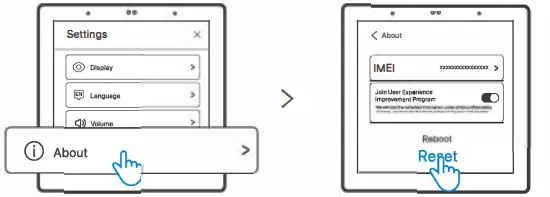
Complete the factory reset follow the prompts on the panel.
Hereby, Shenzhen Sonoff Technologies Co., Ltd. declares that the radio equipment type NSPane186PB, NSPaneI86PW are in compliance with Directive 2014/53/EU. The full text of the EU declaration of conformity is available at the following Internet address:
https://sonoff.tech/usermanuals

Shenzhen Sonoff Technologies Co., Ltd.
3F& 6F, Bldg A, No. 663, Bulong Rd, Shenzhen, Guangdong, China
ZIP code: 518000 Website: sonoff.tech
MADE IN CHINA