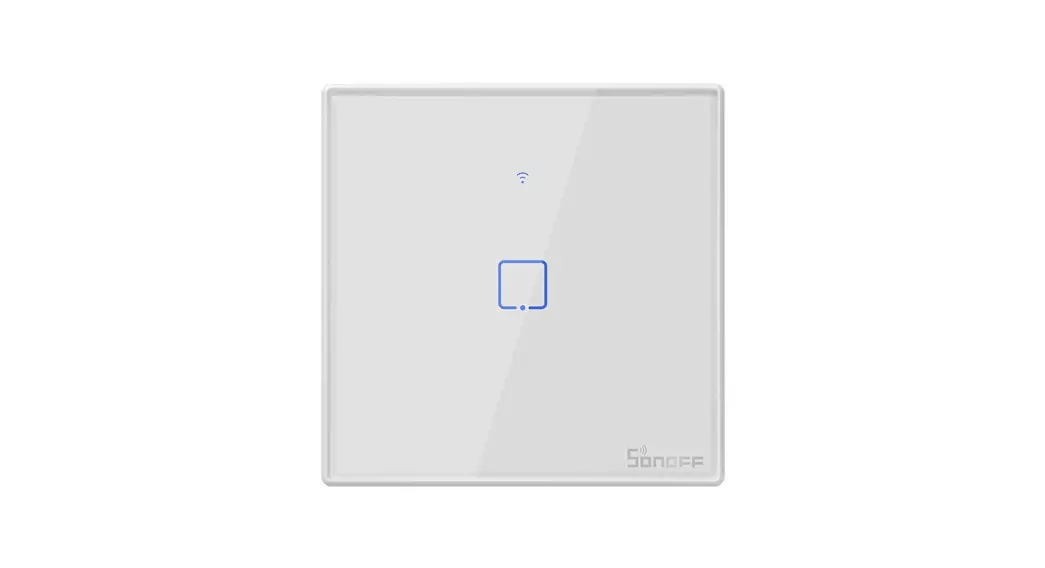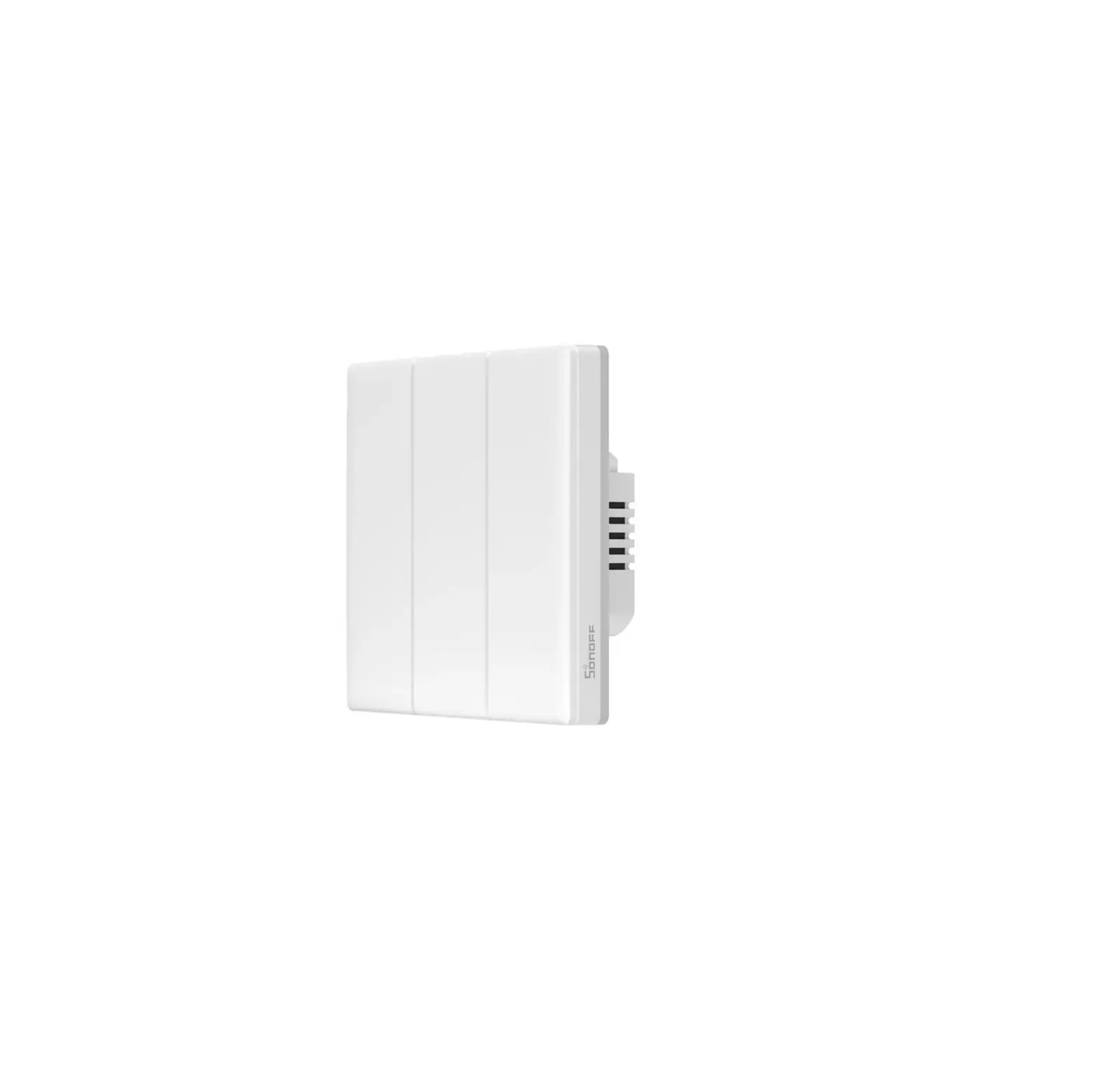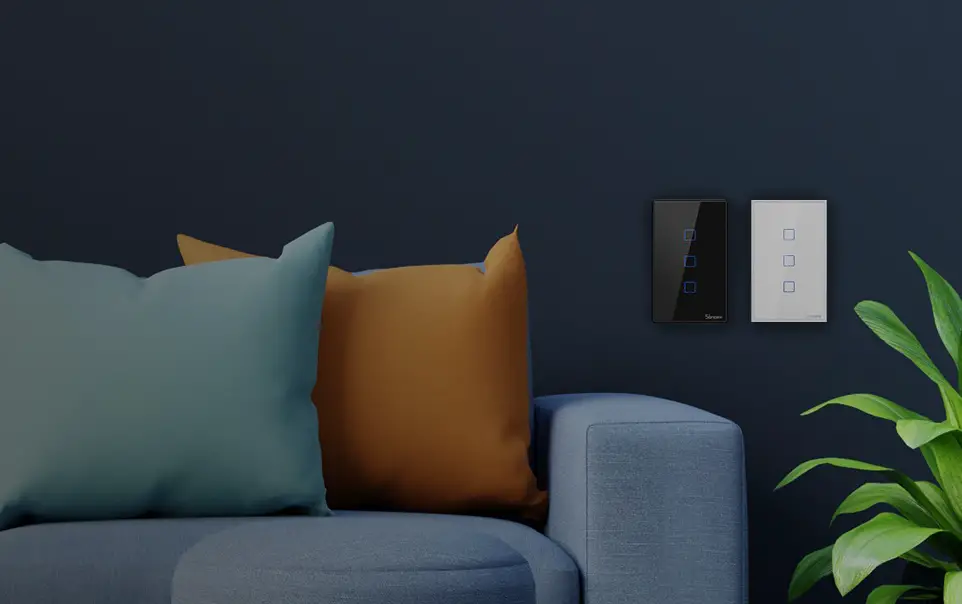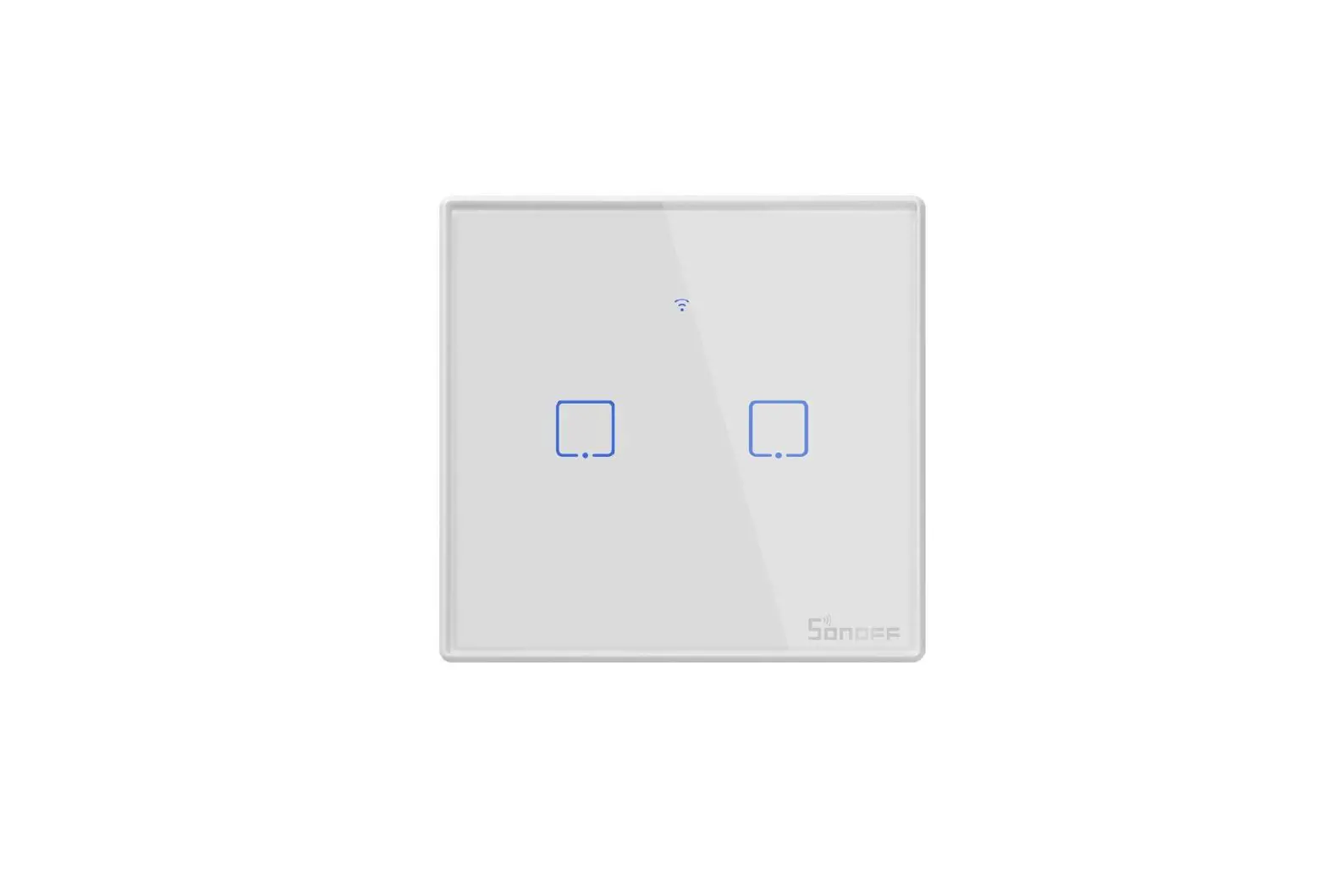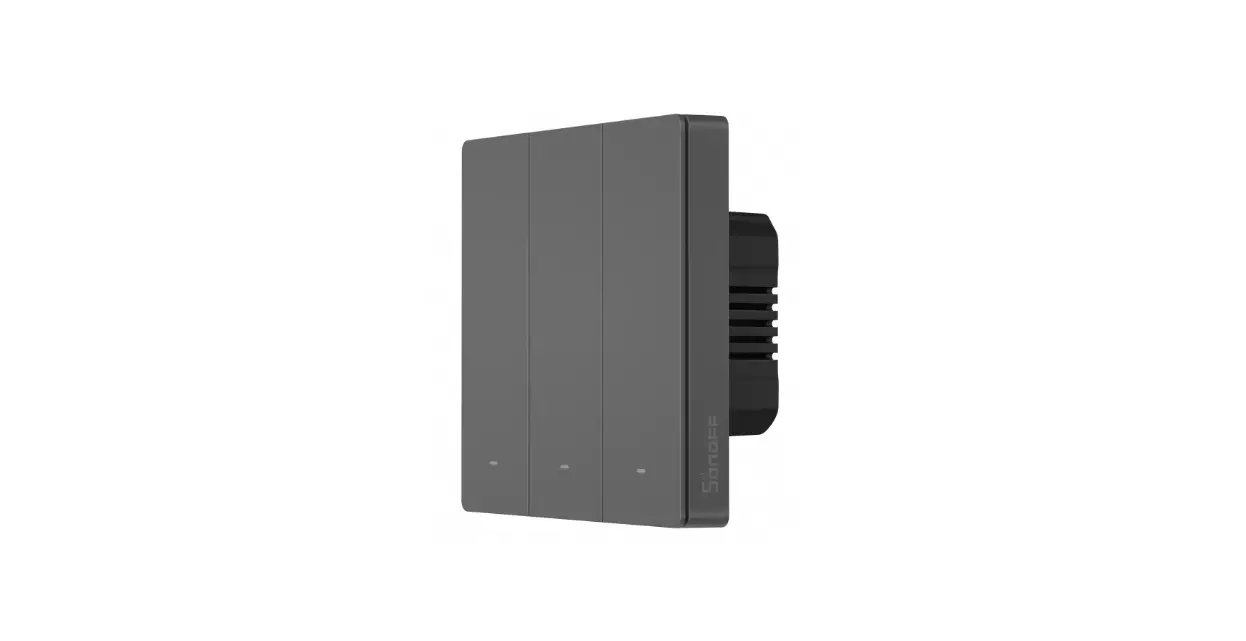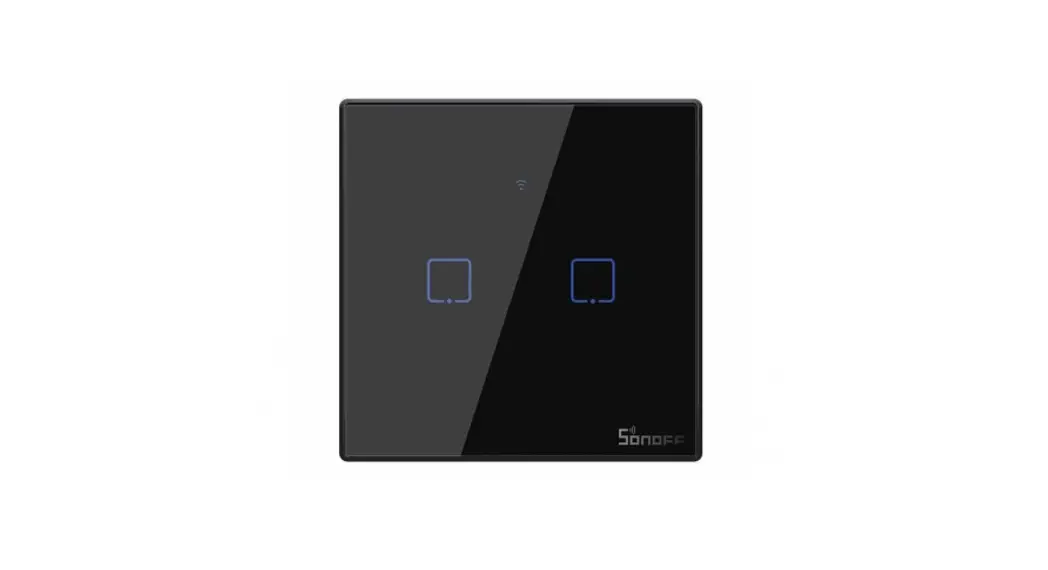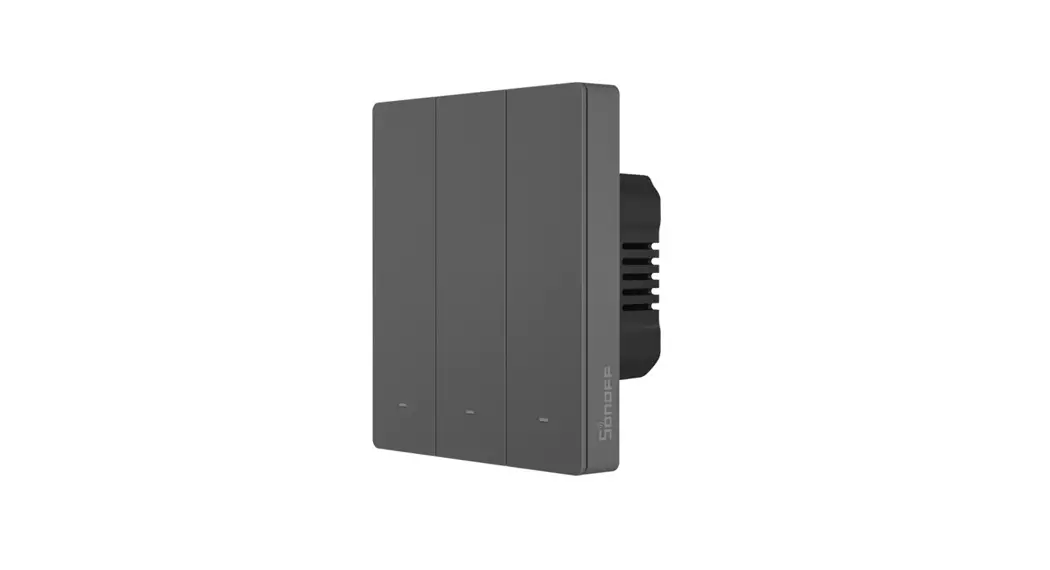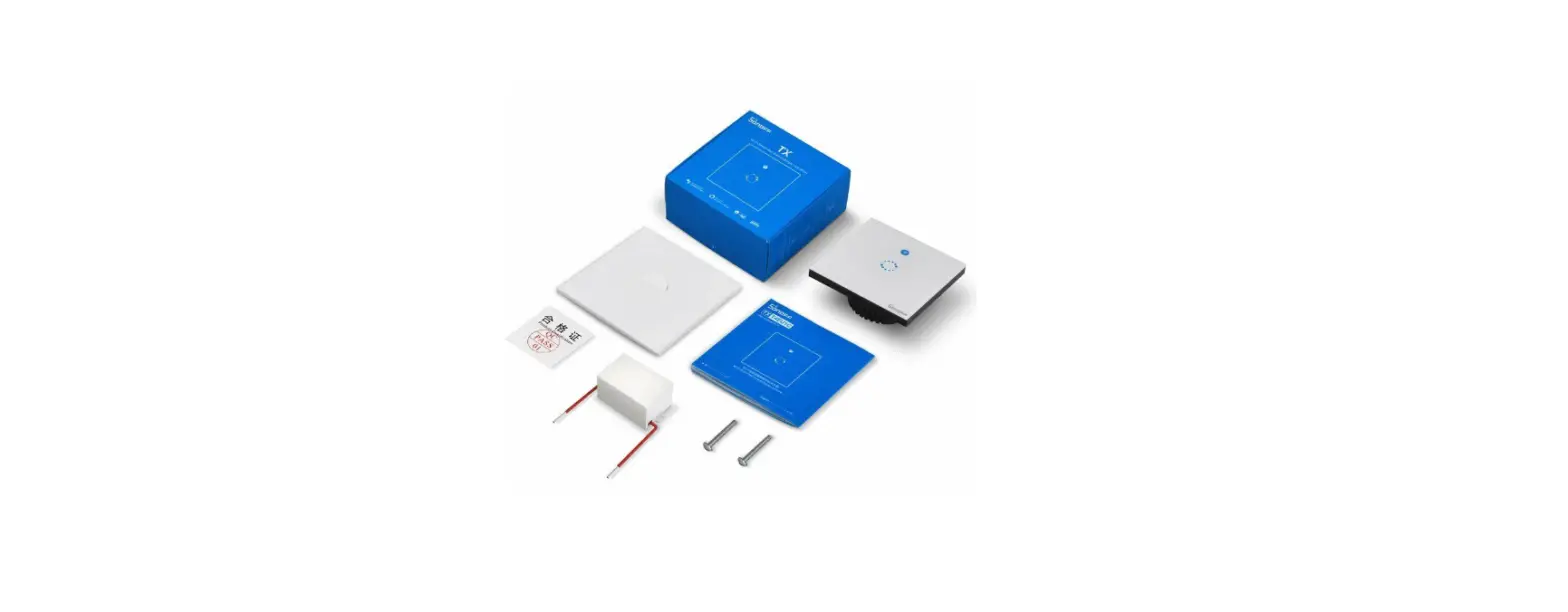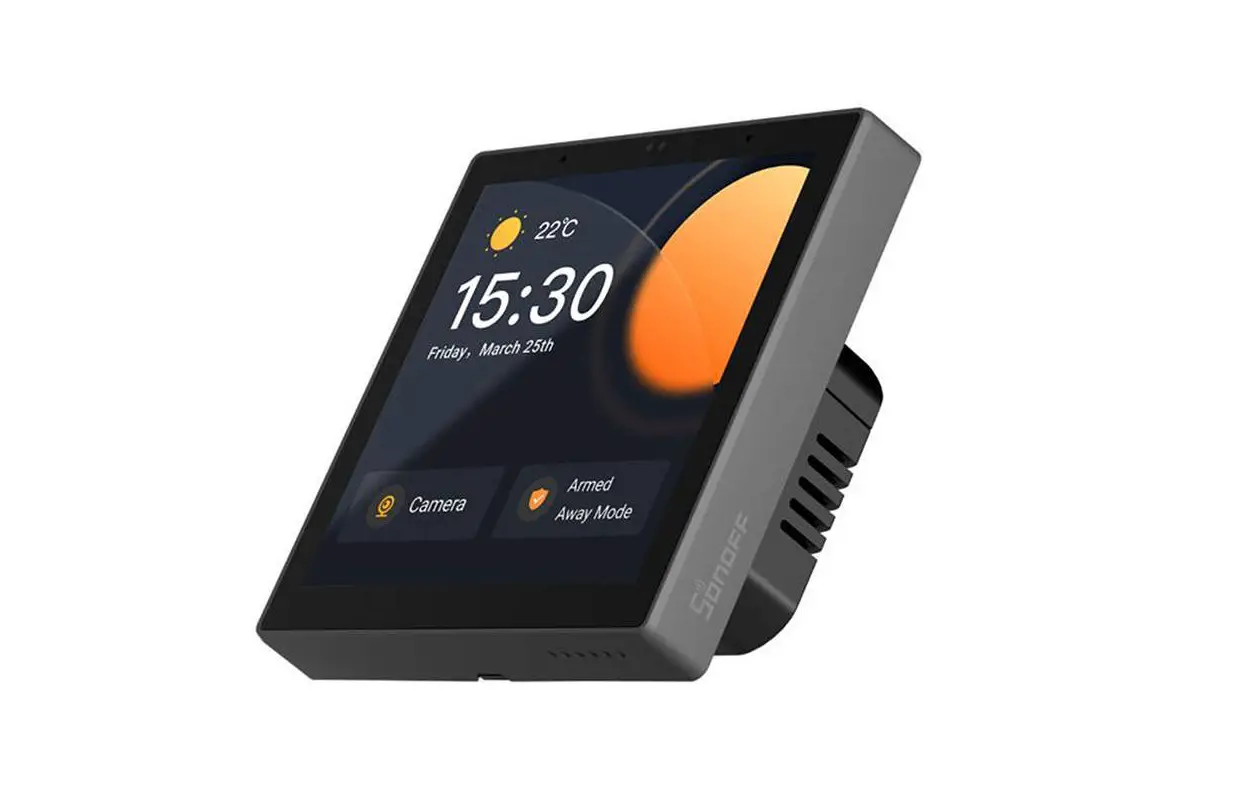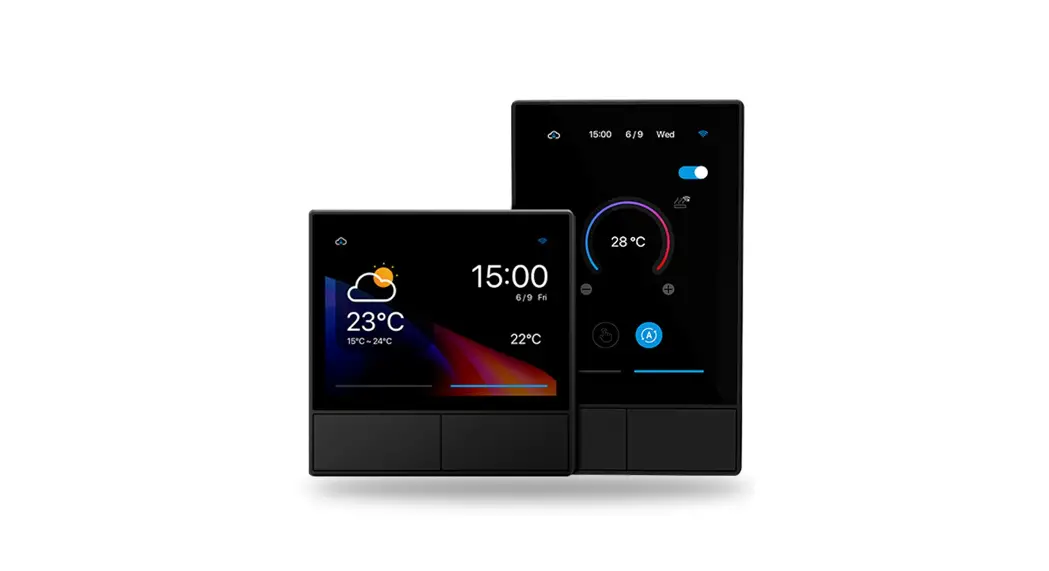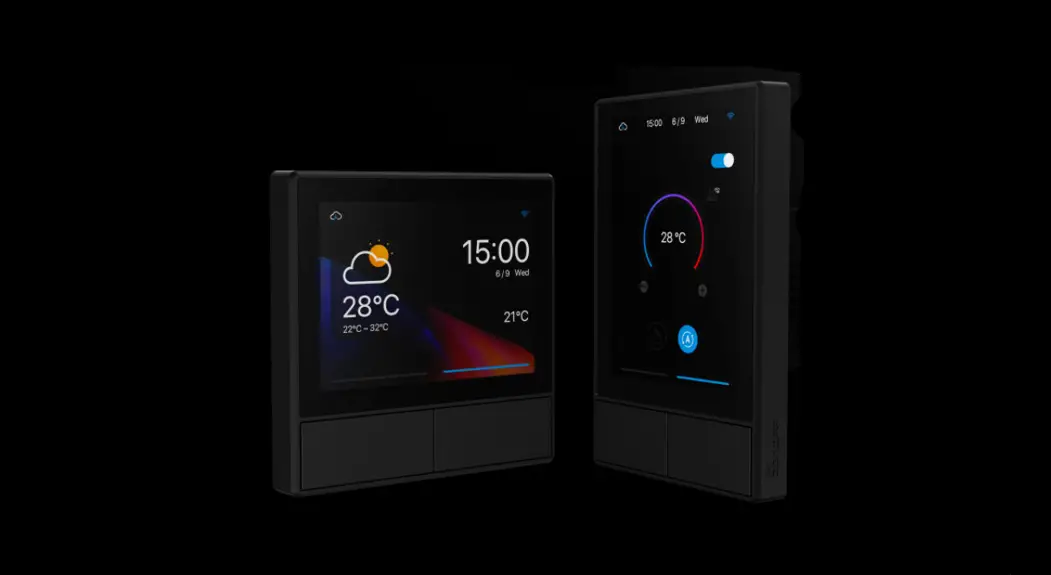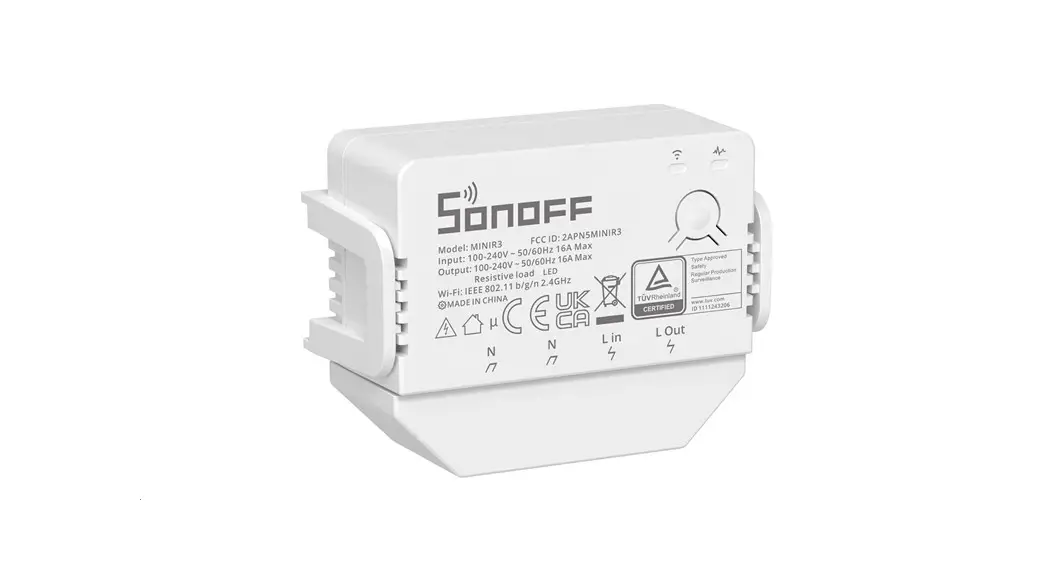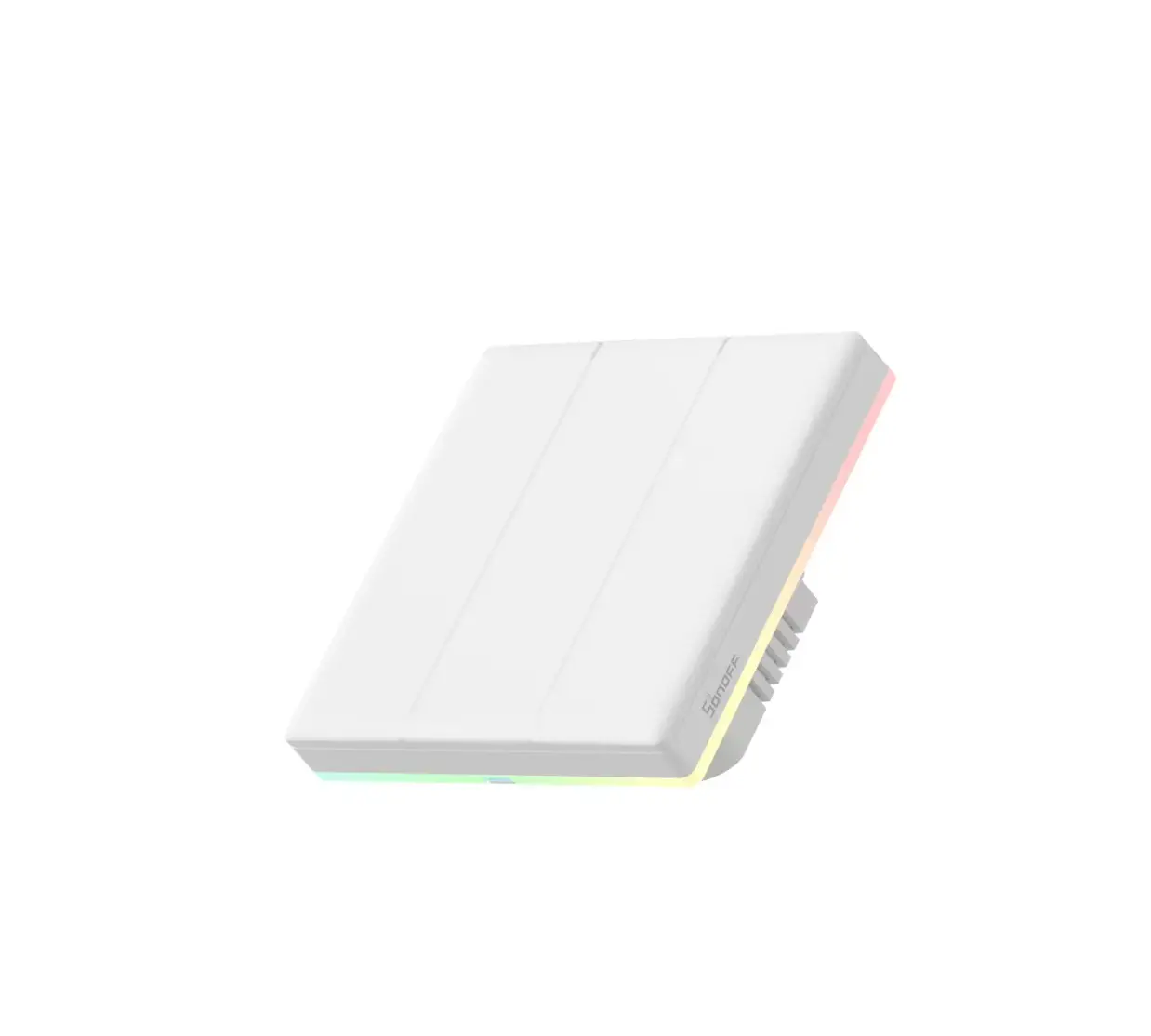
SONOFF TX Ultimate Smart Touch Wall Switch
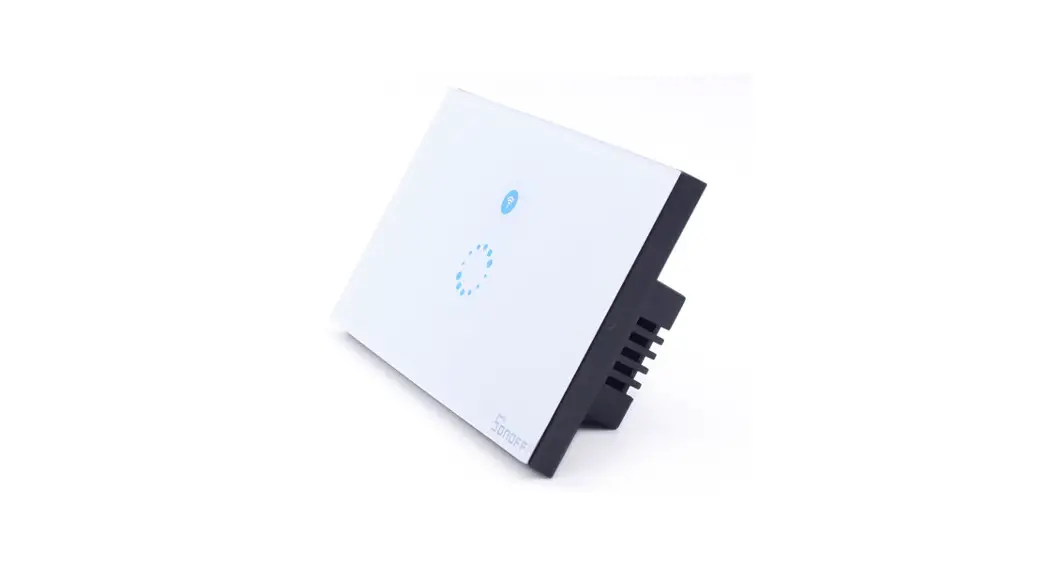
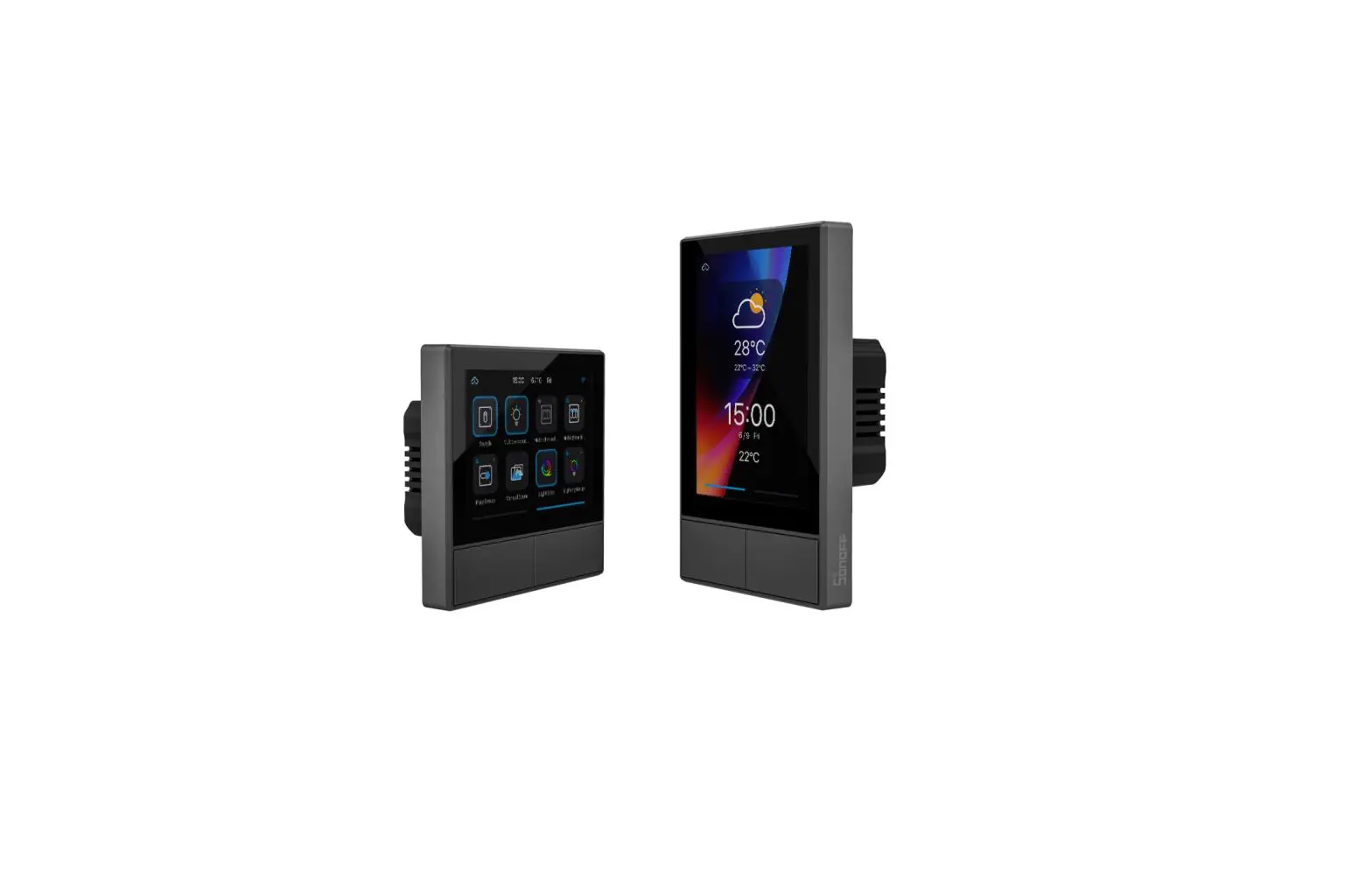
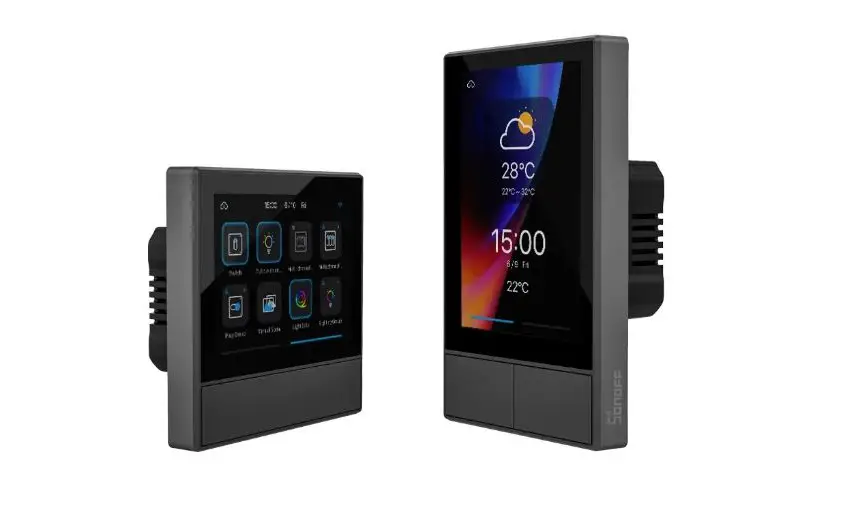
Product introduction
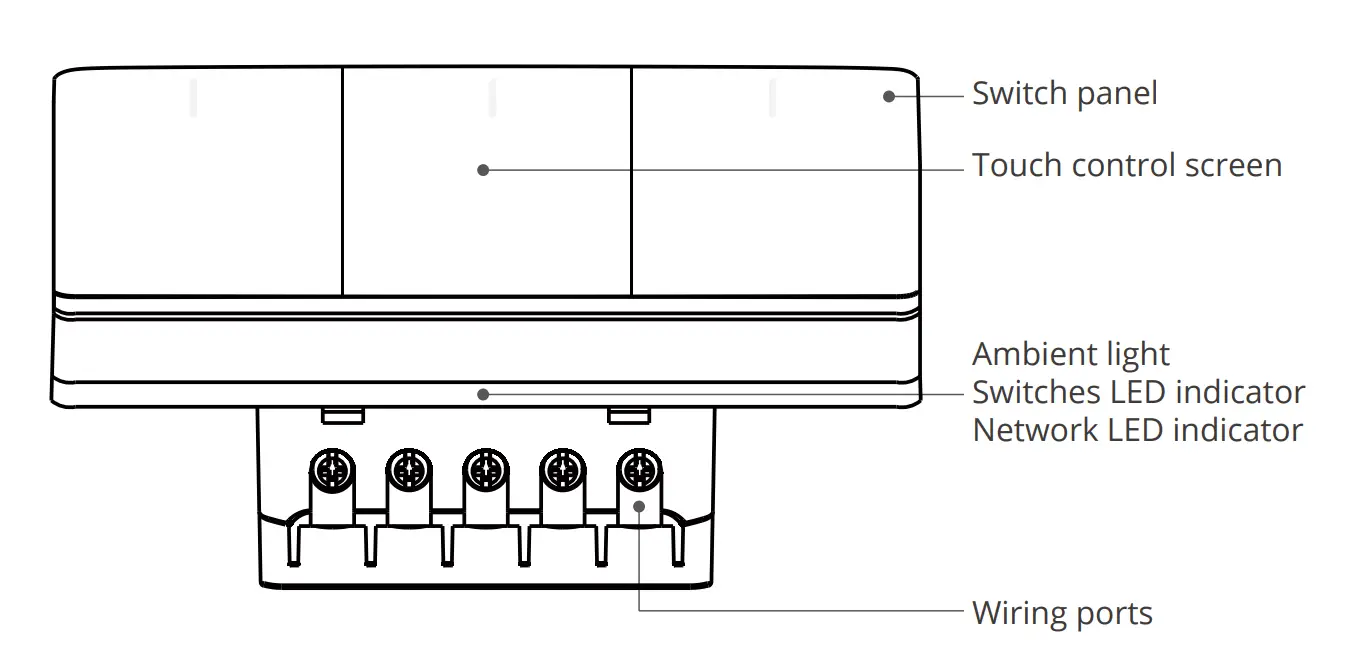
 The device weight is less than 1kg, and the recommended installation height is less than 2m.
LED Indicator status and instruction
| LED indicators | LED indicator status | Instructions |
| Pairing LED indicator | In the “Cycle mode” | Device is in pairing mode |
| Network LED indicator | Flashes blue quickly once | Device is not connected to router |
| Flashes blue quickly twice | Device is connected to the router but not to the cloud |
Operation instruction
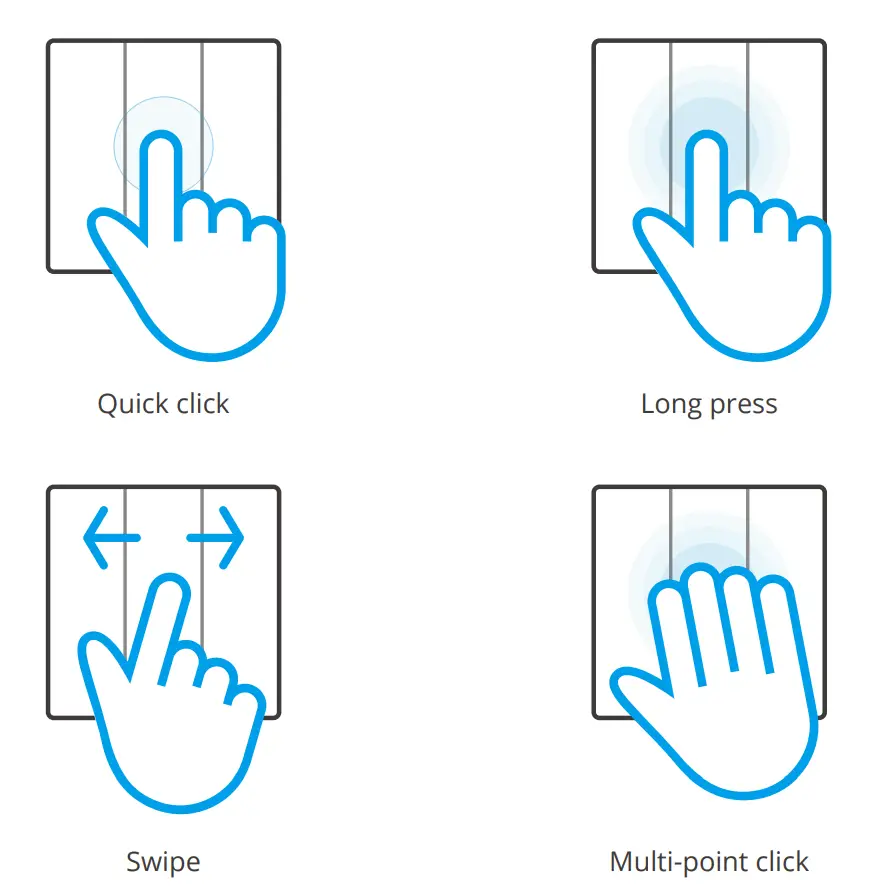
| Operations | Instructions | Functions |
| Quick click | Click the switch panel quickly | Turn on/off the switches and trigger the smart scenes |
| Long press | Long press the switch panel for 5s | Make the device enter the pairing mode |
| Swipe | Swipe on the switch panel and ensure the swipe distance exceeds 50% of it
| Trigger the smart scene |
| Multi-point click | Multiple fingers click the switch panel | Turn on/off the ambient light manually |
Features
SONOFF TX Ultimate is a smart touch wall switch with LED lights which will produce sound, light and vibration effects when it is turned on/off. After adding in the eWeLink App, you can remote control on/off, switch the ambient lighting modes, set timer and smart scene on the phone.
- Remote Comtrol

- Voice Control

- Smart Scene

- Ambient Lighting Mode

- Touch Vibration

- Light Effects


Installation
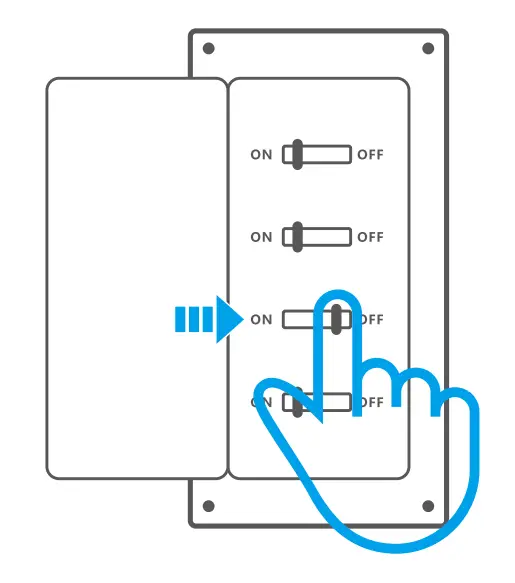
 Please install and maintain the device by a professional electrician. To avoid electric shock hazard, do not operate any connection or contact the terminal connector while the device is powered on!
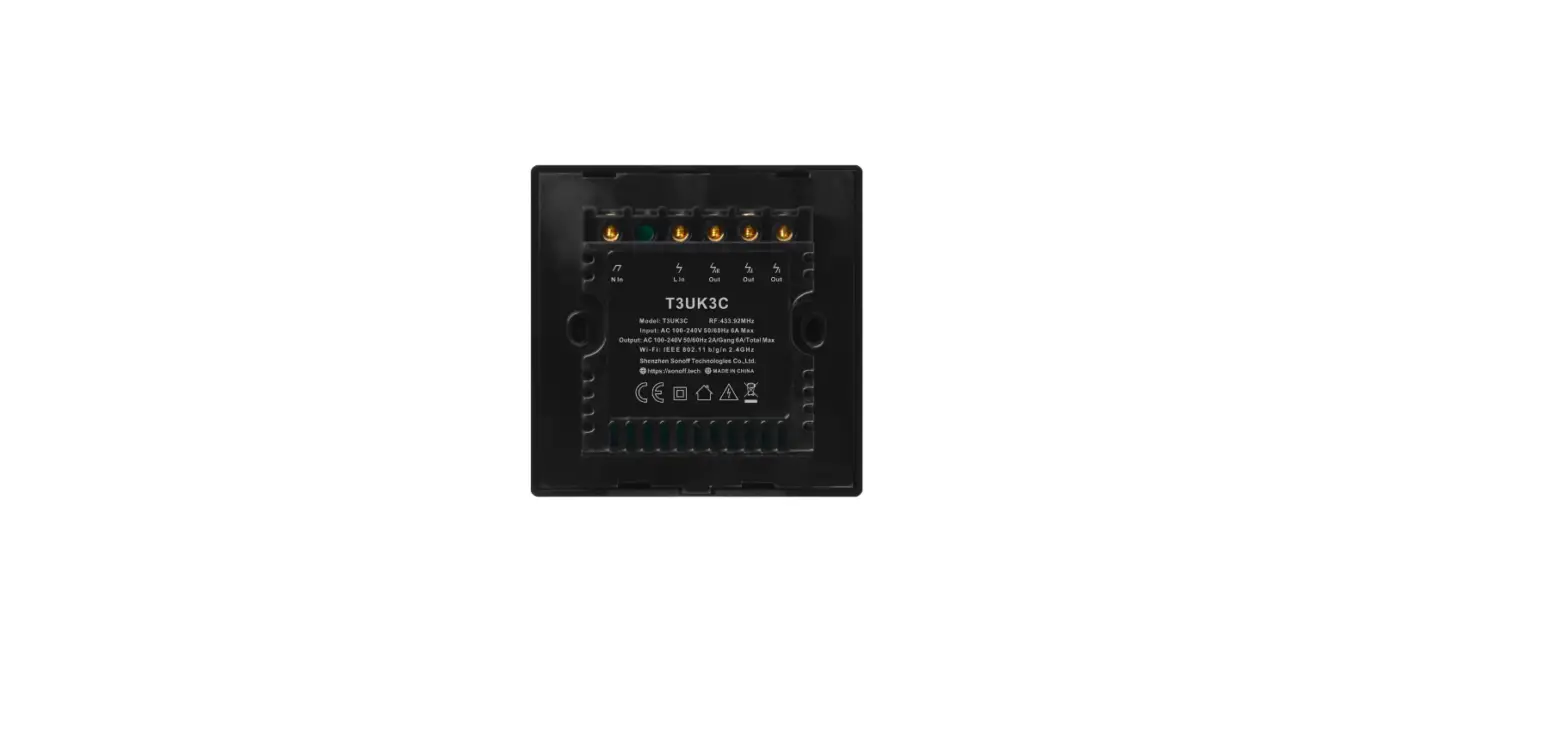
Wiring instruction
Before installing the device, please intstall an air switch as the protective device (Air switch 16A/250V).
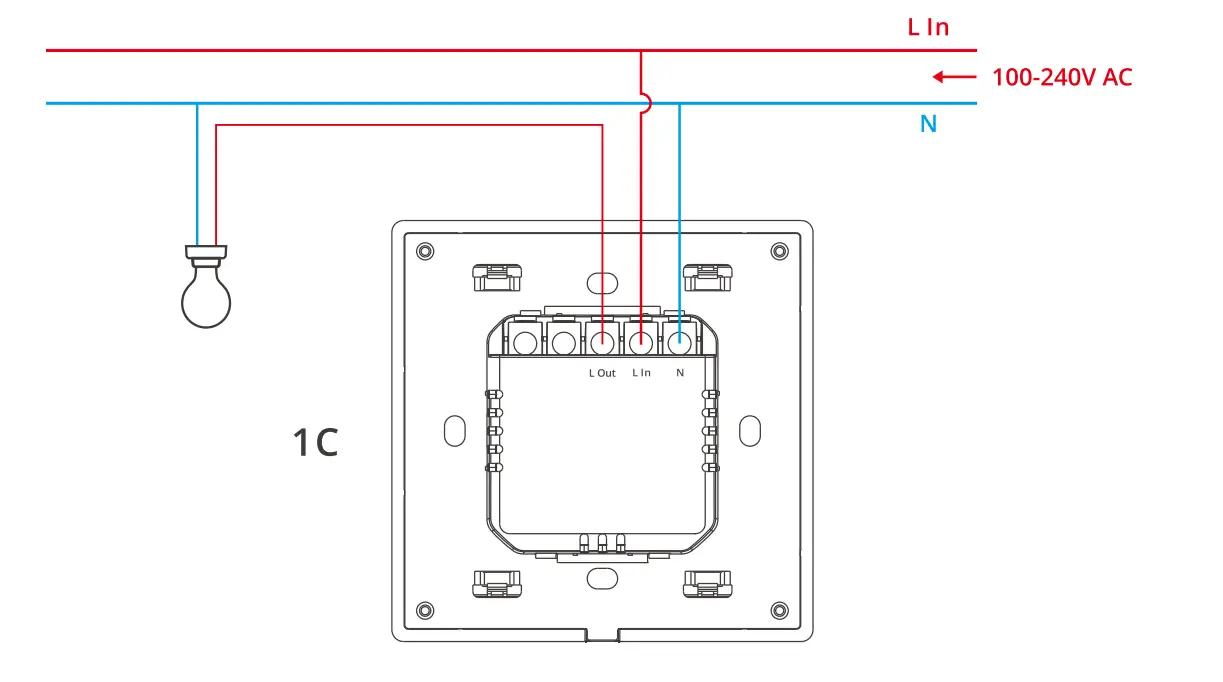
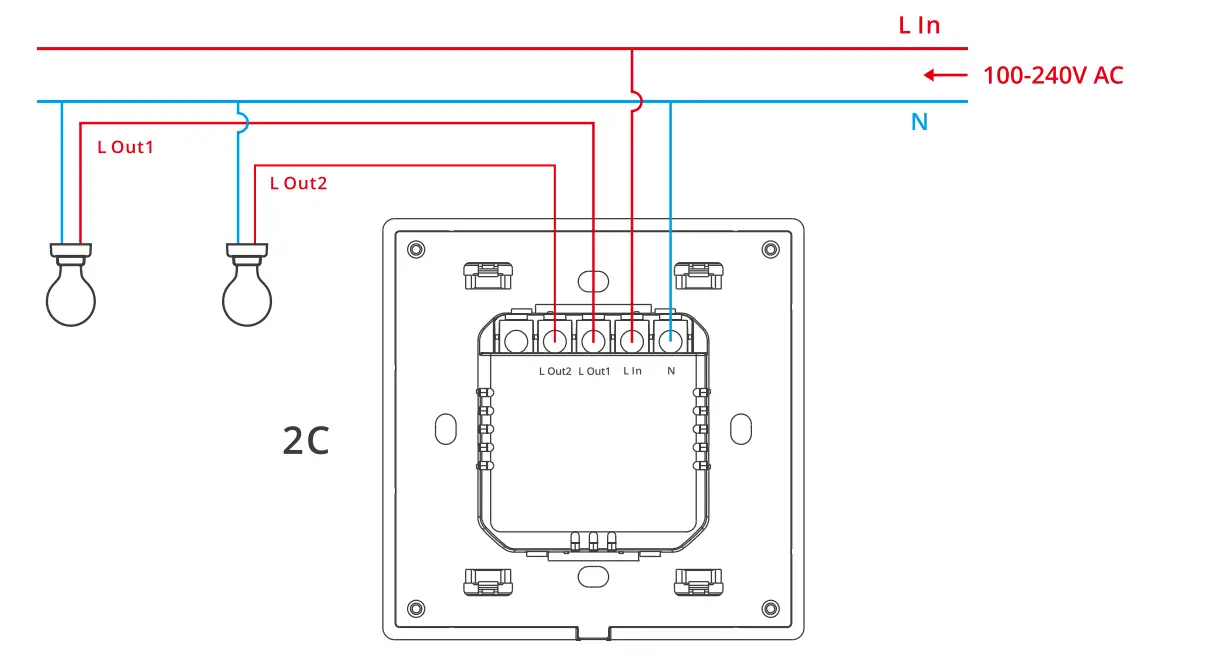
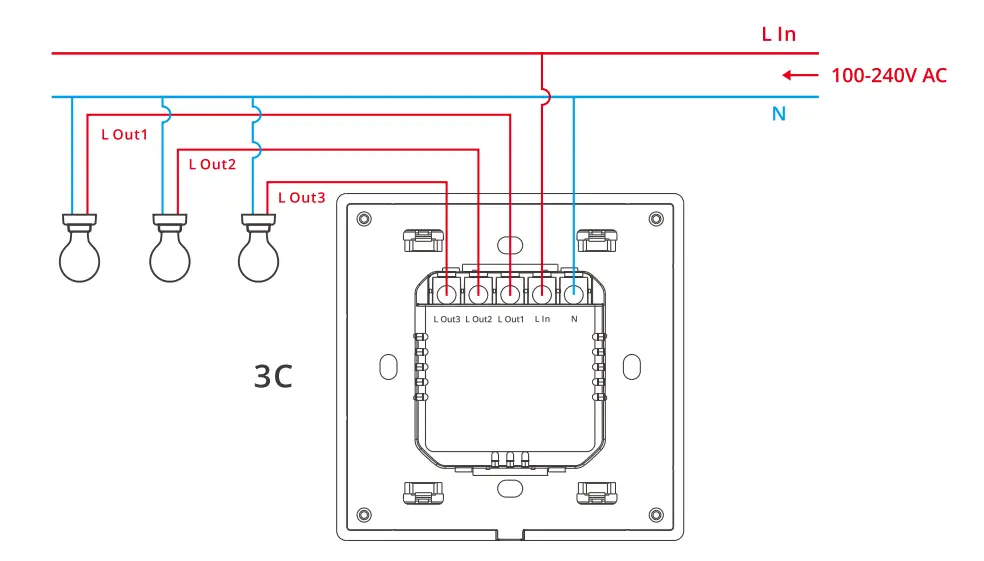
Make sure all wires are connected correctly.
Pairing Method
- eWeLink App Pairing
1-1 Download the eWeLink App
Please download the “eWeLink” App from Google Play Store or Apple App Store.
1-2 Power on
1-3 Add device
After powering on, the device will enter the Bluetooth pairing mode by default during the first use and the LED frame light will light in the “Cycle mode”.
 The device will exit the Bluetooth pairing mode when it doesn’t be paired successfully within 10mins. If you want to access the pairing mode again, touch the wall switch panel for 5s until the LED frame light lights in the “Cycle mode”.
1-3 Add device
After powering on, the device will enter the Bluetooth pairing mode by default during the first use and the LED frame light will light in the “Cycle mode”.
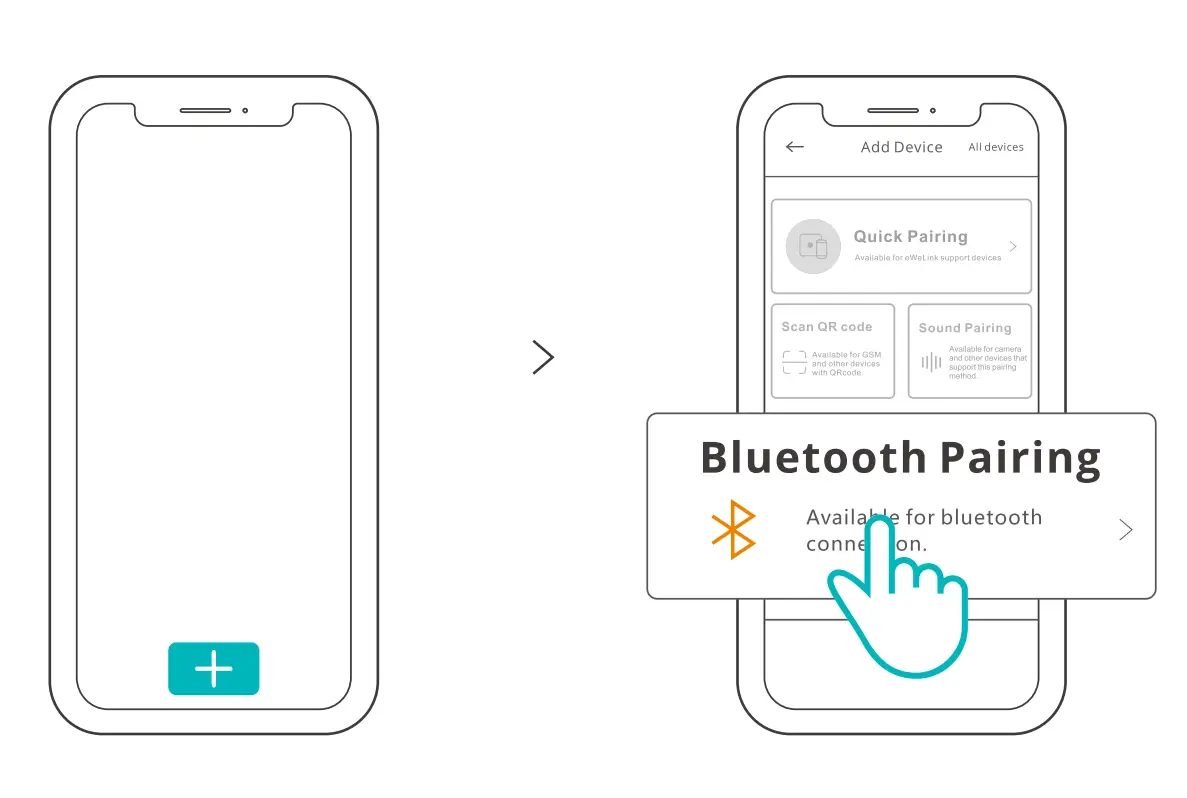
Tap “+” and select “Bluetooth Pairing”, then operate following the prompt on the App.

Amazon Frustration-Free Setup (FFS)
Applicable situation: The account you use to purchase this device on Amazon.com is the same as the Alexa account you sign in the smart speaker (with Certified for Humans badge).
- 2-1After power on the device, it will enter the FFS pairing mode by default (LED indicator flashes in “Cycle mode”).
- 2When you hear “New switch found” after powering on for about 1-2 mins, refresh the device list in the Alexa App and you will see the device is added successfully.


https://sonoff.tech/product-review/tutorial/works-with-alexa-instruction-guide/
- The device will exit FFS pairing mode if it had not been paired within 30mins. If you want to enter the pairing mode again, please long press the switch panel for 5s until the LED indicator flashes in “cycle mode”.
- If the device cannot be paired through FFS pairing mode for a long time, please pair the device by method (1) eWeLink App pairing.
- The method of FFS pairing can only be used to add devices to Alexa App.
- If you want to synchronize this device between eWeLink App and Alexa App, please connect the accounts of eWeLink and Alexa through Account Linking, scan the QR code or enter the URL to check the guideline of Account Linking.
Add eWeLink-Remote Sub-devices
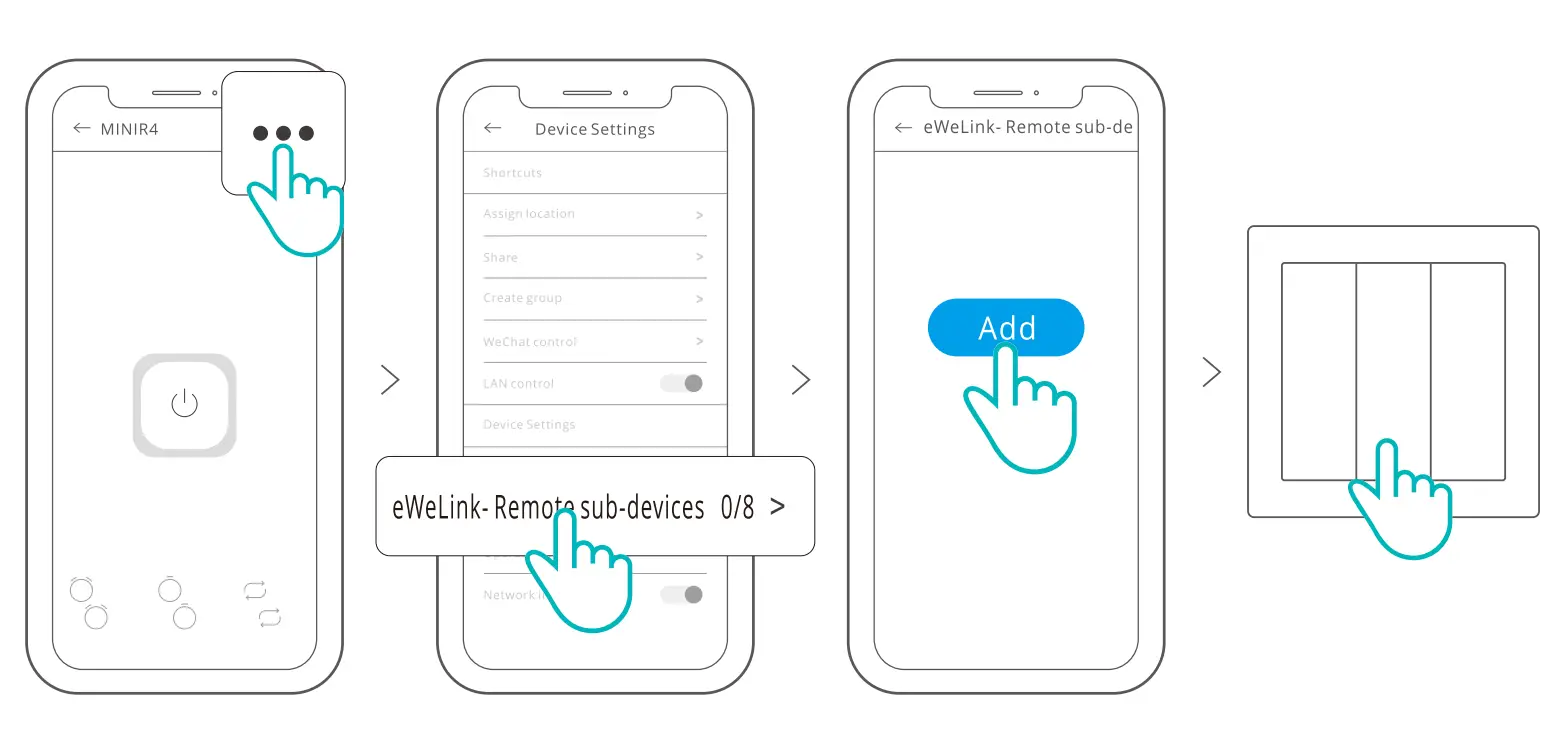
Enter the Device Settings page on the eWeLink App, select “eWeLink-Remote sub-devices” and tap “Add”, then trigger the sub-device to add it successfully.
Specifications
| Model | T5-1C-86/T5-2C-86/T5-3C-86 |
| Input |
|
| Output |
|
| Wi-Fi | IEEE 802.11b/g/n 2.4GHz |
| Working temperature | -10℃ ~ 40℃ |
| Working humidity | 5% ~ 95% RH, non-condensing |
| Color | White |
| Casing material | PC |
| Dimension | 86x86x39mm |


 Amazon.com. Spend less. Smile more.
 Works with Alexa Instruction Guide - SONOFF Official