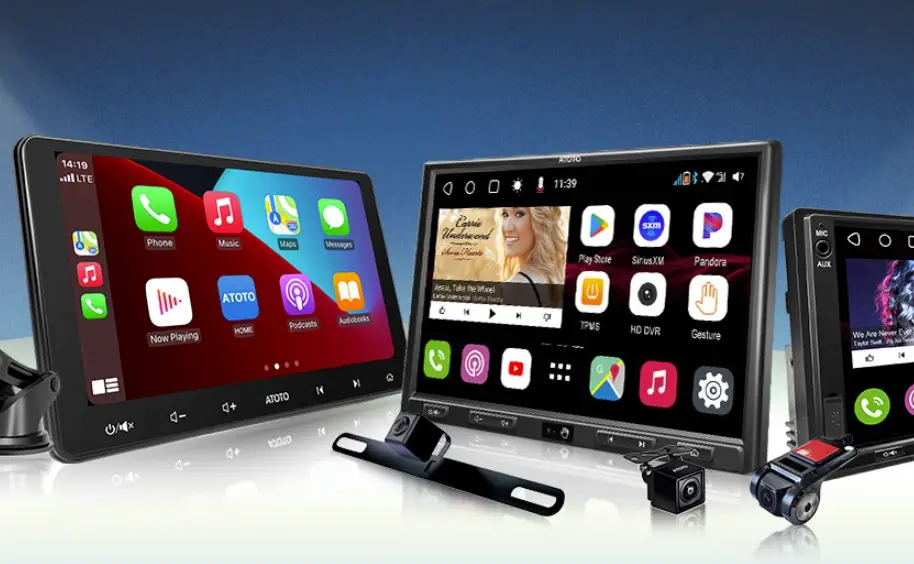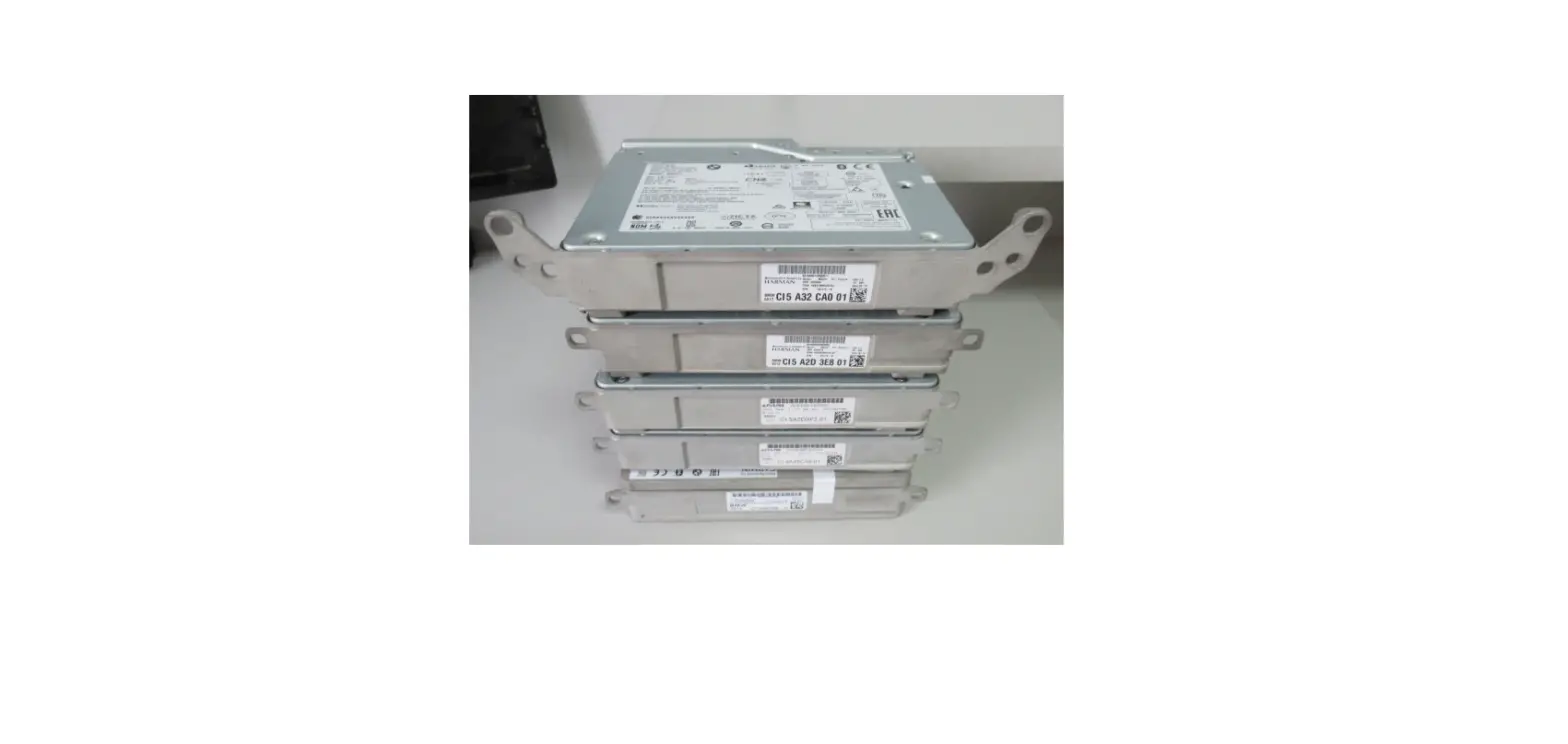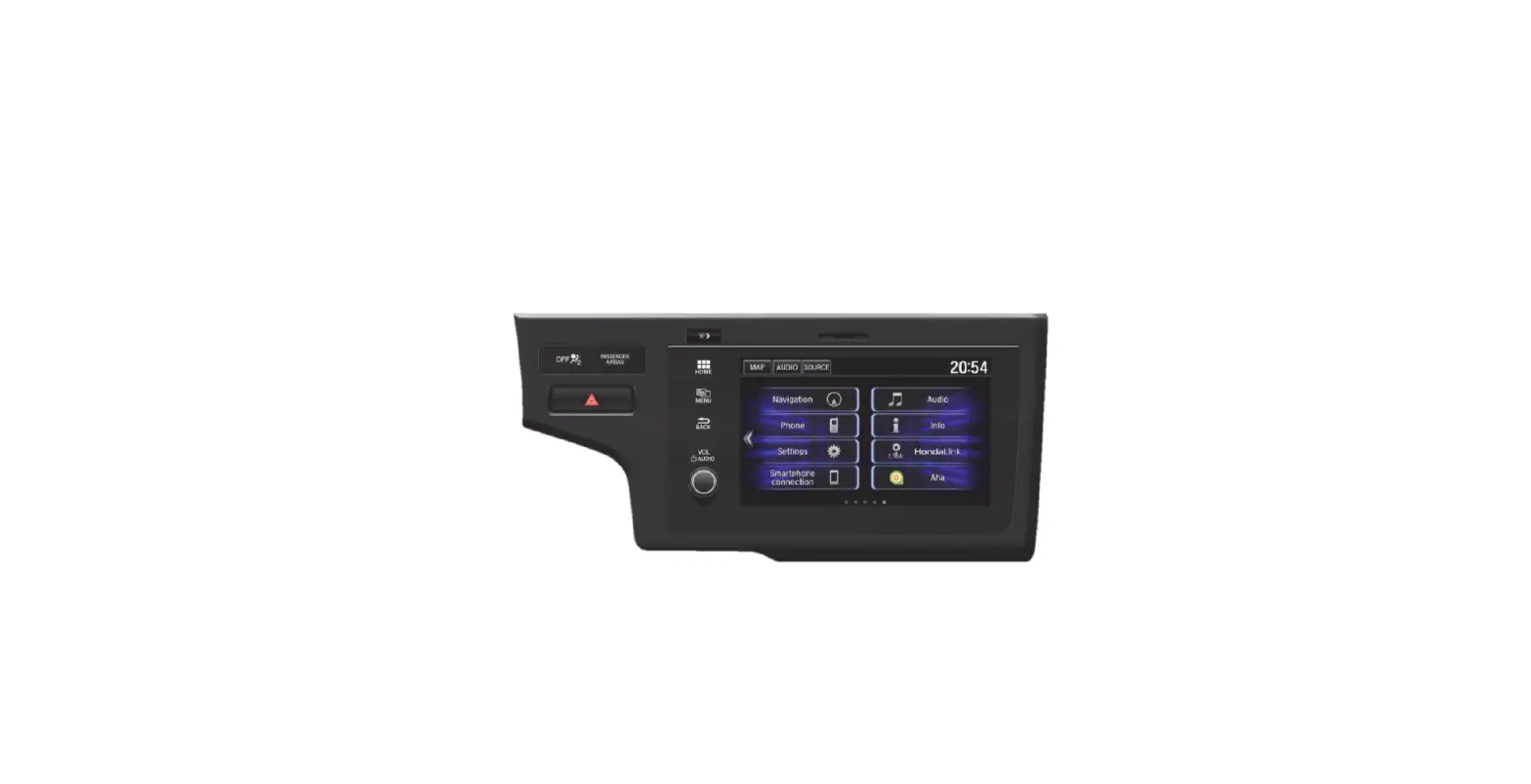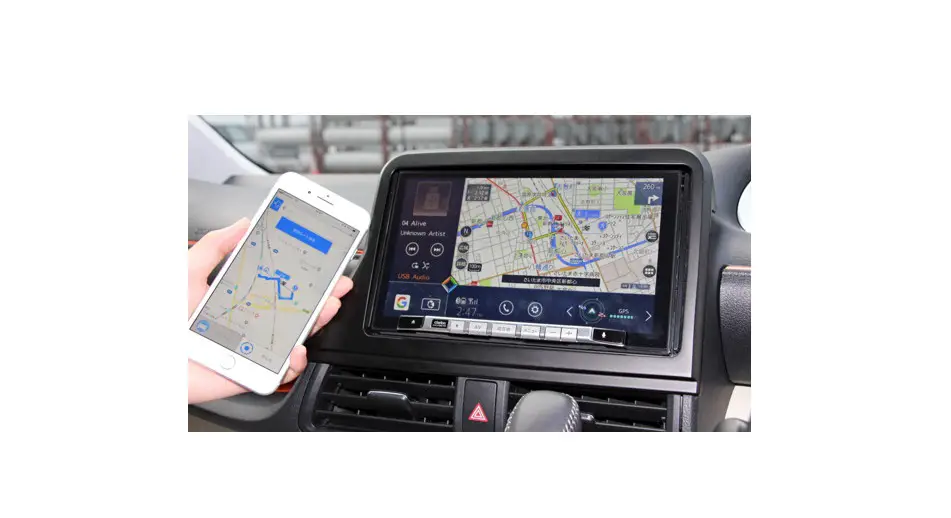
Model AT2201

| Audio Section Radio Section | ||
| Operating Function | Button No. / Name | Performing Specifications |
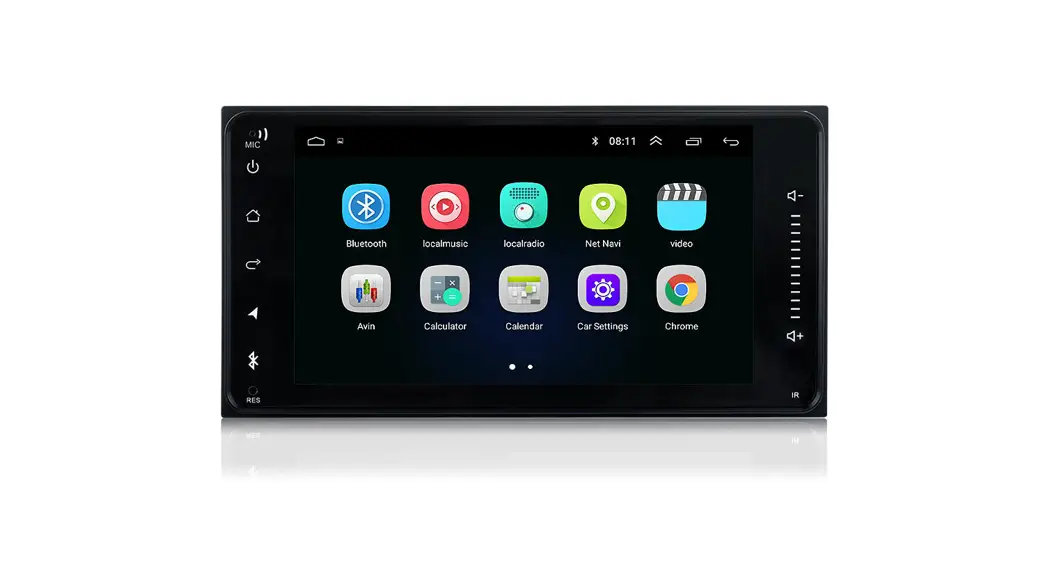
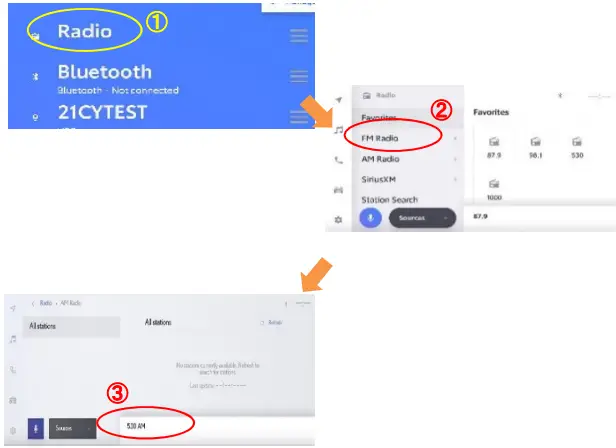
| Transition to the radio mode | (Softkey) | (1) Select Audio icon ( ) in short cut menu, push “Source” button at the bottom of screen, then push “Radio”.(2) Select “FM Radio” or “AM Radio” to go to FM/AM mode.(3)To receive radio broadcast, touch frequency in the bottomo of screen. ) in short cut menu, push “Source” button at the bottom of screen, then push “Radio”.(2) Select “FM Radio” or “AM Radio” to go to FM/AM mode.(3)To receive radio broadcast, touch frequency in the bottomo of screen.
|
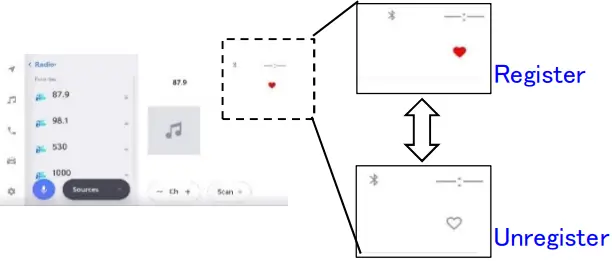
| Reading/writing of the preset memory. | (Softkey) | In FM/AM mode, by pressing “Heart mark” in top-right of the screen, you can set/remove arbitrary frequency to/from preset memory.
|
| USB Section | ||
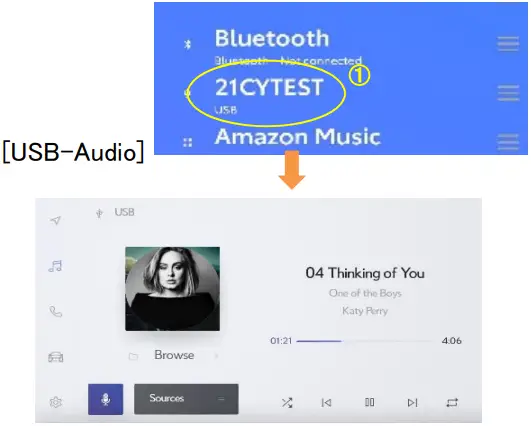
| Transition to the USB mode | (Softkey) USB | (1) Select Audio icon () in short cut menu, push “Source” button at the bottom of screen, then push “USB”. ※Volume name of USB media is shown in source list.
|
| Playback / Pause | (softkey)
| If  is pressed while playing, this unit pauses. is pressed while playing, this unit pauses.If |
| iPod Section | ||
| Transition to the iPod mode | (Softkey) iPod | (1) Select Audio icon () in short cut menu, push “Source” button at the bottom of screen, then push “iPhone”. ※Volume name of iPod/iPhone is shown in source list.
|
| Playback / Pause | (softkey)
| If is pressed while playing, this unit pauses. If |

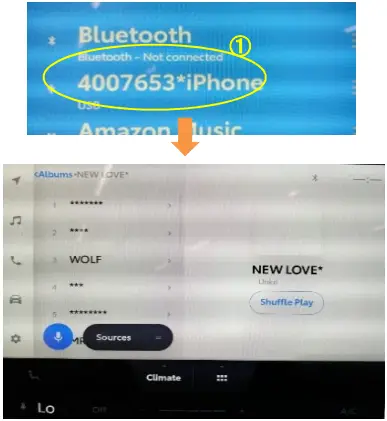
| Bluetooth Section Registration method of Bluetooth device | |
| Operation Method | Screen Display Specifications |
(1) Touch Gear icon ( ) in short cut menu. ) in short cut menu.
| 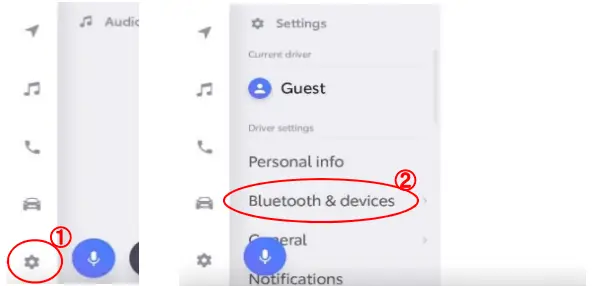 |
| (2) Touch “Bluetooth & devicese” in the menu. | |
| (3) Touch “Manage devices”, then touch “Search devices” in the bottom-right of the screen. Meantime, set smart phone to waiting BT connection. | 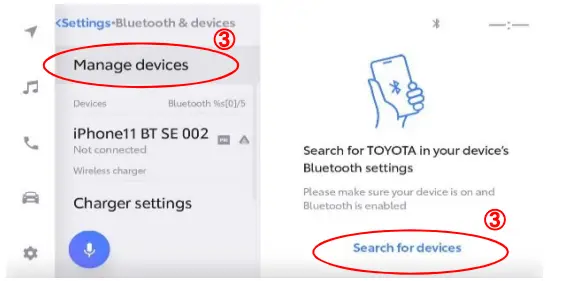 |
| (4) You can see available devices list in bottom-right of the window, then select the device that you want to connect. | 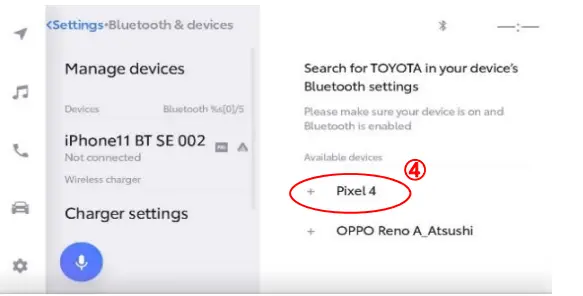 |
| (5) You may see pass code on both H/U and smartphone. Then Approve both. | 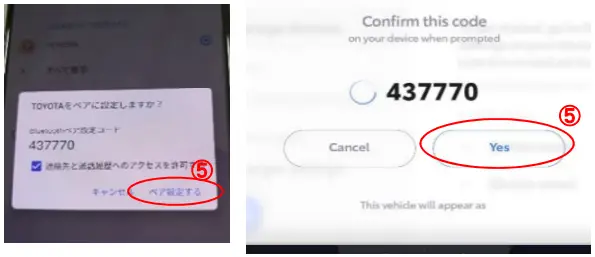 |
| (6) BT paring established successfully. You may need to approve on smartphone to transfer phonebook. | 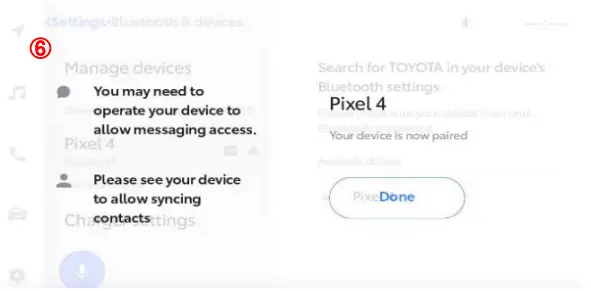 |
| *Cold start erase all BT paring. | |
| Handsfree Section | ||
| Operating Function | Button No. / Name | Performing Specifications |
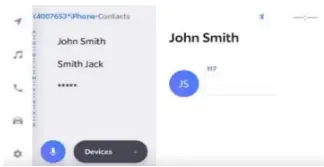
| Transition to the telephone menu screen | (softkey) | (1) Select Phone icon ( ) in the short cut menu. ) in the short cut menu.(2) Select function you want to use from phone menu. 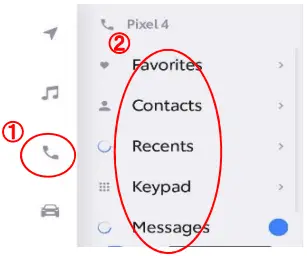
|
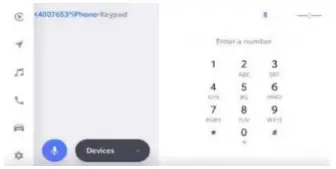
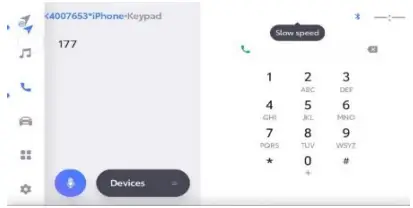
| Outgoing | (softkey) Keypad | Select “Keypad” from phone menu to go to dial screen. Push numeric button to enter phone number, push ( ) to start phonecall. ) to start phonecall.
|
| Audio Setup Section | ||
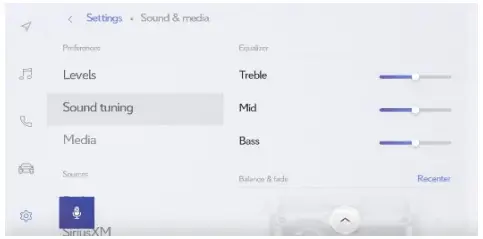
| Transition to the audio setup adjustment screen | (Softkey) Sound | (1) Select Setting () from shortcut menu. (2) Select “Sound & Media” from Settings menu. (3) Select “Sound tuning” from “Sound & Media”. 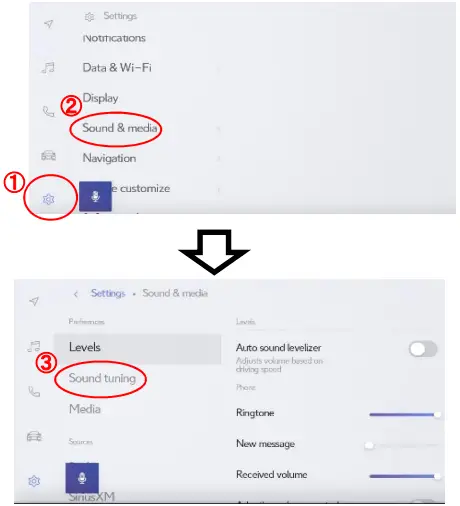 |
| Bass/Mid/Treble, | (softkey) Bass/Mid/Treble | To Adjust Treble/Mid/Bass, drag slider to left (low) or right (high).
|
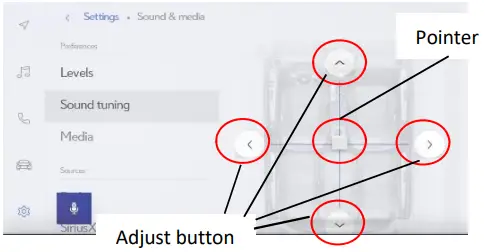
| Balance/Fader | (softkey) Balance/Fader | To Adjust Balance/Fader, drag pointer or press adjust button.
|
Location
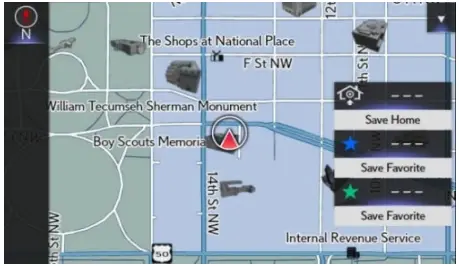
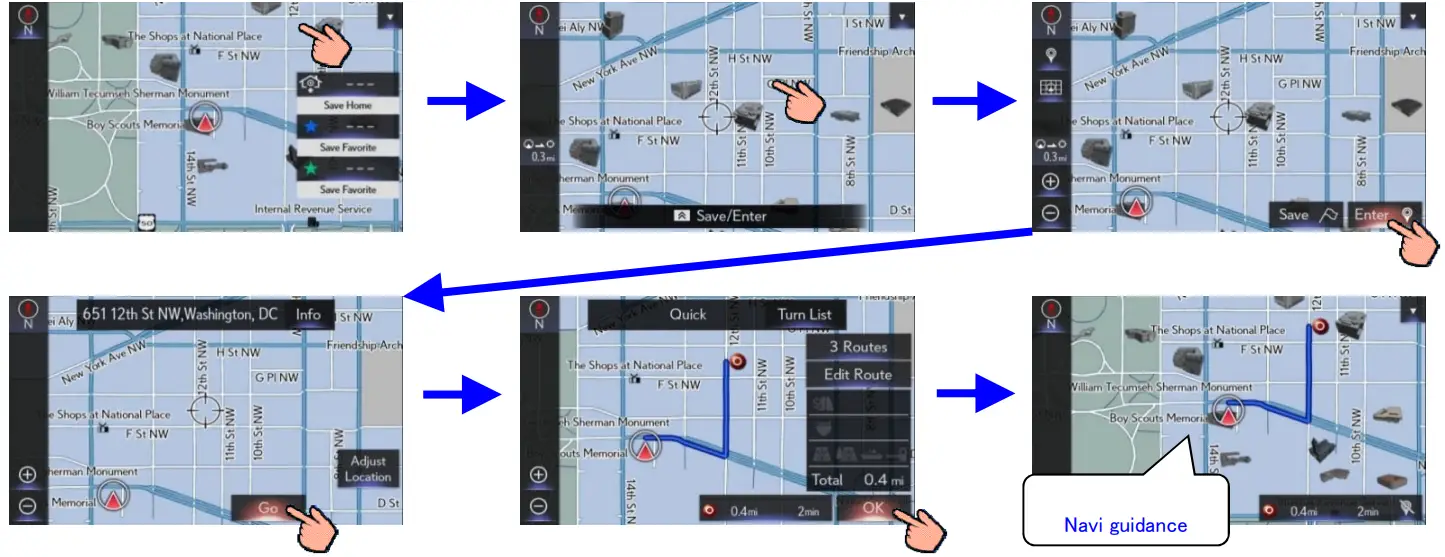
A vehicle location is displayed by GPS, and a direction is detected with a gyroscope.
Since this device is always used with vehicle, it is not sold to general end users separately. Therefore there is no user manual of this device by alone.
The following statements must be described on the user manual of the vehicle;
[For FCC]
FCC ID : ACJ932AT2201
This device complies with part 15 of the FCC Rules.
Operation is subject to the following two conditions:
(1)This device may not cause harmful interference, and
(2) this device must accept any interference received, including interference that may cause undesired operation.
FCC CAUTION:
Changes or modifications not expressly approved by the party responsible for compliance could void the user’s authority to operate the equipment.
Radio frequency radiation exposure information:
This equipment complies with FCC radiation exposure limits set forth for an uncontrolled environment. This equipment should be installed and operated with minimum distance of 20cm between the radiator and your body. This transmitter must not be co-located or operated in conjunction with any other antenna or transmitter.
NOTE:
This equipment has been tested and found to comply with the limits for a Class B digital device, pursuant to part 15 of the FCC Rules.
These limits are designed to provide reasonable protection against harmful interference in a residential installation.
This equipment generates, uses and can radiate radio frequency energy and, if not installed and used in accordance with the instructions, may cause harmful interference to radio communications.
However, there is no guarantee that interference will not occur in a particular installation.
If this equipment does cause harmful interference to radio or television reception, which can be determined by turning the equipment off and on, the user is encouraged to try to correct the interference by one or more of the following measures:
– Reorient or relocate the receiving antenna.
– Increase the separation between the equipment and receiver.
– Connect the equipment into an outlet on a circuit different from that to which the receiver is connected.
– Consult the dealer or an experienced radio/TV technician for help.
[For ISED]
IC : 216J-AT2201
This device contains licence-exempt transmitter(s)/receiver(s) that comply with Innovation, Science and Economic Development Canada’s licence-exempt RSS(s). Operation is subject to the following two conditions:
- This device may not cause interference.
- This device must accept any interference, including interference that may cause undesired operation of the device.
This equipment complies with ISED radiation exposure limits set forth for an uncontrolled environment and meets RSS-102 of the ISED radio frequency (RF) Exposure rules. This equipment should be installed and operated keeping the radiator at least 20cm or more away from person’s body.