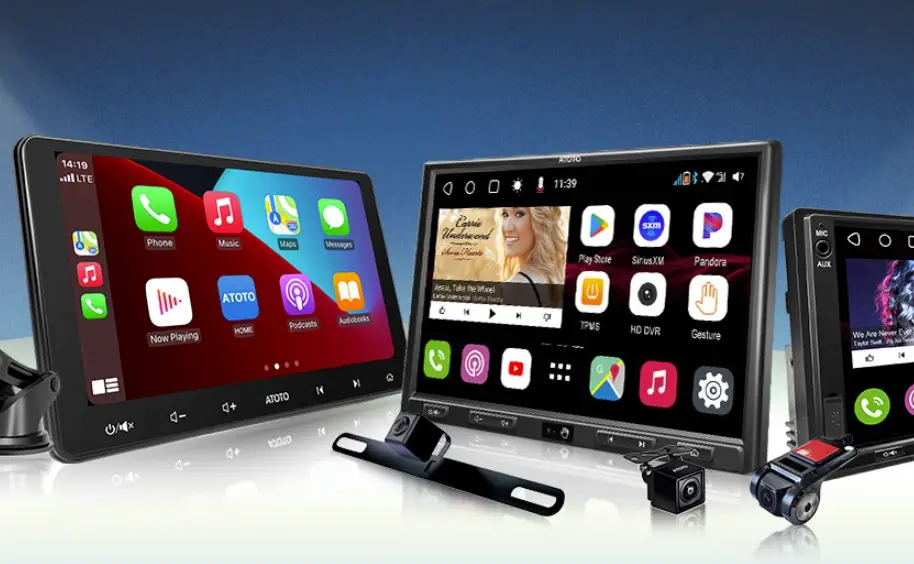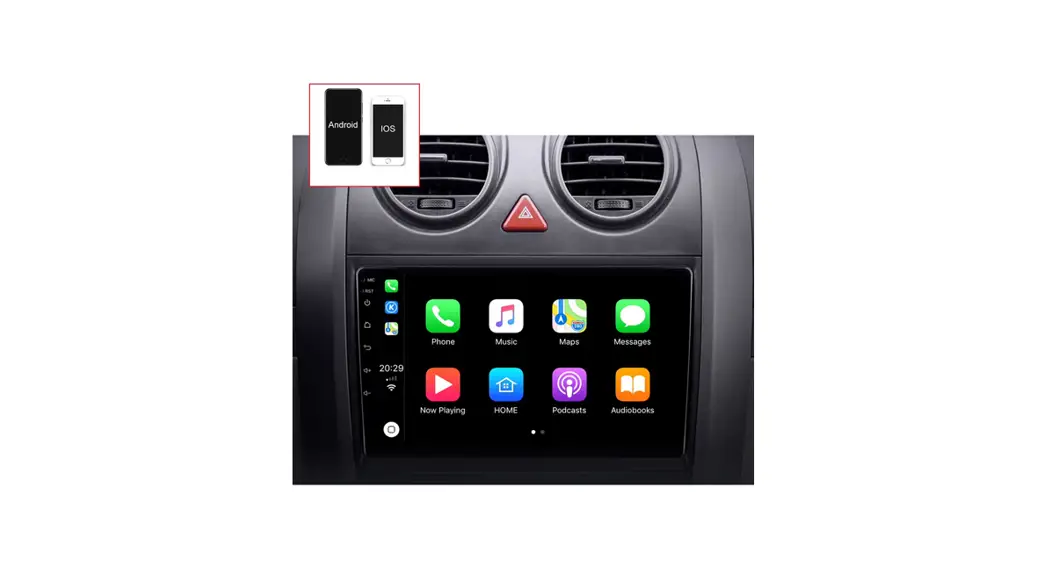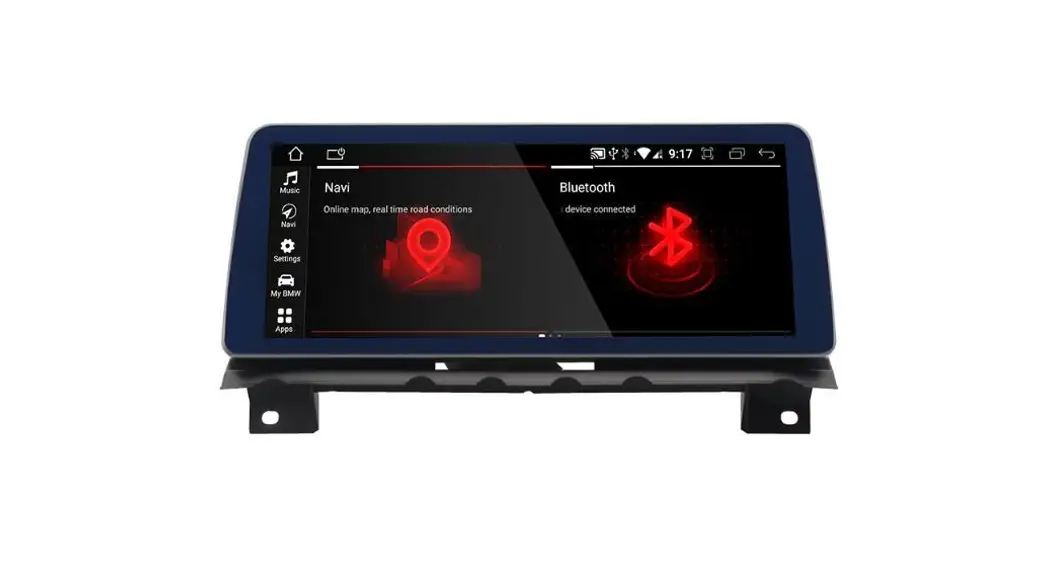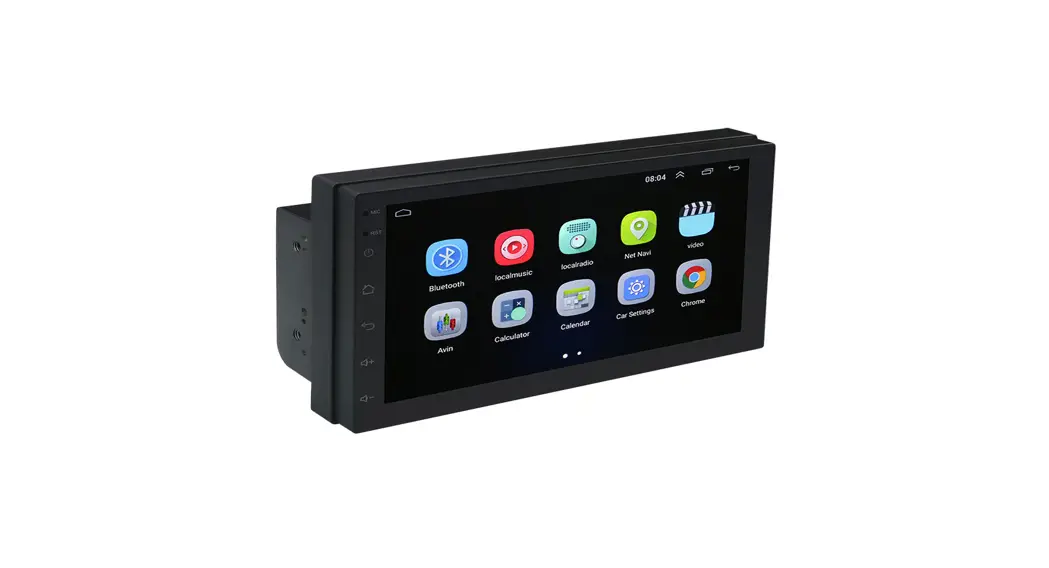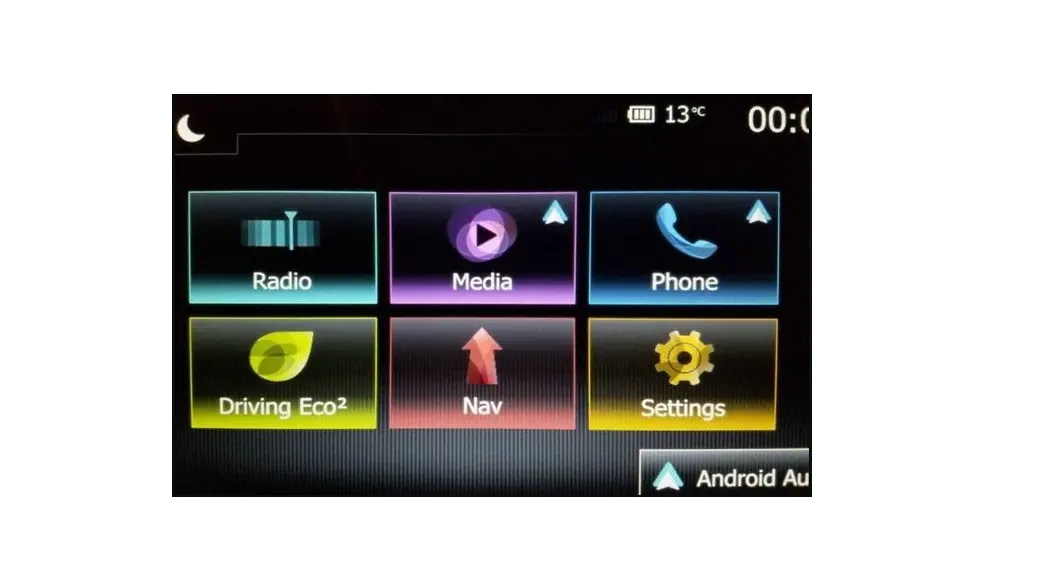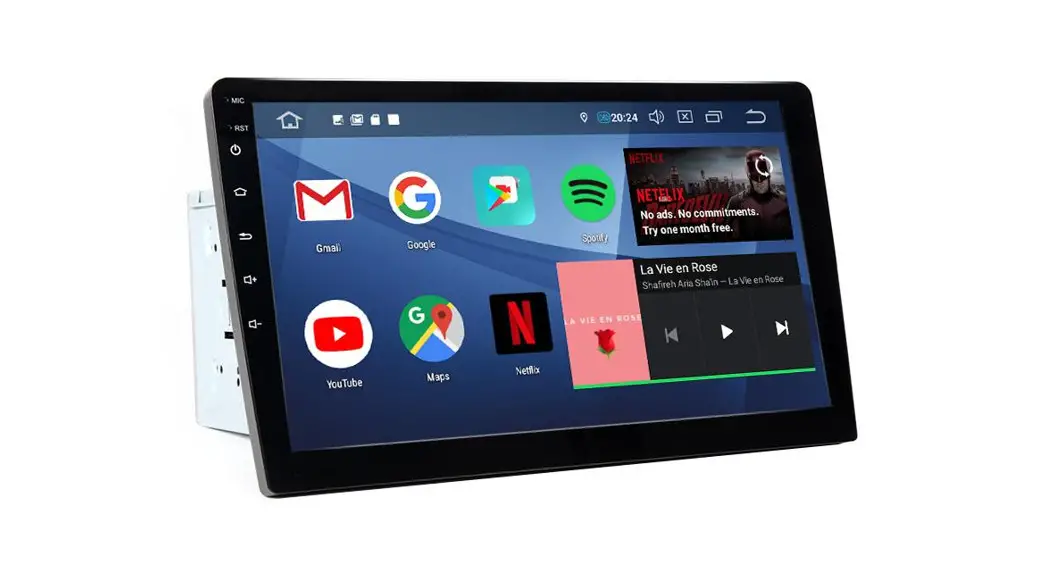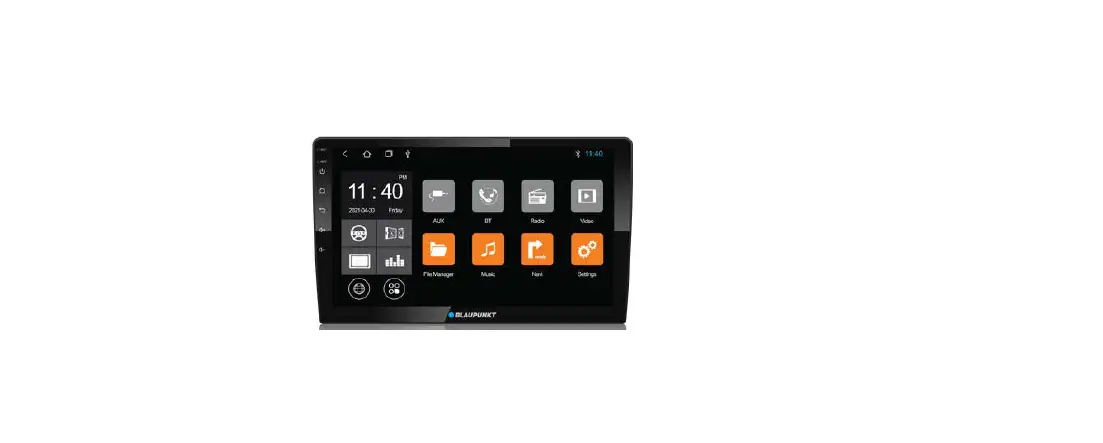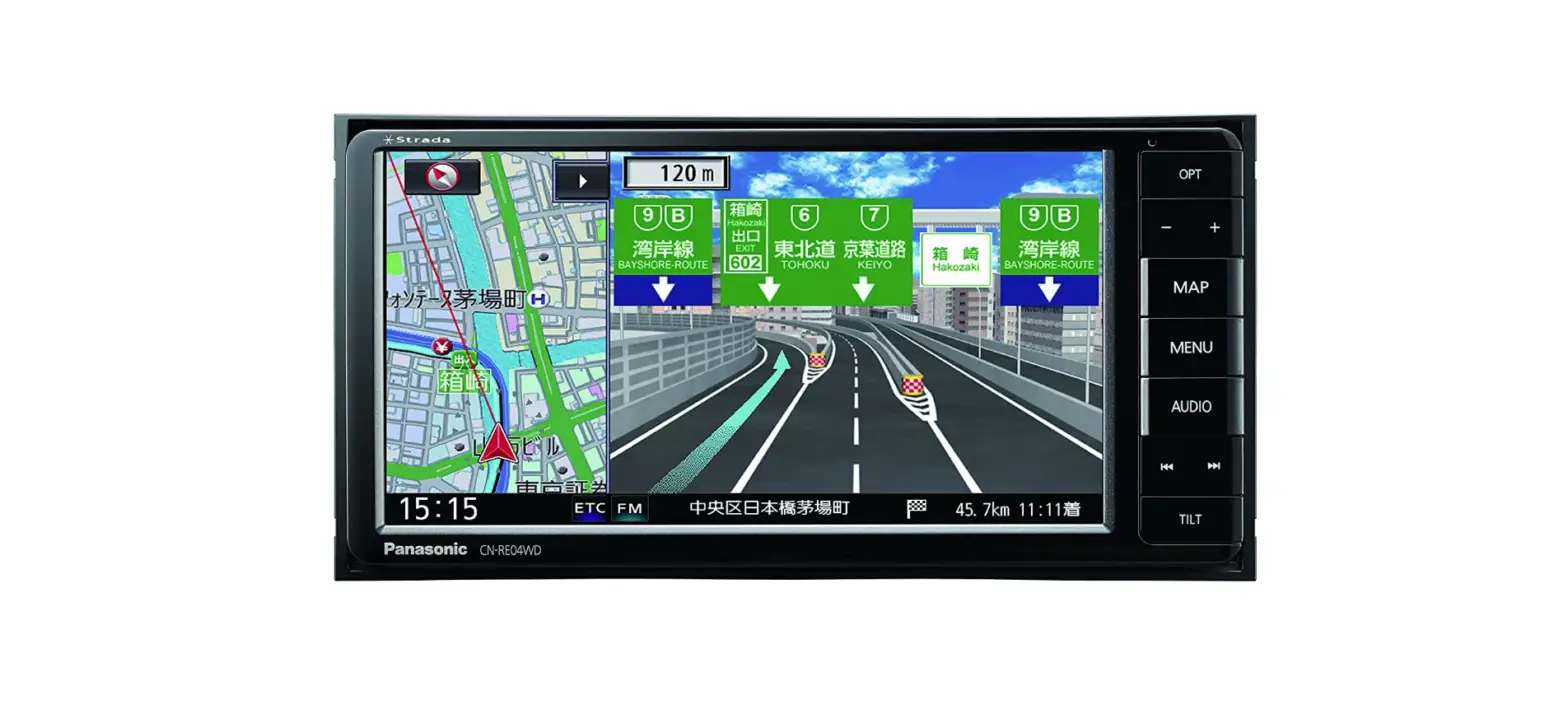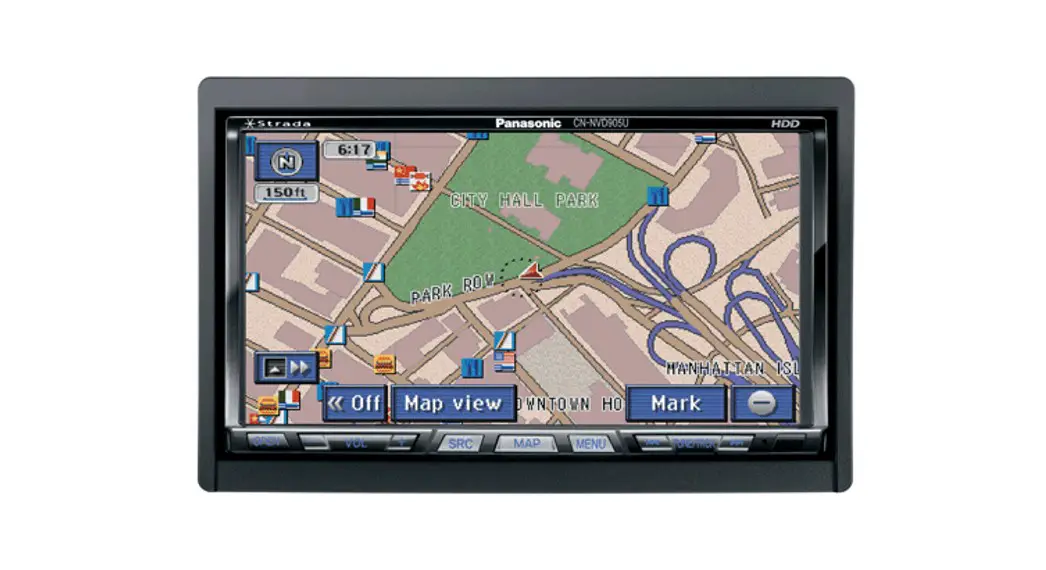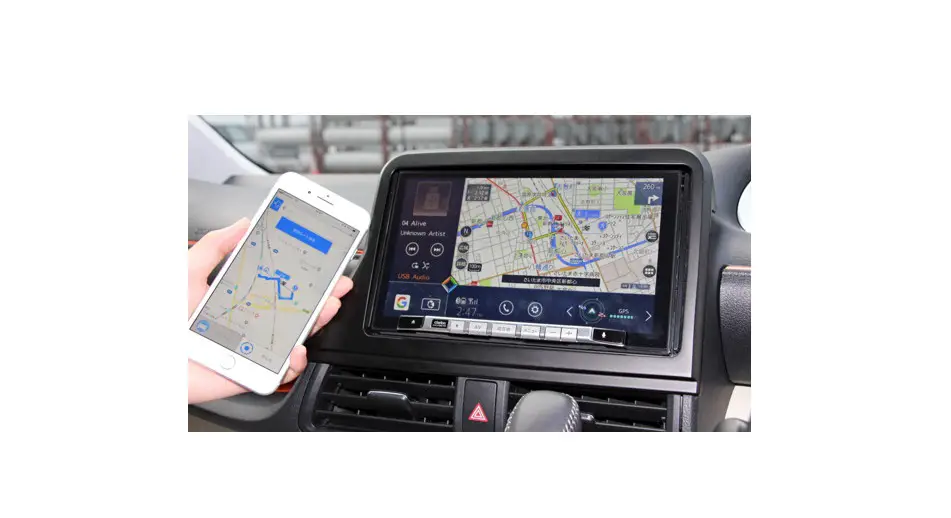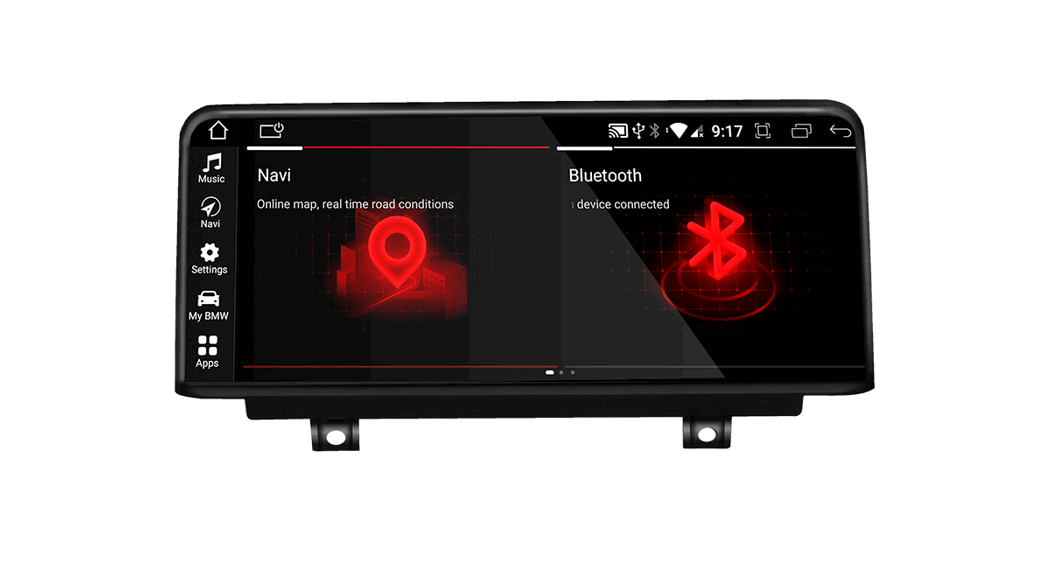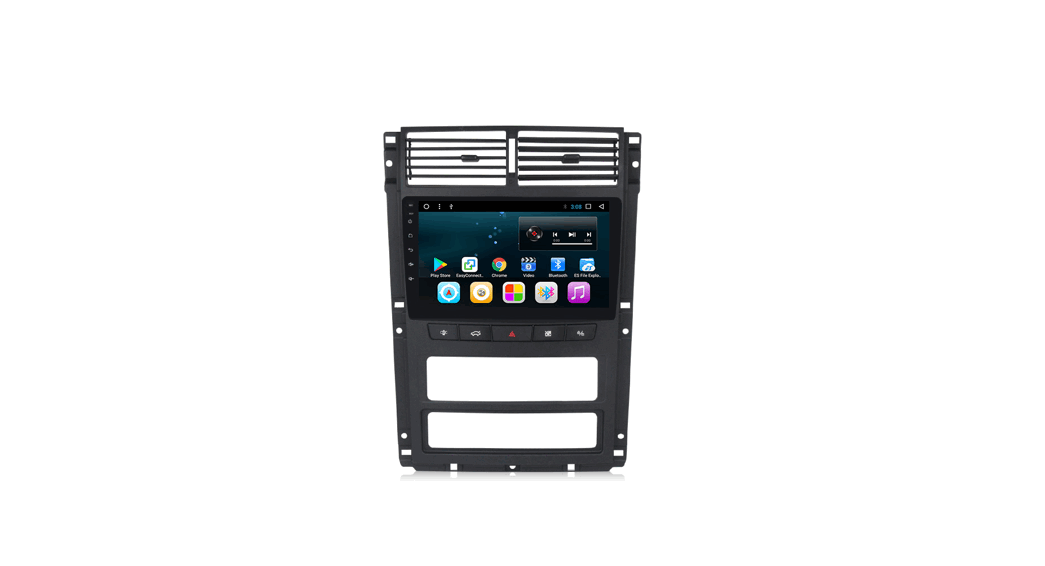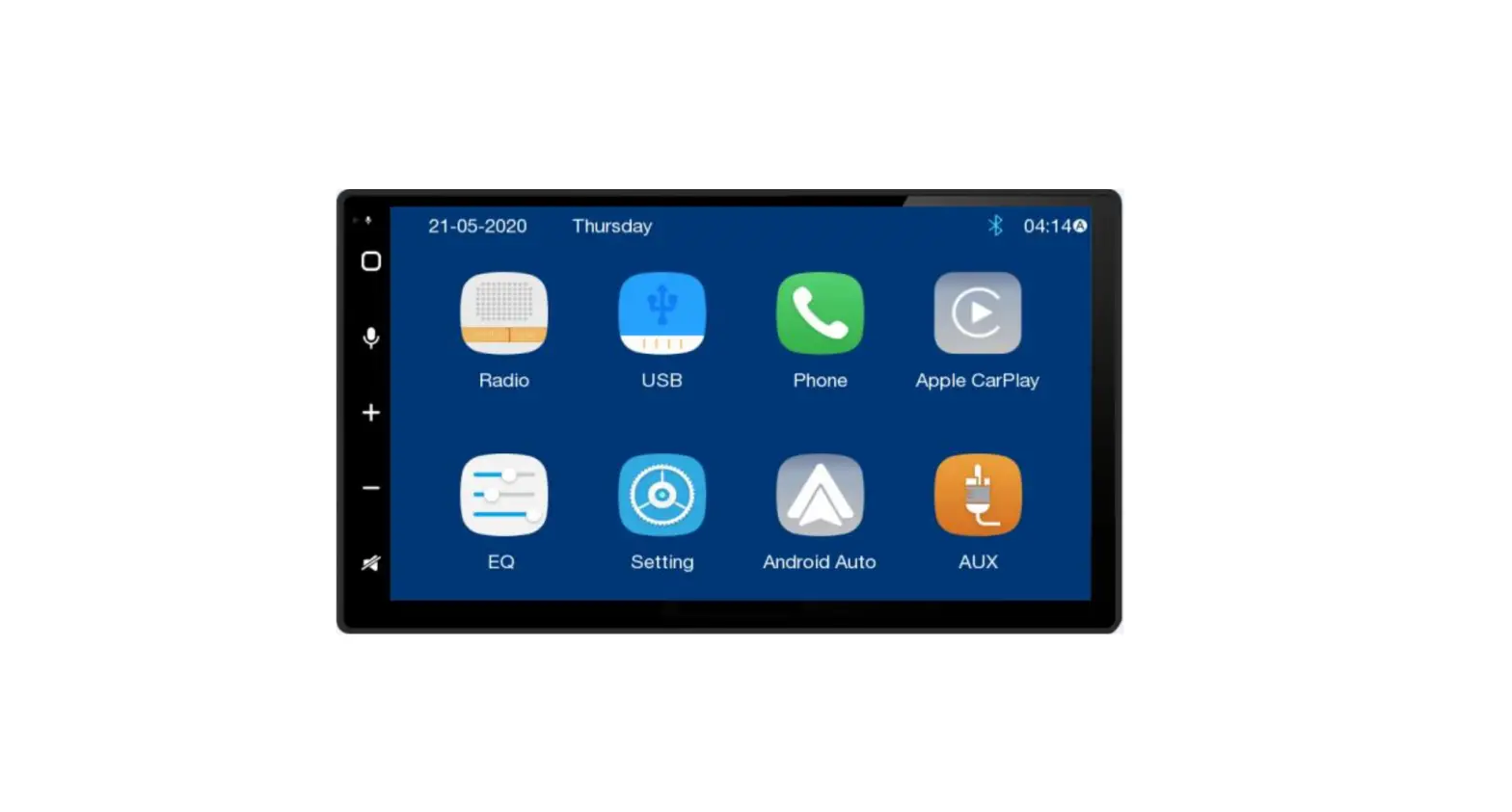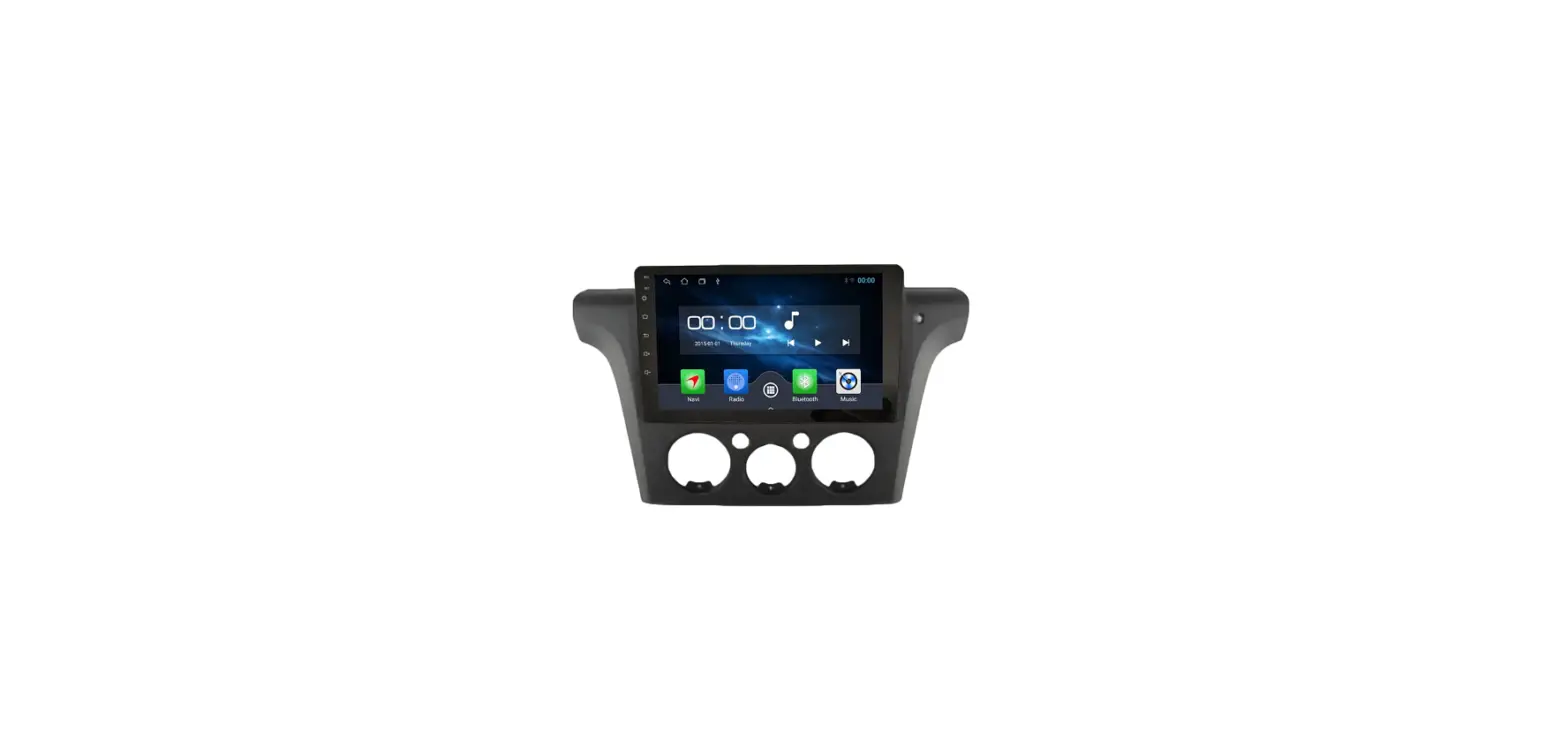
 TKL-ZJ Car Multimedia Navigation
Instruction Manual
Disclaimer
For your safety, it is advisable to not watch video or operate the machine when you are driving. While driving, please adjust the volume to the optimum level. Before operating the machine, you are advisable to read carefully and understand the safety instructions and warning signals stated in the manual. Keep the manual in the reach for future reference.
- Firstly, please ensure safety on the road.
- In difficulty operating the machine, please stop the car safely before you operate the machine.
- Keep the machine out of reach from children to prevent unnecessary injury or damage to the machine.
- While using the GPS navigation, please adhere to the traffic rules.
- Please do not operate the machine at restricted areas such as petrol station, wine refinery, strong electromagnetic obstruction area to prevent danger.
- Please do not install, maintain or repair the machine on your own with the power on. It is very dangerous to install and repair the machine by personnel without proper professional installation training and experience on electronic device and automobile parts.
- Please do not install or store the machine, especially LED display screen directly under the sunlight or hazardous substances. During installation, please ensure no direct contact with the air-conditioner’s ventilation duct. This will cause damage to the machine, the car or injury to the human body.
- Please do not use sharp object to scratch or press the display screen vigorously as this may damage the screen.
- Please do not expose the machine under humid weather or direct contact with liquid to prevent fire or lighting.
- The machine can only support one 12mm CD at a time. Please do not insert 8mm CD or other objects into the machine.
Basic Operation Setting
- Power On/Off the machine
• When ACC is connected, press the power button on the front panel to switch on the machine
• Press the power button on the front panel to switch on machine. Turnoff the engine and unplug the car key to switch off. - Volume Adjustment
Press ” “on the front panel (some models with volume control VOL+VOL- button on the front panel) to adjust the volume of the machine.
 - Mute Control
Press the left volume button to display volume bar on the display screen. Press the media volume to MUTE. - Backlight Control
Adjust the backlight at Display Selling under Car Settings. - Camera
The screen will be automatically switched to rear view sight when the car is at reverse position. - Playback Source Selection
At front panel, press Application to view Radio, Music, Video, USB play, TV (optional) or AVIN mode and options.
At homepage, touch APP icon to enter application interface. Please view the detailed operation manual of respective functions at the subsequent chapters. Slide left or right to switch between different home pages.
- Playback Mode and Position Memory
When you reboot the machine, the system will resume to the earlier mode prior to shutdown.
For radio, it will resume to the radio channel prior to shutdown.
For music or video, it will resume playing the last song or video prior to shutdown.
 “on the front panel (some models with volume control VOL+VOL- button on the front panel) to adjust the volume of the machine.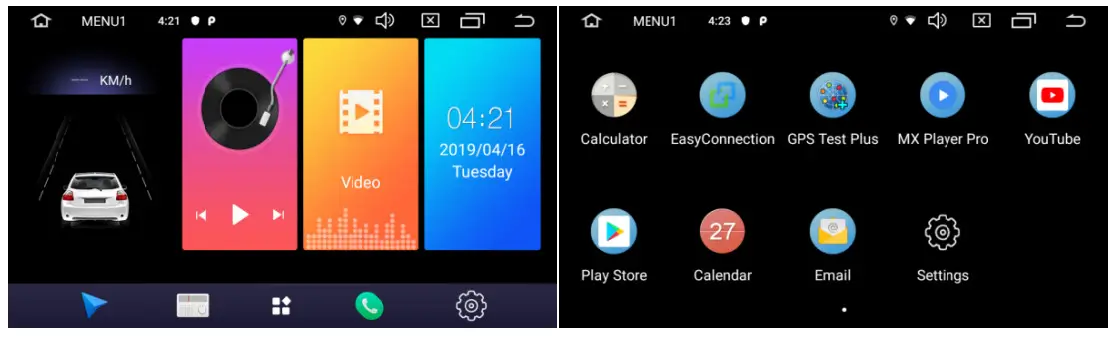
Settings
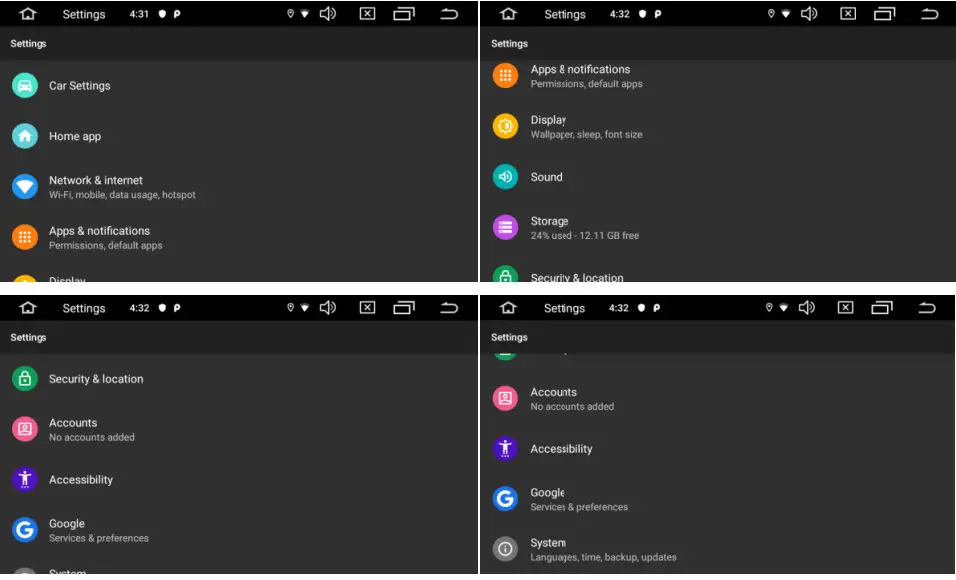
Touch the icon ”  ” on the front panel to enter Settings interface. Select the corresponding option to enter the corresponding settings option. Move the options bar up and down to find the desired settings.
 ♦ Note:
Direction of ON and OFF mode under setting interface .
[  ] ON mode
[  ] OFF mode
- Network & Internet
1.1 Wi-Fi Connection
Go to settings then Wi-Fi to ensure Wi-Fi is switched on to connect to the internet. As per the above picture, search for your desired Wi-Fi hotspot. Complete the Wi-Fi connection by inserting the password and touch Connect.
You may change the language type, language input and type of keyboard in this interface.
1.2 More
Setting of personal hotspot and VPN is allowed. - Car Settings
 2.1 Base Settings
• Power on volume limit Fixed the volume every time you turn on, avoiding sudden too loud.
• Mute during backwards The background sound is reduced when reversing, divided into 12 levels.
• Navi App Select… User may insert pre-installed navigation application to pair with the navigation button. The system will automatically display all installed applications and you may touch to select the application of your choice.
• Night Brightness Adjust the brightness of the screen at night, the brightness of the night can be the percentage of daytime brightness.
• Panel Color Setting Set the color of the panel light
• Autoplay
Insert multimedia devices to automatically play multimedia.
2.2 Steering Wheel Setting

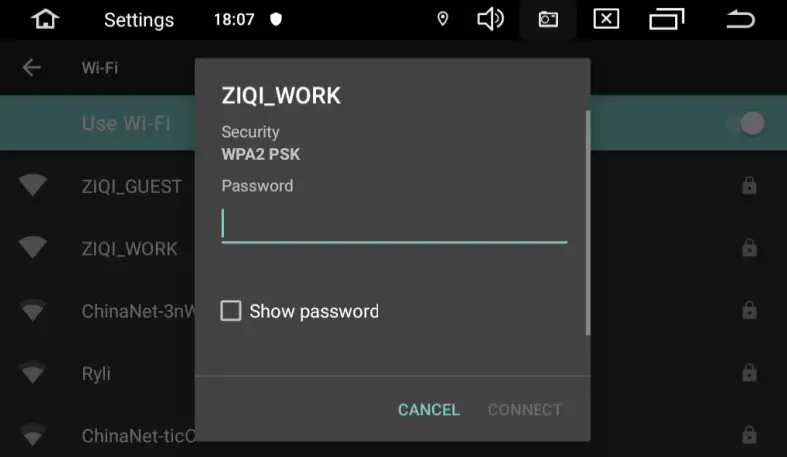 As per the above picture, search for your desired Wi-Fi hotspot. Complete the Wi-Fi connection by inserting the password and touch Connect.
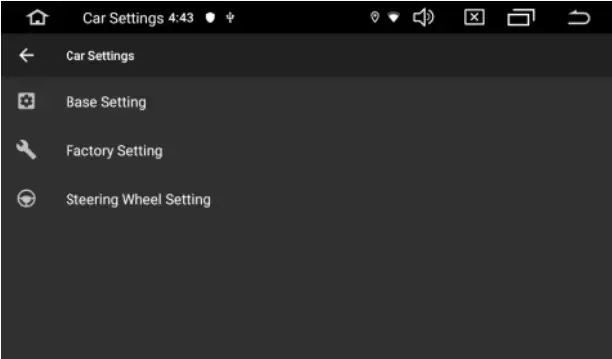 2.1 Base Settings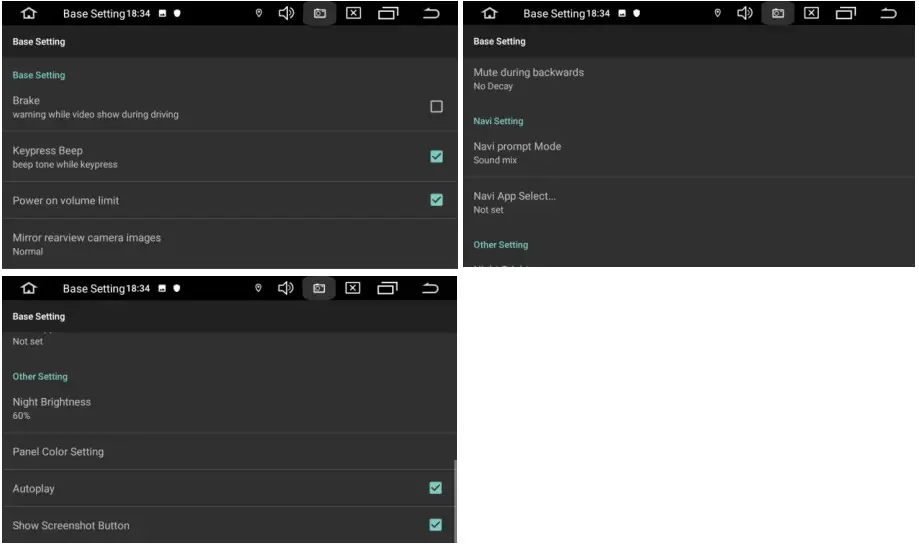
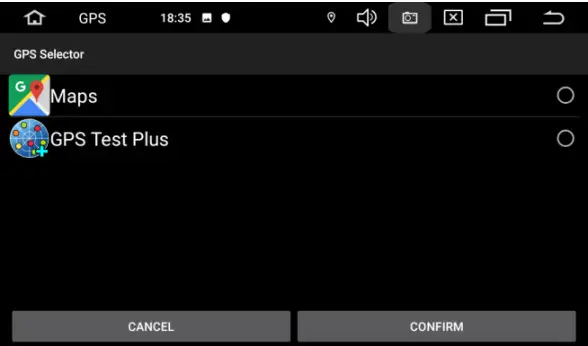 User may insert pre-installed navigation application to pair with the navigation button. The system will automatically display all installed applications and you may touch to select the application of your choice.
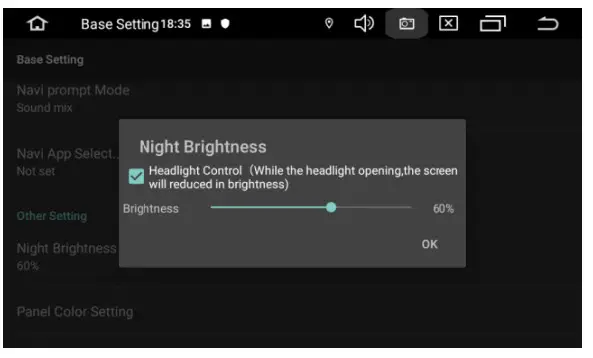 Adjust the brightness of the screen at night, the brightness of the night can be the percentage of daytime brightness.
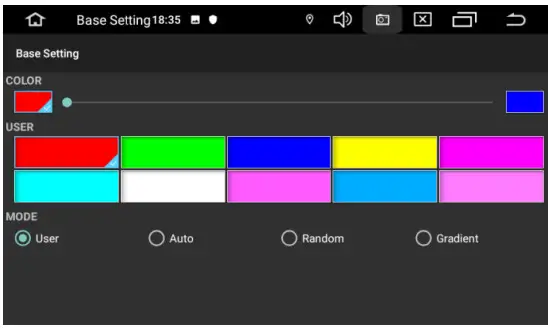 Set the color of the panel light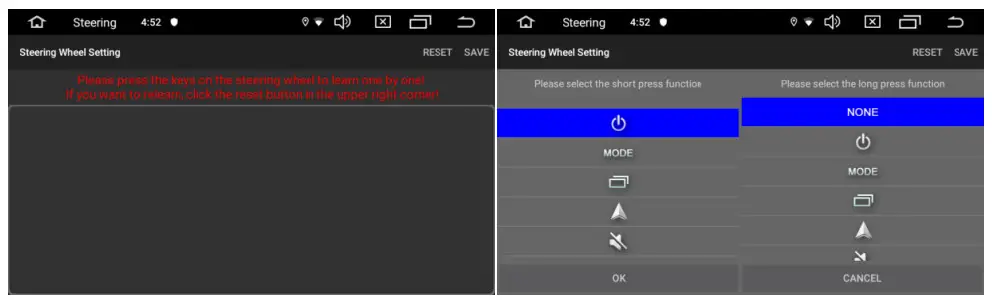
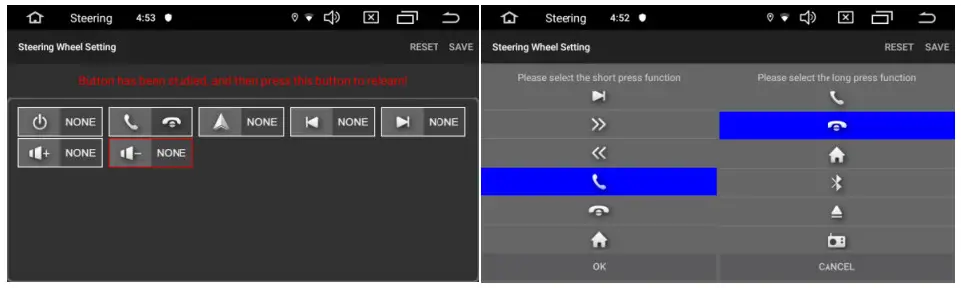
Please follow the steps below to set the features of the control buttons on your steering wheel.
- To delete all, select RESET
- Press the desired control button on your steering
- Touch the corresponding feature of the control button on the touchscreen,Long press and short press two functions.
- Click OK .
- Repeat step 2 – 4 to complete all the control button setting.
Application
- Navigation
 GPS Satellite Navigation Operation
The invention of GPS navigation has brought to the convenience of travelling today. By using the GPS positioning and electronic navigation map, user can reach the destination faster and more efficiently. To navigate accurately, both the GPS positioning and navigation map are equally important. The GPS provides precise positioning and fast calculating speed while the navigation map provides huge information, data and route planning.
1.1 Navigation Map Data
User may copy the navigation map data into the internal SD card. Before copying the data, user is to ensure there is sufficient storage space in the internal SD card. If the storage space is insufficient, please delete the unnecessary/unwanted data. The copying and deleting of data can be done through defaulted ES File Explorer.
1.2 The data of some navigation applications can be stored externally in SD card or USB drive.
♦ Note
Some navigation application defaulted its route planning on the map and may not support storage in external SD Card and USB Drive.
1.3 Installation of APK Navigation Application
Before navigation, please install APK Navigation Application and ensure the APK navigation map is correctly installed.
1.4 Navigation Activation
• Upon successful installation of APK Navigation Application, there will be a corresponding icon on the homepage. Touch the icon to launch the application.
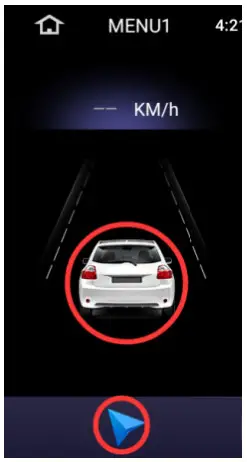
• User can also go to “Car Setting” > “Navigation Setting”>”Navigation Application Option” to link the navigation button and application. Upon linkage, user may press the “Navigation Button” to start the navigation directly.
1.5 Navigation Application Operation
Please refer to the corresponding operation manual for details in navigation application. - Radio
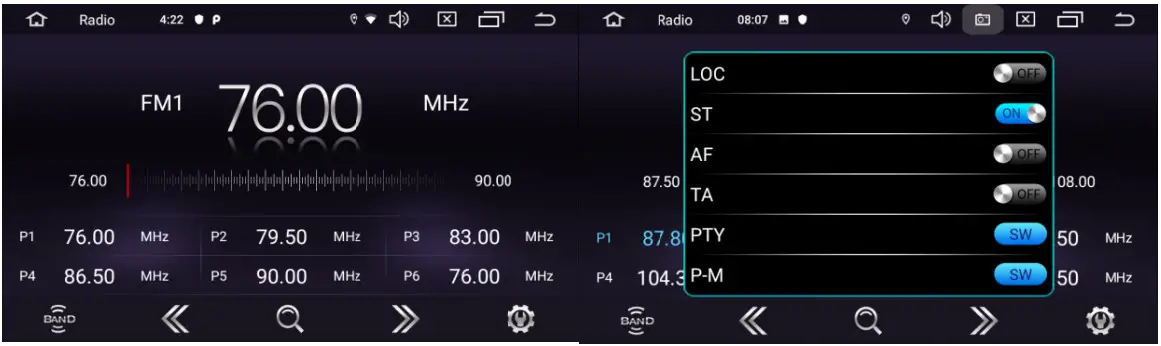
Touch the radio icon” ” on the main interface to enter radio mode. You may also touch the radio icon at the application page.
 2.1 Radio Channel Search
Use the arrow icon at the radio interface to search for band channels.
When a channel is found, the search will stop automatically and the radio will start playing.
2.2 Band Search
Touch band search to select : FM1,FM2,FM3; AM1,AM2
2.3 Automatic Channel Search
• When you touch this icon” “at the radio interface, the system will automatically search from low frequency to high frequency until it finds channel with the strongest signal.
• To stop the search, touch the icon again.
2.4 Preset Radio Channel
Each band can store up to 6 radio channels. The system can store 30 radio channels (18 FM channels and 12 AM channels).
2.5 Preset Radio Channel Manually
Long press preset radio channel button (1-6) for about 2 seconds to save the current radio channel.
2.6 Stereo/Mono Switch (only applicable to FM)
The radio signal is stronger in the city where user can receive stereo sound. However, when the signal is unstable, user can switch to mono mode to improve signal reception. Switch to stereo mode through “ST”. The “ST” icon will appear when user is at stereo mode. When it is off means stereo mode is off.
2.7 Radio interface with RDSIcon Function Role 
Traffic Announce ment Click TA symbol to light LAD, it can source automotive the station which can broadcast traffic information. thesystem will save once every minute. it will stop to display traffic matter when we get the news. and it will directly go back to the situation after traffic information displays 
Alternative Frequencies Click AF symbol to light up , RDS can swift to the station which has stronger signal when the frequency is weak. but the content of RDS station will not change. Just move to the other frequency. Meanwhile it only can source RDS station 
Program Type symbol to light up, RDS radio display type When the received RDS station. the corresponding PTY information is automatically displayed 
Regional Link Click REG symbol. it will only search the RDS stations with the same national area code (PI 8-bit representation of the high country area code) of the current RDS station If REG is not highlighted, you can search RDSstation while ignoring the area code (excluded the high 8-bit PI code ) - Video
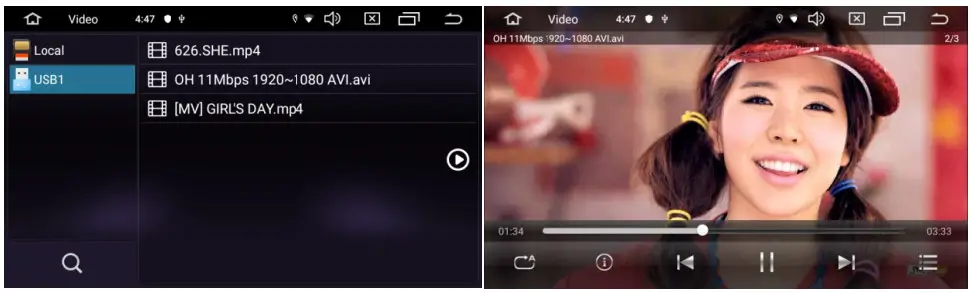
Touch the music video icon at the main interface. It supports flash internal storage card, music and video stored in USB drive, ape, flac and other formats. 3.1 Video Player Interface
Loop piayback ” ”
”
Touch ” “to switch between video, Touch to play
  or pause the video.
File list ” “.
“.
3.2 Folders and listing
To refresh video listing, touch video icon followed by the refresh button ” “. User can also access to the video folder by selecting other menu, thereafter playing the video of selection.
 - Music
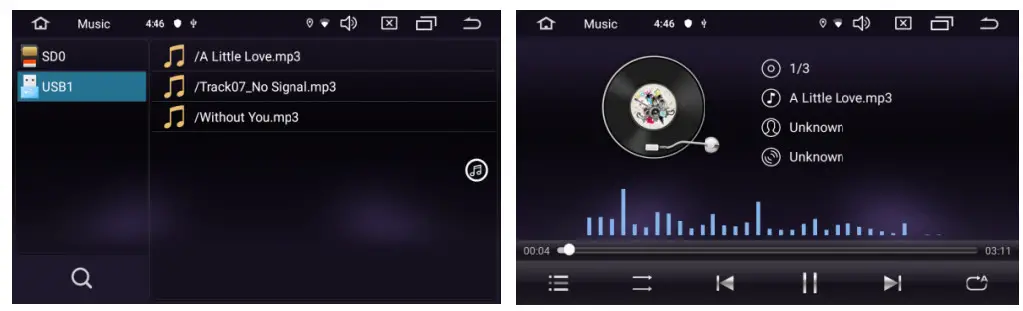
4.1 Support spectrum display is as follows 4.2 Repeat and Shuffle
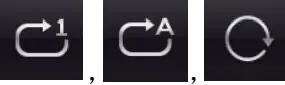
Touch” “to switch on the repeat mode. To repeat the current song
→To repeat all songs→To repeat random .
4-3 Touch ” “to switch between video, Touch to play or pause the video.
File list ” “.
4-4 Folders and listing
To refresh video listing, touch video icon followed by the refresh button ” ” User can also access to the video folder by selecting other menu, thereafter playing the video of selection. - Bluetooth
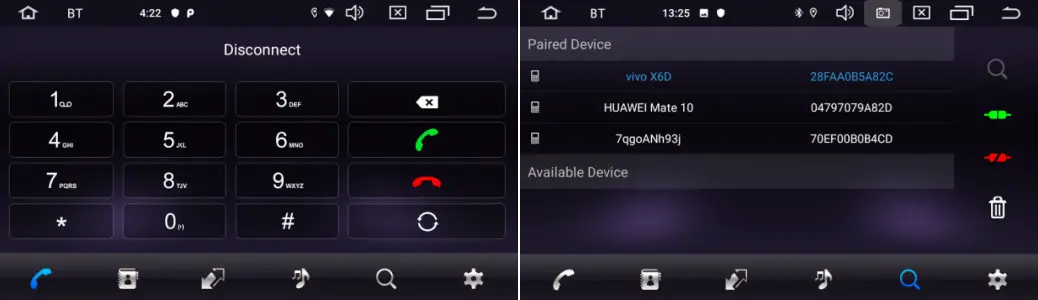
Bluetooth’s hands-free function enables you to call safely while driving.
On the front panel, touch ” ” to enter bluetooth setting as shown below.
 5.1 Pairing the machine with mobile phones
• To activate the bluetooth hands-free function, pair your mobile phone with the machine in the first place.
• Turn on bluetooth and bluetooth device search function on your mobile phone
• Search for the name of the machine. For example: BT5454
• You are required to key in the corresponding PIN number i.e. 0000 on your mobile phone to connect to the machine.
• Once connected, a “CONNECTED” sign will appear on the screen.
If the mobile phone has been already paired with the machine, user can touch ” ” directly to connect to the bluetooth in the next connection. User may also touch ”
  ” to disconnect.
5.2 Making Phone Calls
Upon establishing the bluetooth connection, user can dial directly on the phone or key in telephone numbers on the dial pad. Touch ” ” to delete the incorrect number entered.
When you entered the telephone number, press ” ” to call or ”
  ” to hang off.
 During conversation, user can touch ”
  ” on the screen to switch between private mode and loud speaker.
5.3 Syncing Contacts The machine supports syncing of contacts from mobile phone to the machine. Once
bluetooth is connected, touch ” ” to download the contacts. Once download is completed, name of the contact will be synced and shown on the display screen during phone call. For quick access to the contacts, the contact book supports name search begins with first alphabet.
5.4 Call History Call history shows outgoing call, incoming call and missed call. User can perform call or delete in call history.
5.5 Bluetooth Music
This machine supports bluetooth music playing. User can play music on the mobile phone and transfer it to the loud speaker of the machine via bluetooth. It also supports simplified controls such as “Previous”, “Next”, “Pause” and “Play”. Due to bluetooth compatibility, the machine may not support all phone models. Please contact us should you encounter problems connecting to the bluetooth.
5.6 Setting • Name of Device
Display the Bluetooth name of the machine.
• Pair Password
The password entered on the phone when pairing
• Auto Connect
By enabling this option, the machine will auto search and auto connect to the last. connected device.
• Auto Answer
By enabling this option, the machine will auto answer all incoming calls using bluetooth. - Audio
 Click equalizer application icon into the equalizer interface. Or click “Audio Setting” to enter into EQ Setup operation in all audio or video playing interface. Equalizer settings interface is divided into two functions: namely, equalizer and sound field settings function.
In the equalizer settings interface provides 8 kinds of audio playback mode choose:
In a field setting interface the user can on the front left, front right, left, right after the four angularly audio settings, as shown below: - Other google apps
7.1 Maps 7.2 Chrome
 7.3 YouTube
- Display Screen Instructions
8.1 Notes
• Do not expose the display screen directly under the sunlight or heat for a long period of time to prevent damage to the LCD screen.
• Do not expose the display screen directly under sunlight when it is not in use.
• The display screen should be used within the temperature ranges as per below:
a) Operating temperature range : -10° C ∼ + 50° C
b) Storage temperature range : -20° C ∼ + 80° C
The LCD screen is a full frontal display for better viewing experience in the car. Please do not press the LCD screen vigorously to prevent damage. Except coordinating the touch panel functions, please touch the LCD screen gently to prevent scratch or dust.
Shall not interfere with the installation of airbags and other safety features or devices in the vehicles.
8.2 About LCD
• Small black dots or bright dots may appear on the LCD screen. This is not a defect but merely the specification of LCD.
• If in use in cold areas, the LCD screen may be dimmer after power on but the brightness will be adjusted to normal after a short while.
• If exposed directly under sunlight, user may be difficult to see the LCD screen due to reflection.
8.3 Maintaining the LCD screen
• Please off the power before cleaning the LCD screen. Wipe the screen with soft fabric to prevent scratch on the surface.
• Please do not use wet towel, benzene, and chemical related cleaners to clean the LCD screen. - Installation of Antenna
Recommend installing the GPS antenna on dashboard or rear shelf. The antenna should be installed on leveled surface facing the sky to prevent blockage of radio waves as little as possible. Vehicle equipped with tempered glass or tint may weaken the receiving signal of the GPS antenna. Thus, recommend installing the antenna outside of the vehicle.
9.1 GPS Installation Guide
• Before affixing the GPS antenna, please ensure using the suitable cleaner to clean the designated surface. After cleaning, tear off the back of the tape and press to place the GPS antenna.
• Remove the side cover, move the cable through the storage box until it reaches the control panel of the machine. The cable needs to be fixed with a cable tie.
 GPS Satellite Navigation Operation
 ” on the main interface to enter radio mode. You may also touch the radio icon at the application page.
 2.1 Radio Channel Search
 at the radio interface to search for band channels.
 “at the radio interface, the system will automatically search from low frequency to high frequency until it finds channel with the strongest signal.


 3.1 Video Player Interface
 ”
” “to switch between video, Touch to play
  or pause the video.
 “.
“. “. User can also access to the video folder by selecting other menu, thereafter playing the video of selection.
 4.2 Repeat and Shuffle
 “to switch on the repeat mode. To repeat the current song
 ” to enter bluetooth setting as shown below.
 5.1 Pairing the machine with mobile phones
 ” directly to connect to the bluetooth in the next connection. User may also touch ”
  ” to disconnect.
 ” to delete the incorrect number entered.
 ” to call or ”
  ” to hang off.
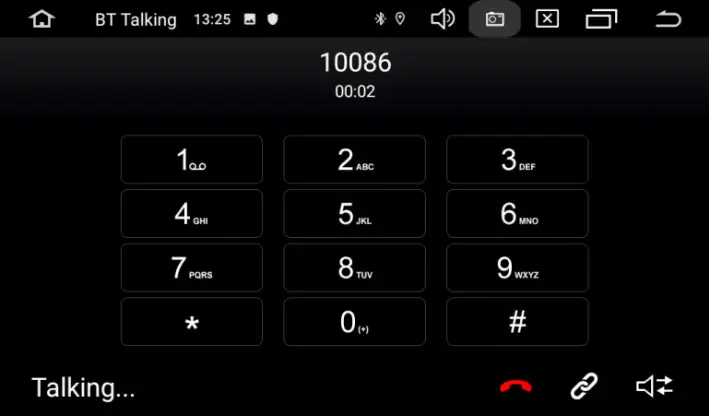 During conversation, user can touch ”
  ” on the screen to switch between private mode and loud speaker.
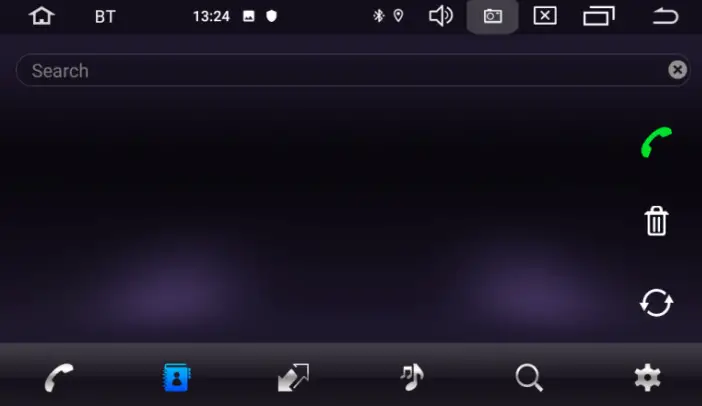 The machine supports syncing of contacts from mobile phone to the machine. Once
 ” to download the contacts. Once download is completed, name of the contact will be synced and shown on the display screen during phone call. For quick access to the contacts, the contact book supports name search begins with first alphabet.
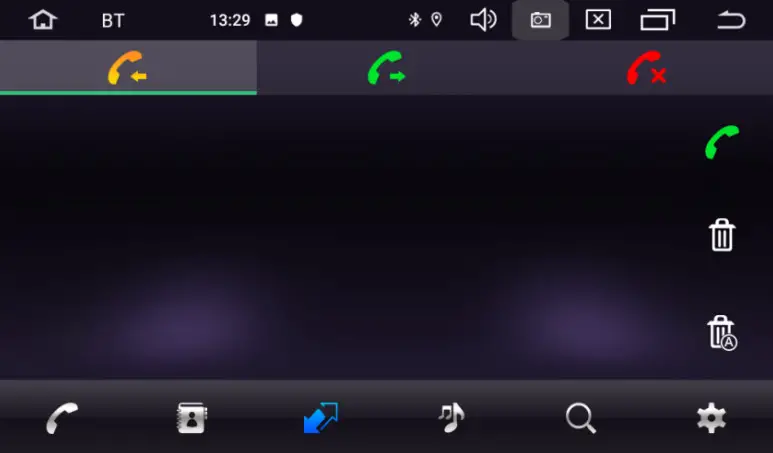 Call history shows outgoing call, incoming call and missed call. User can perform call or delete in call history.
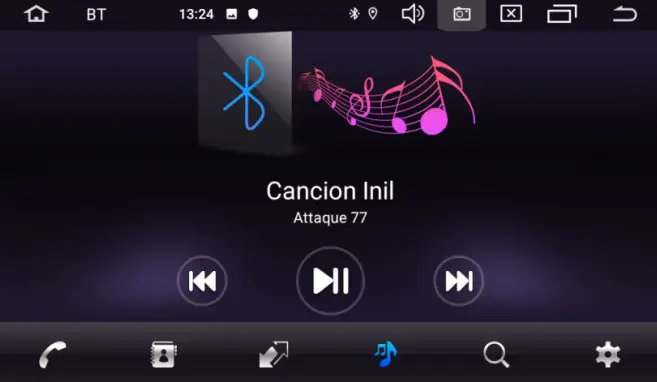 Due to bluetooth compatibility, the machine may not support all phone models. Please contact us should you encounter problems connecting to the bluetooth.
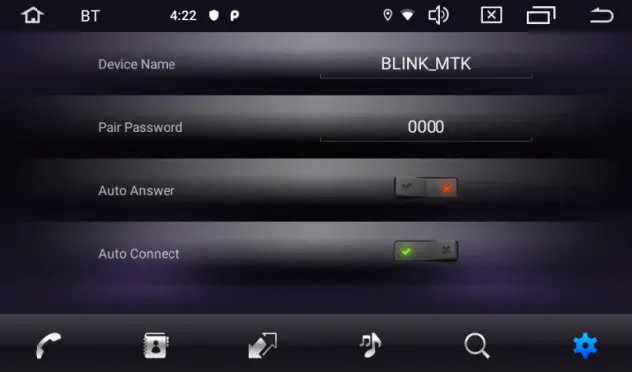 • Name of Device
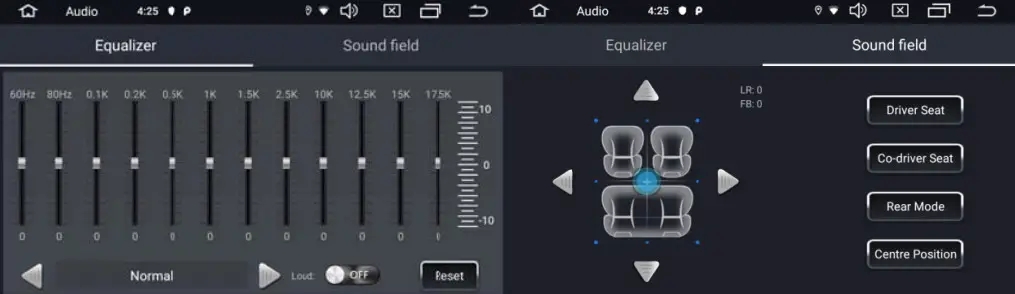 Click equalizer application icon into the equalizer interface. Or click “Audio Setting” to enter into EQ Setup operation in all audio or video playing interface. Equalizer settings interface is divided into two functions: namely, equalizer and sound field settings function.
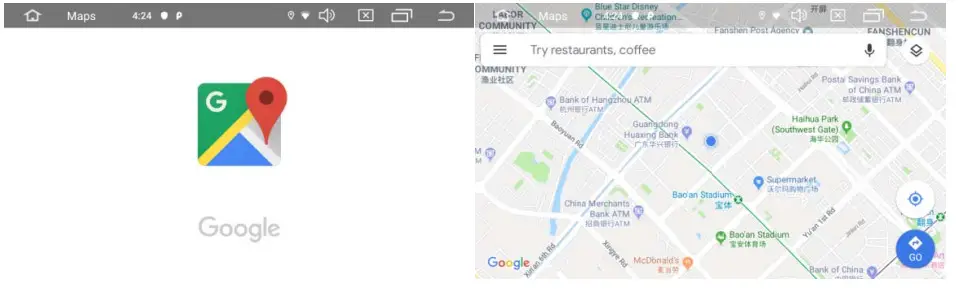 7.2 Chrome
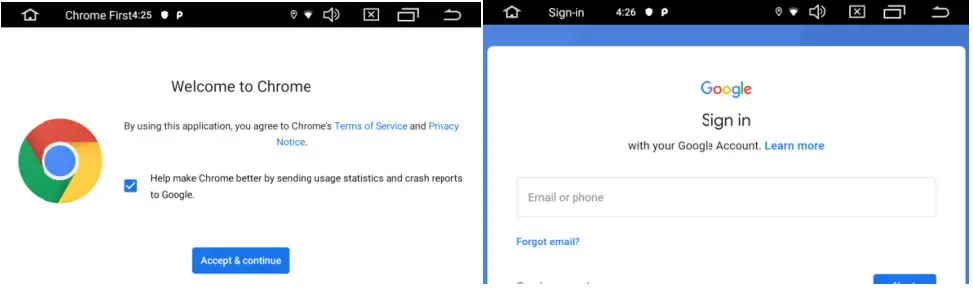 7.3 YouTube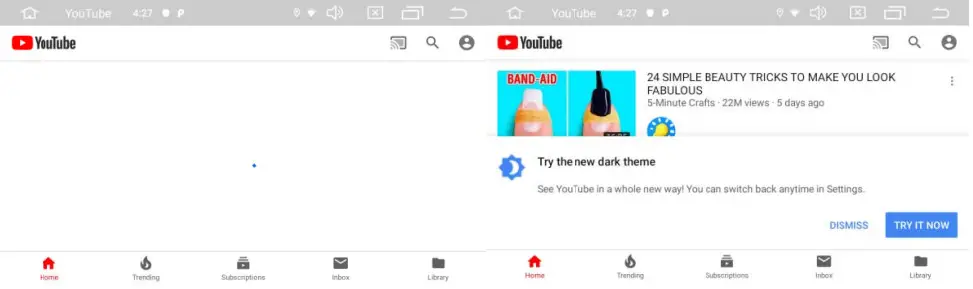
Connect the GPS antenna’s plug to the machine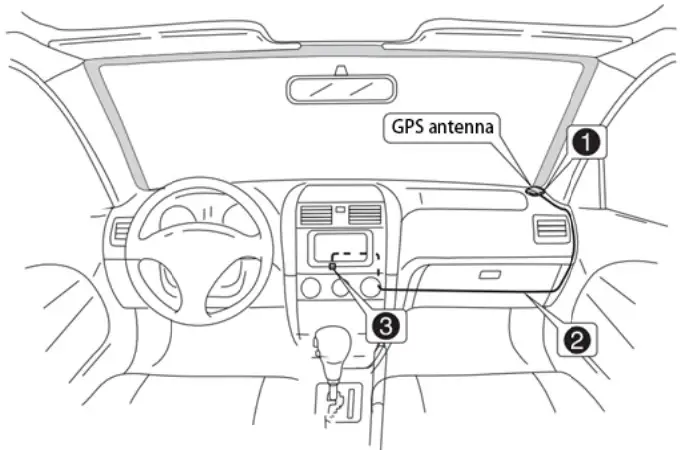 Choose to install an antenna inside the car
♦ Notes
- Please ensure the system power is off when connecting to the GPS antenna.
- Please do not shorten or extend the GPS cable. Altering the length of the cable may result in short circuit or malfunction that may damage the product.
- The antenna should be installed on a leveled surface where radio waves will be blocked as little as possible, otherwise it will affect the accuracy of navigation.
- Please do not interfere the GPS antenna with steering wheel or gear lever, as it may be dangerous.
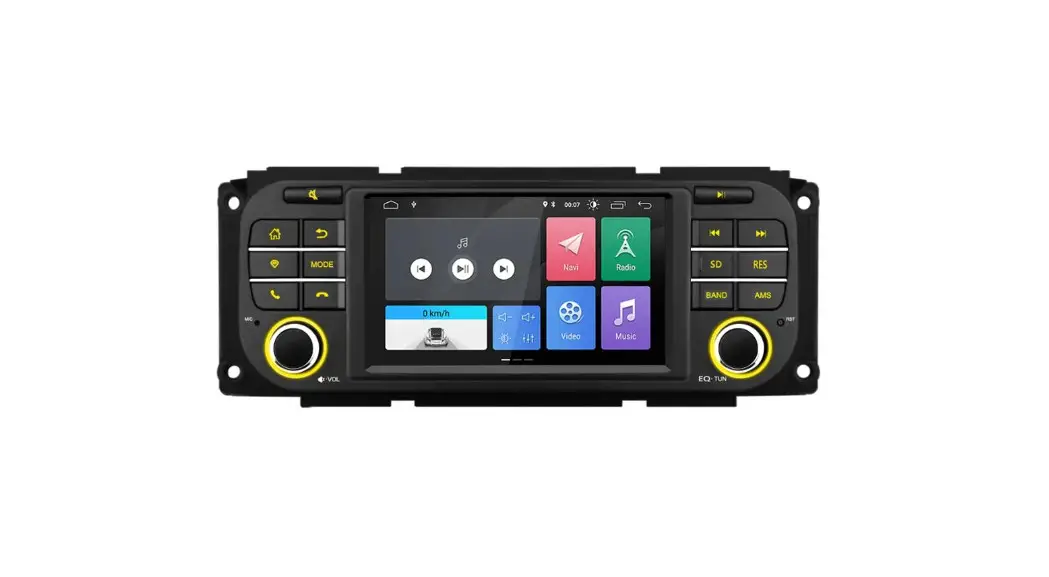
♦ Panel Function Button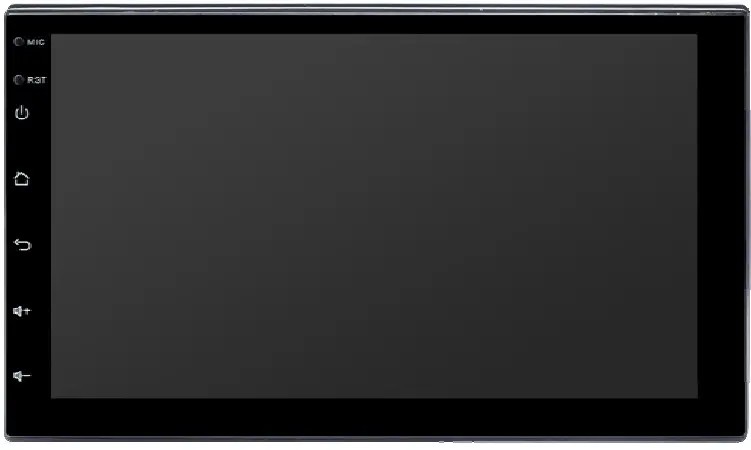
| Icon | Function | Role |
| PNR VOL | Power-Volume | ① In the off state. press this button short. the system is turned on. |
| ② In the boot state, press this button short. the system becomes mute: press this button. the system is shutdown | ||
| ③ Turn this button clockwise. the volume is increased | ||
| ④ Turn this button counterclockwise. the volume is decreased_ | ||
| HOME | Main Interface | Click to enter into main interface. |
| BACK | Back | Click to back to the last interface. |
| NAV1 | Navigation | Click to enter into GPS navigation interface. |
| DVD | DVD Play | Click to enter into disk play interface. |
 | In/Out Disc Button | disk in and out |
| PHONE | PHONE | Click to enter into Bluetooth telephone interface. |
| RADIO | RADIO | Click to enter into radio interface for receiving FM1/FM2/AM radio |
| RESET | Reset Button | Click reset button to reset system and re-start. |
Troubleshooting Guide
If you encounter the problems below, please refer to this troubleshooting guide for quick solution. If the problems persist, it is advisable to contact the professional or visiting the customer service centre for further assistance. Please do not dismantle the machine without proper advice.
| Issues | Cause | Action (Reference) |
| Unable to power on | The car key is not inserted or ACC is not turned on | Insert the car key and turn on the ACC |
| The power cord is not connected | Connect the power cord correctly | |
| The fuse is damaged | Replace the similar fuse | |
| Inresponsive touch screen | The system may be multi tasking (i.e.navigation). Please wait for a moment. If the problem persists, please contact customer service centre for assistance. | |
| No rear view image | No reverse camera is installed. | Install the reverse camera and plug in to the CCD socket. |
| Reverse camera type does not match | Replace the reverse camera. | |
| Rear view appears during reverse position even when system is not booted. Power button is null | This is part of the safety feature where the rear view function is preset for safety priority. | Power on to boot the system after resuming from the reverse position to normal. |
| No GPS signal | GPS antenna is not connected | Connect the GPS antenna correctly |
| The car may be at the GPS signal blind spot. | Drive for a distance to check GPS signal. If the problem persists, please contact customer service for assistance. | |
| Positioning and navigation failed upon power on | Blind spot of the navigation map. Some remote areas or routes may not be covered in the map. | Please contact the customer service to update the map |
| Unable to locate the destination routes | Firstly, please ensure correct spelling of the destination followed by trying possible names of the destination. If still unable to seach, the destination may not be updated in our database. | |
| Navigation routes are far | The navigation system sets a route to your destination by applying certain built-in rules to the map data. Besides, distance, the navigation system will take into consideration of the road grade, traffic rules, flyover, highway, main road and others to ensure the driver in reaching the destination soonest possible. | |
| Blank on the map | May be due to scale setting. Try to zoom in and out to adjust the map display. If the problem persists, it may be due to loss of GPS signal. Please reset the destination or select a new landmark. | |
This device complies with part 15 of the FCC Rules. Operation is subject to the following two conditions:
- This device may not cause harmful interference, and
- This device must accept any interference received, including interference that may cause undesired operation.
This equipment has been tested and found to comply with the limits for a Class B digital device, pursuant to Part 15 of the FCC Rules. These limits are designed to provide reasonable protection against harmful interference in a residential installation. This equipment generates uses and can radiate radio frequency energy and, if not installed and used in accordance with the instructions, may cause harmful interference to radio communications. However, there is no guarantee that interference will not occur in a particular installation. If this equipment does cause harmful interference to radio or television reception, which can be determined by turning the equipment off and on, the user is encouraged to try to correct the interference by one or more of the following measures:
- Reorient or relocate the receiving antenna.
- Increase the separation between the equipment and receiver.
- Connect the equipment into an outlet on a circuit different from that to which the receiver is connected.
- Consult the dealer or an experienced radio/TV technician for help.
Changes or modifications not expressly approved by the party responsible for compliance could void the user’s authority to operate the equipment.
This equipment complies with FCC radiation exposure limits set forth for an uncontrolled environment.
This equipment should be installed and operated with minimum distance 20cm between the radiator & your body.