
Product Manual
Entertainment System Car Multimedia 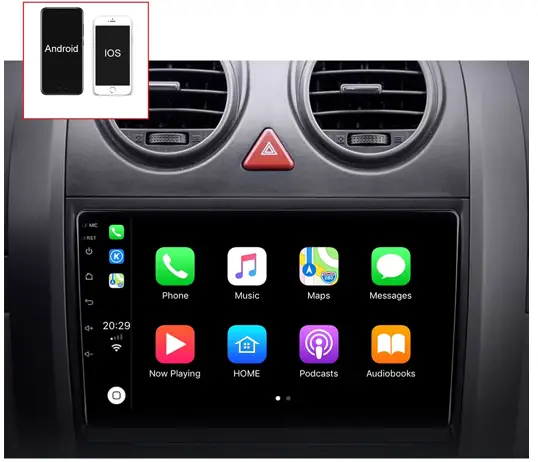
Start/close the unit
- Start the unit
If you close the unit with car keys and insert the key again, the unit will be automatically started. If turn the panel power button off, then restart the unit, press the power button. - Close the unit
Unplug the car keys, and the system recognizes and closes the unit. Long press the power button, and the system automatically shut down (depending on the specific models).
Main menu
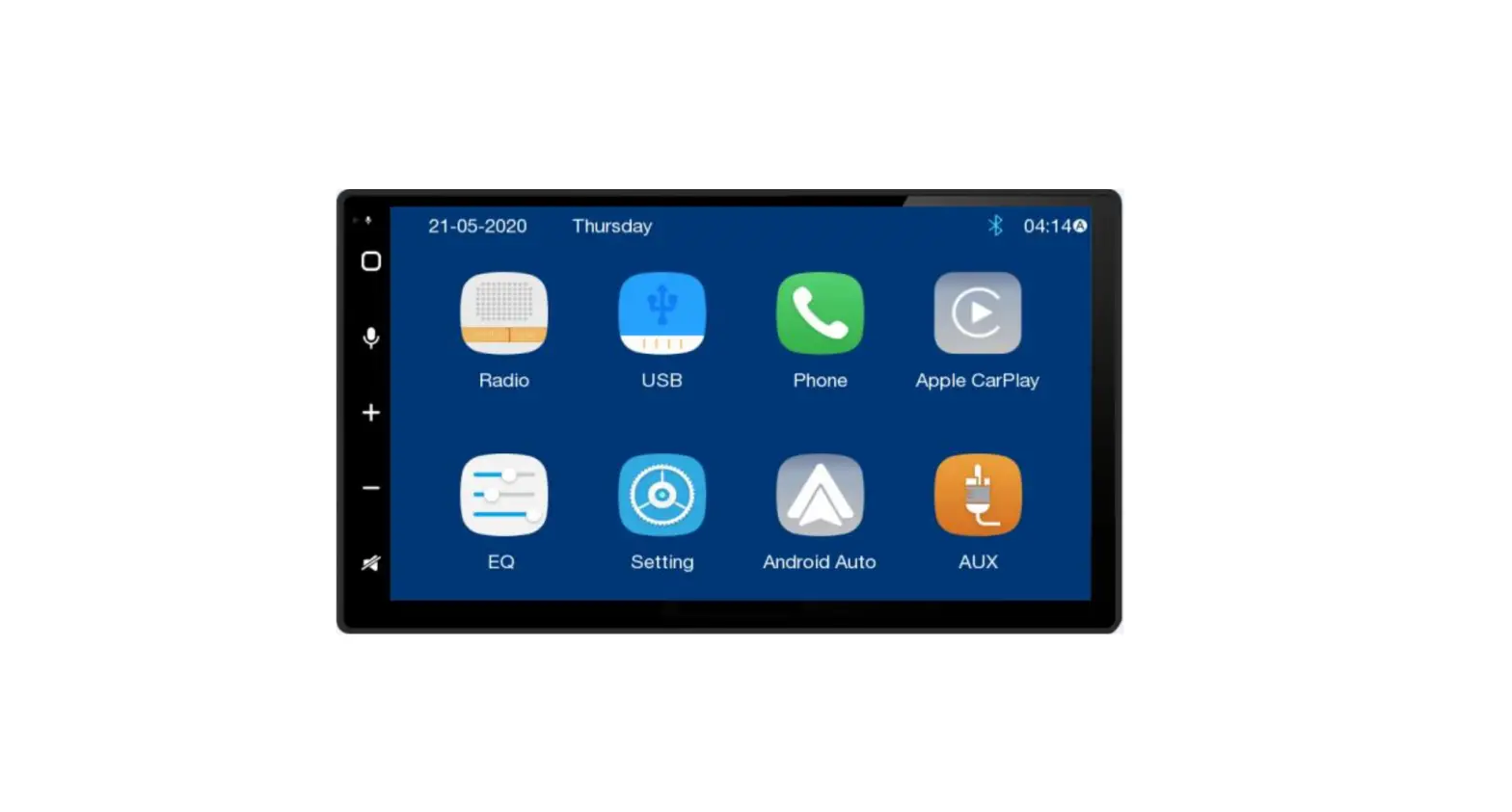
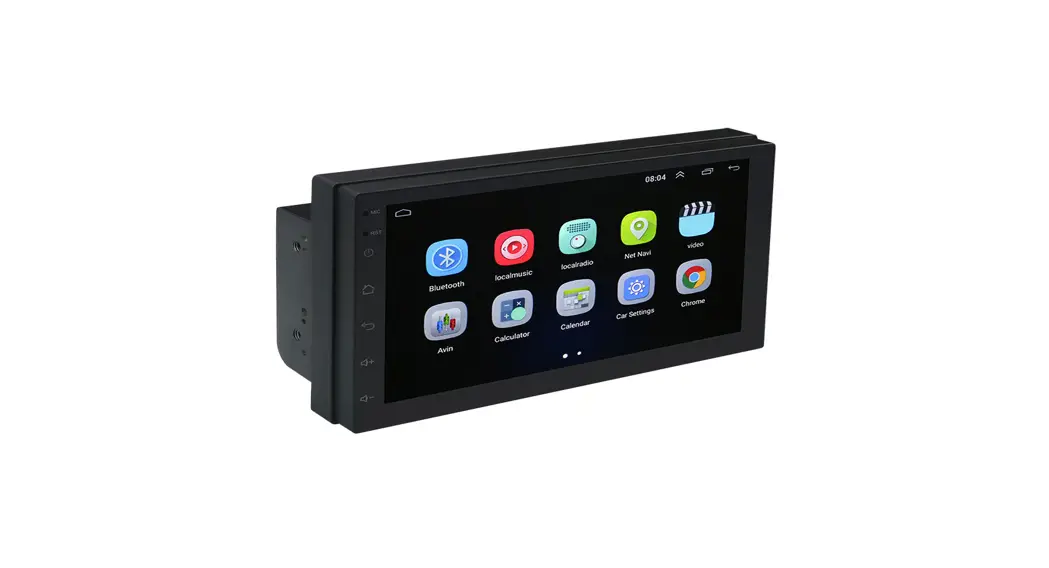
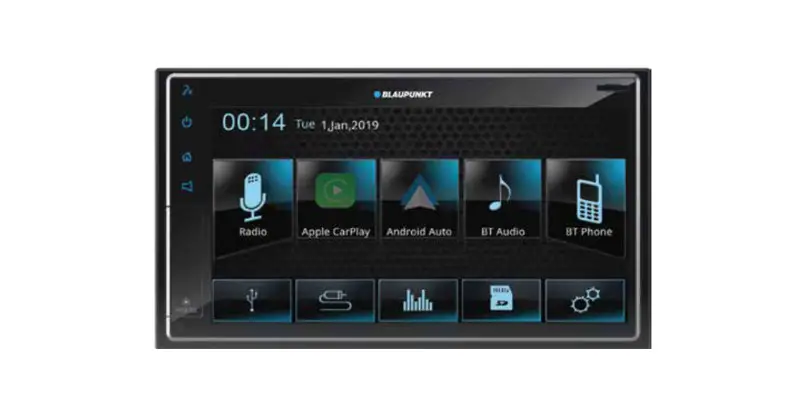
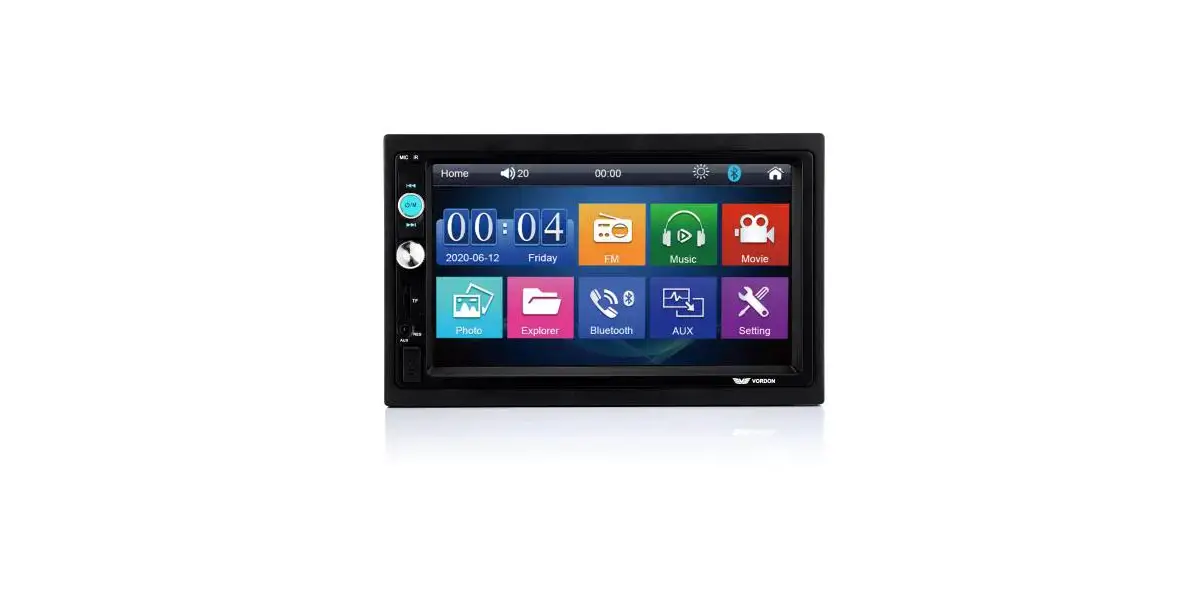
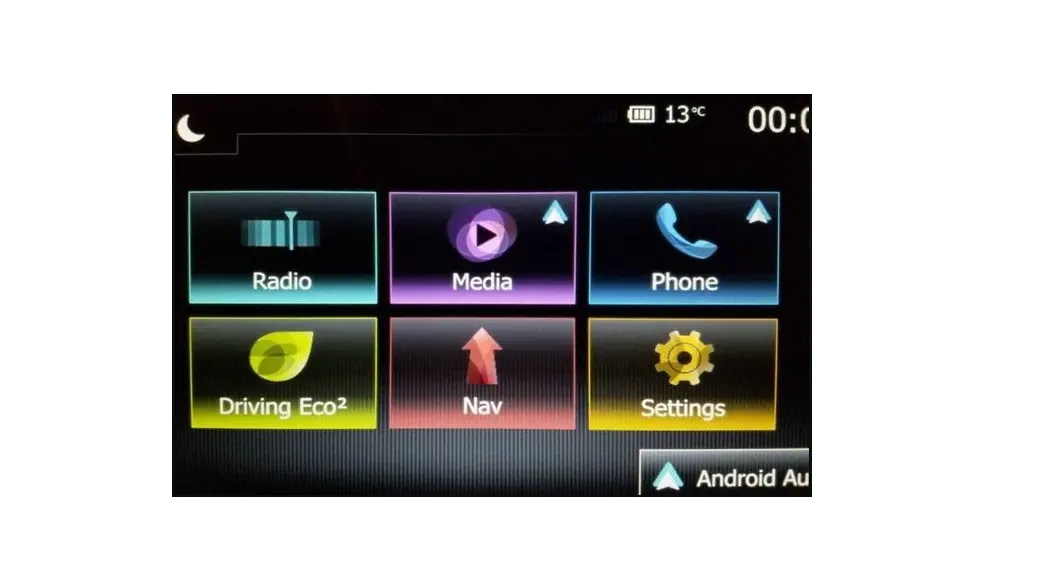
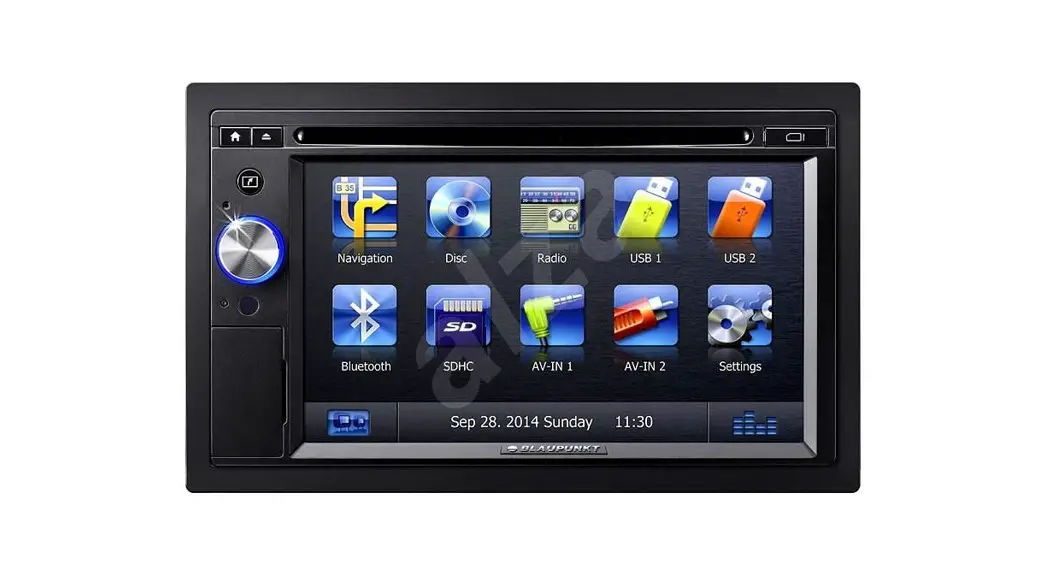
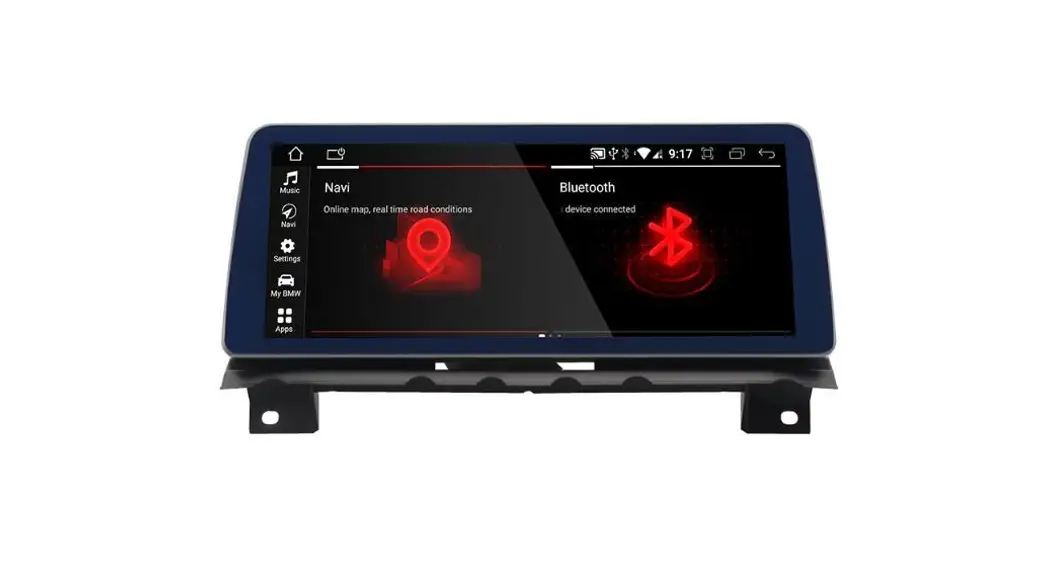
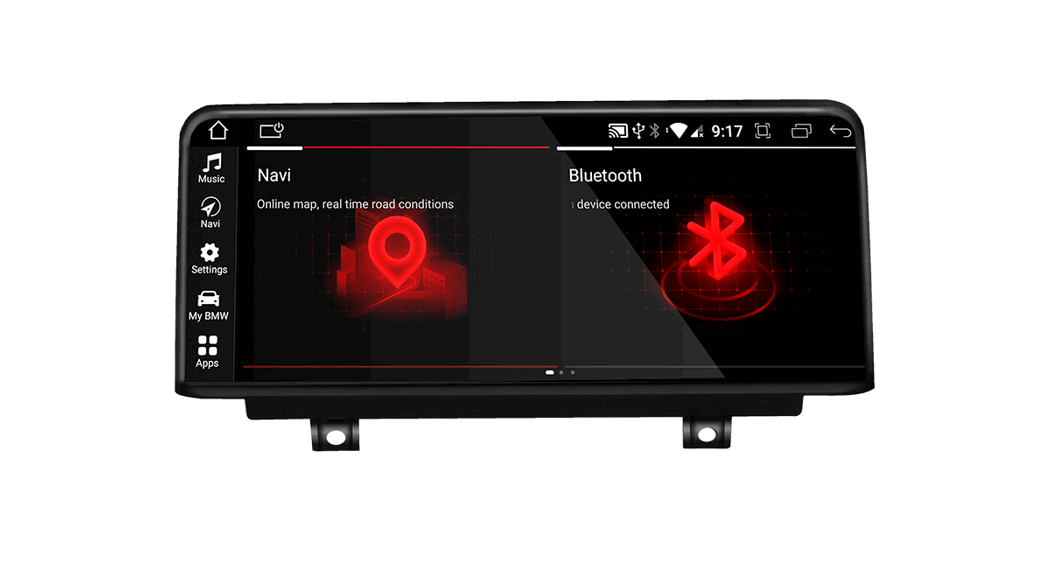
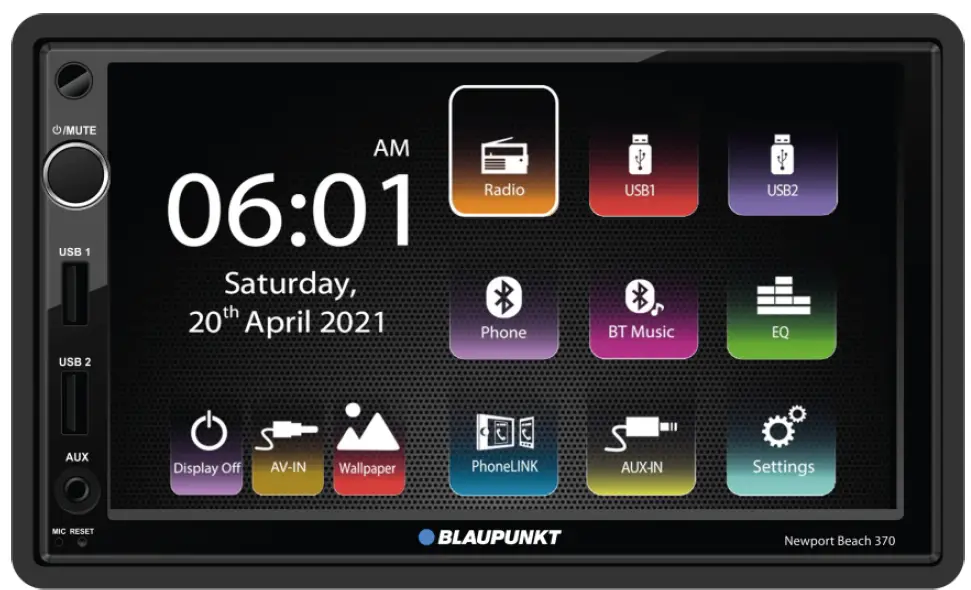
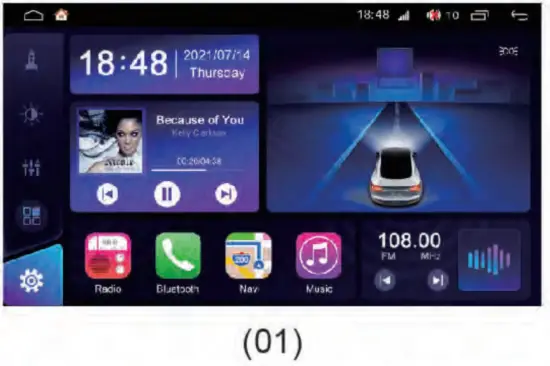
- When turning on the unit, the system default to the main menu interface. If the unit comes with a canbus, the main interface is shown as like(figure -01); If the unit comes without a canbus, the main interface is shown as like(figure -03).

- Click ”
 ” to enter the submenu interface (figure -02), turn left / right sliding gently on the screen, and can turn to the next page. Click the icon and enter the interface to operate the function.
- On any interface, click the
 icon to return to the main interface.
 - Click the”
 ” icon to achieve quick operation.
 - On any interface, click-
 the” icon in the upper right corner to view the program running in the background. Click interface can enter the function interface. To the left/right slide can be disabled, removing such operations. Click the ”
  ” can remove all operating procedures (figure -03)
 ” to enter the submenu interface (figure -02), turn left / right sliding gently on the screen, and can turn to the next page. Click the icon and enter the interface to operate the function.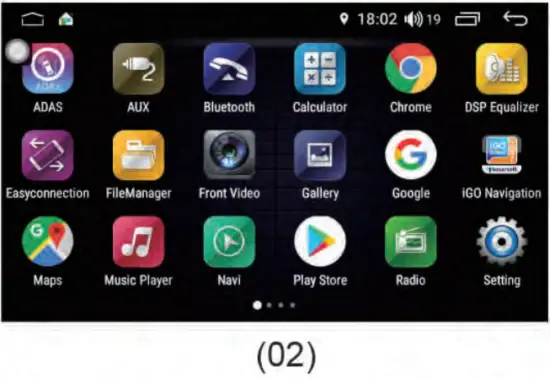
 ” icon to achieve quick operation.
 the” icon in the upper right corner to view the program running in the background. Click interface can enter the function interface. To the left/right slide can be disabled, removing such operations. Click the ”
  ” can remove all operating procedures (figure -03)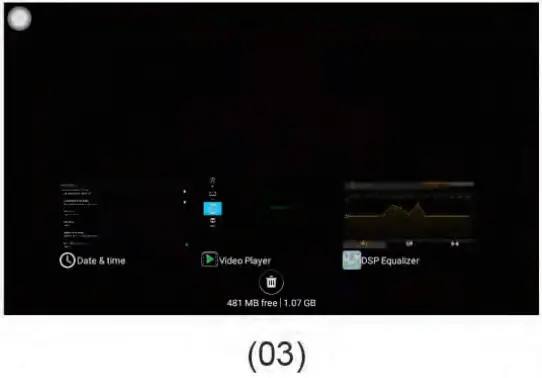
Radio function
Entry/exit
In the main interface, click the “RADIO” icon to enter, the radio interface (Figure -04). Click- ” icon to exit the radio.
 | Band switching |  | Save current channel |  | Stereo |
| Remote search | Automatic search | Manual input frequency | |||
| Program type | (highway information program) function | audio frequency | |||
| Settings | Manual adjust | ||||
 Click the high and low frequency to adjust, and long-press the high and low frequency to search the channel.
Bluetooth hands-free operation
Entry/exit
In the main interface, click the” sr icon and enter the Bluetooth interface (figure -05).
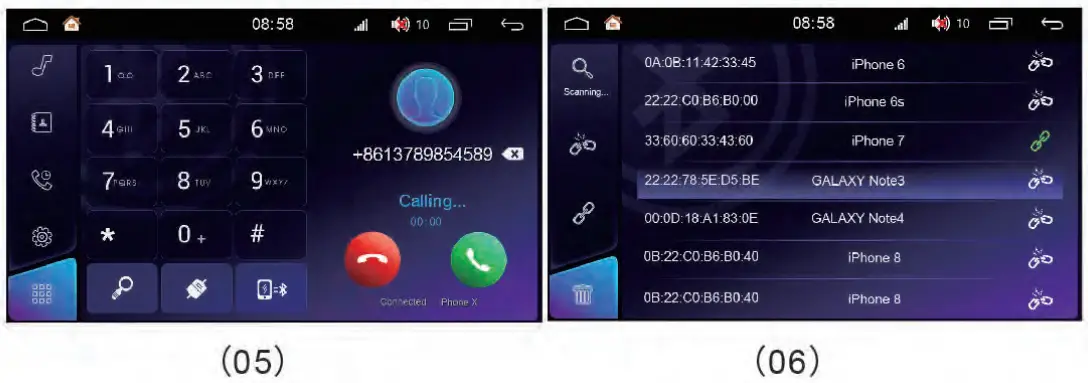 Click the
 icon, and search nearby the opened Bluetooth device (figure -06). Click the
  can connect the equipment. Click again to disconnect the link.
Dial
You can use a mobile phone or the number on the screen keyboard to dial click “ ”to call the input number; click “
 ” to end the call.
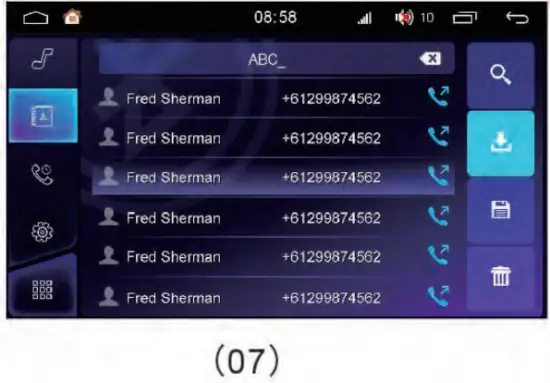
There is a synchronous call function, after the mobile phone link is successful, the phone will automatically sync to the unit. Click ”  ” icon to enter the telephone interface; Click “
 ” can automatically download the phonebook; click ”
  ” to search for phone numbers, and click “
 ” to save a number; Click “
 ” to delete the number (figure -07)
 Call record synchronization
Click  icon to enter the call interface. You can view the records of missed calls, received calls, and dialed calls (figure -08).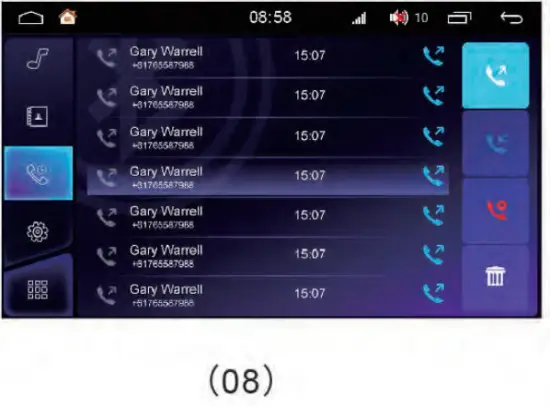
 | Dialed calls |
| Missed calls | |
| Received calls | |
| Delete records |
Bluetooth Music Player
if the phone has a Bluetooth music player function. can swift to vehicle loudspeaker system to play the music. Click “” into the music player interface (figure -09). 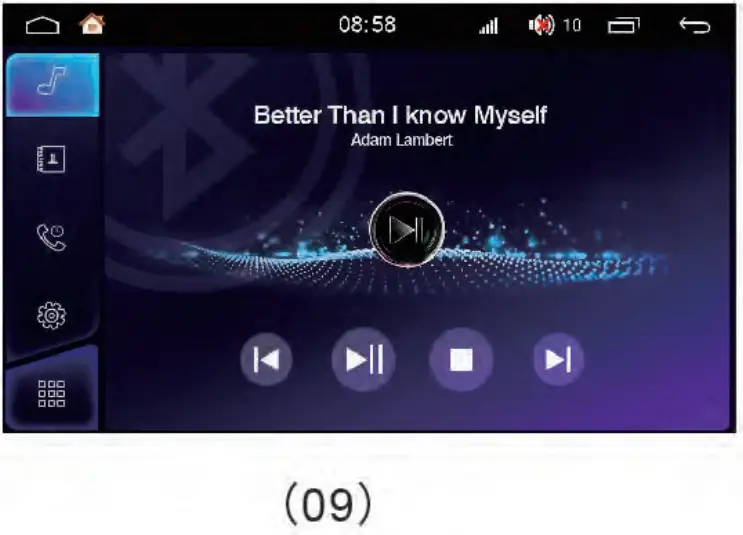
Music Player
In the main interface, click the “music” icon to enter the music player interface (figure -10), and click the right side ”  “to the playlist interface (figure -11;
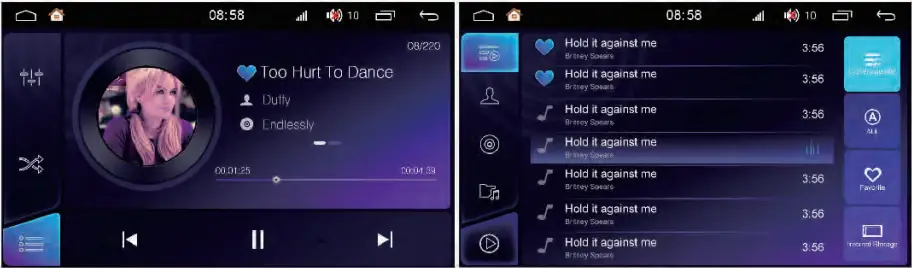
 | Song list |  | Previous song |  | Next song |
| Pause | Play | Random play | |||
| All cycle | Sequential play | ||||
Sound effect settings
- Click “
 ” to enter the audio setting interface; (as shown in figure 12)
Drag the “ ” icon to adjust the volume. Users can choose their preferred mode according to the actual demand.
- Click on the “
 ” to freely adjust the sound source location (as shown in figure 13), and click on the direction button to fine-tune the sound source position. Users can also click on the default mode to achieve their desired effect.
 ” to enter the audio setting interface; (as shown in figure 12)
 ” icon to adjust the volume. Users can choose their preferred mode according to the actual demand.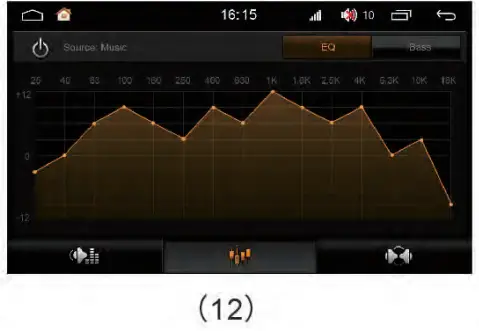
 ” to freely adjust the sound source location (as shown in figure 13), and click on the direction button to fine-tune the sound source position. Users can also click on the default mode to achieve their desired effect.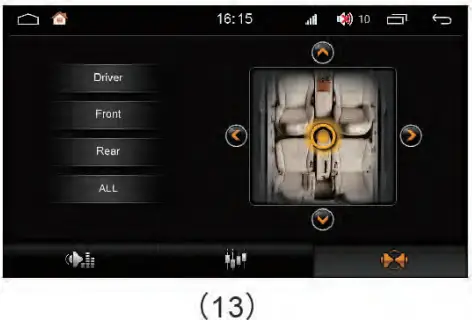
Mirror Link
Mirror Link
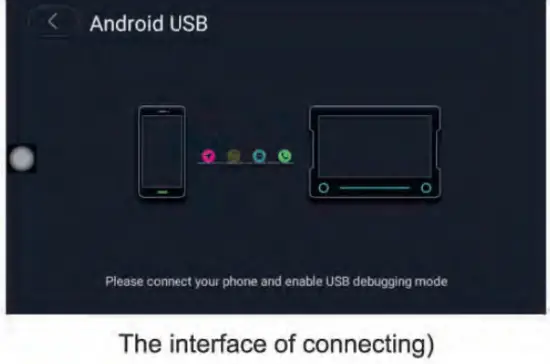
Directly connect to the USB through the mobile phone charging line, (keep the screen in a bright state). Choose the USB debugging option in the settings of the mobile phone (settings developer options->USB debugging).
Click on the ”  ” Icon to enter into the interface of the connection type, then choose one type you need (as shown in the following).
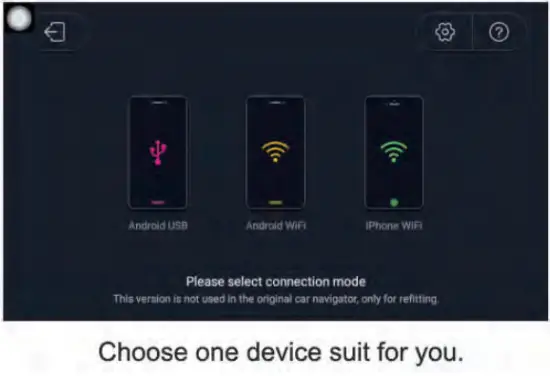
Android USB
Connection Android device connection needs the installation of the ”” APP. After successfully linked, you can synchronously operate the mobile phone and the car machine.
iPhone WIFI connection
The mobile phone should connect the same WIFI hotspot with the car mechanic, and turn on the Airplay mirror image on your PHONE at the same time.
After the link, the image can show on your card machine. 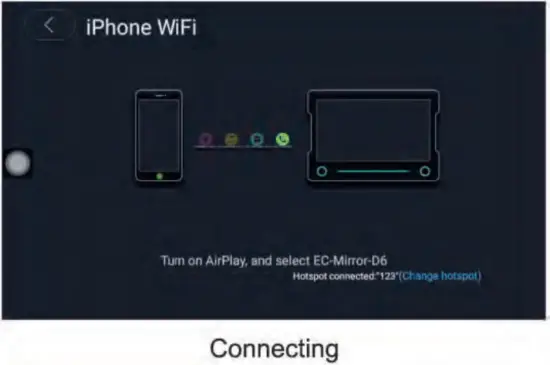
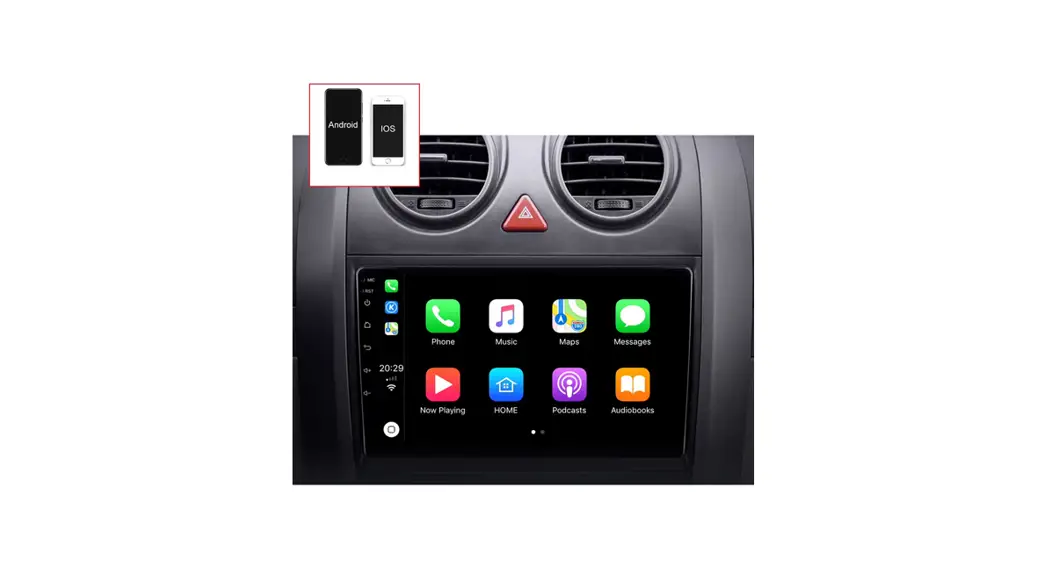
Designed for CarPlay & Android
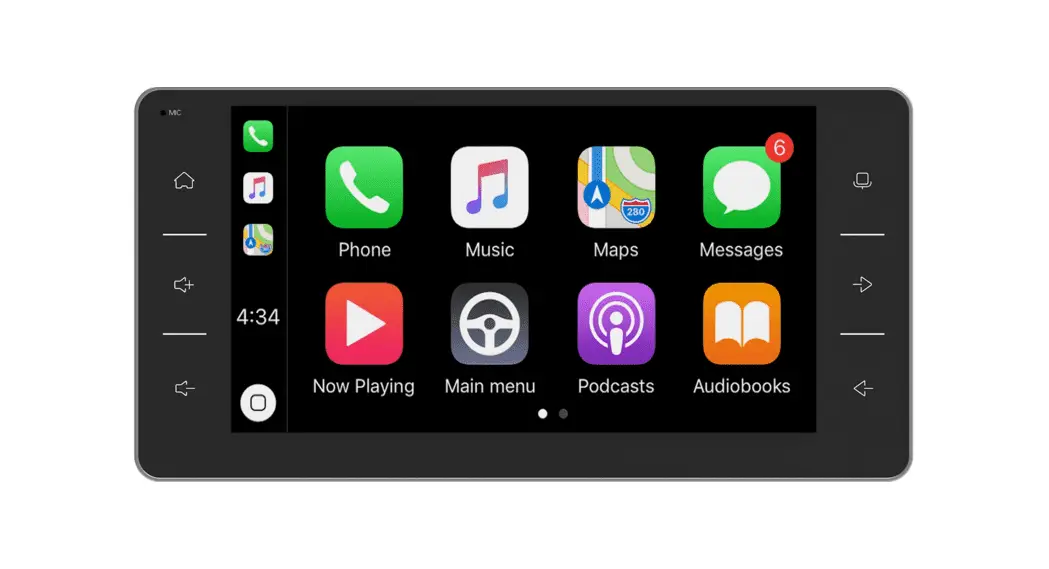
- CarPlay
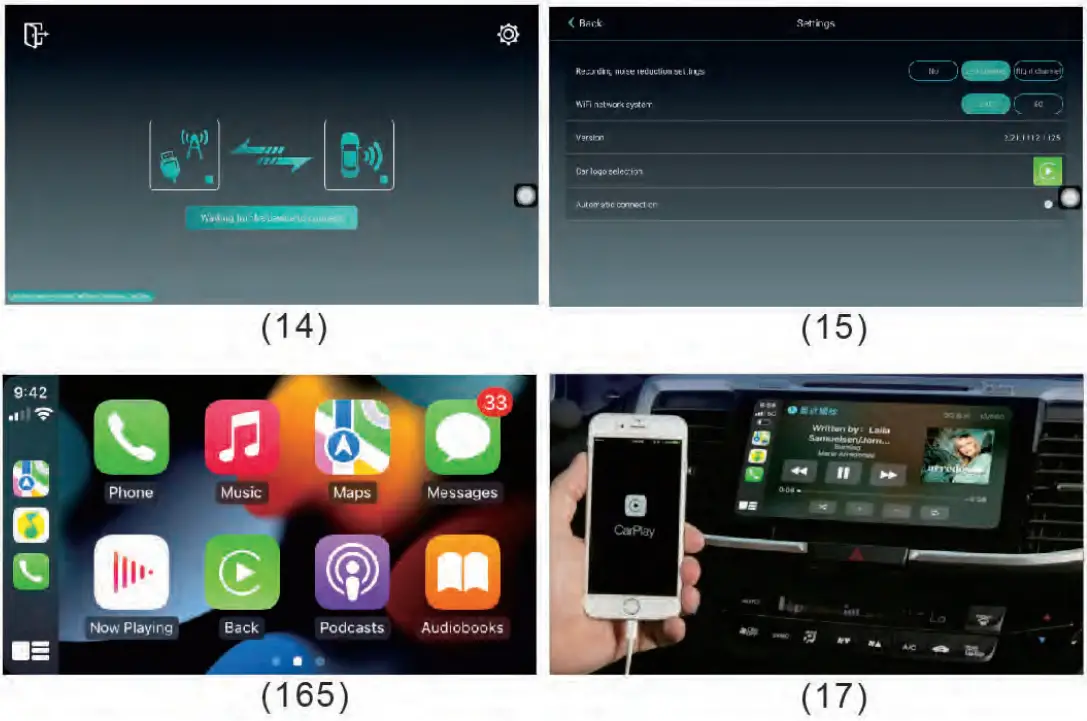
Connect your Phone via USB adaptor(figure:14-17)
- Android Auto
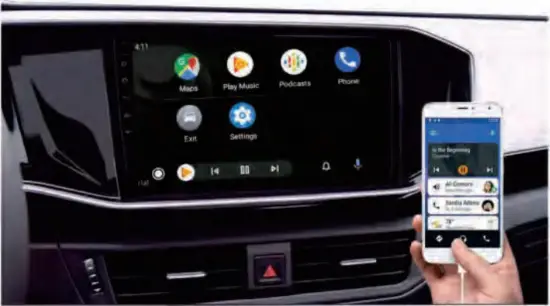
Android phones use Android Auto via data cable