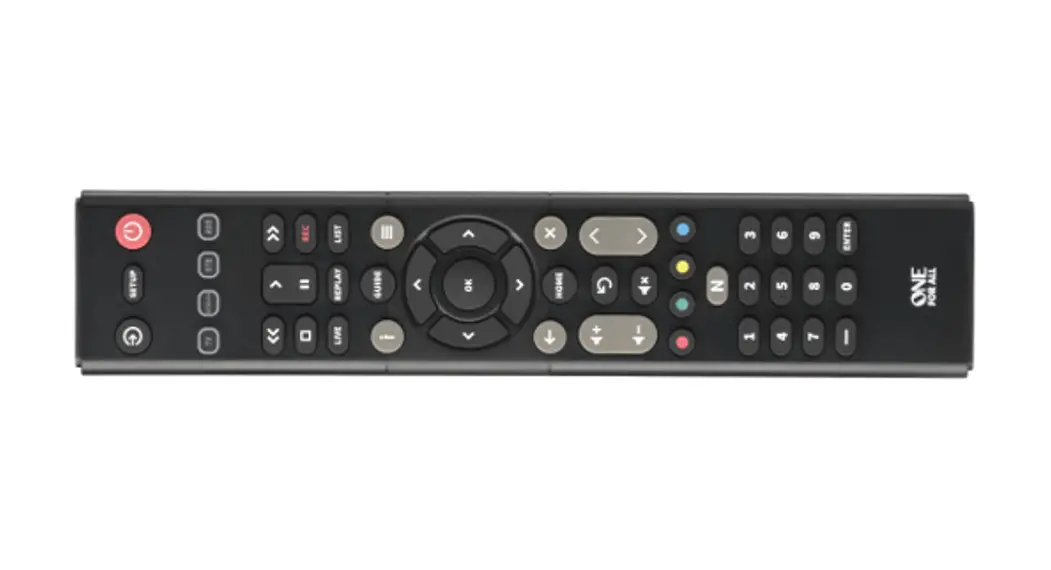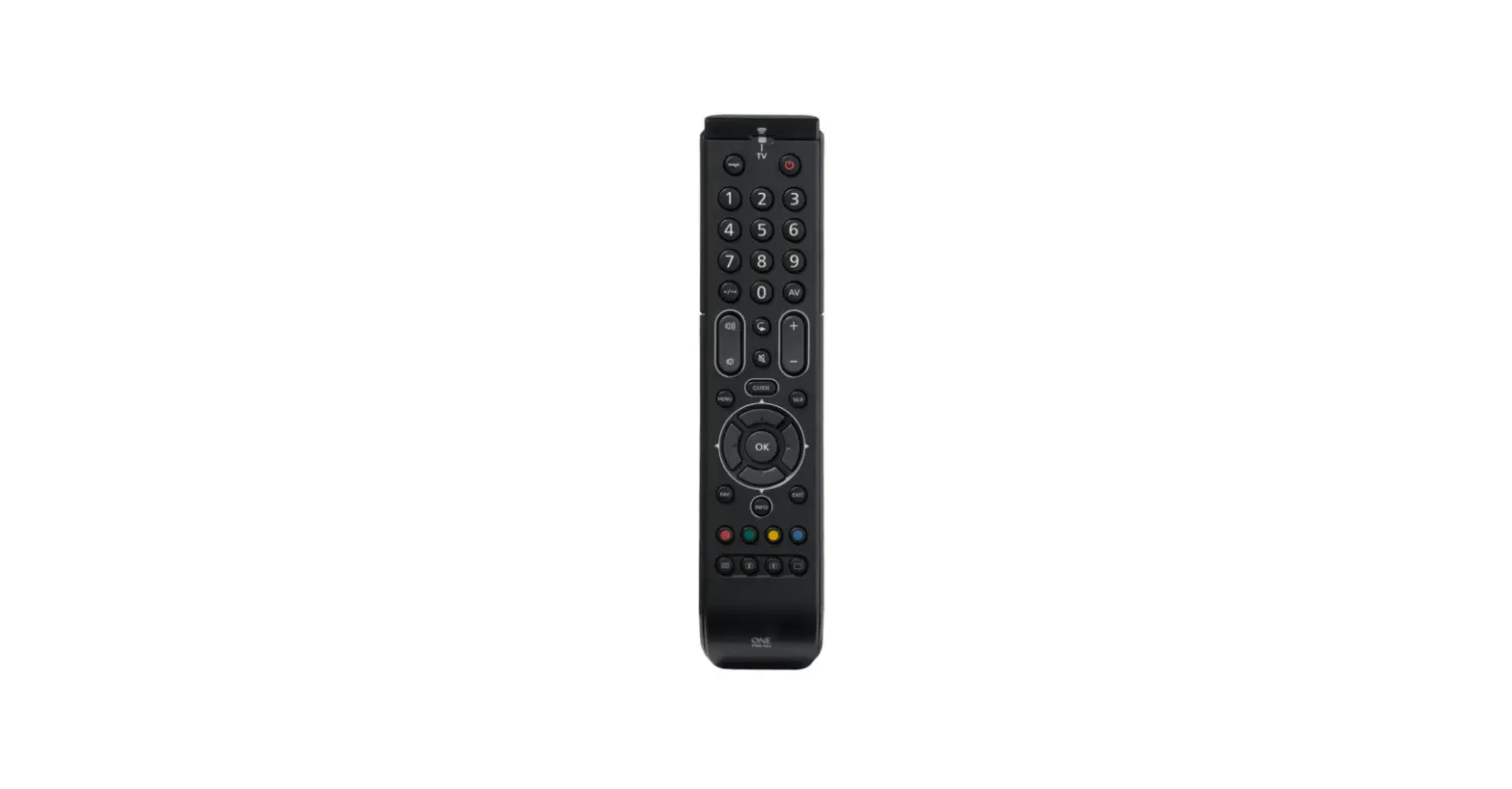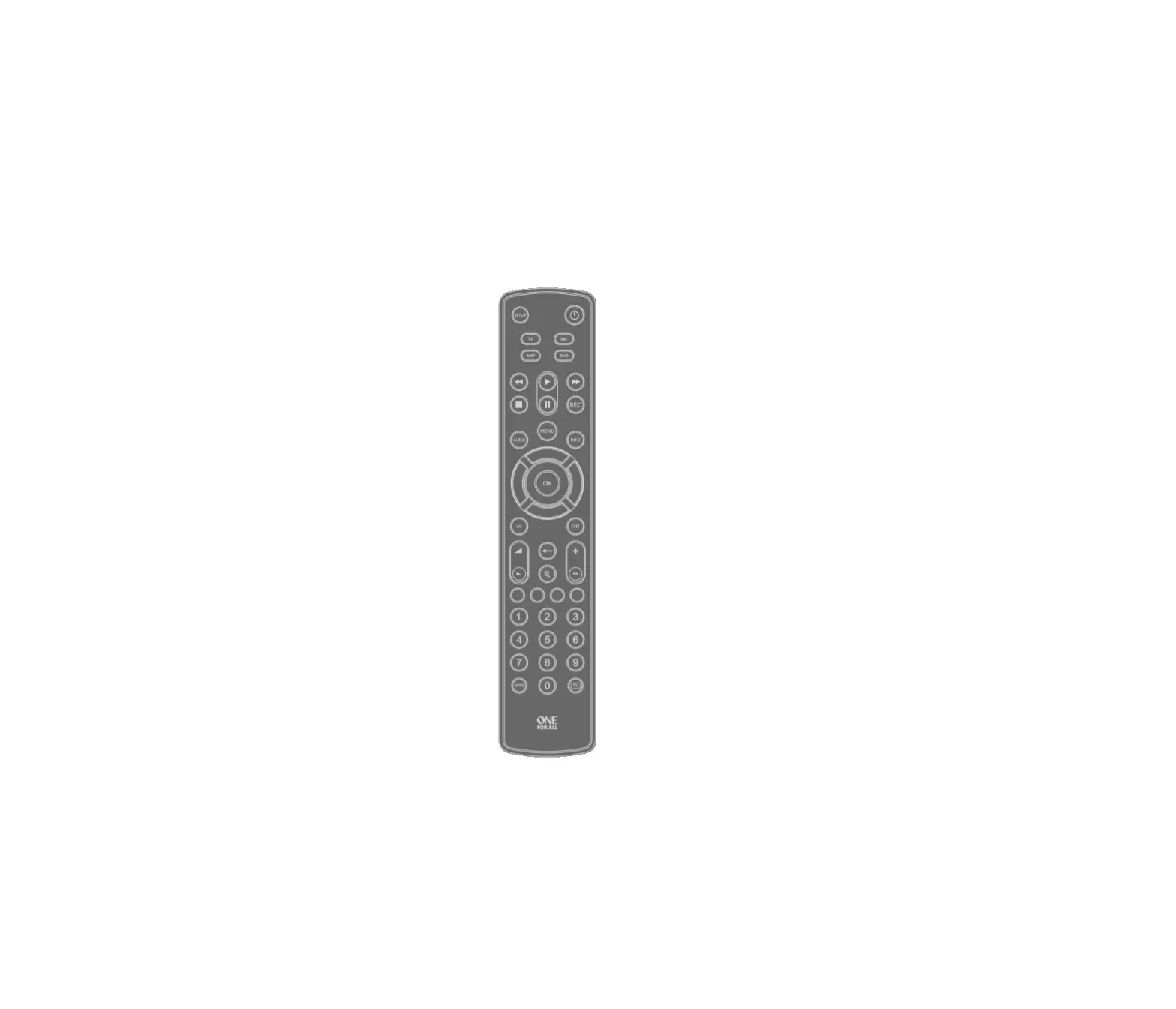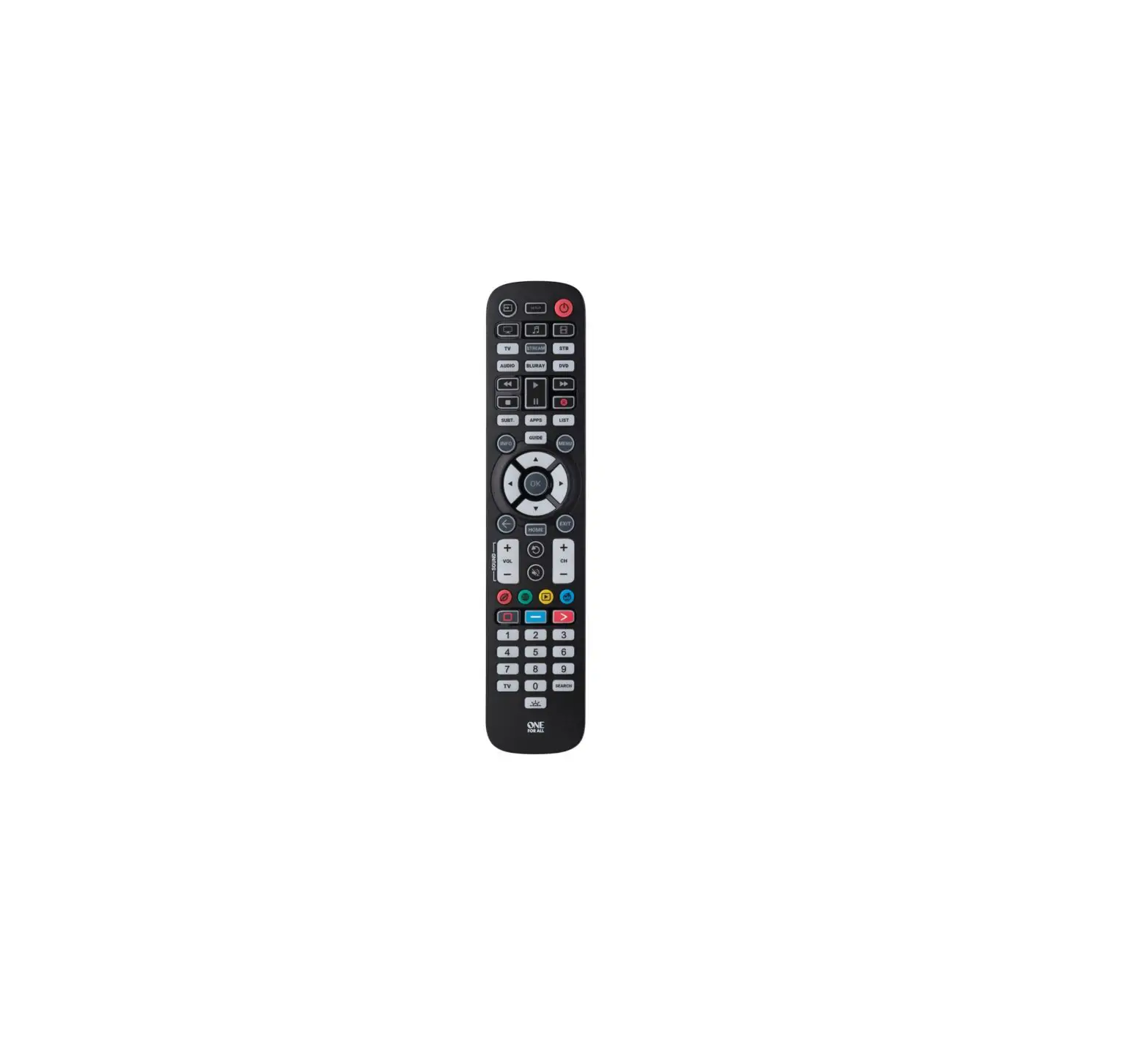

ONE FOR ALL URC2160 Essence 6 Device Universal Remote Control
INTRODUCTION
Thank you for purchasing the One For All Essence Universal Remote Control. The remote can be used to control up to 6 Audio Video Devices such as a TV, Set Top Box, Streaming device, Blu-ray player, DVD player/recorder, audio system, and soundbar. This manual will help you to set up Essence to control all of your devices and take advantage of its features.
BATTERIES
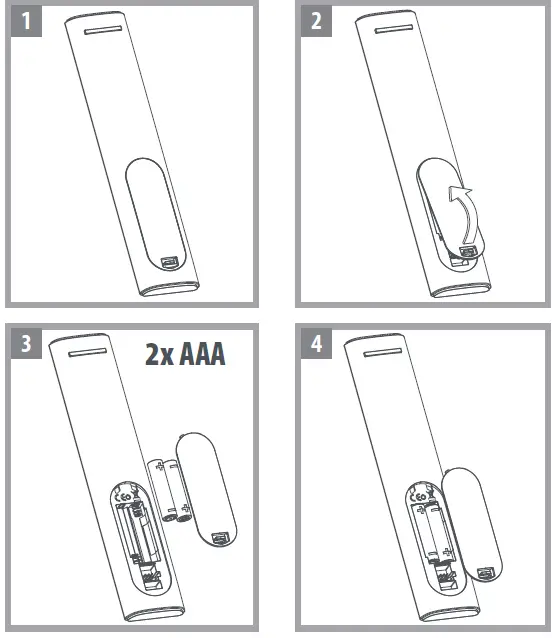
- Your remote requires 2 x AAA / LR03 batteries (not Included).
- Please insert them as shown below. Alkaline batteries are recommended.
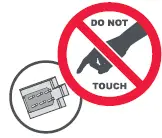 CAUTION: Risk of explosion if battery is replaced by an incorrect type. Use quality Alkaline batteries.
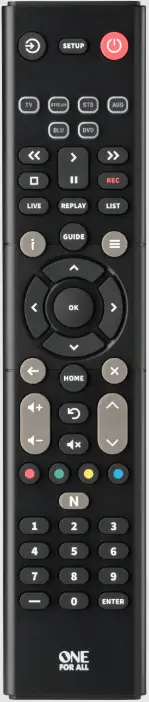
KEY DESCRIPTIONS
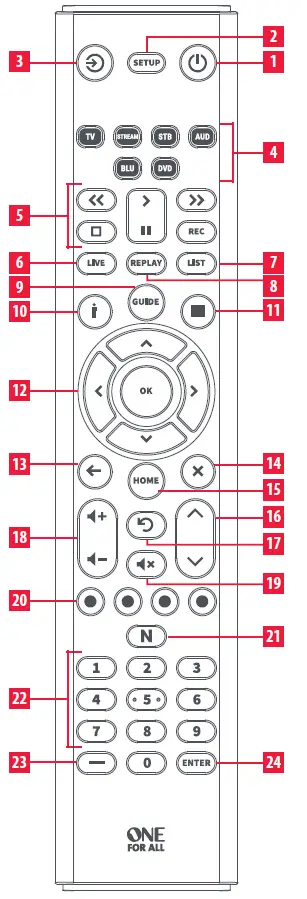
- Power: Switches your devices on and off
- Setup: This key is used to set up the Essence remote
- Input: Used to select Input on devices
- Device keys: These keys are used to select which device the Essence currently controls. After pressing the TV key, the remote will control your TV. To switch to controlling another device, simply press the appropriate key. The devices that can be programmed to each key are as follows:
- TV: All televisions such as LED, LCD , Plasma, OLED etc.
- STREAM: Streaming devices such as an Apple TV, Roku Box etc. Also works Xbox 360 and Xbox One.
- STB: Set Top Boxes, including Satellite, Cable and DTV.
- AUD: Audio devices including Sound Bars, AV Receivers and Hi-Fi
- BLURAY: Blu-ray Players and DVD Players / Recorders
- DVD: DVD Players / Recorders and Blu-ray Players
- Playback Keys: Control the playback of movies, music and TV
- Live: Return to live TV from Timeshift or recording
- List: Show list of recordings
- Replay: Replay last 30 seconds
- Guide: TV Guide
- Info: Displays information about the current shows or channel
- Menu: Access the installation menu of the current device
- Menu Directions and OK: Control the menu of the current device
- Back: Back one step in the Menu
- Exit: Exits the menu
- Home: Displays the Home Menu
- Channel Up & Down: Change channels on the current device.
- Last Channel: Changes to the last channel viewed.
- Volume Up and Down: Control the volume of the current device. You can also set up these keys to always control one device. For details see the Volume Lock feature.
- Mute: Mutes the volume of the current device. You can also set up this key to always control one device. For details see the Volume Lock feature.
- RGYB keys: Quick access buttons for the menu of the current device.
- App Shortcut Key: Key for starting streaming apps. See the
- App Shortcut Key section for details.
- Digits: Select channels on the current device. On Audio devices, these keys will select individual inputs.
- Delimiter “Dash” key: Selects sub channels such as local news and extra functions in the Menu mode of your Set Top Box
- Channel Enter: On some devices press this key after using the digit keys to enter your channel number.
SETUP
The Essence remote is pre-programmed to control some of the most popular devices out of the box. If you have one of the following devices try the putting the batteries in and pressing the device key, and then press a few keys to see if the remote works your device:
Device Key To Press /Device controlled

- TV: Samsung TV
- STREAM: Roku Streaming Box
- STB: Comcast Set top box
- AUDIO: Yamaha Receiver
- BLURAY: Samsung Blu-ray Player
- DVD: Sony DVD Player
If your device is not one of those listed above, or you have extra devices to set up, there are 3 ways to do this. The easiest is SimpleSet which is used for the common brands and devices.
SIMPLE SET
If the brand of your device is shown in the SimpleSet list next to a digit key, you can use the SimpleSet system described in this section, please locate the brand of your device and note the key associated with it.
TV
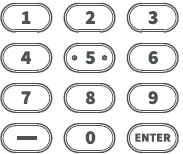

- LG
- Onn, Insignia
- Philips, Magnavox
- Roku, Element
- Samsung, Panasonic
- Sharp, Hisense
- Sony, Sanyo
- TCL, RCA
- Toshiba, Westinghouse
- VIZIO
STREAM
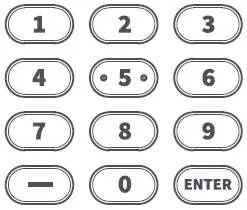

- AirTV, Sling TV
- Apple
- Microsoft
- Netgear
- NVIDIA
- Onn
- Roku
- Sony
- Western Digital
- Xiaomi
STB
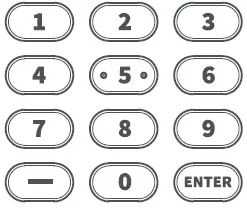

- Bell
- Rogers
- Shaw
AUDIO
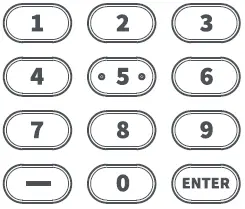

- Bose
- Denon
- JBL, Polk Audio
- LG
- Onn
- Onkyo
- Samsung
- Sony
- Yamaha
- VIZIO, Sonos
DVD and BLURAY
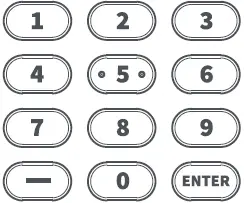

- LG, Sharp
- Onn, Insignia
- Panasonic
- Philips, Magnavox
- Pioneer
- Samsung
- Sony
- Toshiba
- VIZIO, RCA
- Yamaha
To set up your device
- Turn on your device (not on standby) and point the Essence remote towards it. If you are setting up a Streaming device, make sure a movie or TV show is playing.
 Press the Device key you wish to set up (for example TV).
 Hold down the SETUP key until the LED under the Device key blinks twice
 Hold down the digit key for your brand and device as listed in the tables above – e.g. 3 for a Philips TV.
- The remote will send a Power command every 3 seconds, but if your device does not have a Power function (for example a streaming box like Apple TV) the remote will send the Play/Pause function.
- As soon as your device reacts by turning off or Pausing (Streaming box only) release the digit.
- The LED will blink twice and the remote should now operate your device.
 Press the Device key you wish to set up (for example TV).
 Hold down the SETUP key until the LED under the Device key blinks twice
 Hold down the digit key for your brand and device as listed in the tables above – e.g. 3 for a Philips TV.
- If you find one or more keys do not work as you expect, start again at step 2 – the remote will start with the next code in the memory.
SETUP BY CODE
If the brand of your device is not listed in the SimpleSet feature, you can set up by trying codes individually. To do this, firstly locate your brand in the Code List. Codes are listed by brand and device, and in order of popularity.
- Turn on your device (not on standby) and point the Essence remote towards it.
- Press the Device key you wish to set up (for example TV)
- Hold down the SETUP key until the LED under the Device key blinks twice
 Enter the first 4 digit code listed for your brand (e.g. 1840 for LG).
- The LED will blink twice on the last digit of the code.
 Now aim the remote towards your device and press the POWER key.*
- If the device turns off your remote is ready to use. If not, repeat steps 2-6 with the next code in the list.
 Enter the first 4 digit code listed for your brand (e.g. 1840 for LG).
 Now aim the remote towards your device and press the POWER key.*
Note: If your original remote did not have a Power key, try testing with a different key at step 6. For example try pressing Play or Pause when setting up a streaming box and see if the box responds.
LEARNING
Your Essence remote control can learn any function from any other working remote control. This is a quick and easy one-time setup that allows you to control any infrared controlled device you have in your living room. It also allows you to add a key or keys that may be missing to a spare key on the Essence. To do this, firstly make sure you have all your original remote controls to hand, and that they have working batteries in. To learn functions, the original remote should be approximately 2-5 cm from the Essence remote, pointing towards it:
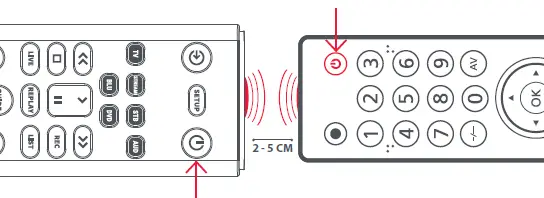
- Press the Device key for the device you want to learn functions onto (e.g. TV).
- Hold down the SETUP key until the LED under the Device key blinks twice.
 Press 975 – the LED should blink twice.
- Press and release the key you want to learn a function onto (for example the POWER key) – the LED will begin to flash rapidly.
 Press and release* the corresponding key on the original remote, for example POWER.
- The LED will blink twice to indicate the key has been learned correctly.
- Repeat steps 4 and 5 for each key you want to learn – remember you can learn from multiple remotes, but only one function per key.
- When you have learned all the functions you require, press and hold the SETUP key until the LED blinks twice.
 Press 975 – the LED should blink twice.
 Press and release* the corresponding key on the original remote, for example POWER.
- Some remotes send commands differently. If you find a function cannot be learned, try holding down the key on the original remote instead of pressing and releasing.
Hints
- If the LED shows one long blink at step 5, the function was not learned correctly, please try again from step 4.
- If you find one or more keys don’t work properly after set up, you can re-enter the learning mode at any time by repeating the procedure from step 1.
- If one or more of your original remotes aren’t working, you can still set up the Essence remote by SimpleSet or Code Set Up.
Deleting a learned function
If you want to delete a learned function and return that key to its original state, you can use the following procedure:
- Press the Device key for the device your learned function operates
- Hold down the SETUP key until the LED under the Device key blinks twice
 Press 976 – the LED should blink twice
- Press the key you want to reset twice – the LED should blink twice and the learned function has been deleted.
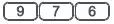 Press 976 – the LED should blink twice
VOLUME LOCK
If you primarily use one device for controlling sound, for example a Sound Bar or Audio Video Receiver, it’s possible to program your Essence remote to only control that device when you use the Volume Up, Down and Mute keys. To do this:
- Hold down the SETUP key until the LED under the Device key blinks twice.
 Press 993 – the LED should blink twice.
 Press the device key for the device to always control volume – for example Audio.
- The LED will blink twice.
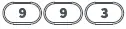 Press 993 – the LED should blink twice.
 Press the device key for the device to always control volume – for example Audio.
From now on, pressing the Volume Up, Down or Mute keys will always control the above programmed device, no matter what device you are controlling.
To unlock the volume, and return the remote to controlling each device’s sound individually, the procedure is:
- Hold down the SETUP key until the LED under the Device key blinks twice
- Press 993 – the LED should blink twice
 Press VOLUME DOWN – the LED will blink four times and Volume is now unlocked.
 Press VOLUME DOWN – the LED will blink four times and Volume is now unlocked.
APP SHORTCUT KEY
The Essence remote features an App Shortcut Key which can be used to open app on your Smart Devices. If your original remote control has a Netflix key, this key will perform the same function.
However if you did not have a key like this, but still had the ability to watch a streaming service, you can use this key as a shortcut by programming a macro on it. Most AV devices which are connected to the internet, such as Smart TVs or streaming Set Top Boxes have one or more applications they can run to access TV viewing via the internet. Examples of these would be Netflix, YouTube, Amazon Prime or similar. To program the macro, you first need to know the device you use to access the service, and then the sequence of keys you need to press to always bring up the service you prefer, For example, some Panasonic TVs will start Netflix by pressing the Apps key, then Menu Down Twice, and finally the OK key. Or on an Apple TV, the sequence is Menu, Menu Down and OK.
Once you have determined the sequence for your device, follow these steps:
- Sit in front of your device with it switched on (not on standby)
 Hold down the App Shortcut key until the LED blinks twice.
 Press the device key for the device you want to use for the macro (e.g. Stream)
- Now perform the sequence of keys exactly as you would normally to start your streaming service The remote will operate your device and the macro is recorded in real time – so if it normally takes a few seconds for your device to react don’t worry.
- Once you have finished the sequence – and the Streaming Service has started on your device – hold down the App Shortcut key until the LED blinks twice and goes out. The macro is now stored.
 Hold down the App Shortcut key until the LED blinks twice.
 Press the device key for the device you want to use for the macro (e.g. Stream)
Tips
- Make sure the Essence remote is operating the device in question before programming
- If you find the Macro doesn’t work as expected, you can just repeat the same sequence to reprogram
- When programming, wait for your device to respond first, the remote will remember the timing
- The App Shortcut macro is tied to one device, remember to make sure you are watching the correct device
CODELIST
| TV | JVC | 1774, 1601, 3393, | |
| 2321, 2271, 4107, | |||
| Affinity | 3717, 3870, 3577, | 4398, 5182, 4105, | |
| 3716 | 4053, 1670, 4367, | ||
| Aiwa | 3332, 1362 | 1892, 3879, 4280, | |
| Akai | 1675, 3332 | 5228 | |
| AOC | 3720, 2691, 1365, | JVC-Roku | 4398 |
| 2014, 2087 | KC | 4182 | |
| Apex Digital | 2397, 4347, 4350 | KDS | 1687 |
| Ario | 2397 | Kenmore | 3953 |
| Asus | 3340 | LeEco | 4007 |
| Atak | 2397 | Legend | 2397, 2352, 1749, |
| Atvio | 3638, 4398, 3636, | 2309 | |
| 3879 | Lexus | 3638 | |
| Atyme | 2746 | LG | 1840, 1860, 2731, |
| Audiovox | 1564, 1276, 1769, | 1423, 4397, 2358, | |
| 2121 | 1749, 4398, 1753 | ||
| Auria | 4748, 2087, 2014, | MAG | 1687 |
| 2277, 2855 | Magnavox | 3623, 1866, 2372, | |
| Avera | 2397, 2049 | 1963, 1454, 1365, | |
| Avol | 2735, 4367, 3382, | 1755, 4398, 1867, | |
| 3118, 1709 | 4740, 1394 | ||
| Axess | 3593 | Magnavox-Roku | 4398, 4740 |
| Blu:sens | 2735 | Marantz | 1454 |
| Bolva | 2397 | Maxent | 1755 |
| Broksonic | 1892, 3118 | Memorex | 4686, 1892, 1670, |
| Calypso | 4748 | 1687, 2049 | |
| Champion | 1362 | Mitsubishi | 1250, 1797 |
| Changhong | 4629 | Mitsui | 1123, 3638, 3673 |
| Citizen | 1892 | Naxa | 4093, 2104, 2735, |
| Coby | 3627 | 3382, 3423 | |
| Contex | 4053, 4280 | NEC | 3257, 1797, 3000, |
| Craig | 3423, 1687 | 2293 | |
| Crosley | 3115 | NetTV | 1755 |
| Curtis | 2855, 3577, 2466, | Nexus | 1564, 3519, 2183 |
| 3895, 2352, 2397, | Norcent | 1365, 2087 | |
| 3939, 4035, 3636, | NuVision | 1657, 4347 | |
| 3382, 3717, 4139 | oCOSMO | 3899, 4139 | |
| Curtis Mathes | 1661 | Ölevia | 1610 |
| Daewoo | 1661, 3115, 3879 | Onn | 4398, 5348, 1709, |
| Dell | 1749 | 3024, 3078, 5118 | |
| Digitrex | 4207 | Onn-Roku | 4398 |
| Disney | 1892 | Optimus | 0679 |
| Durabrand | 1595, 3879 | Orion | 1463, 1670, 3540, |
| Dynex | 2049, 1463, 1780, | 1892 | |
| 2184 | Panasonic | 1480, 1291 | |
| Electrograph | 1755 | Philco | 1963, 1394, 5377 |
| Electrohome | 1670 | Philips | 2800, 1867, 2372, |
| Electron | 2466, 2855 | 3069, 1454, 3623, | |
| Element | 3559, 1687, 4398, | 3396, 1866, 1744, | |
| 2183, 2964, 5173, | 4398, 1963, 1755, | ||
| 4635, 4910, 1886, | 1365, 1394 | ||
| 4217, 4740 | Philips Magnavox | 3396, 1866, 3623 | |
| Element-Roku | 4398, 4740 | Philips-Roku | 4398 |
| Elite | 1457 | Pioneer | 0679, 1260, 1457, |
| Emerson | 1864, 1963, 1394, | 2434 | |
| 1886, 1595, 3623, | Planar | 0679 | |
| 1661, 2183, 3559 | Polaroid | 1523, 4035, 1769, | |
| Envision | 1365, 2087, 2014 | 1276, 1687, 1767, | |
| EQD Auria | 2014, 2087, 2277 | 3942, 2121, 3382, | |
| ESA | 1963, 1595 | 2434, 3118 | |
| eTec | 2397 | Portland | 1661 |
| Exorvision | 3953 | Prima | 1753, 2049, 1749 |
| Favi | 3382 | Proscan | 1447, 3577, 3382, |
| Fisher | 1362 | 2183, 3717, 3332, | |
| Fluid | 2964, 3559 | 4494, 3636, 3895, | |
| Furrion | 3332, 4093, 5410 | 3953, 4495, 4035, | |
| Gateway | 1755 | 4053, 4491, 3939, | |
| GE | 1447 | 4483, 4375, 4500, | |
| GFM | 1864, 1886, 1963 | 2746, 3429, 3559, | |
| GHIA | 5144, 5196 | 4093 | |
| GPX | 3980, 3977 | Proview | 1687 |
| Haier | 2309, 1749, 1748, | Pyle | 2196 |
| 3382, 1753, 3429, | QFX | 3593 | |
| 2293, 4398, 2214 | QuantumFX | 3593 | |
| Haier-Roku | 4398 | Quasar | 1291, 4207, 3899, |
| Hannspree | 1348, 2786 | 4367, 3382, 5221 | |
| Harper | 3332 | RCA | 2746, 2434, 2247, |
| Hewlett Packard | 1860 | 4214, 3577, 1781, | |
| Hisense | 3519, 4740, 4618, | 4398, 3382, 4740, | |
| 2183, 5185, 1660, | 3332, 3717, 2932, | ||
| 3382 | 3895, 2187, 4629, | ||
| Hisense-Roku | 4740 | 4488, 4494, 3953, | |
| Hitachi | 1643, 4398, 5102, | 2183, 4623, 3636, | |
| 4455, 2214, 3382, | 3939, 2855, 4053, | ||
| 3332, 0679, 5446 | 3519, 4491, 4495, | ||
| Hitachi-Roku | 4398 | 4627, 0679, 4035, | |
| Hiteker | 3118 | 4483, 4625, 5223, | |
| HKPro | 3879, 2434, 5228 | 1661, 5377, 3938, | |
| HP | 1860 | 4093, 1670, 5173, | |
| iLo | 1463, 1394 | 1447 | |
| InFocus-Roku | 4398 | RCA-Roku | 4398, 4740 |
| Insignia | 2049, 1780, 4487, | Roku | 4398, 4740 |
| 3227, 5213, 1564, | Sampo | 1755 | |
| 1641, 2184, 1892, | Samsung | 2051, 1632, 5386, | |
| 1423, 1660, 1963 | 5371 | ||
| Insignia-Roku | 4487 | Sansui | 1892, 3540, 1670, |
| iSymphony | 3382, 3429, 3118, | 1463, 4053, 3564, | |
| 3094 | 4280, 3559 | ||
| Sanyo | 1142, 1362, 4168, | ||
| 4740, 2049, 4667, | |||
| 3488, 1480, 1564 |
TV | STREAM
| Sanyo-Roku | 4740 | PDP | 5724 |
| Sceptre | 3899, 4139, 2528, | Pivos | 4339 |
| 5393 | Popcorn Hour | 2260 | |
| Seiki | 3953, 4635, 2964, | Qumi | 4339 |
| 3560, 3559, 4217, | RCA | 3335 | |
| 3382, 4794 | Roku | 3061 | |
| Seura | 4751 | Seagate | 2698 |
| Sharp | 2360, 1659, 3519, | Sling Media | 5295, 3778 |
| 3394, 4740, 4618, | Sony | 2713, 5724, 1272 | |
| 3720, 4507, 2214, | Technicolor | 5295 | |
| 4398 | Tibo | 4339 | |
| Sharp-Roku | 4740, 4398 | Vensmile | 4899 |
| Sigmac | 3477, 3423 | Vivitek | 4339 |
| Silo Digital | 3899, 4494, 3477, | VIZIO | 3670 |
| 4182 | Western Digital | 2558 | |
| SkyVue | 4135, 2360 | Xbox | 4000, 2049 |
| Skyworth | 5340, 4542 | Xiaomi | 3982 |
| Sony | 0810, 4448, 4189 | ||
| Spectroniq | 1687 | STB | |
| Speler | 4105, 4041, 2434 | ||
| SunBriteTV | 2528, 4139, 1610 | Access | |
| Superscan | 1963 | Communications | 1376, 2187, 4537 |
| Supersonic | 3593, 2104, 1753 | ADB | 2586, 1481, 1998, |
| SVA | 1963 | 2254, 3028 | |
| Sylvania | 1963, 1864, 1886, | Altice USA | 3885, 1376, 6351, |
| 1394, 1595, 3332, | 1877, 3560, 1982 | ||
| 3577, 4053 | Amino | 1615, 1481, 1898, | |
| Symphonic | 1963, 1595, 1394 | 3605, 2482, 4437, | |
| TCL | 4398, 2434, 3183, | 1998, 3028, 3426 | |
| 5446, 3879 | Armstrong | 1376, 3560 | |
| TCL-Roku | 4398 | Arris | 1376, 2378, 1982, |
| Technicolor | 3577 | 1998, 2187, 0869, | |
| Toshiba | 2724, 3945, 5213, | 5912, 1877, 5889, | |
| 4885, 5394 | 5097, 6400, 0858, | ||
| Upstar | 4182, 4405, 3899 | 5537, 5942 | |
| V7 Videoseven | 2087 | AT&T | 1377, 6268, 0858 |
| Vidao | 2397 | AT&T U-verse | 0858 |
| Videoseven | 2087 | Atlantic Broadband | 1376, 1877, 1982, |
| Viewsonic | 2014, 2277, 2087, | 3560, 4079 | |
| 3706, 1755, 2049, | Axtel | 4458 | |
| 1860, 1564, 1365 | Bell | 0775, 1998, 5537, | |
| Viore | 3382, 2352, 3118, | 1877, 5097 | |
| 2104, 3429, 3094 | Bell Aliant | 1998 | |
| VisionQuest | 1687 | Bell Fibe TV | 1998, 5097, 5537 |
| VIZIO | 1758, 3758, 4905, | Bell MTS | 1998, 5097, 5537 |
| 5454, 4723, 2707, | Bell Satellite TV | 0775 | |
| 2757, 3415, 2512 | Blue Ridge | ||
| W Box | Communications | 1877, 3560 | |
| Technologies | 4686 | Buckeye Broadband | 1376, 1877, 2187, |
| Westinghouse | 1712, 4797, 3559, | 4079 | |
| 3382, 4398, 5173, | Cable Axion | 1376 | |
| 4910, 2293, 3094, | Cable One | 1376, 3560, 1877 | |
| 4139, 3560, 4635, | Cablecom Mexico | 1376 | |
| 2397, 3908 | Cablemás | 1376, 1877 | |
| Westinghouse- | Cablevisión Mexico | 1376, 4375, 4537 | |
| Roku | 4398 | CenturyLink | 1998, 0858 |
| White | Channel Master | 3118 | |
| Westinghouse | 1661 | Cincinnati Bell | 1877, 1376 |
| Wyse | 1365 | Cisco | 1877, 1982, 2947, |
| Xoceco | 1753, 2049, 1749 | 0858, 3028, 2345, | |
| Zenith | 1423, 2731, 1661, | 2378, 5912, 1998, | |
| 1365, 2358, 1463 | 4315, 3294, 4374, | ||
| 5484, 2826, 4450, | |||
| STREAM | 4514, 5942 | ||
| Cogeco | 1376, 1982, 3560, | ||
| AirTV | 5295 | 4537 | |
| Amlogic | 4899 | Comcast | 1982, 1376, 1877, |
| Apple | 2615 | 3560, 2187, 4079, | |
| Armada | 4899 | 4443, 4537 | |
| Beelink | 5123 | Cox | |
| Boxee | 3693 | Communications | 1877, 1376, 1982, |
| Ceton | 1272 | 4315, 3774, 3560, | |
| Cloud Media | 2260 | 6400 | |
| Delta Electronics | 4339 | DIRECTV | 1377, 6268, 3724 |
| DishTV | 5295 | DISH | 0775 |
| D-Link | 3671, 3693 | Dish Mexico | 0775, 6068 |
| Dynalink | 6413 | DISH Network | 0775 |
| Echostar | 5295 | EastLink | 1376, 2187 |
| Funai | 3339 | Echostar | 0775 |
| G-Box Midnight | 4440 | Entone | 3426, 1615, 1898, |
| Geniatech | 4339 | 4437 | |
| Iomega | 2558 | Evolution Digital | 2479, 4079, 2746, |
| Kollins | 4339 | 4315, 3560 | |
| LG | 3373 | Frontier | |
| Linksys | 1272 | Communications | 2378, 1998, 3560, |
| Logitech | 3272 | 0775 | |
| Magnavox | 3339 | Google Fiber | 3666 |
| Matricom | 4440, 4899 | Ignite TV | 1982 |
| Media Center PC | 1272 | Izzi Telecom | 1376, 6195, 4375, |
| Mi | 3982 | 4537 | |
| Micca | 3850 | Kaon Media | 4458, 2746 |
| Microsoft | 4000, 1272, 2049 | Liberty Cablevision | 1376 |
| Millet | 3982 | Maxcom | 1998 |
| Mind | 1272 | Mediacom | 1376, 3560, 1982, |
| Minix | 4413, 3884 | 1877 | |
| MyGica | 4339 | Megacable | 1376, 6286, 4374, |
| Netgear | 3324, 2036, 4401, | 4450, 4514, 4375, | |
| 3292 | 4537, 4883 | ||
| NVIDIA | 4918 | Midco | 1376, 1982, 3560, |
| Onn | 6490 | 2826, 4079 | |
| Ortek | 3122 | ||
| Panasonic | 3760 |
STREAM | AUDIO SOUNDBAR
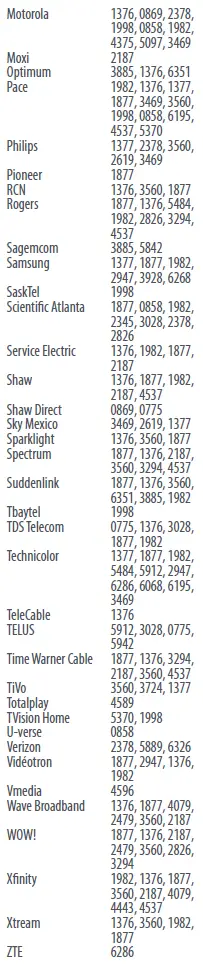
AUDIO SOUNDBAR
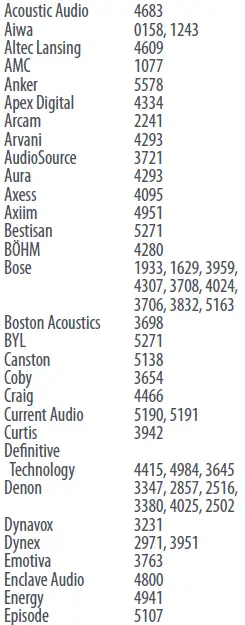
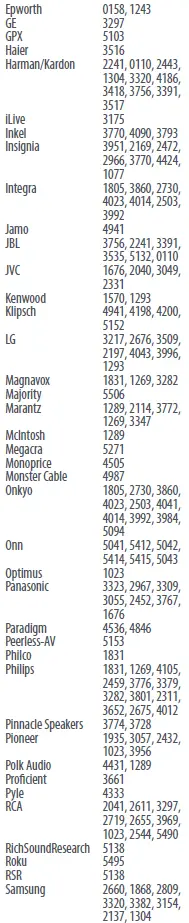
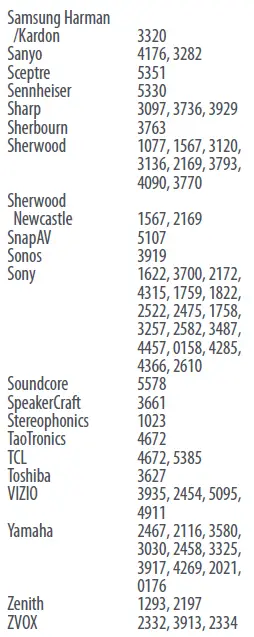
BLURAY DVD
| BLURAY DVD | Onn | 4371, 4016, 4372, | |
| 4377 | |||
| Accurian | 0675 | Oppo | 2545 |
| Bel Canto Design | 1571 | Panasonic | 0490, 3641, 1641, |
| Blackweb | 4372 | 1579, 0503 | |
| California | Philco | 0675 | |
| Audio Labs | 0490 | Philips | 2056, 2789, 2434, |
| Citizen | 2213 | 0675, 0539, 3488, | |
| Coby | 2494 | 0503, 3274, 2084 | |
| Curtis | 3052 | Philips Magnavox | 0503, 0675 |
| Curtis Mathes | 2331 | Pioneer | 1571, 2854, 2442, |
| Denon | 2258, 1634, 0490, | 0142, 2847 | |
| 2748, 3851 | Polk Audio | 0539 | |
| Digix | 3850 | Presidian | 0675 |
| Disney | 0675 | Proscan | 0522 |
| Durabrand | 0675, 3464 | Pye | 0675 |
| Dynex | 2596 | RCA | 0522, 2213, 2532, |
| Emerson | 0675, 2213 | 3464, 1769 | |
| Funai | 0675 | Samsung | 0199, 0573, 2069, |
| GE | 0522 | 1075, 1573, 2113, | |
| GFM | 0675 | 2843, 2269, 2329, | |
| Go Video | 1075, 0741 | 4108, 2556, 0490 | |
| Harman/Kardon | 3228, 2927 | Sanyo | 0675 |
| Hitachi | 0573, 0675 | Seiki | 2912 |
| Insignia | 2095, 2596, 2428, | Sharp | 2250, 0675, 2652 |
| 0675, 0741 | Sherwood | 3052, 3837 | |
| Integra | 2147, 0627, 1769, | Sony | 1633, 1516, 1033, |
| 1634, 3787 | 0864, 1070, 4009, | ||
| JVC | 1602, 2365, 2855 | 0675 | |
| Kenwood | 0534, 0490 | SV2000 | 0675 |
| LG | 0741, 1602, 4091 | Sylvania | 0675, 4016 |
| Magnavox | 0675, 3488, 0503, | Symphonic | 0675 |
| 0539 | Technics | 0490 | |
| Marantz | 2481, 0539, 2414, | Toshiba | 0503, 2277, 3957, |
| 3444 | 2006, 3857, 1769, | ||
| Memorex | 2213, 3031, 2331 | 3157 | |
| Microsoft | 0522 | TruTech | 0675 |
| NAD | 0741 | VIZIO | 2563 |
| New Acoustic | Yamaha | 0539, 3320, 2298, | |
| Dimension | 0741 | 0490, 3995, 3837 | |
| Ölevia | 2331 | Zenith | 0741, 0503 |
| Onkyo | 0627, 2147, 0503, | ||
| 1769, 2562, 3787 |
WARRANTY / GUARANTEE
WARRANTY / GUARANTEE INFORMATION
Terms and Conditions for “100% Guaranteed To Work” policy, and the separate 1 Year Limited Warranty against defects in material and workmanship can be found at www.oneforall.com/remoteguarantee, or you may request hard copies via mail to Universal Electronics Inc. 15147 N. Scottsdale Road, Suite H300, Scottsdale, Arizona 85254. Please include your full name, product information, and contact information in your request communication.
Customer Support

- Connect with us on Facebook.
- Connect with us on Instagram.
- Connect with us on Linkedn.
- Visit our YouTube channel
Customer Support: www.oneforall-canada.ca
OFA warranty/terms & conditions: www.oneforall-canada.ca
Imported into Canada by
- Universal Electronics BV – Europe & International
- P.O. Box 3332, 7500 DH Enschede The Netherlands
- www.oneforall.com
One For All is a registered trademark of Universal Electronics BV
Industry Canada Regulatory Information
- CAN ICES-3 (B)/NMB-3 (B)
 Home | One For All
 Home | One For All