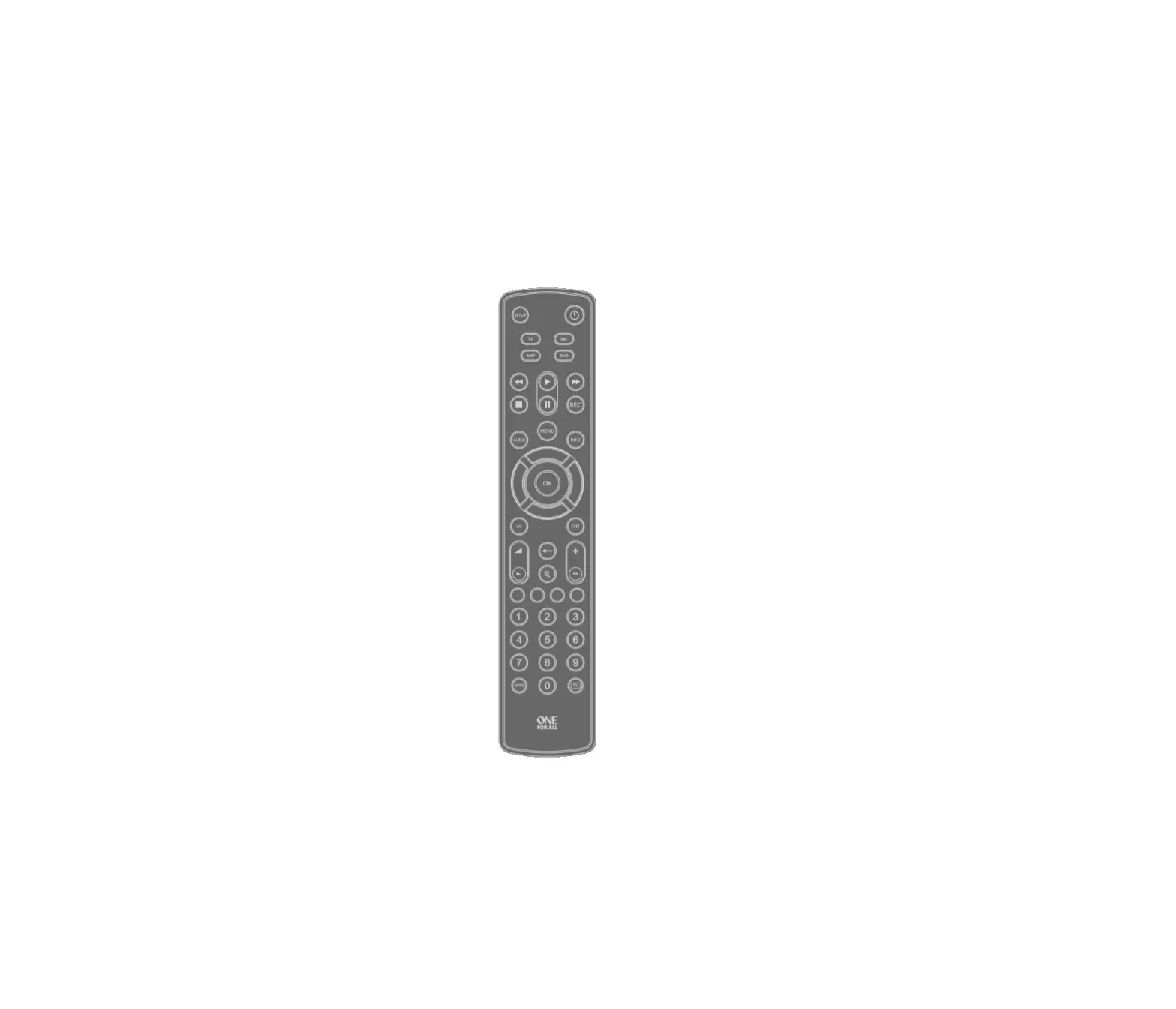
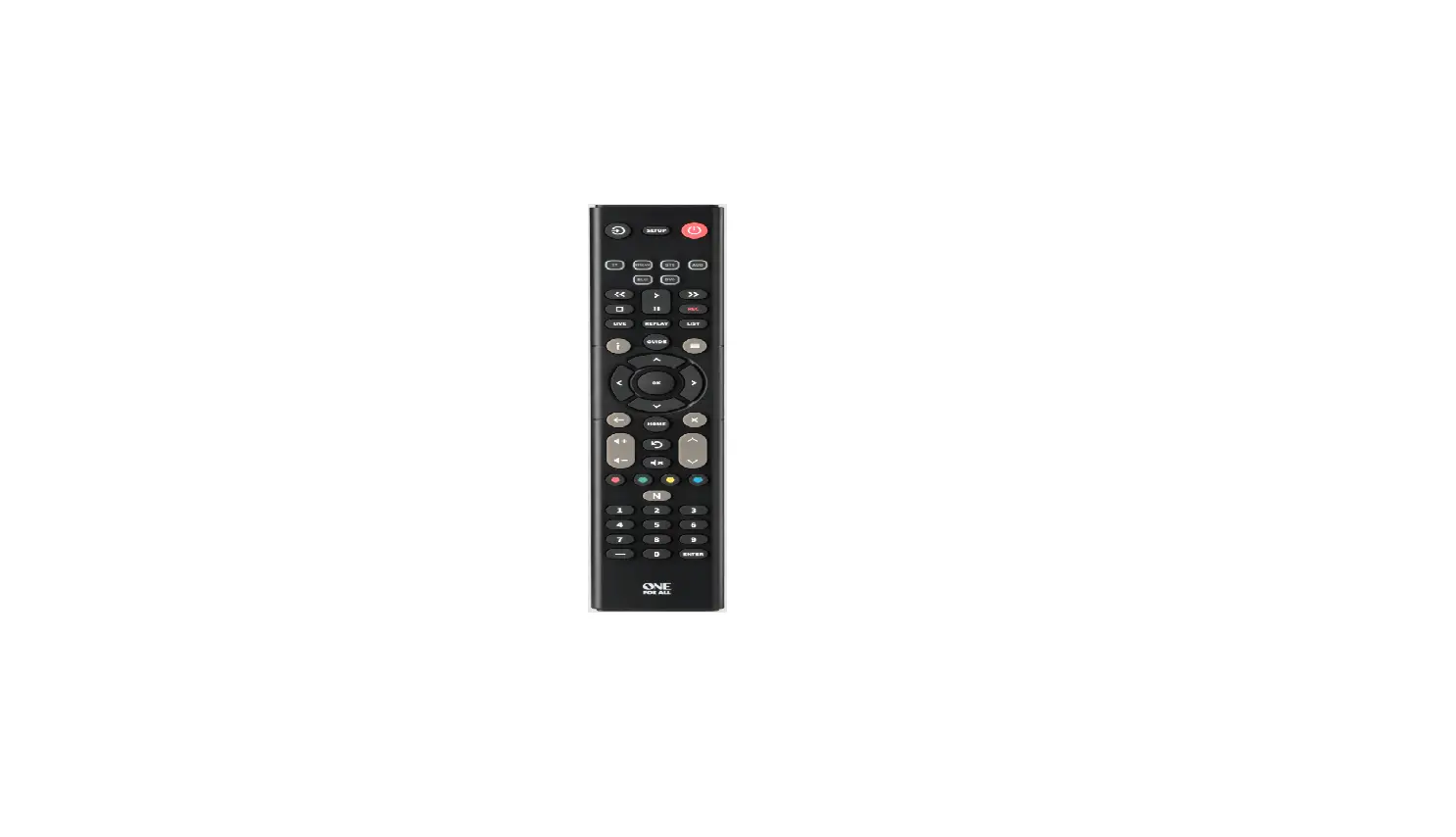
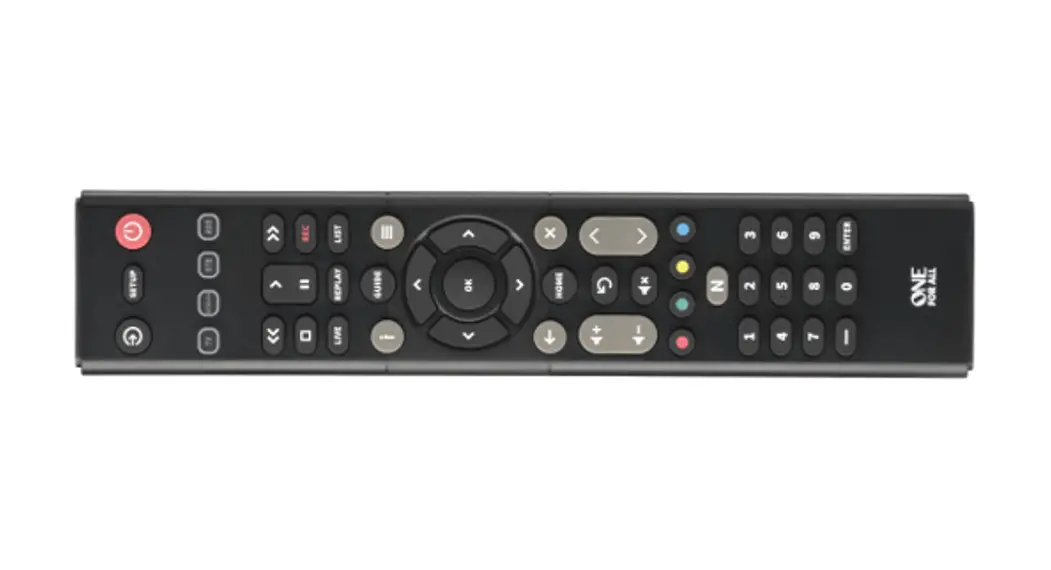
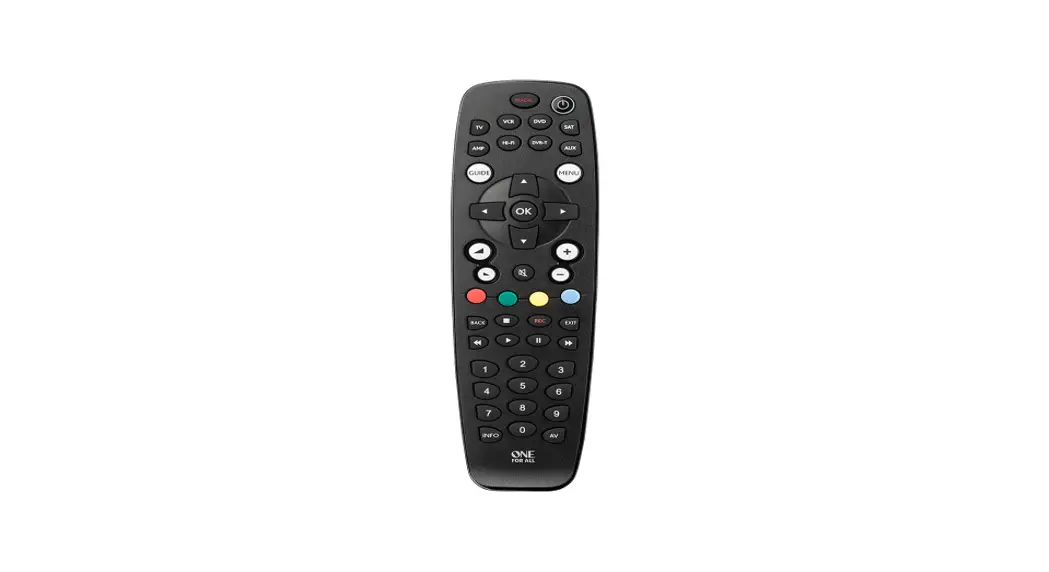
URC 7955 Remote Control
Product Information
The URC 7955 is a remote control device manufactured by
Universal Electronics. It is designed to control various devices
such as TVs, set-top boxes, satellite receivers, cable converters,
and more. The remote control features a simple setup process and
supports popular brands of each device type.
The product is compliant with European Directives 2012/19/EU and
2006/66/EC regarding product disposal and battery disposal. It is
manufactured using high-quality components that can be recycled and
reused. The user is advised to follow local regulations for proper
collection and disposal to prevent negative effects on the
environment and human health.
The URC 7955 comes with a 3-year warranty from the date of
original purchase. Universal Electronics warrants that the product
will be free from defects in materials and workmanship under normal
and correct use. If any defects are found within the warranty
period, the product will be repaired or replaced free of charge.
The owner is responsible for the forwarding costs, while the costs
of returning the product are covered by Universal Electronics.
In addition to the warranty, users may have legal rights under
their national legislation governing the sale of consumer goods if
the product was purchased for non-commercial purposes.
The URC 7955 is also compliant with Radio Equipment Directive
(RED) 2014/53/EU, ensuring its conformity with radio equipment
standards.
Product Usage Instructions
- Prepare your remote for installation by inserting 4 AAA
batteries. - Do not dispose of the batteries or the product with normal
household waste. Refer to local regulations for proper collection
and disposal to prevent negative effects on the environment and
human health. - To set up your remote, follow these steps:
- Identify the device you want to set up (e.g., TV, set-top
box). - Refer to the list of device modes on the remote control to find
the corresponding device type. - Use the SimpleSet feature to quickly and easily set up the
remote for your specific device. This process typically takes less
than a minute per device.
- Identify the device you want to set up (e.g., TV, set-top
- For warranty service during the 3-year warranty period, contact
the provided customer service details. Make sure to have your
original purchase receipt available for eligibility
verification.
Note: When replacing the battery, use quality Alkaline batteries
to avoid the risk of explosion. The remote control has a maximum
output power of -3.02 dBm and operates within the frequency range
of 2402 MHz to 2480 MHz.
For more information and support, visit www.oneforall.com.
ENGLISH KEYTABLE
URC 7955
ENGLISH SIMPLE SET UP GUIDE
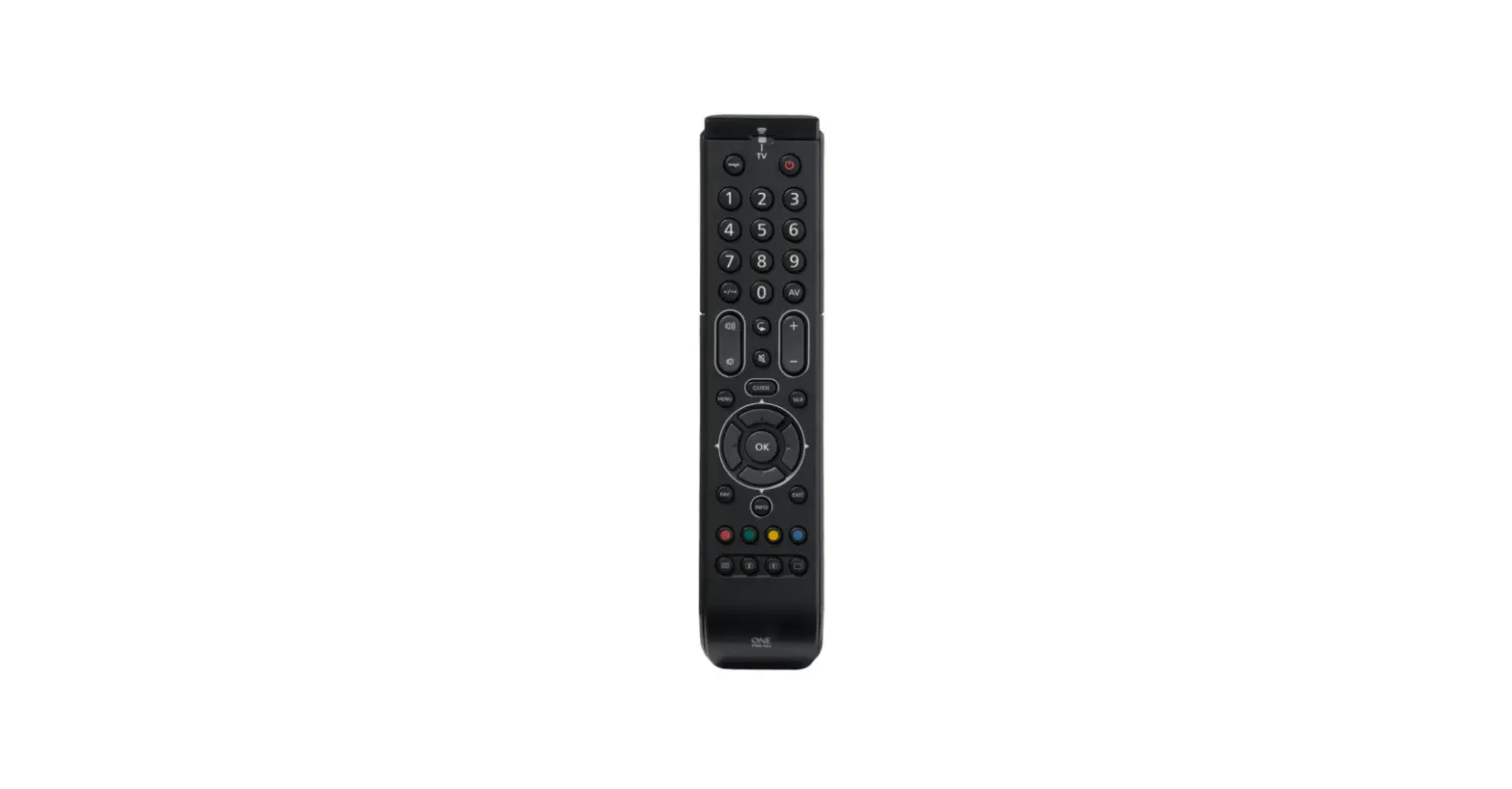
DEVICES Scroll through the devices your remote
is set up to control
AV Select the input on the current device
WELCOME, PREPARE YOUR REMOTE FOR INSTALLATION
4x AAA
ENGLISH – PRODUCT DISPOSAL (EUROPEAN DIRECTIVE 2012/19/EU)
The crossed out wheeled bin symbol on this product ensures that this product is manufactured using high quality components that can be recycled and reused according European Directive 2012/19/EU. Please do not dispose of this product with your normal household waste, refer to local regulations for the proper collection or disposal of electrical and electronic products. This will help this will help in preventing negative effects on the environment and/or human health.
BATTERY DISPOSAL (EUROPEAN DIRECTIVE 2006/66/EC)
Please do not dispose of your batteries with your normal household waste, refer to local regulations for the proper collection or disposal. This will help preventing potential negative effects on the environment and/or human health.
GUARANTEE TERMS AND CONDITIONS UNIVERSAL ELECTRONICS
warrants to the original purchaser that this product will be free from defects in materials and workmanship under normal and correct use for a period of 3 years from the date of original purchase. This product will be repaired or if necessary, replaced free of charge if it has been proven to be defective within the 3 year warranty period. The forwarding costs are on the account of the owner; the costs of returning the product are on the account of UNIVERSAL ELECTRONICS.
This warranty does not cover damage or failures caused by products or services not supplied by UNIVERSAL ELECTRONICS, or which result from not mounting the product according to manual instructions. This also applies when the product has been modified / repaired by others than UNIVERSAL ELECTRONICS or if a fault is the result of accident, misuse, abuse, neglect, mishandling, misapplication, faulty installation, improper maintenance, alteration, modifications, fire, water, lightning, natural disasters, wrong use or carelessness.
To obtain warranty service during the warranty period contact […], and please note that we need your original purchase receipt so that we may establish your eligibility for service. If you have bought this product for purposes which are not related to your trade, business or profession, you may have legal rights under your national legislation governing the sale of consumer goods. This guarantee does not affect those rights. www.oneforall.com
Radio Equipment Directive (RED) Hereby, Universal Electronics BV declares that the radio equipment type URC7955 is in compliance with Directive 2014/53/EU. The full text of the EU declaration of conformity is available at the following internet address: http://www.oneforall.com/doc_smartcontrol
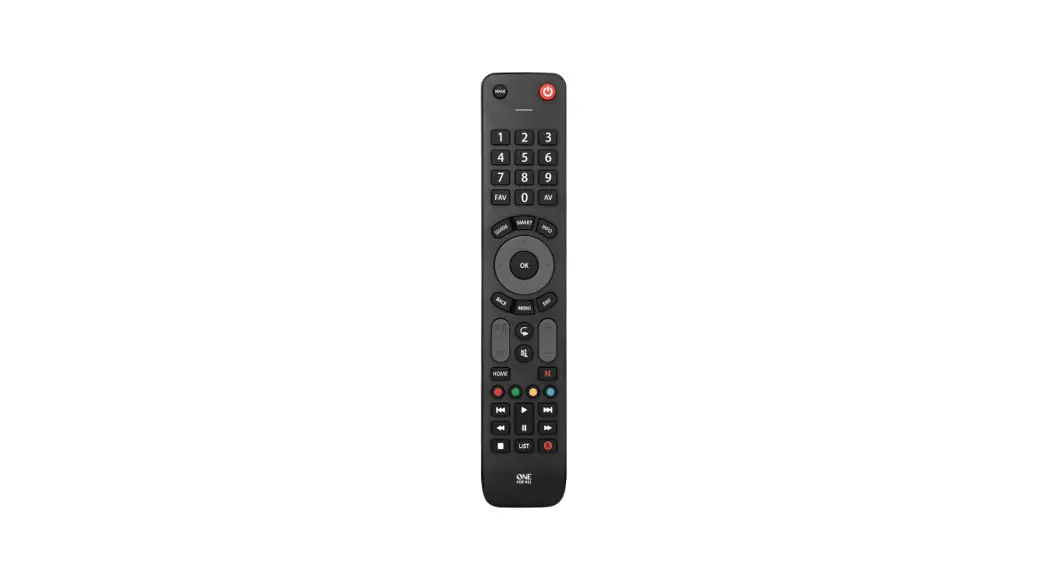
INFO Displays info of current playback
VOL Volume Up, Down and Mute
MENU Shows the menu of the current device
GUIDE TV Guide, EPG SMART Access internet
and Smart features of your TV or internetconnected device
Red, Green, Yellow, Blue Fastext/Quick
access keys
LIST Displays a list of recorded programmes
MAGIC Used to set up your remote
POWER Power on/off
FAV Favourite Channels
BACK Back one step in the Menu of the current device
ACTIVITY Scrolls through up to 3 Activity Modes Watch TV, Watch Movie and Listen to Music . See Activities for details.
EXIT Exit from the Menu of the current device
+/- Channel Up and Down
PP Previous Program, Last Channel
NETTV Access TV Streaming – See Net TV Feature PLAYBACK Playback keys for the current device
CAUTION: Risk of explosion if battery is replaced by an incorrect type. Use quality Alkaline batteries.
Universal Electronics BV Europe & International P.O. Box 3332, 7500 DH Enschede The Netherlands
URC7955 RDN-1150323
710834
Max output power: -3.02 dBm Operation frequency range: 2402 MHz ~ 2480 MHz
Thank you for purchasing the One For All Smart Control. Now you can control all of your Audio/Video devices with a single remote, while enjoying extra features such as the ability to combine devices in a single Activity Mode, sending multiple commands on a single key press (macros) and being able to customise the remote control to your exact requirements. There is also a handy companion app for iPhone and Android phones which will allow you to keep your remote up to date with the latest devices and codes. It also offers you an alternative way to set up your remote and store the settings. To get started with your new remote, the first step is to set it up to control all of your Home Cinema devices.
HOW TO SET UP YOUR REMOTE
HOW TO SET UP YOUR REMOTE
A SIMPLESET
TV
1 Alba / Bush / Goodmans 2 Grundig 3 LG 4 Panasonic 5 Philips
6 Samsung 7 Sharp 8 Sony 9 TCL / Thomson
0 Toshiba
A SIMPLESET
SimpleSet is a quick and easy way of setting up the remote to control the most popular brands of each device type with only a few key presses, typically in under a minute per device. The first step is to select which device you are going to set up. The following is a list of Device Modes on the remote control, and the Device types that can be set up on that mode:
Device Mode
Type of device
TV
TV, HDTV, LED, LCD, Plasma, Projector
STB
Set Top Box, Satellite Receiver, Cable
Converter, Freeview, DVB-T, IPTV
STB Sat, Cable, DVB-T
1 BSkyB / Sky Ireland / Orange
2 Canal+ / CanalSat / Digital+ 3 Dream Multimedia /
TechniSat 4 DStv / Multichoice / Foxtel /
Sky New Zealand
BLU Blu-ray, DVD
5 freebox / Tricolor TV / Vu+ 6 Humax 7 Samsung 8 Sky Italia / SFR / Neuf TV 9 Sky Deutschland / Österreich /
T-Home / Deutsche Telekom 0 UPC / Cablecom / UPC Direct /
Virgin Media
BLU
Blu-ray, DVD, DVD Home Cinema, VCR,
Laser Disk
MEDIA Digital Media Receiver, Streamer, Game Console*
1 Denon, Harman/Kardon 2 JVC 3 LG 4 Panasonic 5 Philips
6 Pioneer 7 Samsung 8 Sony 9 Toshiba 0 Yamaha
AUD
Audio, AV Receiver, Amplifier, Tuner, Sound
Bar, Active Speaker System
* The One For All remote can only control games consoles operated by Infra-Red, either directly or via an adapter. Consoles that are controlled by Bluetooth only cannot be operated.
For each Device type, there is a list of the top brands, each with a number assigned to it, for example 6 for a Samsung TV. Locate your device and brand in the list that follows:
MEDIA Games Consoles (5 & 8), Media Players
1 Apple 2 Asus 3 Dune 4 Emtec / A.C.Ryan / DVICO /
Fantec / iconBIT / iNext 5 Microsoft 6 Popcorn Hour / Philips
7 Roku / Sky Austria / Sky Deutschland / Sky Ireland / Sky UK
8 Sony 9 Sumvision 0 Western Digital
HOW TO SET UP YOUR REMOTE
A SIMPLESET
AUD AV Receiver, Amp, Tuner, Sound Bar, Speaker Systems
1 Denon 2 Harman/Kardon 3 JVC / LG 4 Marantz / Philips 5 Onkyo
6 Panasonic / Technics 7 Pioneer 8 Samsung 9 Sony 0 Yamaha
To set up your device
1. Turn on your device (not on standby) and point the OFA remote towards it.
2.
Hold down MAGIC until the LED under the device blinks twice.
The LED under the current mode will stay lit.
3.
Press the DEVICES key repeatedly until the LED for the device you
want to set up is lit.
HOW TO SET UP YOUR REMOTE
B SET UP BY CODE
If your brand is not listed in section A, you can set up your device by trying codes individually. To do this:
1. Turn your device on (not on standby).
2.
Locate the brand of your device in the code list (pages 150-165).
Codes are listed by Device Type and Brand.
3.
Hold down MAGIC until the LED under the device blinks twice.
The LED under the current mode will stay lit.
4.
Press the DEVICES key repeatedly until the LED for the device you
want to set up is lit.
5.
Enter the first 4 digit code listed for your brand (e.g. 0556 for a
Bennett TV).
6.
The LED will blink twice and go out.
4.
Hold down the digit for your brand and device as listed above
(e.g. 6 for Samsung TV).
5. The remote will send Power every 3 seconds until your device switches off. 6. As soon as your device switches o ff, release the digit.
7.
Now aim the remote towards your device and press the POWER key.
8. If the device turns off, your remote is ready to use. If not, repeat steps 3-7
with the next code in the list.
* Some codes are quite similar. If you find that one or more keys do not operate as you expect, try again from step 3 with the next code in the list.
7.
The LED will blink twice and go out. The remote should now operate
your device.
* If you find one or more keys do not work as you expect, start again at step 1 the remote will start with the next code in the memory.
LEARNING
Your One For All remote control can learn any function from any other working remote control. This can be useful if you are missing one or more functions from your original remote control and would like to add them to the Smart Control. You can learn onto any key except Magic, Devices or Activity.
You can also learn a complete device if you can’t find a code. To learn, firstly make sure you have all your original remote controls to hand, and that they have working batteries in. To learn functions, the original remote should be approximately 3cm from the OFA remote, pointing towards it as shown below:
GUIDE
2 – 5 CM
1.
Hold down MAGIC until the LED under the device blinks twice. The LED
under the current mode will stay lit.
2.
Using the DEVICES key, make sure the LED for the device you want to learn
functions on is lit.
3.
Press 975 the LED will blink twice.
4.
Press and release the key you want to learn a function onto (for example
the FAV key) The Watch TV and Listen To Music LEDs will light up.
5.
Press and release the key on the original remote.
6. The LED under the device will blink twice to indicate the key has been learned correctly.
7. Repeat steps 4 and 5 for each key you want to learn remember you can learn from multiple
remotes, but only one function per key.
8.
When you have learned all the functions you require, press and hold the
MAGIC key until the LED blinks twice and turns off.
Hints
· If the LEDs shows one long blink at step 6, the function was not learned correctly, please try again from step 4.
· If you find one or more keys don’t work properly after set up, you can re-enter the learning mode at any time by repeating the procedure from step 1.
LEARNING
TO DELETE A LEARNED FUNCTION, THE PROCEDURE IS:
1.
Hold down MAGIC until the LED under the device blinks twice.
The LED under the current mode will stay lit.
2.
Using the DEVICES key, make sure the LED for the device you want
to delete functions from is lit.
3.
Press 976 the LED will blink twice.
4. Press the key to delete twice the LED will blink twice.
Repeat the above procedure for each key you want to delete.
ACTIVITIES
An Activity is a grouping of two or more devices into a single mode based upon what you’re doing while using your remote – for example TV and Set Top Box can be combined together into a Watch TV mode. In this mode keys will control only the relevant device, so in this example the Volume keys would control the TV, but the channel keys would control the Set Top Box. The OFA Smart Control features 3 Activity Modes; Watch TV, Watch Movie and Listen To Music. Each of these modes has a choice of devices to combine. These are:
WATCH TV
Combination 1: Combination 2: Combination 3:
TV + STB (Default) TV + STB + AUD TV + AUD
WATCH MOVIE
Combination 1: Combination 2: Combination 3: Combination 4:
TV + BLU (Default) TV + BLU + AUD TV + MEDIA TV + MEDIA + AUD
LISTEN TO MUSIC
Combination 1: Combination 2: Combination 3:
TV + AUD + MEDIA (Default) AUD + BLU AUD only
ACTIVITIES
If you set up the default devices for any Activity on the remote (for example a TV and STB for Watch TV) that Activity will be set up automatically on the remote. If you would like to change to a different combination, the procedure is as follows:
1.
Hold down MAGIC until the LED under the device blinks twice.
The LED under the current mode will stay lit.
2.
Use the ACTIVITY key to scroll through the Activities until the
one you want to set is flashing.
3.
Press the number of the combination you want to set e.g 2
for TV + STB + AUD in Watch TV.
4. The LED will blink twice and go out.
To access the Activities, simply press the ACTIVITY key to scroll through until the desired one is lit. You can return to controlling by device by using the DEVICES key.
AV Shift As the AV key is intended to select the input on your TV and most TVs use a menu to select from a list of inputs, when the AV key is pressed in an Activity, the Menu Up, Down, Left, Right and OK keys temporarily control the TV. If the OK key is pressed, or no key is pressed for ten seconds, these keys will revert to controlling the relevant device for the Activity (e.g. STB in Watch TV Mode).
Power Macro If you hold down the Power key for 2 seconds in any Activity, the remote will send the Power function for each device contained within that Activity. So for example, holding Power in the default setting for Watch TV will turn both the TV and Set Top Box on or off.
MACROS
PROGRAM A MACRO
You can program any key on your OFA remote (except Magic and Devices) to send multiple commands on a single press a Macro. This can be useful for controlling multiple devices to put them in a certain state for instance you could put your TV on HDMI 1 and press Play on the Blu-ray player to start watching a movie. A key programmed with a Macro will send the same Macro regardless of the device mode, so it is best to select a key you don’t use. To program a macro, the procedure is as follows:
1.
Hold down MAGIC until the LED under the device blinks twice.
The LED under the current mode will stay lit.
MACROS
2.
Press 995 the LED will blink twice.
3. Next select the key you want to program the Macro on.
4.
Now use the DEVICES key to select the device you want the first
function of the Macro to come from, for example TV.
5.
Next, press the key you want to include in the Macro, for example
the AV key.
6. Repeat steps 4 (if necessary), and 5 to add more keys to the Macro. You can include up
to 15 key presses.
7.
To store the Macro, hold down the MAGIC key until the LED blinks
twice.
* Remember to press the keys in the same order you would using your original remotes so if you pressed AV on the TV remote and then Play on the Blu-ray remote to watch a movie, do it in the same order on the Smart Control.
* If the LED shows a long blink when you press a key in steps 4 or 5, you have entered too many keys, please try again.
TO DELETE A MACRO
If you want to remove a macro from a key, please perform the following:
1.
Hold down MAGIC until the LED under the device blinks twice.
The LED under the current mode will stay lit.
2.
Press 995 the LED will blink twice.
3. Press the key the macro is programmed on.
4.
Now hold down the MAGIC key until the LED blinks twice
the Macro is deleted.
MACROS ON ACTIVITIES
Another handy feature of the Smart Control is to put Macros on Activities; you could for example program the Watch TV Activity to send a Macro to turn on the TV and Set Top Box when selected. To do this, simply use the Activity key to select the Activity in step 3 of the procedure “Program a Macro”. Next time you use the Activity, the Macro will be sent 3 seconds after you select it using the Activity key.
If you want to delete a Macro from the Activity, select it during step 3 of “To Delete a Macro”.
VOLUME LOCK
THE NETTV FEATURE
If you always use one device to control volume, for example your TV or an AV Receiver, you 4.
can set up the Smart Control to always control that device, regardless of which device your remote is controlling. To do this:
1. Hold down MAGIC until the LED under the device blinks twice. The LED under the
current mode will stay lit.
2. Press 993 the LED will blink twice.
5.
3. Use the DEVICES key to select the Device you want to lock the Volume to.
4. Press MAGIC once the LED will blink twice and volume is now locked.
Now perform the sequence of keys exactly as would normally. The remote will operate your device and the macro is recorded in real time – so if it normally takes a few seconds for your device to react don’t worry.
One you have finished the sequence – and the Streaming Service has started on your device – hold down the NETTV key until the LED blinks twice and goes out. The macro is now stored.
To unlock the volume and set every device back to controlling its own volume, the procedure is:
1. Hold down MAGIC until the LED under the device blinks twice.
The LED under the current mode will stay lit.
2. Press 993 the LED will blink twice. 3. Press VOLUME UP the LED will blink four times and Volume is now unlocked.
Please note that Volume Lock only applies in Device Mode Activities are unaffected.
THE NETTV FEATURE
The Smart Control features a “NETTV” key for viewing digital TV, streamed over the internet. If your original remote control already had a key for this – for example many newer TVs have a Netflix key – then this key will perform exactly the same as the key on your original remote. However if you did not have a key like this, but still had the ability to watch a streaming service, you can use this key as a shortcut by programming a macro on it. Most AV devices which are connected to the internet, such as Smart TVs or streaming Set Top Boxes have one or more applications they can run to access TV viewing via the internet. Examples of these would be Netflix, YouTube, Amazon Prime, BBC iPlayer or similar.
Tips · Make sure the Smart Control Is operating the device in question before programming · If you find the Macro doesn’t work as expected, you can just repeat the same
sequence to reprogram · When programming, wait for your device to respond first, the remote will remember
the timing · The NETTV macro is tied to one device, remember to make sure you are watching the
correct device.
THE OFA APP
Your One For All Smart Control contains codes for all popular devices and brands, but new codes are added to our online database every day. Using the One For All App on your iPhone or Android phone will allow you to upgrade any new codes into your remote using Bluetooth Smart, also known as Bluetooth Low Energy*. This will ensure that the remote will never become obsolete. You can also use the app to set up all devices, giving you the ability to enter the model numbers of your equipment to get the right code first time. It can also help with selecting the right inputs for your Activities. *
* Dependent on device and commands available. If you would like to download the app, follow the links below:
To program the macro, you first need to know the device you use to access the service, and then the sequence of keys you need to press to always bring up the service you prefer, For example, some Panasonic TVs will start Netflix by pressing the Apps key, then Menu Down Twice, and finally the OK key. Or on an Apple TV, the sequence is Menu, Menu Down and OK.
Once you have determined the sequence for your device, follow these steps:
1. Sit in front of your device with It switched on (not on standby)
2.
Hold down the NETTV key until the LED blinks twice and stays lit
3.
Use the DEVICES key to select the device you want to use for the
NETTV macro (e.g. TV)
www.ofa.com/smartcontrol
* Please ensure your phone is compatible with Bluetooth Smart. A list can be found by scanning the QR code above.
Connect with us
facebook.com/ oneforallworldwide
@oneforall.worldwide
linkedin.com/
youtube.com/
company/one-for-all-worldwide/ user/oneforallproducts
One For All is a registered trademark of Universal Electronics B.V. P.O. Box 3332, 7500 DH, Enschede, The Netherlands
 Tools - One For All
 Home | One For All