OPx-4 FM Synth Sounds Control
Product Information: AIR OPx-4 Plugin Instrument
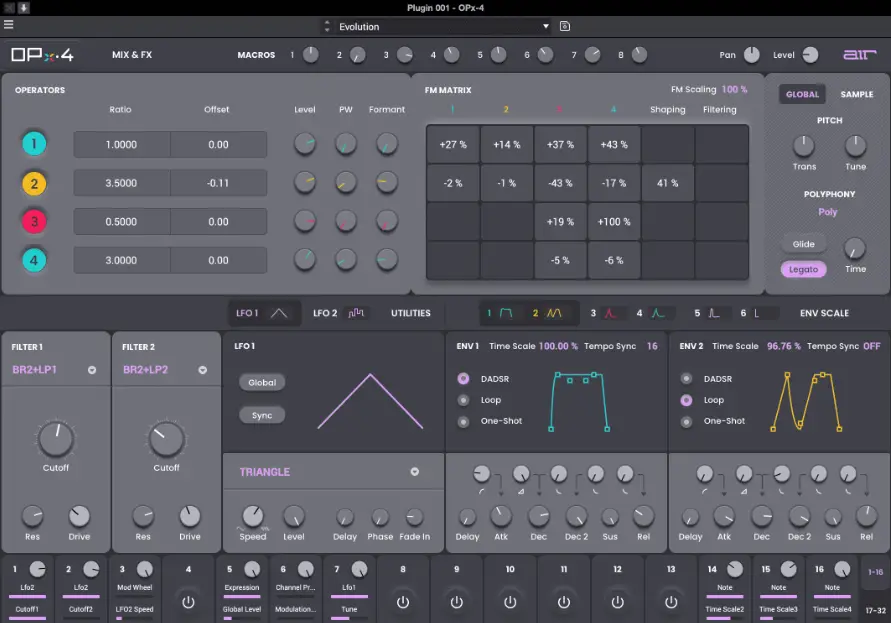
The AIR OPx-4 plugin is a four-operator frequency modulation powerhouse, delivering the ultimate in FM sound shaping. It is a software instrument that can be installed on Windows and macOS operating systems. It requires an in Music Brands Profile for activation and can be unlocked with a serial key or used in trial mode with intermittent audio alerts. The plugin includes Operators and FM Matrix, Filter 1/2, Modulation, LFO 1/2 Utilities, Bus Mix, Global Controls, and Macros for sound shaping and customization.
System Requirements & Product Support
The complete system requirements and compatibility information can be found on airmusictech.com. For technical support, visit support.airmusictech.com.
Installation Instructions
- Download the .exe (Windows) or .pkg (macOS) file from the official website
- Double-click the downloaded file to start the installation process
- Follow the on-screen instructions to complete the installation
- Open the plugin application
- Click “Sign In” to sign into your in Music Brands Profile using your Internet browser. If you do not have an in Music Brands Profile yet, you will be prompted to create one.
- Once you have signed in, click “Activate” in the plugin window to enter your serial key to unlock the plugin. You can unlock each plugin on up to three devices at a time.
- If you do not have a serial key, you can click “Try Unlicensed” to explore the plugin with intermittent audio alerts. You can also click “10-Day Trial” to initiate a free, fully featured trial of the plugin for 10 days. If you would like to purchase a serial key, click the link to purchase a license at profile.inmusicbrands.com.
Product Usage Instructions
Setup Section
The Setup Section includes Keyboard, Tempo, Settings, Menu, and Preset options.
- Keyboard: Click this icon to enable or disable the virtual keyboard. When enabled, you can click these keys to input notes, or view notes being played on an external MIDI device.
- Tempo: Displays the current plugin tempo. To change the tempo:
- Click and drag the tempo slider to the desired tempo
- Enter the tempo value in the text box
- Settings: Click this icon to open the Settings window, where you can set the following parameters:
- Audio settings: sample rate, buffer size, driver type
- MIDI settings: input/output devices, channel, mode
- General settings: language, keyboard shortcuts, skin
- Menu: Click this icon to open the menu, where you can find the following options:
- New: Create a new preset
- Open: Open an existing preset
- Save: Save the current preset
- Save As: Save the current preset with a new name
- Export: Export the current preset as a file
- Import: Import a preset file
- Undo/Redo: Undo or redo the last action
- About: View information about the plugin
- Preset: Click this drop-down menu to view the list of included plugin presets. You can also click the up and down arrows next to this field to move to the previous or next preset.
Global Controls and Macros
The Global Controls and Macros include Parameter Mix & FX, Macros, Pan, and Level options.
- Parameter Mix & FX: Toggles the main view between the Operators Off, On and the Mix & FX parameters.
- Macros: These eight macro controls are unique to each preset.
- Pan: Stereo panning of the instrument.
- Level: Overall volume level of the plugin.
Operators and FM Matrix
The Operators and FM Matrix include Parameter Operators and FM Matrix options for sound shaping.
- Parameter Operators:
- Enables or disables the selected voice.
- Amount of frequency offset in Hz of the operator from the original pitch.
- Volume of the selected Operator in the mix.
- Depth of pulse width modulation.
- Increases resonant frequencies to adjust the timbre of the sound.
- FM Matrix:
- Controls the modulation levels for the four Operator voices.
- Use the colored Operator numbers to enable or disable each voice.
- Use the value matrix to decrease or increase the modulation of the selected voices in the matrix.
- Amount of high-end filtering applied to the sound to reduce harshness.
Global / Sample
The Global / Sample option allows you to view and edit the global settings for the plugin and the settings for the sample layer. You can use this to add a sampled audio clip as part of the synthesized sound.
Introduction
Thank you for purchasing the AIR OPx-4 plugin instrument. The AIR OPx-4 plugin is a four-operator frequency modulation powerhouse, delivering the ultimate in FM sound shaping.
- Advance FM synthesis. At the source, each operator is capable of producing complex waveform results via feedback, formant shaping, FM Filtering and FM shaping parameters.
- Dual multimode filter path with 23 different filter types
- 6 envelopes with tempo-synced looping
- 2 LFOs
- 2 ramps
- 3 insert effects slots and 2 global effects slots with dynamic effects. Choose from a huge library of 27 AIR effects plugins including reverbs, delays, modulation, and distortion.
- Modulation matrix with 32 slots
- Sample layer for adding percussive attacks
This user guide explains the features and functions of the plugin instrument. For more information on using this plugin with other software, please refer to your software’s documentation for adding and using plugin instruments.
System Requirements & Product Support
For complete system requirements and compatibility information, visit airmusictech.com.
For technical support, visit support.airmusictech.com.
Installation
- Double-click the .exe (Windows) or .pkg (macOS) file you downloaded. Follow the on-screen instructions to install the software.
- Open the plugin application.
- Click Sign In to sign into your inMusic Brands Profile using your Internet browser. If you do not have an inMusic Brands Profile yet, you will be prompted to create one.
- Once you have signed in, click Activate in the plugin window to enter your serial key to unlock the plugin. You can unlock each plugin on up to three devices at a time.
- If you do not have a serial key, you can click Try Unlicensed to explore the plugin with intermittent audio alerts. You can also click 10-Day Trial to initiate a free, fully featured trial of the plugin for 10 days.
If you would like to purchase a serial key, click the link to purchase a license at profile.inmusicbrands.com.
Operation
Overview
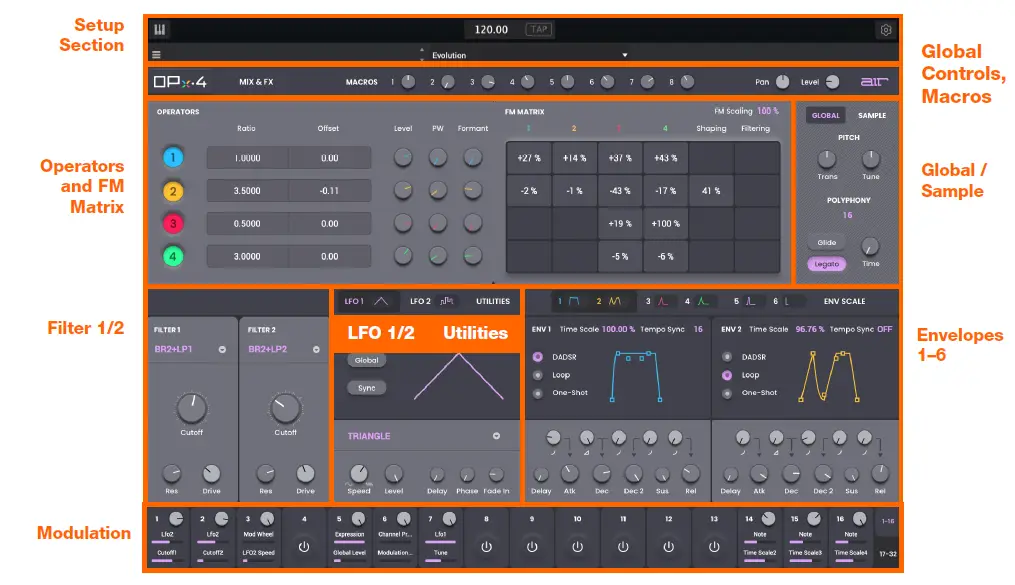
Setup Section

- Keyboard: Click this icon to enable or disable the virtual keyboard. When enabled, you can click these keys to input notes, or view notes being played on an external MIDI device.
- Tempo: Displays the current plugin tempo. To change the tempo:
- Click the number and use your keyboard to input a new value.
- Click and drag the tempo value up or down using your cursor.
- Click the Tap button at regular intervals.
- Settings: Click this icon to open the Settings window, where you can set the following parameters:
- Output: Click this drop-down menu to select an audio hardware driver in your computer system. Click the Test button to play a test tone for checking your audio output settings. (Careful! You should lower the volume on your audio system beforehand.)
- Sample Rate: Click this drop-down menu to select the desired sample rate for your project. This depends on the available sample rates of the type of MPC hardware you are using or of your audio interface (i.e., select 96000 Hz only if your interface allows a 96 kHz sample rate).
- Audio Buffer Size: Click this drop-down menu to set your audio system’s latency. Lower values result in a more immediate playing response but also more CPU consumption. If you are working with larger projects, this may cause audible clicks and pops. Higher values are more CPU-friendly but can produce more delay between pressing a pad and hearing the corresponding sound. The ideal audio buffer size also depends on your computer’s CPU performance. Experiment with this to find the best setting for your system.
- Active MIDI Inputs: Displays available MIDI input devices. To enable a device, check the box next to its name.
- Bluetooth MIDI: Click this icon to open your system’s Bluetooth settings menu, where you can select a Bluetooth-enabled MIDI device to control the plugin.
- Menu: Click this icon to open the menu, where you can find the following options:
- Scale: Click here to select a value to scale the plugin window to a new size.
- Load Preset: Click here to load a saved preset.
- Save Preset: Click here to save the current preset.
- Open User Guide: Click here to open this User Guide.
- About: Click here to view plugin version information.
- Preset: Click this drop-down menu to view the list of included plugin presets. You can also click the up and down arrows next to this field to move to the previous or next preset.
Global Controls and Macros

Parameter Description Value Range
| Mix & FX | Toggles the main view between the Operators and the Mix & FX parameters. | Off, On |
| Macros | These eight macro controls are unique to each preset. | Varies |
| Pan | Stereo panning of the instrument. | L64 – C – R64 |
| Level | Overall volume level of the plugin. | -inf – 0.0 – +6.0 dB |
Operators and FM Matrix
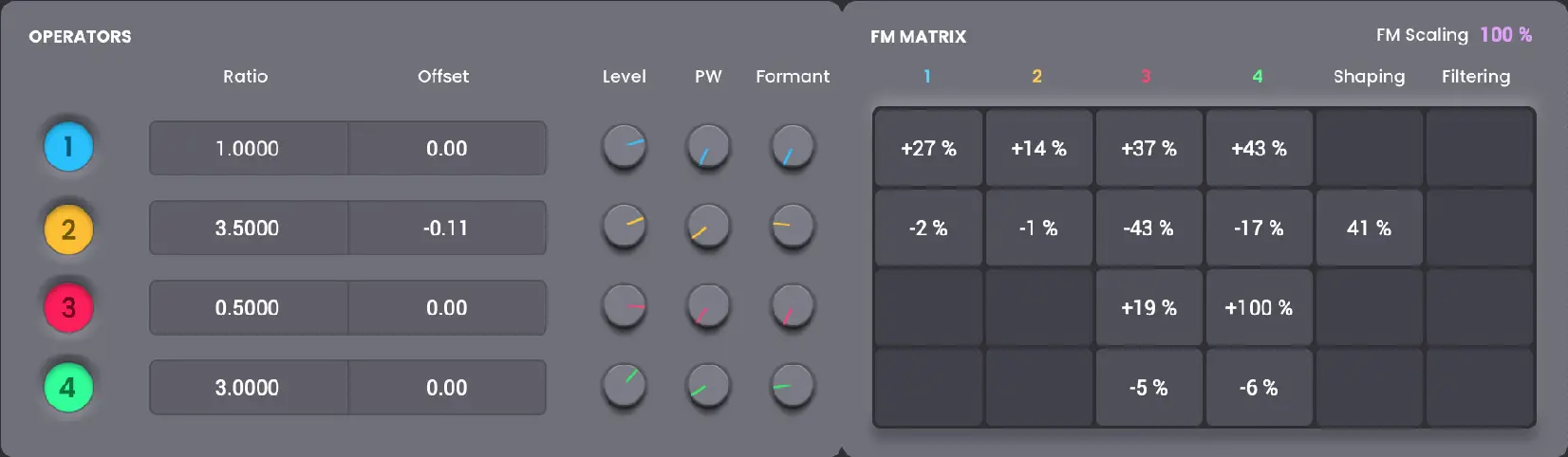 Parameter Description Value Range
| Operators | 1–4 | Enables or disables the selected voice. Off, On |
| Ratio | As the ratio doubles, the sound goes up one 0.0000 – 64.0000 octave. For instance, if your starting note is C3 (Ratio 1.0000), a Ratio of 0.5000 results in C2, a Ratio of 2.0000 results in C4, and so on. | |
| Offset | Amount of frequency offset in Hz of the -9999.00 – 0 – 9999.00 operator from the original pitch. | |
| Level | Volume of the selected Operator in the mix. 0–100% | |
| PW | Depth of pulse width modulation. 0–100% | |
| Formant | Increases resonant frequencies to adjust the 0.00 – 10.00 timbre of the sound. | |
| FM Matrix | Controls the modulation levels for the four -100 – 0 – +100% Operator voices. Use the colored Operator numbers to enable or disable each voice. Use the value matrix to decrease or increase the modulation of the selected voices in the matrix. | |
| FM Shaping | Adjusts the frequency modulation between the 0–100% original operator value (at 0) and the squared value (at 100). | |
| FM Filtering | Amount of high-end filtering applied to the 0–100% sound to reduce harshness. | |
| FM Scaling | Adjust how much overall modulation from the 0–100% FM Matrix is applied to the sound. | |
Global / Sample
Click Global to view and edit the global settings for the plugin. Click Sample to view and edit the settings for the sample layer. You can use this to add a sampled audio clip as part of the synthesized sound.
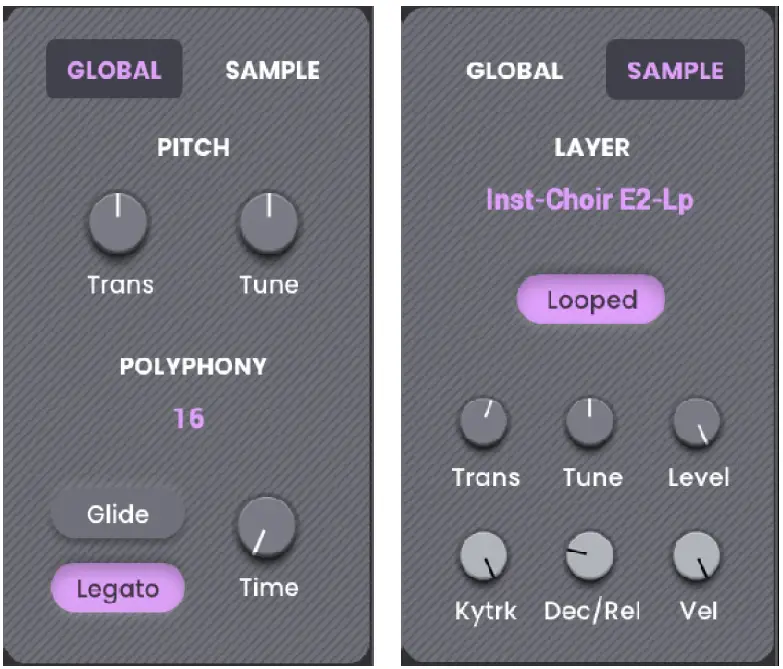 Parameter Description Value Range
| Global | Transpose | Transposition of the instrument, in semitones. | -48 – 0 – +48 Semitones |
| Tune | Fine tuning of the plugin, in cents. | -50 – 0 – +50 Cents | |
| Polyphony | Number of available voices. | Legato, Retrigger, 2–7, Poly | |
| Glide | Enable or disable pitch gliding. | Off, On | |
| Legato | Enables or disables pitch gliding for legato notes. | Off, On | |
| Time | Amount of time to slide from the pitch of one note to the next note played. | 0.0 – 2000.0 ms | |
| Sample | Layer | Select the sample layer sound. | Varies |
| Looped | Enables or disables looping of the sample layer. | Off, On | |
| Transpose | Amount of transposition applied to the sample layer. | -48 – 0 – +48 semitones | |
| Tune | Amount of tuning offset applied to the sample layer. | -50 – 0 – +50 cents | |
| Level | Volume of the sample layer. | 0–100% | |
| Key Track | Ties the pitch of the sample to the pitch being played. | 0–100% | |
| Dec / Rel | Length of decay and release of the sample. | 10.00 – 5000.00 ms | |
| Velocity | The amount of effect velocity has on the level of the sample. When set to 0, velocity has no effect. | 0–100% |
Filter 1/2
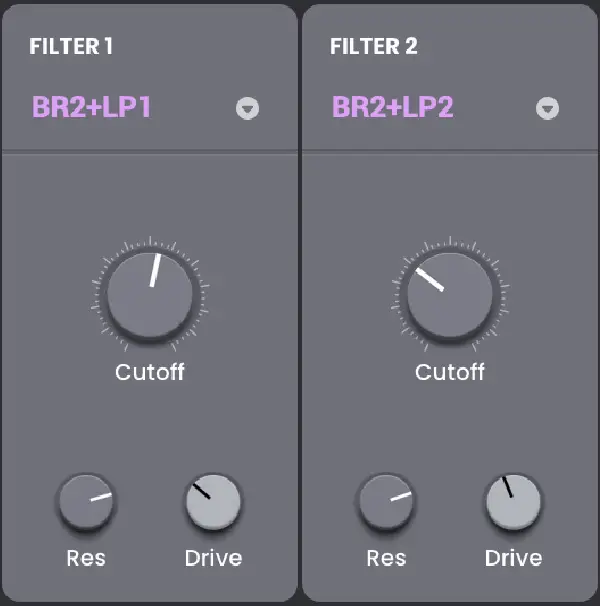 Parameter Description Value Range
| Type | Enables and sets the type of filter applied.
| Off, LP4, LP3, LP2, LP1, BP2, BP4, HP2+LP1, HP3+LP1, HP4, HP3, HP2, HP1, BR2, BR4, BR2+LP1, BR2+LP2, HP1+BR2, BP2+BR2, HP1+LP2, HP1+LP3, AP3, AP3+LP1, HP1+AP3 |
| Cutoff | Center cutoff frequency of the filter. | 55.0 Hz – 20.0 kHz |
| Res | Amount of resonance applied to the filter. | 0.7–20.0 |
| Drive | Amount of overdrive applied to the filter signal. | 0–100% |
LFO 1/2
Click the LFO1 and LFO2 icons to view each LFO’s controls.
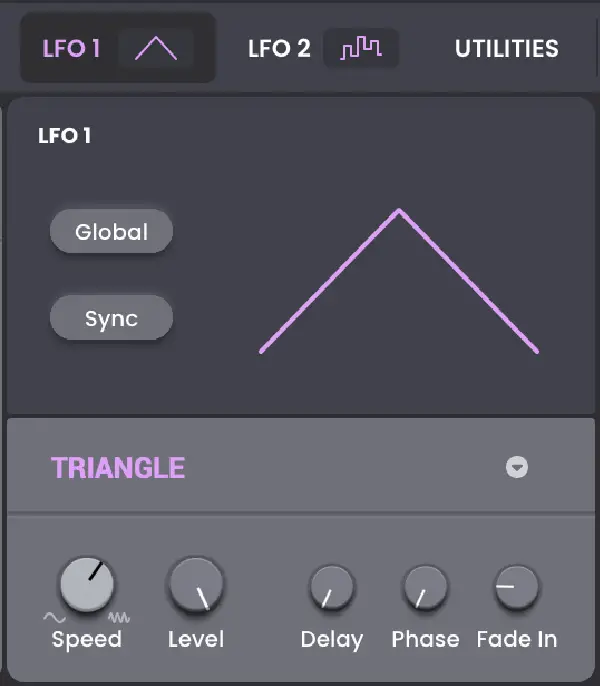 Parameter Description Value Range
| Global | Enables or disables the selected LFO. Off, On |
| Sync | Sync the LFO Speed to the Global Tempo Off, On or turn Off to adjust Speed by Hz. |
| Type | Type of modulation waveform. Ramp Up, Ramp Down, Triangle, Sine, Square, Rnd1, Rnd2 |
| Speed | Speed of modulation. When Sync is Off: 0.10 – 50.00 Hz When Sync is On: 16, 8T, 16D, 8, 4T, 8D, 4, 2T, 4D, 2, 1T, 3/4, 4/4, 5/4, 6/4, 7/4, 8/4 |
| Level | Amount of LFO applied. 0–100% |
| Delay | Amount of delay between note start and 0.00 – 15000.00 ms LFO start. |
| Phase | Position of the waveshape when the sound 0–100% is triggered. |
| Fade In | Amount of fade-in time applied to the LFO 0.00 – 15000.00 ms signal. |
Utilities
Click the Utilities icon to show these settings in the same area of LFO1/2.
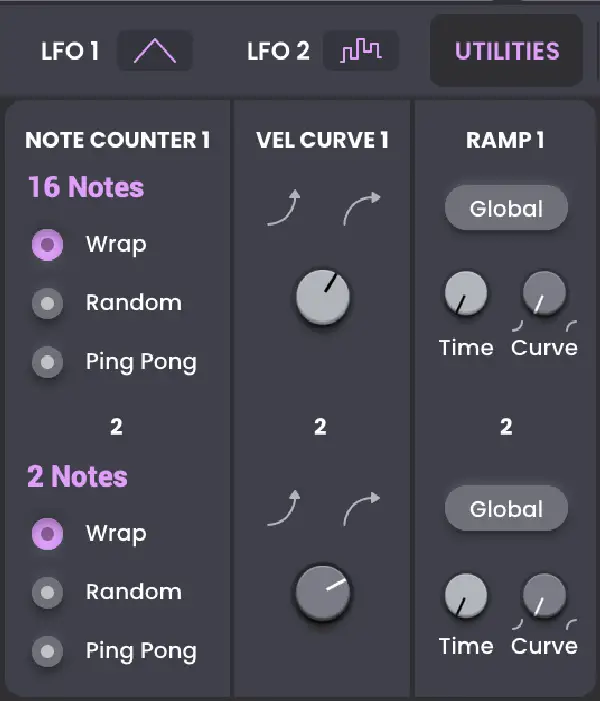 Parameter Description Value Range
| Note Counter 1/2
Velocity Curve
Ramp 1/2 | Notes | Number of available voices. | 2–16 |
| Mode | Determines how voices are triggered within the range set in Notes:
| Wrap, Random, Ping Pong | |
| Determines how playing notes translates into velocity values. At negative values, it takes more force to hit higher velocity values; at positive values, it takes less force. | -100 – 0 – +100% | ||
| Global | Enables or disables applying the ramp globally. | Off, On | |
| Time | Length of time for the selected ramp. | 10.00 – 10000.00 ms | |
| Curve | Adjust the shape of the ramp. | -100 – 0 – +100% |
Envelopes 1–6
Use these tabs to adjust the six amplitude modulation envelopes. Tap the tab to cycle between each, or tap the envelope icons at the top of the window.
In addition to the controls at the bottom of the window, you can also directly tap and drag each envelope point in the graph.
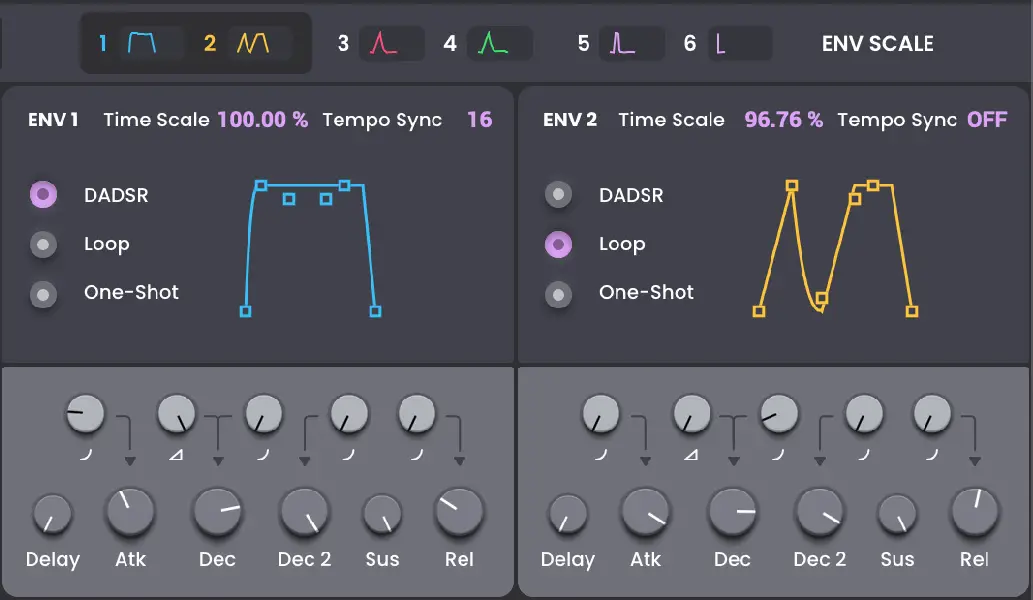
Parameter Description Value Range
| Time Scale | Duration of the envelope. | 10.00 – 100.00% |
| Tempo Sync | Length of the envelope relative to the Global Tempo. Set to Off set the envelope length according to the stage settings in milliseconds. | 16, 8T, 16D, 8, 4T, 8D, 4, 2T, 4D, 2, 1T, 3/4, 4/4, 5/4, 6/4, 7/4, 8/4, Off |
| Mode | Type of envelope applied. | DADSR, Loop, One-Shot |
| Delay | Amount of time between note start and envelope start. | 0.00 – 15000.00 ms |
| Attack | Length of time for the note to reach full level. | 0.50 – 10000.00 ms |
| Attack Curve | Adjust the shape of the envelope’s Attack phase. | 0–100% |
| Decay | Length of time for the initial attack decay phase. | 1.00 – 10000.00 ms |
| Decay Level | Level of the initial decay phase compared to the attack phase. | 0–100% |
| Decay Curve | Adjust the shape of the envelope’s Decay phase. | 0–100% |
| Decay 2 | Length of time for the secondary decay phase for note to reach sustain level. | 1.00 – 10000.00 ms |
| Decay 2 Curve | Adjust the shape of the envelope’s Decay 2 phase. | 0–100% |
| Sustain | Level of the sound while the note is held. | 0–100% |
| Release | Length of time for the note to dissipate when released. | 10.00 – 5000.00 ms |
| Release Curve | Adjust the shape of the envelope’s Release phase. | 0–100% |
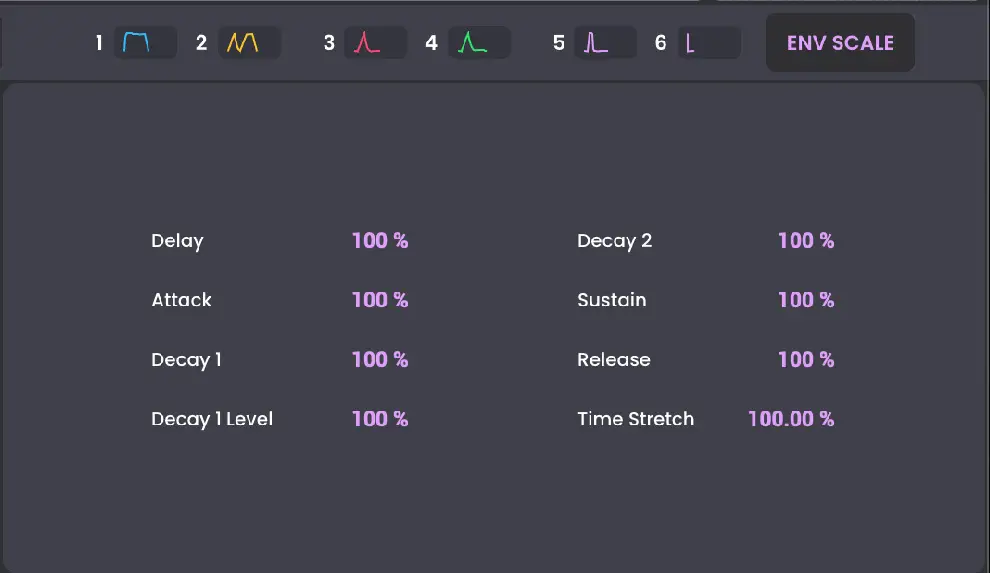
Click the Env Scale button to view the Envelope Scaling options, which allow you to further adjust how much of the envelope is applied.
Parameter Description Value Range
| Delay | Adjust the overall Delay envelope amount. | 0–100% |
| Attack | Adjust the overall Attack envelope amount. | 0–100% |
| Decay 1 | Adjust the overall Decay 1 envelope amount. | 0–100% |
| Decay 1 Level | Adjust the overall Decay 1 Level. | 0–100% |
| Decay 2 | Adjust the overall Decay 2 envelope amount. | 0–100% |
| Sustain | Adjust the overall Sustain level. | 0–100% |
| Release | Adjust the overall Release envelope amount. | 0–100% |
| Time Stretch | Adjust the overall length of the envelope. | 100.00–400.00% |
Modulation
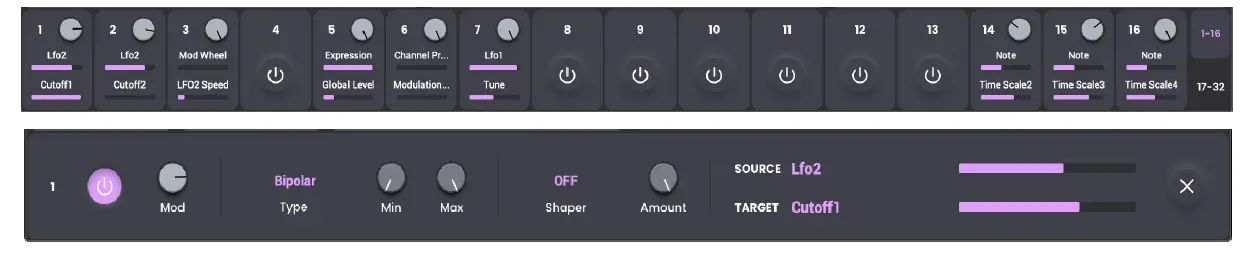
The 32 modulation points can be configured to add a wide variety of sound shaping tools.
To enable a modulation point, click the power button to activate it.
To expand the modulation settings, click each modulation number. Click the X icon to return to the list of Modulations.
To toggle between viewing modulation groups, click the 1–16 or 17–32 icons.
Parameter Description Value Range
| Mod 1–32 | Power Button | Enables or disables each modulation point. | Off, On |
| Mod | Amount of modulation applied. | 0–100% | |
| Type | Type of modulation applied. | Bipolar, Unipolar, Bipolar (scaled), Unipolar (reverse) | |
| Min | Minimum modulation level of the selected parameter. | 0–100% | |
| Max | Maximum modulation level of the selected parameter. | 0–100% | |
| Shaper | Determines how the modulation relationship between the source and target is shaped. | Off, Square, Cubic, InvSquare, InvCubic, SquareRoot, CubeRoot, Sine, DoubleSine, Quantize0025, Quantize0050, Quantize0075, Quantize2550, Quantize5075, Quantize75100, | |
| Amount | Amount of the Shaper applied. | 0–100% | |
| Source | Select the input source of the modulation. | Varies | |
| Target | Select the output target for the modulation. | Varies |
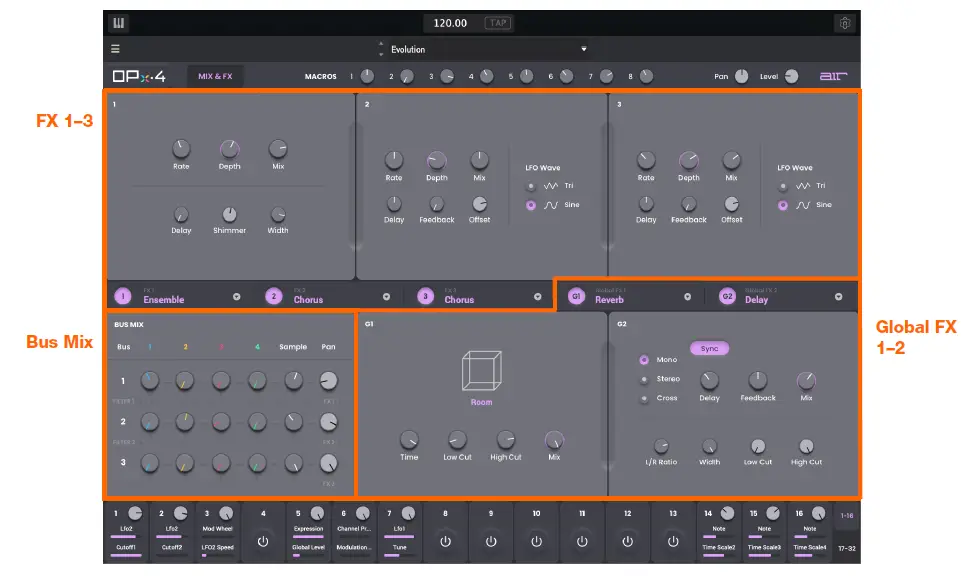
Bus Mix
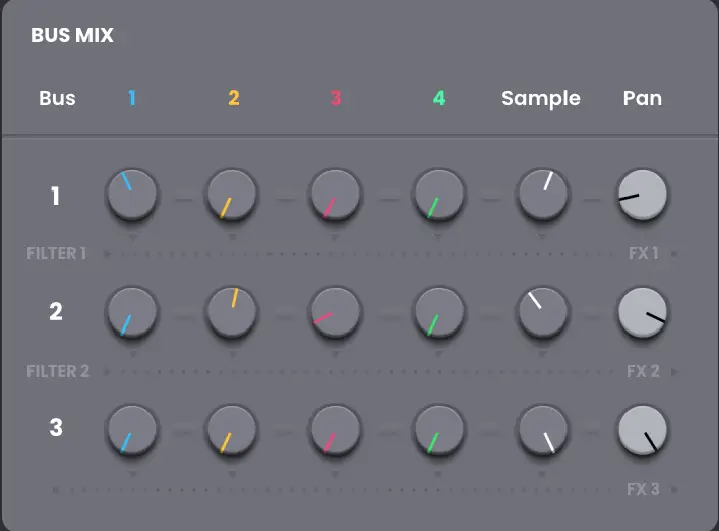
Use this section to adjust the settings for the three bus mixes:
The columns represent Operators 1–4, the Sample layer, and the submix Panning.
The rows represent the signal path to FX 1–3. Rows 1 and 2 are also routed through Filter 1 and 2, respectively. Row 3 does not pass through either filter.
All submix outputs will be routed through the Global FX 1–2, if active.
Parameter Description Value Range
| Operator 1–4 | Volume level of the operator in each submix. | 0–100% |
| Sample | Level of sample layer audio in each submix. | 0–100% |
| Pan | Stereo panning of each submix. | L64 – C – R64 |
FX1–3 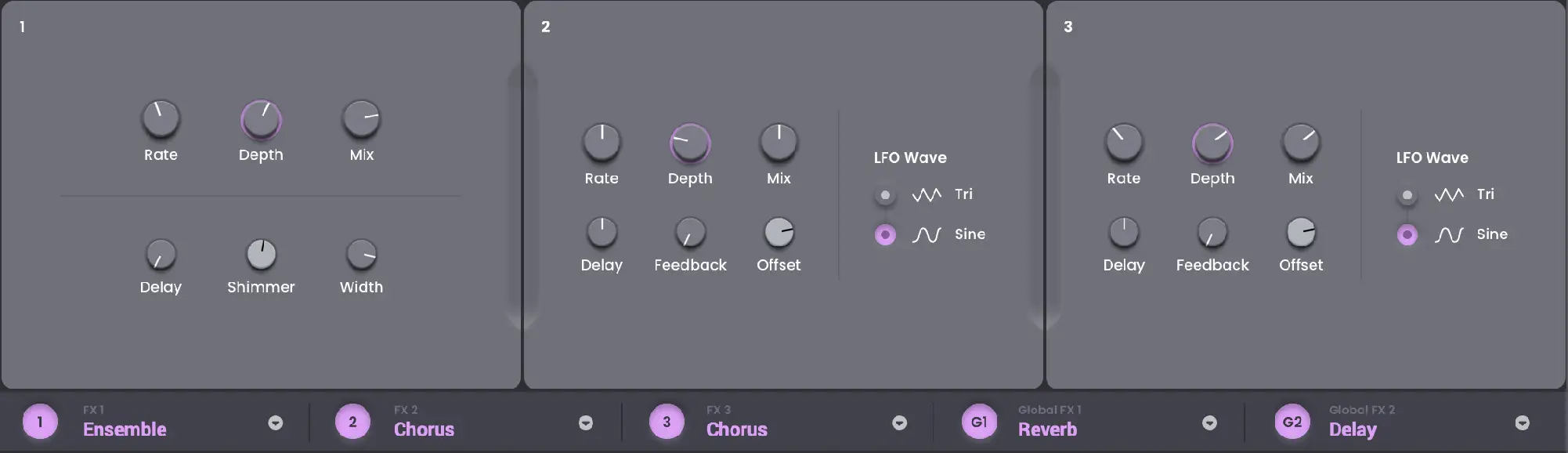
Use these sections to adjust the settings for the three available effects slots:
- Off
- Chorus
- Ensemble
- Tremolo
- Delay
- Multitap Delay
- Highpass
- EQ (3 bands)
- Phaser
- Phase (vintage)
- Flanger (vintage)
- Tube Drive
- Compressor
- Expander
Click the arrow icon in each FX1–3 slot to select an effect.
Click the 1–3 icon to bypass the effect.
Parameter Description Value Range
| Chorus | Rate | Modulation speed of the chorus effect. | 0.01 – 10.0 Hz |
| Depth | Modulation depth of the chorus effect. | 0.00 – 24.00 ms | |
| Mix | Wet/dry amount of the chorus effect. | 0–100% | |
| Delay | Amount of delay between the original signal and modulated signal. | 0.00 – 24.00 ms | |
| Feedback | Amount of signal feed back into the delay line. | 0–100% | |
| Offset | Degree of offset that at the start of the LFO wave. | -180 – 0 – +180 degrees | |
| LFO Wave | Type of modulation wave. | Tri, Sine | |
| Ensemble | Rate | Modulation speed of the ensemble effect. | 0.01 – 10.0 Hz |
| Depth | Modulation depth of the ensemble effect. | 0.00 – 24.00 ms | |
| Mix | Wet/dry amount of the ensemble effect. | 0–100% | |
| Delay | Amount of delay between the original signal and modulated signal. | 0.00 – 24.00 ms | |
| Shimmer | Randomizes the Delay time, adding texture to the effect. | 0–100% | |
| Width | Stereo width of the ensemble effect. | 0–100% |
| Tremolo | Sync | Sync the modulation Rate to the Global Tempo Off, On or turn Off to adjust Rate by Hz. |
| Rate | Speed of the modulation. When Sync is Off: 0.25 – 13.00 Hz When Sync is On: 8/4, 6/4, 5/4, 4/4, 3/4, 1T, 2, 4D, 2T, 4, 8D, 4T, 8, 16D, 8T, 16 | |
| Depth | Modulation depth of the tremolo effect. 0–100% | |
| Sync Phase | Adjusts the starting position of the modulation -180 – 0 – +180 waveform. | |
| Shape | Type of modulation wave. Sine, Sqr | |
| Mode | Type of effect applied. Trem, Pan | |
| Delay | Sync | Sync the Delay to the Global Tempo or turn Off, On Off to adjust Delay by milliseconds or seconds. |
| Type | Type of delay applied. Mono, Stereo, Cross | |
| Delay | Amount of time between the dry signal and the delayed signal. When Sync is Off: 1 ms – 4.00 s When Sync is On: 16, 8T, 16D, 8, 4T, 8D, 4, 2T, 4D, 2, 1T, 3/4, 4/4, 5/4, 6/4, 7/4, 8/4 | |
| Feedback | Amount of signal fed back into the delay line. 0–100% | |
| Mix | Wet/dry amount of the delay effect. 0–100% | |
| L / R Ratio | Reduces the delay Time in either the Left or L 50:100 – R 100:50 Right stereo field. This is useful for creating offset, panned delays. | |
| Width | Stereo width of the delay effect. 0–100% | |
| Low Cut | Center frequency for delay signal low-cut filter. 20.0 Hz – 1.0 kHz | |
| High Cut | Center frequency for delay signal high-cut filter. 1.00 kHz – 20.0 kHz |
| Multitap Delay | From | Select the signal where the feedback is taken from. | Tap 1–5 |
| To | Select the signal where the feedback is sent to. | Input, Tap 1–5 | |
| Sync | Sync the Delay to the Global Tempo or turn Off to adjust Delay by milliseconds or seconds. | Off, On | |
| Low Cut | Center frequency for delay signal low-cut filter. | 20.0 Hz – 1.0 kHz | |
| High Cut | Center frequency for delay signal high-cut filter. | 1.00 kHz – 20.0 kHz | |
| Delay | Amount of time between the dry signal and the delayed signal. When Sync is Off: When Sync is On: |
1 ms – 4.00 s 16, 8T, 16D, 8, 4T, 8D, 4, 2T, 4D, 2, 1T, 3/4, 4/4, 5/4, 6/4, 7/4, 8/4 | |
| Feedback | Amount of signal fed back into the delay line. | 0–100% | |
| Mix | Wet/dry amount of the delay effect. | 0–100% | |
| Tap 1–5 | Enable or disable each tap delay, which create multiple delay points. | Off, On | |
| Tap Delay 1–5 | Percent from the original Delay value that each tap delay is set to. At 100%, the tap delay uses the full Delay amount. | 0–100% | |
| Tap Level 1–5 | Volume of the tap delay. | -inf – 0.0 dB | |
| Tap Pan 1–5 | Stereo panning of the tap delay. | L100 – C – R100 | |
| Highpass | Cutoff | Cutoff frequency of the high-pass filter. | 0–1000 Hz |
| Resonance | Amount of resonance of the filter. | 0–100% | |
| EQ (3 bands) | Low Gain | Level of the low EQ band. | -15.0 – 0 – +15.0 dB |
| Low Freq | Center frequency of the low EQ band. | 20.0 Hz – 1.00 kHz | |
| Mid Gain | Level of the mid EQ band. | -15.0 – 0 – +15.0 dB | |
| Mid Q | Width of the mid EQ band. | 0.50–10.00 | |
| Mid Freq | Center frequency of the mid EQ band. | 40.0 Hz – 16.0 kHz | |
| High Gain | Level of the high EQ band. | -15.0 – 0 – +15.0 dB | |
| High Freq | Center frequency of the high EQ band. | 2.00 – 20.0 kHz | |
| Output | Output level of the post-EQ audio. | -20.0 – 0 – +20.0 dB |
| Phaser | Sync | Sync the Phaser Rate to the Global Tempo or Off, On turn Off to adjust Rate by Hz. |
| Rate | Speed of modulation. When Sync is set to Off: 0.01 – 10.0 Hz When Sync is set to On: 8/4, 6/4, 5/4, 4/4, 3/4, 1T, 2, 4D, 2T, 4, 8D, 4T, 8, 16D, 8T, 16 | |
| Depth | Amount of modulation applied. 0–100% | |
| Feedback | Amount of signal fed back into the audio line. 0–100% | |
| Mix | Wet/dry mix of the phaser effect. 0–100% | |
| Low Cut | Center frequency for the phaser low-cut filter. 20.0 Hz – 1.00 kHz | |
| Center | Center frequency of the phaser poles. 100 Hz – 10.0 kHz | |
| Poles | Number of phase stages, where a higher 2, 4, 6, 8 number creates a more intense phasing effect. | |
| LFO Wave | Adjusts the modulation wave between a triangle 0–100% wave and sine wave. | |
| Offset | Degree of offset that at the start of the LFO -180 – 0 – +180 deg wave. | |
| Phase (vintage) | Rate | Speed of modulation. 0.10 – 10.00 Hz |
| Depth | Amount of modulation applied. 0–100% | |
| Feedback | Amount of signal fed back into the audio line. 0–100% | |
| Mix | Wet/dry mix of the phaser effect. 0–100% | |
| Offset | Degree of offset applied to start of the LFO wave or the modulation speed. When Phase/Rate is set to Phase: -180 – 0 – +180 deg When Phase/Rate is set to Rate: 25–400% | |
| Phase/Rate | Determines what is affected by the Offset Phase, Rate control. | |
| Model | Type of vintage phaser model. Vibe, Stone, Ninety, Tron | |
| Flanger (vintage) | Rate | Speed of modulation. 0.10 – 10.00 Hz |
| Depth | Amount of modulation applied. 0–100% | |
| Mix | Wet/dry mix of the phaser effect. 0–100% | |
| Feedback | Amount of signal fed back into the audio line. 0–100% | |
| Headroom | Amount of gain reduction between the clean -20.0 – 0.0 dB FS signal and the flanger signal. |
| Tube Drive | Drive | Amount of drive applied. | 0–100% |
| Headroom | Point at which the incoming signal starts to distort. At lower settings, the signal will distort even at low volumes. At higher settings, the signal will remain “clean” at lower or mid-range volumes and then start distorting when it becomes very loud | -30.0 – 0.0 dB | |
| Saturation | Amount of saturation applied. | 0–100% | |
| Output | Output level of the post-drive audio. | -20.0 – 0 – +20.0 dB | |
| Compressor | Type | Type of compression applied. | Peak, RMS, Opto |
| Threshold | Signal level after which the compressor will be applied. | -40.0 – 0.0 dB | |
| Ratio | Amount of compression applied. | 1.0:1 – 100:1 | |
| Output | Amount of additional output gain for the compressed signal. | -20.0 – 0 – +20.0 dB | |
| Knee | How gradually the compressor reacts as the threshold is reached. Lower values apply a “soft” knee (compression is applied more slowly as signal approaches the threshold), and higher values apply a “hard” knee (compression is immediately applied when the threshold is reached). | 0–100% | |
| Attack | Length of time to apply the compression. | 10.0 us – 100 ms | |
| Release | Length of time for compressed signal to return to original level. | 10.0 ms – 10.00 s | |
| Low Sens | Sensitivity threshold of the compressor for low- end frequencies. | -12.0 – 0 – +12.0 dB | |
| High Sens | Sensitivity threshold of the compressor for high-end frequencies. | -12.0 – 0 – +12.0 dB | |
| Expander | Threshold | Signal level below which the expander will reduce signal. | -40.0 – 0.0 dB |
| Ratio | Amount of expansion applied. | 1:1.0 – 1:100 | |
| Range | Set the dynamic range above the threshold value. | 0.0 – 40.0 dB | |
| Output | Output level of the expansion audio. | -20.0 – 0 – +20.0 dB | |
| Attack | Length of time to apply the expansion. | 10.0 us – 100 ms | |
| Release | Length of time for expanded signal to return to original level. | 10.0 ms – 10.00 s |
Global FX1–2
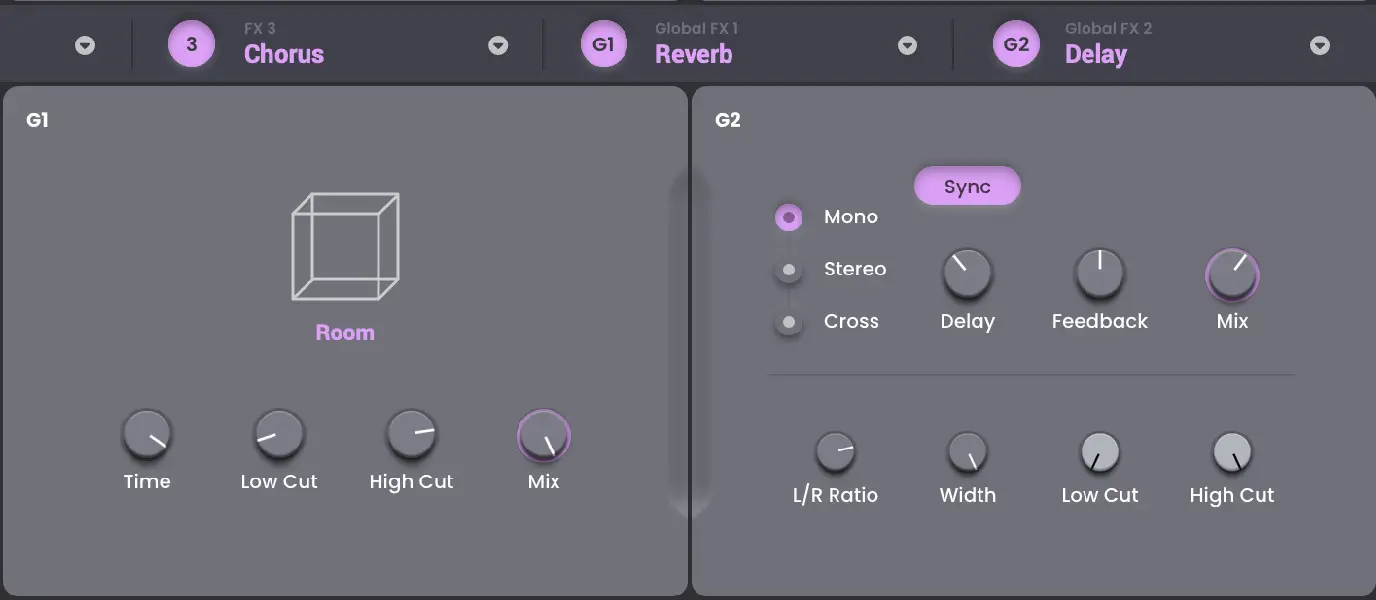
Use these sections to adjust the settings for the two available global effects slots:
- Off
- Chorus
- MultiChorus Ensemble
- Temolo
- Delay
- Tape Delay
- Multitap Delay
- Highpass
- EQ (Parametric)
- EQ (3 bands)
- Phaser
- Phase (vintage)
- Flanger
- Flanger (vintage)
- Amp Sim
- Talk Box
- FuzzWah
- Tube Drive
- Overdrive Decimator
- Compressor
- Maximizer
- Expander
- Enhancer
- Reverb
- Spring Reverb
- Gated Reverb
Click the arrow icon in each G1–2 slot to select an effect.
Click the G1–G2 icon to bypass the effect.
Parameter Description Value Range
| Chorus | See FX1–3 description above. | ||
| MultiChorus | Rate | Modulation speed of the chorus effect. | 0.01 – 10.0 Hz |
| Depth | Modulation depth of the chorus effect. | 0.00 – 24.00 ms | |
| Voice Count | Number of copies of the sound used to create the chorus effect. | 3, 4, 6 | |
| Mix | Wet/dry amount of the chorus effect. | 0–100% | |
| Delay | Amount of delay between the original signal and modulated signal. | 0.00 – 24.00 ms | |
| Width | Stereo width of the effect. | 0–100% | |
| Low Cut | Center frequency for the effect low-cut filter. | 20.0 Hz – 1.00 kHz | |
| LFO Wave | Type of modulation wave. | Tri, Sine | |
| Ensemble | See FX1–3 description above. | ||
| Tremolo | See FX1–3 description above. | ||
| Delay | See FX1–3 description above. | ||
| Tape Delay | Tape Head On/Off 1–4 | Enables or disables each tape head, which create multiple delay points. | Off, On |
| Tape Head Delay 1–4 | Percent from the original Delay value that each tape head is set to. At 100%, the tape head uses the full Delay amount. | 0–100% | |
| Tape Head Mix 1–4 | Wet/dry amount of the tape head. | 0–100% | |
| Tape Head Pan 1–4 | Stereo panning of the tape head. | L100 – C – R100 | |
| Tape Head Feedback 1–4 | Amount of signal from the tape head fed back into the delay line. | 0–100% | |
| Sync | Sync the Delay to the Global Tempo or turn Off to adjust Delay by milliseconds or seconds. | Off, On | |
| Delay | Amount of time between the dry signal and the delayed signal. When Sync is Off: When Sync is On: | 1 – 4000 ms 16, 8T, 16D, 8, 4T, 8D, 4, 2T, 4D, 2, 1T, 3/4, 4/4, 5/4, 6/4, 7/4, 8/4 | |
| Speed | Rate that the simulated tape moves. | 0.0 – 15.0 ips | |
| Input | Level of the incoming signal. | -inf – 0 – + 12.0 dB | |
| Output | Level of the outgoing signal. | -inf – 0 – + 12.0 dB | |
| Feedback | Amount of signal fed back into the delay line. | 0–100% | |
| Low Cut | Center frequency for delay signal low-cut filter. | 20.0 Hz – 1.0 kHz | |
| High Cut | Center frequency for delay signal high-cut filter. | 1.00 kHz – 20.0 kHz | |
| Mix | Wet/dry amount of the delay effect. | 0–100% | |
| Wow Rate | Speed of wow pitch variation. | 0.10 – 20.0 Hz | |
| Wow Depth | Modulation depth of wow pitch variation. | 0–100% | |
| Flutter Rate | Speed of flutter pitch variation. | 10.0 Hz – 1.00 kHz | |
| Flutter Depth | Modulation depth of flutter pitch variation. | 0–100% | |
| Multitap Delay | See FX1–3 description above. | ||
| Highpass | See FX1–3 description above. |
| EQ (Parametric) | Output | Amount of additional output gain reduction or boost for the post-EQ signal. | -20.0 – 0.0 – +20.0 dB |
| Band On/Off | Enables or disables the selected EQ band. | Off, On | |
| Low Cut | Amount of frequency drop-off at the low cut frequency. | 6, 12, 18, 24 dB | |
| Low Cut Freq | Center frequency of the EQ band. | 20.0 Hz – 8.00 kHz | |
| Low Gain | Level of the low EQ band. | -12.0 – 0.0 – +12.0 dB | |
| Low Q | Width of the low EQ band. | 0.40 – 2.00 | |
| Low Freq | Center frequency of the low EQ band. | 20.0 Hz – 1.00 kHz | |
| Low Shelf/Bell | Type of EQ band. | Shelf, Bell | |
| Low Mid Gain | Level of the low mid EQ band. | -18.0 – 0.0 – +18.0 dB | |
| Low Mid Q | Width of the EQ band. | 0.40 – 10.00 | |
| Low Mid Freq | Center frequency of the low mid EQ band. | 40.0 Hz – 8.00 kHz | |
| High Mid Gain | Level of the high mid EQ band. | -18.0 – 0.0 – +18.0 dB | |
| High Mid Q | Width of the EQ band. | 0.40 – 10.00 | |
| High Mid Freq | Center frequency of the high mid EQ band. | 120 Hz – 16.0 kHz | |
| High Gain | Level of the high EQ band. | -18.0 – 0.0 – +18.0 dB | |
| High Q | Width of the EQ band. | 0.40 – 2.00 | |
| High Freq | Center frequency of the high EQ band. | 1.20 – 20.0 kHz | |
| High Shelf/Bell | Type of EQ band. | Shelf, Bell | |
| High Cut | Amount of frequency drop-off at the high cut frequency. | 6, 12, 18, 24 dB | |
| High Cut Freq | Center frequency of the high cut EQ band. | 120 Hz – 20.0 kHz | |
| EQ (3 bands) | See FX1–3 description above. | ||
| Phaser | See FX1–3 description above. | ||
| Phaser (vintage) | See FX1–3 description above. |
| Flanger | Sync | Sync the Flanger Rate to the Global Tempo or Off, On turn Off to adjust Rate by Hz. |
| Trigger | Enable to manually reset the LFO phase. Off, On | |
| Invert | Enable to invert the polarity of the flanged Off, On signal, changing the harmonic structure of the effect. | |
| Rate | Speed of modulation. When Sync is set to Off: 0.01 – 10.0 Hz When Sync is set to On: 8/4, 6/4, 5/4, 4/4, 3/4, 1T, 2, 4D, 2T, 4, 8D, 4T, 8, 16D, 8T, 16 | |
| Depth | Amount of modulation applied to the delay 0.00 – 12.00 ms time. | |
| Delay | Amount of time between the dry signal and the 0.00 – 12.00 ms delayed signal. | |
| Mix | Wet/dry mix of the flanger effect. 0–100% | |
| Feedback | Amount of signal regeneration of the flanger -100 – 0 – +100% signal. | |
| Low Cut | Center frequency for the flanger signal low-cut 20.0 Hz – 1.00 kHz filter. | |
| LFO Wave | Adjusts the modulation wave between a triangle 0–100% wave and sine wave. | |
| Offset | Adjust phase offset of the LFO to the left and -180 – 0 – +180 deg right stereo channels. | |
| Flanger (vintage) | See FX1–3 description above. |
| Amp Sim | Cab Model | Type of amplifier simulated. D.I., Brit, 1×8”, 1×12”, 2×10”, 2×12”, 4×10”, 4×12”, 1×15” Bass, 4×10” Bass, Radio |
| Drive | Amount of drive applied. 0.0–11.0 | |
| Feedback | Amount of amplifier feedback. 0–100% | |
| Output | Output level of the amp signal. -12.0 – 0.0 – +12.0 dB | |
| Soft Clip | Amount of softening applied to the clipped signal to 0–100% decrease high-frequency harmonics and add warmth. | |
| Top Boost | Amount of gain boost to treble frequencies. 0–100% | |
| Edge | Adjust clipping from being symmetrical to being 0–100% asymmetrical, which makes it sound richer, and nastier at high settings. | |
| Treble | Dampens or maximizes high end frequencies. -12.0 – 0.0 – +12.0 dB | |
| Mid | Dampens or maximizes mid-range frequencies. -12.0 – 0.0 – +12.0 dB | |
| Mid Freq | Center frequency for the mid-range EQ. 250 Hz – 4.00 kHz | |
| Bass | Dampens or maximizes low end frequencies. -12.0 – 0.0 – +12.0 dB | |
| Mono/Stereo | Determines whether the simulation is mono or Mono, Stereo stereo. | |
| TalkBox | LFO Wave | Type of waveform used for the LFO. Sine, Tri, Saw, Square, S&H, Random |
| LFO Sync | Sync the LFO Rate to the Global Tempo or turn Off Off, On to adjust LFO Rate by Hz. | |
| LFO Rate | Speed of LFO modulation. When Sync if Off: 0.01 – 10.0 Hz When Sync in On: 8/4 – 16 | |
| LFO Depth | Amount of modulation applied. -100 – 0 – +100% | |
| Vowel | Shape of the formant filter, by the vowel sound that 0.000–1.000 is simulated. OO, OU, AU, AH, AA, AE, EA, EE, EH, ER, UH, OH, OO | |
| Formant | Shifts the center formant up or down by semitones. -12.00 – 0.00 – +12.00 | |
| Mix | Wet/dry amount of the talk box effect. 0–100% | |
| Env Threshold | Amplitude threshold at which the Formant setting -60.0 – 0.0 dB begins to be modulated by the Envelope follower. | |
| Env Attack | Length of time for the envelope to trigger. 0.1 – 10.0 s | |
| Env Release | Length of time for the envelope to release. 0.1 – 10.0 s | |
| Env Depth | Creates a positive or negative offset in the setting of -100 – 0 – 100% the Vowel control, effected by the Envelope follower. When the envelope follower is triggered, the Vowel parameter moves to its normal setting and then back to the offset value. |
| Fuzz Wah | Fuzz | Enables or disables fuzz distortion. | Off, On |
| Drive | Level of fuzz gain. | 0 – 40 dB | |
| Tone | Brightness of the fuzz distortion. | 1.00 – 10.0 kHz | |
| Output | Output level of the fuzz signal. | -Inf – 0.0 dB | |
| Wah | Enables or disables the wah function. | Off, On | |
| Pedal | Position of the wah pedal. | 0–100% | |
| Rate | Speed of modulation. | 8/4 – 16 | |
| Depth | Depth of modulation. | -100 – 0 – +100% | |
| Filter | Type of wah filter. | Lowpass, Bandpass, Highpass | |
| Mod | Modulation source for the wah’s filter sweep. | LFO, Env | |
| Min Freq | Frequency of the wah filter at the minimum pedal point. | 50.0 Hz – 4.00 kHz | |
| Max Freq | Frequency of the wah filter at the maximum pedal point. | 50.0 Hz – 4.00 kHz | |
| Min Reso | Resonance of the wah filter at the minimum pedal point. | 0–100% | |
| Max Reso | Resonance of the wah filter at the maximum pedal point. | 0–100% | |
| Order | Order of the fuzz and wah effects. | Fuzz>Wah, Wah>Fuzz | |
| Fuzz Mix | Wet/dry amount of the fuzz effect. | 0–100% | |
| Wah Mix | Wet/dry amount of the wah effect. | 0–100% | |
| Mix | Wet/dry amount of the combined fuzz/wah effect. | 0–100% | |
| Tube Drive | See FX1–3 description above. |
| Overdrive | Drive | Amount of input volume to overdrive the audio 0–60 dB signal. | |
| Mode | Set the overdrive mode:
| Hard, Soft, Wrap | |
| Stereo | Set the effect to stereo or mono output. | Off, On | |
| Output | Output level of the overdriven signal. | 0–100% | |
| Mix | Wet/dry amount of the overdrive effect. | 0–100% | |
| Pre-Shape | Increases or decreases a broad gain boost or attenuation of treble frequencies in the processed signal. | -100 – 0 – 100% | |
| Threshold | Amount of headroom for the dynamic range of -20.0 – 0.0 dB FS the distorted signal. | ||
| Edge | Adjust clipping from being symmetrical to being 0–100% asymmetrical, which makes it sound richer, and nastier at high settings. | ||
| High-Cut | Center frequency for the overdrive high-pass filter. | 1.00 – 20.0 kHz | |
| Decimator | Bit Depth | Amount of bit depth reduction. | 1.0 – 16.0 bit |
| Sample Rate | Amount of sample rate reduction. | 500 Hz – 50.0 kHz | |
| Mix | Wet/dry amount of the decimator effect. | 0–100% | |
| Anti-Alias | Enables or disables anti-aliasing. | Off, On | |
| Pre | Adjust the anti-aliasing filter cutoff applied to the audio signal before resampling. | 0.125 – 2.000 Fs | |
| Post | Adjust the range of anti-aliasing filter cutoff applied to the audio signal after resampling. | 0.125 – 2.000 Fs | |
| Clip | Adds transistor-like distortion to the signal. | 0.0 – 40.0 dB | |
| Rectify | Acts as a waveshaper, adding aggressive, harsh distortion to the signal. | 0–100% | |
| Noise Mod | Adds a buzzy, noisy edge to the signal. | 0–100% | |
| LFO Sync | Sync the Rate to the Global Tempo or turn Off to adjust Rate by Hz. | Off, On | |
| LFO Rate | Speed of LFO modulation. When LFO Sync if Off: 0.01 – 10.0 Hz When LFO Sync in On: 8/4 – 16 | ||
| LFO Depth | Amount of modulation applied. | -100 – 0 – 100% | |
| Attack | Adjust the time it takes to respond to increases in the audio signal level. | 0.1 – 10.0 s | |
| Release | Adjust the time it takes to recover after the signal level falls. | 0.1 – 10.0 s | |
| Env Depth | Creates a positive or negative offset to the envelope follower. | -100 – 0 – +100% | |
| Compressor | See FX1–3 description above. | ||
| Maximizer | Threshold | Signal level after which the maximizer will be applied. | -40.0 – 0.0 dB |
| Ceiling | Maximum output level of the maximizer. | -20.0 – 0.0 dB FS | |
| Look Ahead | Length of time that the maximizer previews audio to smooth upcoming attacks. | 0.0 – 20.0 ms | |
| Release | Length of time for maximized signal to return to original level. | 10.0 ms – 10.0 s | |
| Knee | How gradually the maximizer reacts as the threshold is reached. A “soft” knee maximizes audio more slowly as signal approaches the threshold, and a “hard” knee maximizers audio immediately when the threshold is reached. | Hard, Soft | |
| LF Mono | Frequencies below this setting will be summed into a mono signal instead of stereo. | 10.0 Hz – 1.00 kHz | |
| Expander | See FX1–3 description above. | ||
| Enhancer | Low Gain | Level of the low frequency enhancer band. | 0.0 – 12.0 dB |
| Low Freq | Center frequency of the low-end enhancer band. | 40.0 – 640 Hz | |
| Harmonics | Level of harmonic overtones. | 0.0 – 12.0 dB | |
| Phase | Change the polarity of the generated harmonics, changing their phase relationship with the dry signal. | + (positive), – (negative) | |
| Output | Output level of the enhanced signal. | -Inf – 0.0 dB | |
| High Gain | Level of the high frequency enhancer band. | 0.0 – 12.0 dB | |
| High Freq | Center frequency of the high-end enhancer band. | 1.0 – 10.0 kHz | |
| Reverb | Type | Type of reverb applied. | Hall, Stadium, Room, Abstract |
| Time | Length of reverb tail. | 0.4 s – +Inf s | |
| Low Cut | Center frequency for the reverb low-pass filter. | 1 – 1000 Hz | |
| High Cut | Center frequency for the reverb high-pass filter. | 1.0 – 20.0 kHz | |
| Mix | Wet/dry amount of the reverb effect. | 0–100% | |
| Spring Reverb | Pre-Delay | Length of time between dry signal and reverberated signal. | 0 – 250 ms |
| Time | Length of reverb tail. | 1.00 – 10.0 s | |
| Mix | Wet/dry amount of the reverb effect. | 0–100% | |
| Low Cut | Center frequency for reverb signal low-cut filter. | 20.0 Hz – 1.00 kHz | |
| Diffusion | Rate of increasing density of reverb reflections. At lower settings, the sound of individual reflections is more present. At higher settings, reflections are more uniform. | 0–100% | |
| Width | Stereo width of reverb signal. Higher values give wider stereo separation. | 0–100% | |
| Gated Reverb | Dry Delay | Length of delay time added to the dry signal. | 0–1500 ms |
| Pre-Delay | Length of time between dry signal and reverberated signal. | 0–250 ms | |
| Time | Length of reverb tail. | 0–1000 ms | |
| Mix | Wet/dry amount of the gated reverb effect. | 0–100% | |
| Diffusion | Rate of increasing density of reverb reflections. At lower settings, the sound of individual reflections is more present. At higher settings, reflections are more uniform. | 0–100% | |
| Low Cut | Center frequency for reverb signal low-cut filter. | 20.0 Hz – 1.00 kHz | |
| High Cut | Center frequency for reverb signal high-cut filter. | 20.0 Hz – 1.00 kHz | |
| Width | Stereo width of the gated reverb effect. | 0–100% | |
| Shape | Type of reverb shape. | Gated, Reverse |
Trademarks and Licenses
AIR Music Technology is a trademark of inMusic Brands, Inc., registered in the U.S. and other countries. macOS is a trademark of Apple Inc., registered in the U.S. and other countries.
Windows is a registered trademark of Microsoft Corporation in the United States and other countries. All other product or company names are trademarks or registered trademarks of their respective owners.
Website: airmusictech.com
 AIR | German-engineered virtual instruments and effects
 Customer Login
 Support : AIR