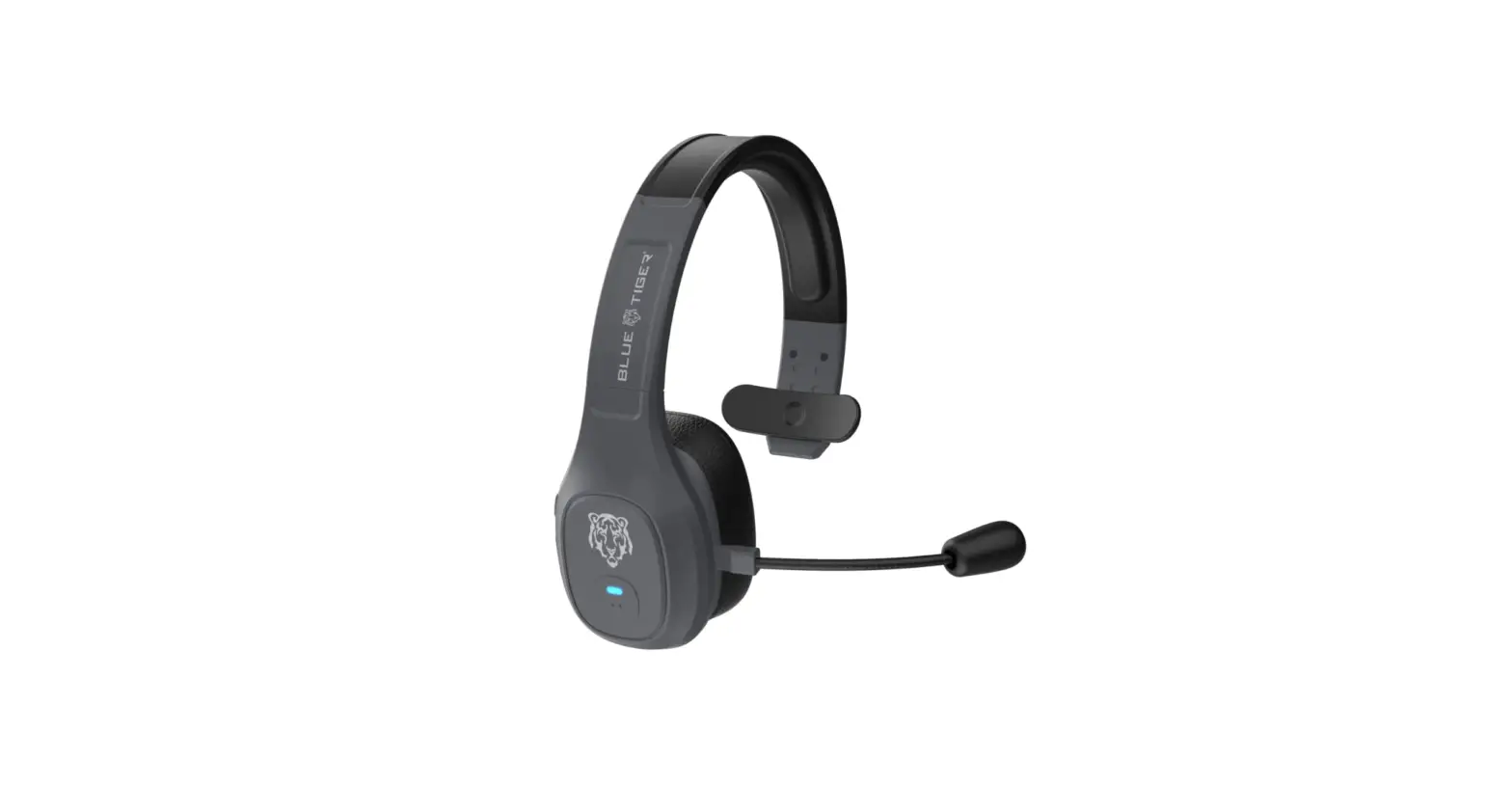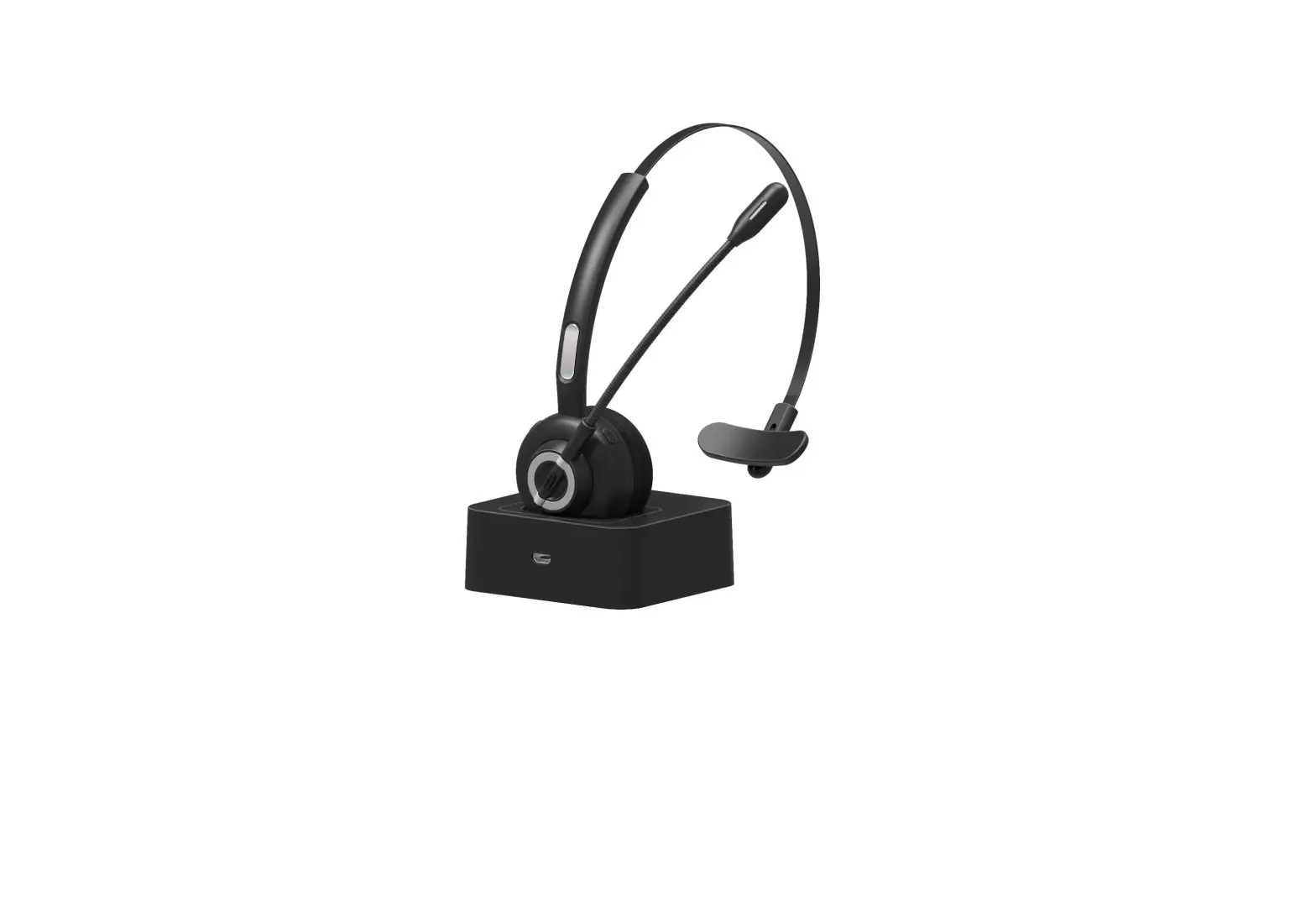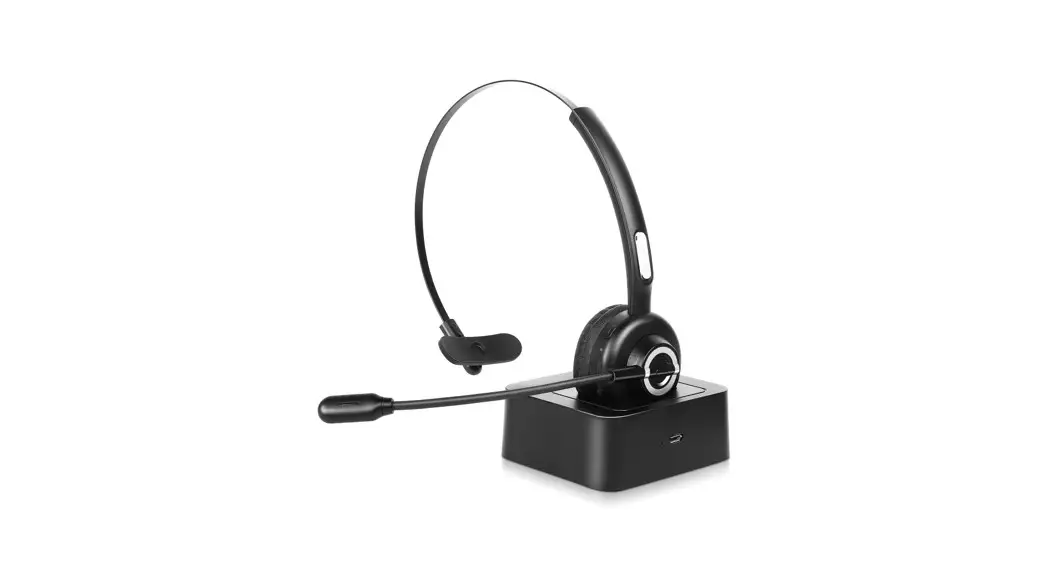
 Stereo Bluetooth Headset
M109
User Manual
If there is any issue with your order, please contact below email to ask for warranty
Email: [email protected]
Product Overview
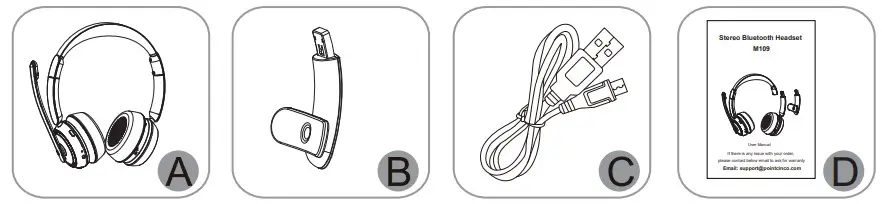
Packing list :
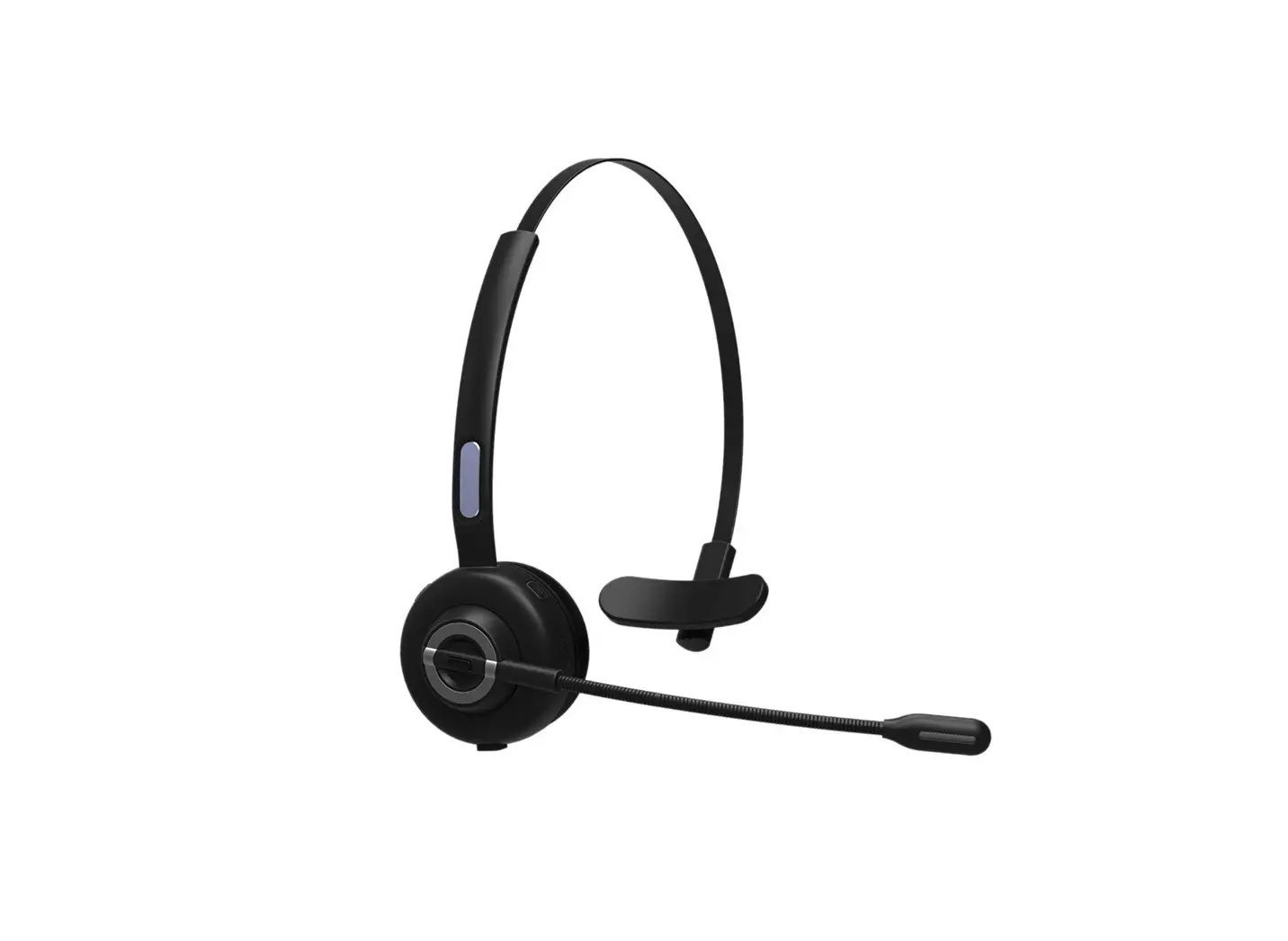
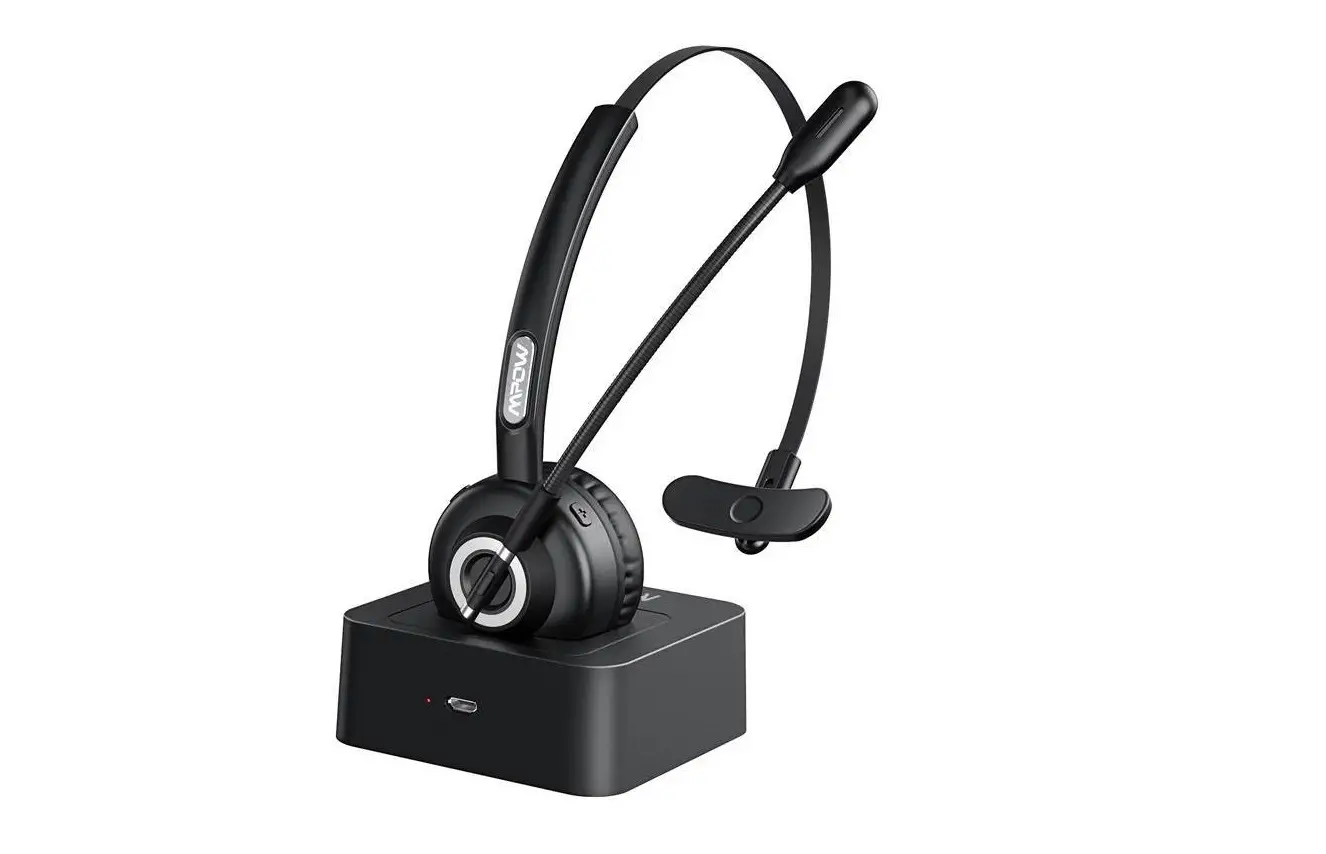
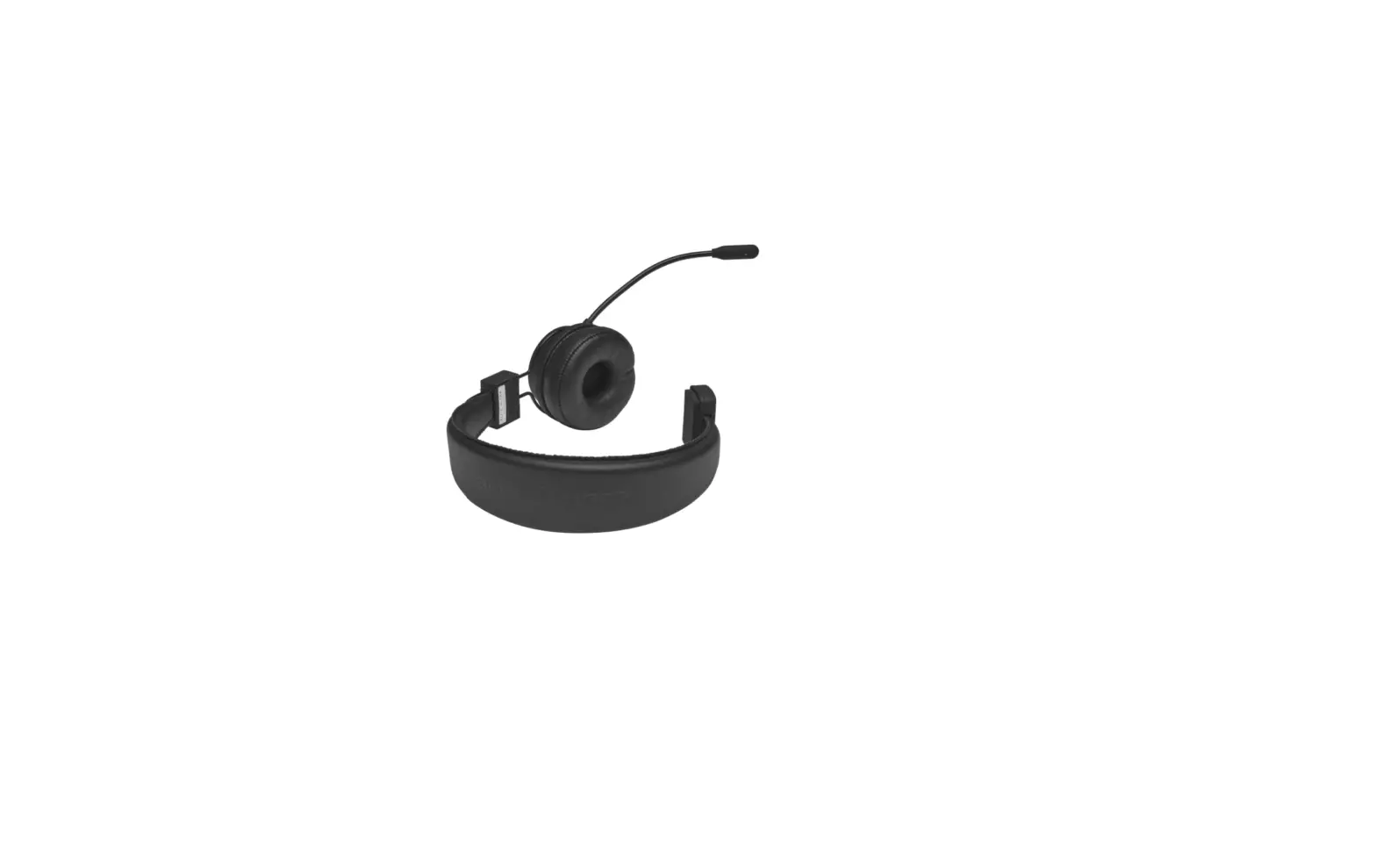
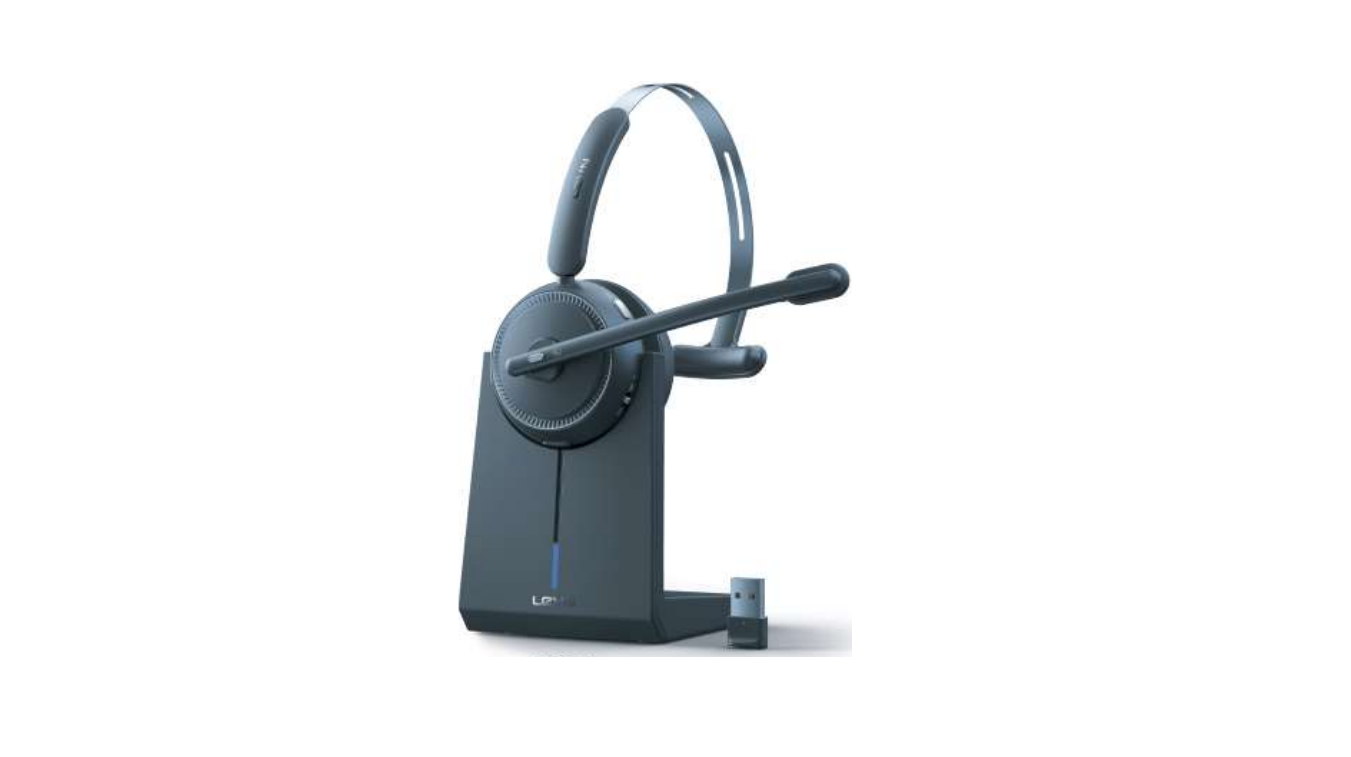
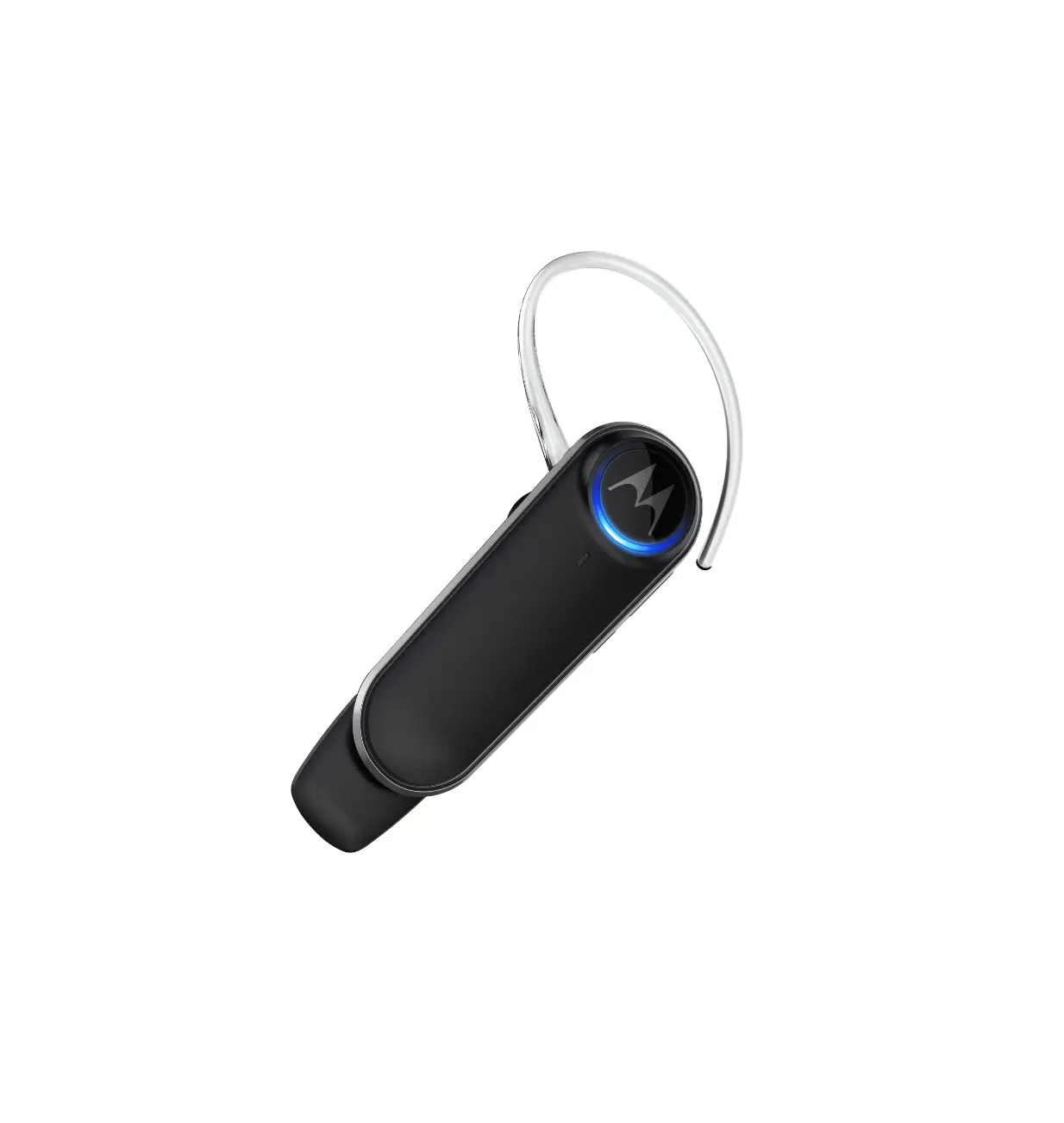
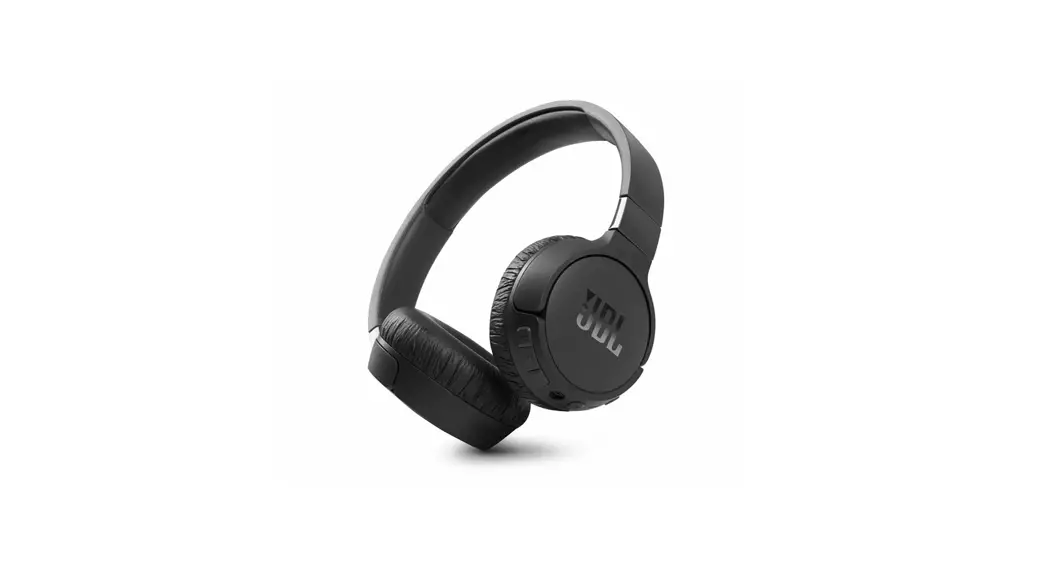
A. Bluetooth headset M109 x 1
B. Ear clip x 1
C. Type-C charge cable x 1
User manual x 1
Basic Operation
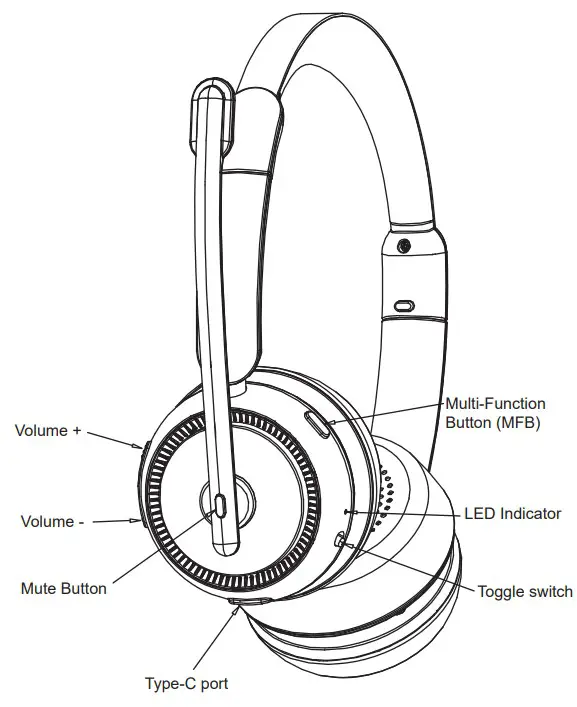
| Button | Function | Operation Instruction |
| Toggle switch | Power On | Toggle the switch to the ON end, and M109 will automatically enter the pairing status, with prompt sound “Power ON”. |
| Power Off | Toggle the switch to the ON end, and M109 will automatically enter the pairing status, with prompt sound “Power ON”. | |
| Enter Pairing Mode | a. Toggle the switch to the ON end, and enter pairing mode; b. Red and blue lights flicker alternately, with prompt sound “Pairing”; c. Manually disconnect the Bluetooth of the mobile phone, and the headset enters the matching mode. | |
| MFB | Redial A Call | In connected/music standby, double press “MFB” to dial the last call. |
| Voice Dialing | In connected standby mode, long press “MFB” for 1 second then release, with prompt “Du” | |
| Answer a call | When a call incoming, short press “MFB” to answer. | |
| Hang up a call | When during a call, short press “MFB” to hang up. | |
| Reject a call) | When a call incoming, long press” MFB”for 1 second to reject the call. | |
| Play / Pause | Short press “MFB” when play music. | |
| Audio Switch | When during a call, long press “MFB”for 1-2 seconds to switch, with prompt “Du” | |
| Three-way calling function | 1.Call coming during a call, short press “MFB” to answer a new call and hang up the current call; 2.Call coming during a call, double press”MFB” to answer a new call and keep the current call, with prompt “Du”; 3.Call coming during a call, long press “MFB” for 1 second to keep the current call and reject a new call, with prompt “Du”; 4.When you are on a three-party call, double press “MFB” to switch audio between the current call and the keep call, with prompt “Du”. | |
| Volume + | Volume Up | Short press. (the maximum with the prompt “Du”) |
| Next Song | Long press for 1 second. | |
| Volume – | Volume Down | Short press. (the minimum with the prompt “Du”) |
| Previous Song | Long press for 1 second. | |
| Mute Button | Microphone mute | When during a call, short press to mute, with prompt “mute on”; press again to cancel, with prompt “mute off” |
| Combination Button | Delete Pairing records | In the power-on state (not allowed in the call state), press the “MFB” and “Volume-” for 5 seconds at the same time to clear the matching records. If it is cleared, the connected devices cannot be reconnected. You need to repair again. |
Bluetooth Pairing and Connection
A. In off status, toggle the switch to the On end to power on, M109 will enter pairing mode automatically.
B. Search and click to connect “M109” on your phone Bluetooth lists, the mobile phone shows “M109 Connected”, now you can play music from phone to headphone.
C. You can press MFB / Volume+ / Volume- / Mute Button to control the answer/hang up a call and play/pause of the music, next and previous song, volume up and down, microphone mute, etc.
pairing
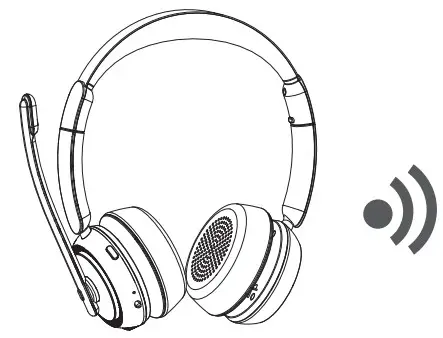
In off status, toggle the switch to the On end to power on, M109 will enter pairing mode automatically.
connection
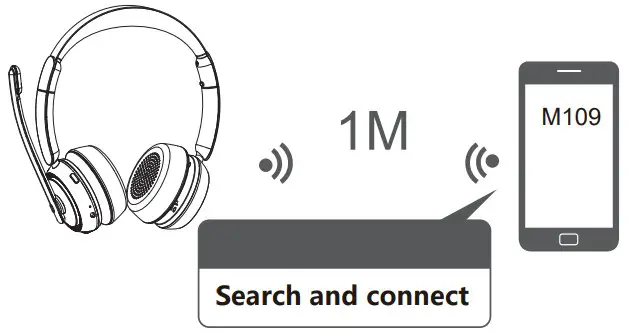
Search and click to connect “M109” on your phone Bluetooth lists, the mobile phone shows “M109 Connected”.
LED Indicator
| Mode | LED Indicator |
| Power on | Blue LED flashes 2 times |
| Power off | Red LED flashes 2 times |
| Pairing mode | Red & Blue LED flash ultimately |
| Delete pairing records | Red LED is on for 1 second |
| Connected standby mode | Blue LED flashes once every 10 seconds |
| Music | Blue LED flashes twice every 10 seconds |
| Talking | Blue LED flashes once every 10 seconds |
| Charging | Solid Red LED |
| Full charged | Solid Blue LED |
| Low battery | Red LED flashes |
TTS Tone
| Mode | Prompt |
| Power on | Power on |
| Power off | Power off |
| Enter paring mode | Pairing |
| Microphone mute on | mute on |
| Microphone mute off | mute off |
| Low Battery | Low battery please charge |
| Disconnect | Your headset is disconnected |
| Connect successfully | Your headset is connected |
Charging
Please charge the M109 when Red LED flashes.
Charging time is about 2 hours. Solid Blue Led when full charged.
Charge Connections
Please connect to the “M109” charging port through the Type-C head of the Type-C charging cable, and connect the USB head to the USB charger (car charger, travel charger, computer USB, etc.).
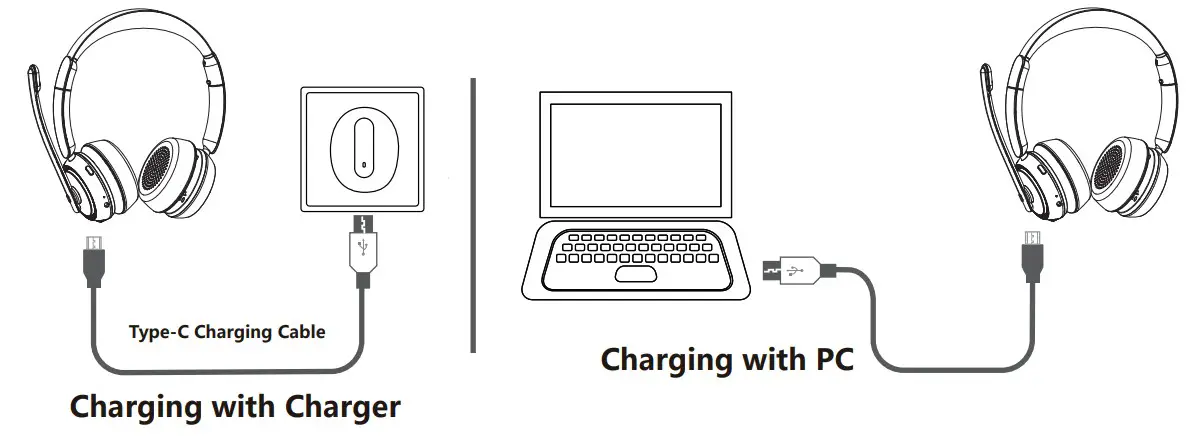
*Note :
Please charge the M109 at least one time every 2 months when don’t use it.
Product Specification
| Bluetooth Version | Bluetooth V5.2 |
| Bluetooth Chipset | 8925B2 |
| Operation Range | 10 meters |
| Bluetooth Protocols | HSP HFP A2DP AVRCP |
| Code | MC SBC |
| Battery | 400mAh /3.7V |
| Charging Time | About 2 hours |
| Standby Time | About 400 hours |
| Music Time | About 45 hours (70% volume) |
| Talk Time | About 40 hours (70% volume) |
| Headset Net Weight | About 202g |
| Headset Dimension | 186.6*187.2*69mm |
*The above data are all from SKY WING laboratory, and the actual use time will vary with different environment and music.
Attentions and Q & A
A. How to reconnect and operation when failed to reconnect ?
When M109 connect with your mobile phone successfully at the first time, it will search and reconnect the paired device automatically when power on. If failed, please pair and connect again.
You can click the name of the headset ”M109” in the Bluetooth pairing list of your mobile phone to connect, or press the “MFB” and “Volume-” for 5 seconds at the same time to clear the matching record of the headphone and then reconnect it with the mobile phone.
B. How to delete paired records?
In the power on status (not allowed in the call state), press “MFB” and “Volume -” Button for 5 seconds at the same time to clear the pairing record. If the red light is on for 1 second, the matching records of M109 can be cleared. The connected devices are no longer connected. When various connection exceptions occur, you can try to clear the pairing records.
C. What is the password for pairing?
Some connection devices require password for pairing, please try 0000 or 8888 or 1111 or 1234.
D. What devices could charge for the headphone ?
Any car charger, power bank, PC etc. which meet DC 5V, charging current more than 500mA could charge M109.
Warranty
If there is any issue with your order, please contact below email to ask for warranty, and you don’t have to return the defective one to amazon.
Email: [email protected]
PS: We provide warranty even though the return window was closed.
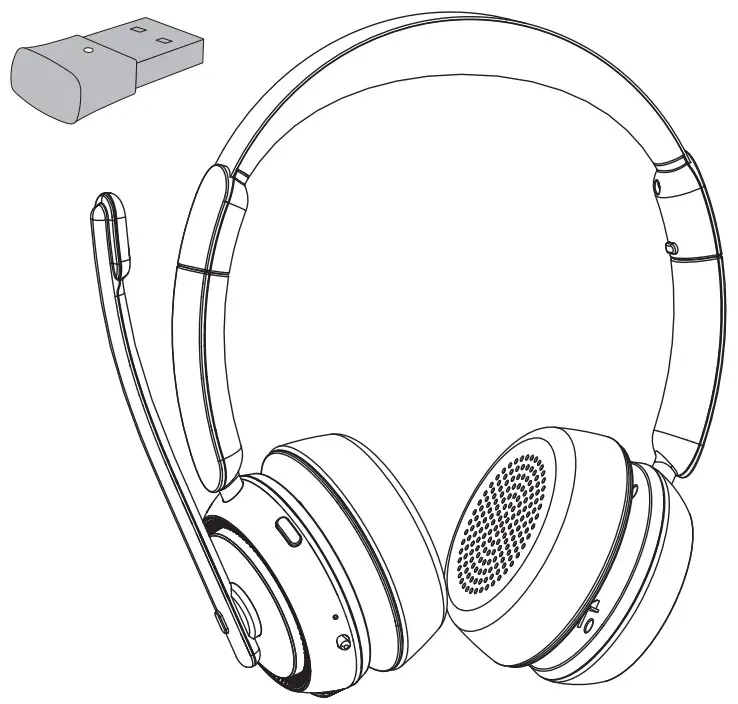
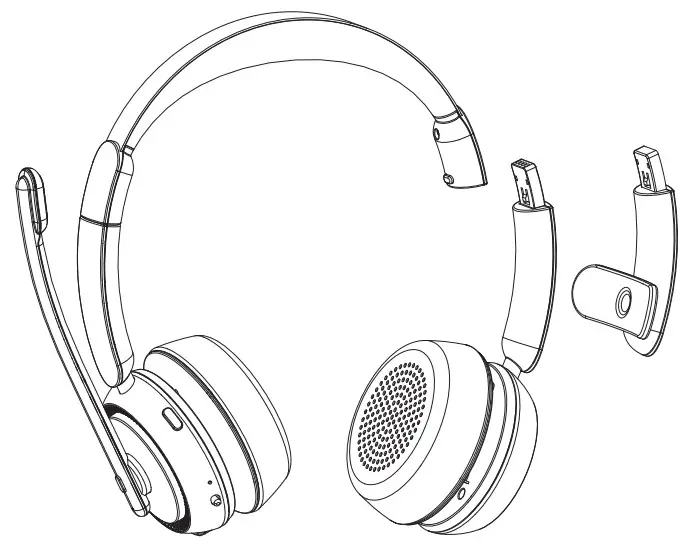
USB Dongle User Manual
When using M109 Wireless Mono
Headset on PC, it is recommended to connect via the included USB Bluetooth Dongle.
Activate USB Bluetooth Dongle
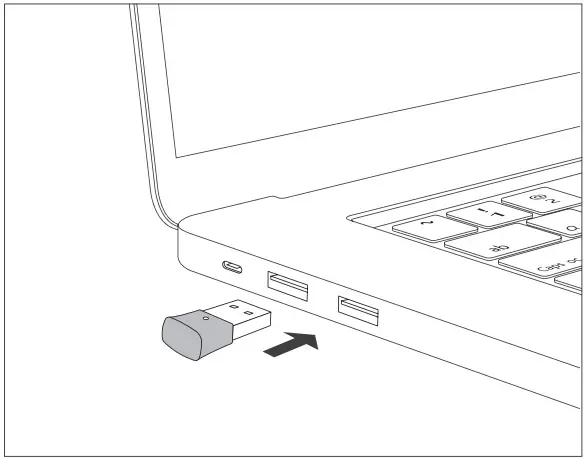
- Plug the Bluetooth Dongle into a USB port on your computer, it will be turned on automatically.

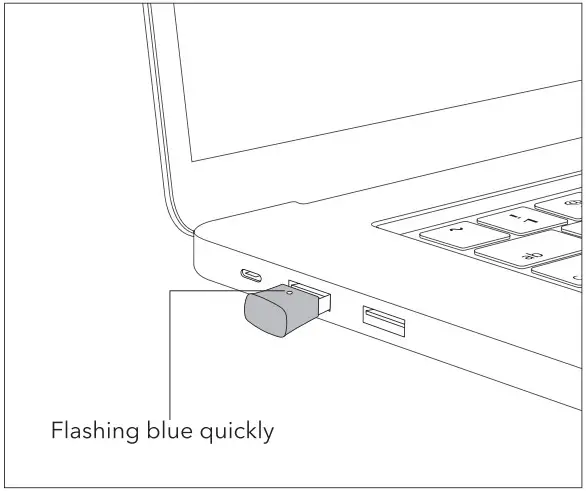
- Once turned on, the indicator on the Dongle will flash quickly in blue indicating it is in pairing mode now.

Initial Pairing M109 with Bluetooth Dongle
Before pairing, please disable the Bluetooth function on your phone/computer previously connected with M109.
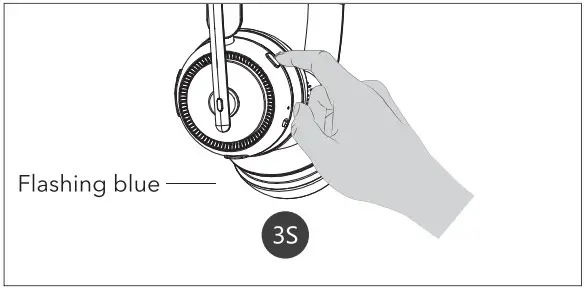
- Press and hold the Multifunction Button on M109 for 3 seconds to bring the headset into Auto Re-pairing mode with the LED indicator flashing blue.

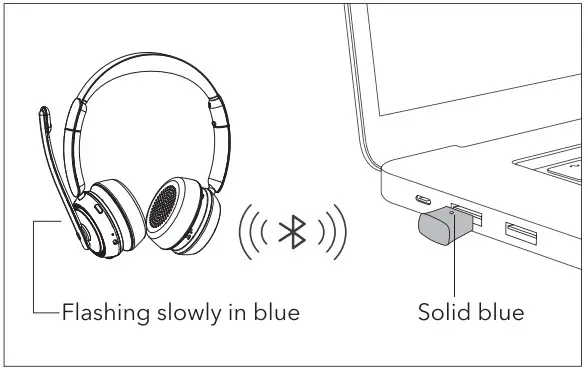
- Dongle will connect with the headset automatically.
Once connected, the indicator on the Dongle will stay solid blue. The indicator on the headset will flash blue.
Automatic Re-pairing
M109 can remember the Dongle paired previously.
After being paired successfully for the first time, make sure the Bluetooth Dongle is plugged in the computer first and then turn on M109 .
Using Headset with Dongle and
Phone/Computer for Calls
- Make sure the Dongle is plugged in and the Bluetooth function on your phone/ computer is enabled before turning onM109 .
- Play music and make call on the PC, laptop, the Bluetooth headset can hear music and call.
Troubleshooting
Q: The Bluetooth Dongle won’t turn on after plugging into the USB port.
A: Try another USB port. After being plugged in, the Dongle will power on automatically and the indicator flashes blue quickly.
Q: The Bluetooth Dongle doesn’t pair withM109.
A: Please make sure the Bluetooth Dongle is in pairing mode and M109 is in auto re-pairing mode, and wait them to pair automatically.
Q: The Bluetooth Dongle won’t auto-reconnect with M109.
A: Please make sure you plug in the Dongle first and then turn on M109.
If there is any issue with your order, please contact below email to ask for warranty, and you don’t have to return the defective one to amazon.
Email: [email protected]
PS: We provide warranty even though the return window was closed.
FCC Statement
This equipment has been tested and found to comply with the limits for a Class B digital device, pursuant to Part 15 of the FCC Rules. These limits are designed to provide reasonable protection against harmful interference in a residential installation. This equipment generates uses and can radiate radio frequency energy and, if not installed and used in accordance with the instructions, may cause harmful interference to radio communications. However, there is no guarantee that interference will not occur in a particular installation. If this equipment does cause harmful interference to radio or television reception, which can be determined by turning the equipment off and on, the user is encouraged to try to correct the interference by one or more of the following measures:
- Reorient or relocate the receiving antenna.
- Increase the separation between the equipment and receiver.
- Connect the equipment into an outlet on a circuit different from that to which the receiver is connected.
- Consult the dealer or an experienced radio/TV technician for help.
This device complies with part 15 of the FCC Rules. Operation is subject to the following two conditions:
(1) This device may not cause harmful interference, and (2) this device must accept any interference received, including interference that may cause undesired operation.
Changes or modifications not expressly approved by the party responsible for compliance could void the user’s authority to operate the equipment.
FCC ID: WSG-M109