
AIR Music Tech 1.1 AIR Stage Piano 
Introduction
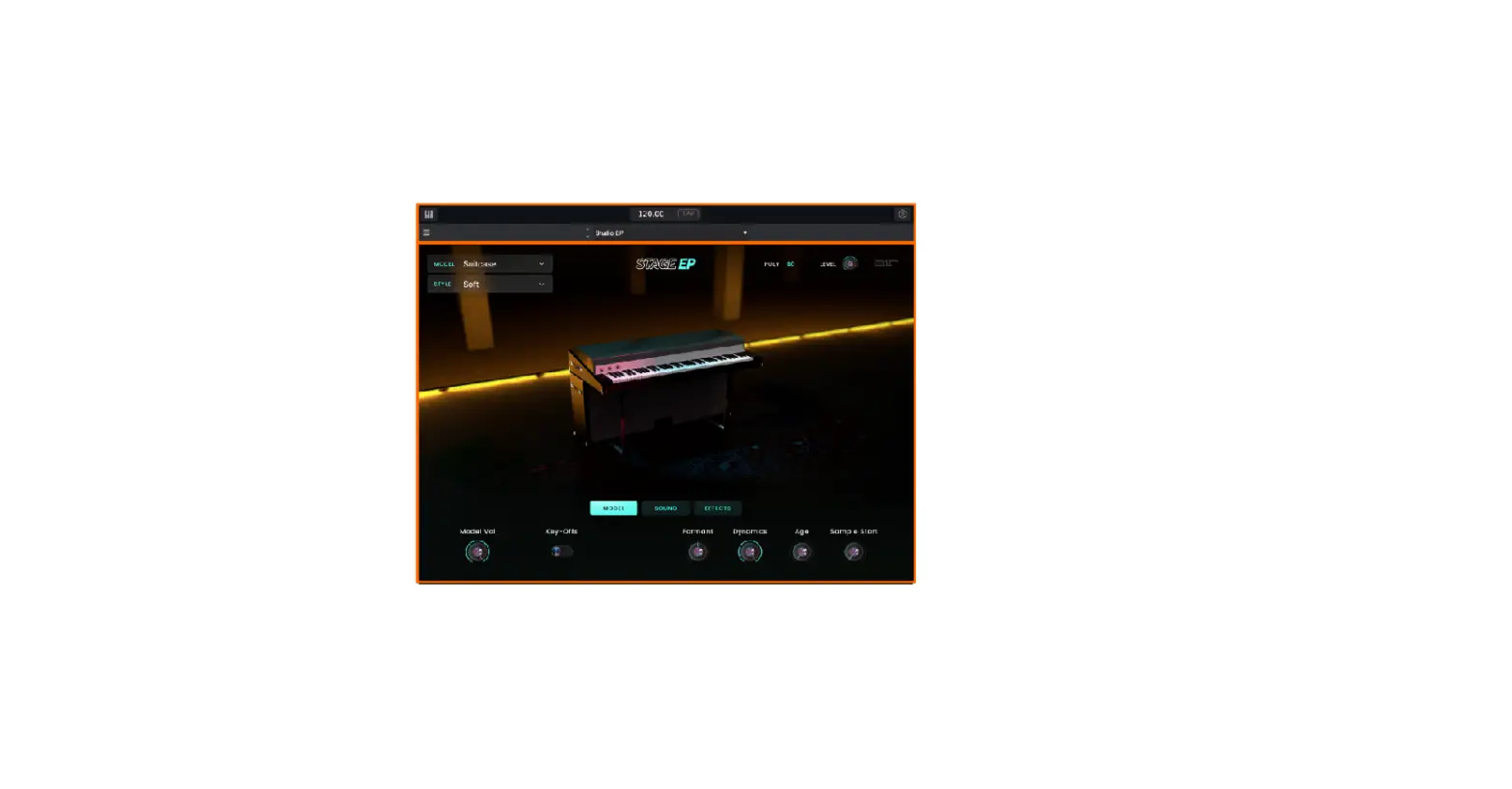
Thank you for purchasing the AIR Stage Piano plugin instrument. AIR Stage Piano is the brand-new flagship acoustic piano instrument. With an elegant interface, you can tweak the sound of each piano model to your taste by changing the dynamics, age, and formants of the piano timbre and adjust note release samples and sustain resonance to increase realism. From the depth and richness of a concert grand to the upright jazz feel of the most vibrant club, Stage Piano and its inspirational selection of carefully crafted presets are perfect for capturing the moment. The instrument includes:
- Advanced acoustic piano sound engine
- Up to six velocity layers.
- Four multi-sampled acoustic pianos: Yamaha C7, Steinway D, Bechstein Upright, and Workstation.
- Sympathetic resonance.
- Hammer fall and staccato release layers.
- Equal and stretched tunings.
- Five built-in AIR effects: Flavor, Compressor, EQ, Delay, and Reverb.
This user guide explains how to use your plugin instrument. For more information on using other parts of the MPC software or hardware, please consult the respective MPC Software User Guide and MPC hardware User Guide.
System Requirements & Product Support
For complete system requirements and compatibility information, visit airmusictech.com.
For technical support, visit support.airmusictech.com.
Installation
- Double-click the .exe (Windows) or .pk (macOS) file you downloaded. Follow the on-screen instructions to install the software.
- Open the plugin application.
- Click Sign In to sign into your in Music Brands Profile using your Internet browser. If you do not have an in Music Brands Profile yet, you will be prompted to create one.
- Once you have signed in, click Activate in the plugin window to enter your serial key to unlock the plugin. You can unlock each plugin on up to three devices at a time.
- If you do not have a serial key, you can click Try Unlicensed to explore the plugin with intermittent audio alerts. You can also click 10-Day Trial to initiate a free, fully featured trial of the plugin for 10 days.
- If you would like to purchase a serial key, click the link to purchase a license at profile.inmusicbrands.com.
Operation
Overview
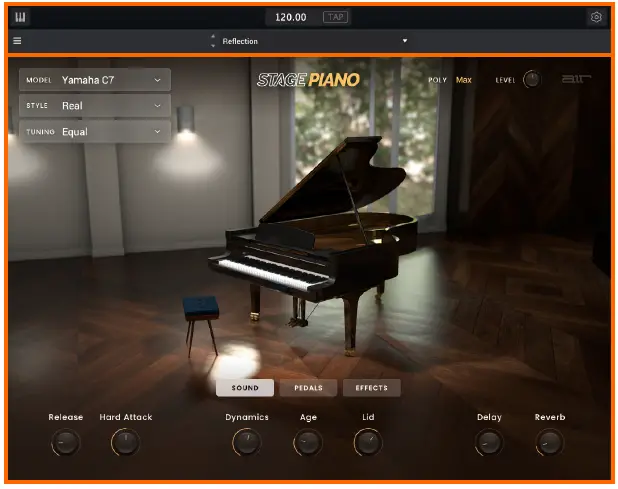
Setup Section Global Controls, Sound Controls
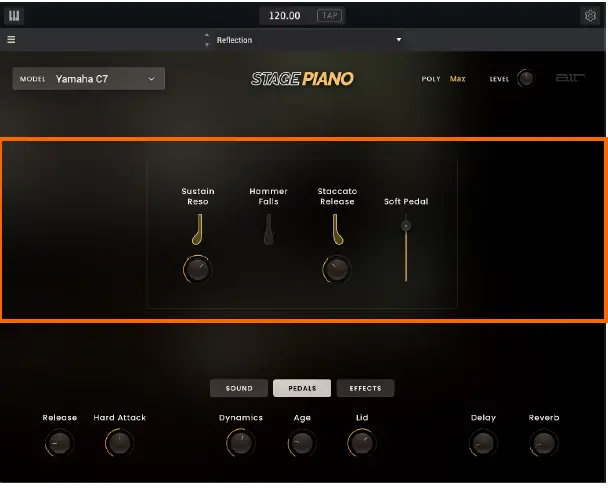
Pedals Controls
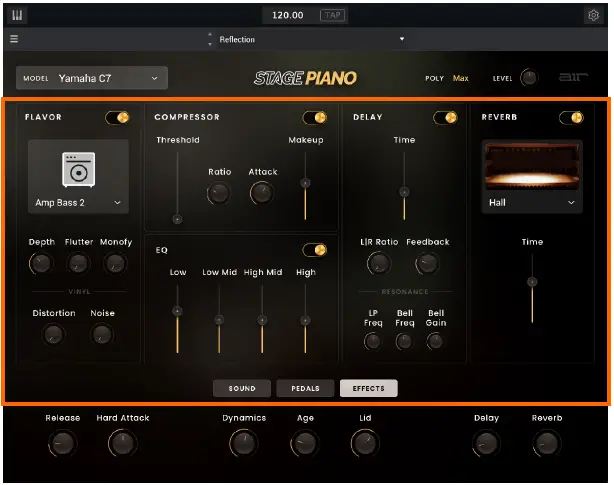
Effects Controls
Setup Section

- Keyboard: Click this icon to enable or disable the virtual keyboard. When enabled, you can click these keys to input notes, or view notes being played on an external MIDI device.
- Tempo: Displays the current plugin tempo. To change the tempo:
- Click the number and use your keyboard to input a new value.
- Click and drag the tempo value up or down using your cursor.
- Click the Tap button at regular intervals.
- Settings: Click this icon to open the Settings window, where you can set the following parameters:
- Output: Click this drop-down menu to select an audio hardware driver in your computer system. Click the Test button to play a test tone for checking your audio output settings. (Careful! You should lower the volume on your audio system beforehand.)
- Sample Rate: Click this drop-down menu to select the desired sample rate for your project. This depends on the available sample rates of the type of MPC hardware you are using or of your audio interface (i.e., select 96000 Hz only if your interface allows a 96 kHz sample rate).
- Audio Buffer Size: Click this drop-down menu to set your audio system’s latency. Lower values result in a more immediate playing response but also more CPU consumption. If you are working with larger projects, this may cause audible clicks and pops. Higher values are more CPU-friendly but can produce more delay between pressing a pad and hearing the corresponding sound. The ideal audio buffer size also depends on your computer’s CPU performance. Experiment with this to find the best setting for your system.
- Active MIDI Inputs: Displays available MIDI input devices. To enable a device, check the box next to its name.
- Bluetooth MIDI: Click this icon to open your system’s Bluetooth settings menu, where you can select a Bluetooth-enabled MIDI device to control the plugin.
- Menu: Click this icon to open the menu, where you can find the following options:
- Scale: Click here to select a value to scale the plugin window to a new size.
- Load Preset: Click here to load a saved preset.
- Save Preset: Click here to save the current preset.
- Open User Guide: Click here to open this User Guide.
- About: Click here to view plugin version information.
- Preset: Click this drop-down menu to view the list of included plugin presets. You can also click the up and down arrows next to this field to move to the previous or next preset.
Global Controls and Sound Controls
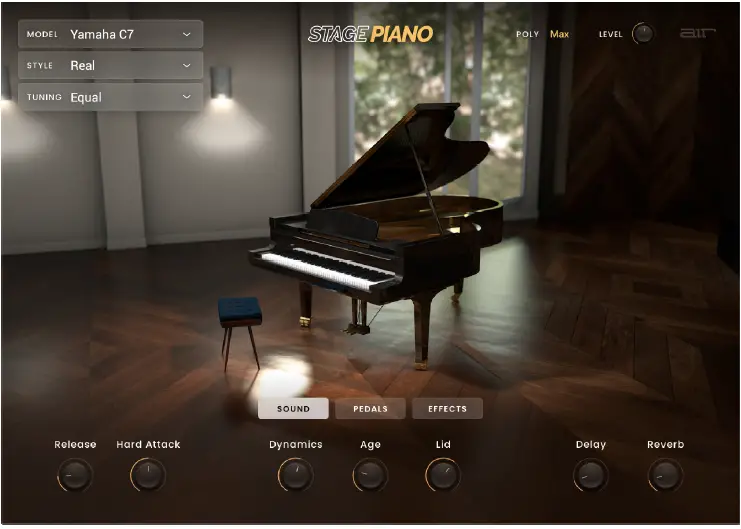
All parameters in this view except Style and Tuning can be accessed from any other plugin view.
| Model | Type of piano emulation used. | Yamaha C7, Steinway D, Bechstein Upright, Workstation |
| Style | Type of sound modeling used. | Atmos, Clunk, Soft, Ballad, Real, Bright, Hard, Dance |
| Tuning | Type of string tuning used. Select Stretched to adjust the tuning like an acoustic piano, where the lower notes are slightly flattened and the higher notes are slightly sharpened, leading to a more complex harmonic resonance. Select Equal for a uniform tuning across all notes. | Stretched, Equal |
| Poly | Number of available voices. | 1–45, Max |
| Level | Overall volume level of the plugin. | 0–100% |
| Release | Length of time for the note to become silent after being released. | 0 ms – 32.00 s |
| Hard Attack | Increase the strength of the initial sound attack. | 0–100% |
| Dynamics | Adjust the dynamic range between soft and loud notes. At low values, the dynamic range is reduced; at high values, the dynamic range is expanded. | 0–100% |
| Age | Amount of model age applied, including detuning. | 0–100% |
| Lid | Increase the effect of opening the piano lid. | 0–100% |
| Delay | Wet/dry amount of the delay effect. | 0–100% |
| Reverb | Wet/dry amount of the reverb effect. | 0–100% |
Pedals
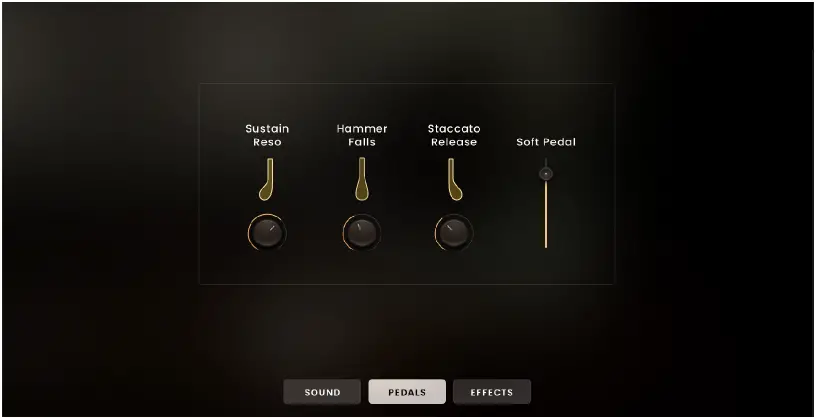
| Sustain Reso | Enables or disables the sustain resonance pedal. | Off, On | |
| Level | Level of sustain resonance applied when the pedal is on. | 0–100% | |
| Hammer Falls | Enables or disables the sound of the piano hammer “falling” after hitting the string. | Off, On | |
| Level | Level of the hammer fall sound when the pedal is on. | 0–100% | |
| Staccato Release | Enables or disables the staccato release pedal. | Off, On | |
| Level | Level of staccato release when the pedal is on. | 0–100% | |
| Soft Pedal | Level of soft pedal applied, which dulls the timbre of the sound. | 0–100% |
Effects
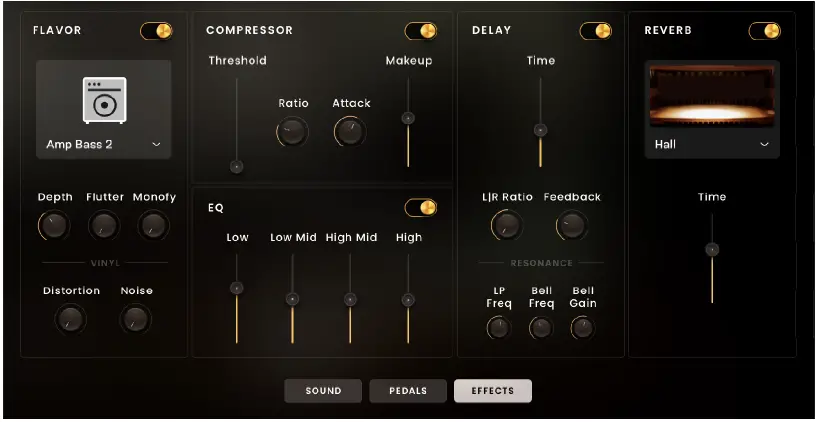
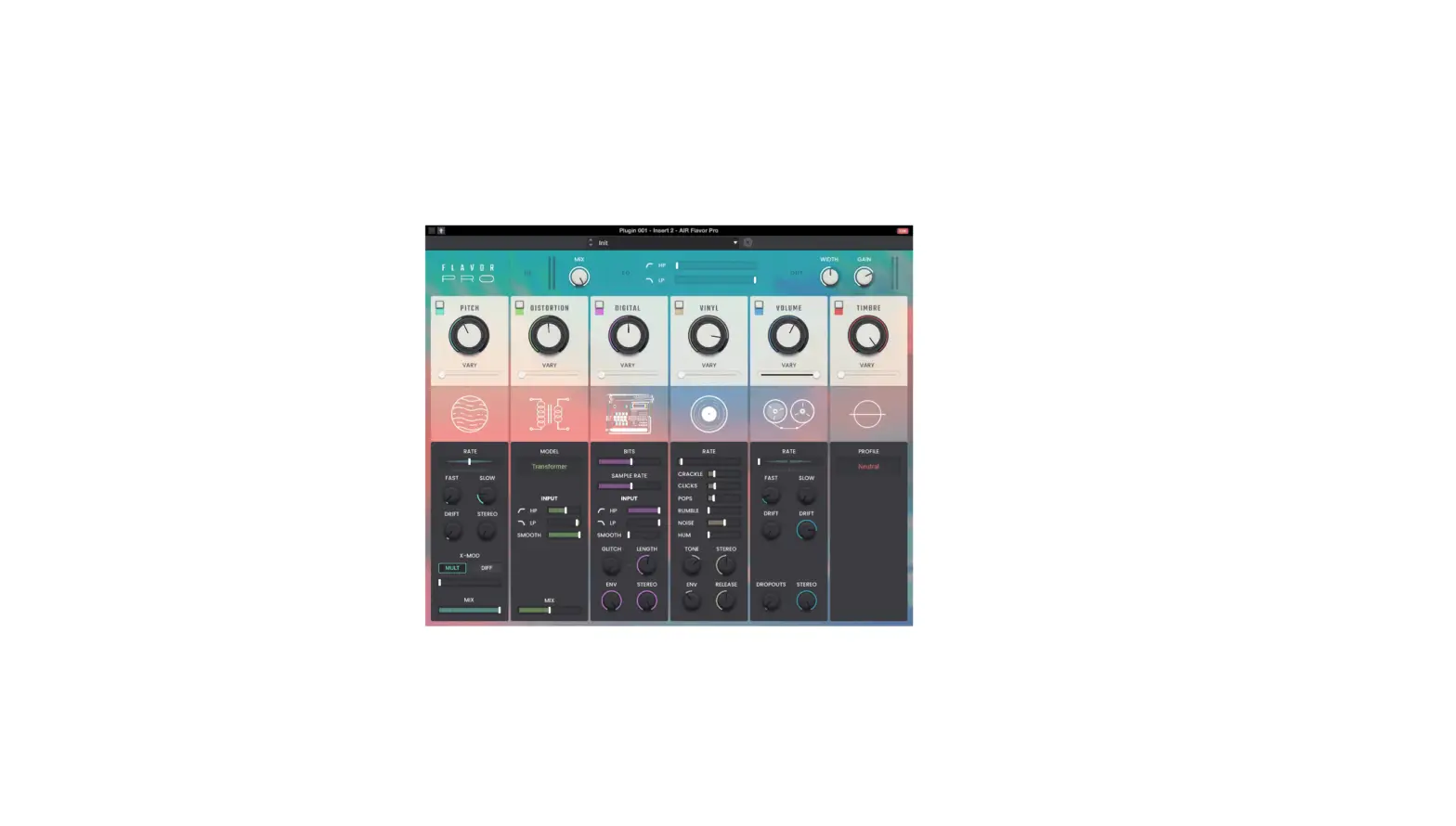
| Flavor | Use the button in the upper-right corner of this section to enable or disable the flavor effect. | Off, On | |
| Timbre | Selects an emulation type to color the sound. | Varies | |
| Timbre Depth | Amount of timbre emulation applied to the sound. | 0–100% | |
| Flutter | Amount of speed fluctuation of the sound playback. | 0–100% | |
| Monofy | Reduces the stereo spread of the sound to mono. | 0–100% | |
| Vinyl Distortion | Amount of vinyl distortion noise applied to the signal. | 0–100% | |
| Vinyl Noise | Amount of vinyl noise such as clicks and pops applied to the signal. | 0–100% | |
| Compressor | Use the button in the upper-right corner of this section to enable or disable the compression effect. | Off, On | |
| Threshold | Signal level after which the compressor will be applied. | -30.0 – 0.0 – +10.0 dB | |
| Ratio | Amount of compression applied. | 1.0:1 – 20.0:1 | |
| Attack | Length of time to apply the compression. | 0–100% | |
| Makeup | Amount of additional output gain for the compressed signal. | -20.0 – 0.0 – +20.0 dB | |
| EQ | Use the button in the upper-right corner of this section to enable or disable the EQ effect. | Off, On | |
| Low | Amount of attenuation or boost applied to the low frequency band. | -12.0 – 0.0 – +12.0 dB | |
| Low Mid | Amount of attenuation or boost applied to the low-mid frequency band. | -12.0 – 0.0 – +12.0 dB | |
| High Mid | Amount of attenuation or boost applied to the high- mid frequency band. | -12.0 – 0.0 – +12.0 dB | |
| High | Amount of attenuation or boost applied to the high frequency band. | -12.0 – 0.0 – +12.0 dB |
| Delay | Use the button in the upper-right corner of this section to enable or disable delay. | Off, On | |
| Time | Amount of time between the dry signal and the delayed signal. | 1/16 – 16/4 | |
| L|R Ratio | Reduces the delay Time in either the Left or Right stereo field. This is useful for creating offset, panned delays. | 50:100 – 100:100 – 100:50 | |
| Feedback | Amount of signal fed back into the delay line. | 0–100% | |
| Reso LP Freq | Low pass frequency for feedback resonance. | 100 – 16000 Hz | |
| Reso Bell Freq | Center frequency for feedback resonance. | 100 – 16000 Hz | |
| Reso Bell Gain | Amount of gain applied to the resonant frequency. | 0–100% | |
| Reverb | Use the button in the upper-right corner of this section to enable or disable the spring reverb effect. | Off, On | |
| Type | Type of reverb applied. | Soft, Bright, Studio, Chamber, Hall, Ambient | |
| Time | Length of reverb tail. | 0.3 – 60.00 s |
Trademarks and Licenses
AIR Music Technology is a trademark of in Music Brands, Inc., registered in the U.S. and other countries. macOS is a trademark of Apple Inc., registered in the U.S. and other countries. Windows is a registered trademark of Microsoft Corporation in the United States and other countries. All other product or company names are trademarks or registered trademarks of their respective owners.
 AIR | German-engineered virtual instruments and effects
 Customer Login
 Support : AIR