
Air Music Tech WayOutWare Odyssey Plugin Instrument
Introduction
The WayOutWare Odyssey is a virtual synthesizer plugin that can be installed on Windows and macOS operating systems. It requires a serial key for activation and can be used on up to three devices at a time. The plugin comes with a variety of presets and features that allow for customization of the sound.
System Requirements & Product Support
For complete system requirements and compatibility information, visit airmusictech.com. For technical support, visit support.airmusictech.com.
Installation
- Download the .exe (Windows) or .pkg (macOS) file from the website
- Double-click the downloaded file and follow the on-screen instructions to install the software
- Open the plugin application
- Click “Sign In” to sign in to your inMusic Brands Profile using your Internet browser. If you do not have an inMusic Brands Profile yet, you will be prompted to create one.
- Once you have signed in, click “Activate” in the plugin window to enter your serial key to unlock the plugin. You can unlock each plugin on up to three devices at a time.
- If you do not have a serial key, you can click “Try Unlicensed” to explore the plugin with intermittent audio alerts. You can also click “30-Day Trial” to initiate a free, fully-featured trial of the plugin for 30 days. If you would like to purchase a serial key, click the link to purchase a license at profile.inmusicbrands.com.
Operation
Overview
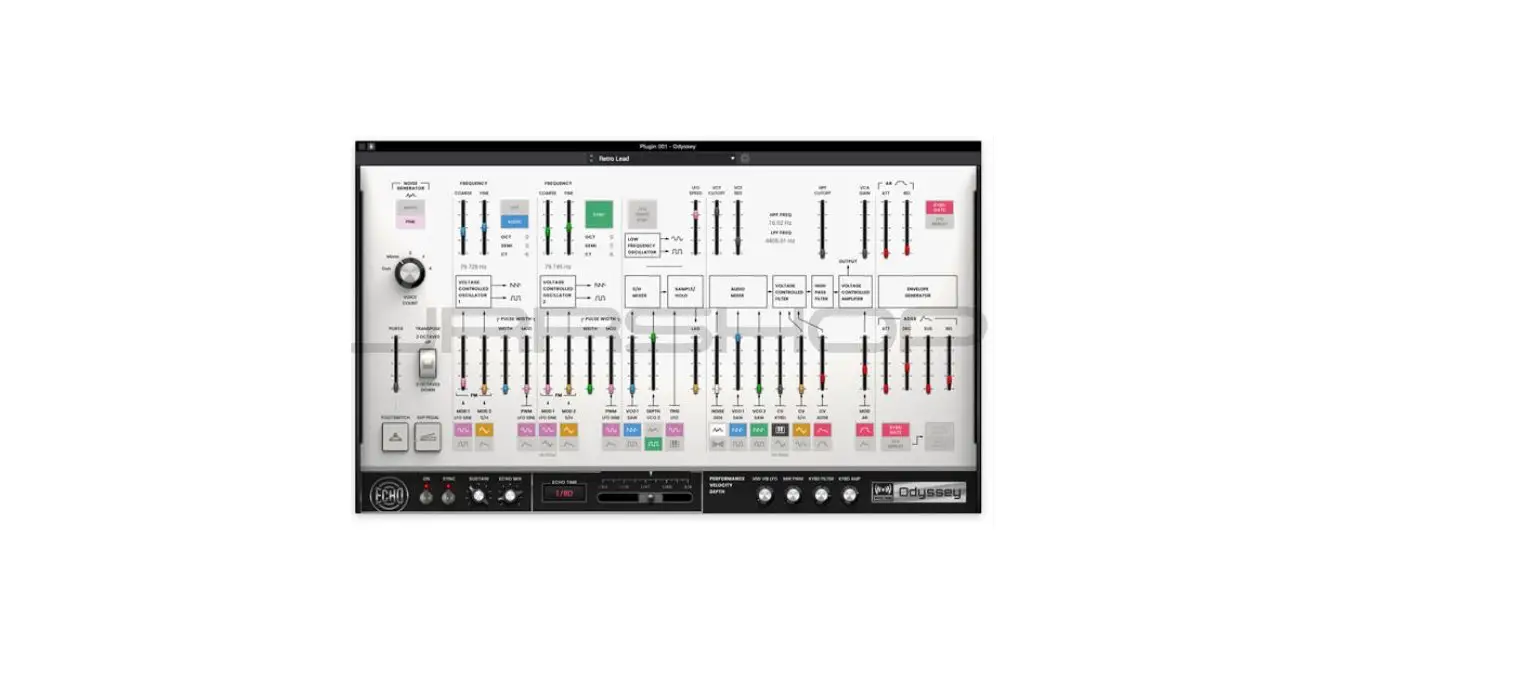
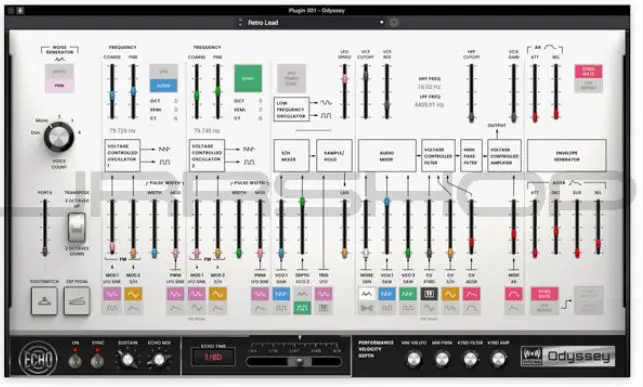
The WayOutWare Odyssey plugin has a setup section and synth controls. The setup section includes a virtual keyboard, tempo display, settings window, plugin version information, and preset selection. The synth controls allow for customization of the sound through parameters such as noise type, voice count, and portamento.
Setup Section
The setup section includes the following elements:
- Keyboard: Click this icon to enable or disable the virtual keyboard. When enabled, you can click these keys to input notes, or view notes being played on an external MIDI device.
- Tempo: Displays the current plugin tempo. To change the tempo:
- Settings: Click this icon to open the Settings window, where you can set the following parameters:
- Info: Click this icon to display the plugin version information.
- Preset: Click this drop-down menu to view the list of included plugin presets. You can also click the up and down arrows next to this field to move to the previous or next preset.
Synth Controls
The synth controls allow for customization of the sound through parameters such as noise type, voice count, portamento, andfrequency modulation. The available parameters and their descriptions are:
| Parameter | Description | Value Range |
|---|---|---|
| Noise | Type of noise used for the noise generator. | White, Pink |
| Voice Count | Enables or disables the use of an expression pedal to control portamento. | Off, On |
| Portamento | Enable or disables the use of a footswitch to activate portamento. | Off, On |
| Transpose | Amount of transposition applied to the keyboard. | -2, 0, +2 octaves |
| Frequency | Determines the pitch adjustment for the oscillator. The total the frequency range depends on the LFO/Audio setting and is shown at the bottom of this section. | N/A |
| Coarse | Coarse pitch adjustment. | N/A |
| Fine | Fine pitch adjustment. | N/A |
| LFO/Audio | When set to Audio, standard pitches will be produced as indicated by the Oct, Semi, and CT values for the Frequency setting. When set to LFO, the VCO will be controlled by an LFO and maybe used for modulating VCO2. | LFO, Audio |
| VCO 1 FM Mod 1 Depth | Depth of frequency modulation. | N/A |
| Mod 1 Waveform | Type of frequency modulation waveform applied by the LFO. | LFO Sine, LFO Square |
| Mod 2 Depth | Depth of Source 2 modulation. | N/A |
| Mod 2 Source | Determines the frequency modulation source. | S/H, ADSR |
| Width | Width of pulse width modulation. | N/A |
| Pulse Width Mod Depth | Depth of pulse width modulation. | N/A |
| Source | Determines the pulse width modulation source. | LFO Sine, ADSR |
Introduction
Thank you for purchasing the WayOutWare Odyssey plugin instrument. The WayOutWare Odyssey plugin is a software recreation of the classic analog synthesizer that captures the character and nuance of the original Odyssey using WayOutWare’s experience and expertise in circuit modeling and signal processing. This user guide explains the features and functions of the plugin instrument. For more information on using this plugin with other software, please refer to your software’s documentation for adding and using plugin instruments.
System Requirements & Product Support
For complete system requirements and compatibility information, visit airmusictech.com. For technical support, visit support.airmusictech.com.
Installation
- Double-click the .exe (Windows) or .pkg (macOS) file you downloaded. Follow the on-screen instructions to install the software.
- Open the plugin application.
- Click Sign In to sign in to your inMusic Brands Profile using your Internet browser. If you do not have an inMusic Brands Profile yet, you will be prompted to create one.
- Once you have signed in, click Activate in the plugin window to enter your serial key to unlock the plugin. You can unlock each plugin on up to three devices at a time.
- If you do not have a serial key, you can click Try Unlicensed to explore the plugin with intermittent audio alerts. You can also click 30-Day Trial to initiate a free, fully-featured trial of the plugin for 30 days. If you would like to purchase a serial key, click the link to purchase a license at profile.inmusicbrands.com.
Overview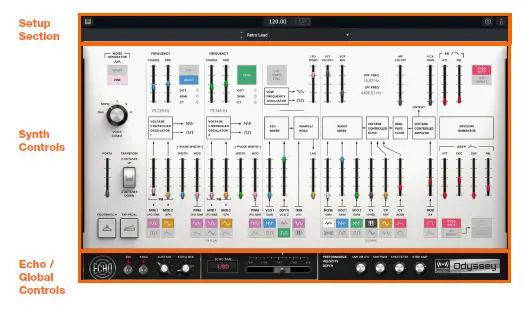 Setup Section
- Keyboard: Click this icon to enable or disable the virtual keyboard. When enabled, you can click these keys to input notes, or view notes being played on an external MIDI device.
- Tempo: Displays the current plugin tempo. To change the tempo:
- Click the number and use your keyboard to input a new value.
- Click and drag the tempo value up or down using your cursor.
- Click the Tap button at regular intervals.
- Settings: Click this icon to open the Settings window, where you can set the following parameters:
- Output: select an audio hardware driver in your computer system. Click the Test button to play a test tone for checking your audio output settings. (Careful! You should lower the volume on your audio system beforehand.)
- Sample Rate: Click this drop-down menu to select the desired sample rate for your project. This depends on the available sample rates of the type of MPC hardware you are using or of your audio interface (i.e., select 96000 Hz only if your interface allows a 96 kHz sample rate).
- Audio Buffer Size: Click this drop-down menu to set your audio system’s latency. Lower values result in a more immediate playing response but also more CPU consumption. If you are working with larger projects, this may cause audible clicks and pops. Higher values are more CPU-friendly but can produce more delay between pressing a pad and hearing the corresponding sound. The ideal audio buffer size also depends on your computer’s CPU performance. Experiment with this to find the best setting for your system.
- Active MIDI Inputs: Displays available MIDI input devices. To enable a device, check the box next to its name.
- Bluetooth MIDI: Click this icon to open your system’s Bluetooth settings menu, where you can select a Bluetooth-enabled MIDI device to control the plugin.
- Info: Click this icon to display the plugin version information.
- Preset: Click this drop-down menu to view the list of included plugin presets. You can also click the up and down arrows next to this field to move to the previous or next preset.
Synth Controls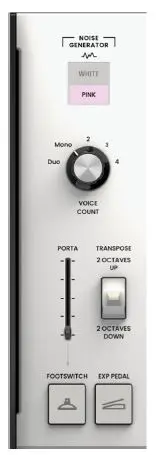
Description
| Parameter | Description | Value Range | |
| Noise | Type of noise used for the noise generator. | White, Pink | |
| Voice Count | A number of voices are available. When set to Duo, each VCO controls a separate note. | Duo, Mono, 2–4 | |
| Portamento | Length of time to slide between notes. | 0.000 – 1.500 seconds | |
| Exp Pedal | Enables or disables the use of an expression pedal to control portamento. | Off, On | |
| Footswitch | Enable or disables the use of a footswitch to activate portamento. | Off, On | |
| Transpose | Amount of transposition applied to the keyboard. | -2, 0, +2 octaves |
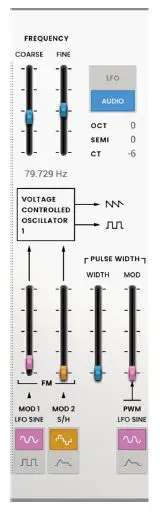
| Parameter | Description | Value Range | ||
| Frequency | Determines the pitch adjustment for the oscillator. The total frequency range depends on the LFO/ Audio setting, and is shown at the bottom of this section. | 0.174 – 1478.852 Hz | ||
| Coarse | Coarse pitch adjustment. | -0.200 – 6.333 V | ||
| Fine | Fine pitch adjustment. | 0.000 – 0.875 V | ||
| LFO/Audio | When set to Audio, standard pitches will be produced as indicated by the Oct, Semi and CT values for the Frequency setting. When set to LFO, the VCO will be controlled by an LFO and may be used for modulating VCO2. | LFO, Audio | ||
| VCO 1 FM | Mod 1 Depth | Depth of frequency modulation. | 0.0–100.0% | |
| Mod 1 Waveform | Type of frequency modulation waveform applied by the LFO. | LFO Sine, LFO Square | ||
| Mod 2 Depth | Depth of Source 2 modulation. | 0.0–100.0% | ||
| Mod 2 Source | Determines the frequency modulation source. | S/H, ADSR | ||
| VCO 1 | Width | Width of pulse width modulation. | 50.0–90.0% | |
| Pulse Width | ||||
| Mod | Depth of pulse width modulation. | 0.0–100.0% | ||
| Source | Determines the pulse width modulation source. | LFO Sine, ADSR | ||
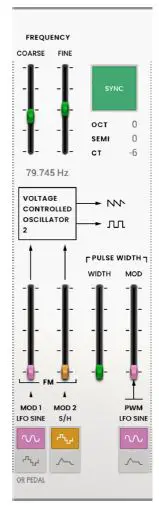
| Parameter | Description | Value Range | ||
| Frequency | Pitch adjustment for the oscillator. | 8.706 – 1478.852 Hz | ||
| Coarse | Coarse pitch adjustment. | -0.200 – 6.333 V | ||
| Fine | Fine pitch adjustment. | 0.000 – 0.875 V | ||
| Sync | Determines whether VCO 2 is synced with the frequency of VCO 1. When disabled, you can use both VCOs to produce separate pitches. | Off, On | ||
| VCO 2 FM | Mod 1 Depth | Depth of Source 1 modulation. | 0.0–100.0% | |
| Mod 1 Source | Type of modulation source. When S/H Mixer or Pedal is selected, the modulation can be controlled by the Sample and Hold mixer or by an optional external expression pedal. | LFO Sine, S/H Mixer or Pedal | ||
| Mod 2 Depth | Depth of Source 2 modulation. | 0.0–100.0% | ||
| Mod 2 Source | Type of modulation source. | S/H, ADSR | ||
| VCO 2 | Width | Width of pulse width modulation. | 50.0–90.0% | |
| Pulse Width | ||||
| Mod | Depth of pulse width modulation. | 0.0–100.0% | ||
| Source | Type of source for pulse width modulation. | LFO Sine, ADSR | ||
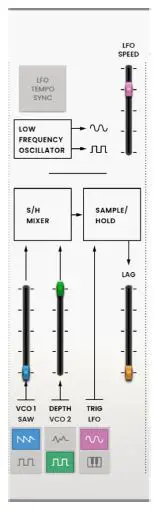
| Parameter | Description | Value Range | |
| LFO | LFO Tempo Sync | Determines whether LFO speed is free floating or synced to the project tempo. | Off, On |
| LFO Speed | Speed of the low-frequency oscillator. When Sync is Off: When Sync is On: | 0.0925 – 20.0000 Hz 4/4 – 1/64 beats | |
| Sample/Hold | VCO 1 | Level of the VCO-1 input. | 0.0–100.0% |
| VCO 1 Source | Selects the VCO-1 waveform or pulse width modulation as Sample and Hold input. | Saw, Pulse | |
| VCO 2 Depth | Level of the noise or VCO-2 input. | 0.0–100.0% | |
| VCO 2 Source | Selects a noise generator or the VCO-2 pulse width modulation as Sample and Hold input. | Noise, Pulse | |
| Trigger | Determines the source signal for triggering the Sample and Hold mixer, either the Low-Frequency Oscillator or the pitched Keyboard output. | LFO Trigger, KYBD Trigger | |
| Lag | Adjusts the smoothing of the Sample and holds output voltage. | 0.0–100.0% |
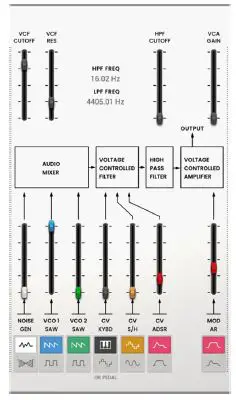
| Parameter | Description | Value Range | |
| VCF | VCF Cutoff | Cutoff frequency of the filter. | 0.680 – 10.645 V, or 16.02 – 16012.70 Hz |
| VCF Res | Resonance of the filter. | 0.000 – 0.800 Q | |
| Audio | Noise/Ring Mod Level | Level of the noise generator or ring modulation into the mixer. | 0.0–100.0% |
| Mixer | |||
| Noise/Ring Mod | Select the noise generator or ring modulation input for the mixer. | Noise, Ring Mod | |
| VCO-1 Level | Level of VCO-1 into the mixer. | 0.0–100.0% | |
| VCO-1 Input | Select the VCO-1 input type for the mixer. | Saw, Pulse | |
| VCO-2 Level | Level of VCO-2 into the mixer. | 0.0–100.0% | |
| VCO-2 Input | Select the VCO-2 input type for the mixer. | Saw, Pulse | |
| VC Filter | CV Modulation Level | Level of VCO-1 filter modulation. | 0.0–100.0% |
| VCO-1 Filter Modulation Source | Set the input source for VCO- 1 filter modulation. Select KYBD CV to use key input as the source. | KYBD CV, S/H Mixer or Pedal | |
| Select S/H Mixer or Pedal to use the Sample and Hold generator or optional external pedal. | |||
| CV Modulation Level | Level of VCO-2 filter modulation. | 0.0–100.0% | |
| VCO-2 Filter Modulation Source | Set the input source for VCO- 2 filter modulation. | S/H, LFO Sine | |
| HP Filter | Filter Modulation Source | Select which envelope generator to use as a filter modulation source. | ADSR, AR |
| CV Filter Modulation Level | Amount of envelope filter modulation applied to the VC Filter. | 0.0–100.0% | |
| HPF Cutoff | Cutoff frequency of the high- pass filter. | 0.680 – 10.645 V, or 16.02 – 16012.70 Hz | |
| VC Amp | Mod Source | Select which envelope generator to use as an amplitude modulation source. | ADSR, AR |
| Mod | Amount of envelope modulation applied to the output signal. | 0.0–100.0% | |
| VCA Gain | Amount of gain applied to the VC Amp. | 0.0–100.0% |
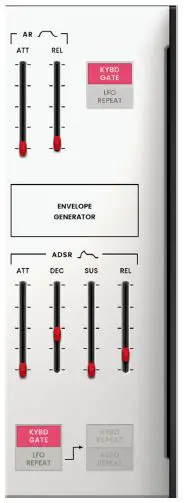
| Parameter | Description | Value Range | |
| AR | Attack | The attack time of the AR envelope generator. | 0.003 – 10.000 seconds |
| Release | Release time of the AR envelope generator. | 0.003 – 10.000 seconds | |
| Trigger Source | Determines the input source sent to the AR envelope generator. When set to KYBD Gate, the envelope generator is triggered by key input. When set to LFO Repeat, the envelope generator is triggered by the LFO pulse wave. | KYBD Gate, LFO Repeat | |
| Envelope | Attack | The attack time of the ADSR envelope generator. | 0.003 – 10.000 seconds |
| Generator | |||
| Decay | The decay time of the ADSR envelope generator. | 0.003 – 10.000 seconds | |
| Sustain | Sustain time of the ADSR envelope generator. | 0.000 – 10.000 V | |
| Release | Release time of the ADSR envelope generator. | 0.003 – 10.000 seconds | |
| Trigger | Type of input to trigger the | KYBD Gate, LFO | |
| Source | envelope generator. | Repeat | |
| Repeat | When Trigger Source is set to LFO Repeat, select KYBD Repeat for the LFO to trigger only when a key is pressed, or select Auto Repeat for the LFO to trigger automatically without key input. | KYBD Repeat, Auto Repeat |
Echo / Global Controls

| Parameter | Description Value Range |
| Echo | On Enables or disables the echo effect. Off, On |
| Sync Enable to sync the Echo Time to the Global Tempo, or Off, On disable to adjust the Echo Time by milliseconds. | |
| Sustain Length of time that the echo continues playing. 0.0–100.0% | |
| Echo Mix Adjusts the wet/dry amount between the original sound 100% Synth – 50/50% and the echo. – 100% Echo | |
| Echo Time Amount of time between the dry signal and the delayed signal. Use the slider or the Echo Time field to change the value. When Sync is Off: 0.02 – 5.00 seconds When Sync is On: 1/64 – 4/4 | |
| Performance Velocity Depth | MW Vib LFO Amount of vibrato LFO applied by the mod wheel. 0.0–100.0% |
| MW PWM Amount of pulse width modulation applied by the mod 0.0–100.0% wheel. | |
| KYBD Filter Amount that the filter is tied to the pitch being played. 0.0–100.0% | |
| KYBD Amp Amount that the amplitude is tied to the pitch being 0.0–100.0% played. |
Trademarks and Licenses
AIR Music Technology is a trademark of inMusic Brands, Inc., registered in the U.S. and other countries. macOS is a trademark of Apple Inc., registered in the U.S. and other countries. Windows is a registered trademark of Microsoft Corporation in the United States and other countries. All other product or company names are trademarks or registered trademarks of their respective owners.
 AIR | German-engineered virtual instruments and effects
 Customer Login
 Support : AIR