air Fabric XL Plugin Instrument User Guide
Introduction
Thank you for purchasing the AIR Fabric XL plugin instrument. Fabric XL is the brand-new flagship sample-based synthesizer from AIR Music Technology and delivers the ultimate sounds for all your production needs. Fabric XL brings a stunning collection of cutting-edge presets, including everything from twisted and dark motion pads, drone and sub-basses, acoustic and electric guitars, acoustic and electric pianos, classic poly and lead synths, and much more. This user guide explains how to use your plugin instrument. For more information on using other parts of the MPC software or hardware, please consult the respective MPC Software User Guide and MPC hardware User Guide.
System Requirements & Product Support
For complete system requirements and compatibility information, visit airmusictech.com.
For technical support, visit support.airmusictech.com.
Installation
- Double-click the .exe (Windows) or .pkg (macOS) file you downloaded. Follow the on-screen instructions to install the software.
- Open the plugin application.
- Click Sign In to sign into your inMusic Brands Profile using your Internet browser. If you do not have an inMusic Brands Profile yet, you will be prompted to create one.
- Once you have signed in, click Activate in the plugin window to enter your serial key to unlock the plugin. You can unlock each plugin on up to three devices at a time.
- If you do not have a serial key, you can click Try Unlicensed to explore the plugin with intermittent audio alerts. You can also click 10-Day Trial to initiate a free, fully featured trial of the plugin for 10 days. If you would like to purchase a serial key, click the link to purchase a license at profile.inmusicbrands.com.
Operation
Overview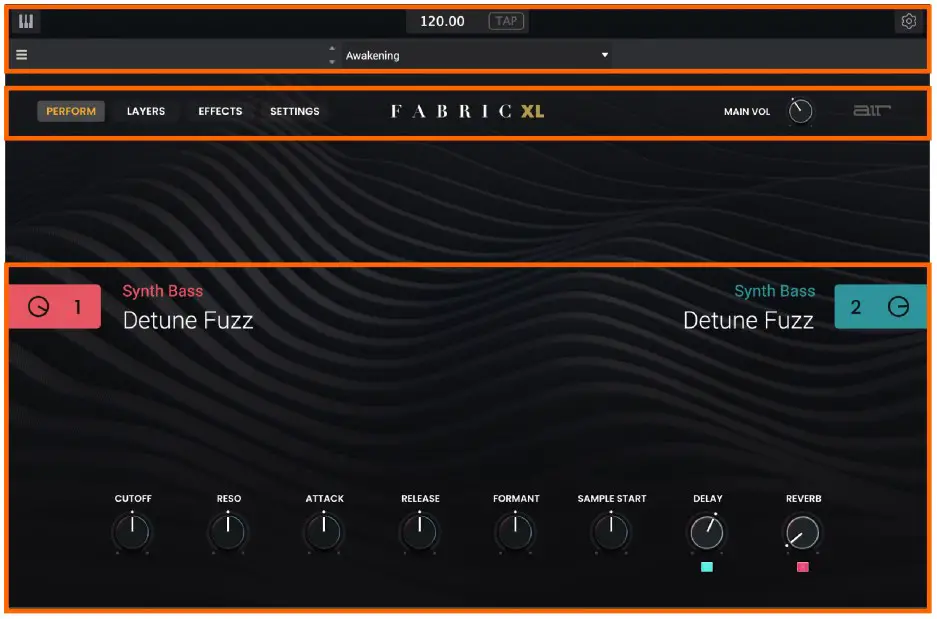
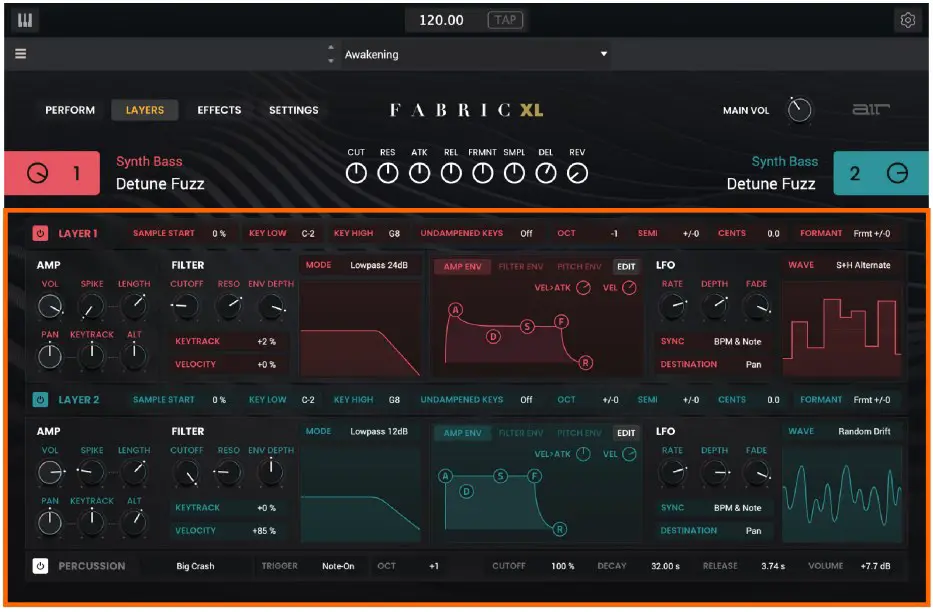
Setup Section
- Keyboard: Click this icon to enable or disable the virtual keyboard. When enabled, you can click these keys to input notes, or view notes being played on an external MIDI device.
- Tempo: Displays the current plugin tempo. To change the tempo:
- Click the number and use your keyboard to input a new value.
- Click and drag the tempo value up or down using your cursor.
- Click the Tap button at regular intervals.
- Settings: Click this icon to open the Settings window, where you can set the following parameters:
- Output: Click this drop-down menu to select an audio hardware driver in your computer system. Click the Test button to play a test tone for checking your audio output settings. (Careful! You should lower the volume on your audio system beforehand.)
- Sample Rate: Click this drop-down menu to select the desired sample rate for your project. This depends on the available sample rates of the type of MPC hardware you are using or of your audio interface (i.e., select 96000 Hz only if your interface allows a 96 kHz sample rate).
- Audio Buffer Size: Click this drop-down menu to set your audio system’s latency. Lower values result in a more immediate playing response but also more CPU consumption. If you are working with larger projects, this may cause audible clicks and pops. Higher values are more CPU-friendly but can produce more delay between pressing a pad and hearing the corresponding sound. The ideal audio buffer size also depends on your computer’s CPU performance. Experiment with this to find the best setting for your system.
- Active MIDI Inputs: Displays available MIDI input devices. To enable a device, check the box next to its name.
- Bluetooth MIDI: Click this icon to open your system’s Bluetooth settings menu, where you can select a Bluetooth-enabled MIDI device to control the plugin.
- Menu: Click this icon to open the menu, where you can find the following options:
- Scale: Click here to select a value to scale the plugin window to a new size.
- Load Preset: Click here to load a saved preset.
- Save Preset: Click here to save the current preset.
- Open User Guide: Click here to open this User Guide.
- About: Click here to view plugin version information.
- Preset: Click this drop-down menu to view the list of included plugin presets. You can also click the up and down arrows next to this field to move to the previous or next preset.
Perform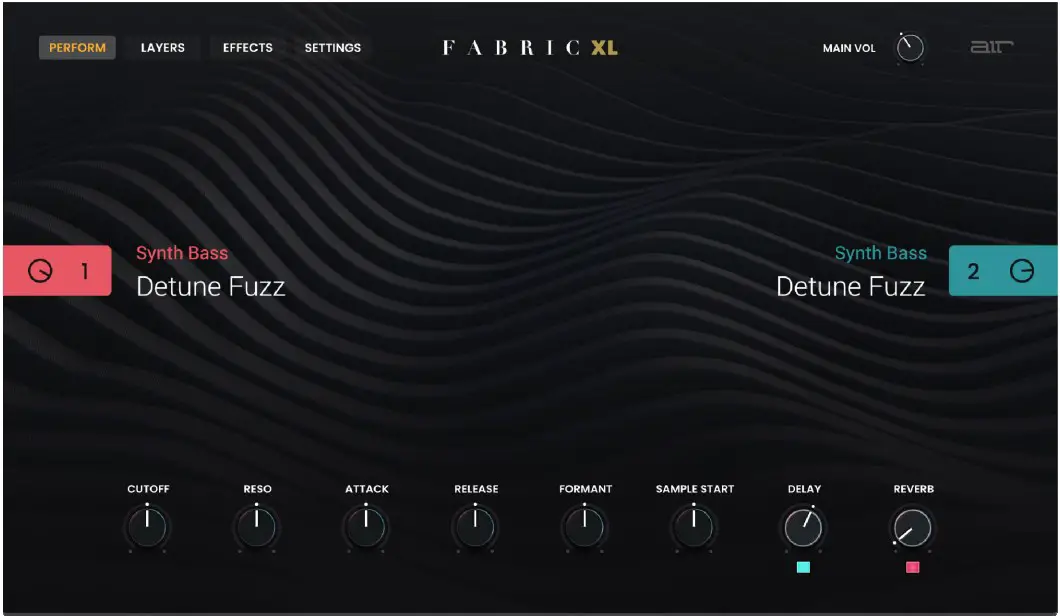
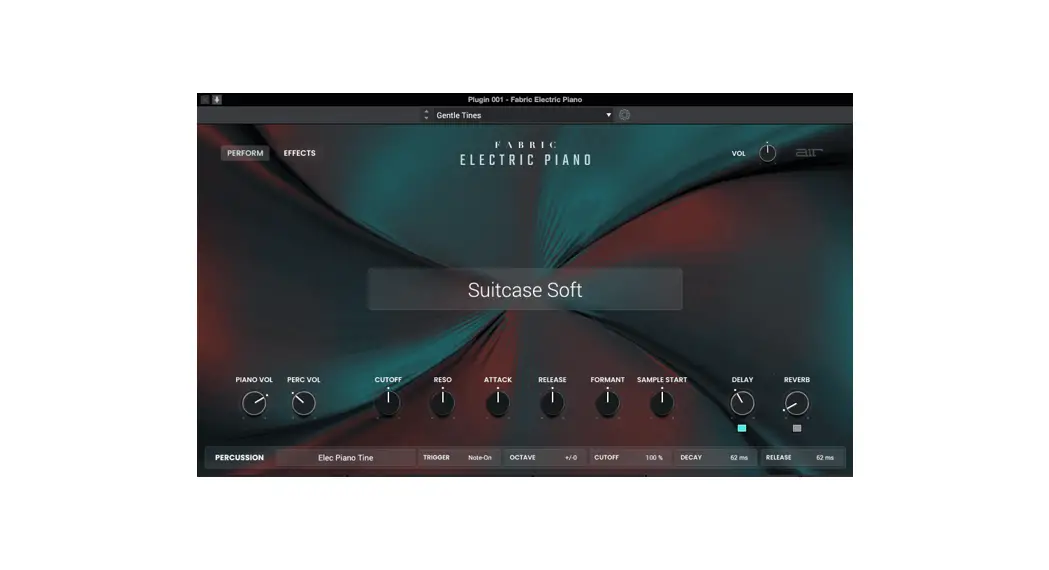
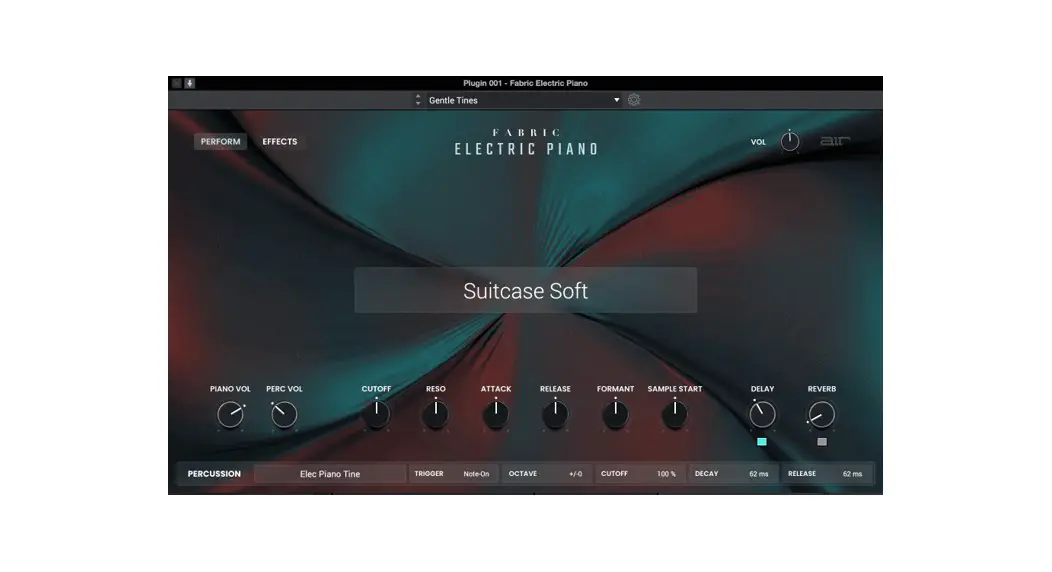
All settings in this view except Delay On/Off and Reverb On/Off are available in all other plugin views.
| Main Vol | Overall level of the plugin. | -inf – 0.0 – +6.0 dB |
| Layer 1/2 | Enable or disable the layer. | Off, On |
| Volume | Level of the layer. | -inf – 0.0 – +12.0 dB |
| Layer 1/2 Category | Sound category of the layer. | Varies |
| Layer 1/2 Preset | Preset sound within the selected category. | Varies |
| Cutoff | Filter cutoff frequency of the layer. | -100 –– 0 –– +100% |
| Reso | Amount of resonance/emphasis of the filter cutoff point for the layer. | -100 –– 0 –– +100% |
| Attack | Amount of amplitude attack reduced from or added to the sound. | -100 –– 0 –– +100% |
| Release | Amount of amplitude release reduced from or added to the sound. | -100 –– 0 –– +100% |
| Formant | Decreases or increases resonant frequencies to adjust the timbre of the sound. | -100 –– 0 –– +100% |
| Sample Start | Starting point of the sample. | -100 –– 0 –– +100% |
| Delay | Enable or disable the delay effect. | Off, On |
| Delay Mix | Wet/dry amount of the delay effect. | 0–100% |
| Reverb | Enable or disable the reverb effect. | Off, On |
| Reverb Mix | Wet/dry amount of the reverb effect. | 0–100% |
Layers
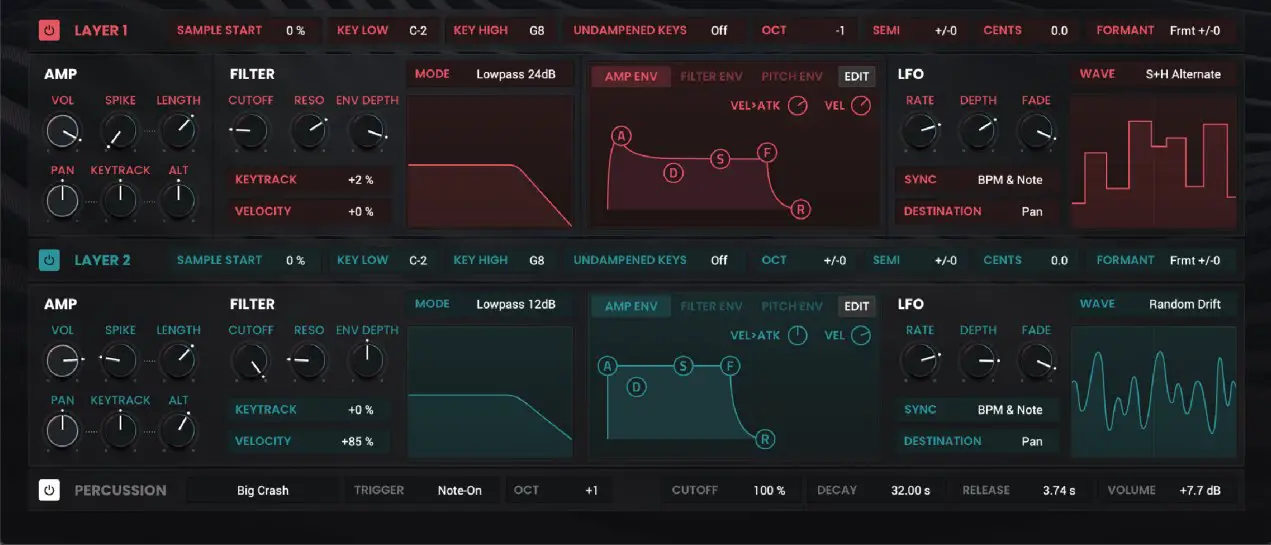
Layer Controls
| Layer 1/2 | Click the power button to enable or disable the selected layer. | Off, On | |
| Sample Start | Starting point of the selected sample. | 0–100% | |
| Key Low | Set the lowest key for the layer key range. | C-2 – G8 | |
| Key High | Set the highest key for the layer key range. | C-2 – G8 | |
| Undamped Keys | Set the starting note above which all notes are undamped. | Off, >D5, >E5, >F5 | |
| Octave | Coarse tuning of the layer in octaves. | -4 – 0 – +4 | |
| Semi | Transposition of the layer in semitones. | -12 – 0 – +12 | |
| Cents | Fine tuning of the layer in cents. | -50.0 – 0.0 – +50.0 | |
| Formant | Decreases or increases resonant frequencies to adjust the timbre of the sound. | -12 – 0 – +12 |
Amp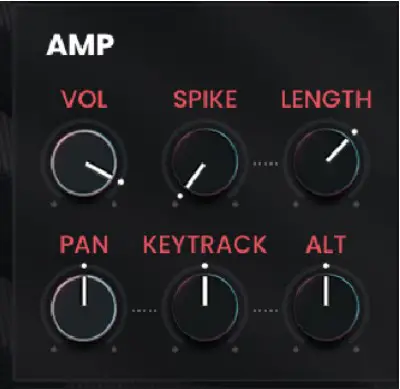
| Vol | Level of the layer. | -inf – 0.0 – +12.0 dB |
| Spike | Applies additional velocity to the amplitude attack. | 0–100% |
| Spike Length | Length of time for the Spike to decay. | 0–100% |
| Pan | Stereo panning of the layer. | L64 –– C –– R64 |
| Pan Keytrack | Ties the stereo panning to the pitch being played.At negative values, the lower notes will be stereo right, and higher notes stereo left.At positive values, lower notes will be stereo left, and higher notes stereo right. | -100 – 0 – +100% |
| Pan Alternate | Alternate successive notes between stereo left and right. | -100 – 0 – +100% |
Filter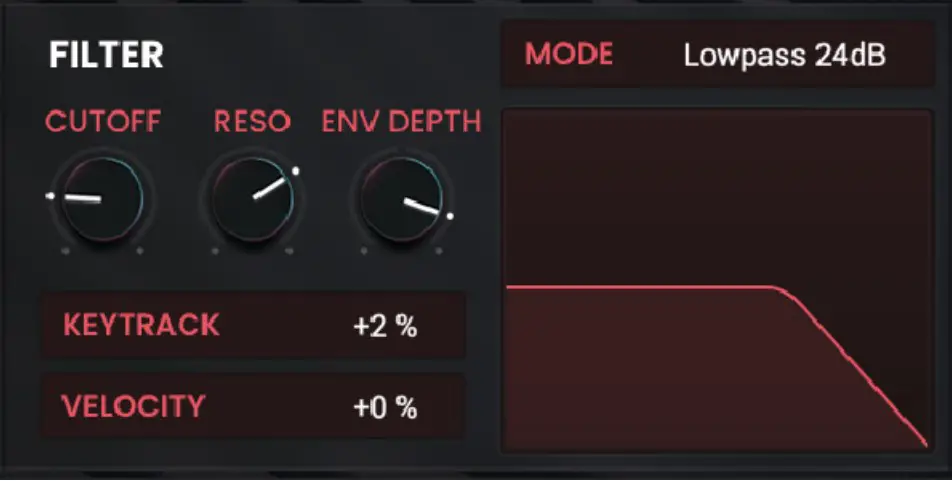
| Mode | Type of filter applied.Off, Lowpass 24dB, Lowpass 12 dB, Band 18, Band 12,High 12, Peak EQ, Presence,Damper, | |
| Cutoff | Cutoff frequency of the filter. | 0–100% |
| Reso | Resonance of the filter. | 0–100% |
| Env Depth | Envelope depth of the filter.At negative values, decreases the cutoff value based on the decay value.At positive values, increases the cutoff value based on the decay value. | -100% – 0 – +100% |
| Keytrack | Ties the envelope parameters to the pitch being 0–100% played.At higher values, the envelope time is decreased as the pitch is increased. | |
| Velocity | The amount of effect velocity has on filter control. | -100% – 0 – +100% |
Envelopes
Click the Amp Env, Filter Env, or Pitch Env buttons to view the selected envelope. Click the Edit button to view and edit the selected envelope parameters. You can also click and drag the envelope points directly.
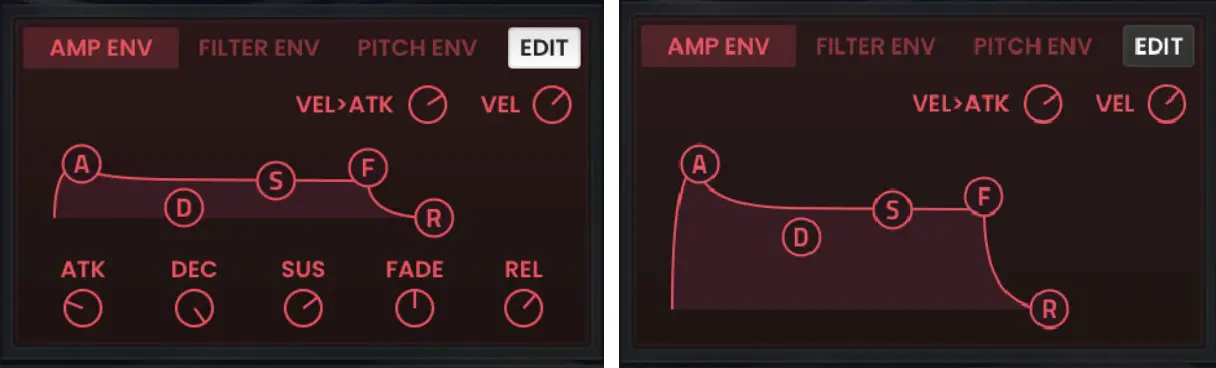
| AmpEnvelope | Attack | Length of time for the sound to reach full level. | 0 ms – 32 s |
| Decay | Length of time for the note to reach sustain level. | 0 ms – 32 s | |
| Sustain | Level of the sound while the note is held. | 0–100% | |
| Release | Length of time for the note to dissipate when released. | 0 ms – 32 s | |
| Fade | Level decrease or increase to the envelope sustain level. | -100 – 0 – +100% | |
| Velocity | Amount of effect the note velocity has on the amplitude envelope. | -100 – 0 – +100% | |
| Vel > Att | The amount of effect velocity has on the amplitude attack. | -100 – 0 – +100% |
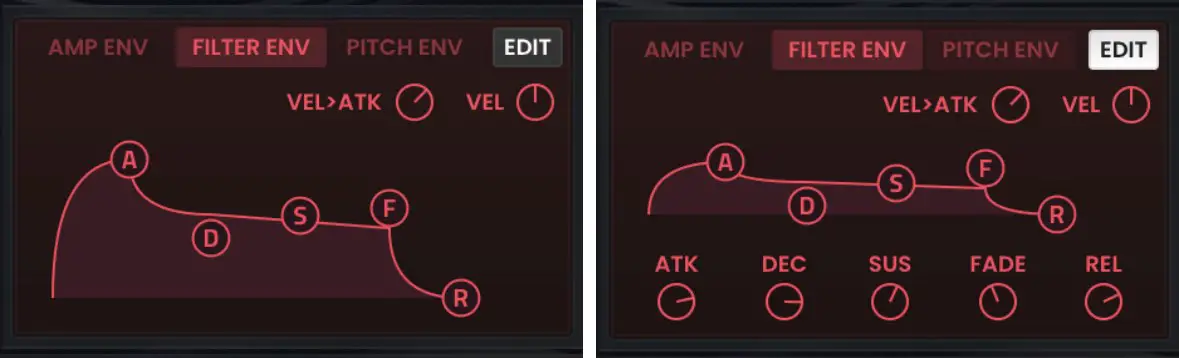
| Filter Envelope | Attack Length of time for the filter to reach full level. 0 ms – 32 s |
| Decay Length of time for the filter to reach sustain 0 ms – 32 s level. | |
| Sustain Level of the filter while the note is held. 0–100% | |
| Release Length of time for the filter to dissipate when 0 ms – 32 s released. | |
| Fade Level decrease or increase to the envelope -100 – 0 – +100% sustain level. | |
| Velocity Amount of effect the note velocity has on the -100 – 0 – +100% filter envelope. | |
| Vel > Att The amount of effect velocity has on the filter -100 – 0 – +100% attack. |
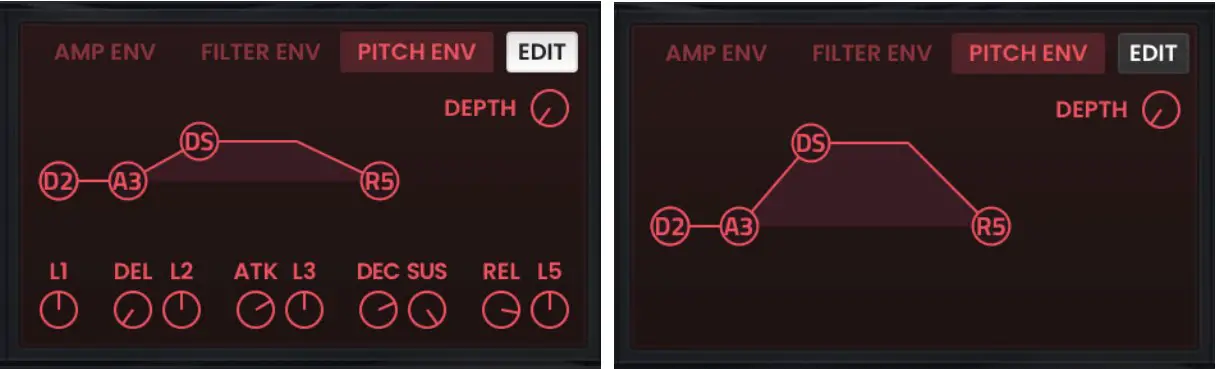
| Pitch Envelope | Level 1 Pitch level (relative to the Env Depth) at the -100 – 0 – +100% start of the note. |
| Delay Length of time to reach Level 2. 0 ms – 32 s | |
| Level 2 Pitch level (relative to the Env Depth) at the -100 – 0 – +100% start of the note. | |
| Attack Length of time between Levels 2 and 3. 0 ms – 32 s | |
| Level 3 Pitch level (relative to the Env Depth) at the -100 – 0 – +100% start of the note. | |
| Decay Length of time for the note to reach sustain 0 ms – 32 s level after the Attack. | |
| Sustain Pitch level (relative to the Env Depth) as the -100 – 0 – +100% note is held. | |
| Release Length of time for the note to dissipate when 0 ms – 32 s released. | |
| Level 5 Pitch level (relative to the Env Depth) when -100 – 0 – +100% the note is released. | |
| Env Depth Sets the range of pitch adjustment in -12.00 – 0.00 – +12.00 semitones. |
LFO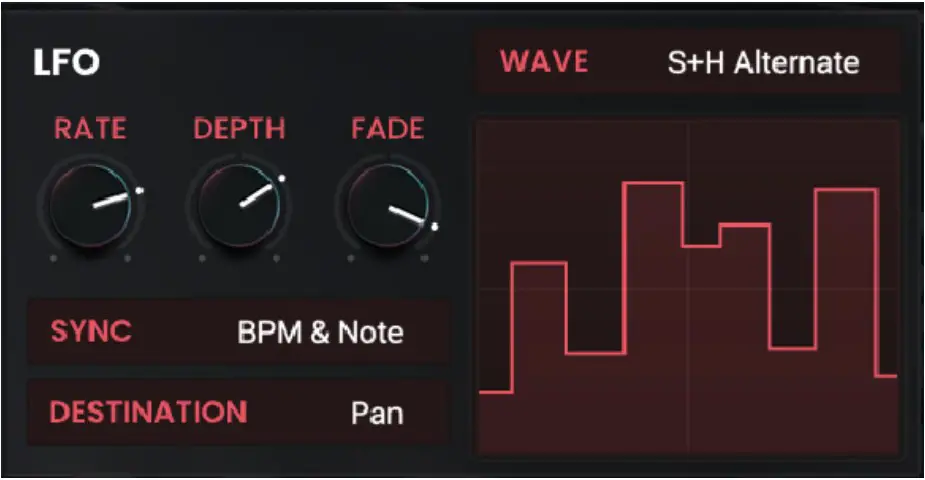
| Mode | Waveshape of the low frequency oscillator. | Off, Constant, Sine, Triangle, |
| Sawtooth, Square, S+H | ||
| Random, S+H Alternate, | ||
| Random Drift, Slow Drift | ||
| Sync | Disable or enable and select how the LFO is synced to the global tempo. | Off, First Note, Each Note, BPM & Note, BPM & Beat |
| Destination | Where the low frequency oscillator is applied. | Pitch, Cutoff, Reso, Amp, Pan, |
| Rate | Speed of the low frequency oscillator.When Sync is set to Off, First Note or Each Note: 0.03 – 30.00 Hz When Sync is set to BPM & Note or BPM & Beat: 8/4 – 1/64 | |
| Depth | Amount of LFO modulation applied. | -100 – 0 – +100% |
| Fade | Level decrease or increase to the LFO level. | -100 – 0 – +100% |
Percussion
| Percussion | Click the power button to enable or disable percussion sample. | Off, On | |
| Sample | Select the percussion sample used. | Varies | |
| Trigger | Selects when the percussion sample is triggered. | Note-On, Note-Off | |
| Octave | Adjust pitch of the percussion sample. | -4 – 0 – +4 | |
| Cutoff | Cutoff frequency of the percussion sample. | 0–100% | |
| Decay | Length of time for the percussion sample to decay. | 0.0 ms – 32.0 s | |
| Release | Length of time for the percussion sample to become silent after being released. | 0.0 ms – 32.0 s | |
| Volume | Level of the percussion sample. | -inf – 0.0 – +12.0 dB |
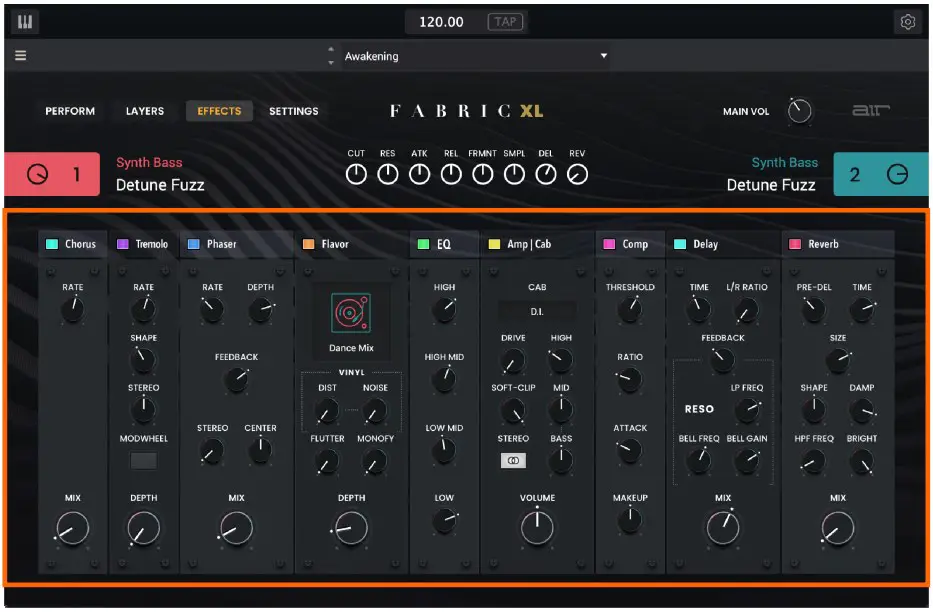
Effects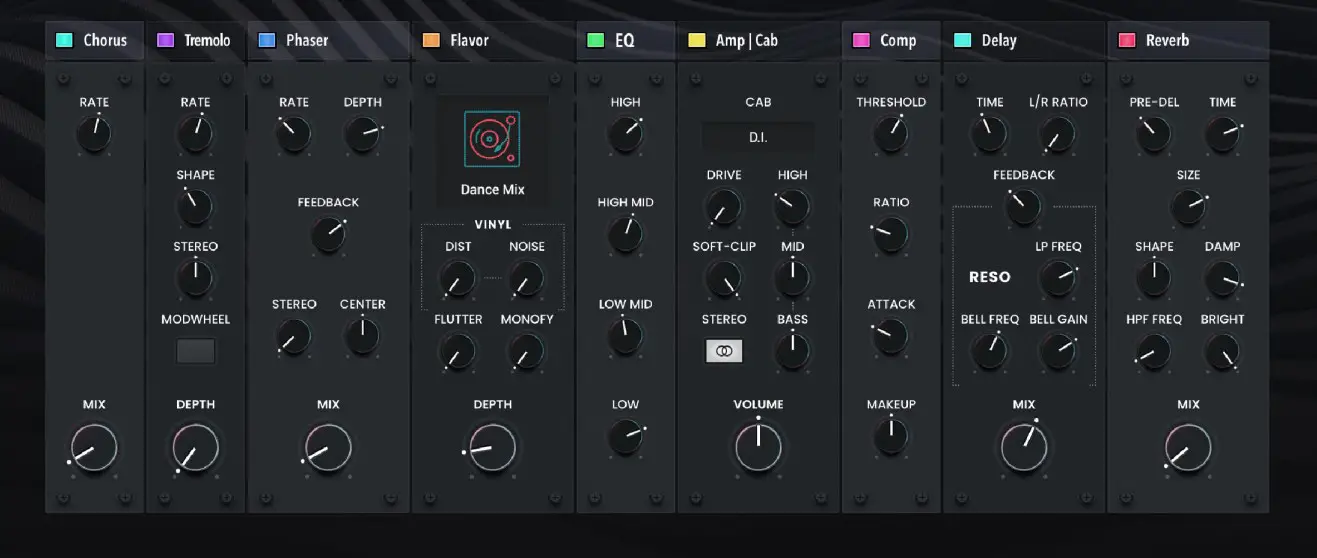
| Chorus | Use the button in the upper-left corner to enable or disable the chorus effect. | Off, On | |
| Rate | Modulation speed of the chorus effect. | 0.05 – 20.00 Hz | |
| Mix | Wet/dry amount of the chorus effect. | 0–100% | |
| Tremolo | Use the button in the upper-left corner of this section Off, On to enable or disable the tremolo effect. | ||
| Rate | Modulation speed of the effect. | 0.05 – 20.00 Hz | |
| Shape | Adjusts the modulation waveshape. | -100 – 0 – +100% | |
| Stereo | Degree of stereo spread of the effect. | 0–360 deg. | |
| Modwheel | Enable or disable tremolo control by the modwheel. | Off, On | |
| Depth | Modulation depth of the tremolo effect. | 0–100% | |
| Phaser | Use the button in the upper-left corner to enable or disable the phaser effect. | Off, On | |
| Rate | Modulation speed of the effect. | 0.05 – 20.00 Hz | |
| Depth | Amount of modulation applied. | 0–100% | |
| Feedback | Amount of phaser signal fed back into the phaser circuit. | 0–100% | |
| Stereo | Degree of stereo spread of the effect. | 0–360 deg. | |
| Center | Center frequency of the phaser filter. | 0–100% | |
| Mix | Wet/dry mix of the phaser effect. | 0–100% | |
| Flavor | Use the button in the upper-left corner of this section to enable or disable the flavor effect. | Off, On | |
| Timbre | Selects an emulation type to color the sound. | Varies | |
| Timbre Depth | Amount of timbre emulation applied to the sound. | 0–100% | |
| Vinyl Distortion | Amount of vinyl distortion noise applied to the signal. | 0–100% | |
| Vinyl Noise | Amount of vinyl noise such as clicks and pops applied to the signal. | 0–100% | |
| Flutter | Amount of speed fluctuation of the sound playback. | 0–100% | |
| Monofy | Reduces the stereo spread of the sound to mono. | 0–100% | |
| EQ | Use the button in the upper-left corner of this section to enable or disable the EQ effect. | Off, On | |
| Low | Amount of attenuation or boost applied to the low frequency band. | -12 – 0 – +12 dB | |
| Low Mid | Amount of attenuation or boost applied to the low- mid frequency band. | -20 – 0 – +20 dB | |
| High Mid | Amount of attenuation or boost applied to the high- mid frequency band. | -20 – 0 – +20 dB | |
| High | Amount of attenuation or boost applied to the high frequency band. | -12 – 0 – +12 dB | |
| Amp | Cab | Use the button in the upper-left corner to enable or disable the amp/cab effect. | Off, On | |
| Cab Model | Type of amplifier simulated. | D.I., Brit, 1×8”, 1×12”,2×10”, 2×12”, 4×10”,4×12”, 1×15” Bass, 4×10”Bass, Radio | |
| Drive | Amount of overdrive applied to the amp signal. | 0–100% | |
| Soft Clip | Amount of softening applied to the clipped signal to decrease high-frequency harmonics and add warmth. | 0–100% | |
| Mono/Stereo | Determines whether the simulation is mono or stereo. | Mono, Stereo | |
| High | Amount of high-range tone reduction or boost. | -100 – 0 – +100% | |
| Mid | Amount of mid-range tone reduction or boost. | -100 – 0 – +100% | |
| Bass | Amount of bass-range tone reduction or boost. | -100 – 0 – +100% | |
| Volume | Output level of the amp signal. | -12.0 – 0.0 – +12.0 dB |
| Compressor | Use the button in the upper-left corner of this section to enable or disable the compressor. | ||
| Threshold | Signal level after which the compression will be applied. | -30.0 – 0.0 – +10.0 dB | |
| Ratio | Amount of compression applied. | 1.0:1 – 20.0:1 | |
| Attack | Length of time to apply the compression. | 0–100% | |
| Makeup | Amount of additional output gain for the compressed signal. | -20.0 – 0 – +20.0 dB | |
| Delay | Use the button in the upper-left corner of this section to enable or disable delay. | Off, On | |
| Time | Amount of time between the dry signal and the delayed signal. | 1/16 – 16/4 | |
| L/R Ratio | Reduces the delay Time in either the Left or Right stereo field. This is useful for creating offset, panned delays. | 50:100 – 100:100 – 100:50 | |
| Feedback | Amount of signal fed back into the delay line. | 0–100% | |
| Reso LP Freq | Low pass frequency for feedback resonance. | 100 – 16000 Hz | |
| Reso Bell Freq | Center frequency for feedback resonance. | 100 – 16000 Hz | |
| Reso Bell Gain | Amount of gain applied to the resonant frequency. | 0–100% | |
| Mix | Wet/dry amount of the delay effect. | 0–100% | |
| Reverb | Use the button in the upper-left corner of this section to enable or disable reverb. | Off, On | |
| Pre-Delay | Length of time between dry signal and reverberated signal. | 0 – 250 ms | |
| Time | Length of reverb tail. | 0.3 – 60.00 s | |
| Size | Size of the reverberation environment. | 0–100% | |
| Shape | Shape of the reverberation environment, which will alter the density of reverb reflections.At lower settings, the sound of individual reflections is more present.At higher settings, reflections are more uniform. | 0–100% | |
| Damp | Amount of frequency dampening applied to the reverberated signal. | 100–0% | |
| HPF Freq | Center frequency for reverb signal high-pass filter. | 0 – 2000 Hz | |
| Bright | Amount of high frequency decay. | -100–0% | |
| Mix | Wet/dry amount of the reverb effect. | 0–100% | |
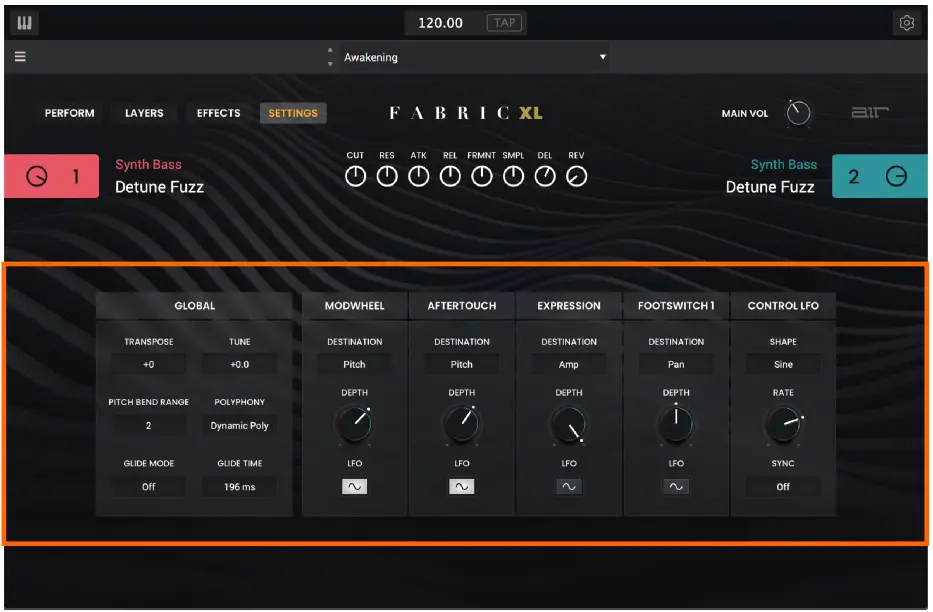
Settings
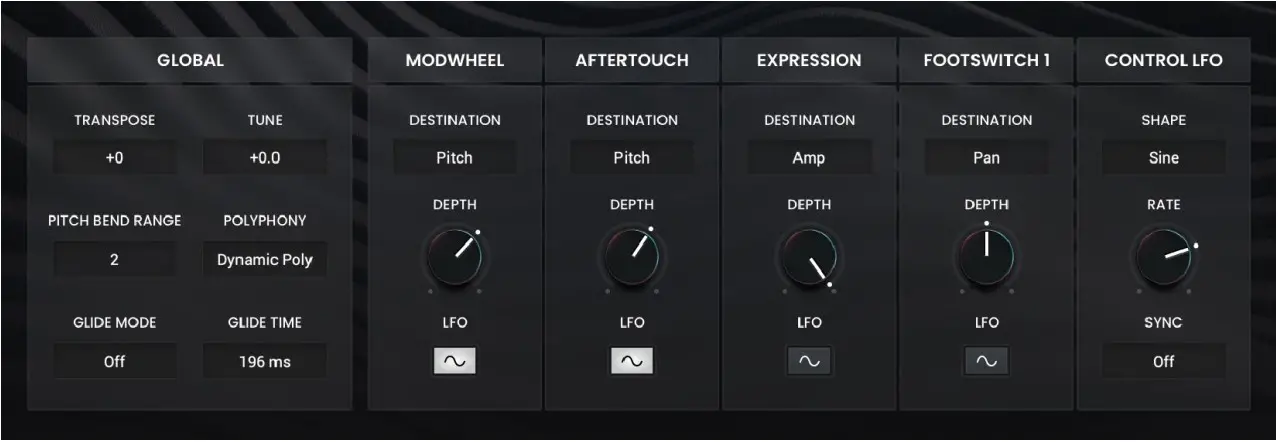
| Global | Transpose | Transposition of the plugin, in semitones. | -36 – 0 – +36 |
| Tune | Fine tuning of the plugin, in cents. | -100 – 0 – +100 | |
| Pitch Bend Range | Number of semitones up or down controlled by MIDI pitch bend messages. | 0–24 (semitones) | |
| Polyphony | Number of allowable voices, and how voices are triggered. | Dynamic Poly, Legato, Retrigger, 2–6 Notes | |
| Glide Mode | Enables or disables pitch gliding for all triggered notes or legato notes. | Off, Legato, All | |
| Glide Time | Amount of time to slide from the pitch of one note to the next note played. | 0.0 ms – 32.0 s | |
| Modwheel | Destination | Send Mod Wheel data to one of the following control destinations. | Pitch, Cutoff, Reso, Amp, Pan |
| Depth | Amount of modulation applied.When Destination is set to Pitch: -12.0 – +12.0 When Destination is set to Cutoff, Reso, Amp or Pan: -100 – 0 – 100% | ||
| LFO | Ties the modulation to the Control LFO. | Off, On | |
| Aftertouch | Destination | Send Aftertouch data to one of the following control destinations. | Pitch, Cutoff, Reso, Amp, Pan |
| Depth | Amount of modulation applied. 0–100%When Destination is set to Pitch: -12.0 – +12.0 When Destination is set to Cutoff, Reso, Amp or Pan: -100 – 0 – 100% | ||
| LFO | Ties the modulation to the Control LFO. | Off, On | |
| Expression | Destination | Send Expression data to one of the following control destinations. | Pitch, Cutoff, Reso, Amp, Pan |
| Depth | Amount of modulation applied. 0–100%When Destination is set to Pitch: -12.0 – +12.0 When Destination is set to Cutoff, Reso, Amp or Pan: -100 – 0 – 100% | ||
| LFO | Ties the modulation to the Control LFO. | Off, On | |
| Footswitch 2 | Destination | Send Footswitch 2 data to one of the following control destinations. | Pitch, Cutoff, Reso, Amp, Pan |
| Depth | Amount of modulation applied. 0–100%When Destination is set to Pitch: -12.0 – +12.0 When Destination is set to Cutoff, Reso, Amp or Pan: -100 – 0 – 100% | ||
| LFO | Ties the modulation to the Control LFO. | Off, On | |
| Control LFO | Shape | Waveshape of the Control LFO. | Sine, Triangle, Sawtooth, Square, S&H Random, S&H Alternate, Random Drift, Slow Drift |
| Rate | Speed of the low frequency oscillator.When Sync is Off: When Sync is On: | 0.03 – 30.00 Hz8/4 – 1/64 | |
| Sync | Enables or disables Control LFO sync, and sets how the Control LFO is synced when enabled. | Off, First Note, Each Note, BPM & Note, BPM & Beat | |
Trademarks and Licenses
AIR Music Technology is a trademark of inMusic Brands, Inc., registered in the U.S. and other countries. macOS is a trademark of Apple Inc., registered in the U.S. and other countries. Windows is a registered trademark of Microsoft Corporation in the United States and other countries. All other product or company names are trademarks or registered trademarks of their respective owners.
 AIR | German-engineered virtual instruments and effects
 Customer Login
 Support : AIR