
 Milesight DeviceHub
Installation Guide
Preface
This guide teaches you how to install Milesight on-premises DeviceHub platform.
Readers
This guide is intended for the following users:
- Distributors
- Network Planners
- On-site technical support and maintenance personnel
- Network administrators responsible for network configuration and maintenance
Copyright © 2011-2021 Milesight. All rights reserved.
All information in this guide is protected by copyright law. Whereby, no organization or individual shall copy or reproduce the whole or part of this user guide by any means without written authorization from Xiamen Milesight IoT Co., Ltd.

For assistance, please contact
Milesight technical support:
Email: [email protected]
Tel: 86-592-5085280
Fax: 86-592-5023065
Address: 4/F, No.63-2 Wanghai Road,
2nd Software Park, Xiamen, China
Revision History
| Date | Doc Version | Description |
| Aug. 29, 2018 | V 1.0 | Initial version |
| Mar. 18, 2021 | V 2.0 | Brand Replace and add features |
Introduction
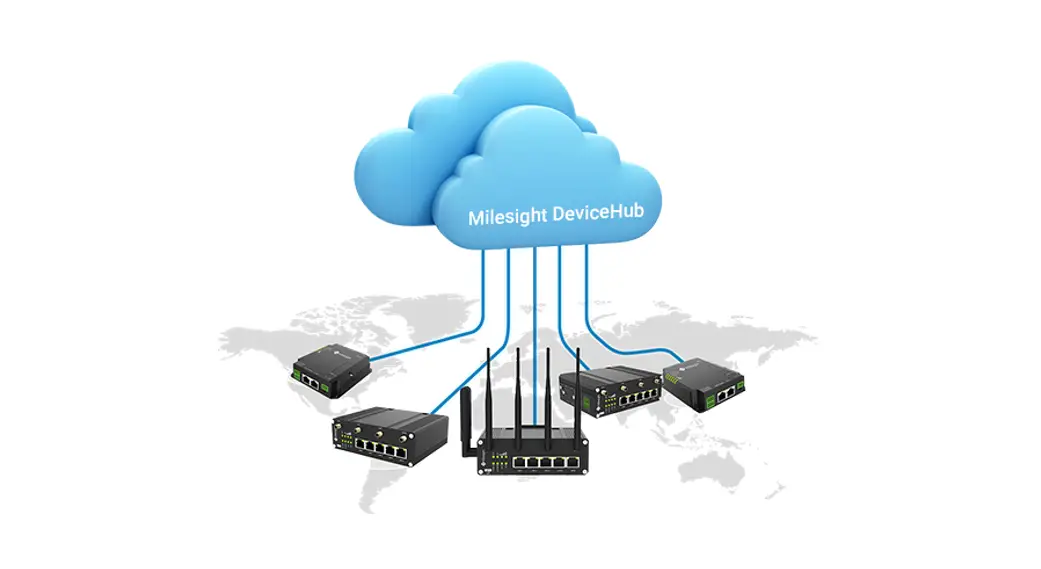
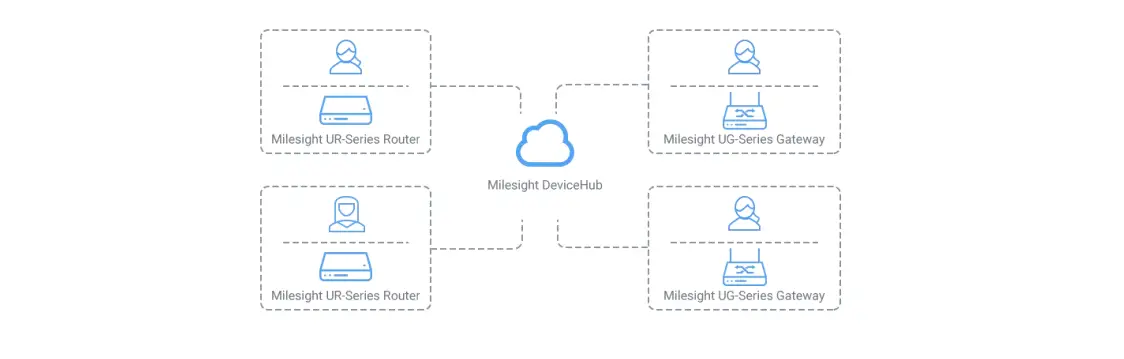
Milesight DeviceHub provides a high-efficency, low maintenance solution to easily deploy Milesight IoT devices across multiple locations, reducing complexity and increasing productivity. Milesight offers cloud and on-premises version according to customer requirements. This guide will describe how to install on-premises DeviceHub. For cloud version please contact Milesight IoT sales or click here to apply for DeviceHub Cloud platform account.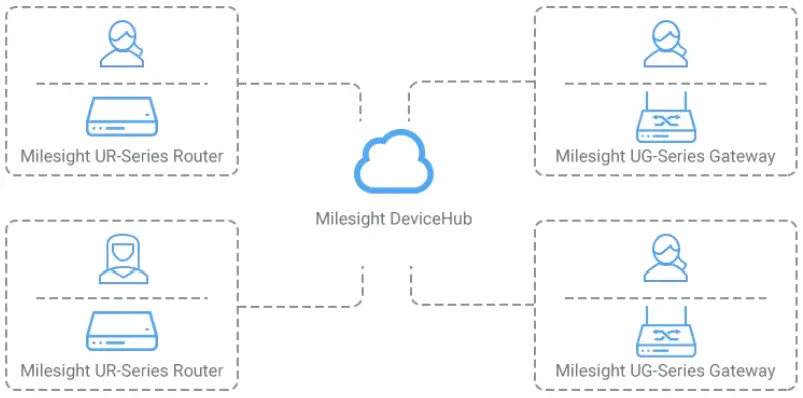
System Requirements
Hardware
It’ s suggested to use the server which suit following requirements:
For 500 devices
– CPU: 2 Cores, 2.0 GHz
– RAM: 16 GB
– Disk: 512 GB
– Bandwidth: ≥100MBps
For 1000 devices
– CPU: 8 Cores, 3.2 GHz
– RAM: 32 GB
– Disk: 1 TB
– Bandwidth: ≥100MBps
Software
- Operating System: Ubuntu 16.04
- Browser: Chrome, Firefox
Installation
Requirements
- Ubuntu Server
- DeviceHub Software Package
- WinSCP
- Putty (or other SSH tool)
Package Upload
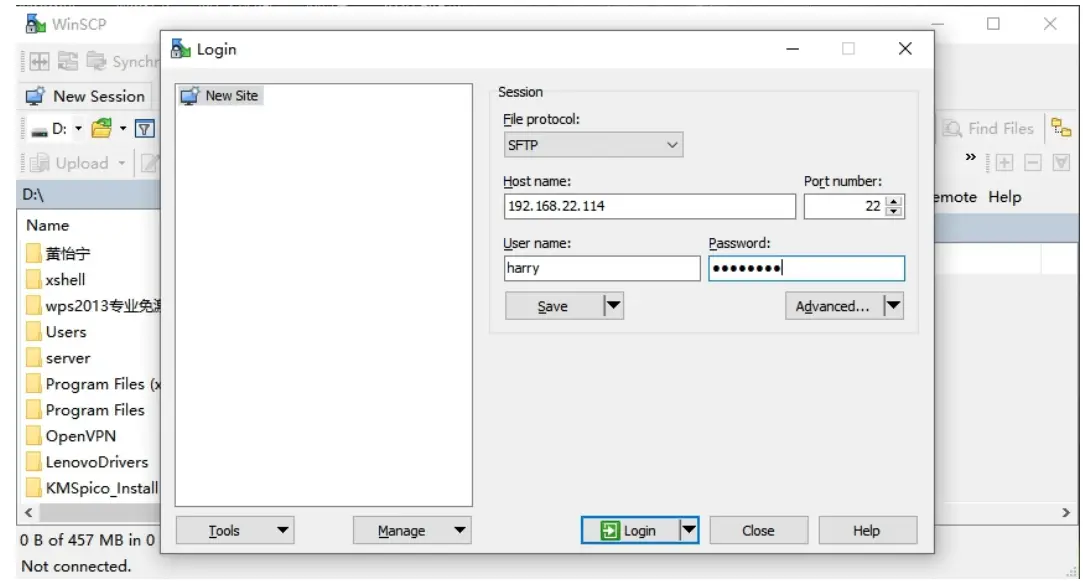
Following steps are based on WinSCP tool. You can also use other tools to upload packages.
- Download the DeviceHub package from Milesight IoT website,then extract and check files:

- Open WinSCP and set up a session between WinSCP and server.

- Select the DeviceHub folder and click “Upload”, select the server path and click “OK” to upload.


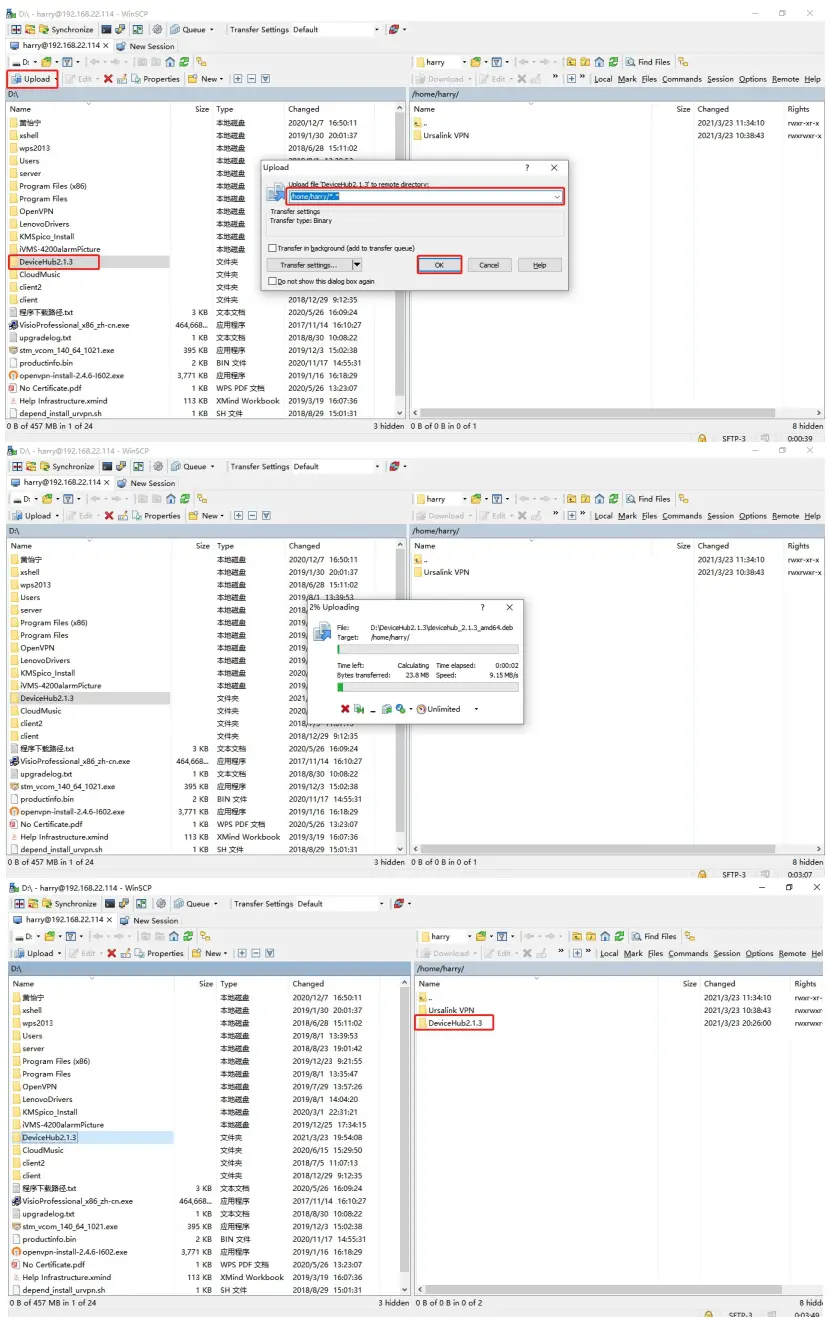
DeviceHub Installation
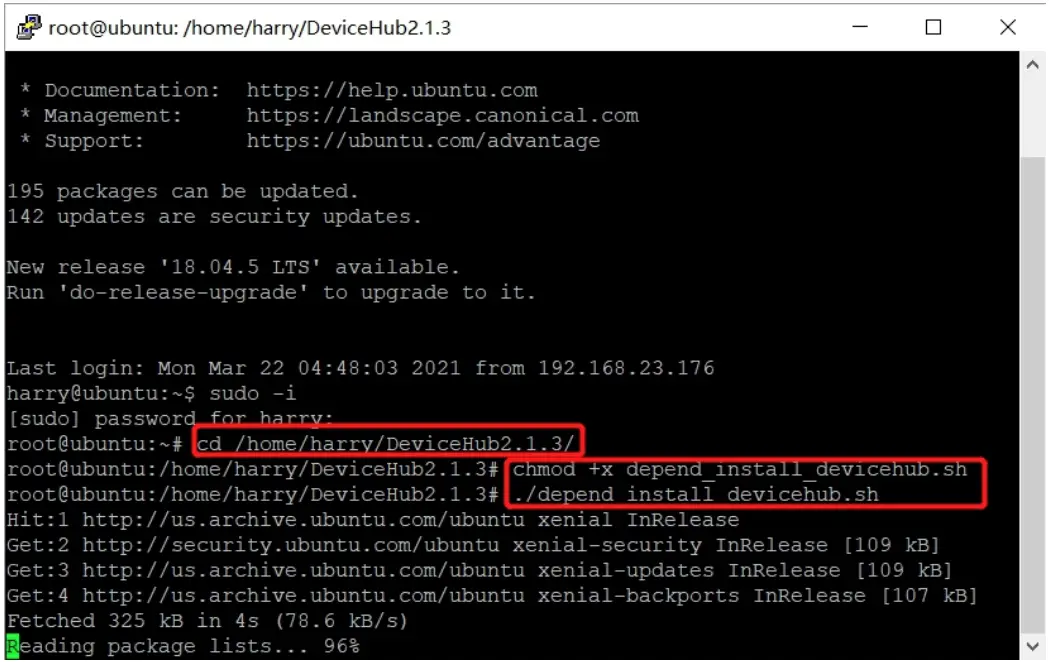
- Log in the server via Putty. You can also use other SSH tools.

- Run following commands under DeviceHub directory. chmod+xdepend_install_devicehub.sh. /depend_install_devicehub.sh

- Install DeviceHub software. Take the 2.1.3 version as example, please type following command: dpkg -i devicehub 2.1.3 amd64.deb
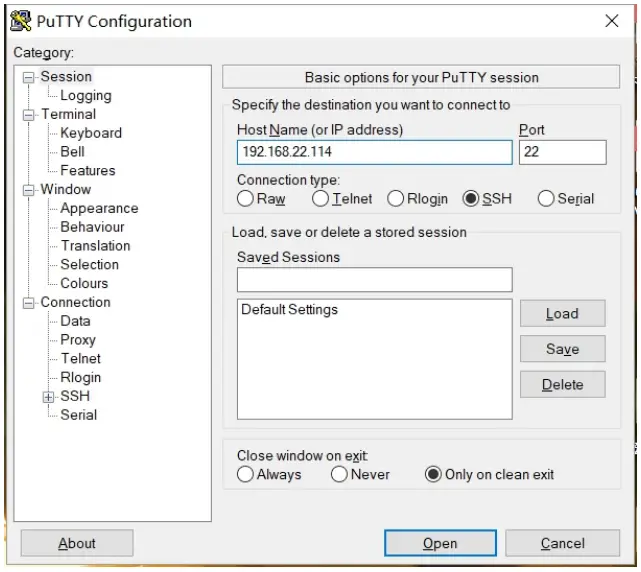
The network interface of this server will show. Select and type the main interface name, then click Enter to start the installation.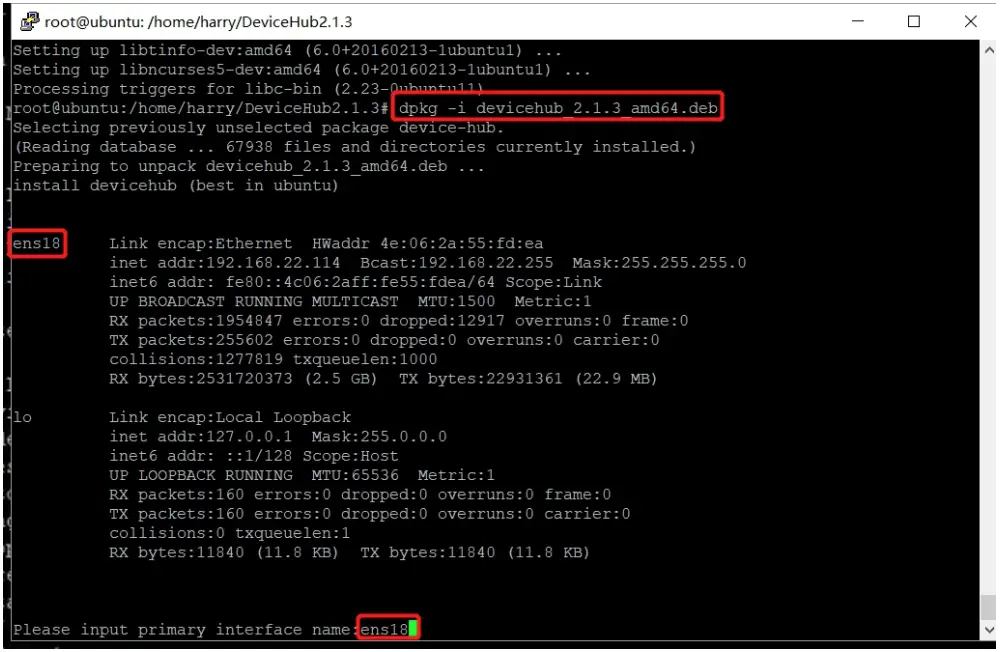
It will take about 30 minutes to complete the installation and there will show following message when the installation complete.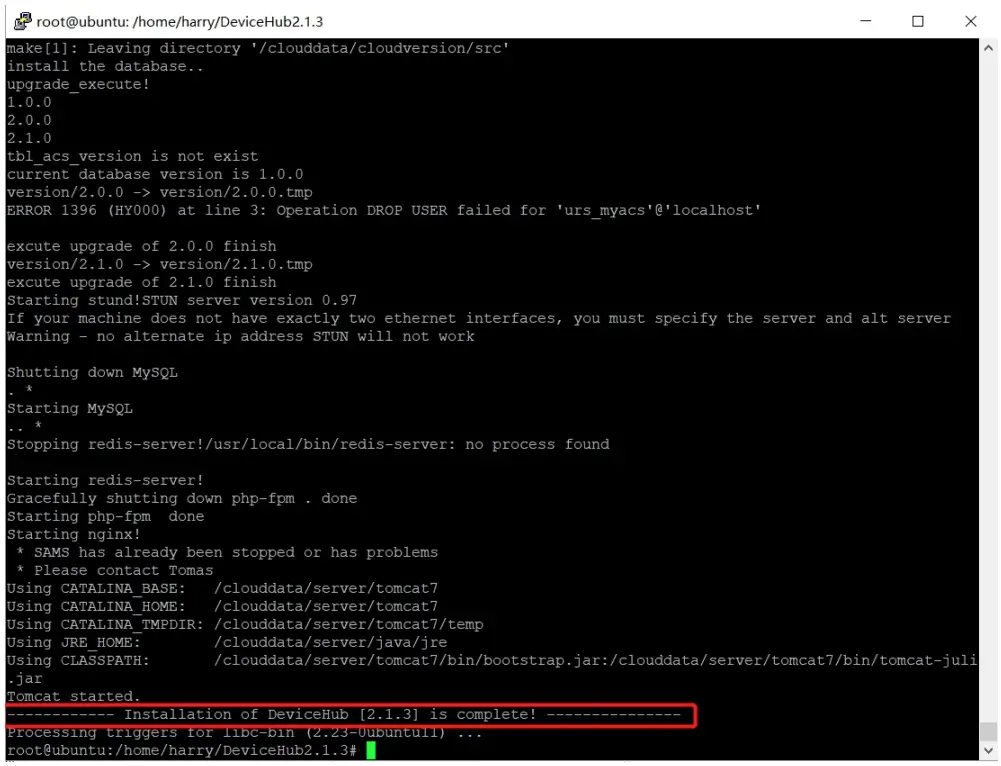
Registration
After installation, open the browser and type the IP address to open the registration page. Fill in the following information and click “Install” to complete the registration. Administrator Account(Required)
Admin Email: the email address working as root account of the DeviceHub
Password: define the password of the root account
Outgoing Mail Server(Option)
SMTP Email: Email address used for sending alarm emails or sub-account activation emails
Password: Password of the email address
Server: SMTP server address for email service
Port: SMTP server port for email service
Security: encryption mode for email service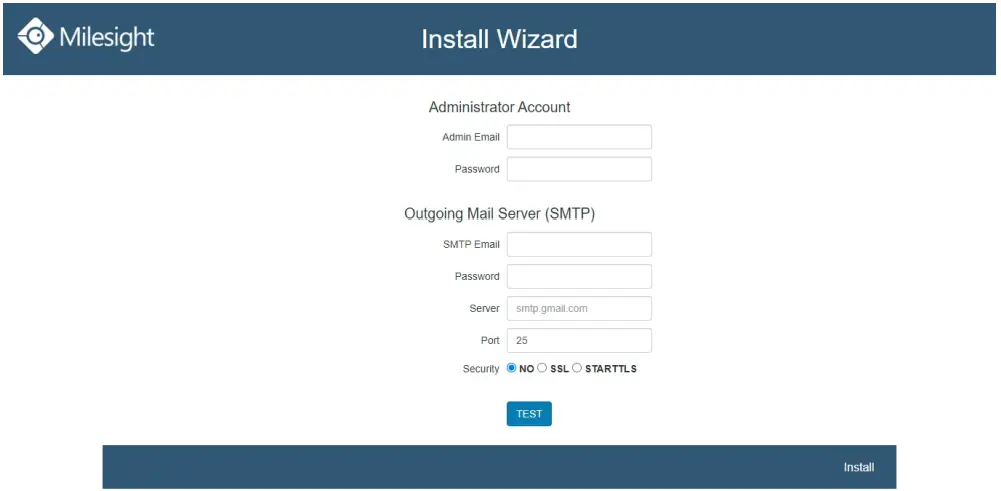
After completing all information, click “TEST” to check if your outgoing mail server is valid. If yes, a SUCCESS prompt will show and DeviceHub will save the email settings.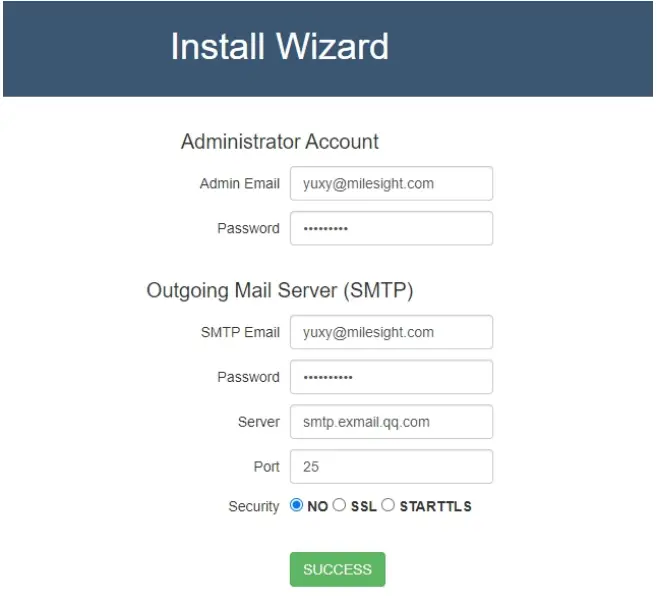
Otherwise there is error message “Authentication failed”.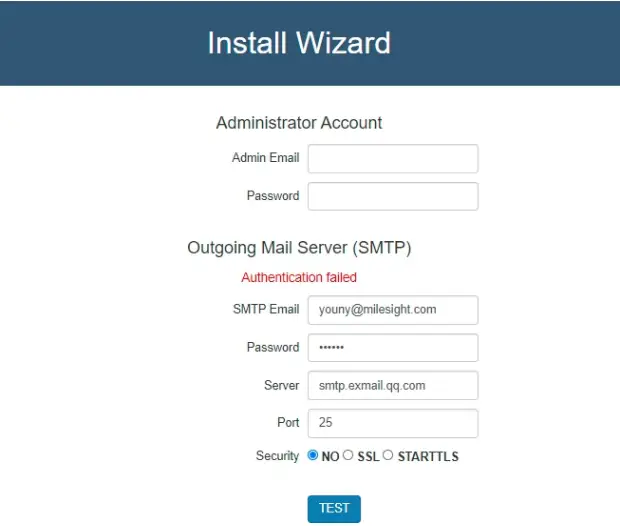
Nbote:
- Outgoing mail server information is option and you can click “Install” to skip the configurations.
- You can also log in the DeviceHub via administrator account and go to “Settings > Email” to configure or change the outgoing mail server settings.
- If the outgoing mail server is not verified by “TEST” button, it will not be saved.
After registration, you can log in the DeviceHub via administrator account.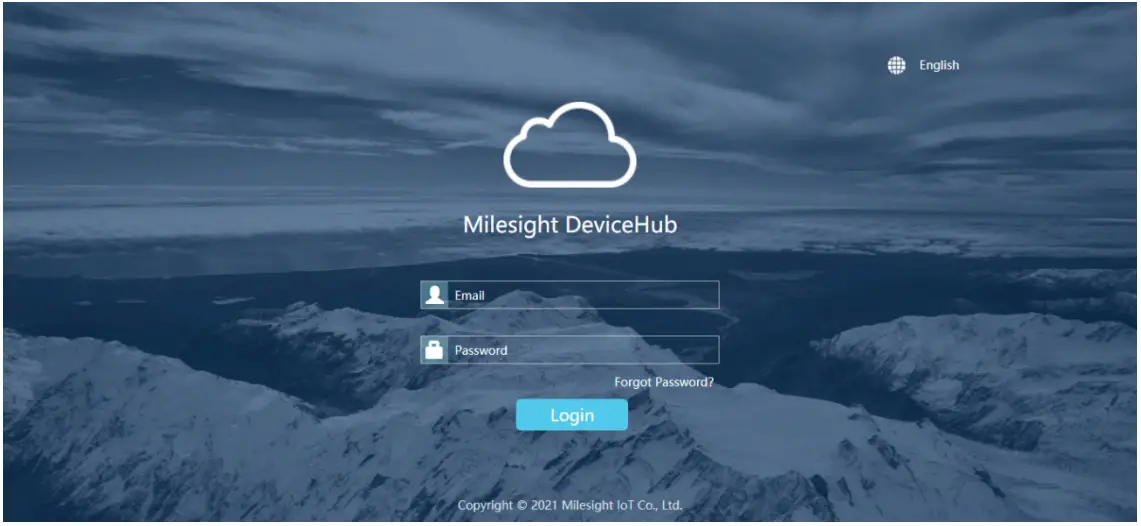
Services and Ports
In order to ensure the security and unblocked communication, here are ports for services:
| Port | Protocol | Description |
| 22 | TCP | SSH Service |
| 80 | TCP | NGINX Agent(Non-encrypted) |
| 443 | TCP | NGINX Agent(Encrypted) |
| 3478 | UDP | STUND Service |
| 3479 | UDP | STUND Service |
| 6379 | TCP | Message Broker |
| 8080 | TCP | TR069 Service(Non-encrypted) |
| 8443 | TCP | TR069 Service(Encrypted) |
| 10000-10100 | TCP | Remote Access Service |
| 20000-20100 | TCP | Remote Access Service |
Expand Manage Devices
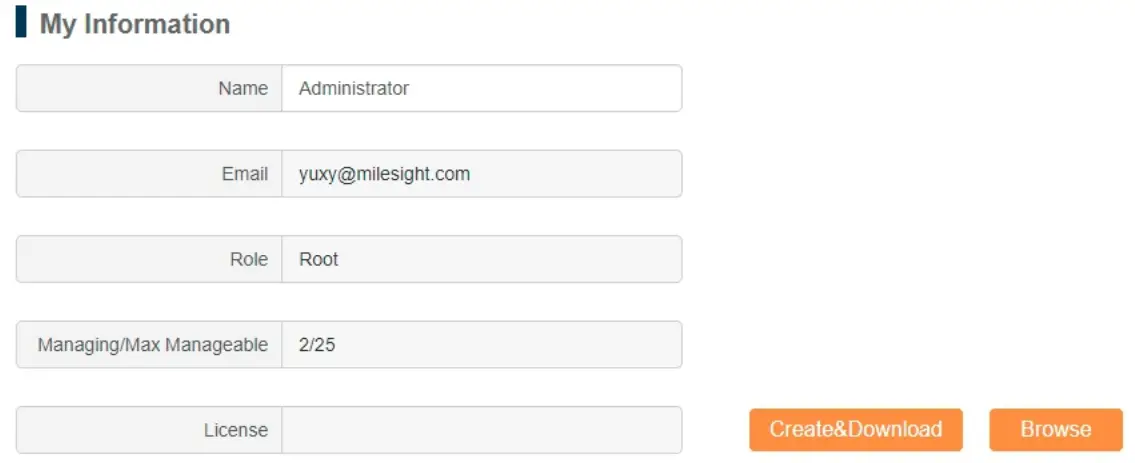
The number of available managing devices can be checked in “Settings > General” tab. Maximum number of managing devices is 25 by default for on-premises version. Please refer to following steps to expand manage devices.
- Log in DeviceHub with root account and go to “Settings > General” tab, then click “Create&Download” to download license info file.
- Contact Milesight sales or technical support and send the license info file.
- Get expand license from Milesight and click “Browse” to import the license.
- Click “save” to save the settings and the max manageable devices will change.
 www.milesight-iot.com
Rémy GUEDOT
Gsm: +33 (0) 662 80 65 57
[email protected]
Olivier BENAS
Gsm: +33 (0) 666 84 26 26
[email protected]
ATTENTION – NOUVELLE ADRESSE
14 rue Edouard Petit – F42000 Saint Etienne
Tél: +33 (0) 477 92 03 56 – Fax: +33 (0) 477 92 03 57
 Milesight IoT - LoRaWAN, 5G & AIoT