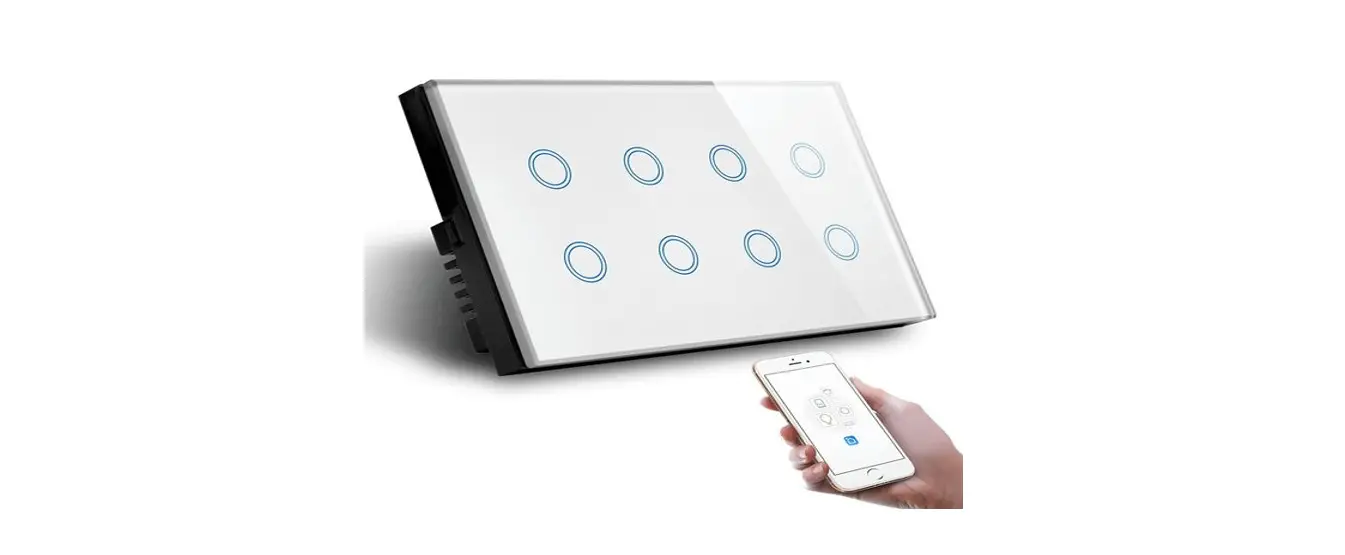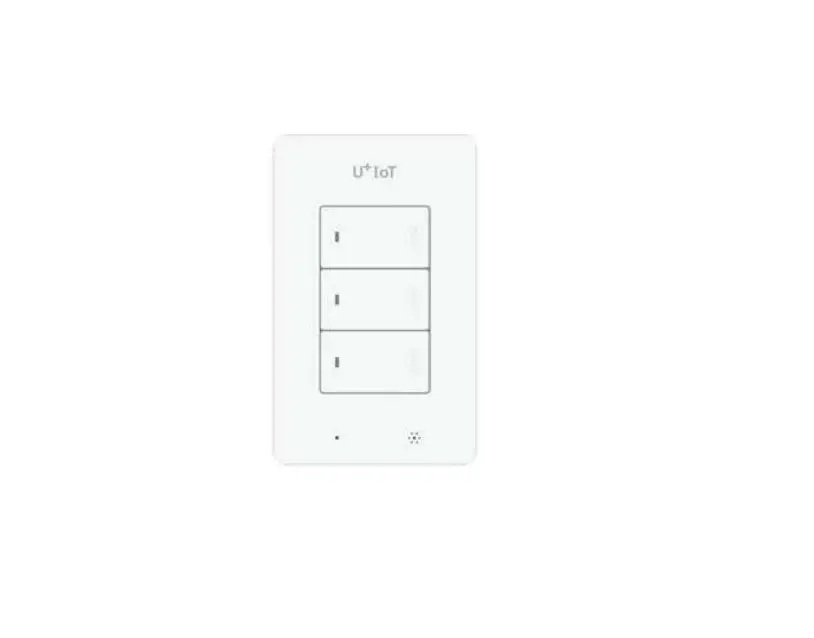
Martin Jerry IOT Device
READ HERE!!!
- Confirm that both of the 3-Way Switches work well manually (Pressing buttons). If not, go back to the wiring part
- 4G WiFi is available. NOT support 5G (802.11av)
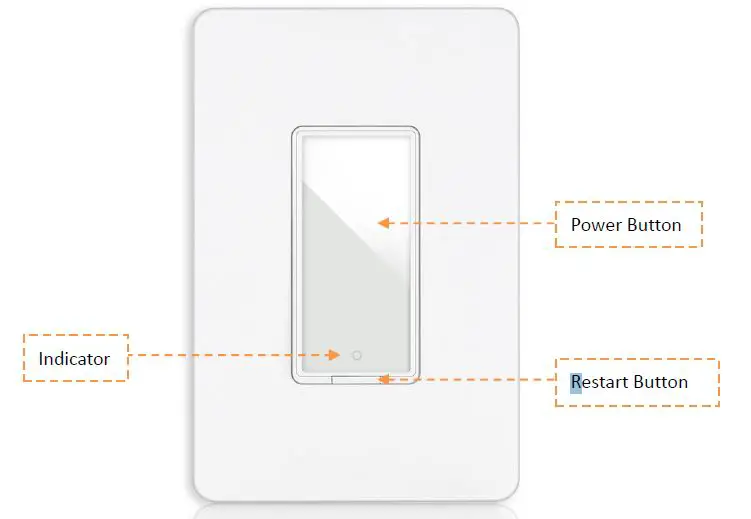
Step 1: Set the Switch to Easy Pairing Mode- Press the tiny restart button under the main power button to restart the switch. You will see the indicator in RED.
- Press and hold the power button for 5-8s until the indicator blinks quickly in pure blue (NOT red/purple)
 Step 2: Pair the switch on App
- Confirm that you have downloaded the right Smart Life App (Same Logo as the right side) If not, download it from the links iPhone: https://itunes.apple.com/us/app/smart-life-smart-living/id1115101477?mt=8 Android: https://play.google.com/store/apps/details?id=com.tuya.smartlife&hl=en_US2. Wall Switch 3 1.”+”


 Step 2: Pair the switch on App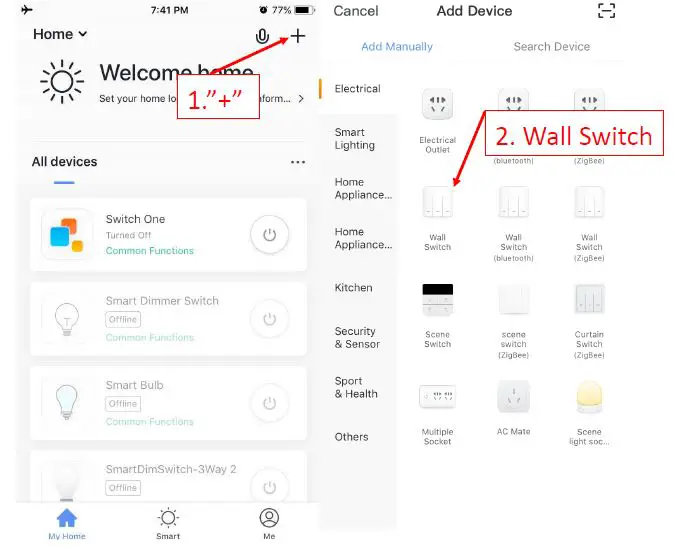
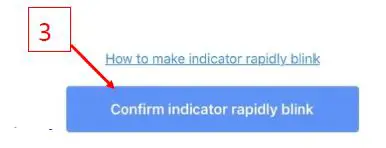
If the above pairing method failed several times, please go to the AP mode mentioned in coming pages.
Step 1: Set the switch to AP mode
- Press the tiny restart button under the main power button to restart the switch. You will see the indicator in RED.
- Press and hold the power button for 5-8s until the indicator blinks quickly in Blue.
- Press and hold the power button for 5-8s until the indicator blinks slowly in Blue.
Step 2: : Pair the switch on SmartLife App (AP mode) 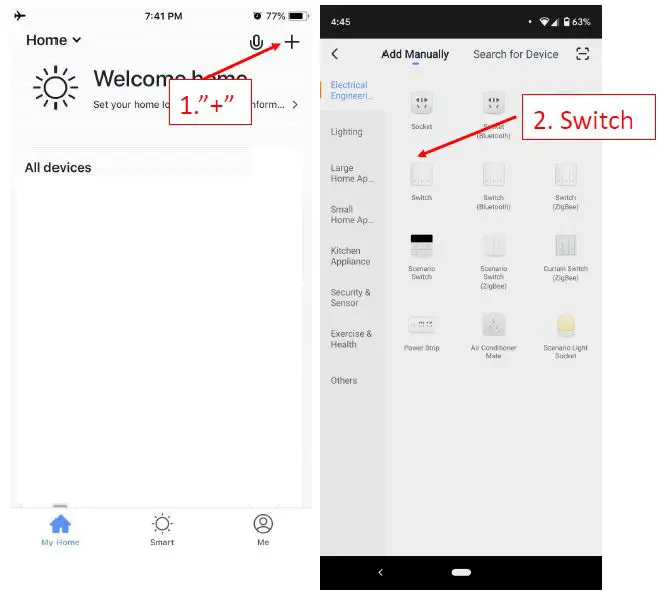
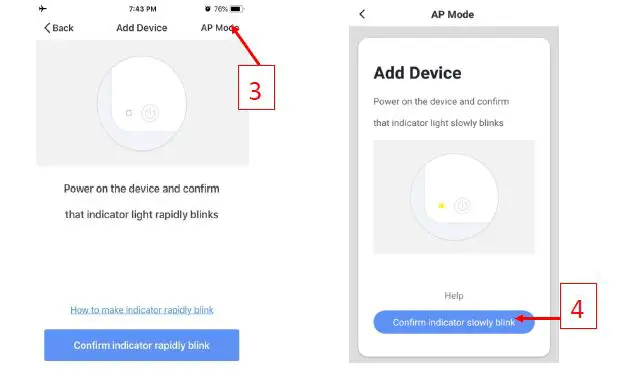
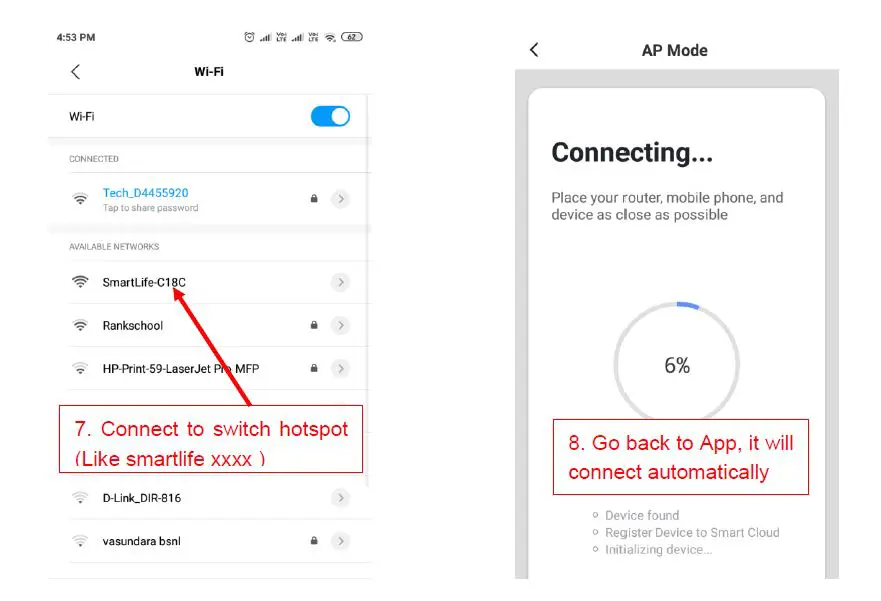
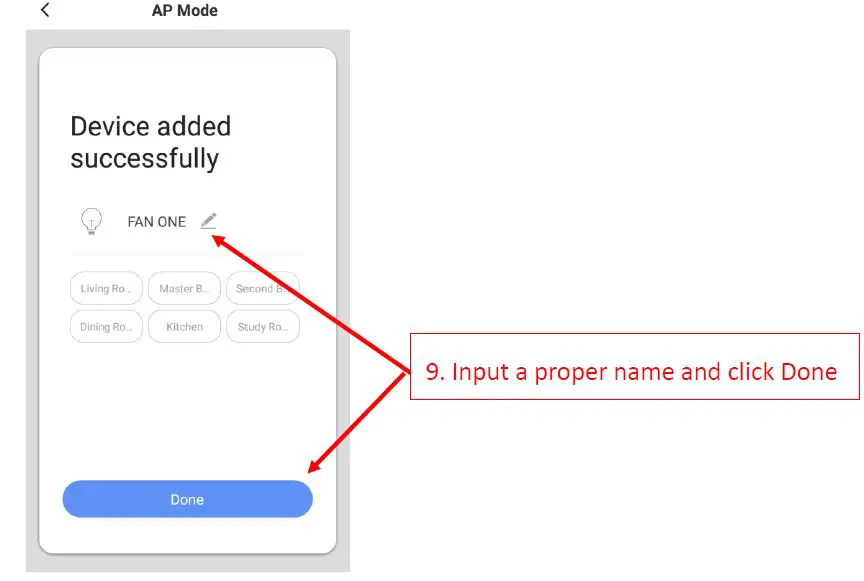
Then, input the password of your Wi-Fi router — > Connect the Hotspot from the Switch — > Back to App for pairing.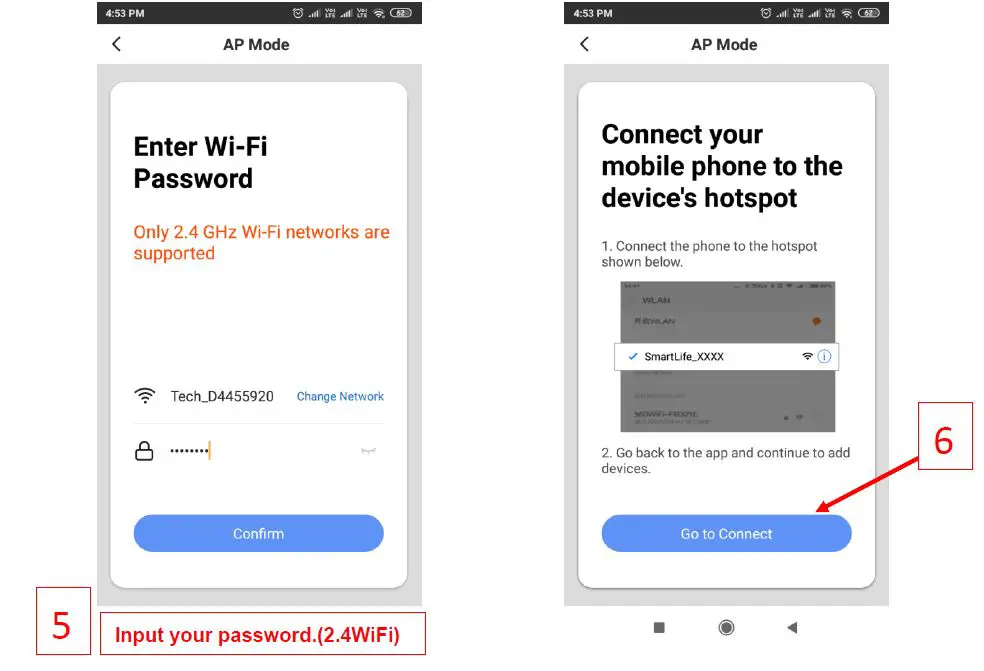
Tech support:
http://www.martinjerry.com/st01support.
 ST01 | martinjerry
 Smart Life - Smart Living on the App Store
 Smart Life - Smart Living - Apps on Google Play