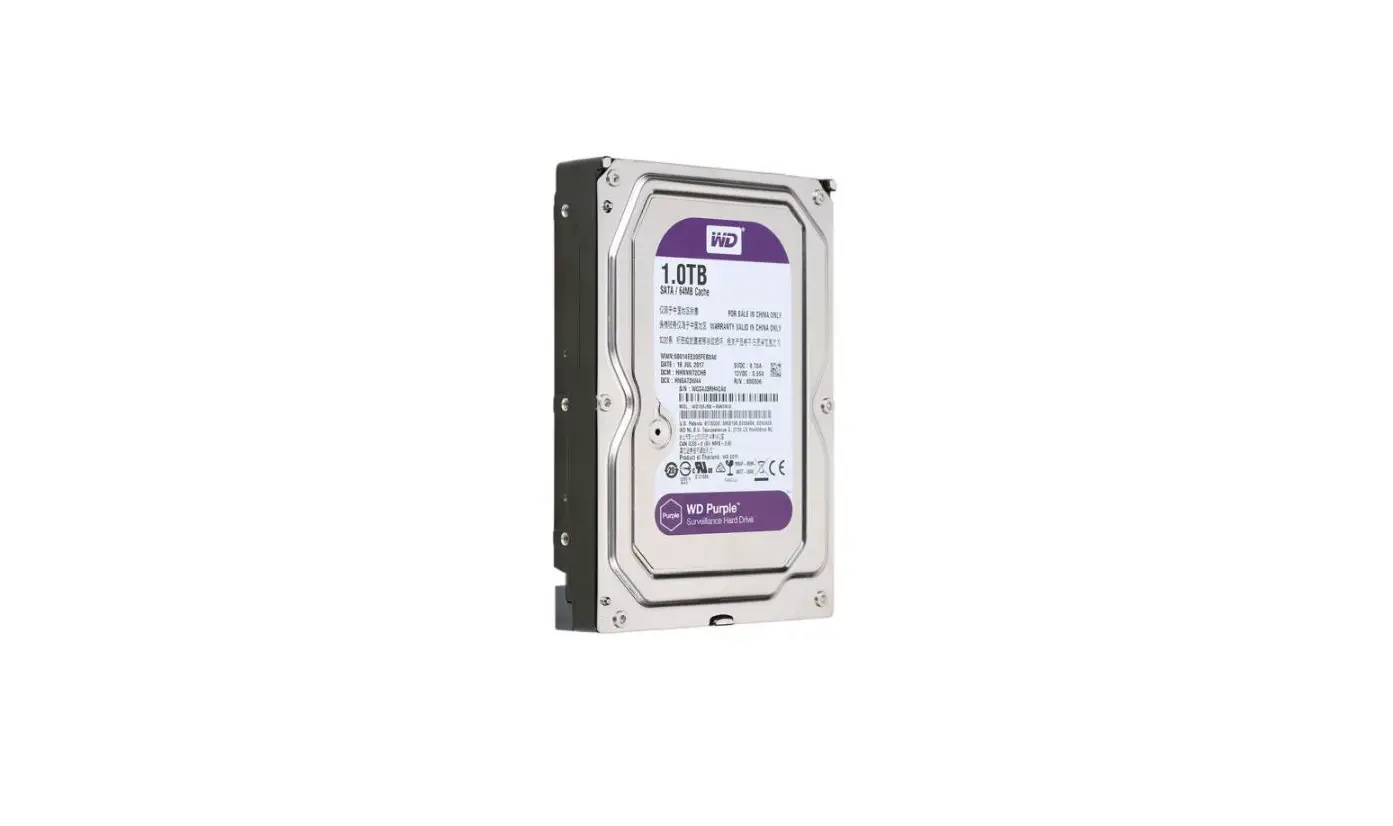

Milesight NVR Hard Disk
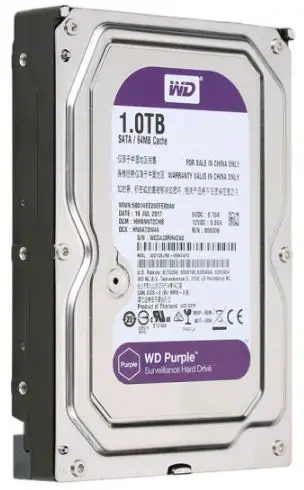
Regular recorded files can be backed up by various devices, such as USB flash drives (USB flash disk, USB HDDs, USB writer), CD/DVD writer and eSATA, etc.
On monitor
Step1:
Enter the video playback interface by clicking “Main menu”→ “Playback”.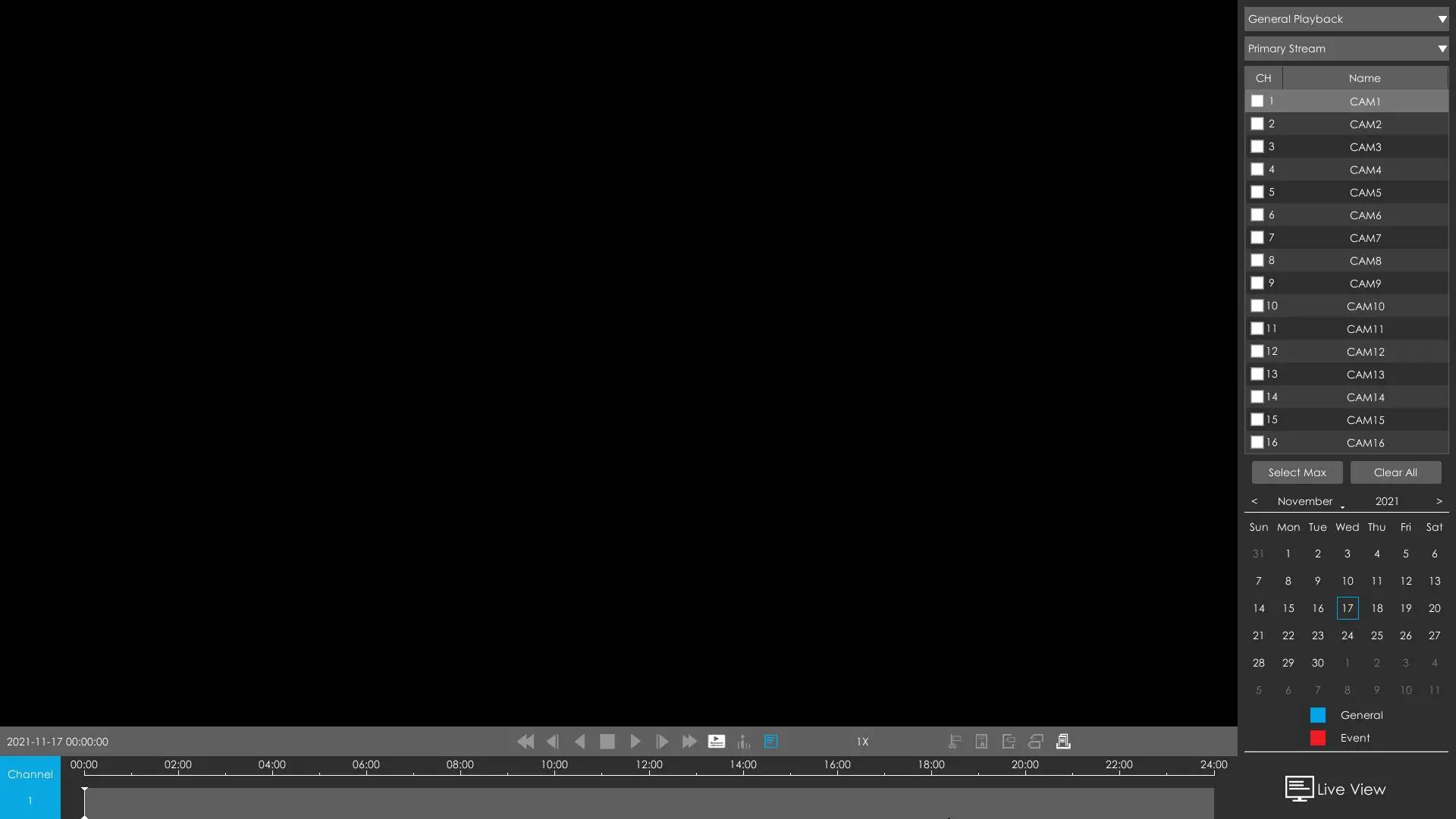
Step2:
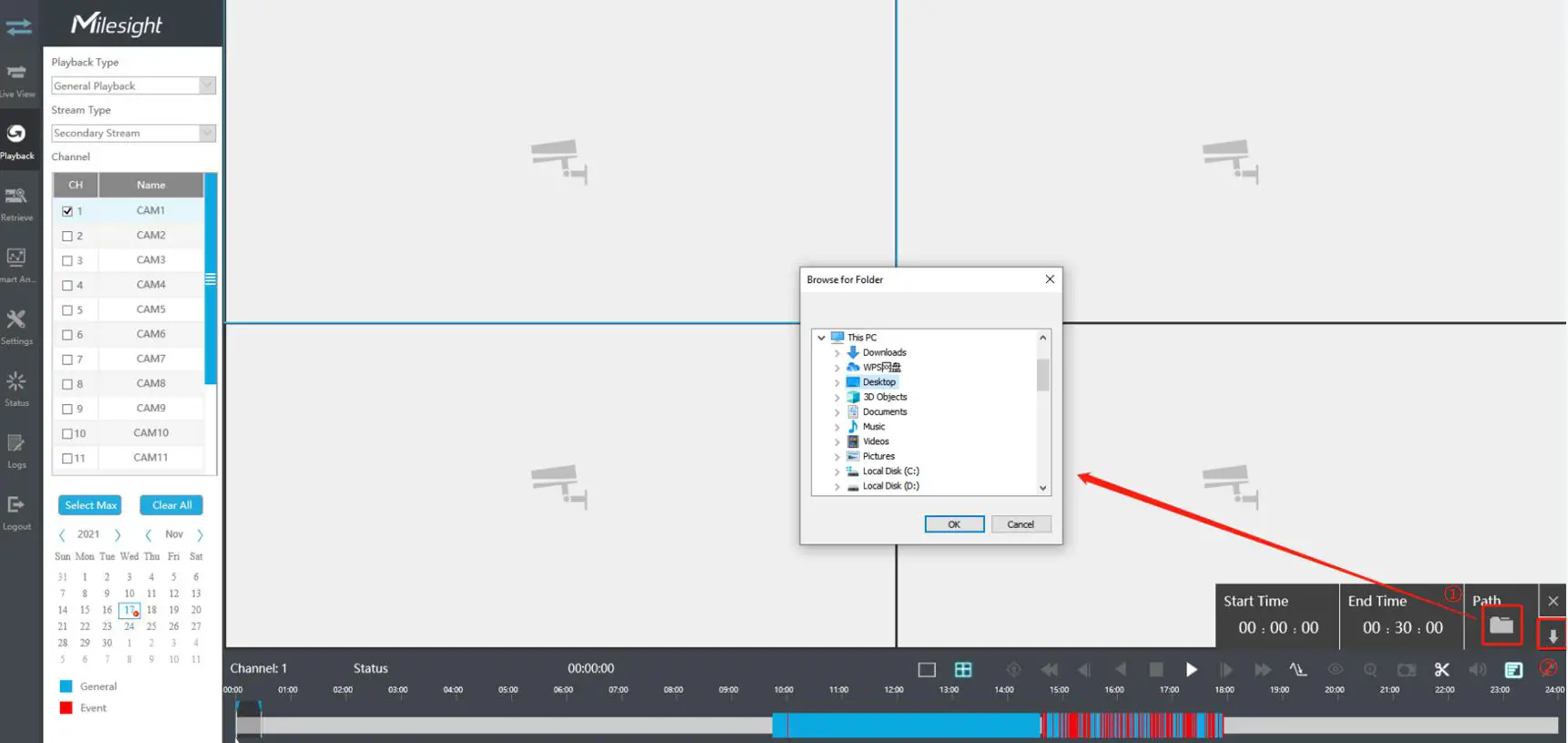
Select Recorded files for Backup. Select Playback Type and Stream Type, and select the channel and the date you want to backup, then select the start time and end time in the timeline by clicking.
Click the button to save the clipped video files to the File Management interface.
Step3:
On the File Management interface, select the video files and click “Export” button to back up the video files to your device.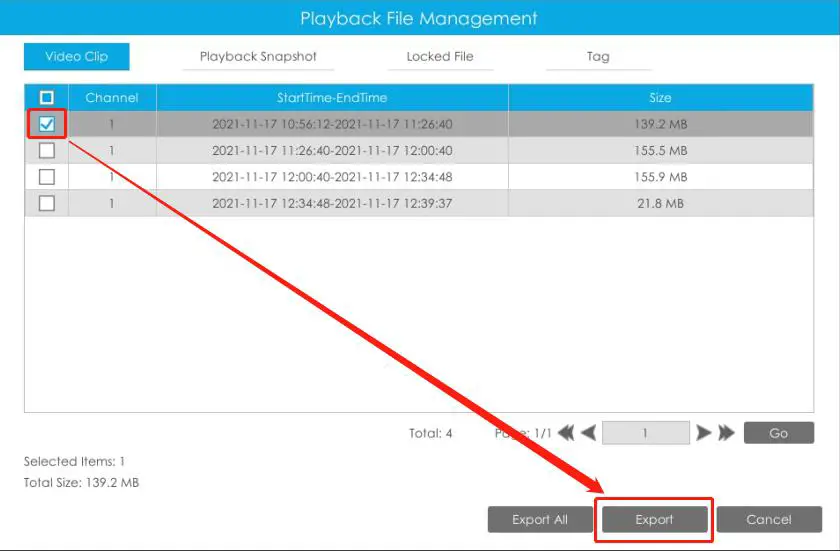
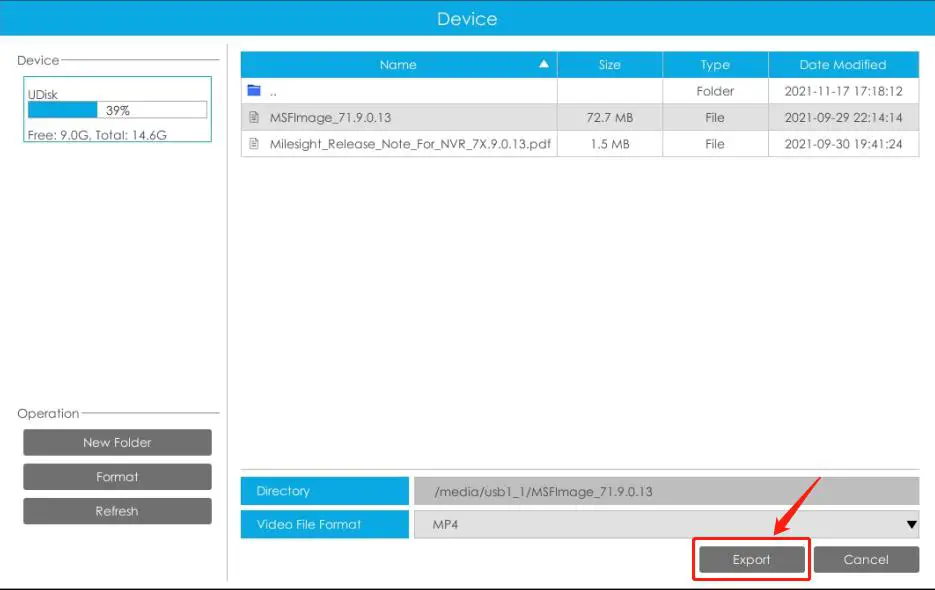
Or you can directly click the”Export All” button to back up all the video files.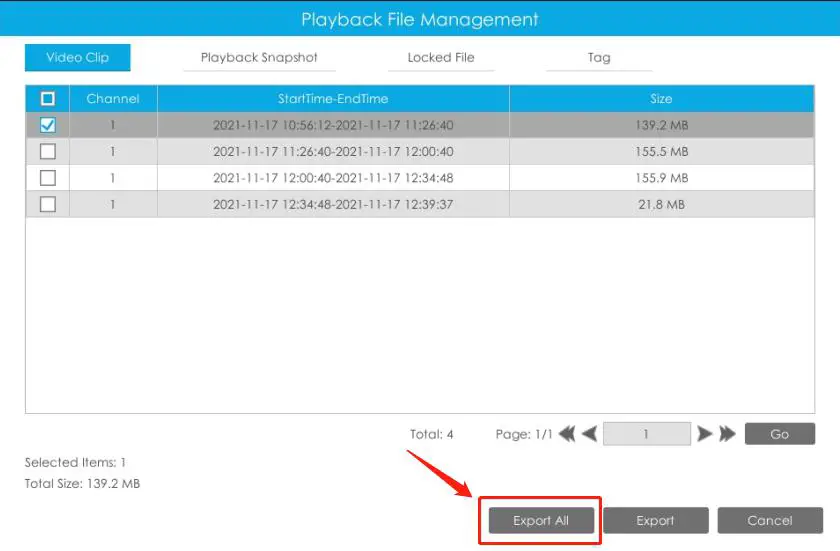
Step4:
A pop-up window will remind you of the download progress.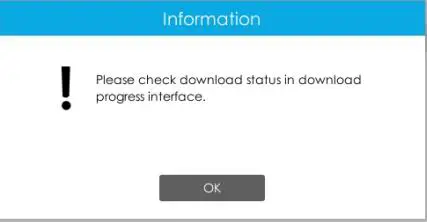
In browser
Step1:
Input your NVR’s IP address in your browser and click “ ”. Enter video playback interface.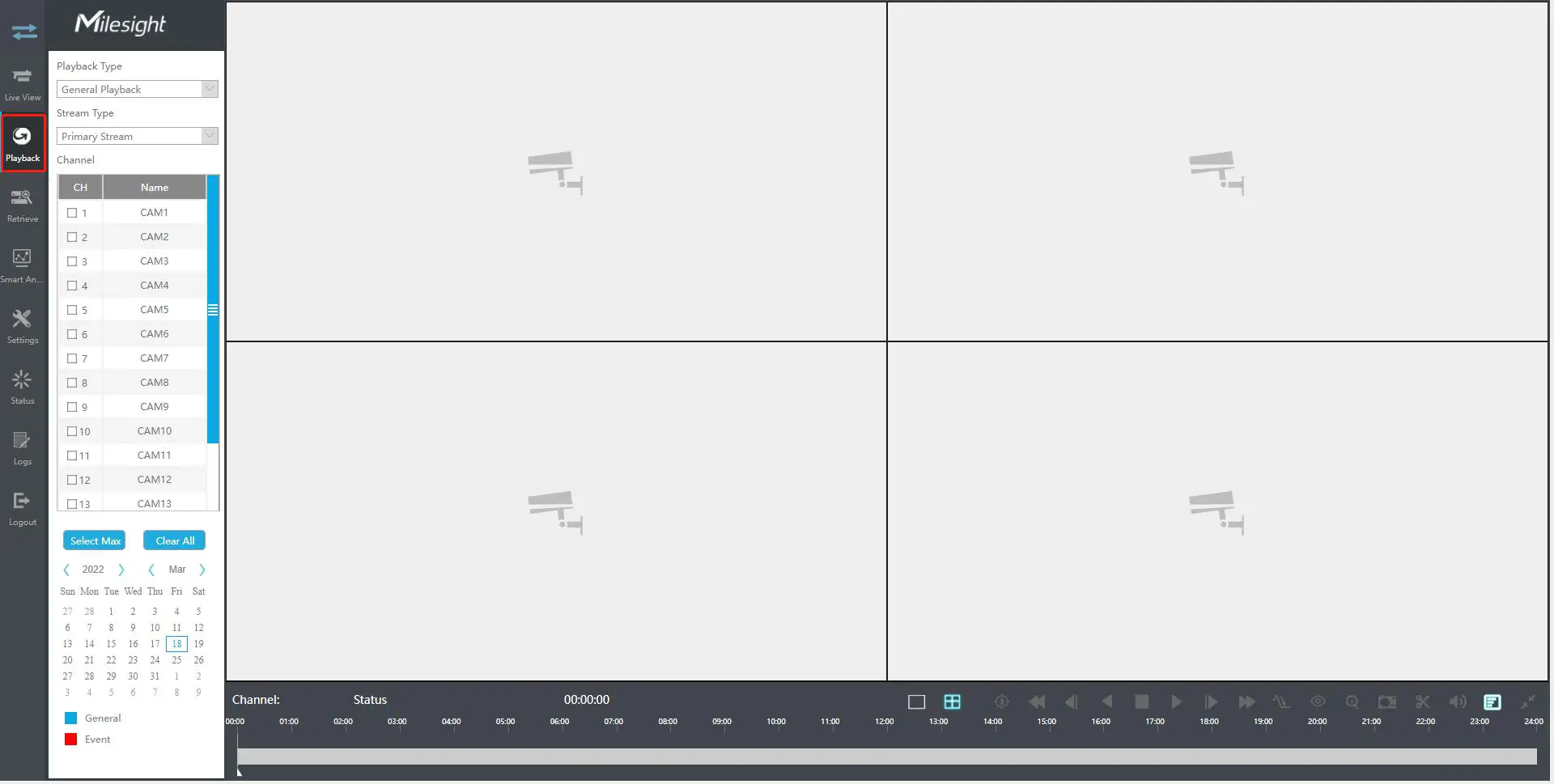
Step2:
Select Recorded files for Backup. Select Playback Type and Stream Type, and select the channel and the date you want to backup, then select the start time and end time in the timeline by clicking.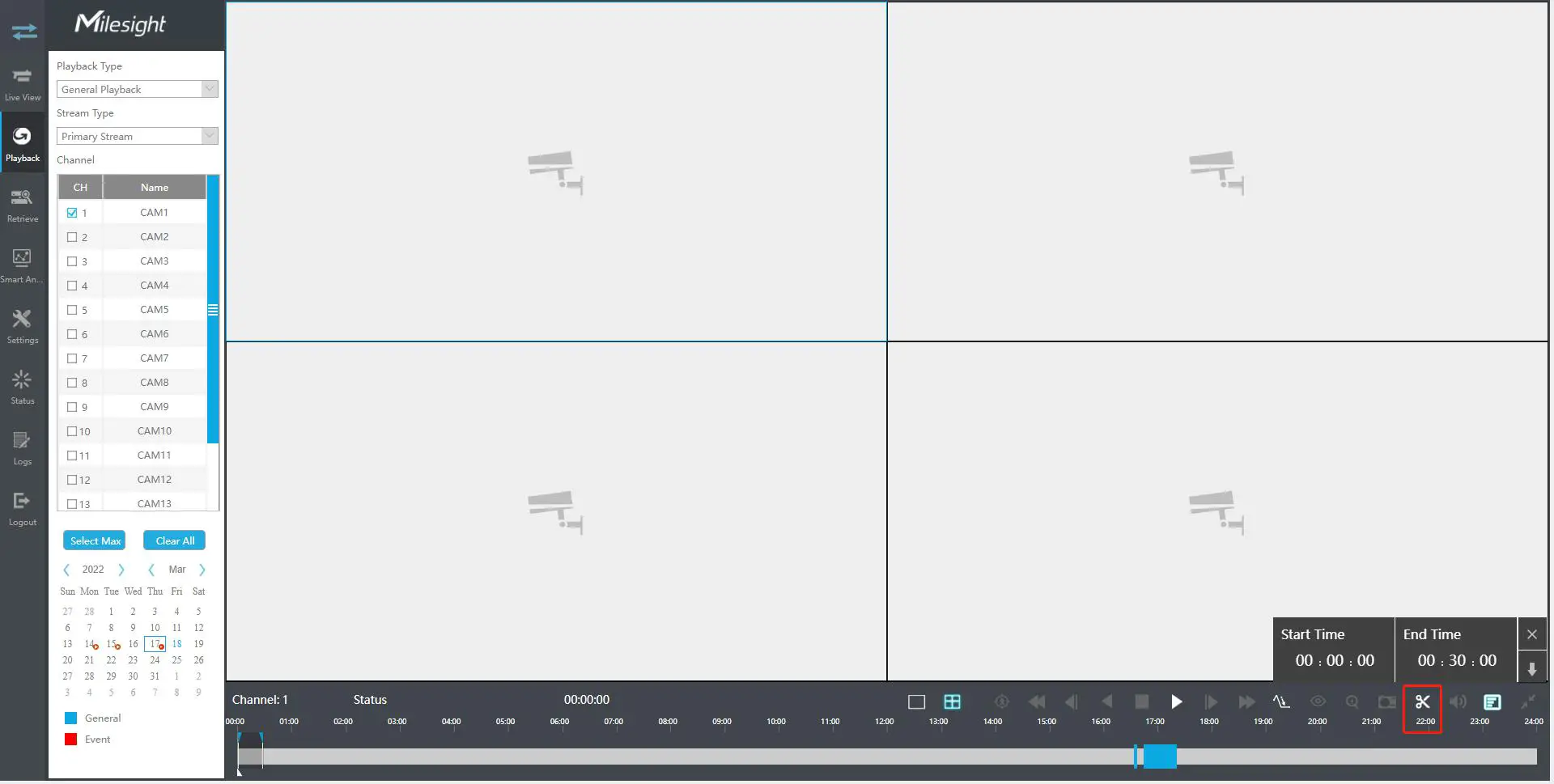
Step3: Click to select the path where you want to save your video files. Then click to backup.