
Quick Start GUIDE
© Xiamen Milesight loT Co„ Ltd.
EM 500 Series
Thank you for choosing Milesight product
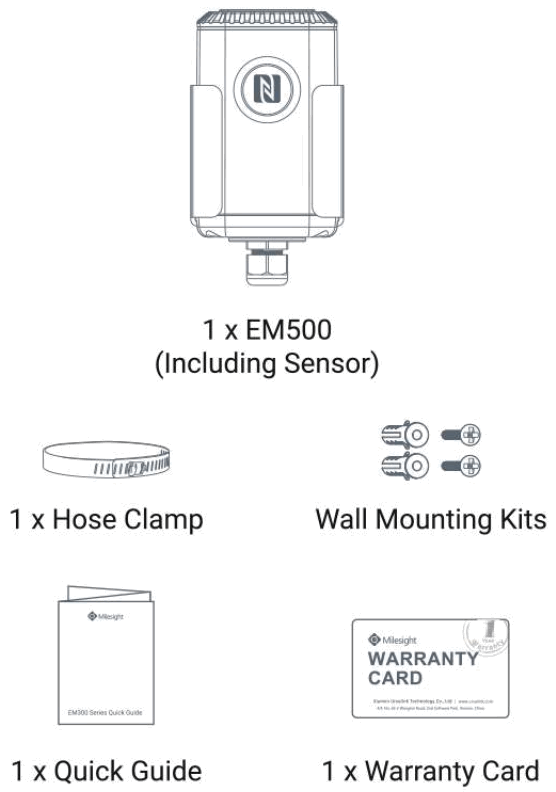
Packing List
Hardware Introduction
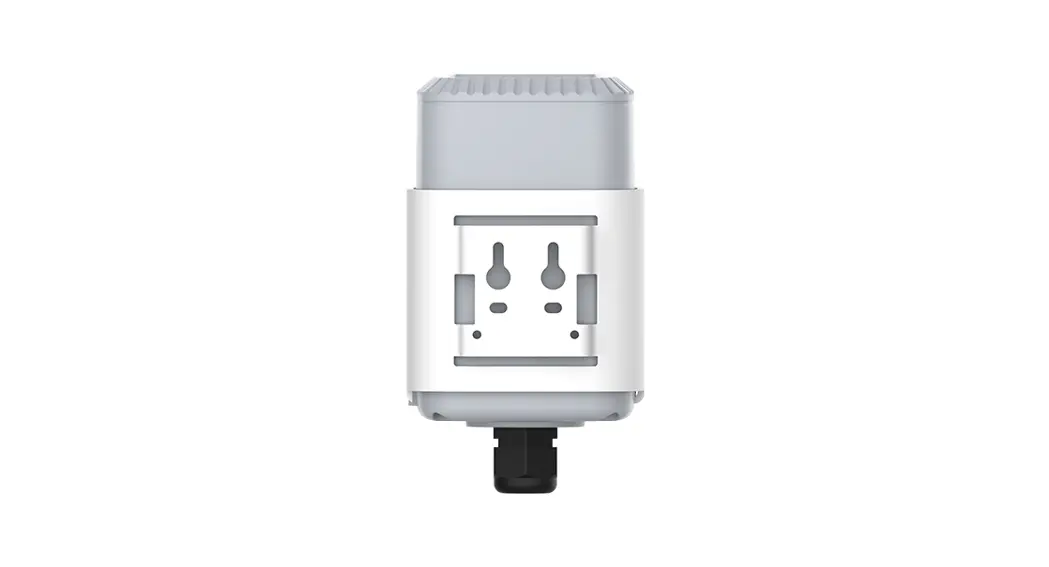
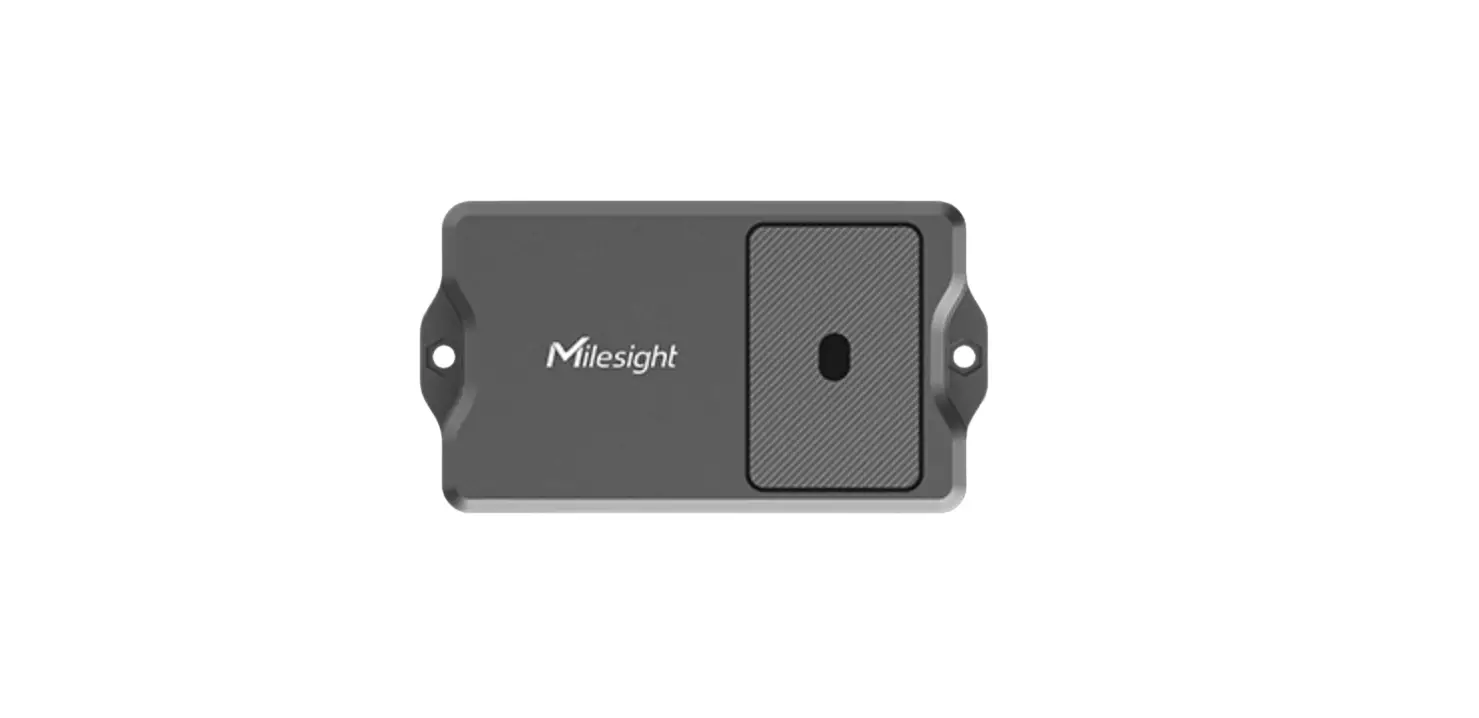
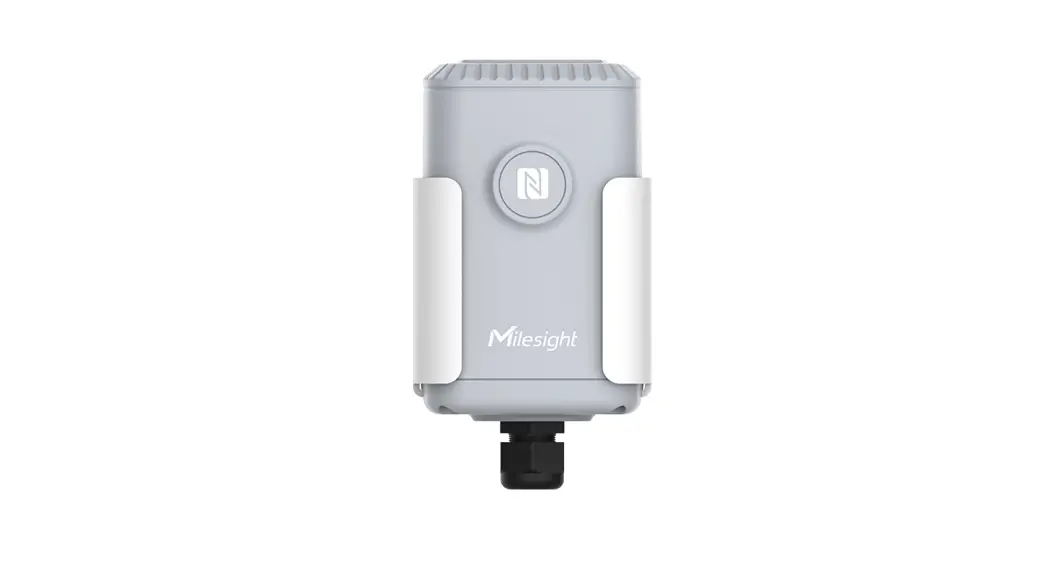
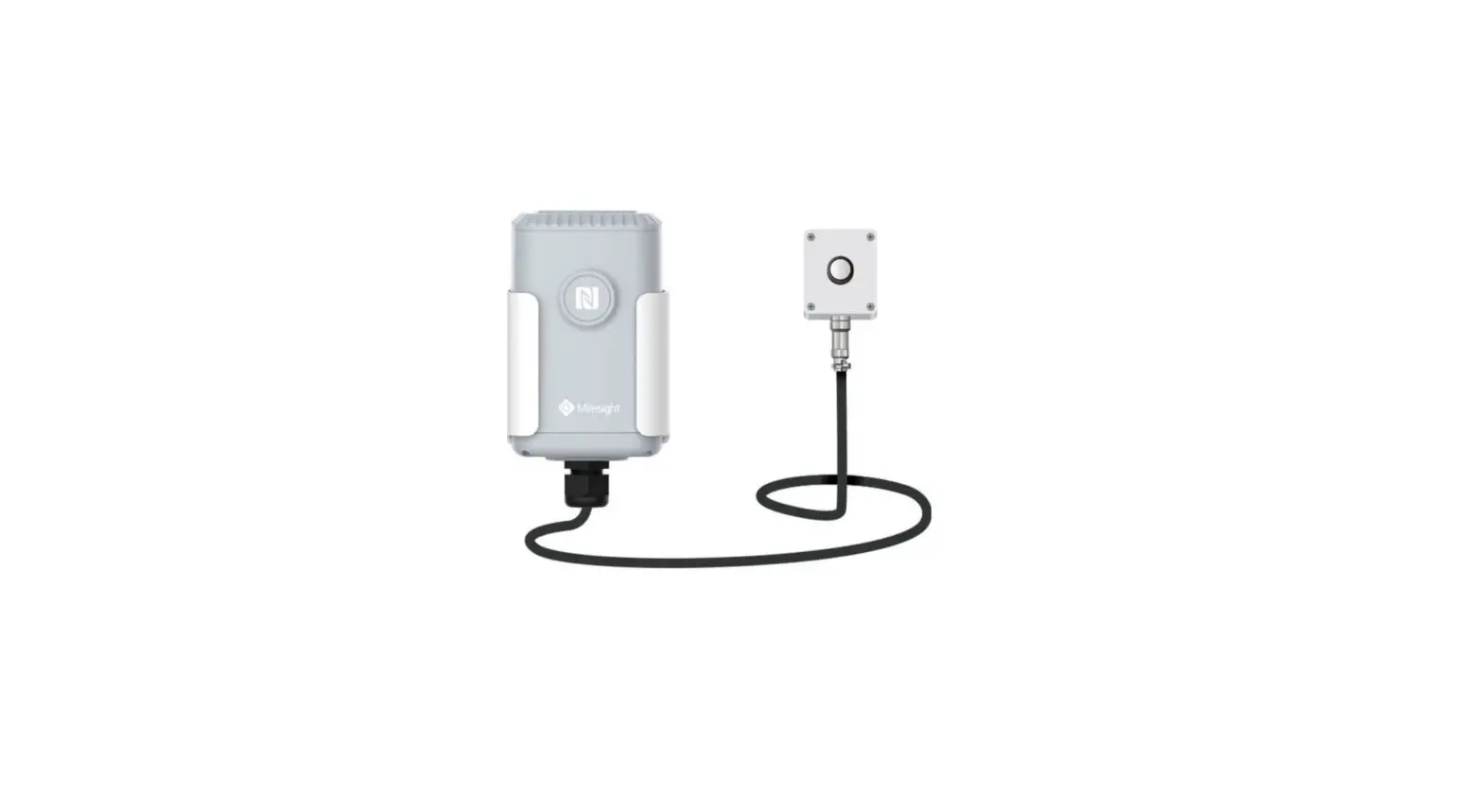
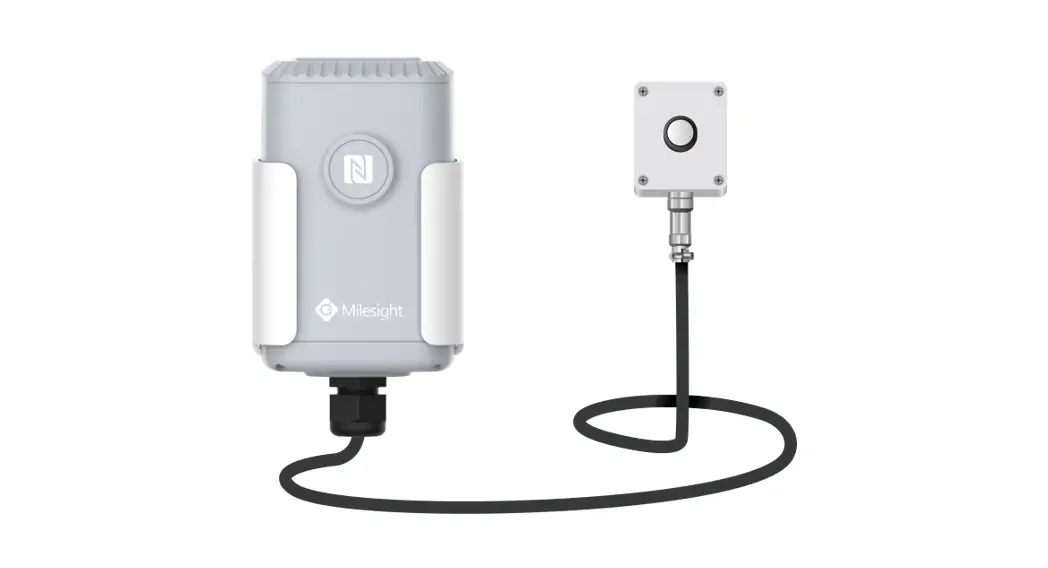
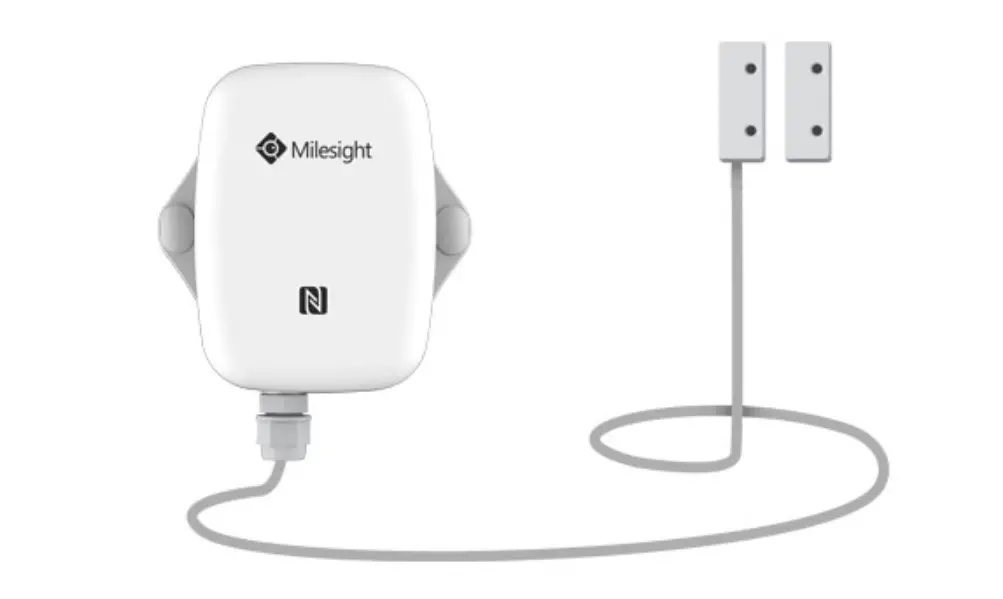
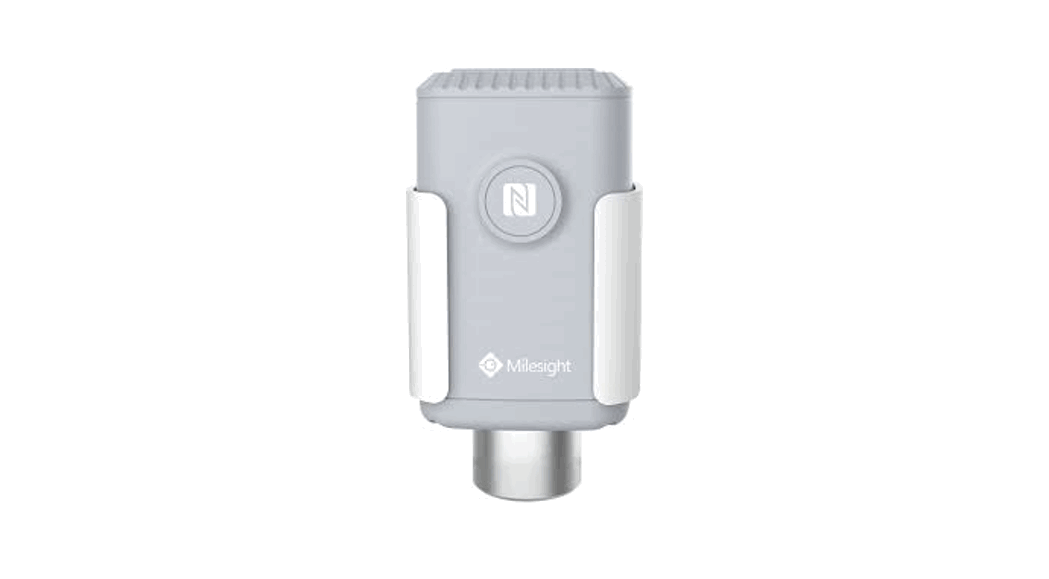
EM500 series sensors are made up of a LoRa transceiver and a sensor. Among them, ultrasonic sensors and gas sensors are combined with the LoRa transceiver.
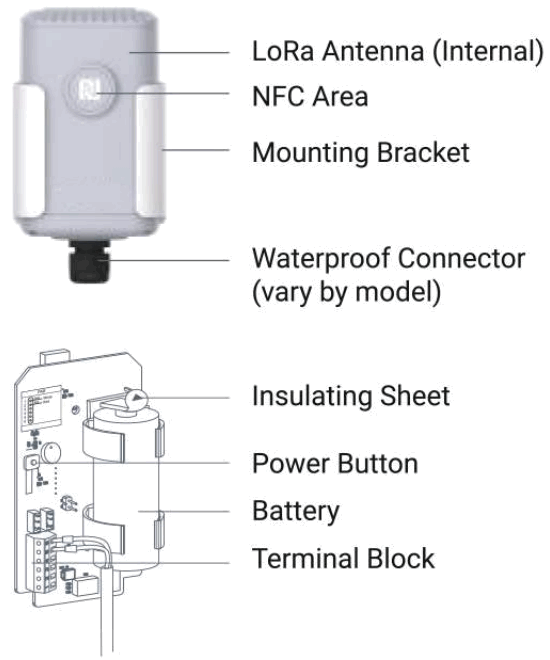
| Function | Action | LED |
| Turn On | Press and hold the button for more than 3 seconds. | off → On |
| Turn Off | Press and hold the button for more than 3 seconds. | On → Off |
| Reset | Press and hold the button for more than 10 seconds. | Blinks quickly. |
| Check On/Off Status | Quickly press the power button. | Light On: The device is on. |
| Light Off: Device is off. |
Assembly and Preparation
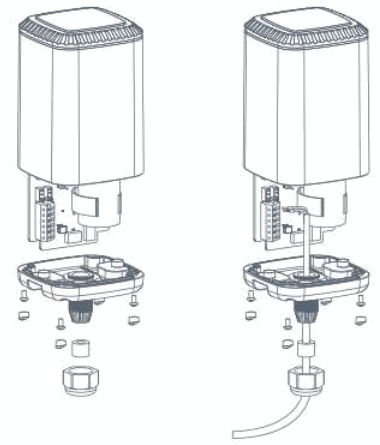
Follow the steps below to complete assembly and preparation before using the EM500 sensor.
Note:
- Each sensor is matched with a certain LoRa transceiver.
- Skip the following steps 2 and 3 if the sensor is combined with the transceiver.
Steps:
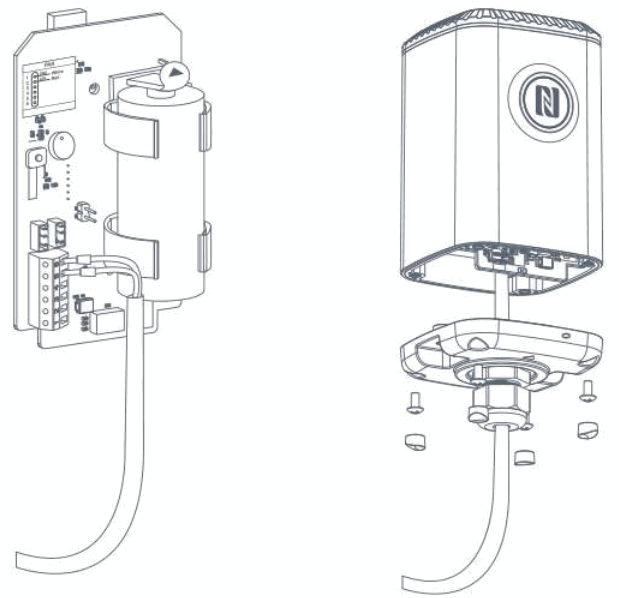
- Take off the mounting bracket, remove the cap, rubber seal, and the screws on the bottom of the device, and then take off the enclosure cover.
- Pass the cable through the cap, rubber seal, and enclosure cover.

- Pull out the motherboard, insert and lock the wires according to the label attached.
- Remove the battery insulating sheet.
- Put the motherboard back and restore everything in its due position.

Configuration Guide
Method 1: Configured by NFC
Preparation:
- Smartphone (NFC supported)
- Milesight Toolbox App: App can be downloaded on Google Play or Apple Store.
Steps:
Open the “Milesight ToolBox” App and attach the smartphone with an NFC area to read/write the device until App shows a successful prompt. If a smartphone is used for configuration for the first time, it’s necessary to enter the password. (Default password: 123456)
Besides, the EM500 series can be configured by dedicated NFC reader which can be purchased from Milesight loT.
Method 2: Configured by USB
Preparation:
- USB Type-C cable
- PC (Windows 10 is recommended)
- ToolBox: https://www.milesight-iot.com/software-down-load/
Steps:
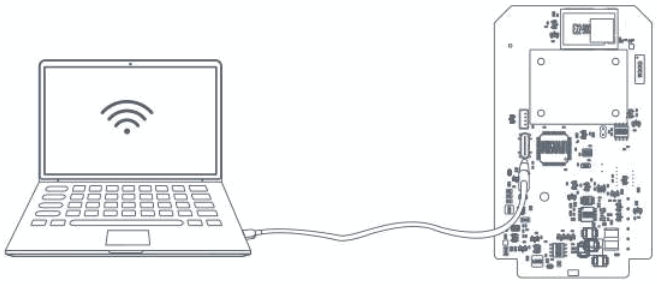
Connect the device to the computer via type-C port and open the ToolBox, select serial port as USB port and type as “General”, then type the password to log in to ToolBox. (Default password: 123456)
Installation
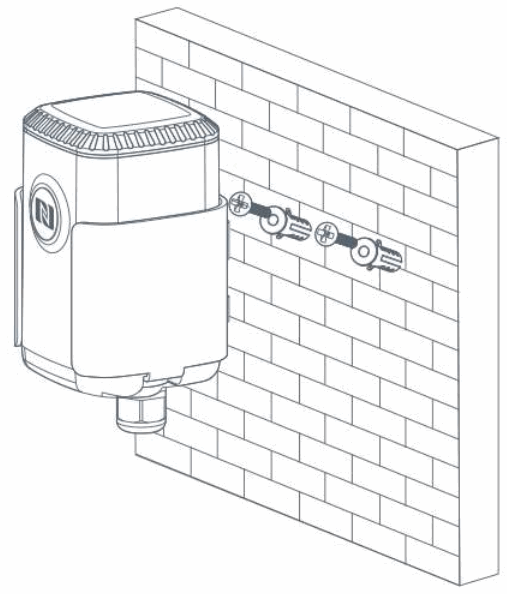
Wall Mounting:
Drill two mounting holes according to the marks on the wall, then fix wall plugs and mounting screws into the holes. Hang the device on the wall.
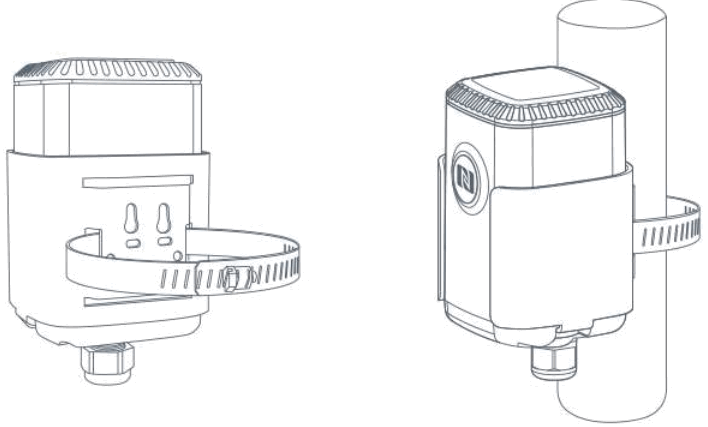
Pole Mounting:
Straighten out the hose clamp and slide it through the rectangular holes in the mounting bracket, wrap the hose clamp around the pole. Use a screwdriver to tighten the locking mechanism by turning it clockwise.
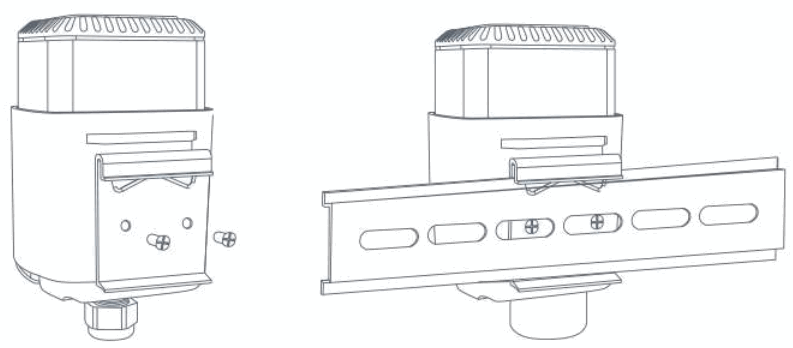
DIN Rail Mounting:
Fix the mounting clip to the mounting bracket with 2 screws and hang the device to the DIN rail.
 |  |
| https://www.milesight-iot.com/milesight-cloud-app-download/ |