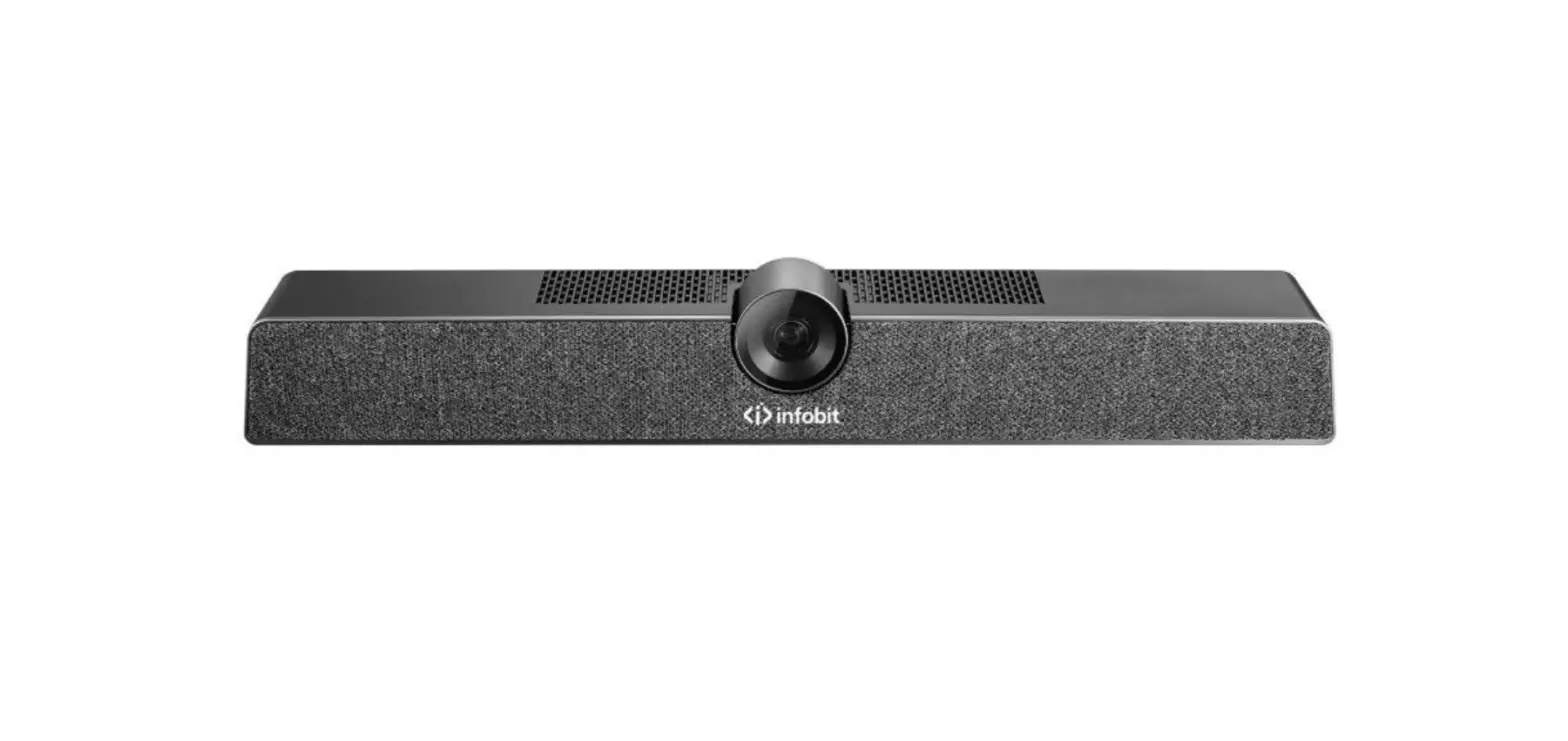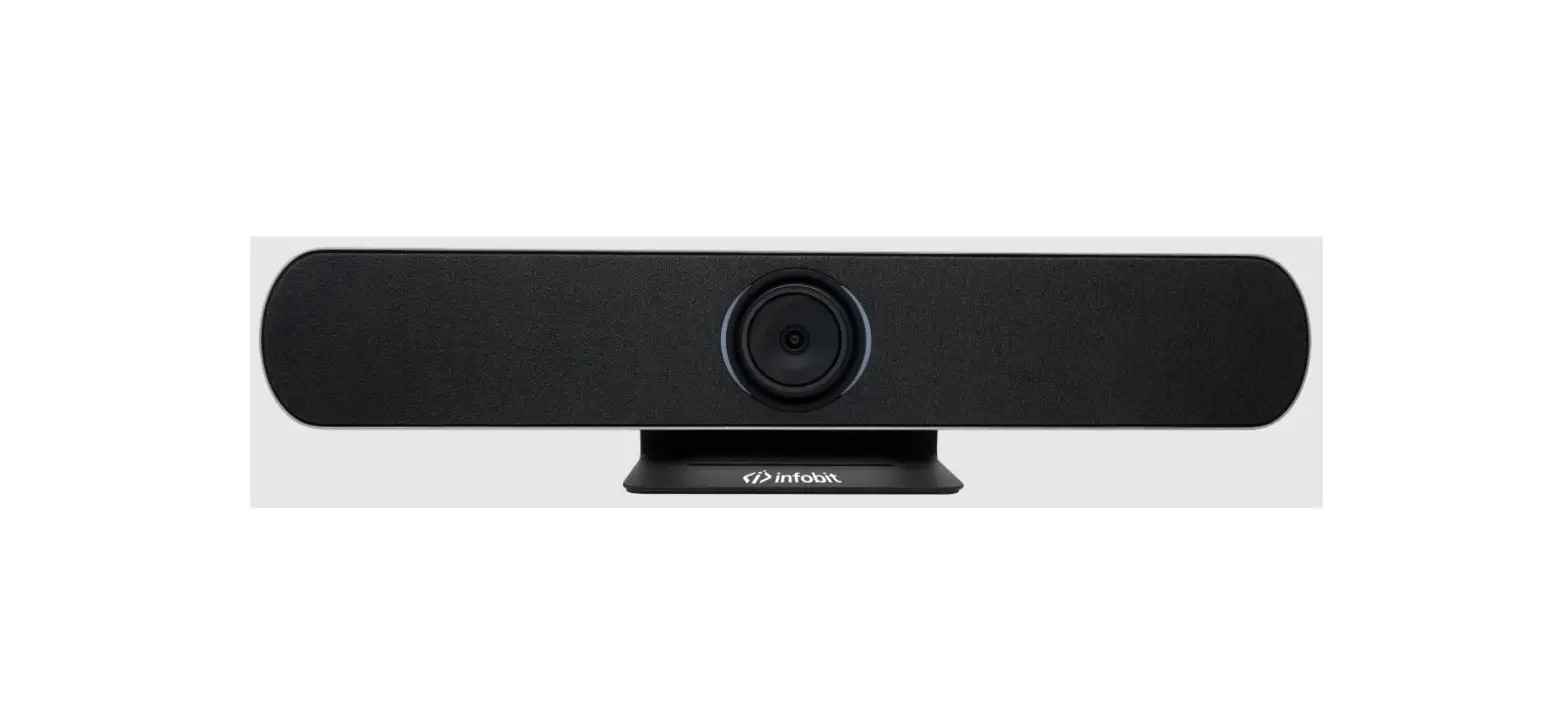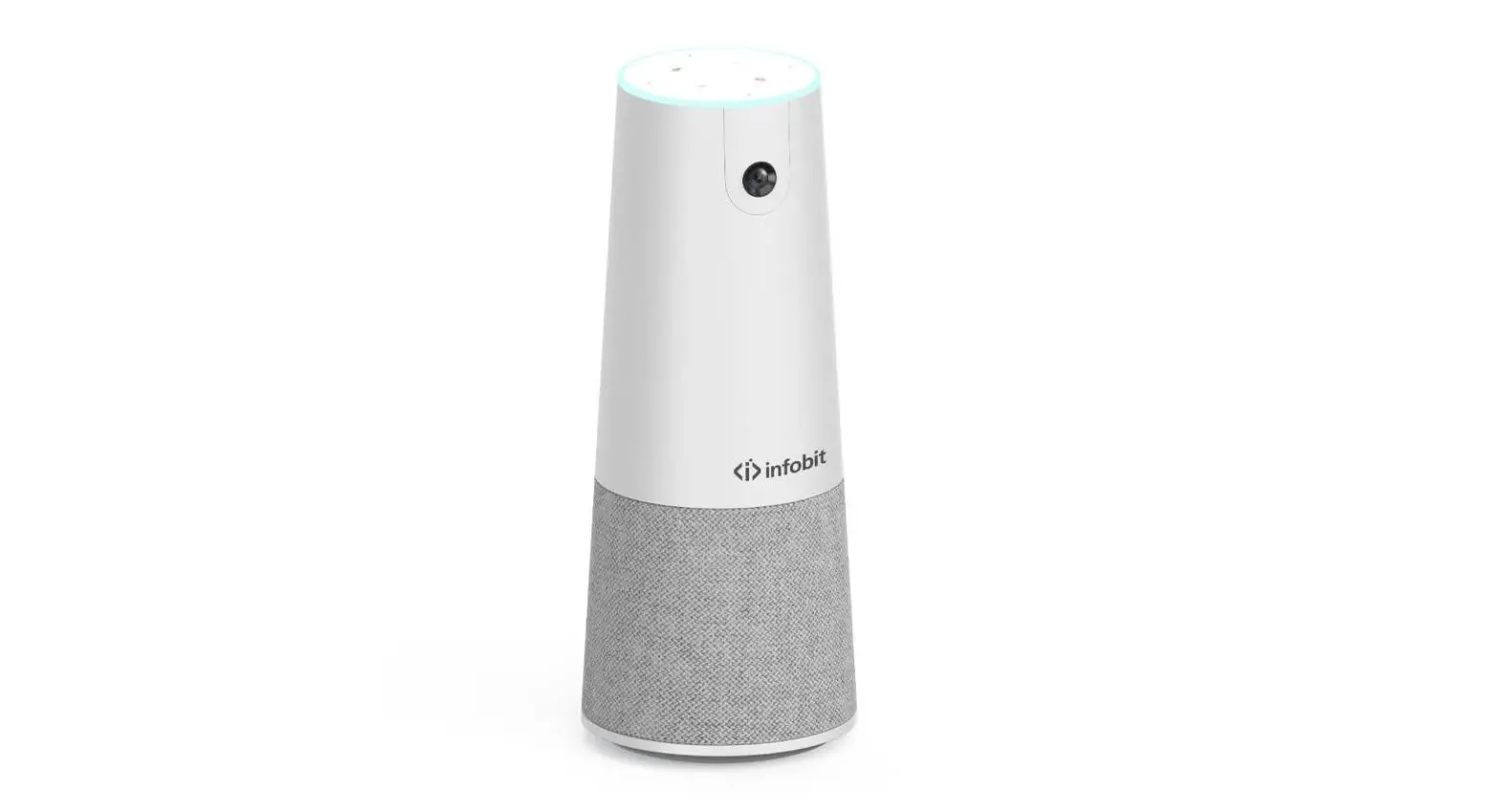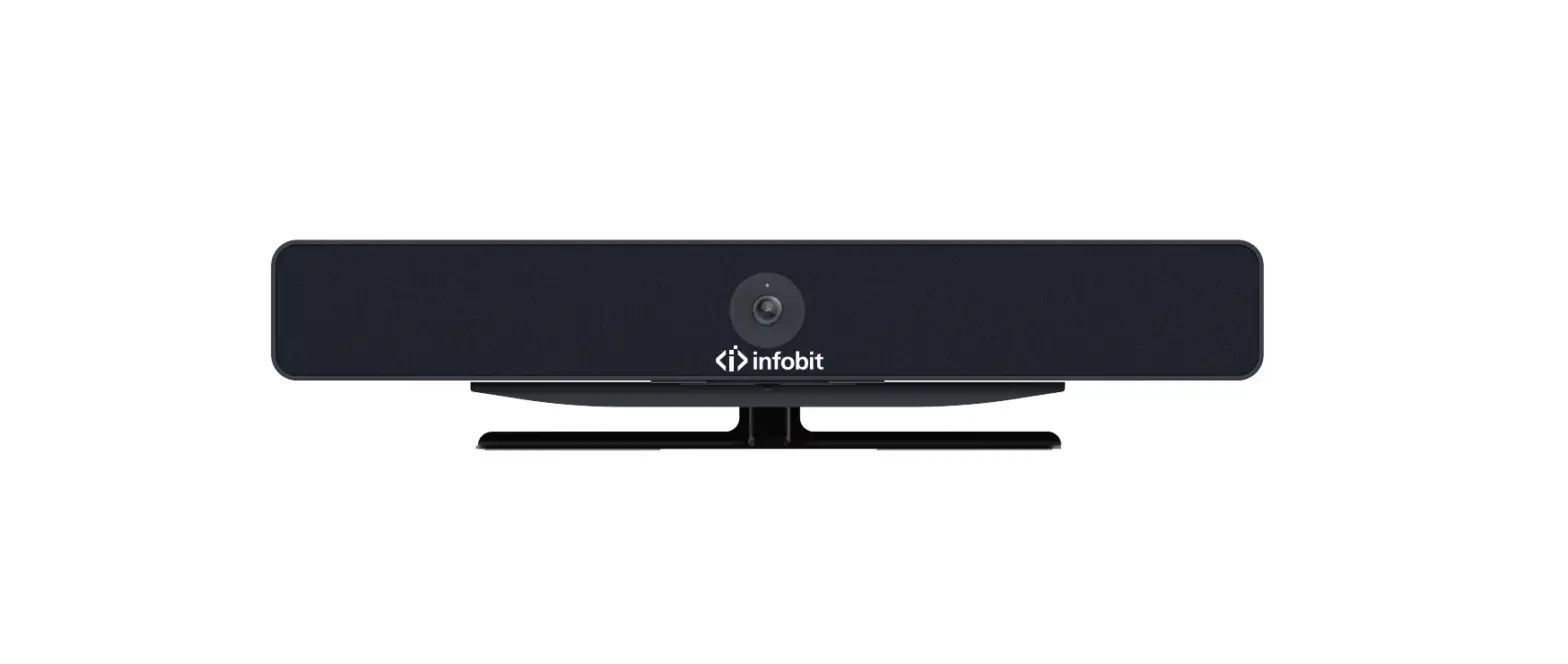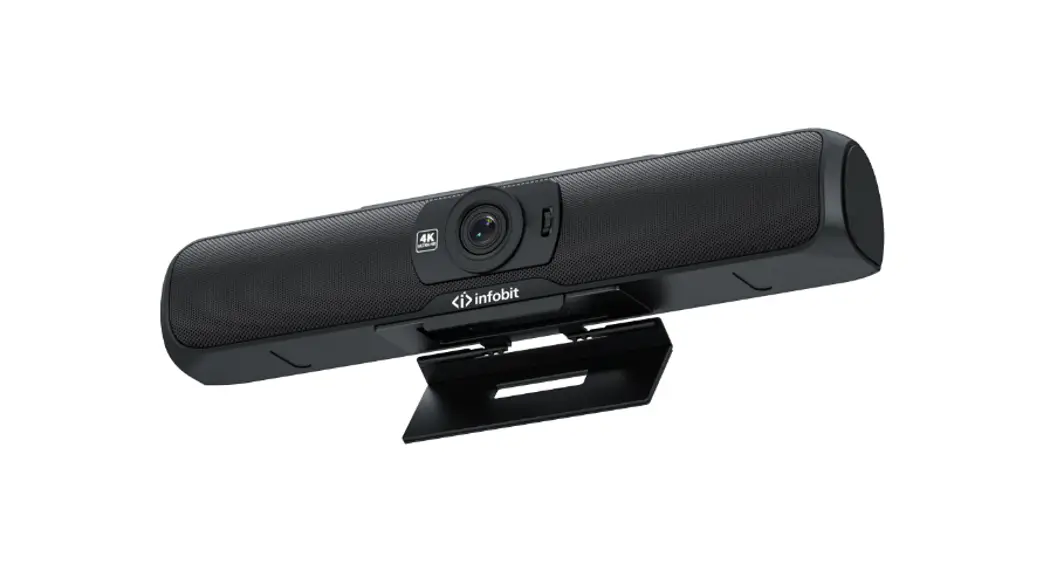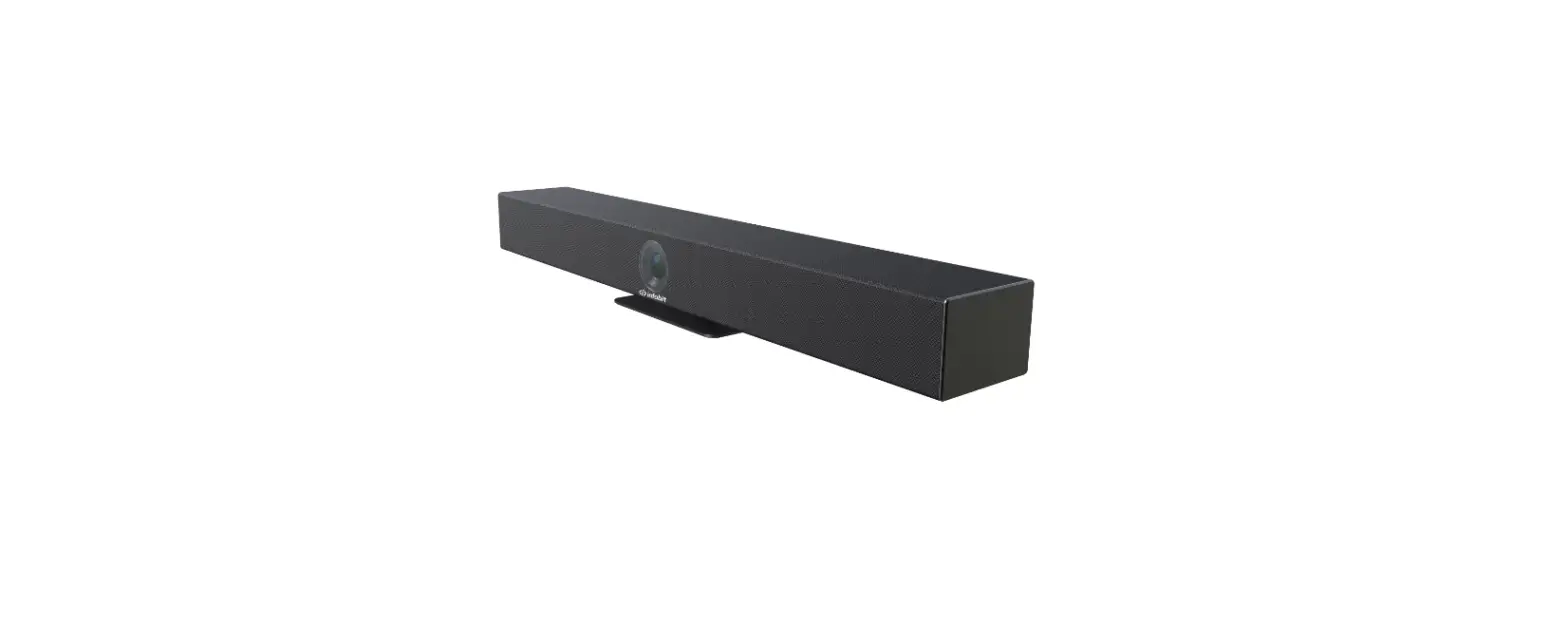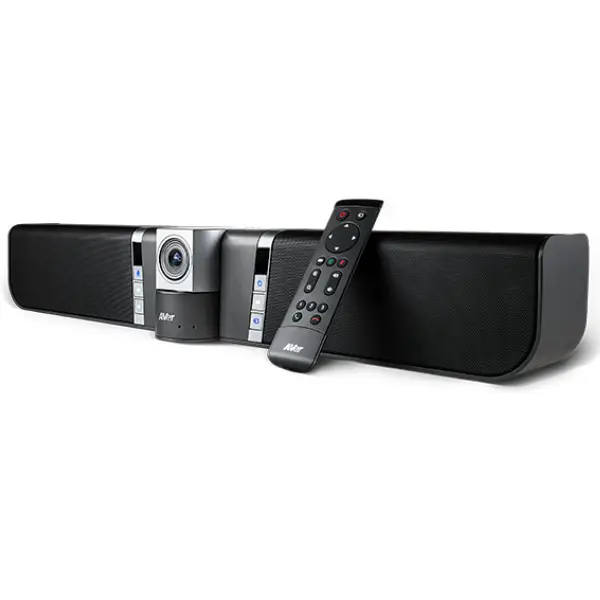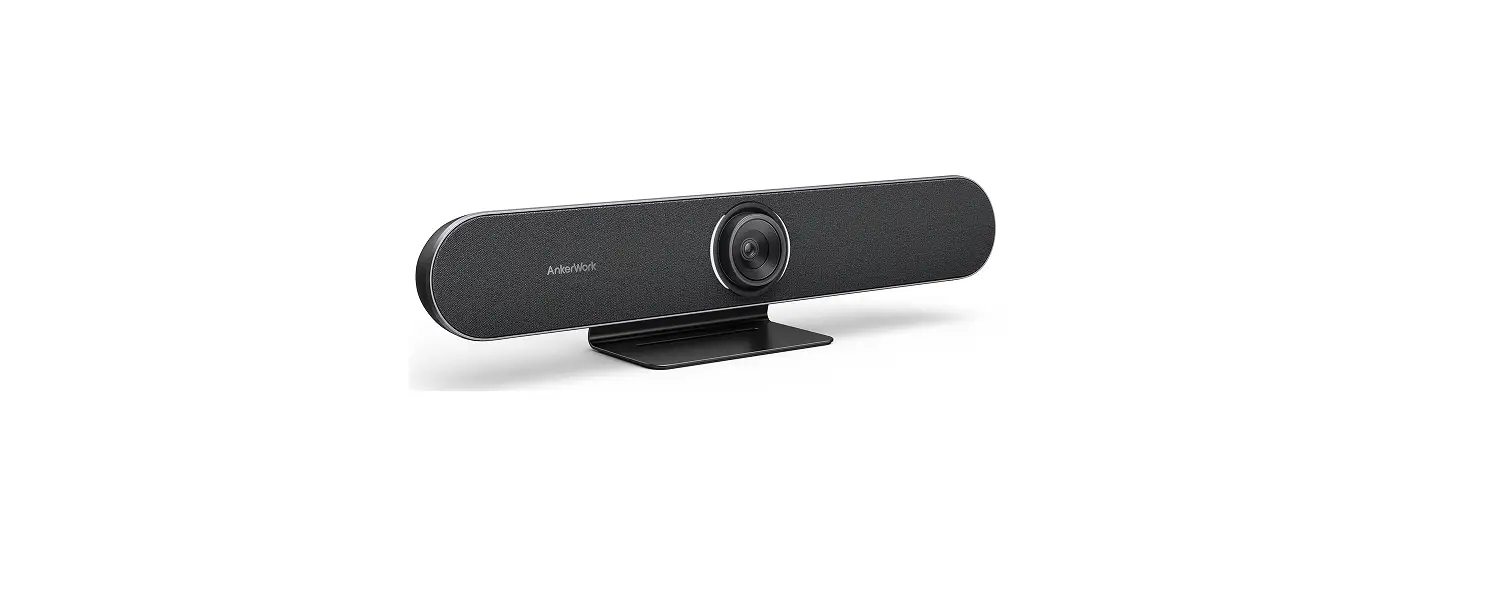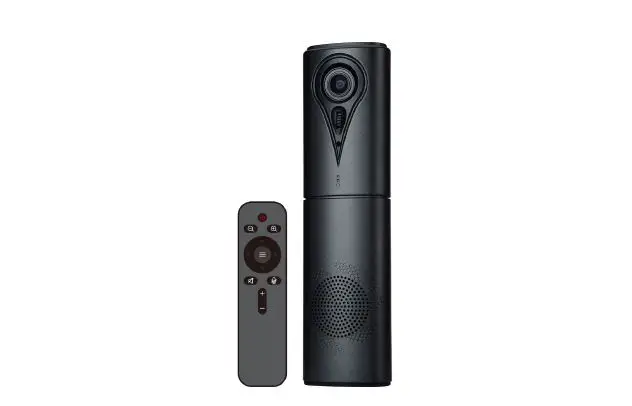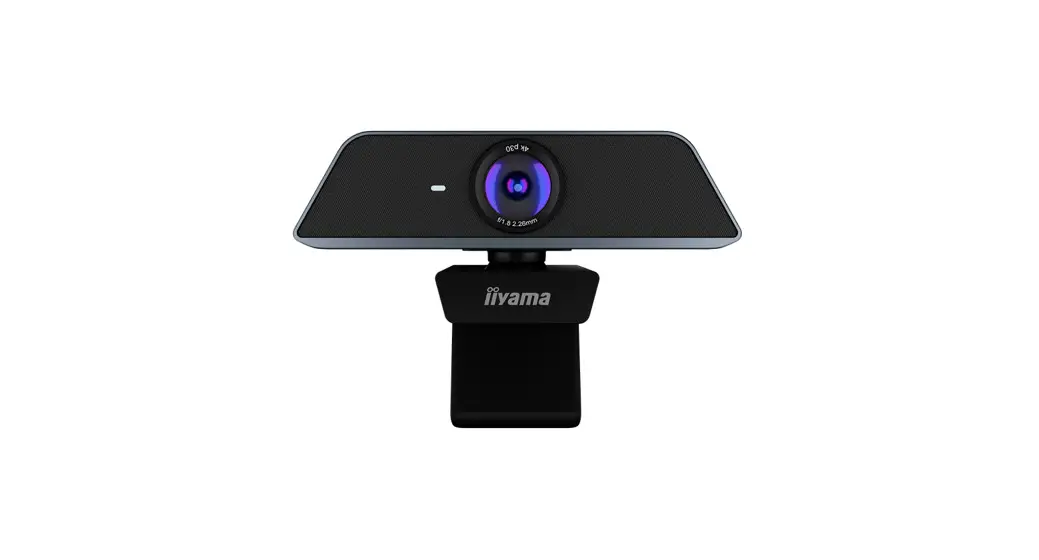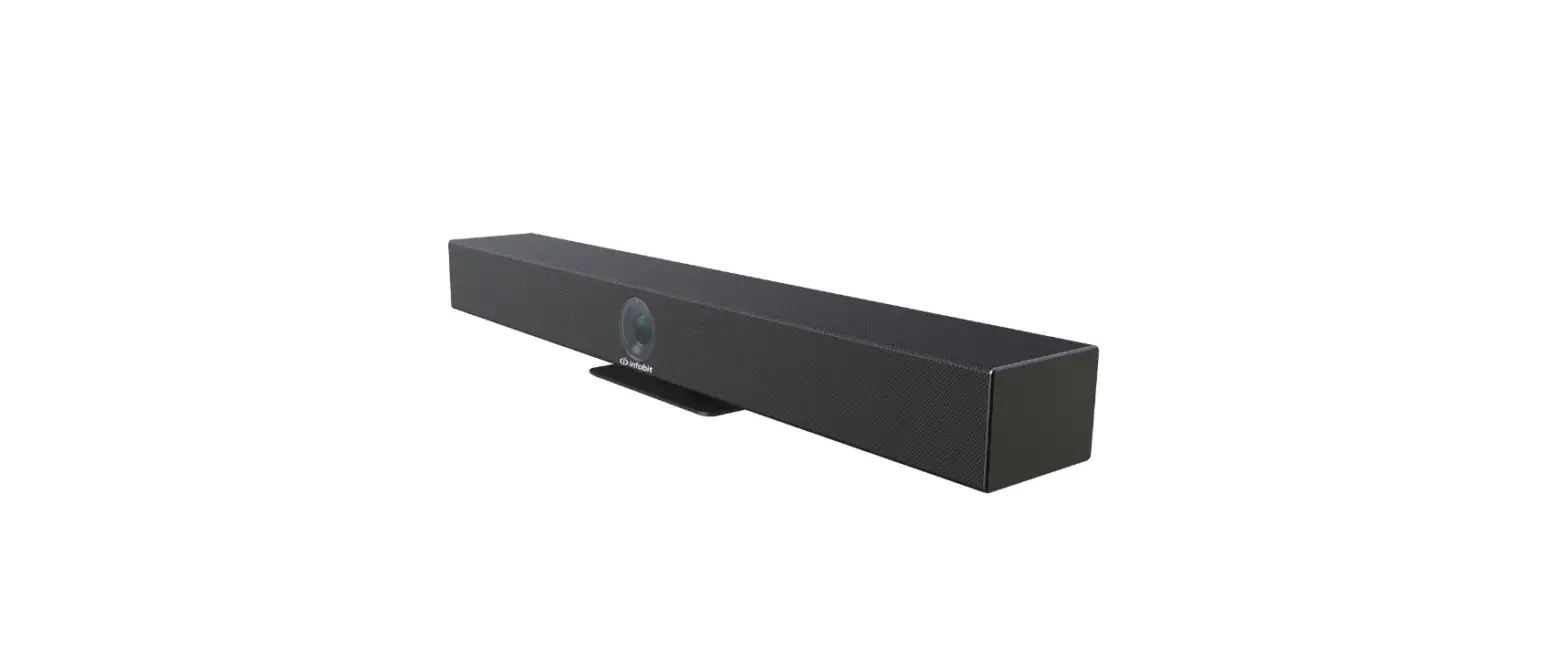
 infobit iCam VB30 USB All-in-One Conference Camera Video Bar
 infobit iCam VB30 USB All-in-One Conference Camera Video Bar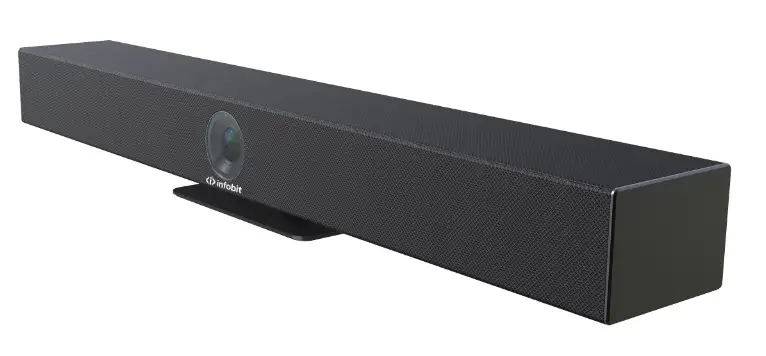
Attentions
This manual introduces functions, installation and operations for this camera in details. Please read this manual carefully before installation and use.
How to use
To prevent damage to this product or any product connected to it, this product can only be used within the specified range.
- Do not expose the product to rain or moisture.
- To prevent the risk of electric shock, do not open the case. Installation and maintenance should only be carried out by qualified technicians.
- Do not use the product beyond the specified temperature, humidity or power supply specifications.
- Wipe it with a soft, dry cloth when cleaning the camera lens. Wipe it gently with a mild detergent if needed. Do not use strong or corrosive detergents to avoid scratching the lens and affecting the image.
- Electrical Safety
Installation and use of this product must strictly comply with local electrical safety standards. - Handle with care
Avoid damage to product caused by heavy pressure, strong vibration or immersion during transportation, storage and installation. - Install with Caution
- Do not rotate the camera head violently, otherwise, it may cause mechanical failure;
- This product should be placed on a stable desktop or another horizontal surface. Do not install the product obliquely, otherwise it may display inclined image;
- The housing of this product is made of organic materials. Do not expose it to any liquid, gas or solids which may corrode the shell.
- Ensure there are no obstacles within rotation range of the holder.
- Do not power on before completely installation.
- Do not Disassemble the Product without Permission
This product contains no parts which can be maintained by users themselves. Any damage caused by dismantling the product by user without permission is not covered by warranty. - Magnetic Interference
Electromagnetic fields at specific frequencies may affect the image. This product is Class A. It may cause radio interference in household application. Appropriate measure is required.
Quick Installation Instructions
Product Interface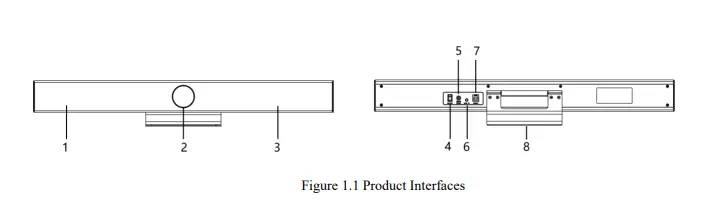
- Speaker
- Lens
- Built-in Mic
- Power Switch
- Power
- Line in
- USB3.0
- Bracket
Product Use
- Installation: Fix the device to the wall, over the display screen or directly put it on the desktop.
- Power on: Connect the DC12V power adapter to the power input socket.
- The USB interface is plugged into the computer, video conference terminal or other USB input device through the USB cable, open the conference software, select the image and audio device output and then use it ;
Product Overview
Product Introduction
Dimension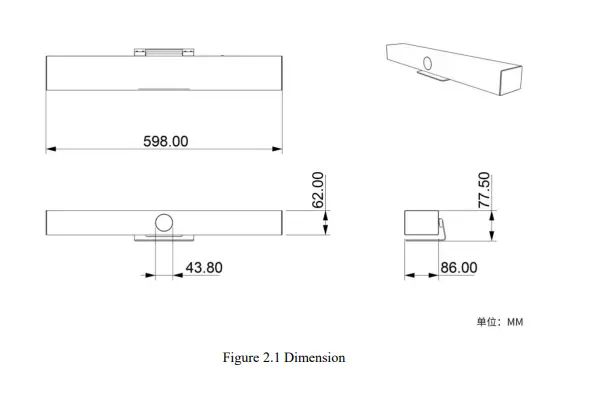
Accessories
Standard accessories in the box
|
Accessories |
Standard | User Manual |
| 5m USB2.0 Cable | ||
| Remote Control | ||
| Power Adapter | ||
| Packing List | ||
| Wall Bracket |
Product Features
Features with compact design, crystal clear audio and excellent video quality, it uses advanced AI intelligent algorithms, integrates multiple AI intelligent framing technologies such as facial detection, sound positioning, and voice tracking. It automatically frame the meeting participants and adjust focus area to present the best view. Real-time detection of the speaker’s position function enables the presenter to be focused in the view automatically. USB plug-and-play, easy connection to any video conferencing equipment any time anywhere.
It is an ideal solution for small and medium-sized meeting rooms.
- Integration: An one-piece design integrating a camera, microphone, and speaker;
- Voice Tracking: Built-in 6-mic array to achieve voice tracking function and real-time tracking of each speaker, allowing remote
participants to break the limitation of distance and create an immersive, face-to-face experience; - Built-in speaker: Built-in high-quality double speakers ensure every participant can hear clearly.
- Audio Processing: The audio processing algorithm adopts a high-fidelity 48K audio sampling rate, lossless audio transmission technology, supports AEC, AGC, ANS processing, and supports 6-meters full-duplex high-quality calls;
- Automatic Framing: Built-in face detection algorithm, that automatically detects participants and provides ideal framing and view;
- Ultra HD: Using 8M high-quality CMOS image sensors, collects 4K ultra-high-definition images, presents clear and lifelike ultra-high-definition videos, vividly show the expressions and actions of each speaker.
- Wide FOV: With 120 °super wide view angle and non-distortion lens to easily cover all participants in the meeting room;
Low noise and High Signal-to-noise ratio: Low-noise CMOS effectively guarantees the ultra-high signal-to-noise ratio of the picture. Adopting advanced 2D and 3D noise reduction technology to further reduce noise while ensuring image clarity; - Compatibility: Compatible with Windows7, Windows10, Mac OS 10.10 or higher operation system. Ideally interoperable with most popular cloud video platforms, including but not limited to the followings: Microsoft Teams, Skype for Business, Zoom Room and Zoom, Tencent Conference, Ding Talk, Huawei WeLink and etc.
Technical Parameters
| Module | Features | Description |
|
Video Camera | Image Sensor | 8 million pixel high-quality CMOS image sensor |
| Camera Angle | 116°(D)/107.2°(H)/74.1°(V) | |
| Zoom | 5x digital zoom | |
| Video Output | Up to 4K | |
| AI Smart Framing | Face detection & sound location & voice tracking | |
|
Audio | Microphone Type | 6-mic array |
| Pickup Distance | 6 meters | |
| Audio Processing | AEC & AGC & ANS & Sound source localization | |
| Speaker | 2*7W | |
| Controller | Remote Control | Infrared remote control |
|
Physical Interfaces | USB Interface | 1*USB3.0 (Type-B), compatible with USB2.0 |
| Audio Port | 1*3.5mm linear input | |
| Power Connector | HEC3800 power socket (DC12V) | |
| Wall Bracket | Standard wall mount bracket |
Product Use
Remote Instructions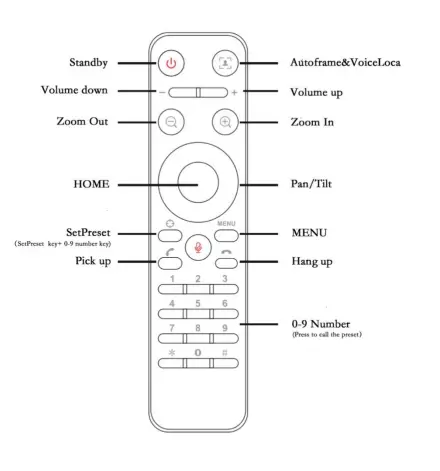
Menu Settings
Main Menu
Press [MENU] button in MJPG, YUY2, NV12 or H264 compression encoding formats.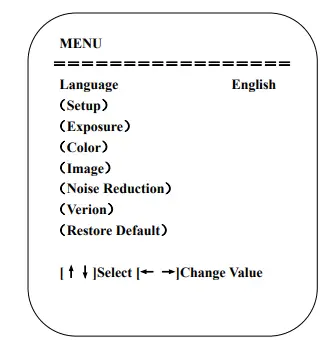
- Language
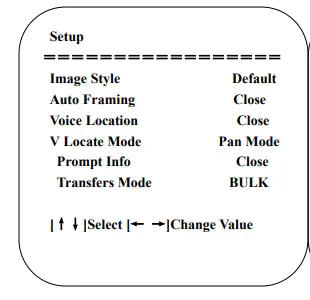
Move the pointer to (Language) in the main menu, press 【← →】 to select the language. - Setting
Move the pointer to (Settings) in the main menu, press [HOME] to get into the exposure page as shown below.
- Image style: Default/Standard/Clear/Bright/Soft
- Auto Framing: on/off
- Voice Locating: on/off
- Switching Mode: pan mode/movie mode
- Prompt Info: on/off
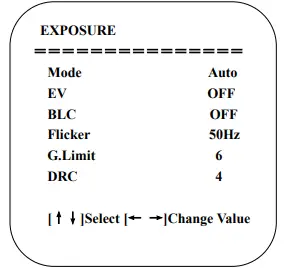
- Explosure
In the main menu, move the pointer to (Exposure), and press [HOME] to enter the exposure page, as shown below.
Mode: automatic, manual, shutter priority, brightness priority
Exposure Compensation: on/off (only valid in auto mode)
Compensation Level: -7~7 (only valid when “Exposure Compensation” is on in automatic mode)
Backlight: On/Off (only valid in auto mode)
Anti-flicker: off, 50Hz, 60Hz (only valid in auto, aperture priority, brightness priority mode)
Gain Limit: 0~15 (only valid in auto, aperture priority, brightness priority mode)
Dynamic Range: 1~8, closed
Shutter priority: 1/30, 1/50, 1/60, 1/90, 1/100, 1/120, 1/180, 1/250, 1/350, 1/500, 1/1000 , 1/2000, 1/3000, 1/4000, 1/6000, 1/10000 (only valid in manual and shutter priority mode)
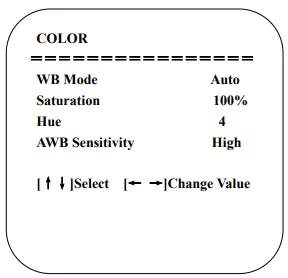
Brightness: 0~23 (only valid in brightness priority mode) - Color
Move the pointer to (Color) in the main menu, and press [HOME] to get into the color page, as shown below
WB Mode: automatic, manual, white balance, a key, specified color temperature
AWB Sensitivity: high, medium, low (valid only in automatic mode)
Saturation: 60%, 70%, 80%, 90%, 100%, 110%, 120%, 130%, 140%, 150%, 160%, 170%, 180%, 190%, 200 %
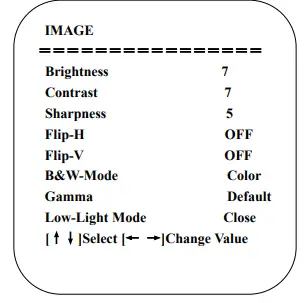
Chroma(Hue): 0~8 - Image
Move the pointer to (Image) in the main menu, and press [HOME] to get into the image page, as shown below.
Brightness:Settable:0~14
Flip-H:On/Off
Contrast:0~14
Flip-V:On/Off
Gamma Curve:Default.0.34.0.39.0.47.0.50
Sharpness:0~15
B&W Mode : Color, Black and White
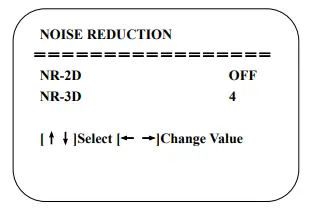
Low-light Mode:On/Off - Noise Reduction
Move the pointer to (Noise Reduction) in the main menu, press [HOME] to get into the noise reduction page, as shown below.
2D Noise Reduction:Settable:Auto, Off, 1-7
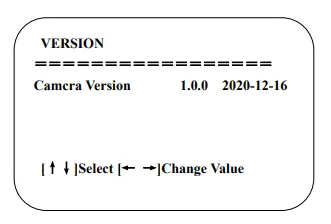
3D Noise Reduction:Off, 1-8 - Version

Move the pointer to (version) in the main menu. - Restore Default
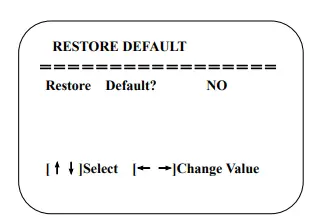
Move the pointer to (Reset) in the main menu, press [HOME] to get into the reset page, as shown below.
Notice:Color style and video format will not be restored to factory default
Maintenance and Troubleshooting
Product Maintenance
- If camera is not used for long time, please turn off power adapter switch and AC plug.
- Use soft cloth or tissue to clean the camera cover.
- Use soft cloth to clean the lens; Use neuter cleanser if bad smeared. No use strong or corrosive cleanser or corrosive cleanser avoiding scuffing.
Troubleshooting
- No picture for video output Solution:
- Check whether the USB cable of the device is connected well and whether the power indicator is on
- Check whether the device is normal after power-off and restart
- Restart the computer to check whether it is normal
- Check whether the video output cable is normal
- Check whether the device is recognized normally, uninstall the device when it is displayed in the device manager that cannot be recognized normally, and reload it
- Sometimes there is no image Solution:
- Check whether the USB cable is normal
- Check whether the USB cable of the device is well connected
Copyright Statement
All the contents in this manual and its copyright are owned by the company. No one is allowed to imitate, copy, or translate this manual without the company’s permission. This manual contains no guarantee, standpoint expression or other implies in any form. Product specification and information in this manual is for reference only and subject to change without notice. All rights reserved. No reproducing is allowed without acknowledgement.
 infobit AV- 4K Matrix Switchers, Wireless Presentation, Active Optical Cable and Conference Camera- Meeting Room Solutions